
Knowledgebase (2337)
Children categories

Converting HTML to Word in Java is essential for developers building reporting tools, content management systems, and enterprise applications. While HTML powers web content, Word documents offer professional formatting, offline accessibility, and easy editing, making them ideal for reports, invoices, contracts, and formal submissions.
This comprehensive guide demonstrates how to use Java and Spire.Doc for Java to convert HTML to Word. It covers everything from converting HTML files and strings, batch processing multiple files, and preserving formatting and images.
Table of Contents
- Why Convert HTML to Word in Java
- Set Up Spire.Doc for Java
- Convert HTML File to Word in Java
- Convert HTML String to Word in Java
- Batch Conversion of Multiple HTML Files to Word in Java
- Best Practices for HTML to Word Conversion
- Conclusion
- FAQs
Why Convert HTML to Word in Java?
Converting HTML to Word offers several advantages:
- Flexible editing – Add comments, track changes, and review content easily.
- Consistent formatting – Preserve layouts, fonts, and styles across documents.
- Professional appearance – DOCX files look polished and ready to share.
- Offline access – Word files can be opened without an internet connection.
- Integration – Word is widely supported across tools and industries.
Common use cases: exporting HTML reports from web apps, archiving dynamic content in editable formats, and generating formal reports, invoices, or contracts.
Set Up Spire.Doc for Java
Spire.Doc for Java is a robust library that enables developers to create Word documents, edit existing Word documents, and read and convert Word documents in Java without requiring Microsoft Word to be installed.
Before you can convert HTML content into Word documents, it’s essential to properly install and configure Spire.Doc for Java in your development environment.
1. Java Version Requirement
Ensure that your development environment is running Java 6 (JDK 1.6) or a higher version.
2. Installation
Option 1: Using Maven
For projects managed with Maven, you can add the repository and dependency to your pom.xml:
<repositories>
    <repository>
        <id>com.e-iceblue</id>
        <name>e-iceblue</name>
        <url>https://repo.e-iceblue.com/nexus/content/groups/public/</url>
    </repository>
</repositories>
<dependencies>
    <dependency>
        <groupId>e-iceblue</groupId>
        <artifactId>spire.doc</artifactId>
        <version>14.6.0</version>
    </dependency>
</dependencies>
For a step-by-step guide on Maven installation and configuration, refer to our article**:** How to Install Spire Series Products for Java from Maven Repository.
Option 2. Manual JAR Installation
For projects without Maven, you can manually add the library:
- Download Spire.Doc.jar from the official website.
- Add it to your project classpath.
Convert HTML File to Word in Java
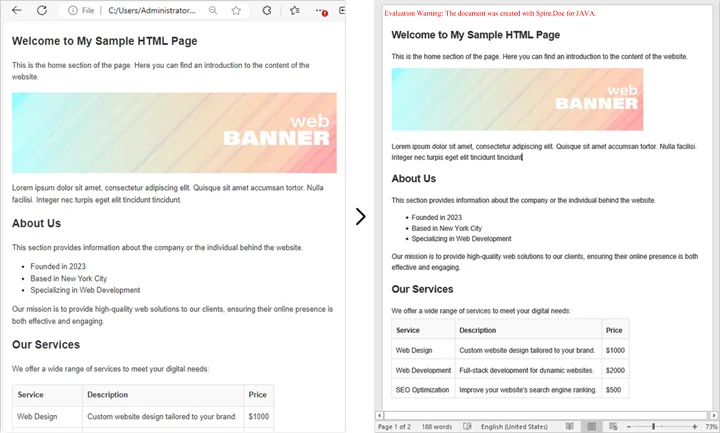
If you already have an existing HTML file, converting it into a Word document is straightforward and efficient. This method is ideal for situations where HTML reports, templates, or web content need to be transformed into professionally formatted, editable Word files.
By using Spire.Doc for Java, you can preserve the original layout, text formatting, tables, lists, images, and hyperlinks, ensuring that the converted document remains faithful to the source. The process is simple, requiring only a few lines of code while giving you full control over page settings and document structure.
Conversion Steps:
- Create a new Document object.
- Load the HTML file with loadFromFile().
- Adjust settings like page margins.
- Save the output as a Word document with saveToFile().
Example:
import com.spire.doc.Document;
import com.spire.doc.FileFormat;
import com.spire.doc.Section;
import com.spire.doc.documents.XHTMLValidationType;

public class ConvertHtmlFileToWord {
    public static void main(String[] args) {
        // Create a Document object
        Document document = new Document();

        // Load an HTML file
        document.loadFromFile("C:\\Users\\Administrator\\Desktop\\sample.html",
                FileFormat.Html,
                XHTMLValidationType.None);

        // Adjust margins
        Section section = document.getSections().get(0);
        section.getPageSetup().getMargins().setAll(2);

        // Save as Word file
        document.saveToFile("output/FromHtmlFile.docx", FileFormat.Docx);

        // Release resources
        document.dispose();

        System.out.println("HTML file successfully converted to Word!");
    }
}
You may also be interested in: Java: Convert Word to HTML
Convert HTML String to Word in Java
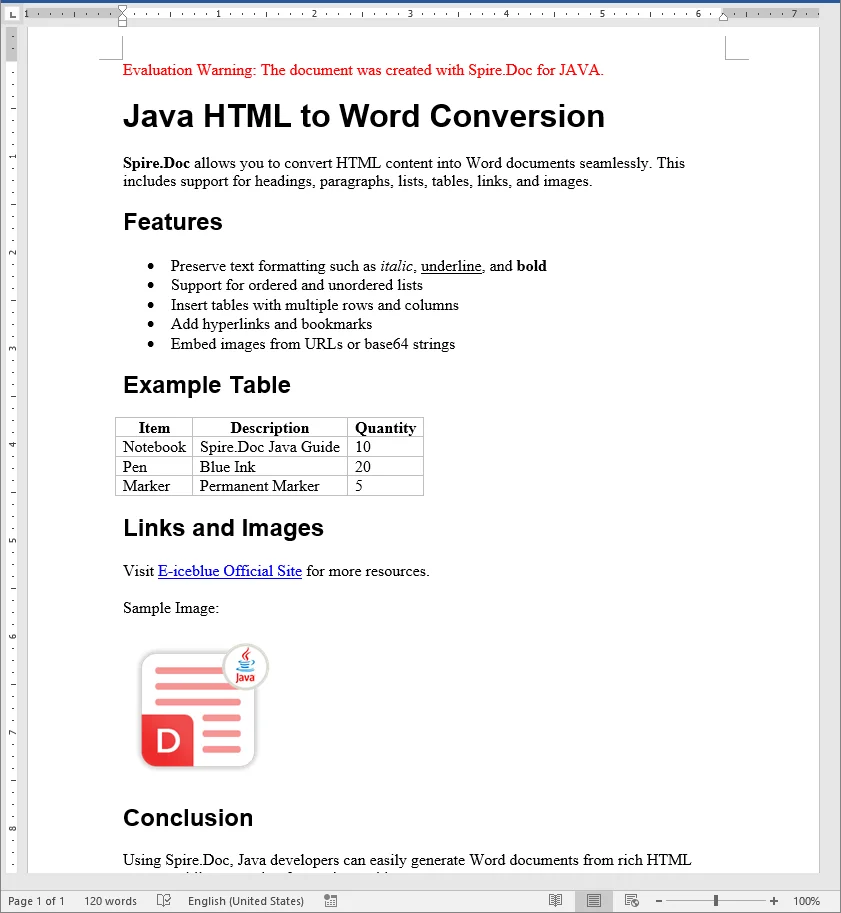
In many real-world applications, HTML content is generated dynamically - whether it comes from user input, database records, or template engines. Converting these HTML strings directly into Word documents allows developers to create professional, editable reports, invoices, or documents on the fly without relying on pre-existing HTML files.
Using Spire.Doc for Java, you can render rich HTML content, including headings, lists, tables, images, hyperlinks, and more, directly into a Word document while preserving formatting and layout.
Conversion Steps:
- Create a new Document object.
- Add a section and adjust settings like page margins.
- Add a paragraph.
- Add the HTML string to the paragraph using appendHTML().
- Save the output as a Word document with saveToFile().
Example:
import com.spire.doc.Document;
import com.spire.doc.FileFormat;
import com.spire.doc.Section;
import com.spire.doc.documents.Paragraph;

public class ConvertHtmlStringToWord {
    public static void main(String[] args) {
        // Sample HTML string
        String htmlString = "<h1>Java HTML to Word Conversion</h1>" +
                "<p><b>Spire.Doc</b> allows you to convert HTML content into Word documents seamlessly. " +
                "This includes support for headings, paragraphs, lists, tables, links, and images.</p>" +
                "<h2>Features</h2>" +
                "<ul>" +
                "<li>Preserve text formatting such as <i>italic</i>, <u>underline</u>, and <b>bold</b></li>" +
                "<li>Support for ordered and unordered lists</li>" +
                "<li>Insert tables with multiple rows and columns</li>" +
                "<li>Add hyperlinks and bookmarks</li>" +
                "<li>Embed images from URLs or base64 strings</li>" +
                "</ul>" +
                "<h2>Example Table</h2>" +
                "<table border='1' style='border-collapse:collapse;'>" +
                "<tr><th>Item</th><th>Description</th><th>Quantity</th></tr>" +
                "<tr><td>Notebook</td><td>Spire.Doc Java Guide</td><td>10</td></tr>" +
                "<tr><td>Pen</td><td>Blue Ink</td><td>20</td></tr>" +
                "<tr><td>Marker</td><td>Permanent Marker</td><td>5</td></tr>" +
                "</table>" +
                "<h2>Links and Images</h2>" +
                "<p>Visit <a href='https://www.e-iceblue.com/'>E-iceblue Official Site</a> for more resources.</p>" +
                "<p>Sample Image:</p>" +
                "<img src='https://cdn.e-iceblue.com/images/intro_pic/Product_Logo/doc-j.png' alt='Product Logo' width='150' height='150'/>" +
                "<h2>Conclusion</h2>" +
                "<p>Using Spire.Doc, Java developers can easily generate Word documents from rich HTML content while preserving formatting and layout.</p>";

        // Create a Document
        Document document = new Document();

        // Add section and paragraph
        Section section = document.addSection();
        section.getPageSetup().getMargins().setAll(72);

        Paragraph paragraph = section.addParagraph();

        // Render HTML string
        paragraph.appendHTML(htmlString);

        // Save as Word
        document.saveToFile("output/FromHtmlString.docx", FileFormat.Docx);

        document.dispose();

        System.out.println("HTML string successfully converted to Word!");
    }
}
Batch Conversion of Multiple HTML Files to Word in Java
Sometimes you may need to convert hundreds of HTML files into Word documents. Here’s how to batch process them in Java.
import com.spire.doc.Document;
import com.spire.doc.FileFormat;
import com.spire.doc.documents.XHTMLValidationType;
import java.io.File;

public class BatchConvertHtmlToWord {
    public static void main(String[] args) {
        File folder = new File("C:\\Users\\Administrator\\Desktop\\HtmlFiles");

        for (File file : folder.listFiles()) {
            if (file.getName().endsWith(".html") || file.getName().endsWith(".htm")) {
                Document document = new Document();
                document.loadFromFile(file.getAbsolutePath(), FileFormat.Html, XHTMLValidationType.None);

                String outputPath = "output/" + file.getName().replace(".html", ".docx");
                document.saveToFile(outputPath, FileFormat.Docx);
                document.dispose();

                System.out.println(file.getName() + " converted to Word!");
            }
        }
    }
}
This approach is great for reporting systems where multiple HTML reports are generated daily.
Best Practices for HTML to Word Conversion
- Use Inline CSS for Reliable Styling
Inline CSS ensures that fonts, colors, and spacing are preserved during conversion. External stylesheets may not always render correctly, especially if they are not accessible at runtime. - Validate HTML Structure
Well-formed HTML with proper nesting and closed tags helps render tables, lists, and headings accurately. - Optimize Images
Use absolute URLs or embed images as base64. Resize large images to fit Word layouts and reduce file size. - Manage Resources in Batch Conversion
When processing multiple files, convert them one by one and call dispose() after each document to prevent memory issues. - Preserve Page Layouts
Set page margins, orientation, and paper size to ensure the Word document looks professional, especially for reports and formal documents.
Conclusion
Converting HTML to Word in Java is an essential feature for many enterprise applications. Using Spire.Doc for Java, you can:
- Convert HTML files into Word documents.
- Render HTML strings directly into DOCX.
- Handle batch processing for multiple files.
- Preserve images, tables, and styles with ease.
By following the examples and best practices above, you can integrate HTML to Word conversion seamlessly into your Java applications.
FAQs (Frequently Asked Questions)
Q1. Can Java convert multiple HTML files into one Word document?
A1: Yes. Instead of saving each file separately, you can load multiple HTML contents into the same Document and then save it once.
Q2. How to preserve CSS styles during HTML to Word conversion?
A2: Inline CSS will be preserved; external stylesheets can also be applied if they’re accessible at run time.
Q3. Can I generate a Word document directly from a web page?
A3: Yes. You can fetch the HTML using an HTTP client in Java, then pass it into the conversion method.
Q4. What Word formats are supported for saving the converted document?
A4: You can save as DOCX, DOC, or other Word-compatible formats supported by Spire.Doc. DOCX is recommended for modern applications due to its compatibility and smaller file size.
Insert Rows and Columns in Excel with JavaScript in React
2025-04-07 00:56:21 Written by AdministratorWhen dealing with Excel worksheets, there are times when the existing layout needs to be adjusted. Inserting rows and columns serves as an effective solution for such scenarios. It allows users to seamlessly expand their data, add new information, or re-structure the spreadsheet in a way that optimizes both data entry and analysis. This action not only makes room for more content, but also enhances the overall organization and readability of the data. In this article, you will learn how to insert rows and columns in Excel in React using Spire.XLS for JavaScript.
- Insert a Row and a Column in Excel in JavaScript
- Insert Multiple Rows and Columns in Excel in JavaScript
Install Spire.XLS for JavaScript
To get started with inserting or deleting picture in Excel in a React application, you can either download Spire.XLS for JavaScript from our website or install it via npm with the following command:
npm i spire.office
The downloaded product package has been integrated Spire.Doc for JavaScript,Spire.XLS for JavaScript,Spire.PDF for JavaScript,Spire.Presentation for JavaScript. To use the functionality of Spire.XLS for JavaScript, you need to copy the corresponding files (spire.xls.js, Spire.Xls.Wasm.zip, spire.common.js, Spire.Common.Wasm.zip, and _framework) to the project's "public" folder. At the same time, in order to ensure text rendering, the related font files can be added with custom paths. In the following example, the font addition path is: public\static\font.
For more details, refer to the documentation: How to Integrate Spire.XLS for JavaScript in a React Project
Insert a Row and a Column in Excel in JavaScript
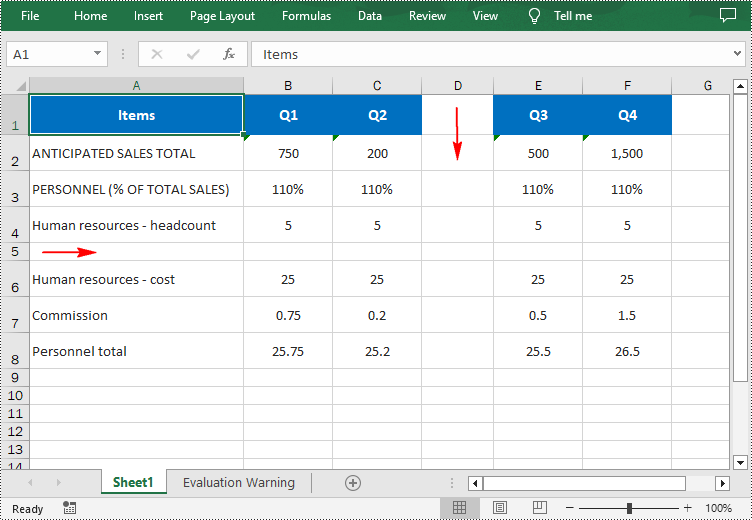
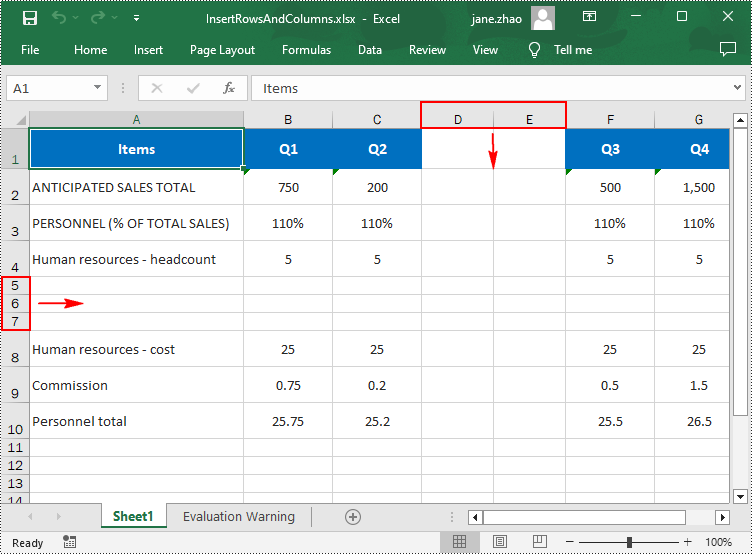
Using Spire.XLS for JavaScript, a blank row or a blank column can be inserted into an Excel worksheet via the Worksheet.InsertRow(rowIndex) or Worksheet.InsertColumn(columnIndex) method. The following are the main steps.
- Create a Workbook object using the new wasmModule.Workbook() method.
- Get a specific worksheet using the Workbook.Worksheets.get() method.
- Insert a row into the worksheet using the Worksheet.InsertRow(rowIndex) method.
- Insert a column into the worksheet using the Worksheet.InsertColumn(columnIndex) method.
- Save the result file using the Workbook.SaveToFile() method.
- JavaScript
import React, { useState, useEffect } from 'react';
function App() {
  const [wasmModule, setWasmModule] = useState(null);
  // Load Spire.XLS
  useEffect(() => {
    (async () => {
      try {
        const publicUrl = process.env.PUBLIC_URL || '';
        const spireModule = await import(/* webpackIgnore: true */ `${publicUrl}/spire.xls.js`);
        const rawModule = spireModule.default || spireModule;
        window.wasmModule = typeof rawModule === 'function'
          ? await rawModule({ locateFile: p => p.endsWith('.wasm') ? `${publicUrl}/${p}` : p })
          : rawModule;
        setWasmModule(window.wasmModule);
      } catch (error) {
        console.error('Failed to load spire.xls.js WASM module:', error);
      }
    })();
  }, []);

  //  Function to insert a row and a column
  const InsertRowColumn = async () => {
    const wasmModule = window.wasmModule.spirexls;

    if (wasmModule) {
      // Load font into Virtual File System (VFS)
      await window.spire.FetchFileToVFS('Arial.ttf', '/Library/Fonts/', `${process.env.PUBLIC_URL}/static/font/`);


      // Load the Excel files into the virtual file system (VFS)
      let inputFileName = 'merged.xlsx';
      await window.spire.FetchFileToVFS(inputFileName, '', `${process.env.PUBLIC_URL}/static/data/`);


      // Create a new workbook
      let workbook = new wasmModule.Workbook();


      // Load an Excel document
      workbook.LoadFromFile({ fileName: inputFileName });

      // Get the first worksheet
      let worksheet = workbook.Worksheets.get(0);

      // Insert a blank row as the 5th row in the worksheet
      worksheet.InsertRow(5);

      // Insert a blank column as the 4th column in the worksheet
      worksheet.InsertColumn(4);

      //Save result file
      const outputFileName = 'InsertRowAndColumn.xlsx';
      workbook.SaveToFile({ fileName: outputFileName, version: wasmModule.ExcelVersion.Version2016 });

      // Read the saved file and convert to Blob object
      const modifiedFileArray = window.dotnetRuntime.Module.FS.readFile(outputFileName);
      const modifiedFile = new Blob([modifiedFileArray], { type: 'application/vnd.openxmlformats-officedocument.spreadsheetml.sheet' });

      // Create a URL for the Blob and initiate download
      const url = URL.createObjectURL(modifiedFile);
      const a = document.createElement('a');
      a.href = url;
      a.download = outputFileName;
      document.body.appendChild(a);
      a.click();
      document.body.removeChild(a);
      URL.revokeObjectURL(url);

      // Clean up resources used by the workbook
      workbook.Dispose();
    }
  };

  return (
    <div style={{ textAlign: 'center', height: '300px' }}>
      <h1>Insert Row and Column in Excel Using JavaScript in React </h1>
      <button onClick={InsertRowColumn} disabled={!wasmModule}>
        Process
      </button>
    </div>
  );
}

export default App;
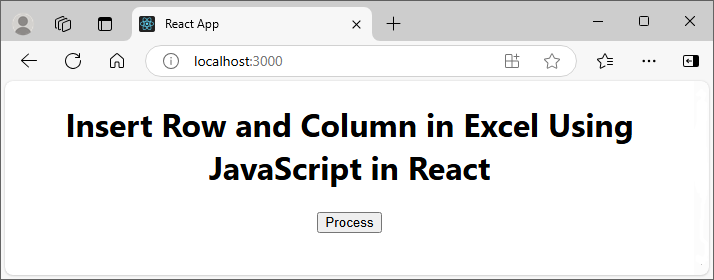
Run the code to launch the React app at localhost:3000. Once it's running, click the "Process" button to insert rows and columns in Excel:
Below is the result file:
Insert Multiple Rows and Columns in Excel in JavaScript
To insert multiple rows or columns, use the Worksheet.InsertRow(rowIndex: number, rowCount: number) or Worksheet.InsertColumn(columnIndex: number, columnCount: number) methods. The first parameter represents the index at which the new row/column will be inserted, and the second argument represents the number of rows/columns to be inserted. The following are the main steps.
- Create a Workbook object using the new wasmModule.Workbook() method.
- Load an Excel file using the Workbook.LoadFromFile() method.
- Get a specific worksheet using the Workbook.Worksheets.get() method.
- Insert multiple rows into the worksheet using the Worksheet.InsertRow(rowIndex: number, rowCount: number) method.
- Insert multiple columns into the worksheet using Worksheet.InsertColumn(columnIndex: number, columnCount: number) method.
- Save the result file using the Workbook.SaveToFile() method.
- JavaScript
import React, { useState, useEffect } from 'react';
function App() {
  const [wasmModule, setWasmModule] = useState(null);
  // Load Spire.XLS
  useEffect(() => {
    (async () => {
      try {
        const publicUrl = process.env.PUBLIC_URL || '';
        const spireModule = await import(/* webpackIgnore: true */ `${publicUrl}/spire.xls.js`);
        const rawModule = spireModule.default || spireModule;
        window.wasmModule = typeof rawModule === 'function'
          ? await rawModule({ locateFile: p => p.endsWith('.wasm') ? `${publicUrl}/${p}` : p })
          : rawModule;
        setWasmModule(window.wasmModule);
      } catch (error) {
        console.error('Failed to load spire.xls.js WASM module:', error);
      }
    })();
  }, []);

  // Function to insert multiple rows and columns
  const InsertRowsColumns = async () => {
    const wasmModule = window.wasmModule.spirexls;

    if (wasmModule) {
      // Load font into Virtual File System (VFS)
      await window.spire.FetchFileToVFS('Arial.ttf', '/Library/Fonts/', `${process.env.PUBLIC_URL}/static/font/`);


      // Load the Excel files into the virtual file system (VFS)
      let inputFileName = 'merged.xlsx';
      await window.spire.FetchFileToVFS(inputFileName, '', `${process.env.PUBLIC_URL}/static/data/`);


      // Create a new workbook
      let workbook = new wasmModule.Workbook();


      // Load an Excel document
      workbook.LoadFromFile({ fileName: inputFileName });

      // Get the first worksheet
      let worksheet = workbook.Worksheets.get(0);

      // Insert three blank rows into the worksheet
      worksheet.InsertRow({ rowIndex: 5, rowCount: 3 });

      // Insert two blank columns into the worksheet
      worksheet.InsertColumn({ columnIndex: 4, columnCount: 2 });

      //Save result file
      const outputFileName = 'InsertRowsAndColumns.xlsx';
      workbook.SaveToFile({ fileName: outputFileName, version: wasmModule.ExcelVersion.Version2016 });

      // Read the saved file and convert to Blob object
      const modifiedFileArray = window.dotnetRuntime.Module.FS.readFile(outputFileName);
      const modifiedFile = new Blob([modifiedFileArray], { type: 'application/vnd.openxmlformats-officedocument.spreadsheetml.sheet' });

      // Create a URL for the Blob and initiate download
      const url = URL.createObjectURL(modifiedFile);
      const a = document.createElement('a');
      a.href = url;
      a.download = outputFileName;
      document.body.appendChild(a);
      a.click();
      document.body.removeChild(a);
      URL.revokeObjectURL(url);

      // Clean up resources used by the workbook
      workbook.Dispose();
    }
  };

  return (
  <div style={{ textAlign: 'center', height: '300px' }}>
    <h1>Insert Rows and Columns in Excel Using JavaScript in React</h1>
    <button onClick={InsertRowsColumns} disabled={!wasmModule}>
      Process
    </button>
      </div>
  );
}

export default App;
Get a Free License
To fully experience the capabilities of Spire.XLS for JavaScript without any evaluation limitations, you can request a free 30-day trial license.
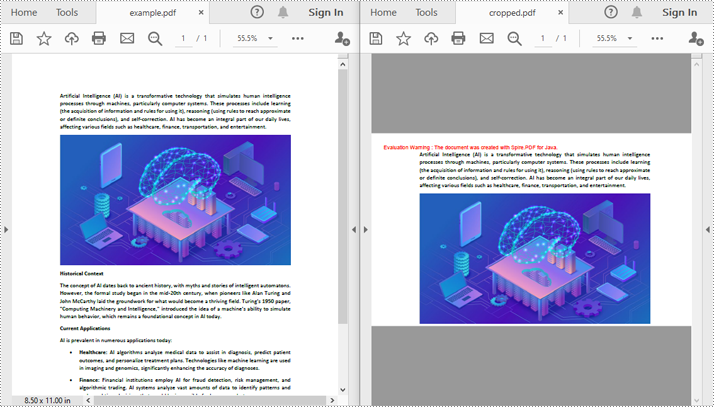
When working with PDF files, you may need to adjust the page size to emphasize important content, remove extra white space, or fit specific printing and display requirements. Cropping PDF pages helps streamline the document layout, making the content more readable and well-organized. It also reduces file size, improving both accessibility and sharing. Additionally, precise cropping enhances the document's visual appeal, giving it a more polished and professional look. This article will demonstrate how to crop PDF pages in Java using the Spire.PDF for Java library.
Install Spire.PDF for Java
First of all, you're required to add the Spire.Pdf.jar file as a dependency in your Java program. The JAR file can be downloaded from this link. If you use Maven, you can easily import the JAR file in your application by adding the following code to your project's pom.xml file.
<repositories>
    <repository>
        <id>com.e-iceblue</id>
        <name>e-iceblue</name>
        <url>https://repo.e-iceblue.com/nexus/content/groups/public/</url>
    </repository>
</repositories>
<dependencies>
    <dependency>
        <groupId>e-iceblue</groupId>
        <artifactId>spire.pdf</artifactId>
        <version>12.6.1</version>
    </dependency>
</dependencies>
Crop a PDF Page in Java
Spire.PDF for Java provides the PdfPageBase.setCropBox(Rectangle2D rect) method to set the crop area for a PDF page. The detailed steps are as follows.
- Create an instance of the PdfDocument class.
- Load a PDF document using the PdfDocument.loadFromFile() method.
- Get a specific page from the PDF using the PdfDocument.getPages().get(int pageIndex) method.
- Create an instance of the Rectangle2D class to define the crop area.
- Use the PdfPageBase.setCropBox(Rectangle2D rect) method to set the crop area for the page.
- Save the cropped PDF using the PdfDocument.saveToFile() method.
- Java
import com.spire.pdf.PdfDocument;
import com.spire.pdf.PdfPageBase;
import java.awt.geom.Rectangle2D;

public class CropPdfPage {
    public static void main(String[] args) {
        // Create an instance of the PdfDocument class
        PdfDocument pdf = new PdfDocument();
        // Load the PDF file
        pdf.loadFromFile("example.pdf");

        // Get the first page of the PDF
        PdfPageBase page = pdf.getPages().get(0);

        // Define the crop area (parameters: x, y, width, height)
        Rectangle2D rectangle = new Rectangle2D.Float(0, 40, 600, 360);
        // Set the crop area for the page
        page.setCropBox(rectangle);

        // Save the cropped PDF
        pdf.saveToFile("cropped.pdf");

        // Close the document and release resources
        pdf.close();
    }
}
Crop a PDF page and Export the Result as an Image in Java
After cropping a PDF page, developers can use the PdfDocument.saveAsImage(int pageIndex, PdfImageType type) method to export the result as an image. The detailed steps are as follows.
- Create an instance of the PdfDocument class.
- Load a PDF document using the PdfDocument.loadFromFile() class.
- Get a specific page from the PDF using the PdfDocument.getPages().get(int pageIndex) mthod.
- Create an instance of the Rectangle2D class to define the crop area.
- Use the PdfPageBase.setCropBox(Rectangle2D rect) method to set the crop area for the page.
- Use the PdfDocument.saveAsImage(int pageIndex, PdfImageType type) method to export the cropped page as an image.
- Save the image as an image file.
- Java
import com.spire.pdf.PdfDocument;
import com.spire.pdf.PdfPageBase;
import com.spire.pdf.graphics.PdfImageType;
import javax.imageio.ImageIO;
import java.awt.geom.Rectangle2D;
import java.awt.image.BufferedImage;
import java.io.File;
import java.io.IOException;

public class CropPdfPageAndSaveAsImage {
    public static void main(String[] args) {
        // Create an instance of the PdfDocument class
        PdfDocument pdf = new PdfDocument();
        // Load the PDF file
        pdf.loadFromFile("example.pdf");

        // Get the first page of the PDF
        PdfPageBase page = pdf.getPages().get(0);

        // Define the crop area (parameters: x, y, width, height)
        Rectangle2D rectangle = new Rectangle2D.Float(0, 40, 600, 360);
        // Set the crop area for the page
        page.setCropBox(rectangle);

        // Export the cropped page as an image
        BufferedImage image = pdf.saveAsImage(0, PdfImageType.Bitmap);

        // Save the image as a PNG file
        File outputFile = new File("cropped.png");
        try {
            ImageIO.write(image, "PNG", outputFile);
            System.out.println("Cropped page saved as: " + outputFile.getAbsolutePath());
        } catch (IOException e) {
            System.err.println("Error saving image: " + e.getMessage());
        }

        // Close the document and release resources
        pdf.close();
    }
}

Get a Free License
To fully experience the capabilities of Spire.PDF for Java without any evaluation limitations, you can request a free 30-day trial license.
