
Knowledgebase (2337)
Children categories
Read Word DOC or DOCX Files in Python - Extract Text, Images, Tables and More
2025-06-30 01:41:17 Written by zaki zou
Reading Word documents in Python is a common task for developers who work with document automation, data extraction, or content processing. Whether you're working with modern .docx files or legacy .doc formats, being able to open, read, and extract content like text, tables, and images from Word files can save time and streamline your workflows.
While many Python libraries support .docx, reading .doc files—the older binary format—can be more challenging. Fortunately, there are reliable methods for handling both file types in Python.
In this tutorial, you'll learn how to read Word documents (.doc and .docx) in Python using the Spire.Doc for Python library. We'll walk through practical code examples to extract text, images, tables, comments, lists, and even metadata. Whether you're building an automation script or a full document parser, this guide will help you work with Word files effectively across formats.
Table of Contents
- Why Read Word Documents Programmatically in Python?
- Install the Library for Parsing Word Documents in Python
- Read Text from Word DOC or DOCX in Python
- Read Specific Elements from a Word Document in Python
- Conclusion
- FAQs
Why Read Word Documents Programmatically in Python?
Reading Word files using Python allows for powerful automation of content processing tasks, such as:
- Extracting data from reports, resumes, or forms.
- Parsing and organizing content into databases or dashboards.
- Converting or analyzing large volumes of Word documents.
- Integrating document reading into web apps, APIs, or back-end systems.
Programmatic reading eliminates manual copy-paste workflows and ensures consistent and scalable results.
Install the Library for Parsing Word Documents in Python
To read .docx and .doc files in Python, you need a library that can handle both formats. Spire.Doc for Python is a versatile and easy-to-use library that lets you extract text, images, tables, comments, lists, and metadata from Word documents. It runs independently of Microsoft Word, so Office installation is not required.
To get started, install Spire.Doc easily with pip:
pip install Spire.Doc
Read Text from Word DOC or DOCX in Python
Extracting text from Word documents is a common requirement in many automation and data processing tasks. Depending on your needs, you might want to read the entire content or focus on specific sections or paragraphs. This section covers both approaches.
Get Text from Entire Document
When you need to retrieve the complete textual content of a Word document — for tasks like full-text indexing or simple content export — you can use the Document.GetText() method. The following example demonstrates how to load a Word file, extract all text, and save it to a file:
from spire.doc import *

# Load the Word .docx or .doc file
document = Document()
document.LoadFromFile("sample.docx")

# Get all text
text = document.GetText()

# Save to a text file
with open("extracted_text.txt", "w", encoding="utf-8") as file:
    file.write(text)

document.Close()

Get Text from Specific Section or Paragraph
Many documents, such as reports or contracts, are organized into multiple sections. Extracting text from a specific section enables targeted processing when you need content from a particular part only. By iterating through the paragraphs of the selected section, you can isolate the relevant text:
from spire.doc import *

# Load the Word .docx or .doc file
document = Document()
document.LoadFromFile("sample.docx")

# Access the desired section
section = document.Sections[0]

# Get text from the paragraphs of the section
with open("paragraphs_output.txt", "w", encoding="utf-8") as file:
    for paragraph in section.Paragraphs:
        file.write(paragraph.Text + "\n")

document.Close()
Read Specific Elements from a Word Document in Python
Beyond plain text, Word documents often include rich content like images, tables, comments, lists, metadata, and more. These elements can easily be programmatically accessed and extracted.
Extract Images
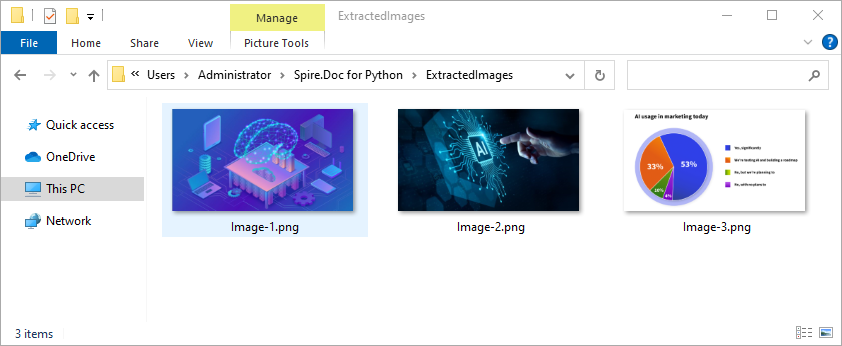
Word documents often embed images like logos, charts, or illustrations. To extract these images:
- Traverse each paragraph and its child objects.
- Identify objects of type DocPicture.
- Retrieve the image bytes and save them as separate files.
from spire.doc import *
import os

# Load the Word document
document = Document()
document.LoadFromFile("sample.docx")

# Create a list to store image byte data
images = []

# Iterate over sections
for s in range(document.Sections.Count):
    section = document.Sections.get_Item(s)

    # Iterate over paragraphs
    for p in range(section.Paragraphs.Count):
        paragraph = section.Paragraphs.get_Item(p)

        # Iterate over child objects
        for c in range(paragraph.ChildObjects.Count):
            obj = paragraph.ChildObjects[c]
            # Extract image data
            if isinstance(obj, DocPicture):
                picture = obj
                # Get image bytes
                dataBytes = picture.ImageBytes
                # Store in the list
                images.append(dataBytes)

# Create the output directory if it doesn't exist
output_folder = "ExtractedImages"
os.makedirs(output_folder, exist_ok=True)

# Save each image from byte data
for i, item in enumerate(images):
    fileName = f"Image-{i+1}.png"
    with open(os.path.join(output_folder, fileName), 'wb') as imageFile:
        imageFile.write(item)

# Close the document
document.Close()
Get Table Data
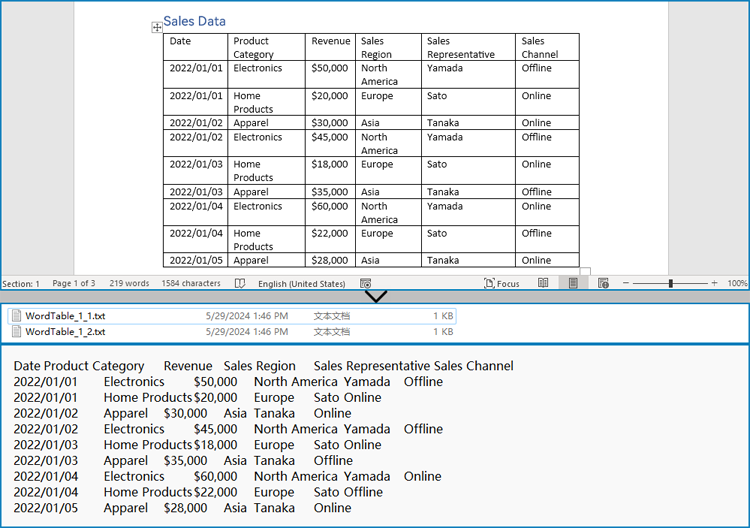
Tables organize data such as schedules, financial records, or lists. To extract all tables and their content:
- Loop through tables in each section.
- Loop through rows and cells in each table.
- Traverse over each cell’s paragraphs and combine their texts.
- Save the extracted table data in a readable text format.
from spire.doc import *
import os

# Load the Word document
document = Document()
document.LoadFromFile("tables.docx")

# Ensure output directory exists
output_dir = "output/Tables"
os.makedirs(output_dir, exist_ok=True)

# Loop through each section
for s in range(document.Sections.Count):
    section = document.Sections.get_Item(s)
    tables = section.Tables

    # Loop through each table in the section
    for i in range(tables.Count):
        table = tables.get_Item(i)
        table_data = ""

        # Loop through each row
        for j in range(table.Rows.Count):
            row = table.Rows.get_Item(j)

            # Loop through each cell
            for k in range(row.Cells.Count):
                cell = row.Cells.get_Item(k)
                cell_text = ""

                # Combine text from all paragraphs in the cell
                for p in range(cell.Paragraphs.Count):
                    para_text = cell.Paragraphs.get_Item(p).Text
                    cell_text += para_text + " "

                table_data += cell_text.strip()

                # Add tab between cells (except after the last cell)
                if k < row.Cells.Count - 1:
                    table_data += "\t"
            table_data += "\n"

        # Save the table data to a separate text file
        output_path = os.path.join(output_dir, f"WordTable_{s+1}_{i+1}.txt")
        with open(output_path, "w", encoding="utf-8") as output_file:
            output_file.write(table_data)

# Close the document
document.Close()
Read Lists
Lists are frequently used to structure content in Word documents. This example identifies paragraphs formatted as list items and writes the list marker together with the text to a file.
from spire.doc import *

# Load the Word document
document = Document()
document.LoadFromFile("sample.docx")

# Open a text file for writing the list items
with open("list_items.txt", "w", encoding="utf-8") as output_file:

    # Iterate over sections
    for s in range(document.Sections.Count):
        section = document.Sections.get_Item(s)

        # Iterate over paragraphs
        for p in range(section.Paragraphs.Count):
            paragraph = section.Paragraphs.get_Item(p)

            # Check if the paragraph is a list
            if paragraph.ListFormat.ListType != ListType.NoList:
                # Write the combined list marker and paragraph text to file
                output_file.write(paragraph.ListText + paragraph.Text + "\n")

# Close the document
document.Close()
Extract Comments
Comments are typically used for collaboration and feedback in Word documents. This code retrieves all comments, including the author and content, and saves them to a file with clear formatting for later review or audit.
from spire.doc import *

# Load the Word .docx or .doc document
document = Document()
document.LoadFromFile("sample.docx")

# Open a text file to save comments
with open("extracted_comments.txt", "w", encoding="utf-8") as output_file:

    # Iterate over the comments
    for i in range(document.Comments.Count):
        comment = document.Comments.get_Item(i)

        # Write comment header with comment number
        output_file.write(f"Comment {i + 1}:\n")

        # Write comment author
        output_file.write(f"Author: {comment.Format.Author}\n")

        # Extract full comment text by concatenating all paragraph texts
        comment_text = ""
        for j in range(comment.Body.Paragraphs.Count):
            paragraph = comment.Body.Paragraphs[j]
            comment_text += paragraph.Text + "\n"

        # Write the comment text
        output_file.write(f"Content: {comment_text.strip()}\n")

        # Add a blank line between comments
        output_file.write("\n")

# Close the document
document.Close()
Retrieve Metadata (Document Properties)
Metadata provides information about the document such as author, title, creation date, and modification date. This code extracts common built-in properties for reporting or cataloging purposes.
from spire.doc import *

# Load the Word .docx or .doc document
document = Document()
document.LoadFromFile("sample.docx")

# Get the built-in document properties
props = document.BuiltinDocumentProperties

# Open a text file to write the properties
with open("document_properties.txt", "w", encoding="utf-8") as output_file:
    output_file.write(f"Title: {props.Title}\n")
    output_file.write(f"Author: {props.Author}\n")
    output_file.write(f"Subject: {props.Subject}\n")
    output_file.write(f"Created: {props.CreateDate}\n")
    output_file.write(f"Modified: {props.LastSaveDate}\n")

# Close the document
document.Close()
Conclusion
Reading both .doc and .docx Word documents in Python is fully achievable with the right tools. With Spire.Doc, you can:
- Read text from the entire document, any section or paragraph.
- Extract tables and process structured data.
- Export images embedded in the document.
- Extract comments and lists from the document.
- Work with both modern and legacy Word formats without extra effort.
Try Spire.Doc today to simplify your Word document parsing workflows in Python!
FAQs
Q1: How do I read a Word DOC or DOCX file in Python?
A1: Use a Python library like Spire.Doc to load and extract content from Word files.
Q2: Do I need Microsoft Word installed to use Spire.Doc?
A2: No, it works without any Office installation.
Q3: Can I generate or update Word documents with Spire.Doc?
A3: Yes, Spire.Doc not only allows you to read and extract content from Word documents but also provides powerful features to create, modify, and save Word files programmatically.
Get a Free License
To fully experience the capabilities of Spire.Doc for Python without any evaluation limitations, you can request a free 30-day trial license.
How to Read Barcodes from PDF in C# – Easy Methods with Code
2025-06-19 06:58:45 Written by Administrator
Reading barcodes from PDF in C# is a common requirement in document processing workflows, especially when dealing with scanned forms or digital PDFs. In industries like logistics, finance, healthcare, and manufacturing, PDFs often contain barcodes—either embedded as images or rendered as vector graphics. Automating this process can reduce manual work and improve accuracy.
This guide shows how to read barcode from PDF with C# using two practical methods: extracting images embedded in PDF pages and scanning them, or rendering entire pages as images and detecting barcodes from the result. Both techniques support reliable recognition of 1D and 2D barcodes in different types of PDF documents.
Table of Contents
- Getting Started: Tools and Setup
- Step-by-Step: Read Barcodes from PDF in C#
- Which Method Should You Use?
- Real-World Use Cases
- FAQ
Getting Started: Tools and Setup
To extract or recognize barcodes from PDF documents using C#, make sure your environment is set up correctly.
Here’s what you need:
- Any C# project that supports NuGet package installation (such as .NET Framework, .NET Core, or .NET).
- The following libraries, Spire.Barcode for .NET for barcode recognition and Spire.PDF for .NET for PDF processing, can be installed via NuGet Package Manager:
Install-Package Spire.Barcode
Install-Package Spire.PDF
Step-by-Step: Read Barcodes from PDF in C#
There are two ways to extract barcode data from PDF files. Choose one based on how the barcode is stored in the document.
Method 1: Extract Embedded Images and Detect Barcodes
This method is suitable for scanned PDF documents, where each page often contains a raster image with one or more barcodes. The BarcodeScanner.ScanOne() method can read one barcode from one image.
Code Example: Extract and Scan
using Spire.Barcode;
using Spire.Pdf;
using Spire.Pdf.Utilities;
using System.Drawing;

namespace ReadPDFBarcodeByExtracting
{
    class Program
    {
        static void Main(string[] args)
        {
            // Load a PDF file
            PdfDocument pdf = new PdfDocument();
            pdf.LoadFromFile("Sample.pdf");

            // Get a page and the image information on the page
            PdfPageBase page = pdf.Pages[0];
            PdfImageHelper imageHelper = new PdfImageHelper();
            PdfImageInfo[] imagesInfo = imageHelper.GetImagesInfo(page);

            // Loop through the image information
            int index = 0;
            foreach (PdfImageInfo imageInfo in imagesInfo)
            {
                // Get the image as an Image object
                Image image = imageInfo.Image;
                // Scan the barcode and output the result
                string scanResult = BarcodeScanner.ScanOne((Bitmap)image);
                Console.WriteLine($"Scan result of image {index + 1}:\n" + scanResult + "\n");
                index++;
            }
        }
    }
}
The following image shows a scanned PDF page and the barcode recognition result using Method 1 (extracting embedded images):
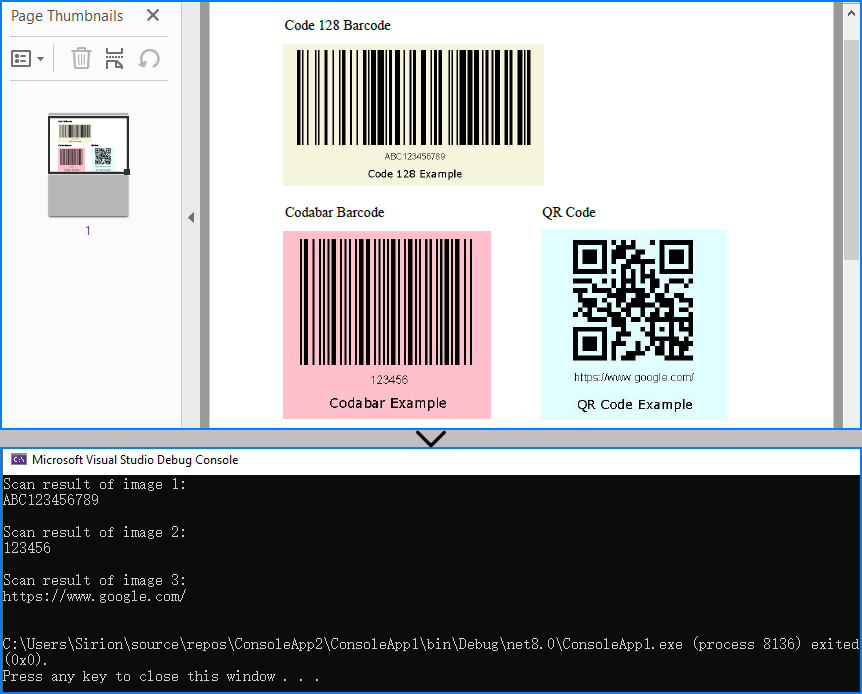
When to use: If the PDF is a scan or contains images with embedded barcodes.
You may also like: Generate Barcodes in C# (QR Code Example)
Method 2: Render Page as Image and Scan
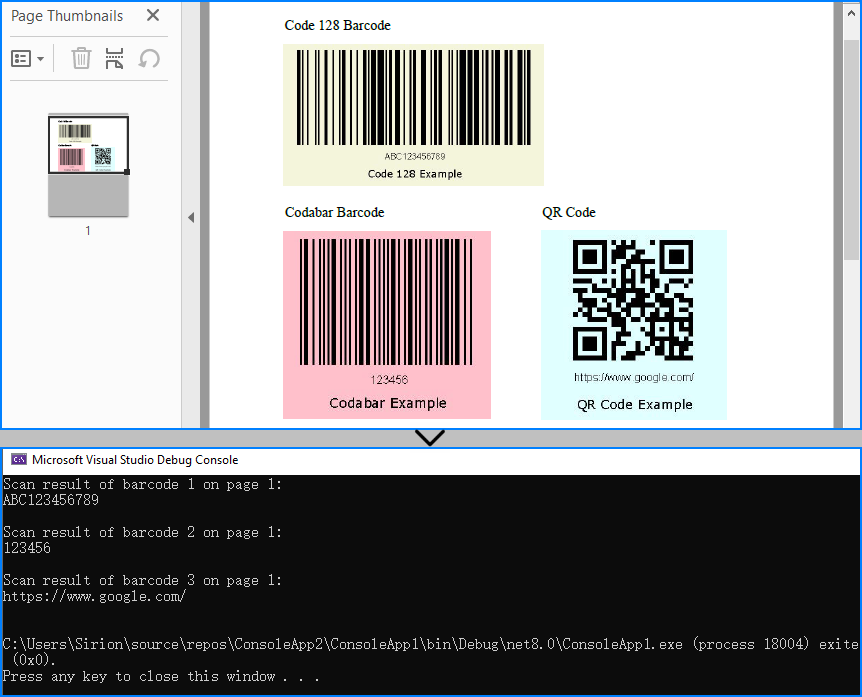
When barcodes are drawn using vector elements (not embedded images), you can render each PDF page as a bitmap and perform barcode scanning on it. The BarcodeScanner.Scan() method can read multiple barcodes from one image.
Code Example: Render and Scan
using Spire.Barcode;
using Spire.Pdf;
using System.Drawing;

namespace ReadPDFBarcodeByExtracting
{
    class Program
    {
        static void Main(string[] args)
        {
            // Load a PDF file
            PdfDocument pdf = new PdfDocument();
            pdf.LoadFromFile("Sample.pdf");

            // Save each page as an image
            for (int i = 0; i < pdf.Pages.Count; i++)
            {
                Image image = pdf.SaveAsImage(i);
                // Read the barcodes on the image
                string[] scanResults = BarcodeScanner.Scan((Bitmap)image);
                // Output the results
                for (int j = 0; j < scanResults.Length; j++)
                {
                    Console.WriteLine($"Scan result of barcode {j + 1} on page {i + 1}:\n" + scanResults[j] + "\n");
                }
            }
        }
    }
}
Below is the result of applying Method 2 (rendering full PDF page) to detect vector barcodes on the page:
When to use: When barcodes are drawn on the page directly, not embedded as image elements.
Related article: Convert PDF Pages to Images in C#
Which Method Should You Use?
| Use Case | Recommended Method |
|---|---|
| Scanned pages or scanned barcodes | Extract embedded images |
| Digital PDFs with vector barcodes | Render full page as image |
| Hybrid or unknown structure | Try both methods optionally |
You can even combine both methods for maximum reliability when handling unpredictable document structures.
Real-World Use Cases
Here are some typical scenarios where barcode recognition from PDFs in C# proves useful:
-
Logistics automation Extract tracking numbers and shipping IDs from scanned labels, dispatch forms, or signed delivery receipts in bulk.
-
Invoice and billing systems Read barcode-based document IDs or payment references from digital or scanned invoices in batch processing tasks.
-
Healthcare document digitization Automatically scan patient barcodes from lab reports, prescriptions, or admission forms in PDF format.
-
Manufacturing and supply chain Recognize barcodes from packaging reports, quality control sheets, or equipment inspection PDFs.
-
Educational institutions Process barcoded student IDs on scanned test forms or attendance sheets submitted as PDFs.
Tip: In many of these use cases, PDFs come from scanners or online systems, which may embed barcodes as images or page content—both cases are supported with the two methods introduced above.
Conclusion
Reading barcodes from PDF files in C# can be achieved reliably using either image extraction or full-page rendering. Whether you need to extract a barcode from a scanned document or recognize one embedded in PDF content, both methods provide flexible solutions for barcode recognition in C#.
FAQ
Q: Does this work with multi-page PDFs?
Yes. You can loop through all pages in the PDF and scan each one individually.
Q: Can I extract multiple barcodes per page?
Yes. The BarcodeScanner.Scan() method can detect and return all barcodes found on each image.
Q: Can I improve recognition accuracy by increasing resolution?
Yes. When rendering a PDF page to an image, you can set a higher DPI using PdfDocument.SaveAsImage(pageIndex: int, PdfImageType.Bitmap: PdfImageType, dpiX: int, dpiY: int). For example, 300 DPI is ideal for small or low-quality barcodes.
Q: Can I read barcodes from PDF using C# for free?
Yes. You can use Free Spire.Barcode for .NET and Free Spire.PDF for .NET to read barcodes from PDF files in C#. However, the free editions have feature limitations, such as page count or supported barcode types. If you need full functionality without restrictions, you can request a free temporary license to evaluate the commercial editions.
How to Read Excel Files in Java (XLS/XLSX) – Complete Guide
2025-06-13 08:30:27 Written by Administrator
Reading Excel files using Java is a common requirement in enterprise applications, especially when dealing with reports, financial data, user records, or third-party integrations. Whether you're building a data import feature, performing spreadsheet analysis, or integrating Excel parsing into a web application, learning how to read Excel files in Java efficiently is essential.
In this tutorial, you’ll discover how to read .xls and .xlsx Excel files using Java. We’ll use practical Java code examples which also cover how to handle large files, read Excel files from InputStream, and extract specific content line by line.
Table of Contents
- 1. Set Up Your Java Project
- 2. How to Read XLSX and XLS Files in Java
- 3. Best Practices for Large Excel Files
- 4. Full Example: Java Program to Read Excel File
- 5. Summary
- 6. FAQ
1. Set Up Your Java Project
To read Excel files using Java, you need a library that supports spreadsheet file formats. Spire.XLS for Java offers support for both .xls (legacy) and .xlsx (modern XML-based) files and provides a high-level API that makes Excel file reading straightforward.
Add Spire.XLS to Your Project
If you're using Maven, add the following to your pom.xml:
<repositories>
    <repository>
        <id>com.e-iceblue</id>
        <name>e-iceblue</name>
        <url>https://repo.e-iceblue.com/nexus/content/groups/public/</url>
    </repository>
</repositories>
<dependencies>
    <dependency>
        <groupId>e-iceblue</groupId>
        <artifactId>spire.xls</artifactId>
        <version>16.4.1</version>
    </dependency>
</dependencies>
If you're not using Maven, you can manually download the JAR from the official Spire.XLS website and add it to your classpath.
For smaller Excel processing tasks, you can also choose Free Spire.XLS for Java.
2. How to Read XLSX and XLS Files in Java
Java programs can easily read Excel files by loading the workbook and iterating through worksheets, rows, and cells. The .xlsx format is commonly used in modern Excel, while .xls is its older binary counterpart. Fortunately, Spire.XLS supports both formats seamlessly with the same code.
Load and Read Excel File (XLSX or XLS)
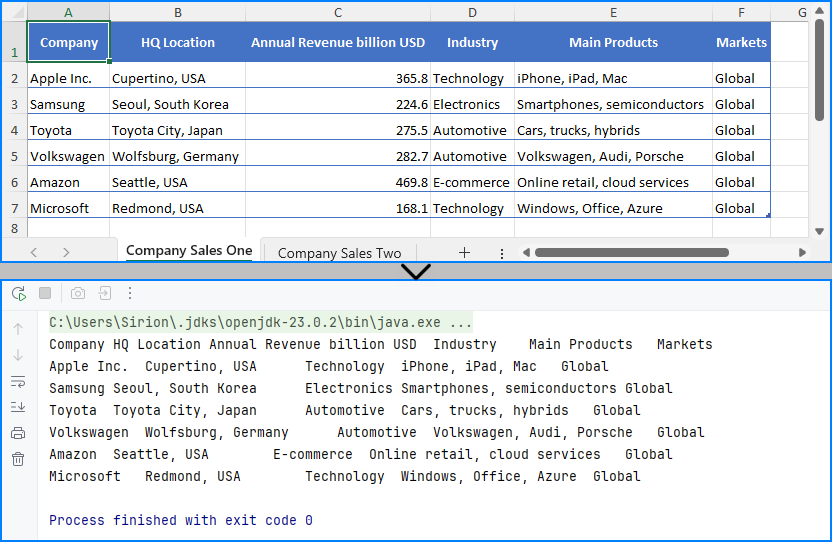
Here’s a basic example that loads an Excel file and prints its content:
import com.spire.xls.*;

public class ReadExcel {
    public static void main(String[] args) {
        // Create a workbook object and load the Excel file
        Workbook workbook = new Workbook();
        workbook.loadFromFile("data.xlsx"); // or "data.xls"

        // Get the first worksheet
        Worksheet sheet = workbook.getWorksheets().get(0);
        // Loop through each used row and column
        for (int i = 1; i <= sheet.getLastRow(); i++) {
            for (int j = 1; j <= sheet.getLastColumn(); j++) {
                // Get cell text of a cell range
                String cellText = sheet.getCellRange(i, j).getValue();
                System.out.print(cellText + "\t");
            }
            System.out.println();
        }
    }
}
You can replace the file path with an .xls file and the code remains unchanged. This makes it simple to read Excel files using Java regardless of format.
The Excel file being read and the output result shown in the console.
Read Excel File Line by Line with Row Objects
In scenarios like user input validation or applying business rules, processing each row as a data record is often more intuitive. In such cases, you can read the Excel file line by line using row objects via the getRows() method.
for (int i = 0; i < sheet.getRows().length; i++) {
    // Get a row
    CellRange row = sheet.getRows()[i];
    if (row != null && !row.isBlank()) {
        for (int j = 0; j < row.getColumns().length; j++) {
            String text = row.getColumns()[j].getText();
            System.out.print((text != null ? text : "") + "\t");
        }
        System.out.println();
    }
}
This technique works particularly well when reading Excel files in Java for batch operations or when you only need to process rows individually.
Read Excel File from InputStream
In web applications or cloud services, Excel files are often received as streams. Here’s how to read Excel files from an InputStream in Java:
import com.spire.xls.*;
import java.io.FileInputStream;
import java.io.FileNotFoundException;
import java.io.InputStream;

public class ReadExcel {
    public static void main(String[] args) throws FileNotFoundException {
        // Create a InputStream
        InputStream stream = new FileInputStream("data.xlsx");
        // Load the Excel file from the stream
        Workbook workbook = new Workbook();
        workbook.loadFromStream(stream);
        System.out.println("Load Excel file successfully.");
    }
}
This is useful when handling file uploads, email attachments, or reading Excel files stored in remote storage.
Read Excel Cell Values in Different Formats
Once you load an Excel file and get access to individual cells, Spire.XLS allows you to read the contents in various formats—formatted text, raw values, formulas, and more.
Here's a breakdown of what each method does:
CellRange cell = sheet.getRange().get(2, 1); // B2

// Formatted text (what user sees in Excel)
String text = cell.getText();

// Raw string value
String value = cell.getValue();

// Generic object (number, boolean, date, etc.)
Object rawValue = cell.getValue2();

// Formula (if exists)
String formula = cell.getFormula();

// Evaluated result of the formula
String result = cell.getEnvalutedValue();

// If it's a number cell
double number = cell.getNumberValue();

// If it's a date cell
java.util.Date date = cell.getDateTimeValue();

// If it's a boolean cell
boolean bool = cell.getBooleanValue();
Tip: Use getValue2() for flexible handling, as it returns the actual underlying object. Use getText() when you want to match Excel's visible content.
You May Also Like: How to Write Data into Excel Files in Java
3. Best Practices for Reading Large Excel Files in Java
When your Excel file contains tens of thousands of rows or multiple sheets, performance can become a concern. To ensure your Java application reads large Excel files efficiently:
- Load only required sheets
- Access only relevant columns or rows
- Avoid storing entire worksheets in memory
- Use row-by-row reading patterns
Here’s an efficient pattern for reading only non-empty rows:
for (int i = 1; i <= sheet.getRows().length; i++) {
    Row row = sheet.getRows()[i];
    if (row != null && !row.isBlank()) {
        // Process only rows with data
    }
}
Even though Spire.XLS handles memory efficiently, following these practices helps scale your Java Excel reading logic smoothly.
See also: Delete Blank Rows and Columns in Excel Using Java
4. Full Example: Java Program to Read Excel File
Here’s a full working Java example that reads an Excel file (users.xlsx) with extended columns such as name, email, age, department, and status. The code extracts only the original three columns (name, email, and age) and filters the output for users aged 30 or older.
import com.spire.xls.*;

public class ExcelReader {
    public static void main(String[] args) {
        Workbook workbook = new Workbook();
        workbook.loadFromFile("users.xlsx");

        Worksheet sheet = workbook.getWorksheets().get(0);
        System.out.println("Name\tEmail\tAge");

        for (int i = 2; i <= sheet.getLastRow(); i++) {
            String name = sheet.getCellRange(i, 1).getValue();
            String email = sheet.getCellRange(i, 2).getValue();
            String ageText = sheet.getCellRange(i, 3).getValue();

            int age = 0;
            try {
                age = Integer.parseInt(ageText);
            } catch (NumberFormatException e) {
                continue;  // Skip rows with invalid age data
            }

            if (age >= 30) {
                System.out.println(name + "\t" + email + "\t" + age);
            }
        }
    }
}
Result of Java program reading the Excel file and printing its contents. 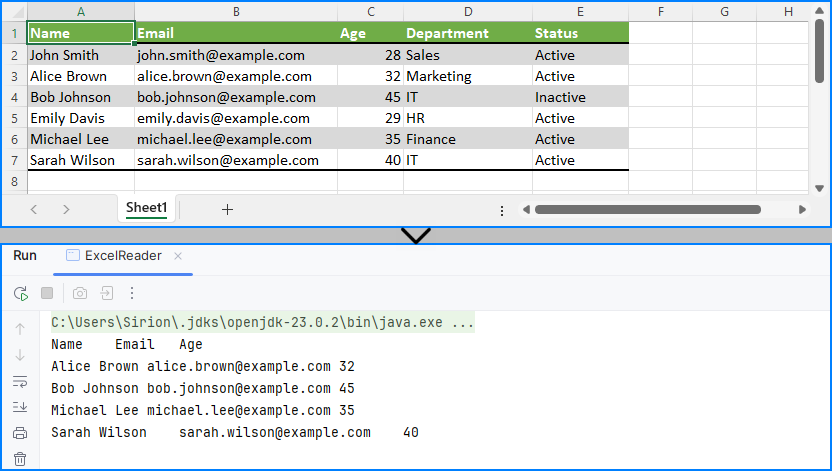
This code demonstrates how to read specific cells from an Excel file in Java and output meaningful tabular data, including applying filters on data such as age.
5. Summary
To summarize, this article showed you how to read Excel files in Java using Spire.XLS, including both .xls and .xlsx formats. You learned how to:
- Set up your Java project with Excel-reading capabilities
- Read Excel files using Java in row-by-row or stream-based fashion
- Handle legacy and modern Excel formats with the same API
- Apply best practices when working with large Excel files
Whether you're reading from an uploaded spreadsheet, a static report, or a stream-based file, the examples provided here will help you build robust Excel processing features in your Java applications.
If you want to unlock all limitations and experience the full power of Excel processing, you can apply for a free temporary license.
6. FAQ
Q1: How to read an Excel file dynamically in Java?
To read an Excel file dynamically in Java—especially when the number of rows or columns is unknown—you can use getLastRow() and getLastColumn() methods to determine the data range at runtime. This ensures that your program can adapt to various spreadsheet sizes without hardcoded limits.
Q2: How to extract data from Excel file in Java?
To extract data from Excel files in Java, load the workbook and iterate through the cells using nested loops. You can retrieve values with getCellRange(row, column).getValue(). Libraries like Spire.XLS simplify this process and support both .xls and .xlsx formats.
Q3: How to read a CSV Excel file in Java?
If your Excel data is saved as a CSV file, you can read it using Java’s BufferedReader or file streams. Alternatively, Spire.XLS supports CSV parsing directly—you can load a CSV file by specifying the separator, such as Workbook.loadFromFile("data.csv", ","). This lets you handle CSV files along with Excel formats using the same API.
Q4: How to read Excel file in Java using InputStream?
Reading Excel files from InputStream in Java is useful in server-side applications, such as handling file uploads. With Spire.XLS, simply call workbook.loadFromStream(inputStream) and process it as you would with any file-based Excel workbook.
