
Python (362)
Downloading PDF files from URLs programmatically is essential for developers building document processing systems, web scrapers, content aggregators, or automated report generators. Automating PDF download and processing improves workflow efficiency, allowing developers to extract information, archive documents, or perform analysis without manual intervention.
In this guide, we demonstrate how to download PDFs from URLs using Python with Spire.PDF, process them entirely in memory, handle network errors, manage large files, and troubleshoot common issues.
Quick Navigation:
- Why Use Spire.PDF for Python
- Install Required Libraries
- Download PDF from URL
- Processing PDFs Without Saving
- Handling Large PDFs
- Adding Retry Logic
- Common Issues and Troubleshooting
- Conclusion
- FAQs
1. Why Use Spire.PDF for Python
Spire.PDF for Python enables loading PDFs directly from memory, without needing a disk path. This makes in-memory processing fast and avoids unnecessary disk I/O.
Key capabilities include:
- Load PDFs from bytes or Stream objects
- Extract text, images, and metadata
- Modify PDFs and convert to other formats
- Efficiently handle large files in memory
These capabilities are particularly useful in web scraping pipelines, document archiving systems, automated report generation, and content extraction workflows, where performance and memory efficiency are important.
2. Install Required Libraries
Install Spire.PDF and requests via pip:
pip install spire.pdf requests
Import the necessary modules:
from spire.pdf import *
import requests
3. Download PDF from URL
Here’s a complete example showing how to download a PDF from a URL, process it in memory, and save it to disk. Each line includes explanations for clarity.
import requests
from spire.pdf import *

def download_pdf_from_url():

    # Specify the PDF URL
    url = "resource/sample.pdf"

    # Send HTTP GET request to download the PDF
    response = requests.get(url)
    # Raise an error if the request failed (4xx or 5xx)
    response.raise_for_status()

    # Create a Stream object from the downloaded bytes
    stream = Stream(response.content)

    # Load PDF from Stream
    document = PdfDocument(stream)

    # Save PDF to local file
    document.SaveToFile("Downloaded.pdf")
    document.Close()

    print("PDF downloaded and saved successfully!")

if __name__ == "__main__":
    download_pdf_from_url()
Output:
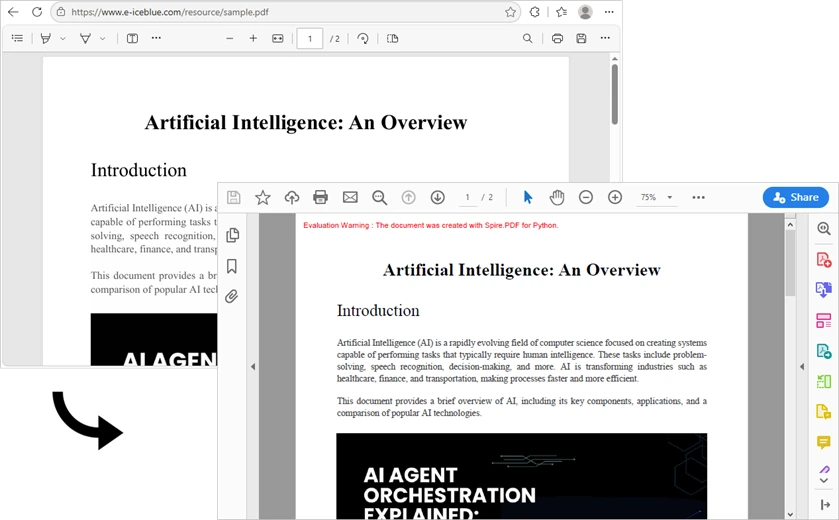
Explanation of key components:
requests.get(url)– Sends the HTTP GET request. The server responds with headers and the PDF binary.response.raise_for_status()– Checks for HTTP errors (e.g., 404, 500).response.content– Contains raw PDF bytes.Stream(response.content)– Wraps bytes in a readable, seekable in-memory stream.PdfDocument(stream)– Loads the PDF into memory for further operations.document.SaveToFile()– writes the PDF to disk.
This workflow loads PDF data into memory for instant saving, improving speed and avoiding unnecessary disk writes.
4. Processing PDFs Without Saving
You can extract metadata or text directly in memory without writing files:
def process_pdf_from_url():
    url = "resource/sample.pdf"
    response = requests.get(url)
    response.raise_for_status()

    # Load PDF in memory
    document = PdfDocument(Stream(response.content))

    # Retrieve document information
    print(f"Number of pages: {document.Pages.Count}")
    info = document.DocumentInformation
    print(f"Title: {info.Title}")
    print(f"Author: {info.Author}")

    # Extract text from the first page
    from spire.pdf import PdfTextExtractor
    extractor = PdfTextExtractor(document.Pages[0])
    text = extractor.ExtractText()
    print(f"First 100 characters: {text[:100]}")

    document.Close()

if __name__ == "__main__":
    process_pdf_from_url()
Why this is useful: You can analyze content, index text, or extract metadata without creating unnecessary files on disk. This is ideal for server-side scripts, cloud functions, or batch processing.
5. Handling Large PDFs
Downloading very large PDFs (e.g., 100MB+) can consume significant memory. Use streaming download and temporary files to reduce memory usage:
import tempfile
import os

def download_large_pdf(url: str, output_path: str):
    try:
        response = requests.get(url, stream=True, timeout=60)
        response.raise_for_status()

        # Write chunks to a temporary file
        with tempfile.NamedTemporaryFile(delete=False, suffix=".pdf") as tmp:
            for chunk in response.iter_content(chunk_size=8192):
                if chunk:
                    tmp.write(chunk)
            temp_path = tmp.name

        # Load PDF from temporary file
        document = PdfDocument()
        document.LoadFromFile(temp_path)
        document.SaveToFile(output_path)
        document.Close()

        # Clean up temporary file
        os.unlink(temp_path)
        print(f"Large PDF saved to: {output_path}")

    except Exception as e:
        print(f"Error: {e}")
Notes:
stream=Trueavoids loading the entire file into memory.- Temporary files allow processing PDFs that exceed available RAM.
6. Adding Retry Logic
Network requests may fail intermittently. Adding retries improves robustness:
import time

def download_with_retry(url: str, output_path: str, max_retries: int = 3):
    for attempt in range(max_retries):
        try:
            response = requests.get(url, timeout=30)
            response.raise_for_status()
            document = PdfDocument(Stream(response.content))
            document.SaveToFile(output_path)
            document.Close()
            print(f"Downloaded successfully: {output_path}")
            return True
        except requests.exceptions.RequestException as e:
            print(f"Attempt {attempt + 1} failed: {e}")
            if attempt < max_retries - 1:
                wait_time = 2 ** attempt
                print(f"Retrying in {wait_time} seconds...")
                time.sleep(wait_time)
    print("All retry attempts failed.")
    return False
Why use this: Exponential backoff prevents overwhelming servers and handles transient network failures gracefully.
7. Common Issues and Troubleshooting
PDF Not Found (404)
Problem: The URL does not point to a valid PDF, resulting in a 404 error.
Solution: Verify the URL and add a User-Agent header if needed:
import requests

url = "https://example.com/missing.pdf"
headers = {'User-Agent': 'Mozilla/5.0'}
response = requests.get(url, headers=headers)

if response.status_code == 404:
    print("PDF not found (404)")
Server Returns HTML Instead of PDF
Problem: The URL returns an HTML page instead of a PDF.
Solution: Check the Content-Type and parse HTML to locate the actual PDF:
import requests
from bs4 import BeautifulSoup

url = "https://example.com/download-page"
response = requests.get(url)
content_type = response.headers.get('Content-Type', '')

if 'application/pdf' not in content_type and 'text/html' in content_type:
    soup = BeautifulSoup(response.text, 'html.parser')
    for link in soup.find_all('a', href=True):
        if link['href'].endswith('.pdf'):
            print(f"Found PDF link: {link['href']}")
            # Download the actual PDF URL
Extracted Text Shows Garbled Characters
Problem: Text extraction returns unreadable characters, often due to encoding or scanned PDFs.
Solution: Ensure proper handling or use OCR for scanned PDFs:
from spire.pdf import PdfDocument, PdfTextExtractor

document = PdfDocument("example.pdf")
extractor = PdfTextExtractor(document.Pages[0])
text = extractor.ExtractText()
print(text[:200])
# If text is still garbled, the PDF may be image-based; consider OCR
PDF Loads But Has No Pages
Problem: document.Pages.Count returns 0 even though the file exists.
Solution: PDF may be corrupted or password-protected:
from spire.pdf import PdfDocument, Stream

with open("protected.pdf", "rb") as f:
    pdf_bytes = f.read()

# For password-protected PDF
document = PdfDocument(Stream(pdf_bytes), "password")
print(f"Pages: {document.Pages.Count}")
8. Conclusion
In this article, we demonstrated how to download PDF files from URLs in Python using Spire.PDF for Python. By leveraging the Stream class, developers can load PDF data directly from memory without unnecessary disk I/O, enabling efficient document processing pipelines.
We covered the complete workflow: downloading PDF data with the requests library, creating Stream objects from bytes, loading PdfDocument instances, handling network errors, managing large files, and troubleshooting common issues. The production-ready code examples provide a solid foundation for building robust PDF download and processing systems.
To fully experience the capabilities of Spire.PDF for Python without any evaluation limitations, you can request a free 30-day trial license.
9. FAQs
Q1. How do I download a PDF from a URL using Python?
Use the requests library to fetch the PDF data and Spire.PDF to load it from memory:
response = requests.get(url)
stream = Stream(response.content)
document = PdfDocument(stream)
Q2. How do I handle authentication-protected PDFs?
For basic authentication, use the auth parameter:
response = requests.get(url, auth=('username', 'password'))
For token-based authentication, add headers:
headers = {'Authorization': 'Bearer YOUR_TOKEN'}
response = requests.get(url, headers=headers)
Q3. What's the maximum PDF file size I can download?
The theoretical limit depends on your system's available memory. For files larger than 200MB, use the streaming approach with a temporary file instead of loading everything into memory.
Q4. Can I download multiple PDFs in parallel?
Yes. Use concurrent.futures or asyncio to download multiple PDFs simultaneously for better performance.
from concurrent.futures import ThreadPoolExecutor

urls = ["url1.pdf", "url2.pdf", "url3.pdf"]
with ThreadPoolExecutor(max_workers=5) as executor:
    executor.map(lambda u: download_pdf(u), urls)

Inserting mathematical equations into Word documents programmatically is essential for developers building scientific document generators, academic reporting systems, educational platforms, or engineering automation tools. Whether you're generating research papers, technical documentation, or mathematics worksheets, automating equation insertion greatly improves efficiency and consistency.
However, manually formatting equations in Microsoft Word is time-consuming, and building a mathematical rendering engine from scratch can be extremely complex. Developers often need a reliable way to add equations in Word while supporting standard mathematical formats such as LaTeX and MathML.
With Spire.Doc for Python, developers can insert mathematical equations into Word documents directly from LaTeX and MathML code using a straightforward API. This article demonstrates how to create Word equations in Python, including how to insert formulas, convert equations between LaTeX, MathML, and Office MathML (OMML), and export Word equations into different mathematical formats.
Quick Navigation
- Understanding Mathematical Equations in Word Documents
- Install Spire.Doc for Python
- Insert Equations into Word from LaTeX in Python
- Add MathML Equations to Word Documents in Python
- Convert Word Equations to LaTeX or MathML
- Render Equation as Image
- Complete Example: Multi-Format Equation Processing
- Common Pitfalls
- FAQ
1. Understanding Mathematical Equations in Word Documents
Microsoft Word uses Office Math Markup Language (OMML) as its internal format for mathematical equations. OMML is an XML-based structure that controls equation layout, symbols, fractions, matrices, and other mathematical elements in Word documents. However, directly creating or editing OMML is cumbersome for most developers.
In real-world applications, mathematical content is more commonly written in LaTeX or MathML:
- LaTeX is widely used in academia and scientific publishing because of its concise syntax and powerful mathematical typesetting capabilities.
- MathML is an XML-based standard designed for mathematical content on the web and in educational systems.
To generate editable Word equations programmatically, developers often need to convert between these formats and Word's native equation objects.
Why Choose Spire.Doc for Python?
Spire.Doc for Python provides native support for Word equation processing through the OfficeMath class. Instead of manually generating OMML or relying on image-based workarounds, developers can directly create editable Word equations from LaTeX or MathML code.
Key capabilities include:
| Capability | Supported |
|---|---|
| Insert equations from LaTeX | ✓ |
| Insert equations from MathML | ✓ |
| Export Word equations to LaTeX | ✓ |
| Export Word equations to MathML | ✓ |
| Access native OMML content | ✓ |
| Render equations as images | ✓ |
These capabilities are particularly useful for academic report generation, educational platforms, MathML-to-Word conversion workflows, LaTeX publishing pipelines, and other automated document generation scenarios involving mathematical content.
2. Install Spire.Doc for Python
Install Spire.Doc for Python via pip:
pip install spire.doc
Import the required classes in your Python script:
from spire.doc import *
Alternatively, you can manually install the library from the Spire.Doc for Python download page.
3. Insert Equations into Word from LaTeX in Python
LaTeX is the most widely used format for writing mathematical equations in academic and scientific documents. With Spire.Doc for Python, you can convert LaTeX expressions into native Word equation objects and insert these equations directly into DOCX files.
The following example demonstrates how to insert multiple LaTeX equations into a Word document using the OfficeMath class.
from spire.doc import *

def insert_latex_equations():
    # Create a new Word document
    doc = Document()
    section = doc.AddSection()

    # Add a title paragraph
    title_para = section.AddParagraph()
    title_para.AppendText("Mathematical Equations from LaTeX")
    title_para.Format.HorizontalAlignment = HorizontalAlignment.Left

    # Define LaTeX equations to insert
    latex_equations = [
    r"x = \frac{-b \pm \sqrt{b^2 - 4ac}}{2a}",  # Quadratic formula
    r"e^{i\pi} + 1 = 0",  # Euler's identity
    r"\int_0^\infty e^{-x} \, dx = 1",  # Definite integral
    # Summation formula
    r"\sum_{i=1}^{n} i = \frac{n(n+1)}{2}",
    r"\sum_{i=1}^{n} i = \frac{n(n+1)}{2}",  # Summation formula
    r"A = \begin{pmatrix} 1 & 2 \\ 3 & 4 \end{pmatrix}",  # Matrix
    r"P(A \mid B) = \frac{P(B \mid A)P(A)}{P(B)}",  # Probability formula
    r"\sin^2\theta + \cos^2\theta = 1",  # Trigonometric identity
    ]

    # Insert each LaTeX equation as a separate paragraph
    for latex_code in latex_equations:
        # Create an OfficeMath object from LaTeX code
        office_math = OfficeMath(doc)
        office_math.FromLatexMathCode(latex_code)

        # Add the equation to a new paragraph
        para = section.AddParagraph()
        para.Items.Add(office_math)

    # Save the document
    doc.SaveToFile("latex_equations.docx", FileFormat.Docx2019)
    doc.Close()
    print("LaTeX equations inserted successfully!")

if __name__ == "__main__":
    insert_latex_equations()
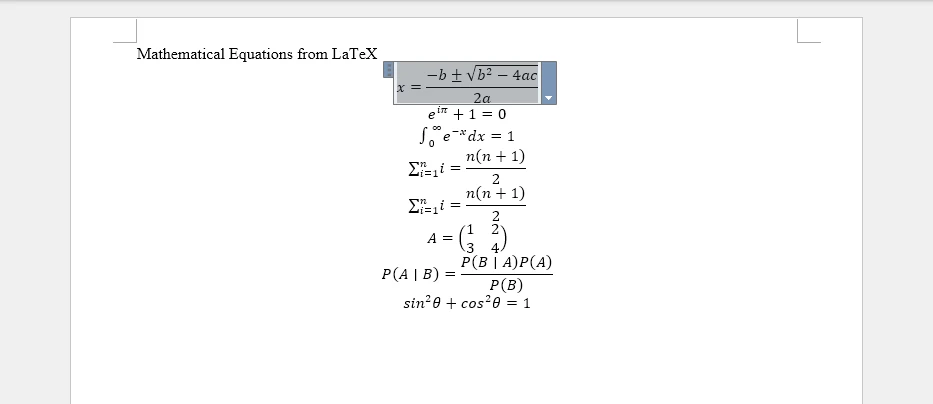
The following screenshot shows the generated Word document with equations converted from LaTeX code.
Key API Methods
- Document – Represents the Word document container used to create sections and paragraphs
- OfficeMath – Represents a mathematical equation object in Word documents
- FromLatexMathCode() – Converts LaTeX mathematical code into an Office Math object that Word can render natively
- Items.Add() – Adds the OfficeMath object to a paragraph's content collection
- SaveToFile() – Saves the document to disk in DOCX format using FileFormat.Docx2019
This approach supports complex LaTeX constructs such as fractions, integrals, matrices, Greek letters, and other mathematical operators while preserving native Word equation formatting.
Adding Inline Equations
In addition to standalone equations, you can insert inline equations within text paragraphs. This is useful for embedding mathematical expressions within sentences or explanations.
from spire.doc import *

def insert_inline_equation():
    # Create a new Word document
    doc = Document()
    section = doc.AddSection()

    # Add introductory text
    para = section.AddParagraph()
    para.AppendText("The quadratic formula is ")

    # Insert inline equation
    office_math = OfficeMath(doc)
    office_math.FromLatexMathCode(r"x = \frac{-b \pm \sqrt{b^2 - 4ac}}{2a}")
    para.Items.Add(office_math)

    para.AppendText(", where a ≠ 0.")

    # Save the document
    doc.SaveToFile("inline_equation.docx", FileFormat.Docx2019)
    doc.Close()

if __name__ == "__main__":
    insert_inline_equation()
The inserted equation appears inline within the text:
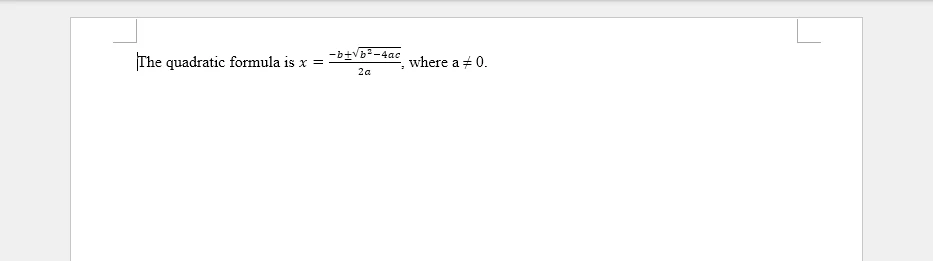
This approach makes it easy to embed mathematical expressions directly within regular text content, which is useful for educational materials, research papers, and technical documentation.
If you need to combine equations with formatted text, headings, tables, and other structured document elements, you can also refer to our tutorial on creating structured Word documents in Python.
4. Add MathML Equations to Word Documents in Python
MathML (Mathematical Markup Language) is an XML-based standard for representing mathematical expressions on the web and in digital documents. It's commonly used in online education platforms, scientific databases, and content management systems. The following example shows how to convert MathML to Word equations using Spire.Doc for Python.
from spire.doc import *

def insert_mathml_equations():
    # Create a new Word document
    doc = Document()
    section = doc.AddSection()

    # Add a title paragraph
    title_para = section.AddParagraph()
    title_para.AppendText("Mathematical Equations from MathML")

    # Define MathML equations to insert
    mathml_equations = [
    # Euler's identity
    r'<math xmlns="http://www.w3.org/1998/Math/MathML">'
    r'<msup><mi>e</mi><mrow><mi>i</mi><mi>π</mi></mrow></msup>'
    r'<mo>+</mo><mn>1</mn><mo>=</mo><mn>0</mn>'
    r'</math>',
    # Pythagorean theorem
    r'<math xmlns="http://www.w3.org/1998/Math/MathML">'
    r'<msup><mi>a</mi><mn>2</mn></msup>'
    r'<mo>+</mo>'
    r'<msup><mi>b</mi><mn>2</mn></msup>'
    r'<mo>=</mo>'
    r'<msup><mi>c</mi><mn>2</mn></msup>'
    r'</math>',
    # Fraction expression
    r'<math xmlns="http://www.w3.org/1998/Math/MathML">'
    r'<mfrac>'
    r'<mrow><mi>x</mi><mo>+</mo><mi>y</mi></mrow>'
    r'<mrow><mi>z</mi><mo>−</mo><mn>1</mn></mrow>'
    r'</mfrac>'
    r'</math>',
    # Integral equation
    r'<math xmlns="http://www.w3.org/1998/Math/MathML">'
    r'<msubsup><mo>∫</mo><mn>0</mn><mn>1</mn></msubsup>'
    r'<msup><mi>x</mi><mn>2</mn></msup>'
    r'<mi>d</mi><mi>x</mi>'
    r'<mo>=</mo>'
    r'<mfrac><mn>1</mn><mn>3</mn></mfrac>'
    r'</math>'
    ]

    # Insert each MathML equation as a separate paragraph
    for mathml_code in mathml_equations:
        # Create an OfficeMath object from MathML code
        office_math = OfficeMath(doc)
        office_math.FromMathMLCode(mathml_code)

        # Add the equation to a new paragraph
        para = section.AddParagraph()
        para.Items.Add(office_math)

    # Save the document
    doc.SaveToFile("mathml_equations.docx", FileFormat.Docx2019)
    doc.Close()
    print("MathML equations inserted successfully!")

if __name__ == "__main__":
    insert_mathml_equations()
The following screenshot shows the generated Word document with equations converted from MathML code.
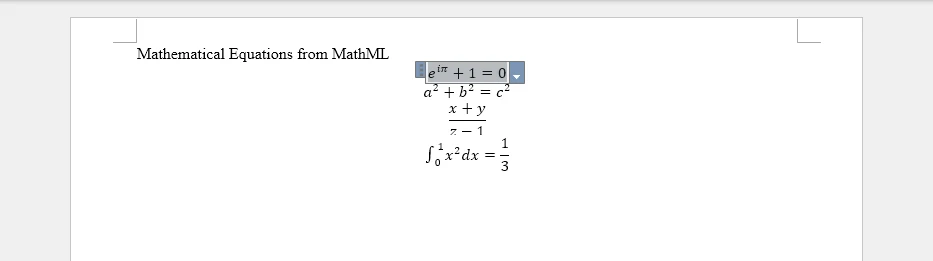
Key API Method
- FromMathMLCode() – Parses MathML markup and converts it into a native Word equation object.
MathML support is especially useful when working with XML-based educational content, web-based equation systems, and STEM learning platforms that store mathematical expressions in MathML format.
Combining LaTeX and MathML in One Document
You can mix both LaTeX and MathML equations within the same document, allowing flexibility in content sources:
from spire.doc import *

def insert_mixed_equations():
    # Create a new Word document
    doc = Document()
    section = doc.AddSection()

    # Insert LaTeX equation
    latex_para = section.AddParagraph()
    latex_math = OfficeMath(doc)
    latex_math.FromLatexMathCode(r"E = mc^2")
    latex_para.Items.Add(latex_math)

    # Insert MathML equation
    mathml_para = section.AddParagraph()
    mathml_math = OfficeMath(doc)
    mathml_math.FromMathMLCode(
        r'<math xmlns="http://www.w3.org/1998/Math/MathML">'
        r'<mi>F</mi><mo>=</mo><mi>m</mi><mi>a</mi>'
        r'</math>'
    )
    mathml_para.Items.Add(mathml_math)

    # Save the document
    doc.SaveToFile("mixed_equations.docx", FileFormat.Docx2019)
    doc.Close()

if __name__ == "__main__":
    insert_mixed_equations()
This approach is useful when mathematical content comes from different sources, such as LaTeX-based publishing systems and MathML-based web applications.
If your mathematical content originates from web pages or HTML-based systems, you can also refer to our tutorial on converting HTML content to Word documents in Python.
5. Convert Word Equations to LaTeX, MathML, and OMML
Besides inserting equations into Word documents, Spire.Doc for Python also supports exporting Word equations to multiple mathematical markup formats. This is useful for interoperability between Word, LaTeX publishing systems, web-based MathML platforms, and custom XML workflows.
The following example demonstrates how to extract equations from a Word document and export them as LaTeX, MathML, and Office MathML (OMML).
from spire.doc import *

def export_equation_formats():
    # Load a Word document containing equations
    doc = Document()
    doc.LoadFromFile("equations.docx")

    # Access the first paragraph
    section = doc.Sections[0]
    para = section.Paragraphs[0]

    # Find OfficeMath objects
    for item in para.ChildObjects:
        if isinstance(item, OfficeMath):

            # Export to LaTeX
            latex_code = item.ToLaTexMathCode()
            print("LaTeX:")
            print(latex_code)
            print()

            # Export to MathML
            mathml_code = item.ToMathMLCode()
            print("MathML:")
            print(mathml_code)
            print()

            # Export to Office MathML (OMML)
            omml_code = item.ToOfficeMathMLCode()
            print("OMML:")
            print(omml_code)

            # Save outputs to files
            with open("equation.tex", "w", encoding="utf-8") as f:
                f.write(latex_code)

            with open("equation.xml", "w", encoding="utf-8") as f:
                f.write(mathml_code)

            with open("equation.omml", "w", encoding="utf-8") as f:
                f.write(omml_code)

            break

    doc.Close()

if __name__ == "__main__":
    export_equation_formats()
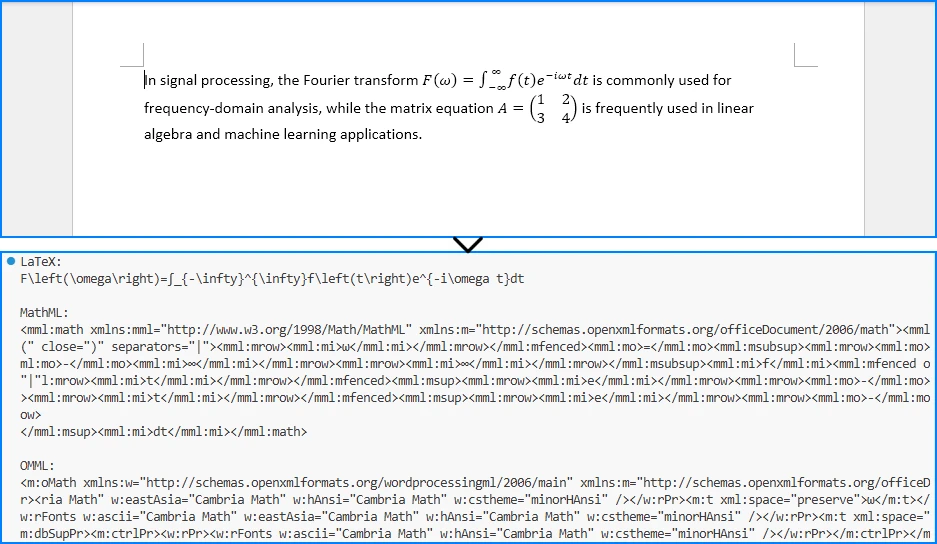
The following screenshot shows the exported equation formats printed in the Python console.
Supported Export Formats
| Format | Primary Use Case | Characteristics |
|---|---|---|
| LaTeX | Academic publishing and scientific papers | Compact syntax widely used in academia |
| MathML | Web-based mathematical content | XML-based format designed for browsers and educational systems |
| OMML | Microsoft Word integration | Native Office equation format with full Word compatibility |
These export capabilities make it easier to:
- Convert Word equations into LaTeX publishing workflows
- Publish equations on websites using MathML
- Integrate Word documents with XML-based systems
- Inspect and debug Word equation structures using OMML
6. Render Office Math Equations to Images
In some scenarios, you may need to export equations as image files for use in presentations, web pages, or other non-editable contexts. Spire.Doc for Python allows you to render Office Math equations into image streams that can be saved as image files.
from spire.doc import *

def render_equation_as_image():
    # Create a new Word document with an equation
    doc = Document()
    section = doc.AddSection()
    para = section.AddParagraph()

    # Insert an equation
    office_math = OfficeMath(doc)
    office_math.FromLatexMathCode(
        r"\int_0^\infty e^{-x^2} dx = \frac{\sqrt{\pi}}{2}"
    )
    para.Items.Add(office_math)

    # Render the equation as an image stream
    image_stream = office_math.SaveImageToStream(ImageType.Bitmap)

    # Save the image to file
    with open("equations/equation.png", "wb") as f:
        f.write(image_stream.ToArray())

    # Release unmanaged resources
    image_stream.Dispose()
    doc.Close()

    print("Equation rendered as image successfully!")

if __name__ == "__main__":
    render_equation_as_image()
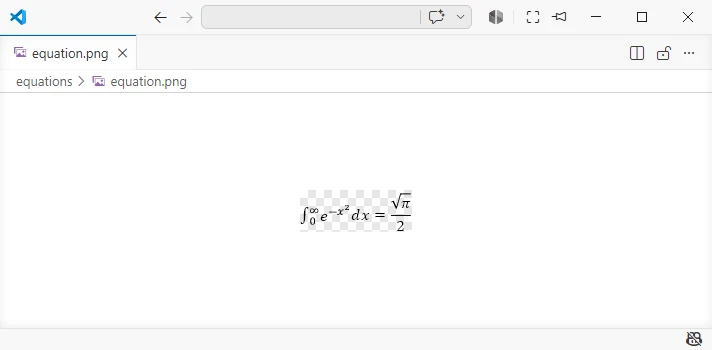
The following screenshot shows the equation rendered as an image file.
This feature is particularly useful for:
- Embedding equations in presentations
- Displaying formulas on web pages
- Generating static previews for document systems
If you want to render complete Word documents as images rather than exporting individual equations, check out our tutorial on converting Word documents to images in Python.
7. Complete Example: Multi-Format Equation Processing
The following comprehensive example demonstrates a complete workflow that combines multiple equation operations: inserting equations from different sources, exporting to various formats, and rendering as images.
from spire.doc import *

def complete_equation_workflow():
    """
    Demonstrates a complete workflow for equation processing:
    - Create equations from LaTeX and MathML
    - Export equations to LaTeX and MathML
    - Render equations as images
    """

    # Create a new Word document
    doc = Document()
    section = doc.AddSection()

    # Add document title
    title_para = section.AddParagraph()
    title_text = title_para.AppendText("Complete Equation Processing Workflow")
    title_text.CharacterFormat.FontSize = 16
    title_text.CharacterFormat.Bold = True
    title_para.Format.HorizontalAlignment = HorizontalAlignment.Center

    # Insert equations from LaTeX
    latex_section_title = section.AddParagraph()
    latex_title_text = latex_section_title.AppendText("\nEquations from LaTeX:")
    latex_title_text.CharacterFormat.Bold = True

    latex_examples = [
        (r"E = mc^2", "Einstein's Mass-Energy Equivalence"),
        (r"\sum_{i=1}^{n} i = \frac{n(n+1)}{2}", "Sum of First n Integers"),
        (r"\frac{d}{dx}\left(\int_a^x f(t)dt\right) = f(x)", "Fundamental Theorem of Calculus")
    ]

    first_equation = None

    for latex_code, description in latex_examples:
        # Add description
        desc_para = section.AddParagraph()
        desc_para.AppendText(f"{description}:")

        # Insert equation
        office_math = OfficeMath(doc)
        office_math.FromLatexMathCode(latex_code)

        eq_para = section.AddParagraph()
        eq_para.Items.Add(office_math)

        if first_equation is None:
            first_equation = office_math

    # Insert equations from MathML
    mathml_section_title = section.AddParagraph()
    mathml_title_text = mathml_section_title.AppendText("\nEquations from MathML:")
    mathml_title_text.CharacterFormat.Bold = True

    mathml_examples = [
        (
            r'<math xmlns="http://www.w3.org/1998/Math/MathML"><mi>a</mi><mo>+</mo><mi>b</mi><mo>=</mo><mi>c</mi></math>',
            "Simple Addition"
        ),
        (
            r'<math xmlns="http://www.w3.org/1998/Math/MathML"><msup><mi>e</mi><mrow><mi>i</mi><mi>π</mi></mrow></msup><mo>+</mo><mn>1</mn><mo>=</mo><mn>0</mn></math>',
            "Euler's Identity"
        )
    ]

    for mathml_code, description in mathml_examples:
        # Add description
        desc_para = section.AddParagraph()
        desc_para.AppendText(f"{description}:")

        # Insert equation
        office_math = OfficeMath(doc)
        office_math.FromMathMLCode(mathml_code)

        eq_para = section.AddParagraph()
        eq_para.Items.Add(office_math)

    # Save the Word document
    output_docx = "complete_equations.docx"
    doc.SaveToFile(output_docx, FileFormat.Docx2019)
    print(f"Word document saved: {output_docx}")

    # Export the first equation to LaTeX
    latex_export = first_equation.ToLaTexMathCode()

    with open("exported_equation.tex", "w", encoding="utf-8") as f:
        f.write(latex_export)

    print(f"Exported to LaTeX: {latex_export}")

    # Export the first equation to MathML
    mathml_export = first_equation.ToMathMLCode()

    with open("exported_equation.xml", "w", encoding="utf-8") as f:
        f.write(mathml_export)

    print("Exported to MathML")

    # Render the first equation as an image
    image_stream = first_equation.SaveImageToStream(ImageType.Bitmap)

    with open("equation_render.png", "wb") as f:
        f.write(image_stream.ToArray())

    # Release unmanaged resources
    image_stream.Dispose()

    print("Equation rendered as image successfully!")

    # Clean up
    doc.Close()

    print("\nWorkflow completed successfully!")

if __name__ == "__main__":
    complete_equation_workflow()
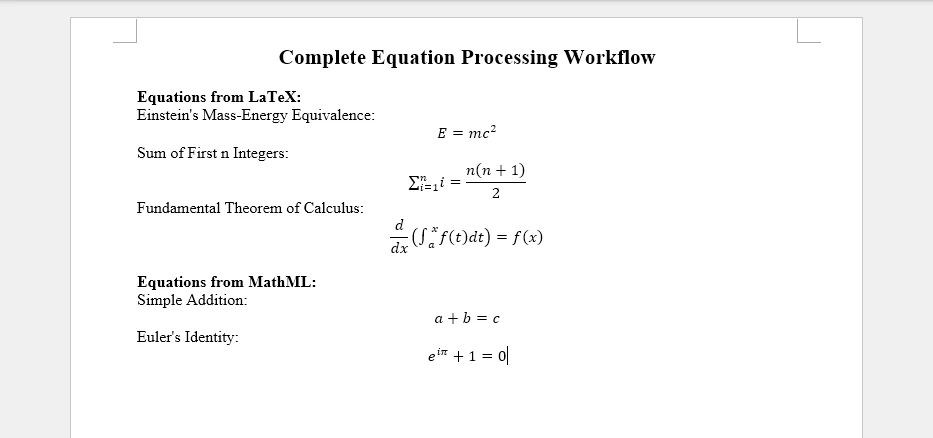
The generated Word document will look like this:
This complete example demonstrates:
- Multi-source equation insertion – Combining LaTeX and MathML inputs
- Descriptive labeling – Adding context to each equation
- Format conversion – Exporting to LaTeX and MathML
- Image rendering – Creating visual representations
- Resource management – Proper cleanup of document objects
The resulting Word document contains well-formatted equations with descriptions, while the exported files provide alternative formats for different use cases.
8. Common Pitfalls
Raw String Literals for LaTeX
When writing LaTeX code in Python strings, always use raw strings (prefix with r) to prevent escape sequence interpretation:
# Correct: Use raw string
latex_code = r"\int_0^\infty e^{-x} dx"

# Incorrect: Backslashes will be interpreted as escape sequences
latex_code = "\int_0^\infty e^{-x} dx"
Unsupported LaTeX Commands
Not all LaTeX commands are supported by Word's equation engine. Some advanced LaTeX constructs may not render correctly. Stick to standard mathematical notation whenever possible:
# Supported: Standard mathematical notation
office_math.FromLatexMathCode(r"\alpha + \beta = \gamma")

# Some advanced LaTeX constructs may not be supported
# office_math.FromLatexMathCode(r"\begin{align} ... \end{align}")
MathML Namespace Requirements
MathML code must include the proper namespace declaration to parse correctly:
# Correct: Include namespace
mathml = r'<math xmlns="http://www.w3.org/1998/Math/MathML"><mi>x</mi></math>'

# Incorrect: Missing namespace may fail
mathml = r'<math><mi>x</mi></math>'
Memory Management
Always close documents after processing to release resources, especially in batch operations:
doc = Document()

try:
    # Process equations
    doc.SaveToFile("output.docx", FileFormat.Docx2019)

finally:
    doc.Close()  # Ensure cleanup even if errors occur
Character Encoding
When saving exported LaTeX or MathML to files, ensure proper UTF-8 encoding for special characters:
with open("equation.tex", "w", encoding="utf-8") as f:
    f.write(latex_code)
Image Stream Disposal
Always dispose of image streams after use to properly release resources:
image_stream = office_math.SaveImageToStream(ImageType.Bitmap)

try:
    with open("equation.png", "wb") as f:
        f.write(image_stream.ToArray())

finally:
    image_stream.Dispose()
Conclusion
In this article, we demonstrated how to insert mathematical equations into Word documents in Python using Spire.Doc for Python. By leveraging the Spire API, developers can create Word equations from LaTeX and MathML code, convert between LaTeX, MathML, and Word’s native OMML format, and render equations as images. This capability is essential for automating scientific document generation, educational content creation, and mathematical publishing workflows.
Spire.Doc for Python provides comprehensive equation processing capabilities beyond basic insertion, including conversion between LaTeX and MathML into Word’s native OMML format, as well as exporting Word equations back to LaTeX, MathML, and OMML. The library simplifies complex mathematical typesetting while maintaining compatibility with Microsoft Word’s native equation engine.
If you want to evaluate the full capabilities of Spire.Doc for Python, you can apply for a 30-day free license.
9. FAQ
How do I insert equations into Word using Python?
Use the OfficeMath class from Spire.Doc for Python. Create an OfficeMath object, call FromLatexMathCode() or FromMathMLCode() with your equation code, then add it to a paragraph using para.Items.Add(office_math). Finally, save the document using doc.SaveToFile().
Can I add LaTeX equations to Word documents in Python?
Yes. Spire.Doc for Python supports inserting equations from LaTeX code using the FromLatexMathCode() method. Standard mathematical notation such as fractions, integrals, superscripts, subscripts, and Greek letters can be converted into Word-compatible equations.
Does Spire.Doc support MathML equations?
Yes. You can create Word equations from MathML using the FromMathMLCode() method. Make sure the MathML content includes the correct namespace declaration:
<math xmlns="http://www.w3.org/1998/Math/MathML">
Can I export Word equations back to LaTeX or MathML?
Yes. Spire.Doc for Python provides methods such as ToLaTexMathCode() and ToMathMLCode() to export Office Math equations into LaTeX or MathML formats. This is useful for content migration, storage, or integration with other mathematical systems.
How can I render equations as images?
Use the SaveImageToStream() method on an OfficeMath object to render the equation as an image stream. You can then save the stream as an image file and use it in presentations, web pages, or preview systems.
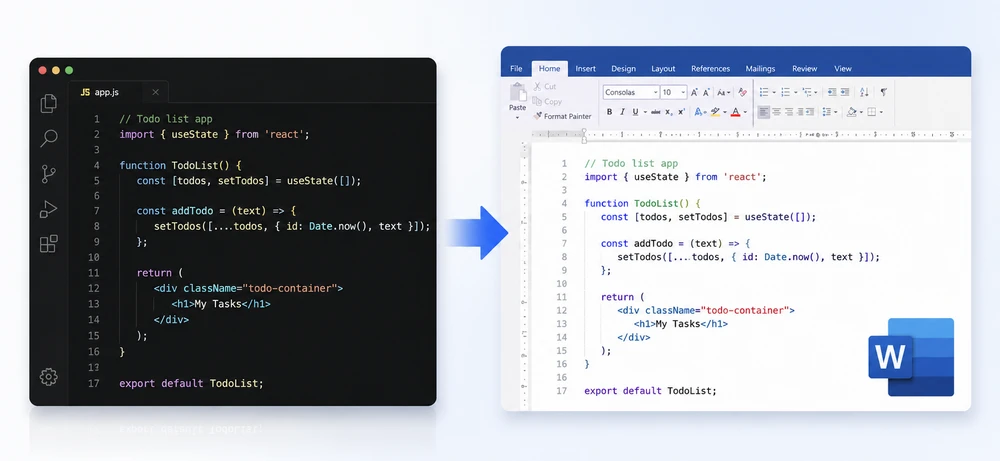
Modern development teams often need to share JavaScript or JSX source code with project managers, clients, auditors, or educators who don't use code editors. However, raw .js and .jsx files are difficult to review outside tools like VS Code or WebStorm, while manually copying code into Word documents frequently breaks indentation, formatting, and readability.
Using Spire.Doc for Python together with Pygments, developers can convert JavaScript to Word in Python with syntax highlighting and customizable document formatting. This automated approach is useful for technical documentation, compliance archiving, educational materials, code reviews, and client deliverables.
In this article, you'll learn how to convert JavaScript and JSX files to Word documents in Python using Spire.Doc for Python, including basic conversion, advanced formatting techniques, batch processing, and PDF export.
Quick Navigation
- Understanding the Conversion Workflow
- Prerequisites
- Basic Implementation of JavaScript to Word Conversion
- Advanced Scenarios
- Common Pitfalls
- Conclusion
- FAQ
1. Understanding the Conversion Workflow
The conversion process uses Pygments to generate syntax-highlighted HTML, then imports this HTML into a Word document using Spire.Doc's HTML import functionality:
- Read source code from
.jsor.jsxfiles - Generate syntax-highlighted HTML using Pygments'
highlight()function - Import the HTML into Word using
AppendHTML()
This approach provides syntax coloring through Pygments' built-in styles, while Spire.Doc handles document structure including margins, headers, footers, and multi-format export. It provides a simple and flexible API for automating the conversion process.
2. Prerequisites
Before converting JavaScript files to Word documents in Python, you need to install Spire.Doc for Python and Pygments:
pip install spire.doc
pip install pygments
Verify the packages are available:
import spire.doc
from pygments import highlight
from pygments.formatters import HtmlFormatter
Alternatively, you can download Spire.Doc for Python and add it to your project.
3. Basic Implementation
The following example converts a JavaScript file to a Word document with syntax highlighting:
from spire.doc import *
from pygments import highlight
from pygments.lexers import JavascriptLexer
from pygments.formatters import HtmlFormatter

def convert_js_to_word(input_file: str, output_file: str) -> None:
    """Convert JavaScript file to Word document with syntax highlighting."""

    with open(input_file, "r", encoding="utf-8") as file:
        js_code = file.read()

    document = Document()
    section = document.AddSection()
    section.PageSetup.Margins.All = 50

    title_paragraph = section.AddParagraph()
    title_text = title_paragraph.AppendText(f"Source Code: {input_file}")
    title_text.CharacterFormat.FontName = "Arial"
    title_text.CharacterFormat.FontSize = 14
    title_text.CharacterFormat.Bold = True
    title_paragraph.Format.AfterSpacing = 10

    html_formatter = HtmlFormatter(
        nowrap=True,
        style='colorful',
        noclasses=True
    )

    highlighted_html = highlight(js_code, JavascriptLexer(), html_formatter)

    code_paragraph = section.AddParagraph()
    code_paragraph.AppendHTML(f'<pre style="font-family: Consolas; font-size: 10pt;">{highlighted_html}</pre>')

    document.SaveToFile(output_file, FileFormat.Docx)
    document.Close()

    print(f"Converted {input_file} to {output_file}")

convert_js_to_word("app.js", "JavaScriptCode.docx")
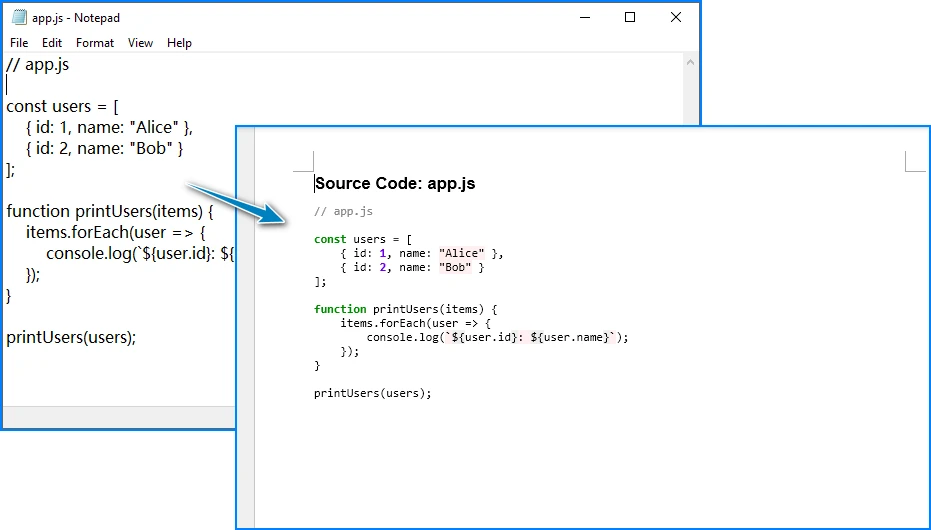
Key Components
- Document – Word document container for sections, paragraphs, and content
- Section – Document section with page setup properties (margins, orientation)
- Paragraph – Text container with formatting options
- AppendHTML() – Imports HTML content into the paragraph, including inline styles for colors and fonts
- highlight() – Pygments function that generates syntax-highlighted output
- HtmlFormatter – Pygments formatter producing HTML with inline styles (use
noclasses=True) - JavascriptLexer – Pygments lexer that identifies JavaScript syntax elements
Spire.Doc can import syntax-highlighted HTML generated by Pygments, allowing JavaScript code formatting and colors to be preserved in Word documents.
4. Advanced Scenarios
Convert JSX Files
For JSX files, it's recommended to use JsxLexer instead of JavascriptLexer to achieve more accurate syntax highlighting for component tags and embedded JSX expressions.
Example JSX input (App.jsx):
``jsx import React, { useState } from 'react';
const TodoList = () => { const [todos, setTodos] = useState([]);
return (
    <div className="todo-container">
        <h1>My Tasks</h1>
    </div>
);
};
export default TodoList;
Use `JsxLexer` when generating syntax-highlighted HTML:

```python
from pygments.lexers import JsxLexer

highlighted_html = highlight(
    jsx_code,
    JsxLexer(),
    html_formatter
)
Then convert the highlighted JSX content to Word using the same AppendHTML() workflow:
convert_js_to_word("App.jsx", "ReactComponent.docx")
The conversion result looks like this:
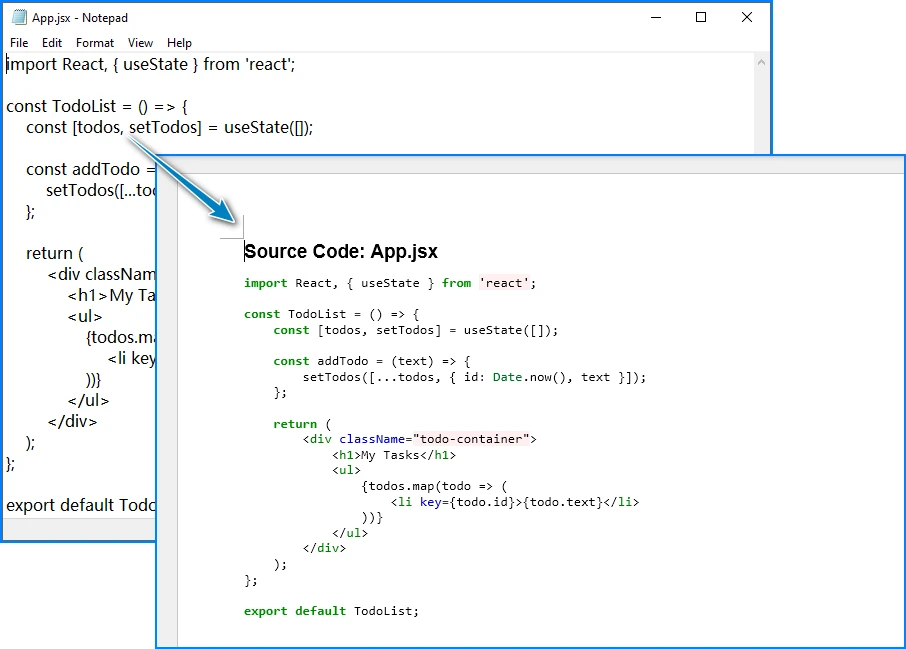
JsxLexer provides improved recognition for JSX tags, attributes, and embedded expressions compared to the standard JavaScript lexer, resulting in more accurate syntax coloring in the generated Word document.
Batch Convert Multiple Files
If you need to convert large numbers of JavaScript or JSX files, you can automate the process by scanning a folder and generating Word documents in batches.
import os
from pathlib import Path

def batch_convert_js_files(source_folder: str, output_folder: str) -> None:
    """Convert all JavaScript files in a folder to Word documents."""

    Path(output_folder).mkdir(parents=True, exist_ok=True)

    js_extensions = ('.js', '.jsx', '.mjs')

    converted_count = 0
    error_count = 0

    for filename in os.listdir(source_folder):
        if filename.lower().endswith(js_extensions):
            input_path = os.path.join(source_folder, filename)

            base_name = os.path.splitext(filename)[0]
            output_path = os.path.join(output_folder, f"{base_name}.docx")

            try:
                convert_js_to_word(input_path, output_path)
                converted_count += 1
            except Exception as e:
                print(f"Error converting {filename}: {str(e)}")
                error_count += 1

    print(f"\nBatch conversion complete:")
    print(f"  Converted: {converted_count} files")
    print(f"  Errors: {error_count} files")

batch_convert_js_files("src/scripts", "output/docs")
Add Line Numbers
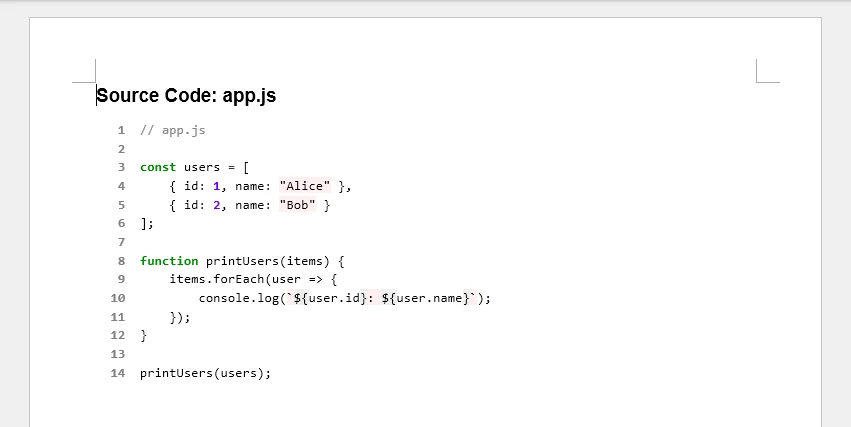
Line numbers can improve readability during code reviews, audits, or technical documentation. Since Word HTML rendering may not fully support Pygments' built-in line number layouts, a practical approach is to prepend custom line numbers after syntax highlighting.
html_formatter = HtmlFormatter(
    nowrap=True,
    noclasses=True,
    style="colorful"
)

highlighted_html = highlight(
    js_code,
    JavascriptLexer(),
    html_formatter
)

highlighted_lines = highlighted_html.splitlines()

numbered_lines = []

for index, line in enumerate(highlighted_lines, start=1):

    numbered_line = (
        f'<span style="color: gray; font-weight: bold;">'
        f'{index:4d}  '
        f'</span>{line}'
    )

    numbered_lines.append(numbered_line)

combined_html = (
    '<pre style="font-family: Consolas; '
    'font-size: 10pt; line-height: 1.4;">'
    + '\n'.join(numbered_lines) +
    '</pre>'
)

paragraph.AppendHTML(combined_html)
The generated Word document with line numbers looks like this:
Add Headers and Footers
Headers and footers help organize generated Word documents by adding titles, page numbers, and document metadata. This is especially useful for formal reports or exported technical documentation.
def add_document_metadata(section: Section, document_title: str) -> None:
    """Add header and footer to document section."""

    header = section.HeadersFooters.Header.AddParagraph()
    header_text = header.AppendText(document_title)
    header_text.CharacterFormat.FontName = "Arial"
    header_text.CharacterFormat.FontSize = 10
    header_text.CharacterFormat.TextColor = Color.get_Black()
    header.Format.HorizontalAlignment = HorizontalAlignment.Left
    header.Format.TextAlignment = TextAlignment.Top

    header.Format.Borders.Bottom.BorderType = BorderStyle.Single
    header.Format.Borders.Bottom.Color = Color.get_Black()

    footer = section.HeadersFooters.Footer.AddParagraph()
    footer.Format.HorizontalAlignment = HorizontalAlignment.Center
    footer.Format.TextAlignment = TextAlignment.Bottom

    page_field = footer.AppendField("page", FieldType.FieldPage)
    page_field.CharacterFormat.FontName = "Arial"
    page_field.CharacterFormat.FontSize = 9

    footer.AppendText(" of ")
    total_pages_field = footer.AppendField("numPages", FieldType.FieldNumPages)
    total_pages_field.CharacterFormat.FontName = "Arial"
    total_pages_field.CharacterFormat.FontSize = 9

document = Document()
document.LoadFromFile("CodeWithLines.docx")
section = document.Sections[0]
add_document_metadata(section, "JavaScript Source Code Documentation")
document.SaveToFile("CodeWithHeadersFooters.docx", FileFormat.Docx)
The generated Word document with headers and footers looks like this:
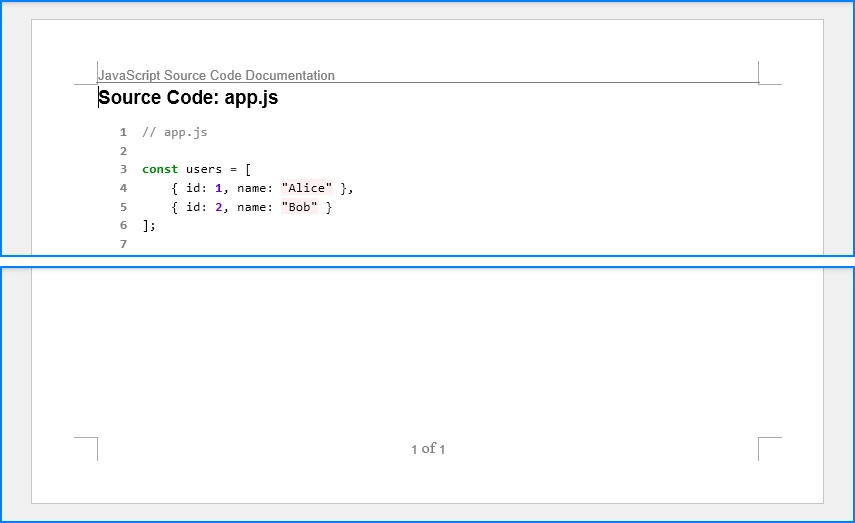
For more advanced customization options, refer to our guide on how to add headers and footers to Word documents in Python.
Export to PDF Format
In addition to DOCX output, Spire.Doc can export syntax-highlighted JavaScript code directly to PDF format. This is useful when distributing read-only documentation or sharing code outside Microsoft Word environments.
def convert_js_to_pdf(input_file: str, output_file: str) -> None:
    """Convert JavaScript file directly to PDF."""

    with open(input_file, "r", encoding="utf-8") as file:
        js_code = file.read()

    document = Document()
    section = document.AddSection()
    section.PageSetup.Margins.All = 50

    html_formatter = HtmlFormatter(noclasses=True, style='colorful')
    highlighted_html = highlight(js_code, JavascriptLexer(), html_formatter)

    paragraph = section.AddParagraph()
    paragraph.AppendHTML(f'<pre style="font-family: Consolas; font-size: 10pt;">{highlighted_html}</pre>')

    document.SaveToFile(output_file, FileFormat.PDF)
    document.Close()

convert_js_to_pdf("app.js", "JavaScriptCode.pdf")
For more advanced PDF conversion techniques, including layout control and document formatting, see our detailed guide on converting Word documents to PDF in Python.
Customize Syntax Highlighting Style
Pygments provides multiple built-in color schemes:
def convert_with_custom_style(input_file: str, output_file: str, style_name: str = 'monokai') -> None:
    """Convert JavaScript to Word with custom highlighting style."""

    with open(input_file, "r", encoding="utf-8") as file:
        js_code = file.read()

    document = Document()
    section = document.AddSection()
    section.PageSetup.Margins.All = 50

    html_formatter = HtmlFormatter(
        noclasses=True,
        style=style_name,
        nowrap=True
    )

    highlighted_html = highlight(js_code, JavascriptLexer(), html_formatter)

    paragraph = section.AddParagraph()
    paragraph.AppendHTML(f'<pre style="font-family: Consolas; font-size: 10pt;">{highlighted_html}</pre>')

    document.SaveToFile(output_file, FileFormat.Docx)
    document.Close()

convert_with_custom_style("app.js", "CodeMonokai.docx", style_name='monokai')
Available styles include: 'monokai', 'colorful', 'vim', 'vs', 'tango', 'friendly', 'default'
5. Common Pitfalls
Missing HtmlFormatter Configuration
Problem: Default HtmlFormatter generates CSS classes instead of inline styles, which Word cannot process without external stylesheets.
Solution: Always use noclasses=True:
html_formatter = HtmlFormatter(noclasses=True, style='colorful')
highlighted_html = highlight(js_code, JavascriptLexer(), html_formatter)
Encoding Errors with Special Characters
Problem: Reading files without UTF-8 encoding causes character corruption on some platforms.
Solution: Explicitly specify UTF-8 encoding:
with open(input_file, "r", encoding="utf-8") as file:
    js_code = file.read()
For files with BOM (Byte Order Mark), use utf-8-sig:
with open(input_file, "r", encoding="utf-8-sig") as file:
    js_code = file.read()
Indentation Loss
Problem: Not wrapping highlighted code in <pre> tags causes indentation to disappear.
Solution: Wrap syntax-highlighted HTML in <pre> tags:
highlighted_html = highlight(js_code, JavascriptLexer(), html_formatter)
paragraph.AppendHTML(f'<pre style="font-family: Consolas;">{highlighted_html}</pre>')
ModuleNotFoundError
Problem: Package not installed in current Python environment.
Solution:
pip install spire.doc
For virtual environments, ensure activation before installation:
source venv/bin/activate  # Linux/Mac
venv\Scripts\activate     # Windows
pip install spire.doc
Performance with Large Files
Problem: Very large JavaScript files (10,000+ lines) may cause slow conversion.
Solution: Process files in chunks:
def convert_large_file(input_file: str, output_file: str, chunk_size: int = 500) -> None:
    """Convert large JavaScript file in chunks."""

    with open(input_file, "r", encoding="utf-8") as file:
        lines = file.readlines()

    document = Document()
    section = document.AddSection()
    section.PageSetup.Margins.All = 50

    html_formatter = HtmlFormatter(noclasses=True, style='colorful')

    for i in range(0, len(lines), chunk_size):
        chunk = ''.join(lines[i:i + chunk_size])
        highlighted_html = highlight(chunk, JavascriptLexer(), html_formatter)

        paragraph = section.AddParagraph()
        paragraph.AppendHTML(f'<pre style="font-family: Consolas; font-size: 10pt;">{highlighted_html}</pre>')

    document.SaveToFile(output_file, FileFormat.Docx)
    document.Close()
Conclusion
This article demonstrated how to convert JavaScript and JSX files to Word documents in Python using Spire.Doc for Python and Pygments. By leveraging the highlight() function with HtmlFormatter and Spire.Doc's AppendHTML() method, developers can automate code documentation workflows with syntax highlighting.
Spire.Doc for Python provides document generation capabilities including table creation, image insertion, header/footer management, and multi-format export.
You can apply for a 30-day free license to evaluate all features.
7. FAQ
Can Spire.Doc convert JSX files to Word documents?
Yes. Pygments can highlight many JSX constructs using the JavaScript lexer, including component tags, props, and embedded expressions. However, JSX-specific syntax may not receive dedicated highlighting categories.
Does this solution require Microsoft Word installation?
No. Spire.Doc for Python operates independently without requiring Microsoft Word. The library generates DOCX files directly, making it suitable for server environments and CI/CD pipelines.
Can I convert JavaScript to formats other than DOCX?
Yes. Spire.Doc supports multiple export formats:
document.SaveToFile("output.pdf", FileFormat.PDF)
document.SaveToFile("output.html", FileFormat.Html)
document.SaveToFile("output.rtf", FileFormat.Rtf)
How do I handle TypeScript files (.ts, .tsx)?
Use TypescriptLexer:
from pygments.lexers import TypescriptLexer

highlighted_html = highlight(ts_code, TypescriptLexer(), html_formatter)
Is this approach suitable for enterprise-scale projects?
Yes. Python automation integrates with CI/CD pipelines and batch processing workflows. Local execution avoids security risks from uploading source code to online converters. Consider implementing logging, progress reporting, and error tracking for large deployments.
Can I customize syntax highlighting colors?
Yes. Pygments offers numerous built-in styles:
html_formatter = HtmlFormatter(noclasses=True, style='monokai')
Available styles: 'monokai', 'colorful', 'vim', 'vs', 'tango', 'friendly', 'default'
Converting PDF to database is a common requirement in data-driven applications. Many business documents—such as invoices, reports, and financial records—store structured information in PDF format, but this data is not directly usable for querying or analysis.
To make this data accessible, developers often need to convert PDF to SQL by extracting structured content and inserting it into relational databases like SQL Server, MySQL, or PostgreSQL. Manually handling this process is inefficient and error-prone, especially at scale.
In this guide, we focus on extracting table data from PDFs and building a complete pipeline to transform and insert it into an SQL database in Python with Spire.PDF for Python. This approach reflects the most practical and scalable solution for real-world PDF to database workflows.
Quick Navigation
- Understanding the Workflow
- Prerequisites
- Step 1: Extract Table Data from PDF
- Step 2: Transform and Insert Data into Database
- Complete Pipeline: From PDF Extraction to SQL Storage
- Adapting to Other SQL Databases
- Handling Other Types of PDF Data
- Common Pitfalls When Converting PDF Data to a Database
- Conclusion
- FAQ
Understanding the Workflow
Before diving into the implementation, it's important to understand the overall process of converting PDF data into a database.
Instead of treating each operation as completely separate, this workflow can be viewed as two main stages:

Each stage plays a distinct role in the pipeline:
-
Extract Tables: Retrieve structured table data from the PDF document
-
Process & Store Data: Clean, structure, and insert the extracted data into a relational database
- Transform Data: Convert raw rows into structured, database-ready records
- Insert into SQL Database: Persist the processed data into an SQL database
This end-to-end pipeline reflects how most real-world systems handle PDF to database workflows—by first extracting usable data, then processing and storing it in a database for querying and analysis.
Prerequisites
Before getting started, make sure you have the following:
-
Python 3.x installed
-
Spire.PDF for Python installed:
pip install Spire.PDFYou can also download Spire.PDF for Python and add it to your project manually.
-
A relational database system (e.g., SQLite, SQL Server, MySQL, or PostgreSQL)
This guide demonstrates the workflow using SQLite for simplicity, while also showing how the same approach can be applied to other SQL databases.
Step 1: Extract Table Data from PDF
In most business documents, such as invoices or reports, data is organized in tables. These tables already follow a row-and-column structure, making them ideal for direct insertion into an SQL database.
Table data in PDFs is typically already structured in rows and columns, making it the most suitable format for database storage.
Extract Tables Using Python
Below is an example of how to extract table data from a PDF file using Spire.PDF:
from spire.pdf import *
from spire.pdf.common import *

# Load PDF document
pdf = PdfDocument()
pdf.LoadFromFile("Quarterly Sales.pdf")

# Method for ligature normalization
def normalize_text(text: str) -> str:
    if not text:
        return text
    ligature_map = {
        '\ue000': 'ff', '\ue001': 'ft', '\ue002': 'ffi', '\ue003': 'ffl', '\ue004': 'ti', '\ue005': 'fi',
    }
    for k, v in ligature_map.items():
        text = text.replace(k, v)
    return text.strip()

table_data = []

# Iterate through pages
for i in range(pdf.Pages.Count):
    # Extract tables from pages
    extractor = PdfTableExtractor(pdf)
    tables = extractor.ExtractTable(i)

    if tables:
        print(f"Page {i} has {len(tables)} tables.")
        for table in tables:
            rows = []
            for row in range(table.GetRowCount()):
                row_data = []
                for col in range(table.GetColumnCount()):
                    text = table.GetText(row, col)
                    text = normalize_text(text)
                    row_data.append(text.strip() if text else "")
                rows.append(row_data)
            table_data.extend(rows)

pdf.Close()

# Print extracted data
for row in table_data:
    print(row)
Below is a preview of the extracting result:
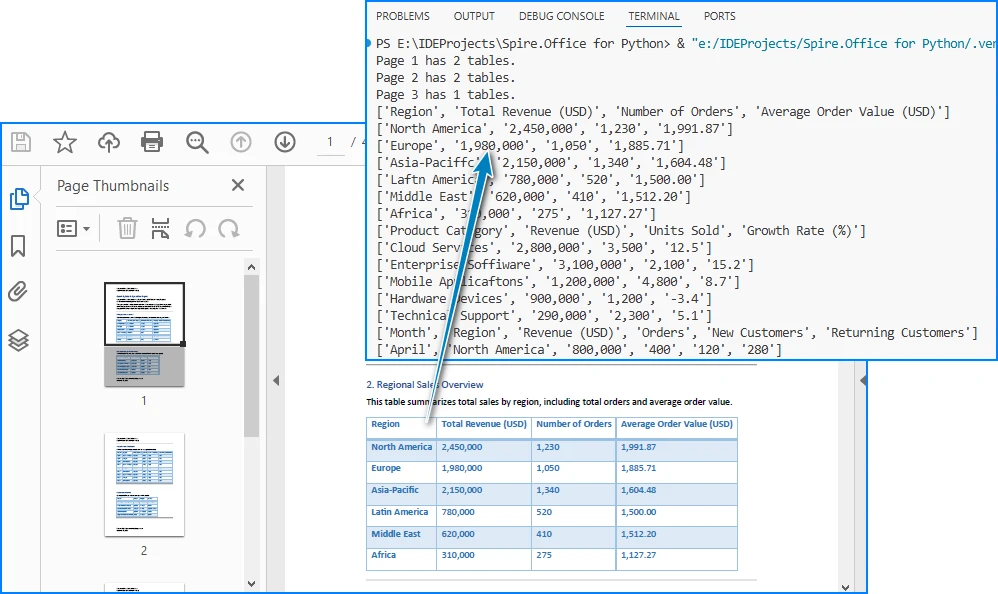
Code Explanation
- LoadFromFile: Loads the PDF document
- PdfTableExtractor: Identifies tables within each page
- GetText(row, col): Retrieves cell content
- table_data: Stores extracted rows as a list of lists
At this stage, the data is extracted but still unstructured in terms of database usage. Once the table data is extracted, we need to convert it into a structured format for SQL insertion.
Alternatively, you can export the extracted data to a CSV file for validation or batch import. See: Convert PDF Tables to CSV in Python
Step 2: Transform and Insert Data into Database
Raw table data extracted from PDFs often requires cleaning and structuring before it can be inserted into an SQL database.
For simplicity, the following examples demonstrate how to process a single extracted table. In real-world scenarios, PDFs may contain multiple tables, which can be handled using the same logic in a loop.
Transform Data (Single Table Example)
structured_data = []

# Assume first row is header
headers = table_data[0]

for row in table_data[1:]:
    if not any(row):
        continue

    record = {}
    for i in range(len(headers)):
        value = row[i] if i < len(row) else ""
        record[headers[i]] = value

    structured_data.append(record)

# Preview structured data
for item in structured_data:
    print(item)
What This Step Does
- Converts rows into dictionary-based records
- Maps column headers to values
- Filters out empty rows
- Prepares structured data for database insertion
You can also:
- Normalize column names for SQL compatibility
- Convert numeric fields
- Standardize date formats
Transforming raw PDF data into a structured format ensures it can be reliably inserted into a relational database. After transformation, the data is immediately ready for database insertion, which completes the pipeline.
Insert Data into SQLite (Single Table Example)
Using the structured data from a single table, we can dynamically create a database schema and insert records without hardcoding column names.
import sqlite3

# Connect to SQLite database
conn = sqlite3.connect("sales_data.db")
cursor = conn.cursor()

# Create table dynamically based on headers
columns_def = ", ".join([f'"{h}" TEXT' for h in headers])

cursor.execute(f"""
CREATE TABLE IF NOT EXISTS invoices (
    id INTEGER PRIMARY KEY AUTOINCREMENT,
    {columns_def}
)
""")

# Prepare insert statement
placeholders = ", ".join(["?" for _ in headers])
column_names = ", ".join([f'"{h}"' for h in headers])

# Insert data
for record in structured_data:
    values = [record.get(h, "") for h in headers]
    cursor.execute(f"""
    INSERT INTO invoices ({column_names})
    VALUES ({placeholders})
    """, values)

# Commit and close
conn.commit()
conn.close()
Key Points
- Dynamically creates database tables based on extracted headers
- Uses parameterized queries (
?) to prevent SQL injection - Keeps the schema flexible without hardcoding column names
- Column names can be normalized to ensure SQL compatibility
- Batch inserts can improve performance for large datasets
This section demonstrates the core workflow for converting PDF table data into a relational database using a single table example. In the next section, we extend this approach to handle multiple tables automatically.
Complete Pipeline: From PDF Extraction to SQL Storage
Here's a complete runnable example that demonstrates the entire workflow from PDF to database:
from spire.pdf import *
from spire.pdf.common import *
import sqlite3
import re

# ---------------------------
# Utility Functions
# ---------------------------

def normalize_text(text: str) -> str:
    if not text:
        return ""
    ligature_map = {
        '\ue000': 'ff', '\ue001': 'ft', '\ue002': 'ffi',
        '\ue003': 'ffl', '\ue004': 'ti', '\ue005': 'fi',
    }
    for k, v in ligature_map.items():
        text = text.replace(k, v)
    return text.strip()


def normalize_column_name(name: str, index: int) -> str:
    if not name:
        return f"column_{index}"
    name = name.lower()
    name = re.sub(r'[^a-z0-9]+', '_', name).strip('_')
    return name or f"column_{index}"


def deduplicate_columns(columns):
    seen = set()
    result = []
    for col in columns:
        base = col
        count = 1
        while col in seen:
            col = f"{base}_{count}"
            count += 1
        seen.add(col)
        result.append(col)
    return result


# ---------------------------
# Step 1: Extract Tables (STRUCTURED)
# ---------------------------

pdf = PdfDocument()
pdf.LoadFromFile("Quarterly Sales.pdf")

extractor = PdfTableExtractor(pdf)

all_tables = []

for i in range(pdf.Pages.Count):
    tables = extractor.ExtractTable(i)

    if tables:
        for table in tables:
            table_rows = []

            for row in range(table.GetRowCount()):
                row_data = []
                for col in range(table.GetColumnCount()):
                    text = table.GetText(row, col)
                    row_data.append(normalize_text(text))
                table_rows.append(row_data)

            if table_rows:
                all_tables.append(table_rows)

pdf.Close()

if not all_tables:
    raise ValueError("No tables found in PDF.")

# ---------------------------
# Step 2 & 3: Process + Insert Each Table
# ---------------------------

conn = sqlite3.connect("sales_data.db")
cursor = conn.cursor()

for table_index, table in enumerate(all_tables):

    if len(table) < 2:
        continue  # skip invalid tables

    raw_headers = table[0]

    # Normalize headers
    normalized_headers = [
        normalize_column_name(h, i)
        for i, h in enumerate(raw_headers)
    ]
    normalized_headers = deduplicate_columns(normalized_headers)

    # Generate table name
    table_name = f"table_{table_index+1}"

    # Create table
    columns_def = ", ".join([f'"{col}" TEXT' for col in normalized_headers])

    cursor.execute(f"""
    CREATE TABLE IF NOT EXISTS "{table_name}" (
        id INTEGER PRIMARY KEY AUTOINCREMENT,
        {columns_def}
    )
    """)

    # Prepare insert
    placeholders = ", ".join(["?" for _ in normalized_headers])
    column_names = ", ".join([f'"{col}"' for col in normalized_headers])

    insert_sql = f"""
    INSERT INTO "{table_name}" ({column_names})
    VALUES ({placeholders})
    """

    # Insert data
    batch = []
    for row in table[1:]:
        if not any(row):
            continue

        values = [
            row[i] if i < len(row) else ""
            for i in range(len(normalized_headers))
        ]
        batch.append(values)

    if batch:
        cursor.executemany(insert_sql, batch)

    print(f"Inserted {len(batch)} rows into {table_name}")

conn.commit()
conn.close()

print(f"Processed {len(all_tables)} tables from PDF.")
Below is a preview of the insertion result in the database:
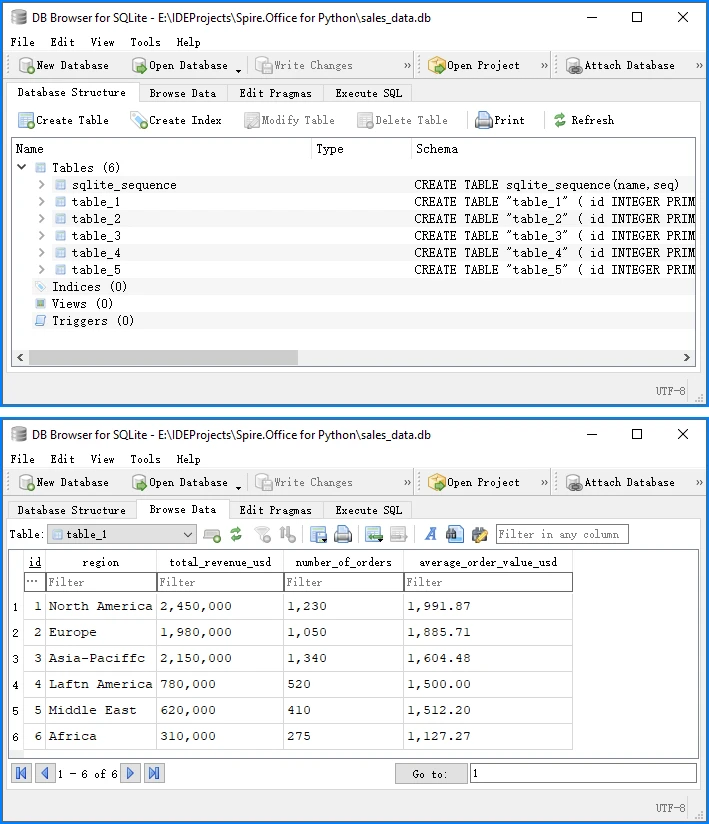
This complete example demonstrates the full PDF to database pipeline:
- Load and extract table data from PDF using Spire.PDF
- Transform raw data into structured records
- Insert into SQLite database with proper schema
SQLite automatically creates a system table called sqlite_sequence when using AUTOINCREMENT to track the current maximum ID. This is expected behavior and does not affect your data. You can run this code directly to convert PDF table data into a database.
Adapting to Other SQL Databases
While this guide uses SQLite for simplicity, the same approach works for other SQL databases. The extraction and transformation steps remain identical—only the database connection and insertion syntax vary slightly.
The following examples assume you are using the normalized column names (headers) generated in the previous step.
SQL Server Example
import pyodbc

# Connect to SQL Server
conn_str = (
    "DRIVER={SQL Server};"
    "SERVER=your_server_name;"
    "DATABASE=your_database_name;"
    "UID=your_username;"
    "PWD=your_password"
)
conn = pyodbc.connect(conn_str)
cursor = conn.cursor()

# Generate dynamic column definitions using normalized headers
columns_def = ", ".join([f"[{h}] NVARCHAR(MAX)" for h in headers])

# Create table dynamically
cursor.execute(f"""
IF NOT EXISTS (SELECT * FROM sys.tables WHERE name = 'invoices')
BEGIN
    CREATE TABLE invoices (
        id INT IDENTITY(1,1) PRIMARY KEY,
        {columns_def}
    )
END
""")

# Prepare insert statement
placeholders = ", ".join(["?" for _ in headers])
column_names = ", ".join([f"[{h}]" for h in headers])

# Insert data
for record in structured_data:
    values = [record.get(h, "") for h in headers]
    cursor.execute(f"""
    INSERT INTO invoices ({column_names})
    VALUES ({placeholders})
    """, values)

# Commit and close
conn.commit()
conn.close()
MySQL Example
import mysql.connector

conn = mysql.connector.connect(
    host="localhost",
    user="your_username",
    password="your_password",
    database="your_database"
)
cursor = conn.cursor()

# Use the same dynamic table creation and insert logic as shown earlier,
# with minor syntax adjustments if needed
PostgreSQL Example
import psycopg2

conn = psycopg2.connect(
    host="localhost",
    database="your_database",
    user="your_username",
    password="your_password"
)
cursor = conn.cursor()

# Use the same dynamic table creation and insert logic as shown earlier,
# with minor syntax adjustments if needed
The core extraction and transformation steps remain the same across different SQL databases, especially when using normalized column names for compatibility.
Handling Other Types of PDF Data
While this guide focuses on table extraction, PDFs often contain other types of data that can also be integrated into a database, depending on your use case.
Text Data (Unstructured → Structured)
In many documents, important information such as invoice numbers, customer names, or dates is embedded in plain text rather than tables.
You can extract raw text using:
from spire.pdf import *

pdf = PdfDocument()
pdf.LoadFromFile("Quarterly Sales.pdf")

for i in range(pdf.Pages.Count):
    page = pdf.Pages.get_Item(i)
    extractor = PdfTextExtractor(page)
    options = PdfTextExtractOptions()
    options.IsExtractAllText = True
    text = extractor.ExtractText(options)
    print(text)
However, raw text cannot be directly inserted into a database. It typically requires parsing into structured fields, for example:
- Using regular expressions to extract key-value pairs
- Identifying patterns such as dates, IDs, or totals
- Converting text into dictionaries or structured records
Once structured, the data can be inserted into a database as part of the same transformation and insertion pipeline described earlier.
For more advanced techniques, you can learn more in the detailed Python PDF text extraction guide.
Images (OCR or File Reference)
Images in PDFs are usually not directly usable as structured data, but they can still be integrated into database workflows in two ways:
Option 1: OCR (Recommended for data extraction) Convert images to text using OCR tools, then process and store the extracted content.
Option 2: File Storage (Recommended for document systems) Store images as:
- File paths in the database
- Binary (BLOB) data if needed
Below is an example of extracting images:
from spire.pdf import *

pdf = PdfDocument()
pdf.LoadFromFile("Quarterly Sales.pdf")

helper = PdfImageHelper()

for i in range(pdf.Pages.Count):
    page = pdf.Pages.get_Item(i)
    images = helper.GetImagesInfo(page)
    for j, img in enumerate(images):
        img.Image.Save(f"image_{i}_{j}.png")
To further process image-based content, you can use OCR to extract text from images with Spire.OCR for Python.
Full PDF Storage (BLOB or File Reference)
In some scenarios, the goal is not to extract structured data, but to store the entire PDF file in a database.
This is commonly used in:
- Document management systems
- Archival systems
- Compliance and auditing workflows
You can store PDFs as:
- BLOB data in the database
- File paths referencing external storage
This approach represents another meaning of "PDF in database", but it is different from structured data extraction.
Key Takeaway
While PDFs can contain multiple types of content, table data remains the most efficient and scalable format for database integration. Other data types typically require additional processing before they can be stored or queried effectively.
Common Pitfalls When Converting PDF Data to a Database
While the process of converting PDF to a database may seem straightforward, several practical challenges can arise.
1. Inconsistent Table Structures
Not all PDFs follow a consistent table format:
- Missing columns
- Merged cells
- Irregular layouts
Solution:
- Validate row lengths
- Normalize structure
- Handle missing values
2. Poor Table Detection
Some PDFs do not define tables properly internally, such as no grid structure or irregular cell sizes.
Solution:
- Test with multiple files
- Use fallback parsing logic
- Preprocess PDFs if needed
3. Data Cleaning Issues
Extracted data may contain:
- Extra spaces
- Line breaks
- Formatting issues
Solution:
- Strip whitespace
- Normalize values
- Validate types
4. Character Encoding Issues (Ligatures & Fonts)
PDF table extraction can introduce unexpected characters due to font encoding and ligatures. For example, common letter combinations such as:
fi,ff,ffi,ffl,ft,ti
may be stored as single glyphs in the PDF. When extracted, they may appear as:
di\ue000erence   → difference
o\ue002ce        → office
\ue005le         → file
These are typically private Unicode characters (e.g., \ue000–\uf8ff) caused by custom font mappings.
Solution:
-
Detect private Unicode characters (
\ue000–\uf8ff) -
Build a mapping table for ligatures, such as:
\ue000 → ff\ue001 → ft\ue002 → ffi\ue003 → ffl\ue004 → ti\ue005 → fi
-
Normalize text before inserting into the database
-
Optionally log unknown characters for further analysis
Handling encoding issues properly ensures data accuracy and prevents subtle corruption in downstream processing.
5. Cross-Page Table Fragmentation
Large tables in PDFs are often split across multiple pages. When extracted, each page may be treated as a separate table, leading to:
- Broken datasets
- Repeated headers
- Incomplete records
Solution:
- Compare column counts between consecutive tables
- Check header consistency or data type patterns in the first row
- Merge tables when structure and schema match
- Skip duplicated header rows when concatenating data
In practice, combining column structure and value pattern detection provides a reliable way to reconstruct full tables across pages.
6. Database Schema Mismatch
Incorrect mapping between extracted data and database columns can cause errors.
Solution:
- Align headers with schema
- Use explicit field mapping
7. Performance Issues with Large Files
Processing large PDFs can be slow.
Solution:
- Use batch processing
- Optimize insert operations
By anticipating these issues, you can build a more reliable PDF to database workflow.
Conclusion
Converting PDF to a database is not a one-step operation, but a structured process involving extracting data and processing it for database storage (including transformation and insertion)
By focusing on table data and using Python, you can efficiently implement a complete PDF to database pipeline, making it easier to automate data integration tasks.
This approach is especially useful for handling invoices, reports, and other structured business documents that need to be stored in SQL Server or other relational databases.
If you want to evaluate the performance of Spire.PDF for Python and remove any limitations, you can apply for a 30-day free trial.
FAQ
What does "PDF to database" mean?
It refers to the process of extracting structured data from PDF files and storing it in a database. This typically involves parsing PDF content, transforming it into structured formats, and inserting it into SQL databases for further querying and analysis.
Can Python convert PDF directly to a database?
No. Python cannot directly convert a PDF into a database in one step. The process usually involves extracting data from the PDF first, transforming it into structured records, and then inserting it into a database using SQL connectors.
How do I convert PDF to SQL using Python?
The typical workflow includes:
- Extracting table or text data from the PDF
- Converting it into structured records (rows and columns)
- Inserting the processed data into an SQL database such as SQLite, MySQL, or SQL Server using Python database libraries
Can I store PDF files directly in a database?
Yes. PDF files can be stored as binary (BLOB) data in a database. However, this approach is mainly used for document storage systems, while structured extraction is preferred for data analysis and querying.
What SQL databases can I use for PDF data integration?
You can use almost any SQL database, including SQLite, SQL Server, MySQL, and PostgreSQL. The overall extraction and transformation process remains the same, while only the database connection and insertion syntax differ slightly.
Importing an Excel file in Python typically involves more than just reading the file. In most cases, the data needs to be converted into Python structures such as lists, dictionaries, or other formats that can be directly used in your application.
This transformation step is important because Excel data is usually stored in a tabular format, while Python applications often require structured data for processing, integration, or storage. Depending on how the data will be used, it may be represented as a list for sequential processing, a dictionary for field-based access, custom objects for structured modeling, or a database for persistent storage.
This guide demonstrates how to import Excel file in Python and convert the data into multiple structures using Spire.XLS for Python, with practical examples for each approach.
Overall Implementation Approach and Quick Example
Importing Excel data into Python is essentially a two-step process:
- Load Excel file – Load the Excel file and access its raw data
- Transform data – Convert the data into Python structures such as lists, dictionaries, or objects
This separation is important because in real-world applications, simply reading Excel is not enough—the data must be transformed into a format that can be processed, stored, or integrated into systems.
Key Components
When importing Excel data using Spire.XLS for Python, the following components are involved:
- Workbook – Represents the entire Excel file and is responsible for loading data from disk
- Worksheet – Represents a single sheet within the Excel file
- CellRange – Represents a group of cells that contain actual data
- Data Transformation Layer – Your Python logic that converts cell values into target structures
Data Flow Overview
The typical workflow looks like this:
Excel File → Workbook → Worksheet → CellRange → Python Data Structure
Understanding this pipeline helps you design flexible import logic for different scenarios.
Quick Example: Import Excel File in Python
Before running the example, install Spire.XLS for Python using pip:
pip install spire.xls
If needed, you can also download Spire.XLS for Python manually and include it in your project.
The following example shows the simplest way to import Excel data into Python:
from spire.xls import *

workbook = Workbook()
workbook.LoadFromFile("SalesReport.xlsx")

data = []
sheet = workbook.Worksheets[0]

# Get the used cell range
cellRange = sheet.AllocatedRange

# Get the data from the first row
for col in range(cellRange.Columns.Count):
    data.append(sheet.Range[1, col +1].Value)

print(data)

workbook.Dispose()
Below is a preview of the data imported from the Excel file:

This minimal example demonstrates the fundamental workflow: initialize a workbook, load the Excel file, access the worksheet and cell data, and then dispose of the workbook to release resources.
For more advanced scenarios, such as reading Excel files from memory or handling file streams, see how to import Excel data from a stream in Python.
Import Excel Data in Python as a List
One of the simplest ways to import Excel data in Python is to convert it into a list of rows. This structure is useful for iteration and basic data processing.
Example
from spire.xls import *

# Load the Workbook
workbook = Workbook()
workbook.LoadFromFile("SalesReport.xlsx")

# Get the used range in the first worksheet
sheet = workbook.Worksheets[0]
cellRange = sheet.AllocatedRange

# Create a list to store the data
data = []
for row_index in range(cellRange.RowCount):
    row_data = []
    for cell_index in range(cellRange.ColumnCount):
        row_data.append(cellRange[row_index + 1, cell_index + 1].Value)
    data.append(row_data)

workbook.Dispose()
Technical Explanation
Importing Excel data as a list treats each row in the worksheet as a Python list, preserving the original row order.
How the code works:
- A nested loop is used to traverse the worksheet in a row-first (row-major) pattern
- The outer loop iterates through rows, while the inner loop accesses each cell
- Index offsets (
+1) are applied because Spire.XLS uses 1-based indexing
Why this design works:
- AllocatedRange limits iteration to only populated cells, improving efficiency
- Row-by-row extraction keeps the structure consistent with Excel’s layout
- The intermediate row_data list ensures clean aggregation before appending
This structure is ideal for sequential processing, simple transformations, or as a base format before converting into dictionaries or objects.
If you want to load more than just text and numeric data, see How to Read Excel Files in Python for more data types.
Import Excel Data as a Dictionary in Python
If your Excel file contains headers, importing it as a dictionary provides better data organization and access by column names.
Example
from spire.xls import *

workbook = Workbook()
workbook.LoadFromFile("SalesReport.xlsx")

sheet = workbook.Worksheets[0]
cellRange = sheet.AllocatedRange

rows = list(cellRange.Rows)

headers = [cellRange[1, cell_index + 1].Value for cell_index in range(cellRange.ColumnCount)]

data_dict = []
for row in rows[1:]:
    row_dict = {}
    for i, cell in enumerate(row.Cells):
        row_dict[headers[i]] = cell.Value
    data_dict.append(row_dict)

workbook.Dispose()
Technical Explanation
Importing Excel data as a dictionary converts each row into a key-value structure using column headers.
How the code works:
- The first row is extracted as headers
- Each subsequent row is iterated and processed
- Cell values are mapped to headers using their column index
Why this design works:
- Both headers and row cells follow the same column order, enabling simple index-based mapping
- This removes reliance on fixed column positions
- The result is a self-descriptive structure with named fields
This method is useful when you need structured data access, such as working with JSON, APIs, or labeled datasets.
Import Excel Data into Custom Objects
For structured applications, you may need to import Excel data into Python objects to maintain type safety and encapsulate business logic.
Example
class Employee:
    def __init__(self, name, age, department):
        self.name = name
        self.age = age
        self.department = department

from spire.xls import *
from spire.xls.common import *

workbook = Workbook()
workbook.LoadFromFile("EmployeeData.xlsx")

sheet = workbook.Worksheets[0]
cellRange = sheet.AllocatedRange

employees = []
for row in list(cellRange.Rows)[1:]:
    name = row.Cells[0].Value
    age = int(row.Cells[1].Value) if row.Cells[1].Value else None
    department = row.Cells[2].Value

    emp = Employee(name, age, department)
    employees.append(emp)

workbook.Dispose()
Technical Explanation
Importing Excel data into objects maps each row to a structured class instance.
How the code works:
- A class is defined to represent the data model
- Each row is read and its values are extracted
- Values are passed into the class constructor to create objects
Why this design works:
- The constructor acts as a controlled transformation point
- It allows validation, type conversion, or preprocessing
- Data is no longer loosely structured, but aligned with domain logic
This is ideal for applications with clear data models, such as backend systems or business logic layers.
Import Excel Data to Database in Python
In many applications, Excel data needs to be stored in a database for persistent storage and querying.
Example
import sqlite3
from spire.xls import *

# Connect to SQLite database
conn = sqlite3.connect("sales.db")
cursor = conn.cursor()

# Create table matching the Excel structure
cursor.execute("""
CREATE TABLE IF NOT EXISTS sales (
    product TEXT,
    category TEXT,
    region TEXT,
    sales REAL,
    units_sold INTEGER
)
""")

# Load the Excel file
workbook = Workbook()
workbook.LoadFromFile("Sales.xlsx")

# Access the first worksheet
sheet = workbook.Worksheets[0]
rows = list(sheet.AllocatedRange.Rows)

# Iterate through rows (skip header row)
for row in rows[1:]:
    product = row.Cells[0].Value
    category = row.Cells[1].Value
    region = row.Cells[2].Value

    # Remove thousand-separators and convert to float
    sales_text = row.Cells[3].Value
    sales = float(str(sales_text).replace(",", "")) if sales_text else 0

    # Convert units sold to integer
    units_text = row.Cells[4].Value
    units_sold = int(units_text) if units_text else 0

    # Insert data into the database
    cursor.execute(
        "INSERT INTO sales VALUES (?, ?, ?, ?, ?)",
        (product, category, region, sales, units_sold)
    )

# Commit changes and close connection
conn.commit()
conn.close()

# Release Excel resources
workbook.Dispose()
Here is a preview of the Excel data and the SQLite database structure:
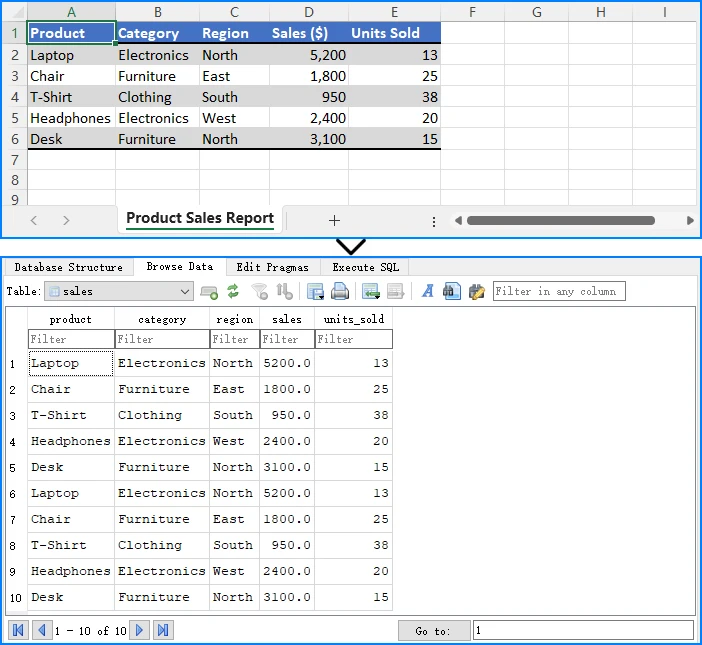
Technical Explanation
Importing Excel data into a database converts each row into a persistent record.
How the code works:
- A database connection is established and a table is created
- The table schema is aligned with the Excel structure
- Each row is read and inserted using parameterized SQL queries
Why this design works:
- Schema alignment ensures consistent data mapping
- Data normalization (e.g., numeric conversion) improves compatibility
- Parameterized queries provide safety and proper type handling
When to use this approach:
This approach is suitable for data storage, querying, and integration into larger data pipelines.
For a more detailed guide on importing Excel data into Databases, check out How to Transfer Data Between Excel Files and Databases.
Why Use Spire.XLS for Importing Excel Data
The examples in this guide use Spire.XLS for Python because it provides a clear and consistent way to access and transform Excel data. The main advantages in this context include:
-
Structured Object Model The library exposes components such as Workbook, Worksheet, and CellRange, which align directly with how Excel data is organized. This makes the data flow easier to understand and implement. See more details on Spire.XLS for Python API Reference.
-
Focused Data Access Layer Instead of handling low-level file parsing, you can work directly with cell values and ranges, allowing the import logic to focus on data transformation rather than file structure.
-
Format Compatibility It supports common Excel formats, such as XLS and XLSX, and other spreadsheet formats, such as CSV, ODS, and OOXML, enabling the same import logic to be applied across different file types.
-
No External Dependencies Excel files can be processed without requiring Microsoft Excel to be installed, which is important for backend services and automated environments.
Common Pitfalls
Incorrect File Path
Ensure the Excel file path is correct and accessible from your script. Use absolute paths or verify the current working directory.
import os
print(os.getcwd())  # Check current directory
Missing Headers
When importing as a dictionary, verify that your Excel file has headers in the first row. Otherwise, the keys will be incorrect.
Memory Management
Always dispose of the workbook object after processing to release resources, especially when processing large files.
workbook.Dispose()
Data Type Conversion
Excel cells may return different data types than expected. Validate and convert data types as needed for your application.
Import vs Read Excel in Python
In Python, "reading" and "importing" Excel files refer to related but distinct steps in data processing.
Read Excel focuses on accessing raw file content. This typically involves retrieving cell values, rows, or specific ranges without changing how the data is structured.
Import Excel includes both reading and transformation. After extracting the data, it is converted into structures such as lists, dictionaries, objects, or database records so that it can be used directly within an application.
In practice, reading is a subset of importing. The distinction lies in the goal—reading retrieves data, while importing prepares it for use.
Conclusion
Importing Excel file in Python is not just about reading data—it's about converting it into structures that your application can use effectively. In this guide, you learned how to import Excel file in Python as a list, convert Excel data into dictionaries, map Excel data into Python objects, and import Excel data into a database.
With Spire.XLS for Python, you can easily import Excel data into different structures with minimal code. The library provides a consistent API for handling various Excel formats and complex content, making it suitable for a wide range of data processing scenarios.
To evaluate the full performance of Spire.XLS for Python, you can apply for a 30 day trial license.
FAQ
What does it mean to import Excel file in Python?
Importing Excel means converting Excel data into Python structures such as lists, dictionaries, or databases for further processing and integration into your applications.
How do I import Excel data into Python?
You can use libraries like Spire.XLS for Python to load Excel files and convert their content into usable Python data structures. The process involves loading the workbook, accessing the worksheet, and iterating through cells to extract data.
Can I import Excel data into a database using Python?
Yes, you can read Excel data and insert it into databases like SQLite, MySQL, or PostgreSQL using Python. This approach is commonly used for data migration and backend system integration.
What is the best structure for importing Excel data?
The best structure depends on your use case. Lists are suitable for simple iteration, dictionaries for structured data access by column names, objects for type safety and business logic, and databases for persistent storage and querying.
Do I need Microsoft Excel installed to import Excel files in Python?
No, libraries like Spire.XLS for Python work independently and do not require Microsoft Excel to be installed on the system.

Developers often need to include Python code inside Word documents for technical documentation, tutorials, code reviews, internal reports, or client deliverables. While copying and pasting code manually works for small snippets, automated solutions provide better consistency, formatting control, and scalability — especially when working with long scripts or multiple files.
This tutorial demonstrates multiple practical methods to export Python code into Word documents using Python. Each method has its own strengths depending on whether you prioritize formatting, automation, syntax highlighting, or readability.
On This Page:
- Install Required Libraries
- Export Python Code to Word as Plain Text
- Add Syntax-Highlighted Python Code to Word
- Conclusion
- FAQs
Install Required Libraries
Install the necessary dependencies before running the examples:
pip install spire.doc pygments
Library Overview:
- Spire.Doc for Python — used to create and manipulate Word documents programmatically
- Pygments — used to generate syntax-highlighted code in RTF, HTML, or image formats
- Pathlib (built-in) — used for reading Python files from disk
- textwrap (built-in) — used to wrap long code lines before generating images formatting
Export Python Code to Word as Plain Text
Plain text insertion is the most straightforward method for embedding code in Word. It keeps scripts fully editable and preserves formatting such as indentation and line breaks.
Method 1. Insert Raw Python Code into a Word Document
This method reads a .py file and inserts the code directly into Word while applying a monospace font style.
from pathlib import Path
from spire.doc import *

# Read Python file
code_string = Path("demo.py").read_text(encoding="utf-8")

# Create a Word document
doc = Document()

# Add a section
section = doc.AddSection()
section.PageSetup.Margins.All = 60

# Add a paragraph
paragraph = section.AddParagraph()

# Insert code string to the paragraph
paragraph.AppendText(code_string)

# Create a paragraph style
style = ParagraphStyle(doc)
style.Name = "code"
style.CharacterFormat.FontName = "Consolas"
style.CharacterFormat.FontSize = 12
style.ParagraphFormat.LineSpacing = 12
doc.Styles.Add(style)

# Apply the style to the paragraph
paragraph.ApplyStyle("code")

# Save the document
doc.SaveToFile("Output.docx", FileFormat.Docx2019)
doc.Dispose()
How It Works:
This technique treats Python code as plain text and inserts it directly into a Word paragraph. The script reads the .py file using Path.read_text(), preserving indentation, blank lines, and overall structure.
After inserting the text, a custom paragraph style is created and applied. The use of a monospace font such as Consolas ensures alignment and readability, while fixed line spacing maintains consistent formatting across lines.
Because no intermediate format is used, this is the simplest and fastest approach. However, it does not provide syntax highlighting or semantic styling—Word only displays the code as formatted text.
Output:

You May Also Like: Generate Word Documents Using Python
Method 2. Generate a Word File from Markdown-Wrapped Code
If your workflow already uses Markdown, wrapping Python code inside fenced blocks provides a structured way to convert scripts into Word documents.
from pathlib import Path
from spire.doc import *

# Read Python file
code = Path("demo.py").read_text(encoding="utf-8")

# Convert to Markdown
md_content = f"```python\n{code}\n```"
Path("temp.md").write_text(md_content, encoding="utf-8")

# Load Markdown into Word
doc = Document()
doc.LoadFromFile("temp.md")

# Update page settings
doc.Sections[0].PageSetup.Margins.All = 60

# Save as a DOCX file
doc.SaveToFile("Output.docx", FileFormat.Docx)
doc.Dispose()
How It Works:
Instead of inserting text directly, this method wraps Python code inside Markdown fenced code blocks. The generated Markdown file is then loaded into Word using Spire.Doc’s Markdown parsing capability.
When Word imports Markdown, it automatically preserves code formatting such as indentation and line breaks. This approach is useful when your documentation workflow already uses Markdown or when code needs to coexist with headings, lists, and descriptive text.
Since Markdown itself does not inherently apply syntax coloring inside Word, the result is still plain code formatting—but the structure is cleaner and easier to manage within technical documentation pipelines.
Output:

Add Syntax-Highlighted Python Code to Word
Syntax highlighting makes code easier to read and understand. By integrating Pygments, Python scripts can be converted into stylized formats before being embedded into Word.
This section explores three approaches — RTF, HTML, and image rendering — each with different strengths depending on your formatting goals.
Method 1. Use RTF for Preformatted Code Blocks
RTF allows syntax-highlighted code to remain fully editable within Word.
from pathlib import Path
from pygments import highlight
from pygments.lexers import PythonLexer
from pygments.formatters import RtfFormatter
from spire.doc import *

# Read Python file
code = Path("demo.py").read_text(encoding="utf-8")

# Set font
formatter = RtfFormatter(fontface ="Consolas")

# Specify the lexer
rtf_text = highlight(code, PythonLexer(), formatter)
rtf_text = rtf_text.replace(r"\f0", r"\f0\fs24") # font size (24 for 12-point font)

# Create a Word document
doc = Document()

# Add a section
section = doc.AddSection()
section.PageSetup.Margins.All = 60

# Add a paragraph
paragraph = section.AddParagraph()

# Insert the syntax-highlighted code as RTF
paragraph.AppendRTF(rtf_text)

# Save the document
doc.SaveToFile("Output.docx", FileFormat.Docx2019)
doc.Dispose()
How It Works:
Pygments analyzes Python syntax using a lexer, identifying tokens such as keywords, strings, and comments. The RTF formatter applies styling rules that represent colors and fonts using RTF control words.
The resulting RTF string is inserted directly into Word using AppendRTF(). Because RTF is a native Word-compatible format, the document preserves fonts, colors, and spacing without requiring additional rendering steps.
Font size is controlled by modifying RTF control words (e.g., \fs24), allowing precise control over appearance. This method produces editable, selectable code with syntax highlighting inside Word.
Output:

Method 2. Render Highlighted Code via HTML Formatting
HTML rendering provides visually rich syntax highlighting and automatic text wrapping.
from pathlib import Path
from pygments import highlight
from pygments.lexers import PythonLexer
from pygments.formatters import HtmlFormatter
from spire.doc import *

# Read Python file
code = Path("demo.py").read_text(encoding="utf-8")

# Generate HTML from the Python code with syntax highlighting
html_text = highlight(code, PythonLexer(), HtmlFormatter(full=True))

# Create a Word document
doc = Document()

# Add a section
section = doc.AddSection()
section.PageSetup.Margins.All = 60

# Add a paragraph
paragraph = section.AddParagraph()

# Add the HTML string to the paragraph
paragraph.AppendHTML(html_text)

# Save the document
doc.SaveToFile("Output.docx", FileFormat.Docx2019)
doc.Dispose()
How It Works:
Here, Pygments converts Python code into styled HTML using the HtmlFormatter. The HTML output includes inline styles or CSS rules that represent syntax colors and formatting.
Spire.Doc then interprets the HTML content and renders it into Word. During this process, HTML elements are translated into Word formatting structures, allowing the highlighted code to appear visually similar to web-based code blocks.
This approach is ideal when code originates from web content, static documentation sites, or Markdown-to-HTML workflows.
Output:

You May Also Like: Convert HTML to Word DOC or DOCX in Python
Method 3. Insert Syntax-Highlighted Code as Images
For scenarios where visual consistency matters more than editability, code can be rendered as an image before insertion.
from pathlib import Path
import textwrap
from pygments import highlight
from pygments.lexers import PythonLexer
from pygments.formatters import ImageFormatter
from spire.doc import *

# Read Python file
code = Path("demo.py").read_text(encoding="utf-8")

# Wrap long lines manually
def wrap_code_lines(code_text, max_width=75):
    wrapped_lines = []
    for line in code_text.splitlines():
        if len(line) > max_width:
            wrapped_lines.extend(textwrap.wrap(
                line,
                width=max_width,
                replace_whitespace=False,
                drop_whitespace=False
            ))
        else:
            wrapped_lines.append(line)
    return "\n".join(wrapped_lines)

code = wrap_code_lines(code, max_width=75)

# Step 3: Generate image
formatter = ImageFormatter(
    font_name="Consolas",
    font_size=18,
    scale=2,
    image_pad=10,
    line_pad=2,
    background_color="#ffffff"
)

img_bytes = highlight(code, PythonLexer(), formatter)

with open("code.png", "wb") as f:
    f.write(img_bytes)

# Create a Word document
doc = Document()
section = doc.AddSection()
section.PageSetup.Margins.All = 60

# Insert into Word
paragraph = section.AddParagraph()
picture = paragraph.AppendPicture("code.png")

# Ensure image fits page width
page_width = (
    section.PageSetup.PageSize.Width
    - section.PageSetup.Margins.Left
    - section.PageSetup.Margins.Right
)
picture.Width = page_width

# Save the document
doc.SaveToFile("Output.docx", FileFormat.Docx2019)
doc.Dispose()
How It Works:
This method renders Python code as an image instead of editable text. Pygments generates a syntax-highlighted bitmap using the ImageFormatter, allowing full visual control over fonts, colors, padding, and DPI.
Since image rendering does not automatically wrap long lines, the script manually wraps lengthy code lines using Python’s textwrap module before generating the image. This prevents oversized images that exceed page width.
After inserting the image into Word, its width is dynamically resized to fit the printable page area. Because the code is embedded as a graphic, it preserves exact visual appearance across platforms and prevents formatting inconsistencies—but the text is no longer editable.
Output:

Conclusion
Converting Python code to Word documents can be achieved through several approaches depending on your goals. Plain text methods provide simplicity and flexibility, while RTF and HTML techniques offer powerful syntax highlighting with selectable text. Image-based code blocks deliver consistent visual formatting but require careful line wrapping and scaling.
For most documentation workflows:
- Use plain text for editable technical content
- Use HTML or RTF for syntax-highlighted documentation
- Use images when formatting consistency is critical
FAQs
Which method is best for tutorials?
HTML or RTF methods provide clear syntax highlighting with selectable text.
How can I preserve indentation and blank lines?
Read the .py file using .read_text() without stripping or modifying lines.
Why do image-based code blocks become too small?
Word scales images to fit page width. Increasing the image formatter’s scale or adjusting the wrapping width can improve readability.
Can readers copy code from Word?
Yes — except when code is inserted as an image.
Do I need Markdown for conversion?
No. Markdown is optional but useful when working with documentation pipelines.
Can I export the generated document as a PDF file?
Yes. When saving the document, simply specify PDF as the output format in the Document.SaveToFile() method.
Get a Free License
To fully experience the capabilities of Spire.Doc for Python without any evaluation limitations, you can request a 30-day trial license.

CSV (Comma-Separated Values) files are the backbone of data exchange across industries—from data analysis to backend systems. They’re lightweight, human-readable, and compatible with almost every tool (Excel, Google Sheets, databases). If you’re a developer seeking a reliable way to create a CSV file in Python, Spire.XLS for Python is a powerful library that simplifies the process.
In this comprehensive guide, we'll explore how to generate a CSV file in Python with Spire.XLS, covering basic CSV creation and advanced use cases like list to CSV and Excel to CSV conversion.
What You’ll Learn
- Installation and Setup
- Basic: Create a Simple CSV File in Python
- Dynamic Data: Generate CSV from a List of Dictionaries in Python
- Excel-to-CSV: Generate CSV From an Excel File in Python
- Best Practices for CSV Creation
- FAQ: Create CSV in Python
Installation and Setup
Getting started with Spire.XLS for Python is straightforward. Follow these steps to set up your environment:
Step 1: Ensure Python 3.6 or higher is installed.
Step 2: Install the library via pip (the official package manager for Python):
pip install Spire.XLS
Step 3 (Optional): Request a temporary free license to test full features without any limitations.
Basic: Create a Simple CSV File in Python
Let’s start with a simple scenario: creating a CSV file from scratch with static data (e.g., a sales report). The code below creates a new workbook, populates it with data, and saves it as a CSV file.
from spire.xls import *
from spire.xls.common import *

# 1. Create a new workbook
workbook = Workbook()

# 2. Get the first worksheet (default sheet)
worksheet = workbook.Worksheets[0]

# 3. Populate data into cells
# Header row
worksheet.Range["A1"].Text = "ProductID"
worksheet.Range["B1"].Text = "ProductName"
worksheet.Range["C1"].Text = "Price"
worksheet.Range["D1"].Text = "QuantitySold"

worksheet.Range["A2"].NumberValue = 101
worksheet.Range["B2"].Text = "Wireless Headphones"
worksheet.Range["C2"].NumberValue = 79.99
worksheet.Range["D2"].NumberValue = 250

worksheet.Range["A3"].NumberValue = 102
worksheet.Range["B3"].Text = "Bluetooth Speaker"
worksheet.Range["C3"].NumberValue = 49.99
worksheet.Range["D3"].NumberValue = 180

# Save the worksheet to CSV
worksheet.SaveToFile("BasicSalesReport.csv", ",", Encoding.get_UTF8())
workbook.Dispose()
Core Workflow
- Initialize Core object: Workbook() creates a new Excel workbook, Worksheets[0] accesses the target sheet.
- Fill data into cells: Use .Text (for strings) and .NumberValue (for numbers) to ensure correct data types.
- Export & cleanup: SaveToFile() exports the worksheet to CSV , and Dispose() prevents memory leaks.
Output:
The resulting BasicSalesReport.csv will look like this:

Dynamic Data: Generate CSV from a List of Dictionaries in Python
In real-world scenarios, data is often stored in dictionaries (e.g., from APIs/databases). The code below converts a list of dictionaries to a CSV:
from spire.xls import *
from spire.xls.common import *

# Sample data (e.g., from a database/API)
customer_data = [
    {"CustomerID": 1, "Name": "John Doe", "Email": "[email protected]", "Country": "USA"},
    {"CustomerID": 2, "Name": "Maria Garcia", "Email": "[email protected]", "Country": "Spain"},
    {"CustomerID": 3, "Name": "Li Wei", "Email": "[email protected]", "Country": "China"}
]

# 1. Create workbook and worksheet
workbook = Workbook()
worksheet = workbook.Worksheets[0]

# 2. Write headers (extract keys from the first dictionary)
headers = list(customer_data[0].keys())
for col_idx, header in enumerate(headers, start=1):
    worksheet.Range[1, col_idx].Text = header  # Row 1 = headers

# 3. Write data rows
for row_idx, customer in enumerate(customer_data, start=2):  # Start at row 2
    for col_idx, key in enumerate(headers, start=1):
        # Handle different data types (text/numbers)
        value = customer[key]
        if isinstance(value, (int, float)):
            worksheet.Range[row_idx, col_idx].NumberValue = value
        else:
            worksheet.Range[row_idx, col_idx].Text = value

# 4. Save as CSV
worksheet.SaveToFile("CustomerData.csv", ",", Encoding.get_UTF8())
workbook.Dispose()
This example is ideal for JSON to CSV conversion, database dumps, and REST API data exports. Key advantages include:
- Dynamic Headers: Automatically extracts headers from the keys of the first dictionary in the dataset.
- Scalable: Seamlessly adapts to any volume of dictionaries or key-value pairs (perfect for dynamic data).
- Clean Output: Preserves the original order of dictionary keys for consistent CSV structure.
The generated CSV file:

Excel-to-CSV: Generate CSV From an Excel File in Python
Spire.XLS excels at converting Excel (XLS/XLSX) to CSV in Python. This is useful if you have Excel reports and need to export them to CSV for data pipelines or third-party tools.
from spire.xls import *

# 1. Initialize a workbook instance
workbook = Workbook()

# 2. Load a xlsx file
workbook.LoadFromFile("Expenses.xlsx")

# 3. Save Excel as a CSV file
workbook.SaveToFile("XLSXToCSV.csv", FileFormat.CSV)
workbook.Dispose()
Conversion result:

Note: By default, SaveToFile() converts only the first worksheet. For converting multiple sheets to separate CSV files, refer to the comprehensive guide: Convert Excel (XLSX/XLS) to CSV in Python – Batch & Multi-Sheet
Best Practices for CSV Creation
Follow these guidelines to ensure robust and professional CSV output:
- Validate Data First: Clean empty rows/columns before exporting to CSV.
- Use UTF-8 Encoding: Always specify UTF-8 encoding (Encoding.get_UTF8()) to support international characters seamlessly.
- Batch Process Smartly: For 100k+ rows, process data in chunks (avoid loading all data into memory at once).
- Choose the Correct Delimiter: Be mindful of regional settings. For European users, use a semicolon (;) as the delimiter to avoid locale issues.
- Dispose Objects: Release workbook/worksheet resources with Dispose() to prevent memory leaks.
Conclusion
Spire.XLS simplifies the process of leveraging Python to generate CSV files. Whether you're creating reports from scratch, converting Excel workbooks, or handling dynamic data from APIs and databases, this library delivers a robust and flexible solution.
By following this guide, you can easily customize delimiters, specify encodings such as UTF-8, and manage data types—ensuring your CSV files are accurate, compatible, and ready for any application. For more advanced features, you can explore the Spire.XLS for Python tutorials.
FAQ: Create CSV in Python
Q1: Why choose Spire.XLS over Python’s built-in csv module?
A: While Python's csv module is excellent for basic read/write operations, Spire.XLS offers significant advantages:
- Better data type handling: Automatic distinction between text and numeric data.
- Excel Compatibility: Seamlessly converts between Excel (XLSX/XLS) and CSV—critical for teams using Excel as a data source.
- Advanced Customization: Supports customizing the delimiter and encoding of the generated CSV file.
- Batch processing: Efficient handling of large datasets and multiple files.
- Cross-Platform Support: Works on Windows, macOS, and Linux (no Excel installation required).
Q2: Can I use Spire.XLS for Python to read CSV files?
A: Yes. Spire.XLS supports parsing CSV files and extracting their data. Details refer to: How to Read CSV Files in Python: A Comprehensive Guide
Q3: Can Spire.XLS convert CSV files back to Excel format?
A: Yes! Spire.XLS supports bidirectional conversion. A quick example:
from spire.xls import *

# Create a workbook
workbook = Workbook()

# Load a CSV file
workbook.LoadFromFile("sample.csv", ",", 1, 1)

# Save CSV as Excel
workbook.SaveToFile("CSVToExcel.xlsx", ExcelVersion.Version2016)
Q4: How do I change the CSV delimiter?
A: The SaveToFile() method’s second parameter controls the delimiter:
# Semicolon (for European locales):
worksheet.SaveToFile("EU.csv", ";", Encoding.get_UTF8())
# Tab (for tab-separated values/TSV)
worksheet.SaveToFile("TSV_File.csv", "\t", Encoding.get_UTF8())

Creating Word documents programmatically is a common requirement in Python applications. Reports, invoices, contracts, audit logs, and exported datasets are often expected to be delivered as editable .docx files rather than plain text or PDFs.
Unlike plain text output, a Word document is a structured document composed of sections, paragraphs, styles, and layout rules. When generating Word documents in Python, treating .docx files as simple text containers quickly leads to layout issues and maintenance problems.
This tutorial focuses on practical Word document creation in Python using Spire.Doc for Python. It demonstrates how to construct documents using Word’s native object model, apply formatting at the correct structural level, and generate .docx files that remain stable and editable as content grows.
Content Overview
- 1. Understanding Word Document Structure in Python
- 2. Creating a Basic Word Document in Python
- 3. Adding and Formatting Text Content
- 4. Inserting Images into a Word Document
- 5. Creating and Populating Tables
- 6. Adding Headers and Footers
- 7. Controlling Page Layout with Sections
- 8. Setting Document Properties and Metadata
- 9. Saving, Exporting, and Performance Considerations
- 10. Common Pitfalls When Creating Word Documents in Python
1. Understanding Word Document Structure in Python
Before writing code, it is important to understand how a Word document is structured internally.
A .docx file is not a linear stream of text. It consists of multiple object layers, each with a specific responsibility:
- Document – the root container for the entire file
- Section – defines page-level layout such as size, margins, and orientation
- Paragraph – represents a logical block of text
- Run (TextRange) – an inline segment of text with character formatting
- Style – a reusable formatting definition applied to paragraphs or runs
When you create a Word document in Python, you are explicitly constructing this hierarchy in code. Formatting and layout behave predictably only when content is added at the appropriate level.
Spire.Doc for Python provides direct abstractions for these elements, allowing you to work with Word documents in a way that closely mirrors how Word itself organizes content.
2. Creating a Basic Word Document in Python
This section shows how to generate a valid Word document in Python using Spire.Doc. The example focuses on establishing the correct document structure and essential workflow.
Installing Spire.Doc for Python
pip install spire.doc
Alternatively, you can download Spire.Doc for Python and integrate it manually.
Creating a Simple .docx File
from spire.doc import Document, FileFormat

# Create the document container
document = Document()

# Add a section (defines page-level layout)
section = document.AddSection()

# Add a paragraph to the section
paragraph = section.AddParagraph()
paragraph.AppendText(
    "This document was generated using Python. "
    "It demonstrates basic Word document creation with Spire.Doc."
)

# Save the document
document.SaveToFile("basic_document.docx", FileFormat.Docx)
document.Close()
This example creates a minimal but valid .docx file that can be opened in Microsoft Word. It demonstrates the essential workflow: creating a document, adding a section, inserting a paragraph, and saving the file.

From a technical perspective:
- The Document object represents the Word file structure and manages its content.
- The Section defines the page-level layout context for paragraphs.
- The Paragraph contains the visible text and serves as the basic unit for all paragraph-level formatting.
All Word documents generated with Spire.Doc follow this same structural pattern, which forms the foundation for more advanced operations.
3. Adding and Formatting Text Content
Text in a Word document is organized hierarchically. Formatting can be applied at the paragraph level (controlling alignment, spacing, indentation, etc.) or the character level (controlling font, size, color, bold, italic, etc.). Styles provide a convenient way to store these formatting settings so they can be consistently applied to multiple paragraphs or text ranges without redefining the formatting each time. Understanding the distinction between paragraph formatting, character formatting, and styles is essential when creating or editing Word documents in Python.
Adding and Setting Paragraph Formatting
All visible text in a Word document must be added through paragraphs, which serve as containers for text and layout. Paragraph-level formatting controls alignment, spacing, and indentation, and can be set directly via the Paragraph.Format property. Character-level formatting, such as font size, bold, or color, can be applied to text ranges within the paragraph via the TextRange.CharacterFormat property.
from spire.doc import Document, HorizontalAlignment, FileFormat, Color

document = Document()
section = document.AddSection()

# Add the title paragraph
title = section.AddParagraph()
title.Format.HorizontalAlignment = HorizontalAlignment.Center
title.Format.AfterSpacing = 20  # Space after the title
title.Format.BeforeSpacing = 20
title_range = title.AppendText("Monthly Sales Report")
title_range.CharacterFormat.FontSize = 18
title_range.CharacterFormat.Bold = True
title_range.CharacterFormat.TextColor = Color.get_LightBlue()

# Add the body paragraph
body = section.AddParagraph()
body.Format.FirstLineIndent = 20
body_range = body.AppendText(
    "This report provides an overview of monthly sales performance, "
    "including revenue trends across different regions and product categories. "
    "The data presented below is intended to support management decision-making."
)
body_range.CharacterFormat.FontSize = 12

# Save the document
document.SaveToFile("formatted_paragraph.docx", FileFormat.Docx)
document.Close()
Below is a preview of the generated Word document.
Technical notes
- Paragraph.Format sets alignment, spacing, and indentation for the entire paragraph
- AppendText() returns a TextRange object, which allows character-level formatting (font size, bold, color)
- Every paragraph must belong to a section, and paragraph order determines reading flow and pagination
Creating and Applying Styles
Styles allow you to define paragraph-level and character-level formatting once and reuse it across the document. They can store alignment, spacing, font, and text emphasis, making formatting more consistent and easier to maintain. Word documents support both custom styles and built-in styles, which must be added to the document before being applied.
Creating and Applying a Custom Paragraph Style
from spire.doc import (
    Document, HorizontalAlignment, BuiltinStyle,
    TextAlignment, ParagraphStyle, FileFormat
)

document = Document()

# Create a new custom paragraph style
custom_style = ParagraphStyle(document)
custom_style.Name = "CustomStyle"
custom_style.ParagraphFormat.HorizontalAlignment = HorizontalAlignment.Center
custom_style.ParagraphFormat.TextAlignment = TextAlignment.Auto
custom_style.CharacterFormat.Bold = True
custom_style.CharacterFormat.FontSize = 20

# Inherit properties from a built-in heading style
custom_style.ApplyBaseStyle(BuiltinStyle.Heading1)

# Add the style to the document
document.Styles.Add(custom_style)

# Apply the custom style
title_para = document.AddSection().AddParagraph()
title_para.ApplyStyle(custom_style.Name)
title_para.AppendText("Regional Performance Overview")
Adding and Applying Built-in Styles
# Add a built-in style to the document
built_in_style = document.AddStyle(BuiltinStyle.Heading2)
document.Styles.Add(built_in_style)

# Apply the built-in style
heading_para = document.Sections.get_Item(0).AddParagraph()
heading_para.ApplyStyle(built_in_style.Name)
heading_para.AppendText("Sales by Region")

document.SaveToFile("document_styles.docx", FileFormat.Docx)
Preview of the generated Word document.
Technical Explanation
- ParagraphStyle(document) creates a reusable style object associated with the current document
- ParagraphFormat controls layout-related settings such as alignment and text flow
- CharacterFormat defines font-level properties like size and boldness
- ApplyBaseStyle() allows the custom style to inherit semantic meaning and default behavior from a built-in Word style
- Adding the style to document.Styles makes it available for use across all sections
Built-in styles, such as Heading 2, can be added explicitly and applied in the same way, ensuring the document remains compatible with Word features like outlines and tables of contents.
4. Inserting Images into a Word Document
In Word’s document model, images are embedded objects that belong to paragraphs, which ensures they flow naturally with text. Paragraph-anchored images adjust pagination automatically and maintain relative positioning when content changes.
Adding an Image to a Paragraph
from spire.doc import Document, TextWrappingStyle, HorizontalAlignment, FileFormat

document = Document()
section = document.AddSection()
section.AddParagraph().AppendText("\r\n\r\nExample Image\r\n")

# Insert an image
image_para = section.AddParagraph()
image_para.Format.HorizontalAlignment = HorizontalAlignment.Center
image = image_para.AppendPicture("Screen.jpg")

# Set the text wrapping style
image.TextWrappingStyle = TextWrappingStyle.Square
# Set the image size
image.Width = 350
image.Height = 200
# Set the transparency
image.FillTransparency(0.7)
# Set the horizontal alignment
image.HorizontalAlignment = HorizontalAlignment.Center

document.SaveToFile("document_images.docx", FileFormat.Docx)
Preview of the generated Word document.
Technical details
- AppendPicture() inserts the image into the paragraph, making it part of the text flow
- TextWrappingStyle determines how surrounding text wraps around the image
- Width and Height control the displayed size of the image
- FillTransparency() sets the image opacity
- HorizontalAlignment can center the image within the paragraph
Adding images to paragraphs ensures they behave like part of the text flow.
- Pagination adjusts automatically when images change size.
- Surrounding text reflows correctly when content is edited.
- When exporting to formats like PDF, images maintain their relative position.
These behaviors are consistent with Word’s handling of inline images.
For more advanced image operations in Word documents using Python, see how to insert images into a Word document with Python for a complete guide.
5. Creating and Populating Tables
Tables are commonly used to present structured data such as reports, summaries, and comparisons.
Internally, a table consists of rows, cells, and paragraphs inside each cell.
Creating and Formatting a Table in a Word Document
from spire.doc import Document, DefaultTableStyle, FileFormat, AutoFitBehaviorType

document = Document()
section = document.AddSection()
section.AddParagraph().AppendText("\r\n\r\nExample Table\r\n")

# Define the table data
table_headers = ["Region", "Product", "Units Sold", "Unit Price ($)", "Total Revenue ($)"]
table_data = [
    ["North", "Laptop", 120, 950, 114000],
    ["North", "Smartphone", 300, 500, 150000],
    ["South", "Laptop", 80, 950, 76000],
    ["South", "Smartphone", 200, 500, 100000],
    ["East", "Laptop", 150, 950, 142500],
    ["East", "Smartphone", 250, 500, 125000],
    ["West", "Laptop", 100, 950, 95000],
    ["West", "Smartphone", 220, 500, 110000]
]

# Add a table to the section
table = section.AddTable()
table.ResetCells(len(table_data) + 1, len(table_headers))

# Populate table headers
for col_index, header in enumerate(table_headers):
    header_range = table.Rows[0].Cells[col_index].AddParagraph().AppendText(header)
    header_range.CharacterFormat.FontSize = 14
    header_range.CharacterFormat.Bold = True

# Populate table data
for row_index, row_data in enumerate(table_data):
    for col_index, cell_data in enumerate(row_data):
        data_range = table.Rows[row_index + 1].Cells[col_index].AddParagraph().AppendText(str(cell_data))
        data_range.CharacterFormat.FontSize = 12

# Apply a default table style and auto-fit columns
table.ApplyStyle(DefaultTableStyle.ColorfulListAccent6)
table.AutoFit(AutoFitBehaviorType.AutoFitToContents)

document.SaveToFile("document_tables.docx", FileFormat.Docx)
Preview of the generated Word document.
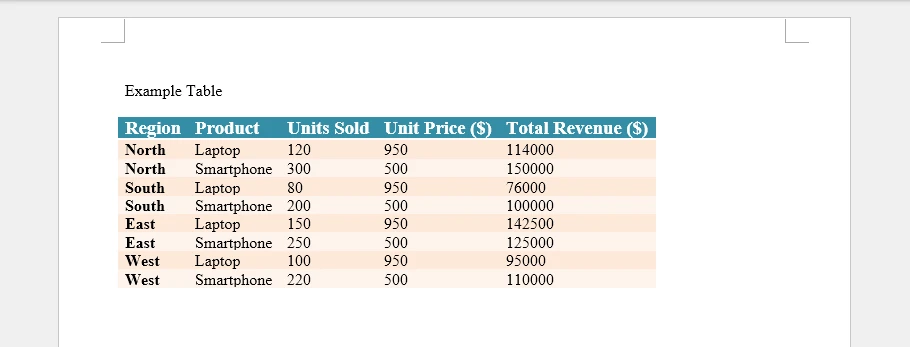
Technical details
- Section.AddTable() inserts the table into the section content flow
- ResetCells(rows, columns) defines the table grid explicitly
- Table[row, column] or Table.Rows[row].Cells[col] returns a TableCell
Tables in Word are designed so that each cell acts as an independent content container. Text is always inserted through paragraphs, and each cell can contain multiple paragraphs, images, or formatted text. This structure allows tables to scale from simple grids to complex report layouts, making them flexible for reports, summaries, or any structured content.
For more detailed examples and advanced operations using Python, such as dynamically generating tables, merging cells, or formatting individual cells, see how to insert tables into Word documents with Python for a complete guide.
6. Adding Headers and Footers
Headers and footers in Word are section-level elements. They are not part of the main content flow and do not affect body pagination.
Each section owns its own header and footer, which allows different parts of a document to display different repeated content.
Adding Headers and Footers in a Section
from spire.doc import Document, FileFormat, HorizontalAlignment, FieldType, BreakType

document = Document()
section = document.AddSection()
section.AddParagraph().AppendBreak(BreakType.PageBreak)

# Add a header
header = section.HeadersFooters.Header
header_para1 = header.AddParagraph()
header_para1.AppendText("Monthly Sales Report").CharacterFormat.FontSize = 12
header_para1.Format.HorizontalAlignment = HorizontalAlignment.Left

header_para2 = header.AddParagraph()
header_para2.AppendText("Company Name").CharacterFormat.FontSize = 12
header_para2.Format.HorizontalAlignment = HorizontalAlignment.Right

# Add a footer with page numbers
footer = section.HeadersFooters.Footer
footer_para = footer.AddParagraph()
footer_para.Format.HorizontalAlignment = HorizontalAlignment.Center
footer_para.AppendText("Page ").CharacterFormat.FontSize = 12
footer_para.AppendField("PageNum", FieldType.FieldPage).CharacterFormat.FontSize = 12
footer_para.AppendText(" of ").CharacterFormat.FontSize = 12
footer_para.AppendField("NumPages", FieldType.FieldNumPages).CharacterFormat.FontSize = 12

document.SaveToFile("document_header_footer.docx", FileFormat.Docx)
document.Dispose()
Preview of the generated Word document.

Technical notes
- section.HeadersFooters.Header / .Footer provides access to header/footer of the section
- AppendField() inserts dynamic fields like FieldPage or FieldNumPages to display dynamic content
Headers and footers are commonly used for report titles, company information, and page numbering. They update automatically as the document changes and are compatible with Word, PDF, and other export formats.
For more detailed examples and advanced operations, see how to insert headers and footers in Word documents with Python.
7. Controlling Page Layout with Sections
In Spire.Doc for Python, all page-level layout settings are managed through the Section object. Page size, orientation, and margins are defined by the section’s PageSetup and apply to all content within that section.
Configuring Page Size and Orientation
from spire.doc import PageSize, PageOrientation

section.PageSetup.PageSize = PageSize.A4()
section.PageSetup.Orientation = PageOrientation.Portrait
Technical explanation
- PageSetup is a layout configuration object owned by the Section
- PageSize defines the physical dimensions of the page
- Orientation controls whether pages are rendered in portrait or landscape mode
PageSetup defines the layout for the entire section. All paragraphs, tables, and images added to the section will follow these settings. Changing PageSetup in one section does not affect other sections in the document, allowing different sections to have different page layouts.
Setting Page Margins
section.PageSetup.Margins.Top = 50
section.PageSetup.Margins.Bottom = 50
section.PageSetup.Margins.Left = 60
section.PageSetup.Margins.Right = 60
Technical explanation
- Margins defines the printable content area for the section
- Margin values are measured in document units
Margins control the body content area for the section. They are evaluated at the section level, so you do not need to set them for individual paragraphs, and header/footer areas are not affected.
Using Multiple Sections for Different Layouts
When a document requires different page layouts, additional sections must be created.
landscape_section = document.AddSection()
landscape_section.PageSetup.Orientation = PageOrientation.Landscape
Technical notes
- AddSection() creates a new section and appends it to the document
- Each section maintains its own PageSetup, headers, and footers
- Content added after this call belongs to the new section
Using multiple sections allows mixing portrait and landscape pages or applying different layouts within a single Word document.
Below is an example preview of the above settings in a Word document:

8. Setting Document Properties and Metadata
In addition to visible content, Word documents expose metadata through built-in document properties. These properties are stored at the document level and do not affect layout or rendering.
Assigning Built-in Document Properties
document.BuiltinDocumentProperties.Title = "Monthly Sales Report"
document.BuiltinDocumentProperties.Author = "Data Analytics System"
document.BuiltinDocumentProperties.Company = "Example Corp"
Technical notes
BuiltinDocumentPropertiesprovides access to standard document properties- Properties such as
Title,Author, andCompanycan be set programmatically
Document properties are commonly used for file indexing, search, document management, and audit workflows. In addition to built-in properties, Word documents support other metadata such as Keywords, Subject, Comments, and Hyperlink base. You can also define custom properties using Document.CustomDocumentProperties.
For a guide on managing document custom properties with Python, see how to manage custom metadata in Word documents with Python.
9. Saving, Exporting, and Performance Considerations
After constructing a Word document in memory, the final step is saving or exporting it to the required output format. Spire.Doc for Python supports multiple export formats through a unified API, allowing the same document structure to be reused without additional formatting logic.
Saving and Exporting Word Documents in Multiple Formats
A document can be saved as DOCX for editing or exported to other commonly used formats for distribution.
from spire.doc import FileFormat

document.SaveToFile("output.docx", FileFormat.Docx)
document.SaveToFile("output.pdf", FileFormat.PDF)
document.SaveToFile("output.html", FileFormat.Html)
document.SaveToFile("output.rtf", FileFormat.Rtf)
The export process preserves document structure, including sections, tables, images, headers, and footers, ensuring consistent layout across formats. Check out all the supported formats in the FileFormat enumeration.
Performance Considerations for Document Generation
For scenarios involving frequent or large-scale Word document generation, performance can be improved by:
- Reusing document templates and styles
- Avoiding unnecessary section creation
- Writing documents to disk only after all content has been generated
- After saving or exporting, explicitly releasing resources using document.Close()
When generating many similar documents with different data, mail merge is more efficient than inserting content programmatically for each file. Spire.Doc for Python provides built-in mail merge support for batch document generation. For details, see how to generate Word documents in bulk using mail merge in Python.
Saving and exporting are integral parts of Word document generation in Python. By using Spire.Doc for Python’s export capabilities and following basic performance practices, Word documents can be generated efficiently and reliably for both individual files and batch workflows.
10. Common Pitfalls When Creating Word Documents in Python
The following issues frequently occur when generating Word documents programmatically.
Treating Word Documents as Plain Text
Issue Formatting breaks when content length changes.
Recommendation Always work with sections, paragraphs, and styles rather than inserting raw text.
Hard-Coding Formatting Logic
Issue Global layout changes require editing multiple code locations.
Recommendation Centralize formatting rules using styles and section-level configuration.
Ignoring Section Boundaries
Issue Margins or orientation changes unexpectedly affect the entire document.
Recommendation Use separate sections to isolate layout rules.
11. Conclusion
Creating Word documents in Python involves more than writing text to a file. A .docx document is a structured object composed of sections, paragraphs, styles, and embedded elements.
By using Spire.Doc for Python and aligning code with Word’s document model, you can generate editable, well-structured Word files that remain stable as content and layout requirements evolve. This approach is especially suitable for backend services, reporting pipelines, and document automation systems.
For scenarios involving large documents or document conversion requirements, a licensed version is required.
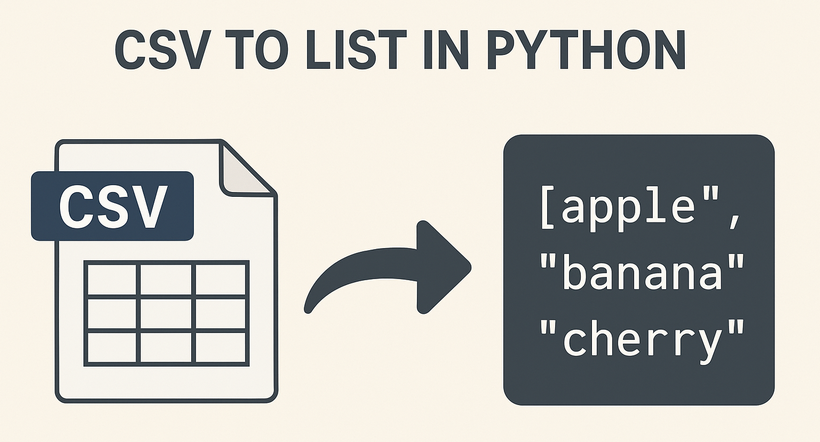
CSV (Comma-Separated Values) is a universal file format for storing tabular data, while lists are Python’s fundamental data structure for easy data manipulation. Converting CSV to lists in Python enables seamless data processing, analysis, and integration with other workflows. While Python’s built-in csv module works for basic cases, Spire.XLS for Python simplifies handling structured CSV data with its intuitive spreadsheet-like interface.
This article will guide you through how to use Python to read CSV into lists (and lists of dictionaries), covering basic to advanced scenarios with practical code examples.
Table of Contents:
- Why Choose Spire.XLS for CSV to List Conversion?
- Basic Conversion: CSV to Python List
- Advanced: Convert CSV to List of Dictionaries
- Handle Special Scenarios
- Conclusion
- Frequently Asked Questions
Why Choose Spire.XLS for CSV to List Conversion?
Spire.XLS is a powerful library designed for spreadsheet processing, and it excels at CSV handling for several reasons:
- Simplified Indexing: Uses intuitive 1-based row/column indexing (matching spreadsheet logic).
- Flexible Delimiters: Easily specify custom separators (commas, tabs, semicolons, etc.).
- Structured Access: Treats CSV data as a worksheet, making row/column traversal straightforward.
- Robust Data Handling: Automatically parses numbers, dates, and strings without extra code.
Installation
Before starting, install Spire.XLS for Python using pip:
pip install Spire.XLS
This command installs the latest stable version, enabling immediate use in your projects.
Basic Conversion: CSV to Python List
If your CSV file has no headers (pure data rows), Spire.XLS can directly read rows and convert them to a list of lists (each sublist represents a CSV row).
Step-by-Step Process:
- Import the Spire.XLS module.
- Create a Workbook object and load the CSV file.
- Access the first worksheet (Spire.XLS parses CSV into a worksheet).
- Traverse rows and cells, extracting values into a Python list.
CSV to List Python Code Example:
from spire.xls import *
from spire.xls.common import *

# Initialize Workbook and load CSV
workbook = Workbook()
workbook.LoadFromFile("Employee.csv",",")

# Get the first worksheet
sheet = workbook.Worksheets[0]

# Convert sheet data to a list of lists
data_list = []
for i in range(sheet.Rows.Length):
    row = []
    for j in range(sheet.Columns.Length):
        cell_value = sheet.Range[i + 1, j + 1].Value
        row.append(cell_value)
    data_list.append(row)

# Display the result
for row in data_list:
    print(row)

# Dispose resources
workbook.Dispose()
Output:
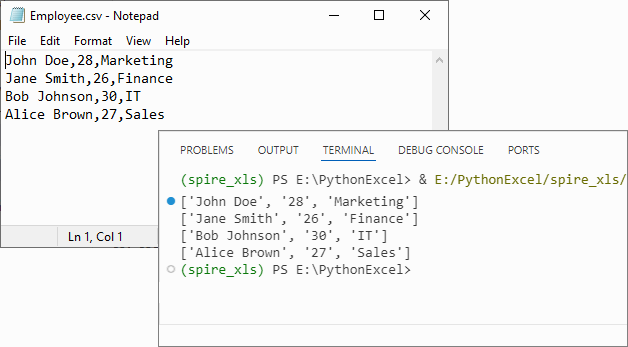
If you need to convert the list back to CSV, refer to: Python List to CSV: 1D/2D/Dicts – Easy Tutorial
Advanced: Convert CSV to List of Dictionaries
For CSV files with headers (e.g., name,age,city), converting to a list of dictionaries (where keys are headers and values are row data) is more intuitive for data manipulation.
CSV to Dictionary Python Code Example:
from spire.xls import *

# Initialize Workbook and load CSV
workbook = Workbook()
workbook.LoadFromFile("Customer_Data.csv", ",")

# Get the first worksheet
sheet = workbook.Worksheets[0]

# Extract headers (first row)
headers = []
for j in range(sheet.Columns.Length):
    headers.append(sheet.Range[1, j + 1].Value)

# Convert data rows to list of dictionaries
dict_list = []
for i in range(1, sheet.Rows.Length):  # Skip header row
    row_dict = {}
    for j in range(sheet.Columns.Length):
        key = headers[j]
        value = sheet.Range[i + 1, j + 1].Value
        row_dict[key] = value
    dict_list.append(row_dict)

# Output the result
for record in dict_list:
    print(record)

workbook.Dispose()
Explanation
- Load the CSV: Use LoadFromFile() method of Workbook class.
- Extracting Headers: Pull the first row of the worksheet to use as dictionary keys.
- Map Rows to Dictionaries: For each data row (skipping the header row), create a dictionary where keys are headers and values are cell contents.
Output:
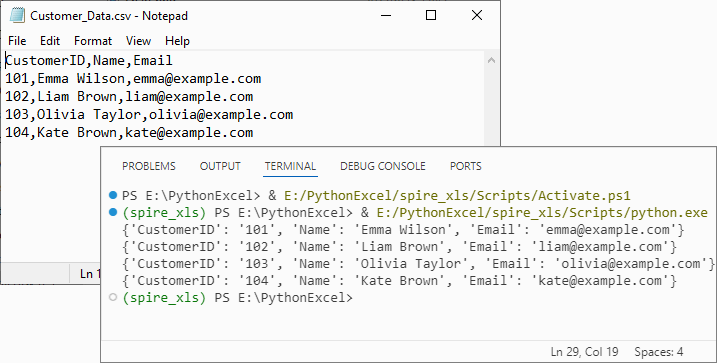
Handle Special Scenarios
CSV with Custom Delimiters (e.g., Tabs, Semicolons)
To process CSV files with delimiters other than commas (e.g., tab-separated TSV files), specify the delimiter in LoadFromFile:
# Load a tab-separated file
workbook.LoadFromFile("data.tsv", "\t")

# Load a semicolon-separated file
workbook.LoadFromFile("data_eu.csv", ";")
Clean Empty Values
Empty cells in the CSV are preserved as empty strings ('') in the list. To replace empty strings with a custom value (e.g., "N/A"), modify the cell value extraction:
cell_value = sheet.Range[i + 1, j + 1].Value or "N/A"
Conclusion
Converting CSV to lists in Python using Spire.XLS is efficient, flexible, and beginner-friendly. Whether you need a list of lists for raw data or a list of dictionaries for structured analysis, this library handles parsing, indexing, and resource management efficiently. By following the examples above, you can integrate this conversion into data pipelines, analysis scripts, or applications with minimal effort.
For more advanced features (e.g., CSV to Excel conversion, batch processing), you can visit the Spire.XLS for Python documentation.
Frequently Asked Questions
Q1: Is Spire.XLS suitable for large CSV files?
A: Spire.XLS handles large files efficiently, but for very large datasets (millions of rows), consider processing in chunks or using specialized big data tools. For typical business datasets, it performs excellently.
Q2: How does this compare to using pandas for CSV to list conversion?
A: Spire.XLS offers more control over the parsing process and doesn't require additional data science dependencies. While pandas is great for analysis, Spire.XLS is ideal when you need precise control over CSV parsing or are working in environments without pandas.
Q3: How do I handle CSV files with headers when converting to lists?
A: For headers, use the dictionary conversion method. Extract the first row as headers, then map subsequent rows to dictionaries where keys are header values. This preserves column meaning and enables easy data access by column name.
Q4: How do I convert only specific columns from my CSV to a list?
A: Modify the inner loop to target specific columns:
# Convert only columns 1 and 3 (index 0 and 2)
target_columns = [0, 2]
for i in range(sheet.Rows.Length):
    row = []
    for j in target_columns:
        cell_value = sheet.Range[i + 1, j + 1].Value
        row.append(cell_value)
    data_list.append(row)
Python TXT to CSV Tutorial | Convert TXT Files to CSV in Python
2025-10-15 07:42:33 Written by zaki zou
When working with data in Python, converting TXT files to CSV is a common and essential task for data analysis, reporting, or sharing data between applications. TXT files often store unstructured plain text, which can be difficult to process, while CSV files organize data into rows and columns, making it easier to work with and prepare for analysis. This tutorial explains how to convert TXT to CSV in Python efficiently, covering single-file conversion, batch conversion, and tips for handling different delimiters.
Table of Contents
- What is a CSV File
- Python TXT to CSV Library - Installation
- Convert a TXT File to CSV in Python (Step-by-Step)
- Automate Batch Conversion of Multiple TXT Files
- Advanced Tips for Python TXT to CSV Conversion
- Conclusion
- FAQs: Python Text to CSV
What is a CSV File?
A CSV (Comma-Separated Values) file is a simple text-based file format used to store tabular data. Each line in a CSV file represents a row, and values within the row are separated by commas (or another delimiter such as tabs or semicolons).
CSV is widely supported by spreadsheet applications, databases, and programming languages like Python. Its simple format makes it easy to import, export, and use across platforms such as Excel, Google Sheets, R, and SQL for data analysis and automation.
An Example CSV File:
Name, Age, City

John, 28, New York

Alice, 34, Los Angeles

Bob, 25, Chicago
Python TXT to CSV Library - Installation
To perform TXT to CSV conversion in Python, we will use Spire.XLS for Python, a powerful library for creating and manipulating Excel and CSV files, without requiring Microsoft Excel to be installed.

You can install it directly from PyPI with the following command:
pip install Spire.XLS
If you need instructions for the installation, visit the guide on How to Install Spire.XLS for Python.
Convert a TXT File to CSV in Python (Step-by-Step)
Converting a text file to CSV in Python is straightforward. You can complete the task in just a few steps. Below is a basic outline of the process:
- Prepare and read the text file: Load your TXT file and read its content line by line.
- Split the text data: Separate each line into fields using a specific delimiter such as a space, tab, or comma.
- Write data to CSV: Use Spire.XLS to write the processed data into a new CSV file.
- Verify the output: Check the CSV in Excel, Google Sheets, or a text editor.
The following code demonstrates how to export a TXT file to CSV using Python:
from spire.xls import *

# Read the txt file
with open("data.txt", "r", encoding="utf-8") as file:
    lines = file.readlines()

# Process each line by splitting based on spaces (you can change the delimiter if needed)
processed_data = [line.strip().split() for line in lines]

# Create an Excel workbook
workbook = Workbook()
# Get the first worksheet
sheet = workbook.Worksheets[0]

# Write data from the processed list to the worksheet
for row_num, row_data in enumerate(processed_data):
    for col_num, cell_data in enumerate(row_data):
        # Write data into cells
        sheet.Range[row_num + 1, col_num + 1].Value = cell_data

# Save the sheet as CSV file (UTF-8 encoded)
sheet.SaveToFile("TxtToCsv.csv", ",", Encoding.get_UTF8())
# Dispose the workbook to release resources
workbook.Dispose()
TXT to CSV Output:
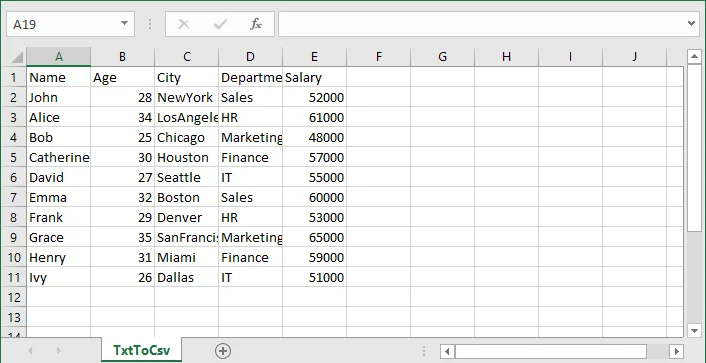
If you are also interested in converting a TXT file to Excel, see the guide on converting TXT to Excel in Python.
Automate Batch Conversion of Multiple TXT Files
If you have multiple text files that you want to convert to CSV automatically, you can loop through all .txt files in a folder and convert them one by one.
The following code demonstrates how to batch convert multiple TXT files to CSV in Python:
import os
from spire.xls import *

# Folder containing TXT files
input_folder = "txt_files"
output_folder = "csv_files"

# Create output folder if it doesn't exist
os.makedirs(output_folder, exist_ok=True)

# Function to process a single TXT file
def convert_txt_to_csv(file_path, output_path):
    # Read the TXT file
    with open(file_path, "r", encoding="utf-8") as f:
        lines = f.readlines()

    # Process each line (split by space, modify if your delimiter is different)
    processed_data = [line.strip().split() for line in lines if line.strip()]

    # Create workbook and access the first worksheet
    workbook = Workbook()
    sheet = workbook.Worksheets[0]

    # Write processed data into the sheet
    for row_num, row_data in enumerate(processed_data):
        for col_num, cell_data in enumerate(row_data):
            sheet.Range[row_num + 1, col_num + 1].Value = cell_data

    # Save the sheet as CSV with UTF-8 encoding
    sheet.SaveToFile(output_path, ",", Encoding.get_UTF8())
    workbook.Dispose()
    print(f"Converted '{file_path}' -> '{output_path}'")

# Loop through all TXT files in the folder and convert each to a CSV file with the same file name
for filename in os.listdir(input_folder):
    if filename.lower().endswith(".txt"):
        input_path = os.path.join(input_folder, filename)
        output_name = os.path.splitext(filename)[0] + ".csv"
        output_path = os.path.join(output_folder, output_name)

        convert_txt_to_csv(input_path, output_path)
Advanced Tips for Python TXT to CSV Conversion
Converting text files to CSV can involve variations in text file layout and potential errors, so these tips will help you handle different scenarios more effectively.
1. Handle Different Delimiters
Not all text files use spaces to separate values. If your TXT file uses tabs, commas, or other characters, you can adjust the split() function to match the delimiter.
- For tab-separated files (.tsv):
processed_data = [line.strip().split('\t') for line in lines]
- For comma-separated files:
processed_data = [line.strip().split(',') for line in lines]
- For custom delimiters (e.g., |):
processed_data = [line.strip().split('|') for line in lines]
This ensures that your data is correctly split into columns before writing to CSV.
2. Add Error Handling
When reading or writing files, it's a good practice to use try-except blocks to catch potential errors. This makes your script more robust and prevents unexpected crashes.
try:
    # your code here
except Exception as e:
print("Error:", e)
Tip: Use descriptive error messages to help understand the problem.
- Skip Empty Lines
Sometimes, text files may have empty lines. You can filter out the blank lines to avoid creating empty rows in CSV:
processed_data = [line.strip().split() for line in lines if line.strip()]
Conclusion
In this article, you learned how to convert a TXT file to CSV format in Python using Spire.XLS for Python. This conversion is an essential step in data preparation, helping organize raw text into a structured format suitable for analysis, reporting, and sharing. With Spire.XLS for Python, you can automate the text to CSV conversion, handle different delimiters, and efficiently manage multiple text files.
If you have any questions or need technical assistance about Python TXT to CSV conversion, visit our Support Forum for help.
FAQs: Python Text to CSV
Q1: Can I convert TXT files to CSV without Microsoft Excel installed?
A1: Yes. Spire.XLS for Python works independently of Microsoft Excel, allowing you to create and export CSV files directly.
Q2: How to batch convert multiple TXT files to CSV in Python?
A2: Use a loop to read all TXT files in a folder and apply the conversion function for each. The tutorial includes a ready-to-use Python example for batch conversion.
Q3: How do I handle empty lines or inconsistent rows in TXT files when converting to CSV?
A3: Filter out empty lines during processing and implement checks for consistent column counts to avoid errors or blank rows in the output CSV.
Q4: How do I convert TXT files with tabs or custom delimiters to CSV in Python?
A4: You can adjust the split() function in your Python script to match the delimiter in your TXT file-tabs (\t), commas, or custom characters-before writing to CSV.
