Como Agrupar Linhas no Excel: Métodos Manual e Automático
Índice
- Resposta Rápida
- O Que Significa Agrupar Linhas no Excel?
- Como Agrupar Linhas no Excel Manualmente
- Como Agrupar Linhas Automaticamente no Excel
- Como Criar Grupos de Linhas Aninhados no Excel
- Como Expandir ou Recolher Linhas Agrupadas no Excel
- Como Agrupar Linhas em Tabelas Dinâmicas do Excel
- Automatizar o Agrupamento de Linhas em Vários Arquivos do Excel com Python
- Considerações Finais
- Perguntas Frequentes
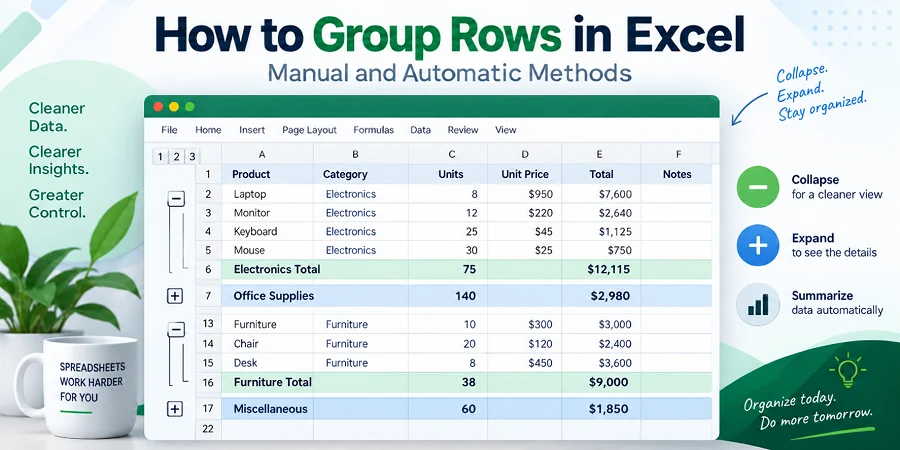
Quando uma planilha do Excel contém centenas de linhas, rolar pelos dados brutos torna os relatórios difíceis de ler. Agrupar linhas no Excel organiza grandes conjuntos de dados em seções expansíveis e recolhíveis, para que você possa navegar pelos resumos sem perder os detalhes. Dependendo de como seus dados estão estruturados, você pode agrupar linhas manualmente, usar ferramentas automáticas ou aplicar agrupamento em Tabelas Dinâmicas.
Resposta Rápida
- Agrupar algumas linhas manualmente: Selecione as linhas desejadas e vá para Dados > Estrutura de Tópicos > Agrupar ou pressione Alt + Shift + Seta para a Direita.
- Agrupar linhas automaticamente por categoria: Classifique os dados pela coluna desejada e use Dados > Estrutura de Tópicos > Subtotal.
- Criar grupos de linhas multinível: Crie primeiro os subgrupos mais internos e depois crie o grupo pai externo.
- Agrupar dados em uma Tabela Dinâmica: Clique com o botão direito em uma data, número ou item de campo selecionado e escolha Agrupar.
- Vários arquivos do Excel: Use Python para aplicar as mesmas regras de agrupamento de linhas em várias pastas de trabalho automaticamente.
O Que Significa Agrupar Linhas no Excel?
Agrupar linhas cria uma seção expansível e recolhível para dados relacionados, adicionando uma barra de controle de estrutura de tópicos com símbolos de mais (+) e menos (-) à esquerda dos números das linhas.
Por exemplo, em um relatório de vendas, você pode recolher centenas de linhas de transações diárias para mostrar apenas os totais mensais, e expandi-las sempre que precisar de uma inspeção mais detalhada.
Para entender melhor o agrupamento de linhas, veja como ele difere de outras ferramentas do Excel:
- vs. Mesclar Células: Mesclar combina células adjacentes em uma única célula maior, enquanto o agrupamento mantém as linhas individuais intactas e controla se seus detalhes ficam visíveis.
- vs. Ocultar Linhas: Linhas ocultas são simplesmente escondidas da visualização, enquanto linhas agrupadas incluem controles de estrutura de tópicos que facilitam expandi-las e recolhê-las.
Como Agrupar Linhas no Excel Manualmente
Agrupar linhas manualmente é a forma mais precisa de organizar conjuntos de dados personalizados. O Excel permite recolher intervalos selecionados com apenas alguns cliques ou usando um atalho de teclado rápido.
Guia Passo a Passo para Agrupamento Manual
Selecione as linhas de detalhe: Arraste sobre os números das linhas que deseja agrupar na extremidade esquerda (não inclua linhas de resumo/total).
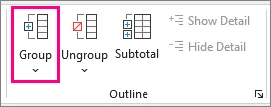
Aplique o Agrupamento: Na guia Dados, clique em Agrupar na seção Estrutura de Tópicos (ou pressione Alt + Shift + Seta para a Direita no Windows / Command + Shift + K no Mac).
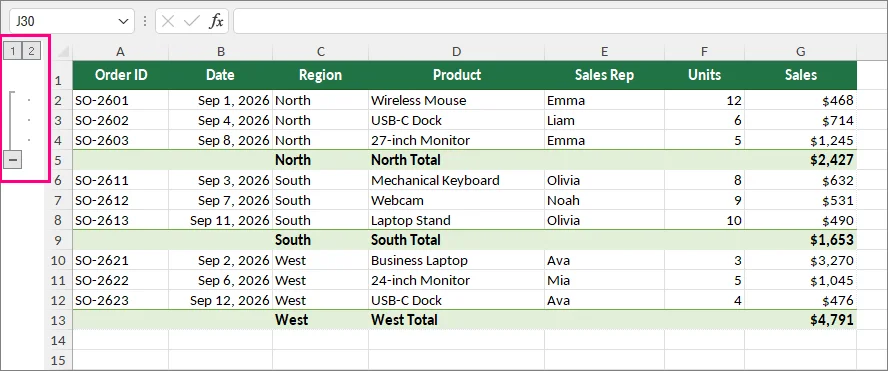
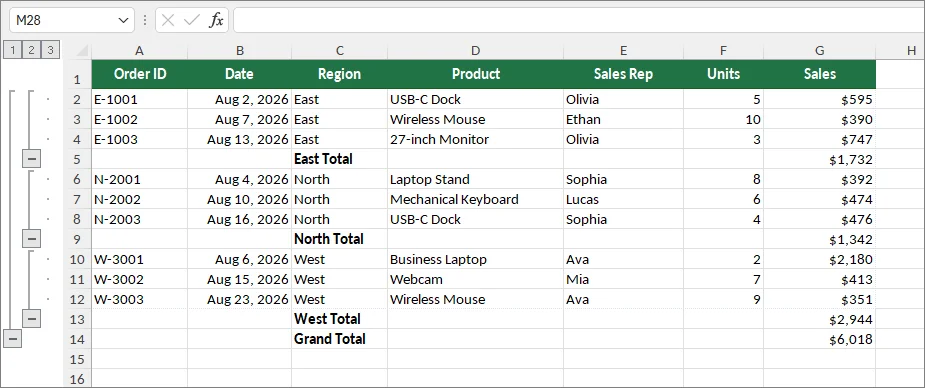
Após aplicar, você verá imediatamente uma barra de estrutura de tópicos e um botão de menos (-) aparecer na margem esquerda, indicando que seu grupo de linhas está ativo e pronto para ser recolhido.
Os Botões Expandir/Recolher Aparecem na Posição Errada?
Por padrão, o Excel espera que as linhas de resumo apareçam abaixo das linhas de detalhe que elas resumem. Se a sua linha de resumo aparecer acima das linhas de detalhe, os controles de estrutura de tópicos podem aparecer no lado oposto da estrutura de resumo. Você pode alterar a configuração da estrutura de tópicos para corresponder ao layout da sua planilha.
Para ajustar o layout:
Vá para a guia Dados.
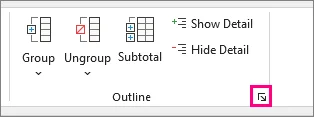
No grupo Estrutura de Tópicos, clique na pequena seta do iniciador de caixa de diálogo (Configurações) no canto inferior direito.
Desmarque Linhas de resumo abaixo do detalhe e clique em OK.
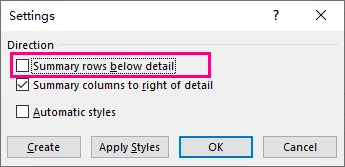
Seus botões de alternância agora ficarão alinhados corretamente ao lado da linha de resumo superior.
Como Agrupar Linhas Automaticamente no Excel
Ao lidar com grandes conjuntos de dados estruturados, selecionar linhas manualmente para agrupar pode ser tedioso. O Excel oferece duas ferramentas integradas para automatizar o agrupamento de linhas com base em categorias ou fórmulas de resumo: Subtotal e Estrutura de Tópicos Automática.
Método 1: Usando a Ferramenta Subtotal
Use a ferramenta Subtotal quando quiser que o Excel identifique grupos automaticamente, insira linhas de cálculo (como SOMA ou MÉDIA) e construa uma estrutura de tópicos expansível em uma única etapa.
Guia Passo a Passo
Certifique-se de que seu intervalo de dados contínuo esteja classificado pela coluna de agrupamento (por exemplo, classifique por Região para que todas as entradas correspondentes fiquem agrupadas).
Selecione qualquer célula dentro do seu intervalo de dados e vá para a guia Dados > grupo Estrutura de Tópicos > Subtotal.
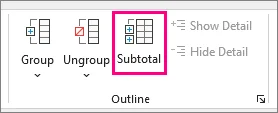
Configure as opções:
- A cada mudança em: Selecione sua coluna de agrupamento (por exemplo, Região).
- Usar função: Selecione o cálculo desejado (por exemplo, Soma).
- Adicionar subtotal a: Marque as colunas que contêm os valores que deseja calcular (por exemplo, Vendas).
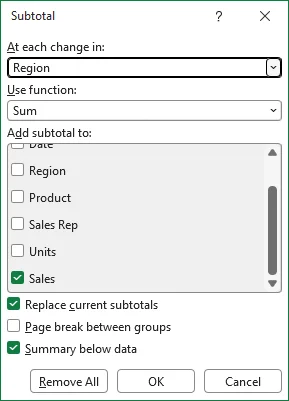
Clique em OK. O Excel inserirá automaticamente linhas de subtotal e criará botões de estrutura de tópicos multinível na margem esquerda.
⚠️ Aviso: Limitação de Tabela do Excel
O recurso Subtotal fica desabilitado dentro de Tabelas oficiais do Excel (Ctrl + T). Se seus dados estiverem formatados como Tabela, vá para Design da Tabela > Converter em Intervalo primeiro para restaurar a funcionalidade padrão das células, ou use uma Tabela Dinâmica em vez disso.
Método 2: Usando Estrutura de Tópicos Automática
Se sua planilha já contém linhas de resumo ou fórmulas de total acima ou abaixo dos dados detalhados, você pode usar Estrutura de Tópicos Automática para gerar grupos de linhas instantaneamente.
Guia Passo a Passo
Certifique-se de que suas linhas de resumo contenham fórmulas padrão do Excel (como
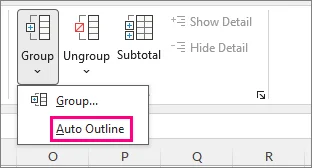
=SUM()ou=AVERAGE()) apontando diretamente para as linhas de detalhe acima ou abaixo.Clique em qualquer célula dentro do seu intervalo de dados, vá para a guia Dados > clique na seta ao lado de Agrupar > selecione Estrutura de Tópicos Automática.
⚡ Dica Pro:
A Estrutura de Tópicos Automática exige fórmulas de resumo funcionais (como =SUM()) que referenciem os dados de detalhe. Ela não consegue detectar uma hierarquia apenas a partir de rótulos simples ou valores estáticos. Se o Excel não reconhecer a estrutura, verifique suas fórmulas ou crie os grupos manualmente.
Como Criar Grupos de Linhas Aninhados (Multinível) no Excel
Ao gerenciar conjuntos de dados complexos com categorias hierárquicas (como Ano > Trimestre > Mês), um único nível de estrutura de tópicos geralmente não é suficiente. O Excel permite aninhar grupos de linhas uns dentro dos outros, criando até 8 níveis de profundidade recolhível.
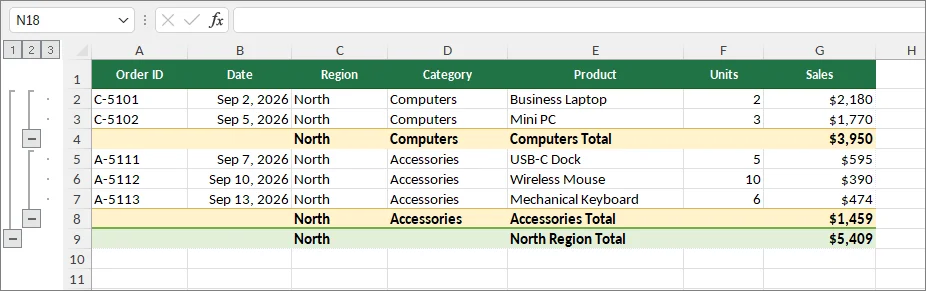
Guia Passo a Passo para Aninhar Grupos de Linhas
Para construir uma estrutura de tópicos multinível limpa, comece com os subgrupos menores, depois agrupe o intervalo pai mais amplo em torno deles.
Crie o grupo mais interno:
- Selecione apenas as linhas de detalhe da menor categoria. Não inclua a linha de subtotal da categoria.
- Na guia Dados, clique em Agrupar na seção Estrutura de Tópicos (ou pressione Alt + Shift + Seta para a Direita / Command + Shift + K).
Crie o grupo pai externo:
- Certifique-se de que os subgrupos internos estejam totalmente expandidos, depois selecione o intervalo mais amplo que contém os grupos internos existentes. Não inclua a linha de total de nível superior.
- Clique em Agrupar novamente (ou pressione o atalho).
Repita para categorias superiores:
- Repita esse processo das categorias menores para as categorias pai maiores. O Excel atribui dinamicamente números de nível (1, 2, 3...) na margem mais à esquerda (suportando até 8 níveis de estrutura de tópicos aninhados).
Como Expandir ou Recolher Linhas Agrupadas no Excel
Depois que suas linhas estiverem agrupadas, use os controles de estrutura de tópicos à esquerda da planilha para escolher quanto detalhe exibir.
- Expandir ou recolher um grupo: Clique em menos (-) para ocultar suas linhas de detalhe, ou em mais (+) para mostrá-las novamente.
- Recolher todos os detalhes agrupados: Clique no botão 1 acima da estrutura de tópicos para mostrar o nível mais externo.
- Expandir todos os detalhes agrupados: Clique no botão de estrutura de tópicos com o número mais alto. Para grupos aninhados, selecione um número intermediário para mostrar aquele nível mantendo os detalhes mais profundos ocultos.
⚠️ Observação: Expandir ou recolher grupos altera apenas a visibilidade das linhas (ocultar/mostrar linhas)—não exclui seus dados subjacentes nem as fórmulas existentes.
Como Agrupar Linhas em Tabelas Dinâmicas do Excel
O agrupamento em Tabela Dinâmica é diferente do agrupamento de linhas da planilha.
O agrupamento de linhas da planilha adiciona controles de estrutura de tópicos às linhas da planilha original. O agrupamento em Tabela Dinâmica combina itens de campo dentro de uma Tabela Dinâmica para análise e resumo.
Você pode agrupar:
- Datas em meses, trimestres ou anos
- Números em intervalos
- Itens de texto selecionados em categorias personalizadas
1. Agrupar Datas por Mês, Trimestre ou Ano
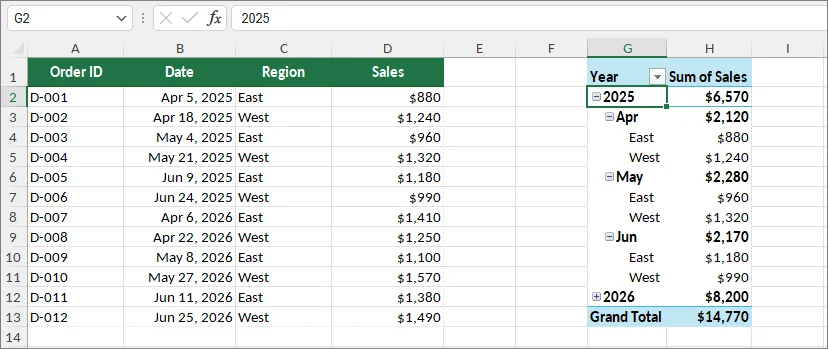
Nas versões mais recentes do Excel, as Tabelas Dinâmicas podem agrupar campos de data automaticamente quando são adicionados. Se você precisar personalizar ou alterar os intervalos, siga estes passos:
- Certifique-se de que seu campo de data esteja adicionado à área Linhas da Tabela Dinâmica.
- Clique com o botão direito em qualquer data válida dentro da Tabela Dinâmica.
- Selecione Agrupar.
- Escolha um ou mais intervalos, como:
- Meses
- Trimestres
- Anos
- Clique em OK.
Para agrupar por Semanas, selecione apenas Dias na caixa de diálogo e altere a configuração "Número de dias" na parte inferior para 7.
2. Agrupar Números em Intervalos
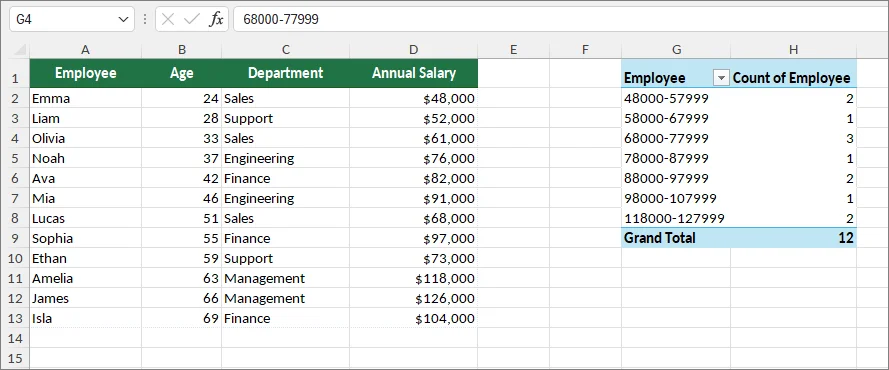
Se você quiser transformar entradas numéricas individuais em intervalos estruturados (como $0–$10.000, $10.001–$20.000), faça o seguinte:
- Certifique-se de que seu campo numérico esteja adicionado à área Linhas do painel Campos da Tabela Dinâmica.
- Clique com o botão direito em qualquer número naquela linha e selecione Agrupar....
- Na caixa de Agrupamento, defina seus limites:
- Iniciando em: Seu limite mais baixo (por exemplo, 0).
- Terminando em: Seu limite máximo (por exemplo, 100.000).
- Por: O tamanho de cada intervalo/faixa (por exemplo, 10.000).
- Clique em OK.
3. Agrupar Itens de Texto em Categorias Personalizadas
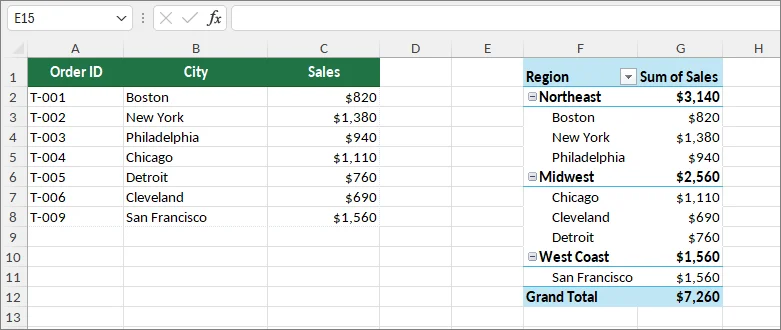
Você pode combinar manualmente itens selecionados da Tabela Dinâmica em categorias personalizadas.
- Selecione os itens da Tabela Dinâmica que deseja combinar. Mantenha Ctrl (Windows) ou Command (Mac) pressionado enquanto seleciona itens não adjacentes.
- Clique com o botão direito em um dos itens selecionados.
- Selecione Agrupar.
- (Opcional) Renomeie o rótulo do grupo gerado clicando nele (por exemplo, Grupo1) e digitando o novo nome da categoria na Barra de Fórmulas na parte superior do Excel.
Por exemplo, vários nomes de produtos ou cidades podem ser agrupados em uma categoria regional mais ampla.
Solução de Problemas: Erro "Não é Possível Agrupar Essa Seleção"
Esse erro geralmente ocorre quando o campo de origem contém valores que o Excel não consegue agrupar corretamente. As causas comuns incluem:
- Células em branco
- Valores de texto em um campo de data ou número
- Valores de erro (
#N/A,#VALUE!, etc.) - Tipos de dados inconsistentes
Como corrigir: Verifique o campo de origem, corrija ou remova valores inválidos, atualize a Tabela Dinâmica (Dados > Atualizar Tudo) e tente agrupar novamente.
Automatizar o Agrupamento de Linhas em Vários Arquivos do Excel com Python
Ao trabalhar com dezenas ou centenas de pastas de trabalho do Excel—como modelos financeiros mensais ou relatórios de vendas regionais—agrupar linhas manualmente em cada arquivo é tedioso e propenso a erros humanos. Usando Python, você pode aplicar a mesma lógica de agrupamento de linhas em vários arquivos do Excel automaticamente.
O exemplo abaixo demonstra como criar grupos de linhas programaticamente e configurar as definições de estrutura de tópicos usando Spire.XLS for Python.
Passo 1: Instalar a Biblioteca Necessária
Antes de executar o script, instale a biblioteca de processamento de documentos via pip:
pip install Spire.XLS
Passo 2: Script Python para Agrupar Linhas em Lote em uma Pasta
O script a seguir percorre automaticamente um diretório especificado, abre cada arquivo do Excel, aplica agrupamento de linhas aninhado e salva os arquivos atualizados em uma pasta de saída:
import os
from spire.xls import *
from spire.xls.common import *

# Define input and output directory paths
input_folder = "./excel_files/"
output_folder = "./grouped_files/"

# Create output folder if it doesn't exist
if not os.path.exists(output_folder):
    os.makedirs(output_folder)

# Loop through all .xlsx files in the folder
for file_name in os.listdir(input_folder):
    if file_name.endswith(".xlsx"):
        file_path = os.path.join(input_folder, file_name)

        # Load workbook
        workbook = Workbook()
        workbook.LoadFromFile(file_path)

        # Access the target worksheet
        sheet = workbook.Worksheets[0]

        # Group rows 3 through 6 (Nested Sub-Group)
        sheet.GroupByRows(3, 6, False)

        # Group rows 2 through 10 (Parent Group)
        sheet.GroupByRows(2, 10, False)

        # Save the updated file to the output directory
        save_path = os.path.join(output_folder, file_name)
        workbook.SaveToFile(save_path, FileFormat.Version2016)

        # Release memory resources
        workbook.Dispose()

print("Batch row grouping completed successfully!")
Configurações Avançadas Opcionais de Agrupamento em Python
Você também pode personalizar as posições da estrutura de tópicos e os estados de recolhimento programaticamente durante o processo em lote:
1. Alterar a Direção do Botão Expandir/Recolher
Para alinhar os botões de alternância ao lado das linhas de resumo superiores em vez das linhas inferiores, defina a direção do resumo:
sheet.PageSetup.IsSummaryRowBelow = False
2. Recolher Grupos por Padrão
Para criar linhas agrupadas que ficam recolhidas quando a pasta de trabalho é aberta, defina o terceiro parâmetro de GroupByRows() como True:
sheet.GroupByRows(2, 10, True)
3. Recolher um Grupo Existente
Para recolher um grupo de linhas existente, use o método de recolhimento em nível de intervalo:
sheet.Range["A2:A10"].CollapseGroup(GroupByType.ByRows)
Considerações Finais
Agrupar linhas no Excel é uma forma simples de tornar grandes planilhas mais fáceis de ler e navegar.
Use:
- Agrupar para organizar linhas manualmente
- Subtotal para resumos baseados em categorias
- Tabelas Dinâmicas para análise de dados
- Automação com Python para fluxos de trabalho repetidos
Escolher o método certo depende se você precisa de organização, cálculos, análise ou automação. Depois de entender as diferenças, o agrupamento de linhas do Excel se torna uma ferramenta prática para gerenciar tanto relatórios pequenos quanto grandes conjuntos de dados.
Perguntas Frequentes
Posso Agrupar Linhas com o Mesmo Valor Automaticamente?
Sim. Classifique por esse valor e use Subtotal quando também precisar de linhas de resumo. A Estrutura de Tópicos Automática depende de resumos existentes; ela não descobre rótulos correspondentes sozinha. O exemplo em Python acima usa intervalos de linhas predefinidos, não detecção baseada em valores.
Posso Agrupar Linhas Sem Adicionar Subtoais?
Sim. Use o comando Agrupar manualmente. As fórmulas de resumo são opcionais para o agrupamento manual.
Posso Agrupar Linhas no Excel para a Web?
Sim. O Excel para a web oferece suporte ao agrupamento de linhas, grupos aninhados e expansão ou recolhimento de detalhes. Algumas configurações de estrutura de tópicos da versão para desktop, como o posicionamento das linhas de resumo, não estão disponíveis na versão web.
Excel에서 행을 그룹화하는 방법: 수동 및 자동 방법
Excel 워크시트에 수백 개의 행이 포함되어 있으면 원시 데이터를 스크롤하는 과정에서 보고서를 읽기 어려워집니다. Excel에서 행을 그룹화하면 대규모 데이터 세트를 확장 및 축소 가능한 섹션으로 구성하여 세부 정보를 잃지 않고 요약을 탐색할 수 있습니다. 데이터가 구성된 방식에 따라 행을 수동으로 그룹화하거나, 자동 도구를 사용하거나, 피벗 테이블에서 그룹화를 적용할 수 있습니다.
빠른 답변
- 몇 개의 행을 수동으로 그룹화: 대상 행을 선택한 다음 데이터 > 개요 > 그룹으로 이동하거나 Alt + Shift + Right Arrow를 누릅니다.
- 범주별로 행을 자동 그룹화: 대상 열을 기준으로 데이터를 정렬한 다음 데이터 > 개요 > 부분합을 사용합니다.
- 다중 수준 행 그룹 만들기: 가장 안쪽 하위 그룹을 먼저 만든 다음 바깥쪽 상위 그룹을 만듭니다.
- 피벗 테이블에서 데이터 그룹화: 날짜, 숫자 또는 선택한 필드 항목을 마우스 오른쪽 단추로 클릭하고 그룹을 선택합니다.
- 여러 Excel 파일: Python을 사용하여 통합 문서 전체에 동일한 행 그룹화 규칙을 자동으로 적용합니다.
Excel에서 행 그룹화란 무엇인가요?
행을 그룹화하면 관련 데이터에 대해 확장 및 축소 가능한 섹션이 생성되며, 행 번호 왼쪽에 더하기(+) 및 빼기(-) 기호가 있는 개요 컨트롤 막대가 추가됩니다.
예를 들어, 판매 보고서에서 수백 개의 일일 거래 행을 축소하여 월간 합계만 표시하고, 더 자세히 확인해야 할 때마다 다시 확장할 수 있습니다.
행 그룹화를 더 잘 이해하기 위해 다른 Excel 도구와 어떻게 다른지 살펴보겠습니다:
- 셀 병합과의 차이: 병합은 인접한 셀을 하나의 더 큰 셀로 결합하는 반면, 그룹화는 개별 행을 그대로 유지하면서 해당 세부 정보의 표시 여부를 제어합니다.
- 행 숨기기와의 차이: 숨긴 행은 단순히 보기에서 숨겨지지만, 그룹화된 행에는 확장 및 축소를 더 쉽게 해주는 개요 컨트롤이 포함됩니다.
Excel에서 수동으로 행을 그룹화하는 방법
수동으로 행을 그룹화하는 것은 사용자 지정 데이터 세트를 구성하는 가장 정확한 방법입니다. Excel에서는 몇 번의 클릭이나 빠른 키보드 단축키로 선택한 범위를 축소할 수 있습니다.
수동 그룹화 단계별 가이드
세부 행 선택: 가장 왼쪽에서 그룹화하려는 행 번호를 가로질러 드래그합니다(요약/합계 행은 포함하지 마세요).
그룹화 적용: 데이터 탭의 개요 섹션에서 그룹을 클릭합니다(또는 Windows에서는 Alt + Shift + Right Arrow, Mac에서는 Command + Shift + K를 누릅니다).
적용하면 왼쪽 여백에 개요 표시줄과 빼기(-) 단추가 즉시 나타나며, 행 그룹이 활성화되어 축소할 준비가 되었음을 나타냅니다.
확장/축소 단추가 잘못된 위치에 나타나나요?
기본적으로 Excel은 요약 행이 요약 대상인 세부 행 아래에 나타날 것으로 가정합니다. 요약 행이 세부 행 위에 나타나는 경우, 개요 컨트롤이 요약 구조의 반대쪽에 나타날 수 있습니다. 워크시트 레이아웃에 맞게 개요 설정을 변경할 수 있습니다.
레이아웃을 조정하려면:
데이터 탭으로 이동합니다.
개요 그룹에서 오른쪽 아래 모서리에 있는 작은 대화 상자 시작 관리자 화살표(설정)를 클릭합니다.
세부 정보 아래에 요약 행을 선택 취소하고 확인을 클릭합니다.
이제 토글 단추가 상단 요약 행 옆에 올바르게 정렬됩니다.
Excel에서 자동으로 행을 그룹화하는 방법
크고 구조화된 데이터 세트를 다룰 때 그룹화할 행을 수동으로 선택하는 것은 번거로울 수 있습니다. Excel은 범주나 요약 수식을 기반으로 행 그룹화를 자동화하는 두 가지 기본 제공 도구인 부분합과 자동 개요를 제공합니다.
방법 1: 부분합 도구 사용
Excel이 그룹을 자동으로 식별하고, 계산 행(예: SUM 또는 AVERAGE)을 삽입하고, 확장 가능한 개요를 한 번에 작성하도록 하려면 부분합 도구를 사용하세요.
단계별 가이드
연속된 데이터 범위가 그룹화 열을 기준으로 정렬되어 있는지 확인합니다(예: 일치하는 모든 항목이 함께 그룹화되도록 지역별로 정렬).
데이터 범위 내의 아무 셀이나 선택한 다음 데이터 탭 > 개요 그룹 > 부분합으로 이동합니다.
설정을 구성합니다:
- 다음 항목이 변경될 때마다: 그룹화 열(예: 지역)을 선택합니다.
- 사용할 함수: 원하는 계산(예: 합계)을 선택합니다.
- 부분합 추가 대상: 계산하려는 값이 포함된 열(예: 매출)을 선택합니다.
확인을 클릭합니다. Excel이 자동으로 부분합 행을 삽입하고 왼쪽 여백에 다중 수준 개요 단추를 만듭니다.
⚠️ 경고: Excel 표 제한
부분합 기능은 공식 Excel 표(Ctrl + T) 내에서는 사용할 수 없습니다. 데이터가 표로 서식 지정된 경우 표 디자인 > 범위로 변환으로 이동하여 표준 셀 기능을 복원하거나, 대신 피벗 테이블을 사용하세요.
방법 2: 자동 개요 사용
스프레드시트에 이미 세부 데이터 위나 아래에 요약 행이나 합계 수식이 포함되어 있는 경우 자동 개요를 사용하여 행 그룹을 즉시 생성할 수 있습니다.
단계별 가이드
요약 행에 위나 아래의 세부 행을 직접 참조하는 표준 Excel 수식(예:
=SUM()또는=AVERAGE())이 포함되어 있는지 확인합니다.데이터 범위 내의 아무 셀이나 클릭하고 데이터 탭으로 이동 > 그룹 옆의 화살표를 클릭 > 자동 개요를 선택합니다.
⚡ 전문가 팁:
자동 개요는 세부 데이터를 참조하는 작동하는 요약 수식(예: =SUM())이 필요합니다. 단순한 레이블이나 정적 값만으로는 계층 구조를 감지할 수 없습니다. Excel이 구조를 인식하지 못하는 경우 수식을 확인하거나 그룹을 수동으로 만드세요.
Excel에서 중첩(다중 수준) 행 그룹을 만드는 방법
계층적 범주(예: 연도 > 분기 > 월)가 있는 복잡한 데이터 세트를 관리할 때 단일 개요 수준으로는 충분하지 않은 경우가 많습니다. Excel에서는 행 그룹을 서로 중첩하여 최대 8수준의 축소 가능한 깊이를 만들 수 있습니다.
행 그룹 중첩 단계별 가이드
깔끔한 다중 수준 개요를 만들려면 가장 작은 하위 그룹부터 시작한 다음, 그 주위의 더 넓은 상위 범위를 그룹화합니다.
가장 안쪽 그룹 만들기:
- 가장 작은 범주의 세부 행만 선택합니다. 범주 부분합 행은 포함하지 마세요.
- 데이터 탭의 개요 섹션에서 그룹을 클릭합니다(또는 Alt + Shift + Right Arrow / Command + Shift + K를 누릅니다).
바깥쪽 상위 그룹 만들기:
- 내부 하위 그룹이 완전히 확장되어 있는지 확인한 다음, 기존 내부 그룹을 포함하는 더 넓은 범위를 선택합니다. 상위 수준 합계 행은 포함하지 마세요.
- 그룹을 다시 클릭합니다(또는 단축키를 누릅니다).
상위 범주에 대해 반복:
- 더 작은 범주에서 더 큰 상위 범주로 이 과정을 반복합니다. Excel은 가장 왼쪽 여백에 수준 번호(1, 2, 3...)를 동적으로 할당합니다(최대 8개의 중첩된 개요 수준 지원).
Excel에서 그룹화된 행을 확장하거나 축소하는 방법
행이 그룹화되면 워크시트 왼쪽의 개요 컨트롤을 사용하여 표시할 세부 정보의 양을 선택합니다.
- 하나의 그룹 확장 또는 축소: 빼기(-)를 클릭하여 세부 행을 숨기거나 더하기(+)를 클릭하여 다시 표시합니다.
- 모든 그룹화된 세부 정보 축소: 개요 위의 1 단추를 클릭하여 가장 바깥쪽 수준을 표시합니다.
- 모든 그룹화된 세부 정보 확장: 가장 높은 번호의 개요 단추를 클릭합니다. 중첩된 그룹의 경우 중간 번호를 선택하여 더 깊은 세부 정보는 숨긴 채 해당 수준을 표시합니다.
⚠️ 참고: 그룹을 확장하거나 축소하면 행 표시 여부만 변경되며(행 숨기기/표시), 기본 데이터나 기존 수식은 삭제되지 않습니다.
Excel 피벗 테이블에서 행을 그룹화하는 방법
피벗 테이블 그룹화는 워크시트 행 그룹화와 다릅니다.
워크시트 행 그룹화는 원본 워크시트의 행에 개요 컨트롤을 추가합니다. 피벗 테이블 그룹화는 분석 및 요약을 위해 피벗 테이블 내의 필드 항목을 결합합니다.
다음을 그룹화할 수 있습니다:
- 날짜를 월, 분기 또는 연도로
- 숫자를 범위로
- 선택한 텍스트 항목을 사용자 지정 범주로
1. 날짜를 월, 분기 또는 연도별로 그룹화
최신 버전의 Excel에서는 피벗 테이블에 날짜 필드를 추가할 때 자동으로 그룹화할 수 있습니다. 간격을 사용자 지정하거나 변경해야 하는 경우 다음 단계를 따르세요:
- 날짜 필드가 피벗 테이블의 행 영역에 추가되어 있는지 확인합니다.
- 피벗 테이블 내의 유효한 날짜를 마우스 오른쪽 단추로 클릭합니다.
- 그룹을 선택합니다.
- 다음과 같은 하나 이상의 간격을 선택합니다:
- 월
- 분기
- 연도
- 확인을 클릭합니다.
주 단위로 그룹화하려면 대화 상자에서 일만 선택하고 하단의 "일 수" 설정을 7로 변경합니다.
2. 숫자를 범위로 그룹화
개별 숫자 항목을 구조화된 범위(예: $0–$10,000, $10,001–$20,000)로 바꾸려면 다음을 수행하세요:
- 숫자 필드가 피벗 테이블 필드 창의 행 영역에 추가되어 있는지 확인합니다.
- 해당 행의 아무 숫자나 마우스 오른쪽 단추로 클릭하고 그룹...을 선택합니다.
- 그룹화 상자에서 경계를 정의합니다:
- 시작 값: 최저 한도(예: 0).
- 끝 값: 최대 한도(예: 100,000).
- 단위: 각 간격/구간의 크기(예: 10,000).
- 확인을 클릭합니다.
3. 텍스트 항목을 사용자 지정 범주로 그룹화
선택한 피벗 테이블 항목을 수동으로 결합하여 사용자 지정 범주로 만들 수 있습니다.
- 결합하려는 피벗 테이블 항목을 선택합니다. 인접하지 않은 항목을 선택할 때 Ctrl(Windows) 또는 Command(Mac)을 누른 상태로 유지합니다.
- 선택한 항목 중 하나를 마우스 오른쪽 단추로 클릭합니다.
- 그룹을 선택합니다.
- (선택 사항) 생성된 그룹 레이블(예: Group1)을 클릭하고 Excel 상단의 수식 입력줄에 새 범주 이름을 입력하여 이름을 바꿉니다.
예를 들어, 여러 제품 이름이나 도시 이름을 더 넓은 지역 범주로 그룹화할 수 있습니다.
문제 해결: "해당 선택 항목을 그룹화할 수 없습니다" 오류
이 오류는 일반적으로 원본 필드에 Excel이 올바르게 그룹화할 수 없는 값이 포함되어 있을 때 발생합니다. 일반적인 원인은 다음과 같습니다:
- 빈 셀
- 날짜 또는 숫자 필드의 텍스트 값
- 오류 값 (
#N/A,#VALUE!등) - 일관되지 않은 데이터 형식
해결 방법: 원본 필드를 확인하고, 유효하지 않은 값을 수정하거나 제거하고, 피벗 테이블을 새로 고친 다음(데이터 > 모두 새로 고침) 다시 그룹화해 보세요.
Python으로 여러 Excel 파일의 행 그룹화 자동화
월별 재무 모델이나 지역별 판매 보고서와 같이 수십 또는 수백 개의 Excel 통합 문서로 작업할 때 모든 파일에서 행을 수동으로 그룹화하는 것은 번거롭고 사람의 실수가 발생하기 쉽습니다. Python을 사용하면 동일한 행 그룹화 논리를 여러 Excel 파일에 자동으로 적용할 수 있습니다.
아래 예제는 프로그래밍 방식으로 행 그룹을 만들고 Spire.XLS for Python을 사용하여 개요 설정을 구성하는 방법을 보여줍니다.
1단계: 필수 라이브러리 설치
스크립트를 실행하기 전에 pip를 통해 문서 처리 라이브러리를 설치합니다:
pip install Spire.XLS
2단계: 폴더의 행을 일괄 그룹화하는 Python 스크립트
다음 스크립트는 지정된 디렉터리를 자동으로 반복하면서 각 Excel 파일을 열고 중첩된 행 그룹화를 적용한 후 업데이트된 파일을 출력 폴더에 저장합니다:
import os
from spire.xls import *
from spire.xls.common import *

# Define input and output directory paths
input_folder = "./excel_files/"
output_folder = "./grouped_files/"

# Create output folder if it doesn't exist
if not os.path.exists(output_folder):
    os.makedirs(output_folder)

# Loop through all .xlsx files in the folder
for file_name in os.listdir(input_folder):
    if file_name.endswith(".xlsx"):
        file_path = os.path.join(input_folder, file_name)

        # Load workbook
        workbook = Workbook()
        workbook.LoadFromFile(file_path)

        # Access the target worksheet
        sheet = workbook.Worksheets[0]

        # Group rows 3 through 6 (Nested Sub-Group)
        sheet.GroupByRows(3, 6, False)

        # Group rows 2 through 10 (Parent Group)
        sheet.GroupByRows(2, 10, False)

        # Save the updated file to the output directory
        save_path = os.path.join(output_folder, file_name)
        workbook.SaveToFile(save_path, FileFormat.Version2016)

        # Release memory resources
        workbook.Dispose()

print("Batch row grouping completed successfully!")
Python의 선택적 고급 그룹 설정
일괄 처리 중에 개요 위치와 축소 상태를 프로그래밍 방식으로 사용자 지정할 수도 있습니다:
1. 확장/축소 단추 방향 변경
토글 단추를 아래쪽 행 대신 상단 요약 행 옆에 정렬하려면 요약 방향을 설정합니다:
sheet.PageSetup.IsSummaryRowBelow = False
2. 기본적으로 그룹 축소
통합 문서를 열 때 축소된 상태로 표시되는 그룹화된 행을 만들려면 GroupByRows()의 세 번째 매개 변수를 True로 설정합니다:
sheet.GroupByRows(2, 10, True)
3. 기존 그룹 축소
기존 행 그룹을 축소하려면 범위 수준 축소 메서드를 사용합니다:
sheet.Range["A2:A10"].CollapseGroup(GroupByType.ByRows)
마무리 생각
Excel에서 행을 그룹화하는 것은 큰 워크시트를 더 읽기 쉽고 탐색하기 쉽게 만드는 간단한 방법입니다.
사용 대상:
- 수동으로 행을 구성할 때는 그룹
- 범주 기반 요약에는 부분합
- 데이터 분석에는 피벗 테이블
- 반복적인 워크플로에는 Python 자동화
올바른 방법을 선택하는 것은 구성, 계산, 분석 또는 자동화 중 무엇이 필요한지에 달려 있습니다. 차이점을 이해하고 나면 Excel 행 그룹화는 소규모 보고서와 대규모 데이터 세트를 모두 관리하는 실용적인 도구가 됩니다.
자주 묻는 질문
동일한 값을 가진 행을 자동으로 그룹화할 수 있나요?
예. 해당 값으로 정렬하고 요약 행도 필요한 경우 부분합을 사용하세요. 자동 개요는 기존 요약을 기반으로 하며, 일치하는 레이블을 스스로 찾아내지 않습니다. 위의 Python 예제는 값 기반 감지가 아닌 미리 정의된 행 범위를 사용합니다.
부분합을 추가하지 않고 행을 그룹화할 수 있나요?
예. 수동 그룹 명령을 사용하세요. 수동 그룹화에서는 요약 수식이 선택 사항입니다.
Excel 웹용에서 행을 그룹화할 수 있나요?
예. Excel 웹용은 행 그룹화, 중첩 그룹, 세부 정보 확장 또는 축소를 지원합니다. 요약 행 배치와 같은 일부 데스크톱 개요 설정은 웹 버전에서 사용할 수 없습니다.
Come raggruppare le righe in Excel: metodi manuali e automatici
Indice dei contenuti
- Risposta rapida
- Cosa significa raggruppare righe in Excel?
- Come raggruppare le righe in Excel manualmente
- Come raggruppare automaticamente le righe in Excel
- Come creare gruppi di righe annidati in Excel
- Come espandere o comprimere le righe raggruppate in Excel
- Come raggruppare le righe nelle tabelle pivot di Excel
- Automatizzare il raggruppamento delle righe su più file Excel con Python
- Considerazioni finali
- Domande frequenti
Quando un foglio di lavoro Excel contiene centinaia di righe, scorrere i dati grezzi rende difficile leggere i report. Raggruppare le righe in Excel organizza grandi set di dati in sezioni espandibili e comprimibili, così puoi navigare tra i riepiloghi senza perdere i dettagli. A seconda di come sono strutturati i tuoi dati, puoi raggruppare le righe manualmente, utilizzare strumenti automatici o applicare il raggruppamento nelle tabelle pivot.
Risposta rapida
- Raggruppa manualmente alcune righe: Seleziona le righe di destinazione, quindi vai su Dati > Struttura > Raggruppa oppure premi Alt + Maiusc + Freccia destra.
- Raggruppa automaticamente le righe per categoria: Ordina i dati per la colonna di destinazione, quindi usa Dati > Struttura > Subtotali.
- Crea gruppi di righe a più livelli: Crea prima i sottogruppi più interni, poi crea il gruppo padre esterno.
- Raggruppa i dati in una tabella pivot: Fai clic con il tasto destro su una data, un numero o un elemento di campo selezionato e scegli Raggruppa.
- Più file Excel: Usa Python per applicare automaticamente le stesse regole di raggruppamento delle righe su più cartelle di lavoro.
Cosa significa raggruppare righe in Excel?
Raggruppare le righe crea una sezione espandibile e comprimibile per i dati correlati, aggiungendo una barra di controllo della struttura con simboli più (+) e meno (-) a sinistra dei numeri di riga.
Ad esempio, in un report di vendite, puoi comprimere centinaia di righe di transazioni giornaliere per mostrare solo i totali mensili, ed espanderle ogni volta che hai bisogno di un controllo più approfondito.
Per comprendere meglio il raggruppamento delle righe, ecco in cosa differisce da altri strumenti di Excel:
- Rispetto all'unione delle celle: L'unione combina celle adiacenti in un'unica cella più grande, mentre il raggruppamento mantiene intatte le singole righe e controlla se i loro dettagli sono visibili.
- Rispetto a Nascondere le righe: Le righe nascoste sono semplicemente nascoste alla vista, mentre le righe raggruppate includono controlli di struttura che le rendono più facili da espandere e comprimere.
Come raggruppare le righe in Excel manualmente
Raggruppare le righe manualmente è il modo più preciso per organizzare set di dati personalizzati. Excel consente di comprimere gli intervalli selezionati con pochi clic o utilizzando una scorciatoia da tastiera.
Guida dettagliata al raggruppamento manuale
Seleziona le righe di dettaglio: Trascina sui numeri di riga che desideri raggruppare all'estrema sinistra (non includere le righe di riepilogo/totali).
Applica il raggruppamento: Nella scheda Dati, fai clic su Raggruppa nella sezione Struttura (oppure premi Alt + Maiusc + Freccia destra su Windows / Command + Maiusc + K su Mac).
Una volta applicato, vedrai immediatamente apparire una barra di struttura e un pulsante meno (-) sul margine sinistro, che indica che il gruppo di righe è attivo e pronto per essere compresso.
I pulsanti Espandi/Comprimi appaiono nella posizione sbagliata?
Per impostazione predefinita, Excel prevede che le righe di riepilogo appaiano sotto le righe di dettaglio che riepilogano. Se la riga di riepilogo appare sopra le righe di dettaglio, i controlli di struttura potrebbero apparire sul lato opposto rispetto alla struttura di riepilogo. Puoi modificare l'impostazione della struttura per adattarla al layout del tuo foglio di lavoro.
Per modificare il layout:
Vai alla scheda Dati.
Nel gruppo Struttura, fai clic sulla piccola freccia di apertura della finestra di dialogo (Impostazioni) nell'angolo in basso a destra.
Deseleziona Righe di riepilogo sotto i dettagli e fai clic su OK.
I tuoi pulsanti di attivazione/disattivazione ora si allineeranno correttamente accanto alla riga di riepilogo superiore.
Come raggruppare automaticamente le righe in Excel
Quando si gestiscono grandi set di dati strutturati, selezionare manualmente le righe da raggruppare può essere noioso. Excel offre due strumenti integrati per automatizzare il raggruppamento delle righe in base a categorie o formule di riepilogo: Subtotali e Struttura automatica.
Metodo 1: Usare lo strumento Subtotali
Usa lo strumento Subtotali quando vuoi che Excel identifichi automaticamente i gruppi, inserisca righe di calcolo (come SOMMA o MEDIA) e crei una struttura espandibile in un unico passaggio.
Guida dettagliata
Assicurati che il tuo intervallo di dati continuo sia ordinato per la colonna di raggruppamento (ad es., ordina per Regione in modo che tutte le voci corrispondenti siano raggruppate insieme).
Seleziona qualsiasi cella all'interno del tuo intervallo di dati, quindi vai alla scheda Dati > gruppo Struttura > Subtotali.
Configura le impostazioni:
- A ogni cambiamento di: Seleziona la tua colonna di raggruppamento (ad es., Regione).
- Usa la funzione: Seleziona il calcolo desiderato (ad es., Somma).
- Aggiungi subtotale a: Seleziona le colonne contenenti i valori che vuoi calcolare (ad es., Vendite).
Fai clic su OK. Excel inserirà automaticamente le righe di subtotale e creerà pulsanti di struttura a più livelli sul margine sinistro.
⚠️ Avvertenza: Limitazione delle tabelle di Excel
La funzione Subtotali è disabilitata all'interno delle tabelle ufficiali di Excel (Ctrl + T). Se i tuoi dati sono formattati come tabella, vai su Strumenti tabella > Converti in intervallo prima di procedere per ripristinare la funzionalità standard delle celle, oppure usa una tabella pivot.
Metodo 2: Usare la Struttura automatica
Se il tuo foglio di calcolo contiene già righe di riepilogo o formule di totale sopra o sotto i dati di dettaglio, puoi usare Struttura automatica per generare istantaneamente gruppi di righe.
Guida dettagliata
Assicurati che le tue righe di riepilogo contengano formule standard di Excel (come
=SUM()o=AVERAGE()) che puntano direttamente alle righe di dettaglio sopra o sotto.Fai clic su qualsiasi cella all'interno del tuo intervallo di dati, vai alla scheda Dati > fai clic sulla freccia accanto a Raggruppa > seleziona Struttura automatica.
⚡ Suggerimento professionale:
La Struttura automatica richiede formule di riepilogo funzionanti (come =SUM()) che facciano riferimento ai dati di dettaglio. Non può rilevare una gerarchia solo da semplici etichette o valori statici. Se Excel non riesce a riconoscere la struttura, controlla le tue formule o crea i gruppi manualmente.
Come creare gruppi di righe annidati (a più livelli) in Excel
Quando si gestiscono set di dati complessi con categorie gerarchiche (come Anno > Trimestre > Mese), un singolo livello di struttura spesso non è sufficiente. Excel consente di annidare i gruppi di righe l'uno dentro l'altro, creando fino a 8 livelli di profondità comprimibile.
Guida dettagliata all'annidamento dei gruppi di righe
Per creare una struttura multilivello pulita, inizia con i sottogruppi più piccoli, poi raggruppa l'intervallo padre più ampio attorno a essi.
Crea il gruppo più interno:
- Seleziona solo le righe di dettaglio per la categoria più piccola. Non includere la riga di subtotale della categoria.
- Nella scheda Dati, fai clic su Raggruppa nella sezione Struttura (oppure premi Alt + Maiusc + Freccia destra / Command + Maiusc + K).
Crea il gruppo padre esterno:
- Assicurati che i sottogruppi interni siano completamente espansi, quindi seleziona l'intervallo più ampio che contiene i gruppi interni esistenti. Non includere la riga di totale di livello superiore.
- Fai clic di nuovo su Raggruppa (oppure premi la scorciatoia).
Ripeti per le categorie superiori:
- Ripeti questo processo dalle categorie più piccole a quelle padre più grandi. Excel assegna dinamicamente i numeri di livello (1, 2, 3...) sul margine all'estrema sinistra (supportando fino a 8 livelli di struttura annidati).
Come espandere o comprimere le righe raggruppate in Excel
Una volta raggruppate le righe, usa i controlli di struttura a sinistra del foglio di lavoro per scegliere quanti dettagli visualizzare.
- Espandi o comprimi un gruppo: Fai clic su meno (-) per nascondere le sue righe di dettaglio, o su più (+) per mostrarle di nuovo.
- Comprimi tutti i dettagli raggruppati: Fai clic sul pulsante 1 sopra la struttura per mostrare il livello più esterno.
- Espandi tutti i dettagli raggruppati: Fai clic sul pulsante di struttura con il numero più alto. Per i gruppi annidati, seleziona un numero intermedio per mostrare quel livello mantenendo nascosti i dettagli più profondi.
⚠️ Nota: Espandere o comprimere i gruppi cambia solo la visibilità delle righe (nascondendo/mostrando righe)—non elimina i tuoi dati sottostanti o le formule esistenti.
Come raggruppare le righe nelle tabelle pivot di Excel
Il raggruppamento nelle tabelle pivot è diverso dal raggruppamento delle righe del foglio di lavoro.
Il raggruppamento delle righe del foglio di lavoro aggiunge controlli di struttura alle righe nel foglio di lavoro originale. Il raggruppamento nella tabella pivot combina gli elementi di campo all'interno di una tabella pivot per l'analisi e il riepilogo.
Puoi raggruppare:
- Le date in mesi, trimestri o anni
- I numeri in intervalli
- Elementi di testo selezionati in categorie personalizzate
1. Raggruppare le date per mese, trimestre o anno
Nelle versioni più recenti di Excel, le tabelle pivot potrebbero raggruppare automaticamente i campi data quando vengono aggiunti. Se hai bisogno di personalizzare o modificare gli intervalli, segui questi passaggi:
- Assicurati che il tuo campo data sia aggiunto all'area Righe della tabella pivot.
- Fai clic con il tasto destro su qualsiasi data valida all'interno della tabella pivot.
- Seleziona Raggruppa.
- Scegli uno o più intervalli, come:
- Mesi
- Trimestri
- Anni
- Fai clic su OK.
Per raggruppare per Settimane, seleziona solo Giorni nella finestra di dialogo e cambia l'impostazione "Numero di giorni" in fondo su 7.
2. Raggruppare i numeri in intervalli
Se vuoi trasformare singole voci numeriche in intervalli strutturati (come 0–10.000 €, 10.001–20.000 €), fai così:
- Assicurati che il tuo campo numerico sia aggiunto all'area Righe del riquadro Campi tabella pivot.
- Fai clic con il tasto destro su qualsiasi numero in quella riga e seleziona Raggruppa....
- Nella casella Raggruppamento, definisci i tuoi limiti:
- A partire da: Il tuo limite minimo (ad es., 0).
- Fino a: Il tuo limite massimo (ad es., 100.000).
- In base a: La dimensione di ciascun intervallo/bucket (ad es., 10.000).
- Fai clic su OK.
3. Raggruppare elementi di testo in categorie personalizzate
Puoi combinare manualmente gli elementi selezionati della tabella pivot in categorie personalizzate.
- Seleziona gli elementi della tabella pivot che vuoi combinare. Tieni premuto Ctrl (Windows) o Command (Mac) mentre selezioni elementi non adiacenti.
- Fai clic con il tasto destro su uno degli elementi selezionati.
- Seleziona Raggruppa.
- (Facoltativo) Rinomina l'etichetta del gruppo generata facendoci clic sopra (ad es., Gruppo1) e digitando il nuovo nome della categoria nella barra della formula nella parte superiore di Excel.
Ad esempio, diversi nomi di prodotti o città possono essere raggruppati in una categoria regionale più ampia.
Risoluzione dei problemi: Errore "Impossibile raggruppare la selezione"
Questo errore si verifica solitamente quando il campo di origine contiene valori che Excel non riesce a raggruppare correttamente. Le cause comuni includono:
- Celle vuote
- Valori di testo in un campo data o numero
- Valori di errore (
#N/A,#VALUE!, ecc.) - Tipi di dati incoerenti
Come risolvere: Controlla il campo di origine, correggi o rimuovi i valori non validi, aggiorna la tabella pivot (Dati > Aggiorna tutto) e prova a raggruppare di nuovo.
Automatizzare il raggruppamento delle righe su più file Excel con Python
Quando si lavora con decine o centinaia di cartelle di lavoro Excel—come modelli finanziari mensili o report di vendita regionali—raggruppare manualmente le righe in ogni singolo file è noioso e soggetto a errori umani. Usando Python, puoi applicare automaticamente la stessa logica di raggruppamento delle righe su più file Excel.
L'esempio seguente mostra come creare gruppi di righe a livello di codice e configurare le impostazioni della struttura usando Spire.XLS for Python.
Passaggio 1: Installare la libreria richiesta
Prima di eseguire lo script, installa la libreria di elaborazione dei documenti tramite pip:
pip install Spire.XLS
Passaggio 2: Script Python per raggruppare in batch le righe in una cartella
Il seguente script scorre automaticamente una directory specificata, apre ogni file Excel, applica il raggruppamento annidato delle righe e salva i file aggiornati in una cartella di output:
import os
from spire.xls import *
from spire.xls.common import *

# Define input and output directory paths
input_folder = "./excel_files/"
output_folder = "./grouped_files/"

# Create output folder if it doesn't exist
if not os.path.exists(output_folder):
    os.makedirs(output_folder)

# Loop through all .xlsx files in the folder
for file_name in os.listdir(input_folder):
    if file_name.endswith(".xlsx"):
        file_path = os.path.join(input_folder, file_name)

        # Load workbook
        workbook = Workbook()
        workbook.LoadFromFile(file_path)

        # Access the target worksheet
        sheet = workbook.Worksheets[0]

        # Group rows 3 through 6 (Nested Sub-Group)
        sheet.GroupByRows(3, 6, False)

        # Group rows 2 through 10 (Parent Group)
        sheet.GroupByRows(2, 10, False)

        # Save the updated file to the output directory
        save_path = os.path.join(output_folder, file_name)
        workbook.SaveToFile(save_path, FileFormat.Version2016)

        # Release memory resources
        workbook.Dispose()

print("Batch row grouping completed successfully!")
Impostazioni avanzate facoltative di raggruppamento in Python
Puoi anche personalizzare le posizioni della struttura e gli stati di compressione a livello di codice durante il processo in batch:
1. Cambiare la direzione dei pulsanti Espandi/Comprimi
Per allineare i pulsanti di attivazione/disattivazione accanto alle righe di riepilogo superiori invece che a quelle inferiori, imposta la direzione del riepilogo:
sheet.PageSetup.IsSummaryRowBelow = False
2. Comprimere i gruppi per impostazione predefinita
Per creare righe raggruppate che siano compresse all'apertura della cartella di lavoro, imposta il terzo parametro di GroupByRows() su True:
sheet.GroupByRows(2, 10, True)
3. Comprimere un gruppo esistente
Per comprimere un gruppo di righe esistente, usa il metodo di compressione a livello di intervallo:
sheet.Range["A2:A10"].CollapseGroup(GroupByType.ByRows)
Considerazioni finali
Raggruppare le righe in Excel è un modo semplice per rendere i fogli di lavoro di grandi dimensioni più facili da leggere e navigare.
Usa:
- Raggruppa per organizzare manualmente le righe
- Subtotali per riepiloghi basati su categorie
- Tabelle pivot per l'analisi dei dati
- Automazione con Python per flussi di lavoro ripetuti
La scelta del metodo giusto dipende dalla necessità di organizzazione, calcoli, analisi o automazione. Una volta comprese le differenze, il raggruppamento delle righe di Excel diventa uno strumento pratico per gestire sia piccoli report che grandi set di dati.
Domande frequenti
Posso raggruppare automaticamente le righe con lo stesso valore?
Sì. Ordina per quel valore e usa Subtotali quando hai anche bisogno di righe di riepilogo. La Struttura automatica si basa sui riepiloghi esistenti; non scopre da sola le etichette corrispondenti. L'esempio Python sopra usa intervalli di righe predefiniti, non il rilevamento basato sui valori.
Posso raggruppare le righe senza aggiungere subtotali?
Sì. Usa il comando Raggruppa manuale. Le formule di riepilogo sono facoltative per il raggruppamento manuale.
Posso raggruppare le righe in Excel per il Web?
Sì. Excel per il Web supporta il raggruppamento delle righe, i gruppi annidati e l'espansione o compressione dei dettagli. Alcune impostazioni della struttura del desktop, come il posizionamento delle righe di riepilogo, non sono disponibili nella versione web.
Comment regrouper des lignes dans Excel : méthodes manuelles et automatiques
Table des matières
- Réponse rapide
- Que signifie le regroupement de lignes dans Excel ?
- Comment regrouper manuellement des lignes dans Excel
- Comment regrouper automatiquement des lignes dans Excel
- Comment créer des groupes de lignes imbriqués dans Excel
- Comment développer ou réduire des lignes groupées dans Excel
- Comment regrouper des lignes dans les tableaux croisés dynamiques Excel
- Automatiser le regroupement de lignes sur plusieurs fichiers Excel avec Python
- Réflexions finales
- FAQ
Lorsqu'une feuille de calcul Excel contient des centaines de lignes, faire défiler les données brutes rend les rapports difficiles à lire. Le regroupement de lignes dans Excel organise de grands ensembles de données en sections développables et réductibles afin que vous puissiez parcourir les synthèses sans perdre les détails. Selon la structure de vos données, vous pouvez regrouper des lignes manuellement, utiliser des outils automatiques ou appliquer le regroupement dans les tableaux croisés dynamiques.
Réponse rapide
- Regrouper manuellement quelques lignes : Sélectionnez les lignes cibles, puis accédez à Données > Plan > Grouper ou appuyez sur Alt + Maj + Flèche droite.
- Regrouper automatiquement des lignes par catégorie : Triez les données par la colonne cible, puis utilisez Données > Plan > Sous-total.
- Créer des groupes de lignes à plusieurs niveaux : Créez d'abord les sous-groupes les plus internes, puis créez le groupe parent externe.
- Regrouper des données dans un tableau croisé dynamique : Cliquez avec le bouton droit sur une date, un nombre ou un élément de champ sélectionné et choisissez Grouper.
- Plusieurs fichiers Excel : Utilisez Python pour appliquer automatiquement les mêmes règles de regroupement de lignes à travers les classeurs.
Que signifie le regroupement de lignes dans Excel ?
Le regroupement de lignes crée une section développable et réductible pour les données associées, en ajoutant une barre de contrôle de plan avec des symboles plus (+) et moins (-) à gauche des numéros de ligne.
Par exemple, dans un rapport de ventes, vous pouvez réduire des centaines de lignes de transactions quotidiennes pour afficher uniquement les totaux mensuels, puis les développer chaque fois que vous devez les examiner de plus près.
Pour mieux comprendre le regroupement de lignes, voici en quoi il diffère des autres outils Excel :
- vs. Fusionner des cellules : La fusion combine des cellules adjacentes en une seule cellule plus grande, tandis que le regroupement conserve les lignes individuelles intactes et contrôle la visibilité de leurs détails.
- vs. Masquer des lignes : Les lignes masquées sont simplement soustraites à l'affichage, tandis que les lignes groupées incluent des contrôles de plan qui facilitent leur développement et leur réduction.
Comment regrouper manuellement des lignes dans Excel
Le regroupement manuel de lignes est la méthode la plus précise pour organiser des ensembles de données personnalisés. Excel vous permet de réduire des plages sélectionnées en quelques clics ou à l'aide d'un raccourci clavier rapide.
Guide étape par étape pour le regroupement manuel
Sélectionnez les lignes de détail : Faites glisser sur les numéros de ligne que vous souhaitez regrouper tout à fait à gauche (n'incluez pas les lignes de synthèse/total).
Appliquez le regroupement : Dans l'onglet Données, cliquez sur Grouper dans la section Plan (ou appuyez sur Alt + Maj + Flèche droite sous Windows / Commande + Maj + K sur Mac).
Une fois appliqué, vous verrez immédiatement apparaître une barre de plan et un bouton moins (-) dans la marge de gauche, indiquant que votre groupe de lignes est actif et prêt à être réduit.
Les boutons Développer/Réduire apparaissent au mauvais endroit ?
Par défaut, Excel s'attend à ce que les lignes de synthèse apparaissent sous les lignes de détail qu'elles résument. Si votre ligne de synthèse apparaît au-dessus des lignes de détail, les contrôles de plan peuvent apparaître du côté opposé de la structure de synthèse. Vous pouvez modifier le paramètre de plan pour l'adapter à la disposition de votre feuille de calcul.
Pour ajuster la disposition :
Accédez à l'onglet Données.
Dans le groupe Plan, cliquez sur la petite flèche du lanceur de boîte de dialogue (Paramètres) dans le coin inférieur droit.
Décochez Lignes de synthèse sous le détail et cliquez sur OK.
Vos boutons bascule s'aligneront maintenant correctement à côté de votre ligne de synthèse supérieure.
Comment regrouper automatiquement des lignes dans Excel
Lorsque vous traitez de grands ensembles de données structurés, sélectionner manuellement les lignes à regrouper peut être fastidieux. Excel propose deux outils intégrés pour automatiser le regroupement de lignes en fonction de catégories ou de formules de synthèse : Sous-total et Plan automatique.
Méthode 1 : Utiliser l'outil Sous-total
Utilisez l'outil Sous-total lorsque vous souhaitez qu'Excel identifie automatiquement les groupes, insère des lignes de calcul (comme SOMME ou MOYENNE) et crée un plan développable en une seule étape.
Guide étape par étape
Assurez-vous que votre plage de données continue est triée par la colonne de regroupement (par exemple, triez par Région afin que toutes les entrées correspondantes soient regroupées).
Sélectionnez une cellule quelconque dans votre plage de données, puis accédez à l'onglet Données > groupe Plan > Sous-total.
Configurez les paramètres :
- À chaque changement de : Sélectionnez votre colonne de regroupement (par exemple, Région).
- Utiliser la fonction : Sélectionnez le calcul souhaité (par exemple, Somme).
- Ajouter le sous-total à : Cochez les colonnes contenant les valeurs que vous souhaitez calculer (par exemple, Ventes).
Cliquez sur OK. Excel insérera automatiquement des lignes de sous-total et créera des boutons de plan à plusieurs niveaux dans la marge de gauche.
⚠️ Avertissement : Limitation des tableaux Excel
La fonctionnalité Sous-total est désactivée dans les tableaux Excel officiels (Ctrl + T). Si vos données sont mises en forme sous forme de tableau, accédez d'abord à Création de tableau > Convertir en plage pour restaurer les fonctionnalités de cellule standard, ou utilisez plutôt un tableau croisé dynamique.
Méthode 2 : Utiliser Plan automatique
Si votre feuille de calcul contient déjà des lignes de synthèse ou des formules de total au-dessus ou en dessous des données détaillées, vous pouvez utiliser Plan automatique pour générer instantanément des groupes de lignes.
Guide étape par étape
Assurez-vous que vos lignes de synthèse contiennent des formules Excel standard (telles que
=SUM()ou=AVERAGE()) pointant directement vers les lignes de détail au-dessus ou en dessous.Cliquez sur une cellule quelconque dans votre plage de données, accédez à l'onglet Données > cliquez sur la flèche en regard de Grouper > sélectionnez Plan automatique.
⚡ Astuce de pro :
Plan automatique nécessite des formules de synthèse fonctionnelles (telles que =SUM()) référençant les données de détail. Il ne peut pas détecter une hiérarchie à partir de simples libellés ou de valeurs statiques seuls. Si Excel ne reconnaît pas la structure, vérifiez vos formules ou créez les groupes manuellement.
Comment créer des groupes de lignes imbriqués (à plusieurs niveaux) dans Excel
Lorsque vous gérez des ensembles de données complexes avec des catégories hiérarchiques (telles que Année > Trimestre > Mois), un seul niveau de plan ne suffit souvent pas. Excel vous permet d'imbriquer des groupes de lignes les uns dans les autres, créant jusqu'à 8 niveaux de profondeur réductible.
Guide étape par étape pour imbriquer des groupes de lignes
Pour créer un plan à plusieurs niveaux propre, commencez par les sous-groupes les plus petits, puis regroupez la plage parente plus large autour d'eux.
Créez le groupe le plus interne :
- Sélectionnez uniquement les lignes de détail de la plus petite catégorie. N'incluez pas la ligne de sous-total de catégorie.
- Dans l'onglet Données, cliquez sur Grouper dans la section Plan (ou appuyez sur Alt + Maj + Flèche droite / Commande + Maj + K).
Créez le groupe parent externe :
- Assurez-vous que les sous-groupes internes sont entièrement développés, puis sélectionnez la plage plus large qui contient les groupes internes existants. N'incluez pas la ligne de total de niveau supérieur.
- Cliquez à nouveau sur Grouper (ou appuyez sur le raccourci).
Répétez pour les catégories supérieures :
- Répétez ce processus des catégories plus petites vers les catégories parentes plus grandes. Excel attribue dynamiquement des numéros de niveau (1, 2, 3...) dans la marge tout à fait à gauche (prise en charge jusqu'à 8 niveaux de plan imbriqués).
Comment développer ou réduire des lignes groupées dans Excel
Une fois vos lignes regroupées, utilisez les contrôles de plan à gauche de la feuille de calcul pour choisir le niveau de détail à afficher.
- Développer ou réduire un groupe : Cliquez sur moins (-) pour masquer ses lignes de détail, ou sur plus (+) pour les afficher à nouveau.
- Réduire tous les détails groupés : Cliquez sur le bouton 1 au-dessus du plan pour afficher le niveau le plus externe.
- Développer tous les détails groupés : Cliquez sur le bouton de plan portant le numéro le plus élevé. Pour les groupes imbriqués, sélectionnez un numéro intermédiaire pour afficher ce niveau tout en gardant les détails plus profonds masqués.
⚠️ Remarque : Le développement ou la réduction des groupes ne modifie que la visibilité des lignes (masquage/affichage des lignes) ; cela ne supprime pas vos données sous-jacentes ni les formules existantes.
Comment regrouper des lignes dans les tableaux croisés dynamiques Excel
Le regroupement dans un tableau croisé dynamique est différent du regroupement de lignes d'une feuille de calcul.
Le regroupement de lignes d'une feuille de calcul ajoute des contrôles de plan aux lignes de la feuille de calcul d'origine. Le regroupement dans un tableau croisé dynamique combine les éléments de champ à l'intérieur d'un tableau croisé dynamique à des fins d'analyse et de synthèse.
Vous pouvez regrouper :
- Des dates en mois, trimestres ou années
- Des nombres en plages
- Des éléments de texte sélectionnés en catégories personnalisées
1. Regrouper des dates par mois, trimestre ou année
Dans les versions récentes d'Excel, les tableaux croisés dynamiques peuvent regrouper automatiquement les champs de date lorsqu'ils sont ajoutés. Si vous devez personnaliser ou modifier les intervalles, suivez ces étapes :
- Assurez-vous que votre champ de date est ajouté à la zone Lignes du tableau croisé dynamique.
- Cliquez avec le bouton droit sur une date valide dans le tableau croisé dynamique.
- Sélectionnez Grouper.
- Choisissez un ou plusieurs intervalles, tels que :
- Mois
- Trimestres
- Années
- Cliquez sur OK.
Pour regrouper par semaines, sélectionnez uniquement Jours dans la boîte de dialogue, puis remplacez le paramètre « Nombre de jours » en bas par 7.
2. Regrouper des nombres en plages
Si vous souhaitez transformer des entrées numériques individuelles en plages structurées (comme 0–10 000 $, 10 001–20 000 $), procédez comme suit :
- Assurez-vous que votre champ numérique est ajouté à la zone Lignes du volet Champs de tableau croisé dynamique.
- Cliquez avec le bouton droit sur n'importe quel nombre de cette ligne et sélectionnez Grouper....
- Dans la zone Grouper, définissez vos limites :
- Commencer à : Votre limite inférieure (par exemple, 0).
- Fin à : Votre limite maximale (par exemple, 100 000).
- Par : La taille de chaque intervalle/groupe (par exemple, 10 000).
- Cliquez sur OK.
3. Regrouper des éléments de texte en catégories personnalisées
Vous pouvez combiner manuellement des éléments de tableau croisé dynamique sélectionnés en catégories personnalisées.
- Sélectionnez les éléments de tableau croisé dynamique que vous souhaitez combiner. Maintenez Ctrl (Windows) ou Commande (Mac) enfoncé lors de la sélection d'éléments non adjacents.
- Cliquez avec le bouton droit sur l'un des éléments sélectionnés.
- Sélectionnez Grouper.
- (Facultatif) Renommez l'étiquette de groupe générée en cliquant dessus (par exemple, Groupe1) et en saisissant votre nouveau nom de catégorie dans la barre de formule en haut d'Excel.
Par exemple, plusieurs noms de produits ou de villes peuvent être regroupés dans une catégorie régionale plus large.
Dépannage : Erreur « Impossible de regrouper cette sélection »
Cette erreur se produit généralement lorsque le champ source contient des valeurs qu'Excel ne peut pas regrouper correctement. Les causes courantes incluent :
- Cellules vides
- Valeurs texte dans un champ de date ou de nombre
- Valeurs d'erreur (
#N/A,#VALUE!, etc.) - Types de données incohérents
Comment corriger : Vérifiez le champ source, corrigez ou supprimez les valeurs non valides, actualisez le tableau croisé dynamique (Données > Actualiser tout), puis réessayez de regrouper.
Automatiser le regroupement de lignes sur plusieurs fichiers Excel avec Python
Lorsque vous travaillez avec des dizaines ou des centaines de classeurs Excel—comme des modèles financiers mensuels ou des rapports de ventes régionaux—regrouper manuellement les lignes dans chaque fichier est fastidieux et sujet aux erreurs humaines. Avec Python, vous pouvez appliquer automatiquement la même logique de regroupement de lignes à plusieurs fichiers Excel.
L'exemple ci-dessous montre comment créer programmatiquement des groupes de lignes et configurer les paramètres de plan à l'aide de Spire.XLS for Python.
Étape 1 : Installer la bibliothèque requise
Avant d'exécuter le script, installez la bibliothèque de traitement de documents via pip :
pip install Spire.XLS
Étape 2 : Script Python pour regrouper par lots des lignes dans un dossier
Le script suivant parcourt automatiquement un répertoire spécifié, ouvre chaque fichier Excel, applique un regroupement de lignes imbriqué et enregistre les fichiers mis à jour dans un dossier de sortie :
import os
from spire.xls import *
from spire.xls.common import *

# Define input and output directory paths
input_folder = "./excel_files/"
output_folder = "./grouped_files/"

# Create output folder if it doesn't exist
if not os.path.exists(output_folder):
    os.makedirs(output_folder)

# Loop through all .xlsx files in the folder
for file_name in os.listdir(input_folder):
    if file_name.endswith(".xlsx"):
        file_path = os.path.join(input_folder, file_name)

        # Load workbook
        workbook = Workbook()
        workbook.LoadFromFile(file_path)

        # Access the target worksheet
        sheet = workbook.Worksheets[0]

        # Group rows 3 through 6 (Nested Sub-Group)
        sheet.GroupByRows(3, 6, False)

        # Group rows 2 through 10 (Parent Group)
        sheet.GroupByRows(2, 10, False)

        # Save the updated file to the output directory
        save_path = os.path.join(output_folder, file_name)
        workbook.SaveToFile(save_path, FileFormat.Version2016)

        # Release memory resources
        workbook.Dispose()

print("Batch row grouping completed successfully!")
Paramètres de groupe avancés facultatifs dans Python
Vous pouvez également personnaliser les positions du plan et les états de réduction par programmation pendant le processus par lots :
1. Modifier la direction des boutons Développer/Réduire
Pour aligner les boutons bascule à côté des lignes de synthèse supérieures plutôt que des lignes inférieures, définissez la direction de la synthèse :
sheet.PageSetup.IsSummaryRowBelow = False
2. Réduire les groupes par défaut
Pour créer des lignes groupées réduites à l'ouverture du classeur, définissez le troisième paramètre de GroupByRows() sur True :
sheet.GroupByRows(2, 10, True)
3. Réduire un groupe existant
Pour réduire un groupe de lignes existant, utilisez la méthode de réduction au niveau de la plage :
sheet.Range["A2:A10"].CollapseGroup(GroupByType.ByRows)
Réflexions finales
Le regroupement de lignes dans Excel est un moyen simple de rendre les grandes feuilles de calcul plus faciles à lire et à parcourir.
Utilisez :
- Grouper pour organiser manuellement des lignes
- Sous-total pour des synthèses basées sur des catégories
- Tableaux croisés dynamiques pour l'analyse de données
- Automatisation Python pour les flux de travail répétés
Le choix de la bonne méthode dépend de si vous avez besoin d'organisation, de calculs, d'analyse ou d'automatisation. Une fois que vous comprenez les différences, le regroupement de lignes Excel devient un outil pratique pour gérer aussi bien les petits rapports que les grands ensembles de données.
FAQ
Puis-je regrouper automatiquement des lignes ayant la même valeur ?
Oui. Triez par cette valeur et utilisez Sous-total lorsque vous avez également besoin de lignes de synthèse. Plan automatique s'appuie sur les synthèses existantes ; il ne découvre pas les libellés correspondants par lui-même. L'exemple Python ci-dessus utilise des plages de lignes prédéfinies, et non une détection basée sur les valeurs.
Puis-je regrouper des lignes sans ajouter de sous-totaux ?
Oui. Utilisez la commande manuelle Grouper. Les formules de synthèse sont facultatives pour le regroupement manuel.
Puis-je regrouper des lignes dans Excel pour le web ?
Oui. Excel pour le web prend en charge le regroupement de lignes, les groupes imbriqués et le développement ou la réduction des détails. Certains paramètres de plan du bureau, tels que le positionnement des lignes de synthèse, ne sont pas disponibles dans la version web.
Cómo agrupar filas en Excel: métodos manuales y automáticos
Tabla de Contenidos
- Respuesta Rápida
- ¿Qué Significa Agrupar Filas en Excel?
- Cómo Agrupar Filas en Excel Manualmente
- Cómo Agrupar Filas en Excel Automáticamente
- Cómo Crear Grupos de Filas Anidados en Excel
- Cómo Expandir o Contraer Filas Agrupadas en Excel
- Cómo Agrupar Filas en Tablas Dinámicas de Excel
- Automatizar la Agrupación de Filas en Varios Archivos de Excel con Python
- Conclusiones Finales
- Preguntas Frecuentes
Cuando una hoja de cálculo de Excel contiene cientos de filas, desplazarse por los datos sin procesar hace que los informes sean difíciles de leer. Agrupar filas en Excel organiza grandes conjuntos de datos en secciones expandibles y contraíbles para que puedas navegar por los resúmenes sin perder detalles. Dependiendo de cómo estén estructurados tus datos, puedes agrupar filas manualmente, usar herramientas automáticas o aplicar la agrupación en Tablas Dinámicas.
Respuesta Rápida
- Agrupar unas pocas filas manualmente: Selecciona las filas objetivo y luego ve a Datos > Esquema > Agrupar o presiona Alt + Mayús + Flecha Derecha.
- Agrupar filas automáticamente por categoría: Ordena los datos por la columna objetivo y luego usa Datos > Esquema > Subtotal.
- Crear grupos de filas de varios niveles: Crea primero los subgrupos más internos y luego crea el grupo principal externo.
- Agrupar datos en una Tabla Dinámica: Haz clic derecho en una fecha, un número o un elemento de campo seleccionado y elige Agrupar.
- Varios archivos de Excel: Usa Python para aplicar las mismas reglas de agrupación de filas en varios libros automáticamente.
¿Qué Significa Agrupar Filas en Excel?
Agrupar filas crea una sección expandible y contraíble para datos relacionados, añadiendo una barra de control de esquema con símbolos más (+) y menos (-) a la izquierda de los números de fila.
Por ejemplo, en un informe de ventas, puedes contraer cientos de filas de transacciones diarias para mostrar solo los totales mensuales, y expandirlas cuando necesites una inspección más detallada.
Para comprender mejor la agrupación de filas, aquí te mostramos en qué se diferencia de otras herramientas de Excel:
- vs. Combinar Celdas: Combinar une celdas adyacentes en una sola celda más grande, mientras que agrupar mantiene las filas individuales intactas y controla si sus detalles son visibles.
- vs. Ocultar Filas: Las filas ocultas simplemente se ocultan de la vista, mientras que las filas agrupadas incluyen controles de esquema que facilitan expandirlas y contraerlas.
Cómo Agrupar Filas en Excel Manualmente
Agrupar filas manualmente es la forma más precisa de organizar conjuntos de datos personalizados. Excel te permite contraer rangos seleccionados con solo unos pocos clics o usando un atajo de teclado rápido.
Guía Paso a Paso para la Agrupación Manual
Selecciona las filas de detalle: Arrastra sobre los números de fila que deseas agrupar en el extremo izquierdo (no incluyas las filas de resumen/total).
Aplica la Agrupación: En la pestaña Datos, haz clic en Agrupar en la sección Esquema (o presiona Alt + Mayús + Flecha Derecha en Windows / Command + Mayús + K en Mac).
Una vez aplicado, verás inmediatamente una barra de esquema y un botón menos (-) aparecer en el margen izquierdo, lo que indica que tu grupo de filas está activo y listo para contraerse.
¿Aparecen los Botones de Expandir/Contraer en la Posición Incorrecta?
De forma predeterminada, Excel espera que las filas de resumen aparezcan debajo de las filas de detalle que resumen. Si tu fila de resumen aparece encima de las filas de detalle, los controles de esquema pueden aparecer en el lado opuesto de la estructura de resumen. Puedes cambiar la configuración del esquema para que coincida con el diseño de tu hoja de cálculo.
Para ajustar el diseño:
Ve a la pestaña Datos.
En el grupo Esquema, haz clic en la pequeña flecha del iniciador de diálogo (Configuración) en la esquina inferior derecha.
Desmarca Filas de resumen debajo del detalle y haz clic en Aceptar.
Tus botones de alternancia ahora se alinearán correctamente junto a tu fila de resumen superior.
Cómo Agrupar Filas en Excel Automáticamente
Cuando se trabaja con grandes conjuntos de datos estructurados, seleccionar filas manualmente para agruparlas puede ser tedioso. Excel ofrece dos herramientas integradas para automatizar la agrupación de filas según categorías o fórmulas de resumen: Subtotal y Autoesquema.
Método 1: Usar la Herramienta Subtotal
Usa la herramienta Subtotal cuando quieras que Excel identifique automáticamente los grupos, inserte filas de cálculo (como SUMA o PROMEDIO) y construya un esquema expandible en un solo paso.
Guía Paso a Paso
Asegúrate de que tu rango de datos continuo esté ordenado por la columna de agrupación (por ejemplo, ordena por Región para que todas las entradas coincidentes queden agrupadas juntas).
Selecciona cualquier celda dentro de tu rango de datos y luego ve a la pestaña Datos > grupo Esquema > Subtotal.
Configura los ajustes:
- Para cada cambio en: Selecciona tu columna de agrupación (por ejemplo, Región).
- Usar función: Selecciona el cálculo deseado (por ejemplo, Suma).
- Agregar subtotal a: Marca las columnas que contienen los valores que deseas calcular (por ejemplo, Ventas).
Haz clic en Aceptar. Excel insertará automáticamente filas de subtotal y construirá botones de esquema de varios niveles en el margen izquierdo.
⚠️ Advertencia: Limitación de las Tablas de Excel
La función Subtotal está deshabilitada dentro de las Tablas de Excel oficiales (Ctrl + T). Si tus datos están formateados como una Tabla, ve a Diseño de Tabla > Convertir en Rango primero para restaurar la funcionalidad estándar de las celdas, o usa una Tabla Dinámica en su lugar.
Método 2: Usar Autoesquema
Si tu hoja de cálculo ya contiene filas de resumen o fórmulas de totales por encima o por debajo de los datos detallados, puedes usar Autoesquema para generar grupos de filas al instante.
Guía Paso a Paso
Asegúrate de que tus filas de resumen contengan fórmulas estándar de Excel (como
=SUM()o=AVERAGE()) que apunten directamente a las filas de detalle de arriba o de abajo.Haz clic en cualquier celda dentro de tu rango de datos, ve a la pestaña Datos > haz clic en la flecha junto a Agrupar > selecciona Autoesquema.
⚡ Consejo Profesional:
Autoesquema requiere fórmulas de resumen funcionales (como =SUM()) que hagan referencia a los datos de detalle. No puede detectar una jerarquía a partir de simples etiquetas o valores estáticos por sí solo. Si Excel no reconoce la estructura, revisa tus fórmulas o crea los grupos manualmente.
Cómo Crear Grupos de Filas Anidados (de Varios Niveles) en Excel
Al gestionar conjuntos de datos complejos con categorías jerárquicas (como Año > Trimestre > Mes), un solo nivel de esquema a menudo no es suficiente. Excel te permite anidar grupos de filas unos dentro de otros, creando hasta 8 niveles de profundidad contraíble.
Guía Paso a Paso para Anidar Grupos de Filas
Para construir un esquema de varios niveles limpio, comienza con los subgrupos más pequeños y luego agrupa el rango principal más amplio a su alrededor.
Crea el grupo más interno:
- Selecciona únicamente las filas de detalle de la categoría más pequeña. No incluyas la fila de subtotal de la categoría.
- En la pestaña Datos, haz clic en Agrupar en la sección Esquema (o presiona Alt + Mayús + Flecha Derecha / Command + Mayús + K).
Crea el grupo principal externo:
- Asegúrate de que los subgrupos internos estén totalmente expandidos y luego selecciona el rango más amplio que contiene los grupos internos existentes. No incluyas la fila de total de nivel superior.
- Haz clic en Agrupar de nuevo (o presiona el atajo).
Repite para categorías superiores:
- Repite este proceso desde las categorías más pequeñas hasta las categorías principales más grandes. Excel asigna dinámicamente números de nivel (1, 2, 3...) en el margen del extremo izquierdo (admite hasta 8 niveles de esquema anidados).
Cómo Expandir o Contraer Filas Agrupadas en Excel
Una vez que tus filas estén agrupadas, usa los controles de esquema a la izquierda de la hoja de cálculo para elegir cuánto detalle mostrar.
- Expandir o contraer un grupo: Haz clic en menos (-) para ocultar sus filas de detalle, o en más (+) para mostrarlas de nuevo.
- Contraer todos los detalles agrupados: Haz clic en el botón 1 encima del esquema para mostrar el nivel más externo.
- Expandir todos los detalles agrupados: Haz clic en el botón de esquema con el número más alto. Para grupos anidados, selecciona un número intermedio para mostrar ese nivel mientras mantienes ocultos los detalles más profundos.
⚠️ Nota: Expandir o contraer grupos solo cambia la visibilidad de las filas (ocultar/mostrar filas)—no elimina tus datos subyacentes ni las fórmulas existentes.
Cómo Agrupar Filas en Tablas Dinámicas de Excel
La agrupación en Tablas Dinámicas es diferente de la agrupación de filas de la hoja de cálculo.
La agrupación de filas de la hoja de cálculo añade controles de esquema a las filas de la hoja de cálculo original. La agrupación en Tablas Dinámicas combina elementos de campo dentro de una Tabla Dinámica para su análisis y resumen.
Puedes agrupar:
- Fechas en meses, trimestres o años
- Números en rangos
- Elementos de texto seleccionados en categorías personalizadas
1. Agrupar Fechas por Mes, Trimestre o Año
En versiones más recientes de Excel, las Tablas Dinámicas pueden agrupar automáticamente los campos de fecha cuando se añaden. Si necesitas personalizar o cambiar los intervalos, sigue estos pasos:
- Asegúrate de que tu campo de fecha esté añadido al área Filas de la Tabla Dinámica.
- Haz clic derecho en cualquier fecha válida dentro de la Tabla Dinámica.
- Selecciona Agrupar.
- Elige uno o más intervalos, como:
- Meses
- Trimestres
- Años
- Haz clic en Aceptar.
Para agrupar por Semanas, selecciona solo Días en el cuadro de diálogo y cambia la configuración de "Número de días" en la parte inferior a 7.
2. Agrupar Números en Rangos
Si deseas convertir entradas numéricas individuales en rangos estructurados (como $0–$10,000, $10,001–$20,000), haz lo siguiente:
- Asegúrate de que tu campo numérico esté añadido al área Filas del panel Campos de Tabla Dinámica.
- Haz clic derecho en cualquier número de esa fila y selecciona Agrupar....
- En el cuadro Agrupar, define tus límites:
- Desde: Tu límite inferior (por ejemplo, 0).
- Hasta: Tu límite máximo (por ejemplo, 100,000).
- Por: El tamaño de cada intervalo/grupo (por ejemplo, 10,000).
- Haz clic en Aceptar.
3. Agrupar Elementos de Texto en Categorías Personalizadas
Puedes combinar manualmente elementos seleccionados de la Tabla Dinámica en categorías personalizadas.
- Selecciona los elementos de la Tabla Dinámica que deseas combinar. Mantén presionada Ctrl (Windows) o Command (Mac) mientras seleccionas elementos no adyacentes.
- Haz clic derecho en uno de los elementos seleccionados.
- Selecciona Agrupar.
- (Opcional) Cambia el nombre de la etiqueta del grupo generado haciendo clic en ella (por ejemplo, Grupo1) y escribiendo el nombre de tu nueva categoría en la Barra de Fórmulas en la parte superior de Excel.
Por ejemplo, varios nombres de productos o ciudades se pueden agrupar en una categoría regional más amplia.
Solución de Problemas: Error "No Se Puede Agrupar Esa Selección"
Este error suele ocurrir cuando el campo de origen contiene valores que Excel no puede agrupar correctamente. Las causas comunes incluyen:
- Celdas en blanco
- Valores de texto en un campo de fecha o número
- Valores de error (
#N/A,#VALUE!, etc.) - Tipos de datos inconsistentes
Cómo solucionarlo: Revisa el campo de origen, corrige o elimina los valores no válidos, actualiza la Tabla Dinámica (Datos > Actualizar Todo) y vuelve a intentar la agrupación.
Automatizar la Agrupación de Filas en Varios Archivos de Excel con Python
Cuando se trabaja con docenas o cientos de libros de Excel—como modelos financieros mensuales o informes de ventas regionales—agrupar filas manualmente en cada archivo es tedioso y propenso a errores humanos. Usando Python, puedes aplicar la misma lógica de agrupación de filas en varios archivos de Excel automáticamente.
El ejemplo a continuación demuestra cómo crear grupos de filas programáticamente y configurar los ajustes de esquema usando Spire.XLS for Python.
Paso 1: Instalar la Biblioteca Requerida
Antes de ejecutar el script, instala la biblioteca de procesamiento de documentos mediante pip:
pip install Spire.XLS
Paso 2: Script de Python para Agrupar Filas por Lotes en una Carpeta
El siguiente script recorre automáticamente un directorio especificado, abre cada archivo de Excel, aplica la agrupación de filas anidada y guarda los archivos actualizados en una carpeta de salida:
import os
from spire.xls import *
from spire.xls.common import *

# Define input and output directory paths
input_folder = "./excel_files/"
output_folder = "./grouped_files/"

# Create output folder if it doesn't exist
if not os.path.exists(output_folder):
    os.makedirs(output_folder)

# Loop through all .xlsx files in the folder
for file_name in os.listdir(input_folder):
    if file_name.endswith(".xlsx"):
        file_path = os.path.join(input_folder, file_name)

        # Load workbook
        workbook = Workbook()
        workbook.LoadFromFile(file_path)

        # Access the target worksheet
        sheet = workbook.Worksheets[0]

        # Group rows 3 through 6 (Nested Sub-Group)
        sheet.GroupByRows(3, 6, False)

        # Group rows 2 through 10 (Parent Group)
        sheet.GroupByRows(2, 10, False)

        # Save the updated file to the output directory
        save_path = os.path.join(output_folder, file_name)
        workbook.SaveToFile(save_path, FileFormat.Version2016)

        # Release memory resources
        workbook.Dispose()

print("Batch row grouping completed successfully!")
Configuración Avanzada Opcional de Grupos en Python
También puedes personalizar las posiciones del esquema y los estados de contracción programáticamente durante el proceso por lotes:
1. Cambiar la Dirección de los Botones de Expandir/Contraer
Para alinear los botones de alternancia junto a las filas de resumen superiores en lugar de las filas inferiores, establece la dirección del resumen:
sheet.PageSetup.IsSummaryRowBelow = False
2. Contraer Grupos de Forma Predeterminada
Para crear filas agrupadas que estén contraídas cuando se abra el libro, establece el tercer parámetro de GroupByRows() en True:
sheet.GroupByRows(2, 10, True)
3. Contraer un Grupo Existente
Para contraer un grupo de filas existente, usa el método de contracción a nivel de rango:
sheet.Range["A2:A10"].CollapseGroup(GroupByType.ByRows)
Conclusiones Finales
Agrupar filas en Excel es una forma sencilla de hacer que las hojas de cálculo grandes sean más fáciles de leer y navegar.
Usa:
- Agrupar para organizar filas manualmente
- Subtotal para resúmenes basados en categorías
- Tablas Dinámicas para el análisis de datos
- Automatización con Python para flujos de trabajo repetitivos
Elegir el método adecuado depende de si necesitas organización, cálculos, análisis o automatización. Una vez que comprendas las diferencias, la agrupación de filas de Excel se convierte en una herramienta práctica para gestionar tanto informes pequeños como grandes conjuntos de datos.
Preguntas Frecuentes
¿Puedo Agrupar Filas con el Mismo Valor Automáticamente?
Sí. Ordena por ese valor y usa Subtotal cuando también necesites filas de resumen. Autoesquema se basa en los resúmenes existentes; no descubre etiquetas coincidentes por sí solo. El ejemplo de Python anterior usa rangos de filas predefinidos, no detección basada en valores.
¿Puedo Agrupar Filas Sin Agregar Subtotales?
Sí. Usa el comando Agrupar manual. Las fórmulas de resumen son opcionales para la agrupación manual.
¿Puedo Agrupar Filas en Excel para la Web?
Sí. Excel para la web admite la agrupación de filas, grupos anidados y expandir o contraer detalles. Algunos ajustes de esquema de escritorio, como el posicionamiento de las filas de resumen, no están disponibles en la versión web.
So gruppieren Sie Zeilen in Excel: Manuelle und automatische Methoden
Inhaltsverzeichnis
- Kurze Antwort
- Was bedeutet das Gruppieren von Zeilen in Excel?
- Wie man Zeilen in Excel manuell gruppiert
- Wie man Zeilen in Excel automatisch gruppiert
- Wie man verschachtelte Zeilengruppen in Excel erstellt
- Wie man gruppierte Zeilen in Excel erweitert oder reduziert
- Wie man Zeilen in Excel-PivotTables gruppiert
- Automatisieren Sie die Zeilengruppierung über mehrere Excel-Dateien mit Python
- Abschließende Gedanken
- Häufig gestellte Fragen
Wenn ein Excel-Arbeitsblatt Hunderte von Zeilen enthält, wird das Scrollen durch Rohdaten mühsam und Berichte sind schwer zu lesen. Das Gruppieren von Zeilen in Excel organisiert große Datensätze in erweiterbare und reduzierbare Abschnitte, sodass Sie durch Zusammenfassungen navigieren können, ohne Details zu verlieren. Je nachdem, wie Ihre Daten strukturiert sind, können Sie Zeilen manuell gruppieren, automatische Tools verwenden oder die Gruppierung in PivotTables anwenden.
Kurze Antwort
- Einige Zeilen manuell gruppieren: Wählen Sie die Zielzeilen aus und gehen Sie dann zu Daten > Gliederung > Gruppieren oder drücken Sie Alt + Umschalt + Pfeil nach rechts.
- Zeilen automatisch nach Kategorie gruppieren: Sortieren Sie die Daten nach der Zielspalte und verwenden Sie dann Daten > Gliederung > Teilergebnis.
- Mehrstufige Zeilengruppen erstellen: Erstellen Sie zuerst die innersten Untergruppen und dann die äußere übergeordnete Gruppe.
- Daten in einer PivotTable gruppieren: Klicken Sie mit der rechten Maustaste auf ein Datum, eine Zahl oder ein ausgewähltes Feld und wählen Sie Gruppieren.
- Mehrere Excel-Dateien: Verwenden Sie Python, um dieselben Zeilengruppierungsregeln automatisch auf mehrere Arbeitsmappen anzuwenden.
Was bedeutet das Gruppieren von Zeilen in Excel?
Das Gruppieren von Zeilen erstellt einen erweiterbaren und reduzierbaren Abschnitt für zusammengehörige Daten und fügt links neben Ihren Zeilennummern eine Gliederungssteuerleiste mit Plus- (+) und Minus-Symbolen (-) hinzu.
In einem Verkaufsbericht können Sie beispielsweise Hunderte von täglichen Transaktionszeilen reduzieren, um nur die Monatssummen anzuzeigen, und sie jederzeit wieder erweitern, wenn Sie eine genauere Prüfung benötigen.
Um die Zeilengruppierung besser zu verstehen, sehen Sie hier, wie sie sich von anderen Excel-Tools unterscheidet:
- vs. Zellen zusammenführen: Beim Zusammenführen werden benachbarte Zellen zu einer einzigen größeren Zelle kombiniert, während beim Gruppieren einzelne Zeilen intakt bleiben und gesteuert wird, ob deren Details sichtbar sind.
- vs. Zeilen ausblenden: Ausgeblendete Zeilen werden einfach aus der Ansicht ausgeblendet, während gruppierte Zeilen Gliederungssteuerelemente enthalten, die das Erweitern und Reduzieren erleichtern.
Wie man Zeilen in Excel manuell gruppiert
Das manuelle Gruppieren von Zeilen ist die präziseste Methode, um benutzerdefinierte Datensätze zu organisieren. Excel ermöglicht es Ihnen, ausgewählte Bereiche mit nur wenigen Klicks oder mithilfe einer Tastenkombination zu reduzieren.
Schritt-für-Schritt-Anleitung zur manuellen Gruppierung
Detaillierte Zeilen auswählen: Ziehen Sie über die Zeilennummern, die Sie gruppieren möchten, ganz links (schließen Sie keine Zusammenfassungs-/Summenzeilen ein).
Gruppierung anwenden: Klicken Sie auf der Registerkarte Daten im Abschnitt Gliederung auf Gruppieren (oder drücken Sie Alt + Umschalt + Pfeil nach rechts unter Windows / Command + Umschalt + K unter Mac).
Sobald dies angewendet wurde, sehen Sie sofort eine Gliederungsleiste und eine Minus-Schaltfläche (-) am linken Rand, was anzeigt, dass Ihre Zeilengruppe aktiv und bereit zum Reduzieren ist.
Erscheinen die Erweitern-/Reduzieren-Schaltflächen an der falschen Position?
Standardmäßig erwartet Excel, dass Zusammenfassungszeilen unterhalb der Detailzeilen erscheinen, die sie zusammenfassen. Wenn Ihre Zusammenfassungszeile oberhalb der Detailzeilen erscheint, werden die Gliederungssteuerelemente möglicherweise auf der gegenüberliegenden Seite der Zusammenfassungsstruktur angezeigt. Sie können die Gliederungseinstellung so ändern, dass sie Ihrem Arbeitsblattlayout entspricht.
So passen Sie das Layout an:
Gehen Sie zur Registerkarte Daten.
Klicken Sie in der Gruppe Gliederung auf den kleinen Dialogfeld-Startpfeil (Einstellungen) in der unteren rechten Ecke.
Deaktivieren Sie Summenzeilen unterhalb des Details und klicken Sie auf OK.
Ihre Umschaltflächen werden nun korrekt neben Ihrer obersten Summenzeile ausgerichtet.
Wie man Zeilen in Excel automatisch gruppiert
Bei großen, strukturierten Datensätzen kann das manuelle Auswählen von Zeilen zum Gruppieren mühsam sein. Excel bietet zwei integrierte Tools, um die Zeilengruppierung basierend auf Kategorien oder Summenformeln zu automatisieren: Teilergebnis und AutoGliederung.
Methode 1: Verwenden des Teilergebnis-Tools
Verwenden Sie das Teilergebnis-Tool, wenn Sie möchten, dass Excel Gruppen automatisch identifiziert, Berechnungszeilen (wie SUMME oder MITTELWERT) einfügt und in einem Schritt eine erweiterbare Gliederung erstellt.
Schritt-für-Schritt-Anleitung
Stellen Sie sicher, dass Ihr zusammenhängender Datenbereich nach der Gruppierungsspalte sortiert ist (z. B. sortieren Sie nach Region, damit alle übereinstimmenden Einträge gruppiert werden).
Wählen Sie eine beliebige Zelle in Ihrem Datenbereich aus und gehen Sie dann zu Daten > Gruppe Gliederung > Teilergebnis.
Konfigurieren Sie die Einstellungen:
- Bei jedem Wechsel in: Wählen Sie Ihre Gruppierungsspalte (z. B. Region).
- Funktion verwenden: Wählen Sie Ihre gewünschte Berechnung (z. B. Summe).
- Teilergebnis hinzufügen zu: Aktivieren Sie die Spalten mit den Werten, die Sie berechnen möchten (z. B. Umsatz).
Klicken Sie auf OK. Excel fügt automatisch Teilergebniszeilen ein und erstellt mehrstufige Gliederungsschaltflächen am linken Rand.
⚠️ Warnung: Einschränkung bei Excel-Tabellen
Die Funktion „Teilergebnis“ ist innerhalb offizieller Excel-Tabellen (Strg + T) deaktiviert. Wenn Ihre Daten als Tabelle formatiert sind, gehen Sie zuerst zu Tabellentools > In Bereich konvertieren, um die Standardzellenfunktionalität wiederherzustellen, oder verwenden Sie stattdessen eine PivotTable.
Methode 2: Verwenden der AutoGliederung
Wenn Ihre Tabelle bereits Summenzeilen oder Summenformeln über oder unter den Detaildaten enthält, können Sie AutoGliederung verwenden, um Zeilengruppen sofort zu erstellen.
Schritt-für-Schritt-Anleitung
Stellen Sie sicher, dass Ihre Summenzeilen Standard-Excel-Formeln (wie
=SUM()oder=AVERAGE()) enthalten, die direkt auf Detailzeilen darüber oder darunter verweisen.Klicken Sie auf eine beliebige Zelle in Ihrem Datenbereich, gehen Sie zur Registerkarte Daten > klicken Sie auf den Pfeil neben Gruppieren > wählen Sie AutoGliederung.
⚡ Profi-Tipp:
AutoGliederung erfordert funktionsfähige Summenformeln (wie =SUM()), die auf Detaildaten verweisen. Sie kann keine Hierarchie allein anhand einfacher Beschriftungen oder statischer Werte erkennen. Wenn Excel die Struktur nicht erkennt, überprüfen Sie Ihre Formeln oder erstellen Sie die Gruppen manuell.
Wie man verschachtelte (mehrstufige) Zeilengruppen in Excel erstellt
Bei der Verwaltung komplexer Datensätze mit hierarchischen Kategorien (wie Jahr > Quartal > Monat) reicht eine einzige Gliederungsebene oft nicht aus. Excel ermöglicht es Ihnen, Zeilengruppen ineinander zu verschachteln und so bis zu 8 Ebenen reduzierbarer Tiefe zu erstellen.
Schritt-für-Schritt-Anleitung zum Verschachteln von Zeilengruppen
Um eine saubere mehrstufige Gliederung zu erstellen, beginnen Sie mit den kleinsten Untergruppen und gruppieren Sie dann den breiteren übergeordneten Bereich um sie herum.
Erstellen Sie die innerste Gruppe:
- Wählen Sie nur die Detailzeilen für die kleinste Kategorie aus. Schließen Sie die Zwischensummenzeile der Kategorie nicht ein.
- Klicken Sie auf der Registerkarte Daten im Abschnitt Gliederung auf Gruppieren (oder drücken Sie Alt + Umschalt + Pfeil nach rechts / Command + Umschalt + K).
Erstellen Sie die äußere übergeordnete Gruppe:
- Stellen Sie sicher, dass die inneren Untergruppen vollständig erweitert sind, und wählen Sie dann den breiteren Bereich aus, der die vorhandenen inneren Gruppen enthält. Schließen Sie die übergeordnete Summenzeile nicht ein.
- Klicken Sie erneut auf Gruppieren (oder drücken Sie die Tastenkombination).
Wiederholen Sie dies für höhere Kategorien:
- Wiederholen Sie diesen Vorgang von kleineren Kategorien zu größeren übergeordneten Kategorien. Excel weist am linken Rand dynamisch Ebenennummern (1, 2, 3...) zu (unterstützt bis zu 8 verschachtelte Gliederungsebenen).
Wie man gruppierte Zeilen in Excel erweitert oder reduziert
Sobald Ihre Zeilen gruppiert sind, verwenden Sie die Gliederungssteuerelemente links im Arbeitsblatt, um auszuwählen, wie viel Detail angezeigt werden soll.
- Eine Gruppe erweitern oder reduzieren: Klicken Sie auf Minus (-), um die Detailzeilen auszublenden, oder auf Plus (+), um sie wieder anzuzeigen.
- Alle gruppierten Details reduzieren: Klicken Sie auf die Schaltfläche 1 über der Gliederung, um die äußerste Ebene anzuzeigen.
- Alle gruppierten Details erweitern: Klicken Sie auf die Gliederungsschaltfläche mit der höchsten Nummer. Wählen Sie bei verschachtelten Gruppen eine Zwischennummer, um diese Ebene anzuzeigen, während tiefere Details ausgeblendet bleiben.
⚠️ Hinweis: Das Erweitern oder Reduzieren von Gruppen ändert nur die Sichtbarkeit der Zeilen (Ausblenden/Anzeigen von Zeilen) – es löscht weder Ihre zugrunde liegenden Daten noch vorhandene Formeln.
Wie man Zeilen in Excel-PivotTables gruppiert
Die PivotTable-Gruppierung unterscheidet sich von der Zeilengruppierung im Arbeitsblatt.
Die Zeilengruppierung im Arbeitsblatt fügt Zeilen im ursprünglichen Arbeitsblatt Gliederungssteuerelemente hinzu. Die PivotTable-Gruppierung kombiniert Feldobjekte innerhalb einer PivotTable zur Analyse und Zusammenfassung.
Sie können gruppieren:
- Datumsangaben in Monate, Quartale oder Jahre
- Zahlen in Bereiche
- Ausgewählte Textelemente in benutzerdefinierte Kategorien
1. Datumsangaben nach Monat, Quartal oder Jahr gruppieren
In neueren Excel-Versionen gruppieren PivotTables Datumsfelder möglicherweise automatisch, wenn sie hinzugefügt werden. Wenn Sie die Intervalle anpassen oder ändern müssen, befolgen Sie diese Schritte:
- Stellen Sie sicher, dass Ihr Datumsfeld zum Bereich Zeilen der PivotTable hinzugefügt wurde.
- Klicken Sie mit der rechten Maustaste auf ein beliebiges gültiges Datum innerhalb der PivotTable.
- Wählen Sie Gruppieren.
- Wählen Sie ein oder mehrere Intervalle, wie zum Beispiel:
- Monate
- Quartale
- Jahre
- Klicken Sie auf OK.
Um nach Wochen zu gruppieren, wählen Sie im Dialogfeld nur Tage aus und ändern Sie die Einstellung "Anzahl der Tage" unten auf 7.
2. Zahlen in Bereiche gruppieren
Wenn Sie einzelne numerische Einträge in strukturierte Bereiche umwandeln möchten (wie 0 $–10.000 $, 10.001 $–20.000 $), gehen Sie wie folgt vor:
- Stellen Sie sicher, dass Ihr numerisches Feld zum Bereich „Zeilen“ des PivotTable-Felder-Bereichs hinzugefügt wurde.
- Klicken Sie mit der rechten Maustaste auf eine beliebige Zahl in dieser Zeile und wählen Sie Gruppieren....
- Definieren Sie im Gruppierungsfeld Ihre Grenzen:
- Beginnend bei: Ihr niedrigster Wert (z. B. 0).
- Endend bei: Ihr Höchstwert (z. B. 100.000).
- Um: Die Größe jedes Intervalls/Behälters (z. B. 10.000).
- Klicken Sie auf OK.
3. Textelemente in benutzerdefinierte Kategorien gruppieren
Sie können ausgewählte PivotTable-Elemente manuell in benutzerdefinierte Kategorien kombinieren.
- Wählen Sie die PivotTable-Elemente aus, die Sie kombinieren möchten. Halten Sie Strg (Windows) oder Command (Mac) gedrückt, während Sie nicht benachbarte Elemente auswählen.
- Klicken Sie mit der rechten Maustaste auf eines der ausgewählten Elemente.
- Wählen Sie Gruppieren.
- (Optional) Benennen Sie die generierte Gruppenbezeichnung um, indem Sie darauf klicken (z. B. Gruppe1) und Ihren neuen Kategorienamen in die Formelleiste oben in Excel eingeben.
Beispielsweise können mehrere Produkt- oder Städtenamen in eine breitere regionale Kategorie gruppiert werden.
Fehlerbehebung: Fehler "Diese Auswahl kann nicht gruppiert werden"
Dieser Fehler tritt normalerweise auf, wenn das Quellfeld Werte enthält, die Excel nicht korrekt gruppieren kann. Häufige Ursachen sind:
- Leere Zellen
- Textwerte in einem Datums- oder Zahlenfeld
- Fehlerwerte (
#N/A,#WERT!, usw.) - Inkonsistente Datentypen
So beheben Sie das Problem: Überprüfen Sie das Quellfeld, korrigieren oder entfernen Sie ungültige Werte, aktualisieren Sie die PivotTable (Daten > Alle aktualisieren) und versuchen Sie erneut zu gruppieren.
Automatisieren Sie die Zeilengruppierung über mehrere Excel-Dateien mit Python
Bei der Arbeit mit Dutzenden oder Hunderten von Excel-Arbeitsmappen – wie monatlichen Finanzmodellen oder regionalen Verkaufsberichten – ist das manuelle Gruppieren von Zeilen in jeder einzelnen Datei mühsam und anfällig für menschliche Fehler. Mit Python können Sie dieselbe Zeilengruppierungslogik automatisch auf mehrere Excel-Dateien anwenden.
Das folgende Beispiel zeigt, wie Sie programmatisch Zeilengruppen erstellen und Gliederungseinstellungen mit Spire.XLS for Python konfigurieren.
Schritt 1: Erforderliche Bibliothek installieren
Bevor Sie das Skript ausführen, installieren Sie die Dokumentverarbeitungsbibliothek über pip:
pip install Spire.XLS
Schritt 2: Python-Skript zum Batch-Gruppieren von Zeilen in einem Ordner
Das folgende Skript durchläuft automatisch ein angegebenes Verzeichnis, öffnet jede Excel-Datei, wendet verschachtelte Zeilengruppierung an und speichert die aktualisierten Dateien in einem Ausgabeordner:
import os
from spire.xls import *
from spire.xls.common import *

# Define input and output directory paths
input_folder = "./excel_files/"
output_folder = "./grouped_files/"

# Create output folder if it doesn't exist
if not os.path.exists(output_folder):
    os.makedirs(output_folder)

# Loop through all .xlsx files in the folder
for file_name in os.listdir(input_folder):
    if file_name.endswith(".xlsx"):
        file_path = os.path.join(input_folder, file_name)

        # Load workbook
        workbook = Workbook()
        workbook.LoadFromFile(file_path)

        # Access the target worksheet
        sheet = workbook.Worksheets[0]

        # Group rows 3 through 6 (Nested Sub-Group)
        sheet.GroupByRows(3, 6, False)

        # Group rows 2 through 10 (Parent Group)
        sheet.GroupByRows(2, 10, False)

        # Save the updated file to the output directory
        save_path = os.path.join(output_folder, file_name)
        workbook.SaveToFile(save_path, FileFormat.Version2016)

        # Release memory resources
        workbook.Dispose()

print("Batch row grouping completed successfully!")
Optionale erweiterte Gruppierungseinstellungen in Python
Sie können auch Gliederungspositionen und Reduzierungszustände während des Batch-Prozesses programmatisch anpassen:
1. Richtung der Erweitern-/Reduzieren-Schaltfläche ändern
Um Umschaltflächen neben oberen Summenzeilen statt unteren Zeilen auszurichten, legen Sie die Summenrichtung fest:
sheet.PageSetup.IsSummaryRowBelow = False
2. Gruppen standardmäßig reduzieren
Um gruppierte Zeilen zu erstellen, die beim Öffnen der Arbeitsmappe reduziert sind, setzen Sie den dritten Parameter von GroupByRows() auf True:
sheet.GroupByRows(2, 10, True)
3. Eine vorhandene Gruppe reduzieren
Um eine vorhandene Zeilengruppe zu reduzieren, verwenden Sie die Methode zum Reduzieren auf Bereichsebene:
sheet.Range["A2:A10"].CollapseGroup(GroupByType.ByRows)
Abschließende Gedanken
Das Gruppieren von Zeilen in Excel ist eine einfache Möglichkeit, große Arbeitsblätter leichter lesbar und navigierbar zu machen.
Verwenden Sie:
- Gruppieren zum manuellen Organisieren von Zeilen
- Teilergebnis für kategoriebasierte Zusammenfassungen
- PivotTables für die Datenanalyse
- Python-Automatisierung für wiederkehrende Arbeitsabläufe
Die Wahl der richtigen Methode hängt davon ab, ob Sie Organisation, Berechnungen, Analyse oder Automatisierung benötigen. Sobald Sie die Unterschiede verstehen, wird die Excel-Zeilengruppierung zu einem praktischen Werkzeug für die Verwaltung sowohl kleiner Berichte als auch großer Datensätze.
Häufig gestellte Fragen
Kann ich Zeilen mit demselben Wert automatisch gruppieren?
Ja. Sortieren Sie nach diesem Wert und verwenden Sie Teilergebnis, wenn Sie auch Summenzeilen benötigen. AutoGliederung basiert auf vorhandenen Zusammenfassungen; sie erkennt übereinstimmende Beschriftungen nicht von selbst. Das obige Python-Beispiel verwendet vordefinierte Zeilenbereiche, nicht die wertebasierte Erkennung.
Kann ich Zeilen gruppieren, ohne Zwischensummen hinzuzufügen?
Ja. Verwenden Sie den manuellen Befehl Gruppieren. Summenformeln sind für die manuelle Gruppierung optional.
Kann ich Zeilen in Excel für das Web gruppieren?
Ja. Excel für das Web unterstützt Zeilengruppierung, verschachtelte Gruppen sowie das Erweitern oder Reduzieren von Details. Einige Gliederungseinstellungen der Desktop-Version, wie die Positionierung von Summenzeilen, sind in der Webversion nicht verfügbar.
Как группировать строки в Excel: ручные и автоматические методы
Содержание
- Краткий ответ
- Что означает группировка строк в Excel?
- Как группировать строки в Excel вручную
- Как автоматически группировать строки в Excel
- Как создать вложенные (многоуровневые) группы строк в Excel
- Как разворачивать или сворачивать сгруппированные строки в Excel
- Как группировать строки в сводных таблицах Excel
- Автоматизация группировки строк в нескольких файлах Excel с помощью Python
- Заключение
- Часто задаваемые вопросы
Когда рабочий лист Excel содержит сотни строк, прокрутка необработанных данных делает отчёты трудными для восприятия. Группировка строк в Excel упорядочивает большие наборы данных в разворачиваемые и сворачиваемые разделы, что позволяет просматривать сводки, не теряя деталей. В зависимости от структуры ваших данных вы можете группировать строки вручную, использовать автоматические инструменты или применять группировку в сводных таблицах.
Краткий ответ
- Группировка нескольких строк вручную: Выделите нужные строки, затем перейдите в Данные > Структура > Группировать или нажмите Alt + Shift + Стрелка вправо.
- Автоматическая группировка строк по категориям: Отсортируйте данные по нужному столбцу, затем используйте Данные > Структура > Промежуточные итоги.
- Создание многоуровневых групп строк: Сначала создайте самые вложенные подгруппы, а затем внешнюю родительскую группу.
- Группировка данных в сводной таблице: Щёлкните правой кнопкой мыши дату, число или выбранный элемент поля и выберите Группировать.
- Несколько файлов Excel: Используйте Python, чтобы автоматически применять одни и те же правила группировки строк ко всем книгам.
Что означает группировка строк в Excel?
Группировка строк создаёт разворачиваемый и сворачиваемый раздел для связанных данных, добавляя панель управления структурой со значками плюс (+) и минус (-) слева от номеров строк.
Например, в отчёте о продажах вы можете свернуть сотни строк ежедневных транзакций, чтобы показать только месячные итоги, и развернуть их, когда потребуется более детальный просмотр.
Чтобы лучше понять группировку строк, вот чем она отличается от других инструментов Excel:
- В отличие от объединения ячеек: Объединение соединяет соседние ячейки в одну большую ячейку, тогда как группировка сохраняет отдельные строки неизменными и управляет отображением их деталей.
- В отличие от скрытия строк: Скрытые строки просто не отображаются, тогда как сгруппированные строки включают элементы управления структурой, которые упрощают их разворачивание и сворачивание.
Как группировать строки в Excel вручную
Ручная группировка строк — самый точный способ организации пользовательских наборов данных. Excel позволяет сворачивать выбранные диапазоны всего за несколько щелчков или с помощью быстрого сочетания клавиш.
Пошаговое руководство по ручной группировке
Выделите строки с деталями: Протяните по номерам строк, которые хотите сгруппировать, в крайнем левом столбце (не включайте строки с итогами/сводками).
Примените группировку: На вкладке Данные нажмите Группировать в разделе Структура (или нажмите Alt + Shift + Стрелка вправо в Windows / Command + Shift + K на Mac).
После применения вы сразу увидите на левом поле панель структуры и кнопку минус (-), что означает, что ваша группа строк активна и готова к сворачиванию.
Кнопки разворачивания/сворачивания появились в неправильном месте?
По умолчанию Excel ожидает, что строки с итогами будут располагаться ниже строк с деталями, которые они суммируют. Если строка с итогом находится над строками с деталями, элементы управления структурой могут появиться на противоположной стороне от структуры итогов. Вы можете изменить настройку структуры в соответствии с макетом рабочего листа.
Чтобы настроить макет:
Перейдите на вкладку Данные.
В группе Структура нажмите маленькую стрелку запуска диалогового окна (Параметры) в правом нижнем углу.
Снимите флажок Строки итогов под деталями и нажмите ОК.
Теперь кнопки переключения будут правильно выровнены рядом с верхней строкой итогов.
Как автоматически группировать строки в Excel
При работе с большими структурированными наборами данных ручной выбор строк для группировки может быть утомительным. Excel предлагает два встроенных инструмента для автоматизации группировки строк на основе категорий или формул итогов: Промежуточные итоги и Автоструктура.
Способ 1: Использование инструмента «Промежуточные итоги»
Используйте инструмент Промежуточные итоги, когда хотите, чтобы Excel автоматически определил группы, вставил строки вычислений (такие как СУММ или СРЗНАЧ) и построил разворачиваемую структуру за один шаг.
Пошаговое руководство
Убедитесь, что ваш непрерывный диапазон данных отсортирован по столбцу группировки (например, отсортируйте по Региону, чтобы все совпадающие записи были сгруппированы вместе).
Выделите любую ячейку внутри диапазона данных, затем перейдите на вкладку Данные > группа Структура > Промежуточные итоги.
Настройте параметры:
- При каждом изменении в: Выберите столбец группировки (например, Регион).
- Использовать функцию: Выберите нужное вычисление (например, Сумма).
- Добавить итоги по: Отметьте столбцы, содержащие значения, которые вы хотите вычислить (например, Продажи).
Нажмите ОК. Excel автоматически вставит строки промежуточных итогов и создаст кнопки многоуровневой структуры на левом поле.
⚠️ Предупреждение: Ограничение таблицы Excel
Функция «Промежуточные итоги» недоступна внутри официальных таблиц Excel (Ctrl + T). Если ваши данные отформатированы как таблица, сначала перейдите в Конструктор таблиц > Преобразовать в диапазон, чтобы восстановить стандартную функциональность ячеек, или вместо этого используйте сводную таблицу.
Способ 2: Использование автоструктуры
Если ваша таблица уже содержит строки итогов или формулы итогов над или под данными с деталями, вы можете использовать Автоструктуру, чтобы мгновенно создать группы строк.
Пошаговое руководство
Убедитесь, что ваши строки итогов содержат стандартные формулы Excel (такие как
=SUM()или=AVERAGE()), указывающие непосредственно на строки с деталями выше или ниже.Щёлкните любую ячейку в диапазоне данных, перейдите на вкладку Данные > нажмите стрелку рядом с Группировать > выберите Автоструктура.
⚡ Совет профессионала:
Автоструктура требует работающих формул итогов (таких как =SUM()), ссылающихся на данные с деталями. Она не может определить иерархию только по простым меткам или статическим значениям. Если Excel не распознаёт структуру, проверьте свои формулы или создайте группы вручную.
Как создать вложенные (многоуровневые) группы строк в Excel
При работе со сложными наборами данных с иерархическими категориями (такими как Год > Квартал > Месяц) одного уровня структуры часто недостаточно. Excel позволяет вкладывать группы строк друг в друга, создавая до 8 уровней сворачиваемой глубины.
Пошаговое руководство по вложению групп строк
Чтобы построить чистую многоуровневую структуру, начните с самых маленьких подгрупп, а затем сгруппируйте более широкий родительский диапазон вокруг них.
Создайте самую вложенную группу:
- Выделите только строки с деталями для самой маленькой категории. Не включайте строку промежуточного итога категории.
- На вкладке Данные нажмите Группировать в разделе Структура (или нажмите Alt + Shift + Стрелка вправо / Command + Shift + K).
Создайте внешнюю родительскую группу:
- Убедитесь, что внутренние подгруппы полностью развёрнуты, затем выделите более широкий диапазон, содержащий существующие внутренние группы. Не включайте строку итога более высокого уровня.
- Снова нажмите Группировать (или нажмите сочетание клавиш).
Повторите для более высоких категорий:
- Повторяйте этот процесс от меньших категорий к более крупным родительским категориям. Excel динамически назначает номера уровней (1, 2, 3...) на крайнем левом поле (поддерживается до 8 вложенных уровней структуры).
Как разворачивать или сворачивать сгруппированные строки в Excel
После того как строки сгруппированы, используйте элементы управления структурой слева от рабочего листа, чтобы выбрать, сколько деталей отображать.
- Развернуть или свернуть одну группу: Нажмите минус (-), чтобы скрыть строки с деталями, или плюс (+), чтобы снова их показать.
- Свернуть все сгруппированные детали: Нажмите кнопку 1 над структурой, чтобы показать самый внешний уровень.
- Развернуть все сгруппированные детали: Нажмите кнопку структуры с наибольшим номером. Для вложенных групп выберите промежуточный номер, чтобы показать этот уровень, оставив более глубокие детали скрытыми.
⚠️ Примечание: Разворачивание или сворачивание групп изменяет только видимость строк (скрытие/отображение строк) — это не удаляет ваши исходные данные или существующие формулы.
Как группировать строки в сводных таблицах Excel
Группировка в сводной таблице отличается от группировки строк рабочего листа.
Группировка строк рабочего листа добавляет элементы управления структурой к строкам на исходном рабочем листе. Группировка в сводной таблице объединяет элементы полей внутри сводной таблицы для анализа и обобщения.
Вы можете группировать:
- Даты в месяцы, кварталы или годы
- Числа в диапазоны
- Выбранные текстовые элементы в пользовательские категории
1. Группировка дат по месяцам, кварталам или годам
В новых версиях Excel сводные таблицы могут автоматически группировать поля дат при их добавлении. Если вам нужно настроить или изменить интервалы, выполните следующие шаги:
- Убедитесь, что поле даты добавлено в область Строки сводной таблицы.
- Щёлкните правой кнопкой мыши любую допустимую дату внутри сводной таблицы.
- Выберите Группировать.
- Выберите один или несколько интервалов, таких как:
- Месяцы
- Кварталы
- Годы
- Нажмите ОК.
Чтобы сгруппировать по неделям, выберите в диалоговом окне только Дни и измените параметр «Количество дней» в нижней части на 7.
2. Группировка чисел в диапазоны
Если вы хотите превратить отдельные числовые записи в структурированные диапазоны (например, $0–$10 000, $10 001–$20 000), сделайте следующее:
- Убедитесь, что числовое поле добавлено в область «Строки» панели «Поля сводной таблицы».
- Щёлкните правой кнопкой мыши любое число в этой строке и выберите Группировать....
- В окне «Группирование» задайте границы:
- Начиная с: Ваш нижний предел (например, 0).
- По: Ваш верхний предел (например, 100 000).
- С шагом: Размер каждого интервала/диапазона (например, 10 000).
- Нажмите ОК.
3. Группировка текстовых элементов в пользовательские категории
Вы можете вручную объединять выбранные элементы сводной таблицы в пользовательские категории.
- Выделите элементы сводной таблицы, которые хотите объединить. Удерживайте Ctrl (Windows) или Command (Mac) при выборе несмежных элементов.
- Щёлкните правой кнопкой мыши один из выбранных элементов.
- Выберите Группировать.
- (Необязательно) Переименуйте созданную метку группы, щёлкнув по ней (например, Группа1) и введя новое название категории в строку формул в верхней части Excel.
Например, несколько названий продуктов или городов можно сгруппировать в более широкую региональную категорию.
Устранение неполадок: ошибка «Не удаётся сгруппировать выделенный фрагмент»
Эта ошибка обычно возникает, когда исходное поле содержит значения, которые Excel не может правильно сгруппировать. Распространённые причины включают:
- Пустые ячейки
- Текстовые значения в поле даты или числа
- Значения ошибок (
#N/A,#VALUE!и т. д.) - Несогласованные типы данных
Как исправить: Проверьте исходное поле, исправьте или удалите недопустимые значения, обновите сводную таблицу (Данные > Обновить всё) и попробуйте сгруппировать снова.
Автоматизация группировки строк в нескольких файлах Excel с помощью Python
При работе с десятками или сотнями книг Excel — например, с месячными финансовыми моделями или региональными отчётами о продажах — ручная группировка строк в каждом отдельном файле утомительна и подвержена человеческим ошибкам. Используя Python, вы можете автоматически применять одну и ту же логику группировки строк к нескольким файлам Excel.
Пример ниже демонстрирует, как программно создавать группы строк и настраивать параметры структуры с помощью Spire.XLS для Python.
Шаг 1. Установка необходимой библиотеки
Перед запуском скрипта установите библиотеку обработки документов через pip:
pip install Spire.XLS
Шаг 2. Скрипт Python для пакетной группировки строк в папке
Следующий скрипт автоматически перебирает указанный каталог, открывает каждый файл Excel, применяет вложенную группировку строк и сохраняет обновлённые файлы в папку вывода:
import os
from spire.xls import *
from spire.xls.common import *

# Define input and output directory paths
input_folder = "./excel_files/"
output_folder = "./grouped_files/"

# Create output folder if it doesn't exist
if not os.path.exists(output_folder):
    os.makedirs(output_folder)

# Loop through all .xlsx files in the folder
for file_name in os.listdir(input_folder):
    if file_name.endswith(".xlsx"):
        file_path = os.path.join(input_folder, file_name)

        # Load workbook
        workbook = Workbook()
        workbook.LoadFromFile(file_path)

        # Access the target worksheet
        sheet = workbook.Worksheets[0]

        # Group rows 3 through 6 (Nested Sub-Group)
        sheet.GroupByRows(3, 6, False)

        # Group rows 2 through 10 (Parent Group)
        sheet.GroupByRows(2, 10, False)

        # Save the updated file to the output directory
        save_path = os.path.join(output_folder, file_name)
        workbook.SaveToFile(save_path, FileFormat.Version2016)

        # Release memory resources
        workbook.Dispose()

print("Batch row grouping completed successfully!")
Дополнительные расширенные настройки группировки в Python
Вы также можете программно настраивать положение структуры и состояния сворачивания во время пакетной обработки:
1. Изменение направления кнопок разворачивания/сворачивания
Чтобы выровнять кнопки переключения рядом с верхними строками итогов вместо нижних строк, задайте направление итогов:
sheet.PageSetup.IsSummaryRowBelow = False
2. Сворачивание групп по умолчанию
Чтобы создать сгруппированные строки, которые свёрнуты при открытии книги, задайте третий параметр GroupByRows() равным True:
sheet.GroupByRows(2, 10, True)
3. Сворачивание существующей группы
Чтобы свернуть существующую группу строк, используйте метод сворачивания на уровне диапазона:
sheet.Range["A2:A10"].CollapseGroup(GroupByType.ByRows)
Заключение
Группировка строк в Excel — это простой способ сделать большие рабочие листы более удобными для чтения и навигации.
Используйте:
- Группировать для ручной организации строк
- Промежуточные итоги для сводок по категориям
- Сводные таблицы для анализа данных
- Автоматизацию Python для повторяющихся рабочих процессов
Выбор правильного метода зависит от того, нужны ли вам организация, вычисления, анализ или автоматизация. Как только вы поймёте различия, группировка строк в Excel станет практичным инструментом для управления как небольшими отчётами, так и большими наборами данных.
Часто задаваемые вопросы
Могу ли я автоматически группировать строки с одинаковым значением?
Да. Отсортируйте по этому значению и используйте «Промежуточные итоги», если вам также нужны строки итогов. «Автоструктура» опирается на существующие итоги; она не обнаруживает совпадающие метки самостоятельно. Пример на Python выше использует предопределённые диапазоны строк, а не обнаружение на основе значений.
Могу ли я группировать строки без добавления промежуточных итогов?
Да. Используйте команду «Группировать» вручную. Формулы итогов необязательны для ручной группировки.
Могу ли я группировать строки в Excel для Интернета?
Да. Excel для Интернета поддерживает группировку строк, вложенные группы и разворачивание или сворачивание деталей. Некоторые настройки структуры настольной версии, такие как расположение строк итогов, недоступны в веб-версии.
How to Group Rows in Excel: Manual and Automatic Methods
Table of Contents
- Quick Answer
- What Does Grouping Rows in Excel Mean?
- How to Group Rows in Excel Manually
- How to Automatically Group Rows in Excel
- How to Create Nested Row Groups in Excel
- How to Expand or Collapse Grouped Rows in Excel
- How to Group Rows in Excel PivotTables
- Automate Row Grouping Across Multiple Excel Files with Python
- Final Thoughts
- FAQs
When an Excel worksheet contains hundreds of rows, scrolling through raw data makes reports difficult to read. Grouping rows in Excel organizes large datasets into expandable and collapsible sections so you can navigate summaries without losing detail. Depending on how your data is structured, you can group rows manually, use automatic tools, or apply grouping in PivotTables.
Quick Answer
- Group a few rows manually: Select the target rows, then go to Data > Outline > Group or press Alt + Shift + Right Arrow.
- Group rows automatically by category: Sort the data by the target column, then use Data > Outline > Subtotal.
- Create multi-level row groups: Build the innermost sub-groups first, then create the outer parent group.
- Group data in a PivotTable: Right-click a date, number, or selected field item and choose Group.
- Multiple Excel files: Use Python to apply the same row-grouping rules across workbooks automatically.
What Does Grouping Rows in Excel Mean?
Grouping rows creates an expandable and collapsible section for related data, adding an outline control bar with plus (+) and minus (-) symbols to the left of your row numbers.
For example, in a sales report, you can collapse hundreds of daily transaction rows to show only the monthly totals, and expand them whenever you need a closer inspection.
To better understand row grouping, here is how it differs from other Excel tools:
- vs. Merging Cells: Merging combines adjacent cells into a single larger cell, whereas grouping keeps individual rows intact and controls whether their details are visible.
- vs. Hiding Rows: Hidden rows are simply hidden from view, while grouped rows include outline controls that make them easier to expand and collapse.
How to Group Rows in Excel Manually
Manually grouping rows is the most precise way to organize custom datasets. Excel allows you to collapse selected ranges with just a few clicks or by using a quick keyboard shortcut.
Step-by-Step Guide to Manual Grouping
-
Select detailed rows: Drag across the row numbers you want to group on the far left (do not include summary/total rows).
-
Apply Grouping: On the Data tab, click Group in the Outline section (or press Alt + Shift + Right Arrow on Windows / Command + Shift + K on Mac).
Once applied, you will immediately see an outline bar and a minus (-) button appear on the left margin, indicating your row group is active and ready to collapse.
Expand/Collapse Buttons Appear in the Wrong Position?
By default, Excel expects summary rows to appear below the detail rows they summarize. If your summary row appears above the detail rows, the outline controls may appear on the opposite side of the summary structure. You can change the outline setting to match your worksheet layout.
To adjust the layout:
-
Go to the Data tab.
-
In the Outline group, click the small dialog launcher arrow (Settings) in the bottom-right corner.
-
Clear Summary rows below detail and click OK.
Your toggle buttons will now align properly next to your top summary row.
How to Automatically Group Rows in Excel
When dealing with large, structured datasets, manually selecting rows to group can be tedious. Excel offers two built-in tools to automate row grouping based on categories or summary formulas: Subtotal and Auto Outline.
Method 1: Using the Subtotal Tool
Use the Subtotal tool when you want Excel to automatically identify groups, insert calculation rows (like SUM or AVERAGE), and build an expandable outline in one step.
Step-by-Step Guide
-
Ensure your continuous data range is sorted by the grouping column (e.g., sort by Region so all matching entries are grouped together).
-
Select any cell inside your data range, then go to the Data tab > Outline group > Subtotal.
-
Configure the settings:
- At each change in: Select your grouping column (e.g., Region).
- Use function: Select your desired calculation (e.g., Sum).
- Add subtotal to: Check the columns containing values you want to calculate (e.g., Sales).
-
Click OK. Excel will automatically insert subtotal rows and build multi-level outline buttons on the left margin.
⚠️ Warning: Excel Table Limitation
The Subtotal feature is disabled inside official Excel Tables (Ctrl + T). If your data is formatted as a Table, go to Table Design > Convert to Range first to restore standard cell functionality, or use a PivotTable instead.
Method 2: Using Auto Outline
If your spreadsheet already contains summary rows or total formulas above or below detailed data, you can use Auto Outline to generate row groups instantly.
Step-by-Step Guide
-
Ensure your summary rows contain standard Excel formulas (such as
=SUM()or=AVERAGE()) pointing directly to detail rows above or below. -
Click any cell within your data range, go to the Data tab > click the arrow next to Group > select Auto Outline.
⚡ Pro Tip:
Auto Outline requires functional summary formulas (such as =SUM()) referencing detail data. It cannot detect a hierarchy from simple labels or static values alone. If Excel fails to recognize the structure, check your formulas or create the groups manually.
How to Create Nested (Multi-level) Row Groups in Excel
When managing complex datasets with hierarchical categories (such as Year > Quarter > Month), a single outline level is often not enough. Excel allows you to nest row groups inside one another, creating up to 8 levels of collapsible depth.
Step-by-Step Guide to Nesting Row Groups
To build a clean multi-level outline, start with the smallest sub-groups, then group the broader parent range around them.
-
Create the innermost group:
- Select only the detail rows for the smallest category. Do not include the category subtotal row.
- On the Data tab, click Group in the Outline section (or press Alt + Shift + Right Arrow / Command + Shift + K).
-
Create the outer parent group:
- Ensure inner subgroups are fully expanded, then select the broader range that contains the existing inner groups. Do not include the higher-level total row.
- Click Group again (or press the shortcut).
-
Repeat for higher categories:
- Repeat this process from smaller categories to larger parent categories. Excel dynamically assigns level numbers (1, 2, 3...) on the far-left margin (supporting up to 8 nested outline levels).
How to Expand or Collapse Grouped Rows in Excel
Once your rows are grouped, use the outline controls on the left of the worksheet to choose how much detail to display.
- Expand or collapse one group: Click minus (-) to hide its detail rows, or plus (+) to show them again.
- Collapse all grouped details: Click the 1 button above the outline to show the outermost level.
- Expand all grouped details: Click the highest-numbered outline button. For nested groups, select an intermediate number to show that level while keeping deeper details hidden.
⚠️ Note: Expanding or collapsing groups only changes row visibility (hiding/showing rows)—it does not delete your underlying data or existing formulas.
How to Group Rows in Excel PivotTables
PivotTable grouping is different from worksheet row grouping.
Worksheet row grouping adds outline controls to rows in the original worksheet. PivotTable grouping combines field items inside a PivotTable for analysis and summarization.
You can group:
- Dates into months, quarters, or years
- Numbers into ranges
- Selected text items into custom categories
1. Group Dates by Month, Quarter, or Year
In newer versions of Excel, PivotTables may automatically group date fields when they are added. If you need to customize or change the intervals, follow these steps:
- Ensure your date field is added to the Rows area of the PivotTable.
- Right-click any valid date inside the PivotTable.
- Select Group.
- Choose one or more intervals, such as:
- Months
- Quarters
- Years
- Click OK.
To group by Weeks, select only Days in the dialog box, and change the "Number of days" setting at the bottom to 7.
2. Group Numbers into Ranges
If you want to turn individual numeric entries into structured ranges (like $0–$10,000, $10,001–$20,000), do this:
- Make sure your numeric field is added to the Rows area of the PivotTable Fields pane.
- Right-click any number in that row and select Group....
- In the Grouping box, define your boundaries:
- Starting at: Your lowest limit (e.g., 0).
- Ending at: Your maximum limit (e.g., 100,000).
- By: The size of each interval/bucket (e.g., 10,000).
- Click OK.
3. Group Text Items into Custom Categories
You can manually combine selected PivotTable items into custom categories.
- Select the PivotTable items you want to combine. Hold Ctrl (Windows) or Command (Mac) while selecting non-adjacent items.
- Right-click one of the selected items.
- Select Group.
- (Optional) Rename the generated group label by clicking on it (e.g., Group1) and typing your new category name into the Formula Bar at the top of Excel.
For example, several product or city names can be grouped into a broader regional category.
Troubleshooting: "Cannot Group That Selection" Error
This error usually occurs when the source field contains values Excel cannot group correctly. Common causes include:
- Blank cells
- Text values in a date or number field
- Error values (
#N/A,#VALUE!, etc.) - Inconsistent data types
How to fix: Check the source field, correct or remove invalid values, refresh the PivotTable (Data > Refresh All), and try grouping again.
Automate Row Grouping Across Multiple Excel Files with Python
When working with dozens or hundreds of Excel workbooks—such as monthly financial models or regional sales reports—manually grouping rows in every single file is tedious and prone to human error. Using Python, you can apply the same row-grouping logic across multiple Excel files automatically.
The example below demonstrates how to programmatically create row groups and configure outline settings using Spire.XLS for Python.
Step 1: Install Required Library
Before running the script, install the document processing library via pip:
pip install Spire.XLS
Step 2: Python Script to Batch Group Rows in a Folder
The following script automatically loops through a specified directory, opens each Excel file, applies nested row grouping, and saves the updated files to an output folder:
import os
from spire.xls import *
from spire.xls.common import *

# Define input and output directory paths
input_folder = "./excel_files/"
output_folder = "./grouped_files/"

# Create output folder if it doesn't exist
if not os.path.exists(output_folder):
    os.makedirs(output_folder)

# Loop through all .xlsx files in the folder
for file_name in os.listdir(input_folder):
    if file_name.endswith(".xlsx"):
        file_path = os.path.join(input_folder, file_name)

        # Load workbook
        workbook = Workbook()
        workbook.LoadFromFile(file_path)

        # Access the target worksheet
        sheet = workbook.Worksheets[0]

        # Group rows 3 through 6 (Nested Sub-Group)
        sheet.GroupByRows(3, 6, False)

        # Group rows 2 through 10 (Parent Group)
        sheet.GroupByRows(2, 10, False)

        # Save the updated file to the output directory
        save_path = os.path.join(output_folder, file_name)
        workbook.SaveToFile(save_path, FileFormat.Version2016)

        # Release memory resources
        workbook.Dispose()

print("Batch row grouping completed successfully!")
Optional Advanced Group Settings in Python
You can also customize outline positions and collapse states programmatically during the batch process:
1. Change Expand/Collapse Button Direction
To align toggle buttons next to top summary rows instead of bottom rows, set the summary direction:
sheet.PageSetup.IsSummaryRowBelow = False
2. Collapse Groups by Default
To create grouped rows that are collapsed when the workbook opens, set the third parameter of GroupByRows() to True:
sheet.GroupByRows(2, 10, True)
3. Collapse an Existing Group
To collapse an existing row group, use the range-level collapse method:
sheet.Range["A2:A10"].CollapseGroup(GroupByType.ByRows)
Final Thoughts
Grouping rows in Excel is a simple way to make large worksheets easier to read and navigate.
Use:
- Group for manually organizing rows
- Subtotal for category-based summaries
- PivotTables for data analysis
- Python automation for repeated workflows
Choosing the right method depends on whether you need organization, calculations, analysis, or automation. Once you understand the differences, Excel row grouping becomes a practical tool for managing both small reports and large datasets.
FAQs
Can I Group Rows with the Same Value Automatically?
Yes. Sort by that value and use Subtotal when you also need summary rows. Auto Outline relies on existing summaries; it does not discover matching labels by itself. The Python example above uses predefined row ranges, not value-based detection.
Can I Group Rows Without Adding Subtotals?
Yes. Use the manual Group command. Summary formulas are optional for manual grouping.
Can I Group Rows in Excel for the Web?
Yes. Excel for the web supports row grouping, nested groups, and expanding or collapsing details. Some desktop outline settings, such as positioning summary rows, are not available in the web version.
Como Ocultar Fórmulas do Excel: 5 Maneiras de Proteger Fórmulas no Excel
Índice
- Guia de Seleção Rápida
- Método 1: Ocultar Fórmulas Usando o Recurso Proteger Planilha do Excel
- Método 2: Converter Fórmulas em Valores Estáticos
- Método 3: Ocultar Fórmulas Desativando a Barra de Fórmulas
- Método 4: Usar VBA para Ocultar Fórmulas do Excel Automaticamente
- Método 5: Ocultar Fórmulas do Excel Programaticamente com C#
- Problemas Comuns e Correções Rápidas
- Conclusão
- Perguntas Frequentes (FAQs)
Se você compartilha relatórios financeiros, modelos de negócios ou planilhas de análise de dados, talvez não queira que outros usuários visualizem ou modifiquem facilmente as fórmulas por trás dos resultados. Ocultar fórmulas ajuda a manter os cálculos subjacentes fora de vista enquanto ainda exibe seus resultados.
Neste artigo, você aprenderá cinco maneiras práticas de ocultar fórmulas do Excel, desde opções integradas para correções manuais rápidas até VBA e C# para processamento automatizado.
Guia de Seleção Rápida
O Excel oferece várias maneiras de ocultar fórmulas dependendo do seu objetivo. Use a tabela abaixo para escolher o método mais adequado:
| O que você deseja fazer | Método Recomendado | Limitação |
|---|---|---|
| Ocultar fórmulas, mas manter os cálculos funcionando | Proteger Planilha | As células de entrada devem ser desbloqueadas antes da proteção |
| Remover fórmulas antes de compartilhar um arquivo final | Converter em Valores | As fórmulas originais não podem ser restauradas |
| Ocultar fórmulas temporariamente durante uma apresentação ao vivo | Desativar Barra de Fórmulas | Oculta as fórmulas apenas na sua tela |
| Automatizar a ocultação ou remoção de fórmulas dentro do Excel | Macro VBA | Requer um arquivo habilitado para macros (.xlsm) |
| Processar fórmulas do Excel programaticamente sem o Microsoft Office | Automação em C# | Requer conhecimento de programação |
Método 1: Ocultar Fórmulas Usando o Recurso Proteger Planilha do Excel
Ideal para: Planilhas em que os usuários precisam inserir dados, mas você deseja impedi-los de visualizar as fórmulas subjacentes ou editar as células de fórmula.
Instruções Passo a Passo
Selecione as células de fórmula que deseja ocultar.
Dica profissional: pressione Ctrl + G > Especial > marque Fórmulas > OK para selecionar todas as células de fórmula instantaneamente.Vá para Página Inicial > Formatar > Formatar Células ou pressione Ctrl + 1 para abrir Formatar Células.
Na guia Proteção, marque Ocultas e clique em OK.
Vá para Revisão > Proteger Planilha, defina uma senha (opcional) e clique em OK.
Depois que a planilha estiver protegida, os valores calculados permanecem visíveis, mas a Barra de Fórmulas fica em branco quando uma célula de fórmula oculta é selecionada.
⚠️ Observação:
Proteger uma planilha no Excel bloqueia todas as células por padrão. Se seus clientes precisarem inserir dados em células específicas que não contenham fórmulas, selecione essas células de entrada antes de proteger a planilha e, em seguida, pressione Ctrl + 1 para abrir Formatar Células, alterne para a guia Proteção e desmarque Bloqueadas.
A proteção de planilha tem como objetivo controlar a edição da planilha e a visibilidade das fórmulas, em vez de fornecer criptografia forte de arquivo.
Método 2: Converter Fórmulas em Valores Estáticos
Ideal para: Relatórios finalizados em que os cálculos estão concluídos e os usuários não precisam mais de atualizações dinâmicas em tempo real.
Instruções Passo a Passo
Selecione as células de fórmula que deseja converter.
Copie as células pressionando Ctrl + C.
Clique com o botão direito na mesma área selecionada.
Em Opções de Colagem, selecione o ícone Valores (parece uma área de transferência com 123).
Você também pode usar o atalho de teclado:
Ctrl + C > Ctrl + Alt + V > V > Enter
Após a conversão, os resultados exibidos permanecem os mesmos, mas as fórmulas são removidas.
⚠️ Observação: Este método exclui permanentemente as fórmulas das células selecionadas e deixa apenas seus valores atuais. Se a pasta de trabalho puder precisar ser recalculada posteriormente, mantenha uma cópia original antes de substituir as fórmulas.
Método 3: Ocultar Fórmulas Desativando a Barra de Fórmulas
Ideal para: Ocultar temporariamente as fórmulas da visualização durante compartilhamentos de tela, apresentações ao vivo ou gravações de vídeo, sem alterar a proteção da planilha ou as propriedades das células.
Etapas
Clique na guia Exibir na faixa de opções superior.
Desmarque Barra de Fórmulas.
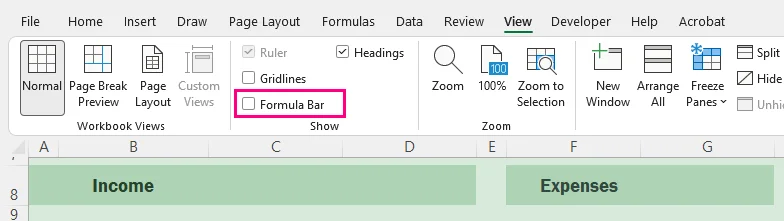
Observe que isso, na verdade, não oculta as fórmulas armazenadas na pasta de trabalho. Isso altera apenas a interface do Excel no seu computador. Se você compartilhar a pasta de trabalho, outros usuários ainda poderão visualizar as fórmulas ativando a Barra de Fórmulas novamente.
Método 4: Usar VBA para Ocultar Fórmulas do Excel Automaticamente
Ideal para: Automatizar tarefas de ocultação ou remoção de fórmulas diretamente no Excel, sem atualizar manualmente cada planilha.
Etapas de Configuração
Pressione Alt + F11 para abrir o Editor do VBA.
Clique em Inserir > Módulo no menu superior.
Adicione uma das seguintes macros à janela do módulo.
Pressione F5 para executar a macro.
Salve a pasta de trabalho como Pasta de Trabalho Habilitada para Macros (.xlsm) se precisar manter as macros.
Opção A: Ocultar fórmulas e proteger todas as planilhas
Sub HideFormulasAllSheets()

    Dim ws As Worksheet

    For Each ws In ActiveWorkbook.Worksheets
        ws.Cells.FormulaHidden = True
        ws.Protect Password:="YourPasswordHere"
    Next ws

End Sub
Isso oculta as fórmulas, mantendo-as funcionais.
Opção B: Converter Fórmulas em Valores
Como esta operação não pode ser desfeita depois que a pasta de trabalho é salva e fechada, trabalhe em uma cópia se precisar das fórmulas originais posteriormente.
Sub ConvertFormulasToValues()

    Dim ws As Worksheet

    For Each ws In ActiveWorkbook.Worksheets
        ws.UsedRange.Value = ws.UsedRange.Value
    Next ws

End Sub
Isso substitui permanentemente as fórmulas por seus valores calculados.
Método 5: Ocultar Fórmulas do Excel Programaticamente com C#
Ideal para: Desenvolvedores que precisam automatizar a ocultação, a remoção de fórmulas do Excel ou o processamento de pastas de trabalho sem instalar o Microsoft Office.
Pré-requisitos
Os exemplos a seguir usam o Free Spire.XLS for .NET para manipular pastas de trabalho do Excel programaticamente, sem depender do Microsoft Office ou do Excel Interop.
Instale o pacote por meio do Console do Gerenciador de Pacotes NuGet antes de executar os exemplos:
Install-Package FreeSpire.XLS
Opção A: Ocultar Fórmulas e Proteger Planilhas
O exemplo a seguir mostra como ocultar fórmulas e proteger planilhas em C#:
using Spire.Xls;

namespace HideFormulas
{
    class Program
    {
        static void Main(string[] args)
        {
            using (Workbook workbook = new Workbook())
            {
                workbook.LoadFromFile("Report.xlsx");

                foreach (Worksheet sheet in workbook.Worksheets)
                {
                    sheet.AllocatedRange.IsFormulaHidden = true;
                    sheet.Protect("YourPassword");
                }

                workbook.SaveToFile("Report_Protected.xlsx", ExcelVersion.Version2016);
            }
        }
    }
}
Opção B: Substituir fórmulas por valores calculados
O exemplo a seguir mostra como remover fórmulas mantendo os valores calculados em C#:
using System;
using Spire.Xls;

namespace ReplaceFormulas
{
    class Program
    {
        static void Main(string[] args)
        {
            using (Workbook workbook = new Workbook())
            {
                workbook.LoadFromFile("FinancialModel.xlsx");

                // Recalculate all formulas before replacing them with static values
                workbook.CalculateAllValue();

                foreach (Worksheet sheet in workbook.Worksheets)
                {
                    foreach (CellRange cell in sheet.AllocatedRange)
                    {
                        if (cell.HasFormula)
                        {
                            // Store the calculated result
                            Object value = cell.FormulaValue;
                            // Remove the formula while preserving formatting
                            cell.Clear(ExcelClearOptions.ClearContent);
                            // Write the calculated value back to the cell
                            cell.Value2 = value;
                        }
                    }
                }

                workbook.SaveToFile("FinancialModel_Flattened.xlsx", ExcelVersion.Version2016);
            }
        }
    }
}
Observação: A versão gratuita pode ser usada para cenários básicos de processamento do Excel. Para recursos avançados, como converter grandes pastas de trabalho do Excel em PDF, consulte o pacote completo do Spire.XLS.
Problemas Comuns e Correções Rápidas
A caixa Ocultas está marcada, mas as fórmulas ainda estão visíveis:
Vá para Revisão > Proteger Planilha. A propriedade Ocultas não entra em vigor até que a proteção da planilha seja ativada.Os usuários não conseguem inserir dados após proteger a planilha:
Desproteja a planilha em Revisão > Desproteger Planilha, selecione suas células de entrada, pressione Ctrl + 1 para abrir Formatar Células > Proteção e desmarque Bloqueadas. Se o botão Desproteger Planilha não estiver disponível, desative o recurso Pasta de Trabalho Compartilhada.As fórmulas ainda estão visíveis após compartilhar a pasta de trabalho:
Ocultar a Barra de Fórmulas apenas alterna as configurações de exibição locais. Proteja a planilha ou converta as fórmulas em valores estáticos antes de compartilhar externamente.
Considerações Finais
Ocultar fórmulas no Excel permite exibir os resultados calculados enquanto mantém a lógica subjacente oculta da Barra de Fórmulas.
Lembre-se de que a propriedade Ocultas da célula só entra em vigor depois que a proteção da planilha é ativada. Se as fórmulas não forem mais necessárias, elas podem ser convertidas em valores estáticos.
Para processamento repetido em várias planilhas ou arquivos, as mesmas tarefas podem ser automatizadas com VBA ou C#.
Perguntas Frequentes (FAQs)
P: Ocultar fórmulas afetará os cálculos do Excel?
R: Não. As fórmulas ocultas continuam funcionando normalmente em segundo plano. O Excel ainda calculará as equações, atualizará os resultados e exibirá os valores atualizados quando as células de entrada forem alteradas.
P: Como exibo novamente as fórmulas ocultas no Excel?
R: Para restaurar a visibilidade das fórmulas:
Vá para a guia Revisão na faixa de opções superior.
Selecione Desproteger Planilha e insira sua senha se solicitado.
Selecione suas células de fórmula e pressione Ctrl + 1 para abrir Formatar Células.
Vá para a guia Proteção, desmarque a caixa Ocultas e clique em OK.
P: Posso ocultar fórmulas sem proteger uma planilha?
R: Não com a configuração Ocultas no nível da célula do Excel. A propriedade Ocultas só entra em vigor depois que a proteção da planilha é ativada. Você pode ocultar a Barra de Fórmulas sem proteger a planilha, mas isso altera apenas a interface local do Excel e não protege as fórmulas.
P: As fórmulas do Excel podem ser ocultadas sem removê-las?
R: Sim. As fórmulas do Excel podem ser ocultadas sem remover sua funcionalidade. O método mais comum é usar Proteger Planilha com a opção Ocultas ativada. Se você precisar remover permanentemente as fórmulas, pode convertê-las em valores estáticos.
엑셀 수식 숨기기: 엑셀에서 수식을 보호하는 5가지 방법
- 빠른 선택 가이드
- 방법 1: Excel의 시트 보호 기능을 사용하여 수식 숨기기
- 방법 2: 수식을 정적 값으로 변환
- 방법 3: 수식 입력줄을 비활성화하여 수식 숨기기
- 방법 4: VBA를 사용하여 Excel 수식 자동으로 숨기기
- 방법 5: C#으로 프로그래밍 방식으로 Excel 수식 숨기기
- 일반적인 문제 및 빠른 해결 방법
- 결론
- 자주 묻는 질문(FAQ)
재무 보고서, 비즈니스 템플릿 또는 데이터 분석 워크시트를 공유하는 경우, 다른 사용자가 결과 뒤에 있는 수식을 쉽게 보거나 수정하는 것을 원하지 않을 수 있습니다. 수식을 숨기면 결과는 그대로 표시하면서 내부 계산을 보이지 않게 유지할 수 있습니다.
이 글에서는 빠른 수동 수정을 위한 기본 제공 옵션부터 자동 처리를 위한 VBA 및 C#에 이르기까지, Excel 수식을 숨기는 다섯 가지 실용적인 방법을 알아봅니다.
빠른 선택 가이드
Excel은 목적에 따라 수식을 숨기는 여러 가지 방법을 제공합니다. 아래 표를 참고하여 가장 적합한 방법을 선택하세요:
| 원하는 작업 | 권장 방법 | 제한 사항 |
|---|---|---|
| 수식을 숨기되 계산은 계속 작동하게 유지 | 시트 보호 | 보호하기 전에 입력 셀의 잠금을 해제해야 함 |
| 최종 파일을 공유하기 전에 수식 제거 | 값으로 변환 | 원본 수식을 복원할 수 없음 |
| 라이브 프레젠테이션 중 일시적으로 수식 숨기기 | 수식 입력줄 비활성화 | 사용자 화면에서만 수식이 숨겨짐 |
| Excel 내에서 수식 숨기기 또는 제거 자동화 | VBA 매크로 | 매크로 사용 통합 문서(.xlsm) 파일 필요 |
| Microsoft Office 없이 프로그래밍 방식으로 Excel 수식 처리 | C# 자동화 | 프로그래밍 지식 필요 |
방법 1: Excel의 시트 보호 기능을 사용하여 수식 숨기기
적합한 경우: 사용자가 데이터를 입력해야 하지만 기본 수식을 보거나 수식 셀을 편집하지 못하게 하려는 워크시트.
단계별 지침
숨기려는 수식 셀을 선택합니다.
팁: Ctrl + G > Special > Formulas를 선택하고 > OK를 누르면 모든 수식 셀을 즉시 선택할 수 있습니다.홈 > 서식 > 셀 서식으로 이동하거나 Ctrl + 1을 눌러 셀 서식을 엽니다.
보호 탭에서 숨김을 선택한 다음 확인을 클릭합니다.
검토 > 시트 보호로 이동하여 암호를 설정하고(선택 사항) 확인을 클릭합니다.
시트가 보호되면 계산된 값은 계속 표시되지만, 숨겨진 수식 셀을 선택하면 수식 입력줄이 비어 있게 표시됩니다.
⚠️ 참고:
Excel에서 시트를 보호하면 기본적으로 모든 셀이 잠깁니다. 사용자가 특정 비수식 셀에 데이터를 입력해야 하는 경우, 시트를 보호하기 전에 해당 입력 셀을 선택한 다음 Ctrl + 1을 눌러 셀 서식을 열고 보호 탭으로 전환하여 잠금을 선택 해제하세요.
워크시트 보호는 강력한 파일 암호화를 제공하기 위한 것이 아니라 워크시트 편집과 수식 표시를 제어하기 위한 것입니다.
방법 2: 수식을 정적 값으로 변환
적합한 경우: 계산이 완료되어 사용자가 더 이상 실시간 동적 업데이트가 필요하지 않은 최종 보고서.
단계별 지침
변환하려는 수식 셀을 선택합니다.
Ctrl + C를 눌러 셀을 복사합니다.
선택한 동일한 영역을 마우스 오른쪽 버튼으로 클릭합니다.
붙여넣기 옵션에서 값 아이콘(123이 표시된 클립보드 모양)을 선택합니다.
키보드 단축키를 사용할 수도 있습니다:
Ctrl + C > Ctrl + Alt + V > V > Enter
변환 후에는 표시되는 결과는 동일하지만 수식은 제거됩니다.
⚠️ 참고: 이 방법은 선택한 셀에서 수식을 영구적으로 삭제하고 현재 값만 남깁니다. 나중에 통합 문서를 다시 계산해야 할 수 있다면 수식을 바꾸기 전에 원본 복사본을 보관하세요.
방법 3: 수식 입력줄을 비활성화하여 수식 숨기기
적합한 경우: 시트 보호나 셀 속성을 변경하지 않고 화면 공유, 라이브 프레젠테이션 또는 동영상 녹화 중에 수식 문자열을 일시적으로 보이지 않게 숨길 때.
단계
상단 리본에서 보기 탭을 클릭합니다.
수식 입력줄을 선택 해제합니다.
이 방법은 실제로 통합 문서에 저장된 수식을 숨기지 않습니다. 컴퓨터의 Excel 인터페이스만 변경할 뿐입니다. 통합 문서를 공유하면 다른 사용자가 수식 입력줄을 다시 활성화하여 수식을 볼 수 있습니다.
방법 4: VBA를 사용하여 Excel 수식 자동으로 숨기기
적합한 경우: 각 워크시트를 수동으로 업데이트하지 않고 Excel 내에서 직접 수식 숨기기 또는 수식 제거 작업을 자동화할 때.
설정 단계
Alt + F11을 눌러 VBA 편집기를 엽니다.
상단 메뉴에서 삽입 > 모듈을 클릭합니다.
다음 매크로 중 하나를 모듈 창에 추가합니다.
F5를 눌러 매크로를 실행합니다.
매크로를 유지해야 하는 경우 통합 문서를 매크로 사용 통합 문서(.xlsm)로 저장합니다.
옵션 A: 수식을 숨기고 모든 워크시트 보호
Sub HideFormulasAllSheets()

    Dim ws As Worksheet

    For Each ws In ActiveWorkbook.Worksheets
        ws.Cells.FormulaHidden = True
        ws.Protect Password:="YourPasswordHere"
    Next ws

End Sub
이 방법은 수식을 숨기면서도 계속 작동하게 유지합니다.
옵션 B: 수식을 값으로 변환
이 작업은 통합 문서를 저장하고 닫은 후에는 실행 취소할 수 없으므로, 나중에 원본 수식이 필요할 수 있다면 복사본에서 작업하세요.
Sub ConvertFormulasToValues()

    Dim ws As Worksheet

    For Each ws In ActiveWorkbook.Worksheets
        ws.UsedRange.Value = ws.UsedRange.Value
    Next ws

End Sub
이 방법은 수식을 계산된 값으로 영구적으로 대체합니다.
방법 5: C#으로 프로그래밍 방식으로 Excel 수식 숨기기
적합한 경우: Microsoft Office를 설치하지 않고 Excel 수식 숨기기, 제거 또는 통합 문서 처리를 자동화해야 하는 개발자.
필수 구성 요소
다음 예제는 Microsoft Office 또는 Excel Interop에 의존하지 않고 프로그래밍 방식으로 Excel 통합 문서를 조작하기 위해 Free Spire.XLS for .NET을 사용합니다.
예제를 실행하기 전에 NuGet 패키지 관리자 콘솔을 통해 패키지를 설치하세요:
Install-Package FreeSpire.XLS
옵션 A: 수식 숨기기 및 워크시트 보호
다음 예제는 C#에서 수식을 숨기고 워크시트를 보호하는 방법을 보여줍니다:
using Spire.Xls;

namespace HideFormulas
{
    class Program
    {
        static void Main(string[] args)
        {
            using (Workbook workbook = new Workbook())
            {
                workbook.LoadFromFile("Report.xlsx");

                foreach (Worksheet sheet in workbook.Worksheets)
                {
                    sheet.AllocatedRange.IsFormulaHidden = true;
                    sheet.Protect("YourPassword");
                }

                workbook.SaveToFile("Report_Protected.xlsx", ExcelVersion.Version2016);
            }
        }
    }
}
옵션 B: 수식을 계산된 값으로 바꾸기
다음 예제는 C#에서 계산된 값을 유지하면서 수식을 제거하는 방법을 보여줍니다:
using System;
using Spire.Xls;

namespace ReplaceFormulas
{
    class Program
    {
        static void Main(string[] args)
        {
            using (Workbook workbook = new Workbook())
            {
                workbook.LoadFromFile("FinancialModel.xlsx");

                // Recalculate all formulas before replacing them with static values
                workbook.CalculateAllValue();

                foreach (Worksheet sheet in workbook.Worksheets)
                {
                    foreach (CellRange cell in sheet.AllocatedRange)
                    {
                        if (cell.HasFormula)
                        {
                            // Store the calculated result
                            Object value = cell.FormulaValue;
                            // Remove the formula while preserving formatting
                            cell.Clear(ExcelClearOptions.ClearContent);
                            // Write the calculated value back to the cell
                            cell.Value2 = value;
                        }
                    }
                }

                workbook.SaveToFile("FinancialModel_Flattened.xlsx", ExcelVersion.Version2016);
            }
        }
    }
}
참고: 무료 버전은 기본적인 Excel 처리 시나리오에 사용할 수 있습니다. 대용량 Excel 통합 문서를 PDF로 변환하는 것과 같은 고급 기능이 필요하면 전체 Spire.XLS 패키지를 확인하세요.
일반적인 문제 및 빠른 해결 방법
숨김 상자를 선택했는데도 수식이 계속 표시되는 경우:
검토 > 시트 보호로 이동하세요. 숨김 속성은 시트 보호가 활성화되어야 적용됩니다.시트를 보호한 후 사용자가 데이터를 입력할 수 없는 경우:
검토 > 시트 보호 해제를 통해 시트 보호를 해제하고 입력 셀을 선택한 다음 Ctrl + 1을 눌러 셀 서식 > 보호를 열고 잠금을 선택 해제하세요. 시트 보호 해제 버튼을 사용할 수 없다면 공유 통합 문서 기능을 해제하세요.통합 문서를 공유한 후에도 수식이 계속 표시되는 경우:
수식 입력줄 숨기기는 로컬 보기 설정만 전환합니다. 외부에 공유하기 전에 시트를 보호하거나 수식을 정적 값으로 변환하세요.
마무리하며
Excel에서 수식을 숨기면 계산된 결과를 표시하면서도 수식 입력줄에서 내부 논리를 숨길 수 있습니다.
숨김 셀 속성은 워크시트 보호가 활성화된 후에만 적용된다는 점을 기억하세요. 수식이 더 이상 필요하지 않다면 대신 정적 값으로 변환할 수 있습니다.
여러 워크시트나 파일에 걸쳐 반복 처리해야 하는 경우, 동일한 작업을 VBA 또는 C#으로 자동화할 수 있습니다.
자주 묻는 질문(FAQ)
Q: 수식을 숨기면 Excel 계산에 영향을 주나요?
A: 아닙니다. 숨겨진 수식은 백그라운드에서 정상적으로 계속 작동합니다. Excel은 여전히 수식을 계산하고, 출력을 업데이트하며, 입력 셀이 변경되면 업데이트된 값을 표시합니다.
Q: Excel에서 숨겨진 수식을 다시 표시하려면 어떻게 하나요?
A: 수식 표시를 복원하려면:
상단 리본에서 검토 탭으로 이동합니다.
시트 보호 해제를 선택하고 메시지가 표시되면 암호를 입력합니다.
수식 셀을 선택하고 Ctrl + 1을 눌러 셀 서식을 엽니다.
보호 탭으로 이동하여 숨김 상자를 선택 해제하고 확인을 클릭합니다.
Q: 워크시트를 보호하지 않고 수식을 숨길 수 있나요?
A: Excel의 셀 수준 숨김 설정으로는 불가능합니다. 숨김 속성은 워크시트 보호가 활성화된 후에만 적용됩니다. 시트를 보호하지 않고 수식 입력줄을 숨길 수는 있지만, 이는 로컬 Excel 인터페이스만 변경할 뿐 수식을 보호하지는 않습니다.
Q: Excel 수식을 제거하지 않고 숨길 수 있나요?
A: 예. Excel 수식은 기능을 제거하지 않고 숨길 수 있습니다. 가장 일반적인 방법은 숨김 옵션을 활성화한 상태에서 시트 보호를 사용하는 것입니다. 수식을 영구적으로 제거해야 한다면 대신 정적 값으로 변환할 수 있습니다.