How to Remove Conditional Formatting in Excel: 5 Easy Ways
Table of Contents
- Quick Summary: How to Remove Conditional Formatting in Excel
- Method 1: Excel Clear Rules Menu (The Native Way)
- Method 2: Excel Clear Formats Tool (The Blanket Reset)
- Method 3: Online Excel Editors (Cloud-Based Cleanup)
- Method 4: VBA Macro (Multi-Sheet Automation)
- Method 5: Python Automation with Spire.XLS (Batch Processing)
- Why Can’t I Remove Conditional Formatting in Excel?
- Clear Rules vs. Clear Formats: What’s the Difference?
- Frequently Asked Questions
Conditional formatting in Excel helps you highlight duplicates, overdue dates, top values, and data trends. However, when a workbook contains too many overlapping or outdated rules, it may become harder to read, slower to edit, or visually cluttered.
Fortunately, clearing conditional formatting does not have to be complicated. In this guide, we will walk you through 5 simple ways to remove conditional formatting in Excel — without altering your underlying worksheet data or structure.
- Quick Summary: How to Remove Conditional Formatting in Excel
- Method 1: Excel Clear Rules Menu (The Native Way)
- Method 2: Excel Clear Formats Tool (The Blanket Reset)
- Method 3: Online Excel Editors (Cloud-Based Cleanup)
- Method 4: VBA Macro (Multi-Sheet Automation)
- Method 5: Python Automation with Spire.XLS (Batch Processing)
- Why Can’t I Remove Conditional Formatting in Excel?
- Clear Rules vs. Clear Formats: What’s the Difference?
- Frequently Asked Questions
Quick Summary: How to Remove Conditional Formatting in Excel
The best method depends on your workflow requirements, your technical setup, and how much formatting you need to clear.
| Method | Best For | Preserves Manual Styles? |
|---|---|---|
| Excel Clear Rules Menu | Quick cleanup of a range, sheet, or table | Yes |
| Excel Clear Formats Tool | Removing all visual styling — including fonts, borders, fills, and conditional formatting — in one go | No |
| Online Excel Editors (Microsoft 365) | Browser-based cleanup without installing Excel | Yes |
| VBA Macro | Automating cleanup across many sheets inside Excel | Yes |
| Python Automation with Spire.XLS | Batch processing many files without opening Excel | Yes |
Method 1: Excel Clear Rules Menu (The Native Way)
The most direct way to remove conditional formatting in Excel is by using the native Clear Rules menu. This method gives you surgical control, allowing you to delete formatting rules from a specific selection or wipe it from the entire worksheet at once.
Step-by-Step Instructions
-
Select your target cells. Highlight a specific area to clean, or click anywhere if you intend to clear the entire worksheet.
-
Navigate to the Home tab on the Excel Ribbon.
-
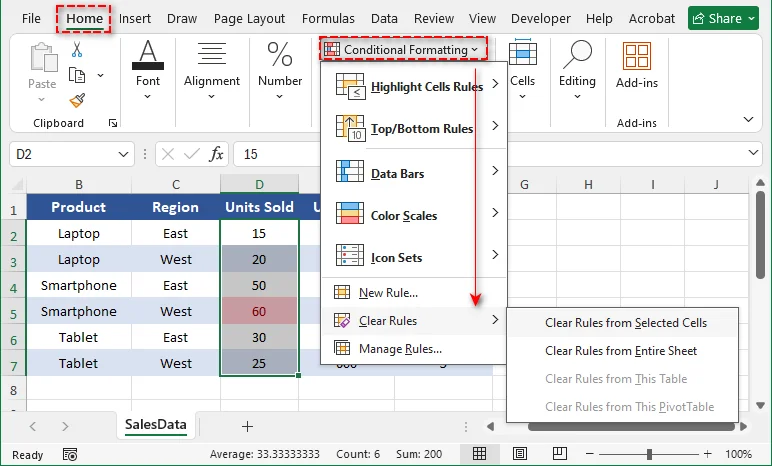
In the Styles group, click on Conditional Formatting.
-
Hover over Clear Rules to reveal the secondary menu.
-
Choose one of the following options based on your target:
- Clear Rules from Selected Cells: Only affects the area you highlighted.
- Clear Rules from Entire Sheet: Purges all conditional formatting from the active worksheet.
- Clear Rules from This Table: Strips formatting rules from the active table boundary (selectable only if your cursor is inside an Excel Table).
- Clear Rules from This PivotTable: Clears formatting rules applied to the PivotTable (selectable only if your cursor is inside a PivotTable).
After that, Excel will remove all the conditional formatting rules from the selected area.
Tip: Remove a Specific Conditional Formatting Rule from Excel
If you only want to delete one specific rule instead of all rules, go to Home > Conditional Formatting > Manage Rules. Select the rule you no longer need, click Delete Rule, then click Apply and OK.
Method 2: Excel Clear Formats Tool (The Blanket Reset)
If you want to remove conditional formatting together with all other visual cell styles, the Clear Formats tool can reset the selected range in one step.
Step-by-Step Instructions
-
Highlight the range of cells, columns, or rows you want to reset.
-
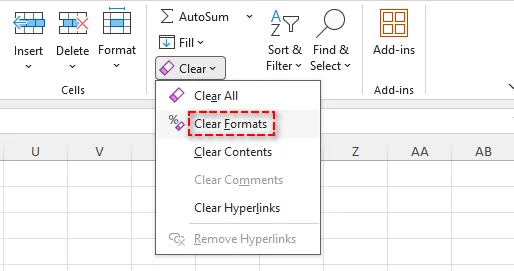
Stay on the Home tab and look to the far right side of the Ribbon (the Editing group).
-
Click the Clear button (represented by a pink/purple eraser icon).
-
Select Clear Formats from the dropdown menu.
Warning
This removes all custom visuals. Manual bold fonts, borders, fills, currency symbols ($), and custom date formats will instantly revert to Excel's default "General" format. Use this only when you want a completely blank slate.
Method 3: Online Excel Editors (Cloud-Based Cleanup)
If you are collaborating on the go or don't have the desktop version of Excel installed, you can easily clean up rules using Excel for the Web (Microsoft 365).
Step-by-Step Instructions
-
Open Excel for the Web (Microsoft 365) and upload your Excel file.
-
Select the cells containing the formatting you wish to remove.
-
Go to the Home tab on the top ribbon.
-
Click on Conditional Formatting > Clear Rules.
-
Select either From Selected Cells or From Entire Sheet.
The web version instantly syncs your changes, making this an ideal method for cross-platform teams utilizing real-time collaboration.
Method 4: VBA Macro (Multi-Sheet Automation)
Cleaning conditional formatting in Excel sheet-by-sheet in a massive workbook with dozens of tabs is incredibly tedious. You can leverage a simple VBA (Visual Basic for Applications) macro to automate this across your entire file in seconds.
Step-by-Step Instructions
-
Open your Excel workbook.
-
Press Alt + F11 to open the VBA Editor.
-
Click Insert > Module from the top menu.
-
Copy and paste the following VBA code into the code window:
Sub RemoveAllConditionalFormatting()
    Dim ws As Worksheet
    Dim response As VbMsgBoxResult

    response = MsgBox("Are you sure you want to remove conditional formatting from ALL sheets?", vbYesNo + vbQuestion, "Confirm Clear")

    If response = vbYes Then
        For Each ws In ThisWorkbook.Worksheets
            ws.Cells.FormatConditions.Delete
        Next ws

        MsgBox "Successfully removed all conditional formatting rules!", vbInformation, "Done"
    End If
End Sub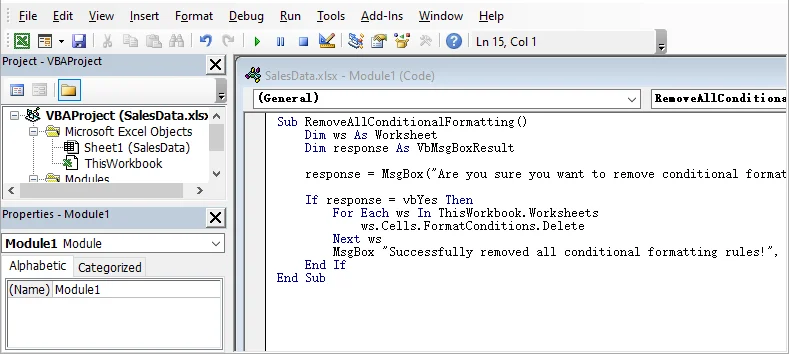
-
Press F5 or click the Run button to execute the macro.
-
Save your workbook as an Excel Macro-Enabled Workbook (.xlsm) if you want to keep the tool for future use.
Note Before Running the VBA Macro
- Save a backup copy first. VBA changes cannot be undone with Ctrl + Z.
- If the macro does not run, check File > Options > Trust Center > Trust Center Settings > Macro Settings. Only enable macros for files and code you trust.
Method 5: Python Automation with Spire.XLS (Batch Processing)
For data engineers, developers, or sysadmins managing hundreds of Excel files on a server, opening individual GUI interfaces isn't viable. Using Python alongside the library Spire.XLS for Python, you can programmatically strip conditional formatting rules from Excel files completely headless and at scale.
Prerequisites
First, ensure you have Python 3.7 or above installed, then install Spire.XLS for Python via pip:
pip install Spire.Xls
For a step-by-step setup guide, check how to install Spire.XLS for Python.
Batch Remove Conditional Formatting from Excel with Python and Spire.XLS
The following script loops through a folder of Excel files, clears all conditional formatting rules using ClearConditionalFormats(), and saves the cleaned copies to an output directory.
from pathlib import Path
from spire.xls import Workbook, ExcelVersion

source_dir = Path("raw_excel_files")
output_dir = Path("cleaned_excel_files")
output_dir.mkdir(exist_ok=True)

for file_path in source_dir.iterdir():
    # Process standard Excel file types
    if file_path.suffix.lower() not in [".xls", ".xlsx"]:
        continue

    # Skip temporary Excel lock files
    if file_path.name.startswith("~$"):
        continue

    try:
        workbook = Workbook()
        workbook.LoadFromFile(str(file_path))

        # Loop through all worksheets in the current workbook
        for worksheet in workbook.Worksheets:
            # Clear conditional formatting from the populated cell boundaries
            worksheet.AllocatedRange.ClearConditionalFormats()

        # Save the sanitized file to the output directory
        output_path = output_dir / f"{file_path.stem}_cleaned.xlsx"
        workbook.SaveToFile(str(output_path), ExcelVersion.Version2016)
        workbook.Dispose()

        print(f"Processed: {file_path.name}")

    except Exception as e:
        print(f"Failed to process {file_path.name}: {e}")

print("Batch processing completed.")
Optional: Remove Formatting from a Specific Sheet or Range Only
If you do not want to clean the entire workbook, you can target a specific worksheet index or an exact cell range.
To clear all rules from the first worksheet only:
worksheet = workbook.Worksheets[0]
worksheet.AllocatedRange.ClearConditionalFormats()
To target a designated cell range (e.g., A1 to F20) on a specific sheet:
worksheet = workbook.Worksheets[0]
worksheet.Range["A1:F20"].ClearConditionalFormats()
If you need to write new rules back into your sheets, see our guide on applying conditional formatting in Excel with Python.
License Notice
Spire.XLS for Python may require a license for production use to remove watermarks. You can request a free trial license for testing, or use the Free Spire.XLS version for small use cases.
Why Can’t I Remove Conditional Formatting in Excel?
If you tried the steps above and the annoying highlights or color scales still won't go away, you are likely dealing with one of these common technical roadblocks:
1. The Worksheet is Protected
If a workbook creator locked the structure to prevent accidental edits, formatting options will be greyed out.
- The Fix: Go to the Review tab and check if the Unprotect Sheet button is visible. If prompted, you will need the original password to unlock it.
2. Shared Workbooks / Legacy Co-authoring
Older Excel file formats (.xls) using legacy "Shared Workbook" settings heavily restrict structural changes, including editing formatting rules.
- The Fix: Go to the Review tab, click Share Workbook, and uncheck "Use the old shared workbooks feature". Better yet, resave the file as a modern .xlsx to unlock full functionality.
3. They are Manual Fills, Not Conditional Rules
It is incredibly common to mistake manual cell fills (someone using the "Paint Bucket" tool to color code cells) for active conditional rules. Clear Rules won't fix manual work.
- The Fix: Highlight the cells, click the Fill Color icon (Paint Bucket) on the Home tab, and select No Fill.
4. The Rule Is Applied to a Different Range
Sometimes the selected cells are not the actual range controlled by the rule.
- The Fix: Go to Home > Conditional Formatting > Manage Rules, change the dropdown to This Worksheet, and check the Applies to range.
Clear Rules vs. Clear Formats: What’s the Difference?
A common mistake is reaching for the general Clear tool, which can strip out formatting you actually want to keep.
- Conditional Formatting > Clear Rules — Removes only the automated rules. Your manually applied fonts, borders, number formats, and alignment stay exactly as they are.
- Home > Clear > Clear Formats — Completely resets all cell styling, including background fills, custom fonts, borders, and critical layouts like currency or date formatting. Use with caution.
Rule of thumb: If you want to clean up automation without touching your design, always use Clear Rules, not Clear Formats.
Frequently Asked Questions
Q1: Can I remove conditional formatting in Excel but keep the cell colors?
A1: Not directly. The colors usually disappear when the rules are removed. To keep them, apply the colors as regular cell formatting first.
Q2: Can I remove only one conditional formatting rule from Excel?
A2: Yes. Go to Home > Conditional Formatting > Manage Rules, select the rule, and click Delete Rule.
Q3: Will removing conditional formatting delete my data or formulas?
A3: No. It only removes rule-based formatting, such as colors, icons, or data bars. Your values and formulas remain unchanged.
Q4: How do I remove conditional formatting from an entire Excel workbook?
A4: Excel’s built-in Clear Rules option works on one worksheet at a time. To remove conditional formatting from all sheets in a workbook, use VBA or Python automation.
Summary
Removing conditional formatting in Excel is straightforward with the right method. For quick manual cleanup, Excel’s Clear Rules Menu is the safest option. For repetitive work, VBA is useful inside Excel, while Python with Spire.XLS provides a practical way to remove conditional formatting from multiple Excel files programmatically without opening Microsoft Excel.
Explore More Excel Processing Tutorials
How to Convert HTML to Markdown in C# (File, String & Stream)
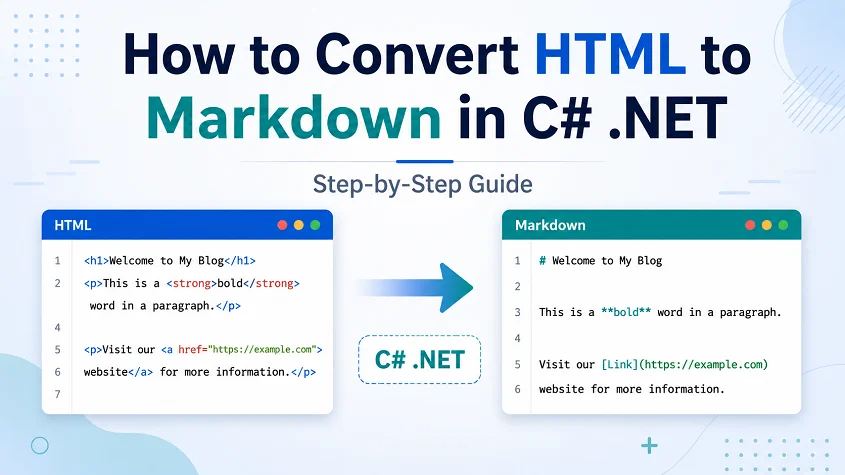
HTML is widely used for web pages, online articles, and rich text content, while Markdown (.md) is often preferred for documentation, technical writing, and text-based publishing. If you need to reuse HTML content in a Markdown-based workflow, converting it manually can be time-consuming and error-prone.
In this tutorial, we’ll show you how to convert HTML to Markdown in C# step-by-step using Spire.Doc for .NET. You’ll learn how to convert HTML files, HTML strings, streams, and multiple HTML files in batch.
Table of Contents
- When Do You Need to Convert HTML to Markdown?
- Install C# HTML to Markdown Library
- Convert an HTML File to Markdown in C#
- Convert HTML Strings to Markdown in C#
- Convert HTML Stream to Markdown in C#
- Batch Convert Multiple HTML Files
- What HTML Elements Can Be Converted to Markdown?
- Troubleshooting Common HTML to Markdown Issues
When Do You Need to Convert HTML to Markdown?
Converting HTML to Markdown is useful when you want to reuse web-based or rich-text content in a cleaner, text-friendly format. Common scenarios include:
- Moving HTML articles or CMS content into Markdown-based documentation systems.
- Preparing content for GitHub, static site generators, or developer portals.
- Converting rich text editor output into editable Markdown files.
- Simplifying HTML pages for version control, review, or long-term maintenance.
- Exporting help center articles, product descriptions, or blog content as .md files.
Install C# HTML to Markdown Library
To convert HTML to Markdown programmatically, you need to add Spire.Doc for .NET to your project. This standalone document processing library allows you to parse HTML and export it to clean Markdown without requiring Microsoft Word or Microsoft Office interop assemblies on your server.
Method 1: Install via NuGet Package Manager
Run this command in your NuGet Package Manager Console:
Install-Package Spire.Doc
Method 2: Download and Reference DLLs Manually
If your development environment is offline or you prefer not to use NuGet, you can manually download and reference the library:
- Download & Unzip: Get the Spire.Doc for .NET package from the official download page and extract it.
- Add Reference: In the Solution Explorer of Visual Studio, right-click Dependencies (or References) > Add Project Reference (or Add Reference) > Browse and select the
Spire.Doc.dllthat matches your target .NET Framework or .NET Core version.
Note: Markdown support is available in Spire.Doc for .NET version 12.3.12 or later.
Convert an HTML File to Markdown in C#
If your HTML content is stored as a local .html or .htm file, you can convert it directly using the Document object. This approach is ideal for processing static web pages, documentation exports, or offline help articles.
C# Code Example
using Spire.Doc;
using Spire.Doc.Documents;

namespace ConvertHtmlFileToMarkdown
{
    class Program
    {
        static void Main(string[] args)
        {
            // Initialize a Document instance within a using statement
            using (Document document = new Document())
            {
                // Load the local HTML file
                document.LoadFromFile("input.html", FileFormat.Html, XHTMLValidationType.None);

                // Export the HTML file to a Markdown file
                document.SaveToFile("output.md", FileFormat.Markdown);
            }
        }
    }
}
How the Code Works:
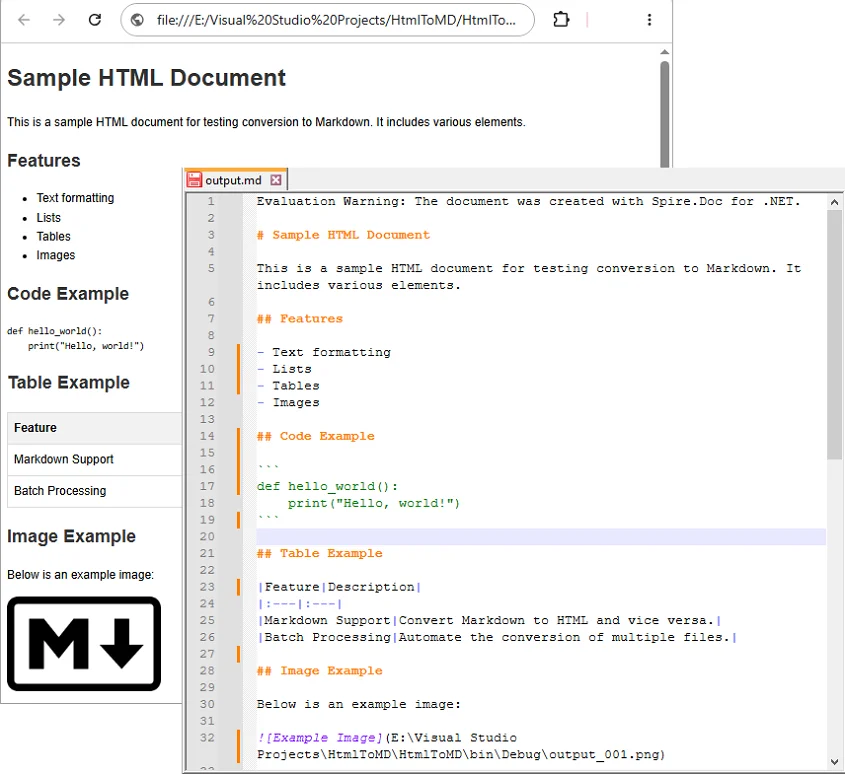
using (Document document = new Document()): Ensures theDocumentobject is properly disposed of after conversion.LoadFromFile("input.html", FileFormat.Html, XHTMLValidationType.None): Reads the source HTML file without strict XHTML validation, allowing the library to parse the HTML even if it doesn’t fully comply with XHTML rules.SaveToFile("output.md", FileFormat.Markdown): Maps the supported HTML elements such as headings, bold text, lists, images, and links into Markdown syntax, and generate the .md file.
Output:
Convert HTML Strings to Markdown in C#
When dealing with dynamic web data—such as content fetched from a database, API responses, or CMS rich-text inputs—you can convert raw HTML strings directly to Markdown without saving them as physical files first.
C# Code Example
using Spire.Doc;
using Spire.Doc.Documents;

namespace ConvertHtmlStringToMarkdown
{
    class Program
    {
        static void Main(string[] args)
        {
            // Initialize a Document instance
            using (Document document = new Document())
            {
                // Add a section and paragraph to host the dynamic html content
                Section section = document.AddSection();
                Paragraph paragraph = section.AddParagraph();

                // Define the source HTML string
                string htmlString = @"
                    <h1>HTML to Markdown Conversion</h1>
                    <p>This is a sample paragraph with a <a href='https://www.example.com'>link</a>.</p>
                    <ul>
                        <li>First item</li>
                        <li>Second item</li>
                        <li>Third item</li>
                    </ul>";

                // Parse and append the HTML string directly into the text paragraph
                paragraph.AppendHTML(htmlString);

                // Save the fully compiled document model as Markdown
                document.SaveToFile("html-string-output.md", FileFormat.Markdown);
            }
        }
    }
}
Key Methods Explanation:
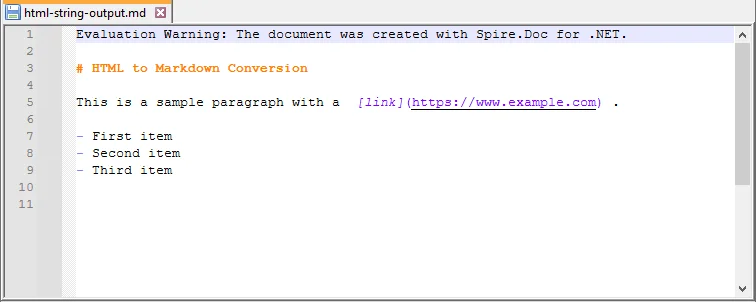
document.AddSection()§ion.AddParagraph(): An emptyDocumentobject does not contain structural layouts. You must explicitly create a parent section and a text paragraph to serve as the container before injecting raw HTML string content.paragraph.AppendHTML(htmlString): Parses the HTML string and inserts supported HTML elements into the document structure.
Output:
Convert HTML Stream to Markdown in C#
In cloud-ready or backend enterprise applications, HTML content is often processed in memory as a stream rather than being read from a fixed physical path. Using LoadFromStream() and SaveToStream(), you can convert in-memory HTML content directly to a Markdown stream.
This approach is useful for web services, ASP.NET applications, background processing tasks, or conversion APIs where files are uploaded, converted, and returned without permanent disk storage.
C# Code Example
using System.IO;
using System.Text;
using Spire.Doc;
using Spire.Doc.Documents;

namespace ConvertHtmlStreamToMarkdown
{
    class Program
    {
        static void Main(string[] args)
        {
            // Define a sample HTML string to simulate an in-memory input source
            string htmlContent = "<h1>HTML Stream to Markdown Stream</h1><p>This process happens entirely in memory.</p>";
            byte[] htmlBytes = Encoding.UTF8.GetBytes(htmlContent);

            // Create an input stream from the HTML bytes
            using (MemoryStream inputStream = new MemoryStream(htmlBytes))
            {
                // Create an empty memory stream to receive the converted Markdown data
                using (MemoryStream outputStream = new MemoryStream())
                {
                    // Initialize the Document instance
                    using (Document document = new Document())
                    {
                        // Load the HTML content directly from the input stream
                        document.LoadFromStream(inputStream, FileFormat.Html, XHTMLValidationType.None);

                        // Save the converted content directly into the output stream as Markdown
                        document.SaveToStream(outputStream, FileFormat.Markdown);
                    }

                    // Crucial: Reset the output stream position to the beginning before reading it
                    outputStream.Position = 0;

                    // Optional: Convert the output stream back to a string to verify the result (you can also save it as a .md file)
                    using (StreamReader reader = new StreamReader(outputStream, Encoding.UTF8))
                    {
                        string markdownResult = reader.ReadToEnd();
                        System.Console.WriteLine(markdownResult);
                    }
                }
            }
        }
    }
}
Batch Convert Multiple HTML Files
For large-scale publishing workflows, you can automate the conversion of multiple HTML files to Markdown using a loop.
C# Code Example
The following example converts all .html files in a source folder to .md files in an output folder.
using Spire.Doc;
using Spire.Doc.Documents;
using System;
using System.IO;

namespace BatchConvertHtmlToMarkdown
{
    internal class Program
    {
        static void Main(string[] args)
        {
            string inputFolder = @"C:\HtmlFiles";
            string outputFolder = @"C:\MarkdownFiles";

            // Create output folder if it does not exist
            Directory.CreateDirectory(outputFolder);

            // Get all HTML files
            string[] htmlFiles = Directory.GetFiles(inputFolder, "*.html");

            foreach (string htmlFile in htmlFiles)
            {
                try
                {
                    string fileName = Path.GetFileNameWithoutExtension(htmlFile);
                    string outputPath = Path.Combine(outputFolder, fileName + ".md");

                    using (Document document = new Document())
                    {
                        document.LoadFromFile(htmlFile, FileFormat.Html, XHTMLValidationType.None);
                        document.SaveToFile(outputPath, FileFormat.Markdown);
                    }

                    Console.WriteLine($"Converted: {Path.GetFileName(htmlFile)}");
                }
                catch (Exception ex)
                {
                    Console.WriteLine($"Failed to convert {Path.GetFileName(htmlFile)}");
                    Console.WriteLine($"Error: {ex.Message}");
                }
            }

            Console.WriteLine("HTML to Markdown batch conversion completed.");
        }
    }
}
What HTML Elements Can Be Converted to Markdown?
HTML has many elements, but Markdown supports only a smaller set of document structures. During conversion, content-focused elements are usually easier to preserve than layout-focused or style-heavy elements. For instance, standard Markdown tables only support basic rows and columns. If your source contains complex tables, you might want to convert HTML to Excel in C# instead.
The following table summarizes common HTML elements and how they may appear in Markdown.
| HTML Element | Markdown Syntax |
|---|---|
<h1> to <h6> |
# to ###### (Headings) |
<p> |
Plain paragraph |
<strong>, <b> |
**bold** |
<em>, <i> |
*italic* |
<ul>, <ol>, <li> |
Bulleted or numbered lists |
<a> |
[Link Text](URL) |
<img> |
 |
<table> |
Markdown table |
<code> |
Inline code |
<pre> |
Code block |
<br> |
Line break |
<div>, <section> |
Usually simplified |
| CSS styles | Limited or removed |
| JavaScript | Not supported |
Tip: Actual output may vary depending on the source HTML structure and the Markdown features supported by the target editor or platform.
Troubleshooting Common HTML to Markdown Issues
- Images not showing: Verify that all image paths are still valid after conversion; relative paths may need adjustment.
- Tables look different: Markdown supports only basic tables. For complex tables with merged cells, nested layouts, or custom styling, simplify the HTML table before conversion or manually adjust the generated Markdown table afterward.
- Special characters appear incorrectly: This is usually an encoding issue. Make sure the source HTML file uses UTF-8 encoding and open the generated Markdown file in an editor that supports UTF-8.
- Extra blank lines: Remove unnecessary empty tags, nested
divelements, or redundantbrtags from the source HTML before conversion. You can also clean the generated Markdown file afterward by opening it in a text editor like Notepad++ and then performing a find & replace.
Conclusion
With Spire.Doc for .NET, converting HTML to Markdown in C# can be implemented in just a few lines of code. This guide covered the core approaches needed for various development scenarios:
- Converting local HTML files and streams to Markdown.
- Inserting and converting dynamic HTML strings.
- Batch converting multiple HTML files simultaneously.
If your workflow also requires the reverse process, see this tutorial on how to convert Markdown to HTML in C#.
Frequently Asked Questions
Q1: Will images be preserved during HTML to Markdown conversion?
A1: Yes. Standard HTML <img> tags can be converted into Markdown image syntax (). Just ensure your source HTML links use valid URLs or correct file paths so the images can load.
Q2: Can I convert an HTML string or stream to Markdown without saving files?
A2: Yes. You can load an HTML string using AppendHTML() or a stream via LoadFromStream(), then export it entirely in memory using SaveToStream() without hitting the local disk.
Q3: Can I convert multiple HTML files to Markdown at once in C#?
A3: Yes. You can use a foreach loop in C# to scan a folder for *.html files, process each file through the converter, and output them to a destination folder in bulk.
Q4: Is Microsoft Word required for HTML to Markdown conversion?
A4: No. Spire.Doc for .NET is a standalone library, so Microsoft Word does not need to be installed.
Convert Markdown to Text | 4 Free, Online & Automated Methods
Table of Contents

Markdown is the gold standard for drafting engineering docs and web content. However, there are many scenarios—such as preparing plain-text emails, generating reports, or integrating content into legacy systems—that require plain text. Converting Markdown to text ensures your content remains readable, accessible, and versatile across platforms.
In this guide, we’ll explore 4 straightforward methods that writers and developers can use to transform Markdown (.md) into clean, plain text (.txt) without losing structure or clarity.
Quick Summary: Best Markdown to Text Methods
Markdown can be converted to text in multiple ways, depending on your technical comfort level, document complexity, and file volume. Here is a quick breakdown of the top 4 methods:
| Method & Tools | Key Advantage | Best For |
|---|---|---|
| Online tools (MDToText, Picotoolkit) | Instant browser conversion, no installation required | One-off, non-sensitive conversion |
| Desktop editors (VS Code, Obsidian) | Works offline and gives you more control over privacy | Regular editing and confidential files |
| Pandoc CLI | Preserves structure better for lists, links, and complex Markdown | Accurate conversion and batch processing |
| Python scripts (Spire.Doc) | Programmable and easy to integrate into automated workflows | Large file sets, AI pipelines, and recurring tasks |
Click any method above to jump directly to the section, or continue reading for the full step-by-step guide.
Method 1: Use Online Markdown to Text Converters
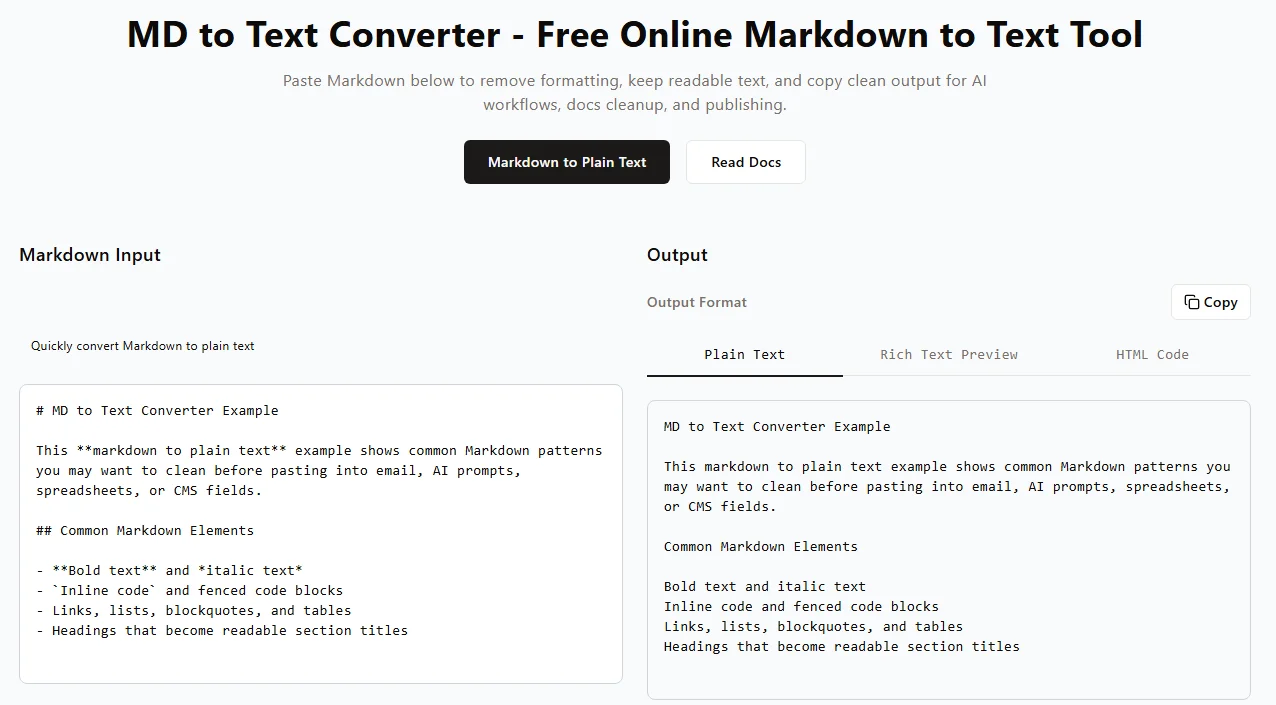
When you just need a quick, one-off conversion, downloading heavy desktop software is overkill. Free online Markdown-to-text converters offer the fastest, browser-based workflow for content creators. You can strip formatting and get copy-ready plain text in seconds with zero installation.
How to Convert Markdown to Text Online (Step-by-Step)
- Select a tool – Open a trusted, browser-based Markdown converter, such as mdtotext.com or Picotoolkit MD to TXT Converter.
- Paste your content – Copy the Markdown text and paste it directly into the tool's input box (or upload your .md file).
- Strip formatting – The tool automatically removes markdown symbols like
#,**, and link brackets in real-time. - Copy or download the output – Review the cleaned, unformatted text in the output pane, then copy it to your clipboard or download the file.
⚠️ Important Considerations:
- Data Privacy and Security – Avoid pasting sensitive company data, API keys, or proprietary source code into public online converters. Always use offline methods for confidential files.
- Formatting Limitations – Advanced elements like nested tables, blockquotes, or task lists may not convert perfectly. Always proofread the final output before publishing.
✅ Pros: Instant, zero setup, works on any device.
❌ Cons: Not suitable for bulk files, requires internet.
Method 2: Export Markdown to Text via Desktop Editors
If you handle confidential Markdown files or prefer working offline, using a desktop Markdown editor is the best choice. Popular apps like VS Code and Obsidian allow you to convert Markdown files locally, giving you complete control over your data privacy.
Using VS Code
-
Open your .md file in VS Code by dragging and dropping or clicking File → Open.
-
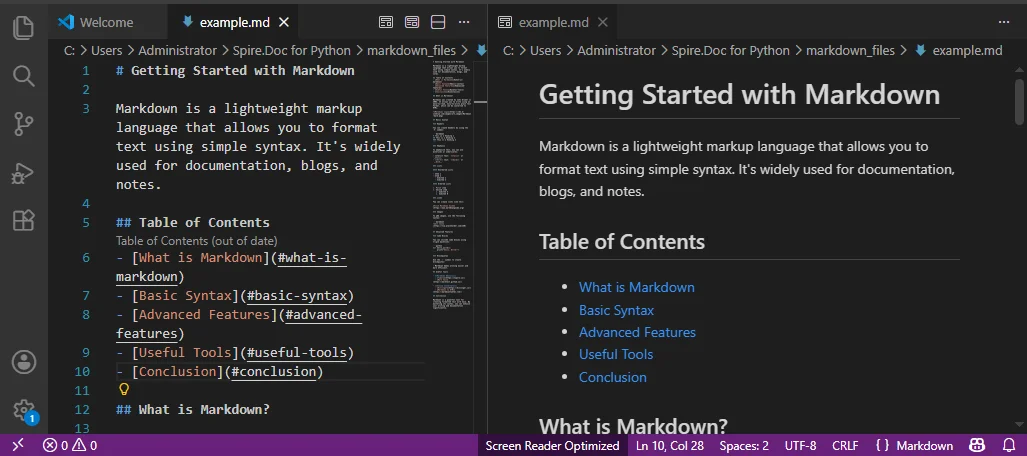
Press Ctrl + Shift + V (Windows) or Cmd + Shift + V (Mac) to open the Markdown preview pane.
-
Select all text in the preview window (Ctrl + A or Cmd + A) and copy it.
-
Paste the cleaned text into a new .txt file.
Using Obsidian
- Open your Markdown file in Obsidian.
- Switch to Reading View (Preview mode).
- Select all text, copy and paste it into your standard text editor.
Quick Tips:
- Scroll in Preview mode to verify how content looks before exporting.
✅ Pros: Works offline, secure, supports complex Markdown.
❌ Cons: Manual copy-paste, not ideal for multiple files.
Method 3: Convert Markdown to Text Using Pandoc CLI
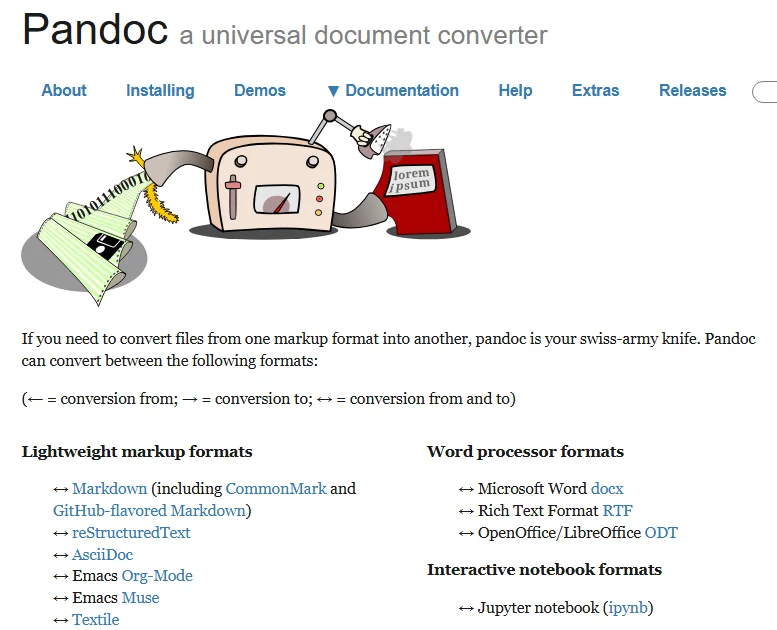
For technical writers, developers, and system administrators, Pandoc is the best choice when precision is critical. It accurately converts complex Markdown elements—tables, lists, links—into clean plain text. It also supports automation and batch processing.
1. Install Pandoc
- Mac (via Homebrew):
brew install pandoc - Windows (via Winget):
winget install pandoc
Note: Ensure Pandoc is added to your system PATH so it can run from any terminal.
2. Convert a Single Markdown File to Text
Navigate to the folder containing your Markdown file, then run the following command:
pandoc input.md -t plain -o output.txt
-t plain: Instructs Pandoc to output clean, readable plain text.-o output.txt: Specifies the name of the resulting plain text file.
3. Batch Convert Multiple MD Files to TXT
If you need to process many files at once, use these shell loops:
Mac/Linux:
for file in *.md; do
  pandoc "$file" -t plain -o "${file%.md}.txt"
done
Windows PowerShell:
Get-ChildItem *.md | ForEach-Object { pandoc $_.FullName -t plain -o "$($_.DirectoryName)\$($_.BaseName).txt" }
Tips:
- Test with a single file first before running batch operations.
- Keep your original Markdown files backed up.
- Combine with shell scripts or automation for recurring bulk conversions.
✅ Pros: High fidelity, batch processing, accurate for complex Markdown.
❌ Cons: Requires CLI knowledge, PATH setup may be tricky.
Method 4: Automate Markdown Files to Text Conversion with Python
For developers integrating Markdown conversion into automated workflows or pipelines, Python is ideal. Using libraries like Spire.Doc for Python, you can parse Markdown programmatically, clean text, and feed it into custom pipelines, AI models, or batch processing scripts.
While basic open-source libraries can strip text, using Spire.Doc ensures that complex elements like nested word tables, text alignments, and headers are properly managed without writing complex regex blocks. This makes it a robust solution for enterprise-level data preprocessing.
Step 1: Install Required Packages
Open your terminal and install the Spire.Doc for Python library:
pip install Spire.Doc
Step 2: Automate Markdown to TXT Conversion with Python
You can use the following script to handle single files or easily adapt it into a loop to scan an entire directory:
from spire.doc import *

# Create an object of the Document class
document = Document()

# Load a Markdown file
document.LoadFromFile("input.md")

# Save the Markdown file to a .txt file
document.SaveToFile("output.txt", FileFormat.Txt)

document.Close()
✅ Pros: Programmable, supports batch processing, integrates with pipelines and AI workflows.
❌ Cons: Requires Python knowledge and third-party dependencies.
Looking for rich text? If you need to preserve styling in a professional document format instead of stripping it entirely, check out our guide on converting Markdown to Word and Markdown to PDF via Python.
Pro Tips for Better Markdown to TXT Conversion
When stripping Markdown, some structural elements require a bit of strategic oversight to ensure your plain text doesn't lose its context.
- Hyperlinks:
[Text](URL)may become just Text when stripping Markdown. Use Pandoc-t plainto keep URLs. - Tables: Complex tables can break in plain text. For tabular data, consider exporting Markdown to Excel or CSV instead.
- Code Blocks: Triple-backtick code may merge with text. Review manually or add indentation/markers to preserve readability.
- Preview and Backup: Always preview output and keep a backup of your original Markdown.
Conclusion: Which Method Should You Choose?
Converting Markdown to plain text is a core workflow for developers, technical writers, and AI data engineers. The best method depends entirely on your file volume, data privacy needs, and automation requirements:
- Use Online Tools for fast, one-off, low-stakes text conversions where privacy isn't a concern.
- Use Desktop Editors for secure, manual, offline work with sensitive data.
- Use Pandoc CLI when structural accuracy (like nested lists) matters most or for bulk conversions.
- Use Python Automation for deep integration into AI prompt pipelines, LLM data preprocessing, or recurring developer workflows.
By choosing the right approach for your project, you can efficiently strip Markdown syntax while keeping your plain text clean, readable, and ready for any platform.
FAQs
Q1: How can I convert multiple Markdown files to text at once?
A1: The most efficient way is using Pandoc CLI with a shell loop or writing a Python automation script to batch-process entire directories.
Q2: Will links and images be kept when converting Markdown to text?
A2: The visible anchor text and alt text will remain, but the raw image paths and URLs are typically stripped. Use Pandoc if you want to keep the URLs written out next to the text.
Q3: Is it safe to use online Markdown to text converters for private files?
A3: No. Public online converters process your data on third-party servers. For confidential data, financial records, or internal code, always stick to offline methods like VS Code, Pandoc, or Python.
Q4: What’s the easiest way to convert a single Markdown file to text?
A4: For a quick, non-sensitive single file, online tools like mdtotext.com are the easiest since they require zero setup or installation.
See Also
Convert PDF to PostScript: 4 Methods for High-Quality Printing
Table of Contents
- What is PostScript
- Understanding the Basics: PostScript Formats & Language Levels
- Method 1: Convert PDF to PostScript Using Adobe Acrobat Pro
- Method 2: Export PDF to PostScript via Ghostscript Command Line
- Method 3: Convert PDF Files to PostScript Online for Free
- Method 4: Automate PDF to PostScript Conversion in C# with Spire.PDF
- Common PDF to PostScript Issues
Looking for a reliable way to convert PDF to PostScript (PS) for high-quality printing? While PDF is the standard for sharing, PostScript offers a printer-ready, vector-based format essential for professional print devices and archival workflows.
This guide explains 4 reliable methods to convert PDF to PS without losing formatting, ranging from professional desktop software, command-line tools, and free online converters to a fully automated C# solution for developers.
What You Will Learn
- What is PostScript
- Understanding the Basics: PostScript Formats & Language Levels
- Method 1: Convert PDF to PostScript Using Adobe Acrobat Pro
- Method 2: Export PDF to PostScript via Ghostscript Command Line
- Method 3: Convert PDF Files to PostScript Online for Free
- Method 4: Automate PDF to PostScript Conversion in C# with Spire.PDF
- Common PDF to PostScript Issues
What is PostScript
PostScript (PS) is a page description language used for high-quality printing. Unlike PDF, which focuses on document portability, PostScript is optimized for vector-based printing workflows, ensuring that fonts, graphics, and layout are accurately rendered on professional printers.
Why Convert PDF to PostScript
- High-fidelity printing: Maintains vector paths, fonts, and precise layouts.
- RIP workflows: Required by many commercial printing systems.
- Archival standards: Some organizations use PS for long-term document preservation.
Understanding the Basics: PostScript Formats & Language Levels
Understanding PostScript formats and language levels is key to maintaining vector precision and ensuring device compatibility during PDF to PostScript conversion.
PostScript Formats: PS vs. EPS
- Standard PostScript (.PS): The go-to choice for full-document printing. It contains layout instructions, fonts, and images meant for direct output to PostScript-compatible printers.
- Encapsulated PostScript (.EPS): Ideal for individual graphics and illustrations. EPS includes a Bounding Box, allowing images to be scaled in layout software like Adobe InDesign without losing resolution.
PostScript Language Levels
- Level 1 (Obsolete): Introduced in 1984, Level 1 supports basic text and vector shapes. Avoid it unless using 40-year-old hardware.
- Level 2 (Legacy): Released in 1991, Level 2 introduced CMYK color support, better data compression, and improved font handling. Use only as a fallback for older commercial printers.
- Level 3 (Recommended): The modern industry standard introduced in 1997. It supports complex transparency, smooth gradients, advanced font technologies, and efficient file compression.
Pro Tip: Always default to Level 3 during conversion to prevent color shifts or flattened transparencies unless you have a specific requirement for older printers.
Method 1: Convert PDF to PostScript Using Adobe Acrobat Pro
For professionals and print specialists who require the highest accuracy, Adobe Acrobat Pro is the gold standard for PDF to PostScript conversion. As the creator of PDF and PostScript, Adobe ensures your files are translated with exceptional fidelity, preserving fonts, vector paths, and layout precision.
Step-by-Step Guide
- Open your PDF in Adobe Acrobat Pro.
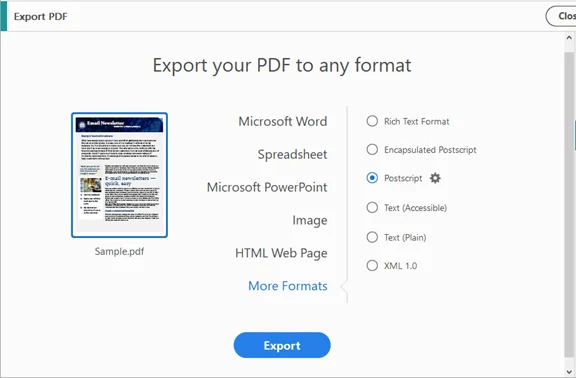
- Navigate to Tools → Export PDF → More Formats → PostScript (.PS/.EPS).
- Adjust settings:
- Language Level: Level 3 recommended
- Font Inclusion: Embed fonts to avoid substitution
- Output Encoding: Binary for smaller files; ASCII for legacy systems
- Click Export, select a destination folder, and save.
✅ Pros: High fidelity, reliable for complex PDFs with images and fonts.
❌ Cons: Requires a paid license.
Method 2: Export PDF to PostScript via Ghostscript Command Line
For power users seeking fast, flexible, and free PDF-to-PostScript conversion, Ghostscript offers a robust command-line solution that preserves searchable text and vector graphics.
Step-by-Step Instructions
- Download and install Ghostscript on your machine.
- Open command line interface:
- Windows: Open Command Prompt
- macOS/Linux: Open Terminal
- Run Conversion Command:
-dNOPAUSE: Disables page-by-page prompts.gswin64c -dNOPAUSE -dBATCH -sDEVICE=ps2write -sOutputFile=output.ps input.pdf
-dBATCH: Terminates the program after processing.
-sDEVICE=ps2write: Specifies PostScript Level 2/3 output. - Verify output:
Check that output.ps is created and opens correctly in your PostScript viewer or printer.
✅ Pros: Free, scriptable, supports batch conversions.
❌ Cons: Requires installation on each machine. Command-line interface can be tricky for beginners.
Method 3: Convert PDF Files to PostScript Online for Free
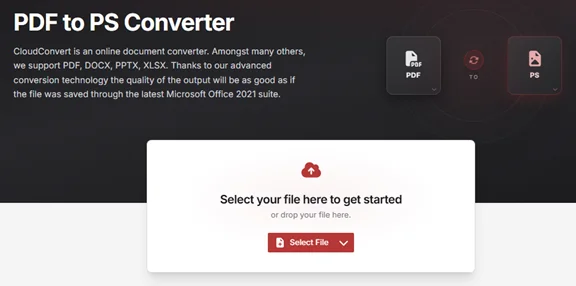
If you prefer a quick conversion without installing heavy software, free online PDF to PostScript converters are the most convenient alternative. These browser-based platforms allow you to process files from any device (Windows, Mac, or Mobile), though they may have specific file size limits compared to desktop tools.
Step-by-Step Instructions
- Navigate to a trusted conversion platform like CloudConvert or Zamzar.
- Click Select File to upload your PDF.
- Select PS or PostScript as the target output format.
- Click Convert and wait for cloud processing.
- Download the final .ps file to your local drive.
Notes:
- Avoid uploading confidential, corporate, or medical PDFs to any online service. For sensitive files, use offline methods (Method 1, 2, or 4).
- Consider splitting large PDFs (> 50 MB) into smaller parts before uploading.
✅ Pros: Quick, accessible from any device, no installation.
❌ Cons: File size limits, potential privacy concerns.
Method 4: Automate PDF to PostScript Conversion in C# with Spire.PDF
For developers or businesses aiming to integrate PDF-to-PostScript conversion directly into their applications, a programmatic solution using C# with a library like Spire.PDF for .NET offers the most scalable and efficient approach. This method enables seamless, behind-the-scenes processing without the need for external software installations.
Key Advantages
- No External Dependencies: You don't need to install Ghostscript or Adobe Acrobat on the target server.
- High Scalability: Easily process thousands of documents within a loop or a background service.
- Fine-Grained Control: You can programmatically select specific pages to convert before generating the PS file.
Convert a PDF to PostScript in C#
using Spire.Pdf;

namespace PDFToPostScript
{
    class Program
    {
        static void Main(string[] args)
        {
            // Initialize a PdfDocument object
            PdfDocument doc = new PdfDocument();

            // Load your PDF file
            doc.LoadFromFile("Sample.pdf");

            // Save the document as a PostScript (PS) file
            doc.SaveToFile("PdfToPostScript.ps", FileFormat.PostScript);
        }
    }
}
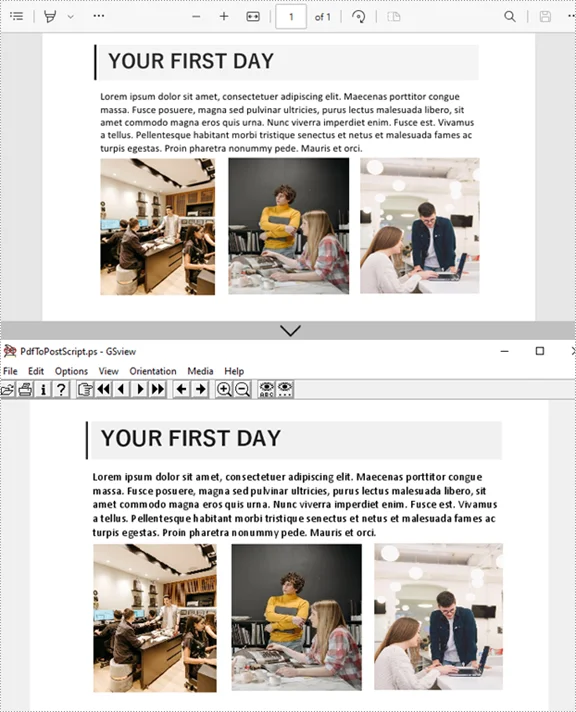
Here is the converted .ps file with the original images and formatting preserved:
(Optional) Export a Specific Page from PDF to PostScript
// Load the original PDF
PdfDocument pdf = new PdfDocument();
pdf.LoadFromFile("Sample.pdf");

// Create a new PDF document for selected pages
PdfDocument selectedPdf = new PdfDocument();

// Add pages 2 and 3 (indexes start at 0)
// The InsertPage method takes the source document, the start page index, and the end page index
selectedPdf.InsertPage(pdf, 1, 2); // Page 2

// Convert the selected pages to PostScript
selectedPdf.SaveToFile("selectedPages.ps", FileFormat.PostScript);
✅ Pros: Fully automated, works behind the scenes, scalable for applications.
❌ Cons: Requires programming skills, may require a license for production use.
Pro Tip: More Than Just PDF to PostScript
Spire.PDF serves as a comprehensive document solution for developers. If your workflow requires more than just .ps files, you can use the same library to handle other critical document tasks. For example, convert PDF to Word or export PDF to Excel to make your data editable.
Common PDF to PostScript Conversion Issues
Converting PDF files to PostScript can sometimes lead to unexpected problems. Understanding these common issues and how to fix them ensures smooth, high-quality printing. Below are typical challenges and practical solutions:
1. Transparency Flattening ("Stitching" Artifacts)
PostScript does not support live transparency. Effects like shadows or glows can produce thin white lines in your output. To prevent this, use Acrobat's Flattener Preview (Tools → Print Production → Flattener Preview) before exporting to PS.
2. Font Substitution
If fonts aren't embedded in the PDF, PostScript defaults to generic fonts such as Courier or Helvetica, potentially altering your layout. To avoid this, embed fonts in the PDF or convert them to outlines to preserve the original design.
3. Large File Size
PostScript files can become significantly larger than the source PDF because they store uncompressed instructions. Reduce file size by using binary encoding instead of ASCII and consider splitting very large PDFs into smaller segments.
4. Color Shifts
During PDF-to-PS conversion, CMYK colors may shift, affecting print accuracy. Always verify your color settings and perform a test print to ensure accurate color reproduction.
Conclusion
Converting PDF to PostScript is an efficient way to prepare documents for professional printing. Among the four reliable methods covered:
- Adobe Acrobat Pro - Best for desktop users who need precise control and high-quality output.
- Ghostscript CLI - Suitable for command-line enthusiasts or automated batch processing.
- Online Converters - Convenient for small files or occasional conversions without installing software.
- C# Automation Script - Ideal for developers or teams who require scalable, repeatable PDF-to-PS workflows.
Each method has its strengths. Choose the one that fits your workflow, and get started today to see which approach works best for you.
FAQs About PDF to PostScript Conversion
Q1: Can transparency be preserved during conversion?
A1: No. PDF to PostScript conversion flattens transparency, including shadows, glows, and overlays.
Q2: Can I convert PostScript back to PDF?
A2: Yes. You can use Adobe Acrobat Distiller or Ghostscript (pdfwrite device) to reconstruct a structured PDF from a PS file.
Q3: Are there free tools to convert PDF to PostScript?
A3: Yes, there are free online converters and command-line tools like Ghostscript. However, free tools may have limitations such as file size restrictions or reduced output quality.
Q4: How to convert multiple PDF files to PostScript at once?
A4: You can use C# automation with Spire.PDF to convert hundreds of PDFs efficiently.
Q5: Which PostScript language level should I use?
A5: PS Level 2 or 3 is recommended for most printers; Level 1 is legacy and may lack modern features.
See Also
5 Simple Ways to Split a Word Document into Multiple Files (Manual & Automated)
Table of Contents
Handling large Word documents can be challenging. Files with hundreds of pages often slow down Word, complicate collaboration, and make sharing via email cumbersome. Knowing how to split a Word document efficiently can save time, reduce file size, and improve workflow.
In this guide, we'll walk you through 5 practical ways to split Word documents, from simple manual methods like Copy & Paste, to automated solutions using Python. Whether you're a beginner managing a single file or a power user processing hundreds of documents, this article will help you choose the method that fits your needs best.
Methods Overview
- Method 1 - Split a Word Document via Copy & Paste
- Method 2 - Split Word Document by Headings
- Method 3 - Split Word Documents via PDF Conversion
- Method 4 - Split Pages in Word Online for Free
- Method 5 - Automate Word Document Splitting with Python
Why You May Need to Split a Word Document?
Splitting a Word document isn't just a technical task-it can make your work more organized and easier to work with. Here are some common reasons to divide Word documents:
- Enhanced Collaboration: Easily send specific chapters or sections to different editors or stakeholders without sharing the entire document.
- Optimized File Size: Reduce the bulk of massive, image-heavy documents for faster emailing and smoother cloud uploads.
- Better Organization: Break down a complex, multi-project report into individual, searchable files.
- Seamless Conversion: Prepare specific segments for conversion to PDF, Markdown, or HTML.
Method 1 - Split a Word Document via Copy & Paste
Best for: Extracting specific sections, one-off edits, or beginners.
The Copy and Paste method is the most intuitive way to manually split a Word document. It requires no extra software or technical expertise and works seamlessly across all versions of Microsoft Word, including Word for Microsoft 365, Word 2024, 2021, 2019, and 2016. This approach is ideal for users who need full granular control over the specific content they wish to isolate.
Step-by-Step Instructions:
-
Open Your Document
Launch Word and open the file you want to split. -
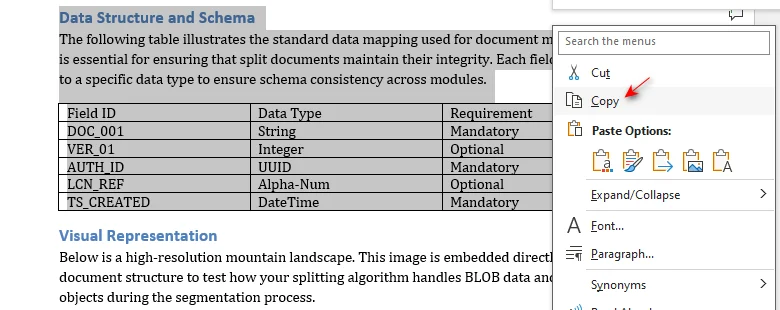
Select the Target Content
Highlight the section or chapter to extract.- ⚡ Tip: Use Ctrl + Shift + End (Windows) or Cmd + Shift + End (Mac) to select everything from your cursor to the end of the document quickly.
-
Copy the Content
Press Ctrl + C (Windows) or Cmd + C (Mac) on your keyboard, or right-click the highlighted area and select Copy.
-
Create a New File
Press Ctrl + N to instantly open a fresh, blank document. -
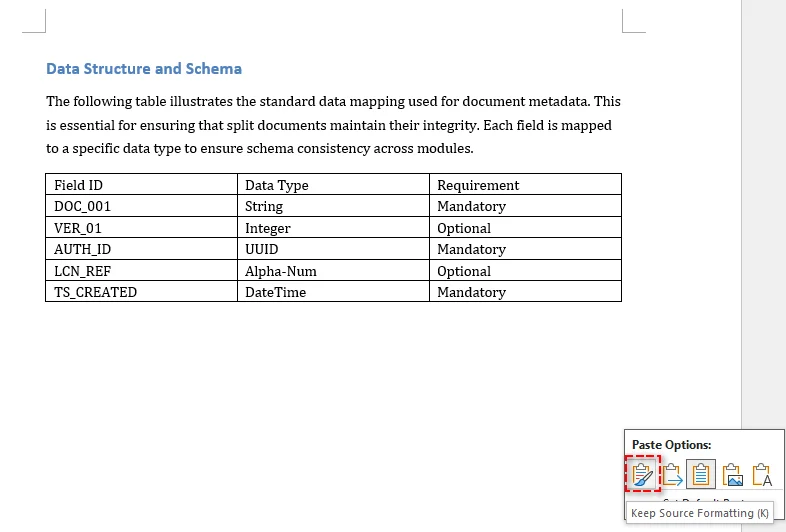
Paste the Content
Press Ctrl + V (Windows) or Cmd + V (Mac) to paste. To preserve the source formatting, click the Paste Options icon at the end of the pasted text (or press Ctrl) and select Keep Source Formatting (K).
-
Save the New File
Press F12 to open the Save As dialog. Enter a descriptive file name, choose your destination folder, and click Save.
Strengths and Limitations:
| ✅ Strengths | ❌ Limitations |
|---|---|
| Zero learning curve | Inefficient for bulk tasks |
| Precise control over content selection | Complex formatting may require manual adjustment |
Extra Tips: Avoiding Formatting Shifts
Manual copying is fast but can break complex layouts. Follow these tips:
- Landscape Pages: If your source has landscape pages, insert a Section Break (Layout > Breaks > Next Page) in the new file before pasting to ensure the horizontal layout is preserved.
- Headers & Footers: These background elements (including page numbers and watermarks) do not transfer. You must reapply them manually in the new file.
- Style Consistency: To prevent font or spacing changes, always use Keep Source Formatting when pasting.
- Broken Links: Be aware that internal hyperlinks (Table of Contents) often break; press F9 in the new file to refresh all fields.
Need to convert these split files? Check out our guide on Converting Word to Markdown for high-speed documentation.
Method 2 - Split Word Document by Headings
Best for: Splitting long, multi-chapter documents (e.g., 50+ pages) that already use Word's Heading Styles.
If your document is well organized with Heading Styles (Heading 1, 2, etc.), Microsoft Word's built-in Outline View feature is more efficient. This method automates the segmentation process, ensuring each section is exported as an individual linked file while eliminating the manual highlighting errors and 'broken formatting' common with copy-pasting.
Step-by-Step Instructions:
-
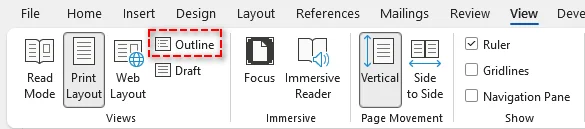
Enter Outline View
Navigate to the View tab and click Outline.
-
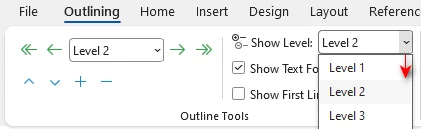
Show Headings
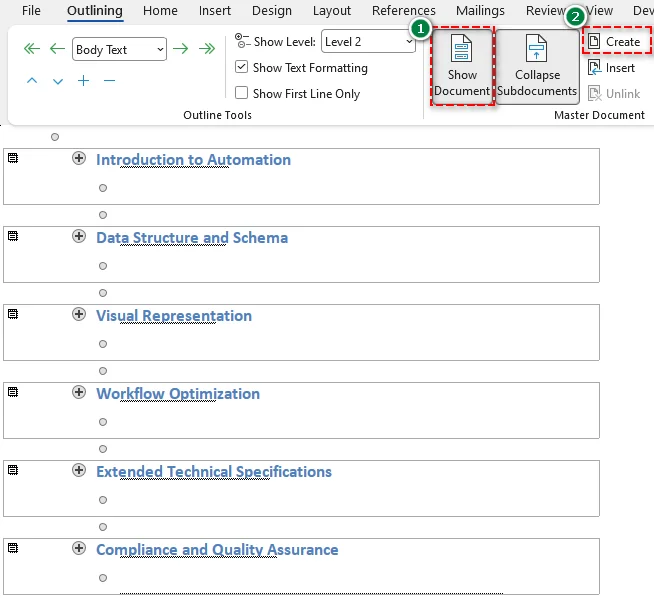
In the Outlining tab, set Show Level to the heading level you want to split by (e.g., Level 2). This collapses all body text, showing only your main headings.
-
Select Headings
Highlight all the headings you want to split. -
Create Subdocuments
Click the Show Document button, then click Create. You will see thin gray boxes (Subdocuments) appear around your selected headings.
-
Save the Subdocuments
Press F12, choose a destination folder, and click Save to save the subdocuments.
Result: Word will instantly generate separate files for every heading you selected within that folder.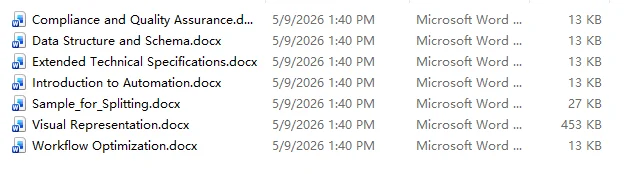
Strengths and Limitations:
| ✅ Strengths | ❌ Limitations |
|---|---|
| No Manual Dragging | Only works if the document uses consistent Heading Styles |
| Filenames are automatically assigned | Creates complex sub-document links that can be fragile if files are moved individually |
Extra Tips:
- New Folder Rule: Always create a new folder before saving the subdocuments. Word will use your heading text as filenames; without a folder, it will clutter your directory instantly.
- Test Navigation First: Before splitting, go to the Navigation Pane (Ctrl + F > Headings). If it is empty, Word doesn't recognize your structure. You'll need to apply Heading Styles to your titles first.
Method 3 - Split Word Documents via PDF Conversion
Best for: Sharing specific chapters that don't require further editing and must look identical on any device.
If your goal is to distribute a polished segment of your work, splitting via PDF conversion is the most reliable way to ensure cross-platform compatibility. PDF locks your layout, fonts, and images, preventing the recipient's Word settings from messing up your hard work.
Step-by-Step Instructions:
-
Convert to PDF
Open your file in Word, then go to File > Save As and select PDF (*.pdf). -
Define Range
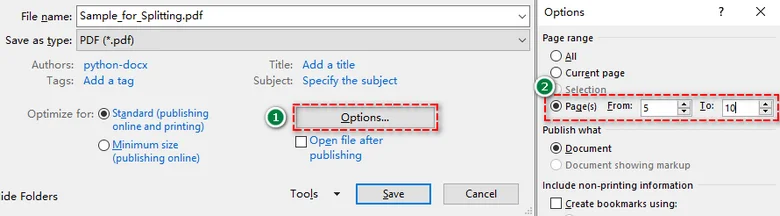
In the dialog, click the Options... button. Under the Page range section, select Page(s), enter your target range (e.g., 5-10) and click OK.
-
Save the file
Click Save and repeat for other page ranges.
Strengths and Limitations:
| ✅ Strengths | ❌ Limitations |
|---|---|
| Layout and formatting remain 100% static | Harder to edit after splitting |
Extra Tip:
- Re-Editing: Need to change something? Right-click the split PDF and select Open with > Word. Word will attempt to rebuild the text for you, though complex layouts may shift slightly.
Method 4 - Split Pages in Word Online for Free
Best for: Users without a desktop Microsoft Word installed or anyone working on mobile devices.
If you don't have access to the Microsoft Word desktop app, or if you need a "one-click" solution while on the go, an online Word document splitter like Zamzar is the most convenient choice. This cloud-based tool handles the heavy lifting on its servers, allowing you to split Word documents by every X pages without any manual formatting.
How to Split Pages in Word Online:
-
Upload Your File
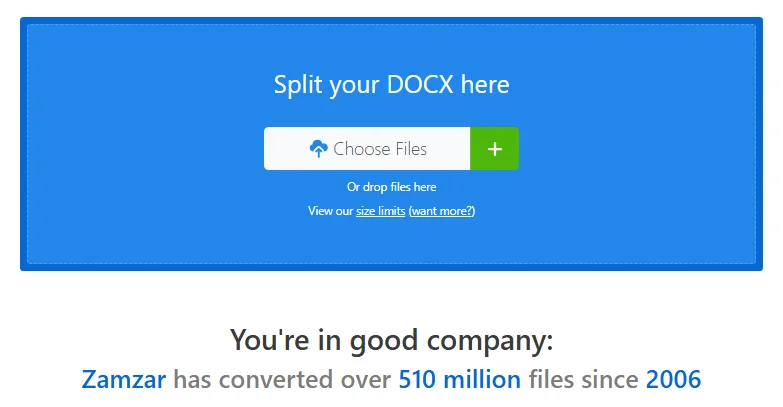
Go to the Zamzar Word document splitter website and click Choose Files (or drag and drop your document).
-
Set Your Split Logic
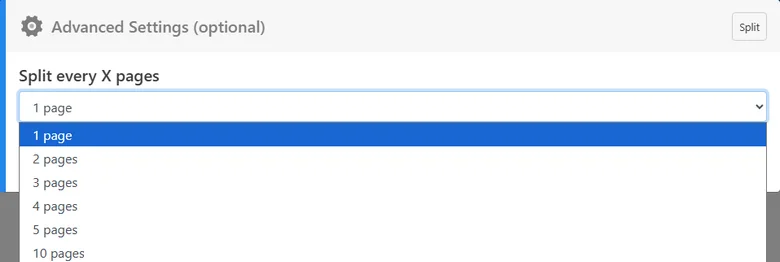
Specify the interval for splitting (e.g., split every 1 page).
-
Split & Download
Click Split Now. Once the process is complete, download your split documents directly to your device.
Strengths and Limitations:
| ✅ Strengths | ❌ Limitations |
|---|---|
| Quick and simple | Requires uploading your document to a third-party server |
| Works across any device (mobiles, tablets, and more) | Free versions often limit the total file size (e.g., 50MB) |
Security Warning:
While online splitters are incredibly convenient, never use them for sensitive documents (like legal contracts, bank statements, or medical records). For private data, always stick to the offline methods (Method 1, 2, 3 or 5).
Method 5 - Automate Word Document Splitting with Python
Best for: Developers and power users who need to process massive volumes of documents or automate recurring monthly reports.
If you are facing a "mountain" of files-such as splitting 500 individual contracts into separate files-manual clicking is no longer an option. Python automation allows you to create a single script that handles the entire process in seconds, ensuring 100% accuracy without human intervention.
Step-by-Step Instructions:
-
Environment Setup
To automate Word document splitting, we will use the Spire.Doc for Python library. Unlike some open-source libraries like python-docx that struggle with complex Word layouts, Spire.Doc maintains high fidelity during the page extraction process.Before proceeding, install it by running the following command in your terminal:
pip install Spire.Doc
-
Write the Automation Script
This script scans an Input folder, finds every .docx file, and extracts each page into a separate document automatically:import os from spire.doc import * # Define folder paths input_folder = "Source_Documents/" output_folder = "Split_Results/" # Create output folder if it doesn't exist if not os.path.exists(output_folder): os.makedirs(output_folder) # Loop through all files in the input folder for filename in os.listdir(input_folder): if filename.endswith(".docx"): file_path = os.path.join(input_folder, filename) # Load the document doc = Document() doc.LoadFromFile(file_path) # Split the current document by page for i in range(doc.PageCount): single_page_doc = doc.ExtractPages(i, 1) # Save with a name like "ContractA_Page_1.docx" base_name = os.path.splitext(filename)[0] save_path = f"{output_folder}{base_name}_Page_{i + 1}.docx" single_page_doc.SaveToFile(save_path, FileFormat.Docx) single_page_doc.Dispose() doc.Dispose() print(f"Processed: {filename}") print("All documents have been successfully split!")
| ✅ Strengths | ❌ Limitations |
|---|---|
| Batch Split thousands of documents with high efficiency | Requires a Python environment and library installation |
| Fully customizable logic (split by page, page range, or section) | Requires basic Python knowledge |
Pro Tip:
- Beyond Pages: If your document uses Section Breaks, Spire.Doc can split by sections automatically, which is perfect for documents with varying chapter lengths.
Need to combine multiple Word files back together? Check out our guide on How to Merge Word Documents in Python.
Quick Comparison of All Word Document Splitting Methods
| Method | Best Use Case | Skill Level | Formatting Preservation |
|---|---|---|---|
| Copy & Paste | One-off small edits (1-5 pages) | Beginner | Partial |
| Heading Styles | Long, structured reports | Intermediate | High |
| PDF Conversion | Final versions for sharing | Beginner | Very High |
| Online Splitters | Mobile users or non-Word users | Beginner | Medium |
| Python Script | Batch processing (100+ files) | Advanced | High |
Tips for Splitting Word Documents Efficiently
- Backup First: Always create a backup copy of your master document before splitting. This protects you from accidental deletions or formatting errors.
- Preserve Formatting: Use Keep Source Formatting or consistent templates to ensure headings and layouts remain identical across all split files.
- Smart File Naming: Use a clear naming convention like ProjectName_Part01.docx. For Python users, you can automate this by pulling unique IDs or titles from the text.
- Final Review: Always check headers, footers, and page numbers after splitting. Word often resets these elements when content is moved to a new file.
Conclusion
There are several ways to split a Word document, the best method depends on your file size, structure, and workflow:
- Small files or occasional edits: Manual Copy & Paste or online splitters work perfectly.
- Sharing segments with fixed formatting: PDF conversion ensures consistent layout across all devices.
- Large-scale documents: Python automation delivers the ultimate speed and precision for batch processing.
Ready to start? Choose the method that fits your needs and take control of your document management today!
FAQs
Q1: Can I split a Word document without installing any software?
A1: Yes. You can use reliable online splitters like Zamzar to split Word documents without needing a desktop installation.
Q2: Why does my formatting change after splitting manually?
A2: This usually happens when the new document has different style settings. To fix this, always select Keep Source Formatting when pasting content into a new file.
Q3: How do I split a document by specific page ranges?
A3: The easiest way is using PDF Conversion. In the Save As options, you can specify a custom range (e.g., pages 5-10) to extract just those pages.
Q4: Is it safe to split confidential documents online?
A4: For sensitive data, we recommend offline methods like Copy & Paste or Python automation. This ensures your data never leaves your local computer.
Q5: How can developers automate Word splitting in Python?
A5: Developers can use libraries like Spire.Doc for Python. It allows you to programmatically detect pages and extract specific ranges or sections into new files with just a few lines of code.
Explore More Word Processing Tutorials
How to Replace Text in Excel: 5 Fast Ways (Manual to Automated)
Table of Contents
- Method 1 - Replace Text Manually with Excel's Find & Replace
- Method 2 - Replace Text by Position Using Excel's REPLACE Function
- Method 3 - Replace Text by Content Using Excel's SUBSTITUTE Function
- Method 4 - Automate Text Replacements in Excel with VBA
- Method 5 - Batch Replace Text Across Multiple Excel Files with Python
When working with large Excel workbooks, inconsistent or outdated data can quickly derail your reporting and decision-making. Manually scanning thousands of cells to fix typos is not only time-consuming but also prone to costly human errors. Mastering how to replace text in Excel efficiently is a critical skill for any data professional.
In this comprehensive guide, we explore 5 practical methods to replace text in Excel - ranging from the built-in Find & Replace tool and worksheet formulas to advanced VBA and Python automation. Whether you need to update a single cell or batch-process hundreds of workbooks, our step-by-step instructions will help you streamline your workflow and ensure data integrity.
Methods Overview
- Method 1 - Replace Text Manually with Excel's Find & Replace
- Method 2 - Replace Text by Position Using Excel's REPLACE Function
- Method 3 - Replace Text by Content Using Excel's SUBSTITUTE Function
- Method 4 - Automate Text Replacements in Excel with VBA
- Method 5 - Batch Replace Text Across Multiple Excel Files with Python
Understanding Text Replacement in Excel
Text replacement in Excel isn't just a cosmetic change-it can:
- Correct errors - fix typos or outdated codes.
- Standardize formats - unify product codes, emails, or dates.
- Improve data analysis - ensure consistency before calculations, filtering, or pivot tables.
- Save time in repetitive tasks - especially when working with large datasets or multiple files.
Below, we'll explore 5 practical ways to replace data in Excel.
Method 1 - Replace Text Manually with Excel's Find & Replace
Excel's built-in Find and Replace tool is the most efficient manual method to replace text in Excel within a single worksheet or an entire workbook. It's perfect for quick, one-off updates where formulas or automation are not required.
How to Access the Find & Replace Tool:
- Shortcut: Press Ctrl + H (Windows) or Command + Shift + H (Mac).
- Menu Path: Go to the Home tab > Editing group > Find & Select > Replace.
Step-by-Step Instructions:
-
Open the Workbook: Select the worksheet where you need to perform text replacement.
-
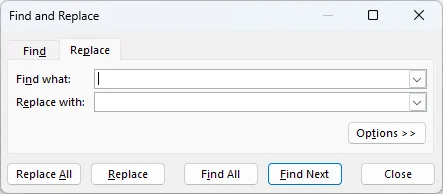
Access the Tool: Use the shortcut or menu path to trigger the Find and Replace window.
-
Input Data: In the Find what box, type the specific text or numbers you want to change. In the Replace with box, type your new content.
-
Execute Replacement: Click Replace to update the current selection and move to the next instance, or Replace All to update every instance in the sheet instantly.
Pro Tips:
Click the Options >> button to unlock advanced controls:
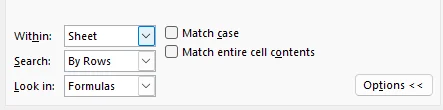
- Search Scope: Change the Within setting from Sheet to Workbook to replace text across all tabs at once.
- Pattern Matching: Use Wildcards like * (multiple characters) or ? (single character) for flexible searching (e.g., S*t matches both "Smart" and "Street").
- Precision Control: Enable Match case to replace only exact matches or Match entire cell contents to avoid replacing parts of words accidentally.
✅ Pros: Quick, intuitive, and handles formatting changes as well.
⚠️ Limitations: Manual and repetitive; not suitable for batch-processing hundreds of separate files.
You may also be interested in: 5 Ways to Wrap Text in Excel.
Method 2 - Replace Text by Position Using Excel's REPLACE Function
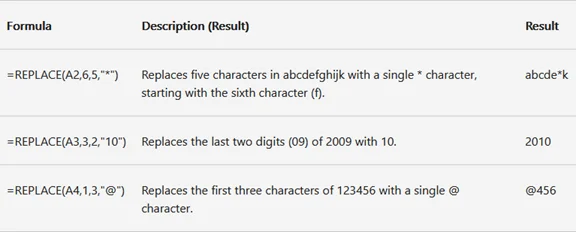
When you need to replace text in Excel based on its character position rather than the content itself, the REPLACE function is the best tool. This formula is ideal for cleaning up structured data like phone numbers, serial codes, or standardized product IDs.
Replace Function Syntax
=REPLACE(old_text, start_num, num_chars, new_text)
- old_text: The original text (or the cell reference containing the text).
- start_num: The position (index) of the first character you want to replace.
- num_chars: The total number of characters to remove.
- new_text: The new text you want to insert.
Practical Example: Masking Sensitive Data
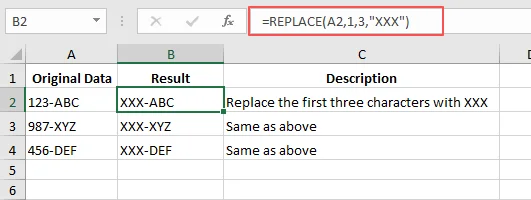
If you have a serial code "123-ABC" in cell A1 and want to change the first three numbers to "XXX":
- Formula:
=REPLACE(A1, 1, 3, "XXX") - Result: "XXX-ABC"
Step-by-Step Implementation:
-
Select a Cell: Click on the cell where you want the updated text to appear (e.g., B2).
-
Enter the Formula: Type =REPLACE( and select the source cell (e.g., A2).
-
Define the Range: Enter the start_num (where the replacement begins) and the num_chars (how many characters to swap).
-
Add New Text: Type your replacement text inside quotation marks (e.g., "XXX").
-
Apply to List: Press Enter and use the AutoFill handle (the small green square) to drag the formula down to other rows.
Pro Tips:
- Combine with Other Functions: Use LEN() or FIND() as the start_num to handle strings of varying lengths dynamically.
- Handle Numeric Results: The REPLACE function always returns text. To convert it back to a number for calculations, add *1 to the end of your formula (e.g.,
=REPLACE(...) * 1). - Nesting: You can nest multiple REPLACE functions in a single formula if you need to update two or more different positions at once.
✅ Pros: Perfect for structured data; ensures precise control over character replacement.
⚠️ Limitations: Less effective for data where the target text appears in different positions in each cell.
Method 3 - Replace Text by Content Using Excel's SUBSTITUTE Function
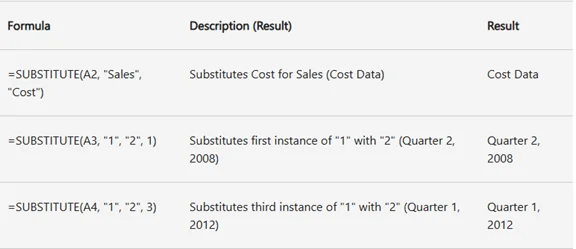
The SUBSTITUTE function is the go-to tool when you need to replace text in Excel based on specific content rather than its position. This is ideal for correcting repeated typos, updating year references, or expanding abbreviations across a large dataset.
SUBSTITUTE Function Syntax
=SUBSTITUTE(text, old_text, new_text, [instance_num])
- text: The original text (or the cell reference containing the text).
- old_text: The specific character or word you want to change.
- new_text: The text you want to insert instead.
- [instance_num]: (Optional) Specifies which occurrence to replace. If omitted, all instances are updated.
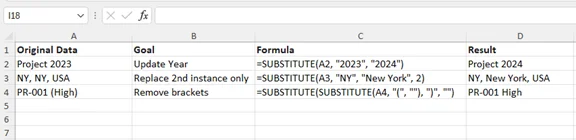
Practical Example: Bulk Updating Years
If you need to update "Report 2023" to "Report 2024" in cell A1:
- Formula:
=SUBSTITUTE(A1, "2023", "2024") - Result: "Report 2024"
Advanced: Nested SUBSTITUTE for Multiple Updates
You can nest multiple SUBSTITUTE functions to replace several different terms in a single cell simultaneously. This is perfect for converting shorthand codes into full descriptions:
- Formula:
=SUBSTITUTE(SUBSTITUTE(A2, "PR", "Project"), "ML", "Milestone") - Result: Converts "PR-01, ML-05" into "Project-01, Milestone-05".
Step-by-Step Implementation:
-
Identify the Target: Click the cell where you want the cleaned data to appear.
-
Apply the Formula: Type =SUBSTITUTE( and select the source cell.
-
Define Text Strings: Enter the old_text and new_text inside double quotation marks (e.g., "old", "new").
-
Optional Instance: If you only want to replace the second occurrence of a word, add , 2 at the end before closing the parentheses.
-
Drag to Apply: Press Enter and use the AutoFill handle to apply the formula to the rest of your column.
Pro Tips:
- Case Sensitivity: SUBSTITUTE is case-sensitive. To perform a case-insensitive search, wrap your cell reference in the UPPER or LOWER function.
- Removing Text: To delete a specific word entirely, use an empty string "" as your new_text.
- Non-Destructive: Unlike Find & Replace, using formulas keeps your original data intact in the source column, providing a better audit trail.
✅ Pros: Excellent for content-based replacement; highly flexible with nesting.
⚠️ Limitations: Does not handle position-based changes; requires a helper column to store results.
Method 4 - Automate Text Replacement in Excel with VBA
When you need to replace text in Excel across multiple sheets or handle repetitive, large-scale cleanup tasks, a VBA macro is the most powerful solution. This method allows you to automate the process with a single click, saving you from manual errors.
Why Use VBA for Replacement?
- Efficiency: Update hundreds of cells instantly.
- Consistency: Ensure the same replacement logic is applied every time.
- Multi-Sheet Support: Unlike formulas, VBA can scan every tab in your workbook.
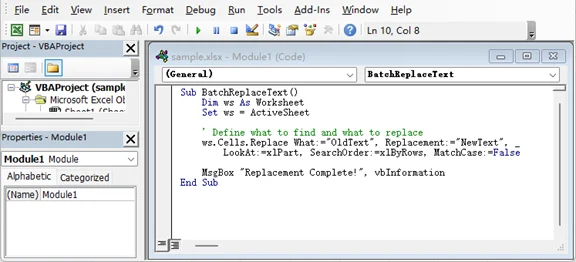
Example VBA Macro to Replace data in the Active Excel Sheet
Copy and paste the following code into your VBA editor to replace specific terms across your current worksheet:
Sub BatchReplaceText()
    Dim ws As Worksheet
    Set ws = ActiveSheet

    ' Define what to find and what to replace
    ws.Cells.Replace What:="OldText", Replacement:="NewText", _
        LookAt:=xlPart, SearchOrder:=xlByRows, MatchCase:=False

    MsgBox "Replacement Complete!", vbInformation
End Sub
How to Run This Macro (Step-by-Step):
-
Open the Editor: Press Alt + F11 to open the Visual Basic for Applications window.
-
Insert a Module: Go to Insert > Module to create a blank workspace.
-
Paste the Code: Copy the script above and paste it into the module. Replace "OldText" and "NewText" with your actual data.
-
Execute the Macro: Press F5 or go back to Excel and press Alt + F8, select BatchReplaceText, and click Run.
Pro Tips:
- Precision Control: In the code above, LookAt:=xlPart allows the macro to replace text even if it's only part of a cell's content (e.g., changing "App" to "Application" within "App Store"). If you need to replace only cells that match your text exactly, change this parameter to LookAt:=xlWhole.
- Backup First: Unlike formulas, VBA actions cannot be undone (Ctrl+Z). Always save a backup copy of your file before running a macro.
- Loop Through All Sheets: You can modify the code to loop through Each ws In ThisWorkbook.Worksheets to perform a global replacement.
- Keyword Variables: For more flexibility, use InputBox to let users type the text they want to replace whenever the macro runs.
✅ Pros: Highly efficient for large datasets; automates repetitive tasks.
⚠️ Limitations: Requires the workbook to be saved as an Excel Macro-Enabled Workbook (.xlsm); cannot be undone.
Method 5 - Batch Replace Text Across Multiple Excel Files with Python
For the ultimate level of automation, using Python with the Spire.XLS library is the best way to batch replace text across multiple Excel files without even opening them. This is a game-changer for professionals managing hundreds of reports who need to maintain document formatting and structure.

Why Use Spire.XLS for Python?
- Format Preservation: Unlike other libraries, Spire.XLS keeps your fonts, colors, and layouts intact while replacing text.
- Scalability: Process thousands of workbooks in seconds-ideal for company-wide rebranding or data updates.
- Formula Support: Allows inserting various Excel formulas, making it easy to perform complex calculations, even without opening Excel.
- No Excel Required: Operates independently of Microsoft Office, making it perfect for automated server environments.
Python Code: Batch Replacement Using Spire.XLS
This script iterates through an entire folder, searches every worksheet, and replaces specific terms:
from spire.xls import *
import glob

# Path to your folder containing Excel files
files = glob.glob("C:/your_folder/*.xlsx")

for file in files:
    # Load the workbook
    workbook = Workbook()
    workbook.LoadFromFile(file)

    # Iterate through all worksheets to replace text
    for i in range(workbook.Worksheets.Count):
        sheet = workbook.Worksheets[i]

        # Find all instances of the old text
        found_ranges = sheet.FindAll("OldText", FindType.Text, ExcelFindOptions.MatchEntireCellContent)
        if found_ranges:
            for cell_range in found_ranges:
                # Apply the replacement text
                cell_range.Text = "NewText"

    # Save the updated workbook
    workbook.SaveToFile(file, ExcelVersion.Version2016)
    workbook.Dispose()

print("Batch text replacement completed successfully!")
Step-by-Step Implementation:
- Set Up Environment: Install the library via terminal:
pip install Spire.Xls - Prepare Your Script: Paste the code into an editor like VS Code or PyCharm.
- Configure Parameters: Update the folder path and replace "OldText" and "NewText" with your actual data.
- Run & Verify: Press F5 to execute the script. Verify the output files to confirm the replacement results are correct.
Pro Tips:
- Partial Text Replacement: If a cell contains a long string (e.g., "Order: 1001") and you only want to change the number, use
cell_range.TextPartReplace("1001", "2002"). This keeps the surrounding text intact. - Case Sensitivity: The ExcelFindOptions parameter in the FindAll method allows you to toggle case-sensitive or whole-word matching for higher precision.
- Range-Specific Finding: If you know the target data is only in a specific area, call FindAll on an XlsRange instead of the whole Sheet:
sheet.Range["A1:C10"].FindAll(). - Regex & Patterns: You can combine this with Python's re module for complex pattern matching before passing the string to the replacement loop.
✅ Pros: Unmatched speed for high-volume tasks; handles multiple files; preserves all original Excel formatting.
⚠️ Limitations: Requires a Python environment setup and basic programming knowledge.
Conclusion: Which Method Should You Choose?
Choosing the best way to replace text in Excel depends on the scale of your data and your comfort level with automation:
- Quick & Simple Edits: Use the built-in Find & Replace tool.
- Position-Based Precision: Use the REPLACE function for structured data (e.g., ID codes).
- Content-Based Logic: Use the SUBSTITUTE function for correcting specific terms.
- Workbook Automation: Use VBA macros to handle repetitive tasks across multiple sheets.
- Professional Batch Processing: Use Python to manage hundreds of files with formatting preserved.
By selecting the right workflow, you can ensure data consistency, save hours of manual labor, and eliminate human error.
Troubleshooting Common Text Replacement Issues
Even with the right tools, you might encounter roadblocks. Here are the most common issues and how to fix them:
| Issue | Likely Cause | Solution |
|---|---|---|
| Replacement didn't happen | Text doesn't exactly match the Find or old_text string. | Check for extra spaces or hidden characters. Use TRIM() or CLEAN() functions to sanitize data first. |
| Only part of the text replaced | Find & Replace settings are too restrictive. | In the Options menu, ensure Match case and Match entire cell contents is unchecked for partial replacements. |
| #VALUE! error (REPLACE) | Invalid start position or character count. | Ensure start_num and num_chars are positive integers and within the string's length. |
| Formula results are text-only | REPLACE and SUBSTITUTE always return text. | If you need a number, multiply the result by 1 (e.g., =SUBSTITUTE(...)*1) or wrap it in VALUE(). |
| VBA macro won't run | Macro security settings or protected sheets. | Enable macros in Trust Center and ensure the worksheet is unprotected before execution. |
| Python script errors | Incorrect file paths or missing dependencies. | Ensure Spire.Xls is installed. Double-check your folder path syntax (use / or \\ in Windows). |
FAQs: Replace Data in Excel
Q1: Can I replace text across multiple sheets without VBA or Python?
Yes. In the Find & Replace dialog, click Options and change the Within dropdown from "Sheet" to "Workbook". This allows you to update the entire file at once.
Q2: How do I replace text while preserving cell formatting?
Standard formulas (SUBSTITUTE) create new text in a new cell. To keep formatting in the original cell, use the manual Find & Replace tool or a professional library like Spire.XLS for Python, which is designed to modify content without stripping styles.
Q3: Can I replace text based on a specific pattern (e.g., any 3 digits)?
Yes, but you'll need Wildcards (* or ?) in the Find & Replace tool, or Regular Expressions (Regex) in a Python script for more complex patterns.
Q4: What if the target text is in a different position in every cell?
Use a dynamic formula combining REPLACE with FIND:
=IFERROR(REPLACE(A2, FIND("old", A2), LEN("old"), "new"), A2)
This locates the "old" text regardless of where it starts and replaces it with "new".
Q5: How can I automate replacements for hundreds of separate files?
The most efficient method is using Python. By leveraging glob to find files and Spire.XLS to process them, you can update thousands of workbooks in seconds without even opening Excel.
See Also
Convert RTF to Markdown: 4 Easy Ways for Single & Batch Files
Table of Contents
- What's the Difference between RTF and Markdown
- Use Cases: When You Should Convert RTF to Markdown
- Method 1: Copy RTF Content and Paste into a Markdown Editor
- Method 2: Convert RTF to Markdown Online
- Method 3: Use Pandoc for High-Fidelity RTF to Markdown Conversion
- Method 4: Batch Convert RTF Files to Markdown with C#
- Comparison: Which RTF to Markdown Method Should You Choose
- Troubleshooting Common Conversion Issues
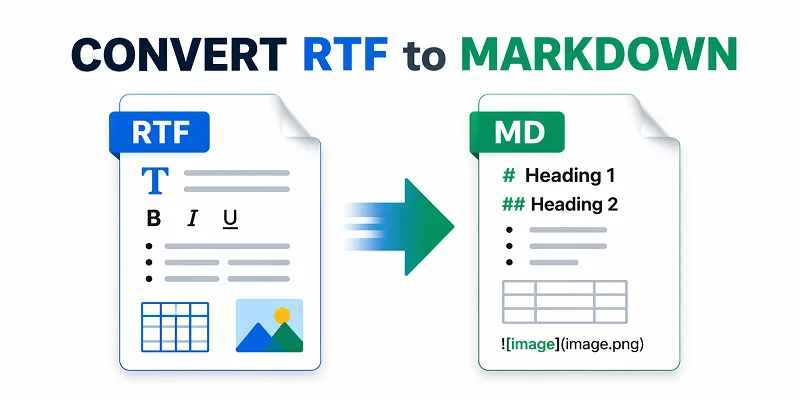
RTF (Rich Text Format) files are great for storing formatted text, but when it comes to documentation, blogging, or version-controlled writing, Markdown (MD) is often the preferred choice. Converting RTF to Markdown makes your content lightweight, portable, and easier to integrate with modern tools like Git, static site generators, or Markdown-based editors.
In this article, we'll explore 4 practical methods to convert RTF to Markdown, ranging from simple copy-and-paste techniques to automated batch conversion with C#. Whether you're a beginner working with a single file or a developer looking to process multiple documents efficiently, you'll find the method that best suits your workflow.
Contents Overview
- What's the Difference between RTF and Markdown
- Use Cases: When You Should Convert RTF to Markdown
- Method 1: Copy RTF Content and Paste into a Markdown Editor
- Method 2: Convert RTF to Markdown Online
- Method 3: Use Pandoc for High-Fidelity RTF to Markdown Conversion
- Method 4: Batch Convert RTF Files to Markdown with C#
- Comparison: Which RTF to Markdown Method Should You Choose
- Troubleshooting Common Conversion Issues
What's the Difference between RTF and Markdown?
Before diving into the conversion methods, it's helpful to understand how RTF and Markdown differ. The table below summarizes their main characteristics and typical use cases.
| Feature | RTF (Rich Text Format) | Markdown (MD) |
|---|---|---|
| File Extension | .rtf | .md / .markdown |
| Content Type | Rich Text: Binary-like plain text supporting font sizes, colors, tables, and inline images | Plain Text: Human-readable text using simple Markdown syntax (symbols like # or *) to define headers and lists |
| Primary Use | Cross-platform document exchange and word processing | Documentation, technical blogging, version-controlled content (GitHub) |
| Origin | Developed by Microsoft (1987) | Created by John Gruber (2004) |
| MIME Type | application/rtf | text/markdown |
| Resources | Rich Text Format on Wikipedia | Markdown on Wikipedia |
Use Cases: When You Should Convert RTF to Markdown?
Converting RTF to MD is useful in many scenarios:
- Documentation: Markdown is widely used for technical documentation, READMEs, and knowledge bases, making your RTF content easier to maintain.
- Content Publishing: Bloggers and writers benefit from Markdown's simplicity and compatibility with static site generators or CMS platforms.
- Version Control: Plain-text Markdown works seamlessly with Git, unlike RTF, which is a binary file.
- Collaboration: Markdown files are easier to share, edit, and merge across teams without losing formatting.
- Automation: Converting multiple RTF files to Markdown allows batch processing for reporting, note-taking, or migrating content.
With these use cases in mind, let's look at how you can convert RTF files to .md format.
Method 1: Copy RTF Content and Paste into a Markdown Editor
When you only need to convert specific sections of an RTF file to Markdown, manually copying and pasting content into a Markdown editor is a simple and effective approach. Many modern Markdown editors (like Typora, Obsidian, or Joplin) automatically translate Rich Text Formatting into clean Markdown syntax when pasting.
Quick Conversion Guide:
-
Open your RTF file in a word processor like Microsoft Word or macOS TextEdit.
-
Select the content you want to convert, then copy it (Windows: Ctrl+C, Mac: Cmd+C).
-
Open your preferred Markdown editor, then paste the content (Windows: Ctrl+V, Mac: Cmd+V).
- Pro Tip: To remove all formatting and start with plain text, use Ctrl+Shift+V (Windows) or Cmd+Shift+V (Mac) when pasting.
-
Preview the output and adjust formatting if needed.
Here is the screenshot of the output Markdown file:
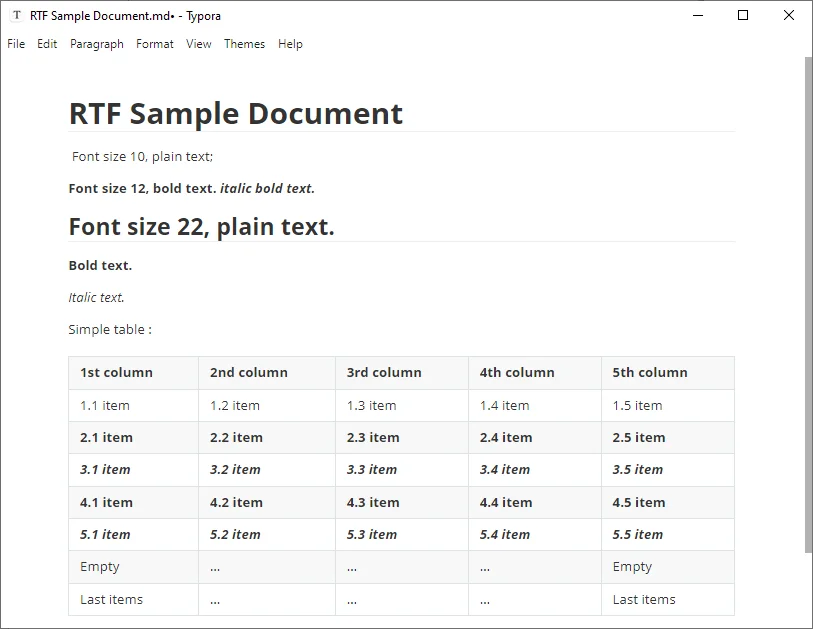
Pros & Cons:
✅ Pros: Allows selective conversion; quick for small files; full control over formatting.
❌ Cons: Inefficient for large documents; some complex RTF styling may be lost.
Method 2: Convert RTF to Markdown Online
For users who want a convenient, no-software solution, online converters provide a fast way to transform RTF content to MD. These tools are ideal for quick, one-off tasks.
Top Online Free RTF to Markdown Converters:
- Zamzar: A reliable file-upload service that converts .rtf files into downloadable .md files.
- Rich Text to Markdown: Allows you to paste or type rich text directly and copy or download the result Markdown.
How to Convert RTF to Markdown Online:
-
Upload your RTF file to a trusted online converter like Zamzar.
-
Select md as the output format.
-
Click Convert Now, then download your Markdown file.
Pros & Cons:
✅ Pros: Zero setup; easy for beginners;
❌ Cons: Privacy concerns; requires an internet connection.
Security Warning:
Avoid using online converters for sensitive company data or private legal documents, as files are processed on external servers - consider using offline methods instead.
You may also be interested in: Convert RTF to Word: 3 Easy Methods
Method 3: Use Pandoc for High-Fidelity RTF to Markdown Conversion
For users comfortable with basic scripting and seeking high-fidelity RTF to MD conversion, Pandoc is the industry-standard tool. Widely recommended by technical writers, it ensures accurate handling of images, tables, nested lists, and complex formatting.
Step-by-Step Guide:
-
Download and install Pandoc from the official website.
-
Open your Terminal (macOS/Linux) or Command Prompt (Windows).
-
Run the conversion command:
pandoc input.rtf -f rtf -t markdown -o output.md --extract-media=./mediaTip: To output GitHub Flavored Markdown (standard for GitHub/GitLab), change -t markdown to -t gfm.
Key Parameters Explained:
- input.rtf: Your source file name.
- --extract-media=./media: extracts all images from the RTF into a media folder and updates Markdown links automatically.
- output.md: The name of your new Markdown file.
Pros & Cons:
- ✅ Pros: Most accurate conversion; handles complex tables; free and open-source.
- ❌ Cons: Requires command-line knowledge.
Method 4: Batch Convert RTF Files to Markdown with C#
For developers or power users handling large volumes of documents, a C# script offers the most scalable solution. By automating the RTF to Markdown conversion, you can migrate entire archives in seconds, ensuring consistency across all files. This method is ideal for integrating into content pipelines or CI/CD workflows.
Prerequisites
Before starting, ensure you have the following:
- A C# IDE like Microsoft Visual Studio
- .NET Framework or .NET Core
- Spire.Doc for .NET - a document processing library that supports .rtf, .docx, .doc, and more.
You can install the library via NuGet through the command below:
PM> Install-Package Spire.Doc
C# Example: Batch Convert RTF Files to Markdown
The following code snippet demonstrates how to iterate through a directory and transform all .rtf files into clean .md documents:
using Spire.Doc;
using System.IO;

class Program
{
    static void Main(string[] args)
    {
        // Define source and destination paths
        string[] files = Directory.GetFiles(@"C:\Documents\RTF_Source\", "*.rtf");

        foreach (string file in files)
        {
            // Initialize Document instance
            Document document = new Document();
            document.LoadFromFile(file);

            // Save the RTF as Markdown
            string fileName = Path.GetFileNameWithoutExtension(file);
            document.SaveToFile(@"C:\Documents\MD_Output\" + fileName + ".md", FileFormat.Markdown);

            System.Console.WriteLine($"{fileName} converted successfully.");
        }
    }
}
Output:
Below is one example of the Markdown output after conversion:
**Bold Text** and *Italic Text*.

Here is a ***combination of bold and italic***.

- List item 1
- List item 2

Table:

| Header 1     | Header 2     | Header 3     |
|--------------|-------------|-------------|
| Row 1 Col 1  | Row 1 Col 2 | Row 1 Col 3 |
Tip: In addition to RTF to Markdown, this library can also be used for Word .docx or .doc to Markdown, as well as Markdown to Word/PDF.
Pros & Cons:
- ✅ Pros: Fastest method for bulk files; highly customizable; easily integrated into larger workflows.
- ❌ Cons: Requires C# environment setup; requires basic coding knowledge.
Comparison: Which RTF to Markdown Method Should You Choose
To help you decide, here is a quick comparison of all the RTF to Markdown methods discussed above:
| Method | Best For | Accuracy | Difficulty | Key Advantage |
|---|---|---|---|---|
| Copy & Paste | Short snippets | Medium | ⭐ | No installation required |
| Online Converters | One-off, simple files | Medium | ⭐ | Fast & browser-based |
| Pandoc | Complex docs & technical users | Highest | ⭐⭐⭐ | Handles images & tables perfectly |
| C# Script | Enterprise-grade batch processing | Highest | ⭐⭐⭐⭐ | Fully automatable for 100+ files |
Summary:
For simple files, copy & paste or online tools work fine. For complex or bulk conversions, Pandoc or automated C# scripts are the most reliable choice.
Troubleshooting Common Conversion Issues
- Broken Tables: Markdown only supports basic tables. RTF tables with merged cells or nested rows often break or lose formatting during conversion.
- Missing Images: Some web converters may strip images. Use Pandoc with the --extract-media flag if you need to preserve pictures from your original document.
- Unsupported Formatting & Styles: Markdown does not natively support font colors, highlights, or custom font families. Simplify your RTF to standard bold/italics before converting. If colors are essential, consider using HTML tags like <span style="color:red">text</span> if your target Markdown viewer supports HTML rendering.
- Encoding Errors: If you see strange characters (like Â), ensure your Markdown editor is set to UTF-8 encoding.
Pro Tip: Always review your Markdown after conversion to ensure formatting, tables, images, and special elements appear correctly. Even automated tools can miss subtle details.
Frequently Asked Questions: RTF to MD
Q1: What is the easiest way to convert RTF to Markdown?
A1: For most users, using an online RTF to Markdown converter like Zamzar is the fastest and easiest path.
Q2: Can I convert only part of an RTF file?
A2: Yes. The Copy & Paste method is best for this. Simply highlight the section you need and paste it into a Markdown-aware editor.
Q3: Which method preserves images and tables best?
A3: Pandoc is the most reliable option for maintaining tables, lists, and images with high fidelity.
Q4: Can I convert multiple RTF files to Markdown at once?
A4: Yes. Using C# with libraries like Spire.Doc, you can batch convert hundreds of RTF files into Markdown, fully automating the process.
See Also
Convert ODP to PDF: 5 Reliable Ways (Desktop, Online & C#)
Table of Contents
ODP (OpenDocument Presentation) files are widely used in open-source environments for creating and collaborating on presentations. However, sharing ODP files can be tricky, as not everyone has the software required to view them. Converting ODP to PDF ensures your slides are viewable everywhere and ready for sharing, printing, or archiving.
In this guide, we will walk you through 5 proven and reliable methods to convert ODP to PDF while preserving formatting, ranging from desktop applications and online tools to automated batch processing using C#.
ODP to PDF Methods Overview
- Method 1 - LibreOffice / OpenOffice (High-Accuracy Desktop Conversion)
- Method 2 - Microsoft PowerPoint (Office-Based Conversion)
- Method 3 - Online Tools (No Installation Required)
- Method 4 - Command-Line Tools (Automation & Scripting)
- Method 5 - C# Batch Processing (Developer Solution)
What Is an ODP File?
An ODP file is an editable presentation format that belongs to the OpenDocument standard. It is mainly created and edited using open office suites like:
- LibreOffice Impress
- Apache OpenOffice Impress
Unlike the universal PDF format, which freezes content for distribution, ODP files are built for ongoing modification and require a compatible viewer or editor to open.
Why Convert ODP to PDF?
Converting ODP to PDF helps solve several practical issues in real use:
- Ensure your slides look consistent on Windows, macOS, Linux, and mobile devices.
- Open presentations without installing LibreOffice or OpenOffice.
- Prevent layout shifts when opened on different devices.
- Create professional, print-ready presentations with consistent formatting.
- Store presentations in a stable, non-editable format for archiving or documentation.
With these benefits in mind, let's explore the most reliable methods for achieving this conversion.
Method 1 - Convert ODP to PDF via LibreOffice / OpenOffice (High-Accuracy Desktop Conversion)
If you want to convert ODP to PDF without formatting issues, using LibreOffice or OpenOffice is the most reliable approach. These applications natively support the OpenDocument format, which means they can render your slides exactly as designed-avoiding the layout shifts or font errors often found in third-party converters.
Step-by-Step Guide (Using LibreOffice Impress as an example):
-
Open your ODP file in LibreOffice Impress.
-
Navigate to the top menu and select File > Export As > Export as PDF.
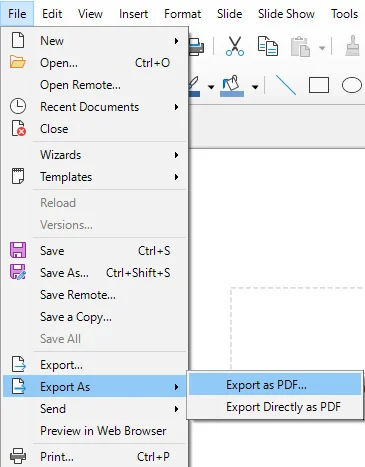
-
In the pop-up dialog, customize PDF settings like image compression, watermarks, and page range.
-
Click Export, choose a destination folder, and hit Save.
Pro Tips:
- Use File > Export As > Export Directly as PDF for faster conversion if no customization is needed.
- This method works identically on Windows, macOS, and Linux.
When to Use:
Best for cases where layout accuracy is critical, such as business presentations, reports, or client-facing documents.
Method 2 - Export ODP as PDF with Microsoft PowerPoint (Office-Based Conversion)
If you're an Office user, Microsoft PowerPoint provides an easy solution to export ODP files to PDFs. This method is available in PowerPoint 2010 and newer versions, as well as Microsoft PowerPoint 365. It’s a great choice for those who frequently use PowerPoint and want to convert ODP files without external tools.
Steps:
-
Launch Microsoft PowerPoint, go to File > Open, and select your .odp file.
- Pro Tip: If the file is not visible, toggle the file type filter to All Files.
-
Go to File > Export > Create PDF/XPS Document.
- Alternative: Press F12, then select PDF (*.pdf) for a faster save.
-
Click the Options... button to configure settings like:
- Include non-printing information (preserve document properties or structure tags)
- Bitmap text when fonts may not be embedded (this ensures the PDF looks consistent on all devices).
-
Choose the destination folder and click Publish to export your presentation as a PDF.
Tips and Notes:
- Advanced styles or specific ODF-only shapes might require minor manual adjustment after opening in PowerPoint.
- PowerPoint 2024 and Microsoft 365 support ODF 1.4, while PowerPoint 2013–2019 supports ODF 1.2. Older versions such as PowerPoint 2010 only support ODF 1.1, which offers limited compatibility with newer ODP files.
When to Use:
When you prefer the PowerPoint interface for conversion and don't need perfect layout accuracy.
Want to convert ODP to PPTX? Read our conversion guide.
Method 3 - Convert ODP to PDF Using Online Tools (No Installation Required)
For users who want a software-free solution, online ODP-to-PDF converters are a quick and convenient option. They work across devices and require no setup.
Recommended Online Converters:
- CloudConvert - Supports ODP to PDF conversion along with a wide range of other file formats. Offers customization options like page range and password encryption.
- Google Slides - A cloud-based platform that can open ODP files and export them as PDFs, maintaining most layout and font formatting.
- Zamzar - A user-friendly online converter that easily converts presentations, including ODP files, into PDFs. No installation required.
Steps to Convert ODP to PDF Online:
-
Go to the website of your chosen online converter (e.g., CloudConvert).
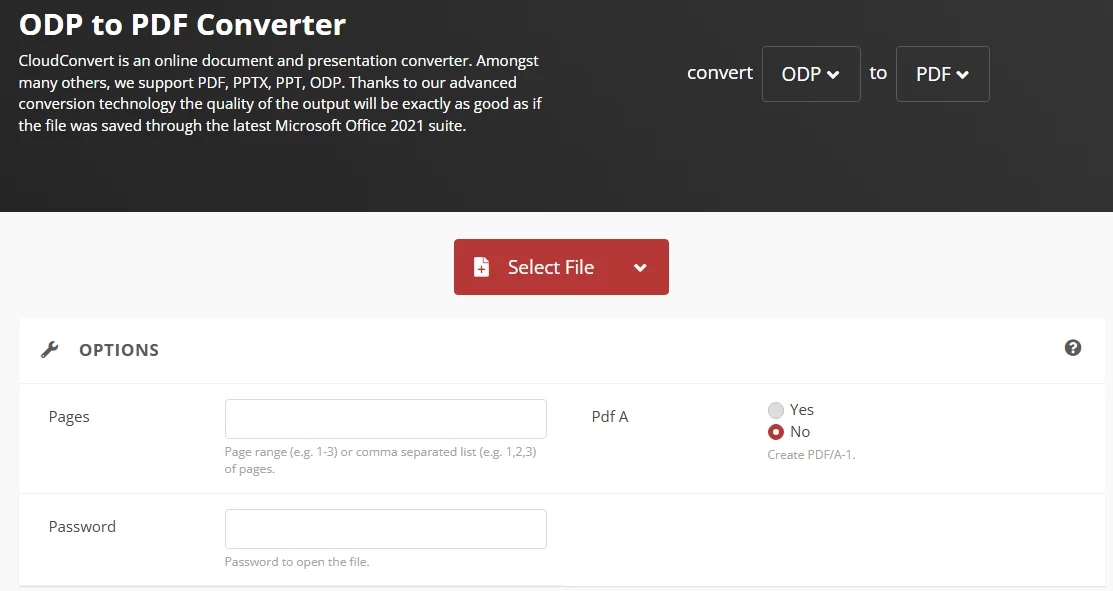
-
Upload your ODP file.
-
Select PDF as the output format.
-
Click Convert and wait for the process to complete.
-
Download your converted PDF once the process finishes.
Security Warning and Tips:
- While convenient, online tools are not ideal for sensitive or proprietary content. Always verify the privacy policies of the platform before uploading your files.
- Some online converters have file size limits (usually 50-100M). If necessary, split large PowerPoint presentations before uploading.
When to Use:
Ideal for quick, occasional conversions, especially when you're on the go and need to convert files from any device.
Method 4 - Automate ODP File to PDF Conversion with Command-Line Tools
For users who want to automate ODP to PDF conversion in scripts or scheduled workflows, LibreOffice provides a command-line interface that runs in headless mode. This allows the conversion process to run in the background without opening the application, making it suitable for integration into automated systems and scheduled tasks.
Steps:
-
Install LibreOffice:
Ensure LibreOffice is installed and accessible from the command line.
-
Open Terminal / Command Prompt:
Navigate to the folder where your ODP file is located.
-
Run the conversion command:
Use LibreOffice in headless mode to convert your ODP file:
soffice --headless --convert-to pdf "yourfile.odp" -
Integrate into automation scripts:
You can include this command in Bash scripts, PowerShell scripts, or scheduled tasks to trigger conversion automatically based on time or system events. -
Verify the PDF output:
After execution, check the generated PDF to ensure formatting and layout are preserved correctly.
When to Use:
Ideal for developers and IT professionals who need automated conversion in script-based or scheduled environments.
Method 5 - Batch Convert ODP to PDF Using C# (Developer Solution)
For developers and technical teams managing large volumes of ODP files, manual conversion is inefficient. Using C# with an independent presentation library like Spire.Presentation for .NET, you can handle bulk ODP to PDF conversions quickly and seamlessly without installing LibreOffice or PowerPoint.
Steps:
-
Install Spire.Presentation for .NET:
Install Spire.Presentation from NuGet via the following command, or download it from the official website.
Install-Package Spire.Presentation -
Write C# Code for Batch Conversion:
Below is an example of how to batch convert multiple ODP files to PDFs in one go:
using Spire.Presentation;
using System.IO;

class Program
{
    static void Main()
    {
        string[] files = Directory.GetFiles(@"C:\Path\To\ODP_Folder", "*.odp"); // Replace the path with your folder path
        foreach (string file in files)
        {
            Presentation presentation = new Presentation();
            presentation.LoadFromFile(file);
            string pdfOutput = Path.ChangeExtension(file, ".pdf");
            presentation.SaveToFile(pdfOutput, FileFormat.PDF);
        }
    }
}
This script processes all ODP files in the specified folder and save them as PDFs under the same folder. Just place your ODP files in one directory, and the program will handle the conversion.
Output:
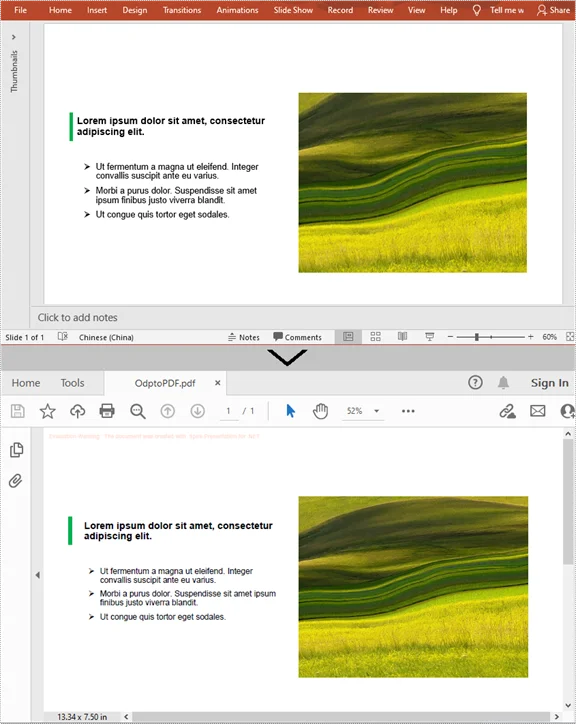
Tip:
You can further customize the script to include error handling, logging, or additional file processing as needed.
When to Use:
Ideal for developers or teams needing to perform bulk ODP-to-PDF conversions, especially when handling large volumes of files on a server.
Comparison of All ODP to PDF Methods
| Method | Best For | Ease of Use | Accuracy | Automation |
|---|---|---|---|---|
| LibreOffice/OpenOffice | High-quality conversion | Easy | ★★★★★ | Low |
| PowerPoint | Office users | Easy | ★★★☆ | Low |
| Online Tools | Quick conversion | Very easy | ★★★ | None |
| Command Line Tools | Power users | Medium | ★★★★ | High |
| C# Automation | Developers / batch processing | Advanced | ★★★★ | Very High |
Which method should you choose?
Choose the right ODP to PDF method according to your needs and workflow:
- For accuracy, desktop applications like LibreOffice are ideal.
- For quick usage, online tools are sufficient.
- For automation or bulk processing, command-line and C# solutions provide the most flexibility.
Tips for Better ODP to PDF Conversion
- Test the output on different devices to ensure layout integrity.
- Avoid overly complex animations if aiming for universal compatibility.
- For automation, validate input files to prevent crashes during batch processing.
- Delete uploaded files from online services after download to maintain security.
Common Conversion Issues & Solutions
- Fonts Not Displaying Correctly: Embed or outline fonts in LibreOffice/OpenOffice. In PowerPoint, enable "Bitmap text when fonts may not be embedded."
- Large File Sizes After Conversion: Use image compression during export or configure compression settings in online converters.
- PDF Layout Shifts: Use native ODP converters (LibreOffice/OpenOffice) and avoid advanced animations or ODF-only shapes in PowerPoint.
- Unable to Open ODP File in PowerPoint: Ensure your PowerPoint version supports ODP 1.4+. Otherwise, save as PPTX in LibreOffice/OpenOffice first.
- Batch Conversion Fails or Skips Files: Check file paths and extensions. Include error handling in scripts.
- Online Converter Upload Fails: Split large files or use a desktop tool. Ensure stable internet connection.
Frequently Asked Questions
Q1: Can I convert ODP to PDF for free?
A1: Yes, online converters like CloudConvert, Zamzar, and Online2PDF offer free services to convert ODP files to PDF. However, some free tools may have file size limitations.
Q2: Will animations or transitions be preserved when converting ODP to PDF?
A2: No. PDF format doesn't support animations. Use notes or video exports if animations are important.
Q3: Can I convert multiple ODP files to PDF at once?
A3: Yes. For bulk conversion, use C# automation. Online converters generally only support one file at a time or limit batch sizes.
Q4: Why do some ODP elements look different in PowerPoint?
A4: PowerPoint does not fully support all OpenDocument-specific features, such as custom shapes or advanced styles. Use LibreOffice/OpenOffice for the most accurate conversion.
Q5: How can I reduce PDF size during conversion?
A5: Reduce image resolution, remove unnecessary objects, or enable compression options in the PDF export dialog. Some online converters also provide PDF optimization settings.
See Also
How to Remove Background in PowerPoint: 5 Easy Ways
Table of Contents
- Quick Answer: How to Remove Background in PowerPoint
- Method 1. Remove Background from PowerPoint Slide (Format Background)
- Method 2. Delete Background from All PowerPoint Slides Quickly (Slide Master)
- Method 3. Remove Image Background in PowerPoint (Remove Background Tool)
- Method 4. Clear Background in PowerPoint Automatically with VBA
- Method 5. Batch Remove Background in PowerPoint with Python
- Comparison: Which Method Should You Choose?
- Why Remove Background in PowerPoint
- Common Background Removal Issues and Solutions
- FAQs: How to Remove Background in PowerPoint
Cluttered or distracting backgrounds in PowerPoint can sometimes make your presentations look unprofessional, hard to read, and reduce audience engagement. Learning how to remove background in PowerPoint helps you quickly clean up slides, improve readability, and maintain a consistent, professional look.
In this guide, we'll show you 5 practical methods to remove background in PowerPoint - covering single slides, images, entire presentations, and even multiple files-so you can create clean, polished slides more efficiently.
Contents Overview
- Quick Answer: How to Remove Background in PowerPoint
- Method 1. Remove Background from PowerPoint Slide (Format Background)
- Method 2. Delete Background from All PowerPoint Slides Quickly (Slide Master)
- Method 3. Remove Image Background in PowerPoint (Remove Background Tool)
- Method 4. Clear Background in PowerPoint Automatically with VBA
- Method 5. Batch Remove Background in PowerPoint with Python
- Comparison: Which Method Should You Choose?
- Why Remove Background in PowerPoint
- Common Background Removal Issues and Solutions
- FAQs: How to Remove Background in PowerPoint
Quick Answer: How to Remove Background in PowerPoint
If you want to remove background in PowerPoint quickly, here are the easiest methods:
- Use Format Background - best for single slides.
- Use Slide Master - best for all slides.
- Use Remove Background - best for images.
Keep reading for step-by-step instructions and advanced methods like VBA and Python.
Method 1. Remove Background from PowerPoint Slide (Format Background)
If you want to remove the background from a slide quickly, the Format Background feature is the most straightforward option. It allows you to clear the existing background without affecting text or other elements. This method works best when you need to clean up one or a few slides.
Steps:
-
Select the slide you want to remove background from.
-
Go to the Design tab and click Format Background (or right-click the slide and choose Format Background).

-
In the Format Background pane, select Solid fill.
-
Click the Color button and choose white color from the dropdown. The background is now removed from the selected slides.
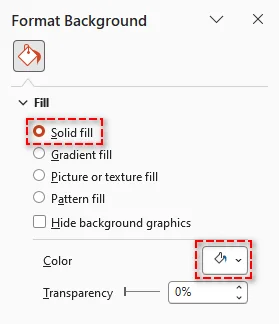
Pro Tip: If you want this change to apply to all slides in your presentation, click Apply to All at the bottom of the Format Background pane.
When to use: Use it when you only need to clean up individual slides without affecting the rest of the presentation.
If you want to change or customize backgrounds instead of removing them, see our guide on changing PowerPoint slide backgrounds.
Method 2. Delete Background from All PowerPoint Slides Quickly (Slide Master)
When you need to remove background from all slides in PowerPoint, using Slide Master is the most efficient approach. It lets you clear background settings across multiple slides at once from a single place. This method is ideal for eliminating unwanted backgrounds while keeping slides consistent without editing them one by one.
Steps:
-
Navigate to the View tab and select Slide Master in the Master Views group.
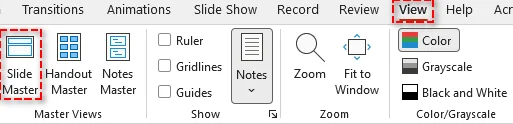
-
In the left pane, choose the master slide or specific layout you want to edit.
-
In the Background group, click Background Styles > Format Background.
-
In the Format Background pane, select Solid fill and choose white color from the color picker.
-
Click Close Slide Master to apply the changes to all related slides.
Tip: If you have multiple layouts using the same background, be sure to update each layout in the Slide Master.
When to use: Use it for applying consistent background removal across an entire presentation.
Troubleshooting Stubborn Backgrounds
If background elements still appear after removal, they are usually part of the slide theme or stored in the Slide Master. Use the methods below to hide or remove them.
1. Hide Theme Background Graphics
-
Open the Format Background pane.
-
Check the Hide background graphics box to hide theme-based elements such as decorative lines, shapes, or logos.
Note: This only hides elements inherited from the Slide Master. It does not remove images or objects that were manually added to the slide.
2. Remove Background Elements via Slide Master
- Go to the View tab and select Slide Master.
- In the left pane, select the top (parent) master slide or specific layout.
- Click the background graphic or logo you want to remove and press Delete.
- Click Close Master View to apply the changes.
Method 3. Remove Image Background in PowerPoint (Remove Background Tool)
If you need to remove background from an image in PowerPoint, the built-in Remove Background tool provides a quick and effective solution. It automatically detects the main subject and removes unwanted areas with minimal manual adjustment. This method is ideal for cleaning up images directly in your slides without using external tools.
Steps:
-
Select the image you want to remove the background from.
-
Go to the Picture Format tab.
-
Select Remove Background. PowerPoint will highlight the background in purple.

-
Adjust the selection using Mark Areas to Keep or Mark Areas to Remove if needed.
-
Click Keep Changes to apply the background removal.
Tips and Notes:
- This method works best when there is a clear contrast between the subject and the background.
- The Remove Background feature is available in recent desktop versions, like PowerPoint for Microsoft 365, 2024, and 2021, but may not be supported in some web versions.
- For images with a solid color background, go to Picture Format > Color > Set Transparent Color, then click the background to make it transparent quickly.
When to use: Use it for removing backgrounds from images while keeping the main subject.
Method 4. Clear Background in PowerPoint Automatically with VBA
If you need to perform repetitive background removal tasks, VBA offers a way to automate the process inside PowerPoint. By running a simple macro, you can update multiple slides without manual work. This method is useful for users familiar with basic scripting.
VBA Macro to Remove Backgrounds from All Slides
This script loops through each slide in the active presentation, disables the master background, and clears background elements automatically.
Sub RemoveAllBackgrounds()
    Dim sld As Slide

    ' Loop through each slide in the presentation
    For Each sld In ActivePresentation.Slides
        ' Follow Master Background: Set to False to customize
        sld.FollowMasterBackground = msoFalse

        ' Set the background fill to visible = false (Transparent/No Fill)
        sld.Background.Fill.Visible = msoFalse

        ' Alternatively, hide background graphics (like logos/themes)
        sld.DisplayMasterShapes = msoFalse
    Next sld

    MsgBox "All slide backgrounds have been removed!", vbInformation
End Sub
Key Properties Explained:
- FollowMasterBackground: Set to msoFalse to override the Slide Master background.
- DisplayMasterShapes: Hides background elements like logos or design shapes from the Slide Master.
- Background.Fill.Visible: Controls whether the background fill is visible.
How to use the script:
- Press Alt + F11 to open the VBA Editor.
- Go to Insert > Module.
- Paste the code into the module window.
- Press F5 or click the Run button to execute the macro.
Notes:
- This method does not remove images inserted as shapes. If your background is a picture object, you'll need a separate script to delete those shapes.
- Always save a copy of your presentation before running macros, as VBA actions cannot be undone.
- If macros are disabled, go to File > Options > Trust Center > Trust Center Settings > Macro Settings to enable them.
When to Use: Ideal for automating repetitive background removal tasks within PowerPoint.
Method 5. Batch Remove Background in PowerPoint with Python
For large-scale tasks involving multiple PowerPoint files, using Python can significantly improve efficiency. With the right library like Spire.Presentation for Python, you can automate background removal across presentations without opening PowerPoint manually. This method is ideal for batch processing and backend workflows.
Step-by-Step Guide:
-
Install the library via pip:
pip install spire.presentation -
Write Python Script:
The following example shows how to batch remove slide background from multiple PowerPoint .pptx files:
from spire.presentation import *
import os

# Folder containing the PPTX files to process
input_folder = "presentations"      # Folder with all the PPTX files
output_folder = "processed"         # Folder to save processed files

# Create output folder if it doesn't exist
if not os.path.exists(output_folder):
    os.makedirs(output_folder)

# Loop through all PPTX files in the input folder
for filename in os.listdir(input_folder):
    if filename.lower().endswith(".pptx"):
        input_path = os.path.join(input_folder, filename)
        output_path = os.path.join(output_folder, f"RemoveBackground_{filename}")

        # Load the presentation
        presentation = Presentation()
        presentation.LoadFromFile(input_path)

        # Loop through each slide and remove background
        for slide in presentation.Slides:
            slide.SlideBackground.Type = BackgroundType.none

        # Save the modified presentation
        presentation.SaveToFile(output_path, FileFormat.Pptx2010)
        presentation.Dispose()

        print(f"Processed: {filename} → {output_path}")

print("All presentations have been processed successfully.")
Tip: In addition to removing background from slides, you can also remove background from slide masters.
When to use: Ideal for batch processing multiple PowerPoint files efficiently.
Comparison: Which Method Should You Choose?
Choosing the right way to remove background in PowerPoint depends on how many slides you're working with and whether you need automation.
Here's a quick comparison of the five methods:
| Method | Best for | Scope | Skill Level |
|---|---|---|---|
| Format Background | Quick slide cleanup | Single / few slides | Beginner |
| Slide Master | Presentation-wide consistency | Entire presentation | Beginner |
| Remove Background (Image) | Image editing | Individual images | Beginner |
| VBA | Repetitive tasks inside PowerPoint | Multiple slides | Intermediate |
| Python | Batch processing | Multiple presentations | Advanced |
Quick Recommendation:
- For most users, Format Background and Slide Master are enough for everyday tasks.
- Use VBA if you need to automate repeated actions within PowerPoint.
- Choose Python if you need to process multiple files or build automated workflows.
Why Remove Background in PowerPoint
Removing backgrounds in PowerPoint is not just about visual cleanup-it can significantly improve how your presentation looks and performs. Here are the main benefits:
- Enhanced Visual Clarity: Remove distracting elements that compete with your content.
- Brand Consistency: Eliminate inconsistent or unwanted backgrounds.
- Improved Readability: Clear backgrounds help text stand out more clearly.
- Simplified Design: Strip away unnecessary visuals and focus on key information.
- Professional Quality: Create clean, distraction-free presentations.
Common Background Removal Issues and Solutions
- Background graphics or logos still visible - These elements are often part of the Slide Master. To remove them, go to View > Slide Master, select the parent slide or affected layouts, delete the elements, and then close Master View.
- Cannot remove background - The presentation may be protected or restricted. Check the file's editing permissions and enable editing if needed before making changes.
- Changes do not apply to all slides - Removing the background on one slide does not affect others. Use Apply to All in the Format Background pane or update the Slide Master to apply changes across the entire presentation.
FAQs: How to Remove Background in PowerPoint
Q1: Can I remove backgrounds from all slides at once?
A1: Yes, using Slide Master, VBA, or Python automation, you can remove backgrounds across an entire presentation or multiple files.
Q2: Can I remove backgrounds without PowerPoint?
A2: Yes, Python libraries like Spire.Presentation allows removal of backgrounds without Microsoft PowerPoint installed.
Q3: Will removing the background affect images or text on my slides?
A3: No, removing the slide background typically does not affect other slide content like text boxes or images. However, always create a backup before using automated tools like VBA or Python scripts to prevent accidental changes.
Q4: Is VBA safe to use for PowerPoint background removal?
A4: Yes, as long as you enable macros only from trusted sources and save a backup before running the script.
See Also
Convert Excel to Markdown: 4 Easy Methods for Any Workflow
Excel is a powerful tool for managing and analyzing data, but sharing spreadsheets in blogs, documentation, or cross-platform note-taking apps often causes formatting issues and compatibility problems. Converting Excel to Markdown preserves table structure, making your data lightweight, readable, and easy to share across platforms.
In this guide, we'll walk you through 4 practical ways to convert Excel to Markdown, including online tools, editor plugins or extensions, and Python automation. Whether you're a student, blogger, or developer, you'll find the method that fits your workflow.
Why Convert Excel to Markdown?
Converting Excel to Markdown is especially useful when you need to publish or share structured data in a clean, readable format—without relying on spreadsheet files.
Here are some common scenarios where this conversion makes sense:
- Writing technical blogs: Convert Excel tables into Markdown to embed clean, formatted tables directly into blog posts without screenshots or file downloads.
- Creating GitHub README files: Markdown tables work natively on GitHub, making it easier to present datasets, comparisons, or configurations.
- Maintaining documentation: Use Markdown tables in documentation systems or knowledge bases for consistent formatting across platforms.
- Working with version control: Markdown files can be tracked in Git, allowing teams to monitor data changes over time.
- Sharing lightweight data: Markdown is plain text, which makes it easier to share, edit, and reuse compared to Excel files.
Can You Convert Excel to Markdown Directly?
No, Microsoft Excel does not provide a built-in option to export data as Markdown format. This is because Markdown tables use a plain-text structure based on pipes (|) and separator rows, while Excel stores data in a structured spreadsheet format.
To convert Excel to Markdown, you can use one of the following methods:
- Convert Excel to Markdown Online Quickly (No Installation)
- Use Obsidian Excel to Markdown Table Plugin
- Convert Excel to Markdown in VS Code with Extensions
- Automate Excel to Markdown Conversion with Python
Now, let's break down each method step-by-step.
Method 1: Convert Excel to Markdown Online Quickly (No Installation)
One of the fastest methods to convert Excel to Markdown is to use online converters. These tools work across any platform (Windows, Mac, Linux), require no installation, and are ideal for users who want a quick, browser-based solution.
Popular Online Free Excel to Markdown Converters:
- TableConvert: Supports uploading .xlsx files or pasting Excel data, with a built-in editor for preview and edits.
- Table to Markdown: A simple interface where you paste copied Excel tables to generate a formatted Markdown table.
- CloudxDocs: Useful for converting entire Excel files into downloadable Markdown files.
Steps to Convert Excel to Markdown Online:
-
Go to the website of your chosen online converter, like TableConvert.
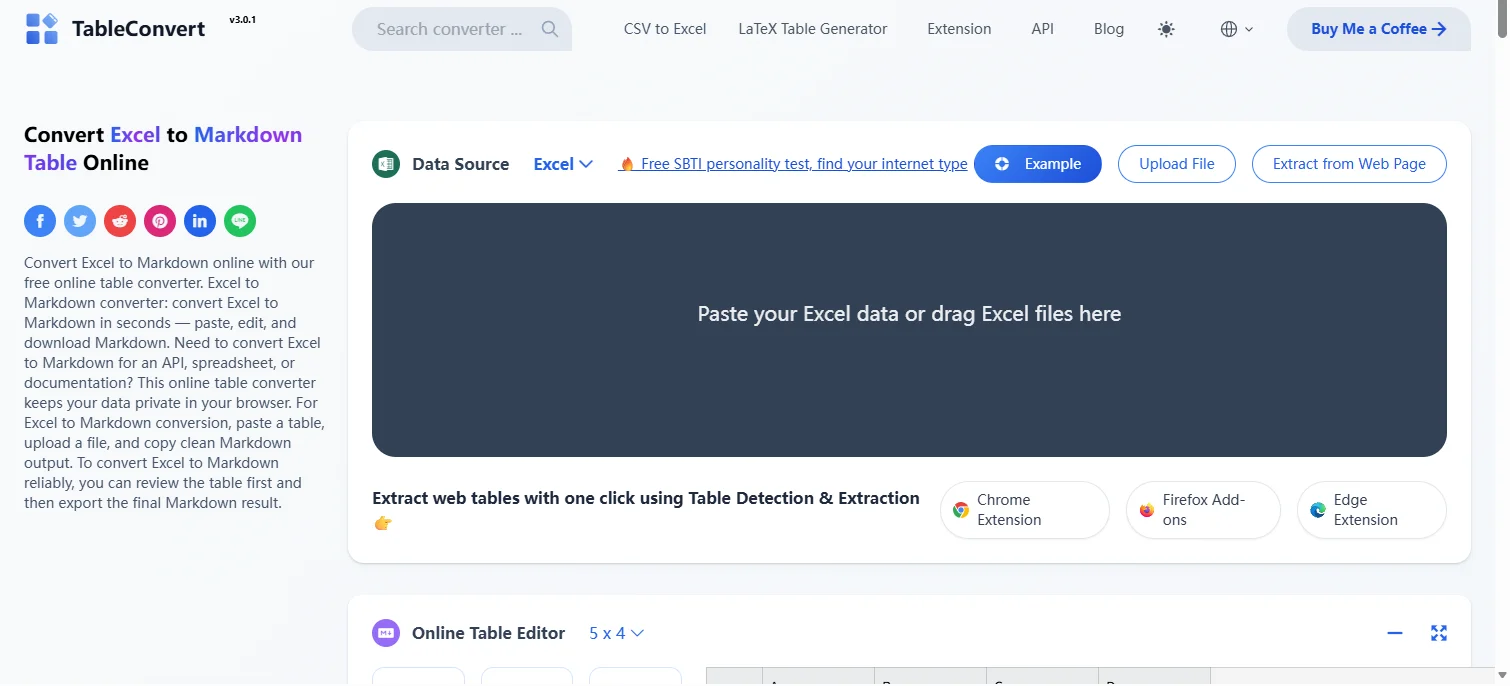
-
Drag your .xlsx file or paste your Excel data into the designated area.
-
Select Markdown as the output format. The tool will automatically convert your Excel file or data.
-
Copy the generated Markdown code and paste it into your Markdown file.
After conversion, your Excel data will appear as a Markdown table like this:
| Product | Price | Stock |
|---------|-------|-------|
| Apple | 1.2 | 50 |
| Orange | 0.8 | 100 |
Tip: Some online tools may have file size or table length limits. If necessary, you can split Excel sheets into smaller parts before uploading.
Security Warning: Online Excel to Markdown tools require uploading your data to third-party servers. Avoid using them for sensitive or confidential data—consider using an offline method instead.
When to Use: Suitable for quick, one-off conversions, especially for small tables or when no installation is preferred.
If you need to convert Markdown back to Excel, see our guide on how to convert Markdown to Excel.
Method 2: Use Obsidian Excel to Markdown Table Plugin
Obsidian is a free, cross-platform (Windows, macOS, and Linux) Markdown note-taking app. With its community plugin Excel to Markdown Table, you can quickly convert and paste Excel data as standard Markdown tables for seamless integration into your notes.
Step-by-Step Guide:
-
Download and install Obsidian from the official website for your operating system (Windows, Mac, or Linux).
-
Install the Excel to Markdown Table plugin:
- Open Obsidian and go to Settings > Community Plugins > Browse.
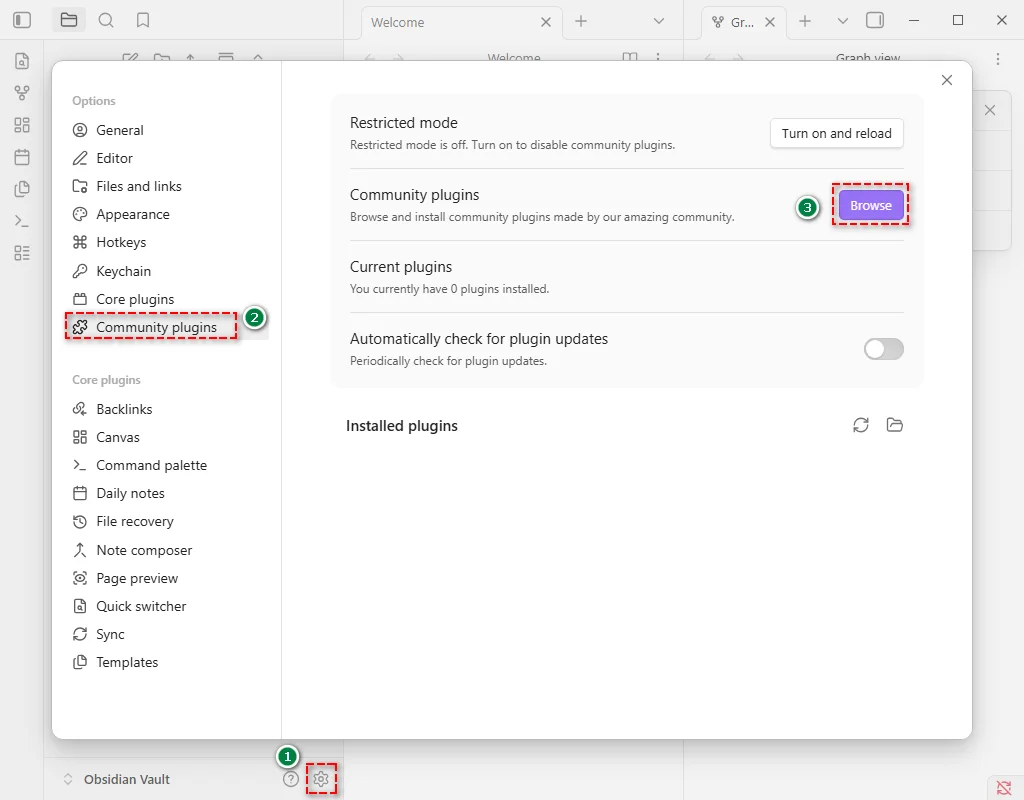
- Search for Excel to Markdown Table.
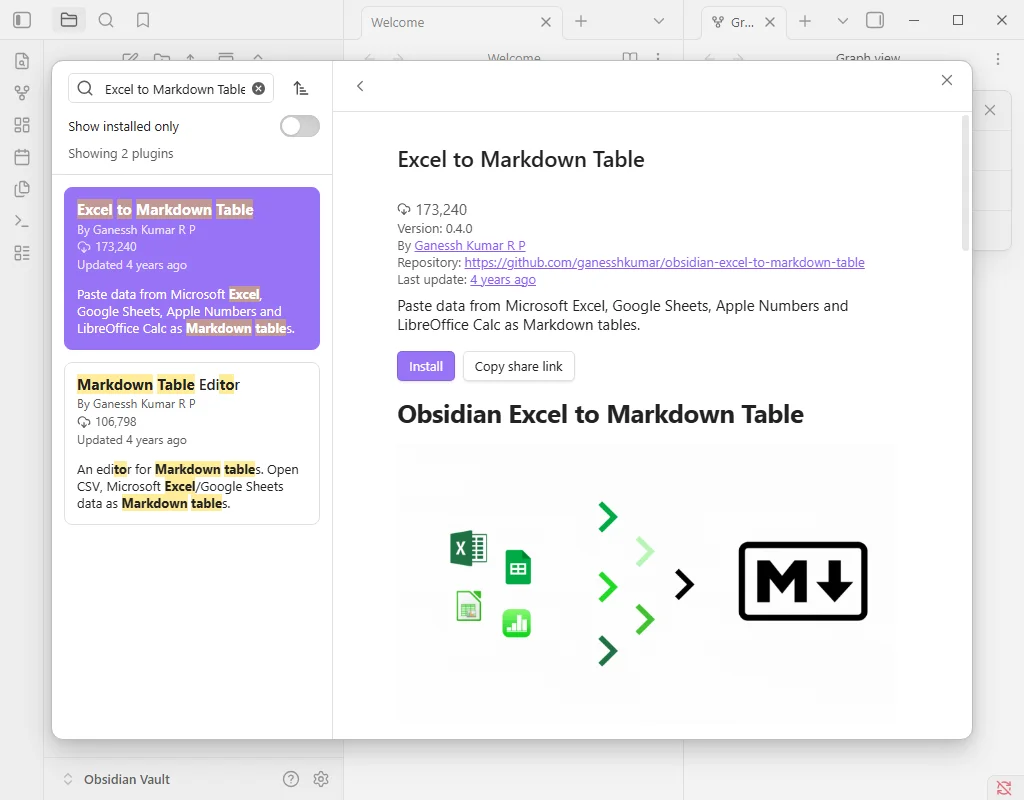
- Click Install and then Enable.
-
Copy your Excel table using Ctrl+C (Windows) or Cmd+C (Mac).
-
Paste into your Obsidian note using Ctrl+V (Windows) or Cmd+V (Mac). The plugin will automatically format it as a Markdown table.
-
Adjust alignment or formatting in Obsidian if needed.
Tips and Notes:
- This plugin focuses on converting table structures. It may not perfectly carry over complex formatting within Excel cells (like bold or italic). After conversion, verify and make manual adjustments if needed.
- Keep the plugin updated via the Obsidian community plugins directory for best performance and security.
When to Use: Ideal for embedding Excel tables directly into Markdown notes for blogs, documentation, or knowledge bases.
Method 3: Convert Excel to Markdown in VS Code with Extensions
For developers or power users using Visual Studio Code (VS Code), the Excel to Markdown Table extension provides a fast and integrated way to convert Excel data into Markdown without leaving your development environment.
Step-by-Step Instructions:
-
Open VS Code, go to Extensions (Ctrl+Shift+X), search for Excel to Markdown Table, and click Install.
-
Copy the Excel data (Ctrl+C / Cmd+C).
-
Open your .md file in VS Code and press Shift + Alt + V to paste the table in Markdown format.
-
Optional: Adjust table alignment using header prefixes:
- ^l - left align
- ^c - center align
- ^r - right align
-
Copy or use the Markdown table as needed.
Tips:
- The extension handles Excel cell line breaks by automatically inserting <br> tags into the Markdown table.
- Manual tweaks may be needed if data formatting is inconsistent.
When to Use: Ideal for developers or power users working within VS Code who want a faster, integrated workflow.
Method 4: Automate Excel to Markdown Conversion with Python
For programmers and businesses who need a fast, efficient, and batch solution, Python automation provides a scalable solution for Excel to Markdown conversion. By using libraries like Spire.XLS for Python, you can quickly transform dozens or hundreds of Excel files into clean, structured Markdown tables while preserving formatting.
Why Spire.XLS for Python
Spire.XLS is a robust Python library that simplifies Excel automation and Markdown conversion:
- Preserves formatting: Maintains text styles and links during Excel to Markdown conversion.
- Supports multiple Excel formats: Handle .xls, .xlsx, and .xlsm files seamlessly.
- Create and write Excel files easily: Create new Excel files or modify existing ones programmatically.
- Cross-platform: Works on Windows, Mac, and Linux.
- Independence: Does not require Microsoft Excel to be installed on the machine.
Installation
To get started, install Spire.XLS for Python from PyPI by running the following command:
pip install spire.xls
Python Script for Batch Excel to Markdown Conversion
Here's a simple example of how to convert multiple Excel files to Markdown tables:
import os
from spire.xls import *

# Specify input and output folder paths
input_folder = "path/to/your/excel_folder"  # Replace with your folder containing Excel files
output_folder = "path/to/output_markdown"   # Replace with your desired output folder for Markdown files

# Get all the Excel files from the input folder
excel_files = [f for f in os.listdir(input_folder) if f.endswith('.xlsx')]

# Check if the output folder exists, if not, create it
if not os.path.exists(output_folder):
    os.makedirs(output_folder)

# Process each Excel file in the folder
for file in excel_files:
    input_file_path = os.path.join(input_folder, file)

    # Create a Workbook instance and load the Excel file
    workbook = Workbook()
    workbook.LoadFromFile(input_file_path)

    # Extract the file name without extension
    file_name_without_extension = os.path.splitext(file)[0]

    # Generate the output Markdown file path
    output_file_path = os.path.join(output_folder, f"{file_name_without_extension}.md")

    # Save the Excel file as a .md file
    workbook.SaveToMarkdown(output_file_path)

    # Dispose of the workbook object to release resources
    workbook.Dispose()
    print(f"Converted {file} to {output_file_path}")
This script scans all .xlsx files in the specified input folder and saves them as Markdown files in the output folder.
Tips for Customization
-
Customizing Markdown Rendering Options:
You can customize how the Markdown file is converted by adjusting rendering options like this:
# Create MarkdownOptions markdownOptions = MarkdownOptions() # Control how images are stored markdownOptions.SavePicInRelativePath = False # Control how hyperlinks are rendered markdownOptions.SaveHyperlinkAsRef = True # Save as Markdown workbook.SaveToMarkdown(output_file_path, markdownOptions) -
Processing .xls Files:
The script can be modified to process .xls files by simply adding a check for both .xlsx and .xls extensions:
excel_files = [f for f in os.listdir(input_folder) if f.endswith(('.xlsx', '.xls'))]
When to Use: Best for developers, data engineers, or teams needing automated batch processing of multiple Excel files.
Excel to Markdown Method Comparison
To help you choose the right method for converting Excel to Markdown, here's a quick comparison of the four approaches:
| Method | Best For | Speed | Customization | Skill Level |
|---|---|---|---|---|
| Online Tools | Quick, one-off conversions | Fast | Limited | Beginner |
| Obsidian Plugin | Notes & documentation | Medium | Medium | Beginner |
| VS Code Extension | Developer workflow | Fast | Medium | Intermediate |
| Python Automation | Batch processing | Very Fast | High | Advanced |
Recommendations:
- Need a quick, no-setup solution? Online tools are the fastest option.
- For note-taking workflows, Obsidian plugin provides a smooth and intuitive experience.
- Already working in a VS Code development environment? VS Code extensions reduce friction and improve efficiency.
- For large datasets or repetitive tasks, Python automation is the most scalable approach.
In most cases, developers and teams handling frequent conversions will benefit more from automation, while casual users can rely on simpler tools.
Troubleshooting Common Excel to Markdown Issues
Even though converting Excel to Markdown is usually straightforward, you may encounter some common problems. Here are practical solutions:
| Issue | Solution |
|---|---|
| One cell turns into multiple rows | Line breaks in Excel cells are treated as new rows in Markdown. Replace them with <br> tags before converting (find Ctrl+J, replace with <br>). |
| Data shifts after conversion (columns moved) | Merged cells in Excel break the table structure. Unmerge all cells first, then fill missing values so each row is complete. |
| Empty cells show as NaN | Some converters replace empty values with NaN. Use Find & Replace after conversion to remove or replace them with blanks. |
| Extra rows or columns appear unexpectedly | Hidden rows or columns in Excel are included. Unhide or delete them before conversion. |
Pro Tip: Always preview your Markdown table after conversion to check alignment and formatting.
Frequently Asked Questions about Excel to Markdown
Q1: Can I convert Excel to Markdown for free?
A1: Yes, online tools like TableConvert allow free Excel to Markdown conversion, though they may have limitations on file size or features.
Q2: Can I convert Excel formulas to Markdown?
A2: No, Markdown only supports static values. Formulas are converted to their calculated results.
Q3: Can I convert multiple Excel files at once?
A3: Yes, you can use Python with libraries like Spire.XLS to batch convert multiple Excel files efficiently.
Q4: Can I keep images when converting Excel to Markdown?
A4: Markdown uses image links instead of embedding Excel images directly.
Q5: What is the easiest way to convert Excel to Markdown?
A5: Using an online converter is the easiest method since it requires no installation.