Come nascondere le formule di Excel: 5 modi per proteggere le formule in Excel
Indice
- Guida rapida alla selezione
- Metodo 1: Utilizzare la funzione Proteggi foglio di Excel
- Metodo 2: Convertire le formule in valori statici
- Metodo 3: Disabilitare la barra della formula
- Metodo 4: Utilizzare VBA
- Metodo 5: Utilizzare C#
- Problemi comuni e soluzioni rapide
- Conclusione
- Domande frequenti (FAQ)
- Guida rapida alla selezione
- Metodo 1: Nascondere le formule utilizzando la funzione Proteggi foglio di Excel
- Metodo 2: Convertire le formule in valori statici
- Metodo 3: Nascondere le formule disabilitando la barra della formula
- Metodo 4: Utilizzare VBA per nascondere automaticamente le formule di Excel
- Metodo 5: Nascondere le formule di Excel a livello di codice con C#
- Problemi comuni e soluzioni rapide
- Conclusione
- Domande frequenti (FAQ)
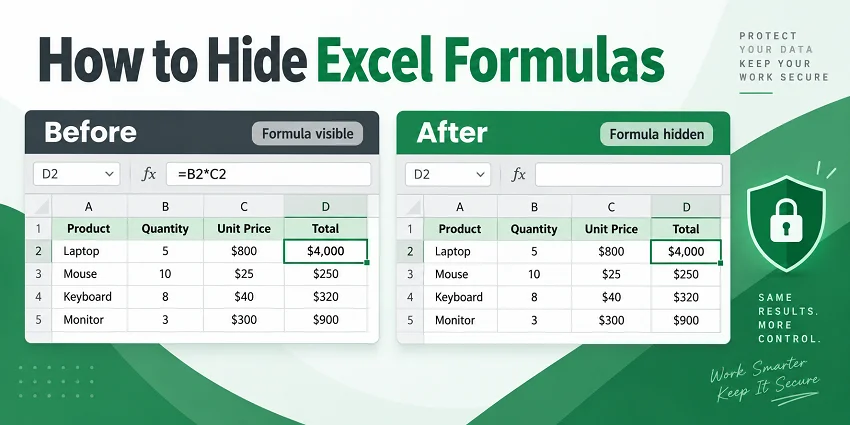
Se condividi report finanziari, modelli aziendali o fogli di analisi dei dati, potresti non volere che altri utenti visualizzino o modifichino facilmente le formule alla base dei risultati. Nascondere le formule aiuta a mantenere i calcoli sottostanti fuori dalla vista pur continuando a mostrarne i risultati.
In questo articolo imparerai cinque modi pratici per nascondere le formule di Excel, dalle opzioni integrate per rapide correzioni manuali a VBA e C# per l'elaborazione automatizzata.
Guida rapida alla selezione
Excel fornisce diversi modi per nascondere le formule a seconda del tuo obiettivo. Usa la tabella seguente per scegliere il metodo più adatto:
| Cosa vuoi fare | Metodo consigliato | Limitazione |
|---|---|---|
| Nascondi le formule ma mantieni attivi i calcoli | Proteggi foglio | Le celle di input devono essere sbloccate prima della protezione |
| Rimuovi le formule prima di condividere un file finale | Converti in valori | Le formule originali non possono essere ripristinate |
| Nascondi temporaneamente le formule durante una presentazione dal vivo | Disabilita barra della formula | Nasconde le formule solo sulla tua schermata |
| Automatizza l'occultamento o la rimozione delle formule in Excel | Macro VBA | Richiede un file abilitato alle macro (.xlsm) |
| Elabora le formule di Excel a livello di codice senza Microsoft Office | Automazione C# | Richiede conoscenze di programmazione |
Metodo 1: Nascondere le formule utilizzando la funzione Proteggi foglio di Excel
Ideale per: fogli di lavoro in cui gli utenti devono inserire dati, ma vuoi impedire loro di visualizzare le formule sottostanti o modificare le celle delle formule.
Istruzioni passo passo
Seleziona le celle delle formule che vuoi nascondere.
Consiglio da professionista: premi Ctrl + G > Speciale > seleziona Formule > OK per selezionare istantaneamente tutte le celle delle formule.Vai su Home > Formato > Formato celle o premi Ctrl + 1 per aprire Formato celle.
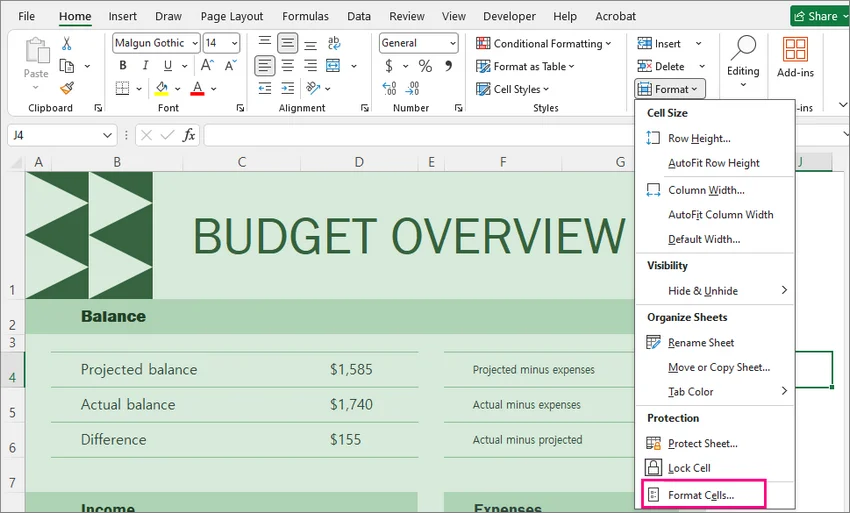
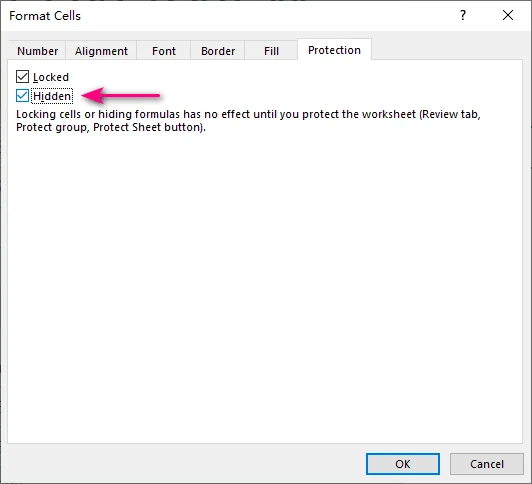
Nella scheda Protezione, seleziona Nascosta, quindi fai clic su OK.
Vai su Revisione > Proteggi foglio, imposta una password (facoltativo) e fai clic su OK.
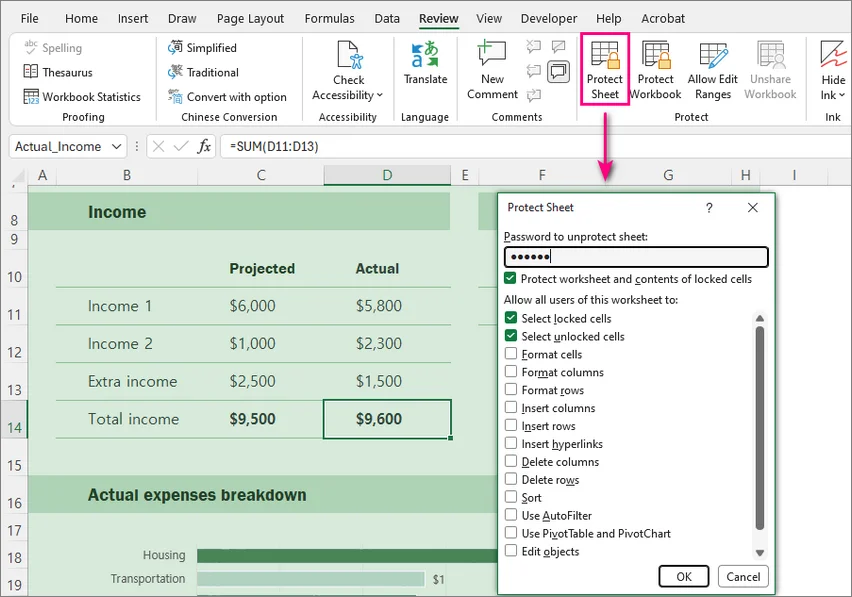
Una volta protetto il foglio, i valori calcolati rimangono visibili, ma la barra della formula è vuota quando viene selezionata una cella con formula nascosta.
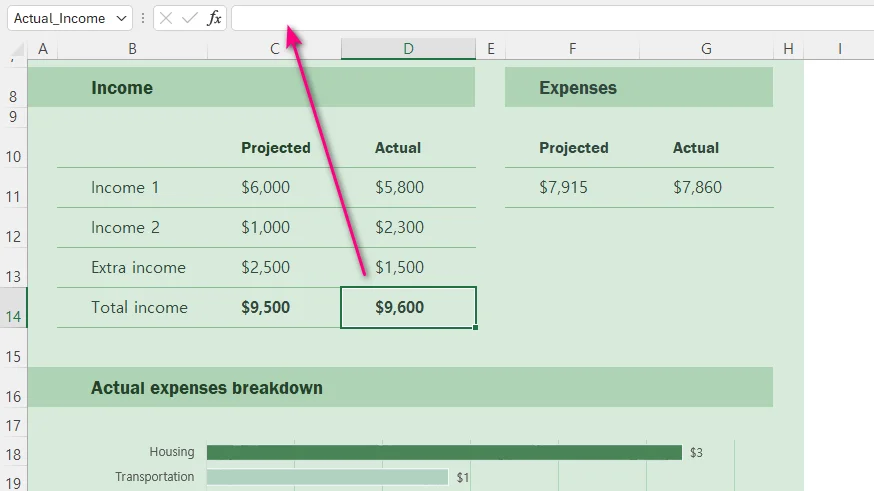
⚠️ Nota:
Proteggere un foglio in Excel blocca tutte le celle per impostazione predefinita. Se i tuoi clienti devono inserire dati in celle specifiche non di formula, seleziona quelle celle di input prima di proteggere il foglio, quindi premi Ctrl + 1 per aprire Formato celle, passa alla scheda Protezione e deseleziona Bloccata.
La protezione del foglio di lavoro è intesa a controllare la modifica del foglio e la visibilità delle formule, piuttosto che fornire una forte crittografia del file.
Metodo 2: Convertire le formule in valori statici
Ideale per: report finalizzati in cui i calcoli sono completi e gli utenti non hanno più bisogno di aggiornamenti dinamici in tempo reale.
Istruzioni passo passo
Seleziona le celle delle formule che vuoi convertire.
Copia le celle premendo Ctrl + C.
Fai clic con il pulsante destro del mouse sulla stessa area selezionata.
In Opzioni incolla, seleziona l'icona Valori (sembra un blocco appunti con 123).
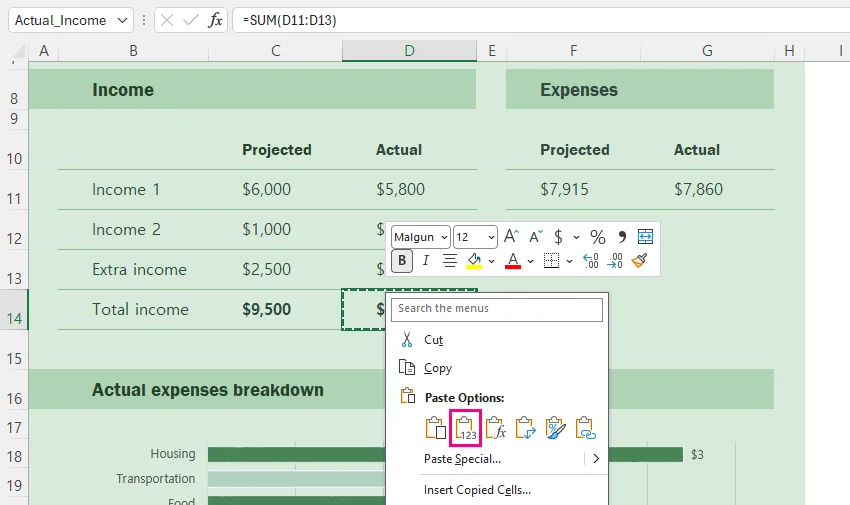
Puoi anche usare la scorciatoia da tastiera:
Ctrl + C > Ctrl + Alt + V > V > Enter
Dopo la conversione, i risultati visualizzati rimangono gli stessi, ma le formule vengono rimosse.
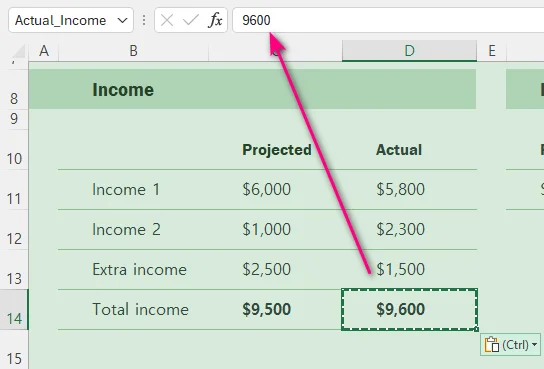
⚠️ Nota: Questo metodo elimina definitivamente le formule dalle celle selezionate e lascia solo i loro valori correnti. Se la cartella di lavoro potrebbe dover essere ricalcolata in seguito, conserva una copia originale prima di sostituire le formule.
Metodo 3: Nascondere le formule disabilitando la barra della formula
Ideale per: nascondere temporaneamente le stringhe delle formule alla vista durante condivisioni dello schermo, presentazioni dal vivo o registrazioni video senza modificare la protezione del foglio o le proprietà delle celle.
Passaggi
Fai clic sulla scheda Visualizza nella barra multifunzione superiore.
Deseleziona Barra della formula.
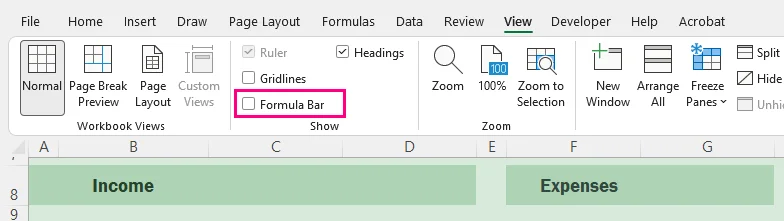
Nota che questo in realtà non nasconde le formule memorizzate nella cartella di lavoro. Cambia solo l'interfaccia di Excel sul tuo computer. Se condividi la cartella di lavoro, altri utenti possono ancora visualizzare le formule abilitando di nuovo la barra della formula.
Metodo 4: Utilizzare VBA per nascondere automaticamente le formule di Excel
Ideale per: automatizzare le attività di occultamento o rimozione delle formule direttamente in Excel senza aggiornare manualmente ogni foglio di lavoro.
Passaggi di configurazione
Premi Alt + F11 per aprire l'editor VBA.
Fai clic su Inserisci > Modulo nel menu in alto.
Aggiungi una delle seguenti macro nella finestra del modulo.
Premi F5 per eseguire la macro.
Salva la cartella di lavoro come cartella di lavoro abilitata alle macro (.xlsm) se devi conservare le macro.
Opzione A: Nascondere le formule e proteggere tutti i fogli di lavoro
Sub HideFormulasAllSheets()

    Dim ws As Worksheet

    For Each ws In ActiveWorkbook.Worksheets
        ws.Cells.FormulaHidden = True
        ws.Protect Password:="YourPasswordHere"
    Next ws

End Sub
Questo nasconde le formule mantenendole funzionanti.
Opzione B: Convertire le formule in valori
Poiché questa operazione non può essere annullata dopo che la cartella di lavoro è stata salvata e chiusa, lavora su una copia se potresti aver bisogno delle formule originali in seguito.
Sub ConvertFormulasToValues()

    Dim ws As Worksheet

    For Each ws In ActiveWorkbook.Worksheets
        ws.UsedRange.Value = ws.UsedRange.Value
    Next ws

End Sub
Questo sostituisce definitivamente le formule con i loro valori calcolati.
Metodo 5: Nascondere le formule di Excel a livello di codice con C#
Ideale per: sviluppatori che devono automatizzare l'occultamento, la rimozione o l'elaborazione delle formule di Excel senza installare Microsoft Office.
Prerequisiti
Gli esempi seguenti utilizzano Free Spire.XLS for .NET per manipolare le cartelle di lavoro Excel a livello di codice senza affidarsi a Microsoft Office o Excel Interop.
Installa il pacchetto tramite la console di Gestione pacchetti NuGet prima di eseguire gli esempi:
Install-Package FreeSpire.XLS
Opzione A: Nascondere le formule e proteggere i fogli di lavoro
L'esempio seguente mostra come nascondere le formule e proteggere i fogli di lavoro in C#:
using Spire.Xls;

namespace HideFormulas
{
    class Program
    {
        static void Main(string[] args)
        {
            using (Workbook workbook = new Workbook())
            {
                workbook.LoadFromFile("Report.xlsx");

                foreach (Worksheet sheet in workbook.Worksheets)
                {
                    sheet.AllocatedRange.IsFormulaHidden = true;
                    sheet.Protect("YourPassword");
                }

                workbook.SaveToFile("Report_Protected.xlsx", ExcelVersion.Version2016);
            }
        }
    }
}
Opzione B: Sostituire le formule con valori calcolati
L'esempio seguente mostra come rimuovere le formule mantenendo i valori calcolati in C#:
using System;
using Spire.Xls;

namespace ReplaceFormulas
{
    class Program
    {
        static void Main(string[] args)
        {
            using (Workbook workbook = new Workbook())
            {
                workbook.LoadFromFile("FinancialModel.xlsx");

                // Recalculate all formulas before replacing them with static values
                workbook.CalculateAllValue();

                foreach (Worksheet sheet in workbook.Worksheets)
                {
                    foreach (CellRange cell in sheet.AllocatedRange)
                    {
                        if (cell.HasFormula)
                        {
                            // Store the calculated result
                            Object value = cell.FormulaValue;
                            // Remove the formula while preserving formatting
                            cell.Clear(ExcelClearOptions.ClearContent);
                            // Write the calculated value back to the cell
                            cell.Value2 = value;
                        }
                    }
                }

                workbook.SaveToFile("FinancialModel_Flattened.xlsx", ExcelVersion.Version2016);
            }
        }
    }
}
Nota: La versione gratuita può essere utilizzata per scenari di elaborazione Excel di base. Per funzionalità avanzate come convertire grandi cartelle di lavoro Excel in PDF, consulta il pacchetto completo Spire.XLS.
Problemi comuni e soluzioni rapide
La casella Nascosta è selezionata, ma le formule sono ancora visibili:
Vai su Revisione > Proteggi foglio. La proprietà Nascosta non ha effetto finché la protezione del foglio non è attivamente abilitata.Gli utenti non possono inserire dati dopo aver protetto il foglio:
Rimuovi la protezione del foglio tramite Revisione > Rimuovi protezione foglio, seleziona le celle di input, premi Ctrl + 1 per aprire Formato celle > Protezione e deseleziona Bloccata. Se il pulsante Rimuovi protezione foglio non è disponibile, disattiva la funzione Cartella di lavoro condivisa.Le formule sono ancora visibili dopo aver condiviso la cartella di lavoro:
Nascondere la barra della formula modifica solo le impostazioni di visualizzazione locali. Proteggi il foglio o converti le formule in valori statici prima di condividere esternamente.
Riepilogo
Nascondere le formule in Excel ti consente di visualizzare i risultati calcolati mantenendo la logica sottostante nascosta dalla barra della formula.
Ricorda che la proprietà Nascosta della cella ha effetto solo dopo che la protezione del foglio di lavoro è abilitata. Se le formule non sono più necessarie, possono invece essere convertite in valori statici.
Per l'elaborazione ripetuta su più fogli di lavoro o file, le stesse attività possono essere automatizzate con VBA o C#.
Domande frequenti (FAQ)
D: Nascondere le formule influirà sui calcoli di Excel?
R: No. Le formule nascoste continuano a funzionare normalmente in background. Excel calcolerà comunque le equazioni, aggiornerà i risultati e visualizzerà i valori aggiornati quando le celle di input cambiano.
D: Come posso mostrare di nuovo le formule nascoste in Excel?
R: Per ripristinare la visibilità delle formule:
Vai alla scheda Revisione nella barra multifunzione superiore.
Seleziona Rimuovi protezione foglio e inserisci la password se richiesto.
Seleziona le celle delle formule e premi Ctrl + 1 per aprire Formato celle.
Vai alla scheda Protezione, deseleziona la casella Nascosta e fai clic su OK.
D: Posso nascondere le formule senza proteggere un foglio di lavoro?
R: Non con l'impostazione Nascosta a livello di cella di Excel. La proprietà Nascosta ha effetto solo dopo che la protezione del foglio di lavoro è abilitata. Puoi nascondere la barra della formula senza proteggere il foglio, ma questo cambia solo l'interfaccia locale di Excel e non protegge le formule.
D: Le formule di Excel possono essere nascoste senza rimuoverle?
R: Sì. Le formule di Excel possono essere nascoste senza rimuovere la loro funzionalità. Il metodo più comune è usare Proteggi foglio con l'opzione Nascosta abilitata. Se devi rimuovere permanentemente le formule, puoi invece convertirle in valori statici.
Comment masquer les formules Excel : 5 méthodes pour protéger les formules dans Excel
Table des matières
- Guide de sélection rapide
- Méthode 1 : Utiliser la fonction Protéger la feuille d’Excel
- Méthode 2 : Convertir les formules en valeurs statiques
- Méthode 3 : Désactiver la barre de formule
- Méthode 4 : Utiliser VBA
- Méthode 5 : Utiliser C#
- Problèmes courants et correctifs rapides
- Conclusion
- Questions fréquentes (FAQ)
- Guide de sélection rapide
- Méthode 1 : Masquer les formules à l’aide de la fonction Protéger la feuille d’Excel
- Méthode 2 : Convertir les formules en valeurs statiques
- Méthode 3 : Masquer les formules en désactivant la barre de formule
- Méthode 4 : Utiliser VBA pour masquer automatiquement les formules Excel
- Méthode 5 : Masquer les formules Excel par programmation avec C#
- Problèmes courants et correctifs rapides
- Conclusion
- Questions fréquentes (FAQ)
Si vous partagez des rapports financiers, des modèles d’entreprise ou des feuilles de calcul d’analyse de données, vous ne souhaitez peut-être pas que d’autres utilisateurs puissent facilement consulter ou modifier les formules à l’origine des résultats. Le masquage des formules permet de garder les calculs sous-jacents hors de vue tout en affichant leurs résultats.
Dans cet article, vous découvrirez cinq méthodes pratiques pour masquer les formules Excel, des options intégrées pour des corrections manuelles rapides à VBA et C# pour un traitement automatisé.
Guide de sélection rapide
Excel propose plusieurs façons de masquer les formules selon votre objectif. Utilisez le tableau ci-dessous pour choisir la méthode la plus appropriée :
| Ce que vous voulez faire | Méthode recommandée | Limitation |
|---|---|---|
| Masquer les formules tout en conservant le fonctionnement des calculs | Protéger la feuille | Les cellules de saisie doivent être déverrouillées avant la protection |
| Supprimer les formules avant de partager un fichier final | Convertir en valeurs | Les formules d’origine ne peuvent pas être restaurées |
| Masquer temporairement les formules pendant une présentation en direct | Désactiver la barre de formule | Masque uniquement les formules sur votre écran |
| Automatiser le masquage ou la suppression des formules dans Excel | Macro VBA | Nécessite un fichier prenant en charge les macros (.xlsm) |
| Traiter les formules Excel par programmation sans Microsoft Office | Automatisation C# | Nécessite des connaissances en programmation |
Méthode 1 : Masquer les formules à l’aide de la fonction Protéger la feuille d’Excel
Idéal pour : les feuilles de calcul dans lesquelles les utilisateurs doivent saisir des données, mais dont vous souhaitez les empêcher de consulter les formules sous-jacentes ou de modifier les cellules contenant des formules.
Instructions étape par étape
Sélectionnez les cellules de formule que vous souhaitez masquer.
Astuce de pro : appuyez sur Ctrl + G > Spécial > cochez Formules > OK pour sélectionner instantanément toutes les cellules de formule.Accédez à Accueil > Format > Format de cellule ou appuyez sur Ctrl + 1 pour ouvrir Format de cellule.
Sous l’onglet Protection, cochez Masqué, puis cliquez sur OK.
Accédez à Révision > Protéger la feuille, définissez un mot de passe (facultatif), puis cliquez sur OK.
Une fois la feuille protégée, les valeurs calculées restent visibles, mais la barre de formule est vide lorsqu’une cellule de formule masquée est sélectionnée.
⚠️ Remarque :
Protéger une feuille dans Excel verrouille toutes les cellules par défaut. Si vos clients doivent saisir des données dans des cellules spécifiques sans formule, sélectionnez ces cellules de saisie avant de protéger la feuille, puis appuyez sur Ctrl + 1 pour ouvrir Format de cellule, passez à l’onglet Protection et décochez Verrouillé.
La protection d’une feuille de calcul est destinée à contrôler la modification de la feuille et la visibilité des formules, plutôt qu’à fournir un chiffrement fort du fichier.
Méthode 2 : Convertir les formules en valeurs statiques
Idéal pour : les rapports finalisés dont les calculs sont terminés et pour lesquels les utilisateurs n’ont plus besoin de mises à jour dynamiques en direct.
Instructions étape par étape
Sélectionnez les cellules de formule que vous souhaitez convertir.
Copiez les cellules en appuyant sur Ctrl + C.
Cliquez avec le bouton droit sur la même zone sélectionnée.
Sous Options de collage, sélectionnez l’icône Valeurs (qui ressemble à un presse-papiers avec 123).
Vous pouvez également utiliser le raccourci clavier :
Ctrl + C > Ctrl + Alt + V > V > Entrée
Après la conversion, les résultats affichés restent identiques, mais les formules sont supprimées.
⚠️ Remarque : Cette méthode supprime définitivement les formules des cellules sélectionnées et ne conserve que leurs valeurs actuelles. Si le classeur peut nécessiter un nouveau calcul ultérieur, conservez une copie originale avant de remplacer les formules.
Méthode 3 : Masquer les formules en désactivant la barre de formule
Idéal pour : masquer temporairement les chaînes de formule pendant des partages d’écran, des présentations en direct ou des enregistrements vidéo, sans modifier la protection de la feuille ni les propriétés des cellules.
Étapes
Cliquez sur l’onglet Affichage du ruban supérieur.
Décochez Barre de formule.
Notez que cela ne masque pas réellement les formules stockées dans le classeur. Cela modifie uniquement l’interface Excel sur votre ordinateur. Si vous partagez le classeur, les autres utilisateurs peuvent toujours consulter les formules en réactivant la barre de formule.
Méthode 4 : Utiliser VBA pour masquer automatiquement les formules Excel
Idéal pour : automatiser les tâches de masquage ou de suppression de formules directement dans Excel, sans mettre à jour manuellement chaque feuille de calcul.
Étapes de configuration
Appuyez sur Alt + F11 pour ouvrir l’éditeur VBA.
Cliquez sur Insertion > Module dans le menu supérieur.
Ajoutez l’une des macros suivantes dans la fenêtre du module.
Appuyez sur F5 pour exécuter la macro.
Enregistrez le classeur au format Classeur prenant en charge les macros (.xlsm) si vous devez conserver les macros.
Option A : Masquer les formules et protéger toutes les feuilles de calcul
Sub HideFormulasAllSheets()

    Dim ws As Worksheet

    For Each ws In ActiveWorkbook.Worksheets
        ws.Cells.FormulaHidden = True
        ws.Protect Password:="YourPasswordHere"
    Next ws

End Sub
Cela masque les formules tout en les gardant fonctionnelles.
Option B : Convertir les formules en valeurs
Comme cette opération ne peut pas être annulée après l’enregistrement et la fermeture du classeur, travaillez sur une copie si vous risquez d’avoir besoin des formules d’origine plus tard.
Sub ConvertFormulasToValues()

    Dim ws As Worksheet

    For Each ws In ActiveWorkbook.Worksheets
        ws.UsedRange.Value = ws.UsedRange.Value
    Next ws

End Sub
Cela remplace définitivement les formules par leurs valeurs calculées.
Méthode 5 : Masquer les formules Excel par programmation avec C#
Idéal pour : les développeurs qui doivent automatiser le masquage, la suppression ou le traitement de formules Excel sans installer Microsoft Office.
Prérequis
Les exemples suivants utilisent Free Spire.XLS for .NET pour manipuler des classeurs Excel par programmation sans dépendre de Microsoft Office ni d’Excel Interop.
Installez le package via la console du gestionnaire de packages NuGet avant d’exécuter les exemples :
Install-Package FreeSpire.XLS
Option A : Masquer les formules et protéger les feuilles de calcul
L’exemple suivant montre comment masquer les formules et protéger les feuilles de calcul en C# :
using Spire.Xls;

namespace HideFormulas
{
    class Program
    {
        static void Main(string[] args)
        {
            using (Workbook workbook = new Workbook())
            {
                workbook.LoadFromFile("Report.xlsx");

                foreach (Worksheet sheet in workbook.Worksheets)
                {
                    sheet.AllocatedRange.IsFormulaHidden = true;
                    sheet.Protect("YourPassword");
                }

                workbook.SaveToFile("Report_Protected.xlsx", ExcelVersion.Version2016);
            }
        }
    }
}
Option B : Remplacer les formules par des valeurs calculées
L’exemple suivant montre comment supprimer les formules tout en conservant les valeurs calculées en C# :
using System;
using Spire.Xls;

namespace ReplaceFormulas
{
    class Program
    {
        static void Main(string[] args)
        {
            using (Workbook workbook = new Workbook())
            {
                workbook.LoadFromFile("FinancialModel.xlsx");

                // Recalculate all formulas before replacing them with static values
                workbook.CalculateAllValue();

                foreach (Worksheet sheet in workbook.Worksheets)
                {
                    foreach (CellRange cell in sheet.AllocatedRange)
                    {
                        if (cell.HasFormula)
                        {
                            // Store the calculated result
                            Object value = cell.FormulaValue;
                            // Remove the formula while preserving formatting
                            cell.Clear(ExcelClearOptions.ClearContent);
                            // Write the calculated value back to the cell
                            cell.Value2 = value;
                        }
                    }
                }

                workbook.SaveToFile("FinancialModel_Flattened.xlsx", ExcelVersion.Version2016);
            }
        }
    }
}
Remarque : La version gratuite peut être utilisée pour des scénarios de traitement Excel de base. Pour des fonctionnalités avancées comme la conversion de grands classeurs Excel en PDF, consultez le package complet Spire.XLS.
Problèmes courants et correctifs rapides
La case Masqué est cochée, mais les formules sont toujours visibles :
Accédez à Révision > Protéger la feuille. La propriété Masqué ne prend effet qu’une fois la protection de la feuille activée.Les utilisateurs ne peuvent pas saisir de données après la protection de la feuille :
Annulez la protection de la feuille via Révision > Ôter la protection de la feuille, sélectionnez vos cellules de saisie, appuyez sur Ctrl + 1 pour ouvrir Format de cellule > Protection, puis décochez Verrouillé. Si le bouton Ôter la protection de la feuille n’est pas disponible, désactivez la fonctionnalité Classeur partagé.Les formules sont toujours visibles après le partage du classeur :
Masquer la barre de formule ne modifie que vos paramètres d’affichage locaux. Protégez la feuille ou convertissez les formules en valeurs statiques avant de partager le fichier en externe.
En résumé
Masquer les formules dans Excel vous permet d’afficher les résultats calculés tout en gardant la logique sous-jacente cachée dans la barre de formule.
N’oubliez pas que la propriété de cellule Masqué ne prend effet qu’après l’activation de la protection de la feuille de calcul. Si les formules ne sont plus nécessaires, elles peuvent plutôt être converties en valeurs statiques.
Pour un traitement répété sur plusieurs feuilles de calcul ou fichiers, ces mêmes tâches peuvent être automatisées avec VBA ou C#.
Questions fréquentes (FAQ)
Q : Le masquage des formules affecte-t-il les calculs Excel ?
R : Non. Les formules masquées continuent de fonctionner normalement en arrière-plan. Excel continuera de calculer les équations, de mettre à jour les sorties et d’afficher les valeurs mises à jour lorsque les cellules de saisie changent.
Q : Comment réafficher les formules masquées dans Excel ?
R : Pour restaurer la visibilité des formules :
Accédez à l’onglet Révision du ruban supérieur.
Sélectionnez Ôter la protection de la feuille et saisissez votre mot de passe si vous y êtes invité.
Sélectionnez vos cellules de formule et appuyez sur Ctrl + 1 pour ouvrir Format de cellule.
Accédez à l’onglet Protection, décochez la case Masqué, puis cliquez sur OK.
Q : Puis-je masquer des formules sans protéger une feuille de calcul ?
R : Pas avec le paramètre Masqué au niveau des cellules d’Excel. La propriété Masqué ne prend effet qu’après l’activation de la protection de la feuille de calcul. Vous pouvez masquer la barre de formule sans protéger la feuille, mais cela ne modifie que l’interface Excel locale et ne protège pas les formules.
Q : Les formules Excel peuvent-elles être masquées sans les supprimer ?
R : Oui. Les formules Excel peuvent être masquées sans supprimer leur fonctionnalité. La méthode la plus courante consiste à utiliser Protéger la feuille avec l’option Masqué activée. Si vous devez supprimer définitivement les formules, vous pouvez plutôt les convertir en valeurs statiques.
Cómo ocultar fórmulas de Excel: 5 formas de proteger fórmulas en Excel
Tabla de contenido
- Guía de selección rápida
- Método 1: Ocultar fórmulas usando la función Proteger hoja de Excel
- Método 2: Convertir fórmulas en valores estáticos
- Método 3: Ocultar fórmulas deshabilitando la barra de fórmulas
- Método 4: Usar VBA para ocultar fórmulas de Excel automáticamente
- Método 5: Ocultar fórmulas de Excel mediante programación con C#
- Problemas comunes y soluciones rápidas
- Conclusión
- Preguntas frecuentes (FAQ)
Si compartes informes financieros, plantillas de negocio o hojas de cálculo de análisis de datos, es posible que no quieras que otros usuarios puedan ver o modificar fácilmente las fórmulas que hay detrás de los resultados. Ocultar las fórmulas ayuda a mantener los cálculos subyacentes fuera de la vista mientras se siguen mostrando sus resultados.
En este artículo, aprenderás cinco formas prácticas de ocultar fórmulas de Excel, desde opciones integradas para soluciones manuales rápidas hasta VBA y C# para el procesamiento automatizado.
Guía de selección rápida
Excel ofrece varias formas de ocultar fórmulas según tu objetivo. Usa la tabla a continuación para elegir el método más adecuado:
| Qué quieres hacer | Método recomendado | Limitación |
|---|---|---|
| Ocultar fórmulas pero mantener el funcionamiento de los cálculos | Proteger hoja | Las celdas de entrada deben desbloquearse antes de proteger |
| Eliminar fórmulas antes de compartir un archivo final | Convertir en valores | Las fórmulas originales no se pueden restaurar |
| Ocultar fórmulas temporalmente durante una presentación en vivo | Deshabilitar la barra de fórmulas | Solo oculta las fórmulas en tu pantalla |
| Automatizar la ocultación o eliminación de fórmulas dentro de Excel | Macro de VBA | Requiere un archivo habilitado para macros (.xlsm) |
| Procesar fórmulas de Excel mediante programación sin Microsoft Office | Automatización con C# | Requiere conocimientos de programación |
Método 1: Ocultar fórmulas usando la función Proteger hoja de Excel
Ideal para: Hojas de cálculo donde los usuarios necesitan introducir datos, pero quieres evitar que vean las fórmulas subyacentes o editen las celdas de fórmulas.
Instrucciones paso a paso
Selecciona las celdas de fórmulas que quieras ocultar.
Consejo profesional: presiona Ctrl + G > Especial > marca Fórmulas > Aceptar para seleccionar todas las celdas de fórmulas al instante.Ve a Inicio > Formato > Formato de celdas o presiona Ctrl + 1 para abrir Formato de celdas.
En la pestaña Protección, marca Oculta y luego haz clic en Aceptar.
Ve a Revisar > Proteger hoja, establece una contraseña (opcional) y haz clic en Aceptar.
Una vez protegida la hoja, los valores calculados permanecen visibles, pero la barra de fórmulas aparece vacía cuando se selecciona una celda de fórmula oculta.
⚠️ Nota:
Proteger una hoja en Excel bloquea todas las celdas de forma predeterminada. Si tus clientes necesitan introducir datos en celdas específicas que no contienen fórmulas, selecciona esas celdas de entrada antes de proteger la hoja, luego presiona Ctrl + 1 para abrir Formato de celdas, cambia a la pestaña Protección y desmarca Bloqueada.
La protección de hojas está destinada a controlar la edición de la hoja y la visibilidad de las fórmulas, más que a proporcionar un cifrado sólido del archivo.
Método 2: Convertir fórmulas en valores estáticos
Ideal para: Informes finalizados en los que los cálculos están completos y los usuarios ya no necesitan actualizaciones dinámicas en vivo.
Instrucciones paso a paso
Selecciona las celdas de fórmulas que quieras convertir.
Copia las celdas presionando Ctrl + C.
Haz clic derecho en la misma área seleccionada.
En Opciones de pegado, selecciona el icono Valores (parece un portapapeles con 123).
También puedes usar el atajo de teclado:
Ctrl + C > Ctrl + Alt + V > V > Enter
Después de la conversión, los resultados mostrados siguen siendo los mismos, pero las fórmulas se eliminan.
⚠️ Nota: Este método elimina permanentemente las fórmulas de las celdas seleccionadas y deja solo sus valores actuales. Si es posible que el libro tenga que recalcularse más adelante, conserva una copia original antes de reemplazar las fórmulas.
Método 3: Ocultar fórmulas deshabilitando la barra de fórmulas
Ideal para: Ocultar temporalmente las cadenas de fórmulas de la vista durante compartir pantalla, presentaciones en vivo o grabaciones de video, sin cambiar la protección de la hoja ni las propiedades de las celdas.
Pasos
Haz clic en la pestaña Vista en la cinta de opciones superior.
Desmarca Barra de fórmulas.
Ten en cuenta que esto en realidad no oculta las fórmulas almacenadas en el libro. Solo cambia la interfaz de Excel en tu equipo. Si compartes el libro, otros usuarios aún pueden ver las fórmulas volviendo a habilitar la barra de fórmulas.
Método 4: Usar VBA para ocultar fórmulas de Excel automáticamente
Ideal para: Automatizar tareas de ocultación o eliminación de fórmulas directamente dentro de Excel sin actualizar manualmente cada hoja de cálculo.
Pasos de configuración
Presiona Alt + F11 para abrir el Editor de VBA.
Haz clic en Insertar > Módulo en el menú superior.
Agrega una de las siguientes macros en la ventana del módulo.
Presiona F5 para ejecutar la macro.
Guarda el libro como Libro habilitado para macros (.xlsm) si necesitas conservar las macros.
Opción A: Ocultar fórmulas y proteger todas las hojas de cálculo
Sub HideFormulasAllSheets()

    Dim ws As Worksheet

    For Each ws In ActiveWorkbook.Worksheets
        ws.Cells.FormulaHidden = True
        ws.Protect Password:="YourPasswordHere"
    Next ws

End Sub
Esto oculta las fórmulas manteniéndolas funcionales.
Opción B: Convertir fórmulas en valores
Debido a que esta operación no se puede deshacer después de guardar y cerrar el libro, trabaja sobre una copia si es posible que necesites las fórmulas originales más adelante.
Sub ConvertFormulasToValues()

    Dim ws As Worksheet

    For Each ws In ActiveWorkbook.Worksheets
        ws.UsedRange.Value = ws.UsedRange.Value
    Next ws

End Sub
Esto reemplaza permanentemente las fórmulas por sus valores calculados.
Método 5: Ocultar fórmulas de Excel mediante programación con C#
Ideal para: Desarrolladores que necesitan automatizar la ocultación o eliminación de fórmulas de Excel, o el procesamiento de libros, sin instalar Microsoft Office.
Requisitos previos
Los siguientes ejemplos usan Free Spire.XLS for .NET para manipular libros de Excel mediante programación sin depender de Microsoft Office ni de Excel Interop.
Instala el paquete mediante la consola del Administrador de paquetes NuGet antes de ejecutar los ejemplos:
Install-Package FreeSpire.XLS
Opción A: Ocultar fórmulas y proteger hojas de cálculo
El siguiente ejemplo muestra cómo ocultar fórmulas y proteger hojas de cálculo en C#:
using Spire.Xls;

namespace HideFormulas
{
    class Program
    {
        static void Main(string[] args)
        {
            using (Workbook workbook = new Workbook())
            {
                workbook.LoadFromFile("Report.xlsx");

                foreach (Worksheet sheet in workbook.Worksheets)
                {
                    sheet.AllocatedRange.IsFormulaHidden = true;
                    sheet.Protect("YourPassword");
                }

                workbook.SaveToFile("Report_Protected.xlsx", ExcelVersion.Version2016);
            }
        }
    }
}
Opción B: Reemplazar fórmulas por valores calculados
El siguiente ejemplo muestra cómo eliminar fórmulas y conservar los valores calculados en C#:
using System;
using Spire.Xls;

namespace ReplaceFormulas
{
    class Program
    {
        static void Main(string[] args)
        {
            using (Workbook workbook = new Workbook())
            {
                workbook.LoadFromFile("FinancialModel.xlsx");

                // Recalculate all formulas before replacing them with static values
                workbook.CalculateAllValue();

                foreach (Worksheet sheet in workbook.Worksheets)
                {
                    foreach (CellRange cell in sheet.AllocatedRange)
                    {
                        if (cell.HasFormula)
                        {
                            // Store the calculated result
                            Object value = cell.FormulaValue;
                            // Remove the formula while preserving formatting
                            cell.Clear(ExcelClearOptions.ClearContent);
                            // Write the calculated value back to the cell
                            cell.Value2 = value;
                        }
                    }
                }

                workbook.SaveToFile("FinancialModel_Flattened.xlsx", ExcelVersion.Version2016);
            }
        }
    }
}
Nota: La versión gratuita se puede usar para escenarios básicos de procesamiento de Excel. Para funciones avanzadas como convertir libros grandes de Excel a PDF, consulta el paquete completo Spire.XLS.
Problemas comunes y soluciones rápidas
La casilla Oculta está marcada, pero las fórmulas siguen visibles:
Ve a Revisar > Proteger hoja. La propiedad Oculta no surte efecto hasta que la protección de la hoja se habilita activamente.Los usuarios no pueden introducir datos después de proteger la hoja:
Desprotege la hoja mediante Revisar > Desproteger hoja, selecciona tus celdas de entrada, presiona Ctrl + 1 para abrir Formato de celdas > Protección y desmarca Bloqueada. Si el botón Desproteger hoja no está disponible, desactiva la función Libro compartido.Las fórmulas siguen visibles después de compartir el libro:
Ocultar la barra de fórmulas solo cambia la configuración de vista local. Protege la hoja o convierte las fórmulas en valores estáticos antes de compartir externamente.
Para terminar
Ocultar fórmulas en Excel te permite mostrar los resultados calculados mientras mantienes la lógica subyacente oculta de la barra de fórmulas.
Recuerda que la propiedad de celda Oculta solo surte efecto después de habilitar la protección de la hoja. Si ya no se necesitan las fórmulas, se pueden convertir en valores estáticos.
Para el procesamiento repetido en varias hojas o archivos, las mismas tareas se pueden automatizar con VBA o C#.
Preguntas frecuentes (FAQ)
P: ¿Ocultar fórmulas afectará a los cálculos de Excel?
R: No. Las fórmulas ocultas siguen funcionando normalmente en segundo plano. Excel seguirá calculando las ecuaciones, actualizando los resultados y mostrando los valores actualizados cuando cambien las celdas de entrada.
P: ¿Cómo vuelvo a mostrar las fórmulas ocultas en Excel?
R: Para restaurar la visibilidad de las fórmulas:
Ve a la pestaña Revisar en la cinta de opciones superior.
Selecciona Desproteger hoja e introduce tu contraseña si se te solicita.
Selecciona tus celdas de fórmulas y presiona Ctrl + 1 para abrir Formato de celdas.
Ve a la pestaña Protección, desmarca la casilla Oculta y haz clic en Aceptar.
P: ¿Puedo ocultar fórmulas sin proteger una hoja de cálculo?
R: No con la configuración Oculta a nivel de celda de Excel. La propiedad Oculta solo surte efecto después de habilitar la protección de la hoja. Puedes ocultar la barra de fórmulas sin proteger la hoja, pero esto solo cambia la interfaz local de Excel y no protege las fórmulas.
P: ¿Se pueden ocultar las fórmulas de Excel sin eliminarlas?
R: Sí. Las fórmulas de Excel se pueden ocultar sin eliminar su funcionalidad. El método más común es usar Proteger hoja con la opción Oculta habilitada. Si necesitas eliminar permanentemente las fórmulas, puedes convertirlas en valores estáticos en su lugar.
Excel-Formeln ausblenden: 5 Möglichkeiten zum Schutz von Formeln in Excel
Inhaltsverzeichnis
- Schnellauswahl-Leitfaden
- Methode 1: Formeln mithilfe von Excels Funktion „Blatt schützen“ ausblenden
- Methode 2: Formeln in statische Werte umwandeln
- Methode 3: Formeln durch Deaktivieren der Bearbeitungsleiste ausblenden
- Methode 4: VBA verwenden, um Excel-Formeln automatisch auszublenden
- Methode 5: Excel-Formeln programmgesteuert mit C# ausblenden
- Häufige Probleme und schnelle Lösungen
- Fazit
- Häufig gestellte Fragen (FAQs)
Wenn Sie Finanzberichte, Geschäftsvorlagen oder Arbeitsblätter für Datenanalysen weitergeben, möchten Sie möglicherweise nicht, dass andere Benutzer die hinter den Ergebnissen stehenden Formeln einfach anzeigen oder ändern können. Das Ausblenden von Formeln trägt dazu bei, die zugrunde liegenden Berechnungen aus dem Blickfeld zu halten, während ihre Ergebnisse weiterhin angezeigt werden.
In diesem Artikel lernen Sie fünf praktische Möglichkeiten kennen, Excel-Formeln auszublenden, von integrierten Optionen für schnelle manuelle Korrekturen bis hin zu VBA und C# für die automatisierte Verarbeitung.
Schnellauswahl-Leitfaden
Excel bietet je nach Ziel mehrere Möglichkeiten, Formeln auszublenden. Wählen Sie anhand der folgenden Tabelle die am besten geeignete Methode aus:
| Was Sie tun möchten | Empfohlene Methode | Einschränkung |
|---|---|---|
| Formeln ausblenden, aber Berechnungen weiterhin funktionieren lassen | Blatt schützen | Eingabezellen müssen vor dem Schutz entsperrt werden |
| Formeln entfernen, bevor eine endgültige Datei weitergegeben wird | In Werte umwandeln | Ursprüngliche Formeln können nicht wiederhergestellt werden |
| Formeln während einer Live-Präsentation vorübergehend ausblenden | Bearbeitungsleiste deaktivieren | Blendet Formeln nur auf Ihrem Bildschirm aus |
| Automatisieren des Ausblendens oder Entfernens von Formeln in Excel | VBA-Makro | Erfordert eine makrofähige Datei (.xlsm) |
| Excel-Formeln programmgesteuert ohne Microsoft Office verarbeiten | C#-Automatisierung | Erfordert Programmierkenntnisse |
Methode 1: Formeln mithilfe von Excels Funktion „Blatt schützen“ ausblenden
Am besten geeignet für: Arbeitsblätter, in denen Benutzer Daten eingeben müssen, aber Sie verhindern möchten, dass sie die zugrunde liegenden Formeln anzeigen oder die Formelzellen bearbeiten.
Schritt-für-Schritt-Anleitung
Wählen Sie die Formelzellen aus, die Sie ausblenden möchten.
Profi-Tipp: Drücken Sie Ctrl + G > Inhalt > aktivieren Sie Formeln > OK, um alle Formelzellen sofort auszuwählen.Wechseln Sie zu Start > Format > Zellen formatieren oder drücken Sie Ctrl + 1, um Zellen formatieren zu öffnen.
Aktivieren Sie auf der Registerkarte Schutz das Kontrollkästchen Ausgeblendet, und klicken Sie dann auf OK.
Wechseln Sie zu Überprüfen > Blatt schützen, legen Sie ein Kennwort fest (optional), und klicken Sie auf OK.
Sobald das Blatt geschützt ist, bleiben die berechneten Werte sichtbar, aber die Bearbeitungsleiste ist leer, wenn eine Zelle mit ausgeblendeter Formel ausgewählt wird.
⚠️ Hinweis:
Beim Schutz eines Blatts in Excel werden standardmäßig alle Zellen gesperrt. Wenn Ihre Kunden Daten in bestimmte Nicht-Formel-Zellen eingeben müssen, wählen Sie diese Eingabezellen aus, bevor Sie das Blatt schützen, drücken Sie dann Ctrl + 1, um Zellen formatieren zu öffnen, wechseln Sie zur Registerkarte Schutz, und deaktivieren Sie Gesperrt.
Der Arbeitsblattschutz soll die Bearbeitung von Arbeitsblättern und die Sichtbarkeit von Formeln steuern und nicht eine starke Dateiverschlüsselung bieten.
Methode 2: Formeln in statische Werte umwandeln
Am besten geeignet für: Fertiggestellte Berichte, bei denen die Berechnungen abgeschlossen sind und Benutzer keine Live-, dynamischen Aktualisierungen mehr benötigen.
Schritt-für-Schritt-Anleitung
Wählen Sie die Formelzellen aus, die Sie umwandeln möchten.
Kopieren Sie die Zellen, indem Sie Ctrl + C drücken.
Klicken Sie mit der rechten Maustaste auf denselben ausgewählten Bereich.
Wählen Sie unter Einfügeoptionen das Symbol Werte aus (sieht aus wie eine Zwischenablage mit 123).
Sie können auch die Tastenkombination verwenden:
Ctrl + C > Ctrl + Alt + V > V > Enter
Nach der Umwandlung bleiben die angezeigten Ergebnisse gleich, aber die Formeln werden entfernt.
⚠️ Hinweis: Diese Methode löscht die Formeln dauerhaft aus den ausgewählten Zellen und hinterlässt nur ihre aktuellen Werte. Wenn die Arbeitsmappe später möglicherweise neu berechnet werden muss, bewahren Sie vor dem Ersetzen der Formeln eine Originalkopie auf.
Methode 3: Formeln durch Deaktivieren der Bearbeitungsleiste ausblenden
Am besten geeignet für: Formelzeichenfolgen während Bildschirmfreigaben, Live-Präsentationen oder Videoaufzeichnungen vorübergehend auszublenden, ohne den Blattschutz oder Zelleneigenschaften zu ändern.
Schritte
Klicken Sie auf die Registerkarte Ansicht im oberen Menüband.
Deaktivieren Sie Bearbeitungsleiste.
Beachten Sie, dass dadurch die in der Arbeitsmappe gespeicherten Formeln nicht tatsächlich ausgeblendet werden. Es ändert nur die Excel-Oberfläche auf Ihrem Computer. Wenn Sie die Arbeitsmappe weitergeben, können andere Benutzer die Formeln weiterhin anzeigen, indem sie die Bearbeitungsleiste wieder aktivieren.
Methode 4: VBA verwenden, um Excel-Formeln automatisch auszublenden
Am besten geeignet für: Automatisieren von Aufgaben zum Ausblenden oder Entfernen von Formeln direkt in Excel, ohne jedes Arbeitsblatt manuell aktualisieren zu müssen.
Einrichtungsschritte
Drücken Sie Alt + F11, um den VBA-Editor zu öffnen.
Klicken Sie im oberen Menü auf Einfügen > Modul.
Fügen Sie eines der folgenden Makros in das Modulfenster ein.
Drücken Sie F5, um das Makro auszuführen.
Speichern Sie die Arbeitsmappe als makrofähige Arbeitsmappe (.xlsm), wenn Sie die Makros behalten möchten.
Option A: Formeln ausblenden und alle Arbeitsblätter schützen
Sub HideFormulasAllSheets()

    Dim ws As Worksheet

    For Each ws In ActiveWorkbook.Worksheets
        ws.Cells.FormulaHidden = True
        ws.Protect Password:="YourPasswordHere"
    Next ws

End Sub
Dadurch werden Formeln ausgeblendet, bleiben aber funktionsfähig.
Option B: Formeln in Werte umwandeln
Da dieser Vorgang nach dem Speichern und Schließen der Arbeitsmappe nicht rückgängig gemacht werden kann, arbeiten Sie mit einer Kopie, wenn Sie die ursprünglichen Formeln später möglicherweise benötigen.
Sub ConvertFormulasToValues()

    Dim ws As Worksheet

    For Each ws In ActiveWorkbook.Worksheets
        ws.UsedRange.Value = ws.UsedRange.Value
    Next ws

End Sub
Dadurch werden Formeln dauerhaft durch ihre berechneten Werte ersetzt.
Methode 5: Excel-Formeln programmgesteuert mit C# ausblenden
Am besten geeignet für: Entwickler, die das Ausblenden oder Entfernen von Excel-Formeln oder die Verarbeitung von Arbeitsmappen automatisieren müssen, ohne Microsoft Office zu installieren.
Voraussetzungen
Die folgenden Beispiele verwenden Free Spire.XLS for .NET, um Excel-Arbeitsmappen programmgesteuert zu bearbeiten, ohne auf Microsoft Office oder Excel Interop angewiesen zu sein.
Installieren Sie das Paket über die NuGet-Paket-Manager-Konsole, bevor Sie die Beispiele ausführen:
Install-Package FreeSpire.XLS
Option A: Formeln ausblenden und Arbeitsblätter schützen
Das folgende Beispiel zeigt, wie Sie Formeln ausblenden und Arbeitsblätter in C# schützen:
using Spire.Xls;

namespace HideFormulas
{
    class Program
    {
        static void Main(string[] args)
        {
            using (Workbook workbook = new Workbook())
            {
                workbook.LoadFromFile("Report.xlsx");

                foreach (Worksheet sheet in workbook.Worksheets)
                {
                    sheet.AllocatedRange.IsFormulaHidden = true;
                    sheet.Protect("YourPassword");
                }

                workbook.SaveToFile("Report_Protected.xlsx", ExcelVersion.Version2016);
            }
        }
    }
}
Option B: Formeln durch berechnete Werte ersetzen
Das folgende Beispiel zeigt, wie Sie Formeln entfernen und berechnete Werte in C# beibehalten:
using System;
using Spire.Xls;

namespace ReplaceFormulas
{
    class Program
    {
        static void Main(string[] args)
        {
            using (Workbook workbook = new Workbook())
            {
                workbook.LoadFromFile("FinancialModel.xlsx");

                // Recalculate all formulas before replacing them with static values
                workbook.CalculateAllValue();

                foreach (Worksheet sheet in workbook.Worksheets)
                {
                    foreach (CellRange cell in sheet.AllocatedRange)
                    {
                        if (cell.HasFormula)
                        {
                            // Store the calculated result
                            Object value = cell.FormulaValue;
                            // Remove the formula while preserving formatting
                            cell.Clear(ExcelClearOptions.ClearContent);
                            // Write the calculated value back to the cell
                            cell.Value2 = value;
                        }
                    }
                }

                workbook.SaveToFile("FinancialModel_Flattened.xlsx", ExcelVersion.Version2016);
            }
        }
    }
}
Hinweis: Die kostenlose Version kann für grundlegende Excel-Verarbeitungsszenarien verwendet werden. Für erweiterte Funktionen wie das Konvertieren großer Excel-Arbeitsmappen in PDF sehen Sie sich das vollständige Spire.XLS-Paket an.
Häufige Probleme und schnelle Lösungen
Das Kontrollkästchen Ausgeblendet ist aktiviert, aber Formeln sind weiterhin sichtbar:
Wechseln Sie zu Überprüfen > Blatt schützen. Die Eigenschaft Ausgeblendet wird erst wirksam, wenn der Blattschutz aktiviert wurde.Benutzer können nach dem Schutz des Blatts keine Daten eingeben:
Heben Sie den Schutz des Blatts über Überprüfen > Blattschutz aufheben auf, wählen Sie Ihre Eingabezellen aus, drücken Sie Ctrl + 1, um Zellen formatieren > Schutz zu öffnen, und deaktivieren Sie Gesperrt. Wenn die Schaltfläche Blattschutz aufheben nicht verfügbar ist, deaktivieren Sie die Funktion Freigegebene Arbeitsmappe.Formeln sind nach dem Freigeben der Arbeitsmappe weiterhin sichtbar:
Das Ausblenden der Bearbeitungsleiste ändert nur Ihre lokalen Ansichtseinstellungen. Schützen Sie das Blatt oder wandeln Sie Formeln in statische Werte um, bevor Sie extern freigeben.
Zusammenfassung
Durch das Ausblenden von Formeln in Excel können Sie berechnete Ergebnisse anzeigen und gleichzeitig die zugrunde liegende Logik vor der Bearbeitungsleiste verbergen.
Denken Sie daran, dass die Zelleneigenschaft Ausgeblendet erst wirksam wird, nachdem der Arbeitsblattschutz aktiviert wurde. Wenn Formeln nicht mehr benötigt werden, können sie stattdessen in statische Werte umgewandelt werden.
Für wiederholte Verarbeitung über mehrere Arbeitsblätter oder Dateien hinweg können dieselben Aufgaben mit VBA oder C# automatisiert werden.
Häufig gestellte Fragen (FAQs)
F: Beeinflusst das Ausblenden von Formeln die Excel-Berechnungen?
A: Nein. Ausgeblendete Formeln funktionieren im Hintergrund weiterhin normal. Excel berechnet weiterhin Gleichungen, aktualisiert Ausgaben und zeigt aktualisierte Werte an, wenn sich Eingabezellen ändern.
F: Wie zeige ich ausgeblendete Formeln in Excel wieder an?
A: So stellen Sie die Sichtbarkeit von Formeln wieder her:
Wechseln Sie zur Registerkarte Überprüfen im oberen Menüband.
Wählen Sie Blattschutz aufheben und geben Sie Ihr Kennwort ein, wenn Sie dazu aufgefordert werden.
Wählen Sie Ihre Formelzellen aus, und drücken Sie Ctrl + 1, um Zellen formatieren zu öffnen.
Wechseln Sie zur Registerkarte Schutz, deaktivieren Sie das Kontrollkästchen Ausgeblendet, und klicken Sie auf OK.
F: Kann ich Formeln ausblenden, ohne ein Arbeitsblatt zu schützen?
A: Nicht mit Excels zellbasierter Einstellung „Ausgeblendet“. Die Eigenschaft Ausgeblendet wird erst wirksam, nachdem der Arbeitsblattschutz aktiviert wurde. Sie können die Bearbeitungsleiste ausblenden, ohne das Blatt zu schützen, aber dies ändert nur die lokale Excel-Oberfläche und schützt die Formeln nicht.
F: Können Excel-Formeln ausgeblendet werden, ohne sie zu entfernen?
A: Ja. Excel-Formeln können ausgeblendet werden, ohne ihre Funktionalität zu entfernen. Die gebräuchlichste Methode ist die Verwendung von „Blatt schützen“ mit aktivierter Option „Ausgeblendet“. Wenn Sie Formeln dauerhaft entfernen müssen, können Sie sie stattdessen in statische Werte umwandeln.
Как скрыть формулы Excel: 5 способов защитить формулы в Excel
Содержание
- Краткое руководство по выбору
- Метод 1: Использование функции защиты листа Excel
- Метод 2: Преобразование формул в статические значения
- Метод 3: Скрытие формул путем отключения строки формул
- Метод 4: Использование VBA для автоматического скрытия формул Excel
- Метод 5: Программное скрытие формул Excel с помощью C#
- Распространенные проблемы и быстрые решения
- Заключение
- Часто задаваемые вопросы (FAQ)
- Краткое руководство по выбору
- Метод 1: Скрытие формул с помощью функции защиты листа Excel
- Метод 2: Преобразование формул в статические значения
- Метод 3: Скрытие формул путем отключения строки формул
- Метод 4: Использование VBA для автоматического скрытия формул Excel
- Метод 5: Программное скрытие формул Excel с помощью C#
- Распространенные проблемы и быстрые решения
- Заключение
- Часто задаваемые вопросы (FAQ)
Если вы делитесь финансовыми отчетами, бизнес-шаблонами или рабочими листами анализа данных, вы можете не хотеть, чтобы другие пользователи могли легко просматривать или изменять формулы, стоящие за результатами. Скрытие формул помогает держать основные вычисления вне поля зрения, при этом по-прежнему отображая их результаты.
В этой статье вы узнаете пять практических способов скрыть формулы Excel, от встроенных параметров для быстрого ручного исправления до VBA и C# для автоматизированной обработки.
Краткое руководство по выбору
Excel предоставляет несколько способов скрыть формулы в зависимости от вашей цели. Используйте таблицу ниже, чтобы выбрать наиболее подходящий метод:
| Что вы хотите сделать | Рекомендуемый метод | Ограничение |
|---|---|---|
| Скрыть формулы, но сохранить работу вычислений | Защита листа | Ячейки для ввода должны быть разблокированы перед защитой |
| Удалить формулы перед отправкой итогового файла | Преобразование в значения | Исходные формулы невозможно восстановить |
| Временно скрыть формулы во время живой презентации | Отключение строки формул | Скрывает формулы только на вашем экране |
| Автоматизировать скрытие или удаление формул в Excel | Макрос VBA | Требуется файл с поддержкой макросов (.xlsm) |
| Программно обрабатывать формулы Excel без Microsoft Office | Автоматизация на C# | Требуются знания программирования |
Метод 1: Скрытие формул с помощью функции защиты листа Excel
Лучше всего подходит для: рабочих листов, где пользователям нужно вводить данные, но вы хотите запретить им просматривать основные формулы или редактировать ячейки с формулами.
Пошаговые инструкции
Выберите ячейки с формулами, которые вы хотите скрыть.
Совет: нажмите Ctrl + G > Выделить группу ячеек > установите флажок Формулы > OK, чтобы мгновенно выбрать все ячейки с формулами.Перейдите на вкладку Главная > Формат > Формат ячеек или нажмите Ctrl + 1, чтобы открыть окно Формат ячеек.
На вкладке Защита установите флажок Скрыть формулы, затем нажмите OK.
Перейдите на вкладку Рецензирование > Защитить лист, задайте пароль (необязательно) и нажмите OK.
После защиты листа вычисленные значения остаются видимыми, но строка формул пуста, когда выбрана ячейка со скрытой формулой.
⚠️ Примечание:
Защита листа в Excel по умолчанию блокирует все ячейки. Если вашим клиентам нужно вводить данные в определенные ячейки без формул, выберите эти ячейки для ввода перед защитой листа, затем нажмите Ctrl + 1, чтобы открыть окно Формат ячеек, перейдите на вкладку Защита и снимите флажок Защищаемая ячейка.
Защита листа предназначена для управления редактированием листа и видимостью формул, а не для обеспечения надежного шифрования файла.
Метод 2: Преобразование формул в статические значения
Лучше всего подходит для: завершенных отчетов, в которых вычисления выполнены, и пользователям больше не нужны живые динамические обновления.
Пошаговые инструкции
Выберите ячейки с формулами, которые вы хотите преобразовать.
Скопируйте ячейки, нажав Ctrl + C.
Щелкните правой кнопкой мыши ту же выделенную область.
В разделе Параметры вставки выберите значок Значения (выглядит как буфер обмена с 123).
Вы также можете использовать сочетание клавиш:
Ctrl + C > Ctrl + Alt + V > V > Enter
После преобразования отображаемые результаты остаются прежними, но формулы удаляются.
⚠️ Примечание: этот метод безвозвратно удаляет формулы из выбранных ячеек и оставляет только их текущие значения. Если книгу может потребоваться пересчитать позже, сохраните исходную копию перед заменой формул.
Метод 3: Скрытие формул путем отключения строки формул
Лучше всего подходит для: временного скрытия строк формул из вида во время демонстрации экрана, живых презентаций или видеозаписей без изменения защиты листа или свойств ячеек.
Шаги
Откройте вкладку Вид на верхней ленте.
Снимите флажок Строка формул.
Обратите внимание: на самом деле это не скрывает формулы, хранящиеся в книге. Это изменяет только интерфейс Excel на вашем компьютере. Если вы поделитесь книгой, другие пользователи по-прежнему смогут просмотреть формулы, снова включив строку формул.
Метод 4: Использование VBA для автоматического скрытия формул Excel
Лучше всего подходит для: автоматизации задач скрытия или удаления формул непосредственно в Excel без ручного обновления каждого рабочего листа.
Шаги настройки
Нажмите Alt + F11, чтобы открыть редактор VBA.
В верхнем меню выберите Вставка > Модуль.
Добавьте один из следующих макросов в окно модуля.
Нажмите F5, чтобы запустить макрос.
Сохраните книгу как книгу с поддержкой макросов (.xlsm), если вам нужно сохранить макросы.
Вариант A: Скрыть формулы и защитить все рабочие листы
Sub HideFormulasAllSheets()

    Dim ws As Worksheet

    For Each ws In ActiveWorkbook.Worksheets
        ws.Cells.FormulaHidden = True
        ws.Protect Password:="YourPasswordHere"
    Next ws

End Sub
Это скрывает формулы, сохраняя их работоспособность.
Вариант B: Преобразовать формулы в значения
Поскольку эту операцию нельзя отменить после сохранения и закрытия книги, работайте с копией, если исходные формулы могут понадобиться позже.
Sub ConvertFormulasToValues()

    Dim ws As Worksheet

    For Each ws In ActiveWorkbook.Worksheets
        ws.UsedRange.Value = ws.UsedRange.Value
    Next ws

End Sub
Это безвозвратно заменяет формулы их вычисленными значениями.
Метод 5: Программное скрытие формул Excel с помощью C#
Лучше всего подходит для: разработчиков, которым нужно автоматизировать скрытие, удаление формул Excel или обработку книг без установки Microsoft Office.
Предварительные требования
В следующих примерах используется Free Spire.XLS for .NET для программной работы с книгами Excel без зависимости от Microsoft Office или Excel Interop.
Установите пакет через консоль диспетчера пакетов NuGet перед запуском примеров:
Install-Package FreeSpire.XLS
Вариант A: Скрыть формулы и защитить рабочие листы
В следующем примере показано, как скрыть формулы и защитить рабочие листы в C#:
using Spire.Xls;

namespace HideFormulas
{
    class Program
    {
        static void Main(string[] args)
        {
            using (Workbook workbook = new Workbook())
            {
                workbook.LoadFromFile("Report.xlsx");

                foreach (Worksheet sheet in workbook.Worksheets)
                {
                    sheet.AllocatedRange.IsFormulaHidden = true;
                    sheet.Protect("YourPassword");
                }

                workbook.SaveToFile("Report_Protected.xlsx", ExcelVersion.Version2016);
            }
        }
    }
}
Вариант B: Заменить формулы вычисленными значениями
В следующем примере показано, как удалить формулы, сохранив вычисленные значения, в C#:
using System;
using Spire.Xls;

namespace ReplaceFormulas
{
    class Program
    {
        static void Main(string[] args)
        {
            using (Workbook workbook = new Workbook())
            {
                workbook.LoadFromFile("FinancialModel.xlsx");

                // Recalculate all formulas before replacing them with static values
                workbook.CalculateAllValue();

                foreach (Worksheet sheet in workbook.Worksheets)
                {
                    foreach (CellRange cell in sheet.AllocatedRange)
                    {
                        if (cell.HasFormula)
                        {
                            // Store the calculated result
                            Object value = cell.FormulaValue;
                            // Remove the formula while preserving formatting
                            cell.Clear(ExcelClearOptions.ClearContent);
                            // Write the calculated value back to the cell
                            cell.Value2 = value;
                        }
                    }
                }

                workbook.SaveToFile("FinancialModel_Flattened.xlsx", ExcelVersion.Version2016);
            }
        }
    }
}
Примечание: бесплатную версию можно использовать для базовых сценариев обработки Excel. Для расширенных возможностей, таких как преобразование больших книг Excel в PDF, ознакомьтесь с полным пакетом Spire.XLS.
Распространенные проблемы и быстрые решения
Флажок «Скрыть формулы» установлен, но формулы все еще видны:
Перейдите в Рецензирование > Защитить лист. Свойство Скрыть формулы не вступает в силу, пока защита листа не включена.Пользователи не могут вводить данные после защиты листа:
Снимите защиту листа через Рецензирование > Снять защиту листа, выберите ячейки для ввода, нажмите Ctrl + 1, чтобы открыть Формат ячеек > Защита, и снимите флажок Защищаемая ячейка. Если кнопка «Снять защиту листа» недоступна, отключите функцию Общая книга.Формулы все еще видны после предоставления доступа к книге:
Скрытие строки формул изменяет только локальные параметры просмотра. Защитите лист или преобразуйте формулы в статические значения перед внешним предоставлением доступа.
Заключение
Скрытие формул в Excel позволяет отображать вычисленные результаты, сохраняя при этом основную логику скрытой от строки формул.
Помните, что свойство скрытия формул ячейки вступает в силу только после включения защиты листа. Если формулы больше не нужны, их можно вместо этого преобразовать в статические значения.
Для повторяющейся обработки на нескольких листах или в файлах те же задачи можно автоматизировать с помощью VBA или C#.
Часто задаваемые вопросы (FAQ)
Вопрос: Повлияет ли скрытие формул на вычисления Excel?
Ответ: Нет. Скрытые формулы продолжают нормально работать в фоновом режиме. Excel по-прежнему будет вычислять уравнения, обновлять выходные данные и отображать обновленные значения при изменении ячеек для ввода.
Вопрос: Как снова показать скрытые формулы в Excel?
Ответ: Чтобы восстановить видимость формул:
Перейдите на вкладку Рецензирование на верхней ленте.
Выберите Снять защиту листа и введите пароль, если появится запрос.
Выберите ячейки с формулами и нажмите Ctrl + 1, чтобы открыть окно Формат ячеек.
Перейдите на вкладку Защита, снимите флажок Скрыть формулы и нажмите OK.
Вопрос: Можно ли скрыть формулы без защиты рабочего листа?
Ответ: Нет, с помощью настройки Скрыть формулы на уровне ячейки Excel. Свойство Скрыть формулы вступает в силу только после включения защиты листа. Вы можете скрыть строку формул без защиты листа, но это изменяет только локальный интерфейс Excel и не защищает формулы.
Вопрос: Можно ли скрыть формулы Excel, не удаляя их?
Ответ: Да. Формулы Excel можно скрыть, не удаляя их функциональность. Самый распространенный метод — использовать защиту листа с включенным параметром Скрыть формулы. Если вам нужно навсегда удалить формулы, вместо этого их можно преобразовать в статические значения.
How to Hide Excel Formulas: 5 Ways to Protect Formulas in Excel
Table of Contents
- Quick Selection Guide
- Method 1: Hide Formulas Using Excel’s Protect Sheet Feature
- Method 2: Convert Formulas to Static Values
- Method 3: Hide Formulas by Disabling the Formula Bar
- Method 4: Use VBA to Hide Excel Formulas Automatically
- Method 5: Programmatically Hide Excel Formulas with C#
- Common Issues and Quick Fixes
- Conclusion
- Frequently Asked Questions (FAQs)
If you share financial reports, business templates, or data analysis worksheets, you may not want other users to easily view or modify the formulas behind the results. Hiding formulas helps keep the underlying calculations out of view while still displaying their results.
In this article, you will learn five practical ways to hide Excel formulas, from built-in options for quick manual fixes to VBA and C# for automated processing.
Quick Selection Guide
Excel provides several ways to hide formulas depending on your goal. Use the table below to choose the most suitable method:
| What you want to do | Recommended Method | Limitation |
|---|---|---|
| Hide formulas but keep calculations working | Protect Sheet | Input cells must be unlocked before protection |
| Remove formulas before sharing a final file | Convert to Values | Original formulas cannot be restored |
| Temporarily hide formulas during live presentation | Disable Formula Bar | Only hides formulas on your screen |
| Automate formula hiding or removal inside Excel | VBA Macro | Requires a macro-enabled (.xlsm) file |
| Programmatically process Excel formulas without Microsoft Office | C# Automation | Requires programming knowledge |
Method 1: Hide Formulas Using Excel’s Protect Sheet Feature
Best for: Worksheets where users need to input data, but you want to prevent them from viewing the underlying formulas or editing the formula cells.
Step-by-Step Instructions
Select the formula cells you want to hide.
Pro-Tip: Press Ctrl + G > Special > check Formulas > OK to select all formula cells instantly.Go to Home > Format > Format Cells or press Ctrl + 1 to open Format Cells.
Under the Protection tab, check Hidden, then click OK.
Go to Review > Protect Sheet, set a password (optional), and click OK.
Once the sheet is protected, the calculated values remain visible, but the Formula Bar is blank when a hidden formula cell is selected.
⚠️ Note:
Protecting a sheet in Excel locks all cells by default. If your clients need to enter data in specific non-formula cells, select those input cells before protecting the sheet, then press Ctrl + 1 to open Format Cells, switch to the Protection tab, and uncheck Locked.
Worksheet protection is intended to control worksheet editing and formula visibility rather than provide strong file encryption.
Method 2: Convert Formulas to Static Values
Best for: Finalized reports where calculations are complete, and users no longer need live, dynamic updates.
Step-by-Step Instructions
Select the formula cells you want to convert.
Copy the cells by pressing Ctrl + C.
Right-click the same selected area.
Under Paste Options, select the Values icon (looks like a clipboard with 123).
You can also use the keyboard shortcut:
Ctrl + C > Ctrl + Alt + V > V > Enter
After conversion, the displayed results remain the same, but the formulas are removed.
⚠️ Note: This method permanently deletes the formulas from the selected cells and leaves only their current values. If the workbook may need to be recalculated later, keep an original copy before replacing the formulas.
Method 3: Hide Formulas by Disabling the Formula Bar
Best for: Temporarily hide formula strings from view during screen shares, live presentations, or video recordings without changing sheet protection or cell properties.
Steps
Click the View tab on the top ribbon.
Uncheck Formula Bar.
Note that this actually does not hide the formulas stored in the workbook. It only changes the Excel interface on your computer. If you share the workbook, other users can still view the formulas by enabling the Formula Bar again.
Method 4: Use VBA to Hide Excel Formulas Automatically
Best for: Automating formula hiding or formula removal tasks directly inside Excel without manually updating each worksheet.
Setup Steps
Press Alt + F11 to open the VBA Editor.
Click Insert > Module in the top menu.
Add one of the following macros into the module window.
Press F5 to run the macro.
Save the workbook as a Macro-Enabled Workbook (.xlsm) if you need to keep the macros.
Option A: Hide formulas and protect all worksheets
Sub HideFormulasAllSheets()

    Dim ws As Worksheet

    For Each ws In ActiveWorkbook.Worksheets
        ws.Cells.FormulaHidden = True
        ws.Protect Password:="YourPasswordHere"
    Next ws

End Sub
This hides formulas while keeping them functional.
Option B: Convert Formulas to Values
Because this operation cannot be undone after the workbook is saved and closed, work on a copy if you may need the original formulas later.
Sub ConvertFormulasToValues()

    Dim ws As Worksheet

    For Each ws In ActiveWorkbook.Worksheets
        ws.UsedRange.Value = ws.UsedRange.Value
    Next ws

End Sub
This permanently replaces formulas with their calculated values.
Method 5: Programmatically Hide Excel Formulas with C#
Best for: Developers who need to automate Excel formula hiding, removal, or workbook processing without installing Microsoft Office.
Prerequisites
The following examples use Free Spire.XLS for .NET to manipulate Excel workbooks programmatically without relying on Microsoft Office or Excel Interop.
Install the package through the NuGet Package Manager Console before running the examples:
Install-Package FreeSpire.XLS
Option A: Hide Formulas and Protect Worksheets
The following example shows how to hide formulas and protect worksheets in C#:
using Spire.Xls;

namespace HideFormulas
{
    class Program
    {
        static void Main(string[] args)
        {
            using (Workbook workbook = new Workbook())
            {
                workbook.LoadFromFile("Report.xlsx");

                foreach (Worksheet sheet in workbook.Worksheets)
                {
                    sheet.AllocatedRange.IsFormulaHidden = true;
                    sheet.Protect("YourPassword");
                }

                workbook.SaveToFile("Report_Protected.xlsx", ExcelVersion.Version2016);
            }
        }
    }
}
Option B: Replace formulas with calculated values
The following example shows how to remove formulas while keeping calculated values in C#:
using System;
using Spire.Xls;

namespace ReplaceFormulas
{
    class Program
    {
        static void Main(string[] args)
        {
            using (Workbook workbook = new Workbook())
            {
                workbook.LoadFromFile("FinancialModel.xlsx");

                // Recalculate all formulas before replacing them with static values
                workbook.CalculateAllValue();

                foreach (Worksheet sheet in workbook.Worksheets)
                {
                    foreach (CellRange cell in sheet.AllocatedRange)
                    {
                        if (cell.HasFormula)
                        {
                            // Store the calculated result
                            Object value = cell.FormulaValue;
                            // Remove the formula while preserving formatting
                            cell.Clear(ExcelClearOptions.ClearContent);
                            // Write the calculated value back to the cell
                            cell.Value2 = value;
                        }
                    }
                }

                workbook.SaveToFile("FinancialModel_Flattened.xlsx", ExcelVersion.Version2016);
            }
        }
    }
}
Note: The free version can be used for basic Excel processing scenarios. For advanced features like converting large Excel workbooks to PDF, check the full Spire.XLS package.
Common Issues and Quick Fixes
The Hidden box is checked, but formulas are still visible:
Go to Review > Protect Sheet. The Hidden property does not take effect until sheet protection is actively enabled.Users cannot enter data after protecting the sheet:
Unprotect the sheet via Review > Unprotect Sheet, select your input cells, press Ctrl + 1 to open Format Cells > Protection, and uncheck Locked. If the Unprotect Sheet button is unavailable, turn off the Shared Workbook feature.Formulas are still visible after sharing the workbook:
Hiding the Formula Bar only toggles your local view settings. Protect the sheet or convert formulas to static values before sharing externally.
Wrapping Up
Hiding formulas in Excel lets you display calculated results while keeping underlying logic hidden from the Formula Bar.
Remember that the Hidden cell property only takes effect after worksheet protection is enabled. If formulas are no longer needed, they can instead be converted to static values.
For repeated processing across worksheets or files, the same tasks can be automated with VBA or C#.
Frequently Asked Questions (FAQs)
Q: Will hiding formulas affect Excel calculations?
A: No. Hidden formulas continue working normally in the background. Excel will still calculate equations, update outputs, and display updated values when input cells change.
Q: How do I show hidden formulas again in Excel?
A: To restore formula visibility:
Go to the Review tab on the top ribbon.
Select Unprotect Sheet and enter your password if prompted.
Select your formula cells and press Ctrl + 1 to open Format Cells.
Go to the Protection tab, uncheck the Hidden box, and click OK.
Q: Can I hide formulas without protecting a worksheet?
A: Not with Excel's cell-level Hidden setting. The Hidden property only takes effect after worksheet protection is enabled. You can hide the Formula Bar without protecting the sheet, but this only changes the local Excel interface and does not protect the formulas.
Q: Can Excel formulas be hidden without removing them?
A: Yes. Excel formulas can be hidden without removing their functionality. The most common method is to use Protect Sheet with the Hidden option enabled. If you need to permanently remove formulas, you can convert them to static values instead.
Convert Markdown to PDF with JavaScript in React

Markdown is convenient for writing documentation, README files, notes, and other structured content. But when the content needs to be printed, archived, or shared in a fixed-layout format, PDF is often more practical.
In a React application, you can convert Markdown to PDF using Spire.Doc for JavaScript. The library runs through WebAssembly (WASM), allowing Markdown content to be processed and PDF files to be generated locally in the browser without sending files to a server.
This tutorial covers three common conversion scenarios:
- Convert a Markdown file to PDF with JavaScript
- Convert Markdown to PDF with custom page settings
- Convert a Markdown string to PDF with JavaScript
Set Up Spire.Doc for JavaScript in React
Before converting Markdown files, you need to integrate Spire.Doc for JavaScript into your React project and prepare the required WebAssembly runtime files.
For a detailed setup guide, see How to Integrate Spire.Doc for JavaScript in a React Project.
Step 1: Install the Package
Run the following command in your React project directory to install the required package from npm:
npm i spire.office
Step 2: Add the Required Runtime Files
Copy the following files and folders from node_modules/spire.office to your project's public directory:
_framework
spire.doc.js
Spire.Doc.Wasm.zip
spire.common.js
Spire.Common.Wasm.zip
The examples below also use CALIBRI.ttf for PDF text rendering. Place the font under:
public/static/font/
For file-based conversion, place the sample Markdown file under:
public/static/data/
The relevant project structure should look like this:
public/
├── _framework/
├── spire.doc.js
├── Spire.Doc.Wasm.zip
├── spire.common.js
├── Spire.Common.Wasm.zip
└── static/
    ├── data/
    │   └── MarkdownExample.md
    └── font/
        └── CALIBRI.ttf
Note: The examples use process.env.PUBLIC_URL, which follows the Create React App convention. If your project uses Vite or another build tool, adjust the public asset paths accordingly.
Convert a Markdown File to PDF with JavaScript
Converting a Markdown file to PDF involves 4 main steps:
- Load the required font and Markdown file into the WASM virtual file system (VFS).
- Call
Document.LoadFromFile()withFileFormat.Markdownto load the Markdown file into aDocumentobject. - Call
Document.SaveToFile()withFileFormat.PDFto save the loaded document as a PDF file. - Read the generated PDF from the VFS and download it in the browser.
The following JavaScript example loads a .md file and saves it as a .pdf file:
import React, { useEffect, useState } from 'react';

function App() {
  const [wasmModule, setWasmModule] = useState(null);

  // Initialize the Spire.Doc WebAssembly module
  useEffect(() => {
    (async () => {
      try {
        const publicUrl = process.env.PUBLIC_URL || '';

        const spireModule = await import(
          /* webpackIgnore: true */
          `${publicUrl}/spire.doc.js`
        );

        const rawModule = spireModule.default || spireModule;

        window.wasmModule =
          typeof rawModule === 'function'
            ? await rawModule({
                locateFile: (path) =>
                  path.endsWith('.wasm')
                    ? `${publicUrl}/${path}`
                    : path
              })
            : rawModule;

        setWasmModule(window.wasmModule);
      } catch (error) {
        console.error(
          'Failed to load the Spire.Doc WASM module:',
          error
        );
      }
    })();
  }, []);

  // Download a file generated in the WASM virtual file system
  const downloadVfsFile = (fileName, mimeType) => {
    const fileData =
      window.dotnetRuntime.Module.FS.readFile(fileName);

    const blob = new Blob(
      [fileData],
      { type: mimeType }
    );

    const url = URL.createObjectURL(blob);
    const link = document.createElement('a');

    link.href = url;
    link.download = fileName;

    document.body.appendChild(link);
    link.click();
    document.body.removeChild(link);

    URL.revokeObjectURL(url);
  };

  const convertMarkdownToPdf = async () => {
    const docModule = window.wasmModule?.spiredoc;

    if (!docModule) return;

    const publicUrl = process.env.PUBLIC_URL || '';

    // Load the font into the VFS
    await window.spire.FetchFileToVFS(
      'CALIBRI.ttf',
      '/Library/Fonts/',
      `${publicUrl}/static/font/`
    );

    const inputFileName = 'MarkdownExample.md';
    const outputFileName = 'MarkdownToPDF.pdf';

    // Load the Markdown file into the VFS
    await window.spire.FetchFileToVFS(
      inputFileName,
      '',
      `${publicUrl}/static/data/`
    );

    const doc = new docModule.Document();

    try {
      // Load the Markdown file
      doc.LoadFromFile({
        fileName: inputFileName,
        fileFormat: docModule.FileFormat.Markdown
      });

      // Save the document as PDF
      doc.SaveToFile({
        fileName: outputFileName,
        fileFormat: docModule.FileFormat.PDF
      });

      // Download the generated PDF
      downloadVfsFile(
        outputFileName,
        'application/pdf'
      );
    } finally {
      doc.Dispose();
    }
  };

  return (
    <div style={{ textAlign: 'center', padding: '40px' }}>
      <h1>Convert Markdown to PDF</h1>

      <button
        onClick={convertMarkdownToPdf}
        disabled={!wasmModule}
      >
        Convert and Download PDF
      </button>
    </div>
  );
}

export default App;
Run the application and wait for the WASM module to finish loading. Then click Convert and Download PDF. The application will load MarkdownExample.md, convert it to MarkdownToPDF.pdf, and download the generated PDF in the browser.
Output
The generated PDF preserves the main Markdown structure, including headings, paragraphs, lists, and tables:

Convert Markdown to PDF with Custom Page Settings
The default page layout may not suit every document. A Markdown report containing a wide table, for example, may work better in landscape orientation, while printable documentation may require specific page sizes or margins.
After loading the Markdown file, you can access the document section and adjust its PageSetup properties before generating the PDF.
The following example sets the first section to A4 size, landscape orientation, and 50-point margins:
const section = doc.Sections.get_Item(0);

// Set page size
section.PageSetup.PageSize =
  docModule.PageSize.A4();

// Set page orientation
section.PageSetup.Orientation =
  docModule.PageOrientation.Landscape;

// Set page margins
section.PageSetup.Margins.All = 50;
To apply these settings during Markdown-to-PDF conversion, use the following function:
const convertMarkdownToPdfWithPageSettings = async () => {
  const docModule = window.wasmModule?.spiredoc;

  if (!docModule) return;

  const publicUrl = process.env.PUBLIC_URL || '';

  // Load the font into the VFS
  await window.spire.FetchFileToVFS(
    'CALIBRI.ttf',
    '/Library/Fonts/',
    `${publicUrl}/static/font/`
  );

  const inputFileName = 'MarkdownExample.md';
  const outputFileName =
    'MarkdownToPDFWithPageSettings.pdf';

  // Load the Markdown file into the VFS
  await window.spire.FetchFileToVFS(
    inputFileName,
    '',
    `${publicUrl}/static/data/`
  );

  const doc = new docModule.Document();

  try {
    // Load the Markdown file
    doc.LoadFromFile({
      fileName: inputFileName,
      fileFormat: docModule.FileFormat.Markdown
    });

    // Get the first section
    const section = doc.Sections.get_Item(0);

    // Set page size
    section.PageSetup.PageSize =
      docModule.PageSize.A4();

    // Set landscape orientation
    section.PageSetup.Orientation =
      docModule.PageOrientation.Landscape;

    // Set all margins to 50 points
    section.PageSetup.Margins.All = 50;

    // Save the document as PDF
    doc.SaveToFile({
      fileName: outputFileName,
      fileFormat: docModule.FileFormat.PDF
    });

    // Download the generated PDF
    downloadVfsFile(
      outputFileName,
      'application/pdf'
    );
  } finally {
    doc.Dispose();
  }
};
You can adjust the page size, orientation, and margins according to the content of your Markdown document.
Convert a Markdown String to PDF with JavaScript
Markdown does not always come from a physical .md file. In a React application, the content may already exist as a string from a Markdown editor, textarea, CMS, API response, or application state.
In this case, write the Markdown string to the WASM virtual file system using FS.writeFile(), then load the virtual .md file and convert it to PDF.
const convertMarkdownStringToPdf = async () => {
  const docModule = window.wasmModule?.spiredoc;

  if (!docModule) return;

  const publicUrl = process.env.PUBLIC_URL || '';

  // Load the font into the VFS
  await window.spire.FetchFileToVFS(
    'CALIBRI.ttf',
    '/Library/Fonts/',
    `${publicUrl}/static/font/`
  );

  const markdownString = `# Project Notes

This PDF was generated from **Markdown stored in a React string**.

## Tasks

- Review the draft
- Export the final copy
- Share the PDF

## Task Status

| Item | Status |
| --- | --- |
| Draft | Done |
| Review | Pending |
`;

  const inputFileName = 'MarkdownInput.md';
  const outputFileName = 'MarkdownStringToPDF.pdf';

  // Write the Markdown string to the VFS
  window.dotnetRuntime.Module.FS.writeFile(
    inputFileName,
    markdownString,
    { encoding: 'utf8' }
  );

  const doc = new docModule.Document();

  try {
    // Load the virtual Markdown file
    doc.LoadFromFile({
      fileName: inputFileName,
      fileFormat: docModule.FileFormat.Markdown
    });

    // Save the document as PDF
    doc.SaveToFile({
      fileName: outputFileName,
      fileFormat: docModule.FileFormat.PDF
    });

    // Download the generated PDF
    downloadVfsFile(
      outputFileName,
      'application/pdf'
    );
  } finally {
    doc.Dispose();
  }
};
In an actual application, replace the sample string with the Markdown content from your existing data source:
const markdownString = editorValue;
or:
const markdownString = apiResponse.content;
The rest of the PDF conversion workflow remains the same.
Output

Why Are Fonts Loaded into the VFS?
PDF generation requires font data to render text correctly. In the examples above, CALIBRI.ttf is loaded into the WASM virtual file system before the Markdown document is processed:
await window.spire.FetchFileToVFS(
  'CALIBRI.ttf',
  '/Library/Fonts/',
  `${publicUrl}/static/font/`
);
If the Markdown contains characters that are not supported by the selected font, load an appropriate font into /Library/Fonts/ as well.
This is particularly important when generating PDFs containing Chinese, Japanese, Korean, Arabic, or other multilingual text.
FAQs
Can I Convert a User-Uploaded Markdown File to PDF?
Yes. Instead of loading a fixed .md file from the public directory, you can read the uploaded Markdown file in the browser, write its content to the WASM virtual file system, and then load it with FileFormat.Markdown. This allows users to select and convert their own Markdown files directly in a React application.
Why Are Some Characters Missing from the Generated PDF?
This usually happens when the font required to display those characters is not available in the WASM environment. Load a font that supports the characters used in your Markdown into /Library/Fonts/ before generating the PDF. This is especially important for multilingual content.
What Should I Do If a Wide Markdown Table Is Cut Off?
Try switching the page to landscape orientation, reducing the margins, or using a larger page size before saving the document as PDF.
Why Are Images in My Markdown Missing from the PDF?
Markdown usually references images through a file path or URL rather than embedding the image data directly. Make sure the image files referenced in the Markdown are available during conversion and that their paths can be resolved by the conversion environment. Relative image paths may require additional handling depending on where the Markdown and image files are stored.
Does the Markdown-to-PDF Conversion Run Locally in the Browser?
Yes. In this React implementation, Spire.Doc for JavaScript runs through WebAssembly, while the Markdown input and generated PDF are processed through the browser-side virtual file system. A backend is not required for the conversion itself, although your application may still use one for file storage, authentication, or other server-side operations.
Conclusion
This article demonstrated how to convert Markdown to PDF with JavaScript in a React application, including basic file conversion, custom page settings, and conversion from Markdown strings.
With Spire.Doc for JavaScript, developers can load Markdown content, control PDF page layout, and generate PDF files directly in the browser through WebAssembly. This approach can be used for documentation tools, Markdown editors, reporting systems, and other applications that need to export Markdown content as PDF.
Get a Free License
To fully experience the capabilities of Spire.Doc for JavaScript without any evaluation limitations, you can request a free 30-day trial license.
Converter PowerPoint para Markdown: 4 formas de transformar apresentações em texto estruturado
Índice
- Comparação Rápida: Qual Método de Conversão de PPT para Markdown Atende às Suas Necessidades?
- Método 1: Conversores Online de PPT para Markdown
- Método 2: Usar a Exibição de Tópicos do PowerPoint
- Método 3: Ferramenta de CLI pptx2md
- Método 4: Automação em C#
- Solução de Problemas Comuns de Conversão
- Perguntas Frequentes

O PowerPoint funciona muito bem para apresentações visuais, mas o conteúdo dos slides pode ser mais difícil de reutilizar em documentação técnica, wikis de equipe, bases de conhecimento pesquisáveis ou pipelines de LLM. Converter PowerPoint para Markdown transforma o conteúdo dos slides em texto estruturado que é fácil de editar, pesquisar, rastrear no Git e reutilizar em diferentes fluxos de trabalho.
Neste guia, mostraremos 4 formas práticas de converter arquivos PPT e PPTX para Markdown — desde a conversão online rápida até o processamento em lote por CLI local e a automação em C#.
- Comparação Rápida: Qual Método de Conversão de PPT para Markdown Atende às Suas Necessidades?
- Método 1: Conversores Online de PPT para Markdown
- Método 2: Usar a Exibição de Tópicos do PowerPoint
- Método 3: Ferramenta de CLI pptx2md
- Método 4: Automação em C#
- Solução de Problemas Comuns de Conversão
- Perguntas Frequentes
Comparação Rápida: Qual Método de Conversão de PPT para Markdown Atende às Suas Necessidades?
A melhor abordagem depende do que você precisa extrair dos seus slides, de quão sensíveis são seus dados e se você está convertendo um único arquivo ou processando arquivos do PowerPoint em lote.
| Método | Melhor Para | Privacidade | Configuração | Imagens |
|---|---|---|---|---|
| Conversores Online | Conversões rápidas e pontuais | Varia conforme a ferramenta | Nenhuma (baseado em navegador) | Varia conforme a ferramenta |
| Exibição de Tópicos do PowerPoint | Extração de títulos de slides e texto principal | Totalmente offline | Integrado ao PowerPoint | Somente texto (sem imagens) |
| pptx2md Python CLI | Conversão em lote local | Execução local | Requer Python | Extraídas para uma pasta |
| Automação em C# | Pipelines de RAG e integração com aplicações | Execução local | Requer desenvolvimento em .NET | Disponível via API |
1. Conversores Online de PPT para Markdown (Melhor para Conversões Rápidas e Pontuais)
Ferramentas baseadas em navegador costumam ser a opção mais rápida se você só precisa converter alguns arquivos sem instalar software ou escrever código.
Ferramentas Que Vale a Pena Experimentar
- GetMarkdown PowerPoint Converter – Processa arquivos
.pptxlocalmente no seu navegador (sem upload para um servidor) e pode empacotar as imagens extraídas em um ZIP junto com o arquivo Markdown. O plano gratuito suporta até 10 MB por arquivo e 8 arquivos por lote. - CloudConvert PPT to MD – Suporta tanto o formato legado
.pptquanto o.pptx. Os arquivos são processados nos servidores remotos do CloudConvert.
Como Usá-las
Abra o conversor online escolhido (por exemplo, GetMarkdown).

Faça upload da sua apresentação do PowerPoint.
Inicie a conversão e baixe o arquivo
.mdgerado (ou o arquivo ZIP, caso imagens incorporadas tenham sido extraídas).
⚠️ Coisas a Ter em Mente
- Limites de Formatação: Texto simples e listas com marcadores geralmente convertem bem, enquanto elementos complexos como células de tabela mescladas, SmartArt e layouts de múltiplas colunas podem exigir alguma limpeza manual.
- Privacidade dos Dados: Para apresentações confidenciais, prefira uma ferramenta que processe arquivos localmente no navegador, ou revise a política de retenção de dados do serviço antes de fazer o upload.
2. Usar a Exibição de Tópicos do PowerPoint (Melhor para Apresentações Limpas, Somente Texto)
Se você deseja manter os dados da sua apresentação completamente offline e só precisa extrair os títulos dos slides e o texto principal, a Exibição de Tópicos integrada do Microsoft PowerPoint oferece uma opção direta sem exigir um conversor adicional.

Como Fazer
- Abra a apresentação no PowerPoint, vá até a guia Exibir e selecione Exibição de Tópicos.
- Clique dentro do painel de Tópicos e pressione
Ctrl + A(Cmd + Ano Mac) para selecionar o texto do tópico, depois copie-o. - Cole o texto copiado no VS Code, Typora, Obsidian ou outro editor de texto.
- Formate manualmente os títulos dos slides como cabeçalhos (
#ou##) e os pontos principais como listas com marcadores. - Salve o arquivo como um arquivo
.md.
Alternativa Rápida de Exportação: Para apresentações mais longas, você pode pular a cópia e colagem manual. Vá até Arquivo > Salvar Como e escolha Tópicos/RTF (*.rtf). Isso salva o tópico inteiro como um arquivo de texto que você pode abrir, limpar e salvar como Markdown.
⚠️ Limitações: A Exibição de Tópicos captura apenas texto escrito nos títulos de slides padrão e nos espaços reservados do corpo. Caixas de texto flutuantes, tabelas, SmartArt e elementos gráficos podem ser omitidos ou precisam ser copiados manualmente.
3. Ferramenta de CLI pptx2md (Melhor para Conversão em Lote Local)
Se você precisa converter arquivos .pptx localmente e em lote, o pptx2md oferece um fluxo de trabalho de linha de comando leve e de código aberto. Ele processa os arquivos totalmente offline e preserva títulos de slides, listas aninhadas, tabelas, notas do apresentador e imagens extraídas.

Instalação
Certifique-se de ter o Python 3.10 ou superior instalado, depois execute o seguinte comando no terminal:
pip install pptx2md
Converter um Único Arquivo PPTX para Markdown
Navegue até a pasta que contém sua apresentação e execute o comando:
pptx2md project_deck.pptx -o output.md -i images
-o output.mdespecifica o nome do arquivo Markdown gerado.-i imagesextrai e salva as imagens incorporadas em um diretório dedicado.
Outros sinalizadores de comando úteis:
--disable-notes: Exclui as notas do apresentador da saída final em Markdown.--enable-slides: Adiciona linhas horizontais (---) para separar os limites dos slides.--try-multi-column: Tenta detectar layouts de múltiplas colunas. Observação: Isso pode tornar o processamento significativamente mais lento.
Para obter uma lista completa das opções de configuração, consulte a página oficial do pptx2md no GitHub.
Converter Arquivos PPTX em Lote para MD
Para converter todos os arquivos .pptx na pasta atual, execute:
Get-ChildItem *.pptx | ForEach-Object {
    $name = $_.BaseName
    pptx2md $_.FullName -o "$name.md" -i "${name}_images"
}
Esse loop converte cada apresentação em um arquivo Markdown separado e armazena suas imagens extraídas em uma pasta correspondente.
⚠️ Limitação de Formato: O pptx2md só suporta arquivos .pptx modernos. Se você tiver arquivos .ppt legados, salve-os como .pptx antes de executar a ferramenta.
Dica de Layout: Os slides do PowerPoint dependem de posicionamento espacial, enquanto o Markdown é estritamente linear. Após converter apresentações com layouts complexos, caixas de texto flutuantes ou colunas paralelas, revise manualmente o arquivo gerado para garantir que a ordem de leitura do texto flua corretamente.
4. Automação em C# (Melhor para Integração com Aplicações)
Se a conversão de PowerPoint para Markdown precisar ser integrada a uma aplicação .NET, serviço de backend ou pipeline de processamento de documentos, a automação em C# oferece uma forma programática de realizar a conversão diretamente dentro da sua aplicação.
Os exemplos a seguir usam o Spire.Presentation for .NET para converter arquivos .pptx ou .ppt para Markdown sem exigir que o Microsoft PowerPoint esteja instalado ou que a estrutura subjacente do arquivo seja analisada manualmente.
Passo 1: Instalar o Pacote Necessário
Instale o pacote pelo Gerenciador de Pacotes NuGet:
Install-Package Spire.Presentation
Ou com a CLI do .NET:
dotnet add package Spire.Presentation
Passo 2: Converter PowerPoint para Markdown com C#
O exemplo a seguir carrega uma apresentação .pptx e a salva como um arquivo Markdown. O mesmo código também funciona com arquivos .ppt legados, bastando alterar o caminho do arquivo de entrada.
using Spire.Presentation;

namespace PowerPointToMarkdown
{
    internal class Program
    {
        static void Main(string[] args)
        {
            // Create a Presentation instance
            Presentation presentation = new Presentation();

            // Load a .pptx or .ppt PowerPoint file
            presentation.LoadFromFile(
                @"C:\Presentations\project_deck.pptx"
            );

            // Convert the presentation to Markdown
            presentation.SaveToFile(
                @"C:\Presentations\project_deck.md",
                FileFormat.Markdown
            );

            // Release resources
            presentation.Dispose();
        }
    }
}
Dica: Você também pode converter um slide específico para Markdown:
ISlide slide = presentation.Slides[1];
slide.SaveToFile("slide_2.md", FileFormat.Markdown);
Slides[1] refere-se ao segundo slide porque a coleção de slides usa indexação baseada em zero.
Captura de Tela da Saída:

Observação sobre Licença: A versão de avaliação da biblioteca adiciona uma mensagem de avaliação à saída gerada caso nenhuma licença válida seja aplicada. Você pode obter uma licença temporária para removê-la, se necessário.
Solução de Problemas Comuns de Conversão
- O Texto Aparece na Ordem Errada – Slides com várias caixas de texto ou colunas podem não converter na ordem de leitura esperada. Reorganize o conteúdo afetado manualmente, ou tente o sinalizador
--try-multi-columnao usar opptx2md. - As Imagens Estão Faltando – Nem todos os métodos de conversão extraem imagens. Escolha uma ferramenta com suporte à extração de imagens se precisar preservar as imagens dos slides.
- O Layout de Células Mescladas Não é Preservado – As tabelas Markdown padrão não suportam células mescladas. Simplifique a tabela antes da conversão, ajuste a saída manualmente, ou mantenha tabelas complexas como imagens.
- O Conversor Não Suporta
.ppt– Converta o arquivo para.pptxprimeiro, ou use um conversor que suporte arquivos.pptdiretamente.
Considerações Finais
Não existe uma única melhor forma de converter PowerPoint para Markdown.
- Para conversões rápidas, use um conversor online ou a Exibição de Tópicos do PowerPoint.
- Para processamento em lote local, use o
pptx2md. - Para integração com aplicações ou backend, use a automação em C#.
Perguntas Frequentes (FAQs)
P1: O PowerPoint pode exportar apresentações diretamente para Markdown?
R1: Não. O Microsoft PowerPoint não possui uma opção integrada de exportação ou Salvar Como Markdown, então você precisa extrair o conteúdo manualmente ou usar um conversor externo.
P2: Imagens e notas do orador podem ser preservadas ao converter PowerPoint para Markdown?
R2: Depende do método escolhido. A Exibição de Tópicos do PowerPoint extrai apenas texto, enquanto o pptx2md pode extrair imagens e incluir notas do apresentador.
P3: Posso converter arquivos PPT legados para Markdown?
R3: Sim. O CloudConvert e o método em C# deste guia suportam arquivos .ppt legados, enquanto o GetMarkdown e o pptx2md suportam apenas .pptx.
Как конвертировать PowerPoint в Markdown: 4 способа превратить презентации в структурированный текст
Содержание
PowerPoint отлично подходит для визуальных презентаций, но содержимое слайдов может быть сложнее повторно использовать в технической документации, командных вики, базах знаний с поиском или конвейерах LLM. Конвертация PowerPoint в Markdown превращает содержимое слайдов в структурированный текст, который легко редактировать, искать, отслеживать в Git и повторно использовать в различных рабочих процессах.
В этом руководстве мы покажем 4 практических способа конвертировать файлы PPT и PPTX в Markdown — от быстрой онлайн-конвертации до локальной пакетной обработки через CLI и автоматизации на C#.
- Быстрое сравнение: какой метод конвертации PPT в Markdown подходит вам?
- Метод 1: Онлайн-конвертеры PPT в Markdown
- Метод 2: Использование режима структуры PowerPoint
- Метод 3: CLI-инструмент pptx2md
- Метод 4: Автоматизация на C#
- Устранение распространённых проблем конвертации
- Часто задаваемые вопросы
Быстрое сравнение: какой метод конвертации PPT в Markdown подходит вам?
Лучший подход зависит от того, что вам нужно извлечь из слайдов, насколько конфиденциальны ваши данные и конвертируете ли вы один файл или обрабатываете файлы PowerPoint массово.
| Метод | Лучше всего подходит для | Конфиденциальность | Настройка | Изображения |
|---|---|---|---|---|
| Онлайн-конвертеры | Быстрые разовые конвертации | Зависит от инструмента | Не требуется (работает в браузере) | Зависит от инструмента |
| Режим структуры PowerPoint | Извлечение заголовков слайдов и основного текста | Полностью офлайн | Встроено в PowerPoint | Только текст (без изображений) |
| pptx2md Python CLI | Локальная пакетная конвертация | Локальное выполнение | Требуется Python | Извлекаются в папку |
| Автоматизация на C# | Конвейеры RAG и интеграция с приложениями | Локальное выполнение | Требуется разработка на .NET | Доступно через API |
1. Онлайн-конвертеры PPT в Markdown (лучше всего для быстрых разовых конвертаций)
Браузерные инструменты обычно являются самым быстрым вариантом, если вам нужно конвертировать всего несколько файлов без установки программного обеспечения или написания кода.
Инструменты, которые стоит попробовать
- Конвертер PowerPoint от GetMarkdown – обрабатывает файлы
.pptxлокально в вашем браузере (без загрузки на сервер) и может упаковать извлечённые изображения в ZIP вместе с файлом Markdown. Бесплатный тариф поддерживает до 10 МБ на файл и 8 файлов за пакет. - CloudConvert PPT в MD – поддерживает как устаревший формат
.ppt, так и.pptx. Файлы обрабатываются на удалённых серверах CloudConvert.
Как их использовать
Откройте выбранный онлайн-конвертер (например, GetMarkdown).
Загрузите презентацию PowerPoint.
Запустите конвертацию, затем скачайте созданный файл
.md(или ZIP-архив, если были извлечены встроенные изображения).
⚠️ На что обратить внимание
- Ограничения форматирования: обычный текст и маркированные списки обычно конвертируются хорошо, тогда как сложные элементы, такие как объединённые ячейки таблиц, SmartArt и многоколоночные макеты, могут потребовать ручной доработки.
- Конфиденциальность данных: для конфиденциальных презентаций предпочитайте инструмент, который обрабатывает файлы локально в браузере, или ознакомьтесь с политикой хранения данных сервиса перед загрузкой.
2. Использование режима структуры PowerPoint (лучше всего для чистых презентаций только с текстом)
Если вы хотите полностью держать данные презентации офлайн и вам нужно только извлечь заголовки слайдов и основной текст, встроенный в Microsoft PowerPoint режим структуры предоставляет прямой вариант без дополнительного конвертера.
Как это сделать
- Откройте презентацию в PowerPoint, затем перейдите на вкладку Вид и выберите Режим структуры.
- Щёлкните внутри панели структуры и нажмите
Ctrl + A(Cmd + Aна Mac), чтобы выделить текст структуры, затем скопируйте его. - Вставьте скопированный текст в VS Code, Typora, Obsidian или другой текстовый редактор.
- Вручную отформатируйте заголовки слайдов как заголовки (
#или##), а основные пункты — как маркированные списки. - Сохраните файл как
.md.
Альтернатива для быстрого экспорта: для длинных презентаций можно не копировать и вставлять вручную. Перейдите в Файл > Сохранить как и выберите Структура/RTF (*.rtf). Это сохранит всю структуру как текстовый файл, который можно открыть, очистить и сохранить как Markdown.
⚠️ Ограничения: режим структуры захватывает только текст, написанный в стандартных заголовках слайдов и заполнителях основного текста. Плавающие текстовые поля, таблицы, SmartArt и графические элементы могут быть пропущены или их потребуется скопировать вручную.
3. CLI-инструмент pptx2md (лучше всего для локальной пакетной конвертации)
Если вам нужно конвертировать файлы .pptx локально и массово, pptx2md предлагает лёгкий рабочий процесс командной строки с открытым исходным кодом. Он обрабатывает файлы полностью офлайн и сохраняет заголовки слайдов, вложенные списки, таблицы, заметки докладчика и извлечённые изображения.
Установка
Убедитесь, что у вас установлен Python 3.10 или более поздней версии, затем выполните следующую команду в терминале:
pip install pptx2md
Преобразование одного файла PPTX в Markdown
Перейдите в папку с вашей презентацией и выполните команду:
pptx2md project_deck.pptx -o output.md -i images
-o output.mdуказывает имя создаваемого файла Markdown.-i imagesизвлекает и сохраняет встроенные изображения в отдельный каталог.
Другие полезные флаги командной строки:
--disable-notes: исключает заметки докладчика из итогового вывода Markdown.--enable-slides: добавляет горизонтальные разделители (---) для разделения границ слайдов.--try-multi-column: пытается обнаружить многоколоночные макеты. Примечание: это может значительно замедлить обработку.
Полный список параметров конфигурации смотрите на официальной странице pptx2md на GitHub.
Пакетное преобразование файлов PPTX в MD
Чтобы преобразовать каждый файл .pptx в текущей папке, выполните:
Get-ChildItem *.pptx | ForEach-Object {
    $name = $_.BaseName
    pptx2md $_.FullName -o "$name.md" -i "${name}_images"
}
Этот цикл преобразует каждую презентацию в отдельный файл Markdown и сохраняет её извлечённые изображения в соответствующую папку.
⚠️ Ограничение формата: pptx2md поддерживает только современные файлы .pptx. Если у вас есть устаревшие файлы .ppt, сохраните их как .pptx перед запуском инструмента.
Совет по макету: слайды PowerPoint зависят от пространственного расположения, тогда как Markdown строго линеен. После конвертации презентаций со сложными макетами, плавающими текстовыми полями или параллельными колонками вручную проверьте созданный файл, чтобы убедиться, что порядок чтения текста соблюдается правильно.
4. Автоматизация на C# (лучше всего для интеграции с приложениями)
Если конвертацию PowerPoint в Markdown необходимо интегрировать в приложение .NET, серверную службу или конвейер обработки документов, автоматизация на C# предоставляет программный способ выполнить конвертацию непосредственно в вашем приложении.
В следующих примерах используется Spire.Presentation for .NET для преобразования файлов .pptx или .ppt в Markdown без необходимости устанавливать Microsoft PowerPoint или вручную разбирать базовую структуру файла.
Шаг 1: Установите необходимый пакет
Установите пакет из диспетчера пакетов NuGet:
Install-Package Spire.Presentation
Или с помощью .NET CLI:
dotnet add package Spire.Presentation
Шаг 2: Преобразование PowerPoint в Markdown с помощью C#
В следующем примере загружается презентация .pptx и сохраняется как файл Markdown. Тот же код также работает с устаревшими файлами .ppt при изменении пути к входному файлу.
using Spire.Presentation;

namespace PowerPointToMarkdown
{
    internal class Program
    {
        static void Main(string[] args)
        {
            // Create a Presentation instance
            Presentation presentation = new Presentation();

            // Load a .pptx or .ppt PowerPoint file
            presentation.LoadFromFile(
                @"C:\Presentations\project_deck.pptx"
            );

            // Convert the presentation to Markdown
            presentation.SaveToFile(
                @"C:\Presentations\project_deck.md",
                FileFormat.Markdown
            );

            // Release resources
            presentation.Dispose();
        }
    }
}
Совет: Вы также можете преобразовать конкретный слайд в Markdown:
ISlide slide = presentation.Slides[1];
slide.SaveToFile("slide_2.md", FileFormat.Markdown);
Slides[1] относится ко второму слайду, поскольку коллекция слайдов использует индексацию с нуля.
Снимок экрана с результатом:
Примечание о лицензии: пробная версия библиотеки добавляет оценочное сообщение в создаваемый вывод, если не применена действующая лицензия. При необходимости вы можете получить временную лицензию, чтобы удалить его.
Устранение распространённых проблем конвертации
- Текст отображается в неправильном порядке — слайды с несколькими текстовыми полями или колонками могут конвертироваться не в ожидаемом порядке чтения. Переставьте затронутое содержимое вручную или попробуйте флаг
--try-multi-columnпри использованииpptx2md. - Изображения отсутствуют — не все методы конвертации извлекают изображения. Выберите инструмент с поддержкой извлечения изображений, если вам нужно сохранить изображения слайдов.
- Макет объединённых ячеек не сохраняется — стандартные таблицы Markdown не поддерживают объединённые ячейки. Упростите таблицу перед конвертацией, скорректируйте вывод вручную или сохраните сложные таблицы как изображения.
- Конвертер не поддерживает
.ppt— сначала преобразуйте файл в.pptxили используйте конвертер, который напрямую поддерживает файлы.ppt.
Заключение
Не существует единственного лучшего способа конвертировать PowerPoint в Markdown.
- Для быстрых конвертаций используйте онлайн-конвертер или режим структуры PowerPoint.
- Для локальной пакетной обработки используйте
pptx2md. - Для интеграции с приложениями или серверной частью используйте автоматизацию на C#.
Часто задаваемые вопросы (FAQ)
Вопрос 1: Может ли PowerPoint напрямую экспортировать презентации в Markdown?
Ответ 1: Нет. Microsoft PowerPoint не имеет встроенного экспорта или параметра «Сохранить как Markdown», поэтому вам нужно извлечь содержимое вручную или использовать внешний конвертер.
Вопрос 2: Можно ли сохранить изображения и заметки докладчика при конвертации PowerPoint в Markdown?
Ответ 2: Это зависит от выбранного метода. Режим структуры PowerPoint извлекает только текст, тогда как pptx2md может извлекать изображения и включать заметки докладчика.
Вопрос 3: Можно ли конвертировать устаревшие файлы PPT в Markdown?
Ответ 3: Да. CloudConvert и метод на C# из этого руководства поддерживают устаревшие файлы .ppt, тогда как GetMarkdown и pptx2md поддерживают только .pptx.
PowerPoint를 마크다운으로 변환: 프레젠테이션을 구조화된 텍스트로 바꾸는 4가지 방법
PowerPoint는 시각적 프레젠테이션에 매우 적합하지만, 슬라이드 콘텐츠는 기술 문서, 팀 위키, 검색 가능한 지식 베이스 또는 LLM 파이프라인에서 재사용하기 어려울 수 있습니다. PowerPoint to Markdown 변환은 슬라이드 콘텐츠를 구조화된 텍스트로 바꾸어 편집, 검색, Git 추적 및 다양한 워크플로에서 재사용하기 쉽게 만듭니다.
이 가이드에서는 PPT 및 PPTX 파일을 Markdown으로 변환하는 4가지 실용적인 방법을 보여줍니다. 빠른 온라인 변환부터 로컬 CLI 일괄 처리 및 C# 자동화까지 다룹니다.
- 빠른 비교: 어떤 PPT-to-Markdown 변환 방법이 필요에 맞을까요?
- 방법 1: 온라인 PPT to Markdown 변환기
- 방법 2: PowerPoint 개요 보기 사용
- 방법 3: pptx2md CLI 도구
- 방법 4: C# 자동화
- 일반적인 변환 문제 해결
- 자주 묻는 질문
빠른 비교: 어떤 PPT-to-Markdown 변환 방법이 필요에 맞을까요?
최선의 접근 방식은 슬라이드에서 무엇을 추출해야 하는지, 데이터가 얼마나 민감한지, 단일 파일을 변환하는지 아니면 PowerPoint 파일을 대량으로 처리하는지에 따라 달라집니다.
| 방법 | 최적 용도 | 개인정보 보호 | 설정 | 이미지 |
|---|---|---|---|---|
| 온라인 변환기 | 빠른 일회성 변환 | 도구에 따라 다름 | 없음(브라우저 기반) | 도구에 따라 다름 |
| PowerPoint 개요 보기 | 슬라이드 제목 및 본문 텍스트 추출 | 완전 오프라인 | PowerPoint에 내장 | 텍스트만(이미지 없음) |
| pptx2md Python CLI | 로컬 일괄 변환 | 로컬 실행 | Python 필요 | 폴더로 추출됨 |
| C# 자동화 | RAG 파이프라인 및 애플리케이션 통합 | 로컬 실행 | .NET 개발 필요 | API를 통해 사용 가능 |
1. 온라인 PPT to Markdown 변환기(빠른 일회성 변환에 최적)
소프트웨어를 설치하거나 코드를 작성하지 않고 몇 개의 파일만 변환해야 한다면 브라우저 기반 도구가 보통 가장 빠른 옵션입니다.
시도해 볼 만한 도구
- GetMarkdown PowerPoint Converter – 브라우저에서 로컬로
.pptx파일을 처리하며(서버에 업로드하지 않음) 추출된 이미지를 Markdown 파일과 함께 ZIP으로 패키징할 수 있습니다. 무료 등급은 파일당 최대 10MB, 배치당 8개 파일을 지원합니다. - CloudConvert PPT to MD – 레거시
.ppt및.pptx형식을 모두 지원합니다. 파일은 CloudConvert의 원격 서버에서 처리됩니다.
사용 방법
선택한 온라인 변환기(예: GetMarkdown)를 엽니다.
PowerPoint 프레젠테이션을 업로드합니다.
변환을 시작한 다음 생성된
.md파일(또는 포함된 이미지가 추출된 경우 ZIP 아카이브)을 다운로드합니다.
⚠️ 유의할 점
- 서식 제한: 일반 텍스트와 글머리 기호 목록은 보통 잘 변환되지만, 병합된 표 셀, SmartArt, 다단 레이아웃과 같은 복잡한 요소는 수동 정리가 필요할 수 있습니다.
- 데이터 개인정보 보호: 기밀 프레젠테이션의 경우 브라우저에서 파일을 로컬로 처리하는 도구를 선호하거나, 업로드하기 전에 서비스의 데이터 보존 정책을 검토하세요.
2. PowerPoint 개요 보기 사용(깔끔한 텍스트 전용 프레젠테이션에 최적)
프레젠테이션 데이터를 완전히 오프라인으로 유지하면서 슬라이드 제목과 본문 텍스트만 추출하려는 경우, Microsoft PowerPoint에 내장된 개요 보기는 추가 변환기 없이 바로 사용할 수 있는 옵션을 제공합니다.
수행 방법
- PowerPoint에서 프레젠테이션을 연 다음 보기 탭으로 이동하여 개요 보기를 선택합니다.
- 개요 창 내부를 클릭하고
Ctrl + A(Mac에서는Cmd + A)를 눌러 개요 텍스트를 선택한 다음 복사합니다. - 복사한 텍스트를 VS Code, Typora, Obsidian 또는 다른 텍스트 편집기에 붙여넣습니다.
- 슬라이드 제목을 헤더(
#또는##)로, 주요 요점을 글머리 기호 목록으로 수동 서식 지정합니다. - 파일을
.md파일로 저장합니다.
빠른 내보내기 대안: 긴 프레젠테이션의 경우 수동으로 복사하여 붙여넣는 것을 건너뛸 수 있습니다. 파일 > 다른 이름으로 저장으로 이동하여 개요/RTF(*.rtf)를 선택합니다. 그러면 전체 개요가 텍스트 파일로 저장되며, 이를 열고 정리한 뒤 Markdown으로 저장할 수 있습니다.
⚠️ 제한 사항: 개요 보기는 표준 슬라이드 제목 및 본문 자리 표시자에 작성된 텍스트만 캡처합니다. 떠 있는 텍스트 상자, 표, SmartArt 및 그래픽 요소는 누락되거나 수동으로 복사해야 할 수 있습니다.
3. pptx2md CLI 도구(로컬 일괄 변환에 최적)
.pptx 파일을 로컬에서 대량으로 변환해야 하는 경우 pptx2md는 가볍고 오픈 소스인 명령줄 워크플로를 제공합니다. 파일을 완전히 오프라인으로 처리하며 슬라이드 제목, 중첩 목록, 표, 발표자 노트 및 추출된 이미지를 보존합니다.
설치
Python 3.10 이상이 설치되어 있는지 확인한 다음 터미널에서 다음 명령을 실행합니다:
pip install pptx2md
단일 PPTX 파일을 Markdown으로 변환
프레젠테이션이 포함된 폴더로 이동하여 다음 명령을 실행합니다:
pptx2md project_deck.pptx -o output.md -i images
-o output.md는 생성된 Markdown 파일 이름을 지정합니다.-i images는 포함된 이미지를 추출하여 전용 디렉터리에 저장합니다.
기타 유용한 명령 플래그:
--disable-notes: 최종 Markdown 출력에서 발표자 노트를 제외합니다.--enable-slides: 슬라이드 경계를 구분하기 위해 가로줄(---)을 추가합니다.--try-multi-column: 다단 레이아웃 감지를 시도합니다. 참고: 처리 속도가 크게 느려질 수 있습니다.
전체 구성 옵션 목록은 공식 pptx2md GitHub 페이지를 확인하세요.
PPTX 파일을 MD로 일괄 변환
현재 폴더의 모든 .pptx 파일을 변환하려면 다음을 실행합니다:
Get-ChildItem *.pptx | ForEach-Object {
    $name = $_.BaseName
    pptx2md $_.FullName -o "$name.md" -i "${name}_images"
}
이 루프는 각 프레젠테이션을 별도의 Markdown 파일로 변환하고 추출된 이미지를 해당 폴더에 저장합니다.
⚠️ 형식 제한: pptx2md는 최신 .pptx 파일만 지원합니다. 레거시 .ppt 파일이 있는 경우 도구를 실행하기 전에 .pptx로 저장하세요.
레이아웃 팁: PowerPoint 슬라이드는 공간적 위치 지정에 의존하는 반면 Markdown은 엄격하게 선형적입니다. 복잡한 레이아웃, 떠 있는 텍스트 상자 또는 병렬 열이 있는 프레젠테이션을 변환한 후에는 생성된 파일을 수동으로 검토하여 텍스트 읽기 순서가 올바르게 이어지는지 확인하세요.
4. C# 자동화(애플리케이션 통합에 최적)
PowerPoint-to-Markdown 변환을 .NET 애플리케이션, 백엔드 서비스 또는 문서 처리 파이프라인에 통합해야 하는 경우, C# 자동화는 애플리케이션 내에서 직접 변환을 수행하는 프로그래밍 방식의 방법을 제공합니다.
다음 예제에서는 Microsoft PowerPoint를 설치하거나 기본 파일 구조를 수동으로 구문 분석할 필요 없이 Spire.Presentation for .NET을 사용하여 .pptx 또는 .ppt 파일을 Markdown으로 변환합니다.
1단계: 필수 패키지 설치
NuGet 패키지 관리자에서 패키지를 설치합니다:
Install-Package Spire.Presentation
또는 .NET CLI 사용:
dotnet add package Spire.Presentation
2단계: C#으로 PowerPoint를 Markdown으로 변환
다음 예제는 .pptx 프레젠테이션을 로드하고 Markdown 파일로 저장합니다. 동일한 코드는 입력 파일 경로를 변경하여 레거시 .ppt 파일에서도 작동합니다.
using Spire.Presentation;

namespace PowerPointToMarkdown
{
    internal class Program
    {
        static void Main(string[] args)
        {
            // Create a Presentation instance
            Presentation presentation = new Presentation();

            // Load a .pptx or .ppt PowerPoint file
            presentation.LoadFromFile(
                @"C:\Presentations\project_deck.pptx"
            );

            // Convert the presentation to Markdown
            presentation.SaveToFile(
                @"C:\Presentations\project_deck.md",
                FileFormat.Markdown
            );

            // Release resources
            presentation.Dispose();
        }
    }
}
팁: 특정 슬라이드를 Markdown으로 변환할 수도 있습니다:
ISlide slide = presentation.Slides[1];
slide.SaveToFile("slide_2.md", FileFormat.Markdown);
Slides[1]은 슬라이드 컬렉션이 0부터 시작하는 인덱싱을 사용하므로 두 번째 슬라이드를 나타냅니다.
출력 스크린샷:
라이선스 참고: 라이브러리의 평가판 버전은 유효한 라이선스가 적용되지 않은 경우 생성된 출력에 평가 메시지를 추가합니다. 필요한 경우 임시 라이선스 받기로 이를 제거할 수 있습니다.
일반적인 변환 문제 해결
- 텍스트 순서가 잘못됨 – 여러 텍스트 상자나 열이 있는 슬라이드는 예상한 읽기 순서로 변환되지 않을 수 있습니다. 영향을 받은 콘텐츠를 수동으로 재배치하거나
pptx2md사용 시--try-multi-column플래그를 사용해 보세요. - 이미지 누락 – 모든 변환 방법이 이미지를 추출하는 것은 아닙니다. 슬라이드 이미지를 보존해야 하는 경우 이미지 추출을 지원하는 도구를 선택하세요.
- 병합된 셀 레이아웃이 유지되지 않음 – 표준 Markdown 표는 병합된 셀을 지원하지 않습니다. 변환 전에 표를 단순화하거나, 출력을 수동으로 조정하거나, 복잡한 표를 이미지로 유지하세요.
- 변환기가
.ppt를 지원하지 않음 – 파일을 먼저.pptx로 변환하거나.ppt파일을 직접 지원하는 변환기를 사용하세요.
마무리
PowerPoint를 Markdown으로 변환하는 단 하나의 최선의 방법은 없습니다.
- 빠른 변환에는 온라인 변환기나 PowerPoint 개요 보기를 사용하세요.
- 로컬 일괄 처리에는
pptx2md를 사용하세요. - 애플리케이션 또는 백엔드 통합에는 C# 자동화를 사용하세요.
자주 묻는 질문(FAQ)
질문 1: PowerPoint에서 프레젠테이션을 Markdown으로 직접 내보낼 수 있나요?
답변 1: 아니요. Microsoft PowerPoint에는 기본 제공 내보내기 또는 Markdown으로 저장 옵션이 없으므로 콘텐츠를 수동으로 추출하거나 외부 변환기를 사용해야 합니다.
질문 2: PowerPoint를 Markdown으로 변환할 때 이미지와 발표자 노트를 보존할 수 있나요?
답변 2: 선택한 방법에 따라 다릅니다. PowerPoint 개요 보기는 텍스트만 추출하는 반면, pptx2md는 이미지를 추출하고 발표자 노트를 포함할 수 있습니다.
질문 3: 레거시 PPT 파일을 Markdown으로 변환할 수 있나요?
답변 3: 예. CloudConvert와 이 가이드의 C# 방법은 레거시 .ppt 파일을 지원하는 반면, GetMarkdown과 pptx2md는 .pptx만 지원합니다.