
JavaScript (209)
Insert Pictures and Text Boxes in a Chart in React with JavaScript
2026-09-30 09:20:11 Written by liu taliaA chart makes the data clear; it says nothing about whose brand it belongs to, or what the one-line conclusion is. The usual fix in a report is a logo in one corner of the chart plus a note such as "Online: 1,208K USD in total" in the empty space — putting the conclusion where the reader's eye already is instead of starting another paragraph of prose. In Excel these elements belong to the chart's own shape layer, positioned against the chart rather than against the cells, and that is where code that adds them most often goes wrong. The plot area's default white background is a separate matter again: it can be swapped for a light texture so that the chart and the rest of the report look like one piece. Spire.XLS for JavaScript does all of this in the browser on top of WebAssembly, managing input and output files through a virtual file system (VFS), with no backend service required.
This article covers three key features:
For installation and project setup, see Integrating Spire.XLS for JavaScript in a React Project. The examples below assume Spire.XLS is installed and the WebAssembly module has been initialised.
Insert a picture into a chart
Charts in a report often need to carry a brand mark or a product shot. Once a picture is inside the chart it becomes part of it: move or resize the chart and the picture comes along, and copying the chart into another document or exporting it as an image keeps the picture too. A picture floating above the cells, by contrast, is out of alignment the moment the chart moves. The steps are:
- Load the font, the test data file and the picture into the VFS.
- Load the workbook with
workbook.LoadFromFileand take the first chart on the first worksheet. - Add the picture to the chart with
chart.Shapes.AddPicture; the value it returns is that shape. - Set the shape's
Left,Top,WidthandHeight. A shape inside a chart is measured against the chart itself: each of the four is in units of 1/4000 of the chart's width (Left,Width) or height (Top,Height). - Save the workbook with
workbook.SaveToFile.
The complete code example below shows how to insert a picture into a chart in React:
function App() {
  const addPictureInChart = async () => {
    // get the Spire.XLS WASM module
    const xlsModule = window.wasmModule?.spirexls;

    // check that the module is ready
    if (!xlsModule) {
      alert('Spire.Xls is not ready yet');
      return;
    }

    // load the font, the test data file and the picture into the VFS
    await window.spire.FetchFileToVFS('ARIAL.TTF', '/Library/Fonts/', `${process.env.PUBLIC_URL}/font/`);
    const inputFileName = 'ChartReport.xlsx';
    await window.spire.FetchFileToVFS(inputFileName, '', `${process.env.PUBLIC_URL}data/`);
    await window.spire.FetchFileToVFS('logo.png', '', `${process.env.PUBLIC_URL}static/image/`);

    // load the workbook
    const workbook = new xlsModule.Workbook();
    workbook.LoadFromFile({ fileName: inputFileName });

    // take the first worksheet and the chart on it
    const sheet = workbook.Worksheets.get(0);
    const chart = sheet.Charts.get(0);

    // insert the picture into the chart; the object returned is that picture
    const picture = chart.Shapes.AddPicture('logo.png');

    // place it in the top-right corner and scale it down. Left unset, the picture is laid out at
    // its natural pixel size and usually covers most of the chart
    picture.Left = 2850;   // 2850/4000 from the left edge of the chart
    picture.Top = 110;     // 110/4000 from the top edge of the chart
    picture.Width = 900;   // width 900/4000
    picture.Height = 532;  // height 532/4000, matching the 320x120 of the source picture

    // save the workbook
    const outputFileName = 'AddPictureInChart.xlsx';
    workbook.SaveToFile({ fileName: outputFileName });

    // dispose of the workbook to free resources
    workbook.Dispose();

    // read the result file from the VFS and start the download
    const fileArray = window.dotnetRuntime.Module.FS.readFile(outputFileName);
    const blob = new Blob([fileArray], { type: 'application/vnd.openxmlformats-officedocument.spreadsheetml.sheet' });
    const url = URL.createObjectURL(blob);
    const a = document.createElement('a');
    a.href = url;
    a.download = outputFileName;
    a.click();
    URL.revokeObjectURL(url);
  };

  return (
    <div style={{ textAlign: 'center', height: '300px' }}>
      <h1>Insert a Picture and a Text Box in a Chart</h1>
      <button id="add-picture-in-chart" onClick={addPictureInChart}>Add a picture to the chart</button>
    </div>
  );
}

export default App;
After running, inserting a picture into a chart:

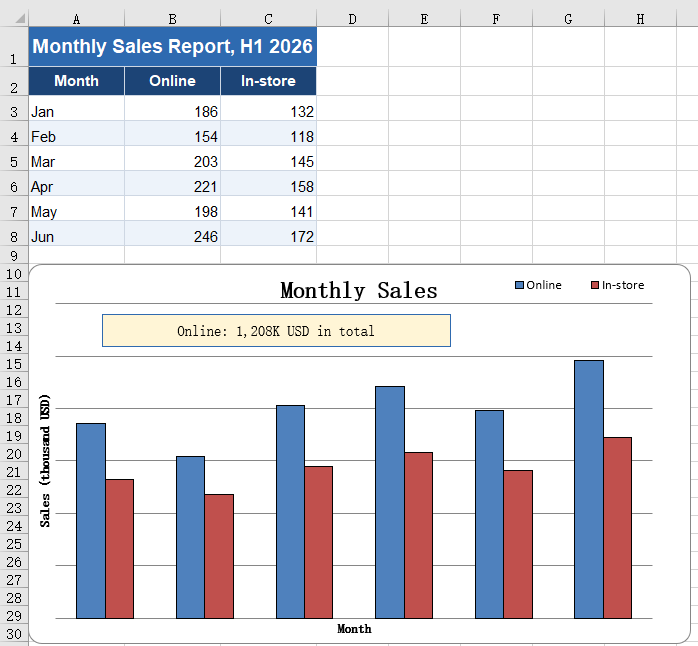
Insert a text box into a chart
A chart shows a trend but cannot state a conclusion. A total for one series, a year-on-year remark or a callout on an outlier can all be written straight onto the chart with a text box, sparing the reader a second trip to the body text for the number. A text box is a shape inside the chart like the picture, measured on the same scale; the difference is that its size has to be sized to the length of the text. Leave it too narrow and the text wraps, and the wrapped line is clipped by the box height — it looks as though half the words went missing. The steps are:
- Load the font and the test data file into the VFS.
- Load the workbook with
workbook.LoadFromFileand take the first chart on the first worksheet. - Create the text box inside the chart with
chart.Shapes.AddTextBox. - Set
Left,Top,WidthandHeightaccording to the length of the text so that the content fits on one line. - Write the text into the
Textproperty. - Centre the text with
HAlignmentandVAlignment, taking the values fromxlsModule.CommentHAlignTypeandxlsModule.CommentVAlignType. - Set the fill, the border colour and the border width with
Fill.ForeColor,Line.ForeColorandLine.Weight, so that the box stands out on the chart. - Save the workbook with
workbook.SaveToFile.
The complete code example below shows how to insert a text box into a chart in React:
function App() {
  const addTextBoxInChart = async () => {
    // get the Spire.XLS WASM module
    const xlsModule = window.wasmModule?.spirexls;

    // check that the module is ready
    if (!xlsModule) {
      alert('Spire.Xls is not ready yet');
      return;
    }

    // load the font and the test data file into the VFS
    await window.spire.FetchFileToVFS('ARIAL.TTF', '/Library/Fonts/', `${process.env.PUBLIC_URL}/font/`);
    const inputFileName = 'ChartReport.xlsx';
    await window.spire.FetchFileToVFS(inputFileName, '', `${process.env.PUBLIC_URL}data/`);

    // load the workbook
    const workbook = new xlsModule.Workbook();
    workbook.LoadFromFile({ fileName: inputFileName });

    // take the first worksheet and the chart on it
    const sheet = workbook.Worksheets.get(0);
    const chart = sheet.Charts.get(0);

    // Add a text box to the chart
    const textBox = chart.Shapes.AddTextBox();

    // set the position and size of the text box, again in 1/4000 of the chart
    textBox.Left = 450;
    textBox.Top = 530;
    textBox.Width = 2100;
    textBox.Height = 340;

    // write the text
    textBox.Text = 'Online: 1,208K USD in total';

    // centre the text and give the box a pale yellow fill and a blue border so that it stands
    // out on the chart
    textBox.HAlignment = xlsModule.CommentHAlignType.Center;
    textBox.VAlignment = xlsModule.CommentVAlignType.Center;
    textBox.Fill.ForeColor = xlsModule.Color.FromArgb(255, 255, 245, 214);
    textBox.Line.ForeColor = xlsModule.Color.FromArgb(255, 46, 106, 176);
    textBox.Line.Weight = 1;

    // save the workbook
    const outputFileName = 'AddTextBoxInChart.xlsx';
    workbook.SaveToFile({ fileName: outputFileName });

    // dispose of the workbook to free resources
    workbook.Dispose();

    // read the result file from the VFS and start the download
    const fileArray = window.dotnetRuntime.Module.FS.readFile(outputFileName);
    const blob = new Blob([fileArray], { type: 'application/vnd.openxmlformats-officedocument.spreadsheetml.sheet' });
    const url = URL.createObjectURL(blob);
    const a = document.createElement('a');
    a.href = url;
    a.download = outputFileName;
    a.click();
    URL.revokeObjectURL(url);
  };

  return (
    <div style={{ textAlign: 'center', height: '300px' }}>
      <h1>Insert a Picture and a Text Box in a Chart</h1>
      <button id="add-textbox-in-chart" onClick={addTextBoxInChart}>Add a text box to the chart</button>
    </div>
  );
}

export default App;
After running, inserting a text box into a chart:
Fill the plot area with a picture
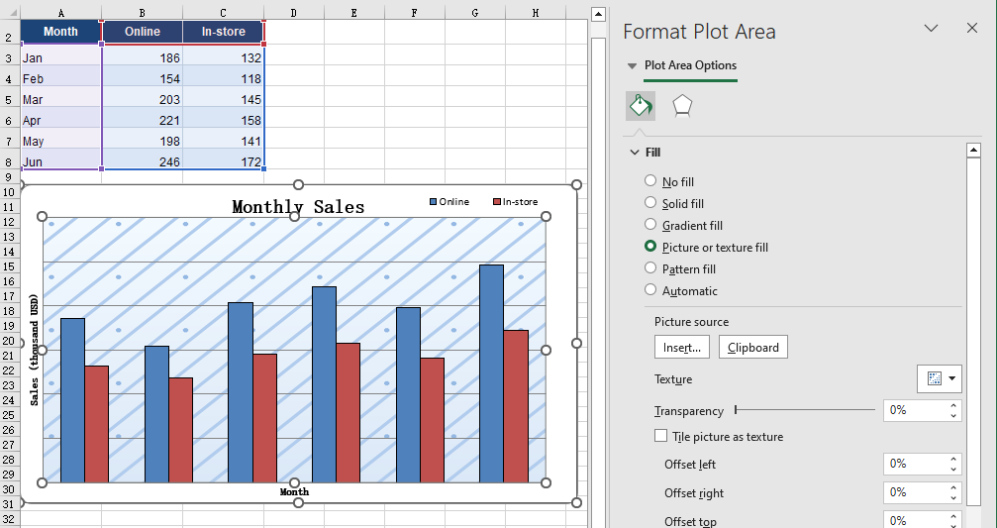
The white background of the plot area is the chart's default, and a report that has been around for a while starts to look the same everywhere. Replacing it with a light texture keeps the columns, the gridlines and the axis labels perfectly legible while giving the background some depth, and pulls the chart into the same visual language as the rest of the report. The fill and the picture shapes placed on the chart do not interfere with each other; the two can be used together. The steps are:
- Load the font, the test data file and the background picture into the VFS.
- Load the workbook with
workbook.LoadFromFileand take the first chart on the first worksheet. - Build an
xlsModule.Streamin memory from the background picture. - Hand it to
chart.PlotArea.Fill.CustomPicture; the second parameter,name, names an existing texture in the workbook, and'None'is passed when there is none. - Save the workbook with
workbook.SaveToFile.
The complete code example below shows how to fill the plot area with a picture in React:
function App() {
  const fillPlotAreaWithPicture = async () => {
    // get the Spire.XLS WASM module
    const xlsModule = window.wasmModule?.spirexls;

    // check that the module is ready
    if (!xlsModule) {
      alert('Spire.Xls is not ready yet');
      return;
    }

    // load the font, the test data file and the background picture into the VFS
    await window.spire.FetchFileToVFS('ARIAL.TTF', '/Library/Fonts/', `${process.env.PUBLIC_URL}/font/`);
    const inputFileName = 'ChartReport.xlsx';
    await window.spire.FetchFileToVFS(inputFileName, '', `${process.env.PUBLIC_URL}data/`);
    await window.spire.FetchFileToVFS('background.png', '', `${process.env.PUBLIC_URL}static/image/`);

    // load the workbook
    const workbook = new xlsModule.Workbook();
    workbook.LoadFromFile({ fileName: inputFileName });

    // take the first worksheet and the chart on it
    const sheet = workbook.Worksheets.get(0);
    const chart = sheet.Charts.get(0);

    // read the background picture into a memory stream and use it to fill the plot area
    const background = new xlsModule.Stream('background.png');
    chart.PlotArea.Fill.CustomPicture({ im: background, name: 'None' });

    // save the workbook
    const outputFileName = 'FillPlotAreaWithPicture.xlsx';
    workbook.SaveToFile({ fileName: outputFileName });

    // dispose of the workbook to free resources
    workbook.Dispose();

    // read the result file from the VFS and start the download
    const fileArray = window.dotnetRuntime.Module.FS.readFile(outputFileName);
    const blob = new Blob([fileArray], { type: 'application/vnd.openxmlformats-officedocument.spreadsheetml.sheet' });
    const url = URL.createObjectURL(blob);
    const a = document.createElement('a');
    a.href = url;
    a.download = outputFileName;
    a.click();
    URL.revokeObjectURL(url);
  };

  return (
    <div style={{ textAlign: 'center', height: '300px' }}>
      <h1>Insert a Picture and a Text Box in a Chart</h1>
      <button id="fill-plot-area" onClick={fillPlotAreaWithPicture}>Fill the plot area with a picture</button>
    </div>
  );
}

export default App;
After running, filling the plot area with a picture:
FAQ
Can I add an arrow or a callout line to a chart?
Solution: An arrow or a callout line that points at something has no API of its own, but a text box can stand in for one: stretch it into a thin strip, drop the fill and keep only the border, and place it where the callout should point.
When filling with a picture, is it the plot area or the whole chart that gets filled?
Cause: PlotArea.Fill and ChartArea.Fill are two different objects. The first covers only the region enclosed by the axes, leaving the chart title, the legend and the axis labels outside the picture. The second covers the entire chart, so the title and the legend end up on top of the picture as well.
Solution: Pick whichever one you need. After the fill, read Fill.FillType; it returns ShapeFillType.Picture on success:
// fill only the plot area: the title, the legend and the axis labels stay as they were
const background = new xlsModule.Stream('background.png');
chart.PlotArea.Fill.CustomPicture({ im: background, name: 'None' });

// fill the whole chart: the picture runs under the title and the legend
chart.ChartArea.Fill.CustomPicture({ im: new xlsModule.Stream('background.png'), name: 'None' });
Get a Free License
Spire.XLS for JavaScript offers a 30-day full-featured free trial license with no functional limitations. Apply here to evaluate before purchasing.
Set the Theme of an Excel Workbook in React with JavaScript
2026-09-30 09:19:00 Written by liu taliaA finished report is often reused for a different brand or a different department, and the colours have to follow. The awkward part is that a workbook holds two kinds of colour. One is a hard-coded RGB value that belongs to the single cell it sits in. The other points at a theme slot: the title bar, the header row, the banded rows and the borders all look different, yet all of them read from the same set of slots. The first kind has to be changed cell by cell, and one missed cell gives the old palette away. The second kind repaints the entire sheet from a single slot. Spire.XLS for JavaScript does this in the browser on top of WebAssembly, managing input and output files through a virtual file system (VFS), with no backend service required.
This article covers three key features:
For installation and project setup, see Integrating Spire.XLS for JavaScript in a React Project. The examples below assume Spire.XLS is installed and the WebAssembly module has been initialised.
Replace an accent colour in the theme
Most reports lean on a single colour: the header row is filled with it, the title bar takes a darker shade, the banded rows a lighter one, and the borders a paler one still. Those shades were not mixed by hand one at a time — they are the same slot read at different tint levels. Reskinning therefore needs no colour picking at all: replace that one slot with the new brand colour and every shade is recomputed, so the whole sheet, chart included, lands on the new palette. The steps are:
- Load the font and the test data file into the VFS.
- Load the workbook with
workbook.LoadFromFile. - Replace the
xlsModule.ThemeColorType.Accent1slot withworkbook.SetThemeColor, giving the new colour throughxlsModule.Color.FromArgb. - Save the workbook with
workbook.SaveToFile; the title bar, header row, banded rows and borders change together.
The complete code example below shows how to replace an accent colour in the theme in React:
function App() {
  const setThemeColor = async () => {
    // Get the Spire.XLS WASM module
    const xlsModule = window.wasmModule?.spirexls;

    // Check that the module is ready
    if (!xlsModule) {
      alert('Spire.Xls is not ready yet');
      return;
    }

    // Load the font and the test data into the VFS
    await window.spire.FetchFileToVFS('ARIAL.TTF', '/Library/Fonts/', `${process.env.PUBLIC_URL}/font/`);
    const inputFileName = 'ThemeSource.xlsx';
    await window.spire.FetchFileToVFS(inputFileName, '', `${process.env.PUBLIC_URL}data/`);

    // Load the workbook
    const workbook = new xlsModule.Workbook();
    workbook.LoadFromFile({ fileName: inputFileName });

    // Replace accent 1 of the theme: the title bar, the header row, the banded rows and the
    // borders all follow it
    workbook.SetThemeColor(
      xlsModule.ThemeColorType.Accent1,
      xlsModule.Color.FromArgb(255, 46, 125, 91),
    );

    // Save the workbook
    const outputFileName = "SetThemeColor.xlsx";
    workbook.SaveToFile({ fileName: outputFileName });

    // Dispose of the workbook object to release resources
    workbook.Dispose();

    // Read the result file from the VFS and trigger the download
    const fileArray = window.dotnetRuntime.Module.FS.readFile(outputFileName);
    const blob = new Blob([fileArray], { type: 'application/vnd.openxmlformats-officedocument.spreadsheetml.sheet' });
    const url = URL.createObjectURL(blob);
    const a = document.createElement('a');
    a.href = url;
    a.download = outputFileName;
    a.click();
    URL.revokeObjectURL(url);
  };

  return (
    <div style={{ textAlign: 'center', height: '300px' }}>
      <h1>Set Workbook Theme</h1>
      <button id="set-theme-color" onClick={setThemeColor}>Replace a Theme Colour</button>
    </div>
  );
}

export default App;
After running, replacing an accent colour in the theme:

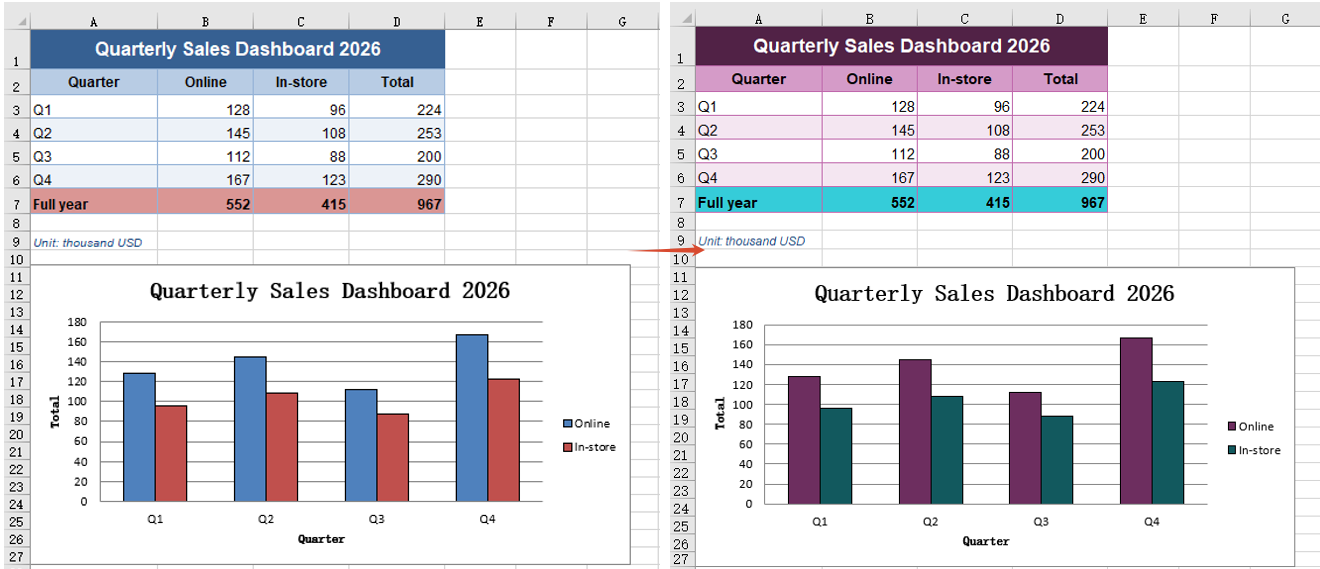
Apply a custom colour scheme
Replacing one accent colour unifies the body of the table, but the other series in the chart, the total row and any warning colour stay on the old palette — they read from other slots in the theme. To move a document onto a different scheme outright, change all six accent slots together, so every element that references the theme lands on the new colours at once instead of one changing and a string of others lagging behind. Reading the current values first leaves a baseline to check the result against. The steps are:
- Load the font and the test data file into the VFS.
- Load the workbook with
workbook.LoadFromFile, then read theR,GandBof the current accent 1 withworkbook.GetThemeColorto keep as a baseline. - Put the six slot-and-colour pairs into an array, the colours again built with
xlsModule.Color.FromArgb. - Walk the array and call
workbook.SetThemeColoron each entry, so all six accent colours change in one pass. - Save the workbook with
workbook.SaveToFile.
The complete code example below shows how to apply a custom colour scheme in React:
function App() {
  const applyThemeScheme = async () => {
    // Get the Spire.XLS WASM module
    const xlsModule = window.wasmModule?.spirexls;

    // Check that the module is ready
    if (!xlsModule) {
      alert('Spire.Xls is not ready yet');
      return;
    }

    // Load the font and the test data into the VFS
    await window.spire.FetchFileToVFS('ARIAL.TTF', '/Library/Fonts/', `${process.env.PUBLIC_URL}/font/`);
    const inputFileName = 'ThemeSource.xlsx';
    await window.spire.FetchFileToVFS(inputFileName, '', `${process.env.PUBLIC_URL}data/`);

    // Load the workbook
    const workbook = new xlsModule.Workbook();
    workbook.LoadFromFile({ fileName: inputFileName });

    // Read the current accent colour back first, so it can be compared with the new one
    const before = workbook.GetThemeColor(xlsModule.ThemeColorType.Accent1);
    console.log(`Accent 1 before the change: R=${before.R} G=${before.G} B=${before.B}`);

    // All six accent colours change in one go, so the whole scheme moves together
    const scheme = [
      [xlsModule.ThemeColorType.Accent1, xlsModule.Color.FromArgb(255, 109, 46, 95)],
      [xlsModule.ThemeColorType.Accent2, xlsModule.Color.FromArgb(255, 18, 89, 94)],
      [xlsModule.ThemeColorType.Accent3, xlsModule.Color.FromArgb(255, 138, 106, 22)],
      [xlsModule.ThemeColorType.Accent4, xlsModule.Color.FromArgb(255, 47, 93, 58)],
      [xlsModule.ThemeColorType.Accent5, xlsModule.Color.FromArgb(255, 67, 48, 122)],
      [xlsModule.ThemeColorType.Accent6, xlsModule.Color.FromArgb(255, 138, 59, 46)],
    ];
    for (const [themeColorType, color] of scheme) {
      workbook.SetThemeColor(themeColorType, color);
    }

    // Save the workbook
    const outputFileName = "ApplyThemeScheme.xlsx";
    workbook.SaveToFile({ fileName: outputFileName });

    // Dispose of the workbook object to release resources
    workbook.Dispose();

    // Read the result file from the VFS and trigger the download
    const fileArray = window.dotnetRuntime.Module.FS.readFile(outputFileName);
    const blob = new Blob([fileArray], { type: 'application/vnd.openxmlformats-officedocument.spreadsheetml.sheet' });
    const url = URL.createObjectURL(blob);
    const a = document.createElement('a');
    a.href = url;
    a.download = outputFileName;
    a.click();
    URL.revokeObjectURL(url);
  };

  return (
    <div style={{ textAlign: 'center', height: '300px' }}>
      <h1>Set Workbook Theme</h1>
      <button id="apply-theme-scheme" onClick={applyThemeScheme}>Apply a Custom Colour Scheme</button>
    </div>
  );
}

export default App;
After running, applying a custom colour scheme:
Reuse another workbook's theme
Once a colour scheme is signed off it usually already lives in a workbook — the designer's sample, last quarter's report, or the company template. Copying the hex values slot by slot is tedious and easy to get a digit wrong. The theme is itself part of the workbook, so the whole theme can be taken across, carrying both dark and light background pairs and the hyperlink colours with it, and every theme-referenced colour in the target workbook is repainted. The workbook the theme comes from need not match the target's layout at all — how many rows and columns it holds, which data sits in them and which kind of chart it draws make no difference. What crosses over is the theme; the target's own data and chart are left untouched. The steps are:
- Load the font and both workbook files into the VFS.
- Load the target workbook with
workbook.LoadFromFile, then the theme provider withthemeWorkbook.LoadFromFile. - Copy the provider's theme across in one piece with
workbook.CopyTheme(themeWorkbook). - Save the target workbook with
workbook.SaveToFile, then callDisposeon bothworkbookobjects.
The complete code example below shows how to reuse another workbook's theme in React:
function App() {
const copyWorkbookTheme = async () => {
// Get the Spire.XLS WASM module
const xlsModule = window.wasmModule?.spirexls;
// Check that the module is ready
if (!xlsModule) {
alert('Spire.Xls is not ready yet');
return;
}
// Load the font and both workbooks into the VFS
await window.spire.FetchFileToVFS('ARIAL.TTF', '/Library/Fonts/', `${process.env.PUBLIC_URL}/font/`);
const inputFileName = 'ThemeSource.xlsx';
const themeFileName = 'ThemeAlt.xlsx';
await window.spire.FetchFileToVFS(inputFileName, '', `${process.env.PUBLIC_URL}data/`);
await window.spire.FetchFileToVFS(themeFileName, '', `${process.env.PUBLIC_URL}data/`);
// Load the workbook that is to be reskinned
const workbook = new xlsModule.Workbook();
workbook.LoadFromFile({ fileName: inputFileName });
// Load the workbook the theme comes from
const themeWorkbook = new xlsModule.Workbook();
themeWorkbook.LoadFromFile({ fileName: themeFileName });
// Copy the theme of the source workbook over in one piece
workbook.CopyTheme(themeWorkbook);
// Save the workbook
const outputFileName = "CopyWorkbookTheme.xlsx";
workbook.SaveToFile({ fileName: outputFileName });
// Dispose of both workbook objects to release resources
workbook.Dispose();
themeWorkbook.Dispose();
// Read the result file from the VFS and trigger the download
const fileArray = window.dotnetRuntime.Module.FS.readFile(outputFileName);
const blob = new Blob([fileArray], { type: 'application/vnd.openxmlformats-officedocument.spreadsheetml.sheet' });
const url = URL.createObjectURL(blob);
const a = document.createElement('a');
a.href = url;
a.download = outputFileName;
a.click();
URL.revokeObjectURL(url);
};
return (
<div style={{ textAlign: 'center', height: '300px' }}>
<h1>Set Workbook Theme</h1>
<button id="copy-workbook-theme" onClick={copyWorkbookTheme}>Reuse Another Workbook's Theme</button>
</div>
);
}
export default App;
After running, reusing another workbook's theme:

FAQ
Which colours change with the theme, and which do not
Cause: Colours fall into two kinds. A colour taken from Theme Colors in Excel changes together with the theme; a colour taken from Standard Colors is a fixed value and stays as it is.
Solution: To have a colour change with the theme, select the cell in Excel and pick it from Theme Colors. Colours written in code are all fixed values and do not change with the theme:
const cell = sheet.Range.get('A1');

// A fixed colour: it does not change with the theme
cell.Style.Interior.Color = xlsModule.Color.FromArgb(255, 192, 0, 0);
Can the chart alone be restyled, leaving the table untouched?
Cause: The theme belongs to the whole workbook and makes no distinction between the table and the chart. When the theme changes, every object that takes its colour from the theme changes with it, and the chart is one of them. A chart series holds no colour of its own — it takes the colour from the theme at draw time — so the chart always follows, and one side cannot change on its own.
Solution: To restyle only the chart, leave the theme alone and set the colour on the series directly. That writes a fixed colour into the chart, which the theme does not affect:
const chart = sheet.Charts.get(0);
const serie = chart.Series.get(0);

serie.Format.Fill.FillType = xlsModule.ShapeFillType.SolidColor;
serie.Format.Fill.ForeColor = xlsModule.Color.FromArgb(255, 46, 125, 91);
Get a Free License
Spire.XLS for JavaScript offers a 30-day full-featured free trial license with no functional limitations. Apply here to evaluate before purchasing.
How to Add, Get and Delete Custom Document Properties with JavaScript in React
2026-09-30 08:41:39 Written by Nina TangBesides the fixed fields such as title and author, a PDF's properties panel keeps a column for custom properties: both the property name and its value are named by you, and internal markers such as department, secrecy level, or source template live there. Contracts, tenders, and project documents often rely on it to carry this information, but a reader only lets you fill them in one by one by hand — adding markers to a batch of documents, or checking which markers a given file carries, is out of reach; and sending the files to a server for batch processing means the content leaves the user's device.
This article uses Spire.PDF for JavaScript to add, get, and delete a PDF's custom document properties. It runs on WebAssembly to load, modify, and save PDFs directly in the browser, working through a virtual file system (VFS) with no backend required.
This article covers three core features:
For installation and project configuration, refer to Integrating Spire.PDF for JavaScript in a React Project. The examples below assume Spire.PDF is installed and the WebAssembly module has been initialized. They take a PDF without custom properties as input, and the last two sections read the Custom-Properties-Added.pdf produced by the first section, so run the code in the first section before the others.
Add Custom Document Properties
Spire.PDF for JavaScript provides DocumentInformation.SetCustomProperty() for writing custom document properties: the property name is up to you, the value is stored as a string, and a repeated name overwrites the previous entry.
function App() {
  const addCustomProperties = async () => {
    // Get the Spire.PDF WASM module
    const pdfModule = window.wasmModule?.spirepdf;

    // Check that the module is ready
    if (!pdfModule) {
      alert('Spire.PDF is not ready yet');
      return;
    }

    // Load the PDF to be processed into the VFS
    const inputFileName = 'ProductOverview.pdf';
    await window.spire.FetchFileToVFS(inputFileName, '', `${process.env.PUBLIC_URL}/data/`);

    // Create a PdfDocument and load the PDF
    const doc = new pdfModule.PdfDocument();
    doc.LoadFromFile(inputFileName);

    // Write the custom document properties; the names are up to you
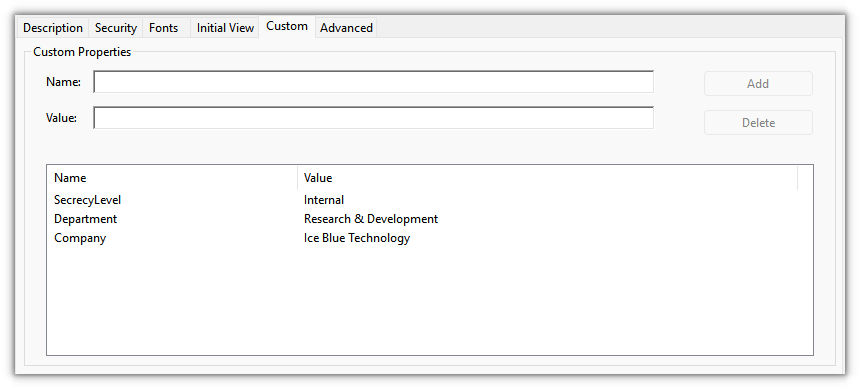
    doc.DocumentInformation.SetCustomProperty('Department', 'Research & Development');
    doc.DocumentInformation.SetCustomProperty('SecrecyLevel', 'Internal');
    doc.DocumentInformation.SetCustomProperty('Company', 'Ice Blue Technology');

    const outputFileName = 'Custom-Properties-Added.pdf';
    doc.SaveToFile(outputFileName);
    doc.Close();

    // Read the generated file from the VFS and trigger the download
    const fileArray = window.dotnetRuntime.Module.FS.readFile(outputFileName);
    const blob = new Blob([fileArray], { type: 'application/pdf' });
    const url = URL.createObjectURL(blob);
    const a = document.createElement('a');
    a.href = url;
    a.download = outputFileName;
    a.click();
    URL.revokeObjectURL(url);
  };

  return (
    <div style={{ textAlign: 'center', height: '300px' }}>
      <h1>Add Custom Document Properties</h1>
      <button onClick={addCustomProperties}>
        Add Properties
      </button>
    </div>
  );
}

export default App;
The result shows three more properties — Department, SecrecyLevel, and Company — in the custom column of the reader's properties panel
Get Custom Document Properties
Reading goes through the same DocumentInformation: GetCustomProperty() returns the value for a given property name, and returns null rather than throwing when the key does not exist.
function App() {
  const getCustomProperties = async () => {
    // Get the Spire.PDF WASM module
    const pdfModule = window.wasmModule?.spirepdf;

    // Check that the module is ready
    if (!pdfModule) {
      alert('Spire.PDF is not ready yet');
      return;
    }

    // Read the document produced by the previous section, already in the VFS
    const inputFileName = 'Custom-Properties-Added.pdf';

    // Create a PdfDocument and load the PDF
    const doc = new pdfModule.PdfDocument();
    doc.LoadFromFile(inputFileName);

    const info = doc.DocumentInformation;

    // Read each property by name; a missing key returns null
    const lines = [
      `Department: ${info.GetCustomProperty('Department')}`,
      `SecrecyLevel: ${info.GetCustomProperty('SecrecyLevel')}`,
      `Company: ${info.GetCustomProperty('Company')}`,
      `Owner: ${info.GetCustomProperty('Owner') ?? '(not set)'}`,
    ];

    // Write the result to a text file
    const outputFileName = 'Custom-Properties.txt';
    window.dotnetRuntime.Module.FS.writeFile(outputFileName, lines.join('\n'));
    doc.Close();

    // Read the generated file from the VFS and trigger the download
    const fileArray = window.dotnetRuntime.Module.FS.readFile(outputFileName);
    const blob = new Blob([fileArray], { type: 'text/plain' });
    const url = URL.createObjectURL(blob);
    const a = document.createElement('a');
    a.href = url;
    a.download = outputFileName;
    a.click();
    URL.revokeObjectURL(url);
  };

  return (
    <div style={{ textAlign: 'center', height: '300px' }}>
      <h1>Get Custom Document Properties</h1>
      <button onClick={getCustomProperties}>
        Get Properties
      </button>
    </div>
  );
}

export default App;
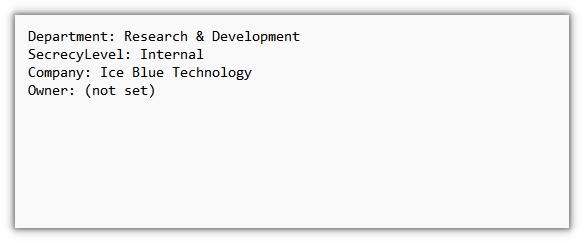
The exported text file lists the property values that were read, one per line:
Delete Custom Document Properties
Deleting uses RemoveCustomProperty(), which removes a single key by property name.
function App() {
  const removeCustomProperties = async () => {
    // Get the Spire.PDF WASM module
    const pdfModule = window.wasmModule?.spirepdf;

    // Check that the module is ready
    if (!pdfModule) {
      alert('Spire.PDF is not ready yet');
      return;
    }

    // Read the document produced by the previous section, already in the VFS
    const inputFileName = 'Custom-Properties-Added.pdf';

    // Create a PdfDocument and load the PDF
    const doc = new pdfModule.PdfDocument();
    doc.LoadFromFile(inputFileName);

    // Remove single custom properties by name; the rest are unaffected
    doc.DocumentInformation.RemoveCustomProperty('SecrecyLevel');
    doc.DocumentInformation.RemoveCustomProperty('Company');

    const outputFileName = 'Custom-Properties-Removed.pdf';
    doc.SaveToFile(outputFileName);
    doc.Close();

    // Read the generated file from the VFS and trigger the download
    const fileArray = window.dotnetRuntime.Module.FS.readFile(outputFileName);
    const blob = new Blob([fileArray], { type: 'application/pdf' });
    const url = URL.createObjectURL(blob);
    const a = document.createElement('a');
    a.href = url;
    a.download = outputFileName;
    a.click();
    URL.revokeObjectURL(url);
  };

  return (
    <div style={{ textAlign: 'center', height: '300px' }}>
      <h1>Delete Custom Document Properties</h1>
      <button onClick={removeCustomProperties}>
        Delete Properties
      </button>
    </div>
  );
}

export default App;
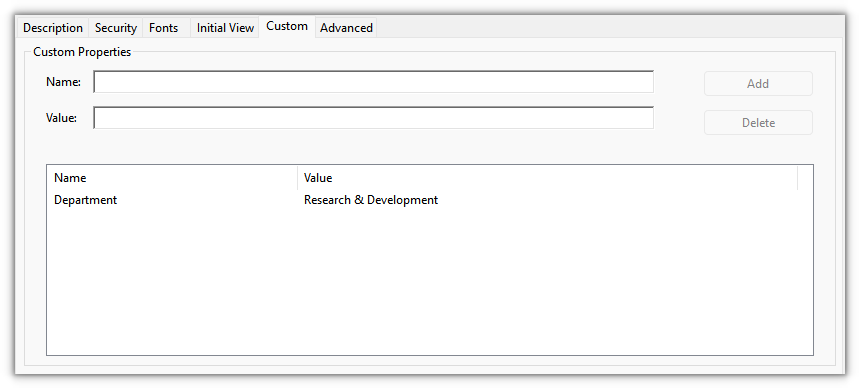
The result keeps only one custom property, Department; the two that were removed are gone from the panel:
FAQ
How are custom properties different from fields like title and author
Reason: the PDF spec fixes the standard fields Title, Author, Subject, Keywords, Creator, and Producer; any key-value pair outside the spec counts as a custom property. Readers show them in two columns: the standard fields in the upper part, and the custom properties in a column of their own.
Solution: the two kinds take two different styles. Assign standard fields such as title and author to the same-named property, and route business markers through custom properties:
// Standard fields
doc.DocumentInformation.Title = '2026 Product Overview';
doc.DocumentInformation.Author = 'Marketing Department';

// Custom properties
doc.DocumentInformation.SetCustomProperty('Department', 'Marketing Department');
Reading splits the same way: standard fields are read as properties such as info.Title, while custom properties can only be read with info.GetCustomProperty('Department').
After deleting, what comes back when I read it, and what if I get the key name wrong
Reason: GetCustomProperty() returns null for any key that does not exist, so a deleted entry and one that was never written look the same; passing a key that does not exist to RemoveCustomProperty() neither throws nor changes the document.
Solution: after deleting, reopen the result and check once — null means it is gone, and you can confirm the other properties still read back. A wrong key name has no side effects; just delete again with the correct name:
doc.DocumentInformation.RemoveCustomProperty('SecrecyLevel');
doc.SaveToFile(outputFileName);

// Reopen the result to check: null means it was removed
const check = new pdfModule.PdfDocument();
check.LoadFromFile(outputFileName);
console.log(check.DocumentInformation.GetCustomProperty('SecrecyLevel'));
Get a Free License
If you want to remove the evaluation message from the result documents or get rid of feature limitations, please contact sales to obtain a free 30-day temporary license.
Retrieve Style Information from a Word Document with JavaScript in React
2026-09-30 08:40:53 Written by Amy ZhaoA well-formatted document is worth more than its looks: the style a paragraph carries is structured information in its own right. Whether a heading paragraph is on Heading 1 or Heading 2, and which style the body copy uses, both say something about how the document is organised. The same works in reverse — when the headings of a document have to be pulled out to build a table of contents or a summary, the reliable way is to select them by style name rather than to guess which line looks bigger.
In Spire.Doc for JavaScript every paragraph carries a StyleName property, and reading it returns the style that paragraph is currently using. Both examples in this article write their output to a TXT file.
This article covers two core features:
For installation and project setup, refer to Integrating Spire.Doc for JavaScript in a React Project. The examples below assume Spire.Doc is installed and the WebAssembly module is initialized.
Export the Style Names of a Document
The paragraphs of a document are organised in two levels, section then paragraph: doc.Sections is the collection of sections, and each section's Paragraphs is the collection of paragraphs. Walk both with Count + get_Item(index), read the StyleName of each paragraph and join the results up.
function App() {
  const RetrieveStyle = async () => {
    const docModule = window.wasmModule?.spiredoc;
    if (!docModule) {
      alert('Spire.Doc is not ready yet');
      return;
    }

    // Load the sample file into the virtual file system (VFS)
    let inputFileName = "RetrieveStyle.docx";
    await window.spire.FetchFileToVFS(inputFileName, "", `${process.env.PUBLIC_URL}static/data/`);

    // Load the document
    let doc = new docModule.Document();
    doc.LoadFromFile(inputFileName);

    // Walk every section -> paragraph and read each paragraph's StyleName
    let styleName = "";
    for (let i = 0; i < doc.Sections.Count; i++) {
      let section = doc.Sections.get_Item(i);
      for (let j = 0; j < section.Paragraphs.Count; j++) {
        let paragraph = section.Paragraphs.get_Item(j);
        styleName += paragraph.StyleName + "\r\n";
      }
    }

    // Define the output file name
    const outputFileName = "RetrieveStyle-result.txt";

    // Write the content to the TXT file (straight into the VFS, not through SaveToFile)
    window.dotnetRuntime.Module.FS.writeFile(outputFileName, styleName);
    doc.Close();

    // Read the written file and wrap it in a Blob
    const modifiedFileArray = window.dotnetRuntime.Module.FS.readFile(outputFileName);
    const blob = new Blob([modifiedFileArray], { type: "text/plain" });
    const url = URL.createObjectURL(blob);
    const a = document.createElement('a');
    a.href = url;
    a.download = outputFileName;
    a.click();
    URL.revokeObjectURL(url);
  };

  return (
    <div style={{ textAlign: 'center', height: '300px' }}>
      <h1>Read the Style Name of Every Paragraph</h1>
      <button onClick={RetrieveStyle}>Generate</button>
    </div>
  );
}
export default App;
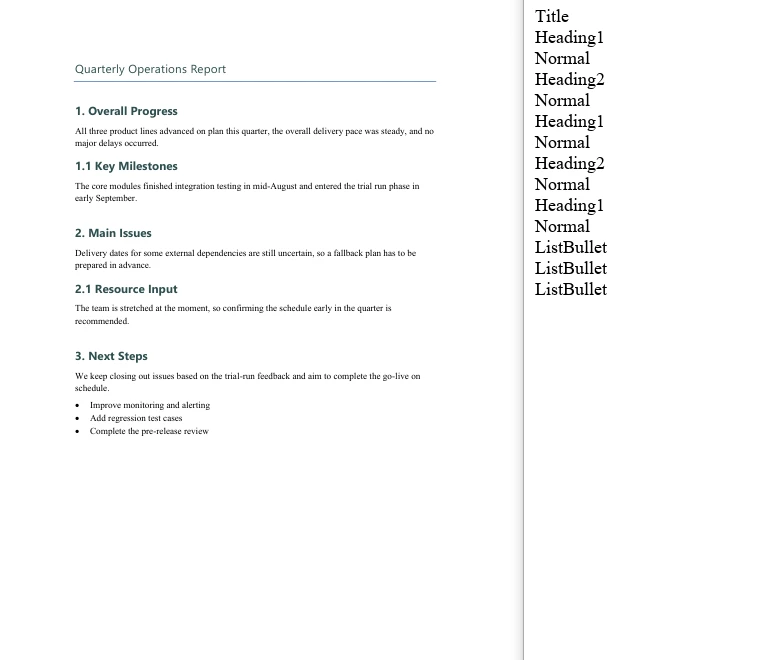
The sample document holds 14 paragraphs, and the exported TXT lists one style name per line, in paragraph order:
Title
Heading1
Normal
Heading2
Normal
Heading1
Normal
Heading2
Normal
Heading1
Normal
ListBullet
ListBullet
ListBullet
Note that the built-in style names come back without the space — Heading1 rather than Heading 1, ListBullet rather than List Bullet. That matters a great deal once a style name is used in a comparison.
The style name list exported for each paragraph of the sample document
Extract Paragraph Text by Style Name
The same two-level walk applies; all it takes is one extra test per paragraph — only when StyleName equals the target style name does paragraph.Text go into the result. The sample document holds 3 Heading1 paragraphs, with a Title, Heading 2 and body paragraphs around them, which shows that the filter really does pick out the target style alone.
function App() {
  const GetTextByStyleName = async () => {
    const docModule = window.wasmModule?.spiredoc;
    if (!docModule) {
      alert('Spire.Doc is not ready yet');
      return;
    }

    // Load the sample file into the virtual file system (VFS)
    let inputFileName = "GetTextByStyleName.docx";
    await window.spire.FetchFileToVFS(inputFileName, "", `${process.env.PUBLIC_URL}static/data/`);

    // Load the document
    let doc = new docModule.Document();
    doc.LoadFromFile(inputFileName);

    // Collect the text of the paragraphs that match
    let builder = [];

    // Walk every section -> paragraph
    for (let i = 0; i < doc.Sections.Count; i++) {
      let section = doc.Sections.get_Item(i);
      for (let j = 0; j < section.Paragraphs.Count; j++) {
        let para = section.Paragraphs.get_Item(j);

        // Take only the paragraphs whose style name is Heading1
        if (para.StyleName == "Heading1") {
          builder.push(para.Text);
        }
      }
    }

    // Define the output file name
    const outputFileName = "GetTextByStyleName-result.txt";

    // Write the content to the TXT file
    window.dotnetRuntime.Module.FS.writeFile(outputFileName, builder.join("\n"));
    doc.Close();

    // Read the written file and wrap it in a Blob
    const modifiedFileArray = window.dotnetRuntime.Module.FS.readFile(outputFileName);
    const blob = new Blob([modifiedFileArray], { type: "text/plain" });
    const url = URL.createObjectURL(blob);
    const a = document.createElement('a');
    a.href = url;
    a.download = outputFileName;
    a.click();
    URL.revokeObjectURL(url);
  };

  return (
    <div style={{ textAlign: 'center', height: '300px' }}>
      <h1>Extract Paragraph Text by Style Name</h1>
      <button onClick={GetTextByStyleName}>Generate</button>
    </div>
  );
}
export default App;
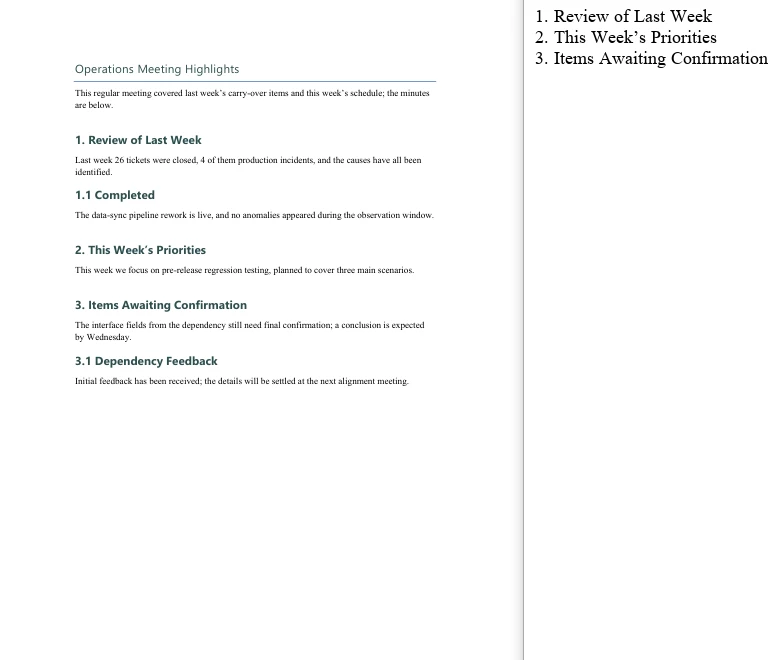
The exported TXT holds just 3 lines, which are exactly the Heading1 paragraphs of the document:
1. Review of Last Week
2. This Week’s Priorities
3. Items Awaiting Confirmation
Only the paragraphs on the target style reached the exported TXT
FAQ
Filtering by style name matches no paragraph at all
Cause: The StyleName of a built-in style is the space-free form, so writing "Heading 1" matches nothing.
Solution: Use the name without the space. In the sample, "Heading1" matches 3 paragraphs while "Heading 1" matches 0:
// Right
if (para.StyleName == "Heading1") { ... }

// Matches nothing
if (para.StyleName == "Heading 1") { ... }
Names are case-sensitive as well, so run the style-name export first to confirm the names the document actually uses before writing the condition.
The exported TXT has a blank line between every line
Cause: The text is joined both ways at once — push(text + "\n") and then join("\n"). Every element already carries a newline and join adds another one, so a blank line appears between every pair.
Solution: Keep only one of the two — either leave the newline off the elements and let join add it, or keep it on the elements and join with join(""):
// Let join supply the line breaks
builder.push(para.Text);
window.dotnetRuntime.Module.FS.writeFile(outputFileName, builder.join("\n"));
The downloaded file opens as garbled text
Cause: The MIME type of the Blob is set to docx, or the text is treated as a binary document when it is read back, so opening it in Word naturally shows nonsense.
Solution: A TXT output has to declare text/plain, and it should be opened in a text editor such as Notepad:
const modifiedFile = new Blob([modifiedFileArray], { type: "text/plain" });
Paragraphs inside tables are missed when walking Sections and Paragraphs
Cause: section.Paragraphs holds the body paragraphs only — paragraphs inside table cells are not in it. Table content hangs off section.Tables, and the Paragraphs of every cell has to be walked separately.
Solution: If the document contains tables and they need to be processed too, walk them outside the body loop:
for (let t = 0; t < section.Tables.Count; t++) {
  let table = section.Tables.get_Item(t);
  for (let r = 0; r < table.Rows.Count; r++) {
    for (let c = 0; c < table.Rows.get_Item(r).Cells.Count; c++) {
      let cell = table.Rows.get_Item(r).Cells.get_Item(c);
      // cell.Paragraphs holds the paragraphs inside the cell
    }
  }
}
Get a Free License
Spire.Doc for JavaScript offers a 30-day full-featured free trial license with no functional limitations. Apply here to evaluate before purchasing.
Restart List Numbering and Customize Bullets in Word with JavaScript in React
2026-09-30 08:40:13 Written by Amy ZhaoA consecutive sequence is often all a list needs — but real documents regularly ask for a new group that starts at a chosen number, or for a more distinctive glyph than the default dot. Neither change touches the paragraphs: both are level parameters of the list style itself, and both hang off ListRef.Levels — StartAt for the starting number, BulletCharacter for the glyph. Spire.Doc for JavaScript reads and writes these parameters directly in the browser via WebAssembly, with no backend server required.
This article covers two core features:
For installation and project setup, refer to Integrating Spire.Doc for JavaScript in a React Project. The examples below assume Spire.Doc is installed and the WebAssembly module is initialized.
Restart a List at a Specific Number
When two lists share one style object, Word treats them as a single numbering sequence and the second group simply carries on from the first. To make the second group count again, the most direct approach is to create a separate list style for it and set the StartAt property of level 0 on that style — it decides which number the level starts at.
StartAt follows the same indexing as ListLevelNumber: get_Item(0) is the first level. The sample sets the second list to 10, so its first entry renders as 10.:
function App() {
  const RestartList = async () => {
    const docModule = window.wasmModule?.spiredoc;
    if (!docModule) {
      alert('Spire.Doc is not ready yet');
      return;
    }

    // Create the document and the section
    let doc = new docModule.Document();
    let section = doc.AddSection();

    // Group heading
    let paragraph = section.AddParagraph();
    paragraph.AppendText("Group One");

    // The first list style: starts at 1 by default
    let numberList = doc.Styles.Add({ listType: docModule.ListType.Numbered, name: "Numbered1" });
    doc.Styles.Add(numberList);

    // Apply the style paragraph by paragraph
    paragraph = section.AddParagraph();
    paragraph.AppendText("Item One");
    paragraph.ListFormat.ApplyStyle(numberList.Name);

    paragraph = section.AddParagraph();
    paragraph.AppendText("Item Two");
    paragraph.ListFormat.ApplyStyle(numberList.Name);

    paragraph = section.AddParagraph();
    paragraph.AppendText("Item Three");
    paragraph.ListFormat.ApplyStyle(numberList.Name);

    paragraph = section.AddParagraph();
    paragraph.AppendText("Item Four");
    paragraph.ListFormat.ApplyStyle(numberList.Name);

    // Group heading
    paragraph = section.AddParagraph();
    paragraph.AppendText("Group Two");

    // The second list style: set the starting number of level 0 to 10
    let numberList2 = doc.Styles.Add({ listType: docModule.ListType.Numbered, name: "Numbered2" });
    numberList2.ListRef.Levels.get_Item(0).StartAt = 10;
    doc.Styles.Add(numberList2);

    // Apply the second style paragraph by paragraph; the numbering starts at 10
    paragraph = section.AddParagraph();
    paragraph.AppendText("Item Five");
    paragraph.ListFormat.ApplyStyle(numberList2.Name);

    paragraph = section.AddParagraph();
    paragraph.AppendText("Item Six");
    paragraph.ListFormat.ApplyStyle(numberList2.Name);

    paragraph = section.AddParagraph();
    paragraph.AppendText("Item Seven");
    paragraph.ListFormat.ApplyStyle(numberList2.Name);

    paragraph = section.AddParagraph();
    paragraph.AppendText("Item Eight");
    paragraph.ListFormat.ApplyStyle(numberList2.Name);

    // Define the output file name
    const outputFileName = "RestartList-result.docx";

    // Save the document to the given path
    doc.SaveToFile({ fileName: outputFileName, fileFormat: docModule.FileFormat.Docx2013 });
    doc.Dispose();

    const modifiedFileArray = window.dotnetRuntime.Module.FS.readFile(outputFileName);
    const blob = new Blob([modifiedFileArray], { type: 'application/vnd.openxmlformats-officedocument.wordprocessingml.document' });
    const url = URL.createObjectURL(blob);
    const a = document.createElement('a');
    a.href = url;
    a.download = outputFileName;
    a.click();
    URL.revokeObjectURL(url);
  };

  return (
    <div style={{ textAlign: 'center', height: '300px' }}>
      <h1>Restart the Second List at a Given Number</h1>
      <button onClick={RestartList}>Generate</button>
    </div>
  );
}
export default App;
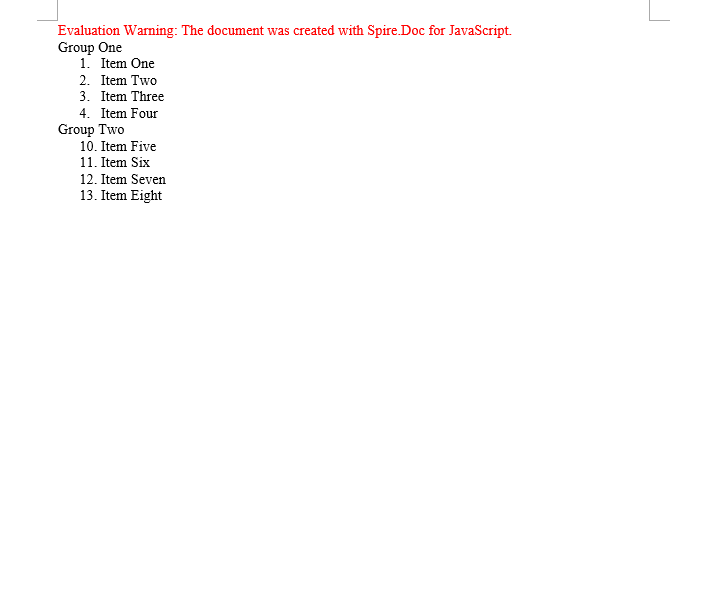
The first list is numbered 1 to 4, the second starts at 10 and runs 10 to 13
Customize the Glyph a Bullet Displays
A bulleted list uses a dot such as · by default. Switching it to another shape takes two properties:
BulletCharacter— the character itself. It is a single character and can be produced from an ASCII/Unicode code point withString.fromCharCode();CharacterFormat.FontName— the font that carries the character. The shape of a bullet is really decided by the font: one code point draws a different figure under different fonts.
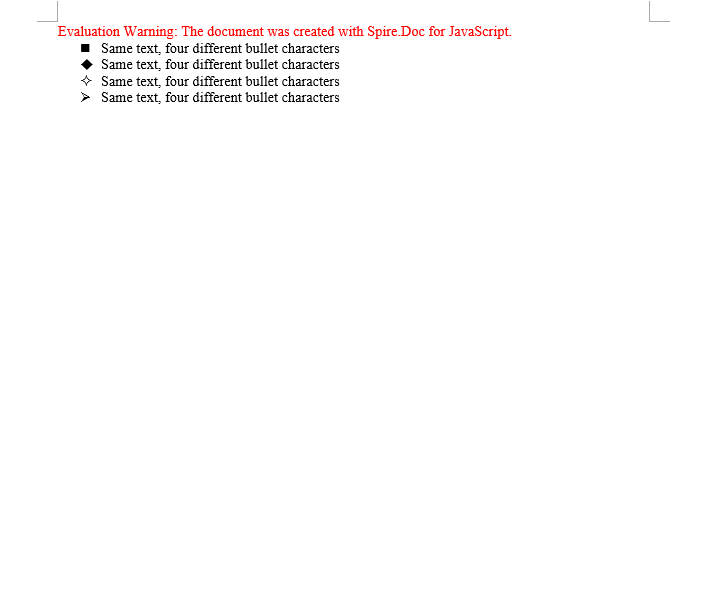
The second point is the one that matters. Symbol fonts such as Wingdings map ordinary letters onto geometric shapes, so a single character code comes out completely different under Wingdings than under a regular font. The sample below builds four list styles from four code points and applies each of them to the same sentence, so that the differences can be compared side by side:
function App() {
  const ASCIICharactersBulletStyle = async () => {
    const docModule = window.wasmModule?.spiredoc;
    if (!docModule) {
      alert('Spire.Doc is not ready yet');
      return;
    }

    // Create the document and the section
    let doc = new docModule.Document();
    let section = doc.AddSection();

    // Spell the glyph out as a character code and set the font that carries it to Wingdings
    let listStyle1 = doc.Styles.Add({ listType: docModule.ListType.Bulleted, name: "liststyle" });
    listStyle1.ListRef.Levels.get_Item(0).BulletCharacter = String.fromCharCode(0x006e);
    listStyle1.ListRef.Levels.get_Item(0).CharacterFormat.FontName = "Wingdings";

    let listStyle2 = doc.Styles.Add({ listType: docModule.ListType.Bulleted, name: "liststyle2" });
    listStyle2.ListRef.Levels.get_Item(0).BulletCharacter = String.fromCharCode(0x0075);
    listStyle2.ListRef.Levels.get_Item(0).CharacterFormat.FontName = "Wingdings";

    let listStyle3 = doc.Styles.Add({ listType: docModule.ListType.Bulleted, name: "liststyle3" });
    listStyle3.ListRef.Levels.get_Item(0).BulletCharacter = String.fromCharCode(0x00b2);
    listStyle3.ListRef.Levels.get_Item(0).CharacterFormat.FontName = "Wingdings";

    let listStyle4 = doc.Styles.Add({ listType: docModule.ListType.Bulleted, name: "liststyle4" });
    listStyle4.ListRef.Levels.get_Item(0).BulletCharacter = String.fromCharCode(0x00d8);
    listStyle4.ListRef.Levels.get_Item(0).CharacterFormat.FontName = "Wingdings";

    // Four paragraphs share one sentence, each with one of the four list styles
    let p1 = section.Body.AddParagraph();
    p1.AppendText("Same text, four different bullet characters");
    p1.ListFormat.ApplyStyle(listStyle1.Name);

    let p2 = section.Body.AddParagraph();
    p2.AppendText("Same text, four different bullet characters");
    p2.ListFormat.ApplyStyle(listStyle2.Name);

    let p3 = section.Body.AddParagraph();
    p3.AppendText("Same text, four different bullet characters");
    p3.ListFormat.ApplyStyle(listStyle3.Name);

    let p4 = section.Body.AddParagraph();
    p4.AppendText("Same text, four different bullet characters");
    p4.ListFormat.ApplyStyle(listStyle4.Name);

    // Define the output file name
    const outputFileName = "ASCIICharactersBulletStyle-result.docx";

    // Save the document to the given path
    doc.SaveToFile({ fileName: outputFileName, fileFormat: docModule.FileFormat.Docx2013 });
    doc.Dispose();

    const modifiedFileArray = window.dotnetRuntime.Module.FS.readFile(outputFileName);
    const blob = new Blob([modifiedFileArray], { type: 'application/vnd.openxmlformats-officedocument.wordprocessingml.document' });
    const url = URL.createObjectURL(blob);
    const a = document.createElement('a');
    a.href = url;
    a.download = outputFileName;
    a.click();
    URL.revokeObjectURL(url);
  };

  return (
    <div style={{ textAlign: 'center', height: '300px' }}>
      <h1>Create a Bullet Style from ASCII Characters</h1>
      <button onClick={ASCIICharactersBulletStyle}>Generate</button>
    </div>
  );
}
export default App;
Four identical lines, each with a different bullet; the difference comes from the BulletCharacter code point
FAQ
StartAt is set, but the list still continues from the previous group
Cause: The new list and the old one reuse the same style object. Every reference to one style shares a single numbering sequence, so changing StartAt moves the starting point of the whole sequence.
Solution: Add a separate style for the group that has to count again, and set StartAt on that new style:
let numberList2 = document.Styles.Add({ listType: wasmModule.ListType.Numbered, name: "Numbered2" });
numberList2.ListRef.Levels.get_Item(0).StartAt = 10;
The custom bullet shows up as a box or as garbled text
Cause: Only BulletCharacter was set and the font was left alone — or a regular font that does not contain the glyph was used. The system cannot render the code point and falls back to the missing-glyph box.
Solution: Set the symbol font to one that really contains the glyph (Wingdings, for example):
listStyle1.ListRef.Levels.get_Item(0).BulletCharacter = String.fromCharCode(0x006e);
listStyle1.ListRef.Levels.get_Item(0).CharacterFormat.FontName = "Wingdings";
The list level parameter was changed but nothing happens
Cause: ListRef.Levels is indexed from 0. Writing 1 out of habit changes the second level instead, and the first level stays exactly as it was.
Solution: Check the index — get_Item(0) is the first level:
// First level
numberList.ListRef.Levels.get_Item(0).StartAt = 10;
// Second level
numberList.ListRef.Levels.get_Item(1).NumberPrefix = "%1.";
Get a Free License
Spire.Doc for JavaScript offers a 30-day full-featured free trial license with no functional limitations. Apply here to evaluate before purchasing.
The font name, the font size and the text color are the most basic character-level formatting properties a Word document has, and also the ones you reach for most often: normalizing the font across a whole document, giving the headings a more striking face, or marking a key conclusion in a color that stands out. Spire.Doc for JavaScript performs all of this in the browser via WebAssembly, using a virtual file system (VFS) to manage input and output files — no backend server required.
This article covers two core features:
For installation and project setup, refer to Integrating Spire.Doc for JavaScript in a React Project. The examples below assume Spire.Doc is installed and the WebAssembly module is initialized.
Set the Font
Setting the font involves three steps: first, load the font file and the target Word document into the WASM virtual file system via FetchFileToVFS; then instantiate a Document, load the document, create a CharacterFormat object and set its FontName and FontSize, walk through the child objects of the target paragraph and call ApplyCharacterFormat on every object whose type is TextRange; finally, read the saved file back from VFS, wrap it as a Blob and trigger a browser download.
One detail deserves attention: the CharacterFormat constructor must be passed the Document instance the format belongs to. That is the convention shared by every standalone format object in Spire.Doc.
function App() {
  const SetFont = async () => {
    const docModule = window.wasmModule?.spiredoc;
    if (!docModule) {
      alert('Spire.Doc is not ready yet');
      return;
    }

    // Load the font file into VFS
    await window.spire.FetchFileToVFS("ARIALUNI.TTF", "/Library/Fonts/", `${process.env.PUBLIC_URL}static/font/`);

    // Load the target Word document into VFS
    const inputFileName = "SetFont.docx";
    await window.spire.FetchFileToVFS(inputFileName, "", `${process.env.PUBLIC_URL}static/data/`);

    // Create a Document instance and load the document
    const doc = new docModule.Document();
    doc.LoadFromFile(inputFileName);

    // Get the second paragraph of the first section
    const p = doc.Sections.get_Item(0).Paragraphs.get_Item(1);

    // Create a CharacterFormat and set the font name and the font size
    const format = new docModule.CharacterFormat(doc);
    format.FontName = "Arial Unicode MS";
    format.FontSize = 16;

    // Walk through the child objects of the paragraph and apply the character format to the text ranges
    for (let i = 0; i < p.ChildObjects.Count; i++) {
      const childObj = p.ChildObjects.get_Item(i);
      if (childObj instanceof docModule.TextRange) {
        childObj.ApplyCharacterFormat(format);
      }
    }

    // Define the output file name
    const outputFileName = "SetFont_out.docx";

    // Save the document to VFS
    doc.SaveToFile({ fileName: outputFileName, fileFormat: docModule.FileFormat.Docx2013 });
    doc.Dispose();

    const modifiedFileArray = window.dotnetRuntime.Module.FS.readFile(outputFileName);
    const blob = new Blob([modifiedFileArray], { type: 'application/vnd.openxmlformats-officedocument.wordprocessingml.document' });
    const url = URL.createObjectURL(blob);
    const a = document.createElement('a');
    a.href = url;
    a.download = outputFileName;
    a.click();
    URL.revokeObjectURL(url);
  };

  return (
    <div style={{ textAlign: 'center', height: '300px' }}>
      <h1>Set the Font of a Word Document</h1>
      <button onClick={SetFont}>Generate</button>
    </div>
  );
}
export default App;
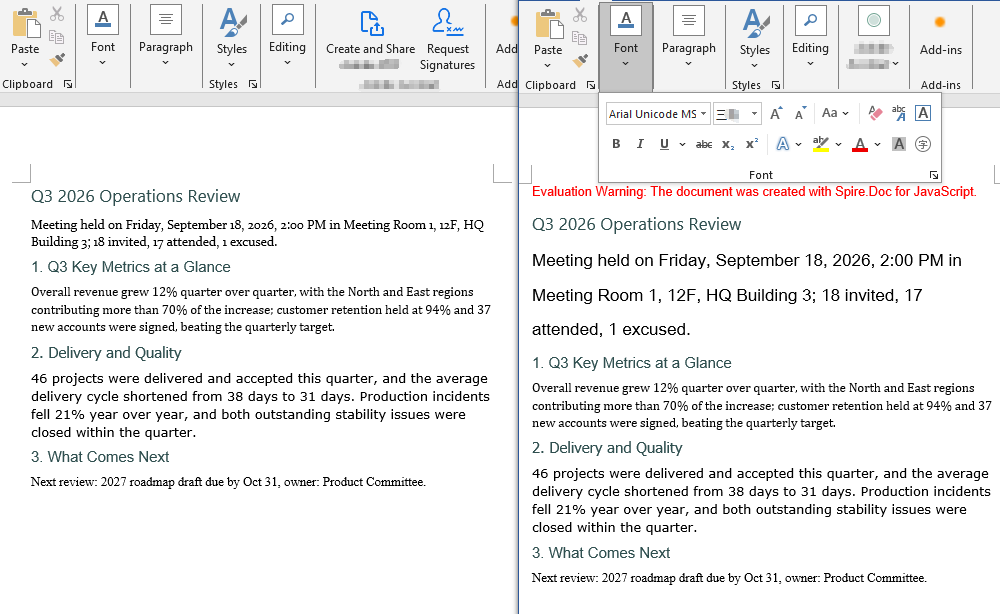
The document produced after the font has been set
Change the Font Color
Changing the font color follows the same three steps as setting the font. The difference is that there is no need to create a separate CharacterFormat object: the color is a single property, so you assign to CharacterFormat.TextColor of the TextRange itself. The color values come from the predefined properties of Color, whose names match .NET's KnownColor — get_RosyBrown() and get_DarkGreen(), for example; when you need an exact color value, use Color.FromArgb(r, g, b) instead.
function App() {
  const ChangeFontColor = async () => {
    const docModule = window.wasmModule?.spiredoc;
    if (!docModule) {
      alert('Spire.Doc is not ready yet');
      return;
    }

    // Load the target Word document into VFS
    const inputFileName = "ChangeFontColor.docx";
    await window.spire.FetchFileToVFS(inputFileName, "", `${process.env.PUBLIC_URL}static/data/`);

    // Create a Document instance and load the document
    const doc = new docModule.Document();
    doc.LoadFromFile(inputFileName);

    // Get the first section
    const section = doc.Sections.get_Item(0);

    // Turn the text of the first paragraph rosy brown
    const p1 = section.Paragraphs.get_Item(0);
    for (let i = 0; i < p1.ChildObjects.Count; i++) {
      const childObj = p1.ChildObjects.get_Item(i);
      if (childObj instanceof docModule.TextRange) {
        childObj.CharacterFormat.TextColor = docModule.Color.get_RosyBrown();
      }
    }

    // Turn the text of the second paragraph dark green
    const p2 = section.Paragraphs.get_Item(1);
    for (let i = 0; i < p2.ChildObjects.Count; i++) {
      const childObj = p2.ChildObjects.get_Item(i);
      if (childObj instanceof docModule.TextRange) {
        childObj.CharacterFormat.TextColor = docModule.Color.get_DarkGreen();
      }
    }

    // Define the output file name
    const outputFileName = "ChangeFontColor_out.docx";

    // Save the document to VFS
    doc.SaveToFile({ fileName: outputFileName, fileFormat: docModule.FileFormat.Docx2013 });
    doc.Dispose();

    const modifiedFileArray = window.dotnetRuntime.Module.FS.readFile(outputFileName);
    const blob = new Blob([modifiedFileArray], { type: 'application/vnd.openxmlformats-officedocument.wordprocessingml.document' });
    const url = URL.createObjectURL(blob);
    const a = document.createElement('a');
    a.href = url;
    a.download = outputFileName;
    a.click();
    URL.revokeObjectURL(url);
  };

  return (
    <div style={{ textAlign: 'center', height: '300px' }}>
      <h1>Change the Font Color of a Word Document</h1>
      <button onClick={ChangeFontColor}>Generate</button>
    </div>
  );
}
export default App;
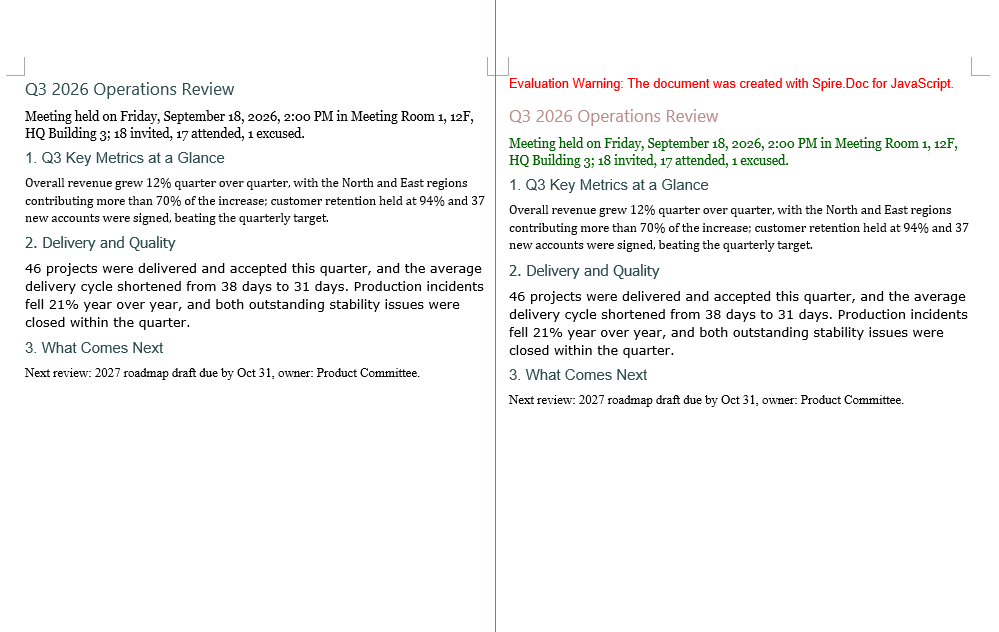
The document produced after the font color has been changed
FAQ
Only a few words in a paragraph need to change, not the whole paragraph
Cause: The examples above treat a paragraph as the smallest unit — they walk through every child object of the paragraph and assign unconditionally to anything that is a TextRange, so once a paragraph has been processed the whole paragraph ends up in the same color or the same font. To work at word level you first have to locate the TextRange that holds the target text, and then set its character format on its own.
Solution: Use FindAllString to find the text in the document. Every TextSelection it returns gives you the matching TextRange through GetAsOneRange(), so you can change just that one occurrence:
// Find every occurrence of "key conclusion"; the arguments are: search text, case sensitivity, whole-word matching
const selections = doc.FindAllString("key conclusion", false, true);

for (let i = 0; i < selections.length; i++) {
  // Only this short run of text gets the new color; the rest of the paragraph is untouched
  selections[i].GetAsOneRange().CharacterFormat.TextColor = docModule.Color.get_Red();
}
If only the first occurrence matters, replace FindAllString with FindString, which returns a single TextSelection object.
The font is set, but the document shows a different font on another computer
Cause: FontName only writes the font name into the character properties of the document; it does not bring the font file itself along with it. The font loaded by FetchFileToVFS only serves the rendering and the text measurement of this browser session. When the document is opened in Word on another machine and that font is not installed there, Word falls back to another font according to its own font substitution table, and the font size and the line spacing can change with it.
Solution: If the target font is a common one (Arial or Times New Roman, for example), there is usually nothing to do. If a particular font has to be used, embed the font file into the document together with the content, so that the document still renders correctly on machines where the font is not installed. See "Embed a Private Font" in the next article for the details.
Get a Free License
Spire.Doc for JavaScript offers a 30-day full-featured free trial license with no functional limitations. Apply here to evaluate before purchasing.
Get Used Fonts and Embed Private Fonts in Word with JavaScript in React
2026-09-30 08:16:24 Written by Amy ZhaoWhen a Word document has to travel between machines and environments, fonts are the part most likely to break: open a carefully laid out document on another computer and the glyph shapes, the font sizes and even the pagination can change. The safe approach is to first take stock of the fonts the document actually uses, then embed the fonts that must be preserved together with the document itself. Spire.Doc for JavaScript performs all of this in the browser via WebAssembly, using a virtual file system (VFS) to manage input and output files — no backend server required.
This article covers two core features:
For installation and project setup, refer to Integrating Spire.Doc for JavaScript in a React Project. The examples below assume Spire.Doc is installed and the WebAssembly module is initialized.
Get the List of Fonts Used in the Document
Listing the fonts involves three steps: first, load the target Word document into the WASM virtual file system via FetchFileToVFS; then instantiate a Document, load the document, walk down through section → paragraph → child object and read the font name, the font size and the text color from the CharacterFormat of every TextRange, de-duplicating on the combination of the three; finally, join the results into text and write it to VFS, read it back and wrap it as a Blob to trigger a browser download.
The de-duplication step deserves attention: a Map key has to be a primitive type that can be compared by value. Use an object such as { size, name } as the key and every iteration creates a brand-new reference, so Map never finds an existing entry and the de-duplication silently does nothing. The key here is therefore a string built from the font name, the font size and the color.
function App() {
  const GetListOfUsingFonts = async () => {
    const docModule = window.wasmModule?.spiredoc;
    if (!docModule) {
      alert('Spire.Doc is not ready yet');
      return;
    }

    // Load the target Word document into VFS
    const inputFileName = "GetListOfUsingFonts.docx";
    await window.spire.FetchFileToVFS(inputFileName, "", `${process.env.PUBLIC_URL}static/data/`);

    // Create a Document instance and load the document
    const doc = new docModule.Document();
    doc.LoadFromFile(inputFileName);

    // De-duplicate on "font name|size|color"
    const fontMap = new Map();

    // Walk through every section
    for (let i = 0; i < doc.Sections.Count; i++) {
      const section = doc.Sections.get_Item(i);

      // Walk through every paragraph in the section
      for (let j = 0; j < section.Body.Paragraphs.Count; j++) {
        const paragraph = section.Body.Paragraphs.get_Item(j);

        // Walk through every child object in the paragraph
        for (let k = 0; k < paragraph.ChildObjects.Count; k++) {
          const obj = paragraph.ChildObjects.get_Item(k);
          if (!(obj instanceof docModule.TextRange)) continue;

          const format = obj.CharacterFormat;
          const key = `${format.FontName}|${format.FontSize}|${format.TextColor.Name}`;

          fontMap.set(key, {
            name: format.FontName,
            size: format.FontSize,
            color: format.TextColor.Name
          });
        }
      }
    }

    // Build the output content
    const lines = [];
    for (const font of fontMap.values()) {
      lines.push(`Font Name: ${font.name}, Size: ${font.size}, Color: ${font.color}`);
    }

    // Define the output file name and write it to VFS
    const outputFileName = "GetListOfUsingFonts_out.txt";
    window.dotnetRuntime.Module.FS.writeFile(outputFileName, lines.join("\n"));

    const modifiedFileArray = window.dotnetRuntime.Module.FS.readFile(outputFileName);
    const blob = new Blob([modifiedFileArray], { type: 'text/plain' });
    const url = URL.createObjectURL(blob);
    const a = document.createElement('a');
    a.href = url;
    a.download = outputFileName;
    a.click();
    URL.revokeObjectURL(url);

    doc.Dispose();
  };

  return (
    <div style={{ textAlign: 'center', height: '300px' }}>
      <h1>Get the Fonts Used in a Word Document</h1>
      <button onClick={GetListOfUsingFonts}>Generate</button>
    </div>
  );
}
export default App;
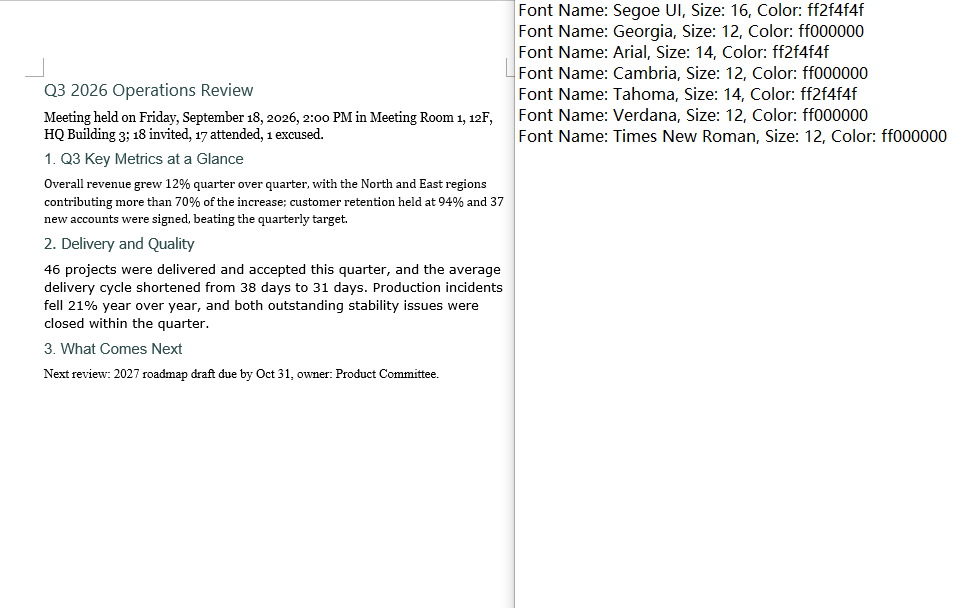
The text file produced by the font list sample
Embed a Private Font
Embedding a private font also involves three steps: first, load the font file to embed together with the document into the WASM virtual file system via FetchFileToVFS; then instantiate a Document, load the document, write a run that uses the font, set EmbedFontsInFile to true and call AddPrivateFont to register the path and the registration name of the font file; finally, save the document, read it back from VFS and wrap it as a Blob to trigger a browser download.
EmbedFontsInFile and AddPrivateFont only take effect at save time and must both be called before SaveToFile. The first argument of PrivateFontPath is the name the font is registered under inside the document, and it has to match the value assigned to CharacterFormat.FontName exactly, or Word will not find a match.
function App() {
  const EmbedPrivateFont = async () => {
    const docModule = window.wasmModule?.spiredoc;
    if (!docModule) {
      alert('Spire.Doc is not ready yet');
      return;
    }

    // Load the private font file to embed into VFS
    await window.spire.FetchFileToVFS("PT Serif Caption.ttf", "/Library/Fonts/", `${process.env.PUBLIC_URL}static/font/`);

    // Load the target Word document into VFS
    const inputFileName = "EmbedPrivateFont.docx";
    await window.spire.FetchFileToVFS(inputFileName, "", `${process.env.PUBLIC_URL}static/data/`);

    // Create a Document instance and load the document
    const doc = new docModule.Document();
    doc.LoadFromFile(inputFileName);

    // Append a paragraph at the end of the first section and apply the private font
    const p = doc.Sections.get_Item(0).AddParagraph();
    const range = p.AppendText("Quarterly Operations Review");
    range.CharacterFormat.FontName = "PT Serif Caption";
    range.CharacterFormat.FontSize = 20;

    // Turn on font embedding and register the private font file with the document
    doc.EmbedFontsInFile = true;
    doc.AddPrivateFont(new docModule.PrivateFontPath("PT Serif Caption", "PT Serif Caption.ttf"));

    // Define the output file name
    const outputFileName = "EmbedPrivateFont_out.docx";

    // Save the document to VFS
    doc.SaveToFile({ fileName: outputFileName, fileFormat: docModule.FileFormat.Docx2013 });
    doc.Dispose();

    const modifiedFileArray = window.dotnetRuntime.Module.FS.readFile(outputFileName);
    const blob = new Blob([modifiedFileArray], { type: 'application/vnd.openxmlformats-officedocument.wordprocessingml.document' });
    const url = URL.createObjectURL(blob);
    const a = document.createElement('a');
    a.href = url;
    a.download = outputFileName;
    a.click();
    URL.revokeObjectURL(url);
  };

  return (
    <div style={{ textAlign: 'center', height: '300px' }}>
      <h1>Embed a Private Font in a Word Document</h1>
      <button onClick={EmbedPrivateFont}>Generate</button>
    </div>
  );
}
export default App;
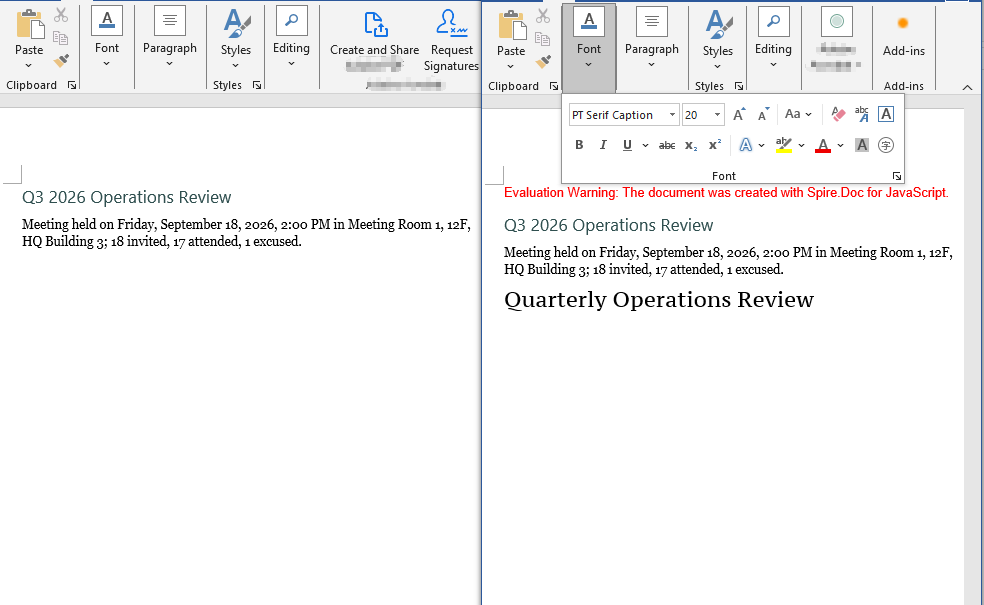
The document produced after the private font has been embedded
FAQ
The same font appears many times in the output font list
Cause: If the code follows the pattern "store the font name and the font size in an object, then use that object as the Map key", the de-duplication never works. Objects are reference types in JavaScript and Map compares keys by reference rather than by value; every object created inside the loop is a fresh reference, so fontMap.has(font) always returns false. The list then ends up with one line for every TextRange in the document, and the same font repeats over and over.
Solution: Use a primitive type as the key instead — join the fields that take part in the de-duplication into a string (such as font name|size|color), so that fonts with identical content get the same key:
const format = obj.CharacterFormat;

// Use a string as the key: identical content means the same entry, so de-duplication works
const key = `${format.FontName}|${format.FontSize}|${format.TextColor.Name}`;
fontMap.set(key, {
  name: format.FontName,
  size: format.FontSize,
  color: format.TextColor.Name
});
If all you need is de-duplication at the level of font names, collect format.FontName in a Set instead.
The font is embedded, but another computer still shows a substitute
Cause: There are three common cases. The first is the timing of the call — AddPrivateFont only registers the font file with the in-memory document object, while the font table and the font parts are actually written into the docx during the save, so EmbedFontsInFile = true and AddPrivateFont(...) both have to come before SaveToFile; leave out EmbedFontsInFile and the font file is not written at all. The second is a font name mismatch — the first argument of PrivateFontPath is the registration name used inside the document and must match the value of CharacterFormat.FontName exactly, spaces and letter case included, or the match fails over a single character. The third is the embedding permission of the font file itself — the fsType bits in the OS/2 table of some commercial fonts forbid embedding, and Word simply ignores those fonts, in which case the only options are to use another font or a licensed version that permits embedding.
Solution: Keep every font embedding setting together before the save, and make sure the registration name matches the font name character for character:
// Keep the font name and the registration name exactly the same
const FONT_NAME = "PT Serif Caption";

const range = p.AppendText("Quarterly Operations Review");
range.CharacterFormat.FontName = FONT_NAME;
range.CharacterFormat.FontSize = 20;

// Turn on embedding and register the font file; both must come before SaveToFile
doc.EmbedFontsInFile = true;
doc.AddPrivateFont(new docModule.PrivateFontPath(FONT_NAME, "PT Serif Caption.ttf"));

doc.SaveToFile({ fileName: outputFileName, fileFormat: docModule.FileFormat.Docx2013 });
Get a Free License
Spire.Doc for JavaScript offers a 30-day full-featured free trial license with no functional limitations. Apply here to evaluate before purchasing.
Create, Modify and Copy Word Styles with JavaScript in React
2026-09-30 08:15:23 Written by Amy ZhaoStyles are the way Word reuses formatting: give a set of formatting — the font, the size, the colour, the paragraph spacing — a name and save it, and from then on every paragraph that carries that style name picks the whole set up automatically. Change the style definition and every paragraph that references it updates along with it, which is exactly what setting the formatting on a paragraph directly cannot do. Spire.Doc for JavaScript performs all of this in the browser via WebAssembly, using a virtual file system (VFS) to manage input and output files — no backend server required.
Structurally a paragraph style holds two parts at once: character formatting and paragraph formatting. Once a built-in style has been taken, ParagraphStyle.CharacterFormat changes the text-level properties and ParagraphStyle.ParagraphFormat changes the paragraph-level ones. The library maps this model onto the Document.Styles collection in full.
This article covers two core features:
For installation and project setup, refer to Integrating Spire.Doc for JavaScript in a React Project. The examples below assume Spire.Doc is installed and the WebAssembly module is initialized.
Modify the Built-in Styles
Word ships with a batch of built-in styles — Title, Normal, Heading 1 to Heading 9 and so on. document.AddStyle({ builtinStyle }) takes the named built-in style (creating it if it does not exist yet) and returns its object, and once you have it, it can be rewritten.
Note that the return type of AddStyle is the generic Style, so before changing the paragraph format you have to confirm that the object really is a paragraph style — instanceof wasmModule.ParagraphStyle is the check. Normal is the base style of the body text, and changing it also affects every style that inherits from it, so it is usually used only to unify the body font and the font size.
function App() {
  const Styles = async () => {
    const docModule = window.wasmModule?.spiredoc;
    if (!docModule) {
      alert('Spire.Doc is not ready yet');
      return;
    }

    await window.spire.FetchFileToVFS("ARIALUNI.TTF", "/Library/Fonts/", `${process.env.PUBLIC_URL}static/font/`);

    // Create the document and the section
    let doc = new docModule.Document();
    let sec = doc.AddSection();

    // Take the built-in Title style and rewrite it with a custom colour scheme:
    // a bottom border and left alignment
    let titleStyle = doc.AddStyle({ builtinStyle: docModule.BuiltinStyle.Title });

    // Check whether it is a paragraph style; if it is, set the paragraph format too
    if (titleStyle instanceof docModule.ParagraphStyle) {
      let ps = titleStyle;
      ps.CharacterFormat.FontName = "Arial Unicode MS";
      ps.CharacterFormat.FontSize = 28;
      ps.CharacterFormat.TextColor = docModule.Color.FromArgb(42, 123, 136);
      ps.ParagraphFormat.Borders.Bottom.BorderType = docModule.BorderStyle.Single;
      ps.ParagraphFormat.Borders.Bottom.Color = docModule.Color.FromArgb(42, 123, 136);
      ps.ParagraphFormat.Borders.Bottom.LineWidth = 1.5;
      ps.ParagraphFormat.HorizontalAlignment = docModule.HorizontalAlignment.Left;
    }

    // Body style: one font and one size for the body text
    let normalStyle = doc.AddStyle({ builtinStyle: docModule.BuiltinStyle.Normal });
    normalStyle.CharacterFormat.FontName = "Arial Unicode MS";
    normalStyle.CharacterFormat.FontSize = 11;

    // Heading 1 style
    let heading1Style = doc.AddStyle({ builtinStyle: docModule.BuiltinStyle.Heading1 });
    heading1Style.CharacterFormat.FontName = "Arial Unicode MS";
    heading1Style.CharacterFormat.FontSize = 14;
    heading1Style.CharacterFormat.Bold = true;
    heading1Style.CharacterFormat.TextColor = docModule.Color.FromArgb(42, 123, 136);

    // Heading 2 style
    let heading2Style = doc.AddStyle({ builtinStyle: docModule.BuiltinStyle.Heading2 });
    heading2Style.CharacterFormat.FontName = "Arial Unicode MS";
    heading2Style.CharacterFormat.FontSize = 12;
    heading2Style.CharacterFormat.Bold = true;

    // Custom bulleted list style
    let bulletList = doc.Styles.Add({ listType: docModule.ListType.Bulleted, name: "bulletList" });
    doc.Styles.Add({ style: bulletList });

    // Apply the styles: built-in styles by builtinStyle, custom styles by name
    let paragraph = sec.AddParagraph();
    paragraph.AppendText("Quarterly Operations Report");
    paragraph.ApplyStyle({ builtinStyle: docModule.BuiltinStyle.Title });

    paragraph = sec.AddParagraph();
    paragraph.AppendText("Prepared by: Operations Management Department | Date: September 2026");
    paragraph.ApplyStyle({ builtinStyle: docModule.BuiltinStyle.Normal });

    paragraph = sec.AddParagraph();
    paragraph.AppendText("Overall Progress");
    paragraph.ApplyStyle({ builtinStyle: docModule.BuiltinStyle.Heading1 });

    paragraph = sec.AddParagraph();
    paragraph.AppendText("All three product lines stayed on plan this quarter, and the overall delivery pace was steady.");
    paragraph.ApplyStyle({ builtinStyle: docModule.BuiltinStyle.Normal });

    paragraph = sec.AddParagraph();
    paragraph.AppendText("Key Items");
    paragraph.ApplyStyle({ builtinStyle: docModule.BuiltinStyle.Heading1 });

    paragraph = sec.AddParagraph();
    paragraph.AppendText("Key Milestones");
    paragraph.ApplyStyle({ builtinStyle: docModule.BuiltinStyle.Heading2 });

    paragraph = sec.AddParagraph();
    paragraph.AppendText("Core module integration testing completed");
    paragraph.ListFormat.ApplyStyle("bulletList");

    paragraph = sec.AddParagraph();
    paragraph.AppendText("Trial run phase started");
    paragraph.ListFormat.ApplyStyle("bulletList");

    paragraph = sec.AddParagraph();
    paragraph.AppendText("Pre-release review scheduled");
    paragraph.ListFormat.ApplyStyle("bulletList");

    paragraph = sec.AddParagraph();
    paragraph.AppendText("Resource Input");
    paragraph.ApplyStyle({ builtinStyle: docModule.BuiltinStyle.Heading2 });

    paragraph = sec.AddParagraph();
    paragraph.AppendText("Team capacity is tight at the moment; confirm the schedule early in the quarter.");
    paragraph.ListFormat.ApplyStyle("bulletList");

    // Define the output file name
    const outputFileName = "Styles-result.docx";

    // Save the document to the given path
    doc.SaveToFile({ fileName: outputFileName, fileFormat: docModule.FileFormat.Docx2013 });
    doc.Dispose();

    const modifiedFileArray = window.dotnetRuntime.Module.FS.readFile(outputFileName);
    const blob = new Blob([modifiedFileArray], { type: 'application/vnd.openxmlformats-officedocument.wordprocessingml.document' });
    const url = URL.createObjectURL(blob);
    const a = document.createElement('a');
    a.href = url;
    a.download = outputFileName;
    a.click();
    URL.revokeObjectURL(url);
  };

  return (
    <div style={{ textAlign: 'center', height: '300px' }}>
      <h1>Create Styles and Apply Them to Paragraphs</h1>
      <button onClick={Styles}>Generate</button>
    </div>
  );
}
export default App;
The built-in Title, Heading 1 and Heading 2 have been rewritten into one teal colour scheme, and the custom bulletList supplies the bullets
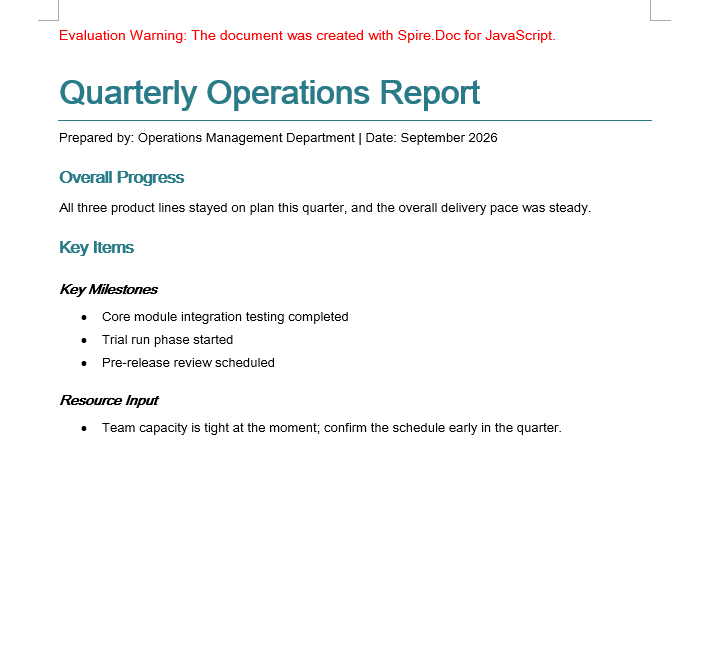
Copy Styles Between Documents
Companies often keep a "style master" document whose styles new documents have to follow. Rebuilding those styles one at a time by hand is slow and easy to miss something, so walk the Styles collection of the source document and add every style object to the target document instead.
document.Styles supports Count and get_Item(index), so the collection can be walked completely by index. Once the styles of the source document have been added to the target document, the paragraphs in the target that reference those style names immediately show the formatting of the source document.
This example uses two sample documents: CopyDocumentStyles1.docx is the source document with custom styles, and CopyDocumentStyles2.docx is the target document — some of its paragraphs reference style names that only the source document defines, but it does not define them itself, so before the copy those paragraphs are displayed with the default formatting.
function App() {
  const CopyDocumentStyles = async () => {
    const docModule = window.wasmModule?.spiredoc;
    if (!docModule) {
      alert('Spire.Doc is not ready yet');
      return;
    }

    // Load the two sample files into the virtual file system (VFS)
    let inputFileName_1 = "CopyDocumentStyles1.docx";
    await window.spire.FetchFileToVFS(inputFileName_1, "", `${process.env.PUBLIC_URL}static/data/`);

    let inputFileName_2 = "CopyDocumentStyles2.docx";
    await window.spire.FetchFileToVFS(inputFileName_2, "", `${process.env.PUBLIC_URL}static/data/`);

    // Load the source document (with the custom styles)
    let srcDoc = new docModule.Document();
    srcDoc.LoadFromFile(inputFileName_1);

    // Load the target document (built-in styles only)
    let destDoc = new docModule.Document();
    destDoc.LoadFromFile(inputFileName_2);

    // Take the style collection of the source document
    let styles = srcDoc.Styles;

    // Add them to the target document one by one
    for (let i = 0; i < styles.Count; i++) {
      let style = styles.get_Item(i);
      destDoc.Styles.Add(style);
    }

    // Define the output file name
    const outputFileName = "CopyDocumentStyles_result.docx";

    // Save the document to the given path
    destDoc.SaveToFile({ fileName: outputFileName, fileFormat: docModule.FileFormat.Docx2013 });
    destDoc.Dispose();
    srcDoc.Dispose();

    const modifiedFileArray = window.dotnetRuntime.Module.FS.readFile(outputFileName);
    const blob = new Blob([modifiedFileArray], { type: 'application/vnd.openxmlformats-officedocument.wordprocessingml.document' });
    const url = URL.createObjectURL(blob);
    const a = document.createElement('a');
    a.href = url;
    a.download = outputFileName;
    a.click();
    URL.revokeObjectURL(url);
  };

  return (
    <div style={{ textAlign: 'center', height: '300px' }}>
      <h1>Copy the Styles of the Source Document into the Target Document</h1>
      <button onClick={CopyDocumentStyles}>Generate</button>
    </div>
  );
}
export default App;
After the copy the target document has the custom styles of the source document, and the paragraphs that "referenced a style without carrying its formatting" are displayed correctly again
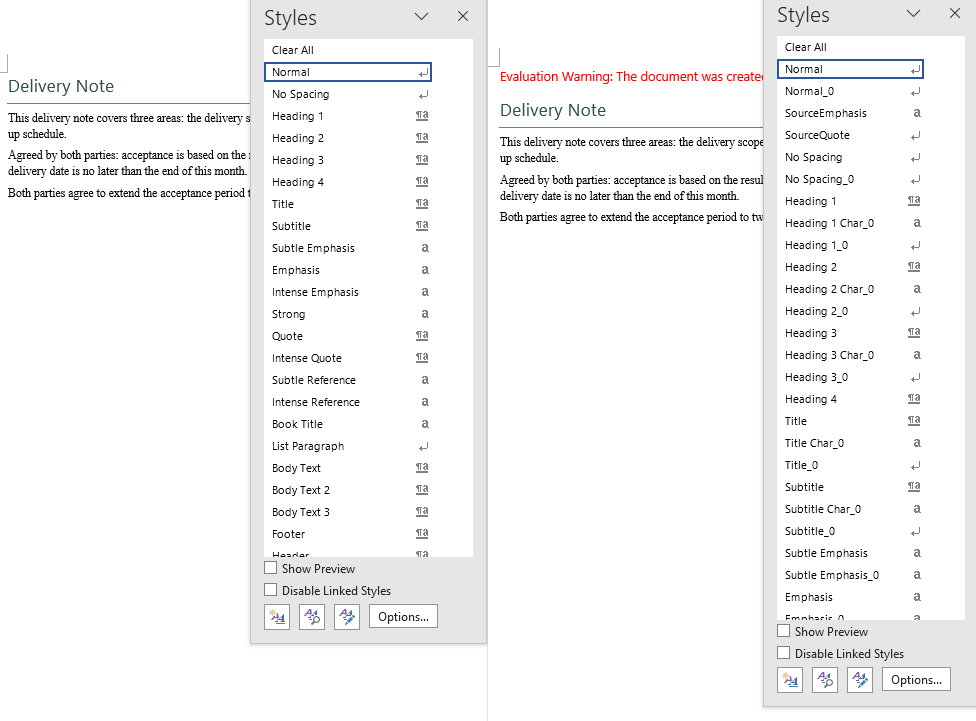
FAQ
The Normal style was changed, but not every body paragraph followed
Cause: Only styles that inherit from Normal are affected by it. If a paragraph carries direct formatting of its own (a per-paragraph CharacterFormat.FontName, for example), the direct formatting has a higher priority than the style and covers up what the style sets.
Solution: Control the appearance through styles consistently and remove the direct formatting from the paragraphs and the runs. Normal is commonly used to unify the body font and the font size:
let normalStyle = document.AddStyle({ builtinStyle: wasmModule.BuiltinStyle.Normal });
normalStyle.CharacterFormat.FontName = "Arial Unicode MS";
normalStyle.CharacterFormat.FontSize = 11;
The number of styles in the target document doubled after the copy
Cause: The walk copies every style of the source document across, and that includes a large number of built-in styles. Those style names usually already exist in the target document, and adding them one at a time creates duplicate entries.
Solution: This is the actual behaviour of the sample (the style collection grows noticeably). If a real project only needs the custom styles, filter by name first and copy only the styles the target document does not have yet:
for (let i = 0; i < srcDoc.Styles.Count; i++) {
  let style = srcDoc.Styles.get_Item(i);

  // Check whether the target document already has a style with the same name
  let exists = false;
  for (let j = 0; j < destDoc.Styles.Count; j++) {
    if (destDoc.Styles.get_Item(j).Name === style.Name) {
      exists = true;
      break;
    }
  }

  // Only add the styles that the target document is missing
  if (!exists) {
    destDoc.Styles.Add(style);
  }
}
A custom style does not take effect when it is applied to a paragraph
Cause: ApplyStyle is called differently for built-in and custom styles — a built-in style takes a { builtinStyle } object, a custom style takes the style name as a string. Passing the wrong form is ignored silently.
Solution: Choose the form that matches where the style comes from:
// Built-in style
paragraph.ApplyStyle({ builtinStyle: wasmModule.BuiltinStyle.Heading1 });

// Custom style (the string name, which has to match the name used in Add)
paragraph.ListFormat.ApplyStyle("bulletList");
Get a Free License
Spire.Doc for JavaScript offers a 30-day full-featured free trial license with no functional limitations. Apply here to evaluate before purchasing.
How to Set or Get PDF Document Properties with JavaScript in React
2026-09-30 05:55:07 Written by Nina TangA PDF's properties panel records the title, author, subject, and keywords, and knowledge bases, archival systems, and full-text search all use them as the basis for classification. The files you actually receive tend to be the opposite: the title still carries the name left over from a previous template, the author field is empty, and keywords are missing altogether. Filling them in means typing into each field by hand in a reader, and checking the author or subject of a batch of documents means opening the properties dialog one file at a time — desktop software cannot do it in bulk, and uploading the files to a server means the content leaves the user's device.
This article uses Spire.PDF for JavaScript to set and get PDF document properties. It runs on WebAssembly to load, modify, and save PDFs directly in the browser, working through a virtual file system (VFS) with no backend required.
This article covers two core features:
For installation and project configuration, refer to Integrating Spire.PDF for JavaScript in a React Project. The examples below assume Spire.PDF is installed and the WebAssembly module has been initialized.
Set PDF Document Properties
Spire.PDF for JavaScript provides doc.DocumentInformation for writing the standard document properties — title, author, subject, and keywords each take one field, while Creator and Producer record who generated the file, all of them plain strings.
function App() {
  const setPdfProperties = async () => {
    // Get the Spire.PDF WASM module
    const pdfModule = window.wasmModule?.spirepdf;

    // Check that the module is ready
    if (!pdfModule) {
      alert('Spire.PDF is not ready yet');
      return;
    }

    // Load the PDF to be processed into the VFS
    const inputFileName = 'ProductOverview.pdf';
    await window.spire.FetchFileToVFS(inputFileName, '', `${process.env.PUBLIC_URL}/data/`);

    // Create a PdfDocument and load the PDF
    const doc = new pdfModule.PdfDocument();
    doc.LoadFromFile(inputFileName);

    // Write the standard document properties
    doc.DocumentInformation.Title = '2026 Product Overview';
    doc.DocumentInformation.Author = 'Marketing Department';
    doc.DocumentInformation.Subject = 'Product Line and Pricing';
    doc.DocumentInformation.Keywords = 'product overview, pricing, 2026';
    doc.DocumentInformation.Creator = 'Content Center';
    doc.DocumentInformation.Producer = 'Spire.PDF for JavaScript';

    const outputFileName = 'Properties-Set.pdf';
    doc.SaveToFile(outputFileName);
    doc.Close();

    // Read the generated file from the VFS and trigger the download
    const fileArray = window.dotnetRuntime.Module.FS.readFile(outputFileName);
    const blob = new Blob([fileArray], { type: 'application/pdf' });
    const url = URL.createObjectURL(blob);
    const a = document.createElement('a');
    a.href = url;
    a.download = outputFileName;
    a.click();
    URL.revokeObjectURL(url);
  };

  return (
    <div style={{ textAlign: 'center', height: '300px' }}>
      <h1>Set PDF Document Properties</h1>
      <button onClick={setPdfProperties}>
        Set Properties
      </button>
    </div>
  );
}

export default App;
The standard fields shown in the reader's document properties panel after setting:
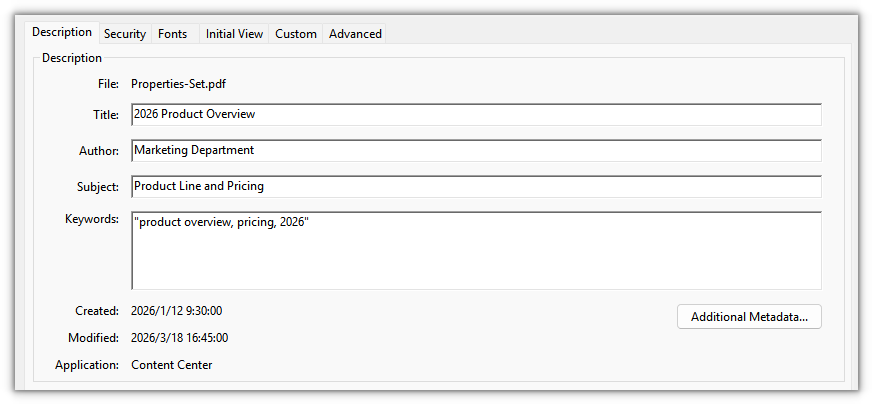
Get PDF Document Properties
Reading goes through the same DocumentInformation: the standard fields come back as strings. Joining the values you get into text and writing it out lets a batch pipeline compare or store them directly, without going through a reader's properties panel.
function App() {
  const getPdfProperties = async () => {
    // Get the Spire.PDF WASM module
    const pdfModule = window.wasmModule?.spirepdf;

    // Check that the module is ready
    if (!pdfModule) {
      alert('Spire.PDF is not ready yet');
      return;
    }

    // Load the PDF to be read into the VFS
    const inputFileName = 'Properties-Set.pdf';
    await window.spire.FetchFileToVFS(inputFileName, '', `${process.env.PUBLIC_URL}/data/`);

    // Create a PdfDocument and load the PDF
    const doc = new pdfModule.PdfDocument();
    doc.LoadFromFile(inputFileName);

    // Read the standard properties and the creation/modification dates one by one
    const info = doc.DocumentInformation;

    const lines = [
      `Title: ${info.Title}`,
      `Author: ${info.Author}`,
      `Subject: ${info.Subject}`,
      `Keywords: ${info.Keywords}`,
      `Creator: ${info.Creator}`,
      `Producer: ${info.Producer}`,
      `CreationDate: ${info.CreationDate.toString()}`,
      `ModificationDate: ${info.ModificationDate.toString()}`,
    ];

    // Write the result to a text file
    const outputFileName = 'Document-Properties.txt';
    window.dotnetRuntime.Module.FS.writeFile(outputFileName, lines.join('\n'));
    doc.Close();

    // Read the generated file from the VFS and trigger the download
    const fileArray = window.dotnetRuntime.Module.FS.readFile(outputFileName);
    const blob = new Blob([fileArray], { type: 'text/plain' });
    const url = URL.createObjectURL(blob);
    const a = document.createElement('a');
    a.href = url;
    a.download = outputFileName;
    a.click();
    URL.revokeObjectURL(url);
  };

  return (
    <div style={{ textAlign: 'center', height: '300px' }}>
      <h1>Get PDF Document Properties</h1>
      <button onClick={getPdfProperties}>
        Get Properties
      </button>
    </div>
  );
}

export default App;
The exported text file lists the standard properties that were read, one per line:
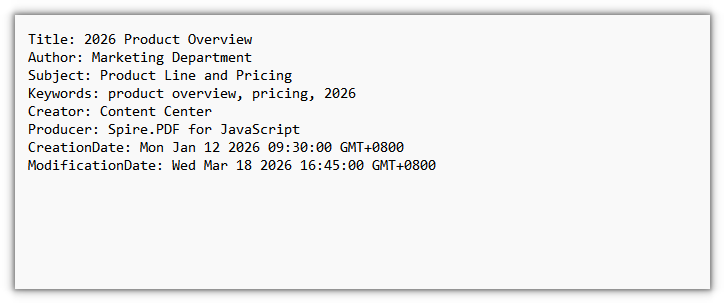
FAQ
Why do my property changes disappear after I reopen the file
Reason: the fields on DocumentInformation change the document object in memory, and only calling SaveToFile writes them into the file. Assign the values and close the document right away, or open the original input file again, and you will of course still see the old values.
Solution: after assigning the values, save the document to a new output file, then open that result to check it:
doc.DocumentInformation.Title = '2026 Product Overview';
doc.DocumentInformation.Author = 'Marketing Department';

// Only after saving do the properties land in the file
doc.SaveToFile('Properties-Set.pdf');
Get a Free License
If you want to remove the evaluation message from the result documents or get rid of feature limitations, please contact sales to obtain a free 30-day temporary license.
Create a Table of Contents in PDF Using JavaScript in React
2026-09-29 09:46:36 Written by Nina TangSend out a manual or report of a few hundred pages and the complaint is rarely about the content — it's that readers can't find the chapter they want. They want a page-numbered list of chapters up front, and one click to jump there. Many PDFs are generated without one, so readers are left to the scrollbar or in-document search.
This article shows how to create a table of contents page and add navigation to its entries with Spire.PDF for JavaScript. It loads, edits and saves PDF documents directly in the browser through WebAssembly, reading and writing files through a virtual file system (VFS), so everything runs locally with no backend.
Two core features are covered:
For installation and project setup, see Integrate Spire.PDF for JavaScript in a React Project. The examples below assume Spire.PDF is installed and the WebAssembly module is initialized.
Create a Table of Contents Page
The contents page has to land at a specific position in the document. Pages.Insert({ index }) inserts a page and returns it, and the title, chapter entries, leader dots and page numbers are all drawn on that page with Canvas.DrawString. Each entry advances horizontally by its text width, and leader dots fill the gap from the end of the title to the start of the page number.
function App() {
  const createTocPage = async () => {
    // Get the Spire.PDF WASM module
    const pdfModule = window.wasmModule?.spirepdf;

    // Check whether the module is ready
    if (!pdfModule) {
      alert('Spire.PDF is not ready yet');
      return;
    }

    // Load the PDF to process into the VFS
    const inputFileName = 'Chapter_Document.pdf';
    await window.spire.FetchFileToVFS(inputFileName, '', `${process.env.PUBLIC_URL}/data/`);

    // Create a PdfDocument object and load the PDF
    let doc = new pdfModule.PdfDocument();
    doc.LoadFromFile(inputFileName);

    // Insert the contents page after the cover; the body pages shift down by one
    const tocPage = doc.Pages.Insert({ index: 1 });

    // Fonts for the title and the entries, using the built-in Helvetica (no font file to load)
    const titleFont = new pdfModule.PdfFont({ fontFamily: pdfModule.PdfFontFamily.Helvetica, size: 20, style: pdfModule.PdfFontStyle.Bold });
    const entryFont = new pdfModule.PdfFont({ fontFamily: pdfModule.PdfFontFamily.Helvetica, size: 14 });
    const centerFormat = new pdfModule.PdfStringFormat({ alignment: pdfModule.PdfTextAlignment.Center });

    // Draw the centered contents title
    const title = 'Contents';
    tocPage.Canvas.DrawString({
      s: title,
      font: titleFont,
      brush: pdfModule.PdfBrushes.get_Black(),
      point: new pdfModule.PointF(tocPage.Canvas.ClientSize.Width / 2, 50),
      format: centerFormat
    });

    // Chapter titles and their page numbers after the contents page is inserted
    const chapters = [
      { title: 'Chapter 1 Overview', page: 3 },
      { title: 'Chapter 2 Architecture', page: 4 },
      { title: 'Chapter 3 Deployment', page: 5 },
      { title: 'Chapter 4 Maintenance', page: 6 }
    ];

    const width = tocPage.Canvas.ClientSize.Width;
    let y = 110;
    for (const chapter of chapters) {
      // Entry text
      const titleSize = entryFont.MeasureString({ text: chapter.title });
      tocPage.Canvas.DrawString({ s: chapter.title, font: entryFont, brush: pdfModule.PdfBrushes.get_Black(), x: 40, y: y });

      // Right-aligned page number
      const pageText = chapter.page.toString();
      const pageSize = entryFont.MeasureString({ text: pageText });
      tocPage.Canvas.DrawString({ s: pageText, font: entryFont, brush: pdfModule.PdfBrushes.get_Black(), x: width - 40 - pageSize.Width, y: y });

      // Leader dots: fill from the end of the entry to the start of the page number
      const dotStart = 40 + titleSize.Width + 6;
      const dotEnd = width - 40 - pageSize.Width - 6;
      for (let x = dotStart; x < dotEnd; x += 6) {
        tocPage.Canvas.DrawString({ s: '.', font: entryFont, brush: pdfModule.PdfBrushes.get_Gray(), x: x, y: y });
      }

      y += 24;
    }

    // Define the output file name and save
    const outputFileName = 'Document-with-TOC.pdf';
    doc.SaveToFile(outputFileName);
    doc.Close();

    // Read the generated file from the VFS and trigger the download
    const fileArray = window.dotnetRuntime.Module.FS.readFile(outputFileName);
    const blob = new Blob([fileArray], { type: 'application/pdf' });
    const url = URL.createObjectURL(blob);
    const a = document.createElement('a');
    a.href = url;
    a.download = outputFileName;
    a.click();
    URL.revokeObjectURL(url);
  };

  return (
    <div style={{ textAlign: 'center', height: '300px' }}>
      <h1>Create a Table of Contents Page</h1>
      <button id="btn-1" onClick={createTocPage}>
        Create TOC
      </button>
    </div>
  );
}

export default App;
The document with a contents page: the page after the cover lists each chapter with its page number
Add Navigation to Table of Contents Entries
Once the contents page is drawn, each entry is still just a line of text. To make an entry clickable, cover it with a PdfActionAnnotation hit area and attach a PdfGoToAction carrying a PdfDestination that names the target page. There is no need to derive the hit area's position from line spacing — search the entry's text on the contents page with PdfTextFinder, and the rectangle it returns is where that line actually sits on the page, ready to use as the hit area.
function App() {
  const addTocNavigation = async () => {
    // Get the Spire.PDF WASM module
    const pdfModule = window.wasmModule?.spirepdf;

    // Check whether the module is ready
    if (!pdfModule) {
      alert('Spire.PDF is not ready yet');
      return;
    }

    // Load the document generated in the previous step
    const inputFileName = 'Document-with-TOC.pdf';
    await window.spire.FetchFileToVFS(inputFileName, '', `${process.env.PUBLIC_URL}/data/`);

    let doc = new pdfModule.PdfDocument();
    doc.LoadFromFile(inputFileName);

    // The contents page is page 2 of the document (index 1)
    const tocPage = doc.Pages.get_Item(1);

    // The entry text and the page each one should jump to
    const chapters = [
      { title: 'Chapter 1 Overview', page: 3 },
      { title: 'Chapter 2 Architecture', page: 4 },
      { title: 'Chapter 3 Deployment', page: 5 },
      { title: 'Chapter 4 Maintenance', page: 6 }
    ];

    // Search the contents page by keyword
    const finder = new pdfModule.PdfTextFinder(tocPage);

    for (const chapter of chapters) {
      const found = finder.Find(chapter.title);
      if (found.length === 0) {
        continue;
      }

      // Define the hit area based on the keyword position
      const lineBounds = found.get(0).Bounds[0];
      const bounds = new pdfModule.RectangleF({
        location: new pdfModule.PointF(0, lineBounds.Y),
        size: new pdfModule.SizeF({ width: tocPage.Canvas.ClientSize.Width, height: lineBounds.Height })
      });

      // The jump target is the chapter's page, aligned to the top-left corner of the body
      const targetPage = doc.Pages.get_Item(chapter.page - 1);
      const destination = new pdfModule.PdfDestination({
        page: targetPage,
        location: new pdfModule.PointF(0, 0)
      });

      // Attach the jump action and set the border width to 0
      const action = new pdfModule.PdfActionAnnotation(bounds, new pdfModule.PdfGoToAction({ destination }));
      action.Border = new pdfModule.PdfAnnotationBorder({ borderWidth: 0 });
      tocPage.Annotations.Add(action);
    }

    // Define the output file name and save
    const outputFileName = 'Clickable-TOC.pdf';
    doc.SaveToFile(outputFileName);
    doc.Close();

    // Read the generated file from the VFS and trigger the download
    const fileArray = window.dotnetRuntime.Module.FS.readFile(outputFileName);
    const blob = new Blob([fileArray], { type: 'application/pdf' });
    const url = URL.createObjectURL(blob);
    const a = document.createElement('a');
    a.href = url;
    a.download = outputFileName;
    a.click();
    URL.revokeObjectURL(url);
  };

  return (
    <div style={{ textAlign: 'center', height: '300px' }}>
      <h1>Add Navigation to Table of Contents Entries</h1>
      <button id="btn-2" onClick={addTocNavigation}>
        Add Navigation
      </button>
    </div>
  );
}

export default App;
Clicking a chapter title in the contents page jumps to that page
FAQ
Table of contents page numbers don't match the actual pages
Cause: the contents page is inserted into the original document, so every page after the insertion point shifts down by one. If the page numbers keep the order from before the insertion, they will be off by one across the board.
Solution: write the page numbers as they appear after the insertion. For example, if the cover was page 1 and chapter 1 was page 2, then after inserting the contents page after the cover, chapter 1 falls on page 3, and that is what the contents should list.
Clicking a table of contents entry jumps to the wrong chapter, or does nothing
Cause: the entry is drawn with Canvas.DrawString, but the hit area has to be given in page coordinates. Deriving it from the drawing y plus the line spacing means any mismatch in font metrics, line spacing or page margins accumulates row by row, so the click lands on a different entry — or on nothing at all.
Solution: don't derive it — search the contents page for the entry's text (the keyword) and use the rectangle that comes back. PdfTextFinder already returns page coordinates, so no top margin has to be added; get page with doc.Pages.get_Item(...) so it is a real page object:
const finder = new pdfModule.PdfTextFinder(tocPage);
const found = finder.Find(chapter.title);
const lineBounds = found.get(0).Bounds[0];
const bounds = new pdfModule.RectangleF({
  location: new pdfModule.PointF(0, lineBounds.Y),
  size: new pdfModule.SizeF({ width: tocPage.Canvas.ClientSize.Width, height: lineBounds.Height })
});
const targetPage = doc.Pages.get_Item(chapter.page - 1);
const action = new pdfModule.PdfActionAnnotation(bounds, new pdfModule.PdfGoToAction({ destination }));
Get a Free License
To remove the evaluation message from the generated documents, or to get rid of the function limitations, please contact sales for a temporary license valid for 30 days.
