Add, Replace, Delete, or Extract Images in PDF with JavaScript in React
Product images, screenshots, charts, and stamps in a PDF often need to be updated or reused: inserting new images into a PDF, replacing an old Logo with a new Logo, deleting outdated illustrations, or extracting images from a PDF for use in other documents. Because the PDF layout is fixed, directly modifying these images with an editor is often very difficult.
Spire.PDF for JavaScript processes PDF documents directly in the browser via WebAssembly, managing input and output files through a virtual file system (VFS) with no backend server required. With PdfImage, the DrawImage method of the page canvas, and the PdfImageHelper helper class, you can easily add, replace, delete, and extract images in PDFs.
This article covers four core features:
For installation and project setup, refer to Integrating Spire.PDF for JavaScript in a React Project. The examples below assume Spire.PDF is installed and the WebAssembly module is initialized.
Add Images to a PDF
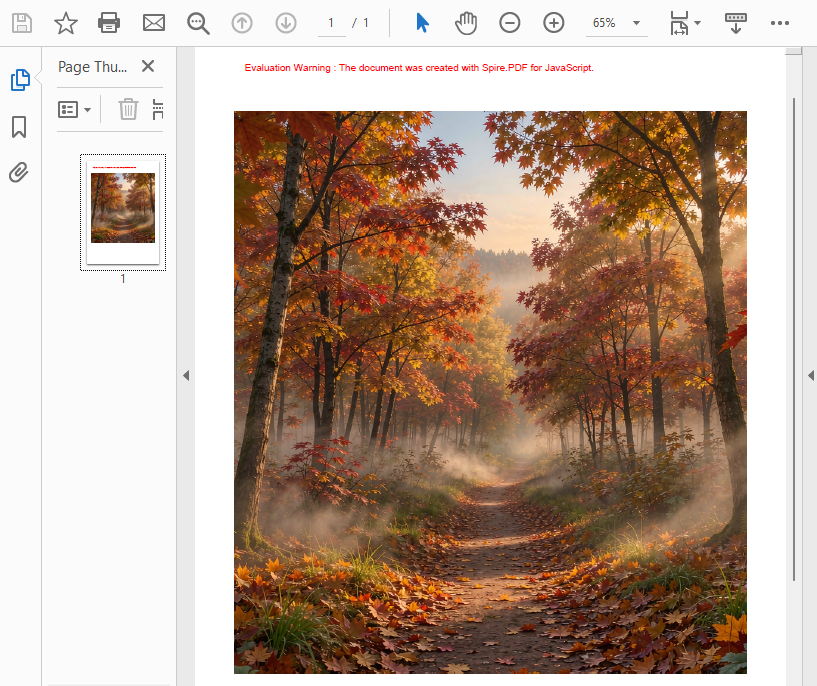
Adding images is one of the most common image operations. The core idea is: first load the image file with the PdfImage.FromFile method, then use the DrawImage method of the page canvas to draw the image at a specified position and size on the page. The x and y parameters determine the coordinates of the top-left corner of the image, and the width and height parameters determine the display size of the image. You can add an image to a specified page of an existing document, or draw the image in a new blank document as in the example below.
function App() {
  const addImageToPdf = async () => {
    // Get the Spire.PDF WASM module
    const pdfModule = window.wasmModule?.spirepdf;

    // Check if the WASM module is ready
    if (!pdfModule) {
      alert('Spire.PDF is not ready yet');
      return;
    }

    // Load the image into VFS
    const inputImageName = 'TreePic.png';
    await window.spire.FetchFileToVFS(inputImageName, "", `${process.env.PUBLIC_URL}/data/`);

    // Create a PdfDocument object
    let doc = new pdfModule.PdfDocument();

    // Add a page
    let page = doc.Pages.Add();

    // Load the image and scale its display size proportionally
    let image = pdfModule.PdfImage.FromFile(inputImageName);
    let width = image.Width * 0.6;
    let height = image.Height * 0.6;

    // Calculate the horizontal center position and set the vertical position
    let x = (page.Canvas.ClientSize.Width - width) / 2;
    let y = 60;

    // Draw the image at the specified position on the page
    page.Canvas.DrawImage({ image: image, x: x, y: y, width: width, height: height });

    // Define the output file name in PDF format
    const outputFileName = 'AddImage.pdf';

    // Save as PDF format
    doc.SaveToFile({ fileName: outputFileName });
    doc.Close();

    // Read the generated PDF file from VFS and trigger download
    const fileArray = window.dotnetRuntime.Module.FS.readFile(outputFileName);
    const blob = new Blob([fileArray], { type: 'application/pdf' });
    const url = URL.createObjectURL(blob);
    const a = document.createElement('a');
    a.href = url;
    a.download = outputFileName;
    a.click();
    URL.revokeObjectURL(url);
  };

  return (
    <div style={{ textAlign: 'center', height: '300px' }}>
      <h1>Add Image To PDF</h1>
      <button onClick={addImageToPdf}>
        Generate
      </button>
    </div>
  );
}

export default App;
PDF document generated after adding an image
Replace Images in a PDF
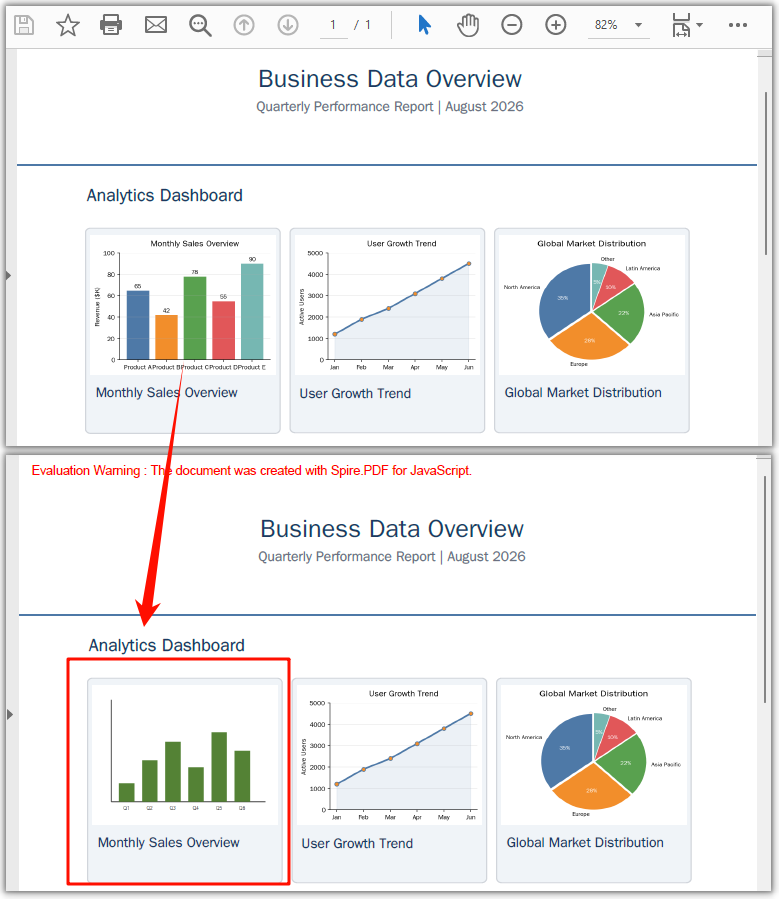
Replacing an image means replacing the content of an image on the page with a new image while keeping the original position and placeholder size unchanged. First, use the GetImagesInfo method of PdfImageHelper to get the array of image information on the page, then load the new image, and call the ReplaceImage method to replace the image at the specified index with the new image. After replacement, the new image automatically inherits the original image's position and size on the page, so the overall layout remains unchanged.
function App() {
  const replaceImageInPdf = async () => {
    // Get the Spire.PDF WASM module
    const pdfModule = window.wasmModule?.spirepdf;

    // Check if the WASM module is ready
    if (!pdfModule) {
      alert('Spire.PDF is not ready yet');
      return;
    }

    // Load the PDF file into VFS
    const inputFileName = 'Business_Data_Overview.pdf';
    await window.spire.FetchFileToVFS(inputFileName, "", `${process.env.PUBLIC_URL}/data/`);

    // Load the new image used for replacement into VFS
    const newImageName = 'ChartImage.png';
    await window.spire.FetchFileToVFS(newImageName, "", `${process.env.PUBLIC_URL}/data/`);

    // Create a PdfDocument object and load the PDF document
    let doc = new pdfModule.PdfDocument();
    doc.LoadFromFile(inputFileName);

    // Get the first page
    let page = doc.Pages.get_Item(0);

    // Create a PdfImageHelper object and get the image information on the page
    let helper = new pdfModule.PdfImageHelper();
    let images = helper.GetImagesInfo(page);

    // Load the new image and replace the first image on the page
    let newImage = pdfModule.PdfImage.FromFile(newImageName);
    helper.ReplaceImage(images[0], newImage);

    // Define the output file name in PDF format
    const outputFileName = 'ReplaceImage.pdf';

    // Save as PDF format
    doc.SaveToFile({ fileName: outputFileName });
    doc.Close();

    // Read the generated PDF file from VFS and trigger download
    const fileArray = window.dotnetRuntime.Module.FS.readFile(outputFileName);
    const blob = new Blob([fileArray], { type: 'application/pdf' });
    const url = URL.createObjectURL(blob);
    const a = document.createElement('a');
    a.href = url;
    a.download = outputFileName;
    a.click();
    URL.revokeObjectURL(url);
  };

  return (
    <div style={{ textAlign: 'center', height: '300px' }}>
      <h1>Replace Image In PDF</h1>
      <button onClick={replaceImageInPdf}>
        Generate
      </button>
    </div>
  );
}

export default App;
PDF document generated after replacing an image
Delete Images from a PDF
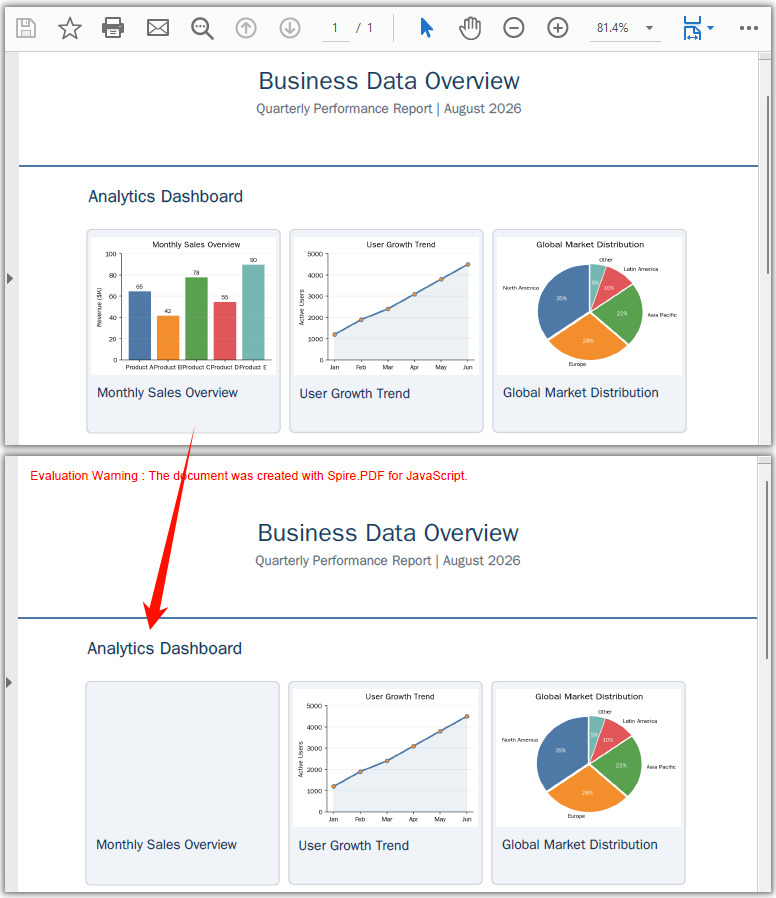
Deleting an image removes an image object that is no longer needed from the page. Similar to replacement, first use the GetImagesInfo method of PdfImageHelper to get the array of image information on the page, then call the DeleteImage method and pass in the corresponding image information object to delete the image. After deletion, the original position is left blank, and the text, graphics, and overall layout on the page are unaffected.
function App() {
  const deleteImageFromPdf = async () => {
    // Get the Spire.PDF WASM module
    const pdfModule = window.wasmModule?.spirepdf;

    // Check if the WASM module is ready
    if (!pdfModule) {
      alert('Spire.PDF is not ready yet');
      return;
    }

    // Load the PDF file into VFS
    const inputFileName = 'Business_Data_Overview.pdf';
    await window.spire.FetchFileToVFS(inputFileName, "", `${process.env.PUBLIC_URL}/data/`);

    // Create a PdfDocument object and load the PDF document
    let doc = new pdfModule.PdfDocument();
    doc.LoadFromFile(inputFileName);

    // Get the first page
    let page = doc.Pages.get_Item(0);

    // Create a PdfImageHelper object and get the image information on the page
    let helper = new pdfModule.PdfImageHelper();
    let images = helper.GetImagesInfo(page);

    // Delete the first image on the page
    helper.DeleteImage({ imageInfo: images[0] });

    // Define the output file name in PDF format
    const outputFileName = 'DeleteImage.pdf';

    // Save as PDF format
    doc.SaveToFile({ fileName: outputFileName });
    doc.Close();

    // Read the generated PDF file from VFS and trigger download
    const fileArray = window.dotnetRuntime.Module.FS.readFile(outputFileName);
    const blob = new Blob([fileArray], { type: 'application/pdf' });
    const url = URL.createObjectURL(blob);
    const a = document.createElement('a');
    a.href = url;
    a.download = outputFileName;
    a.click();
    URL.revokeObjectURL(url);
  };

  return (
    <div style={{ textAlign: 'center', height: '300px' }}>
      <h1>Delete Image From PDF</h1>
      <button onClick={deleteImageFromPdf}>
        Generate
      </button>
    </div>
  );
}

export default App;
PDF document generated after deleting an image
Extract Images from a PDF
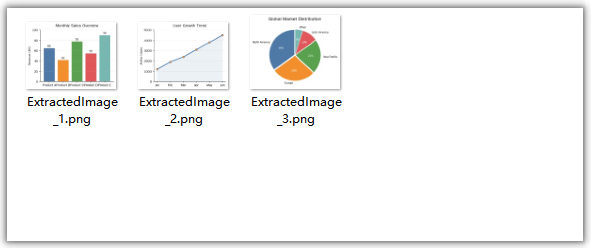
Extracting images exports existing images from PDF pages as separate image files, making them easy to reuse in other documents or systems. After getting the array of image information with the GetImagesInfo method of PdfImageHelper, access the Image property of each image information object one by one, call its Save method to save the image to VFS, then read the file from VFS and trigger download. Extraction is a read-only operation and does not modify the original PDF document.
function App() {
  const extractImagesFromPdf = async () => {
    // Get the Spire.PDF WASM module
    const pdfModule = window.wasmModule?.spirepdf;

    // Check if the WASM module is ready
    if (!pdfModule) {
      alert('Spire.PDF is not ready yet');
      return;
    }

    // Load the PDF file into VFS
    const inputFileName = 'Business_Data_Overview.pdf';
    await window.spire.FetchFileToVFS(inputFileName, "", `${process.env.PUBLIC_URL}/data/`);

    // Create a PdfDocument object and load the PDF document
    let doc = new pdfModule.PdfDocument();
    doc.LoadFromFile(inputFileName);

    // Get the first page
    let page = doc.Pages.get_Item(0);

    // Create a PdfImageHelper object and get the image information on the first page
    let helper = new pdfModule.PdfImageHelper();
    let images = helper.GetImagesInfo(page);

    // Iterate through the images on the page, save each as a separate image file, and trigger download
    for (let i = 0; i < images.length; i++) {
      const outputFileName = `ExtractedImage_${i + 1}.png`;
      images[i].Image.Save({ fileName: outputFileName });

      // Read the extracted image file from VFS and trigger download
      const fileArray = window.dotnetRuntime.Module.FS.readFile(outputFileName);
      const blob = new Blob([fileArray], { type: 'image/png' });
      const url = URL.createObjectURL(blob);
      const a = document.createElement('a');
      a.href = url;
      a.download = outputFileName;
      a.click();
      URL.revokeObjectURL(url);
    }

    doc.Close();
  };

  return (
    <div style={{ textAlign: 'center', height: '300px' }}>
      <h1>Extract Images From PDF</h1>
      <button onClick={extractImagesFromPdf}>
        Generate
      </button>
    </div>
  );
}

export default App;
Image files extracted from the PDF
FAQ
How to identify which image to replace or delete
Reason: GetImagesInfo returns an array of information for all images on the page; the order of the array is related to how the images are arranged on the page.
Solution: You can access a specific image through the array index, for example images[0] represents the first image on the page; you can also read the Bounds property of the image information object to determine the region where the image is located, and then filter out the target image based on the position. The following example demonstrates how to delete images based on the region they occupy:
// Get the image information on the page
let helper = new pdfModule.PdfImageHelper();
let images = helper.GetImagesInfo(page);

// Iterate through the images and delete those within the specified region
for (let i = 0; i < images.length; i++) {
  let rect = new pdfModule.RectangleF({ x: 100, y: 300, width: 30, height: 40 });
  if (images[i].Bounds.IntersectsWith({ rect: rect })) {
    helper.DeleteImage({ imageInfo: images[i] });
  }
}
How to precisely control the position and size of an image when adding it
Reason: The coordinate and size parameters of DrawImage directly determine how the image is displayed on the page.
Solution: x and y are the coordinates of the top-left corner of the image, and width and height are the display size. To scale by the original proportion, first read image.Width and image.Height, then multiply by a scale factor to calculate the target size; to center the image, read page.Canvas.ClientSize.Width to calculate the horizontal coordinate, for example x = (page.Canvas.ClientSize.Width - width) / 2.
Will replacing or deleting images affect the text and other content in the PDF?
Reason: The replace and delete operations only act on the image objects themselves.
Solution: When replacing an image, the new image inherits the original image's position and placeholder size, and the rest of the page remains unchanged; after deleting an image, the original position is left blank, and the other text, graphics, and layout on the page are unaffected. Extracting images is a read-only operation and does not modify the original document.
Get a Free License
If you want to remove the evaluation messages in the resulting documents or get rid of functional limitations, contact sales to obtain a 30-day temporary license.