
Knowledgebase (2337)
Children categories
How to Convert Markdown to PDF and Excel in C# .NET: A Complete Guide
2025-07-18 06:09:23 Written by zaki zou
Markdown is a lightweight markup language widely used for writing formatted text using simple plain syntax. Favored by developers, writers, and technical content creators for its readability and ease of use, Markdown is perfect for drafting documents, notes, and technical content. However, Markdown files (.md) often need to be converted into other formats such as PDF for official distribution or Excel for data analysis and reporting.
In this comprehensive guide, you will learn how to convert Markdown files to PDF and Excel using C# and Spire.XLS for .NET — a powerful and easy-to-use library that supports direct Markdown loading and exporting to multiple formats. Whether you want to generate polished PDF documents or structured Excel spreadsheets, this tutorial covers everything you need.
Table of Contents
- Why Convert Markdown to PDF and Excel?
- Prerequisites (Library & Environment Setup)
- How to Convert Markdown to PDF in C# (Step-by-Step with Code)
- How to Convert Markdown to Excel in C# (Step-by-Step with Code)
- Complete C# Code Example: Convert Markdown to PDF and Excel in One Go
- Best Practices for Markdown Conversion
- Conclusion
- FAQs
Why Convert Markdown to PDF and Excel?
Markdown is great for writing, but it has limitations when sharing or processing documents:
- PDF files provide a fixed-layout, platform-independent format ideal for sharing polished reports, manuals, or official documentation. PDFs maintain the original style and layout regardless of device or software.
- Excel files are essential when Markdown contains tabular data that you want to analyze, manipulate, or integrate into business processes. Converting Markdown tables to Excel spreadsheets lets you utilize formulas, filters, charts, and data tools effectively.
By converting Markdown to these formats programmatically in C#, you can automate documentation workflows, batch-process files, and integrate with other .NET applications.
Prerequisites (Library & Environment Setup)
Before you start converting Markdown files, ensure your development environment meets the following requirements:
- .NET Framework or .NET Core installed.
- Spire.XLS for .NET: A comprehensive Excel library that supports loading Markdown and exporting to PDF and Excel formats.
Install Spire.XLS via NuGet
You can easily install Spire.XLS in your C# project via NuGet by opening the NuGet Package Manager and executing the following command:
Install-Package Spire.XLS
This package provides all the necessary classes and methods to load Markdown and export documents without relying on Microsoft Office automation.
How to Convert Markdown to PDF in C# (Step-by-Step with Code)
To convert a Markdown file to PDF in C#, follow the steps below:
Step 1: Load the Markdown File
Create a new instance of the Workbook class and load your Markdown file:
Workbook workbook = new Workbook();
workbook.LoadFromMarkdown("test.md");
This method parses the Markdown content, including text and tables, into an Excel workbook structure that Spire.XLS can manipulate.
Step 2: Customize Conversion Settings (Optional)
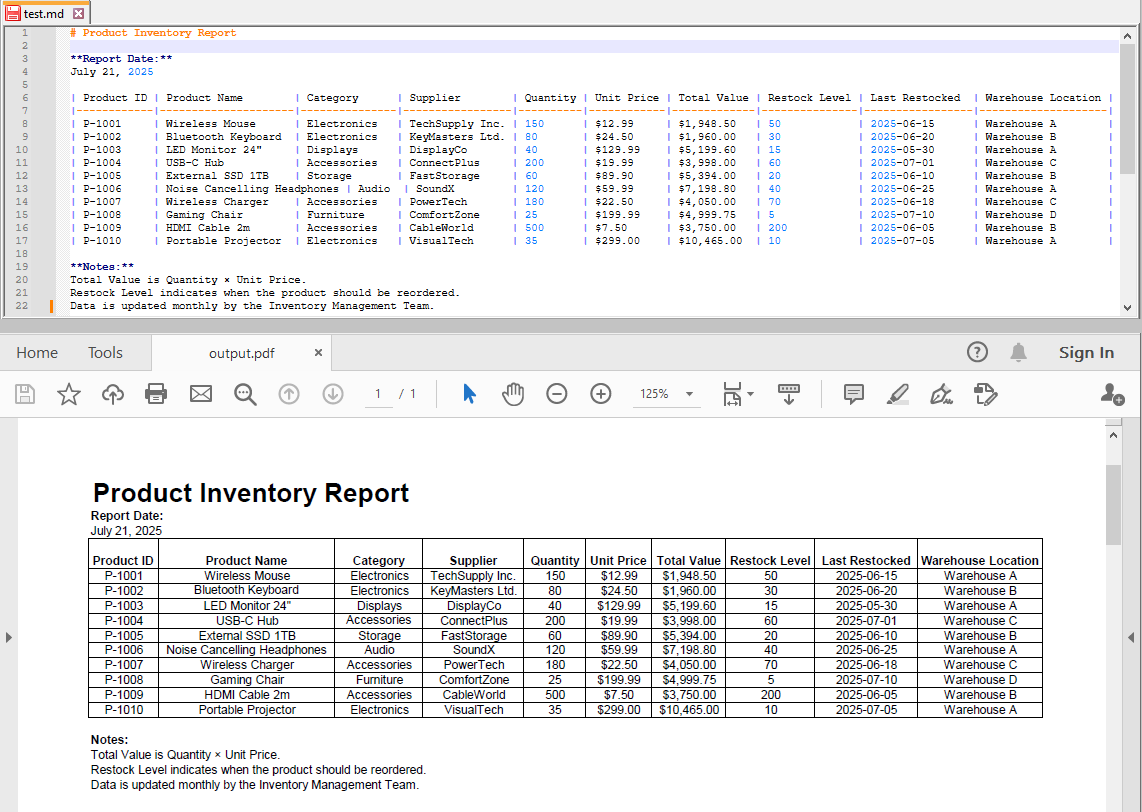
After loading the Markdown file, you can apply conversion settings to ensure the PDF output retains a clean and readable layout. For example, enabling the SheetFitToPage option ensures that the entire Markdown content fits within a single PDF page.
workbook.ConverterSetting.SheetFitToPage = true;
Step 3: Export as PDF
Save the workbook as a PDF file:
workbook.SaveToFile("output.pdf", FileFormat.PDF);
This generates a well-formatted PDF document preserving the Markdown layout and styling suitable for printing or sharing.
How to Convert Markdown to Excel in C# (Step-by-Step with Code)
After loading the Markdown file into the workbook, you can also export it to an Excel spreadsheet format:
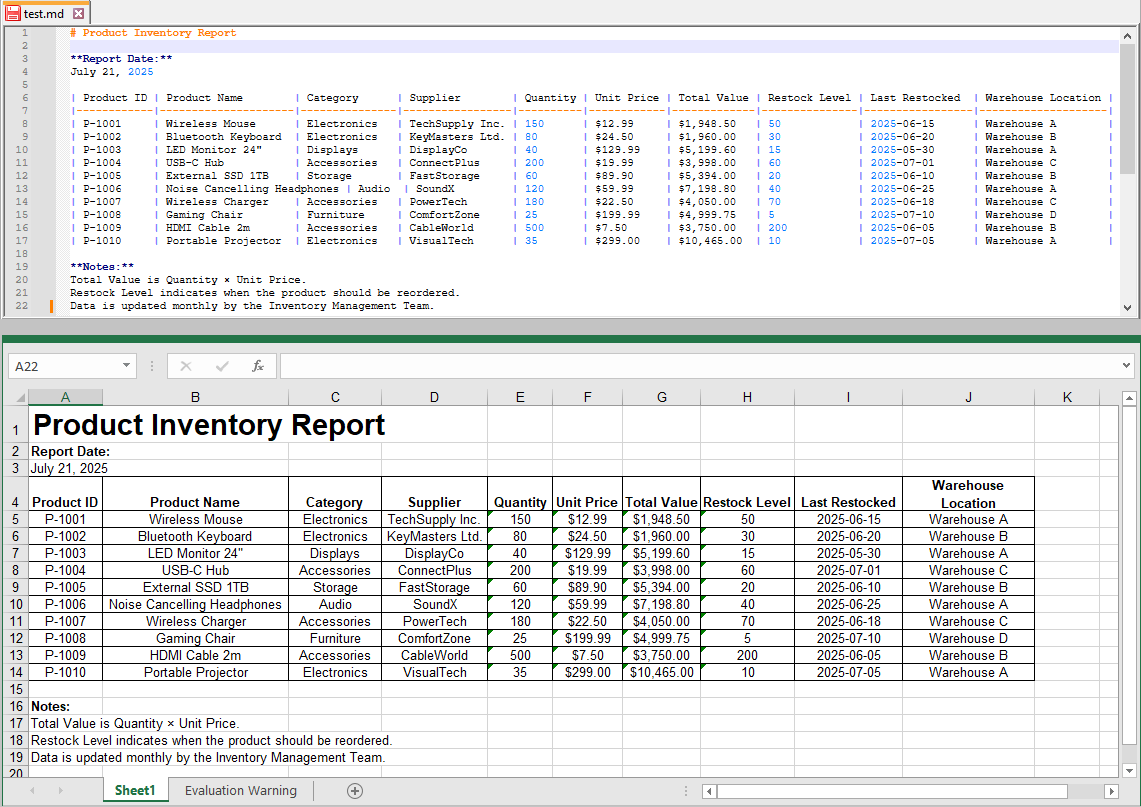
workbook.SaveToFile("output.xls", ExcelVersion.Version97to2003);
You may also choose other Excel versions depending on your target compatibility:
workbook.SaveToFile("output.xlsx", ExcelVersion.Version2016);
The exported Excel file retains tables and structured data from your Markdown, allowing further analysis or manipulation.
Complete C# Code Example: Convert Markdown to PDF and Excel in One Go
Here’s the full example combining both PDF and Excel exports in a single run:
using Spire.Xls;

namespace MarkdownToPdfAndExcel
{
    internal class Program
    {
        static void Main(string[] args)
        {
            // Initialize the workbook
            Workbook workbook = new Workbook();

            // Load Markdown content
            workbook.LoadFromMarkdown("test.md");

            // Fit the sheet data to one page (optional)
            workbook.ConverterSetting.SheetFitToPage = true;

            // Export to PDF
            workbook.SaveToFile("output.pdf", FileFormat.PDF);

            // Export to xls (Excel 97-2003 format)
            workbook.SaveToFile("output.xls", ExcelVersion.Version97to2003);

            // Export to xlsx (Excel 2016 format)
            workbook.SaveToFile("output.xlsx", ExcelVersion.Version2016);

            workbook.Dispose();
        }
    }
}
Best Practices for Markdown Conversion
- Use UTF-8 Encoding: Ensure your Markdown files use UTF-8 encoding, especially if they contain special or non-English characters. This ensures proper character display and avoids encoding errors during conversion.
- Maintain Clean and Well-Formatted Markdown Tables: To achieve accurate and reliable Excel conversions, structure your Markdown tables carefully. Use consistent pipe (|) delimiters and avoid malformed syntax to preserve table integrity in the output spreadsheet.
- Load Once, Export Multiple Formats: For optimal performance, load your Markdown content into the Workbook object a single time, then export it to various formats such as PDF and Excel. This reduces processing overhead and speeds up batch conversions.
- Assess Markdown Complexity: Spire.XLS effectively supports basic Markdown syntax, such as headings and tables. However, advanced features like embedded images or code blocks with syntax highlighting might require pre-processing or conversion through intermediate formats like HTML.
- Choose Appropriate Excel Export Versions: To maximize compatibility with your users’ software, select the Excel file format based on their environment. For example, use the .xls format for legacy Excel 97–2003 users, and .xlsx for Excel 2007 and later versions to ensure broad accessibility and full feature support.
Conclusion
Converting Markdown to PDF and Excel using C# and Spire.XLS is a fast, flexible, and reliable approach to modern document workflows. With minimal code, developers can automate the transformation of lightweight Markdown into professional PDFs for distribution and Excel spreadsheets for business analytics.
This method streamlines technical writing, reporting, and data handling tasks within .NET applications and enables seamless integration with other business processes.
FAQs
Q1: Can I batch convert multiple Markdown files using Spire.XLS in C#?
A1: Yes, you can loop through multiple Markdown files, load each one using Spire.XLS, and export them individually to PDF or Excel formats within the same C# project.
Q2: Is Microsoft Office required to use Spire.XLS for Markdown conversion?
A2: No, Spire.XLS is a standalone library and does not rely on Microsoft Office or Excel being installed on the machine.
Q3: Is Spire.XLS free to use?
A3: Spire.XLS offers a free version with some limitations. A commercial license is available for full features.
Get a Free License
To fully experience the capabilities of Spire.XLS for .NET without any evaluation limitations, you can request a free 30-day trial license.
Converting CSV files to Excel is a common task for Java developers working on data reporting, analytics pipelines, or file transformation tools. While manual CSV parsing is possible, it often leads to bloated code and limited formatting. Using a dedicated Excel library like Spire.XLS for Java simplifies the process and allows full control over layout, styles, templates, and data consolidation.
In this tutorial, we’ll walk through various use cases to convert CSV to Excel using Java — including basic import/export, formatting, injecting CSV into templates, and merging multiple CSVs into a single Excel file.
Quick Navigation
- Set Up Spire.XLS in Your Java Project
- Convert a CSV File to Excel Using Java
- Format Excel Output Using Java
- Merge Multiple CSV Files into One Excel File
- Tips & Troubleshooting
- Frequently Asked Questions
Set Up Spire.XLS in Your Java Project
Before converting CSV to Excel, you’ll need to add Spire.XLS for Java to your project. It supports both .xls and .xlsx formats and provides a clean API for working with Excel files without relying on Microsoft Office.
Install via Maven
<repositories>
    <repository>
        <id>com.e-iceblue</id>
        <name>e-iceblue</name>
        <url>https://repo.e-iceblue.com/nexus/content/groups/public/</url>
    </repository>
</repositories>
<dependencies>
    <dependency>
        <groupId>e-iceblue</groupId>
        <artifactId>spire.xls</artifactId>
        <version>16.4.1</version>
    </dependency>
</dependencies>
Add JAR Manually
Download Spire.XLS for Java and add the JAR to your classpath manually. For smaller projects, you can also use the Free Spire.XLS for Java.
Convert a CSV File to Excel Using Java
The simplest use case is to convert a single .csv file into .xlsx or .xls format in Java. Spire.XLS makes this process easy using just two methods: loadFromFile() to read the CSV, and saveToFile() to export it as Excel.
import com.spire.xls.*;

public class CsvToXlsx {
    public static void main(String[] args) {
        Workbook workbook = new Workbook();
        workbook.loadFromFile("data.csv", ",");
        workbook.saveToFile("output.xlsx", ExcelVersion.Version2013);
    }
}
To generate .xls format instead, use ExcelVersion.Version97to2003.
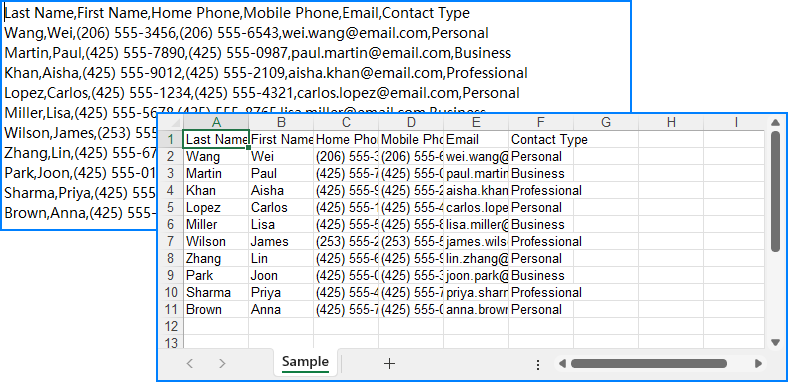
Below is the output Excel file generated after converting the CSV:
You can also specify a custom delimiter or choose the row/column to begin inserting data — useful if your sheet has titles or a fixed layout.
workbook.loadFromFile("data_semicolon.csv", ";", 3, 2);
Format Excel Output Using Java
When you're exporting CSV for reporting or customer-facing documents, it's often necessary to apply styles for better readability and presentation. Spire.XLS allows you to set cell fonts, colors, and number formats using the CellStyle class, automatically adjust column widths to fit content, and more.
Example: Apply Styling and Auto-Fit Columns
import com.spire.xls.*;

public class CsvToXlsx {
    public static void main(String[] args) {
        Workbook workbook = new Workbook();
        workbook.loadFromFile("data.csv", ",");

        Worksheet sheet = workbook.getWorksheets().get(0);

        // Format header row
        CellStyle headerStyle = workbook.getStyles().addStyle("Header");
        headerStyle.getFont().isBold(true);
        headerStyle.setKnownColor(ExcelColors.LightYellow);
        for (int col = 1; col <= sheet.getLastColumn(); col++) {
            sheet.getCellRange(1, col).setStyle(headerStyle);
        }

        // Format numeric column
        CellStyle numStyle = workbook.getStyles().addStyle("Numbers");
        numStyle.setNumberFormat("#,##0.00");
        sheet.getCellRange("B2:B100").setStyle(numStyle);

        // Auto-fit all columns
        for (int i = 1; i <= sheet.getLastRow(); i++) {
            sheet.autoFitColumn(i);
        }

        workbook.saveToFile("formatted_output.xlsx", ExcelVersion.Version2013);
    }
}
Here’s what the styled Excel output looks like with formatted headers and numeric columns:
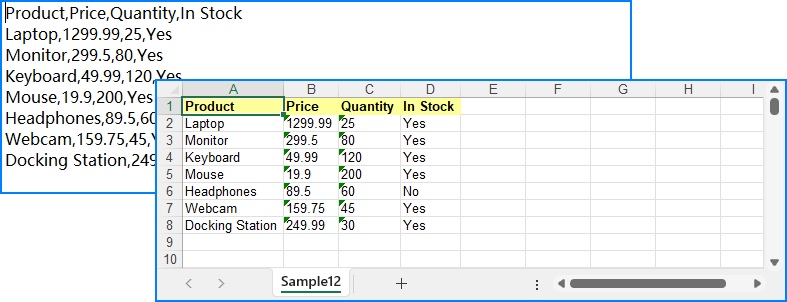
Need to use a pre-designed Excel template? You can load an existing .xlsx file and insert your data using methods like insertArray(). Just note that formatting won’t automatically apply — use CellStyle to style your data programmatically.
Merge Multiple CSV Files into One Excel File
When handling batch processing or multi-source datasets, it’s common to combine multiple CSV files into a single Excel workbook. Spire.XLS lets you:
- Merge each CSV into a separate worksheet, or
- Append all CSV content into a single worksheet
Option 1: Separate Worksheets per CSV
import com.spire.xls.*;
import java.io.File;

public class CsvToXlsx {
    public static void main(String[] args) {
        // Get the CSV file names
        File[] csvFiles = new File("CSVs/").listFiles((dir, name) -> name.endsWith(".csv"));
        // Create a workbook and clear all worksheets
        Workbook workbook = new Workbook();
        workbook.getWorksheets().clear();

        for (File csv : csvFiles) {
            // Load the CSV file
            Workbook temp = new Workbook();
            temp.loadFromFile(csv.getAbsolutePath(), ",");
            // Append the CSV file to the workbook as a worksheet
            workbook.getWorksheets().addCopy(temp.getWorksheets().get(0));
        }

        // Save the workbook
        workbook.saveToFile("merged.xlsx", ExcelVersion.Version2016);
    }
}
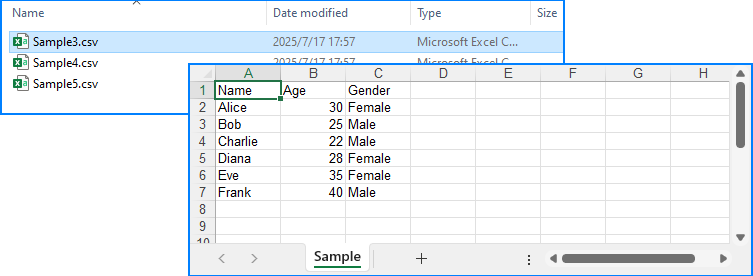
Each CSV file is placed into its own worksheet in the final Excel file:

Option 2: All Data in a Single Worksheet
import com.spire.xls.*;
import java.io.File;

public class CsvToXlsx {
    public static void main(String[] args) {
        // Get the CSV file names
        File[] csvFiles = new File("CSVs/").listFiles((dir, name) -> name.endsWith(".csv"));
        // Create a workbook
        Workbook workbook = new Workbook();
        // Clear default sheets and add a new one
        workbook.getWorksheets().clear();
        Worksheet sheet = workbook.getWorksheets().add("Sample");

        int startRow = 1;
        boolean isFirstFile = true;

        for (File csv : csvFiles) {
            // Load the CSV data
            Workbook temp = new Workbook();
            temp.loadFromFile(csv.getAbsolutePath(), ",");
            Worksheet tempSheet = temp.getWorksheets().get(0);

            // Check if it's the first file
            int startReadRow = isFirstFile ? 1 : 2;
            isFirstFile = false;

            // Copy the CSV data to the sheet
            for (int r = startReadRow; r <= tempSheet.getLastRow(); r++) {
                for (int c = 1; c <= tempSheet.getLastColumn(); c++) {
                    sheet.getCellRange(startRow, c).setValue(tempSheet.getCellRange(r, c).getText());
                }
                startRow++;
            }
        }

        // Save the merged workbook
        workbook.saveToFile("merged_single_sheet.xlsx", ExcelVersion.Version2016);
    }
}
Below is the final Excel sheet with all CSV data merged into a single worksheet:
Related Article: How to Merge Excel Files Using Java
Tips & Troubleshooting
Problems with your output? Try these fixes:
-
Text garbled in Excel → Make sure your CSV is UTF-8 encoded.
-
Wrong column alignment? → Check if delimiters are mismatched.
-
Large CSV files? → Split files or use multiple sheets for better memory handling.
-
Appending files with different structures? → Normalize column headers beforehand.
Conclusion
Whether you're handling a simple CSV file or building a more advanced reporting workflow, Spire.XLS for Java offers a powerful and flexible solution for converting CSV to Excel through Java code. It allows you to convert CSV files to XLSX or XLS with just a few lines of code, apply professional formatting to ensure readability, inject data into pre-designed templates for consistent branding, and even merge multiple CSVs into a single, well-organized workbook. By automating these processes, you can minimize manual effort and generate clean, professional Excel files more efficiently.
You can apply for a free temporary license to experience the full capabilities without limitations.
Frequently Asked Questions
How do I convert CSV to XLSX in Java?
Use Workbook.loadFromFile("file.csv", ",") and then saveToFile("output.xlsx", ExcelVersion.Version2016).
Can I format the Excel output?
Yes. Use CellStyle to control fonts, colors, alignment, and number formats.
Is it possible to use Excel templates for CSV data?
Absolutely. Load a .xlsx template and inject CSV using setText() or insertDataTable().
How can I merge several CSV files into one Excel file?
Use either multiple worksheets or merge everything into one sheet row by row.
Convert PDF to Markdown in Python – Single & Batch Conversion
2025-07-17 02:36:46 Written by zaki zou
PDFs are ubiquitous in digital document management, but their rigid formatting often makes them less than ideal for content that needs to be easily edited, updated, or integrated into modern workflows. Markdown (.md), on the other hand, offers a lightweight, human-readable syntax perfect for web publishing, documentation, and version control. In this guide, we'll explore how to leverage the Spire.PDF for Python library to perform single or batch conversions from PDF to Markdown in Python efficiently.
- Why Convert PDFs to Markdown?
- Python PDF Converter Library – Installation
- Convert PDF to Markdown in Python
- Batch Convert Multiple PDFs to Markdown in Python
- Frequently Asked Questions
- Conclusion
Why Convert PDFs to Markdown?
Markdown offers several advantages over PDF for content creation and management:
- Version control friendly: Easily track changes in Git
- Lightweight and readable: Plain text format with simple syntax
- Editability: Simple to modify without specialized software
- Web integration: Natively supported by platforms like GitHub, GitLab, and static site generators (e.g., Jekyll, Hugo).
Spire.PDF for Python provides a robust solution for extracting text and structure from PDFs while preserving essential formatting elements like tables, lists, and basic styling.
Python PDF Converter Library - Installation
To use Spire.PDF for Python in your projects, you need to install the library via PyPI (Python Package Index) using pip. Open your terminal/command prompt and run:
pip install Spire.PDF
To upgrade an existing installation to the latest version:
pip install --upgrade spire.pdf
Convert PDF to Markdown in Python
Here’s a basic example demonstrates how to use Python to convert a PDF file to a Markdown (.md) file.
from spire.pdf.common import *
from spire.pdf import *

# Create an instance of PdfDocument class
pdf = PdfDocument()

# Load a PDF document
pdf.LoadFromFile("TestFile.pdf")

# Convert the PDF to a Markdown file
pdf.SaveToFile("PDFToMarkdown.md", FileFormat.Markdown)
pdf.Close()
This Python script loads a PDF file and then uses the SaveToFile() method to convert it to Markdown format. The FileFormat.Markdown parameter specifies the output format.
How Conversion Works
The library extracts text, images, tables, and basic formatting from the PDF and converts them into Markdown syntax.
- Text: Preserved with paragraphs/line breaks.
- Images: Images in the PDF are converted to base64-encoded PNG format and embedded directly in the Markdown.
- Tables: Tabular data is converted to Markdown table syntax (rows/columns with pipes |).
- Styling: Basic formatting (bold, italic) is retained using Markdown syntax.
Output: 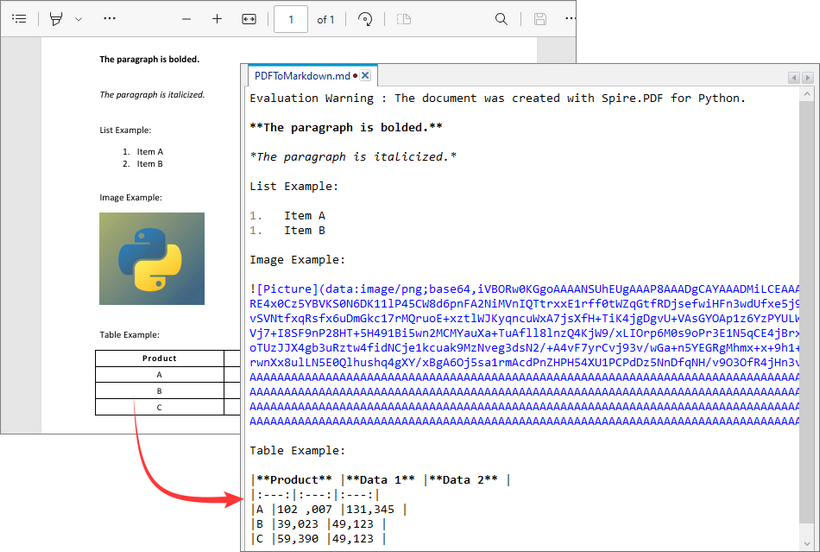
Batch Convert Multiple PDFs to Markdown in Python
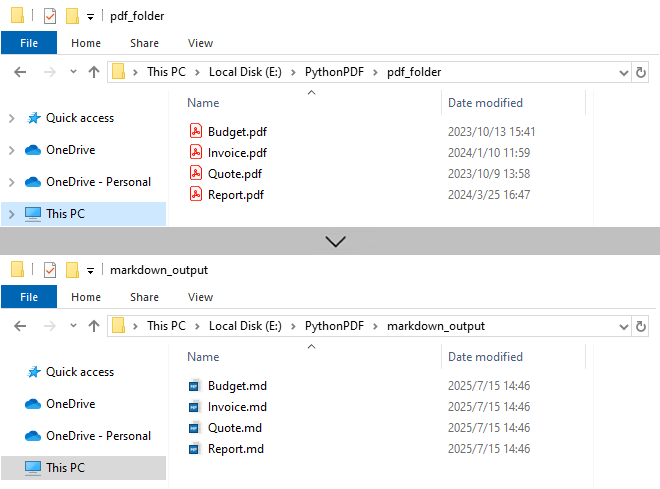
This Python script uses a loop to convert all PDF files in a specified directory to Markdown format.
import os
from spire.pdf import *

# Configure paths
input_folder = "pdf_folder/"
output_folder = "markdown_output/"

# Create output directory
os.makedirs(output_folder, exist_ok=True)

# Process all PDFs in folder
for file_name in os.listdir(input_folder):
    if file_name.endswith(".pdf"):
        # Initialize document
        pdf = PdfDocument()
        pdf.LoadFromFile(os.path.join(input_folder, file_name))

        # Generate output path
        md_name = os.path.splitext(file_name)[0] + ".md"
        output_path = os.path.join(output_folder, md_name)

        # Convert to Markdown
        pdf.SaveToFile(output_path, FileFormat.Markdown)
        pdf.Close()
Key Characteristics
- Batch Processing: Automatically processes all PDFs in input folder, improving efficiency for bulk operations.
- 1:1 Conversion: Each PDF generates corresponding Markdown file.
- Sequential Execution: Files processed in alphabetical order.
- Resource Management: Each PDF is closed immediately after conversion.
Output:
Need to convert Markdown to PDF? Refer to: Convert Markdown to PDF in Python
Frequently Asked Questions (FAQs)
Q1: Is Spire.PDF for Python free?
A: Spire.PDF offers a free version with limitations (e.g., maximum 3 pages per conversion). For unlimited use, request a 30-day free trial for evaluation.
Q2: Can I convert password-protected PDFs to Markdown?
A: Yes. Use the LoadFromFile method with the password as a second parameter:
pdf.LoadFromFile("ProtectedFile.pdf", "your_password")
Q3: Can Spire.PDF convert scanned/image-based PDFs to Markdown?
A: No. The library extracts text-based content only. For scanned PDFs, use OCR tools (like Spire.OCR for Python) to create searchable PDFs first.
Conclusion
Spire.PDF for Python simplifies PDF to Markdown conversion for both single file and batch processing.
Its advantages include:
- Simple API with minimal code
- Preservation of document structure
- Batch processing capabilities
- Cross-platform compatibility
Whether you're migrating documentation, processing research papers, or building content pipelines, by following the examples in this guide, you can efficiently transform static PDF documents into flexible, editable Markdown content, streamlining workflows and improving collaboration.
