
Knowledgebase (2337)
Children categories
How to Convert CSV to Excel (XLSX) in Python – Single & Batch Guide
2025-06-06 08:04:25 Written by zaki zouWhile working with CSV files is common in data processing, Excel (XLSX) often provides more advantages when it comes to data sharing, visualization, and large-scale analysis. In this guide, you’ll learn how to convert CSV to Excel in Python, including both single file and batch conversion methods. Whether you're automating reports or preparing data for further analysis, this guide will help you handle the conversion efficiently.

- Why Convert CSV to Excel
- Install Required Python Libraries
- Convert Single CSV to Excel
- Batch Convert CSV to XLSX
- FAQs
Why Convert CSV to Excel?
While CSV files are widely used for data storage and exchange due to their simplicity, they come with several limitations—especially when it comes to formatting, presentation, and usability. Converting CSV to Excel can bring several advantages:
Benefits of Converting CSV to Excel
- Better formatting support: Excel allows rich formatting options like fonts, colors, borders, and cell merging, making your data easier to read and present.
- Multiple worksheets: Unlike CSV files that support only a single sheet, Excel files can store multiple worksheets in one file, which is better for large datasets.
- Built-in formulas and charts: You can apply Excel formulas, pivot tables, and charts to analyze and visualize your data.
- Improved compatibility for business users: Excel is the preferred tool for many non-technical users, making it easier to share and collaborate on data.
Limitations of CSV Files
- No styling or formatting (plain text only)
- Single-sheet structure only
- Encoding issues (e.g., with non-English characters)
- Not ideal for large datasets or advanced reporting If your workflow involves reporting, data analysis, or sharing data with others, converting CSV to Excel is often a more practical and flexible choice.
Install Required Python Libraries
This guide demonstrates how to effortlessly convert CSV to Excel using Spire.XLS for Python. Spire.XLS is a powerful and professional Python Excel library that allows you to read, edit, and convert Excel files (both .xlsx and .xls) without relying on Microsoft Excel. Installing this CSV to Excel converter on your device is simple — just run the following command:
pip install Spire.XLS
Alternatively, you can download the Spire.XLS package manually for custom installation.
How to Convert CSV to Excel in Python: Single File
Now let’s get to the main part — how to convert a single CSV file to Excel using Python. With the help of Spire.XLS, this task becomes incredibly simple. All it takes is three easy steps: create a new workbook, load the CSV file, and save it as an Excel (.xlsx) file. Below is a detailed walkthrough along with a complete code example — let’s take a look!
Steps to convert a single CSV to Excel in Python:
- Create a Workbook instance.
- Load a sample CSV file using Workbook.LoadFromFile() method.
- Save the CSV file as Excel through Workbook.SaveToFile() method.
Below is the Python code to convert a CSV file to Excel. It also ignores parsing errors and automatically adjusts the column widths for better readability.
from spire.xls import *
from spire.xls.common import *

# Create a workbook
workbook = Workbook()

# Load a csv file
workbook.LoadFromFile("/sample csv.csv", ",", 1, 1)

# Set ignore error options
sheet = workbook.Worksheets[0]
sheet.Range["D2:E19"].IgnoreErrorOptions = IgnoreErrorType.NumberAsText
sheet.AllocatedRange.AutoFitColumns()

# Save the document and launch it
workbook.SaveToFile("/CSVToExcel1.xlsx", ExcelVersion.Version2013)
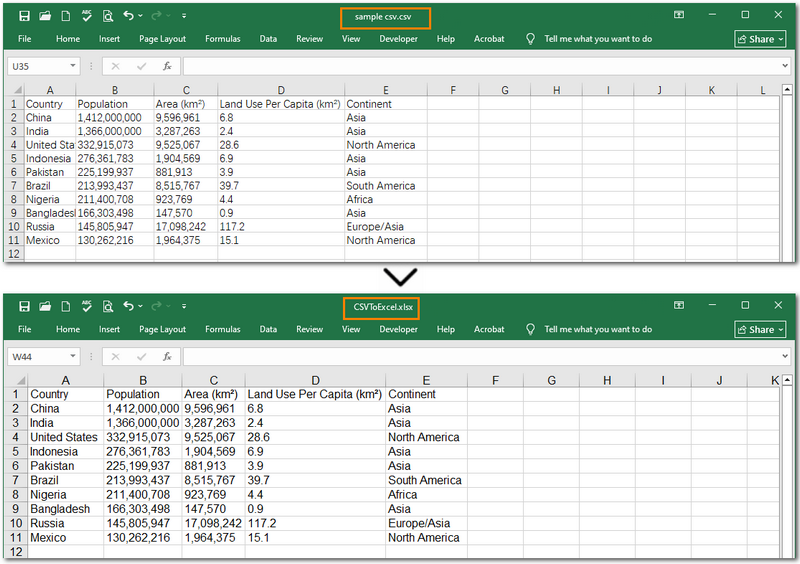
Warm Note: If you're only working with small files or doing some light testing, you can also use the free Spire.XLS. It's a great option for getting started quickly.
How to Batch Convert CSV to XLSX in Python
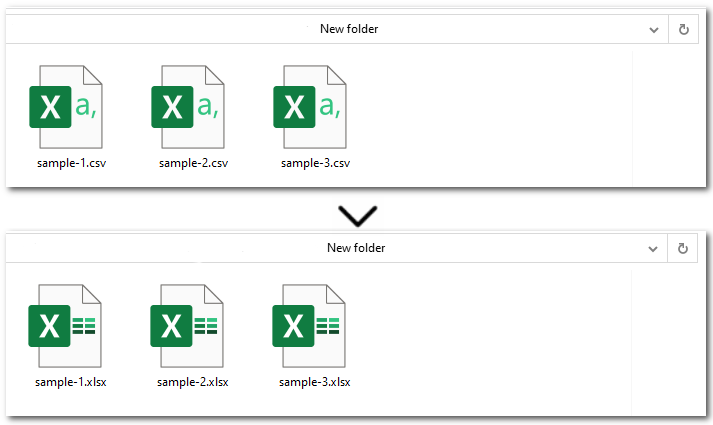
Another common scenario is when you need to convert multiple CSV files to Excel. Instead of manually replacing the file path and name for each one, there's a much more efficient approach. Simply place all the CSV files in the same folder, then use Python to loop through each file and convert them to Excel using the Workbook.SaveToFile() method. Let’s walk through the detailed steps below!
Steps to batch convert CSVs to Excel files in Python:
- Specify the file paths of input and output folders.
- Loop through all CSV files in the input folder.
- Create an object of Workbook class.
- Load each CSV file from the input folder with Workbook.LoadFromFile() method.
- Save the current CSV as an Excel file through Workbook.SaveToFile() method.
Here's the Python code to batch convert CSV to Excel (.XLSX):
import os
from spire.xls import *

input_folder = r"E:input\New folder"
output_folder = r"output\New folder"

# Loop through each CSV file
for csv_file in os.listdir(input_folder):
    if csv_file.endswith(".csv"):
        input_path = os.path.join(input_folder, csv_file)
        output_name = os.path.splitext(csv_file)[0] + ".xlsx"
        output_path = os.path.join(output_folder, output_name)

        # Create a Workbook instance and load CSV files
        workbook = Workbook()
        workbook.LoadFromFile(input_path, ",", 1, 1)

        # Save each CSV file as an Excel file
        workbook.SaveToFile(output_path, ExcelVersion.Version2013)
The Conclusion
This guide showed you how to convert CSV to Excel in Python with step-by-step instructions and complete code examples. Whether you're working with a single CSV file or multiple files, Spire.XLS makes the process simple, fast, and hassle-free. Need help with more advanced scenarios or other Excel-related tasks? Feel free to contact us anytime!
FAQs about Converting CSV to Excel
Q1: How to convert CSV to Excel in Python without pandas?
A: You can use libraries like Spire.XLS, openpyxl, or xlsxwriter to convert CSV files without relying on pandas. These tools provide simple APIs to load .csv files and export them as xlsx—no Microsoft Excel installation required.
Q2: What is the easiest way to convert multiple CSV files to Excel in Python?
A: Just place all CSV files in one folder, then loop through them in Python and convert each using Workbook.SaveToFile(). This approach is ideal for batch processing. Alternatively, online converters can be a quick fix for occasional use.
Q3: How to auto-adjust column width when converting CSV to Excel in Python?
A: After loading the CSV, call worksheet.autoFitColumns() in Spire.XLS to automatically resize columns based on content before saving the Excel file.
Text files (.txt) are a common way to store data due to their simplicity, but they lack the structure and analytical power of Excel spreadsheets. Converting TXT files to Excel allows for better data organization, visualization, and manipulation.
While manual import text file to Excel works for small datasets, automating this process saves time and reduces errors. Python, with its powerful libraries, offers an efficient solution. In this guide, you’ll learn how to convert TXT to Excel in Python using Spire.XLS for Python, a robust API for Excel file manipulation.
Prerequisites
Install Python and Spire.XLS
- Install Python on your machine from python.org.
- Install the Spire.XLS for Python library via PyPI. Open your terminal and run the following command:
pip install Spire.XLS
Prepare a TXT File
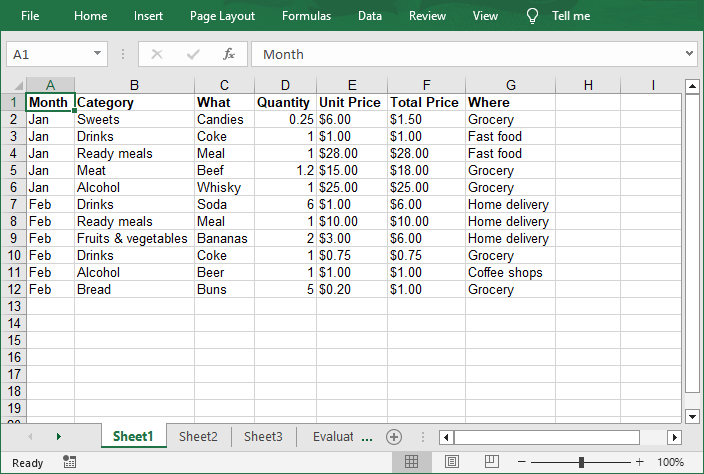
Ensure your TXT file follows a consistent structure, typically with rows separated by newlines and columns separated by delimiters (e.g., commas, tabs, or spaces). For example, a sample text file might look like this: 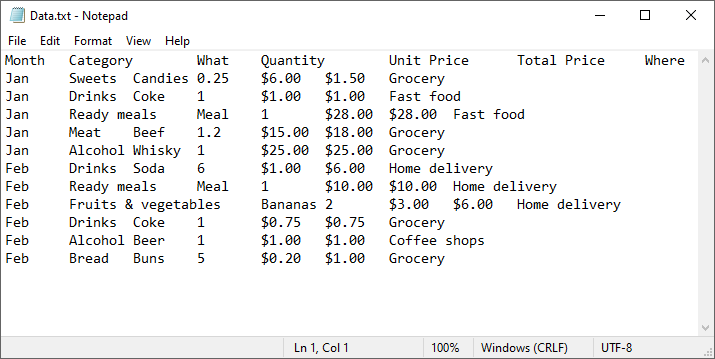
Step-by-Step Guide to Convert Text File to Excel
Step 1: Import Required Modules
In your Python script, import the necessary classes from Spire.XLS:
from spire.xls import *
from spire.xls.common import *
Step 2: Read and Parse the TXT File
Read the text file and split it into rows and columns using Python’s built-in functions. Define your delimiter (tab, in this case):
with open("Data.txt", "r") as file:
    lines = file.readlines()
data = [line.strip().split("\t") for line in lines]
Note: If different delimiter was used, replace the parameter "\t" of the split() method (e.g., spaces: split(" ")).
Step 3: Create an Excel Workbook
Initialize a workbook object and access the first worksheet:
workbook = Workbook()
sheet = workbook.Worksheets[0]
Step 4: Write Data to the Worksheet
Loop through the parsed data and populate the Excel cells.
for row_num, row_data in enumerate(data):
    for col_num, cell_data in enumerate(row_data):
        sheet.Range[row_num + 1, col_num + 1].Value = cell_data
        sheet.Range[1, col_num + 1].Style.Font.IsBold = True
Step 5: Save the Excel File
Export the workbook as an XLSX file (you can also use .xls for older formats):
workbook.SaveToFile("TXTtoExcel.xlsx", ExcelVersion.Version2016)
TXT to Excel Full Code Example
from spire.xls import *
from spire.xls.common import *

# Read TXT data
with open("Data.txt", "r") as file:
    lines = file.readlines()

# Split data by delimiter
data = [line.strip().split("\t") for line in lines]

# Create an Excel workbook
workbook = Workbook()

# Get the first worksheet
sheet = workbook.Worksheets[0]

# Iterate through each row and column in the list
for row_num, row_data in enumerate(data):
    for col_num, cell_data in enumerate(row_data):

        # Write the data into the corresponding Excel cells
        sheet.Range[row_num + 1, col_num + 1].Value = cell_data

        # Set the header row to bold
        sheet.Range[1, col_num + 1].Style.Font.IsBold = True

# Autofit column width
sheet.AllocatedRange.AutoFitColumns()

# Save as Excel (.xlsx or.xls) file
workbook.SaveToFile("TXTtoExcel.xlsx", ExcelVersion.Version2016)
workbook.Dispose()
The Excel workbook converted from a text file:
Conclusion
Converting TXT files to Excel in Python using Spire.XLS automates data workflows, saving time and reducing manual effort. Whether you’re processing logs, survey results, or financial records, this method ensures structured, formatted outputs ready for analysis.
Pro Tip: Explore Spire.XLS’s advanced features—such as charts, pivot tables, and encryption—to further enhance your Excel files.
FAQs
Q1: Can Spire.XLS convert large TXT files?
Yes, the Python Excel library is optimized for performance and can process large files efficiently. However, ensure your system has sufficient memory for very large datasets (e.g., millions of rows). For optimal results, process data in chunks or use batch operations.
Q2: Can I convert Excel back to TXT using Spire.XLS?
Yes, Spire.XLS allows to read Excel cells and write their values to a text file. A comprehensive guide is available at: Convert Excel to TXT in Python
Q3: How to handle the encoding issues during conversion?
Specify encoding if the text file uses non-standard characters (e.g., utf-8):
with open("Data.txt", "r", encoding='utf-8') as file:
    lines = file.readlines()
Get a Free License
To fully experience the capabilities of Spire.XLS for Python without any evaluation limitations, you can request a free 30-day trial license.
How to Count Word Frequency in a Word Document Using Python
2025-05-22 09:16:03 Written by AdministratorWant to count the frequency of words in a Word document? Whether you're analyzing content, generating reports, or building a document tool, Python makes it easy to find how often a specific word appears—across the entire document, within specific sections, or even in individual paragraphs. In this guide, you’ll learn how to use Python to count word occurrences accurately and efficiently, helping you extract meaningful insights from your Word files without manual effort.
- Count Frequency of Words in an Entire Word Document
- Count Word Frequency by Section
- Count Word Frequency by Paragraph
- To Wrap Up
- FAQ
In this tutorial, we’ll use Spire.Doc for Python, a powerful and easy-to-use library for Word document processing. It supports a wide range of features like reading, editing, and analyzing DOCX files programmatically—without requiring Microsoft Office.
You can install it via pip:
pip install spire.doc
Let’s see how it works in practice, starting with counting word frequency in an entire Word document.
How to Count Frequency of Words in an Entire Word Document
Let’s start by learning how to count how many times a specific word or phrase appears in an entire Word document. This is a common task—imagine you need to check how often the word "contract" appears in a 50-page file.
With the FindAllString() method from Spire.Doc for Python, you can quickly search through the entire document and get an exact count in just a few lines of code—saving you both time and effort.
Steps to count the frequency of a word in the entire Word document:
- Create an object of Document class and read a source Word document.
- Specify the keyword to find.
- Find all occurrences of the keyword in the document using Document.FindAllString() method.
- Count the number of matches and print it out.
The following code shows how to count the frequency of the keyword "AI-Generated Art" in the entire Word document:
from spire.doc import *
from spire.doc.common import *

# Create a Document object
document = Document()

# Load a Word document
document.LoadFromFile("E:/Administrator/Python1/input/AI-Generated Art.docx")

# Customize the keyword to find
keyword = "AI-Generated Art"

# Find all matches (False: distinguish case; True: full text search)
textSelections = document.FindAllString(keyword, False, True)

# Count the number of matches
count = len(textSelections)

# Print the result
print(f'"{keyword}" appears {count} times in the entire document.')

# Close the document
document.Close()

How to Count Word Frequency by Section in a Word Document Using Python
A Word document is typically divided into multiple sections, each containing its own paragraphs, tables, and other elements. Sometimes, instead of counting a word's frequency across the entire document, you may want to know how often it appears in each section. To achieve this, we’ll loop through all the document sections and search for the target word within each one. Let’s see how to count word frequency by section using Python.
Steps to count the frequency of a word by section in Word documents:
- Create a Document object and load the Word file.
- Define the target keyword to search.
- Loop through all sections in the document. Within each section, loop through all paragraphs.
- Use regular expressions to count keyword occurrences.
- Accumulate and print the count for each section and the total count.
This code demonstrates how to count how many times "AI-Generated Art" appears in each section of a Word document:
import re
from spire.doc import *
from spire.doc.common import *

# Create a Document object and load a Word file
document = Document()
document.LoadFromFile("E:/Administrator/Python1/input/AI.docx")

# Specify the keyword
keyword = "AI-Generated Art"

# The total count of the keyword
total_count = 0

# Get all sections
sections = document.Sections

# Loop through each section
for i in range(sections.Count):
    section = sections.get_Item(i)
    paragraphs = section.Paragraphs

    section_count = 0
    print(f"\n=== Section {i + 1} ===")

    # Loop through each paragraph in the section
    for j in range(paragraphs.Count):
        paragraph = paragraphs.get_Item(j)
        text = paragraph.Text

        # Find all matches using regular expressions
        count = len(re.findall(re.escape(keyword), text, flags=re.IGNORECASE))
        section_count += count
        total_count += count

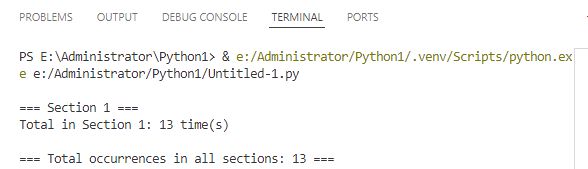
    print(f'Total in Section {i + 1}: {section_count} time(s)')

print(f'\n=== Total occurrences in all sections: {total_count} ===')

# Close the document
document.Close()
How to Count Word Frequency by Paragraph in a Word Document
When it comes to tasks like sensitive word detection or content auditing, it's crucial to perform a more granular analysis of word frequency. In this section, you’ll learn how to count word frequency by paragraph in a Word document, which gives you deeper insight into how specific terms are distributed across your content. Let’s walk through the steps and see a code example in action.
Steps to count the frequency of words by paragraph in Word files:
- Instantiate a Document object and load a Word document from files.
- Specify the keyword to search for.
- Loop through each section and each paragraph in the document.
- Find and count the occurrence of the keyword using regular expressions.
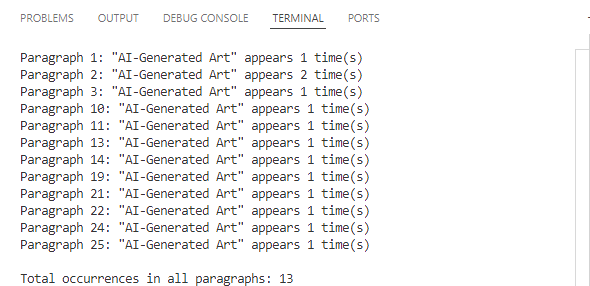
- Print out the count for each paragraph where the keyword appears and the total number of occurrences.
Use the following code to calculate the frequency of "AI-Generated Art" by paragraphs in a Word document:
import re
from spire.doc import *
from spire.doc.common import *

# Create a Document object
document = Document()

# Load a Word document
document.LoadFromFile("E:/Administrator/Python1/input/AI.docx")

# Customize the keyword to find
keyword = "AI-Generated Art"

# Initialize variables
total_count = 0
paragraph_index = 1

# Loop through sections and paragraphs
sections = document.Sections
for i in range(sections.Count):
    section = sections.get_Item(i)
    paragraphs = section.Paragraphs
    for j in range(paragraphs.Count):
        paragraph = paragraphs.get_Item(j)
        text = paragraph.Text

        # Find all occurrences of the keyword while ignoring case
        count = len(re.findall(re.escape(keyword), text, flags=re.IGNORECASE))

        # Print the result
        if count > 0:
            print(f'Paragraph {paragraph_index}: "{keyword}" appears {count} time(s)')
            total_count += count
        paragraph_index += 1

# Print the total count
print(f'\nTotal occurrences in all paragraphs: {total_count}')
document.Close()
To Wrap Up
The guide demonstrates how to count the frequency of specific words across an entire Word document, by section, and by paragraph using Python. Whether you're analyzing long reports, filtering sensitive terms, or building smart document tools, automating the task with Spire.Doc for Python can save time and boost accuracy. Give them a try in your own projects and take full control of your Word document content.
FAQs about Counting the Frequency of Words
Q1: How to count the number of times a word appears in Word?
A: You can count word frequency in Word manually using the “Find” feature, or automatically using Python and libraries like Spire.Doc. This lets you scan the entire document or target specific sections or paragraphs.
Q2: Can I analyze word frequency across multiple Word files?
A: Yes. By combining a loop in Python to load multiple documents, you can apply the same word-count logic to each file and aggregate the results—ideal for batch processing or document audits.
