
Knowledgebase (2337)
Children categories

In development, reading CSV files in Python is a common task in data processing, analytics, and backend integration. While Python offers built-in modules like csv and pandas for handling CSV files, Spire.XLS for Python provides a powerful, feature-rich alternative for working with CSV and Excel files programmatically.
In this article, you’ll learn how to use Python to read CSV files, from basic CSV parsing to advanced techniques.
- Getting Started with Spire.XLS for Python
- Basic Example: Read a CSV in Python
- Advanced CSV Reading Techniques
- Conclusion
Getting Started with Spire.XLS for Python
Spire.XLS for Python is a feature-rich library for processing Excel and CSV files. Unlike basic CSV parsers in Python, it offers advanced capabilities such as:
- Simple API to load, read, and manipulate CSV data.
- Reading/writing CSV files with support for custom delimiters.
- Converting CSV files to Excel formats (XLSX, XLS) and vice versa.
These features make Spire.XLS ideal for data analysts, developers, and anyone working with structured data in CSV format.
Install via pip
Before getting started, install the library via pip. It works with Python 3.6+ on Windows, macOS, and Linux:
pip install Spire.XLS
Basic Example: Read a CSV in Python
Let’s start with a simple example: parsing a CSV file and extracting its data. Suppose we have a CSV file named “input.csv” with the following content:
Name,Age,City,Salary
Alice,30,New York,75000
Bob,28,Los Angeles,68000
Charlie,35,San Francisco,90000
Python Code to Read the CSV File
Here’s how to load and get data from the CSV file with Python:
from spire.xls import *
from spire.xls.common import *

# Create a Workbook object
workbook = Workbook()

# Load a CSV file
workbook.LoadFromFile("input.csv", ",", 1, 1)

# Get the first worksheet (CSV files are loaded as a single sheet)
worksheet = workbook.Worksheets[0]

# Get the number of rows and columns with data
row_count = worksheet.LastRow
col_count = worksheet.LastColumn

# Iterate through rows and columns to print data
print("CSV Data:")
for row in range(row_count):
    for col in range(col_count):
        # Get cell value
        cell_value = worksheet.Range[row+1, col+1].Value
        print(cell_value, end="\t")
    print()  # New line after each row

# Close the workbook
workbook.Dispose()
Explanation:
-
Workbook Initialization: The Workbook class is the core object for handling Excel files.
-
Load CSV File: LoadFromFile() imports the CSV data. Its parameters are:
- fileName: The CSV file to read.
- separator: Specified delimiter (e.g., “,”).
- row/column: The starting row/column index.
-
Access Worksheet: The CSV data is loaded into the first worksheet.
-
Read Data: Iterate through rows and columns to extract cell values via worksheet.Range[].Value.
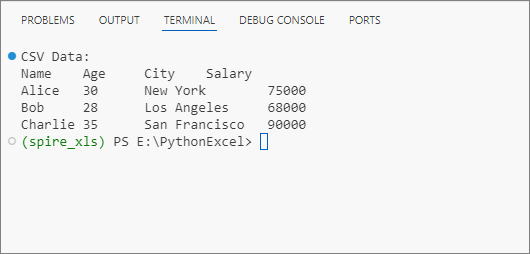
Output: Get data from a CSV file and print in a tabular format.
Advanced CSV Reading Techniques
1. Read CSV with Custom Delimiters
Not all CSVs use commas. If your CSV file uses a different delimiter (e.g., ;), specify it during loading:
# Load a CSV file
workbook.LoadFromFile("input.csv", ";", 1, 1)
2. Skip Header Rows
If your CSV has headers, skip them by adjusting the row iteration to start from the second row instead of the first.
for row in range(1, row_count):
    for col in range(col_count):
        # Get cell value (row+1 because Spire.XLS uses 1-based indexing)
        cell_value = worksheet.Range[row+1, col+1].Value
        print(cell_value, end="\t")
3. Convert CSV to Excel in Python
One of the most powerful features of Spire.XLS is the ability to convert a CSV file into a native Excel format effortlessly. For example, you can read a CSV and then:
- Apply Excel formatting (e.g., set cell colors, borders).
- Create charts (e.g., a bar chart for sales by region).
- Save the data as an Excel file (.xlsx) for sharing.
Code Example: Convert CSV to Excel (XLSX) in Python – Single & Batch
Conclusion
Reading CSV files in Python with Spire.XLS simplifies both basic and advanced data processing tasks. Whether you need to extract CSV data, convert it to Excel, or handle advanced scenarios like custom delimiters, the examples outlined in this guide enables you to implement robust CSV reading capabilities in your projects with minimal effort.
Try the examples above, and explore the online documentation for more advanced features!
Java Convert Byte Array to PDF: Load & Create with Spire.PDF
2025-08-21 06:31:19 Written by zaki zou
In modern Java applications, PDF data is not always stored as files on disk. Instead, it may be transmitted over a network, returned by a REST API, or stored as a byte array in a database. In such cases, you’ll often need to convert a byte array back into a PDF file or even generate a new PDF from plain text bytes.
This tutorial will walk you through both scenarios using Spire.PDF for Java, a powerful library for working with PDF documents.
Table of Contents:
- Getting Started with Spire.PDF for Java
- Understanding PDF Bytes vs. Text Bytes
- Loading PDF from Byte Array
- Creating PDF from Text Bytes
- Common Pitfalls to Avoid
- Frequently Asked Questions
- Conclusion
Getting Started with Spire.PDF for Java
Spire.PDF is a powerful and feature-rich API that allows Java developers to create, read, edit, convert, and print PDF documents without any dependencies on Adobe Acrobat.
Key Features:
- Create PDFs with text, images, tables, and shapes.
- Edit existing PDFs and extract text and images.
- Convert PDFs to formats like HTML, Word, Excel, and images.
- Encrypt PDFs with password protection.
- Add watermarks, annotations, and digital signatures.
To get started, download Spire.PDF for Java from our website and add the JAR files to your project's build path. If you’re using Maven, include the following dependency in your pom.xml.
<repositories>
    <repository>
        <id>com.e-iceblue</id>
        <name>e-iceblue</name>
        <url>https://repo.e-iceblue.com/nexus/content/groups/public/</url>
    </repository>
</repositories>
<dependencies>
    <dependency>
        <groupId>e-iceblue</groupId>
        <artifactId>spire.pdf</artifactId>
        <version>12.6.1</version>
    </dependency>
</dependencies>
Once set up, you can now proceed to convert byte arrays to PDFs and perform other PDF-related operations.
Understanding PDF Bytes vs. Text Bytes
Before coding, it’s important to distinguish between two very different kinds of byte arrays :
- PDF File Bytes : These represent the actual binary structure of a valid PDF document. They always start with %PDF-1.x and contain objects, cross-reference tables, and streams. Such byte arrays can be loaded directly into a PdfDocument.
- Text Bytes : These are simply ASCII or UTF-8 encodings of characters. For example,
byte[] bytes = {84, 104, 105, 115};
System.out.println(new String(bytes)); // Output: "This"
Such arrays are not valid PDFs, but you can create a new PDF and write the text into it.
Loading PDF from Byte Array in Java
Suppose you want to download a PDF from a URL and work with it in memory as a byte array. With Spire.PDF for Java, you can easily load and save it back as a PDF document.
import com.spire.pdf.PdfDocument;

import java.io.ByteArrayInputStream;
import java.io.ByteArrayOutputStream;
import java.io.InputStream;
import java.net.HttpURLConnection;
import java.net.URL;

public class LoadPdfFromByteArray throws Exception{

    public static void main(String[] args) {

        // The PDF URL
        String fileUrl = "https://www.e-iceblue.com/resource/sample.pdf";

        // Download PDF into a byte array
        byte[] pdfBytes = downloadPdfAsBytes(fileUrl);

        // Create a PdfDocument object
        PdfDocument doc = new PdfDocument();

        // Load PDF from byte array
        doc.loadFromStream(new ByteArrayInputStream(pdfBytes));

        // Save the document locally
        doc.saveToFile("downloaded.pdf");
        doc.close();
    }

    // Helper method: download file as byte[]
    private static byte[] downloadPdfAsBytes(String fileUrl) throws Exception {
        URL url = new URL(fileUrl);
        HttpURLConnection conn = (HttpURLConnection) url.openConnection();
        conn.setRequestMethod("GET");

        InputStream inputStream = conn.getInputStream();
        ByteArrayOutputStream buffer = new ByteArrayOutputStream();

        byte[] data = new byte[4096];
        int nRead;
        while ((nRead = inputStream.read(data, 0, data.length)) != -1) {
            buffer.write(data, 0, nRead);
        }

        buffer.flush();
        inputStream.close();
        conn.disconnect();

        return buffer.toByteArray();
    }
}
How this works
- Make an HTTP request to fetch the PDF file.
- Convert the InputStream into a byte array using ByteArrayOutputStream .
- Pass the byte array into Spire.PDF via loadFromStream .
- Save or manipulate the document as needed.
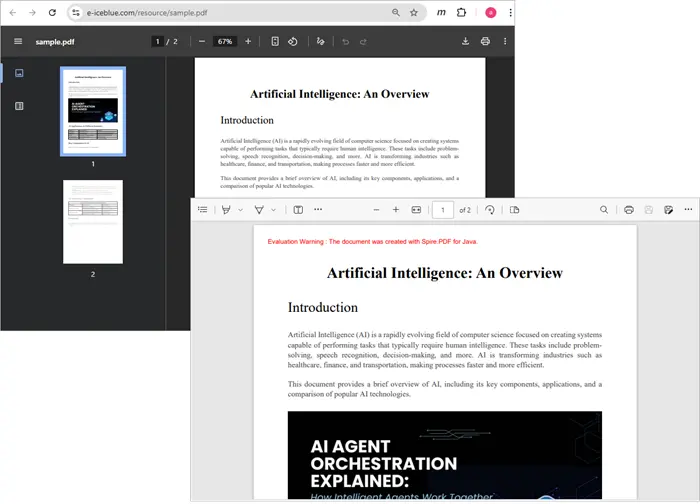
Output:
Creating PDF from Text Bytes in Java
If you only have plain text bytes (e.g., This document is created from text bytes.), you can decode them into a string and then draw the text onto a new PDF document.
import com.spire.pdf.*;
import com.spire.pdf.graphics.*;
import java.awt.*;

public class TextFromBytesToPdf {
    public static void main(String[] args) {

        // Your text bytes
        byte[] byteArray = {
                84, 104, 105, 115, 32,
                100, 111, 99, 117, 109, 101, 110, 116, 32,
                105, 115, 32,
                99, 114, 101, 97, 116, 101, 100, 32,
                102, 114, 111, 109, 32,
                116, 101, 120, 116, 32,
                98, 121, 116, 101, 115, 46
        };
        String text = new String(byteArray);

        // Create a PDF document
        PdfDocument doc = new PdfDocument();

        // Configure the page settings
        doc.getPageSettings().setSize(PdfPageSize.A4);
        doc.getPageSettings().setMargins(40f);

        // Add a page
        PdfPageBase page = doc.getPages().add();

        // Draw the string onto PDF
        PdfFont font = new PdfFont(PdfFontFamily.Helvetica, 20f);
        PdfSolidBrush brush = new PdfSolidBrush(new PdfRGBColor(Color.black));
        page.getCanvas().drawString(text, font, brush, 20, 40);

        // Save the document to a PDF file
        doc.saveToFile("TextBytes.pdf");
        doc.close();
    }
}
This will produce a new PDF named TextBytes.pdf (shown below) containing the sentence represented by your byte array.

You might be interested in: How to Generate PDF Documents in Java
Common Pitfalls to Avoid
When converting byte arrays to PDFs, watch out for these issues:
- Confusing plain text with PDF bytes
Not every byte array is a valid PDF. Unless the array starts with %PDF-1.x and contains the proper structure, you can’t load it directly with PdfDocument.loadFromStream .
- Incorrect encoding
If your text bytes are in UTF-16, ISO-8859-1, or another encoding, you need to specify the charset when creating a string:
String text = new String(byteArray, StandardCharsets.UTF_8);
- Large byte arrays
When dealing with large PDFs, consider streaming instead of holding everything in memory to avoid OutOfMemoryError .
- Forgetting to close documents
Always call doc.close() to release resources after saving or processing a PDF.
Frequently Asked Questions
Q1. Can I store a PDF as a byte array in a database?
Yes. You can store a PDF as a BLOB in a relational database. Later, you can retrieve it, load it into a PdfDocument , and save or manipulate it.
Q2. How do I check if a byte array is a valid PDF?
Check if the array begins with the %PDF- header. You can do:
String header = new String(Arrays.copyOfRange(bytes, 0, 5));
if (header.startsWith("%PDF-")) {
    // valid PDF
}
Q3. Can Spire.PDF load a PDF directly from an InputStream?
Yes. Instead of converting to a byte array, you can pass the InputStream directly to loadFromStream() .
Q4. Can I convert a PdfDocument back into a byte array?
You can save the document into a ByteArrayOutputStream instead of a file:
ByteArrayOutputStream baos = new ByteArrayOutputStream();
doc.saveToStream(baos);
byte[] pdfBytes = baos.toByteArray();
Q5. What if my byte array contains images instead of text or PDF?
In that case, you’ll need to create a new PDF and insert the image using Spire.PDF’s drawing APIs.
Conclusion
In this article, we explored how to efficiently convert byte arrays to PDF documents using Spire.PDF for Java. Whether you're loading existing PDF files from byte arrays retrieved via APIs or creating new PDFs from plain text bytes, Spire.PDF provides a robust solution to meet your needs.
We covered essential concepts, including the distinction between PDF file bytes and text bytes, and highlighted common pitfalls to avoid during the conversion process. With the right understanding and tools, you can seamlessly integrate PDF functionalities into your Java applications, enhancing your ability to manage and manipulate document data.
For further exploration, consider experimenting with additional features of Spire.PDF, such as editing, encrypting, and converting PDFs to other formats. The possibilities are extensive, and mastering these techniques will undoubtedly improve your development skills and project outcomes.

Many business applications today need the ability to scan barcodes and QR codes in ASP.NET environments. From ticket validation and payment processing to inventory management, an ASP.NET QR code scanner or barcode reading feature can greatly improve efficiency and accuracy for both web and enterprise systems.
This tutorial demonstrates how to build a complete solution to scan barcodes in ASP.NET with C# code using Spire.Barcode for .NET. We’ll create an ASP.NET Core web application that can read both QR codes and various barcode formats from uploaded images, delivering high recognition accuracy and easy integration into existing projects.
Guide Overview
- 1. Project Setup
- 2. Implementing QR Code and Barcode Scanning Feature with C# in ASP.NET
- 3. Testing and Troubleshooting
- 4. Extending to Other .NET Applications
- 5. Conclusion
1. Project Setup
Step 1: Create the Project
Create a new ASP.NET Core Razor Pages project, which will serve as the foundation for the scanning feature. Use the following command to create a new project or manually configure it in Visual Studio:
dotnet new webapp -n QrBarcodeScanner
cd QrBarcodeScanner
Step 2: Install Spire.Barcode for .NET
Install the Spire.Barcode for .NET NuGet package, which supports decoding a wide range of barcode types with a straightforward API. Search for the package in the NuGet Package Manager or use the command below to install it:
dotnet add package Spire.Barcode
Spire.Barcode for .NET offers built-in support for both QR codes and multiple barcode formats such as Code128, EAN-13, and Code39, making it suitable for ASP.NET Core integration without requiring additional image processing libraries. To find out all the supported barcode types, refer to the BarcodeType API reference.
You can also use Free Spire.Barcode for .NET for smaller projects.
2. Implementing QR Code and Barcode Scanning Feature with C# in ASP.NET
A reliable scanning feature involves two main parts:
- Backend logic that processes and decodes uploaded images.
- A simple web interface that lets users upload files for scanning.
We will first focus on the backend implementation to ensure the scanning process works correctly, then connect it to a minimal Razor Page frontend.
Backend: QR & Barcode Scanning Logic with Spire.Barcode
The backend code reads the uploaded file into memory and processes it with Spire.Barcode, using either a memory stream or a file path. The scanned result is then returned. This implementation supports QR codes and other barcode types without requiring format-specific logic.
Index.cshtml.cs
using Microsoft.AspNetCore.Mvc;
using Microsoft.AspNetCore.Mvc.RazorPages;
using Spire.Barcode;

public class IndexModel : PageModel
{
    [BindProperty]
    public IFormFile Upload { get; set; }  // Uploaded file

    public string Result { get; set; }     // Scanning result
    public string UploadedImageBase64 { get; set; } // Base64 string for preview

    public void OnPost()
    {
        if (Upload != null && Upload.Length > 0)
        {
            using (var ms = new MemoryStream())
            {
                // Read the uploaded file into memory
                Upload.CopyTo(ms);

                // Convert the image to Base64 for displaying in HTML <img>
                UploadedImageBase64 = "data:" + Upload.ContentType + ";base64," +
                                      Convert.ToBase64String(ms.ToArray());

                // Reset the stream position before scanning
                ms.Position = 0;

                // Scan the barcode or QR code from the stream
                try
                {
                    string[] scanned = BarcodeScanner.Scan(ms);
                    // Return the scanned result
                    Result = scanned != null && scanned.Length > 0
                        ? string.Join(", ", scanned)
                        : "No code detected.";
                }
                catch (Exception ex)
                {
                    Result = "Error while scanning: " + ex.Message;
                }
            }
        }
    }
}
Explanation of Key Classes and Methods
- BarcodeScanner: A static class in Spire.Barcode that decodes images containing QR codes or barcodes.
- BarcodeScanner.Scan(Stream imageStream): Scans an uploaded image directly from a memory stream and returns an array of decoded strings. This method scans all barcodes in the given image.
- Supplementary methods (optional):
- BarcodeScanner.Scan(string imagePath): Scans an image from a file path.
- BarcodeScanner.ScanInfo(string imagePath): Scans an image from a file path and returns additional barcode information such as type, location, and data.
These methods can be used in different ways, depending on the application requirements.
Frontend: QR & Barcode Upload & Scanning Result Interface
The following page design provides a simple upload form where users can submit an image containing a QR code or barcode. Once uploaded, the image is displayed along with the recognized result, which can be copied with a single click. The layout is intentionally kept minimal for fast testing, yet styled for a clear and polished presentation.
Index.cshtml
@page
@model IndexModel
@{
    ViewData["Title"] = "QR & Barcode Scanner";
}

<div style="max-width:420px;margin:40px auto;padding:20px;border:1px solid #ccc;border-radius:8px;background:#f9f9f9;">
    <h2>QR & Barcode Scanner</h2>
    <form method="post" enctype="multipart/form-data" id="uploadForm">
        <input type="file" name="upload" accept="image/*" required onchange="this.form.submit()" style="margin:10px 0;" />
    </form>

    @if (!string.IsNullOrEmpty(Model.UploadedImageBase64))
    {
        <div style="margin-top:15px;text-align:center;">
            <img src="/@Model.UploadedImageBase64" style="width:300px;height:300px;object-fit:contain;border:1px solid #ddd;background:#fff;" />
        </div>
    }

    @if (!string.IsNullOrEmpty(Model.Result))
    {
        <div style="margin-top:15px;padding:10px;background:#e8f5e9;border-radius:6px;">
            <b>Scan Result:</b>
            <p id="scanText">@Model.Result</p>
            <button type="button" onclick="navigator.clipboard.writeText(scanText.innerText)" style="background:#28a745;color:#fff;padding:6px 10px;border:none;border-radius:4px;">Copy</button>
        </div>
    }
</div>
Below is a screenshot showing the scan page after successfully recognizing both a QR code and a Code128 barcode, with the results displayed and a one-click copy button available.
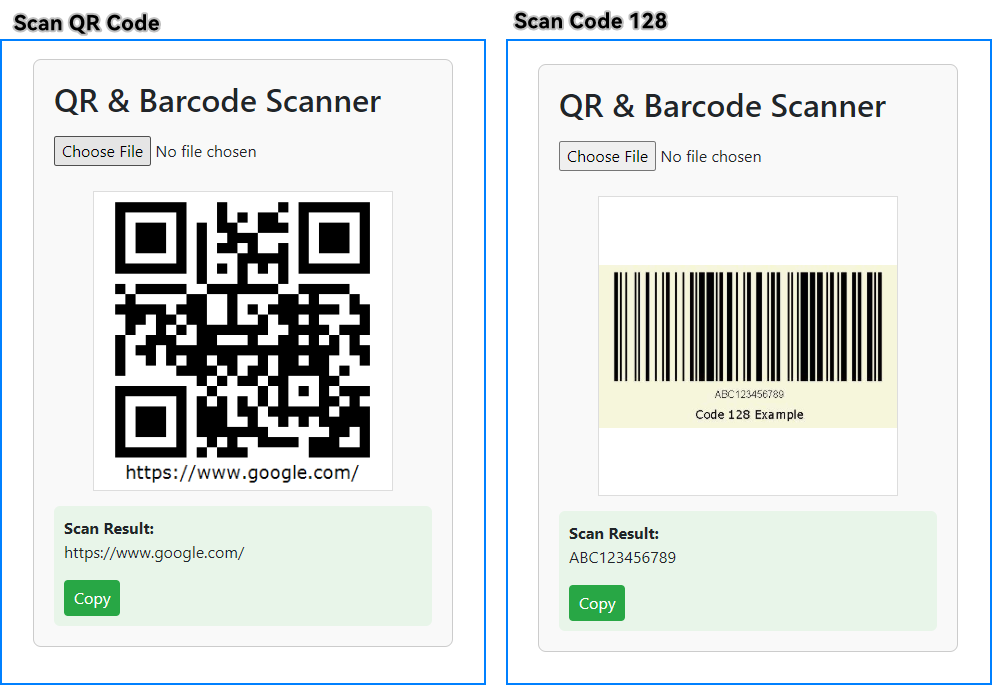
This ASP.NET Core application can scan QR codes and other barcodes from uploaded images. If you're looking to generate QR codes or barcodes, check out How to Generate QR Codes in ASP.NET Core.
3. Testing and Troubleshooting
After running the application, test the scanning feature with:
- A QR code image containing a URL or plain text.
- A barcode image such as Code128 or EAN-13.
If recognition fails:
- Ensure the image has good contrast and minimal distortion.
- Use images of reasonable resolution (not excessively large or pixelated).
- Test with different file formats such as JPG, PNG, or BMP.
- Avoid images with reflections, glare, or low lighting.
- When scanning multiple barcodes in one image, ensure each code is clearly separated to improve recognition accuracy.
A good practice is to maintain a small library of sample QR codes and barcodes to test regularly after making code changes.
4. Extending to Other .NET Applications
The barcode scanning logic in this tutorial works the same way across different .NET application types — only the way you supply the image file changes. This makes it easy to reuse the core decoding method, BarcodeScanner.Scan(), in various environments such as:
- ASP.NET Core MVC controllers or Web API endpoints
- Desktop applications like WinForms or WPF
- Console utilities for batch processing
Example: Minimal ASP.NET Core Web API Endpoint — receives an image file via HTTP POST and returns decoded results as JSON:
[ApiController]
[Route("api/[controller]")]
public class ScanController : ControllerBase
{
    [HttpPost]
    public IActionResult Scan(IFormFile file)
    {
        if (file == null) return BadRequest("No file uploaded");
        using var ms = new MemoryStream();
        file.CopyTo(ms);
        ms.Position = 0;
        string[] results = BarcodeScanner.Scan(ms);
        return Ok(results);
    }
}
Example: Console application — scans a local image file and prints the decoded text:
string[] result = BarcodeScanner.Scan(@"C:\path\to\image.png");
Console.WriteLine(string.Join(", ", result));
This flexibility makes it simple for developers to quickly add QR code and barcode scanning to new projects or extend existing .NET applications.
5. Conclusion
This tutorial has shown how to implement a complete QR code and barcode scanning solution in ASP.NET Core using Spire.Barcode for .NET. From receiving uploaded images to decoding and displaying the results, the process is straightforward and adaptable to a variety of application types. With this approach, developers can quickly integrate reliable scanning functionality into e-commerce platforms, ticketing systems, document verification tools, and other business-critical web applications.
For more advanced scenarios, Spire.Barcode for .NET provides additional features such as customizing the recognition process, handling multiple image formats and barcode types, and more. Apply for a free trial license to unlock all the advanced features.
Download Spire.Barcode for .NET today and start building your own ASP.NET barcode scanning solution.
