Product shots, icons, and screenshots inside a presentation often need to be reused on their own: as web assets, for archiving an old project, or for bulk-exporting images while migrating dozens of decks to a new template. Right-clicking and saving each one by hand is slow and easy to miss. Running a script on the server means uploading the file first.
This article extracts images from PowerPoint directly in the browser with Spire.Presentation for JavaScript. You can export every image in the presentation at once, or extract only the images on a specific slide. The whole process runs in the browser via WebAssembly, with no Office installation and no backend dependency, and the file always stays on the user's device.
This article covers two core tasks:
For installation and project setup, see Integrate Spire.Presentation for JavaScript in a React project. The examples below assume Spire.Presentation is installed and the WebAssembly module is initialized.
Extract all images from a PowerPoint presentation
Spire.Presentation for JavaScript provides the Presentation.Images property to access the image resources stored in a presentation.
The steps are:
- Get the Spire.Presentation WASM module and make sure it is ready.
- Load the sample presentation and fonts, create a
Presentationobject, and open the file. - Get the image collection with
Presentation.Imagesand accessget_Item(i)for each entry up toCount. - Read the image stream with
IImageData.Imageand callSave()to save it as a PNG. - Read each image from the VFS, turn it into a Blob, and trigger a browser download.
The code to extract all images is as follows:
function App() {
  const downloadFile = (blob, fileName) => {
    const url = URL.createObjectURL(blob);
    const a = document.createElement('a');
    a.href = url;
    a.download = fileName;
    a.click();
    URL.revokeObjectURL(url);
  };

  const extractAllImages = async () => {
    // Get the Spire.Presentation WASM module
    const pptModule = window.wasmModule?.spirepresentation;

    // Check that the module is ready
    if (!pptModule) {
      alert('Spire.Presentation is not ready yet');
      return;
    }

    // Load the sample presentation and fonts
    await window.spire.FetchFileToVFS('Introduce.pptx', '', `${process.env.PUBLIC_URL}/data/`);
    await window.spire.FetchFileToVFS('ARIALUNI.TTF', '/Library/Fonts/', `${process.env.PUBLIC_URL}/font/`);

    // Create a Presentation instance and load the presentation
    const ppt = new pptModule.Presentation();
    ppt.LoadFromFile('Introduce.pptx');

    // Walk the image collection and save and download each image
    for (let i = 0; i < ppt.Images.Count; i++) {
      const image = ppt.Images.get_Item(i).Image;
      const imageName = `Image_${i}.png`;

      // Write the image to the virtual file system
      image.Save(imageName);
      const fileArray = window.dotnetRuntime.Module.FS.readFile(imageName);
      const blob = new Blob([fileArray], { type: 'image/png' });

      // Leave a gap between consecutive downloads so the browser does not block them
      await new Promise((resolve) => setTimeout(resolve, 300));
      downloadFile(blob, imageName);

      image.Dispose();
    }

    ppt.Dispose();
  };

  return (
    <div style={{ textAlign: 'center', height: '300px' }}>
      <h1>Extract all images from PowerPoint</h1>
      <button id="btn-1" onClick={extractAllImages}>
        Extract all images
      </button>
    </div>
  );
}

export default App;
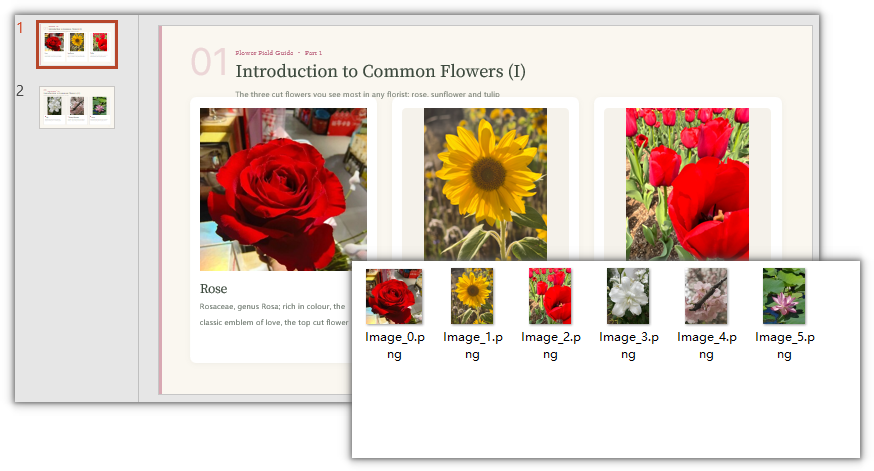
All the images that were downloaded:
Extract images from a specific slide
When you only need the images on one slide, get that slide with Slides.get_Item(index) and then walk its shapes to pull out the images.
The steps are:
- Get the Spire.Presentation WASM module and make sure it is ready.
- Load the sample presentation and fonts, create a
Presentationobject, and open the file. - Get the second slide with
Slides.get_Item(1)and walk itsShapescollection. - Filter for picture shapes with
instanceof SlidePicture, read the image stream fromPictureFill.Picture.EmbedImage.Image, and callSave(). - Read each image from the VFS, turn it into a Blob, and trigger a browser download.
The code to extract images from a specific slide is as follows:
function App() {
  const downloadFile = (blob, fileName) => {
    const url = URL.createObjectURL(blob);
    const a = document.createElement('a');
    a.href = url;
    a.download = fileName;
    a.click();
    URL.revokeObjectURL(url);
  };

  const extractSlideImages = async () => {
    // Get the Spire.Presentation WASM module
    const pptModule = window.wasmModule?.spirepresentation;

    // Check that the module is ready
    if (!pptModule) {
      alert('Spire.Presentation is not ready yet');
      return;
    }

    // Load the sample presentation and fonts
    await window.spire.FetchFileToVFS('Introduce.pptx', '', `${process.env.PUBLIC_URL}/data/`);
    await window.spire.FetchFileToVFS('ARIALUNI.TTF', '/Library/Fonts/', `${process.env.PUBLIC_URL}/font/`);

    // Create a Presentation instance and load the presentation
    const ppt = new pptModule.Presentation();
    ppt.LoadFromFile('Introduce.pptx');

    // Get the second slide
    const slide = ppt.Slides.get_Item(1);
    let count = 0;

    // Walk every shape on the slide
    for (let j = 0; j < slide.Shapes.Count; j++) {
      const shape = slide.Shapes.get_Item(j);

      // Handle picture shapes only
      if (shape instanceof pptModule.SlidePicture) {
        const image = shape.PictureFill.Picture.EmbedImage.Image;
        const imageName = `Slide-Image_${count}.png`;

        // Write the image to the virtual file system
        image.Save(imageName);
        const fileArray = window.dotnetRuntime.Module.FS.readFile(imageName);
        const blob = new Blob([fileArray], { type: 'image/png' });

        // Leave a gap between consecutive downloads so the browser does not block them
        await new Promise((resolve) => setTimeout(resolve, 300));
        downloadFile(blob, imageName);

        image.Dispose();
        count++;
      }
    }

    ppt.Dispose();
  };

  return (
    <div style={{ textAlign: 'center', height: '300px' }}>
      <h1>Extract images from a specific slide</h1>
      <button id="btn-2" onClick={extractSlideImages}>
        Extract images from the second slide
      </button>
    </div>
  );
}

export default App;
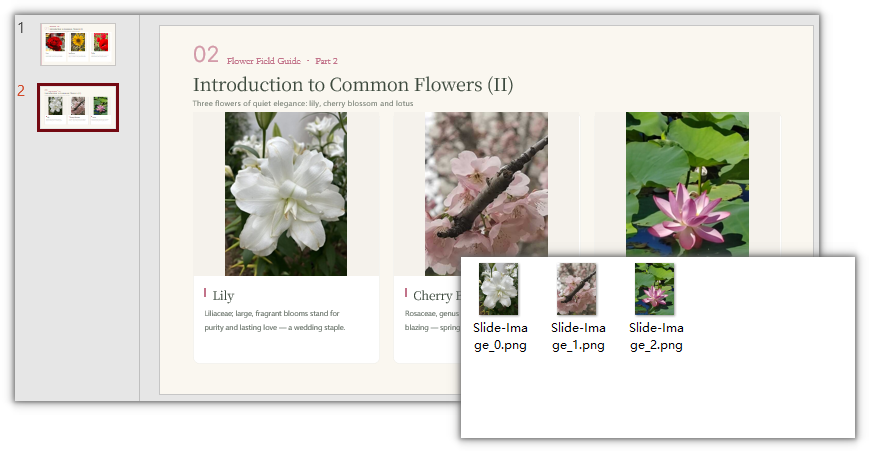
Only the images on the second slide were downloaded:
FAQ
What is the difference between Presentation.Images and walking slide shapes for images
Presentation.Images is the image resource collection of the whole document, suited to exporting everything at once; walking Shapes filters by slide and handles only picture shapes, so its scope is narrower. Both return the original embedded images, not the rendered slide.
Why are some images on a slide not extracted
The second example only recognizes SlidePicture shapes. Images inside a background, table, or chart, or images referenced through external links, are outside its scope.
What if triggering several downloads at once does nothing
Browsers block consecutive downloads from the same page. The code already leaves a 300 ms gap between downloads; if downloads are still blocked, allow multiple downloads for the site in the address bar.
Why do the extracted images differ in size from what is shown on the slide
The extracted images are the originals embedded in the document; the display size, cropping, and scaling on the slide do not affect them. To match what the slide shows, crop by shape first or export by rendering the slide instead.
Get a Free License
If you want to remove the evaluation message from the result documents or lift feature limits, contact sales for a temporary license valid for 30 days.