When preparing training material, product handbooks or web illustrations, a single graphic from a slide often needs to be reused on its own. A full-slide screenshot brings the title, the background and every other element along with it, and cropping by hand rarely produces a clean edge. Rendering each shape as a separate image keeps only the shape itself and makes later layout and composition much easier.
This article uses Spire.Presentation for JavaScript to save PowerPoint shapes as images in the browser. PNG keeps the shape's picture and its transparent areas, while SVG records lines and text as vectors that stay sharp at any scale. The whole process runs locally on the user's device through WebAssembly, requires no Office installation and no back-end service, and the presentation never leaves the browser.
The article covers three features:
- Export All Shapes on a Slide as PNG Images
- Export a Specific Shape as an SVG Image
- Export a Group Shape as a Single Image
For installation and project configuration, see Integrating Spire.Presentation for JavaScript in a React Project. The examples below assume that Spire.Presentation for JavaScript is installed and the WebAssembly module has been initialized.
Export All Shapes on a Slide as PNG Images
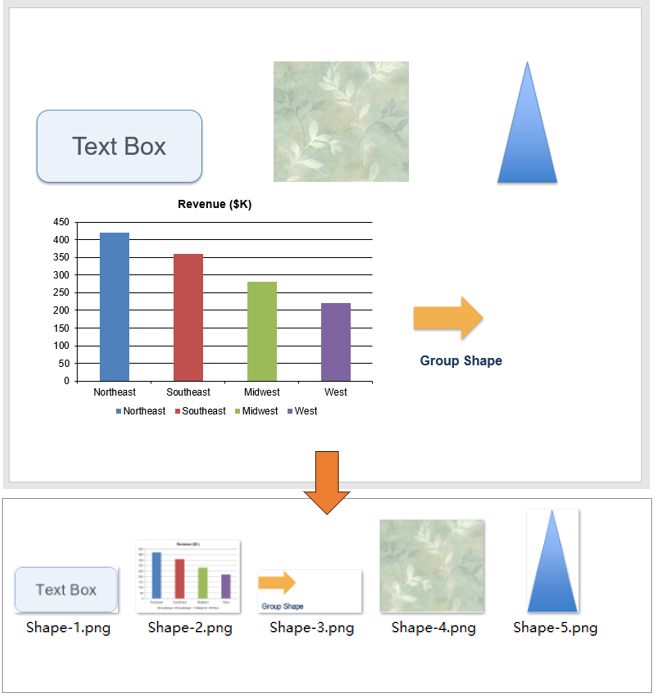
A slide usually combines several shapes: rectangles, charts, pictures and other elements. When each one is needed separately, taking screenshots one by one is slow and produces images of inconsistent size. Iterating over the shape collection renders every shape into its own PNG image. The image contains only the shape, transparent areas stay transparent, and the result can be placed into other documents or web pages.
| Code | Result |
|---|---|
slide.Shapes.Count |
The total number of shapes on the current slide |
slide.Shapes.get_Item(i) |
The shape at index i |
shape.SaveAsImage() |
Renders the shape to an image stream |
image.Save(fileName) |
Saves the image stream as a PNG file |
image.Dispose() |
Releases the resources held by the image stream |
The steps are:
- Get the Spire.Presentation WASM module and confirm it is ready, then load the font file and the presentation into the VFS.
- Create a
Presentationobject, load the presentation withLoadFromFile(), and get the first slide withSlides.get_Item(0). - Loop from
0toShapes.Count - 1and get each shape withShapes.get_Item(i). - Call
SaveAsImage()on each shape to get an image stream, write it to a PNG file withimage.Save(), and release the stream withDispose(). - Call
Presentation.Dispose(), then read each image from the VFS and trigger its download.
The code for exporting all shapes on a slide as PNG images is shown below:
function App() {
  const exportAllShapesToPng = async () => {
    // Get the Spire.Presentation WASM module
    const pptModule = window.wasmModule?.spirepresentation;

    // Check that the module is ready
    if (!pptModule) {
      alert('Spire.Presentation is not ready yet');
      return;
    }

    // Load the font and the presentation into the VFS
    await window.spire.FetchFileToVFS('ARIAL.TTF', '/Library/Fonts/', `${process.env.PUBLIC_URL}/font/`);
    const inputFileName = 'Shapes.pptx';
    await window.spire.FetchFileToVFS(inputFileName, '', `${process.env.PUBLIC_URL}data/`);

    // Load the presentation and get the first slide
    const ppt = new pptModule.Presentation();
    ppt.LoadFromFile(inputFileName);
    const slide = ppt.Slides.get_Item(0);

    // Save every shape as a PNG image
    const outputNames = [];
    for (let i = 0; i < slide.Shapes.Count; i++) {
      const shape = slide.Shapes.get_Item(i);
      const image = shape.SaveAsImage();
      const outputFileName = `Shape-${i + 1}.png`;
      image.Save(outputFileName);
      image.Dispose();
      outputNames.push(outputFileName);
    }

    ppt.Dispose();

    // Read each image from the VFS and trigger the downloads
    const fsModule = window.dotnetRuntime.Module.FS;
    for (const outputFileName of outputNames) {
      const fileArray = fsModule.readFile(outputFileName);
      const blob = new Blob([fileArray], { type: 'image/png' });
      const url = URL.createObjectURL(blob);
      const a = document.createElement('a');
      a.href = url;
      a.download = outputFileName;
      a.click();
      URL.revokeObjectURL(url);
    }
  };

  return (
    <div style={{ textAlign: 'center', height: '300px' }}>
      <h1>Export Shapes as Images</h1>
      <button onClick={exportAllShapesToPng}>
        Export All Shapes
      </button>
    </div>
  );
}

export default App;
PNG images after exporting each shape on the slide:
Export a Specific Shape as an SVG Image
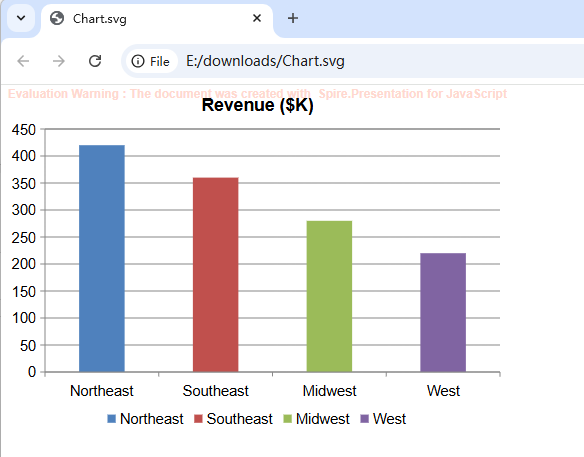
PNG is made of pixels, so its edges soften when enlarged, especially for text and charts at projection or print size. SVG describes a picture with paths and text, stays sharp at any scale, and is easier to reference from a web page or edit further. SaveAsSvg() exports a single shape as a standalone SVG document and returns the file content as bytes, which can be written to the virtual file system and downloaded.
| Code | Result |
|---|---|
shape.SaveAsSvg() |
Exports the shape as SVG and returns the file content as bytes |
FS.writeFile(fileName, bytes) |
Writes the bytes to a file in the VFS |
The steps are:
- Get the Spire.Presentation WASM module and confirm it is ready, then load the font file and the presentation into the VFS.
- Create a
Presentationobject, load the presentation withLoadFromFile(), and get the first slide withSlides.get_Item(0). - Get the target shape with
Shapes.get_Item(index); the index starts at0. - Call
shape.SaveAsSvg(); the method returns the SVG file content as aUint8Array. - Write the bytes to a
.svgfile withFS.writeFile(), callPresentation.Dispose(), then read the file from the VFS and trigger its download.
The code for exporting a specific shape as an SVG image is shown below:
function App() {
  const exportShapeToSvg = async () => {
    // Get the Spire.Presentation WASM module
    const pptModule = window.wasmModule?.spirepresentation;

    // Check that the module is ready
    if (!pptModule) {
      alert('Spire.Presentation is not ready yet');
      return;
    }

    // Load the font and the presentation into the VFS
    await window.spire.FetchFileToVFS('ARIAL.TTF', '/Library/Fonts/', `${process.env.PUBLIC_URL}/font/`);
    const inputFileName = 'Shapes.pptx';
    await window.spire.FetchFileToVFS(inputFileName, '', `${process.env.PUBLIC_URL}data/`);

    // Load the presentation and get the first slide
    const ppt = new pptModule.Presentation();
    ppt.LoadFromFile(inputFileName);
    const slide = ppt.Slides.get_Item(0);

    // Get the shape to export by its index
    const shape = slide.Shapes.get_Item(1);

    // Export the shape as SVG; the method returns the SVG file content
    const svgBytes = shape.SaveAsSvg();
    const outputFileName = 'Chart.svg';
    window.dotnetRuntime.Module.FS.writeFile(outputFileName, svgBytes);

    ppt.Dispose();

    // Read the SVG from the VFS and trigger the download
    const fileArray = window.dotnetRuntime.Module.FS.readFile(outputFileName);
    const blob = new Blob([fileArray], { type: 'image/svg+xml' });
    const url = URL.createObjectURL(blob);
    const a = document.createElement('a');
    a.href = url;
    a.download = outputFileName;
    a.click();
    URL.revokeObjectURL(url);
  };

  return (
    <div style={{ textAlign: 'center', height: '300px' }}>
      <h1>Export Shapes as Images</h1>
      <button onClick={exportShapeToSvg}>
        Export as SVG
      </button>
    </div>
  );
}

export default App;
The SVG image after exporting the specific shape:
Export a Group Shape as a Single Image
A group shape binds multiple elements, such as an arrow and a caption, into one unit, so they move and resize together and keep their relative positions. Exporting a group renders all of its elements into a single image, which is convenient for lifting one step of a process or a callout from the page. If only one element is needed, a child shape can also be taken out of the group and exported on its own.
| Code | Result |
|---|---|
group.SaveAsImage() |
Renders the whole group as one image |
group.Shapes.Count |
The number of child shapes in the group |
group.Shapes.get_Item(i) |
The child shape at index i in the group |
child.SaveAsImage() |
Renders a single child shape as an image |
The steps are:
- Get the Spire.Presentation WASM module and confirm it is ready, then load the font file and the presentation into the VFS.
- Create a
Presentationobject, load the presentation withLoadFromFile(), and get the first slide withSlides.get_Item(0). - Get the group shape with
Shapes.get_Item(index);group.Shapes.Countgives the number of child shapes it contains. - Call
SaveAsImage()on the group to render the whole group as one PNG image and save it, then callDispose(). - Take a child out with
group.Shapes.get_Item(0)and export it on its own withSaveAsImage(). - Call
Presentation.Dispose(), then read both images from the VFS and trigger their downloads.
The code for exporting a group shape as a single image is shown below:
function App() {
  const exportGroupShapeToPng = async () => {
    // Get the Spire.Presentation WASM module
    const pptModule = window.wasmModule?.spirepresentation;

    // Check that the module is ready
    if (!pptModule) {
      alert('Spire.Presentation is not ready yet');
      return;
    }

    // Load the font and the presentation into the VFS
    await window.spire.FetchFileToVFS('ARIAL.TTF', '/Library/Fonts/', `${process.env.PUBLIC_URL}/font/`);
    const inputFileName = 'Shapes.pptx';
    await window.spire.FetchFileToVFS(inputFileName, '', `${process.env.PUBLIC_URL}data/`);

    // Load the presentation and get the first slide
    const ppt = new pptModule.Presentation();
    ppt.LoadFromFile(inputFileName);
    const slide = ppt.Slides.get_Item(0);

    // Get the group shape by its index and export it as one image
    const group = slide.Shapes.get_Item(2);
    const groupImage = group.SaveAsImage();
    groupImage.Save('Group.png');
    groupImage.Dispose();

    // A single child of the group can also be exported on its own
    const child = group.Shapes.get_Item(0);
    const childImage = child.SaveAsImage();
    childImage.Save('GroupChild.png');
    childImage.Dispose();

    ppt.Dispose();

    // Read the images from the VFS and trigger the downloads
    const fsModule = window.dotnetRuntime.Module.FS;
    for (const outputFileName of ['Group.png', 'GroupChild.png']) {
      const fileArray = fsModule.readFile(outputFileName);
      const blob = new Blob([fileArray], { type: 'image/png' });
      const url = URL.createObjectURL(blob);
      const a = document.createElement('a');
      a.href = url;
      a.download = outputFileName;
      a.click();
      URL.revokeObjectURL(url);
    }
  };

  return (
    <div style={{ textAlign: 'center', height: '300px' }}>
      <h1>Export Shapes as Images</h1>
      <button onClick={exportGroupShapeToPng}>
        Export Group Shape
      </button>
    </div>
  );
}

export default App;
PNG images after exporting the group shape and one of its children:

FAQ
Why does the text in an exported image show as boxes
Reason: The font file has to be in the VFS before the presentation is created and loaded. SaveAsImage() lays out the text when the presentation is opened; adding the font afterwards does not re-layout shapes that are already loaded.
Solution: Call FetchFileToVFS() for the font used in the presentation before LoadFromFile().
Are hidden shapes exported as well
Reason: IsHidden only controls whether a shape appears on the slide; it does not stop SaveAsImage().
Solution: If hidden shapes should be left out of the export, check IsHidden while iterating and skip them:
for (let i = 0; i < slide.Shapes.Count; i++) {
  const shape = slide.Shapes.get_Item(i);

  // Skip hidden shapes
  if (shape.IsHidden) continue;

  const image = shape.SaveAsImage();
  image.Save(`Shape-${i + 1}.png`);
  image.Dispose();
}
What is the difference between SaveAsSvg() and SaveAsSvgInSlide()
Reason: The two methods use different canvases. SaveAsSvg() crops to the shape's own bounds, so the SVG is only as large as the shape; SaveAsSvgInSlide() keeps the full slide canvas and places the shape at its position on the slide.
Solution: Use SaveAsSvg() for an isolated graphic, and SaveAsSvgInSlide() when the position relative to the page matters, for example when overlaying the result on a slide background. Both return SVG bytes and are written to the VFS in the same way.
Get a Free License
If you wish to delete the evaluation message from the resulting documents, or to get rid of function limitations, please contact sales to obtain a valid 30-day temporary license.