The same presentation often needs a different page size: on a meeting room display, at a print shop, or as a vertical layout for phones. Adjusting files one by one in desktop software means someone has to sit through every batch; moving the work to a server means the files leave the user's device once uploaded.
This article shows how to change PowerPoint slide size in the browser with Spire.Presentation for JavaScript. It runs on WebAssembly, controls page width and height through SlideSize, requires no Office installation and no backend, and keeps the file on the user's device.
This article covers two core features:
For installation and project setup, see Integrate Spire.Presentation for JavaScript in a React project. The examples below assume Spire.Presentation is installed and the WebAssembly module is initialized.
Change Slide Size Using Preset Sizes
Spire.Presentation for JavaScript provides the ppt.SlideSize.Type property to switch the page to common screen or paper formats. Once a value is assigned, the page width and height follow the preset, so no dimensions are needed:
| Value | Page size (points) |
|---|---|
SlideSizeType.Screen16x9 |
960 × 540 |
SlideSizeType.Screen4x3 |
720 × 540 |
SlideSizeType.A4 |
780 × 540 |
SlideSizeType also includes Letter, A3, and other formats; pick a value from this enum for the target page.
The steps are as follows:
- Get the Spire.Presentation WASM module and confirm it is ready.
- Load the sample presentation and font into the VFS, create a
Presentationobject and load the file. - Set
Presentation.SlideSize.Typeto the target preset. - Save the result with the
Presentation.SaveToFile()method. - Read the result file from the VFS and trigger a browser download.
The code to change the slide size with a preset is as follows:
function App() {
  const changeTo4x3 = async () => {
    // Get the Spire.Presentation WASM module
    const pptModule = window.wasmModule?.spirepresentation;

    // Check whether the module is ready
    if (!pptModule) {
      alert('Spire.Presentation is not ready yet');
      return;
    }

    // Load the sample presentation and font into the VFS
    await window.spire.FetchFileToVFS('SamplePresentation.pptx', "", `${process.env.PUBLIC_URL}/data/`);
    await window.spire.FetchFileToVFS('ARIALUNI.TTF', "/Library/Fonts/", `${process.env.PUBLIC_URL}/font/`);

    // Create a Presentation instance and load the file
    const ppt = new pptModule.Presentation();
    ppt.LoadFromFile('SamplePresentation.pptx');

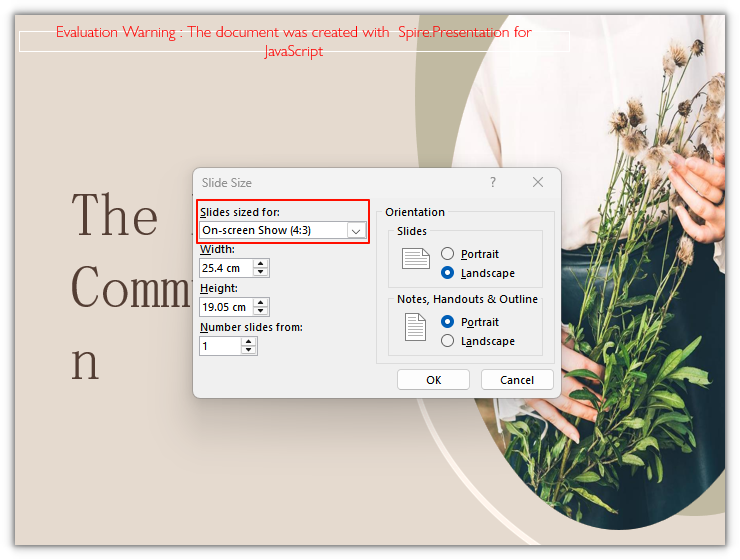
    // Switch the page from 16:9 to 4:3; the preset sets 720 × 540 pt
    ppt.SlideSize.Type = pptModule.SlideSizeType.Screen4x3;

    // Save the result file
    const outputFileName = 'SlideSize4x3.pptx';
    ppt.SaveToFile({ file: outputFileName, fileFormat: pptModule.FileFormat.Pptx2013 });
    ppt.Dispose();

    // Read the generated file from the VFS and trigger a download
    const fileArray = window.dotnetRuntime.Module.FS.readFile(outputFileName);
    const blob = new Blob([fileArray], { type: 'application/vnd.openxmlformats-officedocument.presentationml.presentation' });
    const url = URL.createObjectURL(blob);
    const a = document.createElement('a');
    a.href = url;
    a.download = outputFileName;
    a.click();
    URL.revokeObjectURL(url);
  };

  return (
    <div style={{ textAlign: 'center', height: '300px' }}>
      <h1>Change the slide size with a preset</h1>
      <button onClick={changeTo4x3}>
        Use 4:3
      </button>
    </div>
  );
}

export default App;
The page after switching a 16:9 presentation to 4:3:
Set a Custom Slide Size
Spire.Presentation for JavaScript also provides the ppt.SlideSize.Size property to specify any width and height. It takes a SizeF object in points. After Size is assigned, the page type automatically becomes SlideSizeType.Custom.
The steps are as follows:
- Get the Spire.Presentation WASM module and confirm it is ready.
- Load the sample presentation and font into the VFS, create a
Presentationobject and load the file. - Build the target width and height with a
SizeFobject and assign it toPresentation.SlideSize.Size. - Save the result with the
Presentation.SaveToFile()method. - Read the result file from the VFS and trigger a browser download.
The code to set a custom slide size is as follows:
function App() {
  const setCustomSize = async () => {
    // Get the Spire.Presentation WASM module
    const pptModule = window.wasmModule?.spirepresentation;

    // Check whether the module is ready
    if (!pptModule) {
      alert('Spire.Presentation is not ready yet');
      return;
    }

    // Load the sample presentation and font into the VFS
    await window.spire.FetchFileToVFS('SamplePresentation.pptx', "", `${process.env.PUBLIC_URL}/data/`);
    await window.spire.FetchFileToVFS('ARIALUNI.TTF', "/Library/Fonts/", `${process.env.PUBLIC_URL}/font/`);

    // Create a Presentation instance and load the file
    const ppt = new pptModule.Presentation();
    ppt.LoadFromFile('SamplePresentation.pptx');

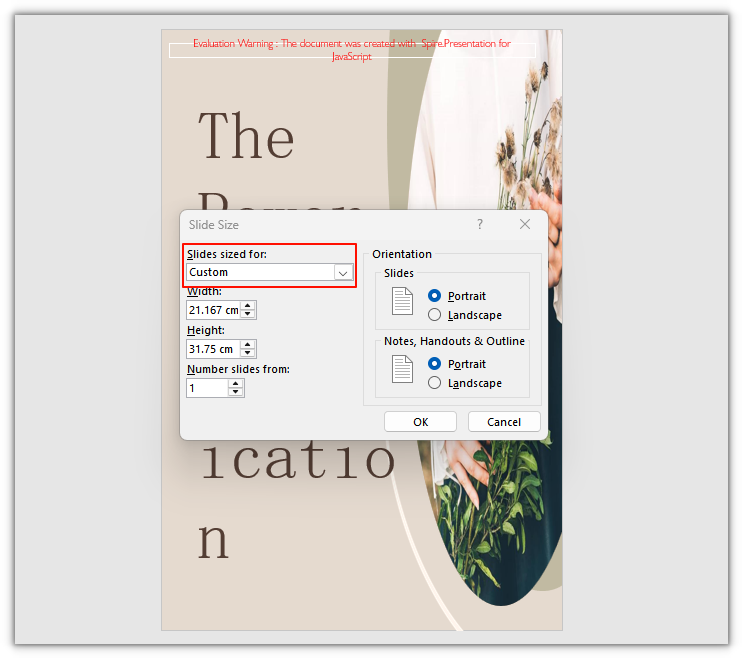
    // 600 × 900 pt: both width and height are custom, so the page switches to Custom
    ppt.SlideSize.Size = new pptModule.SizeF(600, 900);

    // Save the result file
    const outputFileName = 'SlideSizeCustom.pptx';
    ppt.SaveToFile({ file: outputFileName, fileFormat: pptModule.FileFormat.Pptx2013 });
    ppt.Dispose();

    // Read the generated file from the VFS and trigger a download
    const fileArray = window.dotnetRuntime.Module.FS.readFile(outputFileName);
    const blob = new Blob([fileArray], { type: 'application/vnd.openxmlformats-officedocument.presentationml.presentation' });
    const url = URL.createObjectURL(blob);
    const a = document.createElement('a');
    a.href = url;
    a.download = outputFileName;
    a.click();
    URL.revokeObjectURL(url);
  };

  return (
    <div style={{ textAlign: 'center', height: '300px' }}>
      <h1>Set a custom slide size</h1>
      <button onClick={setCustomSize}>
        Set a custom size
      </button>
    </div>
  );
}

export default App;
The page after setting a 600 × 900 pt size:
FAQ
What unit does SlideSize.Size use
Cause: SlideSize width and height are measured in points, with 72 points to an inch. new SizeF(600, 900) corresponds to 8.33 × 12.5 inches, not 600 × 900 pixels.
Solution: Pass the width and height in points. A common 16:9 page is 960 × 540 and 4:3 is 720 × 540; when converting from centimeters or millimeters, go through inches first and multiply by 72.
Why does SlideSize.Type become Custom when I only set Size
Cause: Size is the entry point for custom dimensions. After it is assigned, the library sets SlideSize.Type to SlideSizeType.Custom and derives Orientation from the width and height relationship.
Solution: Set only Size for a custom size. If you then set Type to a preset, the page width and height are overwritten by that preset; do not mix presets with custom dimensions.
Does the content on a slide scale when the slide size changes
Cause: Shapes are repositioned according to the ratio between the new and old sizes: x and width follow the width ratio, y and height follow the height ratio. Text boxes re-wrap to the new width, so pages with dense text or elements near the edges may look crowded.
Solution: Check text-heavy slides after resizing and reduce the font size or move shapes if needed. The library already scales once; do not multiply by the same ratio again, or the content will be scaled twice.
Get a Free License
To remove the evaluation message from the result document or lift feature limits, contact sales for a 30-day temporary license.