Presentations carry titles, subjects, authors, companies, keywords, and other descriptive fields — these are document properties. Editing them one by one in desktop software is tedious, and there is no quick way to verify them across a batch. Uploading files to a server for processing means the content leaves the user's device.
This article shows how to add, read, and remove built-in PowerPoint document properties with Spire.Presentation for JavaScript. It loads, edits, and saves pptx files directly in the browser via WebAssembly, reading and writing files through a virtual file system (VFS), so everything stays on the local machine and no backend is required.
This article covers three core features:
- Add document properties to a PowerPoint file
- Read document properties from a PowerPoint file
- Remove document properties from a PowerPoint file
For installation and project setup, see Integrate Spire.Presentation for JavaScript in a React project. The examples below assume Spire.Presentation is installed and the WebAssembly module is initialized.
Add Document Properties to a PowerPoint File
Spire.Presentation for JavaScript writes document properties through DocumentProperty: assign a value directly to members such as Title, Subject, and Author.
The steps are as follows:
- Get the Spire.Presentation WASM module and confirm it is ready.
- Load the sample presentation and create a
Presentationobject from it. - Use
DocumentPropertyto write built-in properties such asTitle,Subject, andAuthor. - Save the result with the
Presentation.SaveToFile()method. - Read the result file from the VFS and trigger a browser download.
The code to add document properties to a PowerPoint file is as follows:
function App() {
  const addDocumentProperties = async () => {
    // Get the Spire.Presentation WASM module
    const pptModule = window.wasmModule?.spirepresentation;

    // Check whether the module is ready
    if (!pptModule) {
      alert('Spire.Presentation is not ready yet');
      return;
    }

    // Load the sample presentation
    await window.spire.FetchFileToVFS('SamplePresentation.pptx', "", `${process.env.PUBLIC_URL}/data/`);

    // Create a Presentation instance and load the file
    const ppt = new pptModule.Presentation();
    ppt.LoadFromFile('SamplePresentation.pptx');
    const dp = ppt.DocumentProperty;

    // Write built-in document properties
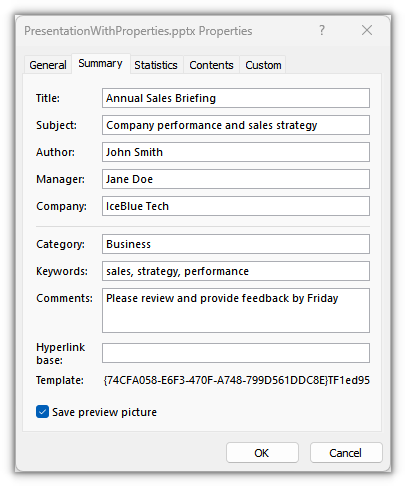
    dp.Title = 'Annual Sales Briefing';
    dp.Subject = 'Company performance and sales strategy';
    dp.Author = 'John Smith';
    dp.Manager = 'Jane Doe';
    dp.Company = 'IceBlue Tech';
    dp.Category = 'Business';
    dp.Keywords = 'sales, strategy, performance';
    dp.Comments = 'Please review and provide feedback by Friday';

    // Save the result file
    const outputFileName = 'PresentationWithProperties.pptx';
    ppt.SaveToFile({ file: outputFileName, fileFormat: pptModule.FileFormat.Pptx2013 });
    ppt.Dispose();

    // Read the generated file from the VFS and trigger a download
    const fileArray = window.dotnetRuntime.Module.FS.readFile(outputFileName);
    const blob = new Blob([fileArray], { type: 'application/vnd.openxmlformats-officedocument.presentationml.presentation' });
    const url = URL.createObjectURL(blob);
    const a = document.createElement('a');
    a.href = url;
    a.download = outputFileName;
    a.click();
    URL.revokeObjectURL(url);
  };

  return (
    <div style={{ textAlign: 'center', height: '300px' }}>
      <h1>Add Document Properties</h1>
      <button onClick={addDocumentProperties}>
        Add document properties
      </button>
    </div>
  );
}

export default App;
The written built-in properties appear in PowerPoint's properties panel:
Read Document Properties from a PowerPoint File
Spire.Presentation for JavaScript reads document properties through DocumentProperty: read the members such as Title, Subject, and Author directly.
The steps are as follows:
- Get the Spire.Presentation WASM module and confirm it is ready.
- Load the presentation generated in the first section and create a
Presentationobject from it. - Use
DocumentPropertyto read built-in properties such asTitle,Subject, andAuthor. - Write the read values into a txt file.
- Read the result file from the VFS and trigger a browser download.
The code to read document properties from a PowerPoint file is as follows:
function App() {
  const readDocumentProperties = async () => {
    // Get the Spire.Presentation WASM module
    const pptModule = window.wasmModule?.spirepresentation;

    // Check whether the module is ready
    if (!pptModule) {
      alert('Spire.Presentation is not ready yet');
      return;
    }

    // Load the presentation generated in the first section
    const inputFileName = 'PresentationWithProperties.pptx';

    // Create a Presentation instance and load the file
    const ppt = new pptModule.Presentation();
    ppt.LoadFromFile(inputFileName);
    const dp = ppt.DocumentProperty;

    // Read built-in document properties
    const lines = [
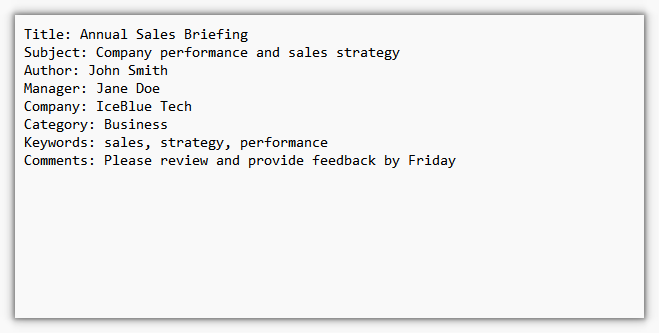
      `Title: ${dp.Title}`,
      `Subject: ${dp.Subject}`,
      `Author: ${dp.Author}`,
      `Manager: ${dp.Manager}`,
      `Company: ${dp.Company}`,
      `Category: ${dp.Category}`,
      `Keywords: ${dp.Keywords}`,
      `Comments: ${dp.Comments}`,
    ];

    // Write the read values into a txt file
    const outputFileName = 'DocumentProperties.txt';
    window.dotnetRuntime.Module.FS.writeFile(outputFileName, lines.join('\n'));
    ppt.Dispose();

    // Read the generated file from the VFS and trigger a download
    const fileArray = window.dotnetRuntime.Module.FS.readFile(outputFileName);
    const blob = new Blob([fileArray], { type: 'text/plain' });
    const url = URL.createObjectURL(blob);
    const a = document.createElement('a');
    a.href = url;
    a.download = outputFileName;
    a.click();
    URL.revokeObjectURL(url);
  };

  return (
    <div style={{ textAlign: 'center', height: '300px' }}>
      <h1>Read Document Properties</h1>
      <button onClick={readDocumentProperties}>
        Read document properties
      </button>
    </div>
  );
}

export default App;
The exported txt file lists the built-in properties in order:
Remove Document Properties from a PowerPoint File
Spire.Presentation for JavaScript removes document properties through DocumentProperty: assign an empty string to members such as Title, Subject, and Author to clear them.
The steps are as follows:
- Get the Spire.Presentation WASM module and confirm it is ready.
- Load the presentation generated in the first section and create a
Presentationobject from it. - Use
DocumentPropertyto assign empty strings to built-in properties such asTitle,Subject, andAuthor. - Save the result with the
Presentation.SaveToFile()method. - Read the result file from the VFS and trigger a browser download.
The code to remove document properties from a PowerPoint file is as follows:
function App() {
  const removeDocumentProperties = async () => {
    // Get the Spire.Presentation WASM module
    const pptModule = window.wasmModule?.spirepresentation;

    // Check whether the module is ready
    if (!pptModule) {
      alert('Spire.Presentation is not ready yet');
      return;
    }

    // Load the presentation generated in the first section
    const inputFileName = 'PresentationWithProperties.pptx';

    // Create a Presentation instance and load the file
    const ppt = new pptModule.Presentation();
    ppt.LoadFromFile(inputFileName);
    const dp = ppt.DocumentProperty;

    // Clear built-in document properties
    dp.Title = '';
    dp.Subject = '';
    dp.Author = '';
    dp.Manager = '';
    dp.Company = '';
    dp.Category = '';
    dp.Keywords = '';
    dp.Comments = '';

    // Save the result file
    const outputFileName = 'PresentationWithoutProperties.pptx';
    ppt.SaveToFile({ file: outputFileName, fileFormat: pptModule.FileFormat.Pptx2013 });
    ppt.Dispose();

    // Read the generated file from the VFS and trigger a download
    const fileArray = window.dotnetRuntime.Module.FS.readFile(outputFileName);
    const blob = new Blob([fileArray], { type: 'application/vnd.openxmlformats-officedocument.presentationml.presentation' });
    const url = URL.createObjectURL(blob);
    const a = document.createElement('a');
    a.href = url;
    a.download = outputFileName;
    a.click();
    URL.revokeObjectURL(url);
  };

  return (
    <div style={{ textAlign: 'center', height: '300px' }}>
      <h1>Remove Document Properties</h1>
      <button onClick={removeDocumentProperties}>
        Remove document properties
      </button>
    </div>
  );
}

export default App;
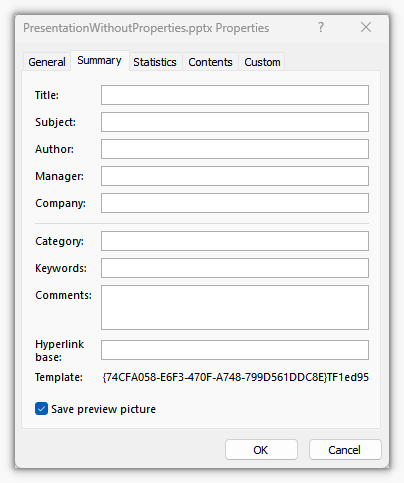
After clearing, the built-in fields in the properties panel are empty:
FAQ
Where are built-in document properties stored in the file
Cause: Built-in properties such as Title and Author are defined by the Office specification and stored in the property parts under the docProps directory inside the pptx package, separately from the slide content.
Solution: Read and write them through the same-named members of DocumentProperty; there is no need to touch the underlying XML.
What is returned when reading a built-in property that was never set
Cause: Built-in fields always exist. When unset, they return an empty string rather than an error.
Solution: An empty string means the item has not been set.
How to clear a single built-in property
Cause: Built-in fields have fixed keys, so they cannot be removed from a collection like entries.
Solution: Assign an empty string to the corresponding member:
ppt.DocumentProperty.Author = '';
Do built-in properties support non-ASCII text
Cause: Built-in properties are stored as Unicode text.
Solution: Assign the string directly; it is returned as-is when read.
How are built-in properties different from text on a slide
Cause: Built-in properties are document-level metadata and are not shown on the page; text on a slide is body content.
Solution: Put explanations for readers on the slides; put information for search and archiving in the document properties.
Get a Free License
To remove the evaluation message from the resulting documents or lift the feature limits, contact sales for a 30-day temporary license.