The same deck often needs a different running order for each audience: conclusions first for management, case studies first for customers, step-by-step instructions first for training. With dozens of slides, dragging thumbnails in desktop software becomes tedious and does not fit a web-based publishing flow. Uploading the file to a server also takes it off the user's device.
This article shows how to adjust PowerPoint slide order with Spire.Presentation for JavaScript. It runs in the browser on WebAssembly and reads and writes files locally through a virtual file system (VFS), with no Office installation and no backend.
For installation and project setup, see Integrate Spire.Presentation for JavaScript in a React project. The examples assume Spire.Presentation is installed and the WebAssembly module is initialized.
Change the position of a PowerPoint slide
The ISlide.SlideNumber property is the slide's position in the presentation, counted from 1. Assign a target slide number and the slide moves to that position; the slide that occupied it and the slides after it shift down. Reading the property returns the current slide number.
Step 1: Load the PowerPoint file
Get the Spire.Presentation WASM module and check that it is ready, then load the sample presentation and font into the virtual file system (VFS) for Presentation. The font renders the placeholder text on the slides. Both the file and the font are read locally and are never sent to a server.
// Get the Spire.Presentation WASM module
const pptModule = window.wasmModule?.spirepresentation;

// Check that the module is ready
if (!pptModule) {
  alert('Spire.Presentation is not ready yet');
  return;
}

// Load the sample presentation and font
await window.spire.FetchFileToVFS('test.pptx', "", `${process.env.PUBLIC_URL}/data/`);
await window.spire.FetchFileToVFS('ARIALUNI.TTF', "/Library/Fonts/", `${process.env.PUBLIC_URL}/font/`);

// Create a Presentation instance and load the file
const ppt = new pptModule.Presentation();
ppt.LoadFromFile('test.pptx');
Step 2: Move the slide to the target position
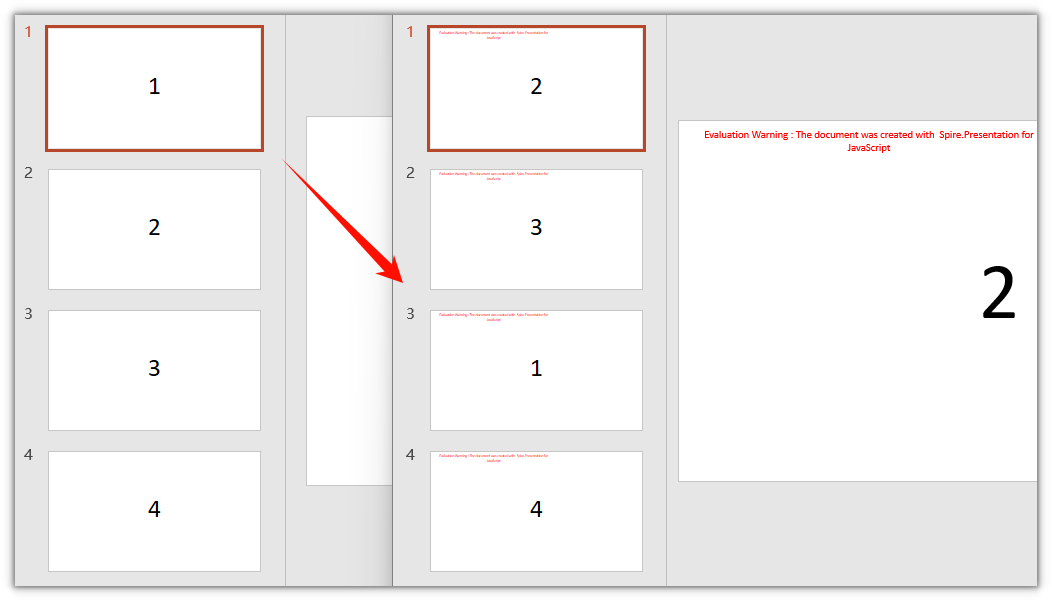
Slide numbers start at 1; the index passed to Slides.get_Item() starts at 0. Pass 0 for the first slide and set its SlideNumber to 3. The slide moves to position 3, and the former second and third slides each move up one place.
// Get the first slide and set its slide number to 3
const slide = ppt.Slides.get_Item(0);
slide.SlideNumber = 3;
Step 3: Save the result and download it
After saving, the file stays in the VFS. Read its bytes, wrap them in a Blob, and hand it to the browser for download. Call Dispose() before saving to release the presentation's resources.
// Save the result
const outputFileName = 'ReorderedPresentation.pptx';
ppt.SaveToFile({ file: outputFileName, fileFormat: pptModule.FileFormat.Pptx2013 });
ppt.Dispose();

// Read the generated file from the VFS and trigger the download
const fileArray = window.dotnetRuntime.Module.FS.readFile(outputFileName);
const blob = new Blob([fileArray], { type: 'application/vnd.openxmlformats-officedocument.presentationml.presentation' });
const url = URL.createObjectURL(blob);
const a = document.createElement('a');
a.href = url;
a.download = outputFileName;
a.click();
URL.revokeObjectURL(url);
Complete code
Put the three steps back into one App component to get a complete, runnable example.
function App() {
  const moveSlideToPosition = async () => {
    // Get the Spire.Presentation WASM module
    const pptModule = window.wasmModule?.spirepresentation;

    // Check that the module is ready
    if (!pptModule) {
      alert('Spire.Presentation is not ready yet');
      return;
    }

    // Load the sample presentation and font
    await window.spire.FetchFileToVFS('test.pptx', "", `${process.env.PUBLIC_URL}/data/`);
    await window.spire.FetchFileToVFS('ARIALUNI.TTF', "/Library/Fonts/", `${process.env.PUBLIC_URL}/font/`);

    // Create a Presentation instance and load the file
    const ppt = new pptModule.Presentation();
    ppt.LoadFromFile('test.pptx');

    // Get the first slide and set its slide number to 3
    const slide = ppt.Slides.get_Item(0);
    slide.SlideNumber = 3;

    // Save the result
    const outputFileName = 'ReorderedPresentation.pptx';
    ppt.SaveToFile({ file: outputFileName, fileFormat: pptModule.FileFormat.Pptx2013 });
    ppt.Dispose();

    // Read the generated file from the VFS and trigger the download
    const fileArray = window.dotnetRuntime.Module.FS.readFile(outputFileName);
    const blob = new Blob([fileArray], { type: 'application/vnd.openxmlformats-officedocument.presentationml.presentation' });
    const url = URL.createObjectURL(blob);
    const a = document.createElement('a');
    a.href = url;
    a.download = outputFileName;
    a.click();
    URL.revokeObjectURL(url);
  };

  return (
    <div style={{ textAlign: 'center', height: '300px' }}>
      <h1>Slide Order</h1>
      <button onClick={moveSlideToPosition}>
        Reorder slides
      </button>
    </div>
  );
}

export default App;
The presentation after moving the first slide to position 3:
FAQ
Does the slide number start at 0 or 1?
Cause: The sample uses two numbering schemes. SlideNumber is the slide number shown to users and starts at 1; the index passed to Slides.get_Item() starts at 0.
Solution: Locate the slide object with Slides.get_Item(index) using a 0-based index, and set the final position with slide.SlideNumber = position using a 1-based position. To move the first slide to position 3, write ppt.Slides.get_Item(0).SlideNumber = 3.
What happens if the target is 0 or greater than the slide count?
Cause: The valid range of SlideNumber is 1 to Slides.Count. A value of 0 or a value above the slide count falls outside that range, Spire.Presentation throws an Index range. error, and saving and downloading stop.
Solution: Check the target against ppt.Slides.Count before assigning. To move a slide to the end, use ppt.Slides.Count rather than a hard-coded estimate.
How do I reorder several slides at once?
Cause: Every assignment to SlideNumber immediately shifts the other slides, so indexes calculated in advance can become stale.
Solution: Plan the final order first, then set target positions one slide at a time. After each move, the current numbers of the remaining slides have changed. Locate the next slide by its new position instead of reusing the old index.
Does reordering change the content of the slides?
Cause: SlideNumber changes a slide's position in the deck; it does not touch the shapes, text, or images on the slide.
Solution: Content and styling stay the same after a move; only the order changes. To delete a slide, use Slides.RemoveAt(). To change content, edit the corresponding shapes after the move.
Get a free license
To remove the evaluation message from the result document or lift feature restrictions, contact sales for a 30-day temporary license.