
React (58)
Children categories
Add a Watermark to Word Documents with JavaScript in React
2025-03-07 01:03:22 Written by AdministratorIncorporating a watermark to Word documents is a simple yet impactful way to protect your content and assert ownership. Whether you're marking a draft as confidential or branding a business document, watermarks can convey essential information without distracting from your text.
In this article, you will learn how to add and customize watermarks in Word documents in a React application using Spire.Doc for JavaScript.
Install Spire.Doc for JavaScript
To get started with adding watermarks to Word in a React application, you can either download Spire.Doc for JavaScript from our website or install it via npm with the following command:
npm i spire.officeThe downloaded product package integrates Spire.Doc for JavaScript, Spire.XLS for JavaScript, Spire.PDF for JavaScript, and Spire.Presentation for JavaScript. To use the features of Spire.Doc for JavaScript, you need to copy the corresponding files (spire.doc.js, Spire.Doc.Wasm.zip, spire.common.js, Spire.Common.Wasm.zip, and the _framework folder) to the public folder of your project. To ensure proper text rendering, you can add relevant font files with a custom path. In the following example, the font is added to the path: public\static\font.
For more details, refer to the documentation: How to Integrate Spire.Doc for JavaScript in a React Project
Add a Text Watermark to Word in React
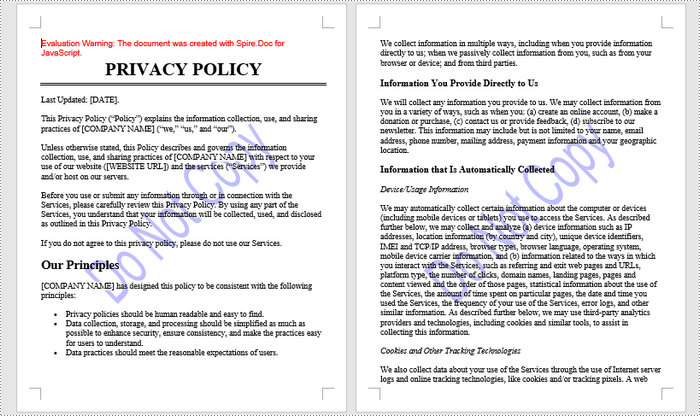
Spire.Doc for JavaScript provides the TextWatermark class, enabling users to create customizable text watermarks with their preferred text and font effects. Once the TextWatermark object is created, it can be applied to the entire document using the Document.Watermark property.
The steps to add a text watermark to Word in React are as follows:
- Load the necessary font file and input Word document into the virtual file system (VFS).
- Create a Document object using the new wasmModule.Document() method.
- Load the Word file using the Document.LoadFromFile() method.
- Create a TextWatermark object using the new wasmModule.TextWatermark() method.
- Customize the watermark's text, font size, font name, and color using the properties under the TextWatermark object.
- Apply the text watermark to the document using the Document.Watermark property.
- Save the document and trigger a download.
- JavaScript
import React, { useState, useEffect } from 'react';

function App() {
  const [wasmModule, setWasmModule] = useState(null);
  // Load Spire.Doc
  useEffect(() => {
    (async () => {
      try {
        const publicUrl = process.env.PUBLIC_URL || '';
        const spireModule = await import(/* webpackIgnore: true */ `${publicUrl}/spire.doc.js`);
        const rawModule = spireModule.default || spireModule;
        window.wasmModule = typeof rawModule === 'function'
          ? await rawModule({ locateFile: p => p.endsWith('.wasm') ? `${publicUrl}/${p}` : p })
          : rawModule;
        setWasmModule(window.wasmModule);
      } catch (error) {
        console.error('Failed to load spire.doc.js WASM module:', error);
      }
    })();
  }, []);

  // Function add a text watermark
  const AddWatermark = async () => {
    const wasmModule = window.wasmModule.spiredoc;

    if (wasmModule) {
      // Load the font files into the virtual file system (VFS)
      await window.spire.FetchFileToVFS('Arial.ttf', '/Library/Fonts/', `${process.env.PUBLIC_URL}/static/font/`);

      // Specify the input file name and the output file name
      const outputFileName = "TextWatermark.docx";
      const inputFileName = 'input.docx';

      // Fetch the input file and add it to the VFS
      await window.spire.FetchFileToVFS(inputFileName, '', `${process.env.PUBLIC_URL}/static/data/`);

      // Create an instance of the Document class
      const doc = new wasmModule.Document();

      // Load the Word document
      doc.LoadFromFile(inputFileName);

      // Create a TextWatermark instance
      let txtWatermark =new wasmModule.TextWatermark();

      // Set the text for the watermark
      txtWatermark.Text = "Do Not Copy";

      // Set the font size and name for the text
      txtWatermark.FontSize = 58;
      txtWatermark.FontName = "Arial"

      // Set the color of the text
      txtWatermark.Color = wasmModule.Color.get_Blue();

      // Set the layout of the watermark to diagonal
      txtWatermark.Layout = wasmModule.WatermarkLayout.Diagonal;

      // Apply the text watermark to the document
      doc.Watermark = txtWatermark;

      // Save the document to the specified path
      doc.SaveToFile({ fileName: outputFileName, fileFormat: wasmModule.FileFormat.Docx2013 });

      // Read the generated file from VFS
      const fileArray = window.dotnetRuntime.Module.FS.readFile(outputFileName);

      // Create a Blob object from the file
      const blob = new Blob([fileArray], { type: "application/vnd.openxmlformats-officedocument.wordprocessingml.document" });

      // Create a URL for the Blob
      const url = URL.createObjectURL(blob);

      // Create an anchor element to trigger the download
      const a = document.createElement('a');
      a.href = url;
      a.download = outputFileName;
      document.body.appendChild(a);
      a.click();
      document.body.removeChild(a);
      URL.revokeObjectURL(url);

      // Clean up resources
      doc.Dispose();
    }
  };

  return (
    <div style={{ textAlign: 'center', height: '300px' }}>
      <h1>Add a Text Watermark to Word in React</h1>
      <button onClick={AddWatermark} disabled={!wasmModule}>
        Generate
      </button>
    </div>
  );
}

export default App;
Run the code to launch the React app at localhost:3000. Click "Convert", and a "Save As" window will appear, prompting you to save the output file in your chosen folder.
Here is a screenshot of the generated Word file that includes a text watermark:
Add an Image Watermark to Word in React
Spire.Doc for JavaScript provides the PictrueWatermark to help configure the image resource, scaling, washout effect for image watermarks in Word. Once a PictureWatermak object is created, you can apply it to an entire document using the Document.Watermark property.
Steps to add an image watermark to a Word document in React:
- Load the image file and input Word document into the virtual file system (VFS).
- Create a Document object using the new wasmModule.Document() method.
- Load the Word file using the Document.LoadFromFile() method.
- Create a PictureWatermark object using the new wasmModule.PictureWatermark() method.
- Set the image resource, scaling, and washout effect for the watermark using the methods and properties under the PictureWatermark object.
- Apply the image watermark to the document using the Document.Watermark property.
- Save the document and trigger a download.
- JavaScript
import React, { useState, useEffect } from 'react';

function App() {
  const [wasmModule, setWasmModule] = useState(null);
  // Load Spire.Doc
  useEffect(() => {
    (async () => {
      try {
        const publicUrl = process.env.PUBLIC_URL || '';
        const spireModule = await import(/* webpackIgnore: true */ `${publicUrl}/spire.doc.js`);
        const rawModule = spireModule.default || spireModule;
        window.wasmModule = typeof rawModule === 'function'
          ? await rawModule({ locateFile: p => p.endsWith('.wasm') ? `${publicUrl}/${p}` : p })
          : rawModule;
        setWasmModule(window.wasmModule);
      } catch (error) {
        console.error('Failed to load spire.doc.js WASM module:', error);
      }
    })();
  }, []);

  // Function add an image watermark
  const AddWatermark = async () => {
    const wasmModule = window.wasmModule.spiredoc;

    if (wasmModule) {
      // Load the font files into the virtual file system (VFS)
      await window.spire.FetchFileToVFS('Arial.ttf', '/Library/Fonts/', `${process.env.PUBLIC_URL}/static/font/`);

      // Specify the input file name and the output file name
      const outputFileName = 'ImageWatermark.docx';
      const inputFileName = 'input.docx';
      const imageFileName = 'logo.png';

      // Fetch the input file and add it to the VFS
      await window.spire.FetchFileToVFS(inputFileName, '', `${process.env.PUBLIC_URL}/static/data/`);
      await window.spire.FetchFileToVFS(imageFileName, '', `${process.env.PUBLIC_URL}/static/data/`);

      // Create an instance of the Document class
      const doc = new wasmModule.Document();

      // Load the Word document
      doc.LoadFromFile(inputFileName);

      // Create a new PictureWatermark instance
      const pictureWatermark = new wasmModule.PictureWatermark();

      // Set the picture
      pictureWatermark.SetPicture(imageFileName);

      // Set the scaling factor of the image
      pictureWatermark.Scaling = 150;

      // Disable washout effect
      pictureWatermark.IsWashout = false;

      // Apply the image watermark to the document
      doc.Watermark = pictureWatermark;

      // Save the document to the specified path
      doc.SaveToFile({ fileName: outputFileName, fileFormat: wasmModule.FileFormat.Docx2013 });

      // Read the generated file from VFS
      const fileArray = window.dotnetRuntime.Module.FS.readFile(outputFileName);

      // Create a Blob object from the file
      const blob = new Blob([fileArray], { type: "application/vnd.openxmlformats-officedocument.wordprocessingml.document" });

      // Create a URL for the Blob
      const url = URL.createObjectURL(blob);

      // Create an anchor element to trigger the download
      const a = document.createElement('a');
      a.href = url;
      a.download = outputFileName;
      document.body.appendChild(a);
      a.click();
      document.body.removeChild(a);
      URL.revokeObjectURL(url);

      // Clean up resources
      doc.Dispose();
    }
  };

  return (
    <div style={{ textAlign: 'center', height: '300px' }}>
      <h1>Add an Image Watermark to Word in React</h1>
      <button onClick={AddWatermark} disabled={!wasmModule}>
        Generate
      </button>
    </div>
  );
}

export default App;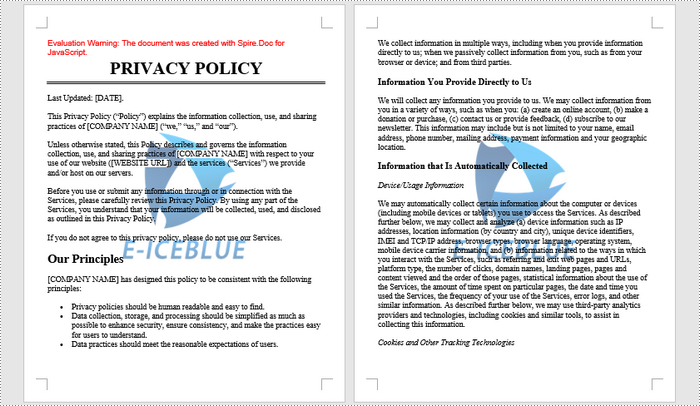
Get a Free License
To fully experience the capabilities of Spire.Doc for JavaScript without any evaluation limitations, you can request a free 30-day trial license.
In MS word, images can quickly and easily convey complex information that may be difficult to explain in words alone. Whether you're creating a report, a presentation, a newsletter, or a simple document, adding images can make your content more engaging, informative, and visually appealing. In this article, you will learn how to add images to a Word document in React using Spire.Doc for JavaScript.
- Insert an Image in a Word Document in JavaScript
- Insert an Image at a Specified Location in Word in JavaScript
Install the JavaScript Library
To get started with inserting images in Word in a React application, you can either download Spire.Doc for JavaScript from our website or install it via npm with the following command:
npm i spire.officeThe downloaded product package integrates Spire.Doc for JavaScript, Spire.XLS for JavaScript, Spire.PDF for JavaScript, and Spire.Presentation for JavaScript. To use the features of Spire.Doc for JavaScript, you need to copy the corresponding files (spire.doc.js, Spire.Doc.Wasm.zip, spire.common.js, Spire.Common.Wasm.zip, and the _framework folder) to the public folder of your project. To ensure proper text rendering, you can add relevant font files with a custom path. In the following example, the font is added to the path: public\static\font.
For more details, refer to the documentation: How to Integrate Spire.Doc for JavaScript in a React Project
Insert an Image in a Word Document in JavaScript
The Paragraph.AppendPicture() method offered by Spire.Doc for JavaScript allows to insert an image into a Word document. The following are the main steps to insert an image in Word and set its size, text wrapping style using JavaScript.
- Create a new document using the new wasmModule.Document() method.
- Load a Word document using the Document.LoadFromFile() method.
- Get a specified section in the document using the Document.Sections.get_Item() method.
- Get a specified paragraph in the section using the Section.Paragraphs.get_Item() method.
- Add an image to the specified paragraph using the Paragraph.AppendPicture() method.
- Set width, height and text wrapping style for the image.
- Save the result document using Document.SaveToFile() method.
- JavaScript
import React, { useState, useEffect } from 'react';

function App() {
  const [wasmModule, setWasmModule] = useState(null);
  // Load Spire.Doc
  useEffect(() => {
    (async () => {
      try {
        const publicUrl = process.env.PUBLIC_URL || '';
        const spireModule = await import(/* webpackIgnore: true */ `${publicUrl}/spire.doc.js`);
        const rawModule = spireModule.default || spireModule;
        window.wasmModule = typeof rawModule === 'function'
          ? await rawModule({ locateFile: p => p.endsWith('.wasm') ? `${publicUrl}/${p}` : p })
          : rawModule;
        setWasmModule(window.wasmModule);
      } catch (error) {
        console.error('Failed to load spire.doc.js WASM module:', error);
      }
    })();
  }, []);

  // Function to insert an image in Word
  const InsertWordImage = async () => {
    const wasmModule = window.wasmModule.spiredoc;

    if (wasmModule) {
      // Load the font files into the virtual file system (VFS)
      await window.spire.FetchFileToVFS('Arial.ttf', '/Library/Fonts/', `${process.env.PUBLIC_URL}/static/font/`);

      // Specify the input file name and the output file name
      const inputFileName = 'input.docx';
      const outputFileName = "InsertImage.docx";
      const imageFile = "logo.png";

      // Fetch the input file and add it to the VFS
      await window.spire.FetchFileToVFS(inputFileName, '', `${process.env.PUBLIC_URL}/static/data/`);
      await window.spire.FetchFileToVFS(imageFile, '', `${process.env.PUBLIC_URL}/static/data/`);

      // Create an instance of the Document class
      const doc = new wasmModule.Document();

      // Load the Word document
      doc.LoadFromFile({ fileName: inputFileName });

      // Get the first section
      const section = doc.Sections.get_Item(0);

      // Get the first paragraph
      const paragraph = section.Paragraphs.get_Item(0);

      // Add the image to the first paragraph
      let picture = paragraph.AppendPicture({ imgFile: imageFile });

      // Set image width and height
      picture.Width = 100;
      picture.Height = 100;

      // Set text wrapping style for the image
      picture.TextWrappingStyle = wasmModule.TextWrappingStyle.Square;

      // Save the result document
      doc.SaveToFile({ fileName: outputFileName, fileFormat: wasmModule.FileFormat.Docx });

      // Release resources
      doc.Dispose();

      // Read the generated Word file from VFS
      const modifiedFileArray = window.dotnetRuntime.Module.FS.readFile(outputFileName);

      // Create a Blob object from the Word file
      const modifiedFile = new Blob([modifiedFileArray], { type: "application/vnd.openxmlformats-officedocument.wordprocessingml.document" });

      // Create a URL for the Blob
      const url = URL.createObjectURL(modifiedFile);

      // Create an anchor element to trigger the download
      const a = document.createElement("a");
      a.href = url;
      a.download = outputFileName;
      document.body.appendChild(a);
      a.click();
      document.body.removeChild(a);
      URL.revokeObjectURL(url);
    }
  };

  return (
    <div style={{ textAlign: 'center', height: '300px' }}>
      <h1>Insert an Image in a Word Document Using JavaScript in React</h1>
      <button onClick={InsertWordImage} disabled={!wasmModule}>
        Execute
      </button>
    </div>
  );
}

export default App;
Run the code to launch the React app at localhost:3000. Once it's running, click on the "Execute" button to download the result file:
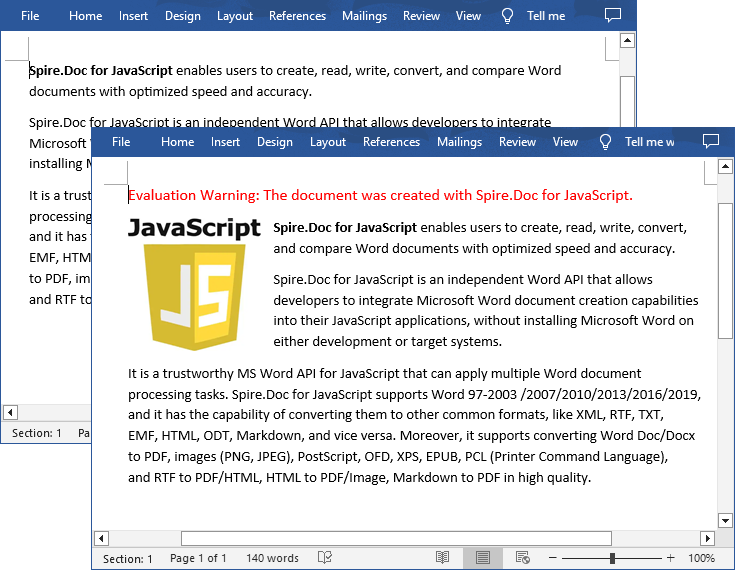
The input file and the result file:
Insert an Image at a Specified Location in Word in JavaScript
You can also place the image at any specified location in the Word document through the DocPicture.HorizontalPosition and DocPicture.VerticalPosition properties. The following are the main steps:
- Create a new document using the new wasmModule.Document() method.
- Add a section to the document using the Document.AddSection() method.
- Add a paragraph to the section using the Section.AddParagraph() method.
- Add text to the paragraph and set paragraph style.
- Add an image to the paragraph using the Paragraph.AppendPicture() method.
- Set the horizontal position and vertical position for the image through the DocPicture.HorizontalPosition and DocPicture.VerticalPosition properties.
- Set width, height and text wrapping style for the image.
- Save the result document using Document.SaveToFile() method.
- JavaScript
import React, { useState, useEffect } from 'react';

function App() {
  const [wasmModule, setWasmModule] = useState(null);
  // Load Spire.Doc
  useEffect(() => {
    (async () => {
      try {
        const publicUrl = process.env.PUBLIC_URL || '';
        const spireModule = await import(/* webpackIgnore: true */ `${publicUrl}/spire.doc.js`);
        const rawModule = spireModule.default || spireModule;
        window.wasmModule = typeof rawModule === 'function'
          ? await rawModule({ locateFile: p => p.endsWith('.wasm') ? `${publicUrl}/${p}` : p })
          : rawModule;
        setWasmModule(window.wasmModule);
      } catch (error) {
        console.error('Failed to load spire.doc.js WASM module:', error);
      }
    })();
  }, []);

  // Function to insert an image at a specified location in Word
  const InsertImage = async () => {
    const wasmModule = window.wasmModule.spiredoc;

    if (wasmModule) {
      // Load the font files into the virtual file system (VFS)
      await window.spire.FetchFileToVFS('Arial.ttf', '/Library/Fonts/', `${process.env.PUBLIC_URL}/static/font/`);

      // Specify the input file name and the output file name
      const outputFileName = "WordImage.docx";
      const imageFile = "logo.png";

      // Fetch the input file and add it to the VFS
      await window.spire.FetchFileToVFS(imageFile, '', `${process.env.PUBLIC_URL}/static/data/`);

      // Create an instance of the Document class
      const doc = new wasmModule.Document();

      // Add a section in the document
      let section = doc.AddSection();

      // Add a paragraph to the section
      let paragraph = section.AddParagraph();

      // Add text to the paragraph and set paragraph style
      paragraph.AppendText("The sample demonstrates how to insert an image at a specified location in a Word document.");
      paragraph.ApplyStyle({ builtinStyle: wasmModule.BuiltinStyle.Heading2 });

      //Add an image to the paragraph
      let picture = paragraph.AppendPicture({ imgFile: imageFile });

      // Set image position
      picture.HorizontalPosition = 150.0;
      picture.VerticalPosition = 70.0;

      // Set image width and height
      picture.Width = 100;
      picture.Height = 100;

      // Set text wrapping style for the image
      picture.TextWrappingStyle = wasmModule.TextWrappingStyle.Through;

      // Save the result document
      doc.SaveToFile({ fileName: outputFileName, fileFormat: wasmModule.FileFormat.Docx });

      // Release resources
      doc.Dispose();

      // Read the generated Word file from VFS
      const modifiedFileArray = window.dotnetRuntime.Module.FS.readFile(outputFileName);

      // Create a Blob object from the Word file
      const modifiedFile = new Blob([modifiedFileArray], { type: "application/vnd.openxmlformats-officedocument.wordprocessingml.document" });

      // Create a URL for the Blob
      const url = URL.createObjectURL(modifiedFile);

      // Create an anchor element to trigger the download
      const a = document.createElement("a");
      a.href = url;
      a.download = outputFileName;
      document.body.appendChild(a);
      a.click();
      document.body.removeChild(a);
      URL.revokeObjectURL(url);
    }
  };

  return (
    <div style={{ textAlign: 'center', height: '300px' }}>
      <h1>Insert an Image at a Specified Location in Word Using JavaScript in React</h1>
      <<button onClick={InsertImage} disabled={!wasmModule}>
      Execute
      </button>
    </div>
 );
}

export default App;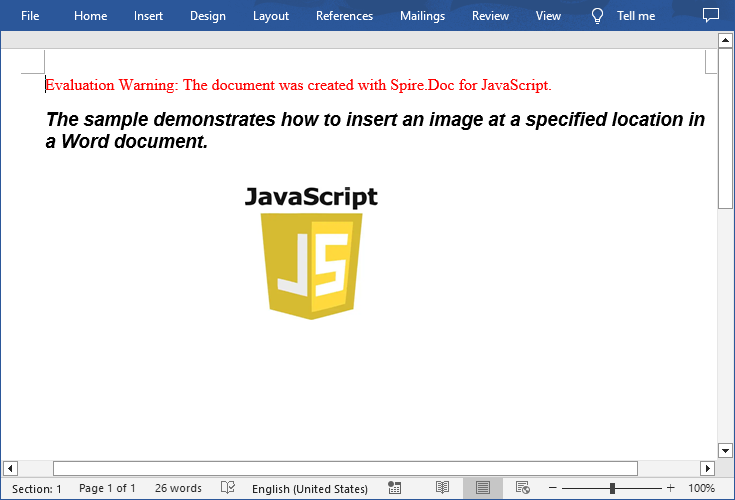
Get a Free License
To fully experience the capabilities of Spire.Doc for JavaScript without any evaluation limitations, you can request a free 30-day trial license.
Add or Remove Text Boxes in Word with JavaScript in React
2025-02-28 06:09:58 Written by AdministratorAdding or removing text boxes in Word is a valuable skill that enhances document layout and visual appeal. Text boxes provide a flexible way to highlight important information, create side notes, or organize content more effectively. They allow for creative formatting options, enabling you to draw attention to specific areas of your document.
In this article, you will learn how to add or move text boxes in a Word document in React using Spire.Doc for JavaScript.
Install Spire.Doc for JavaScript
To get started wtih manipulating text boxes in Word in a React applicaiton, you can either download Spire.Doc for JavaScript from our website or install it via npm with the following command:
npm i spire.officeThe downloaded product package integrates Spire.Doc for JavaScript, Spire.XLS for JavaScript, Spire.PDF for JavaScript, and Spire.Presentation for JavaScript. To use the features of Spire.Doc for JavaScript, you need to copy the corresponding files (spire.doc.js, Spire.Doc.Wasm.zip, spire.common.js, Spire.Common.Wasm.zip, and the _framework folder) to the public folder of your project. To ensure proper text rendering, you can add relevant font files with a custom path. In the following example, the font is added to the path: public\static\font.
For more details, refer to the documentation: How to Integrate Spire.Doc for JavaScript in a React Project
Add a Text Box to a Word Document in React
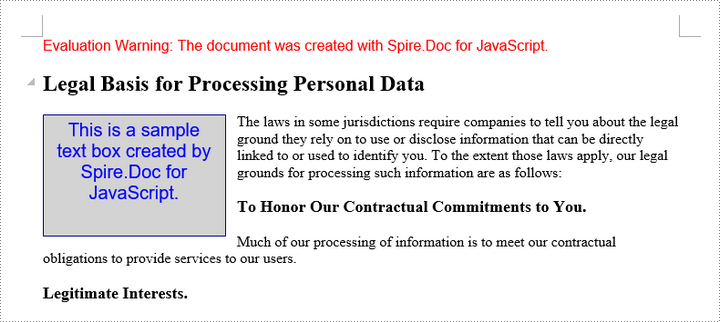
Spire.Doc for JavaScript offers the Paragraph.AppendTextBox() method to seamlessly insert a text box into a specified paragraph. Once inserted, you can customize the text box by adding content and applying formatting using properties like TextBox.Body and TextBox.Format.
The following are the steps to add a text box to a Word document in React:
- Load required font and input file into the virtual file system (VFS).
- Create a Document object using the new wasmModule.Document() method.
- Load the Word file using the Document.LoadFromFile() method.
- Access the first section and paragraph.
- Insert a text box to the paragraph using the Paragraph.AppendTextBox() method.
- Add a paragraph to the text box and append text to it through the TextBox.Body property.
- Customize the appearance of the text box through the TextBox.Format property.
- Save the document and trigger a download.
- JavaScript
import React, { useState, useEffect } from 'react';

function App() {
  const [wasmModule, setWasmModule] = useState(null);
  // Load Spire.Doc
  useEffect(() => {
    (async () => {
      try {
        const publicUrl = process.env.PUBLIC_URL || '';
        const spireModule = await import(/* webpackIgnore: true */ `${publicUrl}/spire.doc.js`);
        const rawModule = spireModule.default || spireModule;
        window.wasmModule = typeof rawModule === 'function'
          ? await rawModule({ locateFile: p => p.endsWith('.wasm') ? `${publicUrl}/${p}` : p })
          : rawModule;
        setWasmModule(window.wasmModule);
      } catch (error) {
        console.error('Failed to load spire.doc.js WASM module:', error);
      }
    })();
  }, []);

  // Function to add text box
  const AddTextBox = async () => {
    const wasmModule = window.wasmModule.spiredoc;

    if (wasmModule) {
      // Load the font files into the virtual file system (VFS)
      await window.spire.FetchFileToVFS('Arial.ttf', '/Library/Fonts/', `${process.env.PUBLIC_URL}/static/font/`);

      // Specify the input file name and the output file name
      const outputFileName = "Textbox.docx";
      const inputFileName = 'input.docx';

      // Fetch the input file and add it to the VFS
      await window.spire.FetchFileToVFS(inputFileName, '', `${process.env.PUBLIC_URL}/static/data/`);

      // Create an instance of the Document class
      const doc = new wasmModule.Document();

      // Load the Word document
      doc.LoadFromFile(inputFileName);

      // Get a specific section
      let section = doc.Sections.get_Item(0)

      // Get a specific paragraph
      let paragraph = section.Paragraphs.get_Item(0)

      // Insert a textbox and set its wrapping style
      let textBox = paragraph.AppendTextBox(150, 100);
      textBox.Format.TextWrappingStyle = wasmModule.TextWrappingStyle.Square;

      // Set the position of the textbox
      textBox.Format.HorizontalPosition = 0;
      textBox.Format.VerticalPosition = 50;

      // Set the line style and fill color
      textBox.Format.LineColor = wasmModule.Color.get_DarkBlue();
      textBox.Format.LineStyle = wasmModule.TextBoxLineStyle.Simple;
      textBox.Format.FillColor = wasmModule.Color.get_LightGray();

      // Add a paragraph to the textbox
      let para = textBox.Body.AddParagraph();
      let textRange = para.AppendText("This is a sample text box created by Spire.Doc for JavaScript.");

      // Format the text
      textRange.CharacterFormat.FontName = "Arial";
      textRange.CharacterFormat.FontSize = 15;
      textRange.CharacterFormat.TextColor = wasmModule.Color.get_Blue();

      // Set the horizontal alignment of the paragraph
      para.Format.HorizontalAlignment = wasmModule.HorizontalAlignment.Center;

      // Save the document to the specified path
      doc.SaveToFile({ fileName: outputFileName, fileFormat: wasmModule.FileFormat.Docx2013 });

      // Read the generated file from VFS
      const fileArray = window.dotnetRuntime.Module.FS.readFile(outputFileName);

      // Create a Blob object from the file
      const blob = new Blob([fileArray], { type: "application/vnd.openxmlformats-officedocument.wordprocessingml.document" });

      // Create a URL for the Blob
      const url = URL.createObjectURL(blob);

      // Create an anchor element to trigger the download
      const a = document.createElement('a');
      a.href = url;
      a.download = outputFileName;
      document.body.appendChild(a);
      a.click();
      document.body.removeChild(a);
      URL.revokeObjectURL(url);

      // Clean up resources
      doc.Dispose();
    }
  };

  return (
    <adiv style={{ textAlign: 'center', height: '300px' }}>
      <ah1>Add a text box to Word in React<a/h1>
      <abutton onClick={AddTextBox} disabled={!wasmModule}>
        Generate
      <a/button>
    <a/div>
  );
}

export default App;
Run the code to launch the React app at localhost:3000. Click "Generate", and a "Save As" window will appear, prompting you to save the output file in your chosen folder.

Here is a screenshot of the generated Word file that includes a text box:
Remove a Text Box from a Word Document in React
Spire.Doc for JavaScript includes the Document.TextBoxes.RemoveAt() method, which allows you to delete a specific text box by its index. If you need to remove all text boxes from a Word document, you can use the Document.TextBoxes.Clear() method for a quick and efficient solution.
The following are the steps to remove a text box from a Word document in React:
- Load the input file into the virtual file system (VFS).
- Create a Document object using the new wasmModule.Document() method.
- Load the Word file using the Document.LoadFromFile() method.
- Remove a specific text box using the Document.TextBoxes.RemoveAt() method.
- Save the document and trigger a download.
- JavaScript
import React, { useState, useEffect } from 'react';

function App() {
  const [wasmModule, setWasmModule] = useState(null);
  // Load Spire.Doc
  useEffect(() => {
    (async () => {
      try {
        const publicUrl = process.env.PUBLIC_URL || '';
        const spireModule = await import(/* webpackIgnore: true */ `${publicUrl}/spire.doc.js`);
        const rawModule = spireModule.default || spireModule;
        window.wasmModule = typeof rawModule === 'function'
          ? await rawModule({ locateFile: p => p.endsWith('.wasm') ? `${publicUrl}/${p}` : p })
          : rawModule;
        setWasmModule(window.wasmModule);
      } catch (error) {
        console.error('Failed to load spire.doc.js WASM module:', error);
      }
    })();
  }, []);

  // Function to remove text box
  const RemoveTextBox = async () => {
    const wasmModule = window.wasmModule.spiredoc;

    if (wasmModule) {
      // Load the font files into the virtual file system (VFS)
      await window.spire.FetchFileToVFS('Arial.ttf', '/Library/Fonts/', `${process.env.PUBLIC_URL}/static/font/`);

      // Specify the input file name and the output file name
      const outputFileName = "RemoveTextBox.docx";
      const inputFileName = 'Textbox.docx';

      // Fetch the input file and add it to the VFS
      await window.spire.FetchFileToVFS(inputFileName, '', `${process.env.PUBLIC_URL}/static/data/`);

      // Create an instance of the Document class
      const doc = new wasmModule.Document();


      // Load the Word document
      doc.LoadFromFile(inputFileName);

      // Remove the text box at index 0
      doc.TextBoxes.RemoveAt(0);

      // Remove all text boxes
      // doc.TextBoxes.Clear();

      // Save the document to the specified path
      doc.SaveToFile({ fileName: outputFileName, fileFormat: wasmModule.FileFormat.Docx2013 });

      // Read the generated file from VFS
      const fileArray = window.dotnetRuntime.Module.FS.readFile(outputFileName);

      // Create a Blob object from the file
      const blob = new Blob([fileArray], { type: "application/vnd.openxmlformats-officedocument.wordprocessingml.document" });

      // Create a URL for the Blob
      const url = URL.createObjectURL(blob);

      // Create an anchor element to trigger the download
      const a = document.createElement('a');
      a.href = url;
      a.download = outputFileName;
      document.body.appendChild(a);
      a.click();
      document.body.removeChild(a);
      URL.revokeObjectURL(url);

      // Clean up resources
      doc.Dispose();
    }
  };

  return (
    <div style={{ textAlign: 'center', height: '300px' }}>
      <h1>Remove a text box from Word in React</h1>
      <button onClick={RemoveTextBox} disabled={!wasmModule}>
        Generate
      </button>
    </div>
  );
}

export default App;
Get a Free License
To fully experience the capabilities of Spire.Doc for JavaScript without any evaluation limitations, you can request a free 30-day trial license.
Create a Table of Contents in a Word Document Using JavaScript in React
2025-02-20 07:02:53 Written by AdministratorAutomatically generating a table of contents (TOC) in a Word document using JavaScript within a React application streamlines document creation by eliminating manual updates and ensuring dynamic consistency. This approach is particularly valuable in scenarios where content length, structure, or headings frequently change, such as in report-generation tools, academic platforms, or documentation systems. By leveraging Spire.Doc for JavaScript's WebAssembly module and React’s reactive state management, developers can programmatically detect headings, organize hierarchical sections, and insert hyperlinked TOC entries directly into Word files. In this article, we will explore how to use Spire.Doc for JavaScript to insert tables of contents into Word documents with JavaScript in React applications.
- Insert a Default TOC into a Word Document Using JavaScript
- Insert a Custom TOC into a Word Document Using JavaScript
- Remove the Table of Contents from a Word Document
Install Spire.Doc for JavaScript
To get started with inserting tables of contents into Word documents in a React application, you can either download Spire.Doc for JavaScript from our website or install it via npm with the following command:
npm i spire.officeThe downloaded product package integrates Spire.Doc for JavaScript, Spire.XLS for JavaScript, Spire.PDF for JavaScript, and Spire.Presentation for JavaScript. To use the features of Spire.Doc for JavaScript, you need to copy the corresponding files (spire.doc.js, Spire.Doc.Wasm.zip, spire.common.js, Spire.Common.Wasm.zip, and the _framework folder) to the public folder of your project. To ensure proper text rendering, you can add relevant font files with a custom path. In the following example, the font is added to the path: public\static\font.
For more details, refer to the documentation: How to Integrate Spire.Doc for JavaScript in a React Project
Insert a Default TOC into a Word Document Using JavaScript
Spire.Doc for JavaScript offers a WebAssembly module for processing Word documents in JavaScript environments. You can load a Word document from the virtual file system using the Document.LoadFromFile() method and insert a table of contents (TOC) via the Paragraph.AppendTOC() method, which auto-generates based on the document’s titles. Finally, update the TOC with the Document.UpdateTableOfContents() method.
The detailed steps are as follows:
- Load the spire.doc.js file to initialize the WebAssembly module.
- Fetch the Word file to the virtual file system (VFS) using the window.spire.FetchFileToVFS() method.
- Create an instance of the Document class in the VFS using the new wasmModule.Document() method.
- Load the Word document from the VFS using the Document.LoadFromFile() method.
- Add a new section to the document using the Document.AddSection() method, and add a paragraph using the Section.AddParagraph() method.
- Insert the section after the cover section using the Document.Sections.Insert() method.
- Insert a TOC into the paragraph using the Paragraph.AppendTOC() method.
- Update the TOC using the Document.UpdateTableOfContents() method.
- Save the document to the VFS using the Document.SaveToFile() method.
- Read the document from the VFS and download it.
- JavaScript
import React, { useState, useEffect } from 'react';

function App() {
  const [wasmModule, setWasmModule] = useState(null);
  // Load Spire.Doc
  useEffect(() => {
    (async () => {
      try {
        const publicUrl = process.env.PUBLIC_URL || '';
        const spireModule = await import(/* webpackIgnore: true */ `${publicUrl}/spire.doc.js`);
        const rawModule = spireModule.default || spireModule;
        window.wasmModule = typeof rawModule === 'function'
          ? await rawModule({ locateFile: p => p.endsWith('.wasm') ? `${publicUrl}/${p}` : p })
          : rawModule;
        setWasmModule(window.wasmModule);
      } catch (error) {
        console.error('Failed to load spire.doc.js WASM module:', error);
      }
    })();
  }, []);

  // Function to insert a default table of contents into a Word document
  const InsertTOCWord = async () => {
    const wasmModule = window.wasmModule.spiredoc;

    if (wasmModule) {
      // Load the font files into the virtual file system (VFS)
      await window.spire.FetchFileToVFS('CALIBRI.ttf', '/Library/Fonts/', `${process.env.PUBLIC_URL}/static/font/`);

      // Specify the input and output file names
      const inputFileName = 'sample.docx';
      const outputFileName = 'DefaultTOC.docx';

      // Fetch the input file and add it to the VFS
      await window.spire.FetchFileToVFS(inputFileName, '', `${process.env.PUBLIC_URL}/static/data/`);

      // Create an instance of the Document class
      const doc = new wasmModule.Document();

      // Load the Word document
      doc.LoadFromFile({ fileName: inputFileName });

      // Create a new section
      const section = doc.AddSection();
      // Create a new paragraph
      const paragraph = section.AddParagraph();

      // Add a table of contents to the paragraph
      paragraph.AppendTOC(1, 2);

      // Insert the section after the cover section
      doc.Sections.Insert(1, section);

      // Update the table of contents
      doc.UpdateTableOfContents();

      // Save the document to the VFS
      doc.SaveToFile({ fileName: outputFileName, fileFormat: wasmModule.FileFormat.Docx2019 })

      // Read the document from the VFS and create a Blob to trigger the download
      const wordArray = await window.dotnetRuntime.Module.FS.readFile(outputFileName);
      const blob = new Blob([wordArray], { type: 'application/vnd.openxmlformats-officedocument.wordprocessingml.document' });
      const url = URL.createObjectURL(blob);
      const a = document.createElement('a');
      a.href = url;
      a.download = `${outputFileName}`;
      document.body.appendChild(a);
      a.click();
      document.body.removeChild(a);
      URL.revokeObjectURL(url);
    }
  };

  return (
    <div style={{ textAlign: 'center', height: '300px' }}>
      <h1>Insert Default Table of Contents Using JavaScript in React</h1>
      <button onClick={InsertTOCWord} disabled={!wasmModule}>
        Insert and Download
      </button>
    </div>
  );
}

export default App;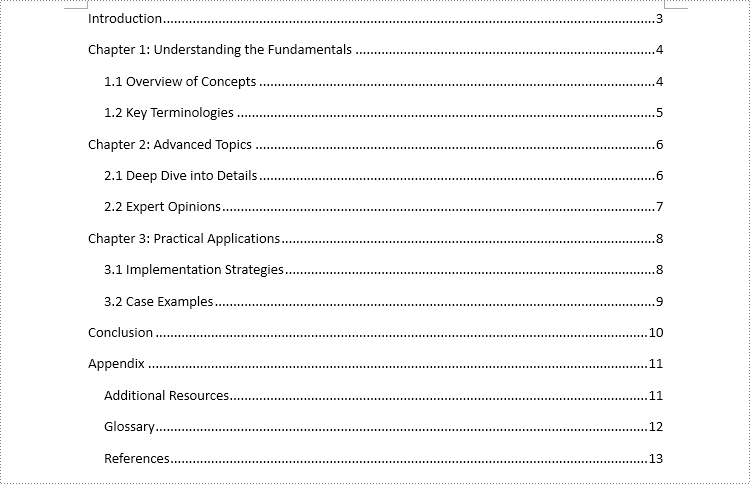
Insert a Custom TOC into a Word Document Using JavaScript
Spire.Doc for JavaScript also enables users to create a custom table of contents. By creating an instance of the TableOfContent class, you can customize title and page number display using switches. For instance, the switch "{\o "1-3" \n 1-1}" configures the TOC to display titles from level 1 to 3 while omitting page numbers for level 1 titles. After creating the instance, insert it into the document and assign it as the TOC of the document using the Document.TOC property.
The detailed steps are as follows:
- Load the spire.doc.js file to initialize the WebAssembly module.
- Fetch the Word file to the virtual file system (VFS) using the window.spire.FetchFileToVFS() method.
- Create an instance of the Document class in the VFS using the new wasmModule.Document() method.
- Load the Word document from the VFS using the Document.LoadFromFile() method.
- Add a new section to the document using the Document.AddSection() method, and add a paragraph using the Section.AddParagraph() method.
- Insert the section after the cover section using the Document.Sections.Insert() method.
- Create an instance of the TableOfContent class in the VFS using the new wasmModule.TableOfContent() method and specify the switch.
- Insert the TOC into the new paragraph using the Paragraph.Items.Add() method.
- Append the field separator and field end marks to complete the TOC field using the Paragraph.AppendFieldMark() method.
- Set the new TOC as the document’s TOC through the Document.TOC property.
- Update the TOC using the Document.UpdateTableOfContents() method.
- Save the document to the VFS using the Document.SaveToFile() method.
- Read the document from the VFS and download it.
- JavaScript
import React, { useState, useEffect } from 'react';

function App() {
  const [wasmModule, setWasmModule] = useState(null);
  // Load Spire.Doc
  useEffect(() => {
    (async () => {
      try {
        const publicUrl = process.env.PUBLIC_URL || '';
        const spireModule = await import(/* webpackIgnore: true */ `${publicUrl}/spire.doc.js`);
        const rawModule = spireModule.default || spireModule;
        window.wasmModule = typeof rawModule === 'function'
          ? await rawModule({ locateFile: p => p.endsWith('.wasm') ? `${publicUrl}/${p}` : p })
          : rawModule;
        setWasmModule(window.wasmModule);
      } catch (error) {
        console.error('Failed to load spire.doc.js WASM module:', error);
      }
    })();
  }, []);

  // Function to insert a default table of contents into a Word document
  const InsertTOCWord = async () => {
    const wasmModule = window.wasmModule.spiredoc;

    if (wasmModule) {
      // Load the font files into the virtual file system (VFS)
      await window.spire.FetchFileToVFS('CALIBRI.ttf', '/Library/Fonts/', `${process.env.PUBLIC_URL}/static/font/`);

      // Specify the input and output file names
      const inputFileName = 'sample.docx';
      const outputFileName = 'CustomTOC.docx';

      // Fetch the input file and add it to the VFS
      await window.spire.FetchFileToVFS(inputFileName, '', `${process.env.PUBLIC_URL}/static/data/`);

      // Create an instance of the Document class
      const doc = new wasmModule.Document();

      // Load the Word document
      doc.LoadFromFile({ fileName: inputFileName });

      // Add a new section and paragraph
      const section = doc.AddSection();
      const para = section.AddParagraph();

      // Insert the section after the cover section
      doc.Sections.Insert(1, section)

      // Create an instance of the TableOfContent class and specify the switch
      const toc = new wasmModule.TableOfContent(doc, '{\\o \”1-3\” \\n 1-1}');

      // Add the table of contents to the new paragraph
      para.Items.Add(toc);

      // Insert a field separator mark to the paragraph
      para.AppendFieldMark(wasmModule.FieldMarkType.FieldSeparator);

      // Insert a field end mark to the paragraph
      para.AppendFieldMark(wasmModule.FieldMarkType.FieldEnd);

      // Set the new TOC as the TOC of the document
      doc.TOC = toc;

      // Update the TOC
      doc.UpdateTableOfContents();

      // Save the document to the VFS
      doc.SaveToFile({ fileName: outputFileName, fileFormat: wasmModule.FileFormat.Docx2019});

      // Read the document from the VFS and create a Blob to trigger the download
      const wordArray = await window.dotnetRuntime.Module.FS.readFile(outputFileName);
      const blob = new Blob([wordArray], { type: 'application/vnd.openxmlformats-officedocument.wordprocessingml.document' });
      const url = URL.createObjectURL(blob);
      const a = document.createElement('a');
      a.href = url;
      a.download = `${outputFileName}`;
      document.body.appendChild(a);
      a.click();
      document.body.removeChild(a);
      URL.revokeObjectURL(url);
    }
  };

  return (
      <div style={{ textAlign: 'center', height: '300px' }}>
        <h1>Insert a Custom Table of Contents Using JavaScript in React</h1>
        <button onClick={InsertTOCWord} disabled={!wasmModule}>
          Insert and Download
        </button>
      </div>
  );
}

export default App;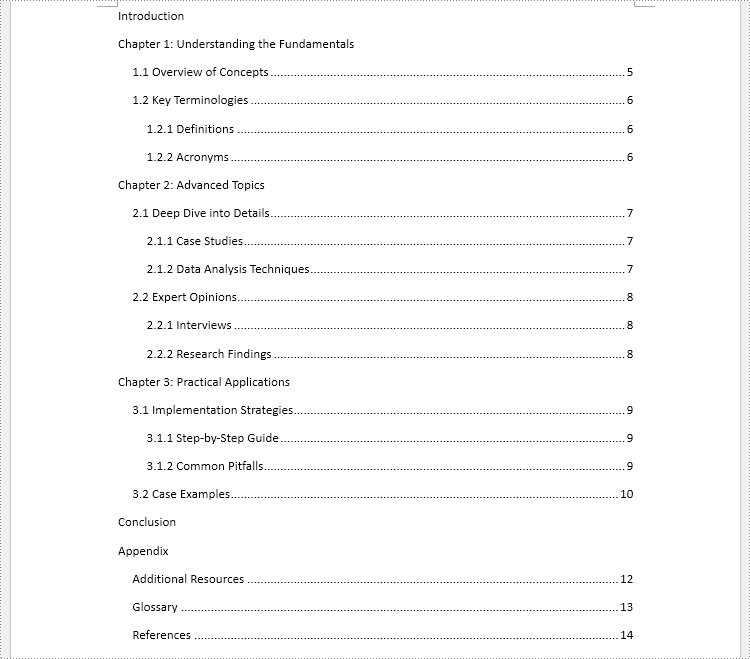
Remove the Table of Contents from a Word Document
Since TOC paragraphs have style names that start with "TOC", you can locate them by matching a regular expression on the paragraph style and then remove those paragraphs.
The detailed steps are as follows:
- Load the spire.doc.js file to initialize the WebAssembly module.
- Fetch the Word file to the virtual file system (VFS) using the window.spire.FetchFileToVFS() method.
- Create an instance of the Document class in the VFS using the new wasmModule.Document() method.
- Load the Word document from the VFS using the Document.LoadFromFile() method.
- Create an instance of the Regex class with the pattern "TOC\w+".
- Iterate through each section in the document and access its body using the Document.Sections.get_Item().Body property.
- Loop through the paragraphs in each section body and retrieve each paragraph's style via the Paragraph.StyleName property.
- Identify paragraphs whose style matches the regex using the Regex.IsMatch() method and remove them using the Section.Body.Paragraphs.RemoveAt() method.
- Save the document to the VFS using the Document.SaveToFile() method.
- Read the document from the VFS and download it.
- JavaScript
import React, { useState, useEffect } from 'react';

function App() {
  const [wasmModule, setWasmModule] = useState(null);
  // Load Spire.Doc
  useEffect(() => {
    (async () => {
      try {
        const publicUrl = process.env.PUBLIC_URL || '';
        const spireModule = await import(/* webpackIgnore: true */ `${publicUrl}/spire.doc.js`);
        const rawModule = spireModule.default || spireModule;
        window.wasmModule = typeof rawModule === 'function'
          ? await rawModule({ locateFile: p => p.endsWith('.wasm') ? `${publicUrl}/${p}` : p })
          : rawModule;
        setWasmModule(window.wasmModule);
      } catch (error) {
        console.error('Failed to load spire.doc.js WASM module:', error);
      }
    })();
  }, []);

  // Function to remove the table of contents from a Word document
  const RemoveTOC = async () => {
    const wasmModule = window.wasmModule.spiredoc;

    if (wasmModule) {
      // Load the font files into the virtual file system (VFS)
      await window.spire.FetchFileToVFS('CALIBRI.ttf', '/Library/Fonts/', `${process.env.PUBLIC_URL}/static/font/`);

      // Specify the input and output file names
      const inputFileName = 'sample.docx';
      const outputFileName = 'RemoveTOC.docx';

      // Fetch the input file and add it to the VFS
      await window.spire.FetchFileToVFS(inputFileName, '', `${process.env.PUBLIC_URL}/static/data/`);

      // Create an instance of the Document class
      const doc = new wasmModule.Document();

      // Load the Word document
      doc.LoadFromFile({ fileName: inputFileName });

      // Create a regex pattern to match the style name of TOC
      const regex = new wasmModule.Regex("TOC\\w+", wasmModule.RegexOptions.None);

      // Iterate through each section
      for (let i = 0; i < doc.Sections.Count; i++) {
        // Iterate through each paragraph in the section body
        const sectionBody = doc.Sections.get_Item(i).Body;
        for (let j = 0; j < sectionBody.Paragraphs.Count; j++) {
          // Check if the style name matches the regex pattern
          const paragraph = sectionBody.Paragraphs.get_Item(j);
          if (regex.IsMatch(paragraph.StyleName)) {
            // Remove the paragraph
            sectionBody.Paragraphs.RemoveAt(j)
            // Or remove the section
            //doc.Sections.RemoveAt(i)
            //i--
            j--
          }
        }
      }

      // Save the document to the VFS
      doc.SaveToFile({ fileName: outputFileName, fileFormat: wasmModule.FileFormat.Docx2019});

      // Read the document from the VFS and create a Blob to trigger the download
      const wordArray = await window.dotnetRuntime.Module.FS.readFile(outputFileName);
      const blob = new Blob([wordArray], { type: 'application/vnd.openxmlformats-officedocument.wordprocessingml.document' });
      const url = URL.createObjectURL(blob);
      const a = document.createElement('a');
      a.href = url;
      a.download = `${outputFileName}`;
      document.body.appendChild(a);
      a.click();
      document.body.removeChild(a);
      URL.revokeObjectURL(url);
    }
  };

  return (
      <div style={{ textAlign: 'center', height: '300px' }}>
        <h1>Remove TOC Using JavaScript in React</h1>
        <button onClick={RemoveTOC} disabled={!wasmModule}>
          Insert and Download
        </button>
      </div>
  );
}

export default App;
Get a Free License
To fully experience the capabilities of Spire.Doc for JavaScript without any evaluation limitations, you can request a free 30-day trial license.
Convert Word to Markdown and Markdown to Word with JavaScript in React
2025-02-12 08:00:00 Written by AdministratorSeamless conversion between Word documents and Markdown files is increasingly essential in web development for boosting productivity and interoperability. Word documents dominate in complex formatting, while Markdown offers a simple, universal approach to content creation. Enabling conversion between the two within a React application allows users to work in their preferred format while ensuring compatibility across different platforms, streamlining workflows without relying on external tools. In this article, we will explore how to use Spire.Doc for JavaScript to convert Word to Markdown and Markdown to Word with JavaScript in React applications.
Install Spire.Doc for JavaScript
To get started with conversion between Word and Markdown in a React application, you can either download Spire.Doc for JavaScript from our website or install it via npm with the following command:
npm i spire.officeThe downloaded product package integrates Spire.Doc for JavaScript, Spire.XLS for JavaScript, Spire.PDF for JavaScript, and Spire.Presentation for JavaScript. To use the features of Spire.Doc for JavaScript, you need to copy the corresponding files (spire.doc.js, Spire.Doc.Wasm.zip, spire.common.js, Spire.Common.Wasm.zip, and the _framework folder) to the public folder of your project. To ensure proper text rendering, you can add relevant font files with a custom path. In the following example, the font is added to the path: public\static\font.
For more details, refer to the documentation: How to Integrate Spire.Doc for JavaScript in a React Project
Convert Word to Markdown with JavaScript
The Spire.Doc for JavaScript provides a WebAssembly module that enables loading Word documents from the VFS and converting them to Markdown. Developers can achieve this conversion by fetching the documents to the VFS, loading them using the Document.LoadFromFile() method, and saving them as Markdown with the Document.SaveToFile() method. The process involves the following steps:
- Load the spire.doc.js file to initialize the WebAssembly module.
- Fetch the Word document into the virtual file system using the window.spire.FetchFileToVFS() method.
- Create a Document instance in the WebAssembly module using the new wasmModule.Document() method.
- Load the Word document into the Document instance with the Document.LoadFromFile() method.
- Convert the document to Markdown format and save it to the VFS using the Document.SaveToFile() method.
- Read and download the file, or use it as needed.
- JavaScript
import React, { useState, useEffect } from 'react';

function App() {
  const [wasmModule, setWasmModule] = useState(null);
  // Load Spire.Doc
  useEffect(() => {
    (async () => {
      try {
        const publicUrl = process.env.PUBLIC_URL || '';
        const spireModule = await import(/* webpackIgnore: true */ `${publicUrl}/spire.doc.js`);
        const rawModule = spireModule.default || spireModule;
        window.wasmModule = typeof rawModule === 'function'
          ? await rawModule({ locateFile: p => p.endsWith('.wasm') ? `${publicUrl}/${p}` : p })
          : rawModule;
        setWasmModule(window.wasmModule);
      } catch (error) {
        console.error('Failed to load spire.doc.js WASM module:', error);
      }
    })();
  }, []);

  // Function to convert Word to Markdown
  const ConvertWordToMD = async () => {
    const wasmModule = window.wasmModule.spiredoc;

    if (wasmModule) {
      // Load the font files into the virtual file system (VFS)
      await window.spire.FetchFileToVFS('CALIBRI.ttf', '/Library/Fonts/', `${process.env.PUBLIC_URL}/static/font/`);

      // Specify the input file name and the output file name
      const inputFileName = 'sample.docx';
      const outputFileName = 'WordToMarkdown.md';

      // Fetch the input file and add it to the VFS
      await window.spire.FetchFileToVFS(inputFileName, '', `${process.env.PUBLIC_URL}/static/data/`);

      // Create an instance of the Document class
      const doc = new wasmModule.Document();

      // Load the Word document
      doc.LoadFromFile(inputFileName);

      // Save the document to a Markdown file
      doc.SaveToFile({ fileName: outputFileName, fileFormat: wasmModule.FileFormat.Markdown });

      // Release resources
      doc.Dispose();

      // Read the markdown file
      const mdContent = window.dotnetRuntime.Module.FS.readFile(outputFileName)

      // Generate a Blob from the markdown file and trigger a download
      const blob = new Blob([mdContent], { type: 'text/plain' });
      const url = URL.createObjectURL(blob);
      const a = document.createElement("a");
      a.href = url;
      a.download = outputFileName;
      document.body.appendChild(a);
      a.click();
      document.body.removeChild(a);
      URL.revokeObjectURL(url);
    }
  };

  return (
    <div style={{ textAlign: 'center', height: '300px' }}>
      <h1>Convert Word to Markdown Using JavaScript in React</h1>
      <button onClick={ConvertWordToMD} disabled={!wasmModule}>
        Convert and Download
      </button>
    </div>
  );
}

export default App;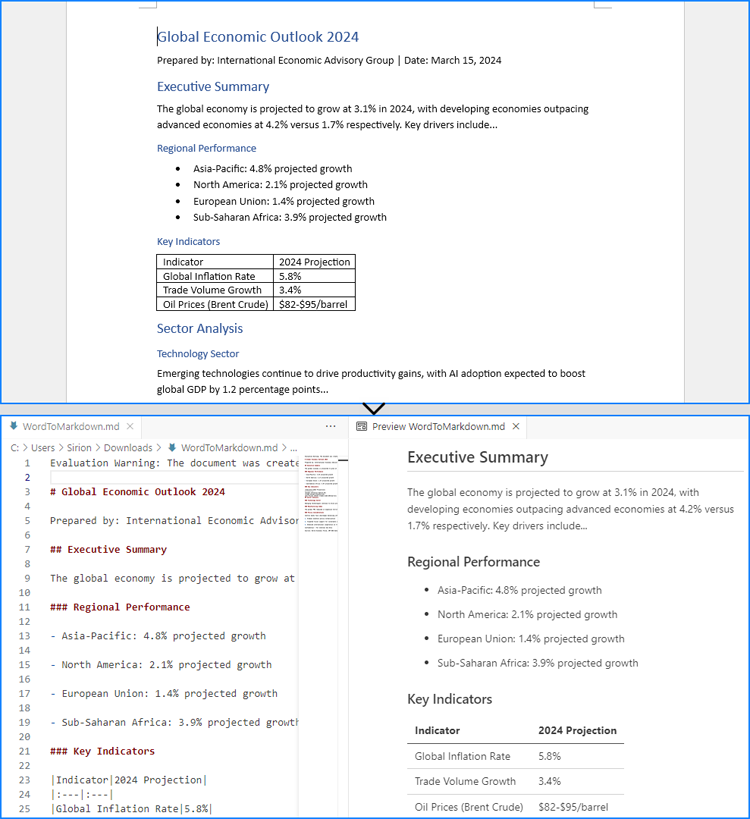
Convert Markdown to Word with JavaScript
The Document.LoadFromFile() method can also be used to load a Markdown file by specifying the file format parameter as wasmModule.FileFormat.Markdown. Then, the Markdown file can be exported as a Word document using the Document.SaveToFile() method.
For Markdown strings, developers can write them as Markdown files into the virtual file system using the window.dotnetRuntime.Module.FS.writeFile() method, and then convert them to Word documents.
The detailed steps for converting Markdown content to Word documents are as follows:
- Load the spire.doc.js file to initialize the WebAssembly module.
- Load required font files into the virtual file system using the window.spire.FetchFileToVFS() method.
- Import Markdown content:
- For files: Use the window.spire.FetchFileToVFS() method to load the Markdown file into the VFS.
- For strings: Write Markdown content to the VFS via the window.dotnetRuntime.Module.FS.writeFile() method.
- Instantiate a Document object via the new wasmModule.Document() method within the WebAssembly module.
- Load the Markdown file into the Document instance using the Document.LoadFromFile({ filename: string, fileFormat: wasmModule.FileFormat.Markdown }) method.
- Convert the Markdown file to a Word document and save it to the VFS using the Document.SaveToFile( { filename: string, fileFormat:wasmModule.FileFormat.Docx2019 }) method.
- Retrieve and download the generated Word file from the VFS, or process it further as required.
- JavaScript
import React, { useState, useEffect } from 'react';

function App() {
  const [wasmModule, setWasmModule] = useState(null);
  // Load Spire.Doc
  useEffect(() => {
    (async () => {
      try {
        const publicUrl = process.env.PUBLIC_URL || '';
        const spireModule = await import(/* webpackIgnore: true */ `${publicUrl}/spire.doc.js`);
        const rawModule = spireModule.default || spireModule;
        window.wasmModule = typeof rawModule === 'function'
          ? await rawModule({ locateFile: p => p.endsWith('.wasm') ? `${publicUrl}/${p}` : p })
          : rawModule;
        setWasmModule(window.wasmModule);
      } catch (error) {
        console.error('Failed to load spire.doc.js WASM module:', error);
      }
    })();
  }, []);

  // Function to convert Markdown to Word
  const ConvertMDToWord = async () => {
    const wasmModule = window.wasmModule.spiredoc;

    if (wasmModule) {
      // Load the font files into the virtual file system (VFS)
      await window.spire.FetchFileToVFS('CALIBRI.ttf', '/Library/Fonts/', `${process.env.PUBLIC_URL}/static/font/`);

      // Create an instance of the Document class
      const doc = new wasmModule.Document();

      // Specify the output file name
      const outputFileName = 'MarkdownStringToWord.docx';

      // Fetch the Markdown file to the VFS and load it into the Document instance
      // window.spire.FetchFileToVFS('MarkdownExample.md', '', `${process.env.PUBLIC_URL}/static/data/`);
      // doc.LoadFromFile({ fileName: 'MarkdownExample.md', fileFormat: wasmModule.FileFormat.Markdown });

      // Define the Markdown string
      const markdownString = '# Project Aurora: Next-Gen Climate Modeling System *\n' +
          '## Overview\n' +
          'A next-generation climate modeling platform leveraging AI to predict regional climate patterns with 90%+ accuracy. Built for researchers and policymakers.\n' +
          '### Key Features\n' +
          '- * Real-time atmospheric pattern recognition\n' +
          '- * Carbon sequestration impact modeling\n' +
          '- * Custom scenario simulation builder\n' +
          '- * Historical climate data cross-analysis\n' +
          '\n' +
          '## Sample Usage\n' +
          '| Command | Description | Example Output |\n' +
          '|---------|-------------|----------------|\n' +
          '| `region=asia` | Runs climate simulation for Asia | JSON with temperature/precipitation predictions |\n' +
          '| `model=co2` | Generates CO2 impact visualization | Interactive 3D heatmap |\n' +
          '| `year=2050` | Compares scenarios for 2050 | Tabular data with Δ values |\n' +
          '| `format=netcdf` | Exports data in NetCDF format | .nc file with metadata |'

      // Write the Markdown string to a file in the VFS
      await window.dotnetRuntime.Module.FS.writeFile('Markdown.md', markdownString, {encoding: 'utf8'})

      // Load the Markdown file from the VFS
      doc.LoadFromFile({ fileName: 'Markdown.md', fileFormat: wasmModule.FileFormat.Markdown });

      // Save the document to a Word file
      doc.SaveToFile({fileName: outputFileName, fileFormat: wasmModule.FileFormat.Docx2019});

      // Release resources
      doc.Dispose();

      // Read the Word file
      const outputWordFile = await window.dotnetRuntime.Module.FS.readFile(outputFileName)

      // Generate a Blob from the Word file and trigger a download
      const blob = new Blob([outputWordFile], { type: 'application/vnd.openxmlformats-officedocument.wordprocessingml.document' });
      const url = URL.createObjectURL(blob);
      const a = document.createElement("a");
      a.href = url;
      a.download = outputFileName;
      document.body.appendChild(a);
      a.click();
      document.body.removeChild(a);
      URL.revokeObjectURL(url);
    }
  };

  return (
      <div style={{ textAlign: 'center', height: '300px' }}>
        <h1>Convert Markdown to Word Using JavaScript in React</h1>
        <button onClick={ConvertMDToWord} disabled={!wasmModule}>
          Convert and Download
        </button>
      </div>
  );
}

export default App;
Get a Free License
To fully experience the capabilities of Spire.Doc for JavaScript without any evaluation limitations, you can request a free 30-day trial license.
In modern web development, generating PDFs directly from HTML is essential for applications requiring dynamic reports, invoices, or user-specific documents. Using JavaScript to convert HTML to PDF in React applications ensures the preservation of structure, styling, and interactivity, transforming content into a portable, print-ready format. This method eliminates the need for separate PDF templates, leverages React's component-based architecture for dynamic rendering, and reduces server-side dependencies. By embedding PDF conversion into the front end, developers can provide a consistent user experience, enable instant document downloads, and maintain full control over design and layout. This article explores how to use Spire.Doc for JavaScript to convert HTML files and strings to PDF in React applications.
Install Spire.Doc for JavaScript
To get started with converting HTML to PDF in a React application, you can either download Spire.Doc for JavaScript from our website or install it via npm with the following command:
npm i spire.officeThe downloaded product package integrates Spire.Doc for JavaScript, Spire.XLS for JavaScript, Spire.PDF for JavaScript, and Spire.Presentation for JavaScript. To use the features of Spire.Doc for JavaScript, you need to copy the corresponding files (spire.doc.js, Spire.Doc.Wasm.zip, spire.common.js, Spire.Common.Wasm.zip, and the _framework folder) to the public folder of your project. To ensure proper text rendering, you can add relevant font files with a custom path. In the following example, the font is added to the path: public\static\font.
For more details, refer to the documentation: How to Integrate Spire.Doc for JavaScript in a React Project
Convert an HTML File to PDF with JavaScript
Using the Spire.Doc WASM module, developers can load HTML files into a Document object with the Document.LoadFromFile() method and then convert them to PDF documents using the Document.SaveToFile() method. This approach provides a concise and efficient solution for HTML-to-PDF conversion in web development.
The detailed steps are as follows:
- Load the Spire.Doc.Base.js file to initialize the WebAssembly module.
- Load the HTML file and the font files used in the HTML file into the virtual file system using the window.spire.FetchFileToVFS() method.
- Create an instance of the Document class using the new wasmModule.Document() method.
- Load the HTML file into the Document instance using the Document.LoadFromFile() method.
- Convert the HTML file to PDF format and save it using the Document.SaveToFile() method.
- Read the converted file as a file array and download it.
- JavaScript
import React, { useState, useEffect } from 'react';

function App() {
  const [wasmModule, setWasmModule] = useState(null);
  // Load Spire.Doc
  useEffect(() => {
    (async () => {
      try {
        const publicUrl = process.env.PUBLIC_URL || '';
        const spireModule = await import(/* webpackIgnore: true */ `${publicUrl}/spire.doc.js`);
        const rawModule = spireModule.default || spireModule;
        window.wasmModule = typeof rawModule === 'function'
          ? await rawModule({ locateFile: p => p.endsWith('.wasm') ? `${publicUrl}/${p}` : p })
          : rawModule;
        setWasmModule(window.wasmModule);
      } catch (error) {
        console.error('Failed to load spire.doc.js WASM module:', error);
      }
    })();
  }, []);

  // Function to convert HTML files to PDF document
  const ConvertHTMLFileToPDF = async () => {
    const wasmModule = window.wasmModule.spiredoc;

    if (wasmModule) {
      // Load the font files into the virtual file system (VFS)
      await window.spire.FetchFileToVFS('CALIBRI.ttf', '/Library/Fonts/', `${process.env.PUBLIC_URL}/static/font/`);

      // Specify the input file name and the output file name
      const inputFileName = 'Sample.html';
      const outputFileName = 'HTMLFileToPDF.pdf';

      // Fetch the input file and add it to the VFS
      await window.spire.FetchFileToVFS(inputFileName, '', `${process.env.PUBLIC_URL}/static/data/`);

      // Create an instance of the Document class
      const doc = new wasmModule.Document();

      // Load the Word document
      doc.LoadFromFile({ fileName: inputFileName, fileFormat: wasmModule.FileFormat.Html, validationType: wasmModule.XHTMLValidationType.None });

      // Save the document to a PDF file
      doc.SaveToFile({ fileName: outputFileName, fileFormat: wasmModule.FileFormat.PDF });

      // Release resources
      doc.Dispose();

      // Read the saved file from the VFS
      const modifiedFileArray = window.dotnetRuntime.Module.FS.readFile(outputFileName);

      // Generate a Blob from the file array and trigger a download
      const blob = new Blob([modifiedFileArray], { type: 'application/pdf' });
      const url = URL.createObjectURL(blob);
      const a = document.createElement("a");
      a.href = url;
      a.download = outputFileName;
      document.body.appendChild(a);
      a.click();
      document.body.removeChild(a);
      URL.revokeObjectURL(url);
    }
  };

  return (
    <div style={{ textAlign: 'center', height: '300px' }}>
      <h1>Convert HTML files to PDF Using JavaScript in React</h1>
      <button onClick={ConvertHTMLFileToPDF} disabled={!wasmModule}>
        Convert
      </button>
    </div>
  );
}

export default App;
Convert an HTML String to PDF with JavaScript
Spire.Doc for JavaScript offers the Paragraph.AppendHTML() method, which allows developers to insert HTML-formatted content directly into a document paragraph. Once the HTML content is added, the document can be saved as a PDF, enabling a seamless conversion from an HTML string to a PDF file.
The detailed steps are as follows:
- Load the Spire.Doc.Base.js file to initialize the WebAssembly module.
- Define the HTML string.
- Load the font files used in the HTML string using the window.spire.FetchFileToVFS() method.
- Create a new Document instance using the new wasmModule.Document() method.
- Add a section to the document using the Document.AddSection() method.
- Add a paragraph to the section using the Section.AddParagraph() method.
- Insert the HTML content into the paragraph using the Paragraph.AppendHTML() method.
- Save the document as a PDF file using the Document.SaveToFile() method.
- Read the converted file as a file array and download it.
- JavaScript
import React, { useState, useEffect } from 'react';

function App() {
  const [wasmModule, setWasmModule] = useState(null);
  // Load Spire.Doc
  useEffect(() => {
    (async () => {
      try {
        const publicUrl = process.env.PUBLIC_URL || '';
        const spireModule = await import(/* webpackIgnore: true */ `${publicUrl}/spire.doc.js`);
        const rawModule = spireModule.default || spireModule;
        window.wasmModule = typeof rawModule === 'function'
          ? await rawModule({ locateFile: p => p.endsWith('.wasm') ? `${publicUrl}/${p}` : p })
          : rawModule;
        setWasmModule(window.wasmModule);
      } catch (error) {
        console.error('Failed to load spire.doc.js WASM module:', error);
      }
    })();
  }, []);

  // Function to convert HTML string to PDF
  const ConvertHTMLStringToPDF = async () => {
    const wasmModule = window.wasmModule.spiredoc;

    if (wasmModule) {
      // Load the font files into the virtual file system (VFS)
      await window.spire.FetchFileToVFS('CALIBRI.ttf', '/Library/Fonts/', `${process.env.PUBLIC_URL}/static/font/`);

      // Create an instance of the Document class
      const doc = new wasmModule.Document();

      // Specify the output file name
      const outputFileName = 'HTMLStringToPDF.pdf';

      // Define the HTML string
      const htmlString = `
          <html lang="en">
              <head>
                  <meta charset="UTF-8">
                  <title>Sales Snippet</title>
              </head>
              <body style="font-family: Arial, sans-serif; margin: 20px;">
                  <div style="border: 1px solid #ddd; padding: 15px; max-width: 600px; margin: auto; background-color: #f9f9f9;">
                      <h1 style="color: #e74c3c; text-align: center;">Limited Time Offer!</h1>
                      <p style="font-size: 1.1em; color: #333; line-height: 1.5;">
                          Get ready to save big on all your favorites. This week only, enjoy 15% off site wide. From trendy clothing to home decor, find everything you love at unbeatable prices.
                      </p>
                      <div style="text-align: center;">
                          <button
                              style="background-color: #5cb85c; border: none; color: white; padding: 10px 20px; text-align: center; text-decoration: none; display: inline-block; font-size: 16px; margin: 4px 2px; cursor: pointer; border-radius: 8px;">
                              Shop Deals
                          </button>
                      </div>
                  </div>
              </body>
          </html>
      `;

      // Add a section to the document
      const section = doc.AddSection();

      // Add a paragraph to the section
      const paragraph = section.AddParagraph();

      // Insert the HTML content to the paragraph
      paragraph.AppendHTML(htmlString)

      // Save the document to a PDF file
      doc.SaveToFile({fileName: outputFileName, fileFormat: wasmModule.FileFormat.PDF});

      // Release resources
      doc.Dispose();

      // Read the saved file from the VFS
      const modifiedFileArray = window.dotnetRuntime.Module.FS.readFile(outputFileName);

      // Generate a Blob from the file array and trigger a download
      const blob = new Blob([modifiedFileArray], {type: 'application/pdf'});
      const url = URL.createObjectURL(blob);
      const a = document.createElement("a");
      a.href = url;
      a.download = outputFileName;
      document.body.appendChild(a);
      a.click();
      document.body.removeChild(a);
      URL.revokeObjectURL(url);
    }
  };

  return (
      <div style={{ textAlign: 'center', height: '300px' }}>
        <h1>Convert HTML Strings to PDF Using JavaScript in React</h1>
        <button onClick={ConvertHTMLStringToPDF} disabled={!wasmModule}>
          Convert and Download
        </button>
      </div>
  );
}

export default App;
Get a Free License
To fully experience the capabilities of Spire.Doc for JavaScript without any evaluation limitations, you can request a free 30-day trial license.
Convert Text to Word or Word to Text with JavaScript in React
2025-01-22 08:03:11 Written by AdministratorConverting between Word and TXT formats is a skill that can greatly enhance your productivity and efficiency in handling documents. For example, converting a Word document to a plain text file can make it easier to analyze and manipulate data using other text processing tools or programming languages. Conversely, converting a text file to Word format allows you to add formatting, graphics, and other elements to enhance the presentation of the content. In this article, you will learn how to convert text files to Word format or convert Word files to text format in React using Spire.Doc for JavaScript.
Install Spire.Doc for JavaScript
To get started with the conversion between the TXT and Word formats in a React application, you can either download Spire.Doc for JavaScript from our website or install it via npm with the following command:
npm i spire.officeThe downloaded product package integrates Spire.Doc for JavaScript, Spire.XLS for JavaScript, Spire.PDF for JavaScript, and Spire.Presentation for JavaScript. To use the features of Spire.Doc for JavaScript, you need to copy the corresponding files (spire.doc.js, Spire.Doc.Wasm.zip, spire.common.js, Spire.Common.Wasm.zip, and the _framework folder) to the public folder of your project. To ensure proper text rendering, you can add relevant font files with a custom path. In the following example, the font is added to the path: public\static\font.
For more details, refer to the documentation: How to Integrate Spire.Doc for JavaScript in a React Project
Convert Text (TXT) to Word in JavaScript
Spire.Doc for JavaScript allows you to load a TXT file and then save it to Word Doc or Docx format using the Document.SaveToFile() method. The following are the main steps.
- Create a new document using the new wasmModule.Document() method.
- Load a text file using the Document.LoadFromFile() method.
- Save the text file as a Word document using the Document.SaveToFile() method.
- JavaScript
import React, { useState, useEffect } from 'react';

function App() {
  const [wasmModule, setWasmModule] = useState(null);
  // Load Spire.Doc
  useEffect(() => {
    (async () => {
      try {
        const publicUrl = process.env.PUBLIC_URL || '';
        const spireModule = await import(/* webpackIgnore: true */ `${publicUrl}/spire.doc.js`);
        const rawModule = spireModule.default || spireModule;
        window.wasmModule = typeof rawModule === 'function'
          ? await rawModule({ locateFile: p => p.endsWith('.wasm') ? `${publicUrl}/${p}` : p })
          : rawModule;
        setWasmModule(window.wasmModule);
      } catch (error) {
        console.error('Failed to load spire.doc.js WASM module:', error);
      }
    })();
  }, []);

  // Function to convert a text file to a Word document
  const TXTtoWord = async () => {
    const wasmModule = window.wasmModule.spiredoc;

    if (wasmModule) {
      // Load the font files into the virtual file system (VFS)
      await window.spire.FetchFileToVFS('CALIBRI.ttf', '/Library/Fonts/', `${process.env.PUBLIC_URL}/static/font/`);

      // Specify the input file name and the output file name
      const inputFileName = 'input.txt';
      const outputFileName = 'TxtToWord.docx';

      // Fetch the input file and add it to the VFS
      await window.spire.FetchFileToVFS(inputFileName, '', `${process.env.PUBLIC_URL}/static/data/`);

      // Create an instance of the Document class
      const doc = new wasmModule.Document();

      // Load the text file
      doc.LoadFromFile(inputFileName);

      // Save the text file as a Word document
      doc.SaveToFile({ fileName: outputFileName, fileFormat: wasmModule.FileFormat.Docx2016 });

      // Read the generated Word document from VFS
      const modifiedFileArray = window.dotnetRuntime.Module.FS.readFile(outputFileName);

      // Create a Blog object from the Word document
      const modifiedFile = new Blob([modifiedFileArray], { type: 'application/vnd.openxmlformats-officedocument.wordprocessingml.document' });

      // Create a URL for the Blob
      const url = URL.createObjectURL(modifiedFile);

      // Create an anchor element to trigger the download
      const a = document.createElement('a');
      a.href = url;
      a.download = outputFileName;
      document.body.appendChild(a);
      a.click();
      document.body.removeChild(a);
      URL.revokeObjectURL(url);

      // Clean up resources
      doc.Dispose();
    }
  };

  return (
    <div style={{ textAlign: 'center', height: '300px' }}>
      <h1>Convert Text to Word Using JavaScript in React</h1>
      <button onClick={TXTtoWord} disabled={!wasmModule}>
        Convert
      </button>
    </div>
  );
}

export default App;
Run the code to launch the React app at localhost:3000. Once it's running, click on the "Convert" button to download the Word document converted from a TXT file:

Below is the input text file and the generated Word document:

Convert Word to Text (TXT) in JavaScript
The Document.SaveToFile() method can also be used to export a Word Doc or Docx document to a plain text file. The following are the main steps.
- Create a new document using the new wasmModule.Document() method.
- Load a Word document using the Document.LoadFromFile() method.
- Save the Word document in TXT format using the Document.SaveToFile({fileName: string, fileFormat: wasmModule.FileFormat.Txt}) method.
- JavaScript
import React, { useState, useEffect } from 'react';

function App() {
  const [wasmModule, setWasmModule] = useState(null);
  // Load Spire.Doc
  useEffect(() => {
    (async () => {
      try {
        const publicUrl = process.env.PUBLIC_URL || '';
        const spireModule = await import(/* webpackIgnore: true */ `${publicUrl}/spire.doc.js`);
        const rawModule = spireModule.default || spireModule;
        window.wasmModule = typeof rawModule === 'function'
          ? await rawModule({ locateFile: p => p.endsWith('.wasm') ? `${publicUrl}/${p}` : p })
          : rawModule;
        setWasmModule(window.wasmModule);
      } catch (error) {
        console.error('Failed to load spire.doc.js WASM module:', error);
      }
    })();
  }, []);

  // Function to convert a Word document to a text file
  const WordToTXT = async () => {
    const wasmModule = window.wasmModule.spiredoc;

    if (wasmModule) {
      // Load the font files into the virtual file system (VFS)
      await window.spire.FetchFileToVFS('CALIBRI.ttf', '/Library/Fonts/', `${process.env.PUBLIC_URL}/static/font/`);

      // Specify the input file name and the output file name
      const inputFileName = 'Data.docx';
      const outputFileName = 'WordToText.txt';

      // Fetch the input file and add it to the VFS
      await window.spire.FetchFileToVFS(inputFileName, '', `${process.env.PUBLIC_URL}/static/data/`);

      // Create an instance of the Document class
      const doc = new wasmModule.Document();

      // Load the Word document
      doc.LoadFromFile(inputFileName);

      // Save the Word document in TXT format
      doc.SaveToFile({fileName: outputFileName, fileFormat: wasmModule.FileFormat.Txt});

      // Read the generated text file from VFS
      const modifiedFileArray = window.dotnetRuntime.Module.FS.readFile(outputFileName);

      // Create a Blog object from the text file
      const modifiedFile = new Blob([modifiedFileArray], {type: 'text/plain'});

      // Create a URL for the Blob
      const url = URL.createObjectURL(modifiedFile);

      // Create an anchor element to trigger the download
      const a = document.createElement('a');
      a.href = url;
      a.download = outputFileName;
      document.body.appendChild(a);
      a.click();
      document.body.removeChild(a);
      URL.revokeObjectURL(url);

      // Clean up resources
      doc.Dispose();
    }
  };

  return (
    <div style={{ textAlign: 'center', height: '300px' }}>
      <h1>Convert a Word Document to Plain Text Using JavaScript in React</h1>
      <button onClick={WordToTXT} disabled={!wasmModule}>
        Convert
      </button>
    </div>
  );
}

export default App;
Get a Free License
To fully experience the capabilities of Spire.Doc for JavaScript without any evaluation limitations, you can request a free 30-day trial license.
Converting HTML to images allows you to transform HTML content into static images that can be easily shared on social media, embedded in emails, or used as thumbnails in search engine results. This conversion process ensures that your content is displayed consistently across different devices and browsers, improving the overall user experience. In this article, you will learn how to convert HTML to images in React using Spire.Doc for JavaScript.
Install Spire.Doc for JavaScript
To get started with converting Word documents to PDF in a React application, you can either download Spire.Doc for JavaScript from our website or install it via npm with the following command:
npm i spire.officeThe downloaded product package integrates Spire.Doc for JavaScript, Spire.XLS for JavaScript, Spire.PDF for JavaScript, and Spire.Presentation for JavaScript. To use the features of Spire.Doc for JavaScript, you need to copy the corresponding files (spire.doc.js, Spire.Doc.Wasm.zip, spire.common.js, Spire.Common.Wasm.zip, and the _framework folder) to the public folder of your project. To ensure proper text rendering, you can add relevant font files with a custom path. In the following example, the font is added to the path: public\static\font.
For more details, refer to the documentation: How to Integrate Spire.Doc for JavaScript in a React Project
Convert an HTML File to an Image in JavaScript
Spire.Doc for JavaScript allows you to load an HTML file and convert a specific page to an image stream using the Document.SaveImageToStreams() method. The image streams can then be further saved to a desired image format such as jpg, png, bmp, gif. The following are the main steps.
- Load the font file to ensure correct text rendering.
- Create a new document using the new wasmModule.Document() method.
- Load the HTML file using the Document.LoadFromFile() method.
- Convert a specific page to an image stream using the Document.SaveImageToStreams() method.
- Save the image stream to a specified image format.
- JavaScript
import React, { useState, useEffect } from 'react';

function App() {
  const [wasmModule, setWasmModule] = useState(null);
  // Load Spire.Doc
  useEffect(() => {
    (async () => {
      try {
        const publicUrl = process.env.PUBLIC_URL || '';
        const spireModule = await import(/* webpackIgnore: true */ `${publicUrl}/spire.doc.js`);
        const rawModule = spireModule.default || spireModule;
        window.wasmModule = typeof rawModule === 'function'
          ? await rawModule({ locateFile: p => p.endsWith('.wasm') ? `${publicUrl}/${p}` : p })
          : rawModule;
        setWasmModule(window.wasmModule);
      } catch (error) {
        console.error('Failed to load spire.doc.js WASM module:', error);
      }
    })();
  }, []);

  // Function to convert an HTML file to an image
  const HtmlToImage = async () => {
    const wasmModule = window.wasmModule.spiredoc;

    if (wasmModule) {
      // Load the font files into the virtual file system (VFS)
      await window.spire.FetchFileToVFS('CALIBRI.ttf', '/Library/Fonts/', `${process.env.PUBLIC_URL}/static/font/`);

      // Specify the input file name
      const inputFileName = 'sample.html';

      // Fetch the input file and add it to the VFS
      await window.spire.FetchFileToVFS(inputFileName, '', `${process.env.PUBLIC_URL}/static/data/`);

      // Create an instance of the Document class
      const doc = new wasmModule.Document();

      // Load the HTML file
      doc.LoadFromFile({ fileName: inputFileName, fileFormat: wasmModule.FileFormat.Html, validationType: wasmModule.XHTMLValidationType.None });

      // Save the first page as an image stream
      let image = doc.SaveImageToStreams({ pageIndex: 0, type: wasmModule.ImageType.Bitmap });

      // Save the image stream as a PNG file
      const outputFileName = 'HtmlToImage.png';
      image.Save(outputFileName);

      // Read the generated image from VFS
      const modifiedFileArray = window.dotnetRuntime.Module.FS.readFile(outputFileName);

      // Create a Blog object from the image file
      const modifiedFile = new Blob([modifiedFileArray], { type: 'image/png' });

      // Create a URL for the Blob
      const url = URL.createObjectURL(modifiedFile);

      // Create an anchor element to trigger the download
      const a = document.createElement("a");
      a.href = url;
      a.download = outputFileName;
      document.body.appendChild(a);
      a.click();
      document.body.removeChild(a);
      URL.revokeObjectURL(url);

      // Clean up resources
      doc.Dispose();
    }
  };

  return (
    <div style={{ textAlign: 'center', height: '300px' }}>
      <h1>Convert an HTML File to an Image Using JavaScript in React</h1>
      <button onClick={HtmlToImage} disabled={!wasmModule}>
        Convert
      </button>
    </div>
  );
}

export default App;
Run the code to launch the React app at localhost:3000. Once it's running, click on the "Convert" button to download the image converted from an HTML file:

Below is the converted image file:

Convert an HTML String to an Image in JavaScript
To convert HTML strings to images, you'll need to first add HTML strings to the paragraphs of a Word page through the Paragraph.AppendHTML() method, and then convert the page to an image. The following are the main steps.
- Load the font file to ensure correct text rendering.
- Specify the HTML string.
- Create a new document using the new wasmModule.Document() method.
- Add a new section using the Document.AddSection() method.
- Add a paragraph to the section using the Section.AddParagraph() method.
- Append the HTML string to the paragraph using the Paragraph.AppendHTML() method.
- Convert a specific page to an image stream using the Document.SaveImageToStreams() method.
- Save the image stream to a specified image format.
- JavaScript
import React, { useState, useEffect } from 'react';

function App() {
  const [wasmModule, setWasmModule] = useState(null);
  // Load Spire.Doc
  useEffect(() => {
    (async () => {
      try {
        const publicUrl = process.env.PUBLIC_URL || '';
        const spireModule = await import(/* webpackIgnore: true */ `${publicUrl}/spire.doc.js`);
        const rawModule = spireModule.default || spireModule;
        window.wasmModule = typeof rawModule === 'function'
          ? await rawModule({ locateFile: p => p.endsWith('.wasm') ? `${publicUrl}/${p}` : p })
          : rawModule;
        setWasmModule(window.wasmModule);
      } catch (error) {
        console.error('Failed to load spire.doc.js WASM module:', error);
      }
    })();
  }, []);

  // Function to convert an HTML string to an image
  const HtmlStringToImage = async () => {
    const wasmModule = window.wasmModule.spiredoc;

    if (wasmModule) {
      // Load the font files into the virtual file system (VFS)
      await window.spire.FetchFileToVFS('CALIBRI.ttf', '/Library/Fonts/', `${process.env.PUBLIC_URL}/static/font/`);

      // Create an instance of the Document class
      const doc = new wasmModule.Document();

      // Specify the output file path
      const outputFileName = 'HtmlStringToImage.png';

      // Specify the HTML string
      let HTML = "<html><head><title>HTML to Word Example</title><style>, body {font-family: 'Calibri';}, h1 {color: #FF5733; font-size: 24px; margin-bottom: 20px;}, p {color: #333333; font-size: 16px; margin-bottom: 10px;}";
      HTML += "ul {list-style-type: disc; margin-left: 20px; margin-bottom: 15px;}, li {font-size: 14px; margin-bottom: 5px;}, table {border-collapse: collapse; width: 100%; margin-bottom: 20px;}";
      HTML += "th, td {border: 1px solid #CCCCCC; padding: 8px; text-align: left;}, th {background-color: #F2F2F2; font-weight: bold;}, td {color: #0000FF;}</style></head>";
      HTML += "<body><h1>This is a Heading</h1><p>This is a paragraph demonstrating the conversion of HTML to Word document.</p><p>Here's an example of an unordered list:</p><ul><li>Item 1</li><li>Item 2</li><li>Item 3</li></ul>";
      HTML += "<p>Here's a table:</p><table><tr><th>Product</th><th>Quantity</th><th>Price</th></tr><tr><td>Jacket</td><td>30</td><td>$150</td></tr><tr><td>Sweater</td><td>25</td><td>$99</td></tr></table></body></html>";

      // Add a section to the document
      let section = doc.AddSection();

      // Add a paragraph to the section
      let paragraph = section.AddParagraph();

      // Append the HTML string to the paragraph
      paragraph.AppendHTML(HTML.toString('utf8', 0, HTML.length));

      // Save the first page as an image stream
      let image = doc.SaveImageToStreams({ pageIndex: 0, type: wasmModule.ImageType.Bitmap });

      // Save the image stream as a PNG file
      image.Save(outputFileName);

      // Read the generated image from VFS
      const modifiedFileArray = window.dotnetRuntime.Module.FS.readFile(outputFileName);

      // Create a Blog object from the image file
      const modifiedFile = new Blob([modifiedFileArray], { type: 'image/png' });

      // Create a URL for the Blob
      const url = URL.createObjectURL(modifiedFile);

      // Create an anchor element to trigger the download
      const a = document.createElement("a");
      a.href = url;
      a.download = outputFileName;
      document.body.appendChild(a);
      a.click();
      document.body.removeChild(a);
      URL.revokeObjectURL(url);

      // Clean up resources
      doc.Dispose();
    }
  };

  return (
    <div style={{ textAlign: 'center', height: '300px' }}>
      <h1>Convert an HTML String to an Image Using JavaScript in React</h1>
      <button onClick={HtmlStringToImage} disabled={!wasmModule}>
        Convert
      </button>
    </div>
  );
}

export default App;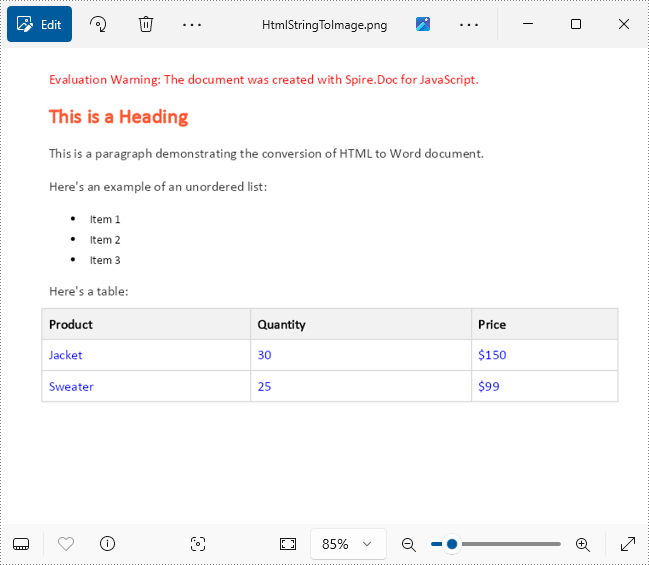
Get a Free License
To fully experience the capabilities of Spire.Doc for JavaScript without any evaluation limitations, you can request a free 30-day trial license.
Extract Text from Word Documents with JavaScript in React
2025-01-16 00:53:41 Written by AdministratorThe seamless integration of document processing capabilities into web applications has become increasingly vital for enhancing user experience and streamlining workflows. For developers working within the React ecosystem, the ability to extract text from Word documents using JavaScript allows for the dynamic presentation of content, enabling users to easily import, edit, and interact with text data directly within a web interface. In this article, we will explore how to use Spire.Doc for JavaScript to extract text from Word documents in React applications.
- Extract All Text from a Word Document Using JavaScript
- Extract Text from Specific Sections or Paragraphs in a Word Document
- Extract Text from a Word Document Based on Paragraph Styles
Install Spire.Doc for JavaScript
To get started with extracting text from Word documents in a React application, you can either download Spire.Doc for JavaScript from our website or install it via npm with the following command:
npm i spire.officeThe downloaded product package integrates Spire.Doc for JavaScript, Spire.XLS for JavaScript, Spire.PDF for JavaScript, and Spire.Presentation for JavaScript. To use the features of Spire.Doc for JavaScript, you need to copy the corresponding files (spire.doc.js, Spire.Doc.Wasm.zip, spire.common.js, Spire.Common.Wasm.zip, and the _framework folder) to the public folder of your project. To ensure proper text rendering, you can add relevant font files with a custom path. In the following example, the font is added to the path: public\static\font.
For more details, refer to the documentation: How to Integrate Spire.Doc for JavaScript in a React Project
Extract All Text from a Word Document Using JavaScript
To extract the complete text content from a Word document, Spire.Doc for JavaScript offers the Document.GetText() method. This method retrieves all the text in a document and returns it as a string, enabling efficient access to the content. The implementation steps are as follows:
- Load the spire.doc.js file to initialize the WebAssembly module.
- Load the Word file into the virtual file system using the window.spire.FetchFileToVFS method.
- Create a Document instance in the WebAssembly module using the new wasmModule.Document() method.
- Load the Word document into the Document instance with the Document.LoadFromFile() method.
- Retrieve the document's text as a string using the Document.GetText() method.
- Process the extracted text, such as downloading it as a text file or performing additional operations.
- JavaScript
import React, { useState, useEffect } from 'react';

function App() {
  const [wasmModule, setWasmModule] = useState(null);
  // Load Spire.Doc
  useEffect(() => {
    (async () => {
      try {
        const publicUrl = process.env.PUBLIC_URL || '';
        const spireModule = await import(/* webpackIgnore: true */ `${publicUrl}/spire.doc.js`);
        const rawModule = spireModule.default || spireModule;
        window.wasmModule = typeof rawModule === 'function'
          ? await rawModule({ locateFile: p => p.endsWith('.wasm') ? `${publicUrl}/${p}` : p })
          : rawModule;
        setWasmModule(window.wasmModule);
      } catch (error) {
        console.error('Failed to load spire.doc.js WASM module:', error);
      }
    })();
  }, []);

  // Function to extract all text from a Word document
  const ExtractAllTextFromWord = async () => {
    const wasmModule = window.wasmModule.spiredoc;

    if (wasmModule) {
      // Load the font files into the virtual file system (VFS)
      await window.spire.FetchFileToVFS('Arial.ttf', '/Library/Fonts/', `${process.env.PUBLIC_URL}/static/font/`);

      // Specify the input file name and the output file name
      const inputFileName = 'Sample.docx';
      const outputFileName = 'ExtractWordText.txt';

      // Fetch the input file and add it to the VFS
      await window.spire.FetchFileToVFS(inputFileName, '', `${process.env.PUBLIC_URL}/static/data/`);

      // Create an instance of the Document class
      const doc = new wasmModule.Document();

      // Load the Word document
      doc.LoadFromFile({ fileName: inputFileName });

      // Get all text from the document
      const documentText = doc.GetText();

      // Release resources
      doc.Dispose();

      // Generate a Blob from the extracted text and trigger a download
      const blob = new Blob([documentText], { type: 'text/plain' });
      const url = URL.createObjectURL(blob);
      const a = document.createElement("a");
      a.href = url;
      a.download = outputFileName;
      document.body.appendChild(a);
      a.click();
      document.body.removeChild(a);
      URL.revokeObjectURL(url);
    }
  };

  return (
      <div style={{ textAlign: 'center', height: '300px' }}>
        <h1>Extract All Text from Word Documents Using JavaScript in React</h1>
        <button onClick={ExtractAllTextFromWord} disabled={!wasmModule}>
          Convert and Download
        </button>
      </div>
  );
}

export default App;
Extract Text from Specific Sections or Paragraphs in a Word Document
When only specific sections or paragraphs of a Word document are needed, Spire.Doc for JavaScript offers the Section.Paragraphs.get_Item(index).Text method to extract text from individual paragraphs. The following steps outline the process:
- Load the spire.doc.js file to initialize the WebAssembly module.
- Use the window.spire.FetchFileToVFS method to load the Word file into the virtual file system.
- Create a Document instance using the new wasmModule.Document() method.
- Load the Word document into the Document instance with the Document.LoadFromFile() method.
- Access a specific section using the Document.Sections.get_Item() method.
- Extract text from a specific paragraph with the Section.Paragraphs.get_Item().Text property.
- To retrieve all text within a section, iterate through the section's paragraphs and concatenate their text into a single string.
- Process the extracted text, such as saving it to a file or performing further analysis.
- JavaScript
import React, { useState, useEffect } from 'react';

function App() {
  const [wasmModule, setWasmModule] = useState(null);
  // Load Spire.Doc
  useEffect(() => {
    (async () => {
      try {
        const publicUrl = process.env.PUBLIC_URL || '';
        const spireModule = await import(/* webpackIgnore: true */ `${publicUrl}/spire.doc.js`);
        const rawModule = spireModule.default || spireModule;
        window.wasmModule = typeof rawModule === 'function'
          ? await rawModule({ locateFile: p => p.endsWith('.wasm') ? `${publicUrl}/${p}` : p })
          : rawModule;
        setWasmModule(window.wasmModule);
      } catch (error) {
        console.error('Failed to load spire.doc.js WASM module:', error);
      }
    })();
  }, []);

  // Function to extract text from a specific part of a Word document
  const ExtractTextFromWordPart = async () => {
    const wasmModule = window.wasmModule.spiredoc;

    if (wasmModule) {
      // Load the font files into the virtual file system (VFS)
      await window.spire.FetchFileToVFS('Arial.ttf', '/Library/Fonts/', `${process.env.PUBLIC_URL}/static/font/`);

      // Specify the input file name and the output file name
      const inputFileName = 'Sample.docx';
      const outputFileName = 'ExtractWordText.txt';

      // Fetch the input file and add it to the VFS
      await window.spire.FetchFileToVFS(inputFileName, '', `${process.env.PUBLIC_URL}/static/data/`);

      // Create an instance of the Document class
      const doc = new wasmModule.Document();

      // Load the Word document
      doc.LoadFromFile({ fileName: inputFileName });

      // Get a specific section from the document
      const section = doc.Sections.get_Item(1);

      // Get the text of a specific paragraph in the section
      //const paragraphText = section.Paragraphs.get_Item(1).Text;

      // Extract all text from the section
      let sectionText = "";
      for (let i = 0; i < section.Paragraphs.Count; i++) {
        // Extract the text from the paragraphs
        const text = section.Paragraphs.get_Item(i).Text;
        sectionText += text + "\n";
      }

      // Release resources
      doc.Dispose();

      // Generate a Blob from the extracted text and trigger a download
      const blob = new Blob([sectionText], { type: 'text/plain' });
      const url = URL.createObjectURL(blob);
      const a = document.createElement("a");
      a.href = url;
      a.download = outputFileName;
      document.body.appendChild(a);
      a.click();
      document.body.removeChild(a);
      URL.revokeObjectURL(url);
    }
  };

  return (
      <div style={{ textAlign: 'center', height: '300px' }}>
        <h1>Extract Text from a Specific Part of a Word Document Using JavaScript in React</h1>
        <button onClick={ExtractTextFromWordPart} disabled={!wasmModule}>
          Convert and Download
        </button>
      </div>
  );
}

export default App;
Extract Text from a Word Document Based on Paragraph Styles
When extracting text formatted with specific paragraph styles, the Paragraph.StyleName property can be utilized to identify and filter paragraphs by their styles. This approach is beneficial for structured documents with distinct headings or other styled elements. The implementation process is as follows:
- Load the spire.doc.js file to initialize the WebAssembly module.
- Load the Word file into the virtual file system using the window.spire.FetchFileToVFS() method.
- Create a Document instance in the WebAssembly module with the new wasmModule.Document() method.
- Load the Word document into the Document instance using the Document.LoadFromFile() method.
- Define the target style name or retrieve one from the document.
- Iterate through the document's sections and their paragraphs:
- Use the Paragraph.StyleName property to identify each paragraph's style.
- Compare the paragraph's style name with the target style. If they match, retrieve the paragraph's text using the Paragraph.Text property.
- Process the retrieved text, such as saving it to a file or using it for further operations.
- JavaScript
import React, { useState, useEffect } from 'react';

function App() {
  const [wasmModule, setWasmModule] = useState(null);
  // Load Spire.Doc
  useEffect(() => {
    (async () => {
      try {
        const publicUrl = process.env.PUBLIC_URL || '';
        const spireModule = await import(/* webpackIgnore: true */ `${publicUrl}/spire.doc.js`);
        const rawModule = spireModule.default || spireModule;
        window.wasmModule = typeof rawModule === 'function'
          ? await rawModule({ locateFile: p => p.endsWith('.wasm') ? `${publicUrl}/${p}` : p })
          : rawModule;
        setWasmModule(window.wasmModule);
      } catch (error) {
        console.error('Failed to load spire.doc.js WASM module:', error);
      }
    })();
  }, []);

  // Function to extract text from a Word document based on paragraph styles
  const ExtractTextByParagraphStyle = async () => {
    const wasmModule = window.wasmModule.spiredoc;

    if (wasmModule) {
      // Load the font files into the virtual file system (VFS)
      await window.spire.FetchFileToVFS('Arial.ttf', '/Library/Fonts/', `${process.env.PUBLIC_URL}/static/font/`);

      // Specify the input file name and the output file name
      const inputFileName = 'Sample.docx';
      const outputFileName = 'ExtractWordText.txt';

      // Fetch the input file and add it to the VFS
      await window.spire.FetchFileToVFS(inputFileName, '', `${process.env.PUBLIC_URL}/static/data/`);

      // Create an instance of the Document class
      const doc = new wasmModule.Document();

      // Load the Word document
      doc.LoadFromFile({ fileName: inputFileName });

      // Define the style name or get the style name of the target paragraph style
      const styleName = 'Heading2';
      // const styleName = doc.Sections.get_Item(2).Paragraphs.get_Item(2).StyleName;

      // Array to store extracted text
      let paragraphStyleText = [];
      // Iterate through the sections in the document
      for (let sectionIndex = 0; sectionIndex < doc.Sections.Count; sectionIndex++) {
        // Get the current section
        const section = doc.Sections.get_Item(sectionIndex);
        // Iterate through the paragraphs in the section
        for (let paragraphIndex = 0; paragraphIndex < section.Paragraphs.Count; paragraphIndex++) {
          // Get the current paragraph
          const paragraph = section.Paragraphs.get_Item(paragraphIndex);
          // Get the style name of the paragraph
          const paraStyleName = paragraph.StyleName;
          // Check if the style name matches the target style
          if (paraStyleName === styleName) {
            // Extract the text from the paragraph
            const paragraphText = paragraph.Text;
            console.log(paragraphText);
            // Append the extracted text to the array
            paragraphStyleText.push(paragraphText);
          }
        }
      }

      // Release resources
      doc.Dispose();

      // Generate a Blob from the extracted text and trigger a download
      const text = paragraphStyleText.join('\n');
      const blob = new Blob([text], { type: 'text/plain' });
      const url = URL.createObjectURL(blob);
      const a = document.createElement("a");
      a.href = url;
      a.download = outputFileName;
      document.body.appendChild(a);
      a.click();
      document.body.removeChild(a);
      URL.revokeObjectURL(url);
    }
  };

  return (
    <div style={{ textAlign: 'center', height: '300px' }}>
      <h1>Extract Text from Word Documents by Paragraph Style Using JavaScript in React</h1>
      <button onClick={ExtractTextByParagraphStyle} disabled={!wasmModule}>
        Convert and Download
      </button>
    </div>
  );
}

export default App;
Get a Free License
To fully experience the capabilities of Spire.Doc for JavaScript without any evaluation limitations, you can request a free 30-day trial license.
Apply Fonts in a Word Document with JavaScript in React
2025-01-15 00:59:57 Written by AdministratorApplying fonts in a Word document significantly enhances its visual appeal and readability. The choice of font can influence how the content is perceived, allowing you to convey tone and mood effectively. By selecting appropriate fonts, you can emphasize key points, guide the reader's attention, and create a cohesive and polished presentation.
In this article, you will learn how to apply fonts in a Word document in React using Spire.Doc for JavaScript.
- Apply a Font Style to a Paragraph in Word
- Apply Multiple Font Styles to a Paragraph in Word
- Apply a Private Font in a Word Document
Install Spire.Doc for JavaScript
To get started with applying fonts in Word in a React application, you can either download Spire.Doc for JavaScript from our website or install it via npm with the following command:
npm i spire.officeThe downloaded product package integrates Spire.Doc for JavaScript, Spire.XLS for JavaScript, Spire.PDF for JavaScript, and Spire.Presentation for JavaScript. To use the features of Spire.Doc for JavaScript, you need to copy the corresponding files (spire.doc.js, Spire.Doc.Wasm.zip, spire.common.js, Spire.Common.Wasm.zip, and the _framework folder) to the public folder of your project. To ensure proper text rendering, you can add relevant font files with a custom path. In the following example, the font is added to the path: public\static\font.
For more details, refer to the documentation: How to Integrate Spire.Doc for JavaScript in a React Project
Apply a Font Style to a Paragraph in Word
Applying a font style to a paragraph in Microsoft Word is a fundamental skill that enhances the readability and overall appearance of your document.
Spire.Doc for JavaScript provides the ParagraphStyle class, enabling developers to define multiple text attributes, including font name, size, style, and color, all within a single object. After the style object is created, you can easily format a paragraph by using the Paragraph.ApplyStyle() method.
The following are the steps to apply a font style to a paragraph with JavaScript in React:
- Create a Document object using the new wasmModule.Document() method.
- Load the Word file using the Document.LoadFromFile() method.
- Add a paragraph to the document using the Document.LastSection.AddParagraph() method.
- Create a ParagraphStyle object, specifying the font name, font size, font style, and text color.
- Add the style to the document using the Document.Styles.Add() method.
- Apply the style to the paragraph using the Paragraph.ApplyStyle() method.
- Save the document to a different Word file.
- JavaScript
import React, { useState, useEffect } from 'react';

function App() {
  const [wasmModule, setWasmModule] = useState(null);
  // Load Spire.Doc
  useEffect(() => {
    (async () => {
      try {
        const publicUrl = process.env.PUBLIC_URL || '';
        const spireModule = await import(/* webpackIgnore: true */ `${publicUrl}/spire.doc.js`);
        const rawModule = spireModule.default || spireModule;
        window.wasmModule = typeof rawModule === 'function'
          ? await rawModule({ locateFile: p => p.endsWith('.wasm') ? `${publicUrl}/${p}` : p })
          : rawModule;
        setWasmModule(window.wasmModule);
      } catch (error) {
        console.error('Failed to load spire.doc.js WASM module:', error);
      }
    })();
  }, []);

  // Function to set font
  const SetFont = async () => {
    const wasmModule = window.wasmModule.spiredoc;

    if (wasmModule) {
      // Load the font files into the virtual file system (VFS)
      await window.spire.FetchFileToVFS('times.ttf', '/Library/Fonts/', `${process.env.PUBLIC_URL}/static/font/`);
      await window.spire.FetchFileToVFS('timesbd.ttf', '/Library/Fonts/', `${process.env.PUBLIC_URL}/static/font/`);
      await window.spire.FetchFileToVFS('timesbi.ttf', '/Library/Fonts/', `${process.env.PUBLIC_URL}/static/font/`);
      await window.spire.FetchFileToVFS('timesi.ttf', '/Library/Fonts/', `${process.env.PUBLIC_URL}/static/font/`);

      // Specify the input file name and the output file name
      const inputFileName = 'input.docx';
      const outputFileName = 'output.docx';

      // Fetch the input file and add it to the VFS
      await window.spire.FetchFileToVFS(inputFileName, '', `${process.env.PUBLIC_URL}/static/data/`);

      // Create an instance of the Document class
      const doc = new wasmModule.Document();

      // Load the Word file
      doc.LoadFromFile(inputFileName);

      // Add a section
      let section = doc.LastSection;

      // Add a paragraph
      let paragraph = section.AddParagraph();

      // Append text to the paragraph
      paragraph.AppendText('JavaScript is essential for modern web development, offering a rich ecosystem and ' +
        'a wide range of applications. Its ability to create responsive, interactive experiences ' +
        'makes it a favored choice among developers.');

      // Create a paragraph style,specifying font name, font size, and text color
      let paragraphStyle = new wasmModule.ParagraphStyle(doc);
      paragraphStyle.Name = 'newStyle';
      paragraphStyle.CharacterFormat.FontName = 'Times New Roman'
      paragraphStyle.CharacterFormat.FontSize = 13;
      paragraphStyle.CharacterFormat.TextColor = wasmModule.Color.get_Blue();

      // Add the style to the document
      doc.Styles.Add(paragraphStyle);

      // Apply the style to the paragraph
      paragraph.ApplyStyle(paragraphStyle.Name);


      // Save the document to the specified path
      doc.SaveToFile({ fileName: outputFileName, fileFormat: wasmModule.FileFormat.Docx2013 });

      // Read the generated Word file
      const modifiedFileArray = window.dotnetRuntime.Module.FS.readFile(outputFileName);

      // Create a Blob object from the Word file
      const modifiedFile = new Blob([modifiedFileArray], { type: 'application/vnd.openxmlformats-officedocument.wordprocessingml.document' });

      // Create a URL for the Blob
      const url = URL.createObjectURL(modifiedFile);

      // Create an anchor element to trigger the download
      const a = document.createElement('a');
      a.href = url;
      a.download = outputFileName;
      document.body.appendChild(a);
      a.click();
      document.body.removeChild(a);
      URL.revokeObjectURL(url);

      // Clean up resources
      doc.Dispose();
    }
  };

  return (
    <div style={{ textAlign: 'center', height: '300px' }}>
      <h1>Apply Fonts in a Word Document in React</h1>
      <button onClick={SetFont} disabled={!wasmModule}>
        Apply
      </button>
    </div>
  );
}

export default App;
Run the code to launch the React app at localhost:3000. Click "Apply", and a "Save As" window will appear, prompting you to save the output file in your chosen folder.
Below is a screenshot of the generated Word document:

Apply Multiple Font Styles to a Paragraph in Word
Applying multiple font styles to different parts of a paragraph allows you to highlight key points or sections, making your content more engaging for readers.
The Paragraph.AppendText() method returns a TextRange object, which offers simple APIs for formatting text within that range. When you call AppendText() multiple times, the paragraph's text is divided into distinct text ranges, allowing for individual styling with different fonts.
The following are the steps to apply multiple font styles to a paragraph using JavaScript in React:
- Load the font files you plan to use and the input Word file into the virtual file system (VFS).
- Create a Document object using the new wasmModule.Document() method.
- Load the Word file using the Document.LoadFromFile() method.
- Add a paragraph to the document using the Document.LastSection.AddParagraph() method.
- Append text to the paragraph using the Paragraph.AppendText() method, which returns a TextRange object.
- Append more text that needs to be styled differently to the paragraph and return different TextRange objects.
- Create a ParagraphStyle object with the basic font information and apply it to the paragraph.
- Change the font name, style, size and text color of the specified text range using the properties under the specific TextRange object.
- Save the document to a different Word file.
- JavaScript
import React, { useState, useEffect } from 'react';

function App() {
  const [wasmModule, setWasmModule] = useState(null);
  // Load Spire.Doc
  useEffect(() => {
    (async () => {
      try {
        const publicUrl = process.env.PUBLIC_URL || '';
        const spireModule = await import(/* webpackIgnore: true */ `${publicUrl}/spire.doc.js`);
        const rawModule = spireModule.default || spireModule;
        window.wasmModule = typeof rawModule === 'function'
          ? await rawModule({ locateFile: p => p.endsWith('.wasm') ? `${publicUrl}/${p}` : p })
          : rawModule;
        setWasmModule(window.wasmModule);
      } catch (error) {
        console.error('Failed to load spire.doc.js WASM module:', error);
      }
    })();
  }, []);

  // Function to set font
  const SetFont = async () => {
    const wasmModule = window.wasmModule.spiredoc;

    if (wasmModule) {
      // Load the font files into the virtual file system (VFS)
      await window.spire.FetchFileToVFS('times.ttf', '/Library/Fonts/', `${process.env.PUBLIC_URL}/static/font/`);
      await window.spire.FetchFileToVFS('timesbd.ttf', '/Library/Fonts/', `${process.env.PUBLIC_URL}/static/font/`);
      await window.spire.FetchFileToVFS('timesbi.ttf', '/Library/Fonts/', `${process.env.PUBLIC_URL}/static/font/`);
      await window.spire.FetchFileToVFS('timesi.ttf', '/Library/Fonts/', `${process.env.PUBLIC_URL}/static/font/`);

      // Specify the input file name and the output file name
      const inputFileName = 'input.docx';
      const outputFileName = 'output.docx';

      // Fetch the input file and add it to the VFS
      await window.spire.FetchFileToVFS(inputFileName, '', `${process.env.PUBLIC_URL}/static/data/`);

      // Create an instance of the Document class
      const doc = new wasmModule.Document();

      // Load the Word file
      doc.LoadFromFile(inputFileName);

      // Add a section
      let section = doc.LastSection;

      // Add a paragraph
      let paragraph = section.AddParagraph();

      // Append text to the paragraph
      let range_one = paragraph.AppendText('JavaScript is essential for ');
      let range_two = paragraph.AppendText('modern web development');
      let range_three = paragraph.AppendText(', offering a rich ecosystem and a wide range of applications. Its ability to create ');
      let range_four = paragraph.AppendText('responsive, interactive experiences')
      let range_five = paragraph.AppendText(' makes it a favored choice among developers.')

      // Create a paragraph style
      let paragraphStyle = new wasmModule.ParagraphStyle(doc);
      paragraphStyle.Name = 'newStyle';
      paragraphStyle.CharacterFormat.FontName = 'Times New Roman'
      paragraphStyle.CharacterFormat.FontSize = 13;
      paragraphStyle.CharacterFormat.TextColor = wasmModule.Color.get_Black();

      // Add the style to the document
      doc.Styles.Add(paragraphStyle);

      // Apply the style to the paragraph
      paragraph.ApplyStyle(paragraphStyle.Name);

      // Change the font style of the second text range
      range_two.CharacterFormat.TextColor = wasmModule.Color.get_Blue();
      range_two.CharacterFormat.Bold = true;
      range_two.CharacterFormat.UnderlineStyle = wasmModule.UnderlineStyle.Single;

      // Change the font style of the fourth text range
      range_four.CharacterFormat.TextColor = wasmModule.Color.get_Blue();
      range_four.CharacterFormat.Italic = true;

      // Save the document to the specified path
      doc.SaveToFile({ fileName: outputFileName, fileFormat: wasmModule.FileFormat.Docx2013 });

      // Read the generated Word file
      const modifiedFileArray = window.dotnetRuntime.Module.FS.readFile(outputFileName);

      // Create a Blob object from the Word file
      const modifiedFile = new Blob([modifiedFileArray], { type: 'application/vnd.openxmlformats-officedocument.wordprocessingml.document' });

      // Create a URL for the Blob
      const url = URL.createObjectURL(modifiedFile);

      // Create an anchor element to trigger the download
      const a = document.createElement('a');
      a.href = url;
      a.download = outputFileName;
      document.body.appendChild(a);
      a.click();
      document.body.removeChild(a);
      URL.revokeObjectURL(url);

      // Clean up resources
      doc.Dispose();
    }
  };

  return (
    <div style={{ textAlign: 'center', height: '300px' }}>
      <h1>Set Fonts in a Word Document in React</h1>
      <button onClick={SetFont} disabled={!wasmModule}>
        Apply Multiple Fonts
      </button>
    </div>
  );
}

export default App;
Apply a Private Font in a Word Document
Using a private font in a Word document can give your project a unique flair and reflect your personal or brand identity.
To apply a private font, use the TextRange.CharacterFormat.FontName property. To maintain a uniform look on various devices, it's advisable to embed the font within the document. You can do this by first loading the font file into the virtual file system using window.spire.FetchFileToVFS.
Then, employ the Document.AddPrivateFont() method to include the font in the document. Additionally, activate font embedding by setting Document.EmbedFontsInFile to true, which ensures the private font is retained in the final document.
The following are the steps to apply a private font in Word using JavaScript:
- Load the font files you plan to use and the input Word file into the virtual file system (VFS).
- Create a Document object using the new wasmModule.Document() method.
- Load the Word file using the Document.LoadFromFile() method.
- Add a paragraph to the document using the Document.LastSection.AddParagraph() method.
- Append text to the paragraph using the Paragraph.AppendText() method, which returns a TextRange object.
- Apply the font to the paragraph using the TextRange.CharacterFormat.FontName property.
- Add the font to document using the Document.AddPrivateFont() method.
- Embed the font in the document by setting Document.EmbedFontsInFile to true.
- Save the document to a different Word file.
- JavaScript
import React, { useState, useEffect } from 'react';

function App() {
  const [wasmModule, setWasmModule] = useState(null);
  // Load Spire.Doc
  useEffect(() => {
    (async () => {
      try {
        const publicUrl = process.env.PUBLIC_URL || '';
        const spireModule = await import(/* webpackIgnore: true */ `${publicUrl}/spire.doc.js`);
        const rawModule = spireModule.default || spireModule;
        window.wasmModule = typeof rawModule === 'function'
          ? await rawModule({ locateFile: p => p.endsWith('.wasm') ? `${publicUrl}/${p}` : p })
          : rawModule;
        setWasmModule(window.wasmModule);
      } catch (error) {
        console.error('Failed to load spire.doc.js WASM module:', error);
      }
    })();
  }, []);

  // Function to set font
  const SetFont = async () => {
    const wasmModule = window.wasmModule.spiredoc;

    if (wasmModule) {
      // Load the font files into the virtual file system (VFS)
      await window.spire.FetchFileToVFS('FreebrushScriptPLng.ttf', '/Library/Fonts/', `${process.env.PUBLIC_URL}/static/font/`);

      // Specify the input file name and the output file name
      const inputFileName = 'input.docx';
      const outputFileName = 'output.docx';

      // Fetch the input file and add it to the VFS
      await window.spire.FetchFileToVFS(inputFileName, '', `${process.env.PUBLIC_URL}/static/data/`);

      // Create an instance of the Document class
      const doc = new wasmModule.Document();

      // Load the Word file
      doc.LoadFromFile(inputFileName);

      // Add a section
      let section = doc.LastSection;

      // Add a paragraph
      let paragraph = section.AddParagraph();

      // Append text to the paragraph
      let textRange = paragraph.AppendText('JavaScript is essential for modern web development, offering a rich ecosystem and '+
                          'a wide range of applications. Its ability to create responsive, interactive experiences '+
                          'makes it a favored choice among developers.');

      // Apply the private font to the text range
      textRange.CharacterFormat.FontName = 'Freebrush Script'
      textRange.CharacterFormat.FontSize = 13;
      textRange.CharacterFormat.TextColor = wasmModule.Color.get_Blue();

      // Embed the private font in the document
      doc.AddPrivateFont(new wasmModule.PrivateFontPath("Freebrush Script",  "FreebrushScriptPLng.ttf"))

      // Allow embedding font in document
      doc.EmbedFontsInFile = true;

      // Save the document to the specified path
      doc.SaveToFile({fileName: outputFileName, fileFormat: wasmModule.FileFormat.Docx2013});

      // Read the generated Word file
      const modifiedFileArray =window.dotnetRuntime.Module.FS.readFile(outputFileName);

      // Create a Blob object from the Word file
      const modifiedFile = new Blob([modifiedFileArray], { type: 'application/vnd.openxmlformats-officedocument.wordprocessingml.document' });

      // Create a URL for the Blob
      const url = URL.createObjectURL(modifiedFile);

      // Create an anchor element to trigger the download
      const a = document.createElement('a');
      a.href = url;
      a.download = outputFileName;
      document.body.appendChild(a);
      a.click();
      document.body.removeChild(a);
      URL.revokeObjectURL(url);

      // Clean up resources
      doc.Dispose();
    }
  };

  return (
    <div style={{ textAlign: 'center', height: '300px' }}>
      <h1>Apply Fonts in a Word Document in React</h1>
      <button onClick={SetFont} disabled={!wasmModule}>
        Apply
      </button>
    </div>
  );
}

export default App;
Get a Free License
To fully experience the capabilities of Spire.Doc for JavaScript without any evaluation limitations, you can request a free 30-day trial license.
