Seamless conversion between Word documents and Markdown files is increasingly essential in web development for boosting productivity and interoperability. Word documents dominate in complex formatting, while Markdown offers a simple, universal approach to content creation. Enabling conversion between the two within a React application allows users to work in their preferred format while ensuring compatibility across different platforms, streamlining workflows without relying on external tools. In this article, we will explore how to use Spire.Doc for JavaScript to convert Word to Markdown and Markdown to Word with JavaScript in React applications.
Install Spire.Doc for JavaScript
To get started with conversion between Word and Markdown in a React application, you can either download Spire.Doc for JavaScript from our website or install it via npm with the following command:
npm i spire.officeThe downloaded product package integrates Spire.Doc for JavaScript, Spire.XLS for JavaScript, Spire.PDF for JavaScript, and Spire.Presentation for JavaScript. To use the features of Spire.Doc for JavaScript, you need to copy the corresponding files (spire.doc.js, Spire.Doc.Wasm.zip, spire.common.js, Spire.Common.Wasm.zip, and the _framework folder) to the public folder of your project. To ensure proper text rendering, you can add relevant font files with a custom path. In the following example, the font is added to the path: public\static\font.
For more details, refer to the documentation: How to Integrate Spire.Doc for JavaScript in a React Project
Convert Word to Markdown with JavaScript
The Spire.Doc for JavaScript provides a WebAssembly module that enables loading Word documents from the VFS and converting them to Markdown. Developers can achieve this conversion by fetching the documents to the VFS, loading them using the Document.LoadFromFile() method, and saving them as Markdown with the Document.SaveToFile() method. The process involves the following steps:
- Load the spire.doc.js file to initialize the WebAssembly module.
- Fetch the Word document into the virtual file system using the window.spire.FetchFileToVFS() method.
- Create a Document instance in the WebAssembly module using the new wasmModule.Document() method.
- Load the Word document into the Document instance with the Document.LoadFromFile() method.
- Convert the document to Markdown format and save it to the VFS using the Document.SaveToFile() method.
- Read and download the file, or use it as needed.
- JavaScript
import React, { useState, useEffect } from 'react';

function App() {
  const [wasmModule, setWasmModule] = useState(null);
  // Load Spire.Doc
  useEffect(() => {
    (async () => {
      try {
        const publicUrl = process.env.PUBLIC_URL || '';
        const spireModule = await import(/* webpackIgnore: true */ `${publicUrl}/spire.doc.js`);
        const rawModule = spireModule.default || spireModule;
        window.wasmModule = typeof rawModule === 'function'
          ? await rawModule({ locateFile: p => p.endsWith('.wasm') ? `${publicUrl}/${p}` : p })
          : rawModule;
        setWasmModule(window.wasmModule);
      } catch (error) {
        console.error('Failed to load spire.doc.js WASM module:', error);
      }
    })();
  }, []);

  // Function to convert Word to Markdown
  const ConvertWordToMD = async () => {
    const wasmModule = window.wasmModule.spiredoc;

    if (wasmModule) {
      // Load the font files into the virtual file system (VFS)
      await window.spire.FetchFileToVFS('CALIBRI.ttf', '/Library/Fonts/', `${process.env.PUBLIC_URL}/static/font/`);

      // Specify the input file name and the output file name
      const inputFileName = 'sample.docx';
      const outputFileName = 'WordToMarkdown.md';

      // Fetch the input file and add it to the VFS
      await window.spire.FetchFileToVFS(inputFileName, '', `${process.env.PUBLIC_URL}/static/data/`);

      // Create an instance of the Document class
      const doc = new wasmModule.Document();

      // Load the Word document
      doc.LoadFromFile(inputFileName);

      // Save the document to a Markdown file
      doc.SaveToFile({ fileName: outputFileName, fileFormat: wasmModule.FileFormat.Markdown });

      // Release resources
      doc.Dispose();

      // Read the markdown file
      const mdContent = window.dotnetRuntime.Module.FS.readFile(outputFileName)

      // Generate a Blob from the markdown file and trigger a download
      const blob = new Blob([mdContent], { type: 'text/plain' });
      const url = URL.createObjectURL(blob);
      const a = document.createElement("a");
      a.href = url;
      a.download = outputFileName;
      document.body.appendChild(a);
      a.click();
      document.body.removeChild(a);
      URL.revokeObjectURL(url);
    }
  };

  return (
    <div style={{ textAlign: 'center', height: '300px' }}>
      <h1>Convert Word to Markdown Using JavaScript in React</h1>
      <button onClick={ConvertWordToMD} disabled={!wasmModule}>
        Convert and Download
      </button>
    </div>
  );
}

export default App;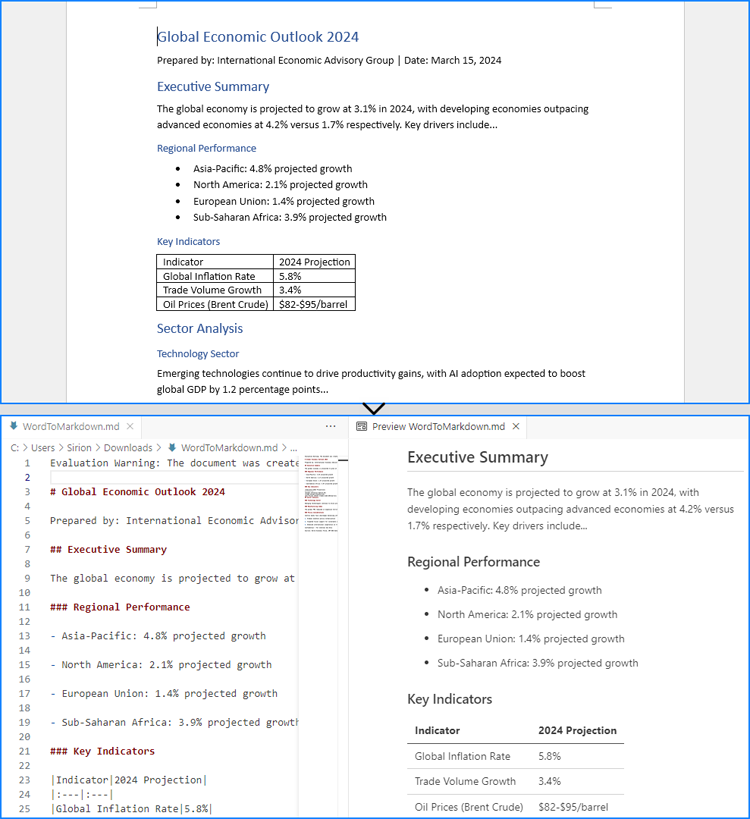
Convert Markdown to Word with JavaScript
The Document.LoadFromFile() method can also be used to load a Markdown file by specifying the file format parameter as wasmModule.FileFormat.Markdown. Then, the Markdown file can be exported as a Word document using the Document.SaveToFile() method.
For Markdown strings, developers can write them as Markdown files into the virtual file system using the window.dotnetRuntime.Module.FS.writeFile() method, and then convert them to Word documents.
The detailed steps for converting Markdown content to Word documents are as follows:
- Load the spire.doc.js file to initialize the WebAssembly module.
- Load required font files into the virtual file system using the window.spire.FetchFileToVFS() method.
- Import Markdown content:
- For files: Use the window.spire.FetchFileToVFS() method to load the Markdown file into the VFS.
- For strings: Write Markdown content to the VFS via the window.dotnetRuntime.Module.FS.writeFile() method.
- Instantiate a Document object via the new wasmModule.Document() method within the WebAssembly module.
- Load the Markdown file into the Document instance using the Document.LoadFromFile({ filename: string, fileFormat: wasmModule.FileFormat.Markdown }) method.
- Convert the Markdown file to a Word document and save it to the VFS using the Document.SaveToFile( { filename: string, fileFormat:wasmModule.FileFormat.Docx2019 }) method.
- Retrieve and download the generated Word file from the VFS, or process it further as required.
- JavaScript
import React, { useState, useEffect } from 'react';

function App() {
  const [wasmModule, setWasmModule] = useState(null);
  // Load Spire.Doc
  useEffect(() => {
    (async () => {
      try {
        const publicUrl = process.env.PUBLIC_URL || '';
        const spireModule = await import(/* webpackIgnore: true */ `${publicUrl}/spire.doc.js`);
        const rawModule = spireModule.default || spireModule;
        window.wasmModule = typeof rawModule === 'function'
          ? await rawModule({ locateFile: p => p.endsWith('.wasm') ? `${publicUrl}/${p}` : p })
          : rawModule;
        setWasmModule(window.wasmModule);
      } catch (error) {
        console.error('Failed to load spire.doc.js WASM module:', error);
      }
    })();
  }, []);

  // Function to convert Markdown to Word
  const ConvertMDToWord = async () => {
    const wasmModule = window.wasmModule.spiredoc;

    if (wasmModule) {
      // Load the font files into the virtual file system (VFS)
      await window.spire.FetchFileToVFS('CALIBRI.ttf', '/Library/Fonts/', `${process.env.PUBLIC_URL}/static/font/`);

      // Create an instance of the Document class
      const doc = new wasmModule.Document();

      // Specify the output file name
      const outputFileName = 'MarkdownStringToWord.docx';

      // Fetch the Markdown file to the VFS and load it into the Document instance
      // window.spire.FetchFileToVFS('MarkdownExample.md', '', `${process.env.PUBLIC_URL}/static/data/`);
      // doc.LoadFromFile({ fileName: 'MarkdownExample.md', fileFormat: wasmModule.FileFormat.Markdown });

      // Define the Markdown string
      const markdownString = '# Project Aurora: Next-Gen Climate Modeling System *\n' +
          '## Overview\n' +
          'A next-generation climate modeling platform leveraging AI to predict regional climate patterns with 90%+ accuracy. Built for researchers and policymakers.\n' +
          '### Key Features\n' +
          '- * Real-time atmospheric pattern recognition\n' +
          '- * Carbon sequestration impact modeling\n' +
          '- * Custom scenario simulation builder\n' +
          '- * Historical climate data cross-analysis\n' +
          '\n' +
          '## Sample Usage\n' +
          '| Command | Description | Example Output |\n' +
          '|---------|-------------|----------------|\n' +
          '| `region=asia` | Runs climate simulation for Asia | JSON with temperature/precipitation predictions |\n' +
          '| `model=co2` | Generates CO2 impact visualization | Interactive 3D heatmap |\n' +
          '| `year=2050` | Compares scenarios for 2050 | Tabular data with Δ values |\n' +
          '| `format=netcdf` | Exports data in NetCDF format | .nc file with metadata |'

      // Write the Markdown string to a file in the VFS
      await window.dotnetRuntime.Module.FS.writeFile('Markdown.md', markdownString, {encoding: 'utf8'})

      // Load the Markdown file from the VFS
      doc.LoadFromFile({ fileName: 'Markdown.md', fileFormat: wasmModule.FileFormat.Markdown });

      // Save the document to a Word file
      doc.SaveToFile({fileName: outputFileName, fileFormat: wasmModule.FileFormat.Docx2019});

      // Release resources
      doc.Dispose();

      // Read the Word file
      const outputWordFile = await window.dotnetRuntime.Module.FS.readFile(outputFileName)

      // Generate a Blob from the Word file and trigger a download
      const blob = new Blob([outputWordFile], { type: 'application/vnd.openxmlformats-officedocument.wordprocessingml.document' });
      const url = URL.createObjectURL(blob);
      const a = document.createElement("a");
      a.href = url;
      a.download = outputFileName;
      document.body.appendChild(a);
      a.click();
      document.body.removeChild(a);
      URL.revokeObjectURL(url);
    }
  };

  return (
      <div style={{ textAlign: 'center', height: '300px' }}>
        <h1>Convert Markdown to Word Using JavaScript in React</h1>
        <button onClick={ConvertMDToWord} disabled={!wasmModule}>
          Convert and Download
        </button>
      </div>
  );
}

export default App;
Get a Free License
To fully experience the capabilities of Spire.Doc for JavaScript without any evaluation limitations, you can request a free 30-day trial license.