Convert Between Word and OpenXML with JavaScript in React
Converting between Word documents and OpenXML is one of the most frequent needs in document processing: exporting a Word document to XML lifts the body content out of the binary package structure, which makes cross-system exchange, bulk extraction and archiving much easier, while turning XML back into a Word document lets you generate a standard document directly from structured data you already have. Spire.Doc for JavaScript performs the conversion in both directions in the browser via WebAssembly, using a virtual file system (VFS) to manage fonts and files — no backend server required. OpenXML flat files come in two formats: WordML for Word 2003 and WordXml (Flat OPC) for Word 2007 and later, so the one you save as depends on the target Word version.
This article covers three core features:
For installation and project setup, refer to Integrating Spire.Doc for JavaScript in a React Project. The examples below assume Spire.Doc is installed and the WebAssembly module is initialized.
Word to OpenXML (WordML)
Converting a Word document to OpenXML involves three steps: first, load the font files and the target Word document into the WASM virtual file system via FetchFileToVFS; then instantiate a Document, load the file and call SaveToFile with FileFormat.WordML to save the document as a Word 2003 XML flat file; finally, read the generated XML file from VFS, wrap it as a Blob and trigger a browser download.
function App() {
  const WordToWordML = async () => {
    const docModule = window.wasmModule?.spiredoc;
    if (!docModule) {
      alert('Spire.Doc is not ready yet');
      return;
    }

    // Load the sample file into VFS
    let inputFileName = 'WordToWordXML.docx';
    await window.spire.FetchFileToVFS(inputFileName, '', `${process.env.PUBLIC_URL}/static/data/`);

    // Create a document instance
    const doc = new docModule.Document();

    // Load the document from the virtual file system
    doc.LoadFromFile(inputFileName);

    // Define the output file name and save it as a Word 2003 OpenXML file
    const outputFileName = 'WordToWordXML-result.xml';
    doc.SaveToFile({ fileName: outputFileName, fileFormat: docModule.FileFormat.WordML });

    // Release resources
    doc.Dispose();

    const modifiedFileArray = window.dotnetRuntime.Module.FS.readFile(outputFileName);
    const blob = new Blob([modifiedFileArray], { type: 'application/vnd.openxmlformats-officedocument.wordprocessingml.document' });
    const url = URL.createObjectURL(blob);
    const a = document.createElement('a');
    a.href = url;
    a.download = outputFileName;
    a.click();
    URL.revokeObjectURL(url);
  };

 return (
    <div style={{ textAlign: 'center', height: '300px' }}>
      <h1>Convert Word To WordML</h1>
      <button onClick={WordToWordML}>Generate</button>
    </div>
  );
}
export default App;
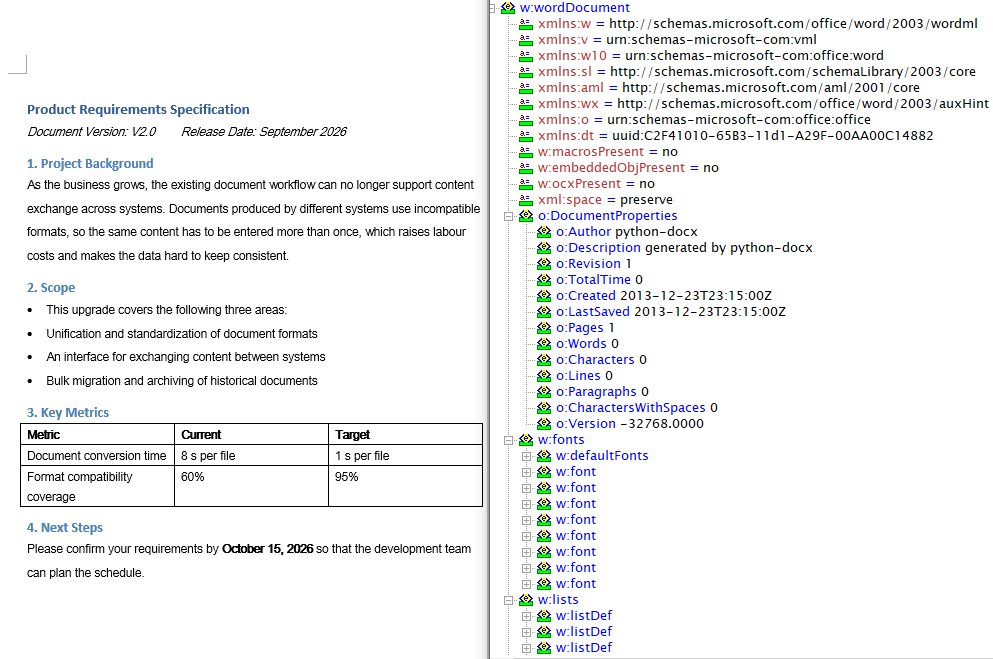
With FileFormat.WordML passed to SaveToFile, the Word document is converted into a Word 2003 XML flat file
Word to OpenXML (WordXml)
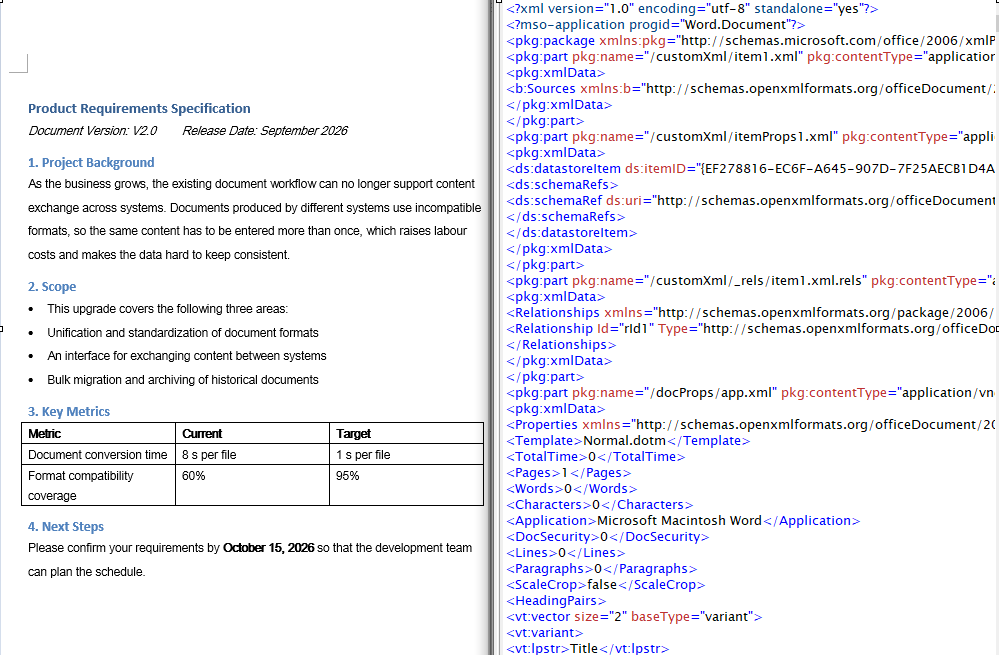
The flat file format of Word 2007 and later is called WordXml (Flat OPC): it packs the individual parts of the docx package — body, styles, relationships and so on — into a single XML file whose root element is <pkg:package>, and Word can open it directly just the same. The conversion flow is identical to WordML; only the save format differs. It again involves three steps: first, load the font files and the target Word document into the WASM virtual file system via FetchFileToVFS; then instantiate a Document, load the file and call SaveToFile with FileFormat.WordXml to save the document as a Word 2007 XML file; finally, read the generated XML file from VFS, wrap it as a Blob and trigger a browser download.
function App() {
  const WordToWordXml = async () => {
    const docModule = window.wasmModule?.spiredoc;
    if (!docModule) {
      alert('Spire.Doc is not ready yet');
      return;
    }

    // Load the sample file into VFS
    let inputFileName = 'WordToWordXML.docx';
    await window.spire.FetchFileToVFS(inputFileName, '', `${process.env.PUBLIC_URL}/static/data/`);

    // Create a document instance
    const doc = new docModule.Document();

    // Load the document from the virtual file system
    doc.LoadFromFile(inputFileName);

    // Define the output file name and save it as a Word 2007 OpenXML file
    const outputFileName = 'WordToWordXML-result-2007.xml';
    doc.SaveToFile({ fileName: outputFileName, fileFormat: docModule.FileFormat.WordXml });

    // Release resources
    doc.Dispose();

    const modifiedFileArray = window.dotnetRuntime.Module.FS.readFile(outputFileName);
    const blob = new Blob([modifiedFileArray], { type: 'application/vnd.openxmlformats-officedocument.wordprocessingml.document' });
    const url = URL.createObjectURL(blob);
    const a = document.createElement('a');
    a.href = url;
    a.download = outputFileName;
    a.click();
    URL.revokeObjectURL(url);
  };

 return (
    <div style={{ textAlign: 'center', height: '300px' }}>
      <h1>Convert Word To WordXml</h1>
      <button onClick={WordToWordXml}>Generate</button>
    </div>
  );
}
export default App;
With FileFormat.WordXml passed to SaveToFile, the parts of the Word document are merged into a single Word 2007 Flat OPC XML file
OpenXML to Word
Converting OpenXML to Word involves three steps: first, load the font files and the target XML file into the WASM virtual file system via FetchFileToVFS; then instantiate a Document and load the XML file directly with LoadFromFile — Spire.Doc recognizes the WordML and WordXml formats from the file contents automatically — and call SaveToFile to save it as a Docx2013 Word document; finally, read the generated .docx file from VFS, wrap it as a Blob and trigger a browser download.
function App() {
  const XMLToWord = async () => {
    const docModule = window.wasmModule?.spiredoc;
    if (!docModule) {
      alert('Spire.Doc is not ready yet');
      return;
    }

    // Load the sample file into VFS
    let inputFileName = 'XMLToWord.xml';
    await window.spire.FetchFileToVFS(inputFileName, '', `${process.env.PUBLIC_URL}/static/data/`);

    // Create a document instance
    const doc = new docModule.Document();

    // Load the OpenXML file from the virtual file system
    doc.LoadFromFile(inputFileName);

    // Define the output file name and save it as a Word document
    const outputFileName = 'XMLToWord-result.docx';
    doc.SaveToFile({ fileName: outputFileName, fileFormat: docModule.FileFormat.Docx2013 });

    // Release resources
    doc.Dispose();

    const modifiedFileArray = window.dotnetRuntime.Module.FS.readFile(outputFileName);
    const blob = new Blob([modifiedFileArray], { type: 'application/vnd.openxmlformats-officedocument.wordprocessingml.document' });
    const url = URL.createObjectURL(blob);
    const a = document.createElement('a');
    a.href = url;
    a.download = outputFileName;
    a.click();
    URL.revokeObjectURL(url);
  };

 return (
    <div style={{ textAlign: 'center', height: '300px' }}>
      <h1>Convert XML To Word</h1>
      <button onClick={XMLToWord}>Generate</button>
    </div>
  );
}
export default App;
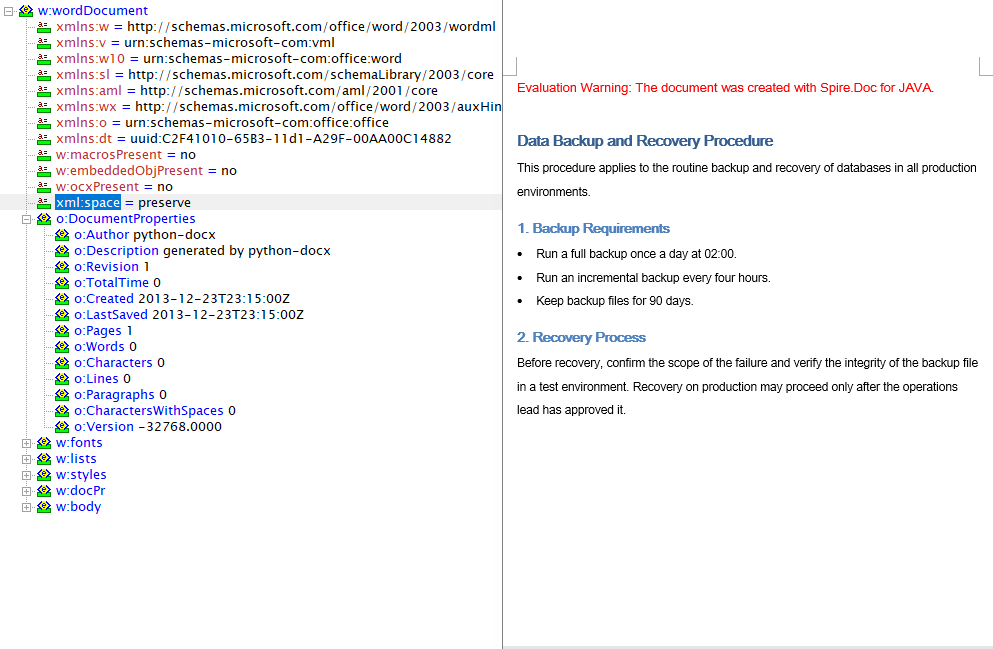
After the OpenXML file is loaded with LoadFromFile and saved as a Word document, the paragraphs, lists and tables it contains are restored in full
FAQ
The generated XML reports a format error when opened in Word
Cause: The save format does not match the target Word version. FileFormat.WordML maps to the Word 2003 XML format and FileFormat.WordXml to the Word 2007 and later Flat OPC format; the two have different structures, so opening a file saved in the newer format with an older version of Word fails.
Solution: Pick the enum value that matches the target Word version, and name the output file .xml:
// Word 2003 and earlier
doc.SaveToFile({ fileName: 'out.xml', fileFormat: wasmModule.FileFormat.WordML });

// Word 2007 and later
doc.SaveToFile({ fileName: 'out.xml', fileFormat: wasmModule.FileFormat.WordXml });
Loading the XML fails, or the converted document comes out empty
Cause: OpenXML to Word requires the input to be a complete WordprocessingML flat file; an ordinary custom data XML cannot be recognized by LoadFromFile.
Solution: Make sure the input XML was exported by Word or Spire.Doc — the root element of the WordML format is <w:wordDocument> and that of the WordXml format is <pkg:package>:
const doc = new wasmModule.Document();
doc.LoadFromFile('XMLToWord.xml');
Get a Free License
Spire.Doc for JavaScript offers a 30-day full-featured free trial license with no functional limitations. Apply here to evaluate before purchasing.
Convert Between Word and TXT with JavaScript in React
Plain text (TXT) is the lightest text carrier there is, commonly used for log export, data exchange and content archiving, while Word takes care of layout and formal delivery. Converting between the two in the browser is a common document-processing need: TXT to Word turns collected plain text into a well-formed document, and Word to TXT extracts body text that a program can keep processing. Spire.Doc for JavaScript performs the conversion in both directions in the browser via WebAssembly, using a virtual file system (VFS) to manage fonts and files — no backend server required.
It should be said up front that TXT is a plain-text format which carries no layout information of its own, so both directions only hold at the level of text: the styles, table structure and images on the Word side never reach the TXT file, and a Word document produced from TXT contains nothing but body paragraphs. Being clear about that boundary before you use the API keeps your expectations of the result realistic.
This article covers two core features:
For installation and project setup, refer to Integrating Spire.Doc for JavaScript in a React Project. The examples below assume Spire.Doc is installed and the WebAssembly module is initialized.
Convert TXT to Word
Converting TXT to Word involves three steps: first, load the font files and the target TXT file into the WASM virtual file system via FetchFileToVFS; then instantiate a Document and load the file with LoadFromFile — no fileFormat is passed here, so Spire.Doc identifies it as plain text from the file extension; finally, call SaveToFile to save the result as docx, read the generated file from VFS, wrap it as a Blob and trigger a browser download.
function App() {
  const TxtToWord = async () => {
    const docModule = window.wasmModule?.spiredoc;
    if (!docModule) {
      alert('Spire.Doc is not ready yet');
      return;
    }

    // Load the sample file into VFS
    let inputFileName = "TxtToWord.txt";
    await window.spire.FetchFileToVFS(inputFileName, "", `${process.env.PUBLIC_URL}/static/data/`);

    // Create a document instance
    const doc = new docModule.Document();

    // Load the document from the virtual file system
    doc.LoadFromFile(inputFileName);

    // Define the output file name
    const outputFileName = "TxtToWord-result.docx";

    // Save the document in the specified format
    doc.SaveToFile({fileName: outputFileName, fileFormat: docModule.FileFormat.Docx2013});

    // Release resources
    doc.Dispose();

    const modifiedFileArray = window.dotnetRuntime.Module.FS.readFile(outputFileName);
    const blob = new Blob([modifiedFileArray], { type: 'application/vnd.openxmlformats-officedocument.wordprocessingml.document' });
    const url = URL.createObjectURL(blob);
    const a = document.createElement('a');
    a.href = url;
    a.download = outputFileName;
    a.click();
    URL.revokeObjectURL(url);
  };

 return (
    <div style={{ textAlign: 'center', height: '300px' }}>
      <h1>Convert TXT To Word</h1>
      <button onClick={TxtToWord}>Generate</button>
    </div>
  );
}
export default App;
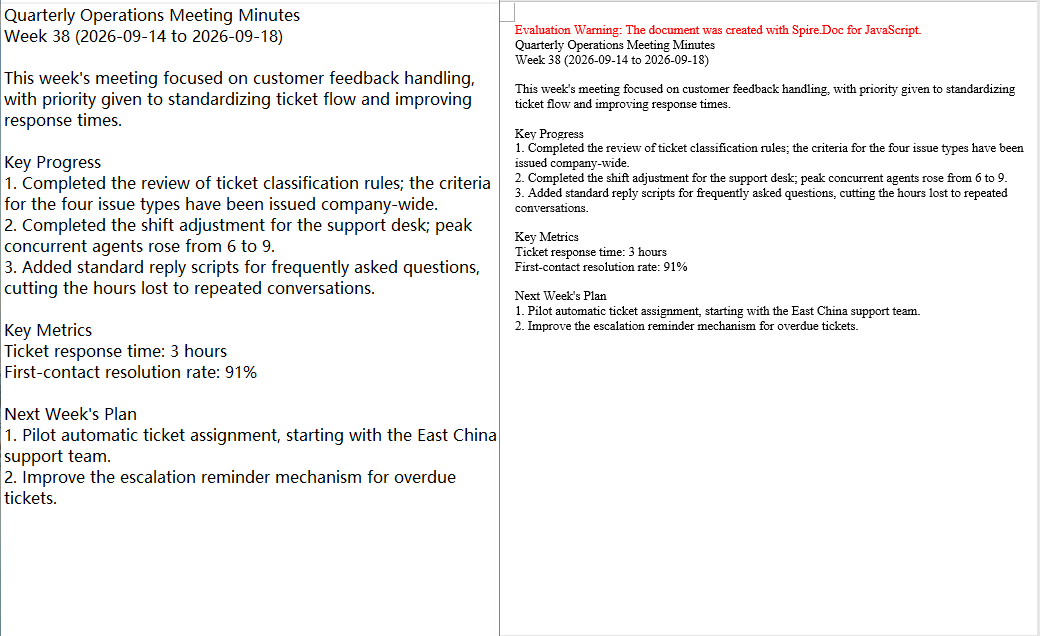
Because TXT carries no style information, the result is decided entirely by the default layout rules of Spire.Doc, and there are two things to keep in mind: every line break in the file is turned into a paragraph in Word, while blank lines are kept as empty paragraphs, so a file that ends with a line break gains an extra empty paragraph at the end; and every paragraph in the output uses the default Normal style, so headings, numbering and bullet levels are not created automatically — the 1., - and similar characters written in the TXT are kept as ordinary characters only.
After a TXT file is loaded with LoadFromFile and saved as a Word document, the text is restored to paragraphs line by line, all in the Normal style
Convert Word to TXT
Converting Word to TXT follows the same three steps as the other direction: load the font files and the target Word document into the virtual file system via FetchFileToVFS, then instantiate a Document and load the document with LoadFromFile. The difference is that FileFormat.Txt is specified when saving, so Spire.Doc extracts the document content by plain-text rules; finally, read the generated txt file from VFS, wrap it as a text/plain Blob and trigger a browser download.
function App() {
  const WordToTxt = async () => {
    const docModule = window.wasmModule?.spiredoc;
    if (!docModule) {
      alert('Spire.Doc is not ready yet');
      return;
    }

    // Load the sample file into VFS
    let inputFileName = "WordToTxt.docx";
    await window.spire.FetchFileToVFS(inputFileName, "", `${process.env.PUBLIC_URL}/static/data/`);

    // Create a document instance
    const doc = new docModule.Document();

    // Load the document from the virtual file system
    doc.LoadFromFile(inputFileName);

    // Define the output file name
    const outputFileName = "WordToTxt-result.txt";

    // Save the document as plain text
    doc.SaveToFile({fileName: outputFileName, fileFormat: docModule.FileFormat.Txt});

    // Release resources
    doc.Dispose();

    const modifiedFileArray = window.dotnetRuntime.Module.FS.readFile(outputFileName);
    const blob = new Blob([modifiedFileArray], { type: 'application/vnd.openxmlformats-officedocument.wordprocessingml.document' });
    const url = URL.createObjectURL(blob);
    const a = document.createElement('a');
    a.href = url;
    a.download = outputFileName;
    a.click();
    URL.revokeObjectURL(url);
  };

 return (
    <div style={{ textAlign: 'center', height: '300px' }}>
      <h1>Convert Word To TXT</h1>
      <button onClick={WordToTxt}>Generate</button>
    </div>
  );
}
export default App;
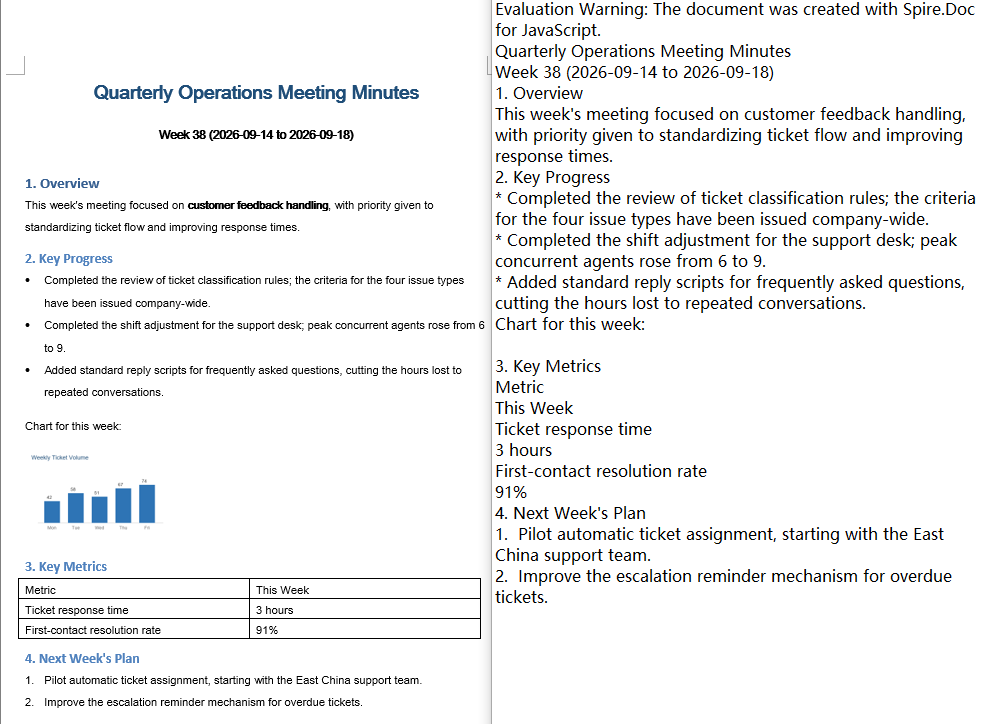
The FileFormat.Txt export follows a "text only" rule. Taking a Word document that contains a heading, a bullet list, a numbered list, a table and an image as the example, the exported result can be summed up as follows:
- The font, font size, colour and bold formatting of headings, body text and list items are all dropped, and everything is reduced to ordinary text lines;
- Bullet list items are written with a
*prefix and numbered items with a1.prefix, and the list level information is lost along with them; - The table is expanded cell by cell into separate lines, so the correspondence between rows and columns no longer holds;
- Images are not exported, and the paragraph that held one becomes an empty line.
In addition, the exported txt is UTF-8 encoded with a BOM and uses CRLF line breaks, so wrapping the Blob with the text/plain type is all that is needed.
With FileFormat.Txt passed to SaveToFile, the styles, tables and images of the Word document are not preserved and only the text content is written out in order
FAQ
Table columns shift and list markers turn into asterisks after converting Word to TXT
Cause: TXT has no concept of rows, columns or list structure, and FileFormat.Txt only extracts text: the table is written out line by line in cell order, bullets are replaced with * and numbering with the number text. This is a limitation of the format itself rather than a conversion failure.
Solution: If all the downstream consumer needs is readable text, restore the structure on the reading side using the rules above; if the table and list layout has to be preserved, use a format that can carry structure instead, such as HTML or OpenXML.
The converted Word document has no heading or list styles
Cause: TXT carries no style information, so when LoadFromFile loads plain text it can only write each line as a paragraph with the default Normal style — the 1., - and similar characters in the TXT are ordinary characters and are not parsed as headings or lists.
Solution: Set the styles of the paragraphs you care about again after the conversion; if setting them paragraph by paragraph is not acceptable, complete this step with an input format that already carries structure (such as HTML) instead.
Loading a TXT file reports that the file type cannot be detected
Cause: When LoadFromFile is called without fileFormat, the format is judged from the file extension. When the extension of the input file is not .txt (for example .log, .dat, or no extension at all), Spire.Doc cannot identify it and throws an exception such as Cannot detect current file type.
Solution: Specify the plain-text format explicitly:
doc.LoadFromFile({ fileName: inputFileName, fileFormat: wasmModule.FileFormat.Txt });
Get a Free License
Spire.Doc for JavaScript offers a 30-day full-featured free trial license with no functional limitations. Apply here to evaluate before purchasing.
Convert HTML to Word with JavaScript in React
HTML is the most universal carrier for presenting content on the web and for editing rich text, while Word remains the standard format for delivering and archiving documents. Converting between the two comes up frequently in scenarios such as report export, content archiving, and storing rich text in a database. Spire.Doc for JavaScript performs this conversion directly in the browser via WebAssembly, using a virtual file system (VFS) to manage input and output files — no backend server required.
This article covers two core features:
For installation and project setup, refer to Integrating Spire.Doc for JavaScript in a React Project. The examples below assume Spire.Doc is installed and the WebAssembly module is initialized.
HTML File to Word
Converting an HTML file to Word breaks down into three stages: first, load the font file and the target HTML file into the WASM virtual file system via FetchFileToVFS; then instantiate a Document and call LoadFromFile with FileFormat.Html, so that Spire.Doc parses the tags, lists, and table structures in the file; finally, call SaveToFile to save the result as a docx, read the generated file from VFS, wrap it in a Blob, and trigger a browser download.
function App() {
  const htmlFileToWord = async () => {
    const docModule = window.wasmModule?.spiredoc;
    if (!docModule) {
      alert('Spire.Doc is not ready yet');
      return;
    }

    const inputFileName = 'HtmlFileToWord.html';
    await window.spire.FetchFileToVFS(inputFileName, '', `${process.env.PUBLIC_URL}data/`);

    // Create a Document instance and load the file in HTML format
    const doc = new docModule.Document();
    doc.LoadFromFile({
      fileName: inputFileName,
      fileFormat: docModule.FileFormat.Html,
      validationType: docModule.XHTMLValidationType.None,
    });

    // Define the output file name and save it as Word
    const outputFileName = 'HtmlFileToWord-result.docx';
    doc.SaveToFile({ fileName: outputFileName, fileFormat: docModule.FileFormat.Docx });

    // Release resources
    doc.Dispose();

    const modifiedFileArray = window.dotnetRuntime.Module.FS.readFile(outputFileName);
    const blob = new Blob([modifiedFileArray], { type: 'application/vnd.openxmlformats-officedocument.wordprocessingml.document' });
    const url = URL.createObjectURL(blob);
    const a = document.createElement('a');
    a.href = url;
    a.download = outputFileName;
    a.click();
    URL.revokeObjectURL(url);
  };

 return (
    <div style={{ textAlign: 'center', height: '300px' }}>
      <h1>Convert an HTML File to a Word Document</h1>
      <button onClick={htmlFileToWord}>Generate</button>
    </div>
  );
}
export default App;
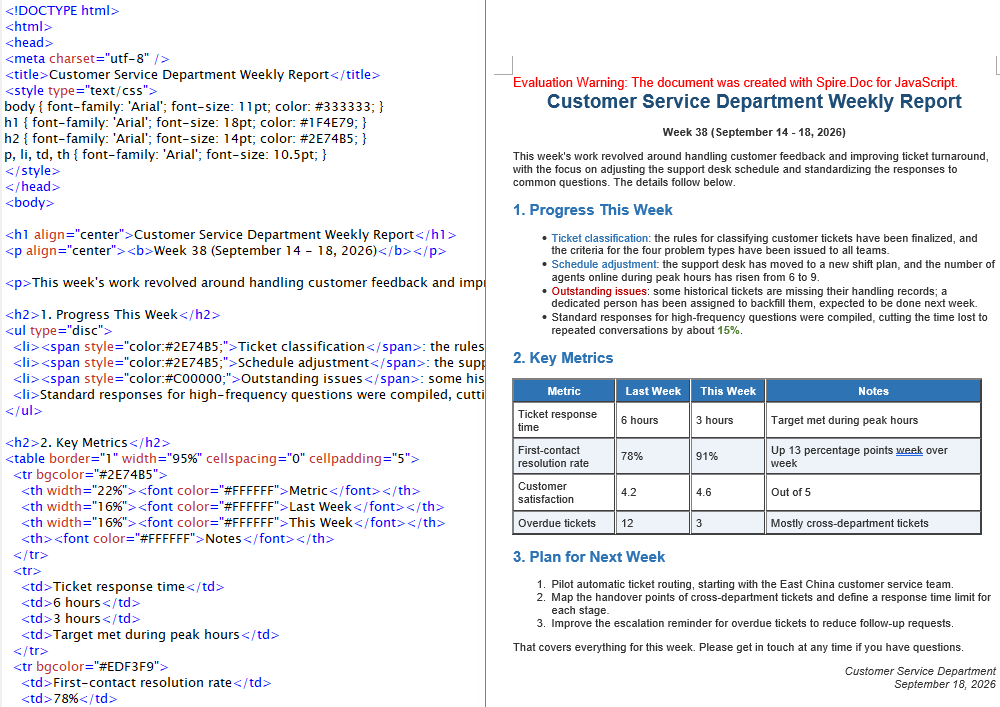
The Word document generated by converting an HTML file via LoadFromFile
HTML String to Word
In real projects the HTML waiting to be converted usually does not live on disk. It is the submitted result of a rich text editor, a fragment returned by a backend API, or a string assembled from a front-end template. Input like this does not need to be loaded from a file — appending the string to a paragraph is enough, and the rest of the flow matches HTML file to Word.
function App() {
  const htmlStringToWord = async () => {
    const docModule = window.wasmModule?.spiredoc;
    if (!docModule) {
      alert('Spire.Doc is not ready yet');
      return;
    }

    // Load the font into VFS
    await window.spire.FetchFileToVFS("ARIALUNI.TTF","/Library/Fonts/",`${process.env.PUBLIC_URL}static/font/`);

    // Define the HTML string to be converted
    let HTML = "<html><head><meta charset=\"utf-8\" /><style type=\"text/css\">body{font-family:'Arial Unicode MS';font-size:11pt;}h2{font-family:'Arial Unicode MS';font-size:16pt;color:#1F4E79;}p,li,td,th{font-family:'Arial Unicode MS';font-size:11pt;}</style></head><body>";
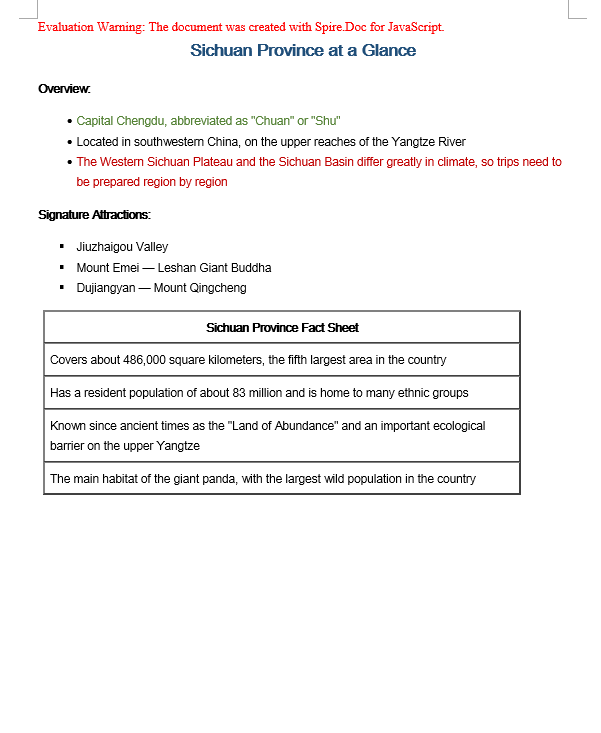
  HTML += "<h2 align=\"center\">Sichuan Province at a Glance</h2><p><b>Overview:</b></p> ";
  HTML += "<ul type=\"disc\"><li><span style='color:#548235;'>Capital Chengdu, abbreviated as \"Chuan\" or \"Shu\"</span></li><li>Located in southwestern China, on the upper reaches of the Yangtze River</li><li><span style='color:#C00000'>The Western Sichuan Plateau and the Sichuan Basin differ greatly in climate, so trips need to be prepared region by region</span></li></ul><p><b>Signature Attractions:</b></p>";
  HTML += "<ul type=\"square\"><li>Jiuzhaigou Valley</li><li>Mount Emei — Leshan Giant Buddha</li><li>Dujiangyan — Mount Qingcheng</li></ul>";
  HTML += "<table border=\"1\" width=\"90%\" cellspacing=\"0\" cellpadding=\"6\"><tr><th>Sichuan Province Fact Sheet</th></tr><tr><td>Covers about 486,000 square kilometers, the fifth largest area in the country</td></tr><tr><td>Has a resident population of about 83 million and is home to many ethnic groups</td></tr>";
  HTML += "<tr><td>Known since ancient times as the \"Land of Abundance\" and an important ecological barrier on the upper Yangtze</td></tr><tr><td>The main habitat of the giant panda, with the largest wild population in the country</td></tr></table></body></html>";
    // Create a document and add a section and a paragraph
    const doc = new docModule.Document();
    const section = doc.AddSection();
    const paragraph = section.AddParagraph();

    // Append the HTML string to the paragraph
    paragraph.AppendHTML(HTML);

    // Define the output file name and save it as Word
    const outputFileName = 'HtmlStringToWord-result.docx';
    doc.SaveToFile({ fileName: outputFileName, fileFormat: docModule.FileFormat.Docx2013 });

    // Release resources
    doc.Dispose();

    const modifiedFileArray = window.dotnetRuntime.Module.FS.readFile(outputFileName);
    const blob = new Blob([modifiedFileArray], { type: 'application/vnd.openxmlformats-officedocument.wordprocessingml.document' });
    const url = URL.createObjectURL(blob);
    const a = document.createElement('a');
    a.href = url;
    a.download = outputFileName;
    a.click();
    URL.revokeObjectURL(url);
  };

 return (
    <div style={{ textAlign: 'center', height: '300px' }}>
      <h1>Write an HTML String into a Word Document</h1>
      <button onClick={htmlStringToWord}>Generate</button>
    </div>
  );
}
export default App;
The Word document generated by converting an HTML string via AppendHTML
FAQ
Converted Word text displays as boxes or garbled characters
Cause: The font files required for rendering are missing from the WASM virtual file system. LoadFromFile matches fonts for the text while it parses the HTML, and content written by AppendHTML also needs glyphs looked up by font name — if the matching font is not present in VFS, non-ASCII characters such as Chinese will display as boxes or garbled text.
Solution: Load the font file into VFS via FetchFileToVFS before converting:
await window.spire.FetchFileToVFS(
  'ARIALUNI.TTF', '/Library/Fonts/', '/'
);
A validation-related exception is thrown when loading an HTML file
Cause: XHTMLValidationType is set too strictly. Real-world HTML files usually contain unclosed tags, inconsistently cased attributes, or non-standard markup, so they do not conform to the XHTML specification — strict validation throws during the parsing stage.
Solution: For HTML from uncontrolled sources, turn validation off with XHTMLValidationType.None:
wordDocument.LoadFromFile({
  fileName: inputFileName,
  fileFormat: docModule.FileFormat.Html,
  validationType: docModule.XHTMLValidationType.None,
});
Get a Free License
Spire.Doc for JavaScript offers a 30-day full-featured free trial license with no functional limitations. Apply here to evaluate before purchasing.
Convert Word to HTML with JavaScript in React
Converting a Word document to HTML preserves the original paragraph structure, styles, and images while rendering directly in the browser, which makes it widely useful for online preview, content publishing, and full-text search. Spire.Doc for JavaScript performs this conversion entirely in the browser via WebAssembly, using a virtual file system (VFS) to manage input and output files — no backend server required.
This article covers two core features:
For installation and project setup, refer to Integrating Spire.Doc for JavaScript in a React Project. The examples below assume Spire.Doc is installed and the WebAssembly module is initialized.
Convert Word to HTML
Converting Word to HTML involves three stages: first, load the font file and the target Word file into the WASM virtual file system via FetchFileToVFS; then instantiate a Document, load the file, use HtmlExportOptions to specify that both CSS and images are output in embedded form, and call SaveToFile to save the document as HTML; finally, read the generated HTML file from VFS, wrap it as a Blob, and trigger a browser download.
function App() {
  const wordToHtml = async () => {
    // Get the Spire.Doc WASM module
    const docModule = window.wasmModule?.spiredoc;

    // Check if the module is ready
    if (!docModule) {
      alert('Spire.Doc is not ready yet');
      return;
    }

    // Load fonts and the Word file into VFS
    await window.spire.FetchFileToVFS('ARIALUNI.TTF', '/Library/Fonts/', `${process.env.PUBLIC_URL}/static/font/`);
    const inputFileName = 'ToHtml.docx';
    await window.spire.FetchFileToVFS(inputFileName, '', `${process.env.PUBLIC_URL}/static/data/`);

    // Load the Word document
    const wordDocument = new docModule.Document();
    wordDocument.LoadFromFile(inputFileName);

    // Embed the CSS styles into the HTML and embed images as Base64
    wordDocument.HtmlExportOptions.CssStyleSheetType = docModule.CssStyleSheetType.Internal;
    wordDocument.HtmlExportOptions.ImageEmbedded = true;

    // Convert the document to HTML
    const outputFileName = 'ToHtml-result.html';
    wordDocument.SaveToFile({ fileName: outputFileName, fileFormat: docModule.FileFormat.Html });

    // Read the converted file from VFS and trigger download
    const fileArray = window.dotnetRuntime.Module.FS.readFile(outputFileName);
    const blob = new Blob([fileArray], { type: 'text/html;charset=utf-8' });
    const url = URL.createObjectURL(blob);
    const a = window.document.createElement('a');
    a.href = url;
    a.download = outputFileName;
    a.click();
    URL.revokeObjectURL(url);

    // Release resources
    wordDocument.Dispose();
  };

  return (
    <div style={{ textAlign: 'center', height: '300px' }}>
      <h1>Convert Word To HTML</h1>
      <button onClick={wordToHtml}>
        Generate
      </button>
    </div>
  );
}

export default App;
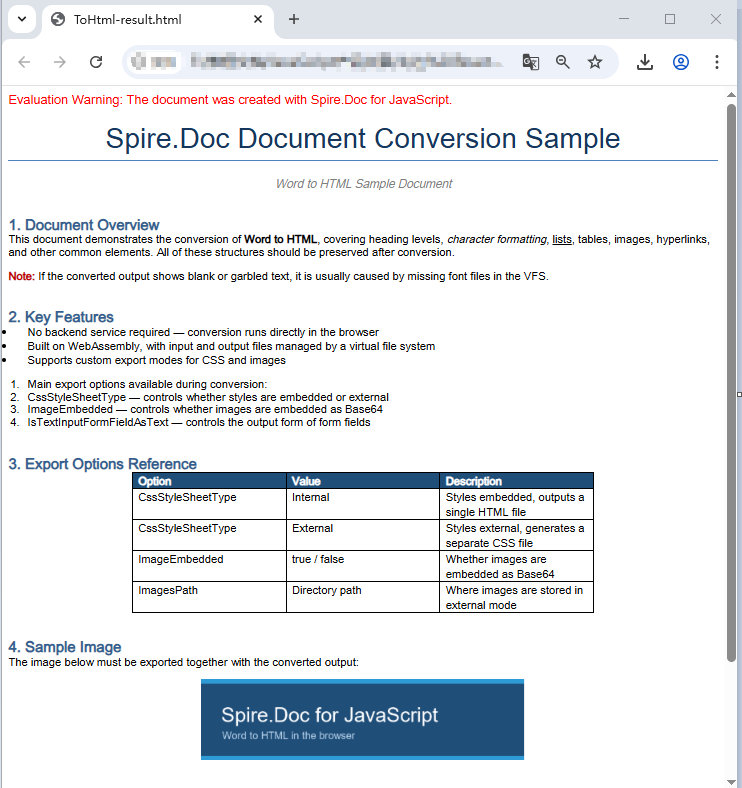
HTML page generated from a Word document via SaveToFile
Convert Word to HTML with export options
The output in the previous section is a single HTML file with CSS and images embedded in it. When a document is large, or when you want to maintain styles centrally and reuse image resources, you usually need to export CSS and images as separate files. HtmlExportOptions provides the corresponding settings, allowing HTML, style sheets, and images to be output separately.
The conversion flow is similar to the previous section, except that the result is a directory: you need to create the directory in VFS first, then use properties such as CssStyleSheetFileName and ImagesPath to specify where each type of resource is stored. Once conversion is complete, read that directory recursively, package everything into a zip, and download it in one go.
import JSZip from 'jszip';

function App() {
  const wordToHtmlWithOptions = async () => {
    // Get the Spire.Doc WASM module
    const docModule = window.wasmModule?.spiredoc;

    // Check if the module is ready
    if (!docModule) {
      alert('Spire.Doc is not ready yet');
      return;
    }

    // Load fonts and the Word file into VFS
    await window.spire.FetchFileToVFS('ARIALUNI.TTF', '/Library/Fonts/', `${process.env.PUBLIC_URL}/static/font/`);
    const inputFileName = 'ToHtml.docx';
    await window.spire.FetchFileToVFS(inputFileName, '', `${process.env.PUBLIC_URL}/static/data/`);

    // Create the output directory in VFS
    const outputDirectoryName = 'ToHTMLFolder/';
    window.dotnetRuntime.Module.FS.mkdirTree(outputDirectoryName);

    // Load the Word document
    const wordDocument = new docModule.Document();
    wordDocument.LoadFromFile(inputFileName);

    // Export the CSS styles to a separate file
    wordDocument.HtmlExportOptions.CssStyleSheetFileName = outputDirectoryName + 'sample.css';
    wordDocument.HtmlExportOptions.CssStyleSheetType = docModule.CssStyleSheetType.External;

    // Export images to a separate directory
    wordDocument.HtmlExportOptions.ImageEmbedded = false;
    wordDocument.HtmlExportOptions.ImagesPath = outputDirectoryName + 'Demo/';

    // Export form fields as plain text
    wordDocument.HtmlExportOptions.IsTextInputFormFieldAsText = true;

    // Convert the document to HTML
    const outputFileName = 'ToHtmlExportOption-out.html';
    wordDocument.SaveToFile({ fileName: outputFileName, fileFormat: docModule.FileFormat.Html });

    // Release resources
    wordDocument.Dispose();

    // Read the output directory recursively and write each level of files into the zip
    const zip = new JSZip();
    const addFilesToZip = async (folderPath, zipFolder) => {
      let items = await window.dotnetRuntime.Module.FS.readdir(folderPath);
      items = items.filter((item) => item !== '.' && item !== '..');
      for (const item of items) {
        const itemPath = `${folderPath}/${item}`;
        try {
          const fileData = await window.dotnetRuntime.Module.FS.readFile(itemPath);
          zipFolder.file(item, fileData);
        } catch (error) {
          const zipSubFolder = zipFolder.folder(item);
          await addFilesToZip(itemPath, zipSubFolder);
        }
      }
    };

    // Package the HTML file together with the resource directory
    zip.file(outputFileName, window.dotnetRuntime.Module.FS.readFile(outputFileName));
    await addFilesToZip(outputDirectoryName, zip);
    const zipBlob = await zip.generateAsync({ type: 'blob' });
    const url = URL.createObjectURL(zipBlob);

    // Trigger download
    const a = window.document.createElement('a');
    a.href = url;
    a.download = 'ToHTMLFolder.zip';
    a.click();
    URL.revokeObjectURL(url);
  };

  return (
    <div style={{ textAlign: 'center', height: '300px' }}>
      <h1>Convert Word To HTML With Export Options</h1>
      <button onClick={wordToHtmlWithOptions}>
        Generate
      </button>
    </div>
  );
}

export default App;
HTML, CSS, and image files generated after configuring the export options
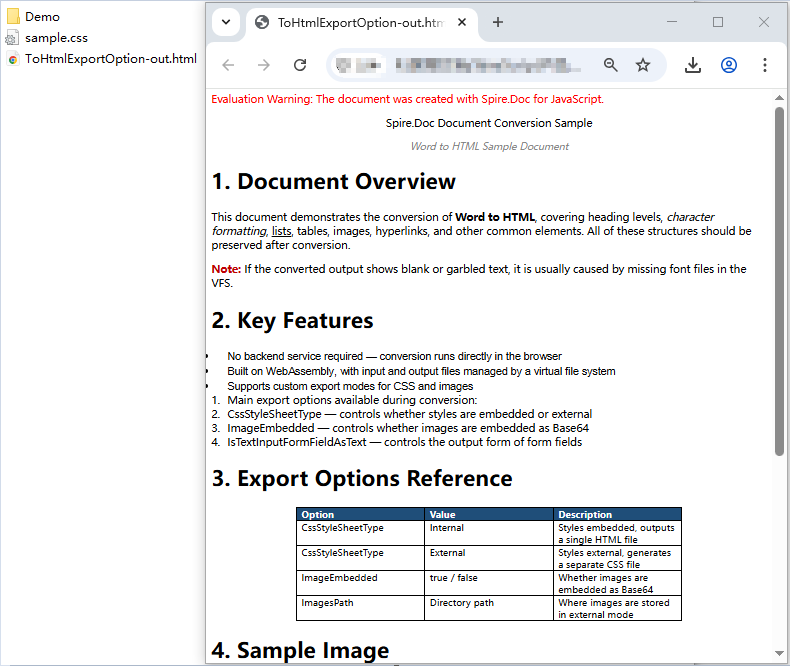
Note that Spire.Doc does not write images directly into the directory pointed to by ImagesPath. Instead, it creates an external_images subdirectory underneath it to hold the images. As a result, the output directory typically forms a hierarchy such as Demo/external_images/*.png, which must be read level by level — this is why addFilesToZip is implemented recursively in the example above.
FAQ
Fonts in the exported HTML do not match the original document
Cause: The font files are missing from the WASM virtual file system. Spire.Doc reads fonts from VFS during conversion to perform layout calculations and font name resolution. If the fonts are not preloaded, the fonts used in the original document are replaced with substitute fonts, and the font-family in the exported CSS will not match the original. If the original document uses a symbol font such as Wingdings, the corresponding characters will also appear garbled.
Solution: Load the font files into VFS via FetchFileToVFS before conversion. For Chinese, Japanese, and Korean documents, use a font with broad coverage such as ARIALUNI.TTF:
await window.spire.FetchFileToVFS(
  'ARIALUNI.TTF', '/Library/Fonts/', '/'
);
Exported HTML loses its styles and images when opened
Cause: In external mode (CssStyleSheetType.External combined with ImageEmbedded = false), CSS and images are output as separate files to the specified directory, and the HTML keeps only relative path references. If you download the HTML file on its own, the browser cannot find the corresponding style sheet and images, and the page degrades into unstyled plain text.
Solution: Package the HTML file together with the resource directory and download them as a whole, so that the relative path references remain valid (see the addFilesToZip example above). If you do not need separate resource files, you can switch to embedded mode instead:
wordDocument.HtmlExportOptions.CssStyleSheetType = docModule.CssStyleSheetType.Internal;
wordDocument.HtmlExportOptions.ImageEmbedded = true;
Get a Free License
Spire.Doc for JavaScript offers a 30-day full-featured free trial license with no functional limitations. Apply here to evaluate before purchasing.
Convert Word to Image with JavaScript in React
Converting a Word document to images is the most common approach for online preview, thumbnail generation, and preventing content from being copied at will — the resulting images keep a consistent layout on any device. Spire.Doc for JavaScript performs this conversion directly in the browser via WebAssembly, managing input and output files through a virtual file system (VFS) — no backend server required.
This article covers two core features:
For installation and project setup, refer to Integrating Spire.Doc for JavaScript in a React Project. The examples below assume Spire.Doc is installed and the WebAssembly module is initialized.
Page to Image
Converting a document page to an image involves three stages: first, load the font file and the target Word document into the WASM virtual file system via FetchFileToVFS; then instantiate a Document, load the document, call SaveImageToStreams with a pageIndex to render the specified page as an image, and save it to VFS; finally, read the generated image file from VFS, wrap it as a Blob, and create a download link.
import React from 'react';

function App() {
  const ToImage = async () => {
    // Get the Spire.Doc WASM module
    const docModule = window.wasmModule?.spiredoc;

    if (!docModule) {
      alert('Spire.Doc is not ready yet');
      return;
    }

    // Load the font file into the virtual file system (VFS)
    await window.spire.FetchFileToVFS('ARIALUNI.TTF', '/Library/Fonts/', `${process.env.PUBLIC_URL}/font/`);
    const inputFileName = 'ToImage.docx';
    // Load the target Word document into VFS
    await window.spire.FetchFileToVFS(inputFileName, '', `${process.env.PUBLIC_URL}data/`);

    // Create a Document instance and load the document
    const doc = new docModule.Document();
    doc.LoadFromFile(inputFileName);

    // Define the output file name
    const outputFileName = "ToImage-result.png";

    // Convert the first page to an image stream and save it to VFS
    let img = doc.SaveImageToStreams({ pageIndex: 0, type: docModule.ImageType.Bitmap });
    img.Save(outputFileName);

    // Release resources
    doc.Dispose();

    // Read the generated file from VFS and wrap it as a Blob
    const modifiedFileArray = window.dotnetRuntime.Module.FS.readFile(outputFileName);
    const blob = new Blob([modifiedFileArray], {  type: 'image/png'});
    const url = URL.createObjectURL(blob);
    const a = document.createElement('a');
    a.href = url;
    a.download = outputFileName;
    a.click();
    URL.revokeObjectURL(url);
  };

  return (
    <div style={{ textAlign: 'center', height: '300px' }}>
      <h1>Convert a Specified Page to an Image</h1>
      <button onClick={ToImage}>
        Generate
      </button>
    </div>
  );
}

export default App;
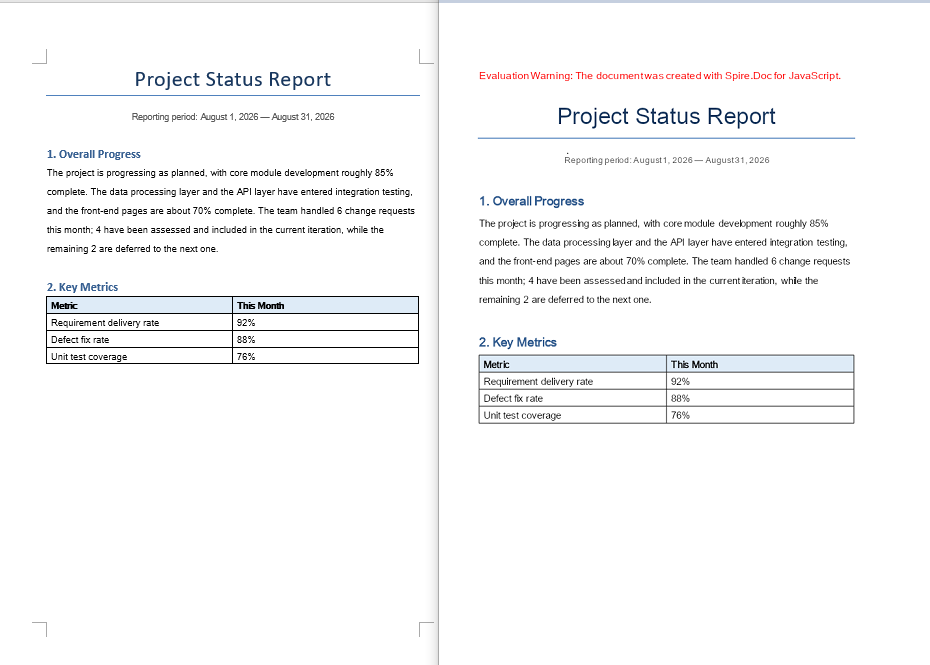
PNG image generated from a document page via SaveImageToStreams
Document Object to Image
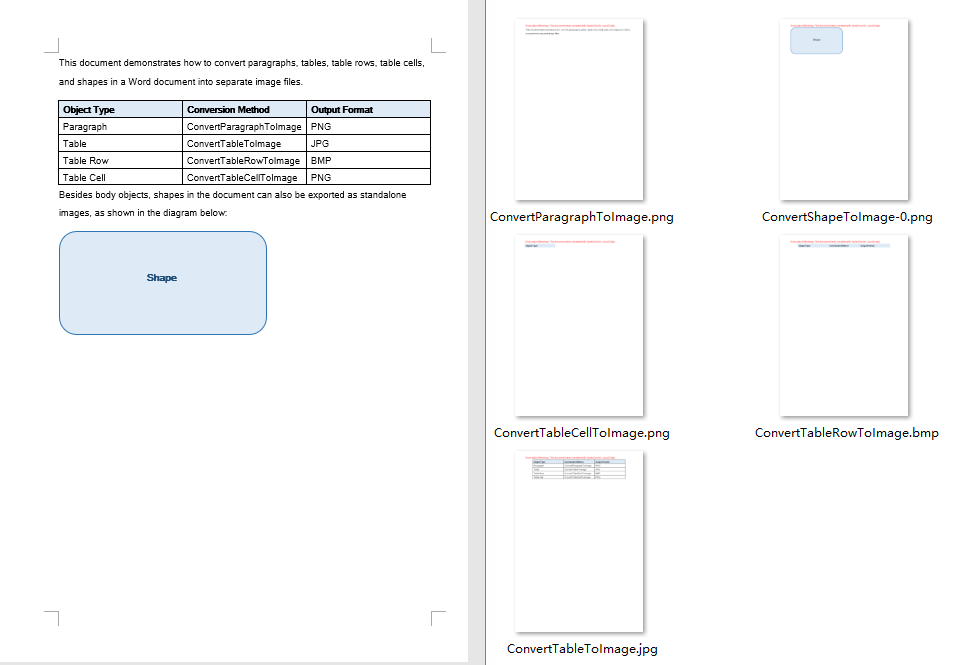
Besides whole-page conversion, real projects often need to export a single element of a document as an image — for example, generating a preview image for a table, or extracting a shape from a document as standalone material. Paragraphs, tables, table rows, table cells, and shapes can all be copied into a newly created Document via the Clone method, and then rendered into an image with SaveImageToStreams. The conversion results are written uniformly to an output directory in VFS, and finally packaged into a single ZIP file with JSZip for the user to download.
Note that a shape cannot be added directly to a paragraph of a newly created document. The example first saves the document to a memory stream and then reloads it, so that the shape obtains a complete layout context in the new document before being rendered.
import React from 'react';
import JSZip from "jszip";

function App() {
  const ToImage = async () => {
    // Get the Spire.Doc WASM module
    const docModule = window.wasmModule?.spiredoc;

    if (!docModule) {
      alert('Spire.Doc is not ready yet');
      return;
    }

    // Load the font file into the virtual file system (VFS)
    await window.spire.FetchFileToVFS('ARIALUNI.TTF', '/Library/Fonts/', `${process.env.PUBLIC_URL}/font/`);
    // Load the target Word document into VFS
    const inputFileName = "ConvertObjectToImage.docx";
    await window.spire.FetchFileToVFS(inputFileName, "", `${process.env.PUBLIC_URL}/data/`);

    // Define and create the output directory in VFS
    const outputDirectoryName = "outputFolder/";
    await window.dotnetRuntime.Module.FS.mkdirTree(outputDirectoryName);

    // Create a Document instance and load the document
    const doc = new docModule.Document();
    doc.LoadFromFile(inputFileName);

    // Get the first section and its body
    let section = doc.Sections.get_Item(0);
    let body = section.Body;

    // Get the first paragraph and convert it to an image
    let paragraph = body.Paragraphs.get_Item(0);
    let imageStream1 = ConvertParagraphToImage(paragraph, docModule);
    let imageFile1 = outputDirectoryName + "ConvertParagraphToImage.png";
    window.dotnetRuntime.Module.FS.writeFile(imageFile1, imageStream1.Save());

    // Get the first table and convert it to an image
    let table = body.Tables.get_Item(0);
    let imageStream2 = ConvertTableToImage(table, docModule);
    let imageFile2 = outputDirectoryName + "ConvertTableToImage.jpg";
    window.dotnetRuntime.Module.FS.writeFile(imageFile2, imageStream2.Save());

    // Get the first row of the first table and convert it to an image
    let row = table.Rows.get_Item(0);
    let imageStream3 = ConvertTableRowToImage(row, docModule);
    let imageFile3 = outputDirectoryName + "ConvertTableRowToImage.bmp";
    window.dotnetRuntime.Module.FS.writeFile(imageFile3, imageStream3.Save());

    // Get the first cell of the first row and convert it to an image
    let cell = row.Cells.get_Item(0);
    let imageStream4 = ConvertTableCellToImage(cell, docModule);
    let imageFile4 = outputDirectoryName + "ConvertTableCellToImage.png";
    window.dotnetRuntime.Module.FS.writeFile(imageFile4, imageStream4.Save());

    // Iterate over the paragraphs and convert the shapes in them to images
    for (let i = 0; i < section.Paragraphs.Count; i++) {
      let para = section.Body.Paragraphs.get_Item(i);
      for (let j = 0; j < para.ChildObjects.Count; j++) {
        let docObj = para.ChildObjects.get_Item(j);
        if (docObj.DocumentObjectType == docModule.DocumentObjectType.Shape) {
          let imageStream5 = ConvertShapeToImage(docObj, docModule);
          let imageFile5 = outputDirectoryName + "ConvertShapeToImage-" + j + ".png";

          window.dotnetRuntime.Module.FS.writeFile(imageFile5, imageStream5.Save());
          i++;
        }
      }
    }

    // Release resources
    doc.Dispose();

    // Package all images in the output directory into a ZIP file
    const zip = new JSZip();
    const addFilesToZip = async (folderPath, zipFolder) => {
      let items = await window.dotnetRuntime.Module.FS.readdir(folderPath);
      items = items.filter((item) => item !== "." && item !== "..");
      for (const item of items) {
        const itemPath = `${folderPath}/${item}`;
        try {
          const fileData = await window.dotnetRuntime.Module.FS.readFile(itemPath);
          zipFolder.file(item, fileData);
        } catch (error) {
          const zipSubFolder = zipFolder.folder(item);
          await addFilesToZip(itemPath, zipSubFolder);
        }
      }
    };

    await addFilesToZip(outputDirectoryName, zip);
    const zipBlob = await zip.generateAsync({ type: "blob" });
    // Read the generated file from VFS and wrap it as a Blob
    const url = URL.createObjectURL(zipBlob);
    const a = document.createElement('a');
    a.href = url;
    a.download = "ConvertObjectToImage_out.zip";
    a.click();
    URL.revokeObjectURL(url);
  };

  // Convert a paragraph to an image
  function ConvertParagraphToImage(paragraph, docModule) {
    let doc = new docModule.Document();
    let section = doc.AddSection();

    section.Body.ChildObjects.Add(paragraph.Clone());
    let imageStream = doc.SaveImageToStreams({ pageIndex: 0, type: docModule.ImageType.Bitmap });
    doc.Close();
    return imageStream;
  }

  // Convert a table to an image
  function ConvertTableToImage(table, docModule) {
    let doc = new docModule.Document();
    let section = doc.AddSection();

    section.Body.ChildObjects.Add(table.Clone());

    let imageStream = doc.SaveImageToStreams({ pageIndex: 0, type: docModule.ImageType.Bitmap });
    doc.Close();
    return imageStream;
  }

  // Convert a table row to an image
  function ConvertTableRowToImage(tableRow, docModule) {
    let doc = new docModule.Document();
    let section = doc.AddSection();
    let table = section.AddTable();
    table.Rows.Add(tableRow.Clone());
    let imageStream = doc.SaveImageToStreams({ pageIndex: 0, type: docModule.ImageType.Bitmap });
    doc.Close();
    return imageStream;
  }

  // Convert a table cell to an image
  function ConvertTableCellToImage(tableCell, docModule) {
    let doc = new docModule.Document();
    let section = doc.AddSection();
    let table = section.AddTable();
    table.AddRow().Cells.Add(tableCell.Clone());
    let imageStream = doc.SaveImageToStreams({ pageIndex: 0, type: docModule.ImageType.Bitmap });
    doc.Close();
    return imageStream;
  }

  // Convert a shape to an image
  function ConvertShapeToImage(shape, docModule) {
    let doc = new docModule.Document();
    let section = doc.AddSection();
    section.AddParagraph().ChildObjects.Add(shape.Clone());
    let memoryStream = new docModule.Stream();
    doc.SaveToStream({ stream: memoryStream, fileFormat: docModule.FileFormat.Docx });
    doc.LoadFromStream({ stream: memoryStream, fileFormat: docModule.FileFormat.Docx });
    let imageStream = doc.SaveImageToStreams({ pageIndex: 0, type: docModule.ImageType.Bitmap });
    memoryStream.Close();
    doc.Close();
    return imageStream;
  }

  return (
    <div style={{ textAlign: 'center', height: '300px' }}>
      <h1>Convert Elements to Images</h1>
      <button onClick={ToImage}>
        Generate
      </button>
    </div>
  );
}

export default App;
Images inside the ZIP file generated after converting the document objects
FAQ
Missing or garbled text in the generated image
Cause: The font files required for rendering are missing from the WASM virtual file system. SaveImageToStreams reads fonts from VFS when rendering text — if they are not preloaded, text areas will be left blank or appear garbled.
Solution: Load the font files into VFS via FetchFileToVFS before conversion:
await window.spire.FetchFileToVFS(
  'ARIALUNI.TTF', '/Library/Fonts/',
  `${process.env.PUBLIC_URL}/static/font/`
);
Only the first page is generated
Cause: Each call to SaveImageToStreams renders only the single page specified by pageIndex. The example always passes 0, so a multi-page document only outputs an image of the first page.
Solution: Get the total page count via PageCount and iterate page by page, generating a separate image file for each page:
for (let i = 0; i < doc.PageCount; i++) {
  let img = doc.SaveImageToStreams({
    pageIndex: i, type: wasmModule.ImageType.Bitmap
  });
  img.Save(`ToImage-page-${i + 1}.png`);
}
Get a Free License
If you wish to remove the evaluation message from the resulting document, or to eliminate functional limitations, please contact our sales team to request a 30-day temporary license.
Convert Markdown to PDF with JavaScript in React

Markdown is convenient for writing documentation, README files, notes, and other structured content. But when the content needs to be printed, archived, or shared in a fixed-layout format, PDF is often more practical.
In a React application, you can convert Markdown to PDF using Spire.Doc for JavaScript. The library runs through WebAssembly (WASM), allowing Markdown content to be processed and PDF files to be generated locally in the browser without sending files to a server.
This tutorial covers three common conversion scenarios:
- Convert a Markdown file to PDF with JavaScript
- Convert Markdown to PDF with custom page settings
- Convert a Markdown string to PDF with JavaScript
Set Up Spire.Doc for JavaScript in React
Before converting Markdown files, you need to integrate Spire.Doc for JavaScript into your React project and prepare the required WebAssembly runtime files.
For a detailed setup guide, see How to Integrate Spire.Doc for JavaScript in a React Project.
Step 1: Install the Package
Run the following command in your React project directory to install the required package from npm:
npm i spire.office
Step 2: Add the Required Runtime Files
Copy the following files and folders from node_modules/spire.office to your project's public directory:
_framework
spire.doc.js
Spire.Doc.Wasm.zip
spire.common.js
Spire.Common.Wasm.zip
The examples below also use CALIBRI.ttf for PDF text rendering. Place the font under:
public/static/font/
For file-based conversion, place the sample Markdown file under:
public/static/data/
The relevant project structure should look like this:
public/
├── _framework/
├── spire.doc.js
├── Spire.Doc.Wasm.zip
├── spire.common.js
├── Spire.Common.Wasm.zip
└── static/
    ├── data/
    │   └── MarkdownExample.md
    └── font/
        └── CALIBRI.ttf
Note: The examples use process.env.PUBLIC_URL, which follows the Create React App convention. If your project uses Vite or another build tool, adjust the public asset paths accordingly.
Convert a Markdown File to PDF with JavaScript
Converting a Markdown file to PDF involves 4 main steps:
- Load the required font and Markdown file into the WASM virtual file system (VFS).
- Call
Document.LoadFromFile()withFileFormat.Markdownto load the Markdown file into aDocumentobject. - Call
Document.SaveToFile()withFileFormat.PDFto save the loaded document as a PDF file. - Read the generated PDF from the VFS and download it in the browser.
The following JavaScript example loads a .md file and saves it as a .pdf file:
import React, { useEffect, useState } from 'react';

function App() {
  const [wasmModule, setWasmModule] = useState(null);

  // Initialize the Spire.Doc WebAssembly module
  useEffect(() => {
    (async () => {
      try {
        const publicUrl = process.env.PUBLIC_URL || '';

        const spireModule = await import(
          /* webpackIgnore: true */
          `${publicUrl}/spire.doc.js`
        );

        const rawModule = spireModule.default || spireModule;

        window.wasmModule =
          typeof rawModule === 'function'
            ? await rawModule({
                locateFile: (path) =>
                  path.endsWith('.wasm')
                    ? `${publicUrl}/${path}`
                    : path
              })
            : rawModule;

        setWasmModule(window.wasmModule);
      } catch (error) {
        console.error(
          'Failed to load the Spire.Doc WASM module:',
          error
        );
      }
    })();
  }, []);

  // Download a file generated in the WASM virtual file system
  const downloadVfsFile = (fileName, mimeType) => {
    const fileData =
      window.dotnetRuntime.Module.FS.readFile(fileName);

    const blob = new Blob(
      [fileData],
      { type: mimeType }
    );

    const url = URL.createObjectURL(blob);
    const link = document.createElement('a');

    link.href = url;
    link.download = fileName;

    document.body.appendChild(link);
    link.click();
    document.body.removeChild(link);

    URL.revokeObjectURL(url);
  };

  const convertMarkdownToPdf = async () => {
    const docModule = window.wasmModule?.spiredoc;

    if (!docModule) return;

    const publicUrl = process.env.PUBLIC_URL || '';

    // Load the font into the VFS
    await window.spire.FetchFileToVFS(
      'CALIBRI.ttf',
      '/Library/Fonts/',
      `${publicUrl}/static/font/`
    );

    const inputFileName = 'MarkdownExample.md';
    const outputFileName = 'MarkdownToPDF.pdf';

    // Load the Markdown file into the VFS
    await window.spire.FetchFileToVFS(
      inputFileName,
      '',
      `${publicUrl}/static/data/`
    );

    const doc = new docModule.Document();

    try {
      // Load the Markdown file
      doc.LoadFromFile({
        fileName: inputFileName,
        fileFormat: docModule.FileFormat.Markdown
      });

      // Save the document as PDF
      doc.SaveToFile({
        fileName: outputFileName,
        fileFormat: docModule.FileFormat.PDF
      });

      // Download the generated PDF
      downloadVfsFile(
        outputFileName,
        'application/pdf'
      );
    } finally {
      doc.Dispose();
    }
  };

  return (
    <div style={{ textAlign: 'center', padding: '40px' }}>
      <h1>Convert Markdown to PDF</h1>

      <button
        onClick={convertMarkdownToPdf}
        disabled={!wasmModule}
      >
        Convert and Download PDF
      </button>
    </div>
  );
}

export default App;
Run the application and wait for the WASM module to finish loading. Then click Convert and Download PDF. The application will load MarkdownExample.md, convert it to MarkdownToPDF.pdf, and download the generated PDF in the browser.
Output
The generated PDF preserves the main Markdown structure, including headings, paragraphs, lists, and tables:

Convert Markdown to PDF with Custom Page Settings
The default page layout may not suit every document. A Markdown report containing a wide table, for example, may work better in landscape orientation, while printable documentation may require specific page sizes or margins.
After loading the Markdown file, you can access the document section and adjust its PageSetup properties before generating the PDF.
The following example sets the first section to A4 size, landscape orientation, and 50-point margins:
const section = doc.Sections.get_Item(0);

// Set page size
section.PageSetup.PageSize =
  docModule.PageSize.A4();

// Set page orientation
section.PageSetup.Orientation =
  docModule.PageOrientation.Landscape;

// Set page margins
section.PageSetup.Margins.All = 50;
To apply these settings during Markdown-to-PDF conversion, use the following function:
const convertMarkdownToPdfWithPageSettings = async () => {
  const docModule = window.wasmModule?.spiredoc;

  if (!docModule) return;

  const publicUrl = process.env.PUBLIC_URL || '';

  // Load the font into the VFS
  await window.spire.FetchFileToVFS(
    'CALIBRI.ttf',
    '/Library/Fonts/',
    `${publicUrl}/static/font/`
  );

  const inputFileName = 'MarkdownExample.md';
  const outputFileName =
    'MarkdownToPDFWithPageSettings.pdf';

  // Load the Markdown file into the VFS
  await window.spire.FetchFileToVFS(
    inputFileName,
    '',
    `${publicUrl}/static/data/`
  );

  const doc = new docModule.Document();

  try {
    // Load the Markdown file
    doc.LoadFromFile({
      fileName: inputFileName,
      fileFormat: docModule.FileFormat.Markdown
    });

    // Get the first section
    const section = doc.Sections.get_Item(0);

    // Set page size
    section.PageSetup.PageSize =
      docModule.PageSize.A4();

    // Set landscape orientation
    section.PageSetup.Orientation =
      docModule.PageOrientation.Landscape;

    // Set all margins to 50 points
    section.PageSetup.Margins.All = 50;

    // Save the document as PDF
    doc.SaveToFile({
      fileName: outputFileName,
      fileFormat: docModule.FileFormat.PDF
    });

    // Download the generated PDF
    downloadVfsFile(
      outputFileName,
      'application/pdf'
    );
  } finally {
    doc.Dispose();
  }
};
You can adjust the page size, orientation, and margins according to the content of your Markdown document.
Convert a Markdown String to PDF with JavaScript
Markdown does not always come from a physical .md file. In a React application, the content may already exist as a string from a Markdown editor, textarea, CMS, API response, or application state.
In this case, write the Markdown string to the WASM virtual file system using FS.writeFile(), then load the virtual .md file and convert it to PDF.
const convertMarkdownStringToPdf = async () => {
  const docModule = window.wasmModule?.spiredoc;

  if (!docModule) return;

  const publicUrl = process.env.PUBLIC_URL || '';

  // Load the font into the VFS
  await window.spire.FetchFileToVFS(
    'CALIBRI.ttf',
    '/Library/Fonts/',
    `${publicUrl}/static/font/`
  );

  const markdownString = `# Project Notes

This PDF was generated from **Markdown stored in a React string**.

## Tasks

- Review the draft
- Export the final copy
- Share the PDF

## Task Status

| Item | Status |
| --- | --- |
| Draft | Done |
| Review | Pending |
`;

  const inputFileName = 'MarkdownInput.md';
  const outputFileName = 'MarkdownStringToPDF.pdf';

  // Write the Markdown string to the VFS
  window.dotnetRuntime.Module.FS.writeFile(
    inputFileName,
    markdownString,
    { encoding: 'utf8' }
  );

  const doc = new docModule.Document();

  try {
    // Load the virtual Markdown file
    doc.LoadFromFile({
      fileName: inputFileName,
      fileFormat: docModule.FileFormat.Markdown
    });

    // Save the document as PDF
    doc.SaveToFile({
      fileName: outputFileName,
      fileFormat: docModule.FileFormat.PDF
    });

    // Download the generated PDF
    downloadVfsFile(
      outputFileName,
      'application/pdf'
    );
  } finally {
    doc.Dispose();
  }
};
In an actual application, replace the sample string with the Markdown content from your existing data source:
const markdownString = editorValue;
or:
const markdownString = apiResponse.content;
The rest of the PDF conversion workflow remains the same.
Output

Why Are Fonts Loaded into the VFS?
PDF generation requires font data to render text correctly. In the examples above, CALIBRI.ttf is loaded into the WASM virtual file system before the Markdown document is processed:
await window.spire.FetchFileToVFS(
  'CALIBRI.ttf',
  '/Library/Fonts/',
  `${publicUrl}/static/font/`
);
If the Markdown contains characters that are not supported by the selected font, load an appropriate font into /Library/Fonts/ as well.
This is particularly important when generating PDFs containing Chinese, Japanese, Korean, Arabic, or other multilingual text.
FAQs
Can I Convert a User-Uploaded Markdown File to PDF?
Yes. Instead of loading a fixed .md file from the public directory, you can read the uploaded Markdown file in the browser, write its content to the WASM virtual file system, and then load it with FileFormat.Markdown. This allows users to select and convert their own Markdown files directly in a React application.
Why Are Some Characters Missing from the Generated PDF?
This usually happens when the font required to display those characters is not available in the WASM environment. Load a font that supports the characters used in your Markdown into /Library/Fonts/ before generating the PDF. This is especially important for multilingual content.
What Should I Do If a Wide Markdown Table Is Cut Off?
Try switching the page to landscape orientation, reducing the margins, or using a larger page size before saving the document as PDF.
Why Are Images in My Markdown Missing from the PDF?
Markdown usually references images through a file path or URL rather than embedding the image data directly. Make sure the image files referenced in the Markdown are available during conversion and that their paths can be resolved by the conversion environment. Relative image paths may require additional handling depending on where the Markdown and image files are stored.
Does the Markdown-to-PDF Conversion Run Locally in the Browser?
Yes. In this React implementation, Spire.Doc for JavaScript runs through WebAssembly, while the Markdown input and generated PDF are processed through the browser-side virtual file system. A backend is not required for the conversion itself, although your application may still use one for file storage, authentication, or other server-side operations.
Conclusion
This article demonstrated how to convert Markdown to PDF with JavaScript in a React application, including basic file conversion, custom page settings, and conversion from Markdown strings.
With Spire.Doc for JavaScript, developers can load Markdown content, control PDF page layout, and generate PDF files directly in the browser through WebAssembly. This approach can be used for documentation tools, Markdown editors, reporting systems, and other applications that need to export Markdown content as PDF.
Get a Free License
To fully experience the capabilities of Spire.Doc for JavaScript without any evaluation limitations, you can request a free 30-day trial license.
Convert Markdown to HTML with JavaScript in React

TL;DR: Learn how to convert Markdown files and strings into HTML directly inside the browser using JavaScript and Spire.Doc WebAssembly (WASM) in React. No server-side processing required.
Markdown is commonly used for README files, documentation, technical articles, and other structured content. However, some applications need the content as an actual HTML file—for example, to publish it as a web page or pass it to another HTML-based workflow.
This article shows how to convert Markdown to HTML with JavaScript in a React application using Spire.Doc for JavaScript. It covers two common scenarios:
Prerequisites & Project Setup
Step 1: Install Spire.Doc for JavaScript
Open a terminal in the root directory of your React project and install the Spire.Doc package through NPM:
npm i spire.office
Step 2: Copy the Runtime Resources
After installation, copy the following runtime resources from node_modules/spire.office to the public directory of your React project:
- _framework
- spire.doc.js
- Spire.Doc.Wasm.zip
- spire.common.js
- Spire.Common.Wasm.zip
The examples also use CALIBRI.ttf for text rendering. Place the font file under public/static/font/.
For the file-based example, place the source Markdown document in public/static/data/MarkdownExample.md.
For detailed setup instructions, see How to Integrate Spire.Doc for JavaScript in a React Project.
Note: The examples use
process.env.PUBLIC_URL, which follows the Create React App convention. If your project uses Vite or another build tool, adjust the public asset paths accordingly.
Convert a Markdown File to HTML with JavaScript in React
If the Markdown content already exists as a .md file, it can be loaded into the WebAssembly virtual file system (VFS) and opened directly with Document.LoadFromFile(). The document can then be exported as HTML using Document.SaveToFile().
The file-based conversion follows four main stages:
- Module Initialization: Load and initialize the Spire.Doc WebAssembly module when the React component mounts.
- Input Loading: Add the required font and source Markdown file to the VFS using
FetchFileToVFS(). - Document Conversion: Load the
.mdfile withFileFormat.Markdownand save it withFileFormat.Html. - Output Handling: Read the generated HTML from the VFS and download it in the browser.
The following example converts MarkdownExample.md to MarkdownToHtml.html.
import React, { useState, useEffect } from 'react';

function App() {
  const [wasmModule, setWasmModule] = useState(null);

  // Load Spire.Doc
  useEffect(() => {
    (async () => {
      try {
        const publicUrl = process.env.PUBLIC_URL || '';

        const spireModule = await import(
          /* webpackIgnore: true */
          `${publicUrl}/spire.doc.js`
        );

        const rawModule = spireModule.default || spireModule;

        window.wasmModule =
          typeof rawModule === 'function'
            ? await rawModule({
                locateFile: (path) =>
                  path.endsWith('.wasm')
                    ? `${publicUrl}/${path}`
                    : path
              })
            : rawModule;

        setWasmModule(window.wasmModule);
      } catch (error) {
        console.error(
          'Failed to load spire.doc.js WASM module:',
          error
        );
      }
    })();
  }, []);

  // Convert Markdown file to HTML
  const convertMarkdownFileToHtml = async () => {
    const wasmModule = window.wasmModule?.spiredoc;

    if (!wasmModule) return;

    // Load the required font into the VFS
    await window.spire.FetchFileToVFS(
      'CALIBRI.ttf',
      '/Library/Fonts/',
      `${process.env.PUBLIC_URL}/static/font/`
    );

    // Load the Markdown file into the VFS
    const inputFileName = 'MarkdownExample.md';

    await window.spire.FetchFileToVFS(
      inputFileName,
      '',
      `${process.env.PUBLIC_URL}/static/data/`
    );

    // Create a Document instance
    const doc = new wasmModule.Document();

    try {
      // Load the Markdown document
      doc.LoadFromFile({
        fileName: inputFileName,
        fileFormat: wasmModule.FileFormat.Markdown
      });

      // Set HTML export options
      doc.HtmlExportOptions.CssStyleSheetType = wasmModule.CssStyleSheetType.Internal;
      doc.HtmlExportOptions.ImageEmbedded = true;

      // Save the document as HTML
      const outputFileName = 'MarkdownToHtml.html';

      doc.SaveToFile({
        fileName: outputFileName,
        fileFormat: wasmModule.FileFormat.Html
      });

      // Read the generated HTML from the VFS
      const htmlBytes =
        window.dotnetRuntime.Module.FS.readFile(
          outputFileName
        );

      // Download the HTML file
      const blob = new Blob(
        [htmlBytes],
        { type: 'text/html;charset=utf-8' }
      );

      const url = URL.createObjectURL(blob);
      const link = document.createElement('a');

      link.href = url;
      link.download = outputFileName;

      document.body.appendChild(link);
      link.click();
      document.body.removeChild(link);

      URL.revokeObjectURL(url);
    } finally {
      doc.Dispose();
    }
  };

  return (
    <div style={{ textAlign: 'center', height: '300px' }}>
      <h1>Convert Markdown File to HTML</h1>

      <button
        onClick={convertMarkdownFileToHtml}
        disabled={!wasmModule}
      >
        Convert and Download
      </button>
    </div>
  );
}

export default App;
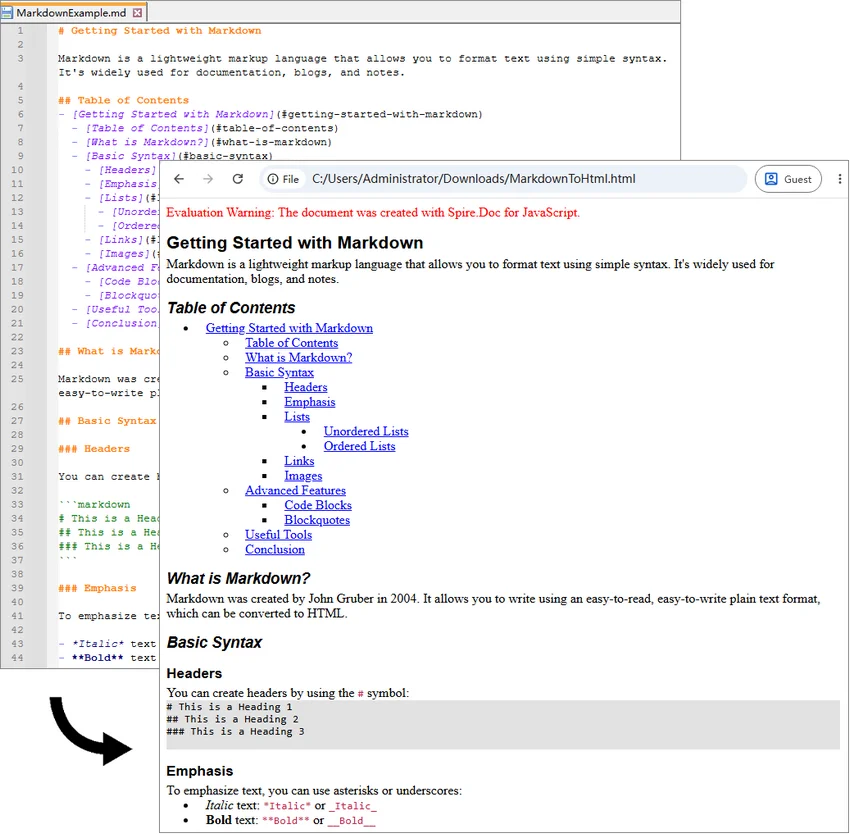
Once the WebAssembly module has loaded, click Convert and Download. The application loads MarkdownExample.md from public/static/data/, converts it to HTML, and downloads the generated MarkdownToHtml.html file.
Here, FetchFileToVFS() loads the source Markdown file into the WebAssembly virtual file system, and Document.LoadFromFile() reads the file from the VFS. CssStyleSheetType.Internal and ImageEmbedded embed styles and images directly in the HTML, while Document.SaveToFile() exports the document as HTML.
Output:
Convert a Markdown String to HTML with JavaScript in React
Markdown is also frequently generated or edited directly inside an application. Content returned by an API or CMS, for example, may already be available as a JavaScript string rather than an existing .md file.
Since Document.LoadFromFile() works with files available in the WebAssembly virtual file system, a Markdown string can first be written to a temporary .md file with FS.writeFile(). The temporary file can then be processed in the same way as a regular Markdown document.
The string-based conversion follows five main steps:
- Module Initialization: Load and initialize the Spire.Doc WebAssembly module.
- Content Preparation: Define or retrieve the Markdown string.
- VFS Creation: Write the Markdown string to a temporary
.mdfile usingFS.writeFile(). - Document Conversion: Load the virtual Markdown file and save it as HTML.
- Output Handling: Read the HTML file from the VFS and download or process it as needed.
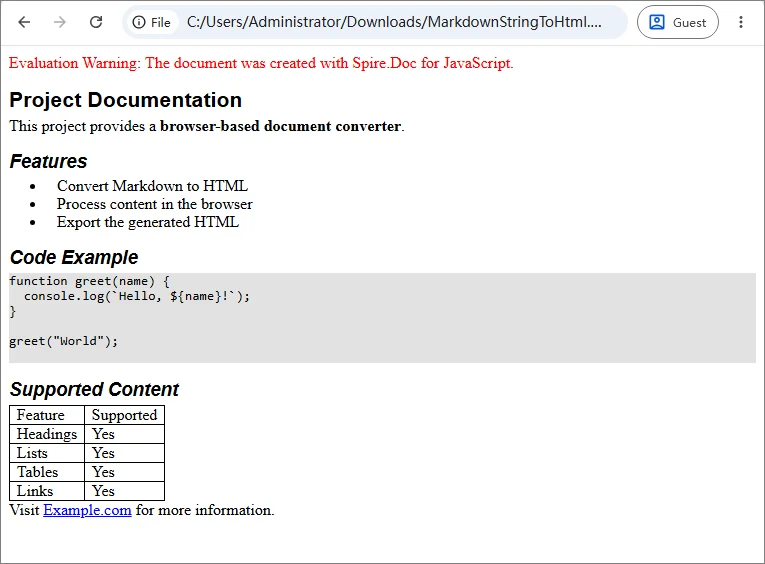
The following example converts a Markdown string containing headings, lists, code, links, and a table.
import React, { useState, useEffect } from 'react';

function App() {
  const [wasmModule, setWasmModule] = useState(null);

  // Load Spire.Doc
  useEffect(() => {
    (async () => {
      try {
        const publicUrl = process.env.PUBLIC_URL || '';

        const spireModule = await import(
          /* webpackIgnore: true */
          `${publicUrl}/spire.doc.js`
        );

        const rawModule = spireModule.default || spireModule;

        window.wasmModule =
          typeof rawModule === 'function'
            ? await rawModule({
                locateFile: (path) =>
                  path.endsWith('.wasm')
                    ? `${publicUrl}/${path}`
                    : path
              })
            : rawModule;

        setWasmModule(window.wasmModule);
      } catch (error) {
        console.error(
          'Failed to load spire.doc.js WASM module:',
          error
        );
      }
    })();
  }, []);

  // Convert Markdown string to HTML
  const convertMarkdownStringToHtml = async () => {
    const wasmModule = window.wasmModule?.spiredoc;

    if (!wasmModule) return;

    // Load the required font into the VFS
    await window.spire.FetchFileToVFS(
      'CALIBRI.ttf',
      '/Library/Fonts/',
      `${process.env.PUBLIC_URL}/static/font/`
    );

    // Define the Markdown string
    const markdownString = `# Project Documentation

This project provides a **browser-based document converter**.

## Features

- Convert Markdown to HTML
- Process content in the browser
- Export the generated HTML

## Code Example

\`\`\`javascript
function greet(name) {
  console.log(\`Hello, \${name}!\`);
}

greet("World");
\`\`\`

## Supported Content

| Feature | Supported |
|---------|-----------|
| Headings | Yes |
| Lists | Yes |
| Tables | Yes |
| Links | Yes |

Visit [Example.com](https://example.com) for more information.
`;

    const inputFileName = 'MarkdownString.md';
    const outputFileName = 'MarkdownStringToHtml.html';

    // Write the Markdown string to the VFS
    window.dotnetRuntime.Module.FS.writeFile(
      inputFileName,
      markdownString,
      { encoding: 'utf8' }
    );

    // Create a Document instance
    const doc = new wasmModule.Document();

    try {
      // Load the Markdown document
      doc.LoadFromFile({
        fileName: inputFileName,
        fileFormat: wasmModule.FileFormat.Markdown
      });

      // Set HTML export options
      doc.HtmlExportOptions.CssStyleSheetType = wasmModule.CssStyleSheetType.Internal;
      doc.HtmlExportOptions.ImageEmbedded = true;

      // Save the document as HTML
      doc.SaveToFile({
        fileName: outputFileName,
        fileFormat: wasmModule.FileFormat.Html
      });

      // Read the generated HTML from the VFS
      const htmlBytes =
        window.dotnetRuntime.Module.FS.readFile(
          outputFileName
        );

      // Download the HTML file
      const blob = new Blob(
        [htmlBytes],
        { type: 'text/html;charset=utf-8' }
      );

      const url = URL.createObjectURL(blob);
      const link = document.createElement('a');

      link.href = url;
      link.download = outputFileName;

      document.body.appendChild(link);
      link.click();
      document.body.removeChild(link);

      URL.revokeObjectURL(url);
    } finally {
      doc.Dispose();
    }
  };

  return (
    <div style={{ textAlign: 'center', height: '300px' }}>
      <h1>Convert Markdown String to HTML</h1>

      <button
        onClick={convertMarkdownStringToHtml}
        disabled={!wasmModule}
      >
        Convert and Download
      </button>
    </div>
  );
}

export default App;
Unlike the previous example, there is no source .md file to load. The Markdown content is written directly to the VFS with FS.writeFile().
window.dotnetRuntime.Module.FS.writeFile(
  inputFileName,
  markdownString,
  { encoding: 'utf8' }
);
This approach also works with Markdown returned from an API, database, CMS, or text editor. Instead of defining markdownString directly in the code, pass the retrieved Markdown content to FS.writeFile().
Output:
Troubleshooting Common MD to HTML Issues
Most conversion problems in a React JavaScript project relate to WebAssembly initialization, public asset paths, or files not loaded into the VFS correctly. The table below lists the most common issues and what to check first.
| Issue | Possible Cause | What to Check |
|---|---|---|
spiredoc is undefined |
The conversion starts before WASM initialization finishes | Keep the conversion button disabled until wasmModule is available |
| 404 when loading runtime files | One or more Spire.Doc assets are missing or the public path is incorrect | Check spire.doc.js, _framework/, WASM resources, and the browser Network panel |
MarkdownExample.md cannot be loaded |
The source file path passed to FetchFileToVFS() is incorrect |
Verify that the file is available under public/static/data/ |
| Font loading fails | CALIBRI.ttf is missing or the font path is incorrect |
Confirm that the font is accessible under public/static/font/ |
| Conversion works locally but fails after deployment | The deployed application uses a different public base path | Verify the generated URLs and adjust process.env.PUBLIC_URL or the equivalent build-tool setting |
| Browser memory increases after repeated conversions | Document objects are not released | Call doc.Dispose() after each conversion, preferably in a finally block |
FAQs
Q: How do I convert a user-selected Markdown file to HTML?
A: A file selected through <input type="file"> is different from a Markdown file stored in the application's public assets.
Read the selected file with the browser File API:
const markdownString = await file.text();
Then write the string to the VFS with FS.writeFile() and use the same conversion process shown in the Markdown string example.
Q: Can I preview the generated HTML instead of downloading it?
A: Yes. Read the generated HTML from the VFS and decode the returned bytes:
const htmlBytes = window.dotnetRuntime.Module.FS.readFile(outputFileName);
const html = new TextDecoder('utf-8').decode(htmlBytes);
The resulting string can then be displayed with an iframe:
<iframe
  title="HTML Preview"
  srcDoc={html}
/>
Security Note: If the Markdown comes from untrusted users or external sources, treat the generated HTML as untrusted content as well and sanitize or isolate it before rendering it in a production application.
Q: Does Markdown-to-HTML conversion require a backend?
A: No. In the examples above, document processing runs through WebAssembly in the browser. The source Markdown and generated HTML are handled through the client-side virtual file system.
A backend may still be needed if your application needs to store the generated file, retrieve protected source content, or perform other server-side operations.
Conclusion
This article showed how to convert Markdown to HTML with JavaScript in React, covering both Markdown files and Markdown strings. By running the conversion through WebAssembly in the browser, content from files, editors, APIs, or CMS platforms can be turned into HTML for download, preview, or further processing. The same core conversion logic can be reused across different Markdown sources.
Convert Word to Markdown and Markdown to Word with JavaScript in React
Seamless conversion between Word documents and Markdown files is increasingly essential in web development for boosting productivity and interoperability. Word documents dominate in complex formatting, while Markdown offers a simple, universal approach to content creation. Enabling conversion between the two within a React application allows users to work in their preferred format while ensuring compatibility across different platforms, streamlining workflows without relying on external tools. In this article, we will explore how to use Spire.Doc for JavaScript to convert Word to Markdown and Markdown to Word with JavaScript in React applications.
Install Spire.Doc for JavaScript
To get started with conversion between Word and Markdown in a React application, you can either download Spire.Doc for JavaScript from our website or install it via npm with the following command:
npm i spire.officeThe downloaded product package integrates Spire.Doc for JavaScript, Spire.XLS for JavaScript, Spire.PDF for JavaScript, and Spire.Presentation for JavaScript. To use the features of Spire.Doc for JavaScript, you need to copy the corresponding files (spire.doc.js, Spire.Doc.Wasm.zip, spire.common.js, Spire.Common.Wasm.zip, and the _framework folder) to the public folder of your project. To ensure proper text rendering, you can add relevant font files with a custom path. In the following example, the font is added to the path: public\static\font.
For more details, refer to the documentation: How to Integrate Spire.Doc for JavaScript in a React Project
Convert Word to Markdown with JavaScript
The Spire.Doc for JavaScript provides a WebAssembly module that enables loading Word documents from the VFS and converting them to Markdown. Developers can achieve this conversion by fetching the documents to the VFS, loading them using the Document.LoadFromFile() method, and saving them as Markdown with the Document.SaveToFile() method. The process involves the following steps:
- Load the spire.doc.js file to initialize the WebAssembly module.
- Fetch the Word document into the virtual file system using the window.spire.FetchFileToVFS() method.
- Create a Document instance in the WebAssembly module using the new wasmModule.Document() method.
- Load the Word document into the Document instance with the Document.LoadFromFile() method.
- Convert the document to Markdown format and save it to the VFS using the Document.SaveToFile() method.
- Read and download the file, or use it as needed.
- JavaScript
import React, { useState, useEffect } from 'react';

function App() {
  const [wasmModule, setWasmModule] = useState(null);
  // Load Spire.Doc
  useEffect(() => {
    (async () => {
      try {
        const publicUrl = process.env.PUBLIC_URL || '';
        const spireModule = await import(/* webpackIgnore: true */ `${publicUrl}/spire.doc.js`);
        const rawModule = spireModule.default || spireModule;
        window.wasmModule = typeof rawModule === 'function'
          ? await rawModule({ locateFile: p => p.endsWith('.wasm') ? `${publicUrl}/${p}` : p })
          : rawModule;
        setWasmModule(window.wasmModule);
      } catch (error) {
        console.error('Failed to load spire.doc.js WASM module:', error);
      }
    })();
  }, []);

  // Function to convert Word to Markdown
  const ConvertWordToMD = async () => {
    const wasmModule = window.wasmModule.spiredoc;

    if (wasmModule) {
      // Load the font files into the virtual file system (VFS)
      await window.spire.FetchFileToVFS('CALIBRI.ttf', '/Library/Fonts/', `${process.env.PUBLIC_URL}/static/font/`);

      // Specify the input file name and the output file name
      const inputFileName = 'sample.docx';
      const outputFileName = 'WordToMarkdown.md';

      // Fetch the input file and add it to the VFS
      await window.spire.FetchFileToVFS(inputFileName, '', `${process.env.PUBLIC_URL}/static/data/`);

      // Create an instance of the Document class
      const doc = new wasmModule.Document();

      // Load the Word document
      doc.LoadFromFile(inputFileName);

      // Save the document to a Markdown file
      doc.SaveToFile({ fileName: outputFileName, fileFormat: wasmModule.FileFormat.Markdown });

      // Release resources
      doc.Dispose();

      // Read the markdown file
      const mdContent = window.dotnetRuntime.Module.FS.readFile(outputFileName)

      // Generate a Blob from the markdown file and trigger a download
      const blob = new Blob([mdContent], { type: 'text/plain' });
      const url = URL.createObjectURL(blob);
      const a = document.createElement("a");
      a.href = url;
      a.download = outputFileName;
      document.body.appendChild(a);
      a.click();
      document.body.removeChild(a);
      URL.revokeObjectURL(url);
    }
  };

  return (
    <div style={{ textAlign: 'center', height: '300px' }}>
      <h1>Convert Word to Markdown Using JavaScript in React</h1>
      <button onClick={ConvertWordToMD} disabled={!wasmModule}>
        Convert and Download
      </button>
    </div>
  );
}

export default App;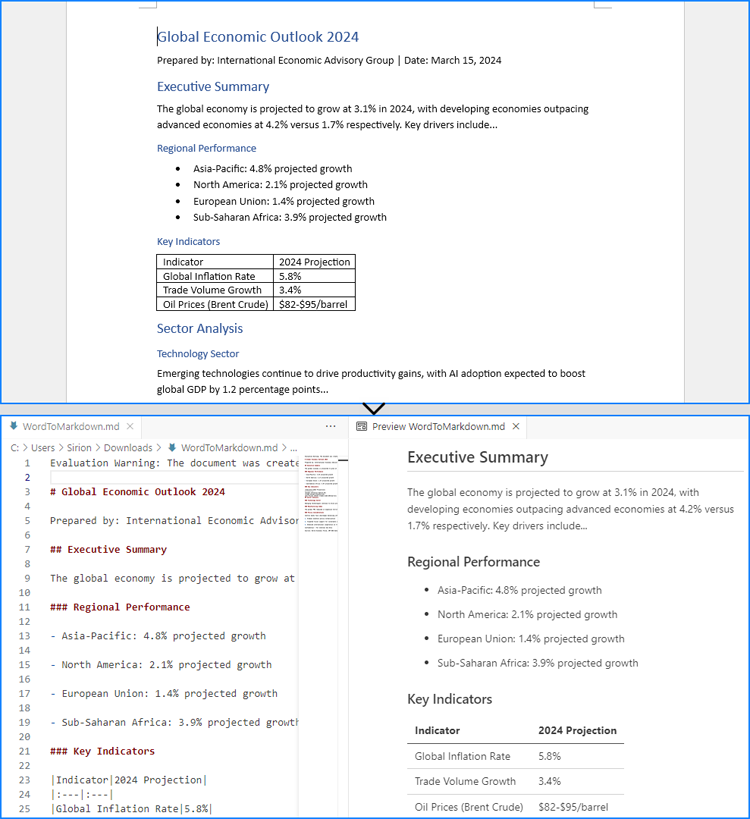
Convert Markdown to Word with JavaScript
The Document.LoadFromFile() method can also be used to load a Markdown file by specifying the file format parameter as wasmModule.FileFormat.Markdown. Then, the Markdown file can be exported as a Word document using the Document.SaveToFile() method.
For Markdown strings, developers can write them as Markdown files into the virtual file system using the window.dotnetRuntime.Module.FS.writeFile() method, and then convert them to Word documents.
The detailed steps for converting Markdown content to Word documents are as follows:
- Load the spire.doc.js file to initialize the WebAssembly module.
- Load required font files into the virtual file system using the window.spire.FetchFileToVFS() method.
- Import Markdown content:
- For files: Use the window.spire.FetchFileToVFS() method to load the Markdown file into the VFS.
- For strings: Write Markdown content to the VFS via the window.dotnetRuntime.Module.FS.writeFile() method.
- Instantiate a Document object via the new wasmModule.Document() method within the WebAssembly module.
- Load the Markdown file into the Document instance using the Document.LoadFromFile({ filename: string, fileFormat: wasmModule.FileFormat.Markdown }) method.
- Convert the Markdown file to a Word document and save it to the VFS using the Document.SaveToFile( { filename: string, fileFormat:wasmModule.FileFormat.Docx2019 }) method.
- Retrieve and download the generated Word file from the VFS, or process it further as required.
- JavaScript
import React, { useState, useEffect } from 'react';

function App() {
  const [wasmModule, setWasmModule] = useState(null);
  // Load Spire.Doc
  useEffect(() => {
    (async () => {
      try {
        const publicUrl = process.env.PUBLIC_URL || '';
        const spireModule = await import(/* webpackIgnore: true */ `${publicUrl}/spire.doc.js`);
        const rawModule = spireModule.default || spireModule;
        window.wasmModule = typeof rawModule === 'function'
          ? await rawModule({ locateFile: p => p.endsWith('.wasm') ? `${publicUrl}/${p}` : p })
          : rawModule;
        setWasmModule(window.wasmModule);
      } catch (error) {
        console.error('Failed to load spire.doc.js WASM module:', error);
      }
    })();
  }, []);

  // Function to convert Markdown to Word
  const ConvertMDToWord = async () => {
    const wasmModule = window.wasmModule.spiredoc;

    if (wasmModule) {
      // Load the font files into the virtual file system (VFS)
      await window.spire.FetchFileToVFS('CALIBRI.ttf', '/Library/Fonts/', `${process.env.PUBLIC_URL}/static/font/`);

      // Create an instance of the Document class
      const doc = new wasmModule.Document();

      // Specify the output file name
      const outputFileName = 'MarkdownStringToWord.docx';

      // Fetch the Markdown file to the VFS and load it into the Document instance
      // window.spire.FetchFileToVFS('MarkdownExample.md', '', `${process.env.PUBLIC_URL}/static/data/`);
      // doc.LoadFromFile({ fileName: 'MarkdownExample.md', fileFormat: wasmModule.FileFormat.Markdown });

      // Define the Markdown string
      const markdownString = '# Project Aurora: Next-Gen Climate Modeling System *\n' +
          '## Overview\n' +
          'A next-generation climate modeling platform leveraging AI to predict regional climate patterns with 90%+ accuracy. Built for researchers and policymakers.\n' +
          '### Key Features\n' +
          '- * Real-time atmospheric pattern recognition\n' +
          '- * Carbon sequestration impact modeling\n' +
          '- * Custom scenario simulation builder\n' +
          '- * Historical climate data cross-analysis\n' +
          '\n' +
          '## Sample Usage\n' +
          '| Command | Description | Example Output |\n' +
          '|---------|-------------|----------------|\n' +
          '| `region=asia` | Runs climate simulation for Asia | JSON with temperature/precipitation predictions |\n' +
          '| `model=co2` | Generates CO2 impact visualization | Interactive 3D heatmap |\n' +
          '| `year=2050` | Compares scenarios for 2050 | Tabular data with Δ values |\n' +
          '| `format=netcdf` | Exports data in NetCDF format | .nc file with metadata |'

      // Write the Markdown string to a file in the VFS
      await window.dotnetRuntime.Module.FS.writeFile('Markdown.md', markdownString, {encoding: 'utf8'})

      // Load the Markdown file from the VFS
      doc.LoadFromFile({ fileName: 'Markdown.md', fileFormat: wasmModule.FileFormat.Markdown });

      // Save the document to a Word file
      doc.SaveToFile({fileName: outputFileName, fileFormat: wasmModule.FileFormat.Docx2019});

      // Release resources
      doc.Dispose();

      // Read the Word file
      const outputWordFile = await window.dotnetRuntime.Module.FS.readFile(outputFileName)

      // Generate a Blob from the Word file and trigger a download
      const blob = new Blob([outputWordFile], { type: 'application/vnd.openxmlformats-officedocument.wordprocessingml.document' });
      const url = URL.createObjectURL(blob);
      const a = document.createElement("a");
      a.href = url;
      a.download = outputFileName;
      document.body.appendChild(a);
      a.click();
      document.body.removeChild(a);
      URL.revokeObjectURL(url);
    }
  };

  return (
      <div style={{ textAlign: 'center', height: '300px' }}>
        <h1>Convert Markdown to Word Using JavaScript in React</h1>
        <button onClick={ConvertMDToWord} disabled={!wasmModule}>
          Convert and Download
        </button>
      </div>
  );
}

export default App;
Get a Free License
To fully experience the capabilities of Spire.Doc for JavaScript without any evaluation limitations, you can request a free 30-day trial license.
Convert HTML to PDF with JavaScript in React
In modern web development, generating PDFs directly from HTML is essential for applications requiring dynamic reports, invoices, or user-specific documents. Using JavaScript to convert HTML to PDF in React applications ensures the preservation of structure, styling, and interactivity, transforming content into a portable, print-ready format. This method eliminates the need for separate PDF templates, leverages React's component-based architecture for dynamic rendering, and reduces server-side dependencies. By embedding PDF conversion into the front end, developers can provide a consistent user experience, enable instant document downloads, and maintain full control over design and layout. This article explores how to use Spire.Doc for JavaScript to convert HTML files and strings to PDF in React applications.
Install Spire.Doc for JavaScript
To get started with converting HTML to PDF in a React application, you can either download Spire.Doc for JavaScript from our website or install it via npm with the following command:
npm i spire.officeThe downloaded product package integrates Spire.Doc for JavaScript, Spire.XLS for JavaScript, Spire.PDF for JavaScript, and Spire.Presentation for JavaScript. To use the features of Spire.Doc for JavaScript, you need to copy the corresponding files (spire.doc.js, Spire.Doc.Wasm.zip, spire.common.js, Spire.Common.Wasm.zip, and the _framework folder) to the public folder of your project. To ensure proper text rendering, you can add relevant font files with a custom path. In the following example, the font is added to the path: public\static\font.
For more details, refer to the documentation: How to Integrate Spire.Doc for JavaScript in a React Project
Convert an HTML File to PDF with JavaScript
Using the Spire.Doc WASM module, developers can load HTML files into a Document object with the Document.LoadFromFile() method and then convert them to PDF documents using the Document.SaveToFile() method. This approach provides a concise and efficient solution for HTML-to-PDF conversion in web development.
The detailed steps are as follows:
- Load the Spire.Doc.Base.js file to initialize the WebAssembly module.
- Load the HTML file and the font files used in the HTML file into the virtual file system using the window.spire.FetchFileToVFS() method.
- Create an instance of the Document class using the new wasmModule.Document() method.
- Load the HTML file into the Document instance using the Document.LoadFromFile() method.
- Convert the HTML file to PDF format and save it using the Document.SaveToFile() method.
- Read the converted file as a file array and download it.
- JavaScript
import React, { useState, useEffect } from 'react';

function App() {
  const [wasmModule, setWasmModule] = useState(null);
  // Load Spire.Doc
  useEffect(() => {
    (async () => {
      try {
        const publicUrl = process.env.PUBLIC_URL || '';
        const spireModule = await import(/* webpackIgnore: true */ `${publicUrl}/spire.doc.js`);
        const rawModule = spireModule.default || spireModule;
        window.wasmModule = typeof rawModule === 'function'
          ? await rawModule({ locateFile: p => p.endsWith('.wasm') ? `${publicUrl}/${p}` : p })
          : rawModule;
        setWasmModule(window.wasmModule);
      } catch (error) {
        console.error('Failed to load spire.doc.js WASM module:', error);
      }
    })();
  }, []);

  // Function to convert HTML files to PDF document
  const ConvertHTMLFileToPDF = async () => {
    const wasmModule = window.wasmModule.spiredoc;

    if (wasmModule) {
      // Load the font files into the virtual file system (VFS)
      await window.spire.FetchFileToVFS('CALIBRI.ttf', '/Library/Fonts/', `${process.env.PUBLIC_URL}/static/font/`);

      // Specify the input file name and the output file name
      const inputFileName = 'Sample.html';
      const outputFileName = 'HTMLFileToPDF.pdf';

      // Fetch the input file and add it to the VFS
      await window.spire.FetchFileToVFS(inputFileName, '', `${process.env.PUBLIC_URL}/static/data/`);

      // Create an instance of the Document class
      const doc = new wasmModule.Document();

      // Load the Word document
      doc.LoadFromFile({ fileName: inputFileName, fileFormat: wasmModule.FileFormat.Html, validationType: wasmModule.XHTMLValidationType.None });

      // Save the document to a PDF file
      doc.SaveToFile({ fileName: outputFileName, fileFormat: wasmModule.FileFormat.PDF });

      // Release resources
      doc.Dispose();

      // Read the saved file from the VFS
      const modifiedFileArray = window.dotnetRuntime.Module.FS.readFile(outputFileName);

      // Generate a Blob from the file array and trigger a download
      const blob = new Blob([modifiedFileArray], { type: 'application/pdf' });
      const url = URL.createObjectURL(blob);
      const a = document.createElement("a");
      a.href = url;
      a.download = outputFileName;
      document.body.appendChild(a);
      a.click();
      document.body.removeChild(a);
      URL.revokeObjectURL(url);
    }
  };

  return (
    <div style={{ textAlign: 'center', height: '300px' }}>
      <h1>Convert HTML files to PDF Using JavaScript in React</h1>
      <button onClick={ConvertHTMLFileToPDF} disabled={!wasmModule}>
        Convert
      </button>
    </div>
  );
}

export default App;
Convert an HTML String to PDF with JavaScript
Spire.Doc for JavaScript offers the Paragraph.AppendHTML() method, which allows developers to insert HTML-formatted content directly into a document paragraph. Once the HTML content is added, the document can be saved as a PDF, enabling a seamless conversion from an HTML string to a PDF file.
The detailed steps are as follows:
- Load the Spire.Doc.Base.js file to initialize the WebAssembly module.
- Define the HTML string.
- Load the font files used in the HTML string using the window.spire.FetchFileToVFS() method.
- Create a new Document instance using the new wasmModule.Document() method.
- Add a section to the document using the Document.AddSection() method.
- Add a paragraph to the section using the Section.AddParagraph() method.
- Insert the HTML content into the paragraph using the Paragraph.AppendHTML() method.
- Save the document as a PDF file using the Document.SaveToFile() method.
- Read the converted file as a file array and download it.
- JavaScript
import React, { useState, useEffect } from 'react';

function App() {
  const [wasmModule, setWasmModule] = useState(null);
  // Load Spire.Doc
  useEffect(() => {
    (async () => {
      try {
        const publicUrl = process.env.PUBLIC_URL || '';
        const spireModule = await import(/* webpackIgnore: true */ `${publicUrl}/spire.doc.js`);
        const rawModule = spireModule.default || spireModule;
        window.wasmModule = typeof rawModule === 'function'
          ? await rawModule({ locateFile: p => p.endsWith('.wasm') ? `${publicUrl}/${p}` : p })
          : rawModule;
        setWasmModule(window.wasmModule);
      } catch (error) {
        console.error('Failed to load spire.doc.js WASM module:', error);
      }
    })();
  }, []);

  // Function to convert HTML string to PDF
  const ConvertHTMLStringToPDF = async () => {
    const wasmModule = window.wasmModule.spiredoc;

    if (wasmModule) {
      // Load the font files into the virtual file system (VFS)
      await window.spire.FetchFileToVFS('CALIBRI.ttf', '/Library/Fonts/', `${process.env.PUBLIC_URL}/static/font/`);

      // Create an instance of the Document class
      const doc = new wasmModule.Document();

      // Specify the output file name
      const outputFileName = 'HTMLStringToPDF.pdf';

      // Define the HTML string
      const htmlString = `
          <html lang="en">
              <head>
                  <meta charset="UTF-8">
                  <title>Sales Snippet</title>
              </head>
              <body style="font-family: Arial, sans-serif; margin: 20px;">
                  <div style="border: 1px solid #ddd; padding: 15px; max-width: 600px; margin: auto; background-color: #f9f9f9;">
                      <h1 style="color: #e74c3c; text-align: center;">Limited Time Offer!</h1>
                      <p style="font-size: 1.1em; color: #333; line-height: 1.5;">
                          Get ready to save big on all your favorites. This week only, enjoy 15% off site wide. From trendy clothing to home decor, find everything you love at unbeatable prices.
                      </p>
                      <div style="text-align: center;">
                          <button
                              style="background-color: #5cb85c; border: none; color: white; padding: 10px 20px; text-align: center; text-decoration: none; display: inline-block; font-size: 16px; margin: 4px 2px; cursor: pointer; border-radius: 8px;">
                              Shop Deals
                          </button>
                      </div>
                  </div>
              </body>
          </html>
      `;

      // Add a section to the document
      const section = doc.AddSection();

      // Add a paragraph to the section
      const paragraph = section.AddParagraph();

      // Insert the HTML content to the paragraph
      paragraph.AppendHTML(htmlString)

      // Save the document to a PDF file
      doc.SaveToFile({fileName: outputFileName, fileFormat: wasmModule.FileFormat.PDF});

      // Release resources
      doc.Dispose();

      // Read the saved file from the VFS
      const modifiedFileArray = window.dotnetRuntime.Module.FS.readFile(outputFileName);

      // Generate a Blob from the file array and trigger a download
      const blob = new Blob([modifiedFileArray], {type: 'application/pdf'});
      const url = URL.createObjectURL(blob);
      const a = document.createElement("a");
      a.href = url;
      a.download = outputFileName;
      document.body.appendChild(a);
      a.click();
      document.body.removeChild(a);
      URL.revokeObjectURL(url);
    }
  };

  return (
      <div style={{ textAlign: 'center', height: '300px' }}>
        <h1>Convert HTML Strings to PDF Using JavaScript in React</h1>
        <button onClick={ConvertHTMLStringToPDF} disabled={!wasmModule}>
          Convert and Download
        </button>
      </div>
  );
}

export default App;
Get a Free License
To fully experience the capabilities of Spire.Doc for JavaScript without any evaluation limitations, you can request a free 30-day trial license.
Convert Text to Word or Word to Text with JavaScript in React
Converting between Word and TXT formats is a skill that can greatly enhance your productivity and efficiency in handling documents. For example, converting a Word document to a plain text file can make it easier to analyze and manipulate data using other text processing tools or programming languages. Conversely, converting a text file to Word format allows you to add formatting, graphics, and other elements to enhance the presentation of the content. In this article, you will learn how to convert text files to Word format or convert Word files to text format in React using Spire.Doc for JavaScript.
Install Spire.Doc for JavaScript
To get started with the conversion between the TXT and Word formats in a React application, you can either download Spire.Doc for JavaScript from our website or install it via npm with the following command:
npm i spire.officeThe downloaded product package integrates Spire.Doc for JavaScript, Spire.XLS for JavaScript, Spire.PDF for JavaScript, and Spire.Presentation for JavaScript. To use the features of Spire.Doc for JavaScript, you need to copy the corresponding files (spire.doc.js, Spire.Doc.Wasm.zip, spire.common.js, Spire.Common.Wasm.zip, and the _framework folder) to the public folder of your project. To ensure proper text rendering, you can add relevant font files with a custom path. In the following example, the font is added to the path: public\static\font.
For more details, refer to the documentation: How to Integrate Spire.Doc for JavaScript in a React Project
Convert Text (TXT) to Word in JavaScript
Spire.Doc for JavaScript allows you to load a TXT file and then save it to Word Doc or Docx format using the Document.SaveToFile() method. The following are the main steps.
- Create a new document using the new wasmModule.Document() method.
- Load a text file using the Document.LoadFromFile() method.
- Save the text file as a Word document using the Document.SaveToFile() method.
- JavaScript
import React, { useState, useEffect } from 'react';

function App() {
  const [wasmModule, setWasmModule] = useState(null);
  // Load Spire.Doc
  useEffect(() => {
    (async () => {
      try {
        const publicUrl = process.env.PUBLIC_URL || '';
        const spireModule = await import(/* webpackIgnore: true */ `${publicUrl}/spire.doc.js`);
        const rawModule = spireModule.default || spireModule;
        window.wasmModule = typeof rawModule === 'function'
          ? await rawModule({ locateFile: p => p.endsWith('.wasm') ? `${publicUrl}/${p}` : p })
          : rawModule;
        setWasmModule(window.wasmModule);
      } catch (error) {
        console.error('Failed to load spire.doc.js WASM module:', error);
      }
    })();
  }, []);

  // Function to convert a text file to a Word document
  const TXTtoWord = async () => {
    const wasmModule = window.wasmModule.spiredoc;

    if (wasmModule) {
      // Load the font files into the virtual file system (VFS)
      await window.spire.FetchFileToVFS('CALIBRI.ttf', '/Library/Fonts/', `${process.env.PUBLIC_URL}/static/font/`);

      // Specify the input file name and the output file name
      const inputFileName = 'input.txt';
      const outputFileName = 'TxtToWord.docx';

      // Fetch the input file and add it to the VFS
      await window.spire.FetchFileToVFS(inputFileName, '', `${process.env.PUBLIC_URL}/static/data/`);

      // Create an instance of the Document class
      const doc = new wasmModule.Document();

      // Load the text file
      doc.LoadFromFile(inputFileName);

      // Save the text file as a Word document
      doc.SaveToFile({ fileName: outputFileName, fileFormat: wasmModule.FileFormat.Docx2016 });

      // Read the generated Word document from VFS
      const modifiedFileArray = window.dotnetRuntime.Module.FS.readFile(outputFileName);

      // Create a Blog object from the Word document
      const modifiedFile = new Blob([modifiedFileArray], { type: 'application/vnd.openxmlformats-officedocument.wordprocessingml.document' });

      // Create a URL for the Blob
      const url = URL.createObjectURL(modifiedFile);

      // Create an anchor element to trigger the download
      const a = document.createElement('a');
      a.href = url;
      a.download = outputFileName;
      document.body.appendChild(a);
      a.click();
      document.body.removeChild(a);
      URL.revokeObjectURL(url);

      // Clean up resources
      doc.Dispose();
    }
  };

  return (
    <div style={{ textAlign: 'center', height: '300px' }}>
      <h1>Convert Text to Word Using JavaScript in React</h1>
      <button onClick={TXTtoWord} disabled={!wasmModule}>
        Convert
      </button>
    </div>
  );
}

export default App;
Run the code to launch the React app at localhost:3000. Once it's running, click on the "Convert" button to download the Word document converted from a TXT file:

Below is the input text file and the generated Word document:

Convert Word to Text (TXT) in JavaScript
The Document.SaveToFile() method can also be used to export a Word Doc or Docx document to a plain text file. The following are the main steps.
- Create a new document using the new wasmModule.Document() method.
- Load a Word document using the Document.LoadFromFile() method.
- Save the Word document in TXT format using the Document.SaveToFile({fileName: string, fileFormat: wasmModule.FileFormat.Txt}) method.
- JavaScript
import React, { useState, useEffect } from 'react';

function App() {
  const [wasmModule, setWasmModule] = useState(null);
  // Load Spire.Doc
  useEffect(() => {
    (async () => {
      try {
        const publicUrl = process.env.PUBLIC_URL || '';
        const spireModule = await import(/* webpackIgnore: true */ `${publicUrl}/spire.doc.js`);
        const rawModule = spireModule.default || spireModule;
        window.wasmModule = typeof rawModule === 'function'
          ? await rawModule({ locateFile: p => p.endsWith('.wasm') ? `${publicUrl}/${p}` : p })
          : rawModule;
        setWasmModule(window.wasmModule);
      } catch (error) {
        console.error('Failed to load spire.doc.js WASM module:', error);
      }
    })();
  }, []);

  // Function to convert a Word document to a text file
  const WordToTXT = async () => {
    const wasmModule = window.wasmModule.spiredoc;

    if (wasmModule) {
      // Load the font files into the virtual file system (VFS)
      await window.spire.FetchFileToVFS('CALIBRI.ttf', '/Library/Fonts/', `${process.env.PUBLIC_URL}/static/font/`);

      // Specify the input file name and the output file name
      const inputFileName = 'Data.docx';
      const outputFileName = 'WordToText.txt';

      // Fetch the input file and add it to the VFS
      await window.spire.FetchFileToVFS(inputFileName, '', `${process.env.PUBLIC_URL}/static/data/`);

      // Create an instance of the Document class
      const doc = new wasmModule.Document();

      // Load the Word document
      doc.LoadFromFile(inputFileName);

      // Save the Word document in TXT format
      doc.SaveToFile({fileName: outputFileName, fileFormat: wasmModule.FileFormat.Txt});

      // Read the generated text file from VFS
      const modifiedFileArray = window.dotnetRuntime.Module.FS.readFile(outputFileName);

      // Create a Blog object from the text file
      const modifiedFile = new Blob([modifiedFileArray], {type: 'text/plain'});

      // Create a URL for the Blob
      const url = URL.createObjectURL(modifiedFile);

      // Create an anchor element to trigger the download
      const a = document.createElement('a');
      a.href = url;
      a.download = outputFileName;
      document.body.appendChild(a);
      a.click();
      document.body.removeChild(a);
      URL.revokeObjectURL(url);

      // Clean up resources
      doc.Dispose();
    }
  };

  return (
    <div style={{ textAlign: 'center', height: '300px' }}>
      <h1>Convert a Word Document to Plain Text Using JavaScript in React</h1>
      <button onClick={WordToTXT} disabled={!wasmModule}>
        Convert
      </button>
    </div>
  );
}

export default App;
Get a Free License
To fully experience the capabilities of Spire.Doc for JavaScript without any evaluation limitations, you can request a free 30-day trial license.