
Conversion (20)
RTF is a rich-text format that records its content as plain text: fonts, paragraphs, tables and page setup are written into the file as readable markup, and almost every word processor can open it. Data exchange between systems, import and export in legacy tools, and content transfer through mail gateways still rely on RTF as an interchange format.
Bringing RTF into a document pipeline raises two directions of work: exporting Word documents as RTF for a downstream system, and turning received RTF back into an editable Word document or a PDF that is easy to distribute. This article uses Spire.Doc for JavaScript to handle all three tasks in the browser. The sample uses two documents: WordToRtf.docx is the "Skylark" Customer Service Center 2026 Third-Quarter Operations Report, with a cover information table, a metrics table, a bar chart and a page header and footer; Legacy.rtf is an Equipment Inspection Record exported by a legacy system, with an inspection route map, three detail tables and handover notes. The whole process runs in the browser on WebAssembly, requires no Office installation and depends on no backend, so the documents stay on the user's device.
This article covers three features:
For installation and project setup, refer to Integrating Spire.Doc for JavaScript in a React Project. The examples below assume that Spire.Doc is installed and the WebAssembly module is initialized.
Convert a Word Document to RTF
Converting a Word document to RTF comes down to specifying FileFormat.Rtf when saving. Loading is no different from handling an ordinary docx: the Document object reads the Word file and writes it out unchanged, with no paragraph-by-paragraph rebuild.
The format enumerations used by all three directions are listed below; the next two sections take their values from the same table:
| Format enumeration | Value | Purpose |
|---|---|---|
FileFormat.Rtf |
120 | Save as RTF, or load as RTF |
FileFormat.Docx2013 |
12 | Save as docx |
FileFormat.PDF |
100 | Save as PDF |
The specific steps are as follows:
- Get the Spire.Doc WASM module and confirm that it is ready.
- Load the fonts and
WordToRtf.docxinto the VFS. - Create a
Documentinstance and load the Word document. - Save it to the VFS with
FileFormat.Rtf, using the.rtfextension. - Read the result file from the VFS and trigger a browser download.
The code for converting a Word document to RTF is as follows:
function App() {
  const wordToRtf = async () => {
    // Get the Spire.Doc WASM module
    const docModule = window.wasmModule?.spiredoc;

    if (!docModule) {
      alert('Spire.Doc is not ready yet');
      return;
    }

    // Load the fonts and the document to be converted
    await window.spire.FetchFileToVFS('arial.ttf', '/Library/Fonts/', `${process.env.PUBLIC_URL}/font/`);
    await window.spire.FetchFileToVFS('arialbd.ttf', '/Library/Fonts/', `${process.env.PUBLIC_URL}/font/`);
    await window.spire.FetchFileToVFS('WordToRtf.docx', '', `${process.env.PUBLIC_URL}/data/`);

    // Load the Word document
    const doc = new docModule.Document();
    doc.LoadFromFile('WordToRtf.docx');

    // Save as RTF
    const outputFileName = 'WordToRtf.rtf';
    doc.SaveToFile({ fileName: outputFileName, fileFormat: docModule.FileFormat.Rtf });
    doc.Dispose();

    // Read the result from the VFS and trigger the download
    const fileArray = window.dotnetRuntime.Module.FS.readFile(outputFileName);
    const blob = new Blob([fileArray], { type: 'application/rtf' });
    const url = URL.createObjectURL(blob);
    const a = document.createElement('a');
    a.href = url;
    a.download = outputFileName;
    a.click();
    URL.revokeObjectURL(url);
  };

  return (
    <div style={{ textAlign: 'center', height: '300px' }}>
      <h1>Word to RTF</h1>
      <button onClick={wordToRtf}>Generate</button>
    </div>
  );
}

export default App;
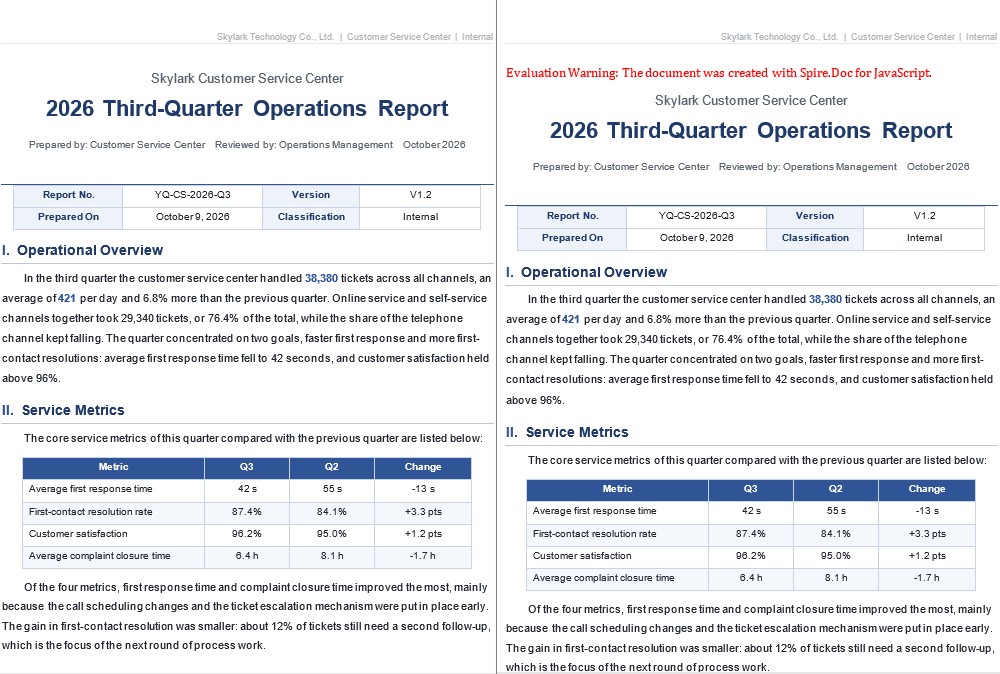
Opened in Word, the generated RTF runs to two pages, and the cover information table, the metrics table, the bar chart and the header and footer are all present, with a layout close to the original:
What the Converted RTF Keeps
After the report in the sample is saved from docx to RTF, the following content stays as it was when the file is opened in Word:
- Text, fonts, font sizes and paragraph formatting;
- Table row and column structure, borders and cell shading;
- Embedded images and charts;
- Headers, footers, page size and margins.
RTF's expressive range stops at classic word processing, so not every detail of the source necessarily makes it into the RTF. After conversion, open the result in Word and check that everything the downstream system relies on is there; when the original has to be reproduced in full, keep the docx and hand the RTF only to systems that need the text and the basic layout.
Why the Generated RTF Is Much Larger
RTF is a plain-text format: an image cannot be stored as binary and is written into the file as hexadecimal characters. The report in the sample is 65 KB, while the converted RTF is about 3.7 MB, most of the growth coming from the embedded bar chart. To control the size, compress the images before conversion, or scale them down to the size the layout actually uses.
The File Name and MIME Type Must Agree
The MIME type of RTF is application/rtf, and the extension should be .rtf. With a .doc extension, some systems parse the file as a binary Word document and report an error; if the download declares application/msword, the browser may hand the file to a local component, which behaves differently from what you expect.
Convert an RTF Document to Word
Converting an RTF document to Word loads the RTF with LoadRtf and saves it with FileFormat.Docx2013. RTF exported by a legacy system often still has to be edited, restyled with a template or annotated; once it is a docx it can use Word's styles, revisions and content controls, and it is easier to merge with other documents.
The specific steps are as follows:
- Get the Spire.Doc WASM module and confirm that it is ready.
- Load the fonts and
Legacy.rtfinto the VFS. - Create a
Documentinstance and load the RTF explicitly withLoadRtf. - Save it as docx with
FileFormat.Docx2013. - Read the result file from the VFS and trigger a browser download.
The code for converting an RTF document to Word is as follows:
function App() {
  const rtfToWord = async () => {
    // Get the Spire.Doc WASM module
    const docModule = window.wasmModule?.spiredoc;

    if (!docModule) {
      alert('Spire.Doc is not ready yet');
      return;
    }

    // Load the fonts and the RTF file
    await window.spire.FetchFileToVFS('arial.ttf', '/Library/Fonts/', `${process.env.PUBLIC_URL}/font/`);
    await window.spire.FetchFileToVFS('arialbd.ttf', '/Library/Fonts/', `${process.env.PUBLIC_URL}/font/`);
    await window.spire.FetchFileToVFS('Legacy.rtf', '', `${process.env.PUBLIC_URL}/data/`);

    // Load explicitly as RTF; the argument is a file name in the VFS
    const doc = new docModule.Document();
    doc.LoadRtf('Legacy.rtf');

    // Save as docx
    const outputFileName = 'Legacy.docx';
    doc.SaveToFile({ fileName: outputFileName, fileFormat: docModule.FileFormat.Docx2013 });
    doc.Dispose();

    // Read the result from the VFS and trigger the download
    const fileArray = window.dotnetRuntime.Module.FS.readFile(outputFileName);
    const blob = new Blob([fileArray], {
      type: 'application/vnd.openxmlformats-officedocument.wordprocessingml.document',
    });
    const url = URL.createObjectURL(blob);
    const a = document.createElement('a');
    a.href = url;
    a.download = outputFileName;
    a.click();
    URL.revokeObjectURL(url);
  };

  return (
    <div style={{ textAlign: 'center', height: '300px' }}>
      <h1>RTF to Word</h1>
      <button onClick={rtfToWord}>Generate</button>
    </div>
  );
}

export default App;
The converted document is two pages, and the inspection route map, the three detail tables, the header and footer and the handover signature are all kept:

LoadRtf and the Three Ways to Load an RTF
An RTF can be loaded explicitly, or left to LoadFromFile to recognize by format or by extension. In the sample all three forms produce the same output; the difference is how explicit the call is and what it reports when something goes wrong:
| Form | Call | When to use |
|---|---|---|
| Explicit load | doc.LoadRtf('Legacy.rtf') |
The extension is non-standard, or the encoding has to be specified |
| Load by format | doc.LoadFromFile({ fileName, fileFormat: FileFormat.Rtf }) |
The extension cannot be trusted, but the format is known |
| Auto-detect | doc.LoadFromFile('Legacy.rtf') |
A standard extension and consistent conventions |
The argument of LoadRtf is a file name in the VFS, not the RTF text itself. Passing a string of RTF content throws IO_FileNotFound_FileName, because the library treats the value as a path to look up.
Cell Shading Is Lost After Conversion
RTF marks cell backgrounds with \clcbpat; the RTF in the sample carries 86 of them. After Spire.Doc converts it, the shading is no longer kept in the docx and the tables fall back to white. Where a header row depended on dark fill plus white text for contrast, the text ends up white on white and looks like an empty row.
The remedy is not to make the header depend on the fill: use dark text with a light fill, or bold text with borders. The three detail tables in the sample are built that way, so their headers stay readable after conversion.
Fonts Have to Be Loaded into the VFS
An RTF's \fonttbl records only font names, not the font files. If the matching font is missing from the VFS, the layout falls back to a substitute, and line breaks and pagination may differ from the original. The sample loads arial.ttf and arialbd.ttf into /Library/Fonts/ before conversion; when the document uses other fonts, load those files as well.
Convert an RTF Document to PDF
Converting an RTF document to PDF follows exactly the same flow as the previous section, changing only the save format to FileFormat.PDF; there is no need to save a docx first and convert it again. PDF suits archiving and outbound delivery: once converted it no longer depends on fonts or editing software, and the pagination the recipient sees is final.
The specific steps are as follows:
- Get the Spire.Doc WASM module and confirm that it is ready.
- Load the fonts and
Legacy.rtfinto the VFS. - Create a
Documentinstance and load the RTF withLoadRtf. - Save it to the VFS with
FileFormat.PDF. - Read the PDF from the VFS and trigger a browser download.
The code for converting an RTF document to PDF is as follows:
function App() {
  const rtfToPdf = async () => {
    // Get the Spire.Doc WASM module
    const docModule = window.wasmModule?.spiredoc;

    if (!docModule) {
      alert('Spire.Doc is not ready yet');
      return;
    }

    // Load the fonts and the RTF file
    await window.spire.FetchFileToVFS('arial.ttf', '/Library/Fonts/', `${process.env.PUBLIC_URL}/font/`);
    await window.spire.FetchFileToVFS('arialbd.ttf', '/Library/Fonts/', `${process.env.PUBLIC_URL}/font/`);
    await window.spire.FetchFileToVFS('Legacy.rtf', '', `${process.env.PUBLIC_URL}/data/`);

    // Load the RTF
    const doc = new docModule.Document();
    doc.LoadRtf('Legacy.rtf');

    // Export the PDF directly
    const outputFileName = 'Legacy.pdf';
    doc.SaveToFile({ fileName: outputFileName, fileFormat: docModule.FileFormat.PDF });
    doc.Dispose();

    // Read the result from the VFS and trigger the download
    const fileArray = window.dotnetRuntime.Module.FS.readFile(outputFileName);
    const blob = new Blob([fileArray], { type: 'application/pdf' });
    const url = URL.createObjectURL(blob);
    const a = document.createElement('a');
    a.href = url;
    a.download = outputFileName;
    a.click();
    URL.revokeObjectURL(url);
  };

  return (
    <div style={{ textAlign: 'center', height: '300px' }}>
      <h1>RTF to PDF</h1>
      <button onClick={rtfToPdf}>Generate</button>
    </div>
  );
}

export default App;
The exported PDF is two pages, with the header, the inspection route map and the three detail tables all present, ready to be distributed:

The Three Conversions Side by Side
The three features share the same code structure: load, save, download. Only the loading entry point and the save format differ:
| Direction | Load | Save |
|---|---|---|
| Word document → RTF | LoadFromFile('WordToRtf.docx') |
SaveToFile({ fileName, fileFormat: FileFormat.Rtf }) |
| RTF document → Word | LoadRtf('Legacy.rtf') |
SaveToFile({ fileName, fileFormat: FileFormat.Docx2013 }) |
| RTF document → PDF | LoadRtf('Legacy.rtf') |
SaveToFile({ fileName, fileFormat: FileFormat.PDF }) |
For batch processing, create a separate Document for each file and call Dispose() as soon as it is done, so that several document instances do not hold WASM memory at the same time.
Are Pagination, Headers and Footers Kept
The page size, margins, header and footer recorded in the RTF carry over into the PDF; the PDF in the sample is two A4 pages with both header and footer. The page breaks may differ slightly from opening the same RTF in Word: the PDF is laid out by Spire.Doc's layout engine, whose font metrics are not identical to Word's, so a long table or a paragraph near the foot of a page may land on a different page. For pagination-sensitive files, compare the generated PDF, and if necessary fix the page setup in the RTF first or split tables that cross pages.
FAQ
Do the files have to be uploaded to a server when converting RTF
Not with the approach in this article. Spire.Doc for JavaScript runs in the browser on WebAssembly, and documents are read and written locally through the virtual file system (VFS): loading, converting and saving all happen on the device, and the library itself does not send files to a server. Whether a file eventually leaves the device depends on the other code you add to the page.
Why is the generated RTF much larger than the docx
Cause: RTF is a plain-text format, and images can only be embedded as hexadecimal characters, so the same image takes far more space in RTF than in the compressed docx. The operations report in the sample is 65 KB; converted to RTF it is about 3.7 MB, and most of that comes from the bar chart.
Fix: compress the images or scale them down before conversion; when only the text and tables are needed, delete the images before saving.
Why does LoadRtf report IO_FileNotFound_FileName
Cause: the argument of LoadRtf is a file name in the virtual file system (VFS), not the RTF text. If the file name has not first been written into the VFS with FetchFileToVFS, or the value passed in is a string that starts with {\rtf1, the library treats it as a path to look up and reports this error.
Fix: load the file into the VFS first, then hand the same file name to LoadRtf, keeping it identical to the name used when loading:
await window.spire.FetchFileToVFS('Legacy.rtf', '', `${process.env.PUBLIC_URL}/data/`);

const doc = new docModule.Document();
doc.LoadRtf('Legacy.rtf');
After converting RTF to Word, the header text of the tables is invisible
Cause: RTF marks table headers with the cell background, and Spire.Doc no longer keeps that shading after conversion. For a header that relied on dark fill plus white text for contrast, the fill disappears and the text ends up white on white, which looks like an empty row.
Fix: change the header to dark text with a light fill or borders; with a result document already at hand, select the header cells in Word and set the font color or shading again.
The pagination of the RTF-to-PDF result differs from what Word shows
Cause: the RTF keeps the page size, margins, header and footer, but the PDF is produced by Spire.Doc's layout engine, whose font metrics differ from Word's, so a long table or a paragraph close to the foot of a page may land on a different page.
Fix: check the pagination against the generated PDF; for documents that are strict about pagination, adjust the page setup before conversion, tighten the spacing before and after paragraphs, or split a table that crosses pages into two.
Get a Free License
Spire.Doc for JavaScript offers a 30-day full-featured free trial license with no functional limitations. Apply here to evaluate before purchasing.
Convert HTML to PDF, Images and Text with JavaScript in React
2026-11-12 07:34:46 Written by Amy ZhaoContracts, reports and help pages stored as HTML often have to be reissued in a different format for archiving, distribution and retrieval: outbound delivery asks for PDF, a list preview needs only a thumbnail, and full-text search cares about the plain words alone. Queuing every conversion on a server adds deployment cost, and it means the content has to leave the user's device first.
This article uses Spire.Doc for JavaScript to produce all three outputs in the browser: convert HTML to PDF, convert HTML to images, and convert HTML to text. All three share the same loading pipeline and differ only in how the result is exported. The sample uses one HTML file, Sample.html, the "Xinglan Technology 2026 Third-Quarter Operations Report": the file is laid out with CSS, and it contains an information band with a background color, statistic cards, an ordered list and an unordered list, several data tables and an embedded bar chart, with forced page breaks before the business metrics and the risks and responses sections. The conversion produces a three-page A4 document.
This article covers three features:
For installation and project setup, refer to Integrating Spire.Doc for JavaScript in a React Project. The examples below assume that Spire.Doc is installed and the WebAssembly module is initialized.
Convert HTML to PDF
Converting HTML to PDF takes two calls: Document.LoadFromFile() parses the page structure following HTML rules, and SaveToFile() writes the parsed document as PDF. The layout is fixed once the conversion is done and does not change with the reading environment, which suits archiving and outbound delivery.
LoadFromFile() takes its arguments as an object:
| Argument | Value | Description |
|---|---|---|
fileName |
'Sample.html' |
Path of the file in the virtual file system (VFS) |
fileFormat |
FileFormat.Html |
Parse as HTML; the file extension does not matter |
validationType |
XHTMLValidationType.None |
Lenient validation that tolerates non-standard tags and attributes |
XHTMLValidationType also offers Strict and Transitional. Pages exported from line-of-business systems rarely meet the strict standard, so None keeps parsing from stopping early.
The specific steps are as follows:
- Get the Spire.Doc WASM module and confirm that it is ready.
- Load the font and
Sample.htmlinto the VFS. - Create a
Documentinstance and load the file as HTML. - Save it to the VFS with
FileFormat.PDF. - Read the PDF bytes from the VFS and trigger a download.
The code for converting HTML to PDF is as follows:
function App() {
  const htmlToPdf = async () => {
    // Get the Spire.Doc WASM module
    const docModule = window.wasmModule?.spiredoc;

    if (!docModule) {
      alert('Spire.Doc is not ready yet');
      return;
    }

    // Load the font and the HTML file to be converted
    await window.spire.FetchFileToVFS('segoeui.ttf', '/Library/Fonts/', `${process.env.PUBLIC_URL}/font/`);
    await window.spire.FetchFileToVFS('Sample.html', '', `${process.env.PUBLIC_URL}/data/`);

    const doc = new docModule.Document();
    // Load as HTML with lenient validation
    doc.LoadFromFile({
      fileName: 'Sample.html',
      fileFormat: docModule.FileFormat.Html,
      validationType: docModule.XHTMLValidationType.None,
    });
    // Relative resources are resolved from the VFS root
    doc.HtmlBaseUrl = '/';

    const outputFileName = 'HtmlToPdf.pdf';
    doc.SaveToFile({ fileName: outputFileName, fileFormat: docModule.FileFormat.PDF });

    // Read the generated file from the VFS and trigger the download
    const fileArray = window.dotnetRuntime.Module.FS.readFile(outputFileName);
    const blob = new Blob([fileArray], { type: 'application/pdf' });
    const url = URL.createObjectURL(blob);
    const a = document.createElement('a');
    a.href = url;
    a.download = outputFileName;
    a.click();
    URL.revokeObjectURL(url);

    doc.Dispose();
  };

  return (
    <div style={{ textAlign: 'center', height: '300px' }}>
      <h1>HTML to PDF</h1>
      <button onClick={htmlToPdf}>Generate</button>
    </div>
  );
}

export default App;
The sample HTML comes out as a three-page A4 document:
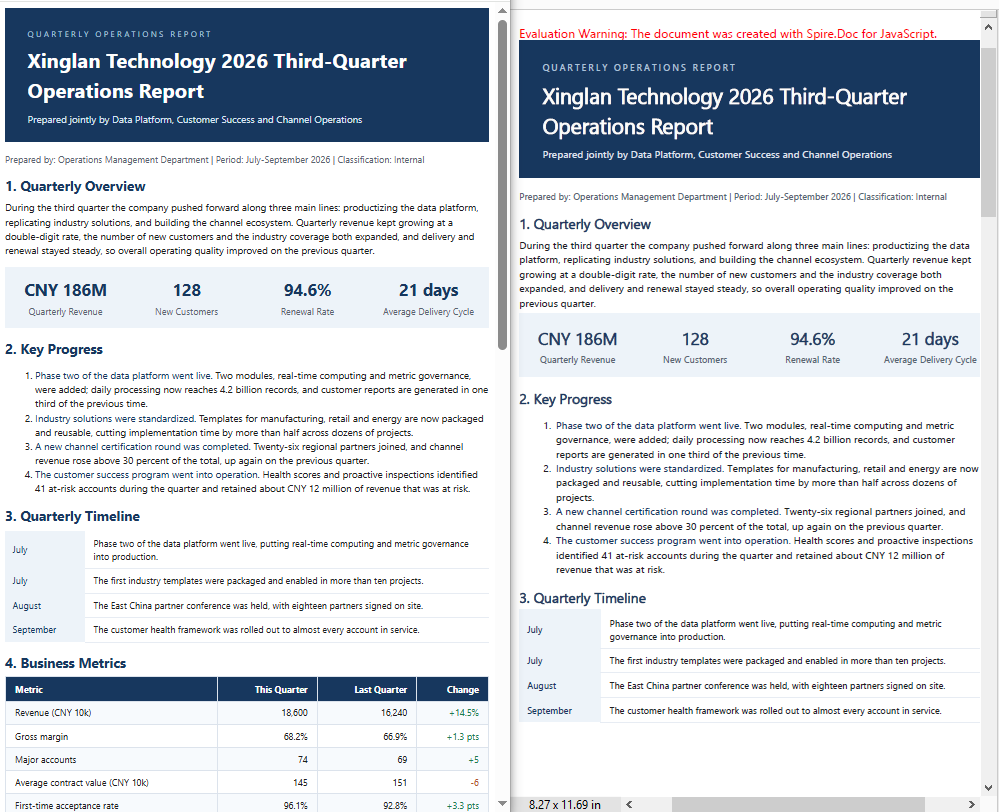
The first page holds the cover information and the quarterly overview, the second the business metrics and the revenue composition, and the third the risks and responses, the next-quarter plan and the appendix. Heading levels, paragraph spacing, the numbering of the ordered list, the dark blue table headers and the zebra striping of the tables are all kept as the CSS specifies; the embedded chart.png is placed at the width set in the HTML, and page-break-before: always takes effect as written, so the fourth and seventh sections each start at the top of pages 2 and 3.
How to Control Where the PDF Breaks Pages
By default, pages break wherever the content height runs out: the body fills one page and then continues at the next natural position. To start a new page at a section boundary, set page-break-before: always on the element in the style sheet; the property still applies after the HTML is converted:
<!-- This heading and what follows it start on a new page -->
<h2 style="page-break-before: always;">4. Business Metrics</h2>
The sample sets the property on the "4. Business Metrics" and "7. Risks and Responses" headings, and in the result both sections start at the top of a page, matching what a browser would print.
Convert HTML to Images
Converting HTML to an image uses Document.SaveImageToStreams(). Thumbnails, message cards and document previews need a single image, and this method renders the specified page into an image object, which then writes the file to the VFS through its Save() method. The arguments and related members are as follows:
| Argument or member | Value | Description |
|---|---|---|
pageIndex |
Page number starting from 0 |
0 is the first page |
type |
ImageType.Bitmap |
Bitmap; ImageType.Metafile produces a vector metafile instead |
Save(path) |
Path in the VFS | Writes the file by extension; the sample writes HtmlToImage.png |
The specific steps are as follows:
- Get the Spire.Doc WASM module and confirm that it is ready.
- Load the font and
Sample.htmlinto the VFS. - Create a
Documentinstance and load the file as HTML. - Call
SaveImageToStreams()to render the first page and write it to the VFS withSave(). - Read the PNG bytes from the VFS and trigger a download.
The code for converting HTML to an image is as follows:
function App() {
  const htmlToImage = async () => {
    // Get the Spire.Doc WASM module
    const docModule = window.wasmModule?.spiredoc;

    if (!docModule) {
      alert('Spire.Doc is not ready yet');
      return;
    }

    // Load the font and the HTML file to be converted
    await window.spire.FetchFileToVFS('segoeui.ttf', '/Library/Fonts/', `${process.env.PUBLIC_URL}/font/`);
    await window.spire.FetchFileToVFS('Sample.html', '', `${process.env.PUBLIC_URL}/data/`);

    const doc = new docModule.Document();
    doc.LoadFromFile({
      fileName: 'Sample.html',
      fileFormat: docModule.FileFormat.Html,
      validationType: docModule.XHTMLValidationType.None,
    });
    doc.HtmlBaseUrl = '/';

    const outputFileName = 'HtmlToImage.png';
    // pageIndex is zero-based; render the first page
    const image = doc.SaveImageToStreams({
      pageIndex: 0,
      type: docModule.ImageType.Bitmap,
    });
    image.Save(outputFileName);

    doc.Dispose();

    // Read the image from the VFS and trigger the download
    const fileArray = window.dotnetRuntime.Module.FS.readFile(outputFileName);
    const blob = new Blob([fileArray], { type: 'image/png' });
    const url = URL.createObjectURL(blob);
    const a = document.createElement('a');
    a.href = url;
    a.download = outputFileName;
    a.click();
    URL.revokeObjectURL(url);
  };

  return (
    <div style={{ textAlign: 'center', height: '300px' }}>
      <h1>HTML to Image</h1>
      <button onClick={htmlToImage}>Generate</button>
    </div>
  );
}

export default App;
The first page of the sample HTML renders as follows:

The PNG is 794 x 1123 pixels, the size of an A4 page at 96 dpi; the content matches the first page of the PDF, and the information band, statistic cards, lists and timeline table keep their relative positions. The aspect ratio of the image follows the page setup rather than the width of the browser window.
How to Export Every Page in One Run
A long HTML document is split across pages, and Document.PageCount gives the total, so a loop over the page indexes exports all of them:
// Same as the PDF page count: three pages in the sample
const pageCount = doc.PageCount;

for (let i = 0; i < pageCount; i++) {
  const pageImage = doc.SaveImageToStreams({
    pageIndex: i,
    type: docModule.ImageType.Bitmap,
  });
  pageImage.Save(`HtmlPage-${i + 1}.png`);
}

// Release the document once after the loop
doc.Dispose();
The sample document has three pages, so the loop produces HtmlPage-1.png to HtmlPage-3.png, and PageCount agrees with the page count of the PDF. Rendering the document once and exporting several pages in a row is faster than reloading it page by page, and the document instance only has to be released once, after the loop.
Convert HTML to Text
Converting HTML to text is a matter of saving with FileFormat.Txt. Full-text search, content review and corpus loading care about the words alone, so the export extracts characters in document order and keeps no styles, table borders, images or hyperlink addresses; the result is a suitable source of plain-text material. The export rules are as follows:
| Content | Exported result |
|---|---|
| Headings and body text | Written line by line in paragraph order, text only, without font size or styling |
| Ordered list | Each line keeps a 1. prefix plus two spaces, with the number increasing in the actual order |
| Unordered list | Each line keeps * plus one space as the bullet |
| Tables | Each cell on its own line, expanded in row-major order, with no separator between cells |
| Images | Not exported; the position is left blank |
| Pagination | No page breaks; all content goes into a single file |
| Encoding | UTF-8, with a BOM at the start of the file |
The specific steps are as follows:
- Get the Spire.Doc WASM module and confirm that it is ready.
- Load the font and
Sample.htmlinto the VFS, keeping the same pipeline as the first two samples. - Create a
Documentinstance and load the file as HTML. - Save it to the VFS with
FileFormat.Txt. - Read the text file from the VFS and trigger a download.
The code for converting HTML to text is as follows:
function App() {
  const htmlToText = async () => {
    // Get the Spire.Doc WASM module
    const docModule = window.wasmModule?.spiredoc;

    if (!docModule) {
      alert('Spire.Doc is not ready yet');
      return;
    }

    // Load the font and the HTML file to be converted
    await window.spire.FetchFileToVFS('segoeui.ttf', '/Library/Fonts/', `${process.env.PUBLIC_URL}/font/`);
    await window.spire.FetchFileToVFS('Sample.html', '', `${process.env.PUBLIC_URL}/data/`);

    const doc = new docModule.Document();
    doc.LoadFromFile({
      fileName: 'Sample.html',
      fileFormat: docModule.FileFormat.Html,
      validationType: docModule.XHTMLValidationType.None,
    });

    const outputFileName = 'HtmlToText.txt';
    doc.SaveToFile({ fileName: outputFileName, fileFormat: docModule.FileFormat.Txt });

    doc.Dispose();

    // Read the text from the VFS and trigger the download
    const fileArray = window.dotnetRuntime.Module.FS.readFile(outputFileName);
    const blob = new Blob([fileArray], { type: 'text/plain;charset=utf-8' });
    const url = URL.createObjectURL(blob);
    const a = document.createElement('a');
    a.href = url;
    a.download = outputFileName;
    a.click();
    URL.revokeObjectURL(url);
  };

  return (
    <div style={{ textAlign: 'center', height: '300px' }}>
      <h1>HTML to Text</h1>
      <button onClick={htmlToText}>Generate</button>
    </div>
  );
}

export default App;
All three pages go into the same text file, and its opening section reads as follows:

The English headline in the information band, the company name and the subtitle each take one line; headings such as "1. Quarterly Overview" keep only their text, with no markers; every ordered-list line starts with a number such as 1. or 2. plus two spaces; the statistic card becomes the two lines CNY 186M and Quarterly Revenue; and each cell of the timeline table gets its own line. The chart.png image has no counterpart in the text, while the caption "Figure 1: Revenue by business line, Q3 2026 (CNY 10k)" is kept as body text.
Which Output to Choose
| Output | Typical use | Main cost |
|---|---|---|
| Archiving, outbound delivery, printing | Fonts have to be embedded, so files are larger | |
| Image | Thumbnails, previews, message cards | Not searchable; sharpness is limited by the render resolution |
| Text | Full-text search, corpora, content review | All layout information is lost |
All three conversions happen inside the browser, and the file does not leave the user's device. For batch processing, put the functions above into a single loop that loads, exports and releases each document in turn.
FAQ
Do the files have to be uploaded to a server during the conversion
No. Spire.Doc for JavaScript runs in the browser on WebAssembly, and the HTML file is read and written locally through the virtual file system (VFS): loading, converting and saving all happen on the device, and the library itself does not send files to a server. Whether a file eventually leaves the device depends on the other code you add to the page.
Why do some characters appear as boxes
Cause: PDF and image rendering read fonts from the VFS. When the VFS holds no font at all, saving throws Cannot find any fonts in specified font sources.; when only a Latin font is loaded, the conversion still completes, but characters that font does not cover (Chinese, for example) appear as boxes because their glyphs are missing, while Latin text and digits render normally.
Fix: load a font file that covers those characters together with the HTML, and place it in the /Library/Fonts/ directory:
// Write the font into the VFS font directory
await window.spire.FetchFileToVFS('segoeui.ttf', '/Library/Fonts/', `${process.env.PUBLIC_URL}/font/`);
FetchFileToVFS does not stop when the request fails (a 404, for instance); the error page is written into the VFS just the same, and the problem only surfaces later as a font error. Check that the file really exists under public/font before loading it.
Why do the images referenced by the HTML not appear in the result
Cause: LoadFromFile parses only the HTML file itself; referenced images and style sheets have to be loaded into the VFS separately. A missing image does not raise an error: the position renders as a placeholder icon and the content after it shifts. In the sample, dropping chart.png turns the three-page document into four pages.
Fix: load the resources referenced by the HTML into the VFS as well. Relative paths resolve against the VFS directory of the loaded file, so placing Sample.html and chart.png in the same directory is enough; when the resources live elsewhere, set the base directory with HtmlBaseUrl:
// Load the image and the HTML from the same folder into the VFS
await window.spire.FetchFileToVFS('Sample.html', '', `${process.env.PUBLIC_URL}/data/`);
await window.spire.FetchFileToVFS('chart.png', '', `${process.env.PUBLIC_URL}/data/`);
In the exported text, why does each table row come out as one line per cell
Cause: the text export writes characters in order and keeps no row or column structure. In the sample, the "4. Business Metrics" table comes out as four lines — Metric, This Quarter, Last Quarter, Change — followed by four lines for the first row — Revenue (CNY 10k), 18,600, 16,240, +14.5% — with neither tabs nor pipes between the cells, so it is not obvious which values belong to the same row.
Fix: when the row and column relationships have to be kept, group the cells by the table's fixed column count, or use PDF or images to keep the layout:
// The table has four fixed columns: slice out its line range, then regroup every four lines
const cells = text.split('\n').slice(tableStart, tableEnd);
const rows = [];
for (let i = 0; i + 4 <= cells.length; i += 4) {
  rows.push(cells.slice(i, i + 4));
}
When the column count changes from table to table, keep the PDF as the layout reference and use the text for search only.
Get a Free License
Spire.Doc for JavaScript offers a 30-day full-featured free trial license with no functional limitations. Apply here to evaluate before purchasing.
HTML is the universal way to describe a web page, but its downstream consumers are often not browsers: when content is delivered to traditional office systems, RTF offers the best compatibility; when content enters a documentation site or a code repository, Markdown is the maintainable form. The two put different demands on the source file—RTF has to keep fonts, colors and table layout, while Markdown keeps only structural information such as heading levels, lists, tables, links and images.
This article uses Spire.Doc for JavaScript to cover two features:
For installation and project setup, refer to Integrating Spire.Doc for JavaScript in a React Project. The examples below assume that Spire.Doc is installed and the WebAssembly module is initialized.
Convert HTML to RTF
RTF describes fonts, paragraphs and tables with plain-text markup, and almost every word processor can open it. Once HTML has been converted to RTF, the content can still be edited on systems without Office components installed, and it can serve as a rich-text source for an email body.
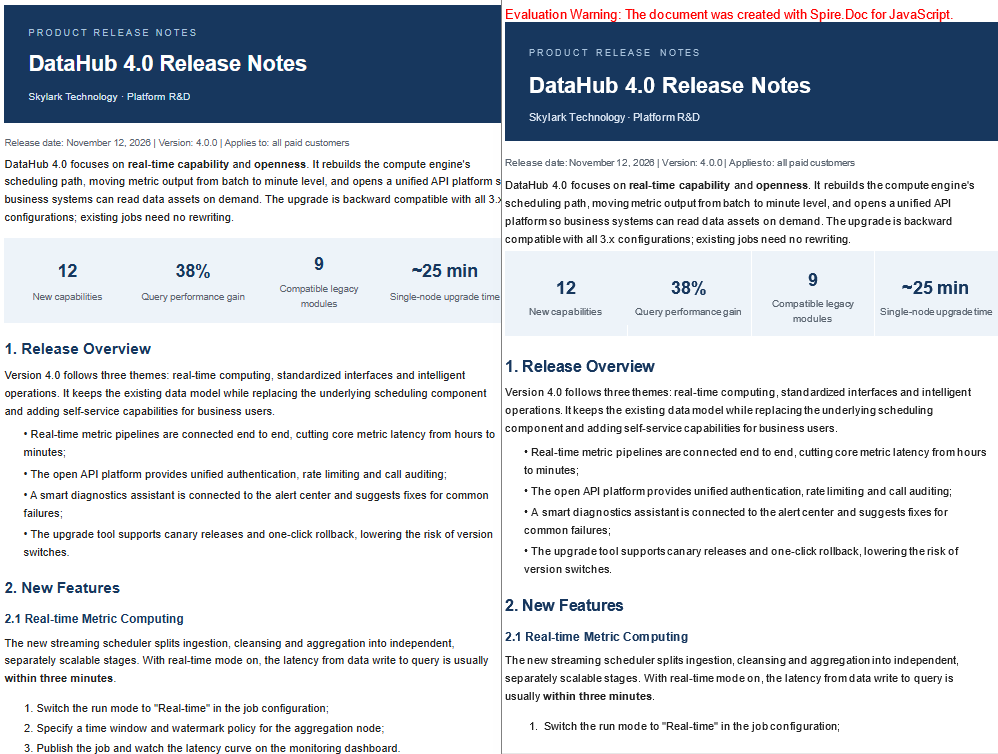
The source file in this section is a release notes page, Report.html, which contains a dark title bar, KPI cards, a version comparison table, a callout box and a chart, covering the common web layouts. After conversion, the title bar background, card shading, table borders and text colors are all written into the RTF.
The specific steps are as follows:
- Get the Spire.Doc WASM module and confirm that it is ready.
- Load the font files,
Report.htmland the chart file into the virtual file system (VFS). - Load the document as HTML with lenient validation.
- Save the document to the VFS with
FileFormat.Rtf. - Read the RTF bytes from the VFS and trigger a browser download.
The code for converting HTML to RTF is as follows:
import React from 'react';

function App() {
  const htmlToRtf = async () => {
    // Get the Spire.Doc WASM module
    const docModule = window.wasmModule?.spiredoc;

    // Check if the module is ready
    if (!docModule) {
      alert('Spire.Doc is not ready yet');
      return;
    }

    // Load the fonts and the source files
    await window.spire.FetchFileToVFS('arial.ttf', '/Library/Fonts/', `${process.env.PUBLIC_URL}/font/`);
    await window.spire.FetchFileToVFS('arialbd.ttf', '/Library/Fonts/', `${process.env.PUBLIC_URL}/font/`);
    await window.spire.FetchFileToVFS('Report.html', '', `${process.env.PUBLIC_URL}/data/`);
    await window.spire.FetchFileToVFS('report-chart.png', '', `${process.env.PUBLIC_URL}/data/`);

    // Load the document as HTML
    const doc = new docModule.Document();
    doc.LoadFromFile({
      fileName: 'Report.html',
      fileFormat: docModule.FileFormat.Html,
      validationType: docModule.XHTMLValidationType.None,
    });
    doc.HtmlBaseUrl = '/';

    // Save in RTF format
    const outputFileName = 'Report.rtf';
    doc.SaveToFile({ fileName: outputFileName, fileFormat: docModule.FileFormat.Rtf });

    // Read the generated file from the VFS and trigger the download
    const fileArray = window.dotnetRuntime.Module.FS.readFile(outputFileName);
    const blob = new Blob([fileArray], { type: 'application/rtf' });
    const url = URL.createObjectURL(blob);
    const a = document.createElement('a');
    a.href = url;
    a.download = outputFileName;
    a.click();
    URL.revokeObjectURL(url);

    doc.Dispose();
  };

  return (
    <div style={{ textAlign: 'center', height: '300px' }}>
      <h1>HTML to RTF</h1>
      <button onClick={htmlToRtf}>Generate</button>
    </div>
  );
}

export default App;
Opened in Word, the generated RTF keeps the title bar, the cards and the table backgrounds:
Which Styles Survive and Which Are Lost
Inline styles and stylesheets in the HTML map to character and paragraph attributes in RTF, but not every CSS rule has an equivalent:
| Style category | Conversion result |
|---|---|
| Font, font size, text color | Kept |
| Bold, italic, underline, strikethrough | Kept |
| Paragraph alignment, indentation, line spacing | Kept |
| Table borders, cell shading, column widths | Kept |
| Images and hyperlinks | Kept; images are embedded as data |
flex, grid, absolute positioning, floats |
Not kept; content is reflowed in document order |
Multi-column pages that depend on layout usually become a single column in RTF; decorative elements on the page (shadows, rounded corners, gradients) degrade to solid colors or are dropped.
Images and File Size
Images are written into the RTF as hexadecimal data, which increases the file size; the same image is also attached as a metafile copy for compatibility with older readers. In the sample, a PNG chart of about 48 KB pushes the RTF to about 2 MB. Relative paths in the source are resolved against the directory given by HtmlBaseUrl; images that are cross-origin and unreachable are skipped, leaving a gap in the output. When there are many images, compress or crop them in the HTML before converting.
Convert HTML to Markdown
Markdown suits long-term maintenance: plain text can be diffed, reviewed and hosted in a version repository. Converting HTML to Markdown restores the content from its rendered result to a structural description, and heading levels, lists, tables, links and images are the main things kept.
The source file in this section is an upgrade guide page, Guide.html, made up of headings, paragraphs, ordered and unordered lists, a validation table, a flow image and document links. Unlike the RTF sample, this source does not use layout tables, so the exported Markdown has a more regular structure.
The specific steps are as follows:
- Get the WASM module, then load the fonts,
Guide.htmland the image into the VFS. - Load the document as HTML.
- Set
MarkdownExportOptions.ImagesFolderto choose the directory the images are written to. - Save the document with
FileFormat.Markdown. - Read the Markdown text from the VFS and trigger a browser download.
The code for converting HTML to Markdown is as follows:
import React from 'react';

function App() {
  const htmlToMarkdown = async () => {
    // Get the Spire.Doc WASM module
    const docModule = window.wasmModule?.spiredoc;

    // Check if the module is ready
    if (!docModule) {
      alert('Spire.Doc is not ready yet');
      return;
    }

    // Load the fonts and the source files
    await window.spire.FetchFileToVFS('arial.ttf', '/Library/Fonts/', `${process.env.PUBLIC_URL}/font/`);
    await window.spire.FetchFileToVFS('arialbd.ttf', '/Library/Fonts/', `${process.env.PUBLIC_URL}/font/`);
    await window.spire.FetchFileToVFS('Guide.html', '', `${process.env.PUBLIC_URL}/data/`);
    await window.spire.FetchFileToVFS('guide-flow.png', '', `${process.env.PUBLIC_URL}/data/`);

    // Load the document as HTML
    const doc = new docModule.Document();
    doc.LoadFromFile({
      fileName: 'Guide.html',
      fileFormat: docModule.FileFormat.Html,
      validationType: docModule.XHTMLValidationType.None,
    });
    doc.HtmlBaseUrl = '/';

    // Write images into the images directory in the VFS; the Markdown references them by relative path
    doc.MarkdownExportOptions.ImagesFolder = 'images';

    // Save in Markdown format
    const outputFileName = 'Guide.md';
    doc.SaveToFile({ fileName: outputFileName, fileFormat: docModule.FileFormat.Markdown });

    // Read the generated file from the VFS and trigger the download
    const fileArray = window.dotnetRuntime.Module.FS.readFile(outputFileName);
    const blob = new Blob([fileArray], { type: 'text/markdown' });
    const url = URL.createObjectURL(blob);
    const a = document.createElement('a');
    a.href = url;
    a.download = outputFileName;
    a.click();
    URL.revokeObjectURL(url);

    doc.Dispose();
  };

  return (
    <div style={{ textAlign: 'center', height: '300px' }}>
      <h1>HTML to Markdown</h1>
      <button onClick={htmlToMarkdown}>Generate</button>
    </div>
  );
}

export default App;
The generated Markdown is shown below in a reader that supports tables:
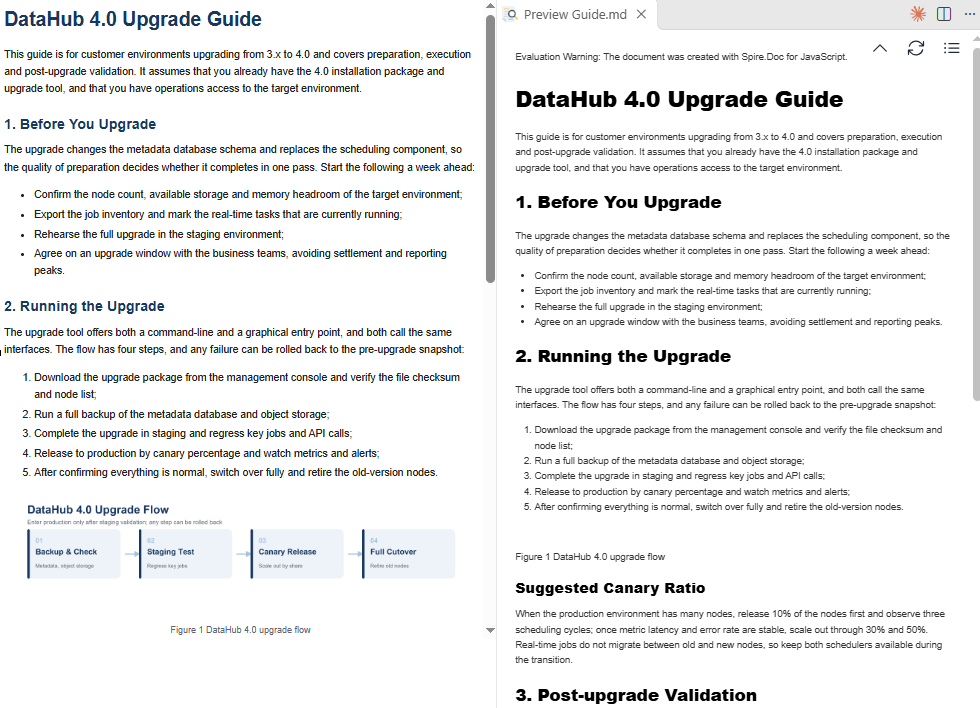
Image Paths and Encoding
MarkdownExportOptions offers two ways to handle images: write them as separate files, or encode them into the Markdown itself. The differences are as follows:
| Setting | Reference in the Markdown | When to use |
|---|---|---|
| Not set | , with the image written to the VFS root |
Package the result right after export |
ImagesFolder = 'images' |
, with the image written to the VFS images directory |
Commit to a code repository or a documentation site |
ImagesAsBase64 = true |
, with no separate image file |
Single-file distribution, copy and paste |
In directory mode, images are named after the output file plus a sequence number (outputname_001.png) and stay in the VFS alongside the Markdown; when downloading, take the Markdown and the images directory together:
// Read the image from the export directory and package it with the Markdown for download
const imageArray = window.dotnetRuntime.Module.FS.readFile('images/Guide_001.png');
ImagesAsBase64 costs about a third more file size, so it is best avoided when there are many images. If directory mode is used but only the Markdown file is downloaded, the reader shows a missing-image placeholder.
What Cannot Be Expressed in Markdown
Markdown's syntax coverage is limited, so some HTML semantics keep only the text after conversion, not the form:
| HTML element | Markdown output |
|---|---|
Headings h1–h6 |
#–######; bold on the original heading is kept as **text** |
| Ordered and unordered lists | List items starting with 1. and - |
| Tables | Pipe tables, with header cells bold |
blockquote |
A plain paragraph, without the > marker |
| Code blocks and inline code | Plain text, without fences or backticks |
| Colors, background colors, alignment | Not emitted |
iframe, scripts, complex merged cells |
Ignored or simplified during conversion |
Body-style content (articles, manuals, help pages) converts best; interactive pages (dashboards, forms) are poor candidates.
Choosing Between the Two Directions
| Goal | Format | Reason |
|---|---|---|
| Deliver to office software for further editing | RTF | Keeps character and paragraph styles and works with legacy systems |
| Publish to a documentation site or code repository | Markdown | Plain text, diffable, hostable |
Both conversions use the same Document as the intermediate model and share identical loading logic; only the save format and the export options differ. For batch processing, load once, export RTF first, then Markdown, and dispose of the instance at the end.
FAQ
The font files cannot be found when converting HTML
Cause: Font information in the HTML is parsed at load time; when the VFS holds no font file at all, LoadFromFile throws Cannot find any fonts in specified font sources.
Solution: Before loading, copy the project's font file into the VFS /Library/Fonts/ directory:
await window.spire.FetchFileToVFS('arial.ttf', '/Library/Fonts/', `${process.env.PUBLIC_URL}/font/`);
The font file has to be supplied by you and placed in the project's public/font/ directory; the page does not necessarily ship a file with that name.
Why do exported Markdown headings contain **
Cause: h1–h6 in HTML display in bold by default, so the converted heading paragraph carries bold character formatting, and Markdown export writes it as **text**, producing ## **Heading**.
Solution: This is normal format preservation. If headings should not be bold, strip ** from the heading lines after export, or set font-weight: normal on the headings in the source HTML before converting.
Where are the image files referenced by the Markdown
Images are written to the VFS root by default, named after the output file name and a sequence number, for example Guide_001.png. With ImagesFolder set, images go into the specified subdirectory and the references in the Markdown become relative paths. Either way, the images have to be read from the VFS and delivered together with the Markdown.
Why is the exported RTF much larger than the original HTML
RTF stores images as hexadecimal text, so the same image takes about twice the bytes of the original file; in addition, a metafile copy is attached for compatibility with older readers. In the sample, a chart of about 48 KB pushes the RTF to about 2 MB. The more images there are and the higher their resolution, the larger the growth.
Why are colors and backgrounds lost in the Markdown
Markdown is structural plain text and has no syntax for colors or shading. Conversion does not emit font colors, cell shading or alignment; it keeps only structure such as headings, lists, tables, links and images. When that layout has to be preserved, use RTF or PDF as the output format instead.
Get a Free License
Spire.Doc for JavaScript offers a 30-day full-featured free trial license with no functional limitations. Apply here to evaluate before purchasing.
Word documents have long carried manuals, reports and contracts, while Markdown serves documentation sites, knowledge bases and code repositories as plain text. Moving existing Word content into Markdown is a routine step in documentation migration and content publishing.
If the conversion runs on a server, the file has to be uploaded first, and the original content leaves the user's device. This article performs the conversion in the browser with Spire.Doc for JavaScript: the Word document is read through a virtual file system (VFS), the export result is written back to the VFS, and the page then reads it and triggers the download. Everything runs in the browser as a WebAssembly module, so no Office installation and no backend service are required.
This article covers three features:
For installation and project setup, refer to Integrating Spire.Doc for JavaScript in a React Project. The examples below assume that Spire.Doc is installed and the WebAssembly module is initialized.
Convert a Word Document to Markdown
The conversion takes two steps: Document.LoadFromFile() reads the .docx into a document object, and Document.SaveToFile() writes a .md file with FileFormat.Markdown as the target format. The saved result first lands in the VFS and is then read and downloaded by the page.
The document structure is written out with the corresponding syntax; the main mappings are as follows:
| Word content | Markdown output |
|---|---|
| Paragraphs with the built-in Heading 1, Heading 2 and other heading styles applied | # and ## headings of the matching level |
| Bold, italic | **text**, *text* |
| Bulleted list | - item |
| Numbered list | 1. item |
| Table | Pipe table with a bold header |
| Image | , with the image written out separately |
| Hyperlink | [text](url) |
The specific steps are as follows:
- Get the Spire.Doc WASM module and confirm that it is ready.
- Load the sample document
Product Release Notes.docxinto the virtual file system (VFS). - Create a
Documentobject and load the document. - Set
MarkdownExportOptions.ImagesFoldertoimagesso that the images are written into that folder. - Save the document with
SaveToFile()asFileFormat.Markdown, producingProduct Release Notes.md. - Read the Markdown text and the image files from the VFS and trigger their browser downloads.
The code for converting a Word document to Markdown is as follows:
// Read the file from VFS and trigger the download
function downloadBlob(blob, fileName) {
  const url = URL.createObjectURL(blob);
  const a = document.createElement('a');
  a.href = url;
  a.download = fileName;
  a.click();
  URL.revokeObjectURL(url);
}

function App() {
  const convertToMarkdown = async () => {
    // Get the Spire.Doc WASM module
    const docModule = window.wasmModule?.spiredoc;

    // Make sure the WASM module has fully loaded
    if (!docModule) {
      alert('Spire.Doc is not ready yet');
      return;
    }

    // Load the sample document into VFS
    await window.spire.FetchFileToVFS('Product Release Notes.docx', '', `${process.env.PUBLIC_URL}/data/`);

    // Create a Document instance and load the Word document
    const doc = new docModule.Document();
    doc.LoadFromFile('Product Release Notes.docx', docModule.FileFormat.Docx2016);

    // Write the images into the images folder in VFS and reference them by relative path
    doc.MarkdownExportOptions.ImagesFolder = 'images';

    // Save as Markdown; the result is written into VFS
    const outputFileName = 'Product Release Notes.md';
    doc.SaveToFile({ fileName: outputFileName, fileFormat: docModule.FileFormat.Markdown });
    doc.Dispose();

    const FS = window.dotnetRuntime.Module.FS;

    // Read the Markdown text and download it (UTF-8 encoding)
    const text = new TextDecoder('utf-8').decode(FS.readFile(outputFileName));
    downloadBlob(new Blob([text], { type: 'text/markdown;charset=utf-8' }), outputFileName);

    // The images are stored separately, so download them as well
    FS.readdir('images')
      .filter((name) => name !== '.' && name !== '..')
      .forEach((name) => {
        const data = FS.readFile(`images/${name}`);
        downloadBlob(new Blob([data], { type: 'image/png' }), name);
      });
  };

  return (
    <div style={{ textAlign: 'center', height: '300px' }}>
      <h1>Convert Word to Markdown</h1>
      <button onClick={convertToMarkdown}>
        Convert and Download
      </button>
    </div>
  );
}

export default App;
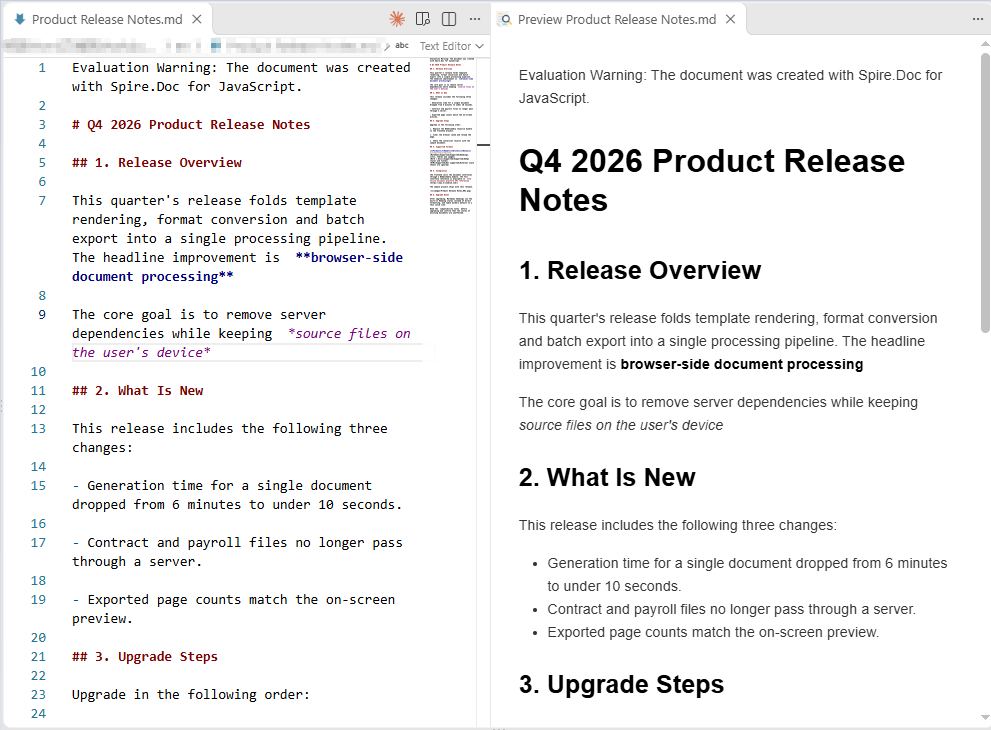
Once the converted Markdown is rendered in a browser, the headings, lists, table, hyperlink and image all appear in their corresponding syntax:
Markdown generated from the Word document, rendered in a browser
Save Images to a Specified Folder
When ImagesFolder is not set, images are written into the root of the VFS under a name prefixed with the output file name, for example Product Release Notes_001.png, and the Markdown references them as /Product Release Notes_001.png. That form makes the files easy to locate directly, but the reference carries a root prefix. Once ImagesFolder is set to a relative folder, the images are written into that folder in the VFS and the references become relative paths:
doc.MarkdownExportOptions.ImagesFolder = 'images';
The conversion result then contains references such as images/Product Release Notes_001.png. The images have to be downloaded together with the .md file; the page can list the folder content with FS.readdir() and read and download each file, as shown in the example above. If the result should be a single file, use the Base64 approach described in the next section instead.
Embed Images as Base64
With MarkdownExportOptions.ImagesAsBase64 = true, the images in the document are no longer written out separately; they are encoded as data URIs and placed directly inside the brackets of ![](). The result is a single .md file, so image paths never break when the file is copied, uploaded or committed to a repository.
The trade-off is file size: Base64-encoded data is about 4/3 the size of the original image. With many images or high-resolution images, the size of a single Markdown file grows noticeably.
The specific steps are as follows:
- Get the Spire.Doc WASM module and confirm that it is ready.
- Load the sample document
Product Release Notes.docxinto the virtual file system (VFS). - Create a
Documentobject and load the document. - Set
MarkdownExportOptions.ImagesAsBase64totrue. - Save the document with
SaveToFile()asFileFormat.Markdown, read the text from the VFS and trigger the download.
The code for embedding images as Base64 is as follows:
function downloadBlob(blob, fileName) {
  const url = URL.createObjectURL(blob);
  const a = document.createElement('a');
  a.href = url;
  a.download = fileName;
  a.click();
  URL.revokeObjectURL(url);
}

function App() {
  const convertWithBase64 = async () => {
    // Get the Spire.Doc WASM module
    const docModule = window.wasmModule?.spiredoc;

    // Make sure the WASM module has fully loaded
    if (!docModule) {
      alert('Spire.Doc is not ready yet');
      return;
    }

    // Load the sample document into VFS
    await window.spire.FetchFileToVFS('Product Release Notes.docx', '', `${process.env.PUBLIC_URL}/data/`);

    // Create a Document instance and load the Word document
    const doc = new docModule.Document();
    doc.LoadFromFile('Product Release Notes.docx', docModule.FileFormat.Docx2016);

    // Write the images into the Markdown as inline Base64
    doc.MarkdownExportOptions.ImagesAsBase64 = true;

    // Save the result file
    const outputFileName = 'Product Release Notes - Inline Images.md';
    doc.SaveToFile({ fileName: outputFileName, fileFormat: docModule.FileFormat.Markdown });
    doc.Dispose();

    // Read the Markdown text and download it; no separate image download is needed
    const text = new TextDecoder('utf-8').decode(window.dotnetRuntime.Module.FS.readFile(outputFileName));
    downloadBlob(new Blob([text], { type: 'text/markdown;charset=utf-8' }), outputFileName);
  };

  return (
    <div style={{ textAlign: 'center', height: '300px' }}>
      <h1>Embed Images as Base64</h1>
      <button onClick={convertWithBase64}>
        Convert and Download
      </button>
    </div>
  );
}

export default App;
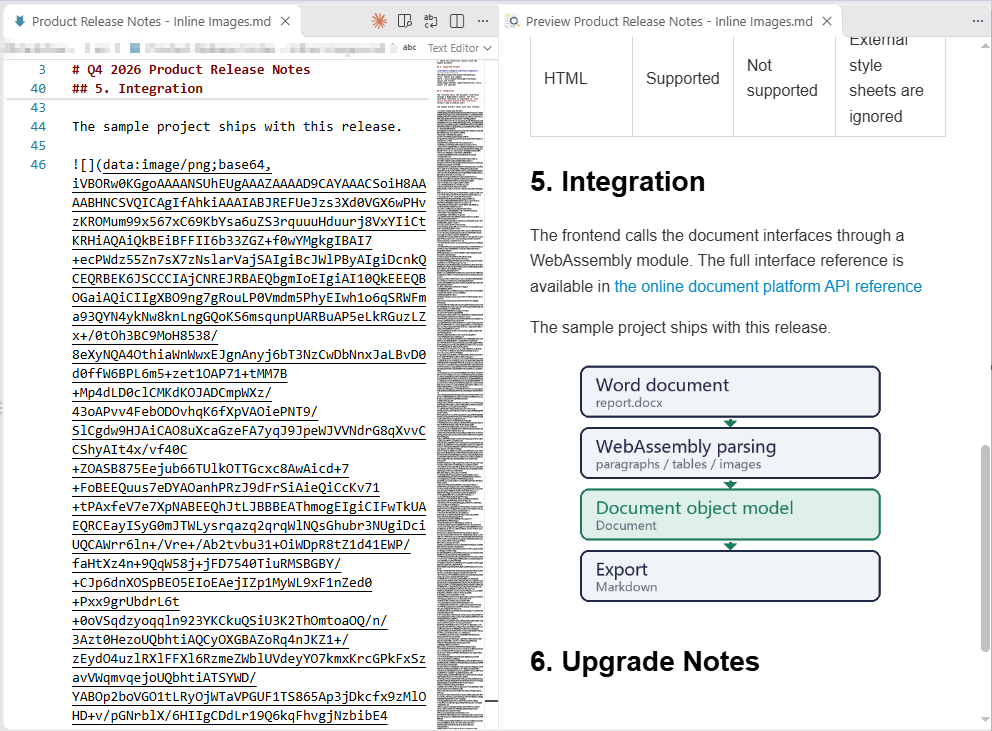
After embedding, the image appears in the Markdown as a long string starting with data:image/png;base64,, and no separate image file accompanies the document:
Image line in the Markdown after the image is embedded as Base64
Customize the Markdown Export Options
Document.MarkdownExportOptions controls how the Markdown is written. Beyond image handling, lists, links, tables, underlines and equations can each be adjusted separately:
| Option | Common values | Effect |
|---|---|---|
ImagesFolder |
A folder name | Images are written into the specified folder in the VFS and referenced from it |
ImagesAsBase64 |
true / false |
Images are embedded as data URIs |
ListOutputMode |
MarkdownSyntax / PlainText |
Emit list syntax, or escape the list markers as plain text |
LinkOutputMode |
Auto / Inline / Reference |
Inline links, or reference-style links |
SaveAsHtml |
None / Tables |
Keep tables in pipe syntax, or output them as HTML tables |
SaveUnderlineFormatting |
true / false |
Whether underlines are kept as ++text++ |
OfficeMathOutputMode |
Text / Image / MathML |
The output form of equations |
When SaveAsHtml is set to Tables, the export needs fonts to lay out the tables; if no fonts are loaded, saving throws Cannot find any fonts in specified font sources. The sample therefore loads the fonts into the VFS before converting. This step is not needed when only text, lists and images are exported.
The specific steps are as follows:
- Get the Spire.Doc WASM module and confirm that it is ready.
- Load the fonts
msyh.ttcandmsyhbd.ttcand the sample document into the virtual file system (VFS). - Create a
Documentobject and load the Word document. - Get
MarkdownExportOptionsand set the image folder, list, link, table and underline options in turn. - Save the result file with
SaveToFile()asFileFormat.Markdown. - Read the Markdown text and the image files from the VFS and trigger their browser downloads.
The code for customizing the Markdown export options is as follows:
function downloadBlob(blob, fileName) {
  const url = URL.createObjectURL(blob);
  const a = document.createElement('a');
  a.href = url;
  a.download = fileName;
  a.click();
  URL.revokeObjectURL(url);
}

function App() {
  const convertWithOptions = async () => {
    // Get the Spire.Doc WASM module
    const docModule = window.wasmModule?.spiredoc;

    // Make sure the WASM module has fully loaded
    if (!docModule) {
      alert('Spire.Doc is not ready yet');
      return;
    }

    // Exporting HTML tables needs fonts for layout, so load the fonts into VFS first
    await window.spire.FetchFileToVFS('msyh.ttc', '/Library/Fonts/', `${process.env.PUBLIC_URL}/font/`);
    await window.spire.FetchFileToVFS('msyhbd.ttc', '/Library/Fonts/', `${process.env.PUBLIC_URL}/font/`);

    // Load the sample document into VFS
    await window.spire.FetchFileToVFS('Product Release Notes.docx', '', `${process.env.PUBLIC_URL}/data/`);

    // Create a Document instance and load the Word document
    const doc = new docModule.Document();
    doc.LoadFromFile('Product Release Notes.docx', docModule.FileFormat.Docx2016);

    // Customize the Markdown export options
    const options = doc.MarkdownExportOptions;
    options.ImagesFolder = 'images';
    options.ListOutputMode = docModule.MarkdownListOutputMode.PlainText;
    options.LinkOutputMode = docModule.MarkdownLinkOutputMode.Reference;
    options.SaveAsHtml = docModule.MarkdownSaveAsHtml.Tables;
    options.SaveUnderlineFormatting = true;

    // Save the result file
    const outputFileName = 'Product Release Notes - Export Options.md';
    doc.SaveToFile({ fileName: outputFileName, fileFormat: docModule.FileFormat.Markdown });
    doc.Dispose();

    const FS = window.dotnetRuntime.Module.FS;

    // Download the Markdown text
    const text = new TextDecoder('utf-8').decode(FS.readFile(outputFileName));
    downloadBlob(new Blob([text], { type: 'text/markdown;charset=utf-8' }), outputFileName);

    // Download the written images
    FS.readdir('images')
      .filter((name) => name !== '.' && name !== '..')
      .forEach((name) => downloadBlob(new Blob([FS.readFile(`images/${name}`)], { type: 'image/png' }), name));
  };

  return (
    <div style={{ textAlign: 'center', height: '300px' }}>
      <h1>Customize the Markdown Export Options</h1>
      <button onClick={convertWithOptions}>
        Convert and Download
      </button>
    </div>
  );
}

export default App;
With these options in effect, lists, links, tables and underlines are each written in a different form. Part of the output is as follows:
\- Generation time for a single document dropped from 6 minutes to under 10 seconds.
\- Contract and payroll files no longer pass through a server.
\- Exported page counts match the on-screen preview.
\1. Replace the WebAssembly resource bundle in the frontend project.
\2. Clear the browser cache and reload the page.
\3. Check the conversion results with the sample document.

The frontend calls the document interfaces through a WebAssembly module. The full interface reference is available in [the online document platform API reference] , and the sample project ships with this release.

Read the ++compatibility notes++ before upgrading and confirm that the styles of existing documents are unaffected.

[the online document platform API reference]: https://www.e-iceblue.com/
[ref1]: images/Product Release Notes - Export Options_001.png
Set the Output Style of Lists and Links
ListOutputMode defaults to MarkdownSyntax, in which bullets and numbers are written as - and 1.; with PlainText, a backslash is placed before the marker, as in \- and \1., so the text renders as plain content and no longer forms a list.
LinkOutputMode defaults to Auto, in which hyperlinks are written in the inline form [text](url); with Reference, only [text] remains in the body text, and the actual addresses are collected in the link definitions at the end of the file — images likewise switch to ![ref1] plus a definition line. When a document has many links whose addresses need to be maintained in one place, the reference style is easier to read.
const options = doc.MarkdownExportOptions;
options.ListOutputMode = docModule.MarkdownListOutputMode.PlainText;
options.LinkOutputMode = docModule.MarkdownLinkOutputMode.Reference;
Save Tables as HTML
SaveAsHtml defaults to None, in which tables are written in pipe syntax with the header text in bold; with Tables, tables are output with <table> tags, the cell styles are written inline, and column widths, borders and text formatting are preserved. The output is a single line of HTML and is no longer bound by the limits of pipe syntax.
Two points are worth noting: first, the option requires fonts to be loaded into the VFS, otherwise saving reports an error; second, if a heading follows a table directly, some Markdown parsers merge the heading line into the table — leaving one empty paragraph after the table in Word avoids this.
options.SaveAsHtml = docModule.MarkdownSaveAsHtml.Tables;
Keep Underline Formatting
Markdown has no standard syntax for underlines, so the default export drops the underlines of the Word document. With SaveUnderlineFormatting = true, underlined text is written as ++text++. That notation is an extension syntax; whether the target platform renders it as an underline depends on the parser in use.
options.SaveUnderlineFormatting = true;
FAQ
Why are the image files missing from the converted Markdown
Cause: By default, images are written out separately from the .md file, in the root of the VFS under a name prefixed with the output file name. If the page only reads and downloads the .md file, the images naturally do not appear in the download.
Solution: Set ImagesFolder to name an image folder and download the files in that folder together with the .md file; alternatively set ImagesAsBase64 = true, so that the images are written into the Markdown itself and the result is a single file.
Why has the underline in Word disappeared from the Markdown
Cause: Markdown has no standard syntax for underlines, and SaveUnderlineFormatting defaults to false, so the underline formatting is dropped during export.
Solution: Set SaveUnderlineFormatting = true and underlined text is written as ++text++. Not every Markdown parser supports that syntax, so it is worth checking how the target platform renders it before relying on it.
Why were the headings not converted to # headings
Cause: Headings are recognized by style during export; only paragraphs with a built-in heading style such as Heading 1 or Heading 2 applied become # headings of the matching level. Paragraphs that are merely bold or set to a larger font size, or that use the Title style, are still output as ordinary paragraphs.
Solution: Apply a built-in heading style to the paragraphs that should become headings; a document title that uses the Title style can be changed to Heading 1, or the # can be added manually in the Markdown after conversion.
What should I do when a heading after a table is merged into the table
Cause: When there is no blank line between a table and the heading that follows it, some Markdown parsers treat the adjacent heading line as one more row of the table.
Solution: Leave one empty paragraph after the table in Word before writing the heading, so that the exported Markdown contains a blank line; alternatively add a blank line between the table and the heading after conversion.
Does the conversion upload the file to a server
Not in the usage described in this article. Spire.Doc for JavaScript runs in the browser on WebAssembly, the Word document and the conversion result are both read and written locally through the virtual file system (VFS), and the library itself does not send files to a server. Whether a file ultimately leaves the device depends on other code added to the page.
Get a Free License
Spire.Doc for JavaScript offers a 30-day full-featured free trial license with no functional limitations. Apply here to evaluate before purchasing.
Converting between Word documents and OpenXML is one of the most frequent needs in document processing: exporting a Word document to XML lifts the body content out of the binary package structure, which makes cross-system exchange, bulk extraction and archiving much easier, while turning XML back into a Word document lets you generate a standard document directly from structured data you already have. Spire.Doc for JavaScript performs the conversion in both directions in the browser via WebAssembly, using a virtual file system (VFS) to manage fonts and files — no backend server required. OpenXML flat files come in two formats: WordML for Word 2003 and WordXml (Flat OPC) for Word 2007 and later, so the one you save as depends on the target Word version.
This article covers three core features:
For installation and project setup, refer to Integrating Spire.Doc for JavaScript in a React Project. The examples below assume Spire.Doc is installed and the WebAssembly module is initialized.
Word to OpenXML (WordML)
Converting a Word document to OpenXML involves three steps: first, load the font files and the target Word document into the WASM virtual file system via FetchFileToVFS; then instantiate a Document, load the file and call SaveToFile with FileFormat.WordML to save the document as a Word 2003 XML flat file; finally, read the generated XML file from VFS, wrap it as a Blob and trigger a browser download.
function App() {
  const WordToWordML = async () => {
    const docModule = window.wasmModule?.spiredoc;
    if (!docModule) {
      alert('Spire.Doc is not ready yet');
      return;
    }

    // Load the sample file into VFS
    let inputFileName = 'WordToWordXML.docx';
    await window.spire.FetchFileToVFS(inputFileName, '', `${process.env.PUBLIC_URL}/static/data/`);

    // Create a document instance
    const doc = new docModule.Document();

    // Load the document from the virtual file system
    doc.LoadFromFile(inputFileName);

    // Define the output file name and save it as a Word 2003 OpenXML file
    const outputFileName = 'WordToWordXML-result.xml';
    doc.SaveToFile({ fileName: outputFileName, fileFormat: docModule.FileFormat.WordML });

    // Release resources
    doc.Dispose();

    const modifiedFileArray = window.dotnetRuntime.Module.FS.readFile(outputFileName);
    const blob = new Blob([modifiedFileArray], { type: 'application/vnd.openxmlformats-officedocument.wordprocessingml.document' });
    const url = URL.createObjectURL(blob);
    const a = document.createElement('a');
    a.href = url;
    a.download = outputFileName;
    a.click();
    URL.revokeObjectURL(url);
  };

 return (
    <div style={{ textAlign: 'center', height: '300px' }}>
      <h1>Convert Word To WordML</h1>
      <button onClick={WordToWordML}>Generate</button>
    </div>
  );
}
export default App;
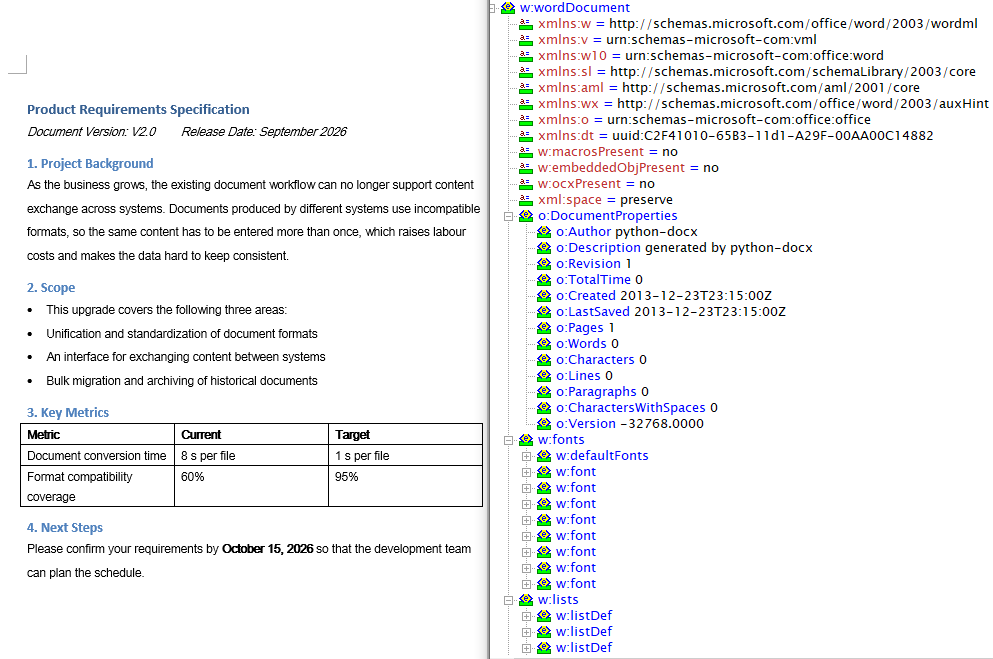
With FileFormat.WordML passed to SaveToFile, the Word document is converted into a Word 2003 XML flat file
Word to OpenXML (WordXml)
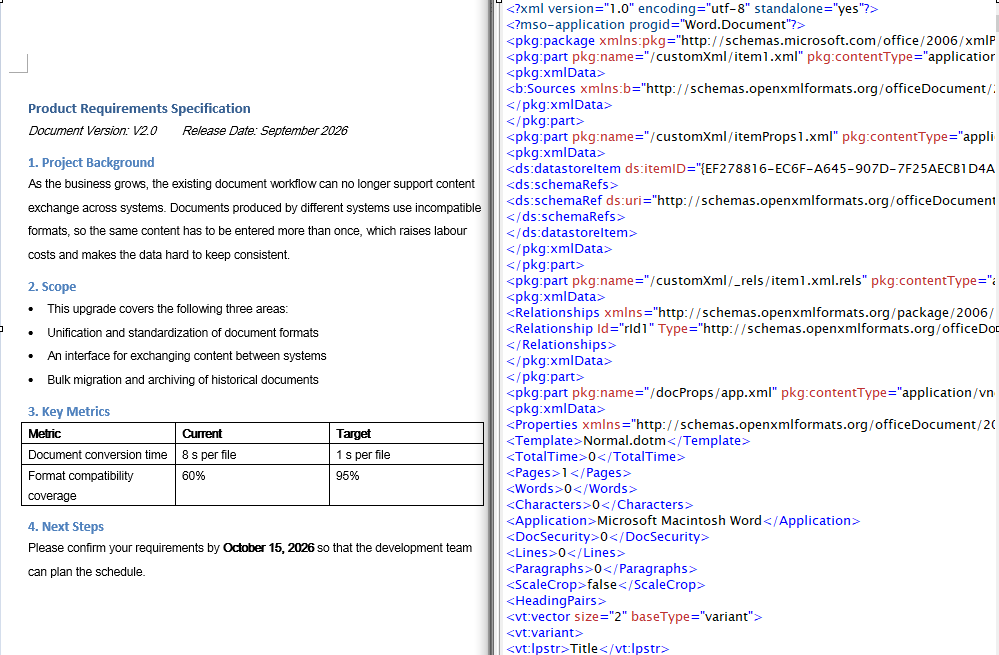
The flat file format of Word 2007 and later is called WordXml (Flat OPC): it packs the individual parts of the docx package — body, styles, relationships and so on — into a single XML file whose root element is <pkg:package>, and Word can open it directly just the same. The conversion flow is identical to WordML; only the save format differs. It again involves three steps: first, load the font files and the target Word document into the WASM virtual file system via FetchFileToVFS; then instantiate a Document, load the file and call SaveToFile with FileFormat.WordXml to save the document as a Word 2007 XML file; finally, read the generated XML file from VFS, wrap it as a Blob and trigger a browser download.
function App() {
  const WordToWordXml = async () => {
    const docModule = window.wasmModule?.spiredoc;
    if (!docModule) {
      alert('Spire.Doc is not ready yet');
      return;
    }

    // Load the sample file into VFS
    let inputFileName = 'WordToWordXML.docx';
    await window.spire.FetchFileToVFS(inputFileName, '', `${process.env.PUBLIC_URL}/static/data/`);

    // Create a document instance
    const doc = new docModule.Document();

    // Load the document from the virtual file system
    doc.LoadFromFile(inputFileName);

    // Define the output file name and save it as a Word 2007 OpenXML file
    const outputFileName = 'WordToWordXML-result-2007.xml';
    doc.SaveToFile({ fileName: outputFileName, fileFormat: docModule.FileFormat.WordXml });

    // Release resources
    doc.Dispose();

    const modifiedFileArray = window.dotnetRuntime.Module.FS.readFile(outputFileName);
    const blob = new Blob([modifiedFileArray], { type: 'application/vnd.openxmlformats-officedocument.wordprocessingml.document' });
    const url = URL.createObjectURL(blob);
    const a = document.createElement('a');
    a.href = url;
    a.download = outputFileName;
    a.click();
    URL.revokeObjectURL(url);
  };

 return (
    <div style={{ textAlign: 'center', height: '300px' }}>
      <h1>Convert Word To WordXml</h1>
      <button onClick={WordToWordXml}>Generate</button>
    </div>
  );
}
export default App;
With FileFormat.WordXml passed to SaveToFile, the parts of the Word document are merged into a single Word 2007 Flat OPC XML file
OpenXML to Word
Converting OpenXML to Word involves three steps: first, load the font files and the target XML file into the WASM virtual file system via FetchFileToVFS; then instantiate a Document and load the XML file directly with LoadFromFile — Spire.Doc recognizes the WordML and WordXml formats from the file contents automatically — and call SaveToFile to save it as a Docx2013 Word document; finally, read the generated .docx file from VFS, wrap it as a Blob and trigger a browser download.
function App() {
  const XMLToWord = async () => {
    const docModule = window.wasmModule?.spiredoc;
    if (!docModule) {
      alert('Spire.Doc is not ready yet');
      return;
    }

    // Load the sample file into VFS
    let inputFileName = 'XMLToWord.xml';
    await window.spire.FetchFileToVFS(inputFileName, '', `${process.env.PUBLIC_URL}/static/data/`);

    // Create a document instance
    const doc = new docModule.Document();

    // Load the OpenXML file from the virtual file system
    doc.LoadFromFile(inputFileName);

    // Define the output file name and save it as a Word document
    const outputFileName = 'XMLToWord-result.docx';
    doc.SaveToFile({ fileName: outputFileName, fileFormat: docModule.FileFormat.Docx2013 });

    // Release resources
    doc.Dispose();

    const modifiedFileArray = window.dotnetRuntime.Module.FS.readFile(outputFileName);
    const blob = new Blob([modifiedFileArray], { type: 'application/vnd.openxmlformats-officedocument.wordprocessingml.document' });
    const url = URL.createObjectURL(blob);
    const a = document.createElement('a');
    a.href = url;
    a.download = outputFileName;
    a.click();
    URL.revokeObjectURL(url);
  };

 return (
    <div style={{ textAlign: 'center', height: '300px' }}>
      <h1>Convert XML To Word</h1>
      <button onClick={XMLToWord}>Generate</button>
    </div>
  );
}
export default App;
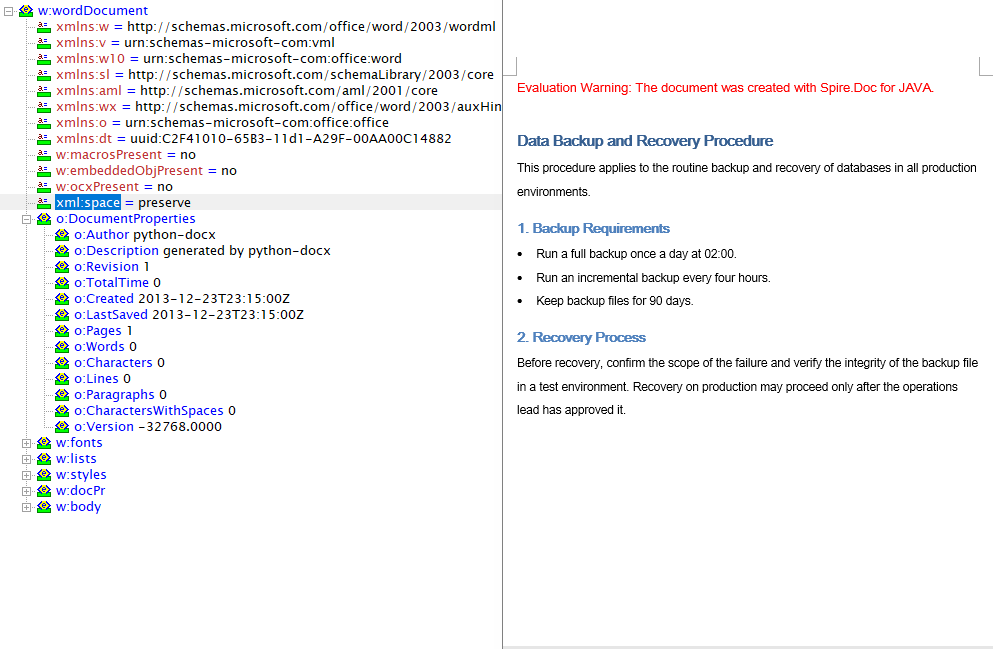
After the OpenXML file is loaded with LoadFromFile and saved as a Word document, the paragraphs, lists and tables it contains are restored in full
FAQ
The generated XML reports a format error when opened in Word
Cause: The save format does not match the target Word version. FileFormat.WordML maps to the Word 2003 XML format and FileFormat.WordXml to the Word 2007 and later Flat OPC format; the two have different structures, so opening a file saved in the newer format with an older version of Word fails.
Solution: Pick the enum value that matches the target Word version, and name the output file .xml:
// Word 2003 and earlier
doc.SaveToFile({ fileName: 'out.xml', fileFormat: wasmModule.FileFormat.WordML });

// Word 2007 and later
doc.SaveToFile({ fileName: 'out.xml', fileFormat: wasmModule.FileFormat.WordXml });
Loading the XML fails, or the converted document comes out empty
Cause: OpenXML to Word requires the input to be a complete WordprocessingML flat file; an ordinary custom data XML cannot be recognized by LoadFromFile.
Solution: Make sure the input XML was exported by Word or Spire.Doc — the root element of the WordML format is <w:wordDocument> and that of the WordXml format is <pkg:package>:
const doc = new wasmModule.Document();
doc.LoadFromFile('XMLToWord.xml');
Get a Free License
Spire.Doc for JavaScript offers a 30-day full-featured free trial license with no functional limitations. Apply here to evaluate before purchasing.
Plain text (TXT) is the lightest text carrier there is, commonly used for log export, data exchange and content archiving, while Word takes care of layout and formal delivery. Converting between the two in the browser is a common document-processing need: TXT to Word turns collected plain text into a well-formed document, and Word to TXT extracts body text that a program can keep processing. Spire.Doc for JavaScript performs the conversion in both directions in the browser via WebAssembly, using a virtual file system (VFS) to manage fonts and files — no backend server required.
It should be said up front that TXT is a plain-text format which carries no layout information of its own, so both directions only hold at the level of text: the styles, table structure and images on the Word side never reach the TXT file, and a Word document produced from TXT contains nothing but body paragraphs. Being clear about that boundary before you use the API keeps your expectations of the result realistic.
This article covers two core features:
For installation and project setup, refer to Integrating Spire.Doc for JavaScript in a React Project. The examples below assume Spire.Doc is installed and the WebAssembly module is initialized.
Convert TXT to Word
Converting TXT to Word involves three steps: first, load the font files and the target TXT file into the WASM virtual file system via FetchFileToVFS; then instantiate a Document and load the file with LoadFromFile — no fileFormat is passed here, so Spire.Doc identifies it as plain text from the file extension; finally, call SaveToFile to save the result as docx, read the generated file from VFS, wrap it as a Blob and trigger a browser download.
function App() {
  const TxtToWord = async () => {
    const docModule = window.wasmModule?.spiredoc;
    if (!docModule) {
      alert('Spire.Doc is not ready yet');
      return;
    }

    // Load the sample file into VFS
    let inputFileName = "TxtToWord.txt";
    await window.spire.FetchFileToVFS(inputFileName, "", `${process.env.PUBLIC_URL}/static/data/`);

    // Create a document instance
    const doc = new docModule.Document();

    // Load the document from the virtual file system
    doc.LoadFromFile(inputFileName);

    // Define the output file name
    const outputFileName = "TxtToWord-result.docx";

    // Save the document in the specified format
    doc.SaveToFile({fileName: outputFileName, fileFormat: docModule.FileFormat.Docx2013});

    // Release resources
    doc.Dispose();

    const modifiedFileArray = window.dotnetRuntime.Module.FS.readFile(outputFileName);
    const blob = new Blob([modifiedFileArray], { type: 'application/vnd.openxmlformats-officedocument.wordprocessingml.document' });
    const url = URL.createObjectURL(blob);
    const a = document.createElement('a');
    a.href = url;
    a.download = outputFileName;
    a.click();
    URL.revokeObjectURL(url);
  };

 return (
    <div style={{ textAlign: 'center', height: '300px' }}>
      <h1>Convert TXT To Word</h1>
      <button onClick={TxtToWord}>Generate</button>
    </div>
  );
}
export default App;
Because TXT carries no style information, the result is decided entirely by the default layout rules of Spire.Doc, and there are two things to keep in mind: every line break in the file is turned into a paragraph in Word, while blank lines are kept as empty paragraphs, so a file that ends with a line break gains an extra empty paragraph at the end; and every paragraph in the output uses the default Normal style, so headings, numbering and bullet levels are not created automatically — the 1., - and similar characters written in the TXT are kept as ordinary characters only.
After a TXT file is loaded with LoadFromFile and saved as a Word document, the text is restored to paragraphs line by line, all in the Normal style
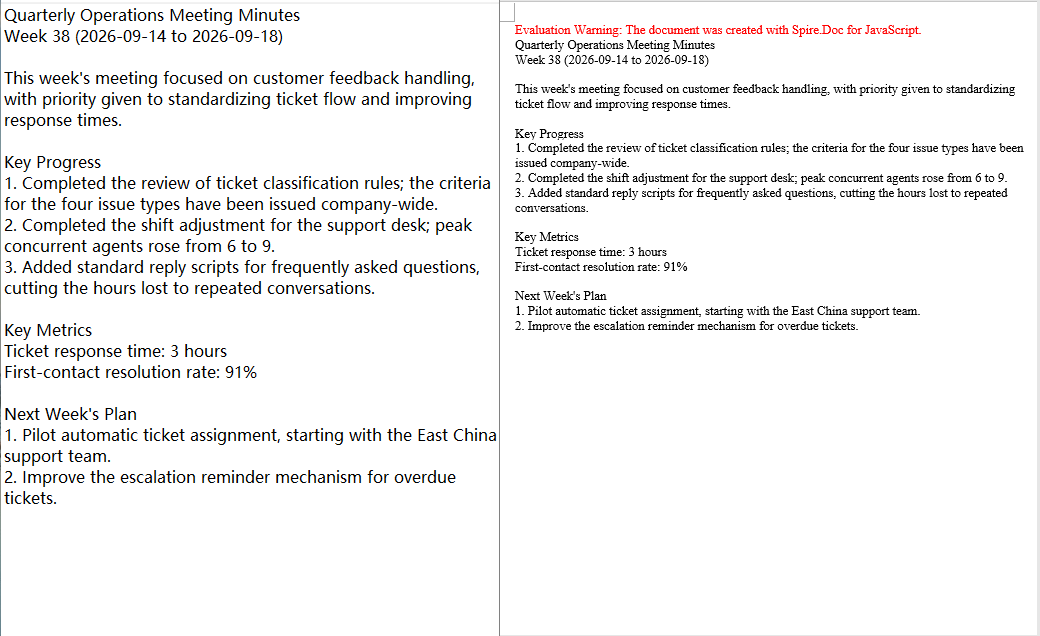
Convert Word to TXT
Converting Word to TXT follows the same three steps as the other direction: load the font files and the target Word document into the virtual file system via FetchFileToVFS, then instantiate a Document and load the document with LoadFromFile. The difference is that FileFormat.Txt is specified when saving, so Spire.Doc extracts the document content by plain-text rules; finally, read the generated txt file from VFS, wrap it as a text/plain Blob and trigger a browser download.
function App() {
  const WordToTxt = async () => {
    const docModule = window.wasmModule?.spiredoc;
    if (!docModule) {
      alert('Spire.Doc is not ready yet');
      return;
    }

    // Load the sample file into VFS
    let inputFileName = "WordToTxt.docx";
    await window.spire.FetchFileToVFS(inputFileName, "", `${process.env.PUBLIC_URL}/static/data/`);

    // Create a document instance
    const doc = new docModule.Document();

    // Load the document from the virtual file system
    doc.LoadFromFile(inputFileName);

    // Define the output file name
    const outputFileName = "WordToTxt-result.txt";

    // Save the document as plain text
    doc.SaveToFile({fileName: outputFileName, fileFormat: docModule.FileFormat.Txt});

    // Release resources
    doc.Dispose();

    const modifiedFileArray = window.dotnetRuntime.Module.FS.readFile(outputFileName);
    const blob = new Blob([modifiedFileArray], { type: 'application/vnd.openxmlformats-officedocument.wordprocessingml.document' });
    const url = URL.createObjectURL(blob);
    const a = document.createElement('a');
    a.href = url;
    a.download = outputFileName;
    a.click();
    URL.revokeObjectURL(url);
  };

 return (
    <div style={{ textAlign: 'center', height: '300px' }}>
      <h1>Convert Word To TXT</h1>
      <button onClick={WordToTxt}>Generate</button>
    </div>
  );
}
export default App;
The FileFormat.Txt export follows a "text only" rule. Taking a Word document that contains a heading, a bullet list, a numbered list, a table and an image as the example, the exported result can be summed up as follows:
- The font, font size, colour and bold formatting of headings, body text and list items are all dropped, and everything is reduced to ordinary text lines;
- Bullet list items are written with a
*prefix and numbered items with a1.prefix, and the list level information is lost along with them; - The table is expanded cell by cell into separate lines, so the correspondence between rows and columns no longer holds;
- Images are not exported, and the paragraph that held one becomes an empty line.
In addition, the exported txt is UTF-8 encoded with a BOM and uses CRLF line breaks, so wrapping the Blob with the text/plain type is all that is needed.
With FileFormat.Txt passed to SaveToFile, the styles, tables and images of the Word document are not preserved and only the text content is written out in order
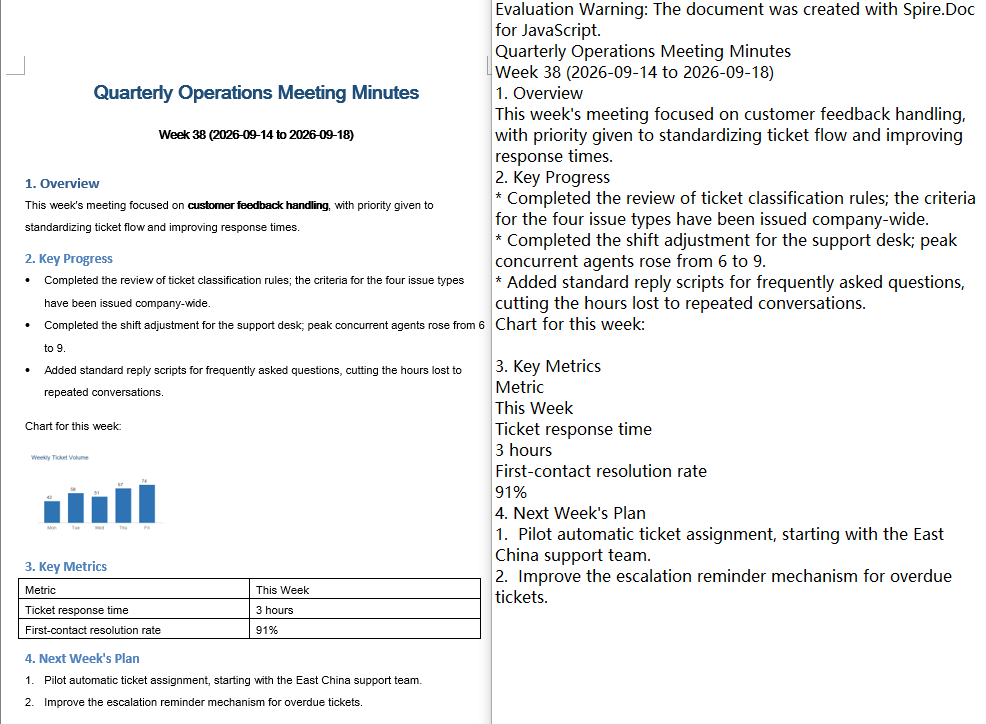
FAQ
Table columns shift and list markers turn into asterisks after converting Word to TXT
Cause: TXT has no concept of rows, columns or list structure, and FileFormat.Txt only extracts text: the table is written out line by line in cell order, bullets are replaced with * and numbering with the number text. This is a limitation of the format itself rather than a conversion failure.
Solution: If all the downstream consumer needs is readable text, restore the structure on the reading side using the rules above; if the table and list layout has to be preserved, use a format that can carry structure instead, such as HTML or OpenXML.
The converted Word document has no heading or list styles
Cause: TXT carries no style information, so when LoadFromFile loads plain text it can only write each line as a paragraph with the default Normal style — the 1., - and similar characters in the TXT are ordinary characters and are not parsed as headings or lists.
Solution: Set the styles of the paragraphs you care about again after the conversion; if setting them paragraph by paragraph is not acceptable, complete this step with an input format that already carries structure (such as HTML) instead.
Loading a TXT file reports that the file type cannot be detected
Cause: When LoadFromFile is called without fileFormat, the format is judged from the file extension. When the extension of the input file is not .txt (for example .log, .dat, or no extension at all), Spire.Doc cannot identify it and throws an exception such as Cannot detect current file type.
Solution: Specify the plain-text format explicitly:
doc.LoadFromFile({ fileName: inputFileName, fileFormat: wasmModule.FileFormat.Txt });
Get a Free License
Spire.Doc for JavaScript offers a 30-day full-featured free trial license with no functional limitations. Apply here to evaluate before purchasing.
HTML is the most universal carrier for presenting content on the web and for editing rich text, while Word remains the standard format for delivering and archiving documents. Converting between the two comes up frequently in scenarios such as report export, content archiving, and storing rich text in a database. Spire.Doc for JavaScript performs this conversion directly in the browser via WebAssembly, using a virtual file system (VFS) to manage input and output files — no backend server required.
This article covers two core features:
For installation and project setup, refer to Integrating Spire.Doc for JavaScript in a React Project. The examples below assume Spire.Doc is installed and the WebAssembly module is initialized.
HTML File to Word
Converting an HTML file to Word breaks down into three stages: first, load the font file and the target HTML file into the WASM virtual file system via FetchFileToVFS; then instantiate a Document and call LoadFromFile with FileFormat.Html, so that Spire.Doc parses the tags, lists, and table structures in the file; finally, call SaveToFile to save the result as a docx, read the generated file from VFS, wrap it in a Blob, and trigger a browser download.
function App() {
  const htmlFileToWord = async () => {
    const docModule = window.wasmModule?.spiredoc;
    if (!docModule) {
      alert('Spire.Doc is not ready yet');
      return;
    }

    const inputFileName = 'HtmlFileToWord.html';
    await window.spire.FetchFileToVFS(inputFileName, '', `${process.env.PUBLIC_URL}data/`);

    // Create a Document instance and load the file in HTML format
    const doc = new docModule.Document();
    doc.LoadFromFile({
      fileName: inputFileName,
      fileFormat: docModule.FileFormat.Html,
      validationType: docModule.XHTMLValidationType.None,
    });

    // Define the output file name and save it as Word
    const outputFileName = 'HtmlFileToWord-result.docx';
    doc.SaveToFile({ fileName: outputFileName, fileFormat: docModule.FileFormat.Docx });

    // Release resources
    doc.Dispose();

    const modifiedFileArray = window.dotnetRuntime.Module.FS.readFile(outputFileName);
    const blob = new Blob([modifiedFileArray], { type: 'application/vnd.openxmlformats-officedocument.wordprocessingml.document' });
    const url = URL.createObjectURL(blob);
    const a = document.createElement('a');
    a.href = url;
    a.download = outputFileName;
    a.click();
    URL.revokeObjectURL(url);
  };

 return (
    <div style={{ textAlign: 'center', height: '300px' }}>
      <h1>Convert an HTML File to a Word Document</h1>
      <button onClick={htmlFileToWord}>Generate</button>
    </div>
  );
}
export default App;
The Word document generated by converting an HTML file via LoadFromFile
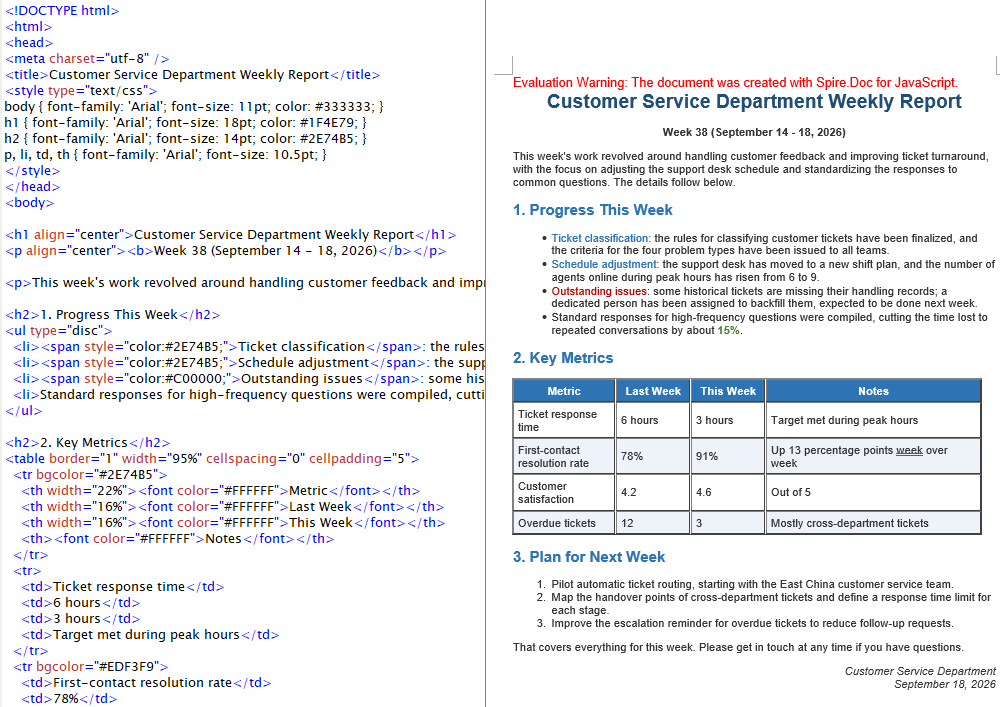
HTML String to Word
In real projects the HTML waiting to be converted usually does not live on disk. It is the submitted result of a rich text editor, a fragment returned by a backend API, or a string assembled from a front-end template. Input like this does not need to be loaded from a file — appending the string to a paragraph is enough, and the rest of the flow matches HTML file to Word.
function App() {
  const htmlStringToWord = async () => {
    const docModule = window.wasmModule?.spiredoc;
    if (!docModule) {
      alert('Spire.Doc is not ready yet');
      return;
    }

    // Load the font into VFS
    await window.spire.FetchFileToVFS("ARIALUNI.TTF","/Library/Fonts/",`${process.env.PUBLIC_URL}static/font/`);

    // Define the HTML string to be converted
    let HTML = "<html><head><meta charset=\"utf-8\" /><style type=\"text/css\">body{font-family:'Arial Unicode MS';font-size:11pt;}h2{font-family:'Arial Unicode MS';font-size:16pt;color:#1F4E79;}p,li,td,th{font-family:'Arial Unicode MS';font-size:11pt;}</style></head><body>";
  HTML += "<h2 align=\"center\">Sichuan Province at a Glance</h2><p><b>Overview:</b></p> ";
  HTML += "<ul type=\"disc\"><li><span style='color:#548235;'>Capital Chengdu, abbreviated as \"Chuan\" or \"Shu\"</span></li><li>Located in southwestern China, on the upper reaches of the Yangtze River</li><li><span style='color:#C00000'>The Western Sichuan Plateau and the Sichuan Basin differ greatly in climate, so trips need to be prepared region by region</span></li></ul><p><b>Signature Attractions:</b></p>";
  HTML += "<ul type=\"square\"><li>Jiuzhaigou Valley</li><li>Mount Emei — Leshan Giant Buddha</li><li>Dujiangyan — Mount Qingcheng</li></ul>";
  HTML += "<table border=\"1\" width=\"90%\" cellspacing=\"0\" cellpadding=\"6\"><tr><th>Sichuan Province Fact Sheet</th></tr><tr><td>Covers about 486,000 square kilometers, the fifth largest area in the country</td></tr><tr><td>Has a resident population of about 83 million and is home to many ethnic groups</td></tr>";
  HTML += "<tr><td>Known since ancient times as the \"Land of Abundance\" and an important ecological barrier on the upper Yangtze</td></tr><tr><td>The main habitat of the giant panda, with the largest wild population in the country</td></tr></table></body></html>";
    // Create a document and add a section and a paragraph
    const doc = new docModule.Document();
    const section = doc.AddSection();
    const paragraph = section.AddParagraph();

    // Append the HTML string to the paragraph
    paragraph.AppendHTML(HTML);

    // Define the output file name and save it as Word
    const outputFileName = 'HtmlStringToWord-result.docx';
    doc.SaveToFile({ fileName: outputFileName, fileFormat: docModule.FileFormat.Docx2013 });

    // Release resources
    doc.Dispose();

    const modifiedFileArray = window.dotnetRuntime.Module.FS.readFile(outputFileName);
    const blob = new Blob([modifiedFileArray], { type: 'application/vnd.openxmlformats-officedocument.wordprocessingml.document' });
    const url = URL.createObjectURL(blob);
    const a = document.createElement('a');
    a.href = url;
    a.download = outputFileName;
    a.click();
    URL.revokeObjectURL(url);
  };

 return (
    <div style={{ textAlign: 'center', height: '300px' }}>
      <h1>Write an HTML String into a Word Document</h1>
      <button onClick={htmlStringToWord}>Generate</button>
    </div>
  );
}
export default App;
The Word document generated by converting an HTML string via AppendHTML
FAQ
Converted Word text displays as boxes or garbled characters
Cause: The font files required for rendering are missing from the WASM virtual file system. LoadFromFile matches fonts for the text while it parses the HTML, and content written by AppendHTML also needs glyphs looked up by font name — if the matching font is not present in VFS, non-ASCII characters such as Chinese will display as boxes or garbled text.
Solution: Load the font file into VFS via FetchFileToVFS before converting:
await window.spire.FetchFileToVFS(
  'ARIALUNI.TTF', '/Library/Fonts/', '/'
);
A validation-related exception is thrown when loading an HTML file
Cause: XHTMLValidationType is set too strictly. Real-world HTML files usually contain unclosed tags, inconsistently cased attributes, or non-standard markup, so they do not conform to the XHTML specification — strict validation throws during the parsing stage.
Solution: For HTML from uncontrolled sources, turn validation off with XHTMLValidationType.None:
wordDocument.LoadFromFile({
  fileName: inputFileName,
  fileFormat: docModule.FileFormat.Html,
  validationType: docModule.XHTMLValidationType.None,
});
Get a Free License
Spire.Doc for JavaScript offers a 30-day full-featured free trial license with no functional limitations. Apply here to evaluate before purchasing.
Converting a Word document to HTML preserves the original paragraph structure, styles, and images while rendering directly in the browser, which makes it widely useful for online preview, content publishing, and full-text search. Spire.Doc for JavaScript performs this conversion entirely in the browser via WebAssembly, using a virtual file system (VFS) to manage input and output files — no backend server required.
This article covers two core features:
For installation and project setup, refer to Integrating Spire.Doc for JavaScript in a React Project. The examples below assume Spire.Doc is installed and the WebAssembly module is initialized.
Convert Word to HTML
Converting Word to HTML involves three stages: first, load the font file and the target Word file into the WASM virtual file system via FetchFileToVFS; then instantiate a Document, load the file, use HtmlExportOptions to specify that both CSS and images are output in embedded form, and call SaveToFile to save the document as HTML; finally, read the generated HTML file from VFS, wrap it as a Blob, and trigger a browser download.
function App() {
  const wordToHtml = async () => {
    // Get the Spire.Doc WASM module
    const docModule = window.wasmModule?.spiredoc;

    // Check if the module is ready
    if (!docModule) {
      alert('Spire.Doc is not ready yet');
      return;
    }

    // Load fonts and the Word file into VFS
    await window.spire.FetchFileToVFS('ARIALUNI.TTF', '/Library/Fonts/', `${process.env.PUBLIC_URL}/static/font/`);
    const inputFileName = 'ToHtml.docx';
    await window.spire.FetchFileToVFS(inputFileName, '', `${process.env.PUBLIC_URL}/static/data/`);

    // Load the Word document
    const wordDocument = new docModule.Document();
    wordDocument.LoadFromFile(inputFileName);

    // Embed the CSS styles into the HTML and embed images as Base64
    wordDocument.HtmlExportOptions.CssStyleSheetType = docModule.CssStyleSheetType.Internal;
    wordDocument.HtmlExportOptions.ImageEmbedded = true;

    // Convert the document to HTML
    const outputFileName = 'ToHtml-result.html';
    wordDocument.SaveToFile({ fileName: outputFileName, fileFormat: docModule.FileFormat.Html });

    // Read the converted file from VFS and trigger download
    const fileArray = window.dotnetRuntime.Module.FS.readFile(outputFileName);
    const blob = new Blob([fileArray], { type: 'text/html;charset=utf-8' });
    const url = URL.createObjectURL(blob);
    const a = window.document.createElement('a');
    a.href = url;
    a.download = outputFileName;
    a.click();
    URL.revokeObjectURL(url);

    // Release resources
    wordDocument.Dispose();
  };

  return (
    <div style={{ textAlign: 'center', height: '300px' }}>
      <h1>Convert Word To HTML</h1>
      <button onClick={wordToHtml}>
        Generate
      </button>
    </div>
  );
}

export default App;
HTML page generated from a Word document via SaveToFile
Convert Word to HTML with export options
The output in the previous section is a single HTML file with CSS and images embedded in it. When a document is large, or when you want to maintain styles centrally and reuse image resources, you usually need to export CSS and images as separate files. HtmlExportOptions provides the corresponding settings, allowing HTML, style sheets, and images to be output separately.
The conversion flow is similar to the previous section, except that the result is a directory: you need to create the directory in VFS first, then use properties such as CssStyleSheetFileName and ImagesPath to specify where each type of resource is stored. Once conversion is complete, read that directory recursively, package everything into a zip, and download it in one go.
import JSZip from 'jszip';

function App() {
  const wordToHtmlWithOptions = async () => {
    // Get the Spire.Doc WASM module
    const docModule = window.wasmModule?.spiredoc;

    // Check if the module is ready
    if (!docModule) {
      alert('Spire.Doc is not ready yet');
      return;
    }

    // Load fonts and the Word file into VFS
    await window.spire.FetchFileToVFS('ARIALUNI.TTF', '/Library/Fonts/', `${process.env.PUBLIC_URL}/static/font/`);
    const inputFileName = 'ToHtml.docx';
    await window.spire.FetchFileToVFS(inputFileName, '', `${process.env.PUBLIC_URL}/static/data/`);

    // Create the output directory in VFS
    const outputDirectoryName = 'ToHTMLFolder/';
    window.dotnetRuntime.Module.FS.mkdirTree(outputDirectoryName);

    // Load the Word document
    const wordDocument = new docModule.Document();
    wordDocument.LoadFromFile(inputFileName);

    // Export the CSS styles to a separate file
    wordDocument.HtmlExportOptions.CssStyleSheetFileName = outputDirectoryName + 'sample.css';
    wordDocument.HtmlExportOptions.CssStyleSheetType = docModule.CssStyleSheetType.External;

    // Export images to a separate directory
    wordDocument.HtmlExportOptions.ImageEmbedded = false;
    wordDocument.HtmlExportOptions.ImagesPath = outputDirectoryName + 'Demo/';

    // Export form fields as plain text
    wordDocument.HtmlExportOptions.IsTextInputFormFieldAsText = true;

    // Convert the document to HTML
    const outputFileName = 'ToHtmlExportOption-out.html';
    wordDocument.SaveToFile({ fileName: outputFileName, fileFormat: docModule.FileFormat.Html });

    // Release resources
    wordDocument.Dispose();

    // Read the output directory recursively and write each level of files into the zip
    const zip = new JSZip();
    const addFilesToZip = async (folderPath, zipFolder) => {
      let items = await window.dotnetRuntime.Module.FS.readdir(folderPath);
      items = items.filter((item) => item !== '.' && item !== '..');
      for (const item of items) {
        const itemPath = `${folderPath}/${item}`;
        try {
          const fileData = await window.dotnetRuntime.Module.FS.readFile(itemPath);
          zipFolder.file(item, fileData);
        } catch (error) {
          const zipSubFolder = zipFolder.folder(item);
          await addFilesToZip(itemPath, zipSubFolder);
        }
      }
    };

    // Package the HTML file together with the resource directory
    zip.file(outputFileName, window.dotnetRuntime.Module.FS.readFile(outputFileName));
    await addFilesToZip(outputDirectoryName, zip);
    const zipBlob = await zip.generateAsync({ type: 'blob' });
    const url = URL.createObjectURL(zipBlob);

    // Trigger download
    const a = window.document.createElement('a');
    a.href = url;
    a.download = 'ToHTMLFolder.zip';
    a.click();
    URL.revokeObjectURL(url);
  };

  return (
    <div style={{ textAlign: 'center', height: '300px' }}>
      <h1>Convert Word To HTML With Export Options</h1>
      <button onClick={wordToHtmlWithOptions}>
        Generate
      </button>
    </div>
  );
}

export default App;
HTML, CSS, and image files generated after configuring the export options
Note that Spire.Doc does not write images directly into the directory pointed to by ImagesPath. Instead, it creates an external_images subdirectory underneath it to hold the images. As a result, the output directory typically forms a hierarchy such as Demo/external_images/*.png, which must be read level by level — this is why addFilesToZip is implemented recursively in the example above.
FAQ
Fonts in the exported HTML do not match the original document
Cause: The font files are missing from the WASM virtual file system. Spire.Doc reads fonts from VFS during conversion to perform layout calculations and font name resolution. If the fonts are not preloaded, the fonts used in the original document are replaced with substitute fonts, and the font-family in the exported CSS will not match the original. If the original document uses a symbol font such as Wingdings, the corresponding characters will also appear garbled.
Solution: Load the font files into VFS via FetchFileToVFS before conversion. For Chinese, Japanese, and Korean documents, use a font with broad coverage such as ARIALUNI.TTF:
await window.spire.FetchFileToVFS(
  'ARIALUNI.TTF', '/Library/Fonts/', '/'
);
Exported HTML loses its styles and images when opened
Cause: In external mode (CssStyleSheetType.External combined with ImageEmbedded = false), CSS and images are output as separate files to the specified directory, and the HTML keeps only relative path references. If you download the HTML file on its own, the browser cannot find the corresponding style sheet and images, and the page degrades into unstyled plain text.
Solution: Package the HTML file together with the resource directory and download them as a whole, so that the relative path references remain valid (see the addFilesToZip example above). If you do not need separate resource files, you can switch to embedded mode instead:
wordDocument.HtmlExportOptions.CssStyleSheetType = docModule.CssStyleSheetType.Internal;
wordDocument.HtmlExportOptions.ImageEmbedded = true;
Get a Free License
Spire.Doc for JavaScript offers a 30-day full-featured free trial license with no functional limitations. Apply here to evaluate before purchasing.
Converting a Word document to images is the most common approach for online preview, thumbnail generation, and preventing content from being copied at will — the resulting images keep a consistent layout on any device. Spire.Doc for JavaScript performs this conversion directly in the browser via WebAssembly, managing input and output files through a virtual file system (VFS) — no backend server required.
This article covers two core features:
For installation and project setup, refer to Integrating Spire.Doc for JavaScript in a React Project. The examples below assume Spire.Doc is installed and the WebAssembly module is initialized.
Page to Image
Converting a document page to an image involves three stages: first, load the font file and the target Word document into the WASM virtual file system via FetchFileToVFS; then instantiate a Document, load the document, call SaveImageToStreams with a pageIndex to render the specified page as an image, and save it to VFS; finally, read the generated image file from VFS, wrap it as a Blob, and create a download link.
import React from 'react';

function App() {
  const ToImage = async () => {
    // Get the Spire.Doc WASM module
    const docModule = window.wasmModule?.spiredoc;

    if (!docModule) {
      alert('Spire.Doc is not ready yet');
      return;
    }

    // Load the font file into the virtual file system (VFS)
    await window.spire.FetchFileToVFS('ARIALUNI.TTF', '/Library/Fonts/', `${process.env.PUBLIC_URL}/font/`);
    const inputFileName = 'ToImage.docx';
    // Load the target Word document into VFS
    await window.spire.FetchFileToVFS(inputFileName, '', `${process.env.PUBLIC_URL}data/`);

    // Create a Document instance and load the document
    const doc = new docModule.Document();
    doc.LoadFromFile(inputFileName);

    // Define the output file name
    const outputFileName = "ToImage-result.png";

    // Convert the first page to an image stream and save it to VFS
    let img = doc.SaveImageToStreams({ pageIndex: 0, type: docModule.ImageType.Bitmap });
    img.Save(outputFileName);

    // Release resources
    doc.Dispose();

    // Read the generated file from VFS and wrap it as a Blob
    const modifiedFileArray = window.dotnetRuntime.Module.FS.readFile(outputFileName);
    const blob = new Blob([modifiedFileArray], {  type: 'image/png'});
    const url = URL.createObjectURL(blob);
    const a = document.createElement('a');
    a.href = url;
    a.download = outputFileName;
    a.click();
    URL.revokeObjectURL(url);
  };

  return (
    <div style={{ textAlign: 'center', height: '300px' }}>
      <h1>Convert a Specified Page to an Image</h1>
      <button onClick={ToImage}>
        Generate
      </button>
    </div>
  );
}

export default App;
PNG image generated from a document page via SaveImageToStreams
Document Object to Image
Besides whole-page conversion, real projects often need to export a single element of a document as an image — for example, generating a preview image for a table, or extracting a shape from a document as standalone material. Paragraphs, tables, table rows, table cells, and shapes can all be copied into a newly created Document via the Clone method, and then rendered into an image with SaveImageToStreams. The conversion results are written uniformly to an output directory in VFS, and finally packaged into a single ZIP file with JSZip for the user to download.
Note that a shape cannot be added directly to a paragraph of a newly created document. The example first saves the document to a memory stream and then reloads it, so that the shape obtains a complete layout context in the new document before being rendered.
import React from 'react';
import JSZip from "jszip";

function App() {
  const ToImage = async () => {
    // Get the Spire.Doc WASM module
    const docModule = window.wasmModule?.spiredoc;

    if (!docModule) {
      alert('Spire.Doc is not ready yet');
      return;
    }

    // Load the font file into the virtual file system (VFS)
    await window.spire.FetchFileToVFS('ARIALUNI.TTF', '/Library/Fonts/', `${process.env.PUBLIC_URL}/font/`);
    // Load the target Word document into VFS
    const inputFileName = "ConvertObjectToImage.docx";
    await window.spire.FetchFileToVFS(inputFileName, "", `${process.env.PUBLIC_URL}/data/`);

    // Define and create the output directory in VFS
    const outputDirectoryName = "outputFolder/";
    await window.dotnetRuntime.Module.FS.mkdirTree(outputDirectoryName);

    // Create a Document instance and load the document
    const doc = new docModule.Document();
    doc.LoadFromFile(inputFileName);

    // Get the first section and its body
    let section = doc.Sections.get_Item(0);
    let body = section.Body;

    // Get the first paragraph and convert it to an image
    let paragraph = body.Paragraphs.get_Item(0);
    let imageStream1 = ConvertParagraphToImage(paragraph, docModule);
    let imageFile1 = outputDirectoryName + "ConvertParagraphToImage.png";
    window.dotnetRuntime.Module.FS.writeFile(imageFile1, imageStream1.Save());

    // Get the first table and convert it to an image
    let table = body.Tables.get_Item(0);
    let imageStream2 = ConvertTableToImage(table, docModule);
    let imageFile2 = outputDirectoryName + "ConvertTableToImage.jpg";
    window.dotnetRuntime.Module.FS.writeFile(imageFile2, imageStream2.Save());

    // Get the first row of the first table and convert it to an image
    let row = table.Rows.get_Item(0);
    let imageStream3 = ConvertTableRowToImage(row, docModule);
    let imageFile3 = outputDirectoryName + "ConvertTableRowToImage.bmp";
    window.dotnetRuntime.Module.FS.writeFile(imageFile3, imageStream3.Save());

    // Get the first cell of the first row and convert it to an image
    let cell = row.Cells.get_Item(0);
    let imageStream4 = ConvertTableCellToImage(cell, docModule);
    let imageFile4 = outputDirectoryName + "ConvertTableCellToImage.png";
    window.dotnetRuntime.Module.FS.writeFile(imageFile4, imageStream4.Save());

    // Iterate over the paragraphs and convert the shapes in them to images
    for (let i = 0; i < section.Paragraphs.Count; i++) {
      let para = section.Body.Paragraphs.get_Item(i);
      for (let j = 0; j < para.ChildObjects.Count; j++) {
        let docObj = para.ChildObjects.get_Item(j);
        if (docObj.DocumentObjectType == docModule.DocumentObjectType.Shape) {
          let imageStream5 = ConvertShapeToImage(docObj, docModule);
          let imageFile5 = outputDirectoryName + "ConvertShapeToImage-" + j + ".png";

          window.dotnetRuntime.Module.FS.writeFile(imageFile5, imageStream5.Save());
          i++;
        }
      }
    }

    // Release resources
    doc.Dispose();

    // Package all images in the output directory into a ZIP file
    const zip = new JSZip();
    const addFilesToZip = async (folderPath, zipFolder) => {
      let items = await window.dotnetRuntime.Module.FS.readdir(folderPath);
      items = items.filter((item) => item !== "." && item !== "..");
      for (const item of items) {
        const itemPath = `${folderPath}/${item}`;
        try {
          const fileData = await window.dotnetRuntime.Module.FS.readFile(itemPath);
          zipFolder.file(item, fileData);
        } catch (error) {
          const zipSubFolder = zipFolder.folder(item);
          await addFilesToZip(itemPath, zipSubFolder);
        }
      }
    };

    await addFilesToZip(outputDirectoryName, zip);
    const zipBlob = await zip.generateAsync({ type: "blob" });
    // Read the generated file from VFS and wrap it as a Blob
    const url = URL.createObjectURL(zipBlob);
    const a = document.createElement('a');
    a.href = url;
    a.download = "ConvertObjectToImage_out.zip";
    a.click();
    URL.revokeObjectURL(url);
  };

  // Convert a paragraph to an image
  function ConvertParagraphToImage(paragraph, docModule) {
    let doc = new docModule.Document();
    let section = doc.AddSection();

    section.Body.ChildObjects.Add(paragraph.Clone());
    let imageStream = doc.SaveImageToStreams({ pageIndex: 0, type: docModule.ImageType.Bitmap });
    doc.Close();
    return imageStream;
  }

  // Convert a table to an image
  function ConvertTableToImage(table, docModule) {
    let doc = new docModule.Document();
    let section = doc.AddSection();

    section.Body.ChildObjects.Add(table.Clone());

    let imageStream = doc.SaveImageToStreams({ pageIndex: 0, type: docModule.ImageType.Bitmap });
    doc.Close();
    return imageStream;
  }

  // Convert a table row to an image
  function ConvertTableRowToImage(tableRow, docModule) {
    let doc = new docModule.Document();
    let section = doc.AddSection();
    let table = section.AddTable();
    table.Rows.Add(tableRow.Clone());
    let imageStream = doc.SaveImageToStreams({ pageIndex: 0, type: docModule.ImageType.Bitmap });
    doc.Close();
    return imageStream;
  }

  // Convert a table cell to an image
  function ConvertTableCellToImage(tableCell, docModule) {
    let doc = new docModule.Document();
    let section = doc.AddSection();
    let table = section.AddTable();
    table.AddRow().Cells.Add(tableCell.Clone());
    let imageStream = doc.SaveImageToStreams({ pageIndex: 0, type: docModule.ImageType.Bitmap });
    doc.Close();
    return imageStream;
  }

  // Convert a shape to an image
  function ConvertShapeToImage(shape, docModule) {
    let doc = new docModule.Document();
    let section = doc.AddSection();
    section.AddParagraph().ChildObjects.Add(shape.Clone());
    let memoryStream = new docModule.Stream();
    doc.SaveToStream({ stream: memoryStream, fileFormat: docModule.FileFormat.Docx });
    doc.LoadFromStream({ stream: memoryStream, fileFormat: docModule.FileFormat.Docx });
    let imageStream = doc.SaveImageToStreams({ pageIndex: 0, type: docModule.ImageType.Bitmap });
    memoryStream.Close();
    doc.Close();
    return imageStream;
  }

  return (
    <div style={{ textAlign: 'center', height: '300px' }}>
      <h1>Convert Elements to Images</h1>
      <button onClick={ToImage}>
        Generate
      </button>
    </div>
  );
}

export default App;
Images inside the ZIP file generated after converting the document objects
FAQ
Missing or garbled text in the generated image
Cause: The font files required for rendering are missing from the WASM virtual file system. SaveImageToStreams reads fonts from VFS when rendering text — if they are not preloaded, text areas will be left blank or appear garbled.
Solution: Load the font files into VFS via FetchFileToVFS before conversion:
await window.spire.FetchFileToVFS(
  'ARIALUNI.TTF', '/Library/Fonts/',
  `${process.env.PUBLIC_URL}/static/font/`
);
Only the first page is generated
Cause: Each call to SaveImageToStreams renders only the single page specified by pageIndex. The example always passes 0, so a multi-page document only outputs an image of the first page.
Solution: Get the total page count via PageCount and iterate page by page, generating a separate image file for each page:
for (let i = 0; i < doc.PageCount; i++) {
  let img = doc.SaveImageToStreams({
    pageIndex: i, type: wasmModule.ImageType.Bitmap
  });
  img.Save(`ToImage-page-${i + 1}.png`);
}
Get a Free License
If you wish to remove the evaluation message from the resulting document, or to eliminate functional limitations, please contact our sales team to request a 30-day temporary license.

Markdown is convenient for writing documentation, README files, notes, and other structured content. But when the content needs to be printed, archived, or shared in a fixed-layout format, PDF is often more practical.
In a React application, you can convert Markdown to PDF using Spire.Doc for JavaScript. The library runs through WebAssembly (WASM), allowing Markdown content to be processed and PDF files to be generated locally in the browser without sending files to a server.
This tutorial covers three common conversion scenarios:
- Convert a Markdown file to PDF with JavaScript
- Convert Markdown to PDF with custom page settings
- Convert a Markdown string to PDF with JavaScript
Set Up Spire.Doc for JavaScript in React
Before converting Markdown files, you need to integrate Spire.Doc for JavaScript into your React project and prepare the required WebAssembly runtime files.
For a detailed setup guide, see How to Integrate Spire.Doc for JavaScript in a React Project.
Step 1: Install the Package
Run the following command in your React project directory to install the required package from npm:
npm i spire.office
Step 2: Add the Required Runtime Files
Copy the following files and folders from node_modules/spire.office to your project's public directory:
_framework
spire.doc.js
Spire.Doc.Wasm.zip
spire.common.js
Spire.Common.Wasm.zip
The examples below also use CALIBRI.ttf for PDF text rendering. Place the font under:
public/static/font/
For file-based conversion, place the sample Markdown file under:
public/static/data/
The relevant project structure should look like this:
public/
├── _framework/
├── spire.doc.js
├── Spire.Doc.Wasm.zip
├── spire.common.js
├── Spire.Common.Wasm.zip
└── static/
    ├── data/
    │   └── MarkdownExample.md
    └── font/
        └── CALIBRI.ttf
Note: The examples use process.env.PUBLIC_URL, which follows the Create React App convention. If your project uses Vite or another build tool, adjust the public asset paths accordingly.
Convert a Markdown File to PDF with JavaScript
Converting a Markdown file to PDF involves 4 main steps:
- Load the required font and Markdown file into the WASM virtual file system (VFS).
- Call
Document.LoadFromFile()withFileFormat.Markdownto load the Markdown file into aDocumentobject. - Call
Document.SaveToFile()withFileFormat.PDFto save the loaded document as a PDF file. - Read the generated PDF from the VFS and download it in the browser.
The following JavaScript example loads a .md file and saves it as a .pdf file:
import React, { useEffect, useState } from 'react';

function App() {
  const [wasmModule, setWasmModule] = useState(null);

  // Initialize the Spire.Doc WebAssembly module
  useEffect(() => {
    (async () => {
      try {
        const publicUrl = process.env.PUBLIC_URL || '';

        const spireModule = await import(
          /* webpackIgnore: true */
          `${publicUrl}/spire.doc.js`
        );

        const rawModule = spireModule.default || spireModule;

        window.wasmModule =
          typeof rawModule === 'function'
            ? await rawModule({
                locateFile: (path) =>
                  path.endsWith('.wasm')
                    ? `${publicUrl}/${path}`
                    : path
              })
            : rawModule;

        setWasmModule(window.wasmModule);
      } catch (error) {
        console.error(
          'Failed to load the Spire.Doc WASM module:',
          error
        );
      }
    })();
  }, []);

  // Download a file generated in the WASM virtual file system
  const downloadVfsFile = (fileName, mimeType) => {
    const fileData =
      window.dotnetRuntime.Module.FS.readFile(fileName);

    const blob = new Blob(
      [fileData],
      { type: mimeType }
    );

    const url = URL.createObjectURL(blob);
    const link = document.createElement('a');

    link.href = url;
    link.download = fileName;

    document.body.appendChild(link);
    link.click();
    document.body.removeChild(link);

    URL.revokeObjectURL(url);
  };

  const convertMarkdownToPdf = async () => {
    const docModule = window.wasmModule?.spiredoc;

    if (!docModule) return;

    const publicUrl = process.env.PUBLIC_URL || '';

    // Load the font into the VFS
    await window.spire.FetchFileToVFS(
      'CALIBRI.ttf',
      '/Library/Fonts/',
      `${publicUrl}/static/font/`
    );

    const inputFileName = 'MarkdownExample.md';
    const outputFileName = 'MarkdownToPDF.pdf';

    // Load the Markdown file into the VFS
    await window.spire.FetchFileToVFS(
      inputFileName,
      '',
      `${publicUrl}/static/data/`
    );

    const doc = new docModule.Document();

    try {
      // Load the Markdown file
      doc.LoadFromFile({
        fileName: inputFileName,
        fileFormat: docModule.FileFormat.Markdown
      });

      // Save the document as PDF
      doc.SaveToFile({
        fileName: outputFileName,
        fileFormat: docModule.FileFormat.PDF
      });

      // Download the generated PDF
      downloadVfsFile(
        outputFileName,
        'application/pdf'
      );
    } finally {
      doc.Dispose();
    }
  };

  return (
    <div style={{ textAlign: 'center', padding: '40px' }}>
      <h1>Convert Markdown to PDF</h1>

      <button
        onClick={convertMarkdownToPdf}
        disabled={!wasmModule}
      >
        Convert and Download PDF
      </button>
    </div>
  );
}

export default App;
Run the application and wait for the WASM module to finish loading. Then click Convert and Download PDF. The application will load MarkdownExample.md, convert it to MarkdownToPDF.pdf, and download the generated PDF in the browser.
Output
The generated PDF preserves the main Markdown structure, including headings, paragraphs, lists, and tables:

Convert Markdown to PDF with Custom Page Settings
The default page layout may not suit every document. A Markdown report containing a wide table, for example, may work better in landscape orientation, while printable documentation may require specific page sizes or margins.
After loading the Markdown file, you can access the document section and adjust its PageSetup properties before generating the PDF.
The following example sets the first section to A4 size, landscape orientation, and 50-point margins:
const section = doc.Sections.get_Item(0);

// Set page size
section.PageSetup.PageSize =
  docModule.PageSize.A4();

// Set page orientation
section.PageSetup.Orientation =
  docModule.PageOrientation.Landscape;

// Set page margins
section.PageSetup.Margins.All = 50;
To apply these settings during Markdown-to-PDF conversion, use the following function:
const convertMarkdownToPdfWithPageSettings = async () => {
  const docModule = window.wasmModule?.spiredoc;

  if (!docModule) return;

  const publicUrl = process.env.PUBLIC_URL || '';

  // Load the font into the VFS
  await window.spire.FetchFileToVFS(
    'CALIBRI.ttf',
    '/Library/Fonts/',
    `${publicUrl}/static/font/`
  );

  const inputFileName = 'MarkdownExample.md';
  const outputFileName =
    'MarkdownToPDFWithPageSettings.pdf';

  // Load the Markdown file into the VFS
  await window.spire.FetchFileToVFS(
    inputFileName,
    '',
    `${publicUrl}/static/data/`
  );

  const doc = new docModule.Document();

  try {
    // Load the Markdown file
    doc.LoadFromFile({
      fileName: inputFileName,
      fileFormat: docModule.FileFormat.Markdown
    });

    // Get the first section
    const section = doc.Sections.get_Item(0);

    // Set page size
    section.PageSetup.PageSize =
      docModule.PageSize.A4();

    // Set landscape orientation
    section.PageSetup.Orientation =
      docModule.PageOrientation.Landscape;

    // Set all margins to 50 points
    section.PageSetup.Margins.All = 50;

    // Save the document as PDF
    doc.SaveToFile({
      fileName: outputFileName,
      fileFormat: docModule.FileFormat.PDF
    });

    // Download the generated PDF
    downloadVfsFile(
      outputFileName,
      'application/pdf'
    );
  } finally {
    doc.Dispose();
  }
};
You can adjust the page size, orientation, and margins according to the content of your Markdown document.
Convert a Markdown String to PDF with JavaScript
Markdown does not always come from a physical .md file. In a React application, the content may already exist as a string from a Markdown editor, textarea, CMS, API response, or application state.
In this case, write the Markdown string to the WASM virtual file system using FS.writeFile(), then load the virtual .md file and convert it to PDF.
const convertMarkdownStringToPdf = async () => {
  const docModule = window.wasmModule?.spiredoc;

  if (!docModule) return;

  const publicUrl = process.env.PUBLIC_URL || '';

  // Load the font into the VFS
  await window.spire.FetchFileToVFS(
    'CALIBRI.ttf',
    '/Library/Fonts/',
    `${publicUrl}/static/font/`
  );

  const markdownString = `# Project Notes

This PDF was generated from **Markdown stored in a React string**.

## Tasks

- Review the draft
- Export the final copy
- Share the PDF

## Task Status

| Item | Status |
| --- | --- |
| Draft | Done |
| Review | Pending |
`;

  const inputFileName = 'MarkdownInput.md';
  const outputFileName = 'MarkdownStringToPDF.pdf';

  // Write the Markdown string to the VFS
  window.dotnetRuntime.Module.FS.writeFile(
    inputFileName,
    markdownString,
    { encoding: 'utf8' }
  );

  const doc = new docModule.Document();

  try {
    // Load the virtual Markdown file
    doc.LoadFromFile({
      fileName: inputFileName,
      fileFormat: docModule.FileFormat.Markdown
    });

    // Save the document as PDF
    doc.SaveToFile({
      fileName: outputFileName,
      fileFormat: docModule.FileFormat.PDF
    });

    // Download the generated PDF
    downloadVfsFile(
      outputFileName,
      'application/pdf'
    );
  } finally {
    doc.Dispose();
  }
};
In an actual application, replace the sample string with the Markdown content from your existing data source:
const markdownString = editorValue;
or:
const markdownString = apiResponse.content;
The rest of the PDF conversion workflow remains the same.
Output

Why Are Fonts Loaded into the VFS?
PDF generation requires font data to render text correctly. In the examples above, CALIBRI.ttf is loaded into the WASM virtual file system before the Markdown document is processed:
await window.spire.FetchFileToVFS(
  'CALIBRI.ttf',
  '/Library/Fonts/',
  `${publicUrl}/static/font/`
);
If the Markdown contains characters that are not supported by the selected font, load an appropriate font into /Library/Fonts/ as well.
This is particularly important when generating PDFs containing Chinese, Japanese, Korean, Arabic, or other multilingual text.
FAQs
Can I Convert a User-Uploaded Markdown File to PDF?
Yes. Instead of loading a fixed .md file from the public directory, you can read the uploaded Markdown file in the browser, write its content to the WASM virtual file system, and then load it with FileFormat.Markdown. This allows users to select and convert their own Markdown files directly in a React application.
Why Are Some Characters Missing from the Generated PDF?
This usually happens when the font required to display those characters is not available in the WASM environment. Load a font that supports the characters used in your Markdown into /Library/Fonts/ before generating the PDF. This is especially important for multilingual content.
What Should I Do If a Wide Markdown Table Is Cut Off?
Try switching the page to landscape orientation, reducing the margins, or using a larger page size before saving the document as PDF.
Why Are Images in My Markdown Missing from the PDF?
Markdown usually references images through a file path or URL rather than embedding the image data directly. Make sure the image files referenced in the Markdown are available during conversion and that their paths can be resolved by the conversion environment. Relative image paths may require additional handling depending on where the Markdown and image files are stored.
Does the Markdown-to-PDF Conversion Run Locally in the Browser?
Yes. In this React implementation, Spire.Doc for JavaScript runs through WebAssembly, while the Markdown input and generated PDF are processed through the browser-side virtual file system. A backend is not required for the conversion itself, although your application may still use one for file storage, authentication, or other server-side operations.
Conclusion
This article demonstrated how to convert Markdown to PDF with JavaScript in a React application, including basic file conversion, custom page settings, and conversion from Markdown strings.
With Spire.Doc for JavaScript, developers can load Markdown content, control PDF page layout, and generate PDF files directly in the browser through WebAssembly. This approach can be used for documentation tools, Markdown editors, reporting systems, and other applications that need to export Markdown content as PDF.
Get a Free License
To fully experience the capabilities of Spire.Doc for JavaScript without any evaluation limitations, you can request a free 30-day trial license.
