
Paragraph (3)
Retrieve Style Information from a Word Document with JavaScript in React
2026-09-30 08:40:53 Written by Amy ZhaoA well-formatted document is worth more than its looks: the style a paragraph carries is structured information in its own right. Whether a heading paragraph is on Heading 1 or Heading 2, and which style the body copy uses, both say something about how the document is organised. The same works in reverse — when the headings of a document have to be pulled out to build a table of contents or a summary, the reliable way is to select them by style name rather than to guess which line looks bigger.
In Spire.Doc for JavaScript every paragraph carries a StyleName property, and reading it returns the style that paragraph is currently using. Both examples in this article write their output to a TXT file.
This article covers two core features:
For installation and project setup, refer to Integrating Spire.Doc for JavaScript in a React Project. The examples below assume Spire.Doc is installed and the WebAssembly module is initialized.
Export the Style Names of a Document
The paragraphs of a document are organised in two levels, section then paragraph: doc.Sections is the collection of sections, and each section's Paragraphs is the collection of paragraphs. Walk both with Count + get_Item(index), read the StyleName of each paragraph and join the results up.
function App() {
  const RetrieveStyle = async () => {
    const docModule = window.wasmModule?.spiredoc;
    if (!docModule) {
      alert('Spire.Doc is not ready yet');
      return;
    }

    // Load the sample file into the virtual file system (VFS)
    let inputFileName = "RetrieveStyle.docx";
    await window.spire.FetchFileToVFS(inputFileName, "", `${process.env.PUBLIC_URL}static/data/`);

    // Load the document
    let doc = new docModule.Document();
    doc.LoadFromFile(inputFileName);

    // Walk every section -> paragraph and read each paragraph's StyleName
    let styleName = "";
    for (let i = 0; i < doc.Sections.Count; i++) {
      let section = doc.Sections.get_Item(i);
      for (let j = 0; j < section.Paragraphs.Count; j++) {
        let paragraph = section.Paragraphs.get_Item(j);
        styleName += paragraph.StyleName + "\r\n";
      }
    }

    // Define the output file name
    const outputFileName = "RetrieveStyle-result.txt";

    // Write the content to the TXT file (straight into the VFS, not through SaveToFile)
    window.dotnetRuntime.Module.FS.writeFile(outputFileName, styleName);
    doc.Close();

    // Read the written file and wrap it in a Blob
    const modifiedFileArray = window.dotnetRuntime.Module.FS.readFile(outputFileName);
    const blob = new Blob([modifiedFileArray], { type: "text/plain" });
    const url = URL.createObjectURL(blob);
    const a = document.createElement('a');
    a.href = url;
    a.download = outputFileName;
    a.click();
    URL.revokeObjectURL(url);
  };

  return (
    <div style={{ textAlign: 'center', height: '300px' }}>
      <h1>Read the Style Name of Every Paragraph</h1>
      <button onClick={RetrieveStyle}>Generate</button>
    </div>
  );
}
export default App;
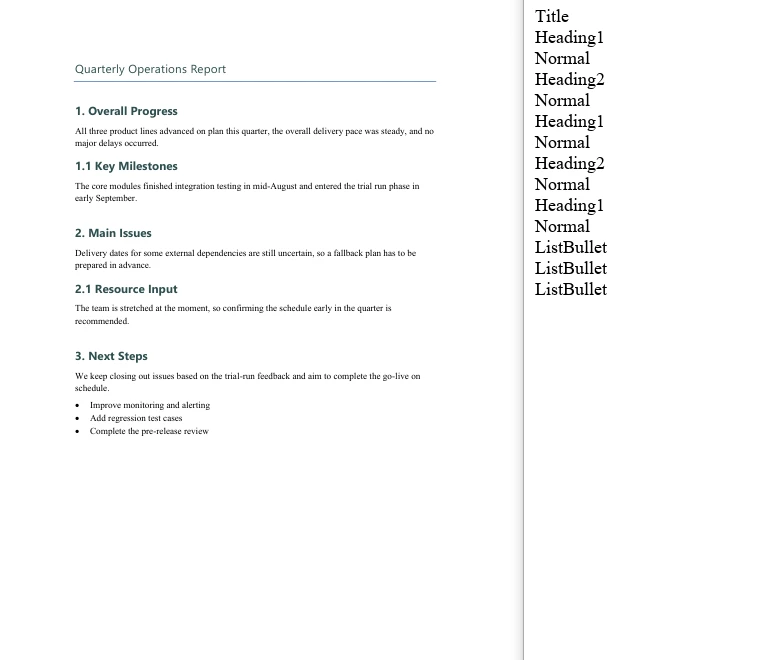
The sample document holds 14 paragraphs, and the exported TXT lists one style name per line, in paragraph order:
Title
Heading1
Normal
Heading2
Normal
Heading1
Normal
Heading2
Normal
Heading1
Normal
ListBullet
ListBullet
ListBullet
Note that the built-in style names come back without the space — Heading1 rather than Heading 1, ListBullet rather than List Bullet. That matters a great deal once a style name is used in a comparison.
The style name list exported for each paragraph of the sample document
Extract Paragraph Text by Style Name
The same two-level walk applies; all it takes is one extra test per paragraph — only when StyleName equals the target style name does paragraph.Text go into the result. The sample document holds 3 Heading1 paragraphs, with a Title, Heading 2 and body paragraphs around them, which shows that the filter really does pick out the target style alone.
function App() {
  const GetTextByStyleName = async () => {
    const docModule = window.wasmModule?.spiredoc;
    if (!docModule) {
      alert('Spire.Doc is not ready yet');
      return;
    }

    // Load the sample file into the virtual file system (VFS)
    let inputFileName = "GetTextByStyleName.docx";
    await window.spire.FetchFileToVFS(inputFileName, "", `${process.env.PUBLIC_URL}static/data/`);

    // Load the document
    let doc = new docModule.Document();
    doc.LoadFromFile(inputFileName);

    // Collect the text of the paragraphs that match
    let builder = [];

    // Walk every section -> paragraph
    for (let i = 0; i < doc.Sections.Count; i++) {
      let section = doc.Sections.get_Item(i);
      for (let j = 0; j < section.Paragraphs.Count; j++) {
        let para = section.Paragraphs.get_Item(j);

        // Take only the paragraphs whose style name is Heading1
        if (para.StyleName == "Heading1") {
          builder.push(para.Text);
        }
      }
    }

    // Define the output file name
    const outputFileName = "GetTextByStyleName-result.txt";

    // Write the content to the TXT file
    window.dotnetRuntime.Module.FS.writeFile(outputFileName, builder.join("\n"));
    doc.Close();

    // Read the written file and wrap it in a Blob
    const modifiedFileArray = window.dotnetRuntime.Module.FS.readFile(outputFileName);
    const blob = new Blob([modifiedFileArray], { type: "text/plain" });
    const url = URL.createObjectURL(blob);
    const a = document.createElement('a');
    a.href = url;
    a.download = outputFileName;
    a.click();
    URL.revokeObjectURL(url);
  };

  return (
    <div style={{ textAlign: 'center', height: '300px' }}>
      <h1>Extract Paragraph Text by Style Name</h1>
      <button onClick={GetTextByStyleName}>Generate</button>
    </div>
  );
}
export default App;
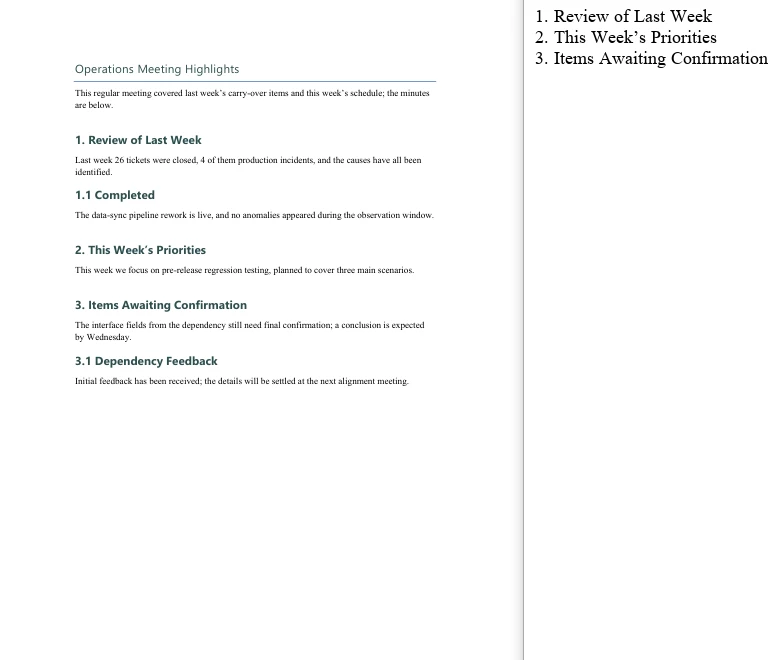
The exported TXT holds just 3 lines, which are exactly the Heading1 paragraphs of the document:
1. Review of Last Week
2. This Week’s Priorities
3. Items Awaiting Confirmation
Only the paragraphs on the target style reached the exported TXT
FAQ
Filtering by style name matches no paragraph at all
Cause: The StyleName of a built-in style is the space-free form, so writing "Heading 1" matches nothing.
Solution: Use the name without the space. In the sample, "Heading1" matches 3 paragraphs while "Heading 1" matches 0:
// Right
if (para.StyleName == "Heading1") { ... }

// Matches nothing
if (para.StyleName == "Heading 1") { ... }
Names are case-sensitive as well, so run the style-name export first to confirm the names the document actually uses before writing the condition.
The exported TXT has a blank line between every line
Cause: The text is joined both ways at once — push(text + "\n") and then join("\n"). Every element already carries a newline and join adds another one, so a blank line appears between every pair.
Solution: Keep only one of the two — either leave the newline off the elements and let join add it, or keep it on the elements and join with join(""):
// Let join supply the line breaks
builder.push(para.Text);
window.dotnetRuntime.Module.FS.writeFile(outputFileName, builder.join("\n"));
The downloaded file opens as garbled text
Cause: The MIME type of the Blob is set to docx, or the text is treated as a binary document when it is read back, so opening it in Word naturally shows nonsense.
Solution: A TXT output has to declare text/plain, and it should be opened in a text editor such as Notepad:
const modifiedFile = new Blob([modifiedFileArray], { type: "text/plain" });
Paragraphs inside tables are missed when walking Sections and Paragraphs
Cause: section.Paragraphs holds the body paragraphs only — paragraphs inside table cells are not in it. Table content hangs off section.Tables, and the Paragraphs of every cell has to be walked separately.
Solution: If the document contains tables and they need to be processed too, walk them outside the body loop:
for (let t = 0; t < section.Tables.Count; t++) {
  let table = section.Tables.get_Item(t);
  for (let r = 0; r < table.Rows.Count; r++) {
    for (let c = 0; c < table.Rows.get_Item(r).Cells.Count; c++) {
      let cell = table.Rows.get_Item(r).Cells.get_Item(c);
      // cell.Paragraphs holds the paragraphs inside the cell
    }
  }
}
Get a Free License
Spire.Doc for JavaScript offers a 30-day full-featured free trial license with no functional limitations. Apply here to evaluate before purchasing.
Restart List Numbering and Customize Bullets in Word with JavaScript in React
2026-09-30 08:40:13 Written by Amy ZhaoA consecutive sequence is often all a list needs — but real documents regularly ask for a new group that starts at a chosen number, or for a more distinctive glyph than the default dot. Neither change touches the paragraphs: both are level parameters of the list style itself, and both hang off ListRef.Levels — StartAt for the starting number, BulletCharacter for the glyph. Spire.Doc for JavaScript reads and writes these parameters directly in the browser via WebAssembly, with no backend server required.
This article covers two core features:
For installation and project setup, refer to Integrating Spire.Doc for JavaScript in a React Project. The examples below assume Spire.Doc is installed and the WebAssembly module is initialized.
Restart a List at a Specific Number
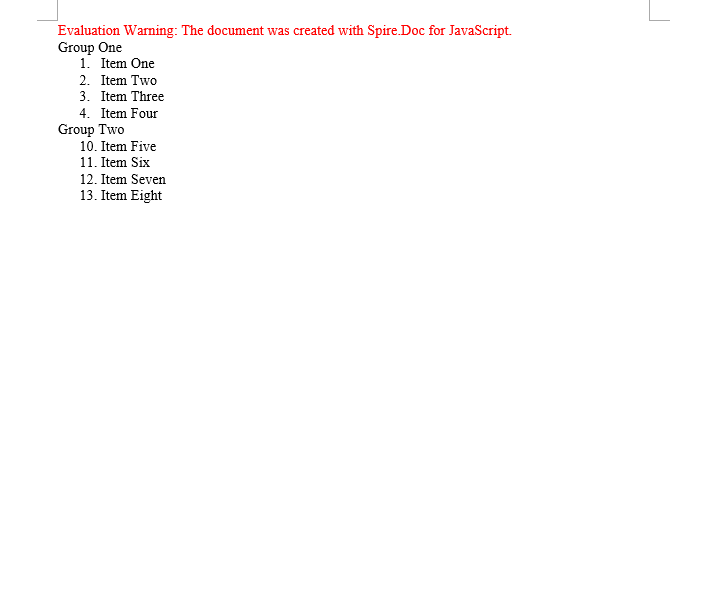
When two lists share one style object, Word treats them as a single numbering sequence and the second group simply carries on from the first. To make the second group count again, the most direct approach is to create a separate list style for it and set the StartAt property of level 0 on that style — it decides which number the level starts at.
StartAt follows the same indexing as ListLevelNumber: get_Item(0) is the first level. The sample sets the second list to 10, so its first entry renders as 10.:
function App() {
  const RestartList = async () => {
    const docModule = window.wasmModule?.spiredoc;
    if (!docModule) {
      alert('Spire.Doc is not ready yet');
      return;
    }

    // Create the document and the section
    let doc = new docModule.Document();
    let section = doc.AddSection();

    // Group heading
    let paragraph = section.AddParagraph();
    paragraph.AppendText("Group One");

    // The first list style: starts at 1 by default
    let numberList = doc.Styles.Add({ listType: docModule.ListType.Numbered, name: "Numbered1" });
    doc.Styles.Add(numberList);

    // Apply the style paragraph by paragraph
    paragraph = section.AddParagraph();
    paragraph.AppendText("Item One");
    paragraph.ListFormat.ApplyStyle(numberList.Name);

    paragraph = section.AddParagraph();
    paragraph.AppendText("Item Two");
    paragraph.ListFormat.ApplyStyle(numberList.Name);

    paragraph = section.AddParagraph();
    paragraph.AppendText("Item Three");
    paragraph.ListFormat.ApplyStyle(numberList.Name);

    paragraph = section.AddParagraph();
    paragraph.AppendText("Item Four");
    paragraph.ListFormat.ApplyStyle(numberList.Name);

    // Group heading
    paragraph = section.AddParagraph();
    paragraph.AppendText("Group Two");

    // The second list style: set the starting number of level 0 to 10
    let numberList2 = doc.Styles.Add({ listType: docModule.ListType.Numbered, name: "Numbered2" });
    numberList2.ListRef.Levels.get_Item(0).StartAt = 10;
    doc.Styles.Add(numberList2);

    // Apply the second style paragraph by paragraph; the numbering starts at 10
    paragraph = section.AddParagraph();
    paragraph.AppendText("Item Five");
    paragraph.ListFormat.ApplyStyle(numberList2.Name);

    paragraph = section.AddParagraph();
    paragraph.AppendText("Item Six");
    paragraph.ListFormat.ApplyStyle(numberList2.Name);

    paragraph = section.AddParagraph();
    paragraph.AppendText("Item Seven");
    paragraph.ListFormat.ApplyStyle(numberList2.Name);

    paragraph = section.AddParagraph();
    paragraph.AppendText("Item Eight");
    paragraph.ListFormat.ApplyStyle(numberList2.Name);

    // Define the output file name
    const outputFileName = "RestartList-result.docx";

    // Save the document to the given path
    doc.SaveToFile({ fileName: outputFileName, fileFormat: docModule.FileFormat.Docx2013 });
    doc.Dispose();

    const modifiedFileArray = window.dotnetRuntime.Module.FS.readFile(outputFileName);
    const blob = new Blob([modifiedFileArray], { type: 'application/vnd.openxmlformats-officedocument.wordprocessingml.document' });
    const url = URL.createObjectURL(blob);
    const a = document.createElement('a');
    a.href = url;
    a.download = outputFileName;
    a.click();
    URL.revokeObjectURL(url);
  };

  return (
    <div style={{ textAlign: 'center', height: '300px' }}>
      <h1>Restart the Second List at a Given Number</h1>
      <button onClick={RestartList}>Generate</button>
    </div>
  );
}
export default App;
The first list is numbered 1 to 4, the second starts at 10 and runs 10 to 13
Customize the Glyph a Bullet Displays
A bulleted list uses a dot such as · by default. Switching it to another shape takes two properties:
BulletCharacter— the character itself. It is a single character and can be produced from an ASCII/Unicode code point withString.fromCharCode();CharacterFormat.FontName— the font that carries the character. The shape of a bullet is really decided by the font: one code point draws a different figure under different fonts.
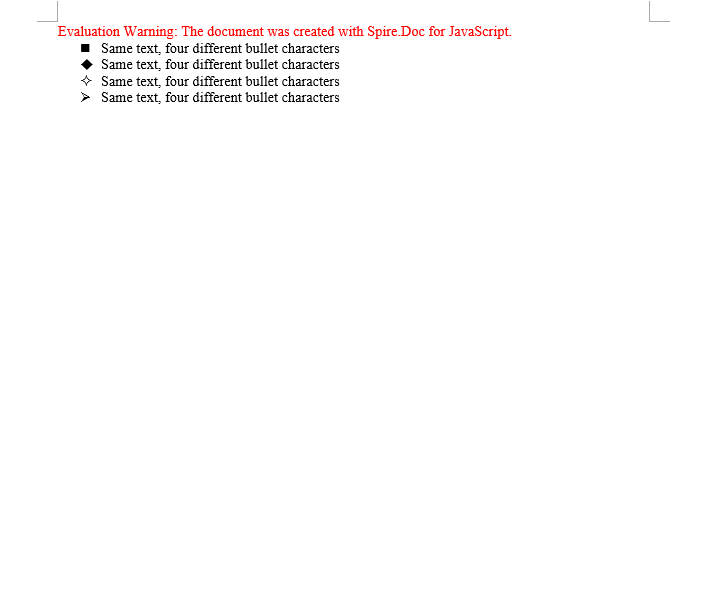
The second point is the one that matters. Symbol fonts such as Wingdings map ordinary letters onto geometric shapes, so a single character code comes out completely different under Wingdings than under a regular font. The sample below builds four list styles from four code points and applies each of them to the same sentence, so that the differences can be compared side by side:
function App() {
  const ASCIICharactersBulletStyle = async () => {
    const docModule = window.wasmModule?.spiredoc;
    if (!docModule) {
      alert('Spire.Doc is not ready yet');
      return;
    }

    // Create the document and the section
    let doc = new docModule.Document();
    let section = doc.AddSection();

    // Spell the glyph out as a character code and set the font that carries it to Wingdings
    let listStyle1 = doc.Styles.Add({ listType: docModule.ListType.Bulleted, name: "liststyle" });
    listStyle1.ListRef.Levels.get_Item(0).BulletCharacter = String.fromCharCode(0x006e);
    listStyle1.ListRef.Levels.get_Item(0).CharacterFormat.FontName = "Wingdings";

    let listStyle2 = doc.Styles.Add({ listType: docModule.ListType.Bulleted, name: "liststyle2" });
    listStyle2.ListRef.Levels.get_Item(0).BulletCharacter = String.fromCharCode(0x0075);
    listStyle2.ListRef.Levels.get_Item(0).CharacterFormat.FontName = "Wingdings";

    let listStyle3 = doc.Styles.Add({ listType: docModule.ListType.Bulleted, name: "liststyle3" });
    listStyle3.ListRef.Levels.get_Item(0).BulletCharacter = String.fromCharCode(0x00b2);
    listStyle3.ListRef.Levels.get_Item(0).CharacterFormat.FontName = "Wingdings";

    let listStyle4 = doc.Styles.Add({ listType: docModule.ListType.Bulleted, name: "liststyle4" });
    listStyle4.ListRef.Levels.get_Item(0).BulletCharacter = String.fromCharCode(0x00d8);
    listStyle4.ListRef.Levels.get_Item(0).CharacterFormat.FontName = "Wingdings";

    // Four paragraphs share one sentence, each with one of the four list styles
    let p1 = section.Body.AddParagraph();
    p1.AppendText("Same text, four different bullet characters");
    p1.ListFormat.ApplyStyle(listStyle1.Name);

    let p2 = section.Body.AddParagraph();
    p2.AppendText("Same text, four different bullet characters");
    p2.ListFormat.ApplyStyle(listStyle2.Name);

    let p3 = section.Body.AddParagraph();
    p3.AppendText("Same text, four different bullet characters");
    p3.ListFormat.ApplyStyle(listStyle3.Name);

    let p4 = section.Body.AddParagraph();
    p4.AppendText("Same text, four different bullet characters");
    p4.ListFormat.ApplyStyle(listStyle4.Name);

    // Define the output file name
    const outputFileName = "ASCIICharactersBulletStyle-result.docx";

    // Save the document to the given path
    doc.SaveToFile({ fileName: outputFileName, fileFormat: docModule.FileFormat.Docx2013 });
    doc.Dispose();

    const modifiedFileArray = window.dotnetRuntime.Module.FS.readFile(outputFileName);
    const blob = new Blob([modifiedFileArray], { type: 'application/vnd.openxmlformats-officedocument.wordprocessingml.document' });
    const url = URL.createObjectURL(blob);
    const a = document.createElement('a');
    a.href = url;
    a.download = outputFileName;
    a.click();
    URL.revokeObjectURL(url);
  };

  return (
    <div style={{ textAlign: 'center', height: '300px' }}>
      <h1>Create a Bullet Style from ASCII Characters</h1>
      <button onClick={ASCIICharactersBulletStyle}>Generate</button>
    </div>
  );
}
export default App;
Four identical lines, each with a different bullet; the difference comes from the BulletCharacter code point
FAQ
StartAt is set, but the list still continues from the previous group
Cause: The new list and the old one reuse the same style object. Every reference to one style shares a single numbering sequence, so changing StartAt moves the starting point of the whole sequence.
Solution: Add a separate style for the group that has to count again, and set StartAt on that new style:
let numberList2 = document.Styles.Add({ listType: wasmModule.ListType.Numbered, name: "Numbered2" });
numberList2.ListRef.Levels.get_Item(0).StartAt = 10;
The custom bullet shows up as a box or as garbled text
Cause: Only BulletCharacter was set and the font was left alone — or a regular font that does not contain the glyph was used. The system cannot render the code point and falls back to the missing-glyph box.
Solution: Set the symbol font to one that really contains the glyph (Wingdings, for example):
listStyle1.ListRef.Levels.get_Item(0).BulletCharacter = String.fromCharCode(0x006e);
listStyle1.ListRef.Levels.get_Item(0).CharacterFormat.FontName = "Wingdings";
The list level parameter was changed but nothing happens
Cause: ListRef.Levels is indexed from 0. Writing 1 out of habit changes the second level instead, and the first level stays exactly as it was.
Solution: Check the index — get_Item(0) is the first level:
// First level
numberList.ListRef.Levels.get_Item(0).StartAt = 10;
// Second level
numberList.ListRef.Levels.get_Item(1).NumberPrefix = "%1.";
Get a Free License
Spire.Doc for JavaScript offers a 30-day full-featured free trial license with no functional limitations. Apply here to evaluate before purchasing.
Create, Modify and Copy Word Styles with JavaScript in React
2026-09-30 08:15:23 Written by Amy ZhaoStyles are the way Word reuses formatting: give a set of formatting — the font, the size, the colour, the paragraph spacing — a name and save it, and from then on every paragraph that carries that style name picks the whole set up automatically. Change the style definition and every paragraph that references it updates along with it, which is exactly what setting the formatting on a paragraph directly cannot do. Spire.Doc for JavaScript performs all of this in the browser via WebAssembly, using a virtual file system (VFS) to manage input and output files — no backend server required.
Structurally a paragraph style holds two parts at once: character formatting and paragraph formatting. Once a built-in style has been taken, ParagraphStyle.CharacterFormat changes the text-level properties and ParagraphStyle.ParagraphFormat changes the paragraph-level ones. The library maps this model onto the Document.Styles collection in full.
This article covers two core features:
For installation and project setup, refer to Integrating Spire.Doc for JavaScript in a React Project. The examples below assume Spire.Doc is installed and the WebAssembly module is initialized.
Modify the Built-in Styles
Word ships with a batch of built-in styles — Title, Normal, Heading 1 to Heading 9 and so on. document.AddStyle({ builtinStyle }) takes the named built-in style (creating it if it does not exist yet) and returns its object, and once you have it, it can be rewritten.
Note that the return type of AddStyle is the generic Style, so before changing the paragraph format you have to confirm that the object really is a paragraph style — instanceof wasmModule.ParagraphStyle is the check. Normal is the base style of the body text, and changing it also affects every style that inherits from it, so it is usually used only to unify the body font and the font size.
function App() {
  const Styles = async () => {
    const docModule = window.wasmModule?.spiredoc;
    if (!docModule) {
      alert('Spire.Doc is not ready yet');
      return;
    }

    await window.spire.FetchFileToVFS("ARIALUNI.TTF", "/Library/Fonts/", `${process.env.PUBLIC_URL}static/font/`);

    // Create the document and the section
    let doc = new docModule.Document();
    let sec = doc.AddSection();

    // Take the built-in Title style and rewrite it with a custom colour scheme:
    // a bottom border and left alignment
    let titleStyle = doc.AddStyle({ builtinStyle: docModule.BuiltinStyle.Title });

    // Check whether it is a paragraph style; if it is, set the paragraph format too
    if (titleStyle instanceof docModule.ParagraphStyle) {
      let ps = titleStyle;
      ps.CharacterFormat.FontName = "Arial Unicode MS";
      ps.CharacterFormat.FontSize = 28;
      ps.CharacterFormat.TextColor = docModule.Color.FromArgb(42, 123, 136);
      ps.ParagraphFormat.Borders.Bottom.BorderType = docModule.BorderStyle.Single;
      ps.ParagraphFormat.Borders.Bottom.Color = docModule.Color.FromArgb(42, 123, 136);
      ps.ParagraphFormat.Borders.Bottom.LineWidth = 1.5;
      ps.ParagraphFormat.HorizontalAlignment = docModule.HorizontalAlignment.Left;
    }

    // Body style: one font and one size for the body text
    let normalStyle = doc.AddStyle({ builtinStyle: docModule.BuiltinStyle.Normal });
    normalStyle.CharacterFormat.FontName = "Arial Unicode MS";
    normalStyle.CharacterFormat.FontSize = 11;

    // Heading 1 style
    let heading1Style = doc.AddStyle({ builtinStyle: docModule.BuiltinStyle.Heading1 });
    heading1Style.CharacterFormat.FontName = "Arial Unicode MS";
    heading1Style.CharacterFormat.FontSize = 14;
    heading1Style.CharacterFormat.Bold = true;
    heading1Style.CharacterFormat.TextColor = docModule.Color.FromArgb(42, 123, 136);

    // Heading 2 style
    let heading2Style = doc.AddStyle({ builtinStyle: docModule.BuiltinStyle.Heading2 });
    heading2Style.CharacterFormat.FontName = "Arial Unicode MS";
    heading2Style.CharacterFormat.FontSize = 12;
    heading2Style.CharacterFormat.Bold = true;

    // Custom bulleted list style
    let bulletList = doc.Styles.Add({ listType: docModule.ListType.Bulleted, name: "bulletList" });
    doc.Styles.Add({ style: bulletList });

    // Apply the styles: built-in styles by builtinStyle, custom styles by name
    let paragraph = sec.AddParagraph();
    paragraph.AppendText("Quarterly Operations Report");
    paragraph.ApplyStyle({ builtinStyle: docModule.BuiltinStyle.Title });

    paragraph = sec.AddParagraph();
    paragraph.AppendText("Prepared by: Operations Management Department | Date: September 2026");
    paragraph.ApplyStyle({ builtinStyle: docModule.BuiltinStyle.Normal });

    paragraph = sec.AddParagraph();
    paragraph.AppendText("Overall Progress");
    paragraph.ApplyStyle({ builtinStyle: docModule.BuiltinStyle.Heading1 });

    paragraph = sec.AddParagraph();
    paragraph.AppendText("All three product lines stayed on plan this quarter, and the overall delivery pace was steady.");
    paragraph.ApplyStyle({ builtinStyle: docModule.BuiltinStyle.Normal });

    paragraph = sec.AddParagraph();
    paragraph.AppendText("Key Items");
    paragraph.ApplyStyle({ builtinStyle: docModule.BuiltinStyle.Heading1 });

    paragraph = sec.AddParagraph();
    paragraph.AppendText("Key Milestones");
    paragraph.ApplyStyle({ builtinStyle: docModule.BuiltinStyle.Heading2 });

    paragraph = sec.AddParagraph();
    paragraph.AppendText("Core module integration testing completed");
    paragraph.ListFormat.ApplyStyle("bulletList");

    paragraph = sec.AddParagraph();
    paragraph.AppendText("Trial run phase started");
    paragraph.ListFormat.ApplyStyle("bulletList");

    paragraph = sec.AddParagraph();
    paragraph.AppendText("Pre-release review scheduled");
    paragraph.ListFormat.ApplyStyle("bulletList");

    paragraph = sec.AddParagraph();
    paragraph.AppendText("Resource Input");
    paragraph.ApplyStyle({ builtinStyle: docModule.BuiltinStyle.Heading2 });

    paragraph = sec.AddParagraph();
    paragraph.AppendText("Team capacity is tight at the moment; confirm the schedule early in the quarter.");
    paragraph.ListFormat.ApplyStyle("bulletList");

    // Define the output file name
    const outputFileName = "Styles-result.docx";

    // Save the document to the given path
    doc.SaveToFile({ fileName: outputFileName, fileFormat: docModule.FileFormat.Docx2013 });
    doc.Dispose();

    const modifiedFileArray = window.dotnetRuntime.Module.FS.readFile(outputFileName);
    const blob = new Blob([modifiedFileArray], { type: 'application/vnd.openxmlformats-officedocument.wordprocessingml.document' });
    const url = URL.createObjectURL(blob);
    const a = document.createElement('a');
    a.href = url;
    a.download = outputFileName;
    a.click();
    URL.revokeObjectURL(url);
  };

  return (
    <div style={{ textAlign: 'center', height: '300px' }}>
      <h1>Create Styles and Apply Them to Paragraphs</h1>
      <button onClick={Styles}>Generate</button>
    </div>
  );
}
export default App;
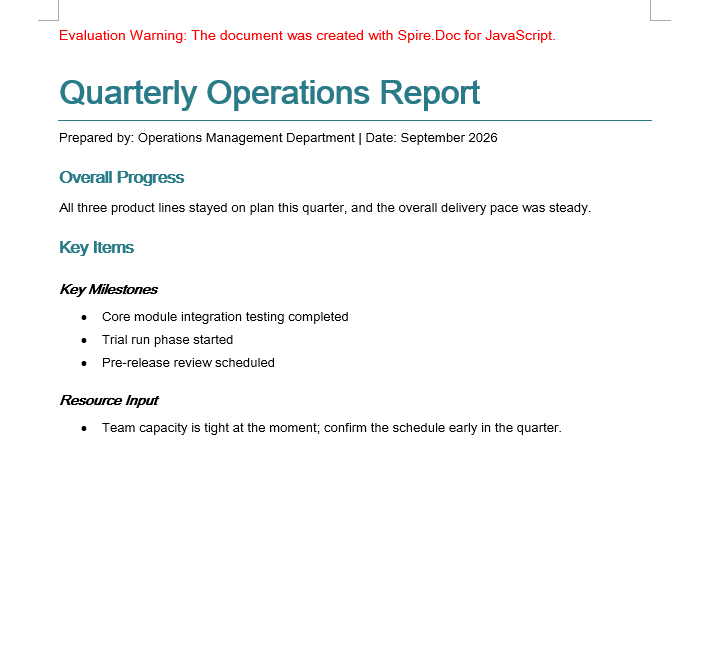
The built-in Title, Heading 1 and Heading 2 have been rewritten into one teal colour scheme, and the custom bulletList supplies the bullets
Copy Styles Between Documents
Companies often keep a "style master" document whose styles new documents have to follow. Rebuilding those styles one at a time by hand is slow and easy to miss something, so walk the Styles collection of the source document and add every style object to the target document instead.
document.Styles supports Count and get_Item(index), so the collection can be walked completely by index. Once the styles of the source document have been added to the target document, the paragraphs in the target that reference those style names immediately show the formatting of the source document.
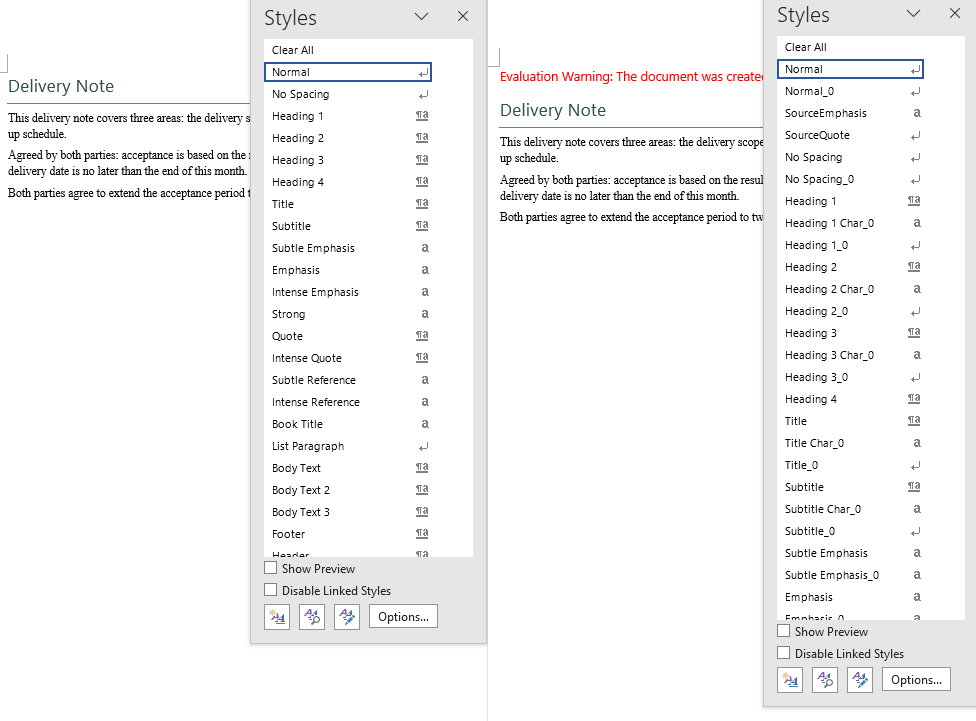
This example uses two sample documents: CopyDocumentStyles1.docx is the source document with custom styles, and CopyDocumentStyles2.docx is the target document — some of its paragraphs reference style names that only the source document defines, but it does not define them itself, so before the copy those paragraphs are displayed with the default formatting.
function App() {
  const CopyDocumentStyles = async () => {
    const docModule = window.wasmModule?.spiredoc;
    if (!docModule) {
      alert('Spire.Doc is not ready yet');
      return;
    }

    // Load the two sample files into the virtual file system (VFS)
    let inputFileName_1 = "CopyDocumentStyles1.docx";
    await window.spire.FetchFileToVFS(inputFileName_1, "", `${process.env.PUBLIC_URL}static/data/`);

    let inputFileName_2 = "CopyDocumentStyles2.docx";
    await window.spire.FetchFileToVFS(inputFileName_2, "", `${process.env.PUBLIC_URL}static/data/`);

    // Load the source document (with the custom styles)
    let srcDoc = new docModule.Document();
    srcDoc.LoadFromFile(inputFileName_1);

    // Load the target document (built-in styles only)
    let destDoc = new docModule.Document();
    destDoc.LoadFromFile(inputFileName_2);

    // Take the style collection of the source document
    let styles = srcDoc.Styles;

    // Add them to the target document one by one
    for (let i = 0; i < styles.Count; i++) {
      let style = styles.get_Item(i);
      destDoc.Styles.Add(style);
    }

    // Define the output file name
    const outputFileName = "CopyDocumentStyles_result.docx";

    // Save the document to the given path
    destDoc.SaveToFile({ fileName: outputFileName, fileFormat: docModule.FileFormat.Docx2013 });
    destDoc.Dispose();
    srcDoc.Dispose();

    const modifiedFileArray = window.dotnetRuntime.Module.FS.readFile(outputFileName);
    const blob = new Blob([modifiedFileArray], { type: 'application/vnd.openxmlformats-officedocument.wordprocessingml.document' });
    const url = URL.createObjectURL(blob);
    const a = document.createElement('a');
    a.href = url;
    a.download = outputFileName;
    a.click();
    URL.revokeObjectURL(url);
  };

  return (
    <div style={{ textAlign: 'center', height: '300px' }}>
      <h1>Copy the Styles of the Source Document into the Target Document</h1>
      <button onClick={CopyDocumentStyles}>Generate</button>
    </div>
  );
}
export default App;
After the copy the target document has the custom styles of the source document, and the paragraphs that "referenced a style without carrying its formatting" are displayed correctly again
FAQ
The Normal style was changed, but not every body paragraph followed
Cause: Only styles that inherit from Normal are affected by it. If a paragraph carries direct formatting of its own (a per-paragraph CharacterFormat.FontName, for example), the direct formatting has a higher priority than the style and covers up what the style sets.
Solution: Control the appearance through styles consistently and remove the direct formatting from the paragraphs and the runs. Normal is commonly used to unify the body font and the font size:
let normalStyle = document.AddStyle({ builtinStyle: wasmModule.BuiltinStyle.Normal });
normalStyle.CharacterFormat.FontName = "Arial Unicode MS";
normalStyle.CharacterFormat.FontSize = 11;
The number of styles in the target document doubled after the copy
Cause: The walk copies every style of the source document across, and that includes a large number of built-in styles. Those style names usually already exist in the target document, and adding them one at a time creates duplicate entries.
Solution: This is the actual behaviour of the sample (the style collection grows noticeably). If a real project only needs the custom styles, filter by name first and copy only the styles the target document does not have yet:
for (let i = 0; i < srcDoc.Styles.Count; i++) {
  let style = srcDoc.Styles.get_Item(i);

  // Check whether the target document already has a style with the same name
  let exists = false;
  for (let j = 0; j < destDoc.Styles.Count; j++) {
    if (destDoc.Styles.get_Item(j).Name === style.Name) {
      exists = true;
      break;
    }
  }

  // Only add the styles that the target document is missing
  if (!exists) {
    destDoc.Styles.Add(style);
  }
}
A custom style does not take effect when it is applied to a paragraph
Cause: ApplyStyle is called differently for built-in and custom styles — a built-in style takes a { builtinStyle } object, a custom style takes the style name as a string. Passing the wrong form is ignored silently.
Solution: Choose the form that matches where the style comes from:
// Built-in style
paragraph.ApplyStyle({ builtinStyle: wasmModule.BuiltinStyle.Heading1 });

// Custom style (the string name, which has to match the name used in Add)
paragraph.ListFormat.ApplyStyle("bulletList");
Get a Free License
Spire.Doc for JavaScript offers a 30-day full-featured free trial license with no functional limitations. Apply here to evaluate before purchasing.
