Insert Images in Word with JavaScript in React
In MS word, images can quickly and easily convey complex information that may be difficult to explain in words alone. Whether you're creating a report, a presentation, a newsletter, or a simple document, adding images can make your content more engaging, informative, and visually appealing. In this article, you will learn how to add images to a Word document in React using Spire.Doc for JavaScript.
- Insert an Image in a Word Document in JavaScript
- Insert an Image at a Specified Location in Word in JavaScript
Install the JavaScript Library
To get started with inserting images in Word in a React application, you can either download Spire.Doc for JavaScript from our website or install it via npm with the following command:
npm i spire.officeThe downloaded product package integrates Spire.Doc for JavaScript, Spire.XLS for JavaScript, Spire.PDF for JavaScript, and Spire.Presentation for JavaScript. To use the features of Spire.Doc for JavaScript, you need to copy the corresponding files (spire.doc.js, Spire.Doc.Wasm.zip, spire.common.js, Spire.Common.Wasm.zip, and the _framework folder) to the public folder of your project. To ensure proper text rendering, you can add relevant font files with a custom path. In the following example, the font is added to the path: public\static\font.
For more details, refer to the documentation: How to Integrate Spire.Doc for JavaScript in a React Project
Insert an Image in a Word Document in JavaScript
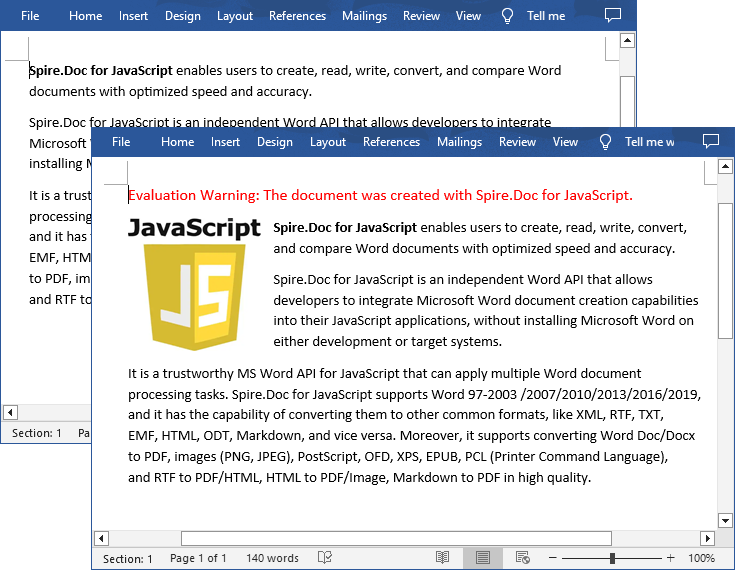
The Paragraph.AppendPicture() method offered by Spire.Doc for JavaScript allows to insert an image into a Word document. The following are the main steps to insert an image in Word and set its size, text wrapping style using JavaScript.
- Create a new document using the new wasmModule.Document() method.
- Load a Word document using the Document.LoadFromFile() method.
- Get a specified section in the document using the Document.Sections.get_Item() method.
- Get a specified paragraph in the section using the Section.Paragraphs.get_Item() method.
- Add an image to the specified paragraph using the Paragraph.AppendPicture() method.
- Set width, height and text wrapping style for the image.
- Save the result document using Document.SaveToFile() method.
- JavaScript
import React, { useState, useEffect } from 'react';

function App() {
  const [wasmModule, setWasmModule] = useState(null);
  // Load Spire.Doc
  useEffect(() => {
    (async () => {
      try {
        const publicUrl = process.env.PUBLIC_URL || '';
        const spireModule = await import(/* webpackIgnore: true */ `${publicUrl}/spire.doc.js`);
        const rawModule = spireModule.default || spireModule;
        window.wasmModule = typeof rawModule === 'function'
          ? await rawModule({ locateFile: p => p.endsWith('.wasm') ? `${publicUrl}/${p}` : p })
          : rawModule;
        setWasmModule(window.wasmModule);
      } catch (error) {
        console.error('Failed to load spire.doc.js WASM module:', error);
      }
    })();
  }, []);

  // Function to insert an image in Word
  const InsertWordImage = async () => {
    const wasmModule = window.wasmModule.spiredoc;

    if (wasmModule) {
      // Load the font files into the virtual file system (VFS)
      await window.spire.FetchFileToVFS('Arial.ttf', '/Library/Fonts/', `${process.env.PUBLIC_URL}/static/font/`);

      // Specify the input file name and the output file name
      const inputFileName = 'input.docx';
      const outputFileName = "InsertImage.docx";
      const imageFile = "logo.png";

      // Fetch the input file and add it to the VFS
      await window.spire.FetchFileToVFS(inputFileName, '', `${process.env.PUBLIC_URL}/static/data/`);
      await window.spire.FetchFileToVFS(imageFile, '', `${process.env.PUBLIC_URL}/static/data/`);

      // Create an instance of the Document class
      const doc = new wasmModule.Document();

      // Load the Word document
      doc.LoadFromFile({ fileName: inputFileName });

      // Get the first section
      const section = doc.Sections.get_Item(0);

      // Get the first paragraph
      const paragraph = section.Paragraphs.get_Item(0);

      // Add the image to the first paragraph
      let picture = paragraph.AppendPicture({ imgFile: imageFile });

      // Set image width and height
      picture.Width = 100;
      picture.Height = 100;

      // Set text wrapping style for the image
      picture.TextWrappingStyle = wasmModule.TextWrappingStyle.Square;

      // Save the result document
      doc.SaveToFile({ fileName: outputFileName, fileFormat: wasmModule.FileFormat.Docx });

      // Release resources
      doc.Dispose();

      // Read the generated Word file from VFS
      const modifiedFileArray = window.dotnetRuntime.Module.FS.readFile(outputFileName);

      // Create a Blob object from the Word file
      const modifiedFile = new Blob([modifiedFileArray], { type: "application/vnd.openxmlformats-officedocument.wordprocessingml.document" });

      // Create a URL for the Blob
      const url = URL.createObjectURL(modifiedFile);

      // Create an anchor element to trigger the download
      const a = document.createElement("a");
      a.href = url;
      a.download = outputFileName;
      document.body.appendChild(a);
      a.click();
      document.body.removeChild(a);
      URL.revokeObjectURL(url);
    }
  };

  return (
    <div style={{ textAlign: 'center', height: '300px' }}>
      <h1>Insert an Image in a Word Document Using JavaScript in React</h1>
      <button onClick={InsertWordImage} disabled={!wasmModule}>
        Execute
      </button>
    </div>
  );
}

export default App;
Run the code to launch the React app at localhost:3000. Once it's running, click on the "Execute" button to download the result file:
The input file and the result file:
Insert an Image at a Specified Location in Word in JavaScript
You can also place the image at any specified location in the Word document through the DocPicture.HorizontalPosition and DocPicture.VerticalPosition properties. The following are the main steps:
- Create a new document using the new wasmModule.Document() method.
- Add a section to the document using the Document.AddSection() method.
- Add a paragraph to the section using the Section.AddParagraph() method.
- Add text to the paragraph and set paragraph style.
- Add an image to the paragraph using the Paragraph.AppendPicture() method.
- Set the horizontal position and vertical position for the image through the DocPicture.HorizontalPosition and DocPicture.VerticalPosition properties.
- Set width, height and text wrapping style for the image.
- Save the result document using Document.SaveToFile() method.
- JavaScript
import React, { useState, useEffect } from 'react';

function App() {
  const [wasmModule, setWasmModule] = useState(null);
  // Load Spire.Doc
  useEffect(() => {
    (async () => {
      try {
        const publicUrl = process.env.PUBLIC_URL || '';
        const spireModule = await import(/* webpackIgnore: true */ `${publicUrl}/spire.doc.js`);
        const rawModule = spireModule.default || spireModule;
        window.wasmModule = typeof rawModule === 'function'
          ? await rawModule({ locateFile: p => p.endsWith('.wasm') ? `${publicUrl}/${p}` : p })
          : rawModule;
        setWasmModule(window.wasmModule);
      } catch (error) {
        console.error('Failed to load spire.doc.js WASM module:', error);
      }
    })();
  }, []);

  // Function to insert an image at a specified location in Word
  const InsertImage = async () => {
    const wasmModule = window.wasmModule.spiredoc;

    if (wasmModule) {
      // Load the font files into the virtual file system (VFS)
      await window.spire.FetchFileToVFS('Arial.ttf', '/Library/Fonts/', `${process.env.PUBLIC_URL}/static/font/`);

      // Specify the input file name and the output file name
      const outputFileName = "WordImage.docx";
      const imageFile = "logo.png";

      // Fetch the input file and add it to the VFS
      await window.spire.FetchFileToVFS(imageFile, '', `${process.env.PUBLIC_URL}/static/data/`);

      // Create an instance of the Document class
      const doc = new wasmModule.Document();

      // Add a section in the document
      let section = doc.AddSection();

      // Add a paragraph to the section
      let paragraph = section.AddParagraph();

      // Add text to the paragraph and set paragraph style
      paragraph.AppendText("The sample demonstrates how to insert an image at a specified location in a Word document.");
      paragraph.ApplyStyle({ builtinStyle: wasmModule.BuiltinStyle.Heading2 });

      //Add an image to the paragraph
      let picture = paragraph.AppendPicture({ imgFile: imageFile });

      // Set image position
      picture.HorizontalPosition = 150.0;
      picture.VerticalPosition = 70.0;

      // Set image width and height
      picture.Width = 100;
      picture.Height = 100;

      // Set text wrapping style for the image
      picture.TextWrappingStyle = wasmModule.TextWrappingStyle.Through;

      // Save the result document
      doc.SaveToFile({ fileName: outputFileName, fileFormat: wasmModule.FileFormat.Docx });

      // Release resources
      doc.Dispose();

      // Read the generated Word file from VFS
      const modifiedFileArray = window.dotnetRuntime.Module.FS.readFile(outputFileName);

      // Create a Blob object from the Word file
      const modifiedFile = new Blob([modifiedFileArray], { type: "application/vnd.openxmlformats-officedocument.wordprocessingml.document" });

      // Create a URL for the Blob
      const url = URL.createObjectURL(modifiedFile);

      // Create an anchor element to trigger the download
      const a = document.createElement("a");
      a.href = url;
      a.download = outputFileName;
      document.body.appendChild(a);
      a.click();
      document.body.removeChild(a);
      URL.revokeObjectURL(url);
    }
  };

  return (
    <div style={{ textAlign: 'center', height: '300px' }}>
      <h1>Insert an Image at a Specified Location in Word Using JavaScript in React</h1>
      <<button onClick={InsertImage} disabled={!wasmModule}>
      Execute
      </button>
    </div>
 );
}

export default App;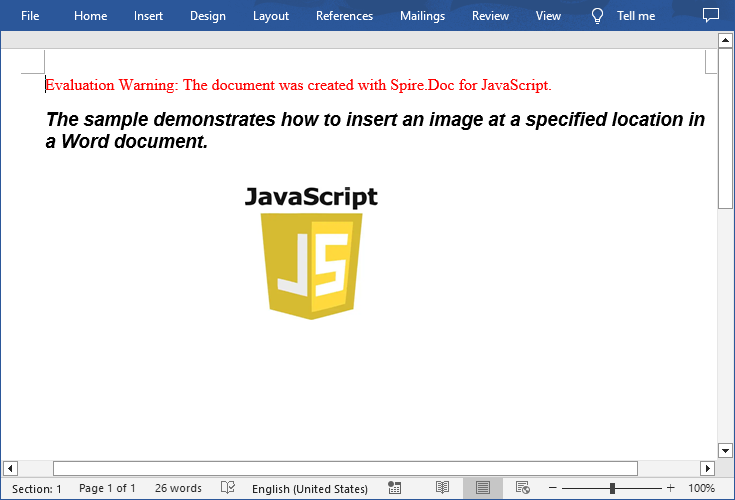
Get a Free License
To fully experience the capabilities of Spire.Doc for JavaScript without any evaluation limitations, you can request a free 30-day trial license.
Insert or Delete Images in Excel with JavaScript in React
Images in Excel can add a visual element to your data, making it more engaging and easier to understand. From adding company logos to embedding charts or diagrams, images can convey complex information more effectively than text alone. There are also times that you need to remove the images that are no longer relevant or cluttering your worksheet. This article will demonstrate how to insert or delete images in an Excel worksheet in React using Spire.XLS for JavaScript.
Install Spire.XLS for JavaScript
To get started with inserting or deleting picture in Excel in a React application, you can either download Spire.XLS for JavaScript from our website or install it via npm with the following command:
npm i spire.office
The downloaded product package has been integrated Spire.Doc for JavaScript,Spire.XLS for JavaScript,Spire.PDF for JavaScript,Spire.Presentation for JavaScript. To use the functionality of Spire.XLS for JavaScript, you need to copy the corresponding files (spire.xls.js, Spire.Xls.Wasm.zip, spire.common.js, Spire.Common.Wasm.zip, and _framework) to the project's "public" folder. At the same time, in order to ensure text rendering, the related font files can be added with custom paths. In the following example, the font addition path is: public\static\font.
For more details, refer to the documentation: How to Integrate Spire.XLS for JavaScript in a React Project
Insert Images in Excel in JavaScript
Spire.XLS for JavaScript provides the Worksheet.Pictures.Add() method to add a picture to a specified cell in an Excel worksheet. The following are the main steps.
- Create a Workbook object using the new wasmModule.Workbook() method.
- Get a specific worksheet using the Workbook.Worksheets.get() method.
- Insert a picture into a specific cell using the Worksheet.Pictures.Add() method and return an object of ExcelPicture.
- Set the width and height of the picture, as well as the distance between the picture and the cell border through the properties under the ExcelPicture object.
- Save the result file using the Workbook.SaveToFile() method.
- JavaScript
import React, { useState, useEffect } from 'react';
function App() {
  const [wasmModule, setWasmModule] = useState(null);
  // Load Spire.XLS
  useEffect(() => {
    (async () => {
      try {
        const publicUrl = process.env.PUBLIC_URL || '';
        const spireModule = await import(/* webpackIgnore: true */ `${publicUrl}/spire.xls.js`);
        const rawModule = spireModule.default || spireModule;
        window.wasmModule = typeof rawModule === 'function'
          ? await rawModule({ locateFile: p => p.endsWith('.wasm') ? `${publicUrl}/${p}` : p })
          : rawModule;
        setWasmModule(window.wasmModule);
      } catch (error) {
        console.error('Failed to load spire.xls.js WASM module:', error);
      }
    })();
  }, []);

  // Function to insert an image in Excel
  const InsertExcelImage = async () => {
    const wasmModule = window.wasmModule.spirexls;

    if (wasmModule) {
      // Load font into Virtual File System (VFS)
      await window.spire.FetchFileToVFS('Arial.ttf', '/Library/Fonts/', `${process.env.PUBLIC_URL}/static/font/`);


      // Load the image files into the virtual file system (VFS)
      let inputFileName = 'logo.png';
      await window.spire.FetchFileToVFS(inputFileName, '', `${process.env.PUBLIC_URL}/static/data/`);


      // Create a new workbook
      let workbook = new wasmModule.Workbook();

      // Get the first worksheet.
      let sheet = workbook.Worksheets.get(0);

      // Add a picture to the specific cell
      let picture = sheet.Pictures.Add({ topRow: 2, leftColumn: 3, fileName: inputFileName });

      // Set the picture width and height
      picture.Width = 150
      picture.Height = 150

      // Adjust the column width and row height to accommodate the picture
      sheet.SetRowHeight(2, 135);
      sheet.SetColumnWidth(3, 25);

      // Set the distance between cell border and picture
      picture.LeftColumnOffset = 90
      picture.TopRowOffset = 20

      // Save the modified workbook to the specified file
      const outputFileName = 'InsertExcelImage.xlsx';
      workbook.SaveToFile({ fileName: outputFileName, version: wasmModule.ExcelVersion.Version2016 });

      // Read the saved file and convert to Blob object
      const modifiedFileArray = window.dotnetRuntime.Module.FS.readFile(outputFileName);
      const modifiedFile = new Blob([modifiedFileArray], { type: 'application/vnd.openxmlformats-officedocument.spreadsheetml.sheet' });

      // Create a URL for the Blob and initiate download
      const url = URL.createObjectURL(modifiedFile);
      const a = document.createElement('a');
      a.href = url;
      a.download = outputFileName;
      document.body.appendChild(a);
      a.click();
      document.body.removeChild(a);
      URL.revokeObjectURL(url);

      // Clean up resources used by the workbook
      workbook.Dispose();
    }
  };

  return (
    <div style={{ textAlign: 'center', height: '300px' }}>
      <h1>Insert an Image to a Specified Cell in Excel Using JavaScript in React</h1>
      <button onClick={InsertExcelImage} disabled={!wasmModule}>
        Process
      </button>
    </div>
  );
}

export default App;
Run the code to launch the React app at localhost:3000. Once it's running, click the "Process" button to insert image in Excel:
Below is the result file:

Delete Images in Excel in JavaScript
To delete all pictures in an Excel worksheet, you need to iterate through each picture and then remove them through the Worksheet.Pictures.get().Remove() method. The following are the main steps.
- Create a Workbook object using the new wasmModule.Workbook() method.
- Load an Excel file using the Workbook.LoadFromFile() method.
- Get a specific worksheet using the Workbook.Worksheets.get() method.
- Iterate through all pictures in the worksheet and then remove them using the Worksheet.Pictures.get().Remove() method.
- Save the result file using the Workbook.SaveToFile() method.
- JavaScript
import React, { useState, useEffect } from 'react';
function App() {
  const [wasmModule, setWasmModule] = useState(null);
  // Load Spire.XLS
  useEffect(() => {
    (async () => {
      try {
        const publicUrl = process.env.PUBLIC_URL || '';
        const spireModule = await import(/* webpackIgnore: true */ `${publicUrl}/spire.xls.js`);
        const rawModule = spireModule.default || spireModule;
        window.wasmModule = typeof rawModule === 'function'
          ? await rawModule({ locateFile: p => p.endsWith('.wasm') ? `${publicUrl}/${p}` : p })
          : rawModule;
        setWasmModule(window.wasmModule);
      } catch (error) {
        console.error('Failed to load spire.xls.js WASM module:', error);
      }
    })();
  }, []);

  // Function to delete images from Excel
  const DeleteExcelImage = async () => {
    const wasmModule = window.wasmModule.spirexls;

    if (wasmModule) {
      // Load font into Virtual File System (VFS)
      await window.spire.FetchFileToVFS('Arial.ttf', '/Library/Fonts/', `${process.env.PUBLIC_URL}/static/font/`);


      // Load the excel files into the virtual file system (VFS)
      let inputFileName = 'InsertExcelImage.xlsx';
      await window.spire.FetchFileToVFS(inputFileName, '', `${process.env.PUBLIC_URL}/static/data/`);


      // Create a new workbook
      let workbook = new wasmModule.Workbook();

      // Load the Excel document
      workbook.LoadFromFile({ fileName: inputFileName });

      // Get the first worksheet
      let sheet = workbook.Worksheets.get(0);

      // Delete all images from the worksheet
      for (let i = sheet.Pictures.Count - 1; i >= 0; i--) {
        sheet.Pictures.get(i).Remove();
      }

      // Save the result file
      const outputFileName = 'DeleteImages.xlsx';
      workbook.SaveToFile({ fileName: outputFileName, version: wasmModule.ExcelVersion.Version2016 });

      // Read the saved file and convert to Blob object
      const modifiedFileArray = window.dotnetRuntime.Module.FS.readFile(outputFileName);
      const modifiedFile = new Blob([modifiedFileArray], { type: 'application/vnd.openxmlformats-officedocument.spreadsheetml.sheet' });

      // Create a URL for the Blob and initiate download
      const url = URL.createObjectURL(modifiedFile);
      const a = document.createElement('a');
      a.href = url;
      a.download = outputFileName;
      document.body.appendChild(a);
      a.click();
      document.body.removeChild(a);
      URL.revokeObjectURL(url);

      // Clean up resources used by the workbook
      workbook.Dispose();
    }
  };

  return (
    <div style={{ textAlign: 'center', height: '300px' }}>
      <h1>Delete Images from Excel Using JavaScript in React</h1>
      <button onClick={DeleteExcelImage} disabled={!wasmModule}>
        Process
      </button>
    </div>
  );
}

export default App;
Get a Free License
To fully experience the capabilities of Spire.XLS for JavaScript without any evaluation limitations, you can request a free 30-day trial license.
Add or Remove Text Boxes in Word with JavaScript in React
Adding or removing text boxes in Word is a valuable skill that enhances document layout and visual appeal. Text boxes provide a flexible way to highlight important information, create side notes, or organize content more effectively. They allow for creative formatting options, enabling you to draw attention to specific areas of your document.
In this article, you will learn how to add or move text boxes in a Word document in React using Spire.Doc for JavaScript.
Install Spire.Doc for JavaScript
To get started wtih manipulating text boxes in Word in a React applicaiton, you can either download Spire.Doc for JavaScript from our website or install it via npm with the following command:
npm i spire.officeThe downloaded product package integrates Spire.Doc for JavaScript, Spire.XLS for JavaScript, Spire.PDF for JavaScript, and Spire.Presentation for JavaScript. To use the features of Spire.Doc for JavaScript, you need to copy the corresponding files (spire.doc.js, Spire.Doc.Wasm.zip, spire.common.js, Spire.Common.Wasm.zip, and the _framework folder) to the public folder of your project. To ensure proper text rendering, you can add relevant font files with a custom path. In the following example, the font is added to the path: public\static\font.
For more details, refer to the documentation: How to Integrate Spire.Doc for JavaScript in a React Project
Add a Text Box to a Word Document in React
Spire.Doc for JavaScript offers the Paragraph.AppendTextBox() method to seamlessly insert a text box into a specified paragraph. Once inserted, you can customize the text box by adding content and applying formatting using properties like TextBox.Body and TextBox.Format.
The following are the steps to add a text box to a Word document in React:
- Load required font and input file into the virtual file system (VFS).
- Create a Document object using the new wasmModule.Document() method.
- Load the Word file using the Document.LoadFromFile() method.
- Access the first section and paragraph.
- Insert a text box to the paragraph using the Paragraph.AppendTextBox() method.
- Add a paragraph to the text box and append text to it through the TextBox.Body property.
- Customize the appearance of the text box through the TextBox.Format property.
- Save the document and trigger a download.
- JavaScript
import React, { useState, useEffect } from 'react';

function App() {
  const [wasmModule, setWasmModule] = useState(null);
  // Load Spire.Doc
  useEffect(() => {
    (async () => {
      try {
        const publicUrl = process.env.PUBLIC_URL || '';
        const spireModule = await import(/* webpackIgnore: true */ `${publicUrl}/spire.doc.js`);
        const rawModule = spireModule.default || spireModule;
        window.wasmModule = typeof rawModule === 'function'
          ? await rawModule({ locateFile: p => p.endsWith('.wasm') ? `${publicUrl}/${p}` : p })
          : rawModule;
        setWasmModule(window.wasmModule);
      } catch (error) {
        console.error('Failed to load spire.doc.js WASM module:', error);
      }
    })();
  }, []);

  // Function to add text box
  const AddTextBox = async () => {
    const wasmModule = window.wasmModule.spiredoc;

    if (wasmModule) {
      // Load the font files into the virtual file system (VFS)
      await window.spire.FetchFileToVFS('Arial.ttf', '/Library/Fonts/', `${process.env.PUBLIC_URL}/static/font/`);

      // Specify the input file name and the output file name
      const outputFileName = "Textbox.docx";
      const inputFileName = 'input.docx';

      // Fetch the input file and add it to the VFS
      await window.spire.FetchFileToVFS(inputFileName, '', `${process.env.PUBLIC_URL}/static/data/`);

      // Create an instance of the Document class
      const doc = new wasmModule.Document();

      // Load the Word document
      doc.LoadFromFile(inputFileName);

      // Get a specific section
      let section = doc.Sections.get_Item(0)

      // Get a specific paragraph
      let paragraph = section.Paragraphs.get_Item(0)

      // Insert a textbox and set its wrapping style
      let textBox = paragraph.AppendTextBox(150, 100);
      textBox.Format.TextWrappingStyle = wasmModule.TextWrappingStyle.Square;

      // Set the position of the textbox
      textBox.Format.HorizontalPosition = 0;
      textBox.Format.VerticalPosition = 50;

      // Set the line style and fill color
      textBox.Format.LineColor = wasmModule.Color.get_DarkBlue();
      textBox.Format.LineStyle = wasmModule.TextBoxLineStyle.Simple;
      textBox.Format.FillColor = wasmModule.Color.get_LightGray();

      // Add a paragraph to the textbox
      let para = textBox.Body.AddParagraph();
      let textRange = para.AppendText("This is a sample text box created by Spire.Doc for JavaScript.");

      // Format the text
      textRange.CharacterFormat.FontName = "Arial";
      textRange.CharacterFormat.FontSize = 15;
      textRange.CharacterFormat.TextColor = wasmModule.Color.get_Blue();

      // Set the horizontal alignment of the paragraph
      para.Format.HorizontalAlignment = wasmModule.HorizontalAlignment.Center;

      // Save the document to the specified path
      doc.SaveToFile({ fileName: outputFileName, fileFormat: wasmModule.FileFormat.Docx2013 });

      // Read the generated file from VFS
      const fileArray = window.dotnetRuntime.Module.FS.readFile(outputFileName);

      // Create a Blob object from the file
      const blob = new Blob([fileArray], { type: "application/vnd.openxmlformats-officedocument.wordprocessingml.document" });

      // Create a URL for the Blob
      const url = URL.createObjectURL(blob);

      // Create an anchor element to trigger the download
      const a = document.createElement('a');
      a.href = url;
      a.download = outputFileName;
      document.body.appendChild(a);
      a.click();
      document.body.removeChild(a);
      URL.revokeObjectURL(url);

      // Clean up resources
      doc.Dispose();
    }
  };

  return (
    <adiv style={{ textAlign: 'center', height: '300px' }}>
      <ah1>Add a text box to Word in React<a/h1>
      <abutton onClick={AddTextBox} disabled={!wasmModule}>
        Generate
      <a/button>
    <a/div>
  );
}

export default App;
Run the code to launch the React app at localhost:3000. Click "Generate", and a "Save As" window will appear, prompting you to save the output file in your chosen folder.

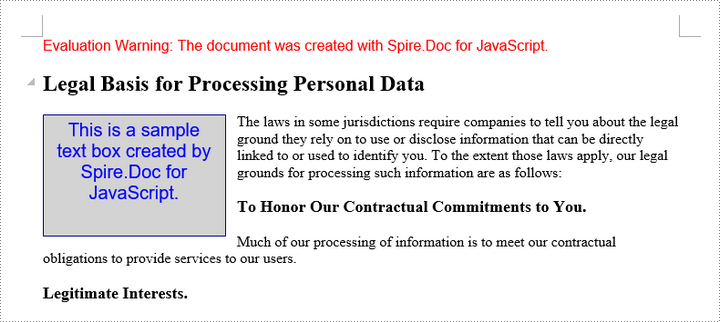
Here is a screenshot of the generated Word file that includes a text box:
Remove a Text Box from a Word Document in React
Spire.Doc for JavaScript includes the Document.TextBoxes.RemoveAt() method, which allows you to delete a specific text box by its index. If you need to remove all text boxes from a Word document, you can use the Document.TextBoxes.Clear() method for a quick and efficient solution.
The following are the steps to remove a text box from a Word document in React:
- Load the input file into the virtual file system (VFS).
- Create a Document object using the new wasmModule.Document() method.
- Load the Word file using the Document.LoadFromFile() method.
- Remove a specific text box using the Document.TextBoxes.RemoveAt() method.
- Save the document and trigger a download.
- JavaScript
import React, { useState, useEffect } from 'react';

function App() {
  const [wasmModule, setWasmModule] = useState(null);
  // Load Spire.Doc
  useEffect(() => {
    (async () => {
      try {
        const publicUrl = process.env.PUBLIC_URL || '';
        const spireModule = await import(/* webpackIgnore: true */ `${publicUrl}/spire.doc.js`);
        const rawModule = spireModule.default || spireModule;
        window.wasmModule = typeof rawModule === 'function'
          ? await rawModule({ locateFile: p => p.endsWith('.wasm') ? `${publicUrl}/${p}` : p })
          : rawModule;
        setWasmModule(window.wasmModule);
      } catch (error) {
        console.error('Failed to load spire.doc.js WASM module:', error);
      }
    })();
  }, []);

  // Function to remove text box
  const RemoveTextBox = async () => {
    const wasmModule = window.wasmModule.spiredoc;

    if (wasmModule) {
      // Load the font files into the virtual file system (VFS)
      await window.spire.FetchFileToVFS('Arial.ttf', '/Library/Fonts/', `${process.env.PUBLIC_URL}/static/font/`);

      // Specify the input file name and the output file name
      const outputFileName = "RemoveTextBox.docx";
      const inputFileName = 'Textbox.docx';

      // Fetch the input file and add it to the VFS
      await window.spire.FetchFileToVFS(inputFileName, '', `${process.env.PUBLIC_URL}/static/data/`);

      // Create an instance of the Document class
      const doc = new wasmModule.Document();


      // Load the Word document
      doc.LoadFromFile(inputFileName);

      // Remove the text box at index 0
      doc.TextBoxes.RemoveAt(0);

      // Remove all text boxes
      // doc.TextBoxes.Clear();

      // Save the document to the specified path
      doc.SaveToFile({ fileName: outputFileName, fileFormat: wasmModule.FileFormat.Docx2013 });

      // Read the generated file from VFS
      const fileArray = window.dotnetRuntime.Module.FS.readFile(outputFileName);

      // Create a Blob object from the file
      const blob = new Blob([fileArray], { type: "application/vnd.openxmlformats-officedocument.wordprocessingml.document" });

      // Create a URL for the Blob
      const url = URL.createObjectURL(blob);

      // Create an anchor element to trigger the download
      const a = document.createElement('a');
      a.href = url;
      a.download = outputFileName;
      document.body.appendChild(a);
      a.click();
      document.body.removeChild(a);
      URL.revokeObjectURL(url);

      // Clean up resources
      doc.Dispose();
    }
  };

  return (
    <div style={{ textAlign: 'center', height: '300px' }}>
      <h1>Remove a text box from Word in React</h1>
      <button onClick={RemoveTextBox} disabled={!wasmModule}>
        Generate
      </button>
    </div>
  );
}

export default App;
Get a Free License
To fully experience the capabilities of Spire.Doc for JavaScript without any evaluation limitations, you can request a free 30-day trial license.
Save Excel Charts and Shapes as Images with JavaScript in React
Export Excel charts and shapes as standalone images is a critical feature for enhancing data visualization workflows. Converting charts and shapes into image formats enables seamless integration of dynamic data into reports, dashboards, or presentations, ensuring compatibility across platforms where Excel files might not be natively supported. By programmatically generating images from Excel charts and shapes within web applications using Spire.XLS for JavaScript API, developers can automate export workflows, ensure consistent visualization, and deliver dynamically updated visuals to end-users without extra manual processing steps.
In this article, we will explore how to use Spire.XLS for Java Script to save charts and shapes in Excel workbooks as images using JavaScript in React applications.
Install Spire.XLS for JavaScript
To get started with saving Excel charts and shapes as images in a React application, you can either download Spire.XLS for JavaScript from our website or install it via npm with the following command:
npm i spire.office
The downloaded product package has been integrated Spire.Doc for JavaScript,Spire.XLS for JavaScript,Spire.PDF for JavaScript,Spire.Presentation for JavaScript. To use the functionality of Spire.XLS for JavaScript, you need to copy the corresponding files (spire.xls.js, Spire.Xls.Wasm.zip, spire.common.js, Spire.Common.Wasm.zip, and _framework) to the project's "public" folder. At the same time, in order to ensure text rendering, the related font files can be added with custom paths. In the following example, the font addition path is: public\static\font.
For more details, refer to the documentation: How to Integrate Spire.XLS for JavaScript in a React Project
Save Excel Charts to Images with JavaScript
By processing Excel files using the Spire.XLS WebAssembly module, we can utilize the Workbook.SaveChartAsImage() method to save a specific chart from an Excel worksheet as an image and store it in the virtual file system (VFS). The saved image can then be downloaded or used for further processing.
The detailed steps are as follows:
- Load the Spire.Xls.js file to initialize the WebAssembly module.
- Fetch the Excel file and font files into the VFS using the window.spire.FetchFileToVFS() method.
- Create a Workbook instance using the new wasmModule.Workbook() method.
- Load the Excel file into the Workbook instance using the Workbook.LoadFromFile() method.
- Retrieve a specific worksheet or iterate through all worksheets using the Workbook.Worksheets.get() method.
- Iterate though the charts and save them as images using the Workbook.SaveChartAsImage() method, specifying the worksheet and chart index as parameters.
- Save the images to the VFS using the image.Save() method.
- Download the images or use them as needed.
- JavaScript
import React, { useState, useEffect } from 'react';
import JSZip from 'jszip';

function App() {
  const [wasmModule, setWasmModule] = useState(null);
  // Load Spire.XLS
  useEffect(() => {
    (async () => {
      try {
        const publicUrl = process.env.PUBLIC_URL || '';
        const spireModule = await import(/* webpackIgnore: true */ `${publicUrl}/spire.xls.js`);
        const rawModule = spireModule.default || spireModule;
        window.wasmModule = typeof rawModule === 'function'
          ? await rawModule({ locateFile: p => p.endsWith('.wasm') ? `${publicUrl}/${p}` : p })
          : rawModule;
        setWasmModule(window.wasmModule);
      } catch (error) {
        console.error('Failed to load spire.xls.js WASM module:', error);
      }
    })();
  }, []);

  // Function to convert charts to images
  const SaveExcelChartAsImage = async () => {
    const wasmModule = window.wasmModule.spirexls;

    if (wasmModule) {
      // Load font into virtual file system (VFS)
      await window.spire.FetchFileToVFS('Arial.ttf', '/Library/Fonts/', `${process.env.PUBLIC_URL}/static/font/`);

      // Load Excel file into virtual file system (VFS)
      const inputFileName = 'in.xlsx';
      await window.spire.FetchFileToVFS(inputFileName, '', `${process.env.PUBLIC_URL}/static/data/`);

      // Create an images folder in the VFS
      const imageFolderName = `Images`;
      window.dotnetRuntime.Module.FS.mkdirTree(imageFolderName);

      // Create a new workbook
      const workbook = new wasmModule.Workbook();

      // Load the Excel file from VFS
      workbook.LoadFromFile(inputFileName);

      // Iterate through each worksheet in the workbook
      for (let i = 0; i < workbook.Worksheets.Count; i++) {
        // Get the current worksheet
        const sheet = workbook.Worksheets.get(i);
        // Iterate through each chart in the worksheet
        for (let j = 0; j < sheet.Charts.Count; j++) {
          // Save the current chart to an image
          let image = workbook.SaveChartAsImage({ worksheet: sheet, chartIndex: j })
          // Save the image to the VFS
          let filePath = `${imageFolderName}/${sheet.Name}_chart-${j}.png`;
          image.Save(filePath);
        }
      }

      // Recursive function to add a directory and its contents to a ZIP
      const addFilesToZip = (folderPath, zipFolder) => {
        const items = window.dotnetRuntime.Module.FS.readdir(folderPath);
        items.filter(item => item !== "." && item !== "..").forEach((item) => {
          const itemPath = `${folderPath}/${item}`;

          try {
            // Try to read file data
            const fileData = window.dotnetRuntime.Module.FS.readFile(itemPath);
            zipFolder.file(item, fileData);
          } catch (error) {
            if (error.code === 'EISDIR') {
              // If it is a directory, create a new folder in the ZIP and recurse into it
              const zipSubFolder = zipFolder.folder(item);
              addFilesToZip(itemPath, zipSubFolder);
            } else {
              // Handle other errors
              console.error(`Error processing ${itemPath}:`, error);
            }
          }
        });
      };

      // Package the image folder into a ZIP file
      const zip = new JSZip();
      addFilesToZip(imageFolderName, zip);

      // Generate a Blob from the resulting ZIP file and trigger download
      zip.generateAsync({ type: "blob" })
        .then(function (content) {
          const link = document.createElement('a');
          link.href = URL.createObjectURL(content);
          link.download = 'chartToimg.zip';
          document.body.appendChild(link);
          link.click();
          document.body.removeChild(link);
          URL.revokeObjectURL(link.href);
        }).catch(function (err) {
          console.error("Error generating ZIP file:", err);
        });
    }
  };

  return (
    <div style={{ textAlign: 'center', height: '300px' }}>
      <h1>Save Excel Charts as Images Using JavaScript in React</h1>
      <button onClick={SaveExcelChartAsImage} disabled={!wasmModule}>
        Export Charts
      </button>
    </div>
  );
}

export default App;

Save Excel Shapes to Images with JavaScript
We can retrieve shapes from an Excel worksheet using the Worksheet.PrstGeomShapes.get() method and save them as images using the shape.SaveToImage() method. The images can then be stored in the virtual file system (VFS) and downloaded or used for further processing.
Below are the detailed steps:
- Load the Spire.Xls.js file to initialize the WebAssembly module.
- Fetch the Excel file and font files into the VFS using the window.spire.FetchFileToVFS() method.
- Create a Workbook instance using the new wasmModule.Workbook() method.
- Load the Excel file into the Workbook instance using the Workbook.LoadFromFile() method.
- Retrieve a specific worksheet or iterate through all worksheets using the Workbook.Worksheets.get() method.
- Get a shape from the worksheet or iterate through all shapes using the Worksheet.PrstGeomShapes.get() method.
- Save the shapes as images using the shape.SaveToImage() method.
- Save the images to the VFS using the image.Save() method.
- Download the images or use them as needed.
- JavaScript
import React, { useState, useEffect } from 'react';
import JSZip from 'jszip';

function App() {
  const [wasmModule, setWasmModule] = useState(null);
  // Load Spire.XLS
  useEffect(() => {
    (async () => {
      try {
        const publicUrl = process.env.PUBLIC_URL || '';
        const spireModule = await import(/* webpackIgnore: true */ `${publicUrl}/spire.xls.js`);
        const rawModule = spireModule.default || spireModule;
        window.wasmModule = typeof rawModule === 'function'
          ? await rawModule({ locateFile: p => p.endsWith('.wasm') ? `${publicUrl}/${p}` : p })
          : rawModule;
        setWasmModule(window.wasmModule);
      } catch (error) {
        console.error('Failed to load spire.xls.js WASM module:', error);
      }
    })();
  }, []);

  // Function to convert shapes to images
  const SaveExcelShapeAsImage = async () => {
    const wasmModule = window.wasmModule.spirexls;

    if (wasmModule) {
      // Load font into virtual file system (VFS)
      await window.spire.FetchFileToVFS('Arial.ttf', '/Library/Fonts/', `${process.env.PUBLIC_URL}/static/font/`);

      // Load Excel file into virtual file system (VFS)
      const inputFileName = 'Shape.xlsx';
      await window.spire.FetchFileToVFS(inputFileName, '', `${process.env.PUBLIC_URL}/static/data/`);

      // Create an images folder in the VFS
      const imageFolderName = `Images`;
      window.dotnetRuntime.Module.FS.mkdirTree(imageFolderName);

      // Create a new workbook
      const workbook = new wasmModule.Workbook();

      // Load the Excel file from VFS
      workbook.LoadFromFile(inputFileName);

      // Iterate through each worksheet in the workbook
      for (let i = 0; i < workbook.Worksheets.Count; i++) {
        // Get the current worksheet
        const sheet = workbook.Worksheets.get(i);
        // Iterate through each shape in the worksheet
        for (let j = 0; j < sheet.PrstGeomShapes.Count; j++) {
          // Get the current shape
          const shape = sheet.PrstGeomShapes.get(j);
          // Save the shape to an image
          const image = shape.SaveToImage();
          // Save the image to the VFS
          let filePath = `${imageFolderName}/${sheet.Name}_shape-${j}.png`;
          image.Save(filePath);
        }
      }

      // Recursive function to add a directory and its contents to a ZIP
      const addFilesToZip = (folderPath, zipFolder) => {
        const items = window.dotnetRuntime.Module.FS.readdir(folderPath);
        items.filter(item => item !== "." && item !== "..").forEach((item) => {
          const itemPath = `${folderPath}/${item}`;

          try {
            // Try to read file data
            const fileData = window.dotnetRuntime.Module.FS.readFile(itemPath);
            zipFolder.file(item, fileData);
          } catch (error) {
            if (error.code === 'EISDIR') {
              // If it is a directory, create a new folder in the ZIP and recurse into it
              const zipSubFolder = zipFolder.folder(item);
              addFilesToZip(itemPath, zipSubFolder);
            } else {
              // Handle other errors
              console.error(`Error processing ${itemPath}:`, error);
            }
          }
        });
      };

      // Package the image folder into a ZIP file
      const zip = new JSZip();
      addFilesToZip(imageFolderName, zip);

      // Generate a Blob from the resulting ZIP file and trigger download
      zip.generateAsync({ type: "blob" })
        .then(function (content) {
          const link = document.createElement('a');
          link.href = URL.createObjectURL(content);
          link.download = 'shapeToimg.zip';
          document.body.appendChild(link);
          link.click();
          document.body.removeChild(link);
          URL.revokeObjectURL(link.href);
        }).catch(function (err) {
          console.error("Error generating ZIP file:", err);
        });
    }
  };

  return (
    <div style={{ textAlign: 'center', height: '300px' }}>
      <h1>Save Excel Shapes as Images Using JavaScript in React</h1>
      <button onClick={SaveExcelShapeAsImage} disabled={!wasmModule}>
        Export Shapes
      </button>
    </div>
  );
}

export default App;

Get a Free License
To fully experience the capabilities of Spire.XLS for JavaScript without any evaluation limitations, you can request a free 30-day trial license.
Protect or Unprotect PowerPoint Presentations with JavaScript in React
PowerPoint presentations often contain sensitive or proprietary information, making it essential to secure them from unauthorized access or modifications. Whether you're sharing a presentation with colleagues, clients, or stakeholders, protecting your slides ensures that your content remains intact and confidential. On the other hand, there may be times when you need to unprotect a presentation to make edits or updates. In this guide, we'll explore how to protect and unprotect PowerPoint presentations programmatically in React using Spire.Presentation for JavaScript.
- Protect a PowerPoint Presentation with a Password
- Make a PowerPoint Presentation Read-Only
- Remove Password Protection from a PowerPoint Presentation
- Remove Read-Only Setting from a PowerPoint Presentation
Install Spire.Presentation for JavaScript
To get started with protecting and unprotecting PowerPoint presentations in a React application, you can either download Spire.Presentation for JavaScript from the official website or install it via npm with the following command:
npm i spire.office
The downloaded product package integrates Spire.Doc for JavaScript, Spire.XLS for JavaScript, Spire.PDF for JavaScript, and Spire.Presentation for JavaScript. To use Spire.Presentation for JavaScript functionality, you need to copy the corresponding files (spire.presentation.js, Spire.Presentation.Wasm.zip, spire.common.js, Spire.Common.Wasm.zip, and the _framework folder) to the public folder of your project. Additionally, to ensure proper text rendering, font files can be added to a custom path of your choice. In the following example, the font addition path is: public\static\font.
For more details, refer to the documentation: How to Integrate Spire.Presentation for JavaScript in a React Project.
Protect a PowerPoint Presentation with a Password
Setting a password on a PowerPoint presentation is an effective way to ensure that only authorized users can access its content. By using the Presentation.Encrypt() method of Spire.Presentation for JavaScript, developers can encrypt a PowerPoint presentation with ease. The key steps are as follows.
- Create an object of the Presentation class.
- Load a PowerPoint presentation using the Presentation.LoadFromFile() method.
- Encrypt the presentation with a password using the Presentation.Encrypt() method.
- Save the resulting presentation using the Presentation.SaveToFile() method.
- JavaScript
import React, { useState, useEffect } from 'react';

function App() {
   const [wasmModule, setWasmModule] = useState(null);
   useEffect(() => {
    (async () => {
      try {
        const publicUrl = process.env.PUBLIC_URL || '';
        const spireModule = await import(/* webpackIgnore: true */ `${publicUrl}/spire.presentation.js`);
        const rawModule = spireModule.default || spireModule;
        window.wasmModule = typeof rawModule === 'function'
          ? await rawModule({ locateFile: p => p.endsWith('.wasm') ? `${publicUrl}/${p}` : p })
          : rawModule;
        setWasmModule(window.wasmModule);
      } catch (error) {
        console.error('Failed to load spire.presentation.js:', error);
      }
    })();
  }, []);


  const ProtectPowerPointPresentation = async () => {
    const wasmModule = window.wasmModule.spirepresentation;

    if (wasmModule) {
      // Specify the input file paths
      let inputFileName  = "Sample.pptx";
      await window.spire.FetchFileToVFS(inputFileName , '',  `${process.env.PUBLIC_URL}static/data/`);
      await window.spire.FetchFileToVFS("arial.ttf","/Library/Fonts/",`${process.env.PUBLIC_URL}static/font/`);

      // Create a Presentation instance and load the PowerPoint file from the virtual file system
      const ppt =new wasmModule.Presentation();
      ppt.LoadFromFile(inputFileName);

      // Define the password
      let password = "e-iceblue";

      // Protect the PowerPoint file with the password
      ppt.Encrypt(password);

      // Define the output file name
      const outputFileName = "Encrypted.pptx";

      // Save the resulting PowerPoint file
      ppt.SaveToFile({ file: outputFileName, fileFormat: wasmModule.FileFormat.Pptx2013 });


      // Read the generated image file from VFS
      const imageFileArray = window.dotnetRuntime.Module.FS.readFile(outputFileName);

      // Create a Blog object from the image file
      const imageBlob = new Blob([imageFileArray], { type: "application/vnd.openxmlformats-officedocument.presentationml.presentation" });

      // Create a URL for the Blob
      const url = URL.createObjectURL(imageBlob);

      // Create an anchor element to trigger the download
      const a = document.createElement('a');
      a.href = url;
      a.download = outputFileName;
      document.body.appendChild(a);
      a.click();
      document.body.removeChild(a);
      URL.revokeObjectURL(url);

      // Clean up resources
      ppt.Dispose();
    }
  };

  return (
    <div style={{ textAlign: 'center', height: '300px' }}>
      <h1>Protect a PowerPoint Presentation with a Password</h1>
      <button onClick={ProtectPowerPointPresentation} disabled={!wasmModule}>
        Protect
      </button>
    </div>
  );
}


export default App;
Run the code to launch the React app at localhost:3000. Once it's running, click on the "Protect" button to protect the PowerPoint presentation with a password:
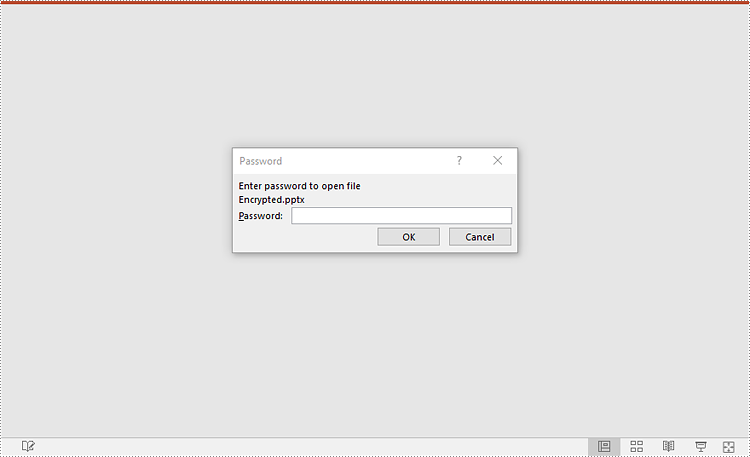
Upon opening the output presentation, a dialog box will appear, prompting you to enter a password to gain access to the file:
Make a PowerPoint Presentation Read-Only
Enabling the read-only setting prevents others from making changes to a PowerPoint presentation while still allowing them to view it. Spire.Presentation for JavaScript offers the Presentation.Protect() method to achieve this purpose. The key steps are as follows.
- Create an object of the Presentation class.
- Load a PowerPoint presentation using the Presentation.LoadFromFile() method.
- Make the presentation read-only using the Presentation.Protect() method.
- Save the resulting presentation using the Presentation.SaveToFile() method.
- JavaScript
import React, { useState, useEffect } from 'react';

function App() {
   const [wasmModule, setWasmModule] = useState(null);
   useEffect(() => {
    (async () => {
      try {
        const publicUrl = process.env.PUBLIC_URL || '';
        const spireModule = await import(/* webpackIgnore: true */ `${publicUrl}/spire.presentation.js`);
        const rawModule = spireModule.default || spireModule;
        window.wasmModule = typeof rawModule === 'function'
          ? await rawModule({ locateFile: p => p.endsWith('.wasm') ? `${publicUrl}/${p}` : p })
          : rawModule;
        setWasmModule(window.wasmModule);
      } catch (error) {
        console.error('Failed to load spire.presentation.js:', error);
      }
    })();
  }, []);


  const MakePresentationReadOnly = async () => {
    const wasmModule = window.wasmModule.spirepresentation;

    if (wasmModule) {
      // Specify the input file paths
      let inputFileName  = "Sample.pptx";
      await window.spire.FetchFileToVFS(inputFileName , '',  `${process.env.PUBLIC_URL}static/data/`);
      await window.spire.FetchFileToVFS("arial.ttf","/Library/Fonts/",`${process.env.PUBLIC_URL}static/font/`);

      // Create a Presentation instance and load the PowerPoint file from the virtual file system
      const ppt =new wasmModule.Presentation();
      ppt.LoadFromFile(inputFileName);

      // Define the password
      let password = "e-iceblue";

      // Protect the PowerPoint file with the password
      ppt.Protect(password);

      // Define the output file name
      const outputFileName = "ReadOnly.pptx";

      // Save the resulting PowerPoint file
      ppt.SaveToFile({ file: outputFileName, fileFormat: wasmModule.FileFormat.Pptx2013 });

      // Read the generated image file from VFS
      const imageFileArray = window.dotnetRuntime.Module.FS.readFile(outputFileName);

      // Create a Blog object from the image file
      const imageBlob = new Blob([imageFileArray], { type: "application/vnd.openxmlformats-officedocument.presentationml.presentation" });

      // Create a URL for the Blob
      const url = URL.createObjectURL(imageBlob);

      // Create an anchor element to trigger the download
      const a = document.createElement('a');
      a.href = url;
      a.download = outputFileName;
      document.body.appendChild(a);
      a.click();
      document.body.removeChild(a);
      URL.revokeObjectURL(url);

      // Clean up resources
      ppt.Dispose();
    }
  };

  return (
    <div style={{ textAlign: 'center', height: '300px' }}>
      <h1>Make a PowerPoint Presentation Read-Only</h1>
      <button onClick={MakePresentationReadOnly} disabled={!wasmModule}>
        Start
      </button>
    </div>
  );
}

export default App;

Remove Password Protection from a PowerPoint Presentation
If password protection is no longer needed, it can be easily removed to allow unrestricted access to the presentation using the Presentation.RemoveEncryption() method. The key steps are as follows.
- Create an object of the Presentation class.
- Load a password-protected PowerPoint presentation with its password using the Presentation.LoadFromFile() method.
- Remove password protection from the presentation using the Presentation.RemoveEncryption() method.
- Save the resulting presentation using the Presentation.SaveToFile() method.
- JavaScript
import React, { useState, useEffect } from 'react';

function App() {
   const [wasmModule, setWasmModule] = useState(null);
   useEffect(() => {
    (async () => {
      try {
        const publicUrl = process.env.PUBLIC_URL || '';
        const spireModule = await import(/* webpackIgnore: true */ `${publicUrl}/spire.presentation.js`);
        const rawModule = spireModule.default || spireModule;
        window.wasmModule = typeof rawModule === 'function'
          ? await rawModule({ locateFile: p => p.endsWith('.wasm') ? `${publicUrl}/${p}` : p })
          : rawModule;
        setWasmModule(window.wasmModule);
      } catch (error) {
        console.error('Failed to load spire.presentation.js:', error);
      }
    })();
  }, []);


  const RemoveEncryptionFromPresentation = async () => {
    const wasmModule = window.wasmModule.spirepresentation;

    if (wasmModule) {
      // Specify the input file paths
      let inputFileName  = "Encrypted.pptx";
      await window.spire.FetchFileToVFS(inputFileName , '',  `${process.env.PUBLIC_URL}static/data/`);
      await window.spire.FetchFileToVFS("arial.ttf","/Library/Fonts/",`${process.env.PUBLIC_URL}static/font/`);

      // Create a Presentation instance and load the PowerPoint file from the virtual file system
      const ppt =new wasmModule.Presentation();
      ppt.LoadFromFile({file: inputFileName, password: "e-iceblue"});

      //Remove the password encryption
      ppt.RemoveEncryption();

      // Define the output file name
      const outputFileName = "Decrypted.pptx";

      // Save the resulting PowerPoint file
      ppt.SaveToFile({ file: outputFileName, fileFormat: wasmModule.FileFormat.Pptx2013 });

      // Read the generated image file from VFS
      const imageFileArray = window.dotnetRuntime.Module.FS.readFile(outputFileName);

      // Create a Blog object from the image file
      const imageBlob = new Blob([imageFileArray], { type: "application/vnd.openxmlformats-officedocument.presentationml.presentation" });

      // Create a URL for the Blob
      const url = URL.createObjectURL(imageBlob);

      // Create an anchor element to trigger the download
      const a = document.createElement('a');
      a.href = url;
      a.download = outputFileName;
      document.body.appendChild(a);
      a.click();
      document.body.removeChild(a);
      URL.revokeObjectURL(url);

      // Clean up resources
      ppt.Dispose();
    }
  };

  return (
    <div style={{ textAlign: 'center', height: '300px' }}>
      <h1>Remove Password Protection from a PowerPoint Presentation</h1>
      <button onClick={RemoveEncryptionFromPresentation} disabled={!wasmModule}>
        Start
      </button>
    </div>
  );
}

export default App;

Remove Read-Only Setting from a PowerPoint Presentation
Disabling the read-only setting allows others to edit the presentation and make necessary changes. By using the Presentation.RemoveProtect() method, developers can remove the read-only setting from a PowerPoint presentation. The key steps are as follows.
- Create an object of the Presentation class.
- Load a PowerPoint presentation that has been made as read-only using the Presentation.LoadFromFile() method.
- Remove the read-only setting from the presentation using the Presentation.RemoveProtect() method.
- Save the resulting presentation using the Presentation.SaveToFile() method.
- JavaScript
import React, { useState, useEffect } from 'react';

function App() {
   const [wasmModule, setWasmModule] = useState(null);
   useEffect(() => {
    (async () => {
      try {
        const publicUrl = process.env.PUBLIC_URL || '';
        const spireModule = await import(/* webpackIgnore: true */ `${publicUrl}/spire.presentation.js`);
        const rawModule = spireModule.default || spireModule;
        window.wasmModule = typeof rawModule === 'function'
          ? await rawModule({ locateFile: p => p.endsWith('.wasm') ? `${publicUrl}/${p}` : p })
          : rawModule;
        setWasmModule(window.wasmModule);
      } catch (error) {
        console.error('Failed to load spire.presentation.js:', error);
      }
    })();
  }, []);


  const RemoveReadOnlyFromPresentation = async () => {
    const wasmModule = window.wasmModule.spirepresentation;

    if (wasmModule) {
      // Specify the input file paths
      let inputFileName  = "ReadOnly.pptx";
      await window.spire.FetchFileToVFS(inputFileName , '',  `${process.env.PUBLIC_URL}static/data/`);
      await window.spire.FetchFileToVFS("arial.ttf","/Library/Fonts/",`${process.env.PUBLIC_URL}static/font/`);

      // Create a Presentation instance and load the PowerPoint file from the virtual file system
      const ppt =new wasmModule.Presentation();
      ppt.LoadFromFile({file: inputFileName, password: "e-iceblue"});

      // Remove the read-only setting from the presentation
      ppt.RemoveProtect();

      // Define the output file name
      const outputFileName = "RemoveReadOnly.pptx";

      // Save the resulting PowerPoint file
      ppt.SaveToFile({ file: outputFileName, fileFormat: wasmModule.FileFormat.Pptx2013 });

      // Read the generated image file from VFS
      const imageFileArray = window.dotnetRuntime.Module.FS.readFile(outputFileName);

      // Create a Blog object from the image file
      const imageBlob = new Blob([imageFileArray], { type: "application/vnd.openxmlformats-officedocument.presentationml.presentation" });

      // Create a URL for the Blob
      const url = URL.createObjectURL(imageBlob);

      // Create an anchor element to trigger the download
      const a = document.createElement('a');
      a.href = url;
      a.download = outputFileName;
      document.body.appendChild(a);
      a.click();
      document.body.removeChild(a);
      URL.revokeObjectURL(url);

      // Clean up resources
      ppt.Dispose();
    }
  };

    return (
    <div style={{ textAlign: 'center', height: '300px' }}>
      <h1>Remove Read-Only Setting from a PowerPoint Presentation</h1>
      <button onClick={RemoveReadOnlyFromPresentation} disabled={!wasmModule}>
        Start
      </button>
    </div>
  );
}

export default App;

Get a Free License
To fully experience the capabilities of Spire.Presentation for JavaScript without any evaluation limitations, you can request a free 30-day trial license.
Convert PowerPoint to Images with JavaScript in React
Transforming PowerPoint presentations into image formats such as JPG or PNG is an effective method for enhancing the way you share visual content. By converting slides into images, you maintain the integrity of the design and layout, making it suitable for a wide range of uses, from online sharing to embedding in documents.
In this article, you will discover how to convert PowerPoint slides to images in React using Spire.Presentation for JavaScript. We will guide you through the process step-by-step, ensuring you can effortlessly create high-quality images from your presentations.
Install Spire.Presentation for JavaScript
To get started with converting PowerPoint to images in a React application, you can either download Spire.Presentation for JavaScript from the official website or install it via npm with the following command:
npm i spire.office
The downloaded product package integrates Spire.Doc for JavaScript, Spire.XLS for JavaScript, Spire.PDF for JavaScript, and Spire.Presentation for JavaScript. To use Spire.Presentation for JavaScript functionality, you need to copy the corresponding files (spire.presentation.js, Spire.Presentation.Wasm.zip, spire.common.js, Spire.Common.Wasm.zip, and the _framework folder) to the public folder of your project. Additionally, to ensure proper text rendering, font files can be added to a custom path of your choice. In the following example, the font addition path is: public\static\font.
For more details, refer to the documentation: How to Integrate Spire.Presentation for JavaScript in a React Project.
Convert PowerPoint to PNG or JPG with JavaScript
Using Spire.Presentation for JavaScript, you can access a specific slide with the Presentation.Slides.get_Item() method. Once you have the slide, convert it to image data using ISlide.SaveAsImage(). You can then save the image in PNG or JPG format. To convert each slide into a separate image file, simply iterate through the slides and perform the conversion for each one.
The steps to convert PowerPoint to PNG or JPG using JavaScript are as follows:
- Load required font files into the virtual file system (VFS).
- Instantiate a new document using the wasmModule.Presentation() method
- Load the PowerPoint document using the Presentation.LoadFromFile() method.
- Loop through the slides in the document:
- Get a specific slide using the Presentation.Slides.get_Item() method.
- Convert the slide into image data using the ISlide.SaveAsImage() method.
- Save the image data to a PNG or JPG file using the Save() method of the image data object.
- Create a Blob object from the generated image file.
- Trigger the download of the image file.
- JavaScript
import React, { useState, useEffect } from 'react';

function App() {
   const [wasmModule, setWasmModule] = useState(null);
   useEffect(() => {
    (async () => {
      try {
        const publicUrl = process.env.PUBLIC_URL || '';
        const spireModule = await import(/* webpackIgnore: true */ `${publicUrl}/spire.presentation.js`);
        const rawModule = spireModule.default || spireModule;
        window.wasmModule = typeof rawModule === 'function'
          ? await rawModule({ locateFile: p => p.endsWith('.wasm') ? `${publicUrl}/${p}` : p })
          : rawModule;
        setWasmModule(window.wasmModule);
      } catch (error) {
        console.error('Failed to load spire.presentation.js:', error);
      }
    })();
  }, []);

  const PowerPointToPNG = async () => {
    const wasmModule = window.wasmModule.spirepresentation;

    if (wasmModule) {
      // Specify the input file paths
      let inputFileName  = "Sample.pptx";
      await window.spire.FetchFileToVFS(inputFileName , '',  `${process.env.PUBLIC_URL}static/data/`);
      await window.spire.FetchFileToVFS("arial.ttf","/Library/Fonts/",`${process.env.PUBLIC_URL}static/font/`);

      // Create a Presentation instance and load the PowerPoint file from the virtual file system
      const presentation =new wasmModule.Presentation();
      presentation.LoadFromFile(inputFileName);

      // Iterate through the slides
      for (let i = 0; i < presentation.Slides.Count; i++) {

        // Convert a specific slide into image data
        let image = presentation.Slides.get_Item(i).SaveAsImage();

        // Specify the output file name
        let outputFileName = `ToImage_img_${i}.png`;

        // Save each image in virtual storage
        image.Save(outputFileName);

        // Read the generated image file from VFS
        const imageFileArray =  window.dotnetRuntime.Module.FS.readFile(outputFileName);

        // Create a Blog object from the image file
        const imageBlob = new Blob([imageFileArray], { type: "image/png" });

        // Create a URL for the Blob
        const url = URL.createObjectURL(imageBlob);

        // Create an anchor element to trigger the download
        const a = document.createElement('a');
        a.href = url;
        a.download = outputFileName;
        document.body.appendChild(a);
        a.click();
        document.body.removeChild(a);
        URL.revokeObjectURL(url);
      };

      // Clean up resources
      presentation.Dispose();
    }
  };

  return (
    <div style={{ textAlign: 'center', height: '300px' }}>
      <h1>Convert PowerPoint to PNG in React</h1>
      <button onClick={PowerPointToPNG} disabled={!wasmModule}>
        Generate
      </button>
    </div>
  );
}

export default App;
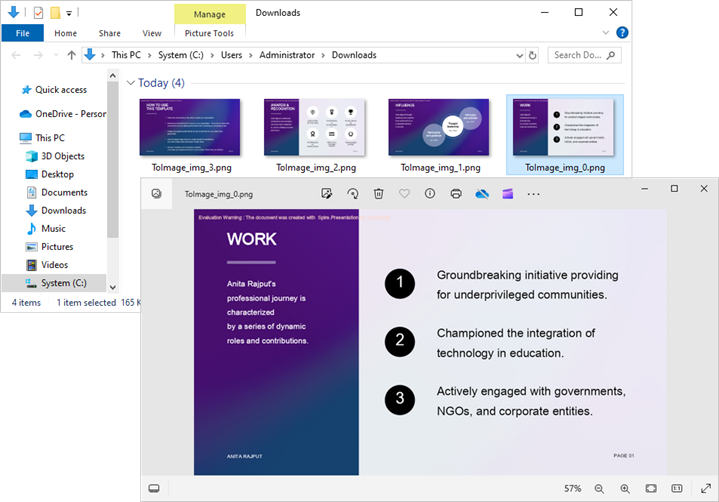
Run the code to launch the React app at localhost:3000. Click "Generate", and a "Save As" window will appear, prompting you to save the output file in your chosen folder.
Below is a screenshot of the generated PNG image files:
Convert PowerPoint to SVG with JavaScript
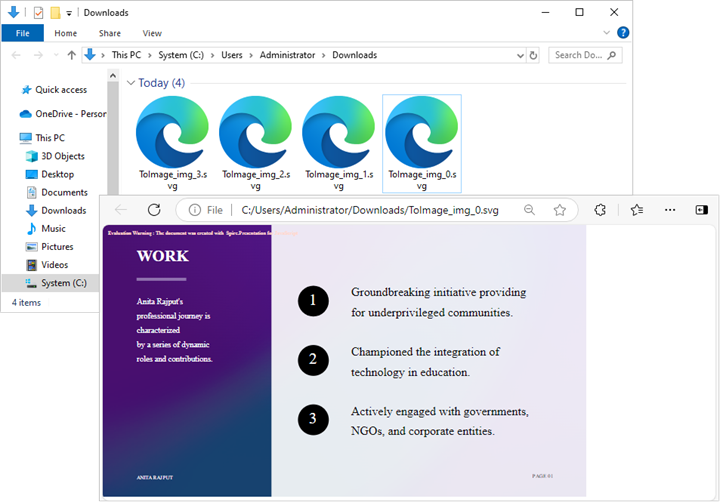
Spire.Presentation for JavaScript provides the ISlide.SaveToSVG() method, allowing you to convert a slide into SVG byte data. This byte data can then be saved as an SVG file using the Save() method.
The following are the steps to convert PowerPoint to SVG using JavaScript:
- Load required font files into the virtual file system (VFS).
- Instantiate a new document using the wasmModule.Presentation() method
- Load the PowerPoint document using the Presentation.LoadFromFile() method.
- Loop through the slides in the document:
- Get a specific slide using the Presentation.Slides.get_Item() method.
- Convert the slide into SVG byte data using the ISlide.SaveToSVG() method.
- Save the byte data to an SVG file using the Save() method.
- Create a Blob object from the generated image file.
- Trigger the download of the image file.
- JavaScript
import React, { useState, useEffect } from 'react';

function App() {
   const [wasmModule, setWasmModule] = useState(null);
   useEffect(() => {
    (async () => {
      try {
        const publicUrl = process.env.PUBLIC_URL || '';
        const spireModule = await import(/* webpackIgnore: true */ `${publicUrl}/spire.presentation.js`);
        const rawModule = spireModule.default || spireModule;
        window.wasmModule = typeof rawModule === 'function'
          ? await rawModule({ locateFile: p => p.endsWith('.wasm') ? `${publicUrl}/${p}` : p })
          : rawModule;
        setWasmModule(window.wasmModule);
      } catch (error) {
        console.error('Failed to load spire.presentation.js:', error);
      }
    })();
  }, []);


  const PowerPointToSVG = async () => {
    const wasmModule = window.wasmModule.spirepresentation;

    if (wasmModule) {
      // Specify the input file paths
      let inputFileName  = "Sample.pptx";
      await window.spire.FetchFileToVFS(inputFileName , '',  `${process.env.PUBLIC_URL}static/data/`);
      await window.spire.FetchFileToVFS("arial.ttf","/Library/Fonts/",`${process.env.PUBLIC_URL}static/font/`);

      // Create a Presentation instance and load the PowerPoint file from the virtual file system
      const presentation =new wasmModule.Presentation();
      presentation.LoadFromFile(inputFileName);

      // Iterate through the slides
      for (let i = 0; i < presentation.Slides.Count; i++) {
        let svgBytes = presentation.Slides.get_Item(i).SaveToSVG();
        let outputFileName = `ToSVG-${i}.svg`;

        // Save each image in virtual storage
        let stream = new wasmModule.Stream(svgBytes);
        stream.Save(outputFileName);
        const imageFileArray = window.dotnetRuntime.Module.FS.readFile(outputFileName);
        const imageBlob = new Blob([imageFileArray], { type: "image/svg" });

        // Create a URL for the Blob
        const url = URL.createObjectURL(imageBlob);

        // Create an anchor element to trigger the download
        const a = document.createElement('a');
        a.href = url;
        a.download = outputFileName;
        document.body.appendChild(a);
        a.click();
        document.body.removeChild(a);
        URL.revokeObjectURL(url);
          stream.Dispose();
        }
      // Clean up resources
      presentation.Dispose();
    }
  };

  return (
    <div style={{ textAlign: 'center', height: '300px' }}>
      <h1>Convert PowerPoint to SVG in React</h1>
      <button onClick={PowerPointToSVG} disabled={!wasmModule}>
        Generate
      </button>
    </div>
  );
}


export default App;
Convert PowerPoint to TIFF with JavaScript
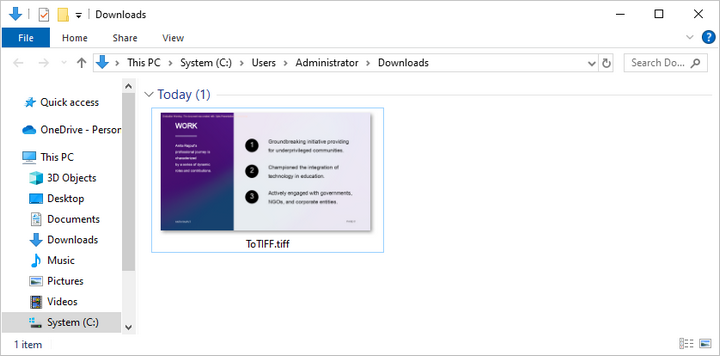
Spire.Presentation for JavaScript includes the Presentation.SaveToFile() method, which allows you to convert an entire PowerPoint document into a multi-frame TIFF image seamlessly.
The following are the steps to convert PowerPoint to TIFF using JavaScript:
- Load required font files into the virtual file system (VFS).
- Instantiate a new document using the wasmModule.Presentation() method
- Load the PowerPoint document using the Presentation.LoadFromFile() method.
- Convert the document to a TIFF image file using the Presenatation.SaveToFile() method.
- Create a Blob object from the generated image file.
- Trigger the download of the image file.
- JavaScript
import React, { useState, useEffect } from 'react';

function App() {
   const [wasmModule, setWasmModule] = useState(null);
   useEffect(() => {
    (async () => {
      try {
        const publicUrl = process.env.PUBLIC_URL || '';
        const spireModule = await import(/* webpackIgnore: true */ `${publicUrl}/spire.presentation.js`);
        const rawModule = spireModule.default || spireModule;
        window.wasmModule = typeof rawModule === 'function'
          ? await rawModule({ locateFile: p => p.endsWith('.wasm') ? `${publicUrl}/${p}` : p })
          : rawModule;
        setWasmModule(window.wasmModule);
      } catch (error) {
        console.error('Failed to load spire.presentation.js:', error);
      }
    })();
  }, []);


  const PowerPointToTIFF = async () => {
    const wasmModule = window.wasmModule.spirepresentation;

    if (wasmModule) {
      // Specify the input file paths
      let inputFileName  = "Sample.pptx";
      await window.spire.FetchFileToVFS(inputFileName , '',  `${process.env.PUBLIC_URL}static/data/`);
      await window.spire.FetchFileToVFS("arial.ttf","/Library/Fonts/",`${process.env.PUBLIC_URL}static/font/`);

      // Create a Presentation instance and load the PowerPoint file from the virtual file system
      const presentation =new wasmModule.Presentation();
      // Load the PowerPoint file
      presentation.LoadFromFile(inputFileName);

      // Specify the output file name
      const outputFileName = "ToTIFF.tiff"

      // Save the document to TIFF
      presentation.SaveToFile({ file: outputFileName, fileFormat: wasmModule.FileFormat.Tiff });

      // Read the generated image file from VFS
      const imageFileArray = window.dotnetRuntime.Module.FS.readFile(outputFileName);

      // Create a Blog object from the image file
      const imageBlob = new Blob([imageFileArray], { type: "image/tiff" });

      // Create a URL for the Blob
      const url = URL.createObjectURL(imageBlob);

      // Create an anchor element to trigger the download
      const a = document.createElement('a');
      a.href = url;
      a.download = outputFileName;
      document.body.appendChild(a);
      a.click();
      document.body.removeChild(a);
      URL.revokeObjectURL(url);

      // Clean up resources
      presentation.Dispose();
    }
  };

  return (
    <div style={{ textAlign: 'center', height: '300px' }}>
      <h1>Convert PowerPoint to TIFF in React</h1>
      <button onClick={PowerPointToTIFF} disabled={!wasmModule}>
        Generate
      </button>
    </div>
  );
}


export default App;
Get a Free License
To fully experience the capabilities of Spire.Presentation for JavaScript without any evaluation limitations, you can request a free 30-day trial license.
Convert PowerPoint to PDF with JavaScript in React
Converting PowerPoint presentations to PDF ensures that slide content remains intact while making the file easier to share and view across different devices. The PDF format preserves the original layout, text, and images, preventing unintended modifications and ensuring consistent formatting. This conversion is especially useful for professional and academic settings, where maintaining document integrity and accessibility is essential. Additionally, PDFs offer enhanced security features, such as restricted editing and password protection, making them a reliable choice for distributing important presentations. In this article, we will demonstrate how to convert PowerPoint presentations to PDF in React using Spire.Presentation for JavaScript.
- Convert a PowerPoint Presentation to PDF
- Convert a PowerPoint Presentation to PDF with a Custom Page Size
- Convert a PowerPoint Slide to PDF
Install Spire.Presentation for JavaScript
To get started with converting PowerPoint to PDF in a React application, you can either download Spire.Presentation for JavaScript from the official website or install it via npm with the following command:
npm i spire.office
The downloaded product package integrates Spire.Doc for JavaScript, Spire.XLS for JavaScript, Spire.PDF for JavaScript, and Spire.Presentation for JavaScript. To use Spire.Presentation for JavaScript functionality, you need to copy the corresponding files (spire.presentation.js, Spire.Presentation.Wasm.zip, spire.common.js, Spire.Common.Wasm.zip, and the _framework folder) to the public folder of your project. Additionally, to ensure proper text rendering, font files can be added to a custom path of your choice. In the following example, the font addition path is: public\static\font.
For more details, refer to the documentation: How to Integrate Spire.Presentation for JavaScript in a React Project.
Convert a PowerPoint Presentation to PDF
Converting a PowerPoint presentation to PDF allows you to share the entire document while preserving its original layout. Using the Presentation.SaveToFile() method, developers can export the full presentation to a PDF file. Below are the detailed steps to perform this operation.
- Create an object of Presentation class.
- Load a presentation file using Presentation.LoadFromFile() method.
- Save the presentation to a PDF document using Presentation.SaveToFile() method.
- JavaScript
import React, { useState, useEffect } from 'react';

function App() {
   const [wasmModule, setWasmModule] = useState(null);
   useEffect(() => {
    (async () => {
      try {
        const publicUrl = process.env.PUBLIC_URL || '';
        const spireModule = await import(/* webpackIgnore: true */ `${publicUrl}/spire.presentation.js`);
        const rawModule = spireModule.default || spireModule;
        window.wasmModule = typeof rawModule === 'function'
          ? await rawModule({ locateFile: p => p.endsWith('.wasm') ? `${publicUrl}/${p}` : p })
          : rawModule;
        setWasmModule(window.wasmModule);
      } catch (error) {
        console.error('Failed to load spire.presentation.js:', error);
      }
    })();
  }, []);

  const ConvertPowerPointToPDF = async () => {
    const wasmModule = window.wasmModule.spirepresentation;

    if (wasmModule) {
      // Specify the input file paths
      let inputFileName  = "Sample.pptx";
      await window.spire.FetchFileToVFS(inputFileName , '',  `${process.env.PUBLIC_URL}static/data/`);
      await window.spire.FetchFileToVFS("arial.ttf","/Library/Fonts/",`${process.env.PUBLIC_URL}static/font/`);

      // Create a Presentation instance and load the PowerPoint file from the virtual file system
      const ppt =new wasmModule.Presentation();
      ppt.LoadFromFile(inputFileName);

      // Define the output file name
      const outputFileName = "PowerPointToPDF.pdf";

      // Save the PowerPoint file to PDF format
      ppt.SaveToFile({ file: outputFileName, fileFormat: wasmModule.FileFormat.PDF });

      // Read the generated PDF file
      const modifiedFileArray = window.dotnetRuntime.Module.FS.readFile(outputFileName);

      // Create a Blob object from the PDF file
      const modifiedFile = new Blob([modifiedFileArray], { type: "application/pdf" });

      // Create a URL for the Blob
      const url = URL.createObjectURL(modifiedFile);

      // Create an anchor element to trigger the download
      const a = document.createElement('a');
      a.href = url;
      a.download = outputFileName;
      document.body.appendChild(a);
      a.click();
      document.body.removeChild(a);
      URL.revokeObjectURL(url);
    }
  };

  return (
    <div style={{ textAlign: 'center', height: '300px' }}>
      <h1>Convert a PowerPoint Presentation to PDF in React</h1>
      <button onClick={ConvertPowerPointToPDF} disabled={!wasmModule}>
        Convert
      </button>
    </div>
  );
}


export default App;
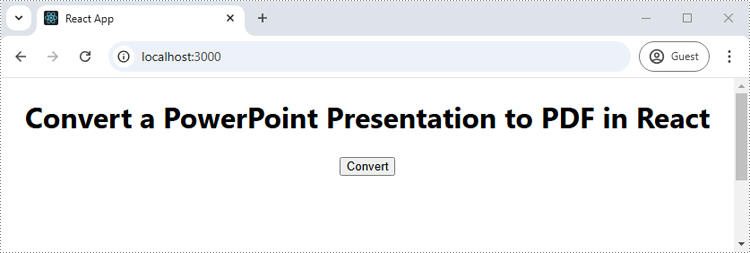
Run the code to launch the React app at localhost:3000. Once it's running, click on the "Convert" button to convert the PowerPoint presentation to PDF:
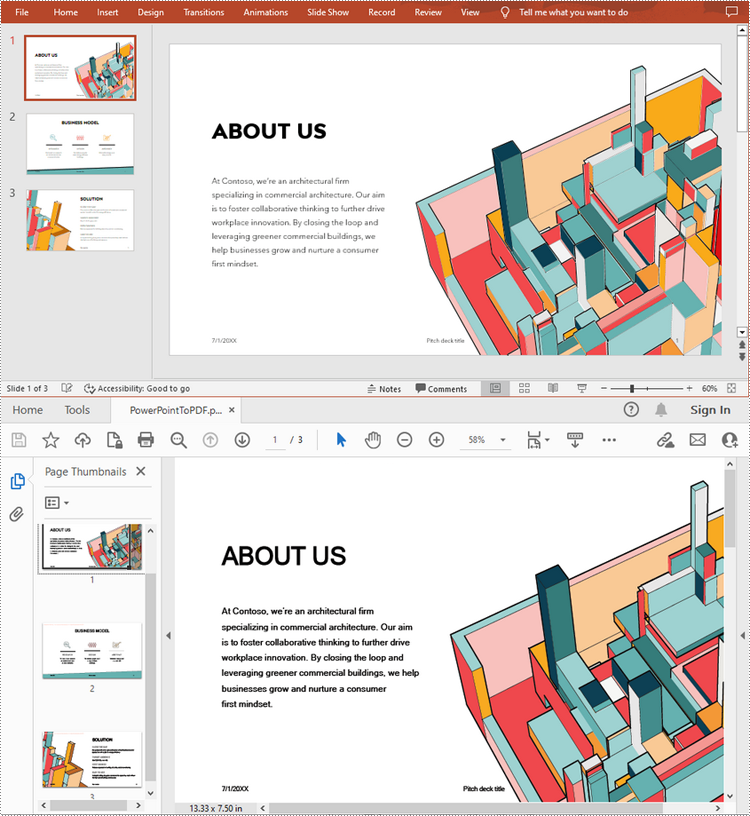
The below screenshot shows the input PowerPoint presentation and the converted PDF:
Convert a PowerPoint Presentation to PDF with a Custom Page Size
Developers can customize the page size of the resulting PDF by adjusting the slide size using the Presentation.SlideSize.Type property during conversion. This ensures that the converted PDF meets specific formatting or printing needs. Here are the detailed steps for this operation.
- Create an object of Presentation class.
- Load a presentation file using Presentation.LoadFromFile() method.
- Set the slide size to A4 using Presentation.SlideSize.Type property.
- Save the presentation to a PDF document using Presentation.SaveToFile() method.
- JavaScript
import React, { useState, useEffect } from 'react';

function App() {
   const [wasmModule, setWasmModule] = useState(null);
   useEffect(() => {
    (async () => {
      try {
        const publicUrl = process.env.PUBLIC_URL || '';
        const spireModule = await import(/* webpackIgnore: true */ `${publicUrl}/spire.presentation.js`);
        const rawModule = spireModule.default || spireModule;
        window.wasmModule = typeof rawModule === 'function'
          ? await rawModule({ locateFile: p => p.endsWith('.wasm') ? `${publicUrl}/${p}` : p })
          : rawModule;
        setWasmModule(window.wasmModule);
      } catch (error) {
        console.error('Failed to load spire.presentation.js:', error);
      }
    })();
  }, []);

  const ConvertPowerPointToPDF = async () => {
    const wasmModule = window.wasmModule.spirepresentation;

    if (wasmModule) {
      // Specify the input file paths
      let inputFileName  = "Sample.pptx";
      await window.spire.FetchFileToVFS(inputFileName , '',  `${process.env.PUBLIC_URL}static/data/`);
      await window.spire.FetchFileToVFS("arial.ttf","/Library/Fonts/",`${process.env.PUBLIC_URL}static/font/`);

      // Create a Presentation instance and load the PowerPoint file from the virtual file system
      const ppt =new wasmModule.Presentation();
      ppt.LoadFromFile(inputFileName);

      //Set A4 page size
      ppt.SlideSize.Type = wasmModule.SlideSizeType.A4;

      // Define the output file name
      const outputFileName = "ToPdfWithSpecificPageSize.pdf";

      // Save the PowerPoint file to PDF format
      ppt.SaveToFile({ file: outputFileName, fileFormat: wasmModule.FileFormat.PDF });

      // Read the generated PDF file
      const modifiedFileArray = window.dotnetRuntime.Module.FS.readFile(outputFileName);

      // Create a Blob object from the PDF file
      const modifiedFile = new Blob([modifiedFileArray], { type: "application/pdf" });

      // Create a URL for the Blob
      const url = URL.createObjectURL(modifiedFile);

      // Create an anchor element to trigger the download
      const a = document.createElement('a');
      a.href = url;
      a.download = outputFileName;
      document.body.appendChild(a);
      a.click();
      document.body.removeChild(a);
      URL.revokeObjectURL(url);
    }
  };

  return (
    <div style={{ textAlign: 'center', height: '300px' }}>
      <h1>Convert a PowerPoint Presentation to PDF with a Custom Page Size in React</h1>
      <button onClick={ConvertPowerPointToPDF} disabled={!wasmModule}>
        Convert
      </button>
    </div>
  );
}


export default App;

Convert a PowerPoint Slide to PDF
Converting a single PowerPoint slide to PDF allows for easy extraction and sharing of individual slides without exporting the entire presentation. Using the ISlide.SaveToFile() method, developers can convert individual slides to PDF with ease. The detailed steps for this operation are as follows.
- Create an object of the Presentation class.
- Load a presentation file using Presentation.LoadFromFile() method.
- Get a slide using Presentation.Slides.get_Item() method.
- Save the slide as a PDF document using ISlide.SaveToFile() method.
- JavaScript
import React, { useState, useEffect } from 'react';

function App() {
   const [wasmModule, setWasmModule] = useState(null);
   useEffect(() => {
    (async () => {
      try {
        const publicUrl = process.env.PUBLIC_URL || '';
        const spireModule = await import(/* webpackIgnore: true */ `${publicUrl}/spire.presentation.js`);
        const rawModule = spireModule.default || spireModule;
        window.wasmModule = typeof rawModule === 'function'
          ? await rawModule({ locateFile: p => p.endsWith('.wasm') ? `${publicUrl}/${p}` : p })
          : rawModule;
        setWasmModule(window.wasmModule);
      } catch (error) {
        console.error('Failed to load spire.presentation.js:', error);
      }
    })();
  }, []);

  const ConvertPowerPointSlideToPDF = async () => {
    const wasmModule = window.wasmModule.spirepresentation;

    if (wasmModule) {
      // Specify the input file paths
      let inputFileName  = "Sample.pptx";
      await window.spire.FetchFileToVFS(inputFileName , '',  `${process.env.PUBLIC_URL}static/data/`);
      await window.spire.FetchFileToVFS("arial.ttf","/Library/Fonts/",`${process.env.PUBLIC_URL}static/font/`);

      // Create a Presentation instance and load the PowerPoint file from the virtual file system
      const ppt =new wasmModule.Presentation();
      ppt.LoadFromFile(inputFileName);

      // Get the second slide
      let slide = ppt.Slides.get_Item(1);

      // Define the output file name
      const outputFileName = "SlideToPdf.pdf";

      // Save the slide to PDF format
      slide.SaveToFile( outputFileName, wasmModule.FileFormat.PDF);

      // Read the generated PDF file
      const modifiedFileArray = window.dotnetRuntime.Module.FS.readFile(outputFileName);

      // Create a Blob object from the PDF file
      const modifiedFile = new Blob([modifiedFileArray], { type: "application/pdf" });

      // Create a URL for the Blob
      const url = URL.createObjectURL(modifiedFile);

      // Create an anchor element to trigger the download
      const a = document.createElement('a');
      a.href = url;
      a.download = outputFileName;
      document.body.appendChild(a);
      a.click();
      document.body.removeChild(a);
      URL.revokeObjectURL(url);
    }
  };

  return (
    <div style={{ textAlign: 'center', height: '300px' }}>
      <h1>Convert a PowerPoint Slide to PDF in React</h1>
      <button onClick={ConvertPowerPointSlideToPDF} disabled={!wasmModule}>
        Convert
      </button>
    </div>
  );
}


export default App;
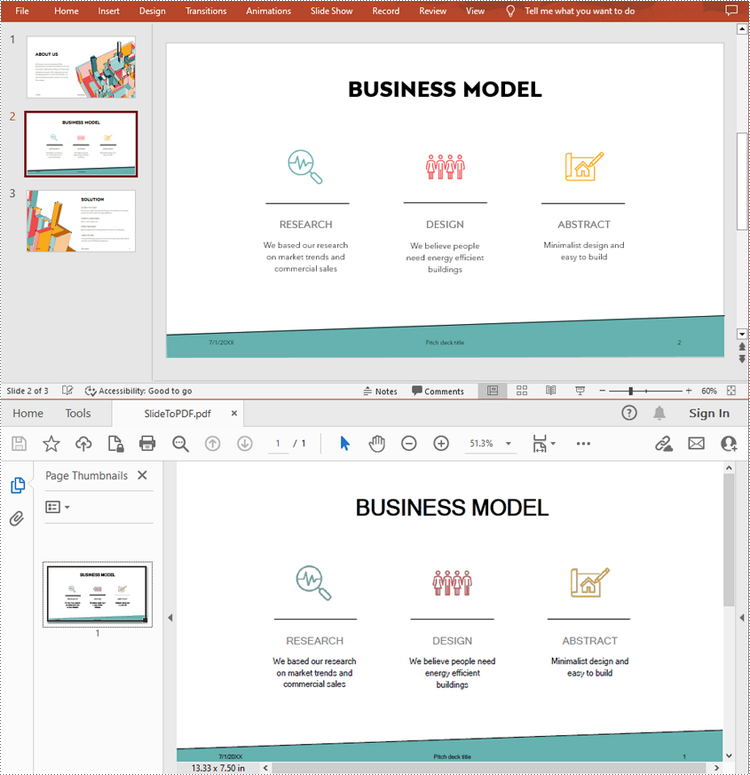
Get a Free License
To fully experience the capabilities of Spire.Presentation for JavaScript without any evaluation limitations, you can request a free 30-day trial license.
How to Integrate Spire.Presentation for JavaScript in a React Project
In the ever-evolving world of web development, React continues to be the preferred framework for creating engaging and responsive user interfaces. For developers looking to enhance their applications with robust presentation capabilities, Spire.Presentation for JavaScript emerges as an invaluable resource.
In this guide, we'll explore the steps to effectively integrate Spire.Presentation for JavaScript into your React application, ensuring you can leverage its robust features for tasks such as generating slides, editing content, and exporting presentations in various formats.
- Benefits of Using Spire.Presentation for JavaScript in React
- Set Up Your Environment
- Integrate Spire.Presentation for JavaScript in Your Project
- Create and Save PowerPoint Files Using JavaScript
Benefits of Using Spire.Presentation for JavaScript in React
React, a powerful JavaScript library for building interactive user interfaces, has become a cornerstone in modern web development. Complementing this is Spire.Presentation for JavaScript, a specialized library designed to enhance PowerPoint presentation management within web applications.
By integrating Spire.Presentation for JavaScript into your React project, you can unlock advanced features for creating and manipulating presentations easily. Here are some of the key benefits:
- Rich Functionality: Spire.Presentation for JavaScript offers a comprehensive range of features for managing PowerPoint files, including creating slides, adding text, images, charts, and shapes. This rich functionality allows developers to build robust presentation applications without needing to rely on external tools.
- Seamless Integration: Designed to work harmoniously with various JavaScript frameworks, including React, Spire.Presentation for JavaScript integrates smoothly into existing projects, facilitating an efficient and enjoyable development experience.
- Cross-Platform Compatibility: Spire.Presentation for JavaScript is designed to work across different platforms and devices. Whether your application is run on desktop, tablet, or mobile devices, you can expect consistent performance and functionality.
- High-Quality Output: Spire.Presentation for JavaScript ensures that the presentations you create are of high quality, maintaining the integrity of fonts, images, and layouts. This quality is crucial for professional presentations and business-related use cases.
Set Up Your Environment
Step 1. Install React and npm
Download and install Node.js from the official website. Make sure to choose the version that matches your operating system.
After the installation is complete, you can verify that Node.js and npm are working correctly by running the following commands in your terminal:
Step 2. Create a New React Project
Create a new React project named my-app using Create React App from terminal:
npx create-react-app my-app
If your React project is compiled successfully, the app will be served at http://localhost:3000, allowing you to view and test your application in a browser.
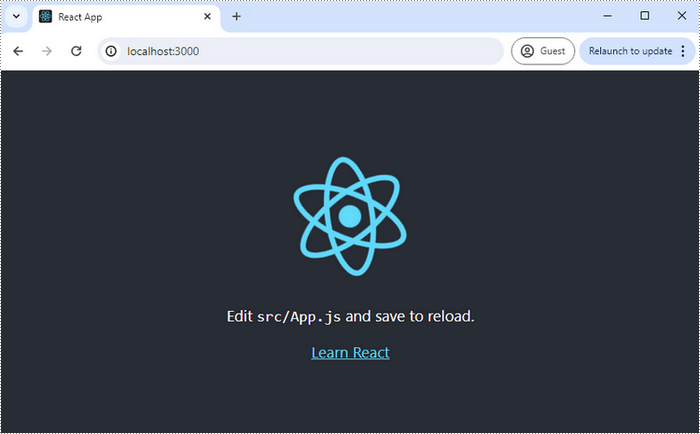
To visually browse and manage the files in your project, you can open the project using VS Code.

Integrate Spire.Presentation for JavaScript in Your Project
Download Spire.Presentation for JavaScript from our website and unzip it to a location on your disk. The downloaded product package integrates Spire.Doc for JavaScript, Spire.XLS for JavaScript, Spire.PDF for JavaScript, and Spire.Presentation for JavaScript. When using the features of Spire.Presentation for JavaScript, the required files are: spire.presentation.js, Spire.Presentation.Wasm.zip, spire.common.js, Spire.Common.Wasm.zip, and the _framework folder.
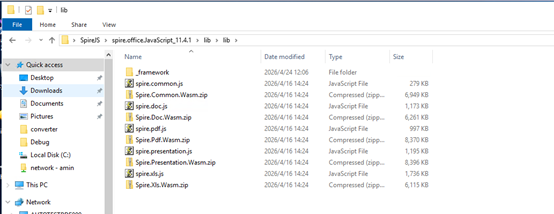
Alternatively, you can download Spire.Presentation for JavaScript using npm. In the terminal within VS Code, run the following command:
npm i spire.office
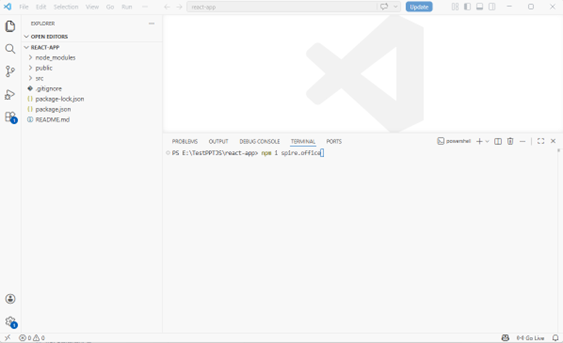
Once the installation is complete, the product packages will be saved in the node_modules/spire.office path of your project.
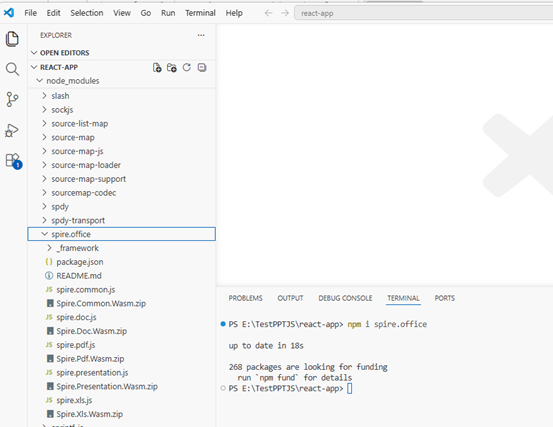
Copy the spire.presentation.js, Spire.Presentation.Wasm.zip, spire.common.js, Spire.Common.Wasm.zip, and the _framework folder five files into the "public" folder in your React project.
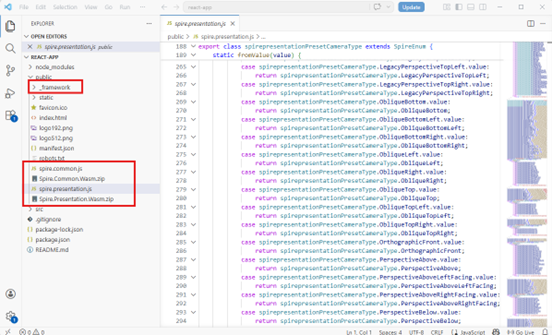
Add font files you plan to use to the "public/static/font" folder in your project. (Not always necessary)
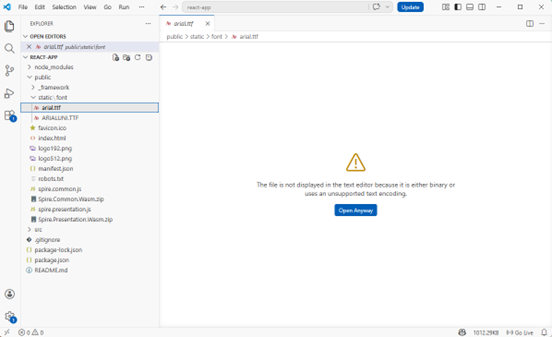
Create and Save Presentation Files Using JavaScript
Modify the code in the "App.js" file to generate a PowerPoint file using the WebAssembly (WASM) module.
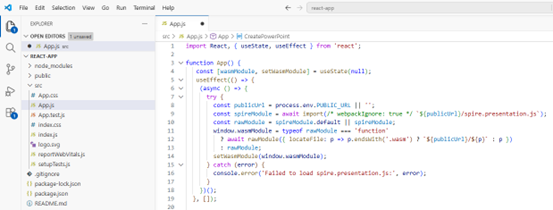
Here is the entire code:
- JavaScript
import React, { useState, useEffect } from 'react';

function App() {
   const [wasmModule, setWasmModule] = useState(null);
   useEffect(() => {
    (async () => {
      try {
        const publicUrl = process.env.PUBLIC_URL || '';
        const spireModule = await import(/* webpackIgnore: true */ `${publicUrl}/spire.presentation.js`);
        const rawModule = spireModule.default || spireModule;
        window.wasmModule = typeof rawModule === 'function'
          ? await rawModule({ locateFile: p => p.endsWith('.wasm') ? `${publicUrl}/${p}` : p })
          : rawModule;
        setWasmModule(window.wasmModule);
      } catch (error) {
        console.error('Failed to load spire.presentation.js:', error);
      }
    })();
  }, []);


  const CreatePowerPoint = async () => {
    const wasmModule = window.wasmModule.spirepresentation;

    if (wasmModule) {
       // Load the ARIALUNI.TTF font file into the virtual file system (VFS)
        await window.spire.FetchFileToVFS("ARIALUNI.TTF", "/Library/Fonts/", `${import.meta.env.BASE_URL}static/font/`);

        // Create a PPT document
        const ppt = new wasmModule.Presentation();

        // Add a new shape to the PPT document
        let rec = wasmModule.RectangleF.FromLTRB(ppt.SlideSize.Size.Width / 2 - 250,80,(500 + ppt.SlideSize.Size.Width / 2 - 250),230);
        let shape = ppt.Slides.get_Item(0).Shapes.AppendShape({shapeType:wasmModule.ShapeType.Rectangle,rectangle:rec});

        shape.ShapeStyle.LineColor.Color = wasmModule.Color.get_White();
        shape.Fill.FillType = wasmModule.FillFormatType.None;

        // Add text to the shape
        shape.AppendTextFrame("Hello World!");

        // Set the font and fill style of the text
        let textRange = shape.TextFrame.TextRange;
        textRange.Fill.FillType = wasmModule.FillFormatType.Solid;
        textRange.Fill.SolidColor.Color = wasmModule.Color.get_CadetBlue();
        textRange.FontHeight = 66;
        textRange.LatinFont = wasmModule.TextFont;

        // Define the output file name
        const outputFileName = "HelloWorld.pptx";

        // Save to file
        ppt.SaveToFile({file:outputFileName,fileFormat:wasmModule.FileFormat.Pptx2013});

        // Read the saved file and convert to a Blob object
        const modifiedFileArray = window.dotnetRuntime.Module.FS.readFile(outputFileName);
        const modifiedFile = new Blob([modifiedFileArray], { type: "application/vnd.openxmlformats-officedocument.presentationml.presentation" });

        // Clean up resources
        ppt.Dispose();

      // Create a URL for the Blob
      const url = URL.createObjectURL(modifiedFile);

      // Create an anchor element to trigger the download
      const a = document.createElement('a');
      a.href = url;
      a.download = outputFileName;
      document.body.appendChild(a);
      a.click();
      document.body.removeChild(a);
      URL.revokeObjectURL(url);
    }
  };

  return (
    <div style={{ textAlign: 'center', height: '300px' }}>
      <h1>Create a PowerPoint Document in React</h1>
      <button onClick={CreatePowerPoint} disabled={!wasmModule}>
        Generate
      </button>
    </div>
  );
}

export default App;
Save the changes by clicking "File" - "Save".
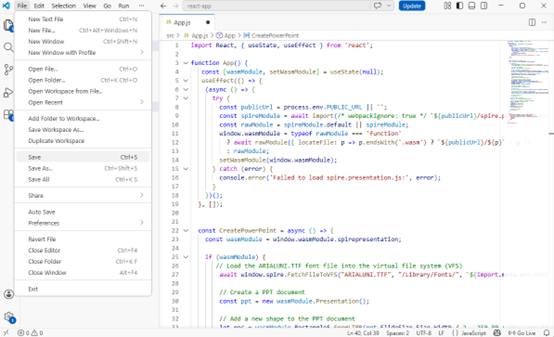
Start the development server by entering the following command in the terminal within VS
npm start
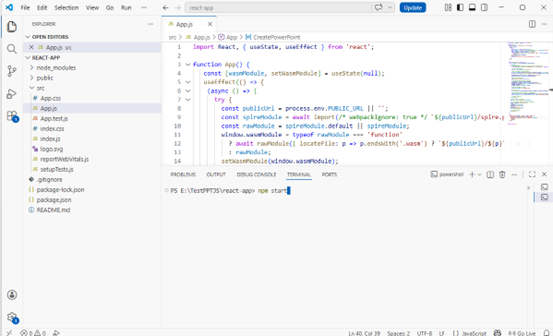
Once the React app is successfully compiled, it will open in your default web browser, typically at http://localhost:3000.
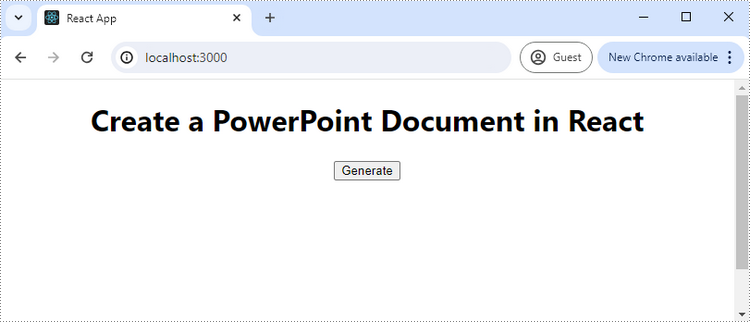
Click "Generate," and a "Save As" window will prompt you to save the output file in the designated folder.
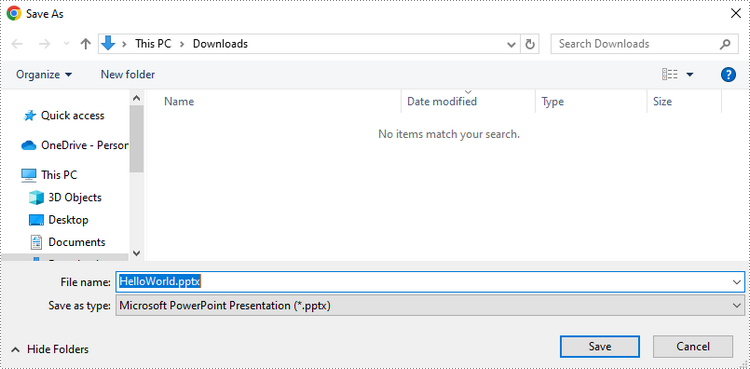
Apply for a Temporary License
If you'd like to remove the evaluation message from the generated documents, or to get rid of the function limitations, please request a 30-day trial license for yourself.
Create a Table of Contents in a Word Document Using JavaScript in React
Automatically generating a table of contents (TOC) in a Word document using JavaScript within a React application streamlines document creation by eliminating manual updates and ensuring dynamic consistency. This approach is particularly valuable in scenarios where content length, structure, or headings frequently change, such as in report-generation tools, academic platforms, or documentation systems. By leveraging Spire.Doc for JavaScript's WebAssembly module and React’s reactive state management, developers can programmatically detect headings, organize hierarchical sections, and insert hyperlinked TOC entries directly into Word files. In this article, we will explore how to use Spire.Doc for JavaScript to insert tables of contents into Word documents with JavaScript in React applications.
- Insert a Default TOC into a Word Document Using JavaScript
- Insert a Custom TOC into a Word Document Using JavaScript
- Remove the Table of Contents from a Word Document
Install Spire.Doc for JavaScript
To get started with inserting tables of contents into Word documents in a React application, you can either download Spire.Doc for JavaScript from our website or install it via npm with the following command:
npm i spire.officeThe downloaded product package integrates Spire.Doc for JavaScript, Spire.XLS for JavaScript, Spire.PDF for JavaScript, and Spire.Presentation for JavaScript. To use the features of Spire.Doc for JavaScript, you need to copy the corresponding files (spire.doc.js, Spire.Doc.Wasm.zip, spire.common.js, Spire.Common.Wasm.zip, and the _framework folder) to the public folder of your project. To ensure proper text rendering, you can add relevant font files with a custom path. In the following example, the font is added to the path: public\static\font.
For more details, refer to the documentation: How to Integrate Spire.Doc for JavaScript in a React Project
Insert a Default TOC into a Word Document Using JavaScript
Spire.Doc for JavaScript offers a WebAssembly module for processing Word documents in JavaScript environments. You can load a Word document from the virtual file system using the Document.LoadFromFile() method and insert a table of contents (TOC) via the Paragraph.AppendTOC() method, which auto-generates based on the document’s titles. Finally, update the TOC with the Document.UpdateTableOfContents() method.
The detailed steps are as follows:
- Load the spire.doc.js file to initialize the WebAssembly module.
- Fetch the Word file to the virtual file system (VFS) using the window.spire.FetchFileToVFS() method.
- Create an instance of the Document class in the VFS using the new wasmModule.Document() method.
- Load the Word document from the VFS using the Document.LoadFromFile() method.
- Add a new section to the document using the Document.AddSection() method, and add a paragraph using the Section.AddParagraph() method.
- Insert the section after the cover section using the Document.Sections.Insert() method.
- Insert a TOC into the paragraph using the Paragraph.AppendTOC() method.
- Update the TOC using the Document.UpdateTableOfContents() method.
- Save the document to the VFS using the Document.SaveToFile() method.
- Read the document from the VFS and download it.
- JavaScript
import React, { useState, useEffect } from 'react';

function App() {
  const [wasmModule, setWasmModule] = useState(null);
  // Load Spire.Doc
  useEffect(() => {
    (async () => {
      try {
        const publicUrl = process.env.PUBLIC_URL || '';
        const spireModule = await import(/* webpackIgnore: true */ `${publicUrl}/spire.doc.js`);
        const rawModule = spireModule.default || spireModule;
        window.wasmModule = typeof rawModule === 'function'
          ? await rawModule({ locateFile: p => p.endsWith('.wasm') ? `${publicUrl}/${p}` : p })
          : rawModule;
        setWasmModule(window.wasmModule);
      } catch (error) {
        console.error('Failed to load spire.doc.js WASM module:', error);
      }
    })();
  }, []);

  // Function to insert a default table of contents into a Word document
  const InsertTOCWord = async () => {
    const wasmModule = window.wasmModule.spiredoc;

    if (wasmModule) {
      // Load the font files into the virtual file system (VFS)
      await window.spire.FetchFileToVFS('CALIBRI.ttf', '/Library/Fonts/', `${process.env.PUBLIC_URL}/static/font/`);

      // Specify the input and output file names
      const inputFileName = 'sample.docx';
      const outputFileName = 'DefaultTOC.docx';

      // Fetch the input file and add it to the VFS
      await window.spire.FetchFileToVFS(inputFileName, '', `${process.env.PUBLIC_URL}/static/data/`);

      // Create an instance of the Document class
      const doc = new wasmModule.Document();

      // Load the Word document
      doc.LoadFromFile({ fileName: inputFileName });

      // Create a new section
      const section = doc.AddSection();
      // Create a new paragraph
      const paragraph = section.AddParagraph();

      // Add a table of contents to the paragraph
      paragraph.AppendTOC(1, 2);

      // Insert the section after the cover section
      doc.Sections.Insert(1, section);

      // Update the table of contents
      doc.UpdateTableOfContents();

      // Save the document to the VFS
      doc.SaveToFile({ fileName: outputFileName, fileFormat: wasmModule.FileFormat.Docx2019 })

      // Read the document from the VFS and create a Blob to trigger the download
      const wordArray = await window.dotnetRuntime.Module.FS.readFile(outputFileName);
      const blob = new Blob([wordArray], { type: 'application/vnd.openxmlformats-officedocument.wordprocessingml.document' });
      const url = URL.createObjectURL(blob);
      const a = document.createElement('a');
      a.href = url;
      a.download = `${outputFileName}`;
      document.body.appendChild(a);
      a.click();
      document.body.removeChild(a);
      URL.revokeObjectURL(url);
    }
  };

  return (
    <div style={{ textAlign: 'center', height: '300px' }}>
      <h1>Insert Default Table of Contents Using JavaScript in React</h1>
      <button onClick={InsertTOCWord} disabled={!wasmModule}>
        Insert and Download
      </button>
    </div>
  );
}

export default App;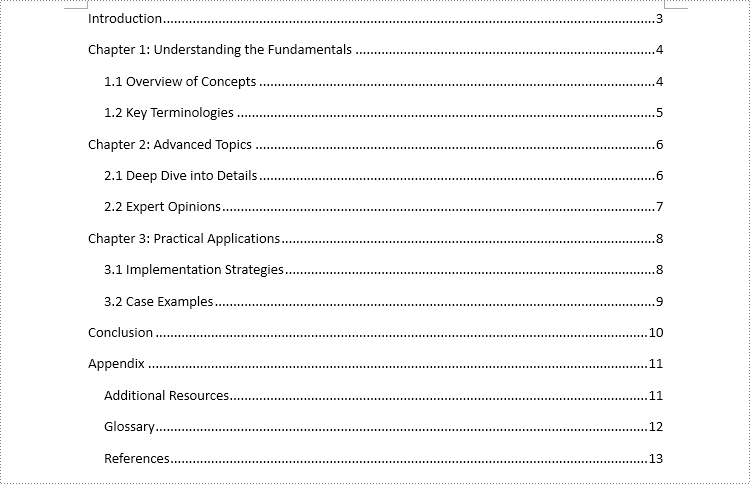
Insert a Custom TOC into a Word Document Using JavaScript
Spire.Doc for JavaScript also enables users to create a custom table of contents. By creating an instance of the TableOfContent class, you can customize title and page number display using switches. For instance, the switch "{\o "1-3" \n 1-1}" configures the TOC to display titles from level 1 to 3 while omitting page numbers for level 1 titles. After creating the instance, insert it into the document and assign it as the TOC of the document using the Document.TOC property.
The detailed steps are as follows:
- Load the spire.doc.js file to initialize the WebAssembly module.
- Fetch the Word file to the virtual file system (VFS) using the window.spire.FetchFileToVFS() method.
- Create an instance of the Document class in the VFS using the new wasmModule.Document() method.
- Load the Word document from the VFS using the Document.LoadFromFile() method.
- Add a new section to the document using the Document.AddSection() method, and add a paragraph using the Section.AddParagraph() method.
- Insert the section after the cover section using the Document.Sections.Insert() method.
- Create an instance of the TableOfContent class in the VFS using the new wasmModule.TableOfContent() method and specify the switch.
- Insert the TOC into the new paragraph using the Paragraph.Items.Add() method.
- Append the field separator and field end marks to complete the TOC field using the Paragraph.AppendFieldMark() method.
- Set the new TOC as the document’s TOC through the Document.TOC property.
- Update the TOC using the Document.UpdateTableOfContents() method.
- Save the document to the VFS using the Document.SaveToFile() method.
- Read the document from the VFS and download it.
- JavaScript
import React, { useState, useEffect } from 'react';

function App() {
  const [wasmModule, setWasmModule] = useState(null);
  // Load Spire.Doc
  useEffect(() => {
    (async () => {
      try {
        const publicUrl = process.env.PUBLIC_URL || '';
        const spireModule = await import(/* webpackIgnore: true */ `${publicUrl}/spire.doc.js`);
        const rawModule = spireModule.default || spireModule;
        window.wasmModule = typeof rawModule === 'function'
          ? await rawModule({ locateFile: p => p.endsWith('.wasm') ? `${publicUrl}/${p}` : p })
          : rawModule;
        setWasmModule(window.wasmModule);
      } catch (error) {
        console.error('Failed to load spire.doc.js WASM module:', error);
      }
    })();
  }, []);

  // Function to insert a default table of contents into a Word document
  const InsertTOCWord = async () => {
    const wasmModule = window.wasmModule.spiredoc;

    if (wasmModule) {
      // Load the font files into the virtual file system (VFS)
      await window.spire.FetchFileToVFS('CALIBRI.ttf', '/Library/Fonts/', `${process.env.PUBLIC_URL}/static/font/`);

      // Specify the input and output file names
      const inputFileName = 'sample.docx';
      const outputFileName = 'CustomTOC.docx';

      // Fetch the input file and add it to the VFS
      await window.spire.FetchFileToVFS(inputFileName, '', `${process.env.PUBLIC_URL}/static/data/`);

      // Create an instance of the Document class
      const doc = new wasmModule.Document();

      // Load the Word document
      doc.LoadFromFile({ fileName: inputFileName });

      // Add a new section and paragraph
      const section = doc.AddSection();
      const para = section.AddParagraph();

      // Insert the section after the cover section
      doc.Sections.Insert(1, section)

      // Create an instance of the TableOfContent class and specify the switch
      const toc = new wasmModule.TableOfContent(doc, '{\\o \”1-3\” \\n 1-1}');

      // Add the table of contents to the new paragraph
      para.Items.Add(toc);

      // Insert a field separator mark to the paragraph
      para.AppendFieldMark(wasmModule.FieldMarkType.FieldSeparator);

      // Insert a field end mark to the paragraph
      para.AppendFieldMark(wasmModule.FieldMarkType.FieldEnd);

      // Set the new TOC as the TOC of the document
      doc.TOC = toc;

      // Update the TOC
      doc.UpdateTableOfContents();

      // Save the document to the VFS
      doc.SaveToFile({ fileName: outputFileName, fileFormat: wasmModule.FileFormat.Docx2019});

      // Read the document from the VFS and create a Blob to trigger the download
      const wordArray = await window.dotnetRuntime.Module.FS.readFile(outputFileName);
      const blob = new Blob([wordArray], { type: 'application/vnd.openxmlformats-officedocument.wordprocessingml.document' });
      const url = URL.createObjectURL(blob);
      const a = document.createElement('a');
      a.href = url;
      a.download = `${outputFileName}`;
      document.body.appendChild(a);
      a.click();
      document.body.removeChild(a);
      URL.revokeObjectURL(url);
    }
  };

  return (
      <div style={{ textAlign: 'center', height: '300px' }}>
        <h1>Insert a Custom Table of Contents Using JavaScript in React</h1>
        <button onClick={InsertTOCWord} disabled={!wasmModule}>
          Insert and Download
        </button>
      </div>
  );
}

export default App;
Remove the Table of Contents from a Word Document
Since TOC paragraphs have style names that start with "TOC", you can locate them by matching a regular expression on the paragraph style and then remove those paragraphs.
The detailed steps are as follows:
- Load the spire.doc.js file to initialize the WebAssembly module.
- Fetch the Word file to the virtual file system (VFS) using the window.spire.FetchFileToVFS() method.
- Create an instance of the Document class in the VFS using the new wasmModule.Document() method.
- Load the Word document from the VFS using the Document.LoadFromFile() method.
- Create an instance of the Regex class with the pattern "TOC\w+".
- Iterate through each section in the document and access its body using the Document.Sections.get_Item().Body property.
- Loop through the paragraphs in each section body and retrieve each paragraph's style via the Paragraph.StyleName property.
- Identify paragraphs whose style matches the regex using the Regex.IsMatch() method and remove them using the Section.Body.Paragraphs.RemoveAt() method.
- Save the document to the VFS using the Document.SaveToFile() method.
- Read the document from the VFS and download it.
- JavaScript
import React, { useState, useEffect } from 'react';

function App() {
  const [wasmModule, setWasmModule] = useState(null);
  // Load Spire.Doc
  useEffect(() => {
    (async () => {
      try {
        const publicUrl = process.env.PUBLIC_URL || '';
        const spireModule = await import(/* webpackIgnore: true */ `${publicUrl}/spire.doc.js`);
        const rawModule = spireModule.default || spireModule;
        window.wasmModule = typeof rawModule === 'function'
          ? await rawModule({ locateFile: p => p.endsWith('.wasm') ? `${publicUrl}/${p}` : p })
          : rawModule;
        setWasmModule(window.wasmModule);
      } catch (error) {
        console.error('Failed to load spire.doc.js WASM module:', error);
      }
    })();
  }, []);

  // Function to remove the table of contents from a Word document
  const RemoveTOC = async () => {
    const wasmModule = window.wasmModule.spiredoc;

    if (wasmModule) {
      // Load the font files into the virtual file system (VFS)
      await window.spire.FetchFileToVFS('CALIBRI.ttf', '/Library/Fonts/', `${process.env.PUBLIC_URL}/static/font/`);

      // Specify the input and output file names
      const inputFileName = 'sample.docx';
      const outputFileName = 'RemoveTOC.docx';

      // Fetch the input file and add it to the VFS
      await window.spire.FetchFileToVFS(inputFileName, '', `${process.env.PUBLIC_URL}/static/data/`);

      // Create an instance of the Document class
      const doc = new wasmModule.Document();

      // Load the Word document
      doc.LoadFromFile({ fileName: inputFileName });

      // Create a regex pattern to match the style name of TOC
      const regex = new wasmModule.Regex("TOC\\w+", wasmModule.RegexOptions.None);

      // Iterate through each section
      for (let i = 0; i < doc.Sections.Count; i++) {
        // Iterate through each paragraph in the section body
        const sectionBody = doc.Sections.get_Item(i).Body;
        for (let j = 0; j < sectionBody.Paragraphs.Count; j++) {
          // Check if the style name matches the regex pattern
          const paragraph = sectionBody.Paragraphs.get_Item(j);
          if (regex.IsMatch(paragraph.StyleName)) {
            // Remove the paragraph
            sectionBody.Paragraphs.RemoveAt(j)
            // Or remove the section
            //doc.Sections.RemoveAt(i)
            //i--
            j--
          }
        }
      }

      // Save the document to the VFS
      doc.SaveToFile({ fileName: outputFileName, fileFormat: wasmModule.FileFormat.Docx2019});

      // Read the document from the VFS and create a Blob to trigger the download
      const wordArray = await window.dotnetRuntime.Module.FS.readFile(outputFileName);
      const blob = new Blob([wordArray], { type: 'application/vnd.openxmlformats-officedocument.wordprocessingml.document' });
      const url = URL.createObjectURL(blob);
      const a = document.createElement('a');
      a.href = url;
      a.download = `${outputFileName}`;
      document.body.appendChild(a);
      a.click();
      document.body.removeChild(a);
      URL.revokeObjectURL(url);
    }
  };

  return (
      <div style={{ textAlign: 'center', height: '300px' }}>
        <h1>Remove TOC Using JavaScript in React</h1>
        <button onClick={RemoveTOC} disabled={!wasmModule}>
          Insert and Download
        </button>
      </div>
  );
}

export default App;
Get a Free License
To fully experience the capabilities of Spire.Doc for JavaScript without any evaluation limitations, you can request a free 30-day trial license.
Spire.Presentation for Java 10.2.2 enhances the conversion from PowerPoint to images
We are delighted to announce the release of Spire.Presentation for Java 10.2.2. This version enhances the conversion from PowerPoint documents to images. Moreover, some known issues are fixed successfully in this version, such as the issue that it threw "Value cannot be null" when saving a PowerPoint document. More details are listed below.
Here is a list of changes made in this release
| Category | ID | Description |
| Bug | SPIREPPT-2669 | Fixes the issue that the shadow effect of text was lost when converting PowerPoint to images. |
| Bug | SPIREPPT-2717 | Optimizes the function of adding annotations for specific text. |
| Bug | SPIREPPT-2718 | Fixes the issue that it threw "StringIndexOutOfBoundsException" when adding annotations for specific text. |
| Bug | SPIREPPT-2719 | Fixes the issue that the effect of converting PowerPoint to images was incorrect. |
| Bug | SPIREPPT-2722 | Fixes the issue that it threw "Value cannot be null" when saving a PowerPoint document. |