Microsoft Excel is a powerful tool for managing and analyzing data, but its file format can be difficult to share, especially when recipients don’t have Excel. Converting an Excel file to PDF solves this problem by preserving the document’s layout, fonts, and formatting, ensuring it looks the same on any device. PDFs are universally accessible, making them ideal for sharing reports, invoices, or presentations. They also prevent unwanted editing, ensuring the content remains intact and easily viewable by anyone. In this article, we will demonstrate how to convert Excel to PDF in React using Spire.XLS for JavaScript.
- Convert an Entire Excel Workbook to PDF
- Convert a Specific Worksheet to PDF
- Fit Sheet on One Page while Converting a Worksheet to PDF
- Customize Page Margins while Converting a Worksheet to PDF
- Specify Page Size while Converting a Worksheet to PDF
- Convert a Cell Range to PDF
Install Spire.XLS for JavaScript
To get started with converting Excel to PDF in a React application, you can either download Spire.XLS for JavaScript from our website or install it via npm with the following command:
npm i spire.office
The downloaded product package has been integrated Spire.Doc for JavaScript,Spire.XLS for JavaScript,Spire.PDF for JavaScript,Spire.Presentation for JavaScript. To use the functionality of Spire.XLS for JavaScript, you need to copy the corresponding files (spire.xls.js, Spire.Xls.Wasm.zip, spire.common.js, Spire.Common.Wasm.zip, and _framework) to the project's "public" folder. At the same time, in order to ensure text rendering, the related font files can be added with custom paths. In the following example, the font addition path is: public\static\font.
For more details, refer to the documentation: How to Integrate Spire.XLS for JavaScript in a React Project
Convert an Entire Excel Workbook to PDF
Converting an entire Excel workbook to PDF allows users to share all sheets in a single, universally accessible file. Using the Workbook.SaveToFile() function of Spire.XLS for JavaScript, you can easily save the entire workbook in PDF format. The key steps are as follows.
- Load the font file to ensure correct text rendering.
- Create a Workbook object using the new wasmModule.Workbook() function.
- Load the Excel file using the Workbook.LoadFromFile() function.
- Save the Excel file to PDF using the Workbook.SaveToFile() function.
Code example:
- JavaScript
import React, { useState, useEffect } from 'react';
function App() {
  const [wasmModule, setWasmModule] = useState(null);
  // Load Spire.XLS
  useEffect(() => {
    (async () => {
      try {
        const publicUrl = process.env.PUBLIC_URL || '';
        const spireModule = await import(/* webpackIgnore: true */ `${publicUrl}/spire.xls.js`);
        const rawModule = spireModule.default || spireModule;
        window.wasmModule = typeof rawModule === 'function'
          ? await rawModule({ locateFile: p => p.endsWith('.wasm') ? `${publicUrl}/${p}` : p })
          : rawModule;
        setWasmModule(window.wasmModule);
      } catch (error) {
        console.error('Failed to load spire.xls.js WASM module:', error);
      }
    })();
  }, []);

  // Function to convert Excel file to PDF
  const ExcelToPDF = async () => {
    const wasmModule = window.wasmModule.spirexls;

    if (wasmModule) {
      // Load font into Virtual File System (VFS)
      await window.spire.FetchFileToVFS('Arial.ttf', '/Library/Fonts/', `${process.env.PUBLIC_URL}/static/font/`);

      // Specify output PDF file path
      const outputFileName = 'out.pdf';

      // Load input file into Virtual File System (VFS)
      const inputFileName = 'ToPDF.xlsx';
      await window.spire.FetchFileToVFS(inputFileName, '', `${process.env.PUBLIC_URL}/static/data/`);

      // Create a new workbook
      const workbook = new wasmModule.Workbook();

      // Load existing Excel document
      workbook.LoadFromFile({ fileName: inputFileName });
      workbook.ConverterSetting.SheetFitToPage = true;

      // Save the workbook as PDF
      workbook.SaveToFile({ fileName: outputFileName, fileFormat: wasmModule.FileFormat.PDF });

      // Read the saved file and convert to Blob object
      const modifiedFileArray = window.dotnetRuntime.Module.FS.readFile(outputFileName);
      const modifiedFile = new Blob([modifiedFileArray], { type: 'application/pdf' });

      // Create a URL for the Blob and initiate download
      const url = URL.createObjectURL(modifiedFile);
      const a = document.createElement('a');
      a.href = url;
      a.download = outputFileName;
      document.body.appendChild(a);
      a.click();
      document.body.removeChild(a);
      URL.revokeObjectURL(url);

      // Clean up resources used by the workbook
      workbook.Dispose();
    }
  };

  return (
    <div style={{ textAlign: 'center', height: '300px' }}>
      <h1> Convert Excel file to PDF using JavaScript in React </h1>
      <button onClick={ExcelToPDF} disabled={!wasmModule}>
        Convert
      </button>
    </div>
  );
}

export default App;
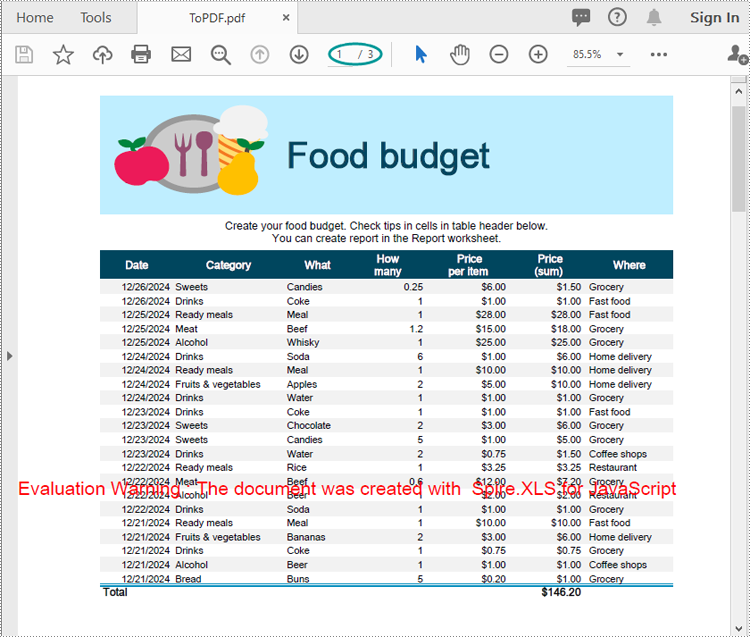
Run the code to launch the React app at localhost:3000. Once it's running, click on the "Convert" button to download the PDF version of the Excel file:

Below is the converted PDF document:
Convert a Specific Worksheet to PDF
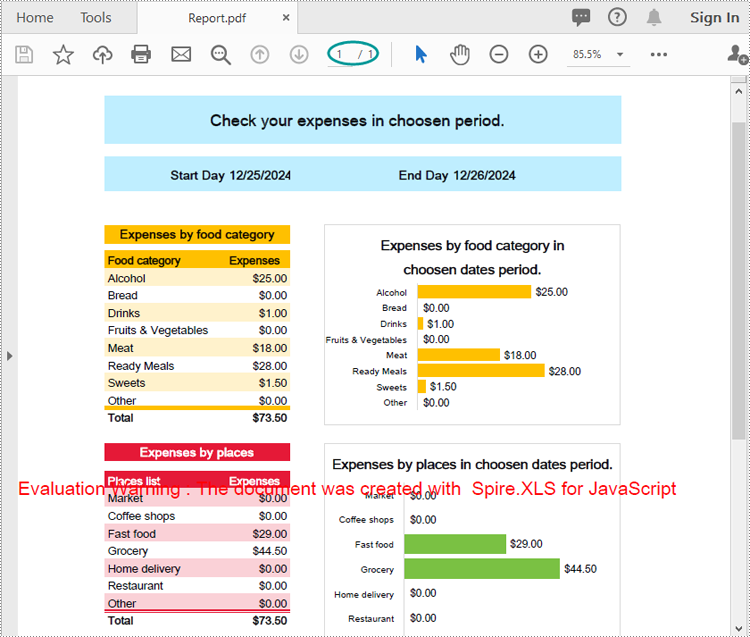
To convert a single worksheet to PDF, use the Worksheet.SaveToPdf() function in Spire.XLS for JavaScript. This feature lets you efficiently extract and convert only the necessary worksheet, making your reporting process more streamlined. The key steps are as follows.
- Load the font file to ensure correct text rendering.
- Create a Workbook object using the new wasmModule.Workbook() function.
- Load the Excel file using the Workbook.LoadFromFile() function.
- Get a specific worksheet using the Workbook.Worksheets.get(index) function.
- Save the worksheet to PDF using the Worksheet.SaveToPdf() function.
Code example:
- JavaScript
import React, { useState, useEffect } from 'react';
function App() {
  const [wasmModule, setWasmModule] = useState(null);
  // Load Spire.XLS
  useEffect(() => {
    (async () => {
      try {
        const publicUrl = process.env.PUBLIC_URL || '';
        const spireModule = await import(/* webpackIgnore: true */ `${publicUrl}/spire.xls.js`);
        const rawModule = spireModule.default || spireModule;
        window.wasmModule = typeof rawModule === 'function'
          ? await rawModule({ locateFile: p => p.endsWith('.wasm') ? `${publicUrl}/${p}` : p })
          : rawModule;
        setWasmModule(window.wasmModule);
      } catch (error) {
        console.error('Failed to load spire.xls.js WASM module:', error);
      }
    })();
  }, []);

  // Function to convert Excel file to PDF
  const ExcelToPDF  = async () => {
    const wasmModule = window.wasmModule.spirexls;

    if (wasmModule) {
      // Load font into Virtual File System (VFS)
      await window.spire.FetchFileToVFS('Arial.ttf', '/Library/Fonts/', `${process.env.PUBLIC_URL}/static/font/`);

      // Specify output PDF file path
      const outputFileName = 'out.pdf';

      // Load input file into Virtual File System (VFS)
      const inputFileName = 'ToPDF.xlsx';
      await window.spire.FetchFileToVFS(inputFileName, '', `${process.env.PUBLIC_URL}/static/data/`);

      // Create a new workbook
      const workbook = new wasmModule.Workbook();

      // Load existing Excel document
      workbook.LoadFromFile({ fileName: inputFileName });

      // Get the second worksheet
      let sheet = workbook.Worksheets.get(0);

      //Save the worksheet to PDF
      sheet.SaveToPdf({fileName: outputFileName});

      // Read the saved file and convert to Blob object
      const modifiedFileArray = window.dotnetRuntime.Module.FS.readFile(outputFileName);
      const modifiedFile = new Blob([modifiedFileArray], { type: 'application/pdf' });

      // Create a URL for the Blob and initiate download
      const url = URL.createObjectURL(modifiedFile);
      const a = document.createElement('a');
      a.href = url;
      a.download = outputFileName;
      document.body.appendChild(a);
      a.click();
      document.body.removeChild(a);
      URL.revokeObjectURL(url);

      // Clean up resources used by the workbook
      workbook.Dispose();
    }
  };

  return (
    <div style={{ textAlign: 'center', height: '300px' }}>
      <h1>Convert an Excel Worksheet to PDF Using JavaScript in React</h1>
      <button onClick={ExcelToPDF} disabled={!wasmModule}>
        Convert
      </button>
    </div>
  );
}

export default App;
Fit Sheet on One Page while Converting a Worksheet to PDF
Fitting a worksheet onto a single page in the output PDF enhances readability, especially for large datasets. Spire.XLS for JavaScript offers the Workbook.ConverterSetting.SheetFitToPage property, which determines whether the worksheet content should be scaled to fit on a single page when saved as a PDF. The key steps are as follows.
- Load the font file to ensure correct text rendering.
- Create a Workbook object using the new wasmModule.Workbook() function.
- Load the Excel file using the Workbook.LoadFromFile() function.
- Fit the worksheet on one page by setting the Workbook.ConverterSetting.SheetFitToPage property to true.
- Get a specific worksheet using the Workbook.Worksheets.get(index) function.
- Save the worksheet to PDF using the Worksheet.SaveToPdf() function.
Code example:
- JavaScript
import React, { useState, useEffect } from 'react';
function App() {
  const [wasmModule, setWasmModule] = useState(null);
  // Load Spire.XLS
  useEffect(() => {
    (async () => {
      try {
        const publicUrl = process.env.PUBLIC_URL || '';
        const spireModule = await import(/* webpackIgnore: true */ `${publicUrl}/spire.xls.js`);
        const rawModule = spireModule.default || spireModule;
        window.wasmModule = typeof rawModule === 'function'
          ? await rawModule({ locateFile: p => p.endsWith('.wasm') ? `${publicUrl}/${p}` : p })
          : rawModule;
        setWasmModule(window.wasmModule);
      } catch (error) {
        console.error('Failed to load spire.xls.js WASM module:', error);
      }
    })();
  }, []);

  // Function to convert Excel file to PDF
  const ExcelToPDF  = async () => {
    const wasmModule = window.wasmModule.spirexls;

    if (wasmModule) {
      // Load font into Virtual File System (VFS)
      await window.spire.FetchFileToVFS('Arial.ttf', '/Library/Fonts/', `${process.env.PUBLIC_URL}/static/font/`);

      // Load input file into Virtual File System (VFS)
      const inputFileName = 'ToPDF.xlsx';
      await window.spire.FetchFileToVFS(inputFileName, '', `${process.env.PUBLIC_URL}/static/data/`);

      // Create a new workbook
      const workbook = new wasmModule.Workbook();

      // Load existing Excel document
      workbook.LoadFromFile({ fileName: inputFileName });

      // Fit sheet on one page
      workbook.ConverterSetting.SheetFitToPage = true;

      // Get the first worksheet
      let sheet = workbook.Worksheets.get(0);

      // Specify the output PDF file path
      const outputFileName = 'FitSheetOnOnePage.pdf';

      //Save the worksheet to PDF
      sheet.SaveToPdf({fileName: outputFileName});

      // Read the saved file and convert to Blob object
      const modifiedFileArray = window.dotnetRuntime.Module.FS.readFile(outputFileName);
      const modifiedFile = new Blob([modifiedFileArray], { type: 'application/pdf' });

      // Create a URL for the Blob and initiate download
      const url = URL.createObjectURL(modifiedFile);
      const a = document.createElement('a');
      a.href = url;
      a.download = outputFileName;
      document.body.appendChild(a);
      a.click();
      document.body.removeChild(a);
      URL.revokeObjectURL(url);

      // Clean up resources used by the workbook
      workbook.Dispose();
    }
  };

  return (
    <div style={{ textAlign: 'center', height: '300px' }}>
      <h1>Convert an Excel Worksheet to PDF Using JavaScript in React</h1>
      <button onClick={ExcelToPDF} disabled={!wasmModule}>
        Convert
      </button>
    </div>
  );
}

export default App;
Customize Page Margins while Converting a Worksheet to PDF
Customizing page margins when converting an Excel worksheet to PDF ensures that your content is well-aligned and visually appealing. Using the Worksheet.PageSetup.TopMargin, Worksheet.PageSetup.BottomMargin, Worksheet.PageSetup.LeftMargin, and Worksheet.PageSetup.RightMargin properties, you can adjust or remove page margins as needed. The key steps are as follows.
- Load the font file to ensure correct text rendering.
- Create a Workbook object using the new wasmModule.Workbook() function.
- Load the Excel file using the Workbook.LoadFromFile() function.
- Get a specific worksheet using the Workbook.Worksheets.get(index) function.
- Adjust the page margins of the worksheet using the Worksheet.PageSetup.PageMargins property.
- Save the worksheet to PDF using the Worksheet.SaveToPdf() function.
Code example:
- JavaScript
import React, { useState, useEffect } from 'react';
function App() {
  const [wasmModule, setWasmModule] = useState(null);
  // Load Spire.XLS
  useEffect(() => {
    (async () => {
      try {
        const publicUrl = process.env.PUBLIC_URL || '';
        const spireModule = await import(/* webpackIgnore: true */ `${publicUrl}/spire.xls.js`);
        const rawModule = spireModule.default || spireModule;
        window.wasmModule = typeof rawModule === 'function'
          ? await rawModule({ locateFile: p => p.endsWith('.wasm') ? `${publicUrl}/${p}` : p })
          : rawModule;
        setWasmModule(window.wasmModule);
      } catch (error) {
        console.error('Failed to load spire.xls.js WASM module:', error);
      }
    })();
  }, []);

  // Function to convert Excel file to PDF
  const ExcelToPDF = async () => {
    const wasmModule = window.wasmModule.spirexls;

    if (wasmModule) {
      // Load font into Virtual File System (VFS)
      await window.spire.FetchFileToVFS('Arial.ttf', '/Library/Fonts/', `${process.env.PUBLIC_URL}/static/font/`);

      // Load input file into Virtual File System (VFS)
      const inputFileName = 'ToPDF.xlsx';
      await window.spire.FetchFileToVFS(inputFileName, '', `${process.env.PUBLIC_URL}/static/data/`);

      // Create a new workbook
      const workbook = new wasmModule.Workbook();

      // Load existing Excel document
      workbook.LoadFromFile({ fileName: inputFileName });

      // Get the first worksheet
      let sheet = workbook.Worksheets.get(0);

      // Adjust page margins of the worksheet
      sheet.PageSetup.TopMargin = 0.5;
      sheet.PageSetup.BottomMargin = 0.5;
      sheet.PageSetup.LeftMargin = 0.3;
      sheet.PageSetup.RightMargin = 0.3;

      // Specify the output PDF file path
      const outputFileName = 'ToPdfWithSpecificPageMargins.pdf';
      //Save the worksheet to PDF
      sheet.SaveToPdf({ fileName: outputFileName });

      // Read the saved file and convert to Blob object
      const modifiedFileArray = window.dotnetRuntime.Module.FS.readFile(outputFileName);
      const modifiedFile = new Blob([modifiedFileArray], { type: 'application/pdf' });

      // Create a URL for the Blob and initiate download
      const url = URL.createObjectURL(modifiedFile);
      const a = document.createElement('a');
      a.href = url;
      a.download = outputFileName;
      document.body.appendChild(a);
      a.click();
      document.body.removeChild(a);
      URL.revokeObjectURL(url);

      // Clean up resources used by the workbook
      workbook.Dispose();
    }
  };

  return (
    <div style={{ textAlign: 'center', height: '300px' }}>
      <h1>Convert an Excel Worksheet to PDF Using JavaScript in React</h1>
      <button onClick={ExcelToPDF} disabled={!wasmModule}>
        Convert
      </button>
    </div>
  );
}

export default App;
Specify Page Size while Converting a Worksheet to PDF
Choosing the correct page size when converting an Excel worksheet to PDF is essential for meeting specific printing or submission standards. Spire.XLS for JavaScript offers the Worksheet.PageSetup.PaperSize property, which allows you to select from various predefined page sizes or set a custom size. The key steps are as follows.
- Load the font file to ensure correct text rendering.
- Create a Workbook object using the new wasmModule.Workbook() function.
- Load the Excel file using the Workbook.LoadFromFile() function.
- Get a specific worksheet using the Workbook.Worksheets.get(index) function.
- Set the page size of the worksheet using the Worksheet.PageSetup.PaperSize property.
- Save the worksheet to PDF using the Worksheet.SaveToPdf() function.
Code example:
- JavaScript
import React, { useState, useEffect } from 'react';
function App() {
  const [wasmModule, setWasmModule] = useState(null);
  // Load Spire.XLS
  useEffect(() => {
    (async () => {
      try {
        const publicUrl = process.env.PUBLIC_URL || '';
        const spireModule = await import(/* webpackIgnore: true */ `${publicUrl}/spire.xls.js`);
        const rawModule = spireModule.default || spireModule;
        window.wasmModule = typeof rawModule === 'function'
          ? await rawModule({ locateFile: p => p.endsWith('.wasm') ? `${publicUrl}/${p}` : p })
          : rawModule;
        setWasmModule(window.wasmModule);
      } catch (error) {
        console.error('Failed to load spire.xls.js WASM module:', error);
      }
    })();
  }, []);

  // Function to convert Excel file to PDF
  const ExcelToPDF = async () => {
    const wasmModule = window.wasmModule.spirexls;

    if (wasmModule) {
      // Load font into Virtual File System (VFS)
      await window.spire.FetchFileToVFS('Arial.ttf', '/Library/Fonts/', `${process.env.PUBLIC_URL}/static/font/`);

      // Load input file into Virtual File System (VFS)
      const inputFileName = 'ToPDF.xlsx';
      await window.spire.FetchFileToVFS(inputFileName, '', `${process.env.PUBLIC_URL}/static/data/`);

      // Create a new workbook
      const workbook = new wasmModule.Workbook();

      // Load existing Excel document
      workbook.LoadFromFile({ fileName: inputFileName });

      // Get the first worksheet
      let sheet = workbook.Worksheets.get(0);

      // Set the page size of the worksheet
      sheet.PageSetup.PaperSize = wasmModule.PaperSizeType.PaperA3;

      // Specify the output PDF file path
      const outputFileName = 'ToPdfWithSpecificPageSize.pdf';
      //Save the worksheet to PDF
      sheet.SaveToPdf({ fileName: outputFileName });

      // Read the saved file and convert to Blob object
      const modifiedFileArray = window.dotnetRuntime.Module.FS.readFile(outputFileName);
      const modifiedFile = new Blob([modifiedFileArray], { type: 'application/pdf' });

      // Create a URL for the Blob and initiate download
      const url = URL.createObjectURL(modifiedFile);
      const a = document.createElement('a');
      a.href = url;
      a.download = outputFileName;
      document.body.appendChild(a);
      a.click();
      document.body.removeChild(a);
      URL.revokeObjectURL(url);

      // Clean up resources used by the workbook
      workbook.Dispose();
    }
  };

  return (
    <div style={{ textAlign: 'center', height: '300px' }}>
      <h1>Convert an Excel Worksheet to PDF Using JavaScript in React</h1>
      <button onClick={ExcelToPDF} disabled={!wasmModule}>
        Convert
      </button>
    </div>
  );
}

export default App;
Convert a Cell Range to PDF
Converting a specific cell range to PDF allows users to export only a selected portion of the worksheet, ideal for focused reporting or sharing key data points. Using the Worksheet.PageSetup.PrintArea property, you can specify a cell range for conversion. The key steps are as follows.
- Load the font file to ensure correct text rendering.
- Create a Workbook object using the new wasmModule.Workbook() function.
- Load the Excel file using the Workbook.LoadFromFile() function.
- Get a specific worksheet using the Workbook.Worksheets.get(index) function.
- Specify the cell range of the worksheet for conversion using the Worksheet.PageSetup.PrintArea property.
- Save the worksheet to PDF using the Worksheet.SaveToPdf() function.
Code example:
- JavaScript
import React, { useState, useEffect } from 'react';
function App() {
  const [wasmModule, setWasmModule] = useState(null);
  // Load Spire.XLS
  useEffect(() => {
    (async () => {
      try {
        const publicUrl = process.env.PUBLIC_URL || '';
        const spireModule = await import(/* webpackIgnore: true */ `${publicUrl}/spire.xls.js`);
        const rawModule = spireModule.default || spireModule;
        window.wasmModule = typeof rawModule === 'function'
          ? await rawModule({ locateFile: p => p.endsWith('.wasm') ? `${publicUrl}/${p}` : p })
          : rawModule;
        setWasmModule(window.wasmModule);
      } catch (error) {
        console.error('Failed to load spire.xls.js WASM module:', error);
      }
    })();
  }, []);

  // Function to convert Excel file to PDF
  const ExcelToPDF = async () => {
    const wasmModule = window.wasmModule.spirexls;

    if (wasmModule) {
      // Load font into Virtual File System (VFS)
      await window.spire.FetchFileToVFS('Arial.ttf', '/Library/Fonts/', `${process.env.PUBLIC_URL}/static/font/`);

      // Load input file into Virtual File System (VFS)
      const inputFileName = 'ToPDF.xlsx';
      await window.spire.FetchFileToVFS(inputFileName, '', `${process.env.PUBLIC_URL}/static/data/`);

      // Create a new workbook
      const workbook = new wasmModule.Workbook();

      // Load existing Excel document
      workbook.LoadFromFile({ fileName: inputFileName });

      // Get the first worksheet
      let sheet = workbook.Worksheets.get(0);

      // Set the page size of the worksheet
      sheet.PageSetup.PrintArea = "B5:E17";

      // Specify the output PDF file path
      const outputFileName = 'CellRangeToPDF.pdf';
      //Save the worksheet to PDF
      sheet.SaveToPdf({ fileName: outputFileName });

      // Read the saved file and convert to Blob object
      const modifiedFileArray = window.dotnetRuntime.Module.FS.readFile(outputFileName);
      const modifiedFile = new Blob([modifiedFileArray], { type: 'application/pdf' });

      // Create a URL for the Blob and initiate download
      const url = URL.createObjectURL(modifiedFile);
      const a = document.createElement('a');
      a.href = url;
      a.download = outputFileName;
      document.body.appendChild(a);
      a.click();
      document.body.removeChild(a);
      URL.revokeObjectURL(url);

      // Clean up resources used by the workbook
      workbook.Dispose();
    }
  };

  return (
    <div style={{ textAlign: 'center', height: '300px' }}>
      <h1>Convert an Excel Worksheet to PDF Using JavaScript in React</h1>
      <button onClick={ExcelToPDF} disabled={!wasmModule}>
        Convert
      </button>
    </div>
  );
}

export default App;

Get a Free License
To fully experience the capabilities of Spire.XLS for JavaScript without any evaluation limitations, you can request a free 30-day trial license.