
.NET (1326)
Children categories
Enhancing the interactivity of PDF files is a crucial aspect of document management and user engagement. Creating actions within PDFs using C# in the .NET framework allows developers to add dynamic elements such as file links, web links, and audio that can execute various functions like navigating to different pages, launching external applications, or playing background music, which improves the user experience by making PDFs more functional and engaging. This article demonstrates how to use the Spire.PDF for .NET library to create actions in PDF documents with C#.
- General Steps for Adding Actions to PDF with C#
- Create Navigation Actions in PDF with C#
- Create File Launch Actions in PDF with C#
- Create Sound Actions in PDF with C#
- Create Web Link Actions in PDF with C#
- Create JavaScript Actions in PDF with C#
Install Spire.PDF for .NET
To begin with, you need to add the DLL files included in the Spire.PDF for.NET package as references in your .NET project. The DLL files can be either downloaded from this link or installed via NuGet.
PM> Install-Package Spire.PDF
General Steps for Adding Actions to PDF with C#
Adding actions to a PDF using C# involves integrating interactive elements that enhance user experience, such as navigation buttons, file links, web links, or sound triggers. With the Spire.PDF for .NET library, developers can create various actions in PDF documents with C# code. Below is a table of the classes for commonly used actions and their descriptions:
| Class | Decryption |
| PdfGoToAction | Represents an action that navigates to a destination within the current document. |
| PdfLaunchAction | Represents an action that opens a file. |
| PdfSoundAction | Represents an action that plays a sound. |
| PdfJavaScriptAction | Represents an action that executes JavaScript code in a PDF document. |
| PdfUriAction | Represents an action that resolves a Uniform Resource Identifier (URI). |
| PdfGoToAction | Represents an action that navigates to a destination within the current document. |
For more action classes and their descriptions, refer to Spire.PDF for .NET action API references.
Actions can be added to PDF documents in two primary ways:
1. Using Action Annotations
This method involves creating an action and linking it to an annotation on the page. The action is displayed and triggered when the annotation is clicked.
General Steps:
- Create an instance of PdfDocument class and load a PDF document using PdfDocument.LoadFromFile() method.
- Get a page using PdfDocument.Pages[] property.
- Create an instance of the class that represents the action and set the action properties.
- Create an instance of PdfActionAnnotation class in a rectangular area on the page using the action.
- Add the cue word for the action to the page (optional).
- Add the action annotation to the page using PdfPageBase.Annotations.Add() method.
- Save the result document using PdfDocument.SaveToFile() method.
2. Assigning Actions to Document Events
Actions can also be assigned to document-level events such as opening, closing, or printing the document. These actions are triggered automatically when the specified events occur.
General Steps:
- Create an instance of PdfDocument class and load a PDF document using PdfDocument.LoadFromFile() method.
- Create an instance of the class that represents the action and set the action properties.
- Assign the action to a document event using the following properties:
- PdfDocument.AfterOpenAction
- PdfDocument.AfterSaveAction
- PdfDocument.AfterPrintAction
- PdfDocument.BeforeCloseAction
- PdfDocument.BeforeSaveAction
- PdfDocument.BeforePrintAction
- Save the result document using PdfDocument.SaveToFile() method.
Create Navigation Actions in PDF with C#
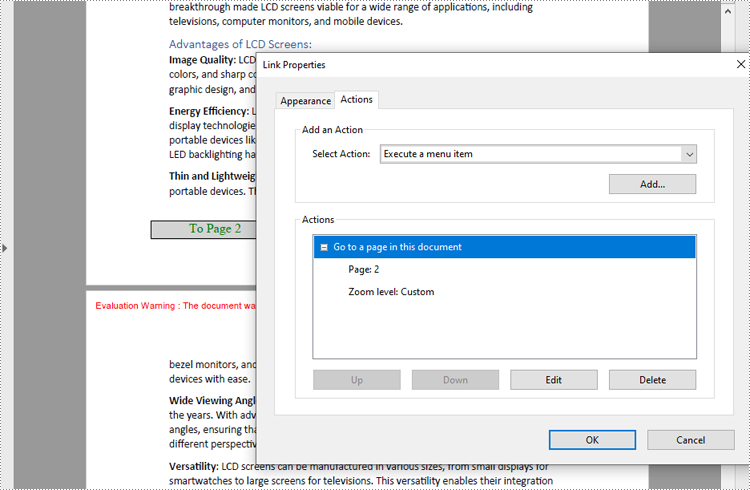
Navigation actions can be created using the PdfGoToAction class, which defines navigation within the document to a specified destination. To achieve this, developers can create a PdfDestination object and pass it as a parameter to a PdfGoToAction instance.
The following is a code example of adding a navigation action to a PDF:
- C#
using Spire.Pdf;
using Spire.Pdf.Actions;
using Spire.Pdf.Annotations;
using Spire.Pdf.General;
using Spire.Pdf.Graphics;
using System.Drawing;

namespace AddNavigationButtonPDF
{
    class Program
    {
        static void Main(string[] args)
        {
            // Create an instance of PdfDocument
            PdfDocument pdf = new PdfDocument();

            // Load a PDF file
            pdf.LoadFromFile("Sample.pdf");

            // Create a PdfDestination instance and set the destination
            PdfDestination destination = new PdfDestination(pdf.Pages[1]);
            destination.Location = new PointF(0, 0);
            destination.Mode = PdfDestinationMode.Location;
            destination.Zoom = 0.8f;

            // Create a PdfGoToAction based on the destination
            PdfGoToAction action = new PdfGoToAction(destination);

            // Create a rectangle and draw it on the first page
            RectangleF rect = new RectangleF(70, pdf.PageSettings.Size.Height - 120, 140, 20);
            pdf.Pages[0].Canvas.DrawRectangle(PdfBrushes.LightGray, rect);
            // Draw cue words on the rectangle
            PdfFont font = new PdfFont(PdfFontFamily.TimesRoman, 14);
            PdfStringFormat stringFormat = new PdfStringFormat(PdfTextAlignment.Center);
            pdf.Pages[0].Canvas.DrawString("To Page 2", font, PdfBrushes.Green, rect, stringFormat);

            // Create a PdfActionAnnotation instance based on the rectangle and the action
            PdfActionAnnotation actionAnnotation = new PdfActionAnnotation(rect, action);

            // Add the action annotation to the first page
            pdf.Pages[0].Annotations.Add(actionAnnotation);

            // Save the document
            pdf.SaveToFile("output/NavigationButton.pdf");
            pdf.Close();
        }
    }
}
Create File Launch Actions in PDF with C#
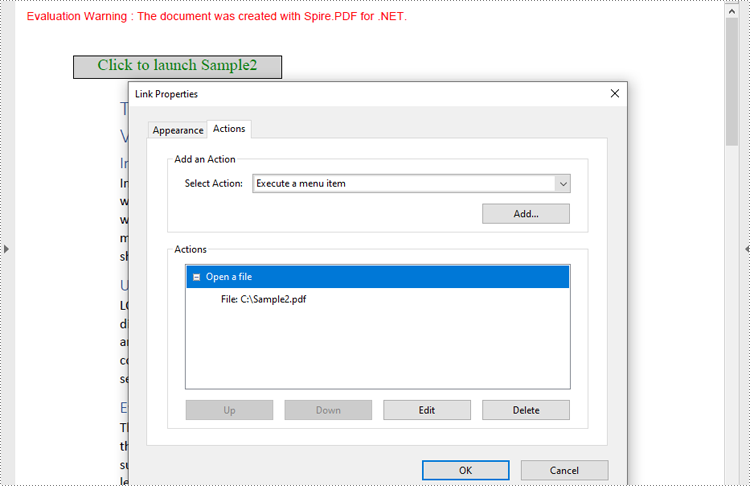
The PdfLaunchAction class defines a file open action in a PDF that enables users to open a specific file by clicking a button embedded on a PDF page. When implementing this action, developers can set the file path (absolute or relative) and decide whether the file should open in a new window. Here is a code example for adding a file launch action in a PDF document:
- C#
using Spire.Pdf;
using Spire.Pdf.Actions;
using Spire.Pdf.Annotations;
using Spire.Pdf.Graphics;
using System.Drawing;

namespace AddFileLaunchActionPDF
{
    class Program
    {
        static void Main(string[] args)
        {
            // Create an instance of PdfDocument
            PdfDocument pdf = new PdfDocument();

            // Load a PDF file
            pdf.LoadFromFile("Sample.pdf");

            // Get the first page
            PdfPageBase page = pdf.Pages[0];

            // Draw a rectangle on the page
            RectangleF rect = new RectangleF(50, 50, 180, 20);
            page.Canvas.DrawRectangle(PdfBrushes.LightGray, rect);
            // Darw the cue words in the rectangle
            PdfFont font = new PdfFont(PdfFontFamily.TimesRoman, 14);
            PdfStringFormat stringFormat = new PdfStringFormat(PdfTextAlignment.Center);
            pdf.Pages[0].Canvas.DrawString("Click to launch Sample2", font, PdfBrushes.Green, rect, stringFormat);

            // Create a PdfLaunchAction instance
            PdfLaunchAction action = new PdfLaunchAction("C:/Sample2.pdf", PdfFilePathType.Absolute);
            // Set the launch mode to open in new window
            action.IsNewWindow = true;

            // Create a PdfActionAnnotation instance based on the rectangle and the launch action
            PdfActionAnnotation actionAnnotation = new PdfActionAnnotation(rect, action);

            // Add the action annotation to the first page
            page.Annotations.Add(actionAnnotation);

            // Save the document
            pdf.SaveToFile("output/LaunchAction.pdf");
            pdf.Close();
        }
    }
}
Create Sound Actions in PDF with C#
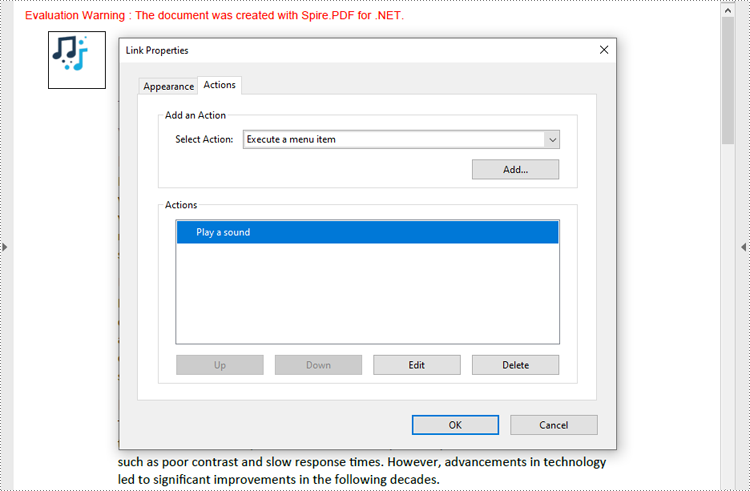
Developers can embed audio as an action in PDF documents with the PdfSoundAction class, enabling the audio to play in response to specific triggers, such as opening the file or clicking a button. Below is a code example for creating a sound action in a PDF document:
- C#
using Spire.Pdf;
using Spire.Pdf.Actions;
using Spire.Pdf.Annotations;
using Spire.Pdf.Graphics;
using Spire.Pdf.General;
using System.Drawing;

namespace AddSoundActionPDF
{
    class Program
    {
        static void Main(string[] args)
        {
            // Create an instance of PdfDocument
            PdfDocument pdf = new PdfDocument();

            // Load a PDF file
            pdf.LoadFromFile("Sample.pdf");

            // Get the first page
            PdfPageBase page = pdf.Pages[0];

            // Darw the cue image on the page
            PdfImage image = PdfImage.FromFile("Sound.png");
            page.Canvas.DrawImage(image, new PointF(30, 30));

            // Create a PdfSoundAction instance and set its property
            PdfSoundAction action = new PdfSoundAction("Wave.wav");
            // Set the sound parameters
            action.Sound.Bits = 16;
            action.Sound.Channels = PdfSoundChannels.Stereo;
            action.Sound.Encoding = PdfSoundEncoding.Signed;
            action.Sound.Rate = 44100;
            // Set the play options
            action.Volume = 0;
            action.Repeat = true;
            action.Mix = true;
            action.Synchronous = true;

            // Create a PdfActionAnnotation instance using the sound action at the location of the cue image
            RectangleF rect = new RectangleF(30, 30, image.Width, image.Height);
            PdfActionAnnotation actionAnnotation = new PdfActionAnnotation(rect, action);

            // Add the action annotation to the first page
            page.Annotations.Add(actionAnnotation);

            // Set the sound action to play after the document is opened
            pdf.AfterOpenAction = action;

            // Save the document
            pdf.SaveToFile("output/SoundAction.pdf");
            pdf.Close();
        }
    }
}
Create Web Link Actions in PDF with C#
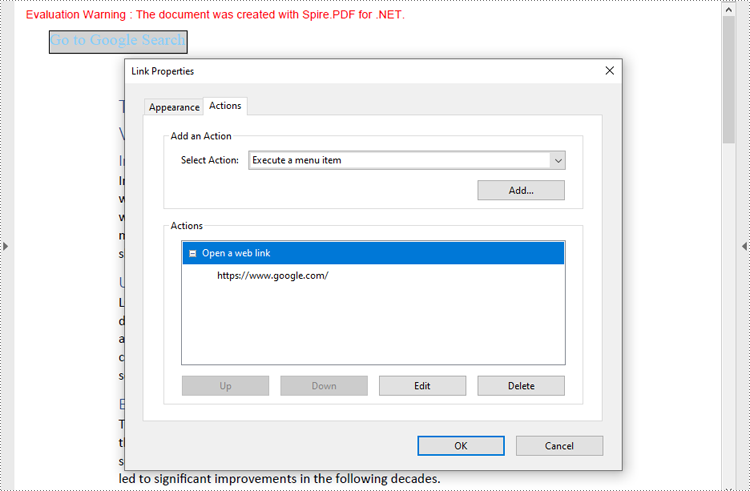
Developers can use the PdfUriAction class to create a web link action in PDF documents, allowing users to open a web link when performing specific actions, such as clicking a button. Below is a code example for creating a web link action in a PDF document:
- C#
using Spire.Pdf;
using Spire.Pdf.Actions;
using Spire.Pdf.Annotations;
using Spire.Pdf.Graphics;
using System.Drawing;

namespace AddSoundActionPDF
{
    class Program
    {
        static void Main(string[] args)
        {
            // Create an instance of PdfDocument
            PdfDocument pdf = new PdfDocument();

            // Load a PDF file
            pdf.LoadFromFile("Sample.pdf");

            // Get the first page
            PdfPageBase page = pdf.Pages[0];

            // Draw a rectangle on the page
            RectangleF rect = new RectangleF(30, 30, 120, 20);
            page.Canvas.DrawRectangle(PdfBrushes.LightGray, rect);
            // Draw the cue words in the rectangle
            PdfFont font = new PdfFont(PdfFontFamily.TimesRoman, 14);
            PdfStringFormat stringFormat = new PdfStringFormat(PdfTextAlignment.Center);
            page.Canvas.DrawString("Go to Google Search", font, PdfBrushes.LightSkyBlue, rect);

            // Create a PdfUriAction instance and set its property
            PdfUriAction action = new PdfUriAction();
            action.Uri = "https://www.google.com/";

            // Create a PdfActionAnnotation instance using the web link action and the rectangle
            PdfActionAnnotation actionAnnotation = new PdfActionAnnotation(rect, action);

            // Add the action annotation to the first page
            page.Annotations.Add(actionAnnotation);

            // Save the document
            pdf.SaveToFile("output/WebLinkAction.pdf");
            pdf.Close();
        }
    }
}
Create JavaScript Actions in PDF with C#
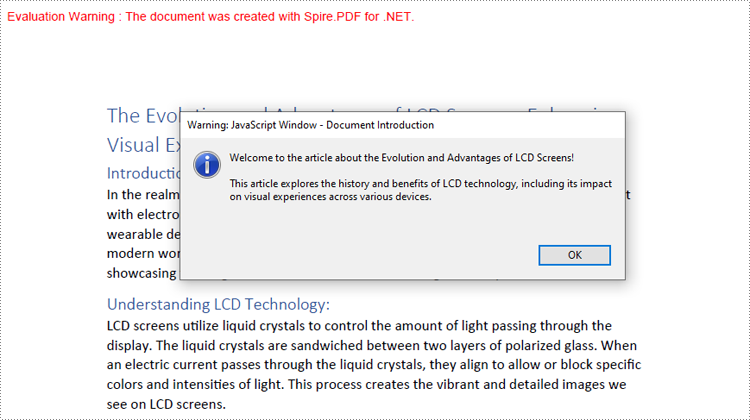
The PdfJavaScriptAction represents a JavaScript action in PDF, which allows developers to create complex interactions such as form validations, data calculations, and custom user interfaces. Below is a code example for adding a simple JavaScript action to a PDF document with C#:
- C#
using Spire.Pdf;
using Spire.Pdf.Actions;

namespace AddJavaScriptActionPDF
{
    class Program
    {
        static void Main(string[] args)
        {
            // Create a PdfDocument instance
            PdfDocument pdf = new PdfDocument();

            // Load a PDF file
            pdf.LoadFromFile("Sample.pdf");

            // Define JavaScript code
            var jsCode =
            "app.alert({" +
            "    cMsg: 'Welcome to the article about the Evolution and Advantages of LCD Screens!\\n\\nThis article explores the history and benefits of LCD technology, including its impact on visual experiences across various devices.', " +
            "    nIcon: 3, " +
            "    cTitle: 'Document Introduction'" +
            "});";

            // Create a PdfJavaScriptAction instance using the JavaScript code
            PdfJavaScriptAction action = new PdfJavaScriptAction(jsCode);

            // Set the action to be executed when the PDF document is launched
            pdf.AfterOpenAction = action;

            // Save the document
            pdf.SaveToFile("output/PDFJavaScriptAction.pdf");
            pdf.Close();
        }
    }
}
Apply for a Temporary License
If you'd like to remove the evaluation message from the generated documents, or to get rid of the function limitations, please request a 30-day trial license for yourself.
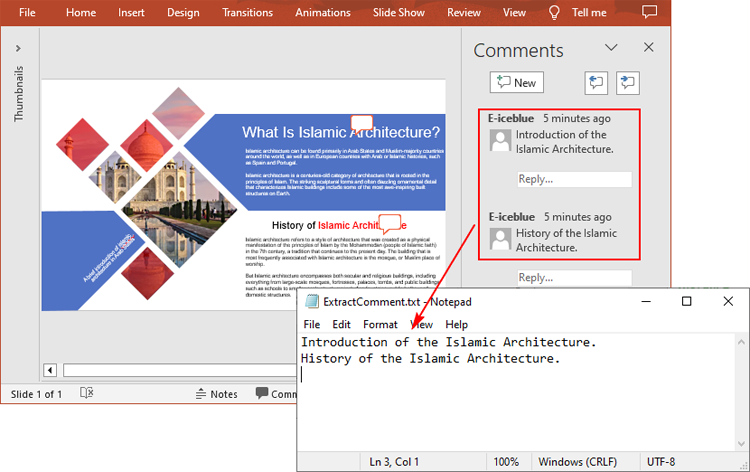
In PowerPoint, comments are a very useful feature that can help you add notes or feedback to your slides. In addition to adding or removing comments, sometimes you may need to modify existing comments to correct errors or outdated information. Or in a collaborative editing scenario, you may need to extract comments to collect suggestions of all members. This article will demonstrate how to modify or extract comments in PowerPoint in C# using Spire.Presentation for .NET.
Install Spire.Presentation for .NET
To begin with, you need to add the DLL files included in the Spire.Presentation for .NET package as references in your .NET project. The DLL files can be either downloaded from this link or installed via NuGet.
PM> Install-Package Spire.Presentation
Modify Comments on a Presentation Slide in C#
The ISlide.Comments[].Text property provided by Spire.Presentation for .NET allows you to update the content of a specified comment with new text. The following are the detailed steps.
- Create a Presentation instance.
- Load a PowerPoint presentation using Presentation.LoadFromFile() method.
- Get a specified slide through Prenstion.Slides[] property.
- Update a specified comment on the slide through ISlide.Comments[].Text property.
- Save the result file using Presentation.SaveToFile() method.
- C#
using Spire.Presentation;

namespace ModifyComment
{
    class Program
    {
        static void Main(string[] args)
        {
            // Create a Presentation instance
            Presentation presentation = new Presentation();

            // Load a PowerPoint presentation
            presentation.LoadFromFile("Comments.pptx");

            // Get the first slide
            ISlide slide = presentation.Slides[0];

            // Update the first comment in the slide
            slide.Comments[0].Text = "Replace comment";

            // Save the result file
            presentation.SaveToFile("ModifyComment.pptx", FileFormat.Pptx2016);

        }
    }
}

Extract Comments from a Presentation Slide in C#
To extract comments from a slide, you need to get all the comments in the slide via the ISlide.Comments property, and then iterate through each comment to get its text content via the Comment.Text property. The following are the detailed steps.
- Create a Presentation instance.
- Load a PowerPoint presentation using Presentation.LoadFromFile() method.
- Create a StringBuilder instance.
- Get a specified slide through Prenstion.Slides[] property.
- Get all comments in the slide through ISlide.Comments property.
- Iterate over each comment to get its text content through Comment.Text property, and then append to the StringBuilder instance.
- Write to a text file using Presentation.SaveToFile() method.
- C#
using Spire.Presentation;
using System.IO;
using System.Text;

namespace ExtractComment
{
    class Program
    {
        static void Main(string[] args)
        {
            // Create a Presentation instance
            Presentation presentation = new Presentation();

            // Load a PowerPoint presentation
            presentation.LoadFromFile("Comments.pptx");

            // Create a StringBuilder instance
            StringBuilder str = new StringBuilder();

            // Get the first slide
            ISlide slide = presentation.Slides[0];

            // Get all comments in the slide
            Comment[] comments = slide.Comments;

            // Append the comment text to the StringBuilder instance
            for (int i = 0; i < comments.Length; i++)
            {
                str.Append(comments[i].Text + "\r\n");
            }

            // Write to a text file
            File.WriteAllText("ExtractComment.txt", str.ToString());
        }
    }
}
Apply for a Temporary License
If you'd like to remove the evaluation message from the generated documents, or to get rid of the function limitations, please request a 30-day trial license for yourself.
C#: Insert, Retrieve, Reorder and Remove Slides in PowerPoint Sections
2024-11-15 01:03:47 Written by KoohjiSections in PowerPoint let you group related slides together, making it easy to segment a presentation by topics, chapters, or any other logical structure. When working with large, multi-section presentations, automating slide operations - such as insertion, retrieval, reordering, and removal - can significantly improve productivity. In this article, we will explain how to insert, retrieve, reorder, and remove slides in PPT sections in C# using Spire.Presentation for .NET.
- Insert Slides into a PowerPoint Section in C#
- Retrieve Slides from a PowerPoint Section in C#
- Reorder Slides in a PowerPoint Section in C#
- Remove Slides from a PowerPoint Section in C#
Install Spire.Presentation for .NET
To begin with, you need to add the DLL files included in the Spire.Presentation for.NET package as references in your .NET project. The DLL files can be either downloaded from this link or installed via NuGet.
PM> Install-Package Spire.Presentation
Insert Slides into a PowerPoint Section in C#
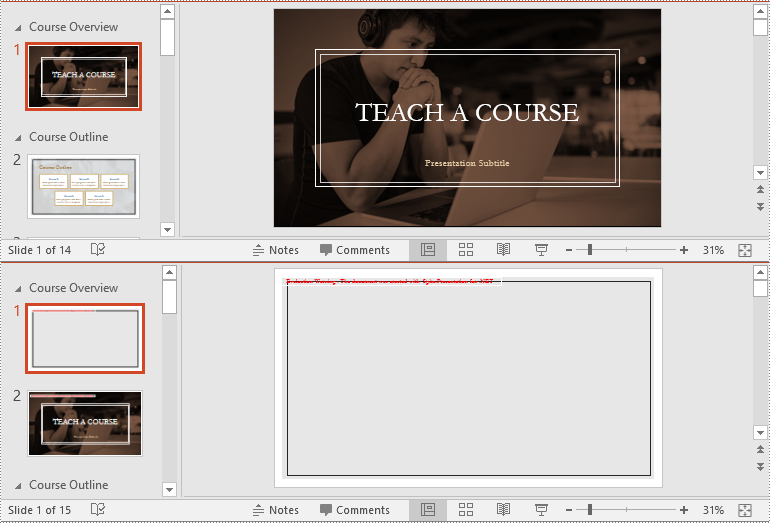
Inserting slides is often needed when you need to add new content to a section. With Spire.Presentation for .NET, you can insert a slide into a section using the Section.Insert() method. The detailed steps are as follows.
- Create an instance of the Presentation class.
- Load a PowerPoint presentation using the Presentation.LoadFromFile() method.
- Get a specific section through its index (0-based) using the Presentation.SectionList(index) property.
- Add a new slide to presentation, then insert it into the section using the Section.Insert() method.
- Remove the added slide from the presentation.
- Save the resulting presentation using the Presentation.SaveToFile() method.
- C#
using Spire.Presentation;
using System.Collections.Generic;

namespace InsertSlidesInSection
{
    internal class Program
    {
        static void Main(string[] args)
        {
            // Create an instance of the Presentation class
            using (Presentation presentation = new Presentation())
            {
                // Load a PowerPoint presentation
                presentation.LoadFromFile("Example.pptx");

                // Access the first section
                Section firstSection = presentation.SectionList[0];

                // Add a new slide to the presentation and insert it at the start of the section
            ISlide slide = presentation.Slides.Append();
            firstSection.Insert(0, slide);
            // Remove the added slide from the presentation
            presentation.Slides.Remove(slide);

                // Save the modified presentation
                presentation.SaveToFile("InsertSlidesInSection.pptx", FileFormat.Pptx2016);
            }
        }
    }
}
Retrieve Slides from a PowerPoint Section in C#
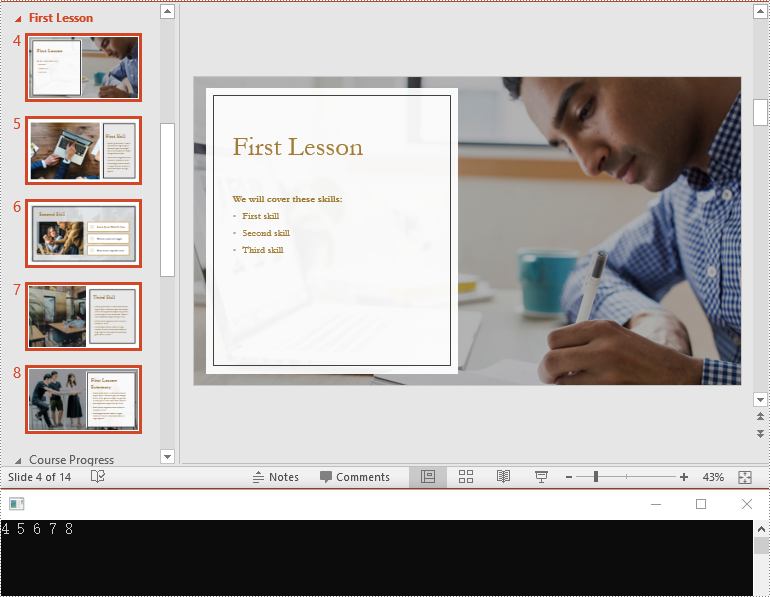
Extracting slides from a specific section allows you to focus on a subset of slides for targeted operations, like slide reordering or applying specific formatting. Using the Section.GetSlides() method in Spire.Presentation for .NET, you can easily retrieve all slides within a given section. The detailed steps are as follows.
- Create an instance of the Presentation class.
- Load a PowerPoint presentation using the Presentation.LoadFromFile() method.
- Get a specific section through its index (0-based) using the Presentation.SectionList(index) property.
- Retrieve the slides within the section using the Section.GetSlides() method.
- Iterate through the retrieved slides and get the slide number (1-based) of each slide.
- C#
using Spire.Presentation;
using System;

namespace RetrieveSlidesInSection
{
    internal class Program
    {
        static void Main(string[] args)
        {
            // Create an instance of the Presentation class
            using (Presentation presentation = new Presentation())
            {
                // Load a PowerPoint presentation
                presentation.LoadFromFile("Example.pptx");

                // Retrieve the slides in the 3rd section
                Section section = presentation.SectionList[2];
                ISlide[] slides = section.GetSlides();

                // Output the slide number for each slide in the section
                foreach (ISlide slide in slides)
                {
                    Console.Write(slide.SlideNumber + " ");
                }
                Console.ReadKey();
            }
        }
    }
}
Reorder Slides in a PowerPoint Section in C#
Reordering slides is essential for ensuring that related content follows a logical sequence. Spire.Presentation for .NET offers the Section.Move() method for moving a slide in a section to another position. The detailed steps are as follows.
- Create an instance of the Presentation class.
- Load a PowerPoint presentation using the Presentation.LoadFromFile() method.
- Get a specific section through its index (0-based) using the Presentation.SectionList(index) property.
- Move a specific slide in the section to another position using the Section.Move() method.
- Save the resulting presentation using the Presentation.SaveToFile() method.
- C#
using Spire.Presentation;

namespace ReorderSlidesInSection
{
    internal class Program
    {
        static void Main(string[] args)
        {
            // Create an instance of the Presentation class
            using (Presentation presentation = new Presentation())
            {
		   // Load a PowerPoint presentation
                presentation.LoadFromFile("Example.pptx");

                // Access the 3rd section
                Section section = presentation.SectionList[2];

                // Retrieve the slides in the section
                ISlide[] slides = section.GetSlides();

                // Move the 1st slide in the section to the specified position
                section.Move(2, slides[0]);

                // Save the modified presentation
                presentation.SaveToFile("ReorderSlidesInSection.pptx", FileFormat.Pptx2016);
            }
        }
    }
}

Remove Slides from a PowerPoint Section in C#
Removing slides from a section helps streamline your presentation, especially when certain slides become outdated or irrelevant. With the Section.RemoveAt() or Section.RemoveRange() method in Spire.Presentation for .NET, you can easily delete an individual slide or a range of slides from a section. The detailed steps are as follows.
- Create an instance of the Presentation class.
- Load a PowerPoint presentation using the Presentation.LoadFromFile() method.
- Get a specific section through its index (0-based) using the Presentation.SectionList(index) property.
- Remove a specific slide or a range of slides from the presentation using the Section.RemoveAt() or Section.RemoveRange() method.
- Save the resulting presentation using the Presentation.SaveToFile() method.
- C#
using Spire.Presentation;

namespace RemoveSlidesInSection
{
    internal class Program
    {
        static void Main(string[] args)
        {
            // Create an instance of the Presentation class
            using (Presentation presentation = new Presentation())
            {
                // Load a PowerPoint presentation
                presentation.LoadFromFile("Course.pptx");

                // Access the 3rd section
                Section section = presentation.SectionList[2];

                // Remove the first slide from the section
                section.RemoveAt(0);

                // Or remove a range of slides from the section
                //section.RemoveRange(0, 2);

                // Save the modified presentation
                presentation.SaveToFile("RemoveSlidesInSection.pptx", FileFormat.Pptx2016);
            }
        }
    }
}
Apply for a Temporary License
If you'd like to remove the evaluation message from the generated documents, or to get rid of the function limitations, please request a 30-day trial license for yourself.
HTML is widely used to present content in web browsers, but preserving its exact layout when sharing or printing can be challenging. PDF, by contrast, is a universally accepted format that reliably maintains document layout across various devices and operating systems. Converting HTML to PDF is particularly useful in web development, especially when creating printable versions of web pages or generating reports from web data.
Spire.PDF for .NET now supports a streamlined method to convert HTML to PDF in C# using the ChromeHtmlConverter class. This tutorial provides step-by-step guidance on performing this conversion effectively.
- Convert HTML to PDF with ChromeHtmlConverter in C#
- Generate Output Logs During HTML to PDF Conversion in C#
Install Spire.PDF for .NET
To begin with, you need to add the DLL files included in the Spire.PDF for.NET package as references in your .NET project. The DLLs files can be either downloaded from this link or installed via NuGet.
PM> Install-Package Spire.PDF
Install Google Chrome
This method requires Google Chrome to perform the conversion. If Chrome is not already installed, you can download it from this link and install it.
Convert HTML to PDF using ChromeHtmlConverter in C#
You can utilize the ChromeHtmlConverter.ConvertToPdf() method to convert an HTML file to a PDF using the Chrome plugin. This method accepts 3 parameters, including the input HTML file path, output PDF file path, and ConvertOptions which allows customization of conversion settings like conversion timeout, PDF paper size and page margins. The detailed steps are as follows.
- Create an instance of the ChromeHtmlConverter class and provide the path to the Chrome plugin (chrome.exe) as a parameter in the class constructor.
- Create an instance of the ConvertOptions class.
- Customize the conversion settings, such as the conversion timeout, the paper size and page margins of the converted PDF through the properties of the ConvertOptions class.
- Convert an HTML file to PDF using the ChromeHtmlConverter.ConvertToPdf() method.
- C#
using Spire.Additions.Chrome;

namespace ConvertHtmlToPdfUsingChrome
{
    internal class Program
    {
        static void Main(string[] args)
        {
            //Specify the input URL and output PDF file path
            string inputUrl = @"https://www.e-iceblue.com/Tutorials/Spire.PDF/Spire.PDF-Program-Guide/C-/VB.NET-Convert-Image-to-PDF.html";
            string outputFile = @"HtmlToPDF.pdf";

            //Specify the path to the Chrome plugin
            string chromeLocation = @"C:\Program Files\Google\Chrome\Application\chrome.exe";

            //Create an instance of the ChromeHtmlConverter class
            ChromeHtmlConverter converter = new ChromeHtmlConverter(chromeLocation);

            // Create an instance of the ConvertOptions class
            ConvertOptions options = new ConvertOptions();
            //Set conversion timeout
            options.Timeout = 10 * 3000;
            //Set paper size and page margins of the converted PDF
            options.PageSettings = new PageSettings()
            {
                PaperWidth = 8.27,
                PaperHeight = 11.69,
                MarginTop = 0,
                MarginLeft = 0,
                MarginRight = 0,
                MarginBottom = 0

            };

            //Convert the URL to PDF
            converter.ConvertToPdf(inputUrl, outputFile, options);
        }
    }
}
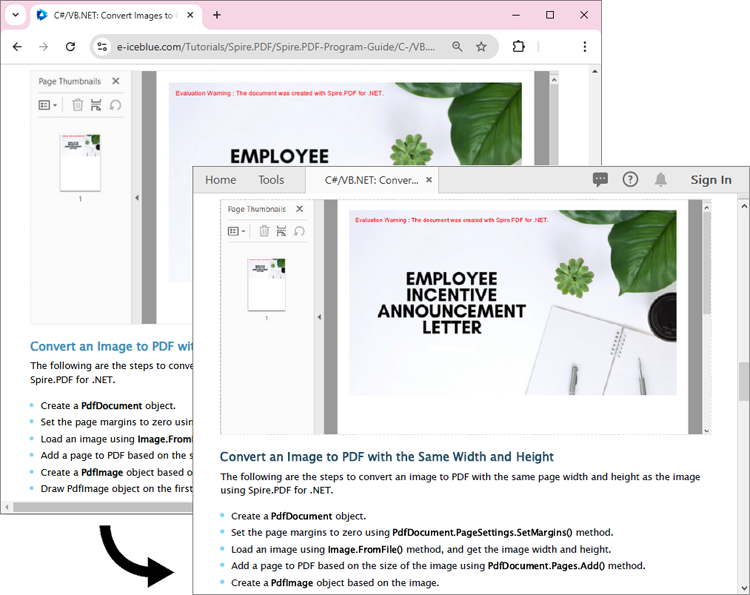
The converted PDF file maintains the same appearance as if the HTML file were printed to PDF directly through the Chrome browser:
Generate Output Logs During HTML to PDF Conversion in C#
Spire.PDF for .NET enables you to generate output logs during HTML to PDF conversion using the Logger class. The detailed steps are as follows.
- Create an instance of the ChromeHtmlConverter class and provide the path to the Chrome plugin (chrome.exe) as a parameter in the class constructor.
- Enable Logging by creating a Logger object and assigning it to the ChromeHtmlConverter.Logger property.
- Create an instance of the ConvertOptions class.
- Customize the conversion settings, such as the conversion timeout, the paper size and page margins of the converted PDF through the properties of the ConvertOptions class.
- Convert an HTML file to PDF using the ChromeHtmlConverter.ConvertToPdf() method.
- C#
using Spire.Additions.Chrome;

namespace ConvertHtmlToPdfUsingChrome
{
    internal class Program
    {
        static void Main(string[] args)
        {
            //Specify the input URL and output PDF file path
            string inputUrl = @"https://www.e-iceblue.com/Tutorials/Spire.PDF/Spire.PDF-Program-Guide/C-/VB.NET-Convert-Image-to-PDF.html";
            string outputFile = @"HtmlToPDF.pdf";

            // Specify the log file path
            string logFilePath = @"Logs.txt";

            //Specify the path to the Chrome plugin
            string chromeLocation = @"C:\Program Files\Google\Chrome\Application\chrome.exe";

            //Create an instance of the ChromeHtmlConverter class
            ChromeHtmlConverter converter = new ChromeHtmlConverter(chromeLocation);
            //Enable logging
            converter.Logger = new Logger(logFilePath);

            //Create an instance of the ConvertOptions class
            ConvertOptions options = new ConvertOptions();
            //Set conversion timeout
            options.Timeout = 10 * 3000;
            //Set paper size and page margins of the converted PDF
            options.PageSettings = new PageSettings()
            {
                PaperWidth = 8.27,
                PaperHeight = 11.69,
                MarginTop = 0,
                MarginLeft = 0,
                MarginRight = 0,
                MarginBottom = 0

            };

            //Convert the URL to PDF
            converter.ConvertToPdf(inputUrl, outputFile, options);
        }
    }
}
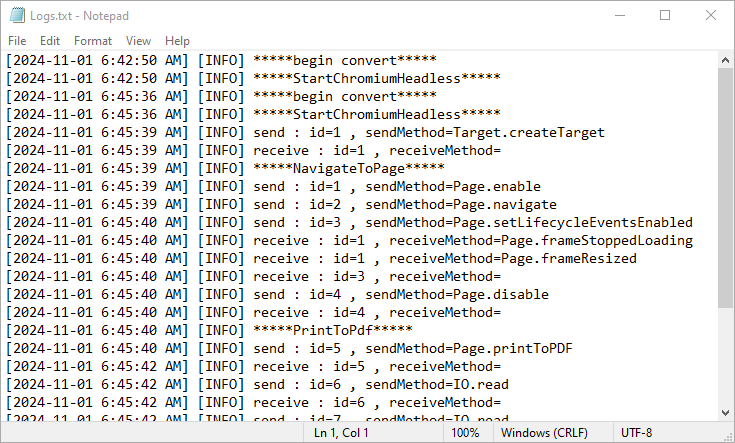
Here is the screenshot of the output log file:
Apply for a Temporary License
If you'd like to remove the evaluation message from the generated documents, or to get rid of the function limitations, please request a 30-day trial license for yourself.
Markdown, with its lightweight syntax, offers a streamlined approach to web content creation, collaboration, and document sharing, particularly in environments where tools like Git or Markdown-friendly editors are prevalent. By converting Word documents to Markdown files, users can enhance their productivity, facilitate easier version control, and ensure compatibility across different systems and platforms. In this article, we will explore the process of converting Word documents to Markdown files using Spire.Doc for .NET, providing simple C# code examples.
Install Spire.Doc for .NET
To begin with, you need to add the DLL files included in the Spire.Doc for .NET package as references in your .NET project. The DLL files can be either downloaded from this link or installed via NuGet.
PM> Install-Package Spire.Doc
Convert Word to Markdown with C#
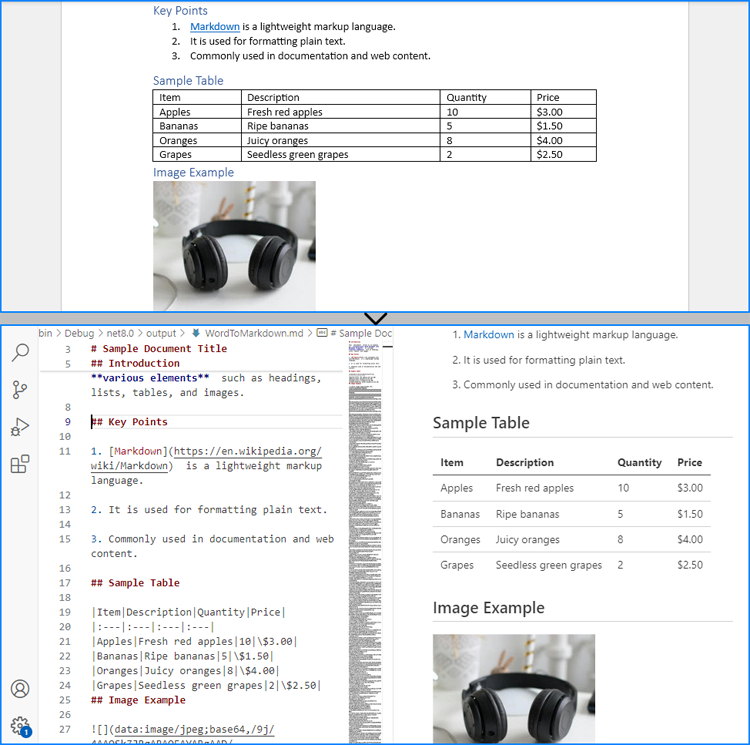
Using Spire.Doc for .NET, we can convert a Word document to a Markdown file by loading the document using Document.LoadFromFile() method and then convert it to a Markdown file using Document.SaveToFile(filename: String, FileFormat.Markdown) method. The detailed steps are as follows:
- Create an instance of Document class.
- Load a Word document using Document.LoadFromFile() method.
- Convert the document to a Markdown file using Document.SaveToFile(filename: String, FileFormat.Markdown) method.
- Release resources.
- C#
using Spire.Doc;

namespace WordToMarkdown
{
    class Program
    {
        static void Main(string[] args)
        {
            // Create an instance of Document class
            Document doc = new Document();

            // Load a Word document
            doc.LoadFromFile("Sample.docx");

            // Convert the document to a Markdown file
            doc.SaveToFile("output/WordToMarkdown.md", FileFormat.Markdown);
            doc.Dispose();
        }
    }
}
Convert Word to Markdown Without Images
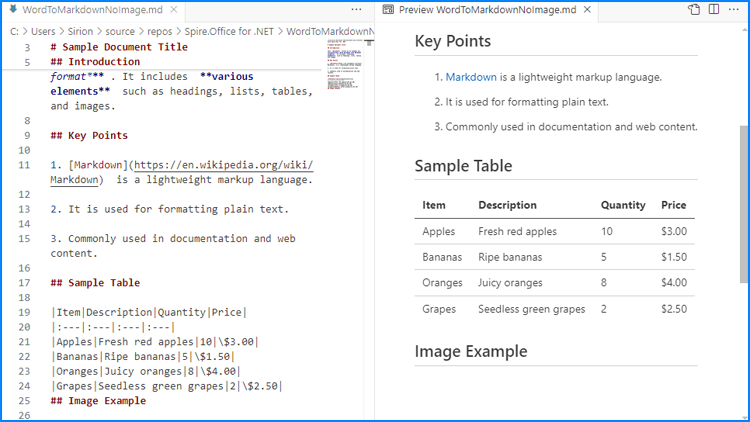
When using Spire.Doc for .NET to convert Word documents to Markdown files, images are stored in Base64 encoding by default, which can increase the file size and affect compatibility. To address this, we can remove the images during conversion, thereby reducing the file size and enhancing compatibility.
The following steps outline how to convert Word documents to Markdown files without images:
- Create an instance of Document class.
- Load a Word document using Document.LoadFromFile() method.
- Iterate through the sections and then the paragraphs in the document.
- Iterate through the document objects in the paragraphs:
- Get a document object through Paragraph.ChildObjects[] property.
- Check if it’s an instance of DocPicture class. If it is, remove it using Paragraph.ChildObjects.Remove(DocumentObject) method.
- Convert the document to a Markdown file using Document.SaveToFile(filename: String, FileFormat.Markdown) method.
- Release resources.
- C#
using Spire.Doc;
using Spire.Doc.Documents;
using Spire.Doc.Fields;

namespace WordToMarkdownNoImage
{
    class Program
    {
        static void Main(string[] args)
        {
            // Create an instance of Document class
            Document doc = new Document();

            // Load a Word document
            doc.LoadFromFile("Sample.docx");

            // Iterate through the sections in the document
            foreach (Section section in doc.Sections)
            {
                // Iterate through the paragraphs in the sections
                foreach (Paragraph paragraph in section.Paragraphs)
                {
                    // Iterate through the document objects in the paragraphs
                    for (int i = 0; i < paragraph.ChildObjects.Count; i++)
                    {
                        // Get a document object
                        DocumentObject docObj = paragraph.ChildObjects[i];
                        // Check if it is an instance of DocPicture class
                        if (docObj is DocPicture)
                        {
                            // Remove the DocPicture instance
                            paragraph.ChildObjects.Remove(docObj);
                        }
                    }
                }
            }

            // Convert the document to a Markdown file
            doc.SaveToFile("output/WordToMarkdownNoImage.md", FileFormat.Markdown);
            doc.Dispose();
        }
    }
}
Apply for a Temporary License
If you'd like to remove the evaluation message from the generated documents, or to get rid of the function limitations, please request a 30-day trial license for yourself.
Filters in pivot tables enable users to narrow down the displayed data based on specific criteria. By adding filters, users can focus on subsets of data that are most relevant to their analysis, allowing for a more targeted and efficient data exploration. In this article, we will demonstrate how to add filters to pivot tables in Excel in C# using Spire.XLS for .NET.
- Add Report Filter to Pivot Table in Excel in C#
- Add Filter to a Row Field of Pivot Table in Excel in C#
- Add Filter to a Column Field of Pivot Table in Excel in C#
Install Spire.XLS for .NET
To begin with, you need to add the DLL files included in the Spire.XLS for.NET package as references in your .NET project. The DLL files can be either downloaded from this link or installed via NuGet.
PM> Install-Package Spire.XLS
Add Report Filter to Pivot Table in Excel in C#
Spire.XLS for .NET offers the XlsPivotTable.ReportFilters.Add() method to add report filters to a pivot table. The detailed steps are as follows.
- Create an object of the Workbook class.
- Load an Excel file using Workbook.LoadFromFile() method.
- Get a specific worksheet in the file using Workbook.Worksheets[index] property.
- Get a specific pivot table in the worksheet using Worksheet.PivotTables[index] property.
- Create a report filter using PovotReportFilter class.
- Add the report filter to the pivot table using XlsPivotTable.ReportFilters.Add() method.
- Save the resulting file using Workbook.SaveToFile() method.
- C#
using Spire.Xls;
using Spire.Xls.Core.Spreadsheet.PivotTables;

namespace AddReportFilter
{
    internal class Program
    {
        static void Main(string[] args)
        {
            // Create an object of the Workbook class
            Workbook workbook = new Workbook();
            // Load an Excel file
            workbook.LoadFromFile("Sample.xlsx");

            // Get the first worksheet
            Worksheet sheet = workbook.Worksheets[0];

            // Get the first pivot table
            XlsPivotTable pt = sheet.PivotTables[0] as XlsPivotTable;

            // Create a report filter
            PivotReportFilter reportFilter = new PivotReportFilter("Product", true);

            // Add the report filter to the pivot table
            pt.ReportFilters.Add(reportFilter);

            // Save the resulting file
            workbook.SaveToFile("AddReportFilter.xlsx", FileFormat.Version2016);
            workbook.Dispose();
        }
    }
}

Add Filter to a Row Field of Pivot Table in Excel in C#
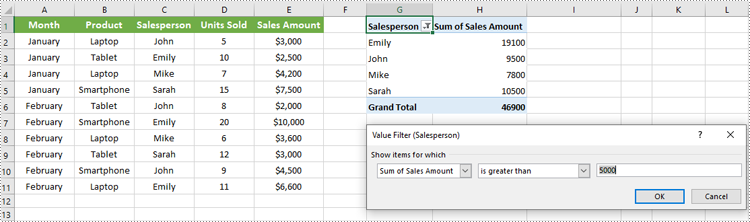
You can add a value filter or label filter to a specific row field in a pivot table using the XlsPivotTable.RowFields[index].AddValueFilter() or XlsPivotTable.RowFields[index].AddLabelFilter() method. The detailed steps are as follows.
- Create an object of the Workbook class.
- Load an Excel file using Workbook.LoadFromFile() method.
- Get a specific worksheet in the file using Workbook.Worksheets[index] property.
- Get a specific pivot table in the worksheet using Worksheet.PivotTables[index] property.
- Add a value filter or label filter to a specific row field in the pivot table using XlsPivotTable.RowFields[index].AddValueFilter() or XlsPivotTable.RowFields[index].AddLabelFilter() method.
- Calculate the data in the pivot table using XlsPivotTable.CalculateData() method.
- Save the resulting file using Workbook.SaveToFile() method.
- C#
using Spire.Xls;
using Spire.Xls.Core.Spreadsheet.PivotTables;

namespace AddRowFilter
{
    internal class Program
    {
        static void Main(string[] args)
        {
            // Create an object of the Workbook class
            Workbook workbook = new Workbook();
            // Load an Excel file
            workbook.LoadFromFile("Sample.xlsx");

            // Get the first worksheet
            Worksheet sheet = workbook.Worksheets[0];

            // Get the first pivot table
            XlsPivotTable pt = sheet.PivotTables[0] as XlsPivotTable;


            // Add a value filter to the first row field in the pivot table
            pt.RowFields[0].AddValueFilter(PivotValueFilterType.GreaterThan, pt.DataFields[0], 5000, null);
            // Or add a label filter to the first row field in the pivot table
            //pt.RowFields[0].AddLabelFilter(PivotLabelFilterType.Equal, "Mike", null);

            // Calculate the pivot table data
            pt.CalculateData();

            // Save the resulting file
            workbook.SaveToFile("AddRowFilter.xlsx", FileFormat.Version2016);
            workbook.Dispose();
        }
    }
}
Add Filter to a Column Field of Pivot Table in Excel in C#
To add a value filter or label filter to a specific column field in a pivot table, you can use the XlsPivotTable.ColumnFields[index].AddValueFilter() or XlsPivotTable.ColumnFields[index].AddLabelFilter() method. The detailed steps are as follows.
- Create an object of the Workbook class.
- Load an Excel file using Workbook.LoadFromFile() method.
- Get a specific worksheet in the file using Workbook.Worksheets[index] property.
- Get a specific pivot table in the worksheet using Worksheet.PivotTables[index] property.
- Add a value filter or label filter to a specific column field in the pivot table using XlsPivotTable.ColumnFields[index].AddValueFilter() or XlsPivotTable.ColumnFields[index].AddLabelFilter() method.
- Calculate the data in the pivot table using XlsPivotTable.CalculateData() method.
- Save the resulting file using Workbook.SaveToFile() method.
- C#
using Spire.Xls;
using Spire.Xls.Core.Spreadsheet.PivotTables;

namespace AddColumnFilter
{
    internal class Program
    {
        static void Main(string[] args)
        {
            // Create an object of the Workbook class
            Workbook workbook = new Workbook();
            // Load an Excel file
            workbook.LoadFromFile("Sample.xlsx");

            // Get the first worksheet
            Worksheet sheet = workbook.Worksheets[0];

            // Get the first pivot table
            XlsPivotTable pt = sheet.PivotTables[0] as XlsPivotTable;

            // Add a label filter to the first column field in the pivot table
            pt.ColumnFields[0].AddLabelFilter(PivotLabelFilterType.Equal, "Laptop", null);
            // Or add a value filter to the first column field in the pivot table
            // pt.ColumnFields[0].AddValueFilter(PivotValueFilterType.Between, pt.DataFields[0], 5000, 10000);


            // Calculate the pivot table data
            pt.CalculateData();

            // Save the resulting file
            workbook.SaveToFile("AddColumnFilter.xlsx", FileFormat.Version2016);
            workbook.Dispose();
        }
    }
}

Apply for a Temporary License
If you'd like to remove the evaluation message from the generated documents, or to get rid of the function limitations, please request a 30-day trial license for yourself.
Importing and exporting PDF form data allows users to seamlessly exchange form information with external files in formats such as FDF (Forms Data Format), XFDF (XML Forms Data Format), or XML. The import function enables quick population of PDF forms using data from external sources, while the export function extracts data from PDF forms and saves it to external files. This capability simplifies data management, making it especially valuable for processing large volumes of form data or integrating with other systems. In this article, we will demonstrate how to import PDF form data from FDF, XFDF, or XML files, or export PDF form data to FDF, XFDF, or XML files in C# using Spire.PDF for .NET.
- Import PDF Form Data from FDF, XFDF or XML Files in C#
- Export PDF Form Data to FDF, XFDF or XML Files in C#
Install Spire.PDF for .NET
To begin with, you need to add the DLL files included in the Spire.PDF for.NET package as references in your .NET project. The DLLs files can be either downloaded from this link or installed via NuGet.
PM> Install-Package Spire.PDF
Import PDF Form Data from FDF, XFDF or XML Files in C#
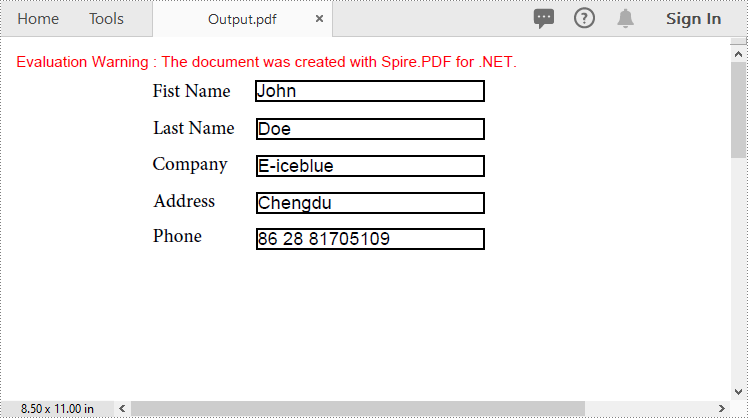
Spire.PDF for .NET offers the PdfFormWidget.ImportData() method for importing PDF form data from FDF, XFDF, or XML files. The detailed steps are as follows.
- Create an object of the PdfDocument class.
- Load a PDF document using PdfDocument.LoadFromFile() method.
- Get the form of the PDF document using PdfDocument.Form property.
- Import form data from an FDF, XFDF or XML file using PdfFormWidget.ImportData() method.
- Save the resulting document using PdfDocument.SaveToFile() method.
- C#
using Spire.Pdf;
using Spire.Pdf.Widget;

namespace ImportPdfFormData
{
    internal class Program
    {
        static void Main(string[] args)
        {
            //Create an object of the PdfDocument class
            PdfDocument document = new PdfDocument();
            //Load a PDF document
            document.LoadFromFile("Forms.pdf");

            //Get the form of the PDF document
            PdfFormWidget loadedForm = document.Form as PdfFormWidget;

            //Import PDF form data from an XML file
            loadedForm.ImportData("Data.xml", DataFormat.Xml);

            //Import PDF form data from an FDF file
            //loadedForm.ImportData("Data.fdf", DataFormat.Fdf);

            //Import PDF form data from an XFDF file
            //loadedForm.ImportData("Data.xfdf", DataFormat.XFdf);

            //Save the resulting document
            document.SaveToFile("Output.pdf");
            //Close the PdfDocument object
            document.Close();
        }
    }
}
Export PDF Form Data to FDF, XFDF or XML Files in C#
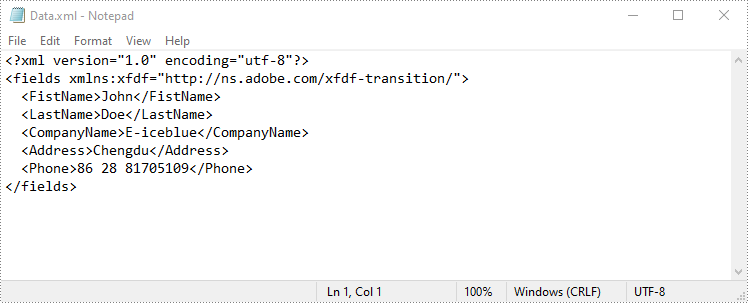
Spire.PDF for .NET also enables you to export PDF form data to FDF, XFDF, or XML files by using the PdfFormWidget.ExportData() method. The detailed steps are as follows.
- Create an object of the PdfDocument class.
- Load a PDF document using PdfDocument.LoadFromFile() method.
- Get the form of the PDF document using PdfDocument.Form property.
- Export form data to an FDF, XFDF or XML file using PdfFormWidget.ExportData() method.
- C#
using Spire.Pdf;
using Spire.Pdf.Fields;
using Spire.Pdf.Widget;

namespace ExportPdfFormData
{
    internal class Program
    {
        static void Main(string[] args)
        {
            //Create an object of the PdfDocument class
            PdfDocument document = new PdfDocument();
            //Load a PDF document
            document.LoadFromFile("Forms.pdf");

            //Get the form of the PDF document
            PdfFormWidget loadedForm = document.Form as PdfFormWidget;

            //Export PDF form data to an XML file
            loadedForm.ExportData("Data.xml", DataFormat.Xml, "Form");

            //Export PDF form data to an FDF file
            //loadedForm.ExportData("Data.fdf", DataFormat.Fdf, "Form");

            //Export PDF form data to an XFDF file
            //loadedForm.ExportData("Data.xfdf", DataFormat.XFdf, "Form");

            //Close the PdfDocument object
            document.Close();
        }
    }
}
Apply for a Temporary License
If you'd like to remove the evaluation message from the generated documents, or to get rid of the function limitations, please request a 30-day trial license for yourself.
Copying PDF pages facilitates better organization of information. By copying pages that contain important sections and then compiling them into a new document, you can bring together relevant content from different sources to create a cohesive resource that is easy to navigate. In this article, you will learn how to copy pages in PDF in C# using Spire.PDF for .NET.
Install Spire.PDF for .NET
To begin with, you need to add the DLL files included in the Spire.PDF for.NET package as references in your .NET project. The DLL files can be either downloaded from this link or installed via NuGet.
PM> Install-Package Spire.PDF
Copy Pages within the Same PDF in C#
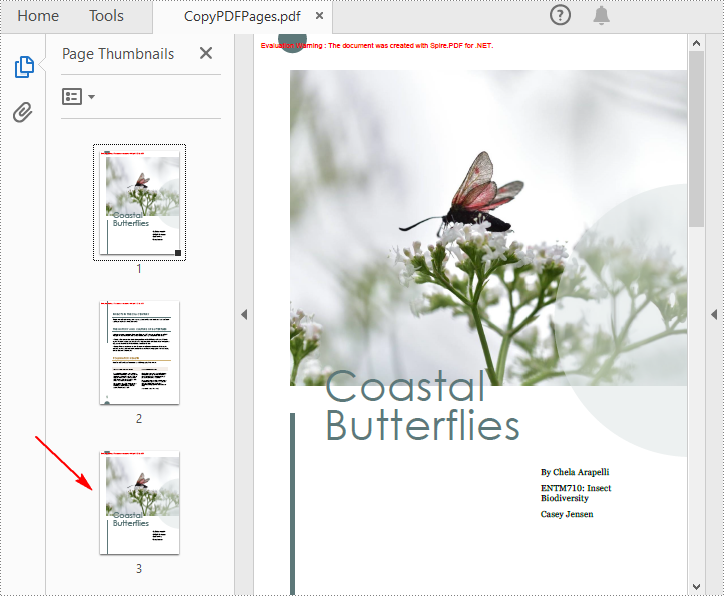
To duplicate PDF pages, you can first create template based on a specified page in PDF, and then draw the template on a newly added page through the PdfPageBase.Canvas.DrawTemplate() method. The following are the detailed steps.
- Create a PdfDocument instance.
- Load a PDF file using PdfDocument.LoadFromFile() method.
- Get a specified page using PdfDocument.Pages[] property.
- Get the size of the page using PdfPageBase.Size property.
- Create a template based on the page using PdfPageBase.CreateTemplate() method.
- Add a new page of the same size at the end using PdfDocument.Pages.Add(SizeF size, PdfMargins margins) method. Or you can insert a new page of the same size at a specified location using PdfDocument.Pages.Insert(int index, SizeF size, PdfMargins margins) method.
- Draw template on the newly added page using PdfPageBase.Canvas.DrawTemplate(PdfTemplate template, PointF location) method.
- Save the result file using PdfDocument.SaveToFile() method.
- C#
using Spire.Pdf;
using Spire.Pdf.Graphics;
using System.Drawing;

namespace DuplicatePage
{
    class Program
    {
        static void Main(string[] args)
        {
            //Create a PdfDocument instance
            PdfDocument pdf = new PdfDocument();

            //Load a PDF file
            pdf.LoadFromFile("Butterflies.pdf");

            //Get the first page
            PdfPageBase page = pdf.Pages[0];

            //Get the size of the page
            SizeF size = page.Size;

            //Create a template based on the page
            PdfTemplate template = page.CreateTemplate();

            //Add a new page the same size as the first page
            page = pdf.Pages.Add(size, new PdfMargins(0));
            //Insert a new page at the specified location
            //page = pdf.Pages.Insert(1, size, new PdfMargins(0));

            //Draw the template on the newly added page
            page.Canvas.DrawTemplate(template, new PointF(0, 0));

            //Save the PDF file
            pdf.SaveToFile("CopyPDFPages.pdf");
        }
    }
}
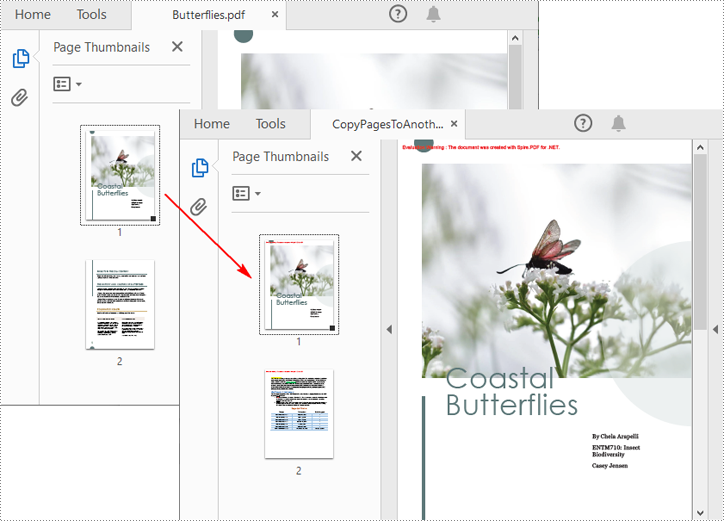
Copy Pages from One PDF to Another in C#
Spire.PDF for .NET also allows you to load two PDF files, create templates based on the pages in one PDF file, and then draw them onto the pages in another PDF file. The following are the detailed steps.
- Create a PdfDocument instance.
- Load two PDF files using PdfDocument.LoadFromFile() method.
- Get a specified page in the first PDF using PdfDocument.Pages[] property.
- Get the size of the page using PdfPageBase.Size property.
- Create a template based on the page using PdfPageBase.CreateTemplate() method.
- Insert a new page of the same size at a specified location in the second PDF using PdfDocument.Pages.Insert(int index, SizeF size, PdfMargins margins) method. Or you can add a new page of the same size at the end of the second PDF using PdfDocument.Pages.Add(SizeF size, PdfMargins margins) method.
- Draw template on the newly added page using PdfPageBase.Canvas.DrawTemplate(PdfTemplate template, PointF location) method.
- Save the result file using PdfDocument.SaveToFile() method.
- C#
using Spire.Pdf;
using Spire.Pdf.Graphics;
using System.Drawing;

namespace CopyPageToAnother
{
    class Program
    {
        static void Main(string[] args)
        {
            //Load the first PDF file
            PdfDocument pdf1 = new PdfDocument();
            pdf1.LoadFromFile("Butterflies.pdf");

            //Load the second PDF file
            PdfDocument pdf2 = new PdfDocument();
            pdf2.LoadFromFile("SamplePDF.pdf");

            //Get the first page in the first PDF file
            PdfPageBase page = pdf1.Pages[0];

            //Get the size of the page
            SizeF size = page.Size;

            //Create a template based on the page
            PdfTemplate template = page.CreateTemplate();

            //Insert a new page at a specified location in the second PDF file
            PdfPageBase newPage = pdf2.Pages.Insert(0, size, new PdfMargins(0));

            //Add a new page at the end of the second PDF file
            //PdfPageBase newPage = pdf2.Pages.Add(size, new PdfMargins(0));

            //Draw the template on the newly added page
            newPage.Canvas.DrawTemplate(template, new PointF(0, 0));

            //Save the result file
            pdf2.SaveToFile("CopyPagesToAnotherPDF.pdf");
        }
    }
}
Apply for a Temporary License
If you'd like to remove the evaluation message from the generated documents, or to get rid of the function limitations, please request a 30-day trial license for yourself.
The need to convert PDF documents into more flexible and editable formats, such as Markdown, has become a common task for developers and content creators. Converting PDFs to Markdown files facilitates easier editing and version control, and enhances content portability across different platforms and applications, making it particularly suitable for modern web publishing workflows. By utilizing Spire.PDF for .NET, developers can automate the conversion process, ensuring that the rich formatting and structure of the original PDFs are preserved in the resulting Markdown files.
This article will demonstrate how to use Spire.PDF for .NET to convert PDF documents to Markdown format with C# code.
Install Spire.PDF for .NET
To begin with, you need to add the DLL files included in the Spire.PDF for.NET package as references in your .NET project. The DLL files can be either downloaded from this link or installed via NuGet.
PM> Install-Package Spire.PDF
Convert PDF Documents to Markdown Files
With the Spire.PDF for .NET library, developers can easily load any PDF file using the PdfDocument.LoadFromFile(string filename) method and then save the document in the desired format by calling the PdfDocument.SaveToFile(string filename, FileFormat fileFormat) method. To convert a PDF to Markdown format, simply specify the FileFormat.Markdown enumeration as a parameter when invoking the method.
The detailed steps for converting PDF documents to Markdown files are as follows:
- Create an instance of PdfDocument class.
- Load a PDF document using PdfDocument.LoadFromFile(string filename) method.
- Convert the document to a Markdown file using PdfDocument.SaveToFile(string filename, FileFormat.Markdown) method.
- C#
using Spire.Pdf;

namespace PDFToMarkdown
{
    class Program
    {
        static void Main(string[] args)
        {
            // Create an instance of PdfDocument class
            PdfDocument pdf = new PdfDocument();

            // Load a PDF document
            pdf.LoadFromFile("Sample.pdf");

            // Convert the document to Markdown file
            pdf.SaveToFile("output/PDFToMarkdown.md", FileFormat.Markdown);

            // Release resources
            pdf.Close();
        }
    }
}
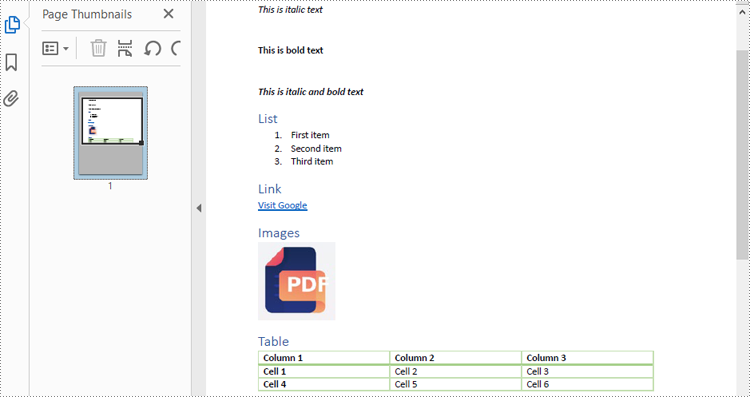
The PDF Document:
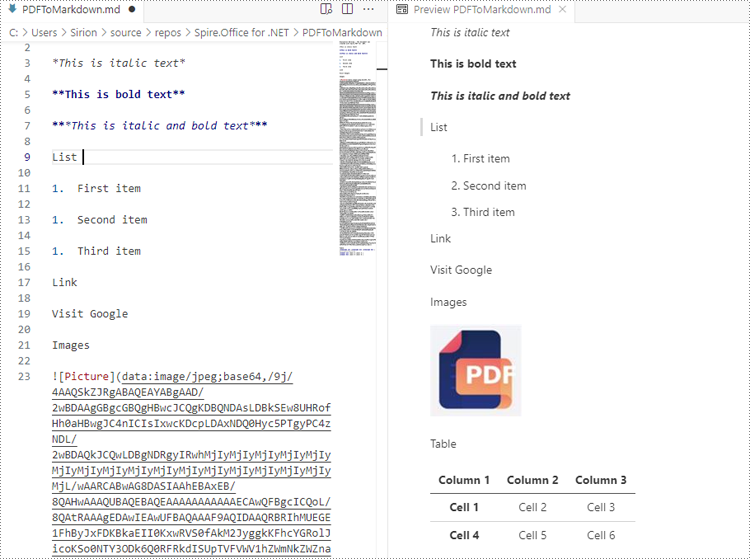
The Result Markdown File:
Convert PDF to Markdown by Streams
In addition to directly reading files for manipulation, Spire.PDF for .NET also supports loading a PDF document from a stream using PdfDocument.LoadFromStream() method and converting it to a Markdown file stream using PdfDocument.SaveToStream() method. Using streams reduces memory usage, supports large files, enables real-time data transfer, and simplifies data exchange with other systems.
The detailed steps for converting PDF documents to Markdown files by streams are as follows:
- Create a Stream object of PDF documents by downloading from the web or reading from a file.
- Load the PDF document from the stream using PdfDocument.LoadFromStream(Stream stream) method.
- Create another Stream object to store the converted Markdown file.
- Convert the PDF document to a Markdown file stream using PdfDocument.SaveToStream(Stream stream, FileFormat.Markdown) method.
- C#
using Spire.Pdf;
using System.IO;
using System.Net.Http;

namespace PDFToMarkdownByStream
{
    class Program
    {
        static async Task Main(string[] args)
        {
            // Create an instance of PdfDocument class
            PdfDocument pdf = new PdfDocument();

            // Download a PDF document from a url as bytes
            using (HttpClient client = new HttpClient())
            {
                byte[] pdfBytes = await client.GetByteArrayAsync("http://example.com/Sample.pdf");

                // Create a MemoryStream using the bytes
                using (MemoryStream inputStream = new MemoryStream(pdfBytes))
                {
                    // Load the PDF document from the stream
                    pdf.LoadFromStream(inputStream);

                    // Create another MemoryStream object to store the Markdown file
                    using (MemoryStream outputStream = new MemoryStream())
                    {
                        // Convert the PDF document to a Markdown file stream
                        pdf.SaveToStream(outputStream, FileFormat.Markdown);
                        outputStream.Position = 0; // Reset the position of the stream for subsequent reads

                        // Upload the result stream or write it to a file
                        await client.PostAsync("http://example.com/upload", new StreamContent(outputStream));
                        File.WriteAllBytes("output.md", outputStream.ToArray());
                    }
                }
            }

            // Release resources
            pdf.Close();
        }
    }
}
Apply for a Temporary License
If you'd like to remove the evaluation message from the generated documents, or to get rid of the function limitations, please request a 30-day trial license for yourself.
Transforming text to numbers and vice versa in Excel is essential for effective data management. By converting text to numbers, you enhance the accuracy of calculations and data processing, which is vital for activities such as financial reporting and statistical analysis. Conversely, changing numbers to text can improve formatting, making outputs clearer and more readable, ultimately presenting data in a more user-friendly way.
In this article, you will learn how to convert text to numbers and numbers to text in Excel using Spire.XLS for .NET.
Install Spire.XLS for .NET
To begin with, you need to add the DLL files included in the Spire.XLS for .NET package as references in your .NET project. The DLL files can be either downloaded from this link or installed via NuGet.
PM> Install-Package Spire.XLS
Convert Text to Numbers in C#
When you import data from an external source into Excel, you might notice a small green triangle in the upper-left corner of certain cells. This triangle serves as an error indicator, signaling that the number is formatted as text. When numbers are stored as text, it can lead to unexpected outcomes, such as formulas not calculating correctly and displaying as text instead of yielding results.
To convert text-formatted numbers back to numeric format, you can use the CellRange.ConvertToNumber() method. The CellRange object can refer to either a single cell or a range of cells.
Here are the steps to convert text to numbers in Excel:
- Create a Workbook object.
- Load an Excel file using Workbook.LoadFromFile() method.
- Access a specific worksheet with Workbook.Worksheets[index] property.
- Retrieve a cell or range of cells using Worksheet.Range property.
- Convert the text in the cell(s) to numbers using CellRange.ConvertToNumber() method.
- Save the document as a new Excel file.
- C#
using Spire.Xls;

namespace ConvertTextToNumbers
{
    class Program
    {
        static void Main(string[] args)
        {

            // Create a Workbook object
            Workbook workbook = new Workbook();

            // Load an Excel document
            workbook.LoadFromFile("C:\\Users\\Administrator\\Desktop\\Input.xlsx");

            // Get a specific worksheet
            Worksheet worksheet = workbook.Worksheets[0];

            // Get a cell range
            CellRange range = worksheet.Range["D2:G13"];

            // Convert text to number
            range.ConvertToNumber();

            // Save the workbook to a different Excel file
            workbook.SaveToFile("TextToNumbers.xlsx", ExcelVersion.Version2013);

            // Dispose resources
            workbook.Dispose();
        }
    }
}

Convert Numbers to Text in C#
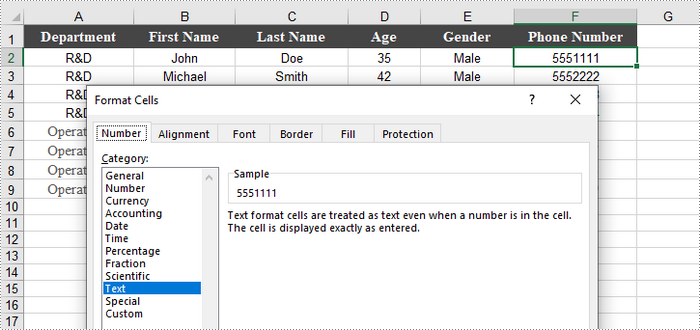
When working with numerical data in Excel, you may find occasions where converting numbers to text is necessary. This is especially crucial for data that requires specific formatting, such as IDs or phone numbers, where leading zeros must be preserved.
To convert a number in a cell to text, you can set the CellRange.NumberFormat property to @. The CellRange object can represent either a single cell or a range of cells.
Here are the steps to convert numbers to text in Excel:
- Create a Workbook object.
- Load an Excel file using Workbook.LoadFromFile() method.
- Access a specific worksheet through Workbook.Worksheets[index] property.
- Retrieve a specific cell or range of cells using Worksheet.Range property.
- Convert the numbers in the cell(s) to text by setting CellRange.NumberFormat to @.
- Save the document as a new Excel file.
- C#
using Spire.Xls;

namespace ConvertNumbersToText
{
    class Program
    {
        static void Main(string[] args)
        {
            // Create a Workbook object
            Workbook workbook = new Workbook();

            // Load an Excel document
            workbook.LoadFromFile("C:\\Users\\Administrator\\Desktop\\Employee.xlsx");

            // Get a specific worksheet
            Worksheet worksheet = workbook.Worksheets[0];

            // Get a cell range
            CellRange cellRange = worksheet.Range["F2:F9"];

            // Convert numbers in the cell range to text
            cellRange.NumberFormat = "@";

            // Save the workbook to a different Excel file
            workbook.SaveToFile("NumbersToText.xlsx", ExcelVersion.Version2013);

            // Dispose resources
            workbook.Dispose();
        }
    }
}
Apply for a Temporary License
If you'd like to remove the evaluation message from the generated documents, or to get rid of the function limitations, please request a 30-day trial license for yourself.
