
Spire.Doc for .NET (338)
Children categories
How to Convert HTML to Markdown in C# (File, String & Stream)
2026-05-29 09:55:41 Written by alice yang
HTML is widely used for web pages, online articles, and rich text content, while Markdown (.md) is often preferred for documentation, technical writing, and text-based publishing. If you need to reuse HTML content in a Markdown-based workflow, converting it manually can be time-consuming and error-prone.
In this tutorial, we’ll show you how to convert HTML to Markdown in C# step-by-step using Spire.Doc for .NET. You’ll learn how to convert HTML files, HTML strings, streams, and multiple HTML files in batch.
Table of Contents
- When Do You Need to Convert HTML to Markdown?
- Install C# HTML to Markdown Library
- Convert an HTML File to Markdown in C#
- Convert HTML Strings to Markdown in C#
- Convert HTML Stream to Markdown in C#
- Batch Convert Multiple HTML Files
- What HTML Elements Can Be Converted to Markdown?
- Troubleshooting Common HTML to Markdown Issues
When Do You Need to Convert HTML to Markdown?
Converting HTML to Markdown is useful when you want to reuse web-based or rich-text content in a cleaner, text-friendly format. Common scenarios include:
- Moving HTML articles or CMS content into Markdown-based documentation systems.
- Preparing content for GitHub, static site generators, or developer portals.
- Converting rich text editor output into editable Markdown files.
- Simplifying HTML pages for version control, review, or long-term maintenance.
- Exporting help center articles, product descriptions, or blog content as .md files.
Install C# HTML to Markdown Library
To convert HTML to Markdown programmatically, you need to add Spire.Doc for .NET to your project. This standalone document processing library allows you to parse HTML and export it to clean Markdown without requiring Microsoft Word or Microsoft Office interop assemblies on your server.
Method 1: Install via NuGet Package Manager
Run this command in your NuGet Package Manager Console:
Install-Package Spire.Doc
Method 2: Download and Reference DLLs Manually
If your development environment is offline or you prefer not to use NuGet, you can manually download and reference the library:
- Download & Unzip: Get the Spire.Doc for .NET package from the official download page and extract it.
- Add Reference: In the Solution Explorer of Visual Studio, right-click Dependencies (or References) > Add Project Reference (or Add Reference) > Browse and select the
Spire.Doc.dllthat matches your target .NET Framework or .NET Core version.
Note: Markdown support is available in Spire.Doc for .NET version 12.3.12 or later.
Convert an HTML File to Markdown in C#
If your HTML content is stored as a local .html or .htm file, you can convert it directly using the Document object. This approach is ideal for processing static web pages, documentation exports, or offline help articles.
C# Code Example
using Spire.Doc;
using Spire.Doc.Documents;

namespace ConvertHtmlFileToMarkdown
{
    class Program
    {
        static void Main(string[] args)
        {
            // Initialize a Document instance within a using statement
            using (Document document = new Document())
            {
                // Load the local HTML file
                document.LoadFromFile("input.html", FileFormat.Html, XHTMLValidationType.None);

                // Export the HTML file to a Markdown file
                document.SaveToFile("output.md", FileFormat.Markdown);
            }
        }
    }
}
How the Code Works:
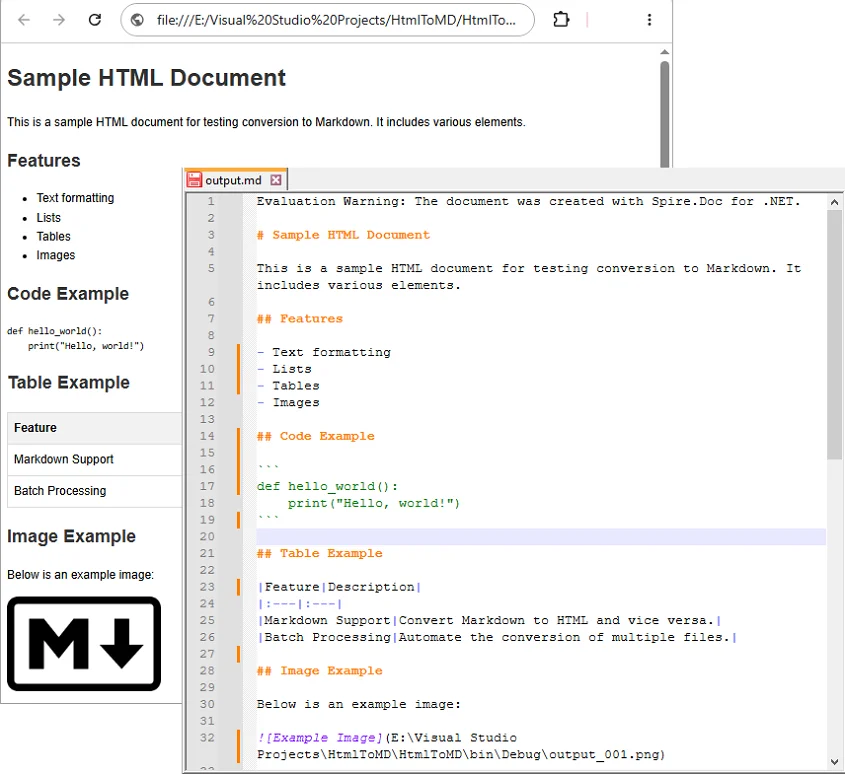
using (Document document = new Document()): Ensures theDocumentobject is properly disposed of after conversion.LoadFromFile("input.html", FileFormat.Html, XHTMLValidationType.None): Reads the source HTML file without strict XHTML validation, allowing the library to parse the HTML even if it doesn’t fully comply with XHTML rules.SaveToFile("output.md", FileFormat.Markdown): Maps the supported HTML elements such as headings, bold text, lists, images, and links into Markdown syntax, and generate the .md file.
Output:
Convert HTML Strings to Markdown in C#
When dealing with dynamic web data—such as content fetched from a database, API responses, or CMS rich-text inputs—you can convert raw HTML strings directly to Markdown without saving them as physical files first.
C# Code Example
using Spire.Doc;
using Spire.Doc.Documents;

namespace ConvertHtmlStringToMarkdown
{
    class Program
    {
        static void Main(string[] args)
        {
            // Initialize a Document instance
            using (Document document = new Document())
            {
                // Add a section and paragraph to host the dynamic html content
                Section section = document.AddSection();
                Paragraph paragraph = section.AddParagraph();

                // Define the source HTML string
                string htmlString = @"
                    <h1>HTML to Markdown Conversion</h1>
                    <p>This is a sample paragraph with a <a href='https://www.example.com'>link</a>.</p>
                    <ul>
                        <li>First item</li>
                        <li>Second item</li>
                        <li>Third item</li>
                    </ul>";

                // Parse and append the HTML string directly into the text paragraph
                paragraph.AppendHTML(htmlString);

                // Save the fully compiled document model as Markdown
                document.SaveToFile("html-string-output.md", FileFormat.Markdown);
            }
        }
    }
}
Key Methods Explanation:
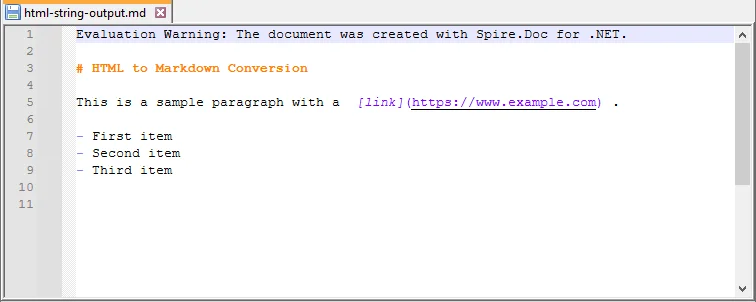
document.AddSection()§ion.AddParagraph(): An emptyDocumentobject does not contain structural layouts. You must explicitly create a parent section and a text paragraph to serve as the container before injecting raw HTML string content.paragraph.AppendHTML(htmlString): Parses the HTML string and inserts supported HTML elements into the document structure.
Output:
Convert HTML Stream to Markdown in C#
In cloud-ready or backend enterprise applications, HTML content is often processed in memory as a stream rather than being read from a fixed physical path. Using LoadFromStream() and SaveToStream(), you can convert in-memory HTML content directly to a Markdown stream.
This approach is useful for web services, ASP.NET applications, background processing tasks, or conversion APIs where files are uploaded, converted, and returned without permanent disk storage.
C# Code Example
using System.IO;
using System.Text;
using Spire.Doc;
using Spire.Doc.Documents;

namespace ConvertHtmlStreamToMarkdown
{
    class Program
    {
        static void Main(string[] args)
        {
            // Define a sample HTML string to simulate an in-memory input source
            string htmlContent = "<h1>HTML Stream to Markdown Stream</h1><p>This process happens entirely in memory.</p>";
            byte[] htmlBytes = Encoding.UTF8.GetBytes(htmlContent);

            // Create an input stream from the HTML bytes
            using (MemoryStream inputStream = new MemoryStream(htmlBytes))
            {
                // Create an empty memory stream to receive the converted Markdown data
                using (MemoryStream outputStream = new MemoryStream())
                {
                    // Initialize the Document instance
                    using (Document document = new Document())
                    {
                        // Load the HTML content directly from the input stream
                        document.LoadFromStream(inputStream, FileFormat.Html, XHTMLValidationType.None);

                        // Save the converted content directly into the output stream as Markdown
                        document.SaveToStream(outputStream, FileFormat.Markdown);
                    }

                    // Crucial: Reset the output stream position to the beginning before reading it
                    outputStream.Position = 0;

                    // Optional: Convert the output stream back to a string to verify the result (you can also save it as a .md file)
                    using (StreamReader reader = new StreamReader(outputStream, Encoding.UTF8))
                    {
                        string markdownResult = reader.ReadToEnd();
                        System.Console.WriteLine(markdownResult);
                    }
                }
            }
        }
    }
}
Batch Convert Multiple HTML Files
For large-scale publishing workflows, you can automate the conversion of multiple HTML files to Markdown using a loop.
C# Code Example
The following example converts all .html files in a source folder to .md files in an output folder.
using Spire.Doc;
using Spire.Doc.Documents;
using System;
using System.IO;

namespace BatchConvertHtmlToMarkdown
{
    internal class Program
    {
        static void Main(string[] args)
        {
            string inputFolder = @"C:\HtmlFiles";
            string outputFolder = @"C:\MarkdownFiles";

            // Create output folder if it does not exist
            Directory.CreateDirectory(outputFolder);

            // Get all HTML files
            string[] htmlFiles = Directory.GetFiles(inputFolder, "*.html");

            foreach (string htmlFile in htmlFiles)
            {
                try
                {
                    string fileName = Path.GetFileNameWithoutExtension(htmlFile);
                    string outputPath = Path.Combine(outputFolder, fileName + ".md");

                    using (Document document = new Document())
                    {
                        document.LoadFromFile(htmlFile, FileFormat.Html, XHTMLValidationType.None);
                        document.SaveToFile(outputPath, FileFormat.Markdown);
                    }

                    Console.WriteLine($"Converted: {Path.GetFileName(htmlFile)}");
                }
                catch (Exception ex)
                {
                    Console.WriteLine($"Failed to convert {Path.GetFileName(htmlFile)}");
                    Console.WriteLine($"Error: {ex.Message}");
                }
            }

            Console.WriteLine("HTML to Markdown batch conversion completed.");
        }
    }
}
What HTML Elements Can Be Converted to Markdown?
HTML has many elements, but Markdown supports only a smaller set of document structures. During conversion, content-focused elements are usually easier to preserve than layout-focused or style-heavy elements. For instance, standard Markdown tables only support basic rows and columns. If your source contains complex tables, you might want to convert HTML to Excel in C# instead.
The following table summarizes common HTML elements and how they may appear in Markdown.
| HTML Element | Markdown Syntax |
|---|---|
<h1> to <h6> |
# to ###### (Headings) |
<p> |
Plain paragraph |
<strong>, <b> |
**bold** |
<em>, <i> |
*italic* |
<ul>, <ol>, <li> |
Bulleted or numbered lists |
<a> |
[Link Text](URL) |
<img> |
 |
<table> |
Markdown table |
<code> |
Inline code |
<pre> |
Code block |
<br> |
Line break |
<div>, <section> |
Usually simplified |
| CSS styles | Limited or removed |
| JavaScript | Not supported |
Tip: Actual output may vary depending on the source HTML structure and the Markdown features supported by the target editor or platform.
Troubleshooting Common HTML to Markdown Issues
- Images not showing: Verify that all image paths are still valid after conversion; relative paths may need adjustment.
- Tables look different: Markdown supports only basic tables. For complex tables with merged cells, nested layouts, or custom styling, simplify the HTML table before conversion or manually adjust the generated Markdown table afterward.
- Special characters appear incorrectly: This is usually an encoding issue. Make sure the source HTML file uses UTF-8 encoding and open the generated Markdown file in an editor that supports UTF-8.
- Extra blank lines: Remove unnecessary empty tags, nested
divelements, or redundantbrtags from the source HTML before conversion. You can also clean the generated Markdown file afterward by opening it in a text editor like Notepad++ and then performing a find & replace.
Conclusion
With Spire.Doc for .NET, converting HTML to Markdown in C# can be implemented in just a few lines of code. This guide covered the core approaches needed for various development scenarios:
- Converting local HTML files and streams to Markdown.
- Inserting and converting dynamic HTML strings.
- Batch converting multiple HTML files simultaneously.
If your workflow also requires the reverse process, see this tutorial on how to convert Markdown to HTML in C#.
Frequently Asked Questions
Q1: Will images be preserved during HTML to Markdown conversion?
A1: Yes. Standard HTML <img> tags can be converted into Markdown image syntax (). Just ensure your source HTML links use valid URLs or correct file paths so the images can load.
Q2: Can I convert an HTML string or stream to Markdown without saving files?
A2: Yes. You can load an HTML string using AppendHTML() or a stream via LoadFromStream(), then export it entirely in memory using SaveToStream() without hitting the local disk.
Q3: Can I convert multiple HTML files to Markdown at once in C#?
A3: Yes. You can use a foreach loop in C# to scan a folder for *.html files, process each file through the converter, and output them to a destination folder in bulk.
Q4: Is Microsoft Word required for HTML to Markdown conversion?
A4: No. Spire.Doc for .NET is a standalone library, so Microsoft Word does not need to be installed.

In .NET development, converting HTML to plain text is a common task, whether you need to extract content from web pages, process HTML emails, or generate lightweight text reports. However, HTML’s rich formatting, tags, and structural elements can complicate workflows that require clean, unformatted text. This is why using C# for HTML to text conversion becomes essential.
Spire.Doc for .NET simplifies this process: it’s a robust library for document manipulation that natively supports loading HTML files/strings and converting them to clean plain text. This guide will explore how to convert HTML to plain text in C# using the library, including detailed breakdowns of two core scenarios: converting HTML strings (in-memory content) and HTML files (disk-based content).
- Why Use Spire.Doc for HTML to Text Conversion?
- Installing Spire.Doc
- Convert HTML Strings to Text in C#
- Convert HTML File to Text in C#
- FAQs
- Conclusion
Why Use Spire.Doc for HTML to Text Conversion?
Spire.Doc is a .NET document processing library that stands out for HTML-to-text conversion due to:
- Simplified Code: Minimal lines of code to handle even complex HTML.
- Structure Preservation: Maintains logical formatting (line breaks, list indentation) in the output text.
- Special Character Support: Automatically converts HTML entities to their plain text equivalents.
- Lightweight: Avoids heavy dependencies, making it suitable for both desktop and web applications
Installing Spire.Doc
Spire.Doc is available via NuGet, the easiest way to manage dependencies:
- In Visual Studio, right-click your project > Manage NuGet Packages.
- Search for Spire.Doc and install the latest stable version.
- Alternatively, use the Package Manager Console:
Install-Package Spire.Doc
After installing, you can dive into the C# code to extract text from HTML.
Convert HTML Strings to Text in C#
This example renders an HTML string into a Document object, then uses SaveToFile() to save it as a plain text file.
using Spire.Doc;
using Spire.Doc.Documents;
namespace HtmlToTextSaver
{
class Program
{
static void Main(string[] args)
{
// Define HTML content
string htmlContent = @"
<html>
<body>
<h1>Sample HTML Content</h1>
<p>This is a paragraph with <strong>bold</strong> and <em>italic</em> text.</p>
<p>Another line with a <a href='https://example.com'>link</a>.</p>
<ul>
<li>List item 1</li>
<li>List item 2 (with <em>italic</em> text)</li>
</ul>
<p>Special characters: © & ®</p>
</body>
</html>";
// Create a Document object
Document doc = new Document();
// Add a section to hold content
Section section = doc.AddSection();
// Add a paragraph
Paragraph paragraph = section.AddParagraph();
// Render HTML into the paragraph
paragraph.AppendHTML(htmlContent);
// Save as plain text
doc.SaveToFile("HtmlStringtoText.txt", FileFormat.Txt);
}
}
}
How It Works:
- HTML String Definition: We start with a sample HTML string containing headings, paragraphs, formatting tags (
<strong>,<em>), links, lists, and special characters. - Document Setup: A
Documentobject is created to manage the content, with aSectionandParagraphto structure the HTML rendering. - HTML Rendering:
AppendHTML()parses the HTML string and converts it into the document's internal structure, preserving content hierarchy. - Text Conversion:
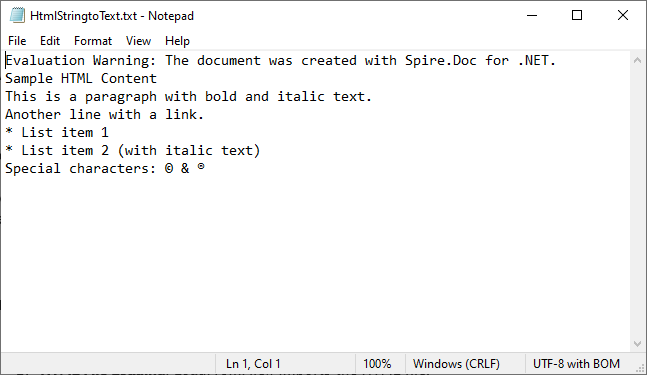
SaveToFile()withFileFormat.Txtconverts the rendered content to plain text, stripping HTML tags while retaining readable structure.
Output:
Extended reading: Parse or Read HTML in C#
Convert HTML File to Text in C#
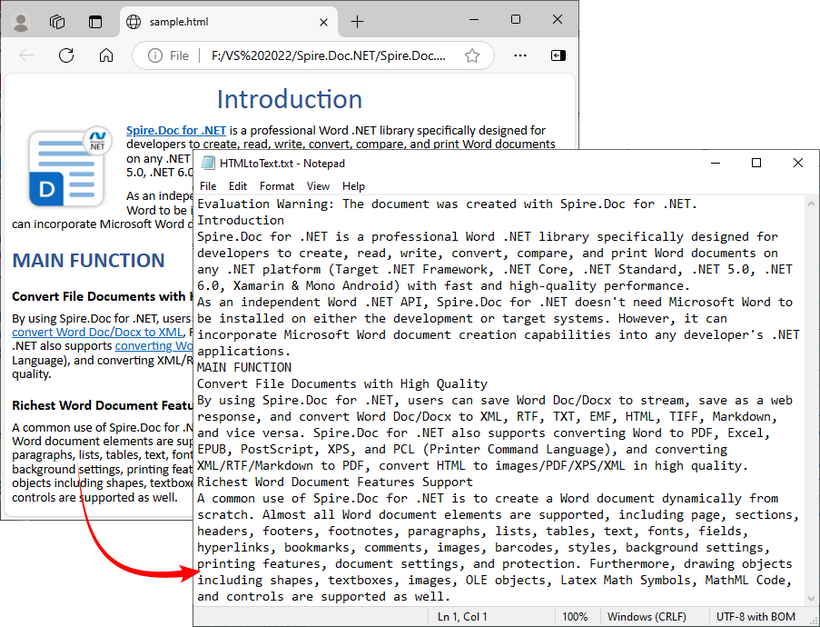
This example directly loads an HTML file and converts it to text. Ideal for batch processing or working with pre-existing HTML documents (e.g., downloaded web pages, local templates).
using Spire.Doc;
using Spire.Doc.Documents;

namespace HtmlToText
{
    class Program
    {
        static void Main()
        {
            // Create a Document object
            Document doc = new Document();

            // Load an HTML file
            doc.LoadFromFile("sample.html", FileFormat.Html, XHTMLValidationType.None);

            // Convert HTML to plain text
            doc.SaveToFile("HTMLtoText.txt", FileFormat.Txt);
            doc.Dispose();
        }
    }
}
How It Works:
- Document Initialization: A
Documentobject is created to handle the file operations. - HTML File Loading:
LoadFromFile()imports the HTML file, withFileFormat.Htmlspecifying the input type.XHTMLValidationType.Noneensures compatibility with non-strict HTML. - Text Conversion:
SaveToFile()withFileFormat.Txtconverts the loaded HTML content to plain text.
To preserve the original formatting and style, you can refer to the C# tutorial to convert the HTML file to Word.
FAQs
Q1: Can Spire.Doc process malformed HTML?
A: Yes. Spire.Doc includes built-in tolerance for malformed HTML, but you may need to disable strict validation to ensure proper parsing.
When loading HTML files, use XHTMLValidationType.None (as shown in the guide) to skip strict XHTML checks:
doc.LoadFromFile("malformed.html", FileFormat.Html, XHTMLValidationType.None);
This setting tells Spire.Doc to parse the HTML like a web browser (which automatically corrects minor issues like unclosed <p> or <li> tags) instead of rejecting non-compliant content.
Q2: Can I extract specific elements from HTML (like only paragraphs or headings)?
A: Yes, after loading the HTML into a Document object, you can access specific elements through the object model (like paragraphs, tables, etc.) and extract text from only those specific elements rather than the entire document.
Q3: Can I convert HTML to other formats besides plain text using Spire.Doc?
A: Yes, Spire.Doc supports conversion to multiple formats, including Word DOC/DOCX, PDF, image, RTF, and more, making it a versatile document processing solution.
Q4: Does Spire.Doc work with .NET Core/.NET 5+?
A: Spire.Doc fully supports .NET Core, .NET 5/6/7/8, and .NET Framework 4.0+. There’s no difference in functionality across these frameworks, which means you can use the same code (e.g., Document, AppendHTML(), SaveToFile()) regardless of which .NET runtime you’re targeting.
Conclusion
Converting HTML to text in C# is straightforward with the Spire.Doc library. Whether you’re working with HTML strings or files, Spire.Doc simplifies the process by handling HTML parsing, structure preservation, and text conversion. By following the examples in this guide, you can seamlessly integrate HTML-to-text conversion into your C# applications.
You can request a free 30-day trial license here to unlock full functionality and remove limitations of the Spire.Doc library.
