
.NET (1327)
Children categories
Creating PDFs in ASP.NET applications is a common requirement, whether you're generating invoices, reports, forms, or exporting dynamic content. To streamline this process, you can utilize Spire.PDF for .NET, a professional and lightweight library that enables developers to easily create and manipulate PDF documents programmatically, without the need for complex APIs or third-party printer drivers.
In this tutorial, we’ll show you how to create PDF documents in an ASP.NET Core Web application using Spire.PDF for .NET, with examples of creating a PDF from scratch and converting HTML to PDF.
On this page:
- Why Use Spire.PDF for .NET?
- Step-by-Step: Generate PDF in ASP.NET Core Web App
- Create PDF from HTML in ASP.NET Core
- Best Practices for ASP.NET PDF Generation
- Conclusion
- FAQs
Why Use Spire.PDF for .NET?
There are many ways to create PDF in ASP.NET, but most involve trade-offs: some depend on printer drivers, others have limited layout control, and many require heavy third-party frameworks. Spire.PDF for .NET offers a more streamlined approach. It’s a dedicated .NET library that handles the majority of PDF creation and manipulation tasks on its own, without external tools.
Key advantages include:
- No Adobe dependency – Generate and manage PDFs without Acrobat installed.
- Full-featured PDF toolkit – Beyond creation, you can edit, merge, split, protect, or annotate PDFs.
- High-fidelity rendering – Preserve fonts, CSS, images, and layouts when exporting content.
- ASP.NET ready – Compatible with both ASP.NET Web Forms/MVC and ASP.NET Core projects.
- Flexible generation options – Create PDFs from scratch, images, or streams.
(Note: HTML-to-PDF conversion requires a lightweight external plugin such as Qt WebEngine.)
Step-by-Step: Generate PDF in ASP.NET Core Web App
Step 1. Create a New ASP.NET Core Web App
- Open Visual Studio .
- Select Create a new project .
- Choose ASP.NET Core Web App (Model-View-Controller) → Click Next .
- Enter a project name, e.g., PdfDemoApp.
- Select your target framework (e.g., . NET 6 , 7 , or 8 ).
- Click Create .
Step 2. Install Spire.PDF via NuGet
- Right-click on your project → Manage NuGet Packages .
- Search for Spire.PDF .
- Install the package Spire.PDF (latest stable version).
Or install using the Package Manager Console :
Install-Package Spire.PDF
Step 3. Add a Controller for PDF Generation
- Right-click on the Controllers folder → Add → Controller → MVC Controller – Empty .
- Name it: PdfController.cs.
- Replace the default code with this:
using Microsoft.AspNetCore.Mvc;
using Spire.Pdf;
using Spire.Pdf.Graphics;
using System.Drawing;

namespace PdfDemoApp.Controllers
{
    public class PdfController : Controller
    {
        public IActionResult CreatePdf()
        {
            // Create a new PDF document
            PdfDocument doc = new PdfDocument();
            PdfPageBase page = doc.Pages.Add(PdfPageSize.A4, new PdfMargins(40));

            // Draw text on the page
            PdfFont font = new PdfFont(PdfFontFamily.Helvetica, 25f);
            PdfSolidBrush brush = new PdfSolidBrush(Color.Black);
            page.Canvas.DrawString("Hello from ASP.NET Core!", font, brush, 10, 50);

            // Save to memory stream
            using (MemoryStream ms = new MemoryStream())
            {
                doc.SaveToStream(ms);
                doc.Close();
                ms.Position = 0;

                // Return PDF file
                return File(ms.ToArray(), "application/pdf", "Generated.pdf");
            }
        }
    }
}
Step 4: (Optional) Add a Button or Link in Your View
Open Views/Home/Index.cshtml (or whichever view is your homepage).
Add a button or link like this:
<div>
    <a asp-controller="Pdf" asp-action="CreatePdf" class="btn btn-primary">
        Create PDF from Scratch
    </a>
</div>
This uses ASP.NET Core tag helpers to generate the correct route (/Pdf/CreatePdf).
Step 5. Run and Test
- Press F5 to run your app.
- On the home page, click the "Create PDF from Scratch" button. This will call the CreatePdf method in PdfController and trigger a download of the generated PDF.
- If you didn’t add the button, you can still run the CreatePdf method directly by visiting this URL in your browser:
https://localhost:xxxx/Pdf/CreatePdf
(where xxxx is your local port number).
Output:

In addition to text, Spire.PDF supports adding a wide range of elements to PDF, such as images, shapes, tables, lists, hyperlinks, annotations, and watermarks. For more details and advanced usage, check the .NET PDF Tutorials.
Create PDF from HTML in ASP.NET Core
Spire.PDF allows you to convert HTML content directly into PDF files. This feature is particularly useful for generating invoices, reports, receipts, or exporting styled web pages with consistent formatting.
To render HTML as PDF, Spire.PDF relies on an external rendering engine. You can choose between Qt WebEngine or Google Chrome . In this guide, we’ll use Qt WebEngine .
Setup the Qt plugin:
-
Download the Qt WebEngine plugin for your operating system:
-
Extract the package to obtain the plugins directory, e.g.: C:\plugins-windows-x64\plugins
-
Register the plugin path inyour code:
HtmlConverter.PluginPath = @"C:\plugins-windows-x64\plugins";
Once the plugin is ready, you can follow the steps from the previous section and add the code snippet below to your controller to generate PDF output from HTML content.
using Microsoft.AspNetCore.Mvc;
using Spire.Additions.Qt;
using Spire.Pdf.Graphics;
using System.Drawing;

namespace PdfDemoApp.Controllers
{
    public class PdfController : Controller
    {
        [HttpGet]
        public IActionResult HtmlToPdf()
        {
            // Example HTML string
            string html = @"
                <html>
                  <head>
                    <style>
                      body { font-family: Arial, sans-serif; }
                      h1 { color: #2563eb; }
                    </style>
                  </head>
                  <body>
                    <h1>ASP.NET Core: Create PDF from HTML</h1>
                    <p>This PDF was generated using the Qt-based converter.</p>
                  </body>
                </html>";

            // Path to the Qt plugin folder
            // ⚠️ Ensure this folder exists on your server/deployment environment
            string pluginPath = @"C:\plugins-windows-x64\plugins";
            HtmlConverter.PluginPath = pluginPath;

            // Create a temp file path (on server side)
            string tempFile = Path.GetTempFileName();

            // Convert HTML string → PDF using Qt
            HtmlConverter.Convert(
                html,
                tempFile,
                enableJavaScript: true,
                timeout: 100000,                        // milliseconds
                pageSize: new SizeF(595, 842),          // A4 page size in points
                margins: new PdfMargins(40),            // 40pt margins
                LoadHtmlType.SourceCode                 // Load from HTML string
            );

            // Read the generated PDF into memory
            byte[] fileBytes = System.IO.File.ReadAllBytes(tempFile);

            // Clean up temp file
            System.IO.File.Delete(tempFile);

            // Return PDF to browser as download
            return File(fileBytes, "application/pdf", "HtmlToPdf.pdf");
        }
    }
}
Output:
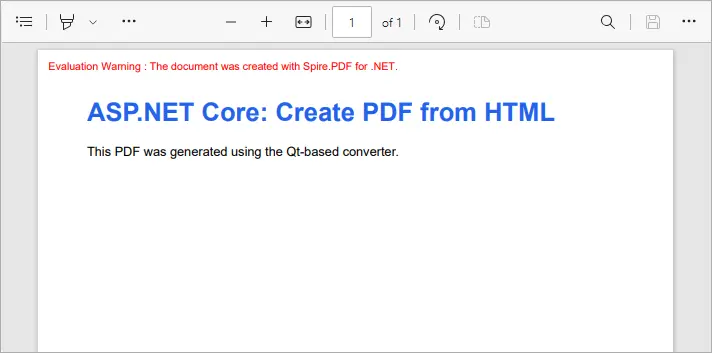
This example converts inline HTML into a properly formatted PDF. You can also load external HTML files or URLs - see our detailed guide on Convert HTML to PDF in C# for more information.
Best Practices for ASP.NET PDF Generation
- Use memory streams instead of disk storage for performance and scalability.
- Cache static PDFs (like terms & conditions or forms) to reduce server load.
- Use HTML-to-PDF for dynamic reports with CSS styling.
- Consider templates (like Word-to-PDF with Spire.Doc) when documents have complex layouts.
- Secure sensitive PDFs with password protection or access permissions.
Conclusion
With Spire.PDF for .NET, you can easily generate PDF in ASP.NET Core applications. Whether you’re creating PDFs from scratch or performing HTML-to-PDF conversion in C# , Spire.PDF provides a reliable, developer-friendly solution—no external dependencies required.
If you also need to generate PDFs from Word documents, that feature is available via Spire.Doc for .NET, another product in the Spire family. Together, they cover the full range of PDF document generation scenarios.
By integrating these tools, developers can streamline workflows, reduce reliance on Adobe or other third-party components, and ensure consistent, professional-quality output. This makes your ASP.NET PDF solutions more scalable, maintainable, and ready for enterprise use.
FAQs
Q1. Do I need Adobe Acrobat installed on the server?
No. Spire.PDF is a standalone library and works independently of Adobe Acrobat.
Q2. Can I generate PDFs from both raw content and HTML?
Yes. You can build documents programmatically (drawing text, shapes, tables) or convert HTML pages to PDF.
Q3. Can I convert Word documents to PDF with Spire.PDF?
No. Word-to-PDF is supported by Spire.Doc for .NET, not Spire.PDF. You can use them together if your project requires it.
Q4. How can I protect generated PDFs?
Spire.PDF supports setting passwords, permissions, and digital signatures for document security.
Q5. Does Spire.PDF support ASP.NET Framework?
Yes. It works with both ASP.NET Core and ASP.NET Framework.
Get a Free License
To fully experience the capabilities of Spire.PDF for .NET without any evaluation limitations, you can request a free 30-day trial license.
Convert PDF and Byte Array in C# (Load, Edit, Save in Memory)
2025-08-25 06:56:30 Written by jie zou
Working with PDFs as byte arrays is common in C# development. Developers often need to store PDF documents in a database, transfer them through an API, or process them entirely in memory without touching the file system. In such cases, converting between PDF and bytes using C# becomes essential.
This tutorial explains how to perform these operations step by step using Spire.PDF for .NET. You will learn how to convert a byte array to PDF, convert a PDF back into a byte array, and even edit a PDF directly from memory with C# code.
Jump right where you need
- Why Work with Byte Arrays and PDFs in C#?
- Convert Byte Array to PDF in C#
- Convert PDF to Byte Array in C#
- Create and Edit PDF Directly from a Byte Array
- Advantages of Using Spire.PDF for .NET
- Conclusion
- FAQ
Why Work with Byte Arrays and PDFs in C#?
Using byte[] as the transport format lets you avoid temporary files and makes your code friendlier to cloud and container environments.
- Database storage (BLOB): Persist PDFs as raw bytes; hydrate only when needed.
- Web APIs: Send/receive PDFs over HTTP without touching disk.
- In-memory processing: Transform or watermark PDFs entirely in streams.
- Security & isolation: Limit file I/O, reduce temp-file risks.
Getting set up: before running the examples, add the NuGet package of Spire.PDF for .NET so the API surface is available in your project.
Install-Package Spire.PDF
Once installed, you can load from byte[] or Stream, edit pages, and write outputs back to memory or disk—no extra converters required.
Convert Byte Array to PDF in C#
When an upstream service (e.g., an API or message queue) hands you a byte[] that represents a PDF, you often need to materialize it as a document for further processing or for a one-time save to disk. With Spire.PDF for .NET, this is a direct load operation—no intermediate temp file.
Scenario & approach: we’ll accept a byte[] (from DB/API), construct a PdfDocument in memory, optionally validate basic metadata, and then save the document.
using Spire.Pdf;
using System.IO;

class Program
{
    static void Main()
    {
        // Example source: byte[] retrieved from DB/API
        byte[] pdfBytes = File.ReadAllBytes("Sample.pdf"); // substitute with your source

        // 1) Load PDF from raw bytes (in memory)
        PdfDocument doc = new PdfDocument();
        doc.LoadFromBytes(pdfBytes);

        // 2) (Optional) inspect basic info before saving or further processing
        // int pageCount = doc.Pages.Count;

        // 3) Save to a file
        doc.SaveToFile("Output.pdf");
        doc.Close();
    }
}
The diagram below illustrates the byte[] to PDF conversion workflow:
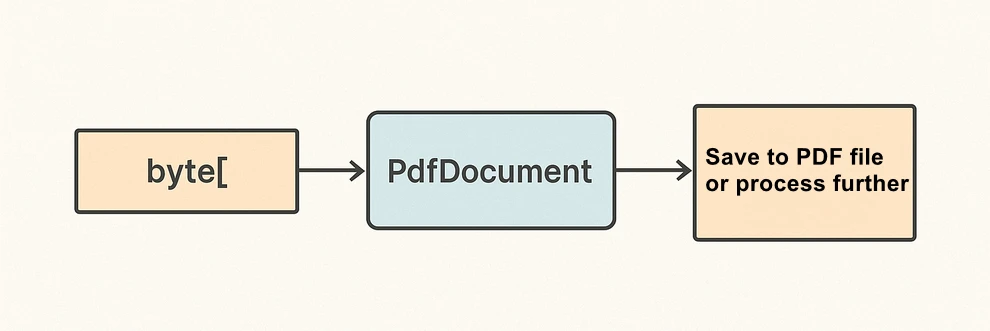
What the code is doing & why it matters:
- LoadFromBytes(byte[]) initializes the PDF entirely in memory—perfect for services without write access.
- You can branch after loading: validate pages, redact, stamp, or route elsewhere.
- SaveToFile(string) saves the document to disk for downstream processing or storing.
Convert PDF to Byte Array in C#
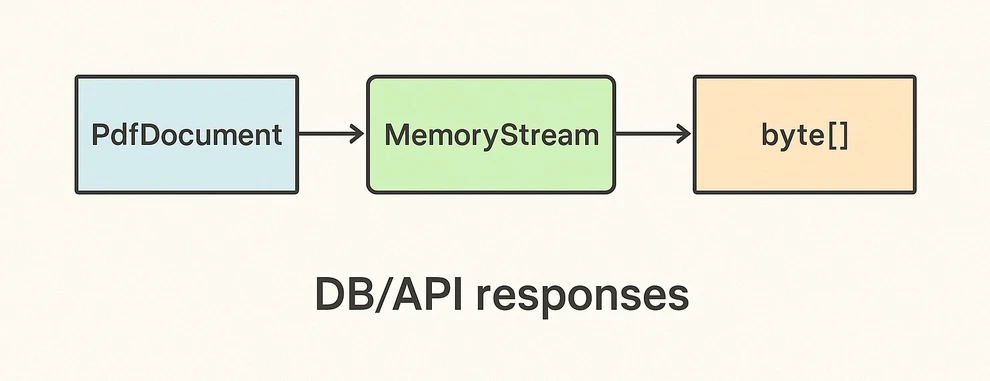
In the reverse direction, converting a PDF to a byte[] enables database writes, caching, or streaming the file through an HTTP response. Spire.PDF for .NET writes directly to a MemoryStream, which you can convert to a byte array with ToArray().
Scenario & approach: load an existing PDF, push the document into a MemoryStream, then extract the byte[]. This pattern is especially useful when returning PDFs from APIs or persisting them to databases.
using Spire.Pdf;
using System.IO;

class Program
{
    static void Main()
    {
        // 1) Load a PDF from disk, network share, or embedded resource
        PdfDocument doc = new PdfDocument();
        doc.LoadFromFile("Input.pdf");

        // 2) Save to a MemoryStream for fileless output
        byte[] pdfBytes;
        using (var ms = new MemoryStream())
        {
            doc.SaveToStream(ms);
            pdfBytes = ms.ToArray();
        }

        doc.Close();

        // pdfBytes now contains the full document (ready for DB/API)
        // e.g., return File(pdfBytes, "application/pdf");
    }
}
The diagram below shows the PDF to byte[] conversion workflow:
Key takeaways after the code:
- SaveToStream → ToArray is the standard way to obtain a PDF as bytes in C# without creating temp files.
- This approach scales for large PDFs; the only limit is available memory.
- Great for ASP.NET: return the byte array directly in your controller or minimal API endpoint.
If you want to learn more about working with streams, check out our guide on loading and saving PDF documents via streams in C#.
Create and Edit PDF Directly from a Byte Array
The real power comes from editing PDFs fully in memory. You can load from byte[], add text or images, stamp a watermark, fill form fields, and save the edited result back into a new byte[]. This enables fileless pipelines and is well-suited for microservices.
Scenario & approach: we’ll load a PDF from bytes, draw a small text annotation on page 1 (stand-in for any edit operation), and emit the edited document as a fresh byte array.
using Spire.Pdf;
using Spire.Pdf.Graphics;
using System.Drawing;
using System.IO;

class Program
{
    static void Main()
    {
        // Source could be DB, API, or file — represented as byte[]
        byte[] inputBytes = File.ReadAllBytes("Input.pdf");

        // 1) Load in memory
        var doc = new PdfDocument();
        doc.LoadFromBytes(inputBytes);

        // 2) Edit: write a small marker on the first page
        PdfPageBase page = doc.Pages[0];
        page.Canvas.DrawString(
            "Edited in memory",
            new PdfFont(PdfFontFamily.Helvetica, 12f),
            PdfBrushes.DarkBlue,
            new PointF(100, page.Size.Height - 100)
        );

        // 3) Save the edited PDF back to byte[]
        byte[] editedBytes;
        using (var ms = new MemoryStream())
        {
            doc.SaveToStream(ms);
            editedBytes = ms.ToArray();
        }

        doc.Close();

        // editedBytes can now be persisted or returned by an API
    }
}
The image below shows the edited PDF page:

After-code insights:
- The same pattern works for text, images, watermarks, annotations, and form fields.
- Keep edits idempotent (e.g., check if you already stamped a page) for safe reprocessing.
- For ASP.NET, this is ideal for on-the-fly stamping or conditional redaction before returning the response.
For a step-by-step tutorial on building a PDF from scratch, see our article on creating PDF documents in C#.
Advantages of Using Spire.PDF for .NET
A concise view of why this API pairs well with byte-array workflows:
| Concern | What you get with Spire.PDF for .NET |
|---|---|
| I/O flexibility | Load/save from file path, Stream, or byte[] with the same PdfDocument API. |
| In-memory editing | Draw text/images, manage annotations/forms, watermark, and more—no temp files. |
| Service-friendly | Clean integration with ASP.NET endpoints and background workers. |
| Scales to real docs | Handles multi-page PDFs; you control memory via streams. |
| Straightforward code | Minimal boilerplate; avoids manual byte fiddling and fragile interop. |
Conclusion
You’ve seen how to convert byte array to PDF in C#, how to convert PDF to byte array, and how to edit a PDF directly from memory—all with concise code. Keeping everything in streams and byte[] simplifies API design, accelerates response times, and plays nicely with databases and cloud hosting. Spire.PDF for .NET gives you a consistent, fileless workflow that’s easy to extend from quick conversions to full in-memory document processing.
If you want to try these features without limitations, you can request a free 30-day temporary license. Alternatively, you can explore Free Spire.PDF for .NET for lightweight PDF tasks.
FAQ
Can I create a PDF from a byte array in C# without saving to disk?
Yes. Load from byte[] with LoadFromBytes, then either save to a MemoryStream or return it directly from an API—no disk required.
How do I convert PDF to byte array in C# for database storage?
Use SaveToStream on PdfDocument and call ToArray() on the MemoryStream. Store that byte[] as a BLOB (or forward it to another service).
Can I edit a PDF that only exists as a byte array?
Absolutely. Load from bytes, apply edits (text, images, watermarks, annotations, form fill), then save the result back to a new byte[].
Any tips for performance and reliability?
Dispose streams promptly, reuse buffers when appropriate, and create a new PdfDocument per operation/thread. For large files, stream I/O keeps memory usage predictable.

Many business applications today need the ability to scan barcodes and QR codes in ASP.NET environments. From ticket validation and payment processing to inventory management, an ASP.NET QR code scanner or barcode reading feature can greatly improve efficiency and accuracy for both web and enterprise systems.
This tutorial demonstrates how to build a complete solution to scan barcodes in ASP.NET with C# code using Spire.Barcode for .NET. We’ll create an ASP.NET Core web application that can read both QR codes and various barcode formats from uploaded images, delivering high recognition accuracy and easy integration into existing projects.
Guide Overview
- 1. Project Setup
- 2. Implementing QR Code and Barcode Scanning Feature with C# in ASP.NET
- 3. Testing and Troubleshooting
- 4. Extending to Other .NET Applications
- 5. Conclusion
1. Project Setup
Step 1: Create the Project
Create a new ASP.NET Core Razor Pages project, which will serve as the foundation for the scanning feature. Use the following command to create a new project or manually configure it in Visual Studio:
dotnet new webapp -n QrBarcodeScanner
cd QrBarcodeScanner
Step 2: Install Spire.Barcode for .NET
Install the Spire.Barcode for .NET NuGet package, which supports decoding a wide range of barcode types with a straightforward API. Search for the package in the NuGet Package Manager or use the command below to install it:
dotnet add package Spire.Barcode
Spire.Barcode for .NET offers built-in support for both QR codes and multiple barcode formats such as Code128, EAN-13, and Code39, making it suitable for ASP.NET Core integration without requiring additional image processing libraries. To find out all the supported barcode types, refer to the BarcodeType API reference.
You can also use Free Spire.Barcode for .NET for smaller projects.
2. Implementing QR Code and Barcode Scanning Feature with C# in ASP.NET
A reliable scanning feature involves two main parts:
- Backend logic that processes and decodes uploaded images.
- A simple web interface that lets users upload files for scanning.
We will first focus on the backend implementation to ensure the scanning process works correctly, then connect it to a minimal Razor Page frontend.
Backend: QR & Barcode Scanning Logic with Spire.Barcode
The backend code reads the uploaded file into memory and processes it with Spire.Barcode, using either a memory stream or a file path. The scanned result is then returned. This implementation supports QR codes and other barcode types without requiring format-specific logic.
Index.cshtml.cs
using Microsoft.AspNetCore.Mvc;
using Microsoft.AspNetCore.Mvc.RazorPages;
using Spire.Barcode;

public class IndexModel : PageModel
{
    [BindProperty]
    public IFormFile Upload { get; set; }  // Uploaded file

    public string Result { get; set; }     // Scanning result
    public string UploadedImageBase64 { get; set; } // Base64 string for preview

    public void OnPost()
    {
        if (Upload != null && Upload.Length > 0)
        {
            using (var ms = new MemoryStream())
            {
                // Read the uploaded file into memory
                Upload.CopyTo(ms);

                // Convert the image to Base64 for displaying in HTML <img>
                UploadedImageBase64 = "data:" + Upload.ContentType + ";base64," +
                                      Convert.ToBase64String(ms.ToArray());

                // Reset the stream position before scanning
                ms.Position = 0;

                // Scan the barcode or QR code from the stream
                try
                {
                    string[] scanned = BarcodeScanner.Scan(ms);
                    // Return the scanned result
                    Result = scanned != null && scanned.Length > 0
                        ? string.Join(", ", scanned)
                        : "No code detected.";
                }
                catch (Exception ex)
                {
                    Result = "Error while scanning: " + ex.Message;
                }
            }
        }
    }
}
Explanation of Key Classes and Methods
- BarcodeScanner: A static class in Spire.Barcode that decodes images containing QR codes or barcodes.
- BarcodeScanner.Scan(Stream imageStream): Scans an uploaded image directly from a memory stream and returns an array of decoded strings. This method scans all barcodes in the given image.
- Supplementary methods (optional):
- BarcodeScanner.Scan(string imagePath): Scans an image from a file path.
- BarcodeScanner.ScanInfo(string imagePath): Scans an image from a file path and returns additional barcode information such as type, location, and data.
These methods can be used in different ways, depending on the application requirements.
Frontend: QR & Barcode Upload & Scanning Result Interface
The following page design provides a simple upload form where users can submit an image containing a QR code or barcode. Once uploaded, the image is displayed along with the recognized result, which can be copied with a single click. The layout is intentionally kept minimal for fast testing, yet styled for a clear and polished presentation.
Index.cshtml
@page
@model IndexModel
@{
    ViewData["Title"] = "QR & Barcode Scanner";
}

<div style="max-width:420px;margin:40px auto;padding:20px;border:1px solid #ccc;border-radius:8px;background:#f9f9f9;">
    <h2>QR & Barcode Scanner</h2>
    <form method="post" enctype="multipart/form-data" id="uploadForm">
        <input type="file" name="upload" accept="image/*" required onchange="this.form.submit()" style="margin:10px 0;" />
    </form>

    @if (!string.IsNullOrEmpty(Model.UploadedImageBase64))
    {
        <div style="margin-top:15px;text-align:center;">
            <img src="/@Model.UploadedImageBase64" style="width:300px;height:300px;object-fit:contain;border:1px solid #ddd;background:#fff;" />
        </div>
    }

    @if (!string.IsNullOrEmpty(Model.Result))
    {
        <div style="margin-top:15px;padding:10px;background:#e8f5e9;border-radius:6px;">
            <b>Scan Result:</b>
            <p id="scanText">@Model.Result</p>
            <button type="button" onclick="navigator.clipboard.writeText(scanText.innerText)" style="background:#28a745;color:#fff;padding:6px 10px;border:none;border-radius:4px;">Copy</button>
        </div>
    }
</div>
Below is a screenshot showing the scan page after successfully recognizing both a QR code and a Code128 barcode, with the results displayed and a one-click copy button available.
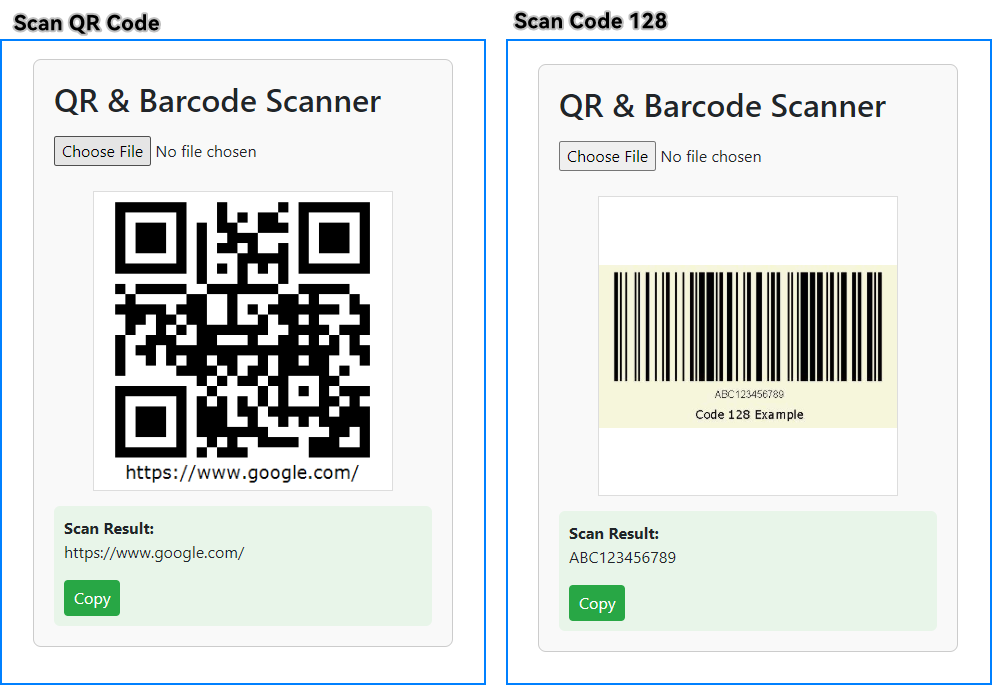
This ASP.NET Core application can scan QR codes and other barcodes from uploaded images. If you're looking to generate QR codes or barcodes, check out How to Generate QR Codes in ASP.NET Core.
3. Testing and Troubleshooting
After running the application, test the scanning feature with:
- A QR code image containing a URL or plain text.
- A barcode image such as Code128 or EAN-13.
If recognition fails:
- Ensure the image has good contrast and minimal distortion.
- Use images of reasonable resolution (not excessively large or pixelated).
- Test with different file formats such as JPG, PNG, or BMP.
- Avoid images with reflections, glare, or low lighting.
- When scanning multiple barcodes in one image, ensure each code is clearly separated to improve recognition accuracy.
A good practice is to maintain a small library of sample QR codes and barcodes to test regularly after making code changes.
4. Extending to Other .NET Applications
The barcode scanning logic in this tutorial works the same way across different .NET application types — only the way you supply the image file changes. This makes it easy to reuse the core decoding method, BarcodeScanner.Scan(), in various environments such as:
- ASP.NET Core MVC controllers or Web API endpoints
- Desktop applications like WinForms or WPF
- Console utilities for batch processing
Example: Minimal ASP.NET Core Web API Endpoint — receives an image file via HTTP POST and returns decoded results as JSON:
[ApiController]
[Route("api/[controller]")]
public class ScanController : ControllerBase
{
    [HttpPost]
    public IActionResult Scan(IFormFile file)
    {
        if (file == null) return BadRequest("No file uploaded");
        using var ms = new MemoryStream();
        file.CopyTo(ms);
        ms.Position = 0;
        string[] results = BarcodeScanner.Scan(ms);
        return Ok(results);
    }
}
Example: Console application — scans a local image file and prints the decoded text:
string[] result = BarcodeScanner.Scan(@"C:\path\to\image.png");
Console.WriteLine(string.Join(", ", result));
This flexibility makes it simple for developers to quickly add QR code and barcode scanning to new projects or extend existing .NET applications.
5. Conclusion
This tutorial has shown how to implement a complete QR code and barcode scanning solution in ASP.NET Core using Spire.Barcode for .NET. From receiving uploaded images to decoding and displaying the results, the process is straightforward and adaptable to a variety of application types. With this approach, developers can quickly integrate reliable scanning functionality into e-commerce platforms, ticketing systems, document verification tools, and other business-critical web applications.
For more advanced scenarios, Spire.Barcode for .NET provides additional features such as customizing the recognition process, handling multiple image formats and barcode types, and more. Apply for a free trial license to unlock all the advanced features.
Download Spire.Barcode for .NET today and start building your own ASP.NET barcode scanning solution.

Optical Character Recognition (OCR) technology has become essential for developers working with scanned documents and image-based PDFs. In this tutorial, you learn how to perform OCR on PDFs in C# to extract text from scanned documents or images within a PDF using the Spire.PDF for .NET and Spire.OCR for .NET libraries. By transferring scanned PDFs into editable and searchable formats, you can significantly improve your document management processes.
Table of Contents :
- Why OCR is Needed for Scanned PDFs?
- Setting Up: Installing Required Libraries
- Performing OCR on Scanned PDFs
- Extracting Text from Images within PDFs
- Wrapping Up
- FAQs
Why OCR is Needed for Scanned PDFs?
Scanned PDFs are essentially image files —they contain pictures of text rather than actual selectable and searchable text content. When you scan a paper document or receive an image-based PDF, the text exists only as pixels , making it impossible to edit, search, or extract. This creates significant limitations for businesses and individuals who need to work with these documents digitally.
OCR technology solves this problem by analyzing the shapes of letters and numbers in scanned images and converting them into machine-readable text. This process transforms static PDFs into usable, searchable, and editable documents—enabling text extraction, keyword searches, and seamless integration with databases and workflow automation tools.
In fields such as legal, healthcare, and education, where large volumes of scanned documents are common, OCR plays a crucial role in document digitization, making important data easily accessible and actionable.
Setting Up: Installing Required Libraries
Before we dive into the code, let's first set up our development environment with the necessary components: Spire.PDF and Spire.OCR . Spire.PDF handles PDF operations, while Spire.OCR performs the actual text recognition.
Step 1. Install Spire.PDF and Spire.OCR via NuGet
To begin, open the NuGet Package Manager in Visual Studio, and search for "Spire.PDF" and "Spire.OCR" to install them in your project. Alternatively, you can use the Package Manager Console :
Install-Package Spire.PDF
Install-Package Spire.OCR
Step 2. Download OCR Models:
Spire.OCR requires pre-trained language models for text recognition. Download the appropriate model files for your operating system (Windows, Linux, or MacOS) and extract them to a directory (e.g., D:\win-x64).
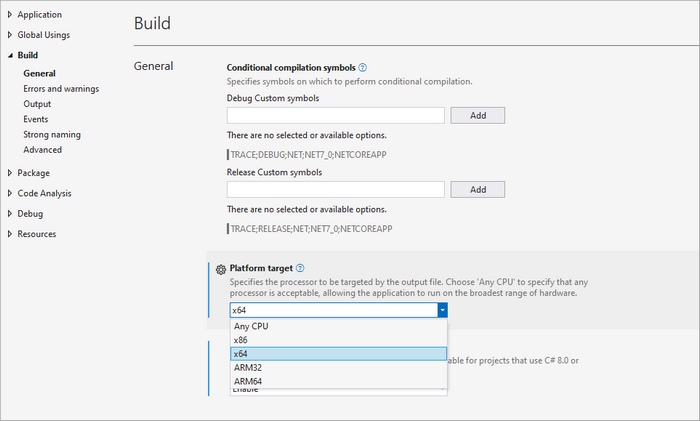
Important Note : Ensure your project targets x64 platform (Project Properties > Build > Platform target) as Spire.OCR only supports 64-bit systems.
Performing OCR on Scanned PDFs in C#
With the necessary libraries installed, we can now perform OCR on scanned PDFs. Below is a sample code snippet demonstrating this process.
using Spire.OCR;
using Spire.Pdf;
using Spire.Pdf.Graphics;
using System.Drawing;

namespace OCRPDF
{
    class Program
    {
        static void Main(string[] args)
        {
            // Create an instance of the OcrScanner class
            OcrScanner scanner = new OcrScanner();

            // Configure the scanner
            ConfigureOptions configureOptions = new ConfigureOptions
            {
                ModelPath = @"D:\win-x64", // Set model path
                Language = "English"        // Set language
            };

            // Apply the configuration options
            scanner.ConfigureDependencies(configureOptions);

            // Load a PDF document
            PdfDocument doc = new PdfDocument();
            doc.LoadFromFile(@"C:\Users\Administrator\Desktop\Input5.pdf");

            // Iterate through all pages
            for (int i = 0; i < doc.Pages.Count; i++)
            {
                // Convert page to image
                Image image = doc.SaveAsImage(i, PdfImageType.Bitmap);

                // Convert the image to a MemoryStream
                using (MemoryStream stream = new MemoryStream())
                {
                    image.Save(stream, System.Drawing.Imaging.ImageFormat.Png);
                    stream.Position = 0; // Reset the stream position

                    // Perform OCR on the image stream
                    scanner.Scan(stream, OCRImageFormat.Png);
                    string pageText = scanner.Text.ToString();

                    // Save extracted text to a separate file
                    string outputTxtPath = Path.Combine(@"C:\Users\Administrator\Desktop\Output", $"Page-{i + 1}.txt");
                    File.WriteAllText(outputTxtPath, pageText);
                }
            }

            // Close the document
            doc.Close();
        }
    }
}
Key Components Explained :
- OcrScanner Class : This class is crucial for performing OCR. It provides methods to configure and execute the scanning operation.
- ConfigureOptions Class : This class is used to set up the OCR scanner's configurations. The ModelPath property specifies the path to the OCR model files, and the Language property allows you to specify the language for text recognition.
- PdfDocument Class : This class represents the PDF document. The LoadFromFile method loads the PDF file that you want to process.
- Image Conversion : Each PDF page is converted to an image using the SaveAsImage method. This is essential because OCR works on image files.
- MemoryStream : The image is saved into a MemoryStream , allowing us to perform OCR without saving the image to disk.
- OCR Processing : The Scan method performs OCR on the image stream. The recognized text can be accessed using the Text property of the OcrScanner instance.
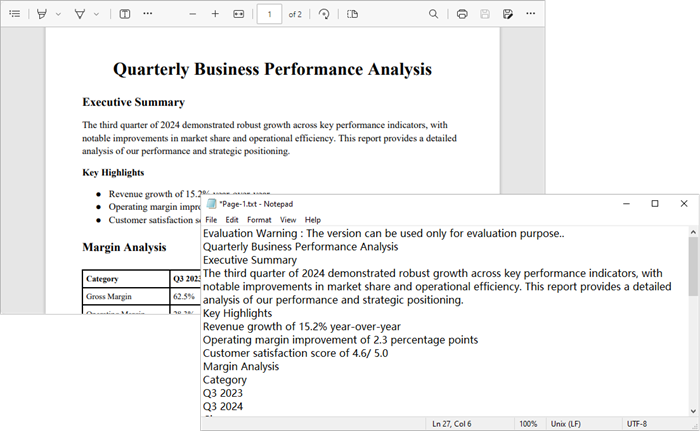
- Output : The extracted text is saved to a text file for each page.
Output :
To extract text from searchable PDFs, refer to this guide: Automate PDF Text Extraction Using C#
Extracting Text from Images within PDFs in C#
In addition to processing entire PDF pages, you can also extract text from images embedded within PDFs. Here’s how:
using Spire.Pdf;
using Spire.Pdf.Utilities;
using Spire.OCR;
using System.Drawing;

namespace OcrImageFromPdf
{
    class Program
    {
        static void Main(string[] args)
        {
            // Create a PdfDocument object
            PdfDocument doc = new PdfDocument();

            // Load a PDF document
            doc.LoadFromFile(@"C:\Users\Administrator\Desktop\AI.pdf");

            // Create a PdfImageHelper object
            PdfImageHelper imageHelper = new PdfImageHelper();

            // Create an instance of the OcrScanner class
            OcrScanner scanner = new OcrScanner();

            // Configure the scanner
            ConfigureOptions configureOptions = new ConfigureOptions
            {
                ModelPath = @"D:\win-x64", // Set model path
                Language = "English"        // Set language
            };
            scanner.ConfigureDependencies(configureOptions);

            // Declare an int variable
            int m = 0;

            // Iterate through the pages
            for (int i = 0; i < doc.Pages.Count; i++)
            {
                // Get a specific page
                PdfPageBase page = doc.Pages[i];

                // Get all image information from the page
                PdfImageInfo[] imageInfos = imageHelper.GetImagesInfo(page);

                // Iterate through the image information
                for (int j = 0; j < imageInfos.Length; j++)
                {
                    // Get a specific image information
                    PdfImageInfo imageInfo = imageInfos[j];

                    // Get the image
                    Image image = imageInfo.Image;

                    // Convert the image to a MemoryStream
                    using (MemoryStream stream = new MemoryStream())
                    {
                        image.Save(stream, System.Drawing.Imaging.ImageFormat.Png);
                        stream.Position = 0; // Reset the stream position

                        // Perform OCR on the image stream
                        scanner.Scan(stream, OCRImageFormat.Png);
                        string imageText = scanner.Text.ToString();

                        // Save the OCR result to a text file
                        string outputTxtPath = Path.Combine(@"C:\Users\Administrator\Desktop\Output", $"Image-Text-{m + 1}.txt");
                        File.WriteAllText(outputTxtPath, imageText);

                        m++;
                    }
                }
            }

            // Dispose resources
            doc.Dispose();
        }
    }
}
Key Components Explained :
- PdfImageHelper Class : This class is essential for extracting images from a PDF page. It provides methods to retrieve image information such as GetImagesInfo , which returns an array of PdfImageInfo objects.
- PdfImageInfo Class : Each PdfImageInfo object contains properties related to an image, including the actual Image object that can be processed further.
- Image Processing : Similar to the previous example, each image is saved to a MemoryStream for OCR processing.
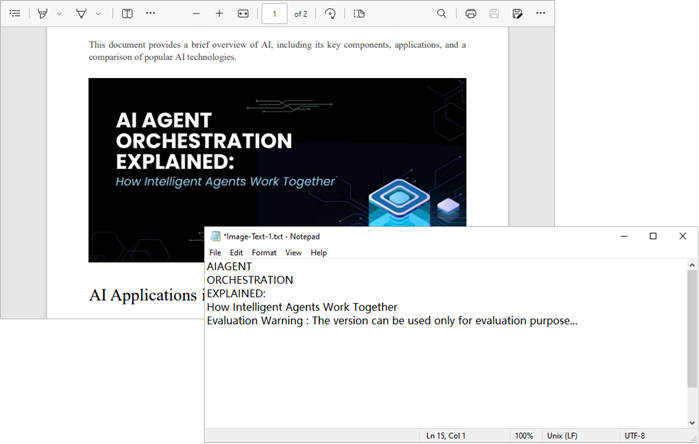
- Output : The extracted text from each image is saved to a separate text file.
Output:
Wrapping Up
By combining Spire.PDF with Spire.OCR , you can seamlessly transform scanned PDFs and image-based documents into fully searchable and editable text. Whether you need to process entire pages or extract text from specific embedded images, the approach is straightforward and flexible.
This OCR integration not only streamlines document digitization but also enhances productivity by enabling search, copy, and automated data extraction. In industries where large volumes of scanned documents are the norm, implementing OCR with C# can significantly improve accessibility, compliance, and information retrieval speed.
FAQs
Q1. Can I perform OCR on non-English PDFs?
Yes, Spire.OCR supports multiple languages. You can set the Language property in ConfigureOptions to the desired language.
Q2. What should I do if the output is garbled or incorrect?
Check the quality of the input PDF images. If the images are blurry or have low contrast, OCR may struggle to recognize text accurately. Consider enhancing the image quality before processing.
Q3. Can I extract text from images embedded within a PDF?
Yes, you can. Use a helper class to extract images from each page and then apply OCR to recognize text.
Q4. Can Spire.OCR handle handwritten text in PDFs?
Spire.OCR is primarily optimized for printed text. Handwriting recognition typically has lower accuracy.
Q5. Do I need to install additional language models for OCR?
Yes, Spire.OCR requires pre-trained language model files. Download and configure the appropriate models for your target language before performing OCR.
Get a Free License
To fully experience the capabilities of Spire.PDF for .NET and Spire.OCR for .NET without any evaluation limitations, you can request a free 30-day trial license.
Convert Excel to JSON and JSON to Excel in C# .NET – Step-by-Step Guide
2025-08-13 09:40:46 Written by alice yang
Excel files are widely used to enter, organize, and present tabular data, while JSON is commonly used by APIs and applications to exchange structured data between systems. Converting between these formats allows developers to import spreadsheet data into applications and export application data to Excel for reporting, analysis, or sharing.
In this tutorial, you’ll learn how to convert Excel to JSON and JSON to Excel in C# using Spire.XLS for .NET.
What We Will Cover:
- Why Convert Between Excel and JSON
- Prerequisites & Package Installation
- Basic Excel to JSON Conversion in C# .NET
- Advanced Excel to JSON Conversion Scenarios
- Convert JSON to Excel in C# .NET
- Tips and Best Practices
- FAQs
- Conclusion
Why Convert Between Excel and JSON?
Converting data between Excel (.xlsx or .xls) and JSON formats is a standard requirement in .NET applications for the following development tasks:
- Data Ingestion: Parses business-generated spreadsheets into standard server-side objects for backend processing.
- API Integration: Formats tabular data into standard JSON payloads required by web APIs and microservices.
- Frontend Serialization: Transforms structured server-side data into lightweight JSON format for consumption by web clients and JavaScript frameworks.
- NoSQL Storage: Prepares relational or tabular spreadsheet data for direct migration into document databases like MongoDB or Cosmos DB.
- Automated Reporting: Converts dynamic JSON application data into readable Excel reports for end users.
Prerequisites and Package Installation
Before you begin, ensure your development environment meets these specific requirements.
- Visual Studio (2019 or later recommended)
- .NET Environment: .NET Framework 4.0+, .NET Core 3.1+, or .NET 5.0+.
- NuGet Packages:
- Spire.XLS for .NET (version 15.11.3 or higher)
- Newtonsoft.Json (required for JSON serialization, deserialization and custom formatting)
Installing the Required NuGet Packages
Option 1: Using .NET Package Manager Console
Open your project in Visual Studio and run the following commands in the Package Manager Console:
Install-Package Spire.XLS
Install-Package Newtonsoft.Json
Option 2: Using .NET CLI
For cross-platform developers using terminal-based environments, execute the following commands inside the project's root folder:
dotnet add package Spire.XLS
dotnet add package Newtonsoft.Json
Basic Excel to JSON Conversion in C# .NET
Starting with Spire.XLS for .NET 15.11.3, developers can export an Excel workbook directly to JSON by calling the SaveToFile() method.
This method is suitable when you want to convert the whole workbook and do not need to customize the generated JSON structure.
Steps to Convert an Excel Workbook to JSON
- Instantiate a new
Workbookobject. - Use
LoadFromFile()to load your Excel workbook. - Call
SaveToFile()and specifyFileFormat.Jsonas the output format to export the workbook to JSON.
Complete Code Example
using System;
using Spire.Xls;

namespace ConvertExcelToJSON
{
    class Program
    {
        static void Main(string[] args)
        {
            string inputFile = @"Sample.xlsx";
            string outputFile = @"output.json";

            try
            {
                // Create a Workbook object
                using (Workbook workbook = new Workbook())
                {
                    // Load the Excel file
                    workbook.LoadFromFile(inputFile);

                    // Save the entire workbook into a single JSON file
                    // Supported in Spire.XLS 15.11.3 and later
                    workbook.SaveToFile(outputFile, FileFormat.Json);
                }
            }
            catch (Exception ex)
            {
                Console.WriteLine($"Error during conversion: {ex.Message}");
            }
        }
    }
}
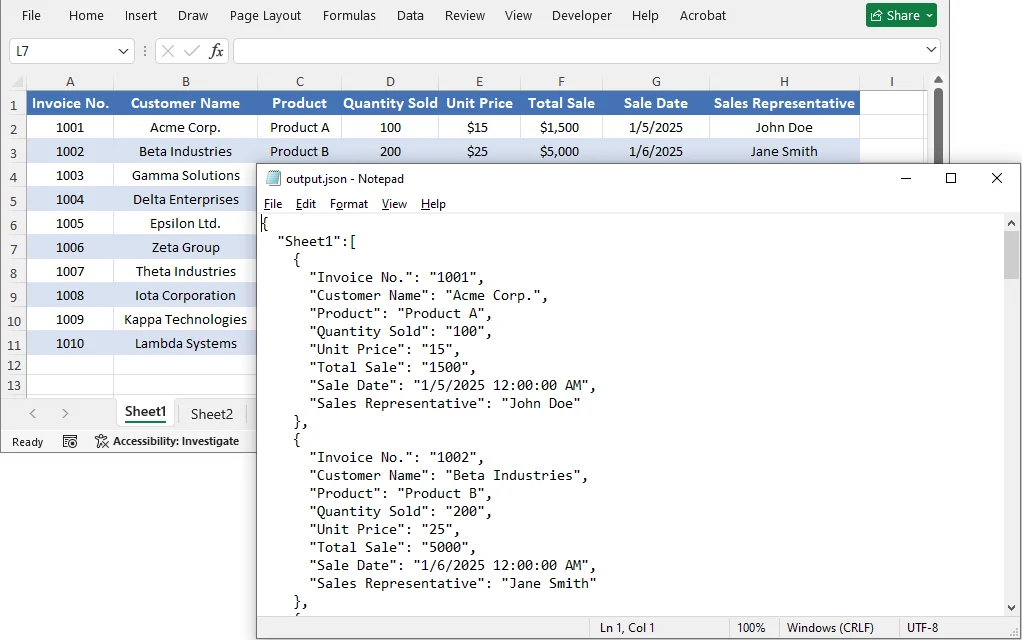
The Output JSON:
The converted JSON structure corresponds to the Excel data as follows:
- Worksheet name → Becomes a key in the outermost JSON object.
- Data in each worksheet → Becomes an array, where each object represents a single row.
- Header row values → Become the default field names for each data object.
Advanced Excel to JSON Conversion Scenarios
While saving the entire workbook to JSON is convenient, there are scenarios where you need more control—such as converting only a specific worksheet, cell range, or customizing the JSON output format. Spire.XLS provides flexible approaches to achieve these custom conversions.
Worksheet to JSON
To convert only a specific worksheet rather than the entire workbook, copy the target worksheet to a new workbook and then save that workbook as JSON.
Steps to Convert a Specific Worksheet to JSON
- Load the source workbook using
LoadFromFile(). - Get the target worksheet by its index or name.
- Create a new
Workbookobject for the output. - Use the
Worksheets.AddCopy()method to copy the target worksheet to the new workbook. - Call
SaveToFile()withFileFormat.Jsonon the new workbook.
Complete Code Example
using System;
using Spire.Xls;

namespace ConvertWorksheetToJSON
{
    class Program
    {
        static void Main(string[] args)
        {
            string inputFile = @"Sample.xlsx";
            string outputFile = @"sheet_output.json";

            try
            {
                using (Workbook sourceWorkbook = new Workbook())
                {
                    sourceWorkbook.LoadFromFile(inputFile);

                    // Access the first worksheet by index (or by name: sourceWorkbook.Worksheets["sheetName"])
                    Worksheet targetSheet = sourceWorkbook.Worksheets[0];

                    using (Workbook newWorkbook = new Workbook())
                    {
                        // Remove default worksheets from the new workbook
                        newWorkbook.Worksheets.Clear();

                        // Copy the target worksheet into the new workbook
                        newWorkbook.Worksheets.AddCopy(targetSheet);

                        // Save the single worksheet as JSON
                        newWorkbook.SaveToFile(outputFile, FileFormat.Json);
                    }
                }
            }
            catch (Exception ex)
            {
                Console.WriteLine($"Error: {ex.Message}");
            }
        }
    }
}
Cell Range to JSON
If you only need to export a portion of worksheet data—such as a specific table or range—copy the desired range to a new workbook and then save the result file as JSON.
Steps to Convert a Cell Range to JSON
- Load the source workbook.
- Get the target worksheet containing the data.
- Define the range you want to export (e.g., worksheet.Range["A1:D3"]).
- Instantiate a new
Workbookobject. - Copy the range data to a new worksheet in the new workbook with
Worksheet.Copy(). - Call
SaveToFile()with FileFormat.Json to save the new workbook as a .json file.
Complete Code Example
using System;
using Spire.Xls;

namespace ConvertExcelToJSON
{
    class Program
    {
        static void Main(string[] args)
        {
            string inputFile = @"Sample.xlsx";
            string outputFile = @"range_output.json";

            try
            {
                using (Workbook sourceWorkbook = new Workbook())
                {
                    sourceWorkbook.LoadFromFile(inputFile);
                    Worksheet sourceWorksheet = sourceWorkbook.Worksheets[0];

                    // Define the range to export (e.g., A1:D3)
                    CellRange sourceRange = sourceWorksheet.Range["A1:D3"];

                    using (Workbook targetWorkbook = new Workbook())
                    {
                        // Remove the default worksheets
                        targetWorkbook.Worksheets.Clear();

                        // Add a worksheet for the selected range
                        Worksheet targetWorksheet = targetWorkbook.Worksheets.Add("RangeData");

                        // Create a destination range with the same dimensions
                        CellRange destinationRange = targetWorksheet.Range["A1:D3"];

                        // Copy values and styles to the new workbook
                        sourceWorksheet.Copy(sourceRange, destinationRange, true);

                        // Export the isolated range to JSON
                        targetWorkbook.SaveToFile(outputFile, FileFormat.Json);
                    }
                }
            }
            catch (Exception ex)
            {
                Console.WriteLine($"Error exporting cell range: {ex.Message}");
            }
        }
    }
}
Customize JSON Output Formatting
The SaveToFile() method provides a quick conversion, but the output format is fixed. If you need greater control over the JSON output, export the worksheet data to a DataTable with ExportDataTable() and serialize it with Newtonsoft.Json. This allows you to customize property names, null handling, date formats, and indentation.
Steps for Custom JSON Output Formatting
- Load the Excel File.
- Access the worksheet and export its data to a DataTable using
ExportDataTable(). - Configure
JsonSerializerSettingsto define formatting rules (camelCase, null handling, date format, etc.). - Serialize the DataTable using
JsonConvert.SerializeObject()with the settings. - Save the JSON string to a file.
Complete Code Example
using System;
using System.Data;
using System.IO;
using Spire.Xls;
using Newtonsoft.Json;
using Newtonsoft.Json.Serialization;

namespace ConvertExcelToJSON
{
    class Program
    {
        static void Main(string[] args)
        {
            string excelFilePath = @"Sample.xlsx";
            string jsonOutputPath = "custom_output.json";

            try
            {
                using (Workbook workbook = new Workbook())
                {
                    workbook.LoadFromFile(excelFilePath);
                    Worksheet worksheet = workbook.Worksheets[0];

                    // Convert tabular data directly into an in-memory DataTable structure
                    DataTable dataTable = worksheet.ExportDataTable(worksheet.AllocatedRange, true);

                    // Define custom JSON serialization rules
                    JsonSerializerSettings settings = new JsonSerializerSettings
                    {
                        Formatting = Formatting.Indented, // Structured, readable format
                        ContractResolver = new CamelCasePropertyNamesContractResolver(), // camelCase naming conventions
                        NullValueHandling = NullValueHandling.Ignore, // Omit null fields from output string
                        DateFormatString = "yyyy-MM-dd" // Explicit date string overrides
                    };

                    // Serialize the data structure to string with settings applied
                    string jsonResult = JsonConvert.SerializeObject(dataTable, settings);

                    // Write string payload out to target destination
                    File.WriteAllText(jsonOutputPath, jsonResult);
                }
            }
            catch (Exception ex)
            {
                Console.WriteLine($"Error during custom serialization: {ex.Message}");
            }
        }
    }
}
Explanation of Customization Options
| Setting | Purpose |
|---|---|
| Formatting = Formatting.Indented | Produces human‑readable JSON with line breaks and indentation. |
| CamelCasePropertyNamesContractResolver | Applies camelCase naming to compatible column names, which is a common convention in JSON APIs. |
| NullValueHandling = NullValueHandling.Ignore | Omits values represented as null or DBNull.Value. |
| DateFormatString = "yyyy-MM-dd" | Formats values represented as DateTime or DateTimeOffset. |
Note on Column Names with Spaces:
When Excel headers contain spaces (e.g., "First Name"), the generated JSON keys will retain those spaces. Consumers must use bracket notation (obj["First Name"]) instead of dot notation. For cleaner camelCase property names, normalize the DataTable column names by iterating DataTable.Columns — e.g., remove spaces or apply a custom naming convention before serialization.
You can further customize the output by adding custom JsonConverter implementations, modifying date handling, or using different ContractResolver strategies. For more details, refer to the Newtonsoft.Json documentation.
How to Convert JSON to Excel in C# .NET
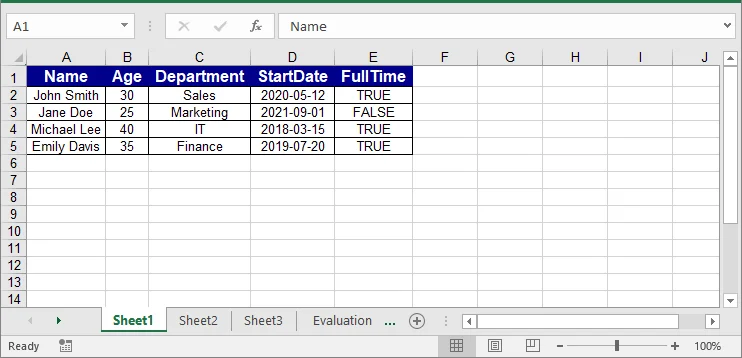
To convert JSON to Excel, deserialize the JSON data into a DataTable, then insert the table into an Excel worksheet.
Steps to Import JSON into Excel
- Load the JSON data from a file, API response, or string variable.
- Use
Newtonsoft.Json.JsonConvert.DeserializeObject<DataTable>()to convert the JSON data to a DataTable. - Instantiate a new
Workbookobject. - Use
InsertDataTable()to transfer data to a worksheet in the new workbook. - Style headers and data cells for better readability.
- Save the new workbook as an Excel file.
Complete Code Example
using System;
using System.Data;
using System.Drawing;
using Spire.Xls;
using Newtonsoft.Json;

namespace ConvertJSONToExcel
{
    class Program
    {
        static void Main(string[] args)
        {
            // Sample JSON array
            string jsonInput = @"
            [
                {""Name"":""John Smith"",""Age"":30,""Department"":""Sales"",""StartDate"":""2020-05-12"",""FullTime"":true},
                {""Name"":""Jane Doe"",""Age"":25,""Department"":""Marketing"",""StartDate"":""2021-09-01"",""FullTime"":false},
                {""Name"":""Michael Lee"",""Age"":40,""Department"":""IT"",""StartDate"":""2018-03-15"",""FullTime"":true},
                {""Name"":""Emily Davis"",""Age"":35,""Department"":""Finance"",""StartDate"":""2019-07-20"",""FullTime"":true}
            ]";

            string excelOutputPath = "output.xlsx";

            try
            {
                // Deserialize the JSON array into a DataTable
                DataTable dataTable = JsonConvert.DeserializeObject<DataTable>(jsonInput);

                using (Workbook workbook = new Workbook())
                {
                    Worksheet worksheet = workbook.Worksheets[0];

                    // Insert the data and column headers starting at cell A1
                    worksheet.InsertDataTable(dataTable, true, 1, 1);

                    // --- Define Header Styles ---
                    CellStyle headerStyle = workbook.Styles.Add("HeaderStyle");
                    headerStyle.Font.IsBold = true;
                    headerStyle.Font.Size = 12;
                    headerStyle.Font.Color = Color.White;
                    headerStyle.Color = Color.DarkBlue;
                    headerStyle.HorizontalAlignment = HorizontalAlignType.Center;
                    headerStyle.VerticalAlignment = VerticalAlignType.Center;

                    // Apply the style to the header row
                    int colCount = dataTable.Columns.Count;
                    worksheet.Range[1, 1, 1, colCount].CellStyleName = "HeaderStyle";

                    // --- Define Data Row Styles ---
                    CellStyle dataStyle = workbook.Styles.Add("DataStyle");
                    dataStyle.HorizontalAlignment = HorizontalAlignType.Center;
                    dataStyle.VerticalAlignment = VerticalAlignType.Center;
                    dataStyle.Borders[BordersLineType.EdgeLeft].LineStyle = LineStyleType.Thin;
                    dataStyle.Borders[BordersLineType.EdgeRight].LineStyle = LineStyleType.Thin;
                    dataStyle.Borders[BordersLineType.EdgeTop].LineStyle = LineStyleType.Thin;
                    dataStyle.Borders[BordersLineType.EdgeBottom].LineStyle = LineStyleType.Thin;

                    // Apply the style to data rows
                    int rowCount = dataTable.Rows.Count;
                    worksheet.Range[2, 1, rowCount + 1, colCount].CellStyleName = "DataStyle";

                    // Autofit column widths
                    worksheet.AllocatedRange.AutoFitColumns();

                    // Save the workbook as an XLSX file
                    workbook.SaveToFile(excelOutputPath, ExcelVersion.Version2016);
                }
            }
            catch (Exception ex)
            {
                Console.WriteLine($"Conversion exception thrown: {ex.Message}");
            }
        }
    }
}
Handling Wrapped or Nested JSON
The direct DataTable deserialization works best with a flat JSON array. If the records are wrapped inside a root object or contain nested objects and arrays, extract and flatten the required values before converting them to a DataTable.
For example, the following JSON string contains both a root wrapper and nested data:
string jsonInput = @"
{
  ""status"": ""success"",
  ""data"": [
    {
      ""Name"": ""John Smith"",
      ""Department"": {
        ""Id"": 10,
        ""Name"": ""Sales""
      },
      ""Skills"": [
        ""Negotiation"",
        ""CRM""
      ]
    },
    {
      ""Name"": ""Jane Doe"",
      ""Department"": {
        ""Id"": 20,
        ""Name"": ""Marketing""
      },
      ""Skills"": [
        ""Content Writing"",
        ""Analytics""
      ]
    }
  ]
}";
The following method extracts the data array, flattens the nested values, and returns a DataTable:
using System.Data;
using System.IO;
using System.Linq;
using Newtonsoft.Json;
using Newtonsoft.Json.Linq;

private static DataTable ConvertNestedJsonToDataTable(string jsonInput)
{
    // Parse either a root object or a root array.
    JToken rootToken = JToken.Parse(jsonInput);

    // Accept a root array or an array stored in the "data" property.
    JArray records = rootToken as JArray
        ?? ((rootToken as JObject)?["data"] as JArray)
        ?? throw new InvalidDataException(
            "The JSON does not contain a valid record array.");

    // Flatten nested objects and arrays into tabular fields.
    var flattenedRecords = records.Select(record => new
    {
        Name = (string)record["Name"] ?? string.Empty,

        // Convert the nested Department object into separate columns.
        DepartmentId = (int?)record["Department"]?["Id"],
        DepartmentName =
            (string)record["Department"]?["Name"] ?? string.Empty,

        // Join the Skills array into a comma-separated string.
        Skills = string.Join(
            ", ",
            record["Skills"]?.Values<string>()
                ?? Enumerable.Empty<string>())
    });

    // Convert the flattened records into a DataTable.
    string flattenedJson =
        JsonConvert.SerializeObject(flattenedRecords);

    DataTable dataTable =
        JsonConvert.DeserializeObject<DataTable>(flattenedJson);

    if (dataTable == null || dataTable.Columns.Count == 0)
        throw new InvalidDataException(
            "The JSON contains no tabular records.");

    return dataTable;
}
The returned DataTable can then be inserted into a worksheet using InsertDataTable():
DataTable nestedTable = ConvertNestedJsonToDataTable(jsonInput);
worksheet.InsertDataTable(nestedTable, true, 1, 1);
Note: This mapping is based on the structure of the sample JSON. For other JSON schemas, adjust the selected properties and output columns accordingly.
Tips and Best Practices
When converting between Excel and JSON, following these best practices will help ensure data integrity and usability:
- Validate Data Types: Ensure that data types (dates, numbers, booleans) are correctly formatted to avoid issues during conversion.
- Handle Empty Cells: Decide how to treat empty cells (convert to null, omit, or use default values) to maintain data integrity.
- Use Consistent Naming Conventions: Standardize column names in Excel for clear and consistent JSON keys.
- Test Thoroughly: Always test the conversion processes to ensure valid JSON output and accurate Excel representation.
- Include Headers: When converting JSON to Excel, always insert headers for improved readability and usability.
FAQs
Do I need Microsoft Excel installed to use these examples?
No. Spire.XLS is a standalone .NET library that reads, writes, and converts Excel files without any dependency on Microsoft Office or Excel Interop.
Can I convert older .xls (97–2003) files as well as .xlsx to JSON?
Yes. LoadFromFile() automatically detects the file format, so the same code works for both .xls and .xlsx sources.
Can I convert nested JSON to Excel?
JsonConvert.DeserializeObject<DataTable>() works with flat JSON arrays. For nested JSON, flatten the structure into a simple list of objects before calling InsertDataTable().
Does this approach work in ASP.NET Core or other cross-platform .NET apps?
Yes. Spire.XLS supports .NET Framework, .NET Core, and .NET 5–10, so the same code runs in console apps, ASP.NET Core services, and cross-platform (Linux/macOS) environments.
Conclusion
This tutorial demonstrated how to convert Excel workbooks, individual worksheets, and cell ranges to JSON, as well as how to import JSON data into Excel in C#. By combining Spire.XLS with Newtonsoft.Json, you can handle both straightforward conversions and scenarios that require custom formatting or nested data processing.
Get a Free License
To fully experience the capabilities of Spire.XLS for .NET without any evaluation limitations, you can request a free 30-day trial license.
How to Generate & Create QR Code in ASP.NET C# (Full Example)
2025-08-08 05:38:37 Written by jie zou
QR codes have become a standard feature in modern web applications, widely used for user authentication, contactless transactions, and sharing data like URLs or contact information. For developers working with ASP.NET, implementing QR code generation using C# is a practical requirement in many real-world scenarios.
In this article, you’ll learn how to generate QR codes in ASP.NET using Spire.Barcode for .NET. We’ll walk through a complete example based on an ASP.NET Core Web App (Razor Pages) project, including backend logic and a simple UI to display the generated code. The same approach can be easily adapted to MVC, Web API, and Web Forms applications.
Article Overview
- 1. Project Setup and Dependencies
- 2. Generate QR Code in ASP.NET Using C#
- 3. Customize QR Code Output
- 4. Apply Logic in MVC, Web API, and Web Forms
- 5. Conclusion
- FAQs
1. Project Setup and Dependencies
Prerequisites
To follow along, make sure you have:
- Visual Studio 2019 or newer
- .NET 6 or later
- ASP.NET Core Web App (Razor Pages Template)
- NuGet package: Spire.Barcode for .NET
Install Spire.Barcode for .NET
Install the required library using NuGet Package Manager Console:
Install-Package Spire.Barcode
Spire.Barcode is a fully self-contained .NET barcode library that supports in-memory generation of QR codes without external APIs. You can also use Free Spire.Barcode for .NET for smaller projects.
2. Generate QR Code in ASP.NET Using C#
This section describes how to implement QR code generation in an ASP.NET Core Web App (Razor Pages) project. The example includes a backend C# handler that generates the QR code using Spire.Barcode for .NET, and a simple Razor Page frontend for user input and real-time display.
Step 1: Add QR Code Generation Logic in PageModel
The backend logic resides in the Index.cshtml.cs file. It processes the form input, generates a QR code using Spire.Barcode, and returns the result as a Base64-encoded image string that can be directly embedded in HTML.
using Microsoft.AspNetCore.Mvc;
using Microsoft.AspNetCore.Mvc.RazorPages;
using Spire.Barcode;

public class IndexModel : PageModel
{
    [BindProperty]
    public string InputData { get; set; }

    public string QrCodeBase64 { get; set; }

    public void OnPost()
    {
        if (!string.IsNullOrWhiteSpace(InputData))
        {
            QrCodeBase64 = GenerateQrCodeBase64(InputData);
        }
    }

    private string GenerateQrCodeBase64(string input)
    {
        var settings = new BarcodeSettings
        {
            Type = BarCodeType.QRCode,            // QR code type
            Data = input,                         // Main encoded data
            Data2D = input,                       // Required for 2D barcode, usually same as Data
            QRCodeDataMode = QRCodeDataMode.Byte, // Byte mode (supports multilingual content)
            QRCodeECL = QRCodeECL.M,              // Medium error correction (15%)
            X = 3,                                // Module size (affects image dimensions)
            ShowText = false,                     // Hide default barcode text
            ShowBottomText = true,                // Show custom bottom text
            BottomText = input                    // Bottom text to display under the QR code
        };

        var generator = new BarCodeGenerator(settings);
        using var ms = new MemoryStream();
        var qrImage = generator.GenerateImage();
        qrImage.Save(ms, System.Drawing.Imaging.ImageFormat.Png);
        return Convert.ToBase64String(ms.ToArray());
    }
}
Key Components:
-
BarcodeSettings: Specifies the QR code's core configuration, such as type (QRCode), data content, encoding mode, and error correction level.
-
BarCodeGenerator: Takes the settings and generates the QR code image as a System.Drawing.Image object using the GenerateImage() method.
-
Base64 Conversion: Converts the image to a Base64 string so it can be directly embedded into the HTML page without saving to disk.
This approach keeps the entire process in memory, making it fast, portable, and suitable for serverless or cloud-hosted applications.
Step 2: Create the Razor Page for User Input and QR Code Display and Download
The following Razor markup in the Index.cshtml file defines a form for entering text or URLs, displays the generated QR code upon submission, and provides a button to download the QR code image.
@page
@model IndexModel
@{
    ViewData["Title"] = "QR Code Generator";
}

<h2>QR Code Generator</h2>

<form method="post">
    <label for="InputData">Enter text or URL:</label>
    <input type="text" id="InputData" name="InputData" style="width:300px;" required />
    <button type="submit">Generate QR Code</button>
</form>

@if (!string.IsNullOrEmpty(Model.QrCodeBase64))
{
    <div style="margin-top:20px">
        <img src="data:image/png;base64,@Model.QrCodeBase64" alt="QR Code" />
        <br />
        <a href="data:image/png;base64,@Model.QrCodeBase64" download="qrcode.png">Download QR Code</a>
    </div>
}
The Base64-encoded image is displayed directly in the browser using a data: URI. This eliminates the need for file storage and allows for immediate rendering and download.
The following screenshot shows the result after submitting text input.

If you need to scan QR codes instead, please refer to How to Scan QR Codes in C#.
3. Customize QR Code Output
Spire.Barcode provides several customization options through the BarcodeSettings class to control the appearance and behavior of the generated QR code:
| Property | Function | Example |
|---|---|---|
| QRCodeDataMode | Text encoding mode | QRCodeDataMode.Byte |
| QRCodeECL | Error correction level | QRCodeECL.H (high redundancy) |
| X | Module size (resolution) | settings.X = 6 |
| ImageWidth/Height | Control dimensions of QR image | settings.ImageWidth = 300 |
| ForeColor | Set QR code color | settings.ForeColor = Color.Blue |
| ShowText | Show or hide text below barcode | settings.ShowText = false |
| BottomText | Custom text to display below barcode | settings.BottomText = "Scan Me" |
| ShowBottomText | Show or hide the custom bottom text | settings.ShowBottomText = true |
| QRCodeLogoImage | Add a logo image to overlay at QR code center | settings.QRCodeLogoImage = System.Drawing.Image.FromFile("logo.png"); |
These properties help you tailor the appearance of your QR code for branding, readability, or user interaction purposes.
To explore more QR code settings, refer to the BarcodeSettings API reference.
4. Apply Logic in MVC, Web API, and Web Forms
The same QR code generation logic used in Razor Pages can also be reused in other ASP.NET frameworks such as MVC, Web API, and Web Forms.
MVC Controller Action
In an MVC project, you can add a Generate action in a controller (e.g., QrController.cs) to generate and return the QR code image directly:
public class QrController : Controller
{
    public ActionResult Generate(string data)
    {
        var settings = new BarcodeSettings
        {
            Type = BarCodeType.QRCode,
            Data = data,
            QRCodeDataMode = QRCodeDataMode.Byte,
            QRCodeECL = QRCodeECL.M,
            X = 5
        };

        var generator = new BarCodeGenerator(settings);
        using var ms = new MemoryStream();
        generator.GenerateImage().Save(ms, System.Drawing.Imaging.ImageFormat.Png);
        return File(ms.ToArray(), "image/png");
    }
}
This method returns the QR code as a downloadable PNG file, ideal for server-side rendering.
Web API Endpoint
For Web API, you can define a GET endpoint in a controller such as QrApiController.cs that responds with the generated image stream:
[ApiController]
[Route("api/[controller]")]
public class QrApiController : ControllerBase
{
    [HttpGet("generate")]
    public IActionResult GetQr(string data)
    {
        var settings = new BarcodeSettings
        {
            Type = BarCodeType.QRCode,
            Data = data
        };

        var generator = new BarCodeGenerator(settings);
        using var ms = new MemoryStream();
        generator.GenerateImage().Save(ms, System.Drawing.Imaging.ImageFormat.Png);
        return File(ms.ToArray(), "image/png");
    }
}
This approach is suitable for frontends built with React, Vue, Angular, or any JavaScript framework.
Web Forms Code-Behind
In ASP.NET Web Forms, you can handle QR code generation in the code-behind of a page like Default.aspx.cs:
protected void btnGenerate_Click(object sender, EventArgs e)
{
    var settings = new BarcodeSettings
    {
        Type = BarCodeType.QRCode,
        Data = txtInput.Text
    };

    var generator = new BarCodeGenerator(settings);
    using var ms = new MemoryStream();
    generator.GenerateImage().Save(ms, System.Drawing.Imaging.ImageFormat.Png);
    imgQR.ImageUrl = "data:image/png;base64," + Convert.ToBase64String(ms.ToArray());
}
The generated image is embedded directly into an asp:Image control using a Base64 data URI.
5. Conclusion
With Spire.Barcode for .NET, you can seamlessly generate and customize QR codes across all ASP.NET project types — Razor Pages, MVC, Web API, or Web Forms. The solution is fully offline, fast, and requires no third-party API.
Returning images as Base64 strings simplifies deployment and avoids file management. Whether you're building authentication tools, ticketing systems, or contact sharing, this approach is reliable and production-ready.
FAQs
Q: Does Spire.Barcode support Unicode characters like Chinese or Arabic?
A: Yes. Use QRCodeDataMode.Byte for full Unicode support.
Q: Can I adjust QR code size and color?
A: Absolutely. Use properties like X, ForeColor, and ImageWidth.
Q: Is this solution fully offline?
A: Yes. It works without any external API calls or services.
Q: Can I expose this QR logic via API?
A: Yes. Use ASP.NET Web API to serve generated images to client apps.
Export Database to Excel in C#: Practical Guide with SQL Example
2025-08-06 01:59:33 Written by jie zou
Exporting data from a database to Excel using C# is a frequent requirement in business applications—be it for internal reporting, audit logs, data migration, or ad-hoc analysis. Excel's portability and familiarity make it a go-to format for sharing structured data with both technical and non-technical users.
In this guide, you'll learn how to export database records to Excel using C# and Spire.XLS for .NET. We’ll walk through retrieving data from a SQL Server database and writing it into a well-formatted Excel file. The same workflow applies to other relational databases such as SQLite, MySQL, or Oracle with only minimal adjustments.
Table of Contents:
- Prerequisites and Environment Setup
- Exporting Data from SQL Database to Excel in C#
- Format the Excel Output
- Alternative Approaches to Read Data
- Common Issues and Troubleshooting
- Conclusion
- FAQ
Prerequisites and Environment Setup
Before we dive into code, ensure your development environment is ready:
-
.NET Version: .NET Framework or .NET Core / .NET 6 / .NET 8
-
IDE: Visual Studio (Community or higher)
-
Database: A relational database (e.g., SQL Server, SQLite, MySQL, Oracle). This tutorial uses SQL Server Express as the example. By default, the connection uses Windows Authentication, but you can switch to SQL Authentication if needed.
-
Libraries:
- Spire.XLS for .NET (Install via NuGet: Install-Package Spire.XLS)
- Microsoft.Data.SqlClient (Install via NuGet if using SQL Server)
Sample Data
In the following examples, we'll use a simple Employees table stored in SQL Server Express. Here's the SQL script to create and populate it:
CREATE TABLE Employees (
    Id INT PRIMARY KEY IDENTITY,
    Name NVARCHAR(100) NOT NULL,
    Department NVARCHAR(50) NOT NULL,
    Position NVARCHAR(50),
    HireDate DATE NOT NULL,
    Salary DECIMAL(10, 2) NOT NULL,
    IsFullTime BIT NOT NULL
);

INSERT INTO Employees (Name, Department, Position, HireDate, Salary, IsFullTime) VALUES
('Alice Johnson', 'Human Resources', 'HR Manager', '2018-05-01', 5500.00, 1),
('Bob Smith', 'IT', 'Software Engineer', '2020-09-15', 7200.50, 1),
('Charlie Lee', 'Finance', 'Accountant', '2019-11-20', 6300.75, 0),
('Diana Chen', 'Marketing', 'Content Specialist', '2021-02-10', 4800.00, 1);
If you're using another database system like MySQL or SQLite, just adjust the SQL syntax and connection string accordingly. The export logic remains the same.
Exporting Data from SQL Database to Excel in C#
Let’s walk through how to retrieve data from a database and export it to an Excel file using Spire.XLS for .NET.
Step 1: Connect to the SQL Server Database
We start by establishing a connection to the database using SqlConnection. Here's an example connection string targeting SQL Server Express:
string connectionString = @"Data Source=YourServer\SQLEXPRESS;Initial Catalog=YourDatabaseName;Integrated Security=True;";
The above connection string uses Windows Authentication (Integrated Security=True). If you prefer SQL Server Authentication, replace it with: User ID=yourUsername;Password=yourPassword;Encrypt=True;TrustServerCertificate=True;
Make sure that your SQL Server Express instance is running, and that the specified database and table exist.
Step 2: Retrieve Data into a DataTable
To make the data ready for export, we use SqlDataAdapter to fill a DataTable with the results of a SQL query:
using System.Data;
using Microsoft.Data.SqlClient;

DataTable dataTable = new DataTable();
using (SqlConnection conn = new SqlConnection(connectionString))
{
    conn.Open();
    string query = "SELECT * FROM Employees";
    using (SqlDataAdapter adapter = new SqlDataAdapter(query, conn))
    {
        adapter.Fill(dataTable);
    }
}
Spire.XLS can directly import data from a DataTable using InsertDataTable, which makes it ideal for structured exports from relational databases.
Step 3: Export the DataTable to Excel Using Spire.XLS
Once the DataTable is populated, we can use Spire.XLS to write its contents into a new Excel worksheet:
using Spire.Xls;

// Create a new workbook
Workbook workbook = new Workbook();
// Clear the default sheets and create a new one
workbook.Worksheets.Clear();
Worksheet sheet = workbook.Worksheets.Add("Employees");

// Insert data starting from row 1, column 1, and include column headers
sheet.InsertDataTable(dataTable, true, 1, 1);

// Save the workbook as an Excel xlsx file
workbook.SaveToFile("Employees.xlsx", ExcelVersion.Version2013);
Key classes and methods used:
- Workbook: The main entry point for creating or loading Excel files.
- Worksheet: Represents a single sheet in the workbook. Use workbook.Worksheets[] to access a sheet, or Worksheets.Add() to add more.
- InsertDataTable(DataTable dataTable, bool columnHeaders, int firstRow, int firstColumn):
- columnHeaders = true tells Spire.XLS to write column names as the first row.
- firstRow, firstColumn specify where the data begins (1-based index).
- Workbook.SaveToFile(string fileName, ExcelVersion version): Saves the workbook to a file. Spire.XLS supports saving Excel workbooks to various formats, including .xlsx, .xls, and .csv. You can also save to a stream using SaveToStream().
Here’s what the resulting Excel file looks like with the raw data exported from the database.
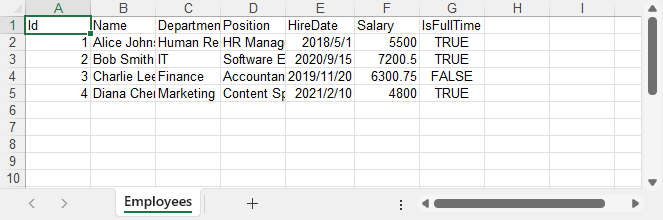
Step 4: Format the Excel Output (Optional but Recommended)
While the data is already exported, applying some formatting can significantly improve readability for end users:
// Write data to Excel, including column names, starting at row 1, column 1
sheet.InsertDataTable(dataTable, true, 1, 1);

// Make header row bold and highlight with background color
sheet.Rows[0].Style.Font.IsBold = true;
sheet.Rows[0].Style.Font.Size = 14;
sheet.Rows[0].Style.HorizontalAlignment = HorizontalAlignType.Center;
sheet.Rows[0].Style.Color = System.Drawing.Color.LightGray;

// Format data rows
for (int i = 1; i < sheet.Rows.Count(); i++)
{
    CellRange dataRow = sheet.Rows[i];
    dataRow.Style.Font.Size = 12;
    dataRow.Style.HorizontalAlignment = HorizontalAlignType.Left;
}

// Set font name
sheet.AllocatedRange.Style.Font.FontName = "Arial";

// Set borders
sheet.AllocatedRange.BorderAround(LineStyleType.Thin, System.Drawing.Color.Black);
sheet.AllocatedRange.BorderInside(LineStyleType.Medium, System.Drawing.Color.Black);

// Auto-fit columns
sheet.AllocatedRange.AutoFitColumns();
Here's what the Excel file looks like after formatting.

Spire.XLS provides full access to cell styles, fonts, colors, borders, alignment, and more—making it suitable for generating production-quality Excel reports.
If you need advanced number formatting, learn how to set number formats for Excel cells using C#.
Alternative Approaches to Read Data
The export process relies on having a DataTable, but how you populate it can vary based on your application architecture:
A. Using Entity Framework (ORM)
If you use EF Core or EF6, you can load data via LINQ and manually insert it into Excel:
var employees = dbContext.Employees.ToList();
To export, either convert this list into a DataTable, or use a loop to write rows manually using sheet.Range[row, col].Value = value.
B. Using Stored Procedures
Stored procedures allow encapsulating SQL logic. You can execute them using SqlCommand and fill the result into a DataTable:
SqlCommand cmd = new SqlCommand("GetEmployees", conn);
cmd.CommandType = CommandType.StoredProcedure;
C. Reading from SQLite
For lightweight scenarios, replace the connection string and class:
using (SQLiteConnection conn = new SQLiteConnection("Data Source=mydb.db"))
Export logic remains identical—fill a DataTable and use InsertDataTable.
D. Reading from MySQL or Oracle
Same pattern applies—just change the connection class:
using (MySqlConnection conn = new MySqlConnection("server=localhost;uid=root;pwd=123;database=test"))
Make sure to install the appropriate ADO.NET data provider (e.g., Microsoft.Data.SqlClient, Microsoft.Data.Sqlite, or MySql.Data) via NuGet when connecting to different databases.
As long as you populate a DataTable, Spire.XLS handles the Excel generation the same way.
You may also like: How to Import Data from Excel to Database – learn how to complete the full data exchange cycle using Spire.XLS.
Common Issues and Troubleshooting
| Issue | Solution |
|---|---|
| Excel file opens empty | Ensure the DataTable has data before calling InsertDataTable() |
| Access denied on save | Check folder permissions or file path conflicts |
| Connection fails | Verify your database server, credentials, and connection string |
| Special characters not displaying | Use NVARCHAR in SQL and Unicode-compatible fonts in Excel |
| Login failed or authentication error | Check authentication method: use Integrated Security=True for Windows, or provide User ID and Password for SQL Authentication. |
Conclusion
Exporting a database to Excel in C# can be done efficiently using Spire.XLS for .NET. By retrieving data into a DataTable and exporting it with InsertDataTable(), you can automate reporting and data extraction without needing Microsoft Office installed.
This solution can also be integrated into scheduled tasks, background services, or web applications for automated report generation.
To unlock all features during development or testing, you can apply for a free 30-day temporary license. For smaller projects, Free Spire.XLS for .NET may also be sufficient.
FAQ
How do I export SQL to Excel in C#?
Use SqlConnection to retrieve data into a DataTable, and export it using Spire.XLS’s InsertDataTable() method.
Can I use this method with SQLite or MySQL?
Yes. Just change the connection type and query, then pass the resulting DataTable to Spire.XLS.
Do I need Excel installed to use Spire.XLS?
No. Spire.XLS is a standalone library and does not require Microsoft Excel on the machine.
Can I export multiple tables to Excel?
Yes. Use Workbook.Worksheets.Add() to create additional worksheets, and export each DataTable separately.
Exporting a DataTable to Excel in C# is a common task in .NET development, such as generating reports, exporting logs, or preparing data for sharing across systems. By using a standalone component, developers can quickly export data and apply formatting to create professional, ready-to-use Excel files from DataTables without relying on complex setup or external dependencies.
To streamline this process, Spire.XLS for .NET offers a lightweight and fully independent library. In this article, you'll learn how to export a DataTable to Excel (.xlsx or .xls) in C#, apply formatting to improve readability, and address common export scenarios effectively.
Quick Navigation
- Install and Configure Spire.XLS
- Step-by-Step: Export DataTable to Excel
- Format and Style the Exported Excel File
- Common Issues and Solutions
- Conclusion
- Frequently Asked Questions
Install and Configure Spire.XLS
Before you start, make sure your project includes Spire.XLS for .NET.
Install Spire.XLS via NuGet
Run this command in the NuGet Package Manager Console:
Install-Package Spire.XLS
Spire.XLS works with .NET Framework, .NET Core, .NET 6/7+, and ASP.NET projects — no Microsoft Office installation required.
Step-by-Step: Export DataTable to Excel in C#
The following steps demonstrate how to export a DataTable to an Excel file using Spire.XLS, including data preparation, file generation, optional streaming, and output formatting.
1. Create a Sample DataTable
First, create a DataTable and add some sample rows:
DataTable dt = new DataTable("Employees");

// Insert columns
dt.Columns.Add("ID", typeof(int));
dt.Columns.Add("Name", typeof(string));
dt.Columns.Add("Department", typeof(string));
dt.Columns.Add("Join Date", typeof(DateTime));
dt.Columns.Add("Salary", typeof(double));
dt.Columns.Add("Full-Time", typeof(bool));
dt.Columns.Add("Bonus Rate", typeof(decimal));

// Insert rows
dt.Rows.Add(1001, "Alice", "HR", new DateTime(2021, 5, 10), 55000.5, true, 0.05m);
dt.Rows.Add(1002, "Bob", "IT", new DateTime(2020, 11, 23), 72000.0, false, 0.03m);
dt.Rows.Add(1003, "Carol", "Finance", new DateTime(2019, 8, 15), 63000.75, true, 0.07m);
dt.Rows.Add(1004, "David", "Marketing", new DateTime(2022, 3, 8), 48800.0, true, 0.06m);
Tip: This is just sample data — you can bind any DataTable your app generates.
2. Import DataTable and Save to Excel File
Next, initialize the Excel workbook, import the DataTable into a worksheet, and save the file:
// Create a new workbook
Workbook workbook = new Workbook();
// Clear the default worksheets and add a new one
workbook.Worksheets.Clear();
Worksheet sheet = workbook.Worksheets.Add(dt.TableName);

// Import the DataTable starting at cell A1
sheet.InsertDataTable(dt, true, 1, 1);

// Save as XLSX (recommended)
workbook.SaveToFile("EmployeeData.xlsx", FileFormat.Version2016);

// Or save as XLS (older format)
workbook.SaveToFile("EmployeeData.xls", FileFormat.Version97to2003);
Explanation:
- Workbook is the container for your Excel file.
- InsertDataTable(dataTable, includeColumnHeaders, startRow, startColumn) maps the entire table to the Excel grid.
- SaveToFile() writes the file to disk in your chosen format.
Output Preview
Example of the exported Excel file:

3. Export Excel File as Stream in ASP.NET
When building a web app, you might want to export the file directly as a stream instead of saving to disk:
MemoryStream stream = new MemoryStream();
workbook.SaveToStream(stream, FileFormat.Version2013);
stream.Position = 0;
Return this MemoryStream in your ASP.NET controller to trigger a file download in the browser.
For additional tips on managing Excel files in C#, check out How to Create and Manipulate Excel Files in C#.
Format and Style the Exported Excel File
Formatting is optional but recommended for creating professional Excel files. Below is how you can format the exported content using Spire.XLS.
// Style the header row
CellRange header = sheet.Rows[0];
header.Style.Font.IsBold = true;
header.Style.Font.FontName = "Arial";
header.Style.Font.Size = 13;
header.Style.Color = Color.LightGray;
header.Style.Borders[BordersLineType.EdgeBottom].LineStyle = LineStyleType.Thick;

// Style the data rows
for (int i =  1; i < sheet.Rows.Length; i++)
{
    CellRange dataRow = sheet.Rows[i];
    dataRow.Style.Font.FontName = "Times New Roman";
    dataRow.Style.Font.Size = 11;
    dataRow.BorderInside();
}

// Format date column to display as date
CellRange dateColumn = sheet.Range[2, 4, sheet.Rows.Length + 1, 4];
dateColumn.Style.NumberFormat = "yyyy-mm-dd";

// Auto-fit columns
sheet.AllocatedRange.AutoFitColumns();
Key Properties and Methods:
- Style: Applies font, color, border, number formatting, etc. to cells.
- AutoFitColumns(): Automatically adjusts column width to fit content.
- NumberFormat: Sets how dates or numbers are displayed in Excel, e.g., "yyyy-mm-dd".
- BorderInside(): Adds internal borders to improve table readability.
Formatted Output Preview
Excel file with formatted header and date column:

For more advanced number formatting options, see how to set number format in Excel using C#.
Common Issues and Solutions
- File won’t open or shows corruption error
Ensure streams are closed properly and file extensions match the format.
- Special characters or non-English text look garbled
Confirm strings are UTF-8 encoded and use appropriate fonts.
- Columns too narrow
Use AutoFitColumns() to adjust widths automatically or use CellRange.ColumnWidth to set a fixed column width.
Conclusion
Exporting a DataTable to Excel in C# is straightforward with Spire.XLS. This approach lets you create .xlsx or .xls files easily without relying on Office, while giving you full control over the output layout for both desktop and web applications.
If needed, you can also request a free temporary license to unlock the full feature set for evaluation.
Frequently Asked Questions
Q1: How to convert DataTable to Excel in C#?
You can use sheet.InsertDataTable() from Spire.XLS to load a DataTable into a worksheet, then save it as an Excel file using workbook.SaveToFile().
Q2: Is there a free library to export a DataTable to Excel in C#?
Yes — Free Spire.XLS for .NET is a standalone library that lets you create and export Excel files directly in C# without needing to install Microsoft Office.
Q3: Can I export DataTable to Excel in ASP.NET?
Yes, the same logic can be applied in ASP.NET by generating the workbook in a controller and streaming it back as a downloadable file.
Q4: What's the difference between .xlsx and .xls export?
.xlsx is the newer Office Open XML format, compatible with Excel 2007 and later. .xls supports legacy Excel 97–2003 but is limited to 65,536 rows.
Read Email in C# via IMAP and POP3 (Outlook Example Included)
2025-07-30 08:56:03 Written by jie zou
Reading emails using C# is a common task in enterprise applications where automatic email processing is needed. For example, customer support systems retrieve tickets from email inboxes, financial platforms extract PDF invoices from attachments, and workflow tools react to notification emails. These applications require access to message content, metadata (sender, subject, timestamp), and attachments.
In this article, we’ll walk through how to read emails in C# using IMAP and POP3, and access Gmail or Outlook mailboxes securely with OAuth 2.0. We'll use Spire.Email for .NET, a library that simplifies email client implementation by providing a unified API for IMAP, POP3, and SMTP. It supports both OAuth and password-based authentication, and allows parsing full MIME messages including headers, bodies, and attachments.
This article covers:
- Environment Setup
- Authenticate Email Access via OAuth
- Read Emails Using IMAP in C#
- Read Emails via POP3 in C#
- Extract Attachments and Plain Text
- Summary
- Frequently Asked Questions
Environment Setup
To follow this tutorial, you’ll need the following:
- A .NET development environment (e.g., Visual Studio)
- Spire.Email for .NET (Install via NuGet: Install-Package Spire.Email)
- Access to a Gmail or Outlook account with OAuth 2.0 enabled
Spire.Email for .NET supports standard email protocols—IMAP, POP3, and SMTP—and provides built-in functionality for MIME parsing, attachments, HTML rendering, and encoding handling.
You can also try Free Spire.Email for .NET if your project is small or for evaluation.
Authenticate Email Access via OAuth
Modern email providers such as Gmail and Outlook require OAuth 2.0 for secure and token-based access to IMAP and POP3 services. Gmail still supports app passwords for POP3 in some cases, but OAuth is the preferred and more secure method.
Here’s how to use MSAL.NET to acquire an access token for Outlook:
var app = PublicClientApplicationBuilder
    .Create("your-client-id")
    .WithDefaultRedirectUri()
    .Build();

string[] scopes = new[] { "https://outlook.office365.com/IMAP.AccessAsUser.All" };

AuthenticationResult result = await app
    .AcquireTokenInteractive(scopes)
    .ExecuteAsync();

string accessToken = result.AccessToken;
For Gmail, you can use Google.Apis.Auth or any OAuth 2.0 compliant method to retrieve a token with the https://mail.google.com/ scope. This token can then be passed to Spire.Email for authentication.
Read Emails Using IMAP in C# from Outlook and Gmail
To read emails from Outlook or Gmail in C#, IMAP is a widely used protocol that allows access to mailbox folders, message flags, and full message content. With Spire.Email for .NET, you can use the ImapClient class to connect securely to IMAP servers using OAuth tokens.
The following C# example demonstrates how to read emails from Outlook's IMAP server:
using Spire.Email;
using Spire.Email.IMap;
using System.Text;

class Program
{
    static void Main()
    {
        ImapClient client = new ImapClient();

        // Connect to IMAP server (Outlook)
        client.Host = "outlook.office365.com";
        client.Port = 993;
        client.ConnectionProtocols = ConnectionProtocols.Ssl;

        // Use OAuth 2.0
        client.UseOAuth = true;
        client.Username = "[email protected]";
        client.AccessToken = "your-access-token";

        client.Connect();
        client.Login();

        // Retrieve message count in the Inbox
        int messageCount = client.GetMessageCount("Inbox");
        StringBuilder messageDetails = new StringBuilder();

        for (int i = 0; i <= messageCount; i++)
        {
            MailMessage message = client.GetFullMessage(i);
            messageDetails.AppendLine("Message: " + i);
            messageDetails.AppendLine("Subject: " + message.Subject);
            messageDetails.AppendLine("From: " + message.From.Address);
            messageDetails.AppendLine("Date: " + message.Date);
            messageDetails.AppendLine("Body (HTML): " + message.BodyHtml);
        }

        File.WriteAllText("MessageInfo.txt", messageDetails.ToString());
        client.Disconnect();
    }
}
Technical Details
- ImapClient: Represents an IMAP client connection. It handles server communication and supports OAuth-based authentication via the UseOAuth property.
- Host and Port: Set the server address and port number. For Outlook, you can use "outlook.office365.com" and port 993 with SSL.
- AccessToken: Replace "your-access-token" with a valid token obtained via Microsoft or Google OAuth 2.0 flow.
- GetMessageCount("Inbox"): Retrieves the number of emails in the specified folder.
- GetFullMessage(i): Retrieves the full content of the message at the specified index as a MailMessage object.
- MailMessage: Represents an email message. Properties like Subject, From, Date, and BodyHtml allow structured access to message details.
The following screenshot shows the extracted email subject, sender, and HTML body saved from Outlook using IMAP:
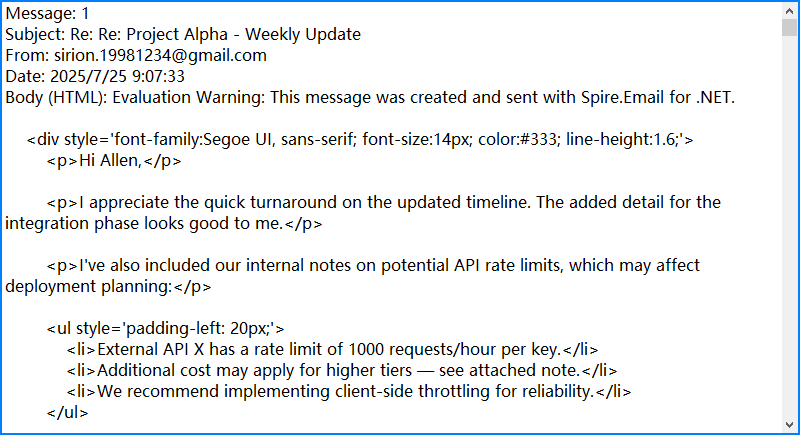
By combining Spire.Email’s IMAP interface with OAuth security and flexible MIME parsing, you can reliably automate email reading in C# with full access to both content and context.
If you need examples of how to send emails, please refer to How to Send Emails Using C#.
Read Emails via POP3 in C#
If folder management and server-side search are not required, POP3 offers a simpler alternative to IMAP. The following example demonstrates how to read emails using POP3 with Spire.Email.
using Spire.Email;
using Spire.Email.Pop3;

Pop3Client popClient = new Pop3Client();
popClient.Host = "pop.gmail.com";
popClient.Port = 995;
popClient.EnableSsl = true;
popClient.Username = "[email protected]";
popClient.Password = "your-password";

// Or use OAuth
// popClient.UseOAuth = true;
// popClient.AccessToken = "your-access-token";

popClient.Connect();
popClient.Login();

for (int i = 1; i < popClient.GetMessageCount(); i++)
{
    MailMessage msg = popClient.GetMessage(i);
    Console.WriteLine("Message - " + i);
    Console.WriteLine("Subject: " + msg.Subject);
    Console.WriteLine("From: " + msg.From.Address);
}

popClient.Disconnect();
This screenshot displays the console output after fetching messages via POP3 from Gmail:
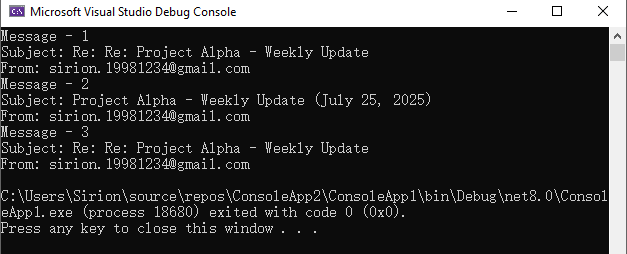
Unlike IMAP, POP3 downloads messages but does not maintain folder structure or message states on the server. Choose POP3 for simple retrieval scenarios.
Advanced Email Parsing in C#: Extract Attachments and Plain Text
In many cases, it's necessary to extract the plain-text content of an email for further processing, or to retrieve attachments for downstream use such as storage, analysis, or forwarding. The following C# example demonstrates how to access and save both the plain-text body and attachments using the MailMessage object.
MailMessage message = client.GetFullMessage(index);

// Retrieve plain text content
string plainText = message.BodyText;

// Extract attachments
foreach (Attachment attachment in message.Attachments)
{
    string path = Path.Combine("Attachments", attachment.ContentType.Name);
    Directory.CreateDirectory("Attachments");
    using (var fileStream = new FileStream(path, FileMode.Create, FileAccess.Write))
    {
        attachment.Data.Position = 0;
        attachment.Data.CopyTo(fileStream);
    }
}
Notes:
- Most emails contain both HTML and plain text bodies; use the format appropriate for your application.
- To skip embedded images (like inline logos), check that attachment.ContentDisposition.DispositionType != "Inline".
Below is a sample output showing saved attachments and extracted plain text from the retrieved email:

For more detailed operations such as managing email folders—creating, deleting, or moving messages—please refer to our guide on Email Folder Management in C#.
Summary
With Spire.Email for .NET, you can programmatically access Gmail or Outlook inboxes in C# using either IMAP or POP3. The library supports OAuth 2.0 authentication, parses both HTML and plain-text email bodies, and enables attachment extraction for downstream processing. Whether you're building an internal automation tool, an alerting system, or an email parser, Spire.Email provides the essential components for email integration in .NET applications.
If you'd like to explore all features without limitations, you can apply for a free temporary license.
Frequently Asked Questions
Can I use Spire.Email for sending emails too?
Yes. Spire.Email for .NET includes support for SMTP as well, allowing you to send HTML-formatted emails, add attachments, and configure encoding and headers.
Does Spire.Email work with other email providers?
Yes. As long as the provider supports standard IMAP, POP3, or SMTP protocols, and offers compatible authentication (OAuth or basic), it will work with Spire.Email.
How do I get the access token programmatically?
For Outlook, you can use Microsoft’s MSAL.NET; for Gmail, use Google.Apis.Auth or any other OAuth library that retrieves a valid token with mail access scopes. These tokens can then be passed to the email client for secure login.
Optical Character Recognition (OCR) technology bridges the physical and digital worlds by converting text within images into machine-readable data. For .NET developers, the ability to extract text from images in C# is essential for building intelligent document processing, automated data entry, and accessibility solutions.
In this article, we’ll explore how to implement OCR in C# using the Spire.OCR for .NET library, covering basic extraction, advanced features like coordinate tracking, and best practices to ensure accuracy and efficiency.
Table of Contents:
- Understanding OCR and Spire.OCR
- Setting Up Your OCR Environment
- Basic Recognition: Extract Text from Images in C#
- Advanced Extraction: Extract Text with Coordinates in C#
- Tips to Optimize OCR Accuracy
- FAQs (Supported Languages and Image Formats)
- Conclusion & Free License
Understanding OCR and Spire.OCR
What is OCR?
OCR technology analyzes images of text - such as scanned documents, screenshots, or photos - and converts them into text strings that can be edited, searched, or processed programmatically.
Why Spire.OCR Stands Out?
Spire.OCR for .NET is a powerful, developer-friendly library that enables highly accurate text recognition from images in C# applications. Key features include:
- Support for multiple languages (English, Chinese, Japanese, etc.).
- High accuracy recognition algorithms optimized for various fonts and styles.
- Text coordinate extraction for precise positioning.
- Batch processing capabilities.
- Compatibility with .NET Framework and .NET Core.
Setting Up Your OCR Environment
Before diving into the C# code for image to text OCR operations, configure your development environment first:
1. Install via NuGet:
Open the NuGet Package Manager in Visual Studio. Search for "Spire.OCR" and install the latest version in your project. Alternatively, use the Package Manager Console:
Install-Package Spire.OCR
2. Download OCR Models:
Spire.OCR relies on pre-trained models to recognize image text. Download the model files for your operating system:
After downloading, extract to a directory (e.g., F:\OCR Model\win-x64)
Important Note: Remember to change the platform target of your solution to x64 as Spire.OCR only supports 64-bit platforms.
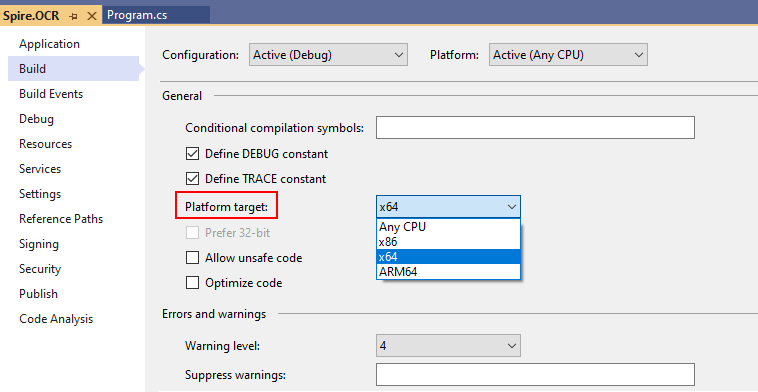
Basic Recognition: Extract Text from Images in C#
Let’s start with a simple example that demonstrates how to read text from an image using Spire.OCR.
C# code to get text from an image:
using Spire.OCR;
using System.IO;

namespace OCRTextFromImage
{
    internal class Program
    {
        static void Main(string[] args)
        {

            // Create an instance of the OcrScanner class
            OcrScanner scanner = new OcrScanner();

            // Create an instance of the ConfigureOptions class
            ConfigureOptions configureOptions = new ConfigureOptions();

            // Set the path to the OCR model
            configureOptions.ModelPath = "F:\\OCR Model\\win-x64";

            // Set the language for text recognition. (The default is English.)
            configureOptions.Language = "English";

            // Apply the configuration options to the scanner
            scanner.ConfigureDependencies(configureOptions);

            // Scan image and extract text
            scanner.Scan("sample.png");

            // Save the extracted text to a txt file
            string text = scanner.Text.ToString();
            File.WriteAllText("output.txt", text);
        }
    }
}
Code Explanation:
- OcrScanner: Core class for text recognition.
- ConfigureOptions: Sets OCR parameters:
- ModelPath: Specifies the path to the OCR model files.
- Language: Defines the recognition language (e.g., "English", "Chinese").
- Scan(): Processes image and extracts text using the configured settings.
Output:
This C# code processes an image file (sample.png) and saves the extracted text to a text file (output.txt) using File.WriteAllText().
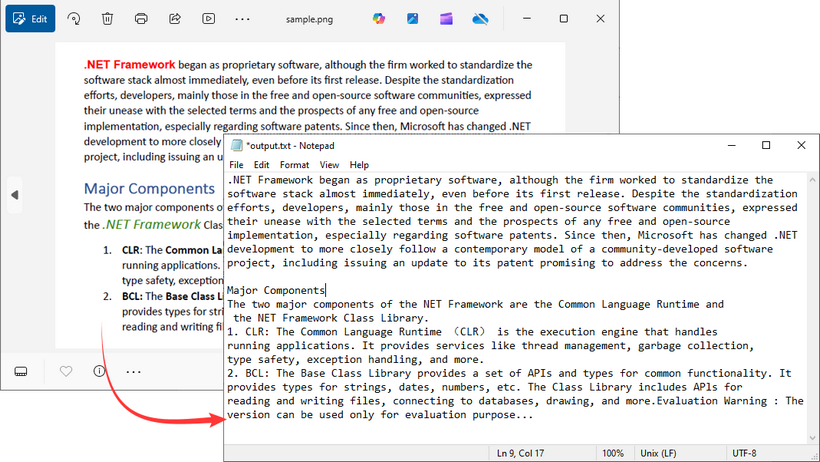
Advanced Extraction: Extract Text with Coordinates in C#
In many cases, knowing the position of extracted text within an image is as important as the text itself - for example, when processing invoices, forms, or structured documents. Spire.OCR allows you to extract not just text but also the coordinates of the text blocks, enabling precise analysis.
C# code to extract text with coordinates from an Image:
using Spire.OCR;
using System.Collections.Generic;
using System.IO;

namespace OCRWithCoordinates
{
    internal class Program
    {
        static void Main(string[] args)
        {

            // Create an instance of the OcrScanner class
            OcrScanner scanner = new OcrScanner();

            // Create an instance of the ConfigureOptions class
            ConfigureOptions configureOptions = new ConfigureOptions();

            // Set the path to the OCR model
            configureOptions.ModelPath = "F:\\OCR Model\\win-x64";

            // Set the language for text recognition. (The default is English.)
            configureOptions.Language = "English";

            // Apply the configuration options to the scanner
            scanner.ConfigureDependencies(configureOptions);

            // Extract text from an image
            scanner.Scan("invoice.png");

            // Get the OCR result text
            IOCRText text = scanner.Text;

            // Create a list to store information
            List<string> results = new List<string>();

            // Iterate through each block of the OCR result text
            foreach (IOCRTextBlock block in text.Blocks)
            {
                // Add the text of each block and its location information to the list
                results.Add($"Block Text: {block.Text}");
                results.Add($"Coordinates: {block.Box}");
                results.Add("---------");
            }

            // Save the extracted text with coordinates to a txt file
            File.WriteAllLines("ExtractWithCoordinates.txt", results);
        }
    }
}
Critical Details
- IOCRText: Represents the entire OCR result.
- IOCRTextBlock: Represents a block of contiguous text (e.g., a paragraph, line, or word).
- IOCRTextBlock.Box: Contains the rectangular coordinates of the text block:
- X (horizontal position)
- Y (vertical position)
- Width
- Height
Output:
This C# code performs OCR on an image file (invoice.png), extracting both the recognized text and its position coordinates in the image, then saves this information to a text file (ExtractWithCoordinates.txt).
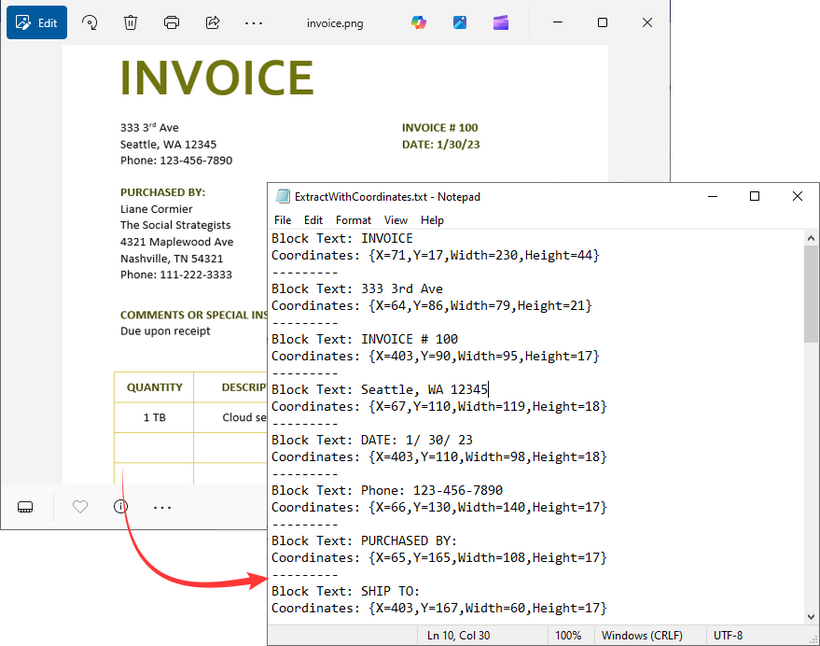
Tips to Optimize OCR Accuracy
To ensure reliable results when using C# to recognize text from images, consider these best practices:
- Use high-resolution images (300 DPI or higher).
- Preprocess images (e.g., resize, deskew) for better results.
- Ensure correct language settings correspond to the text in image.
- Store OCR models in a secure, accessible location.
FAQs (Supported Languages and Image Formats)
Q1: What image formats does Spire.OCR support?
A: Spire.OCR supports all common formats:
- PNG
- JPEG/JPG
- BMP
- TIFF
- GIF
Q2: What languages does Spire.OCR support?
A: Multiple languages are supported:
- English (default)
- Chinese (Simplified and Traditional)
- Japanese
- Korean
- German
- French
Q3: Can I use Spire.OCR in ASP.NET Core applications?
A: Yes. Supported environments:
- .NET Framework 2.0+
- .NET Standard 2.0+
- .NET Core 2.0+
- .NET 5
Q4: Can Spire.OCR extract text from scanned PDFs in C#?
A: The task requires the Spire.PDF integration to convert PDFs to images or extract images from scanned PDFs first, and then use the above C# examples to get text from the images.
Conclusion & Free License
Spire.OCR for .NET provides a powerful yet straightforward solution for extracting text from images in C# applications. Whether you’re building a simple tool to convert images to text or a complex system for processing thousands of invoices, by following the techniques and best practices outlined in this guide, you can integrate OCR functionality into your C# applications with ease.
Request a 30-day trial license here to get unlimited OCR capabilities and unlock valuable information trapped in visual format.
