Java remove text or image watermark from presentation slides
This article will demonstrate how to use Spire.Presentaion for Java to remove text watermark and image watermark from the presentation slides.
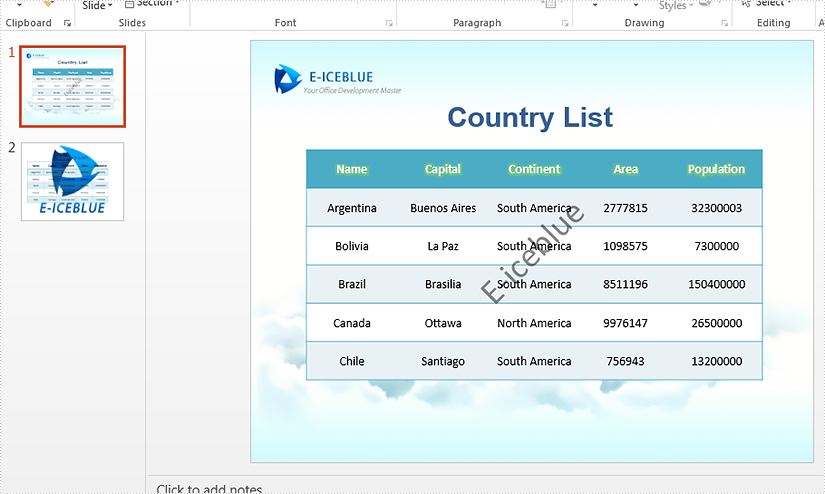
Firstly, view the sample PowerPoint document with text and image watermark:
import com.spire.presentation.*;
import com.spire.presentation.drawing.*;

public class removeTextOrImageWatermark {

    public static void main(String[] args) throws Exception {
        //Load the sample document
        Presentation presentation = new Presentation();
        presentation.loadFromFile("Sample.pptx");

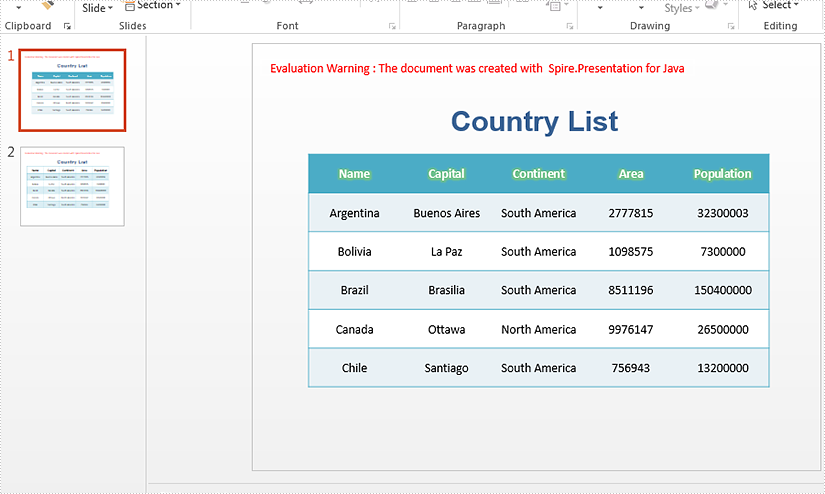
        //Remove text watermark by removing the shape which contains the string "E-iceblue".
        for (int i = 0; i < presentation.getSlides().getCount(); i++)
        {
            for (int j = 0; j < presentation.getSlides().get(i).getShapes().getCount(); j++)
            {
                if (presentation.getSlides().get(i).getShapes().get(j) instanceof IAutoShape)
                {
                    IAutoShape shape = (IAutoShape)presentation.getSlides().get(i).getShapes().get(j);
                    if (shape.getTextFrame().getText().contains("E-iceblue"))
                    {
                        presentation.getSlides().get(i).getShapes().remove(shape);
                    }
                }
            }
        }

        //Remove image watermark
        for (int i = 0; i < presentation.getSlides().getCount(); i++)
        {
            presentation.getSlides().get(i).getSlideBackground().getFill().setFillType(FillFormatType.NONE);
        }

        //Save to file.
        presentation.saveToFile("removeTextOrImageWatermark.pptx", FileFormat.PPTX_2013);
    }
}
Effective screenshot after removing text or image watermark:
Highlight Highest and Lowest Value in Excel in Java
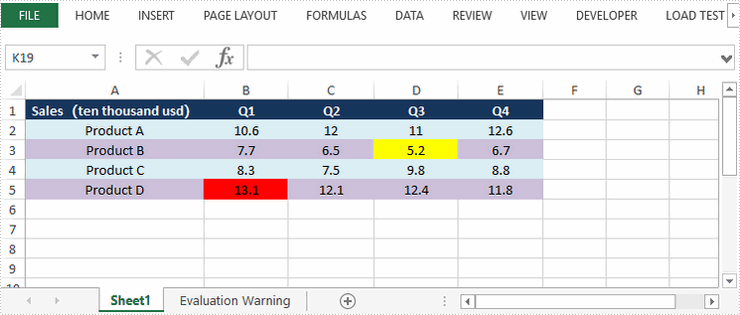
This article demonstrates how to highlight the highest and lowest value in a cell rang through conditional formatting. You can also highlight the top 5 or bottom 5 values by passing 5 to setRank() method in the code snippet below.
import com.spire.xls.*;
import com.spire.xls.core.IConditionalFormat;
import com.spire.xls.core.spreadsheet.collections.XlsConditionalFormats;

import java.awt.*;

public class HighlightTopBottom {
    public static void main(String[] args) {

        //Create a Workbook object
        Workbook workbook = new Workbook();

        //Load the sample Excel file
        workbook.loadFromFile("G:\\360MoveData\\Users\\Administrator\\Desktop\\sales report.xlsx");

        //Get the first worksheet
        Worksheet sheet = workbook.getWorksheets().get(0);

        //Add a conditional formatting and specify ranges
        XlsConditionalFormats conditional = sheet.getConditionalFormats().add();
        conditional.addRange(sheet.getCellRange("B2:E5"));

        //Apply conditional formatting to highlight the highest value
        IConditionalFormat format1 = conditional.addTopBottomCondition(TopBottomType.Top,1);
        format1.setBackColor(Color.red);

        //Apply conditional formatting to highlight the lowest value
        IConditionalFormat format2 = conditional.addTopBottomCondition(TopBottomType.Bottom,1)
        format2.setBackColor(Color.yellow);

        //Save the document
        workbook.saveToFile("output/HighestLowestValue.xlsx", ExcelVersion.Version2016);


    }
}
Highlight Dulicate and Unique Values in Excel in Java
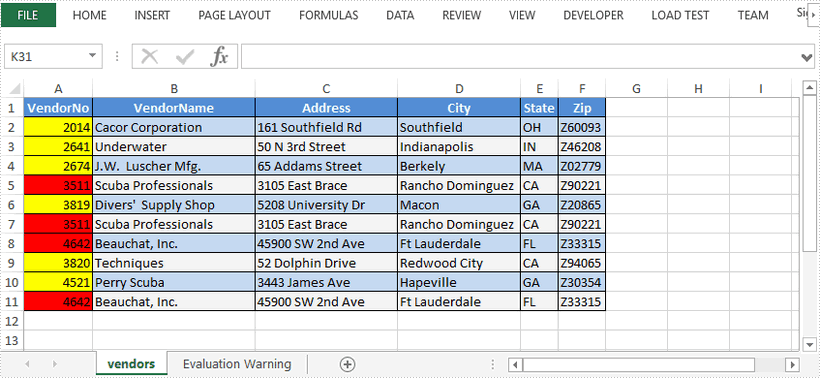
This article demonstrates how to highlight the duplicate and unique values in a selected range through conditional formatting using Spire.XLS for Java.
import com.spire.xls.*;
import com.spire.xls.core.IConditionalFormat;
import com.spire.xls.core.spreadsheet.collections.XlsConditionalFormats;

import java.awt.*;

public class HighlightDuplicates  {
    public static void main(String[] args) {
        //Create a Workbook instance
        Workbook workbook = new Workbook();

        //Load a sample Excel file
        workbook.loadFromFile("C:\\Users\\Administrator\\Desktop\\sample.xlsx");

        //Get the first worksheet
        Worksheet sheet = workbook.getWorksheets().get(0);

        //Add a conditional formatting and specify ranges
        XlsConditionalFormats conditional = sheet.getConditionalFormats().add();
        conditional.addRange(sheet.getCellRange("A2:A11"));

        //Use conditional formatting to highlight duplicate values with red
        IConditionalFormat format1 = conditional.addCondition();
        format1.setFormatType(ConditionalFormatType.DuplicateValues);
        format1.setBackColor(Color.red);

        //Use conditional formatting to highlight unique values with yellow
        IConditionalFormat format2 = conditional.addCondition();
        format2.setFormatType(ConditionalFormatType.UniqueValues);
        format2.setBackColor(Color.yellow);

        //Save the document
        workbook.saveToFile("HighlightDuplicates.xlsx", ExcelVersion.Version2016);
    }
}
Java: Convert Excel to PDF
Check out this video for a quick overview of Excel to PDF conversion in Java before reading the detailed tutorial below.
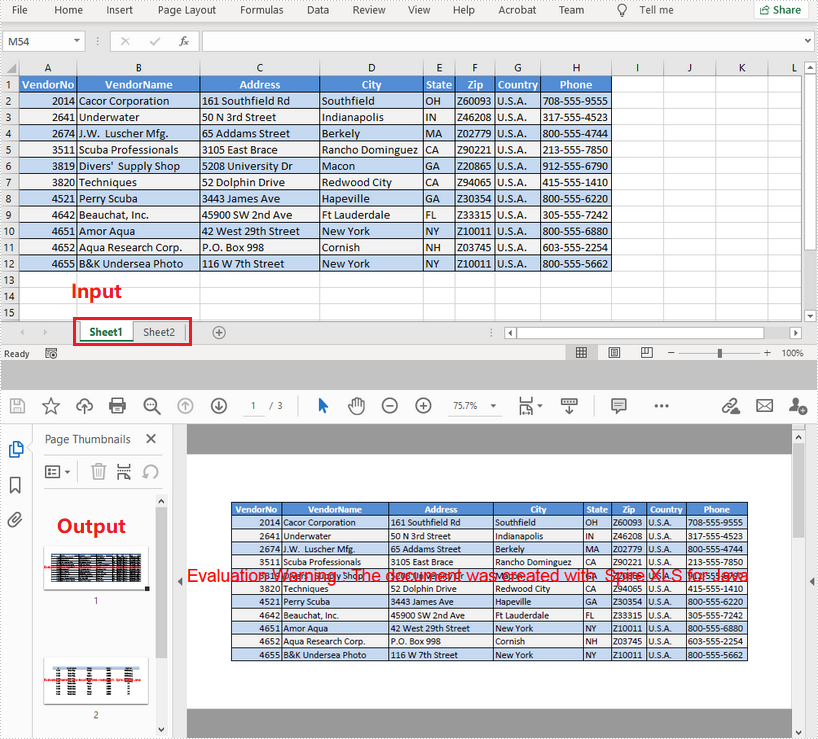
Using PDF as a format for sending documents ensures that no formatting changes will occur to the original document. Exporting Excel to PDF is a common practice in many cases. This article introduces how to convert a whole Excel document or a specific worksheet to PDF using Spire.XLS for Java.
Install Spire.XLS for Java
First of all, you're required to add the Spire.Xls.jar file as a dependency in your Java program. The JAR file can be downloaded from this link. If you use Maven, you can easily import the JAR file in your application by adding the following code to your project's pom.xml file.
<repositories>
    <repository>
        <id>com.e-iceblue</id>
        <name>e-iceblue</name>
        <url>https://repo.e-iceblue.com/nexus/content/groups/public/</url>
    </repository>
</repositories>
<dependencies>
    <dependency>
        <groupId>e-iceblue</groupId>
        <artifactId>spire.xls</artifactId>
        <version>16.9.2</version>
    </dependency>
</dependencies>
Convert a Whole Excel File to PDF
The following are the steps to convert a whole Excel document to PDF.
- Create a Workbook object.
- Load a sample Excel document using Workbook.loadFromFile() method.
- Set the Excel to PDF conversion options through the methods under the ConverterSetting object, which is returned by Workbook.getConverterSetting() method.
- Convert the whole Excel document to PDF using Workbook.saveToFile() method.
- Java
import com.spire.xls.FileFormat;
import com.spire.xls.Workbook;

public class ConvertExcelToPdf {

    public static void main(String[] args) {

        //Create a Workbook instance and load an Excel file
        Workbook workbook = new Workbook();
        workbook.loadFromFile("C:\\Users\\Administrator\\Desktop\\Sample.xlsx");

        //Set worksheets to fit to page when converting
        workbook.getConverterSetting().setSheetFitToPage(true);

        //Save the resulting document to a specified path
        workbook.saveToFile("output/ExcelToPdf.pdf", FileFormat.PDF);
    }
}
Convert a Specific Worksheet to PDF
The following are the steps to convert a specific worksheet to PDF.
- Create a Workbook object.
- Load a sample Excel document using Workbook.loadFromFile() method.
- Set the Excel to PDF conversion options through the methods under the ConverterSetting object, which is returned by Workbook.getConverterSetting() method.
- Get a specific worksheet using Workbook.getWorksheets().get() method.
- Convert the worksheet to PDF using Worksheet.saveToPdf() method.
- Java
import com.spire.xls.Workbook;
import com.spire.xls.Worksheet;

public class ConvertWorksheetToPdf {

    public static void main(String[] args) {

        //Create a Workbook instance and load an Excel file
        Workbook workbook = new Workbook();
        workbook.loadFromFile("C:\\Users\\Administrator\\Desktop\\Sample.xlsx");

        //Set worksheets to fit to width when converting
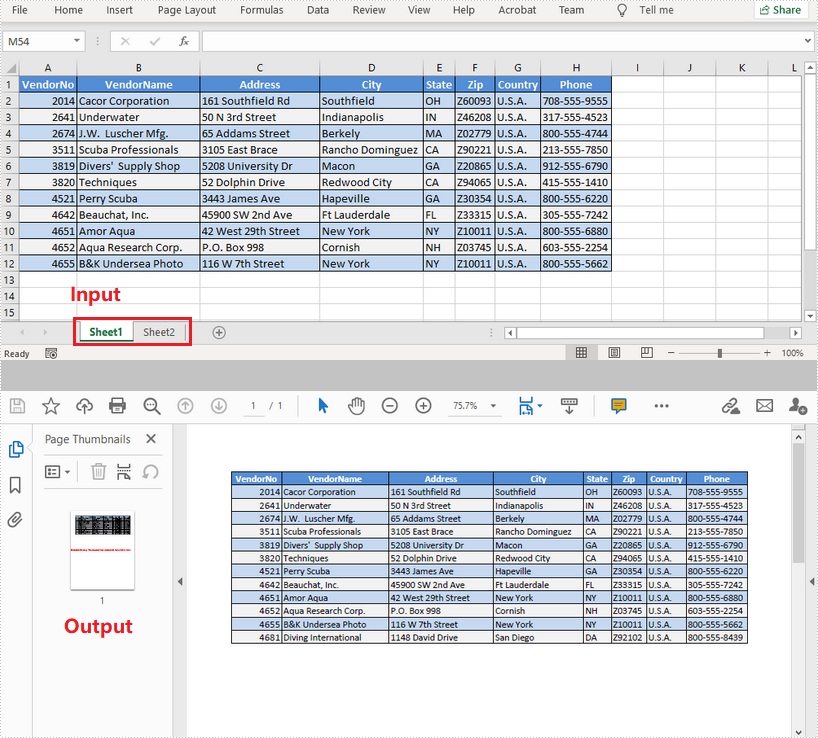
        workbook.getConverterSetting().setSheetFitToWidth(true);

        //Get the first worksheet
        Worksheet worksheet = workbook.getWorksheets().get(0);

        //Convert to PDF and save the resulting document to a specified path
        worksheet.saveToPdf("output/WorksheetToPdf.pdf");
    }
}
Apply for a Temporary License
If you'd like to remove the evaluation message from the generated documents, or to get rid of the function limitations, please request a 30-day trial license for yourself.
Modify Hyperlinks in Word in Java
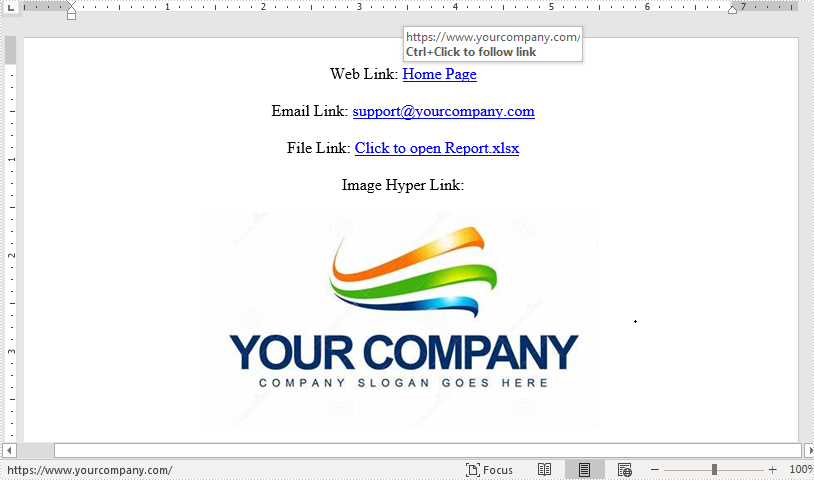
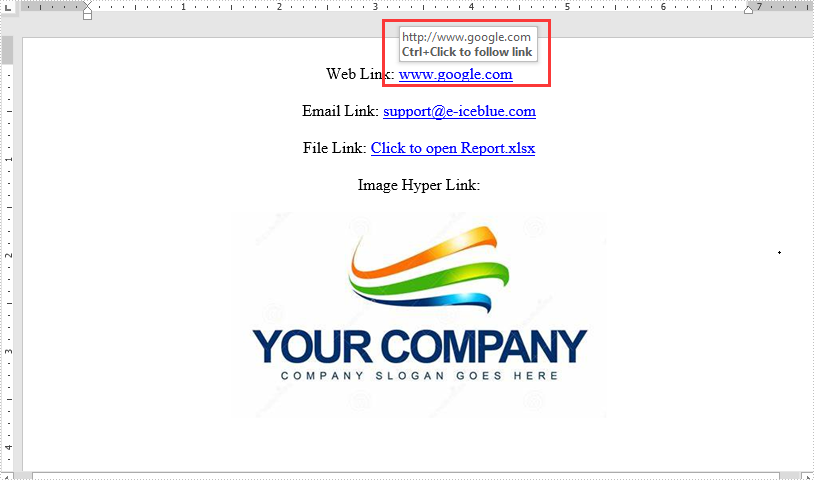
This article demonstrates how to modify hyperlinks in Word including modifying hyperlink address and display text using Spire.Doc for Java.
Below is the sample Word document we used for demonstration:
import com.spire.doc.*;
import com.spire.doc.documents.*;
import com.spire.doc.fields.Field;
import java.util.ArrayList;
import java.util.List;
public class ModifyHyperlink {
public static void main(String[] args) {
//Load Word document
Document doc = new Document();
doc.loadFromFile("Hyperlink.docx");
List<Field> hyperlinks = new ArrayList<>();
//Loop through the section in the document
for (Section section : (Iterable<Section>) doc.getSections()
) {
//Loop through the section in the document
for (Paragraph para : (Iterable<Paragraph>) section.getParagraphs()
) {
for (DocumentObject obj:(Iterable<DocumentObject>) para.getChildObjects()
) {
if (obj.getDocumentObjectType().equals(DocumentObjectType.Field)) {
Field field = (Field) obj;
if (field.getType().equals(FieldType.Field_Hyperlink)) {
hyperlinks.add(field);
}
}
}
}
}
hyperlinks.get(0).setCode("HYPERLINK \"http://www.google.com\"");
hyperlinks.get(0).setFieldText("www.google.com");
doc.saveToFile("EditHyperlink.docx", FileFormat.Docx_2013);
}
}
Output:
Rotate shapes on Word document in Java
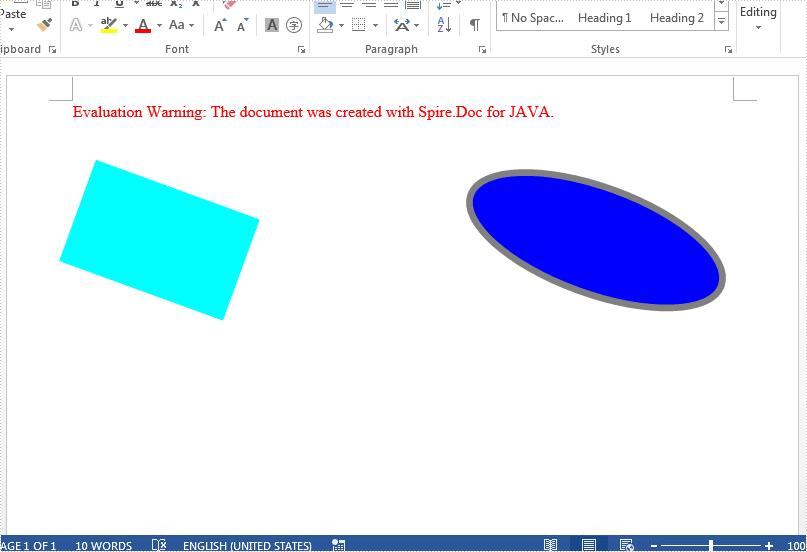
This article demonstrates how to rotate shapes on a Word document using Spire.Doc for Java.
import com.spire.doc.Document;
import com.spire.doc.DocumentObject;
import com.spire.doc.FileFormat;
import com.spire.doc.Section;
import com.spire.doc.documents.*;
import com.spire.doc.fields.ShapeObject;
public class RotateShape {
public static void main(String[] args) throws Exception {
//Load the Sample Word document.
Document doc = new Document();
doc.loadFromFile("InsertShapes.docx");
//Get the first section
Section sec = doc.getSections().get(0);
//Traverse every paragraphs to get the shapes and rotate them
for ( Paragraph para: (Iterable<Paragraph>) sec.getParagraphs()) {
for (DocumentObject obj : (Iterable<DocumentObject>) para.getChildObjects()) {
if (obj instanceof ShapeObject) {
((ShapeObject) obj).setRotation(20);
}
}
}
//Save to file
doc.saveToFile("output/RotateShape.docx", FileFormat.Docx);
}
}
Effective screenshot after rotating the shapes on word:
Add Data Labels to Chart in PowerPoint in Java
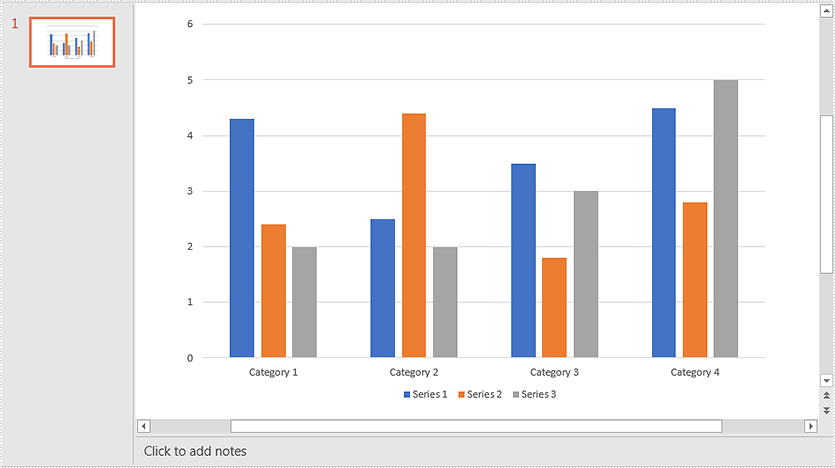
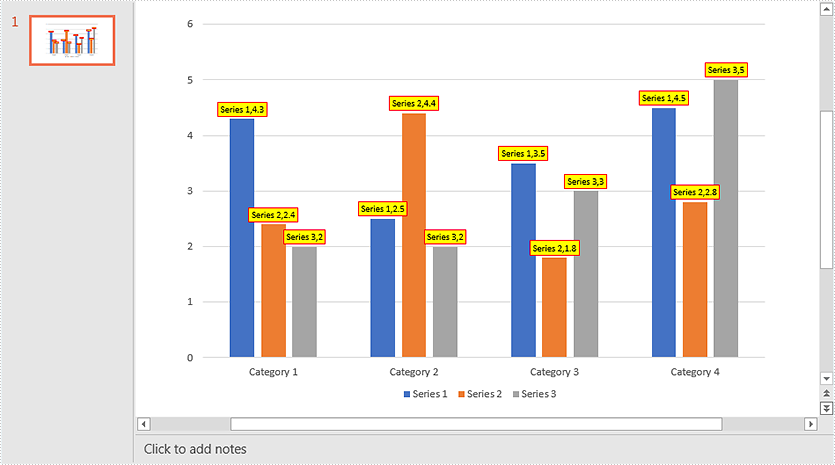
This article demonstrates how to add data labels to a chart and set the appearance (border style and fill style) for the data labels in PowerPoint using Spire.Presentation for Java. Note some chart types like Surface3D, Surface3DNoColor, Contour and ContourNoColor do not support data labels.
Below screenshot shows the original chart before adding data labels:
import com.spire.presentation.FileFormat;
import com.spire.presentation.ISlide;
import com.spire.presentation.Presentation;
import com.spire.presentation.charts.IChart;
import com.spire.presentation.charts.entity.ChartDataLabel;
import com.spire.presentation.charts.entity.ChartSeriesDataFormat;
import com.spire.presentation.drawing.FillFormatType;

import java.awt.*;

public class AddDataLabelsToChart {
    public static void main(String[] args) throws Exception {
        //Load the PowerPoint document
        Presentation ppt = new Presentation();
        ppt.loadFromFile("Chart.pptx");

        //Get the first slide
        ISlide slide = ppt.getSlides().get(0);
        //Get the chart in the slide
        IChart chart = (IChart)slide.getShapes().get(0);

        //Loop through the series in the chart
        for (ChartSeriesDataFormat series:(Iterable<ChartSeriesDataFormat>)chart.getSeries()) {
             ) {
            //Add data labels for the data points in each series
            for(int i = 0; i < 4; i++){
                ChartDataLabel dataLabel = series.getDataLabels().add();
                //Show label value
                dataLabel.setLabelValueVisible(true);
                //Show series name
                dataLabel.setSeriesNameVisible(true);
                //Set border line style
                dataLabel.getLine().setFillType(FillFormatType.SOLID);
                dataLabel.getLine().getSolidFillColor().setColor(Color.RED);
                //Set fill style
                dataLabel.getFill().setFillType(FillFormatType.SOLID);
                dataLabel.getFill().getSolidColor().setColor(Color.YELLOW);
            }
        }

        //Save the resultant document
        ppt.saveToFile("DataLabels.pptx", FileFormat.PPTX_2013);
    }
}
Output:
Add Tooltip to the Searched Text on PDF in C#
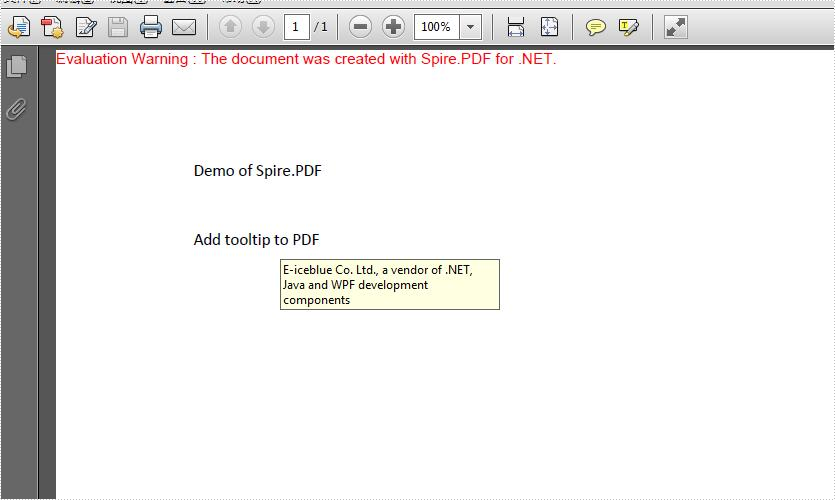
This article demonstrates how to add tooltip to the text on an existing PDF document in C#. Spire.PDF for .NET supports to create tooltips by adding invisible button over the searched text from the PDF file.
Step 1: Load the sample document file.
PdfDocument doc = new PdfDocument();
doc.LoadFromFile("Sample.pdf");
Step 2: Searched the text “Add tooltip to PDF” from the first page of the sample document and get the position of it.
PdfPageBase page = doc.Pages[0];
PdfTextFinder finder = new PdfTextFinder(page);
finder.Options.Parameter =TextFindParameter.WholeWord;
List<PdfTextFragment> result = finder.Find("Add tooltip to PDF");
RectangleF rec = result[0].Bounds[0];
Step 3: Create invisible button on text position
PdfButtonField field1 = new PdfButtonField(page, "field1");
field1.Bounds = rec;

field1.ToolTip = "E-iceblue Co. Ltd., a vendor of .NET, Java and WPF development components";
field1.BorderWidth = 0;
field1.BackColor = Color.Transparent;
field1.ForeColor = Color.Transparent;
field1.LayoutMode = PdfButtonLayoutMode.IconOnly;
field1.IconLayout.IsFitBounds = true;
Step 4: Set the content and format for the tooltip field.
field1.ToolTip = "E-iceblue Co. Ltd., a vendor of .NET, Java and WPF development components";
field1.BorderWidth = 0;
field1.BackColor = Color.Transparent;
field1.ForeColor = Color.Transparent;
field1.LayoutMode = PdfButtonLayoutMode.IconOnly;
field1.IconLayout.IsFitBounds = true;
Step 5: Save the document to file.
doc.SaveToFile("Addtooltip.pdf", FileFormat.PDF);
Effective screenshot after adding the tooltip to PDF:
using Spire.Pdf;
using Spire.Pdf.Fields;
using Spire.Pdf.Texts;
using System.Collections.Generic;
using System.Drawing;

namespace TooltipPDF
{
    class Program
    {
        static void Main(string[] args)
        {
            PdfDocument doc = new PdfDocument();
            doc.LoadFromFile("Sample.pdf");

            PdfPageBase page = doc.Pages[0];

            PdfTextFinder finder = new PdfTextFinder(page);
            finder.Options.Parameter =TextFindParameter.WholeWord;

            // Find the occurrences of the specified text
            List<PdfTextFragment> result = finder.Find("Add tooltip to PDF");
            RectangleF rec = result[0].Bounds[0];

            //Create invisible button on text position
            PdfButtonField field1 = new PdfButtonField(page, "field1");
            field1.Bounds = rec;

            field1.ToolTip = "E-iceblue Co. Ltd., a vendor of .NET, Java and WPF development components";
            field1.BorderWidth = 0;
            field1.BackColor = Color.Transparent;
            field1.ForeColor = Color.Transparent;
            field1.LayoutMode = PdfButtonLayoutMode.IconOnly;
            field1.IconLayout.IsFitBounds = true;

            doc.SaveToFile("Addtooltip.pdf", FileFormat.PDF);

        }
    }
}
Replace Text in PowerPoint in Java
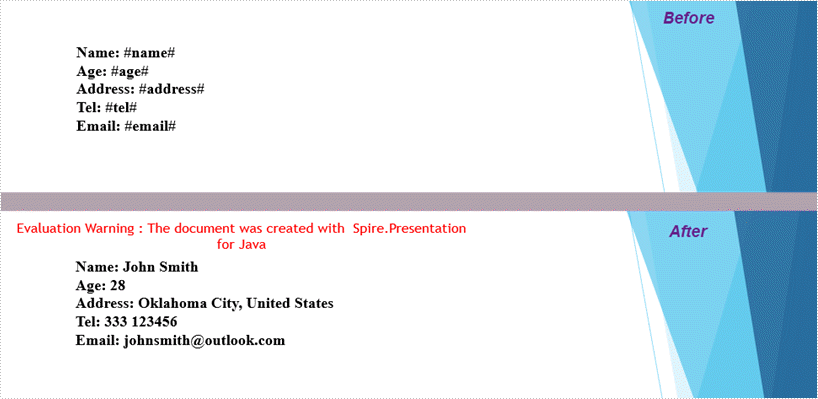
This article demonstrates how to replace text in an exising PowerPoint document with new text using Spire.Presentation for Java.
import com.spire.presentation.*;

import java.util.HashMap;
import java.util.Map;

public class ReplaceText {

    public static void main(String[] args) throws Exception {

        //create a Presentation object
        Presentation presentation = new Presentation();

        //load the template file
        presentation.loadFromFile("C:\\Users\\Administrator\\Desktop\\input.pptx");

        //get the first slide
        ISlide slide= presentation.getSlides().get(0);

        //create a Map object
        Map map = new HashMap();

        //add several pairs of keys and values to the map
        map.put("#name#","John Smith");
        map.put("#age#","28");
        map.put("#address#","Oklahoma City, United States");
        map.put("#tel#","333 123456");
        map.put("#email#","[email protected]");

        //replace text in the slide
        replaceText(slide,map);

        //save to another file
        presentation.saveToFile("output/ReplaceText.pptx", FileFormat.PPTX_2013);
    }

    /**
     * Replace text within a slide
     * @param slide Specifies the slide where the replacement happens
     * @param map Where keys are existing strings in the document and values are the new strings to replace the old ones
     */
     public static void replaceText(ISlide slide, Map<String,String> map) {

        for (Object shape : slide.getShapes()
        ) {
            if (shape instanceof IAutoShape) {

                for (Object paragraph : ((IAutoShape) shape).getTextFrame().getParagraphs()
                ) {
                    ParagraphEx paragraphEx = (ParagraphEx)paragraph;
                    for (String key : map.keySet()
                    ) {
                        if (paragraphEx.getText().contains(key)) {

                            paragraphEx.setText(paragraphEx.getText().replace(key, map.get(key)));
                         }
                    }
                }
            }
        }
    }
}
Set and Get Alternative Text (Alt Text) of PowerPoint Shapes in Java
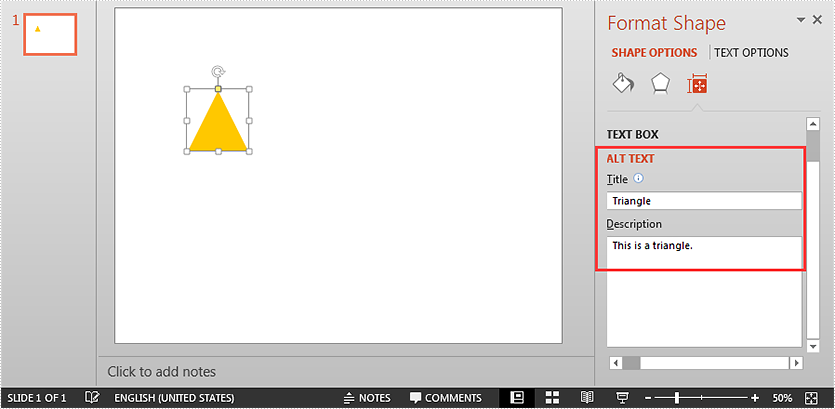
Alternative text (Alt Text) can help people with vision or cognitive impairments understand shapes, pictures or other graphical content. This article demonstrates how to set and get the alternative text of a shape in a PowerPoint document using Spire.Presentation for Java.
Set alternative text
import com.spire.presentation.*;
import com.spire.presentation.drawing.FillFormatType;

import java.awt.*;
import java.awt.geom.Rectangle2D;

public class SetAltText {
    public static void main(String[] args) throws Exception {
        //instantiate a Presentation object
        Presentation ppt = new Presentation();

        //add a shape to the first slide
        IAutoShape shape = ppt.getSlides().get(0).getShapes().appendShape(ShapeType.TRIANGLE, new Rectangle2D.Double(115, 130, 100, 100));
        shape.getFill().setFillType(FillFormatType.SOLID);
        shape.getFill().getSolidColor().setColor(Color.orange);
        shape.getShapeStyle().getLineColor().setColor(Color.white);

        //set alt text (title and description) for the shape
        shape.setAlternativeTitle("Triangle");
        shape.setAlternativeText("This is a triangle.");

        //save the resultant document
        ppt.saveToFile("Output.pptx", FileFormat.PPTX_2013);
    }
}
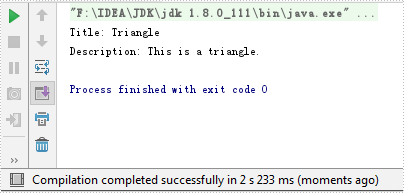
Get alternative text
import com.spire.presentation.*;

public class GetAltText {
    public static void main(String[] args) throws Exception {
        //load PowerPoint document
        Presentation ppt = new Presentation();
        ppt.loadFromFile("Output.pptx");

        //get the first shape in the first slide
        IShape shape = ppt.getSlides().get(0).getShapes().get(0);

        //get the alt text (title and description) of the shape
        String altTitle = shape.getAlternativeTitle();
        String altDescription = shape.getAlternativeText();

        System.out.println("Title: " + altTitle);
        System.out.println("Description: " + altDescription);
    }
}