Java: Insert Lists in a Word Document
A list is an effective way to organize information and present it clearly and logically. The elements in the list stand out from other parts of the text, encouraging readers to pay attention to them. Depending on your requirements, you can add numbered lists, bulleted lists or multi-level lists to your Word documents. This article demonstrates how to create these types of lists in a Word document in Java using Spire.Doc for Java.
- Insert a Numbered List in Word in Java
- Insert a Bulleted List in Word in Java
- Insert a Multi-Level Numbered List in Word in Java
- Insert a Multi-Level Mixed-Type List in Word in Java
Install Spire.Doc for Java
First, you're required to add the Spire.Doc.jar file as a dependency in your Java program. The JAR file can be downloaded from this link. If you use Maven, you can easily import the JAR file in your application by adding the following code to your project's pom.xml file.
<repositories>
    <repository>
        <id>com.e-iceblue</id>
        <name>e-iceblue</name>
        <url>https://repo.e-iceblue.com/nexus/content/groups/public/</url>
    </repository>
</repositories>
<dependencies>
    <dependency>
        <groupId>e-iceblue</groupId>
        <artifactId>spire.doc</artifactId>
        <version>14.9.5</version>
    </dependency>
</dependencies>
Insert a Numbered List in Word in Java
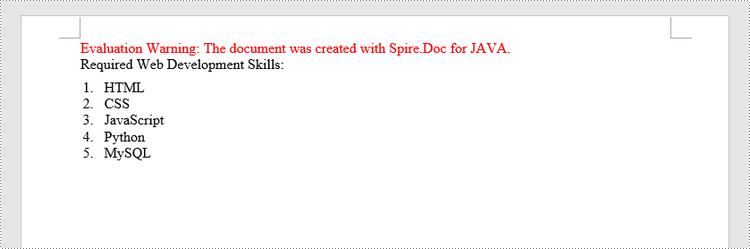
Spire.Doc for Java offers the ListStyle class that you can use to create a numbered list style or a bulleted style. Then, the list style can be applied to a paragraph using Paragraph.getListFormat().applyStyle() method. The steps to create a numbered list are as follows.
- Create a Document object.
- Add a section using Document.addSection() method.
- Create an instance of ListStyle class, specifying the list type to Numbered.
- Get a specific level of the list using ListStyle.getLevels().get(index) method, and set the numbering type using ListLevel.setPatternType() method.
- Add the list style to the document using Document.getListStyles().add() method.
- Add several paragraphs to the document using Section.addParagraph() method.
- Apply the list style to a specific paragraph using Paragraph.getListFormat().applyStyle() method.
- Specify the list level using Paragraph.getListFormat().setListLevelNumber() method.
- Save the document to a Word file using Document.saveToFile() method.
- Java
import com.spire.doc.*;
import com.spire.doc.documents.*;
import com.spire.doc.collections.ListLevelCollection;

public class InsertNumberedList {
    public static void main(String[] args) {
        //Create a Document object
        Document document = new Document();

        //Add a section
        Section section = document.addSection();

        //Create a numbered list style
        ListStyle listStyle =document.getStyles().add(ListType.Numbered, "numberList");
        ListLevelCollection levels = listStyle.getListRef().getLevels();
        levels.get(0).setPatternType(ListPatternType.Decimal_Half_Width);
        levels.get(0).setTextPosition(20);

        //Add a paragraph
        Paragraph paragraph = section.addParagraph();
        paragraph.appendText("Required Web Development Skills:");
        paragraph.getFormat().setAfterSpacing(5);

        //Add a paragraph and apply the numbered list style to it
        paragraph = section.addParagraph();
        paragraph.appendText("HTML");
        paragraph.getListFormat().applyStyle("numberedList");
        paragraph.getListFormat().setListLevelNumber(0);

        //Add another four paragraphs and apply the numbered list style to them
        paragraph = section.addParagraph();
        paragraph.appendText("CSS");
        paragraph.getListFormat().applyStyle("numberedList");
        paragraph.getListFormat().setListLevelNumber(0);

        paragraph = section.addParagraph();
        paragraph.appendText("JavaScript");
        paragraph.getListFormat().applyStyle("numberedList");
        paragraph.getListFormat().setListLevelNumber(0);

        paragraph = section.addParagraph();
        paragraph.appendText("Python");
        paragraph.getListFormat().applyStyle("numberedList");
        paragraph.getListFormat().setListLevelNumber(0);

        paragraph = section.addParagraph();
        paragraph.appendText("MySQL");
        paragraph.getListFormat().applyStyle("numberedList");
        paragraph.getListFormat().setListLevelNumber(0);

        //Save the document to file
        document.saveToFile("output/NumberedList.docx", FileFormat.Docx);
    }
}
Insert a Bulleted List in Word in Java
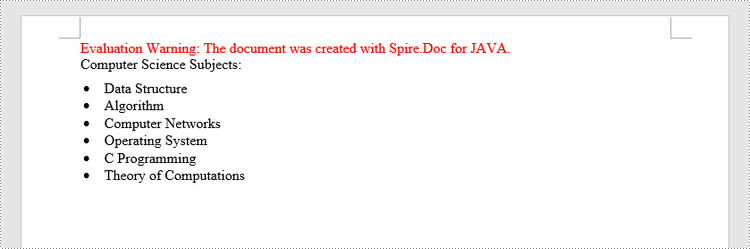
The process of creating a bulleted list is similar to that of creating a numbered list. The difference is that when creating a list style, you must specify the list type as Bulleted and set a bullet symbol for it. The following are the detailed steps.
- Create a Document object.
- Add a section using Document.addSection() method.
- Create an instance of ListStyle class, specifying the list type to Bulleted.
- Get a specific level of the list using ListStyle.getLevels().get(index) method, and set the bullet symbol using ListLevel.setBulletCharacter() method.
- Add the list style to the document using Document.getListStyles().add() method.
- Add several paragraphs to the document using Section.addParagraph() method.
- Apply the list style to a specific paragraph using Paragraph.getListFormat().applyStyle() method.
- Specify the list level using Paragraph.getListFormat().setListLevelNumber() method.
- Save the document to a Word file using Document.saveToFile() method.
- Java
import com.spire.doc.*;
import com.spire.doc.documents.*;
import com.spire.doc.collections.ListLevelCollection;

public class InsertBulletedList {
    public static void main(String[] args) {
        //Create a Document object
        Document document = new Document();

        //Add a section
        Section section = document.addSection();

        //Create a bulleted list style
        ListStyle numberList =document.getStyles().add(ListType.Bulleted, "bulletedList");
        ListLevelCollection Levels = numberList.getListRef().getLevels();
        Levels.get(0).setBulletCharacter("\u00B7");
        Levels.get(0).getCharacterFormat().setFontName("Symbol");
        Levels.get(0).setTextPosition(20);

        //Add a paragraph
        Paragraph paragraph = section.addParagraph();
        paragraph.appendText("Computer Science Subjects:");
        paragraph.getFormat().setAfterSpacing(5);

        //Add a paragraph and apply the bulleted list style to it
        paragraph = section.addParagraph();
        paragraph.appendText("Data Structure");
        paragraph.getListFormat().applyStyle("bulletedList");
        paragraph.getListFormat().setListLevelNumber(0);

        //Add another five paragraphs and apply the bulleted list style to them
        paragraph = section.addParagraph();
        paragraph.appendText("Algorithm");
        paragraph.getListFormat().applyStyle("bulletedList");
        paragraph.getListFormat().setListLevelNumber(0);

        paragraph = section.addParagraph();
        paragraph.appendText("Computer Networks");
        paragraph.getListFormat().applyStyle("bulletedList");
        paragraph.getListFormat().setListLevelNumber(0);

        paragraph = section.addParagraph();
        paragraph.appendText("Operating System");
        paragraph.getListFormat().applyStyle("bulletedList");
        paragraph.getListFormat().setListLevelNumber(0);

        paragraph = section.addParagraph();
        paragraph.appendText("C Programming");
        paragraph.getListFormat().applyStyle("bulletedList");
        paragraph.getListFormat().setListLevelNumber(0);

        paragraph = section.addParagraph();
        paragraph.appendText("Theory of Computations");
        paragraph.getListFormat().applyStyle("bulletedList");
        paragraph.getListFormat().setListLevelNumber(0);

        //Save the document to file
        document.saveToFile("output/BulletedList.docx", FileFormat.Docx);
    }
}
Insert a Multi-Level Numbered List in Word in Java
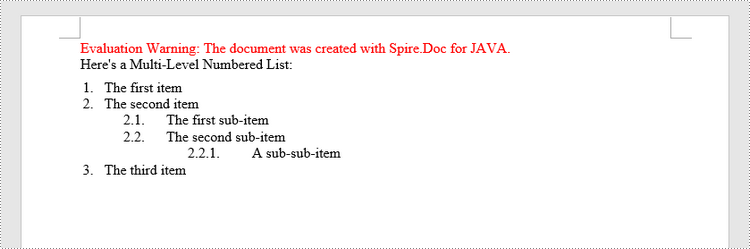
A multi-level list consists of at least two different levels. Each level of a nested list can be accessed using ListStyle.getLevels().get(index) method. Through ListLevel object, you can set the numbering type and prefix for a certain level. The following are the steps to create a multi-level numbered list in Word.
- Create a Document object.
- Add a section using Document.addSection() method.
- Create an instance of ListStyle class, specifying the list type to Numbered.
- Get a specific level of the list using ListStyle.getLevels().get(index) method, and set the numbering type and prefix.
- Add the list style to the document using Document.getListStyles().add() method.
- Add several paragraphs to the document using Section.addParagraph() method.
- Apply the list style to a specific paragraph using Paragraph.getListFormat().applyStyle() method.
- Specify the list level using Paragraph.getListFormat().setListLevelNumber() method.
- Save the document to a Word file using Document.saveToFile() method.
- Java
import com.spire.doc.*;
import com.spire.doc.documents.*;
import com.spire.doc.collections.ListLevelCollection;

public class InsertMultilevelNumberedList  {
    public static void main(String[] args) {
        //Create a Document object
        Document document = new Document();

        //Add a section
        Section section = document.addSection();

        //Create a numbered list style, specifying number prefix and pattern type of each level
        ListStyle listStyle =document.getStyles().add(ListType.Numbered, "nestedStyle");
        ListLevelCollection levels = listStyle.getListRef().getLevels();
        levels.get(0).setPatternType(ListPatternType.Arabic);
        levels.get(0).setTextPosition(20);
        levels.get(1).setNumberPrefix("\u0000.");
        levels.get(1).setPatternType(ListPatternType.Arabic);
        levels.get(2).setNumberPrefix("\u0000.\u0001.");
        levels.get(2).setPatternType(ListPatternType.Arabic);

        //Add a paragraph
        Paragraph paragraph = section.addParagraph();
        paragraph.appendText("Here's a Multi-Level Numbered List:");
        paragraph.getFormat().setAfterSpacing(5f);

        //Add a paragraph and apply the numbered list style to it
        paragraph = section.addParagraph();
        paragraph.appendText("The first item");
        paragraph.getListFormat().applyStyle("nestedStyle");
        paragraph.getListFormat().setListLevelNumber(0);

        //Add another five paragraphs and apply the numbered list stype to them
        paragraph = section.addParagraph();
        paragraph.appendText("The second item");
        paragraph.getListFormat().applyStyle("nestedStyle");
        paragraph.getListFormat().setListLevelNumber(0);

        paragraph = section.addParagraph();
        paragraph.appendText("The first sub-item");
        paragraph.getListFormat().applyStyle("nestedStyle");
        paragraph.getListFormat().setListLevelNumber(1);

        paragraph = section.addParagraph();
        paragraph.appendText("The second sub-item");
        paragraph.getListFormat().continueListNumbering();
        paragraph.getListFormat().applyStyle("nestedStyle");

        paragraph = section.addParagraph();
        paragraph.appendText("A sub-sub-item");
        paragraph.getListFormat().applyStyle("nestedStyle");
        paragraph.getListFormat().setListLevelNumber(2);

        paragraph = section.addParagraph();
        paragraph.appendText("The third item");
        paragraph.getListFormat().applyStyle("nestedStyle");
        paragraph.getListFormat().setListLevelNumber(0);

        //Save the document to file
        document.saveToFile("output/MultilevelNumberedList.docx", FileFormat.Docx);
    }
}
Insert a Multi-Level Mixed-Type List in Word in Java
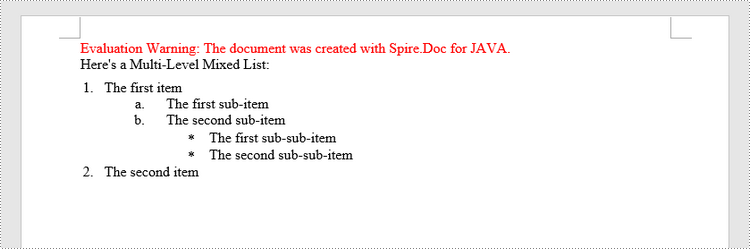
In some cases, you may want to mix number and symbol in a multi-level list. To create a mixed-type list, you just need to create a numbered list style and a bulleted list style and apply them to different paragraphs. The detailed steps are as follows.
- Create a Document object.
- Add a section using Document.addSection() method.
- Create a numbered list style and a bulleted list style.
- Add several paragraphs to the document using Section.addParagraph() method.
- Apply different list style to different paragraphs using Paragraph.getListFormat().applyStyle() method.
- Save the document to a Word file using Document.saveToFile() method.
- Java
import com.spire.doc.*;
import com.spire.doc.documents.*;
import com.spire.doc.collections.ListLevelCollection;

public class InsertMultilevelMixedTypeList  {
    public static void main(String[] args) {
        //Create a Document object
        Document document = new Document();

        //Add a section
        Section section = document.addSection();

        //Create a numbered list style
        ListStyle numberedListStyle =document.getStyles().add(ListType.Numbered, "numberedStyle");
        ListLevelCollection levels = numberedListStyle.getListRef().getLevels();
        levels.get(0).setPatternType(ListPatternType.Arabic);
        levels.get(0).setTextPosition(20);
        levels.get(1).setPatternType(ListPatternType.Low_Letter);

        //Create a bulleted list style
        ListStyle bulletedListStyle = document.getStyles().add(ListType.Bulleted,"bulletedStyle");
        ListLevelCollection levels_bulletedListStyle = bulletedListStyle.getListRef().getLevels();
        levels_bulletedListStyle.get(2).setBulletCharacter("\u002A");
        levels_bulletedListStyle.get(2).getCharacterFormat().setFontName("Symbol");

        //Add a paragraph
        Paragraph paragraph = section.addParagraph();
        paragraph.appendText("Here's a Multi-Level Mixed List:");
        paragraph.getFormat().setAfterSpacing(5f);

        //Add a paragraph and apply the numbered list style to it
        paragraph = section.addParagraph();
        paragraph.appendText("The first item");
        paragraph.getListFormat().applyStyle("numberedStyle");
        paragraph.getListFormat().setListLevelNumber(0);

        //Add another five paragraphs and apply different list stype to them
        paragraph = section.addParagraph();
        paragraph.appendText("The first sub-item");
        paragraph.getListFormat().applyStyle("numberedStyle");
        paragraph.getListFormat().setListLevelNumber(1);

        paragraph = section.addParagraph();
        paragraph.appendText("The second sub-item");
        paragraph.getListFormat().setListLevelNumber(1);
        paragraph.getListFormat().applyStyle("numberedStyle");

        paragraph = section.addParagraph();
        paragraph.appendText("The first sub-sub-item");
        paragraph.getListFormat().applyStyle("bulletedStyle");
        paragraph.getListFormat().setListLevelNumber(2);

        paragraph = section.addParagraph();
        paragraph.appendText("The second sub-sub-item");
        paragraph.getListFormat().applyStyle("bulletedStyle");
        paragraph.getListFormat().setListLevelNumber(2);

        paragraph = section.addParagraph();
        paragraph.appendText("The second item");
        paragraph.getListFormat().applyStyle("numberedStyle");
        paragraph.getListFormat().setListLevelNumber(0);

        //Save the document to file
        document.saveToFile("output/MultilevelMixedList.docx", FileFormat.Docx);
    }
}
Apply for a Temporary License
If you'd like to remove the evaluation message from the generated documents, or to get rid of the function limitations, please request a 30-day trial license for yourself.
C++: Copy Worksheets in Excel
Copying worksheets is very useful when you need to create similar worksheets or want to make changes to worksheets without affecting the original. This feature can save you a significant amount of time and effort, as it allows you to quickly reuse information such as data, formulas, formatting, and layouts from existing worksheets without having to create new worksheets from scratch. This article will explain how to copy worksheets in Excel in C++ using Spire.XLS for C++.
- Copy a Worksheet in the Same Workbook
- Copy a Worksheet to Another Workbook
- Copy Visible Worksheets to a New Workbook
Install Spire.XLS for C++
There are two ways to integrate Spire.XLS for C++ into your application. One way is to install it through NuGet, and the other way is to download the package from our website and copy the libraries into your program. Installation via NuGet is simpler and more recommended. You can find more details by visiting the following link.
Integrate Spire.XLS for C++ in a C++ Application
Copy a Worksheet in the Same Workbook in C++
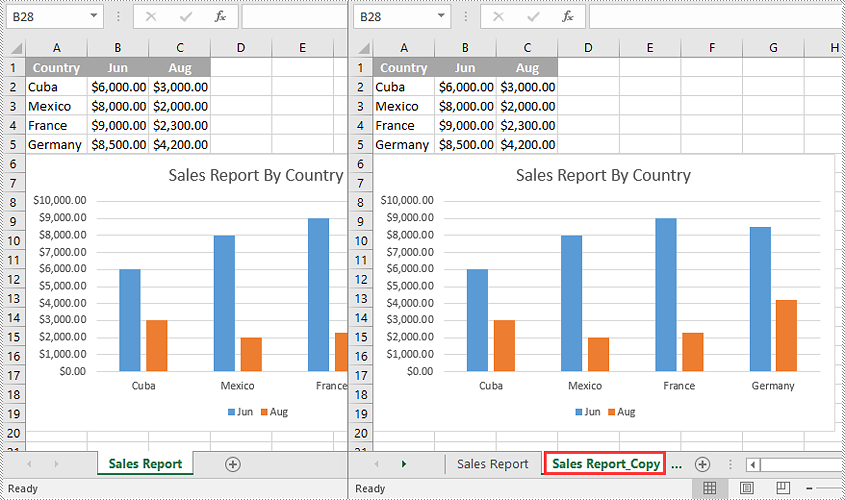
You can copy a worksheet within the same workbook by adding a new worksheet to the workbook and then copying the worksheet to the new worksheet.
The following steps demonstrate how to copy a worksheet within the same workbook:
- Initialize an instance of the Workbook class.
- Load an Excel workbook using the Workbook->LoadFromFile(LPCWSTR_S name) method.
- Get a specific worksheet using the Workbook->GetWorksheets()->Get(int index) method.
- Add a new worksheet to the workbook using the Workbook->GetWorksheets()->Add(LPCWSTR_S name) method.
- Copy the specific worksheet to the new worksheet using the Worksheet->CopyFrom(Worksheet* worksheet) method.
- Save the result workbook to another file using the Workbook->SaveToFile(LPCWSTR_S fileName, ExcelVersion version) method.
- C++
#include "Spire.Xls.o.h"

using namespace Spire::Xls;
using namespace std;

int main()
{
	//Initialize an instance of the Workbook class
	intrusive_ptr<Workbook> workbook = new Workbook();

	//Load an Excel workbook
	workbook->LoadFromFile(L"Input.xlsx");

	//Get the first worksheet
	intrusive_ptr<Worksheet> sourceSheet = dynamic_pointer_cast<Worksheet>(workbook->GetWorksheets()->Get(0));

	//Get the name of the first worksheet
	wstring sheetName = sourceSheet->GetName();

	//Add a new worksheet with a specific name to the workbook
	intrusive_ptr<Worksheet> destSheet = workbook->GetWorksheets()->Add((sheetName + L"_Copy").c_str());

	//Copy the first worksheet to the new worksheet
	destSheet->CopyFrom(sourceSheet);

	//Save the result workbook to another file
	workbook->SaveToFile(L"CopyInSameWorkbook.xlsx", ExcelVersion::Version2016);
	workbook->Dispose();
}
Copy a Worksheet to Another Workbook in C++
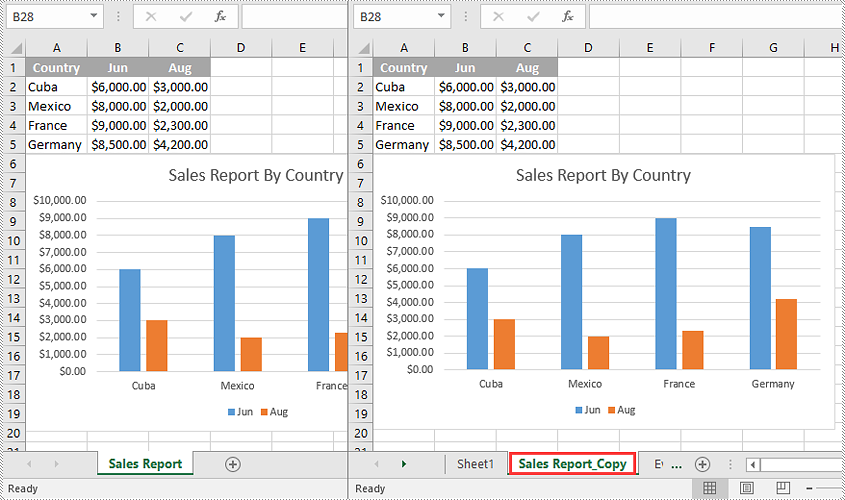
To copy a worksheet from one workbook to another, you need to add a new worksheet to the destination workbook and then copy the worksheet from the source workbook to the new worksheet of the destination workbook. It’s worth noting that if you want to keep the source formatting of the source worksheet, you need to copy the theme of the source workbook to the destination workbook.
The following steps demonstrate how to copy a worksheet from one workbook to another and keep its source formatting:
- Initialize an instance of the Workbook class.
- Load the source workbook using the Workbook->LoadFromFile(LPCWSTR_S name) method.
- Get a specific worksheet using the Workbook->GetWorksheets()->Get(int index) method.
- Initialize an instance of the Workbook class.
- Load the destination workbook using the Workbook->LoadFromFile(LPCWSTR_S name) method.
- Add a new worksheet to the destination workbook using the Workbook->GetWorksheets()->Add(LPCWSTR_S name) method.
- Copy the specific worksheet of the source workbook to the new worksheet of the destination workbook using the Worksheet->CopyFrom(Worksheet* worksheet) method.
- Copy the theme from the source workbook to the destination workbook using the Workbook->CopyTheme (Workbook* srcWorkbook) method.
- Save the result workbook to another file using the Workbook->SaveToFile(LPCWSTR_S fileName, ExcelVersion version) method.
- C++
#include "Spire.Xls.o.h"

using namespace Spire::Xls;
using namespace std;

int main()
{
    //Initialize an instance of the Workbook class
    intrusive_ptr<Workbook> sourceWorkbook = new Workbook();
    //Load the source Excel workbook
    sourceWorkbook->LoadFromFile(L"Input.xlsx");

    //Get the first worksheet of the source workbook
    intrusive_ptr<Worksheet> sourceSheet = dynamic_pointer_cast<Worksheet>(sourceWorkbook->GetWorksheets()->Get(0));
    //Get the name of the first worksheet
    wstring sheetName = sourceSheet->GetName();

    //Initialize an instance of the Workbook class
    intrusive_ptr<Workbook> destWorkbook = new Workbook();
    //Load the destination Excel workbook
    destWorkbook->LoadFromFile(L"Sample.xlsx");

    //Add a new worksheet with a specific name to the destination workbook
    intrusive_ptr<Worksheet> destSheet = destWorkbook->GetWorksheets()->Add((sheetName + L"_Copy").c_str());

    //Copy the first worksheet of the source workbook to the new worksheet of the destination workbook
    destSheet->CopyFrom(sourceSheet);

    //Copy the theme from the source workbook to the destination workbook
    destWorkbook->CopyTheme(sourceWorkbook);

    //Save the destination workbook to another file
    destWorkbook->SaveToFile(L"CopyToAnotherWorkbook.xlsx", ExcelVersion::Version2016);
    sourceWorkbook->Dispose();
    destWorkbook->Dispose();
}
Copy Visible Worksheets to a New Workbook in C++
If you only want to share visible worksheets rather than the entire workbook with others, you can copy the visible worksheets to a new workbook.
The following steps demonstrate how to copy visible worksheets from a workbook to a new workbook:
- Initialize an instance of the Workbook class.
- Load the source workbook using the Workbook->LoadFromFile(LPCWSTR_S name) method.
- Initialize an instance of the Workbook class to create a new workbook, then clear the default worksheets in the new workbook using the Workbook->GetWorksheets()->Clear() method.
- Iterate through all the worksheets in the source workbook.
- Check if the current worksheet is visible using the XlsWorksheetBase->GetVisibility() method.
- If the result is true, add a new worksheet to the new workbook using the Workbook->GetWorksheets()->Add(LPCWSTR_S name) method.
- Copy the worksheet from the source workbook to the new worksheet of the new workbook using the Worksheet->CopyFrom(Worksheet* worksheet) method.
- Copy the theme from the source workbook to the new workbook using the Workbook->CopyTheme (Workbook* srcWorkbook) method.
- Save the new workbook to another file using the Workbook->SaveToFile(LPCWSTR_S fileName, ExcelVersion version) method.
- C++
#include "Spire.Xls.o.h"

using namespace Spire::Xls;
using namespace std;

int main()
{
    //Initialize an instance of the Workbook class
    intrusive_ptr<Workbook> sourceWorkbook = new Workbook();
    //Load the source Excel workbook
    sourceWorkbook->LoadFromFile(L"Input.xlsx");

    //Initialize an instance of the Workbook class to create a new workbook
    intrusive_ptr<Workbook> newWorkbook = new Workbook();
    //Clear the default worksheets in the new workbook
    newWorkbook->GetWorksheets()->Clear();

    //Iterate through all the worksheets in the source workbook
    for (int i = 0; i < sourceWorkbook->GetWorksheets()->GetCount(); i++)
    {
        intrusive_ptr<Worksheet> sourceSheet = dynamic_pointer_cast<Worksheet>(sourceWorkbook->GetWorksheets()->Get(i));
        //Check if the current worksheet is visible
        if (sourceSheet->GetVisibility() == WorksheetVisibility::Visible)
        {
            //Get the name of the worksheet
            wstring sheetName = sourceSheet->GetName();
            //Add a new worksheet with a specific name to the new workbook
            intrusive_ptr<Worksheet> destSheet = newWorkbook->GetWorksheets()->Add((sheetName + L"_Copy").c_str());
            //Copy the worksheet from the source workbook to the new worksheet of the new workbook
            destSheet->CopyFrom(sourceSheet);
        }
    }

    //Copy the theme from the source workbook to the new workbook
    newWorkbook->CopyTheme(sourceWorkbook);

    //Save the new workbook to another file
    newWorkbook->SaveToFile(L"CopyVisibleSheetsToNewWorkbook.xlsx", ExcelVersion::Version2016);
    sourceWorkbook->Dispose();
    newWorkbook->Dispose();
}
Apply for a Temporary License
If you'd like to remove the evaluation message from the generated documents, or to get rid of the function limitations, please request a 30-day trial license for yourself.
C#/VB.NET: Insert Lists in a Word Document
Lists are used in Word documents to outline, arrange, and emphasize text, making it easy for users to scan and understand a series of items. There are three different types of lists in Word, namely numbered lists, bulleted lists and multi-level lists. Numbered lists are used for items that have a sequence or priority, such as a series of instructions. Bulleted lists are used for items that have no particular priority, such as a list of functions or facts. Multi-level lists are used where there is a sequence and you want each paragraph numbered separately.
In this article, you will learn how to insert these types of lists into a Word document in C# and VB.NET using Spire.Doc for .NET.
- Insert a Numbered List in Word
- Insert a Bulleted List in Word
- Insert a Multi-Level Numbered List in Word
- Insert a Multi-Level Mixed-Type List in Word
Install Spire.Doc for .NET
To begin with, you need to add the DLL files included in the Spire.Doc for.NET package as references in your .NET project. The DLL files can be either downloaded from this link or installed via NuGet.
PM> Install-Package Spire.Doc
Insert a Numbered List in Word in C#, VB.NET
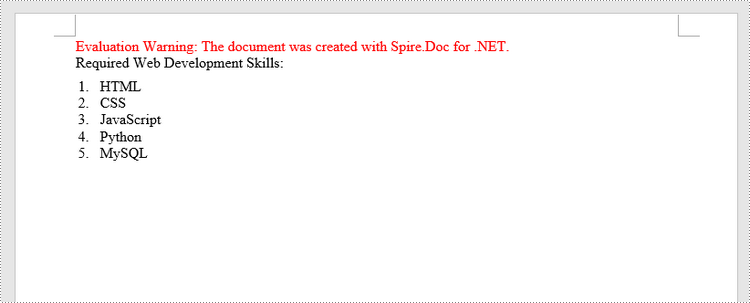
Spire.Doc for .NET offers the ListStyle class that you can use to create a numbered list style or a bulleted style. Then, the list style can be applied to a paragraph using Paragraph.ListFormat.ApplyStyle() method. The steps to create a numbered list are as follows.
- Create a Document object.
- Add a section using Document.AddSection() method.
- Create an instance of ListStyle class, specifying the list type to Numbered.
- Get a specific level of the list through ListStyle.Levels[index] property, and set the numbering type through ListLevel.PatternType property.
- Add the list style to the document using Document.ListStyles.Add() method.
- Add several paragraphs to the document using Section.AddParagraph() method.
- Apply the list style to a specific paragraph using Paragraph.ListFormat.ApplyStyle() method.
- Specify the list level through Paragraph.ListFormat.ListLevelNumber property.
- Save the document to a Word file using Document.SaveToFile() method.
- C#
- VB.NET
using Spire.Doc;
using Spire.Doc.Documents;

namespace CreateOrderedList
{
    class Program
    {
        static void Main(string[] args)
        {
            //Create a Document object
            Document document = new Document();

            //Add a section
            Section section = document.AddSection();

            //Create a numbered list style
            ListStyle listStyle = document.Styles.Add(ListType.Numbered, "numberedList");
            listStyle.Name = "numberedList";
            listStyle.ListRef.Levels[0].PatternType = ListPatternType.DecimalEnclosedParen;
            listStyle.ListRef.Levels[0].TextPosition = 20;

            //Add a paragraph
            Paragraph paragraph = section.AddParagraph();
            paragraph.AppendText("Required Web Development Skills:");
            paragraph.Format.AfterSpacing = 5f;

            //Add a paragraph and apply the numbered list style to it
            paragraph = section.AddParagraph();
            paragraph.AppendText("HTML");
            paragraph.ListFormat.ApplyStyle("numberedList");
            paragraph.ListFormat.ListLevelNumber = 0;

            //Add another four paragraphs and apply the numbered list style to them
            paragraph = section.AddParagraph();
            paragraph.AppendText("CSS");
            paragraph.ListFormat.ApplyStyle("numberedList");
            paragraph.ListFormat.ListLevelNumber = 0;

            paragraph = section.AddParagraph();
            paragraph.AppendText("JavaScript");
            paragraph.ListFormat.ApplyStyle("numberedList");
            paragraph.ListFormat.ListLevelNumber = 0;

            paragraph = section.AddParagraph();
            paragraph.AppendText("Python");
            paragraph.ListFormat.ApplyStyle("numberedList");
            paragraph.ListFormat.ListLevelNumber = 0;

            paragraph = section.AddParagraph();
            paragraph.AppendText("MySQL");
            paragraph.ListFormat.ApplyStyle("numberedList");
            paragraph.ListFormat.ListLevelNumber = 0;

            //Save the document to file
            document.SaveToFile("NumberedList.docx", FileFormat.Docx);
        }
    }
}
Insert a Bulleted List in Word in C#, VB.NET
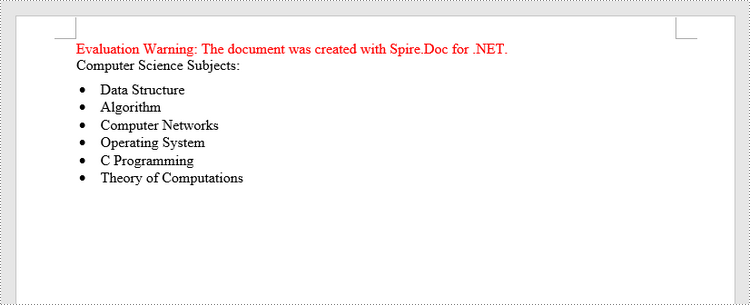
The process of creating a bulleted list is similar to that of creating a numbered list. The difference is that when creating a list style, you must specify the list type as Bulleted and set a bullet symbol for it. The following are the detailed steps.
- Create a Document object.
- Add a section using Document.AddSection() method.
- Create an instance of ListStyle class, specifying the list type to Bulleted.
- Get a specific level of the list through ListStyle.Levels[index] property, and set the bullet symbol through ListLevel.BulletCharacter property.
- Add the list style to the document using Document.ListStyles.Add() method.
- Add several paragraphs to the document using Section.AddParagraph() method.
- Apply the list style to a specific paragraph using Paragraph.ListFormat.ApplyStyle() method.
- Specify the list level through Paragraph.ListFormat.ListLevelNumber property.
- Save the document to a Word file using Document.SaveToFile() method.
- C#
- VB.NET
using Spire.Doc;
using Spire.Doc.Documents;

namespace CreateUnorderedList
{
    class Program
    {
        static void Main(string[] args)
        {
            //Create a Document object
            Document document = new Document();

            //Add a section
            Section section = document.AddSection();

            //Create a bulleted list style
            ListStyle listStyle = document.Styles.Add( ListType.Bulleted, "bulletedList");
            listStyle.Name = "bulletedList";
            listStyle.ListRef.Levels[0].BulletCharacter = "\x00B7";
            listStyle.ListRef.Levels[0].CharacterFormat.FontName = "Symbol";
            listStyle.ListRef.Levels[0].TextPosition = 20;

            //Add a paragraph
            Paragraph paragraph = section.AddParagraph();
            paragraph.AppendText("Computer Science Subjects:");
            paragraph.Format.AfterSpacing = 5f;

            //Add a paragraph and apply the bulleted list style to it
            paragraph = section.AddParagraph();
            paragraph.AppendText("Data Structure");
            paragraph.ListFormat.ApplyStyle("bulletedList");
            paragraph.ListFormat.ListLevelNumber = 0;

            //Add another five paragraphs and apply the bulleted list style to them
            paragraph = section.AddParagraph();
            paragraph.AppendText("Algorithm");
            paragraph.ListFormat.ApplyStyle("bulletedList");
            paragraph.ListFormat.ListLevelNumber = 0;

            paragraph = section.AddParagraph();
            paragraph.AppendText("Computer Networks");
            paragraph.ListFormat.ApplyStyle("bulletedList");
            paragraph.ListFormat.ListLevelNumber = 0;

            paragraph = section.AddParagraph();
            paragraph.AppendText("Operating System");
            paragraph.ListFormat.ApplyStyle("bulletedList");
            paragraph.ListFormat.ListLevelNumber = 0;

            paragraph = section.AddParagraph();
            paragraph.AppendText("C Programming");
            paragraph.ListFormat.ApplyStyle("bulletedList");
            paragraph.ListFormat.ListLevelNumber = 0;

            paragraph = section.AddParagraph();
            paragraph.AppendText("Theory of Computations");
            paragraph.ListFormat.ApplyStyle("bulletedList");
            paragraph.ListFormat.ListLevelNumber = 0;

            //Save the document to file
            document.SaveToFile("BulletedList.docx", FileFormat.Docx);
        }
    }
}
Insert a Multi-Level Numbered List in Word in C#, VB.NET
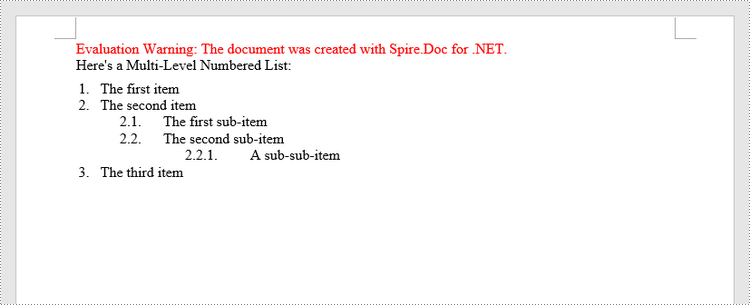
A multi-level list consists of at least two different levels. Each level of a nested list is represented by the ListStyle.Levels[index] property, through which you can set the numbering type and prefix for a certain level. The following are the steps to create a multi-level numbered list in Word.
- Create a Document object.
- Add a section using Document.AddSection() method.
- Create an instance of ListStyle class, specifying the list type to Numbered.
- Get a specific level of the list through ListStyle.Levels[index] property, and set the numbering type and prefix.
- Add the list style to the document using Document.ListStyles.Add() method.
- Add several paragraphs to the document using Section.AddParagraph() method.
- Apply the list style to a specific paragraph using Paragraph.ListFormat.ApplyStyle() method.
- Specify the list level through Paragraph.ListFormat.ListLevelNumber property.
- Save the document to a Word file using Document.SaveToFile() method.
- C#
- VB.NET
using Spire.Doc;
using Spire.Doc.Documents;

namespace CreateMultiLevelList
{
    class Program
    {
        static void Main(string[] args)
        {
            //Create a Document object
            Document document = new Document();

            //Add a section
            Section section = document.AddSection();

            //Create a numbered list style, specifying number prefix and pattern type of each level
            ListStyle listStyle = document.Styles.Add(ListType.Numbered, "levelstyle");
            listStyle.Name = "levelstyle";
            listStyle.ListRef.Levels[0].PatternType = ListPatternType.Arabic;
            listStyle.ListRef.Levels[0].TextPosition = 20;
            listStyle.ListRef.Levels[1].NumberPrefix = "\x0000.";
            listStyle.ListRef.Levels[1].PatternType = ListPatternType.Arabic;
            listStyle.ListRef.Levels[2].NumberPrefix = "\x0000.\x0001.";
            listStyle.ListRef.Levels[2].PatternType = ListPatternType.Arabic;

            //Add a paragraph
            Paragraph paragraph = section.AddParagraph();
            paragraph.AppendText("Here's a Multi-Level Numbered List:");
            paragraph.Format.AfterSpacing = 5f;

            //Add a paragraph and apply the numbered list style to it
            paragraph = section.AddParagraph();
            paragraph.AppendText("The first item");
            paragraph.ListFormat.ApplyStyle("levelstyle");
            paragraph.ListFormat.ListLevelNumber = 0;

            //Add another five paragraphs and apply the numbered list stype to them
            paragraph = section.AddParagraph();
            paragraph.AppendText("The second item");
            paragraph.ListFormat.ApplyStyle("levelstyle");
            paragraph.ListFormat.ListLevelNumber = 0;

            paragraph = section.AddParagraph();
            paragraph.AppendText("The first sub-item");
            paragraph.ListFormat.ApplyStyle("levelstyle");
            paragraph.ListFormat.ListLevelNumber = 1;

            paragraph = section.AddParagraph();
            paragraph.AppendText("The second sub-item");
            paragraph.ListFormat.ContinueListNumbering();
            paragraph.ListFormat.ApplyStyle("levelstyle");

            paragraph = section.AddParagraph();
            paragraph.AppendText("A sub-sub-item");
            paragraph.ListFormat.ApplyStyle("levelstyle");
            paragraph.ListFormat.ListLevelNumber = 2;

            paragraph = section.AddParagraph();
            paragraph.AppendText("The third item");
            paragraph.ListFormat.ApplyStyle("levelstyle");
            paragraph.ListFormat.ListLevelNumber = 0;

            //Save the document to file
            document.SaveToFile("MultilevelNumberedList.docx", FileFormat.Docx);
        }
    }
}
Insert a Multi-Level Mixed-Type List in Word in C#, VB.NET
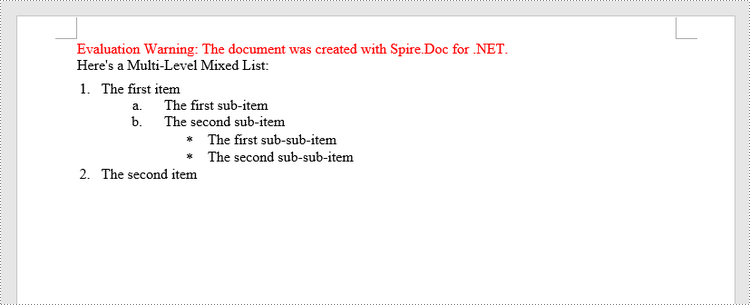
In some cases, you may want to mix number and symbol bullet points in a multi-level list. To create a mixed-type list, you just need to create a numbered list style and a bulleted list style and apply them to different paragraphs. The detailed steps are as follows.
- Create a Document object.
- Add a section using Document.AddSection() method.
- Create a numbered list style and a bulleted list style.
- Add several paragraphs to the document using Section.AddParagraph() method.
- Apply different list style to different paragraphs using Paragraph.ListFormat.ApplyStyle() method.
- Save the document to a Word file using Document.SaveToFile() method.
- C#
- VB.NET
using Spire.Doc;
using Spire.Doc.Documents;

namespace CreateMultilevelMixedList
{
    class Program
    {
        static void Main(string[] args)
        {
            //Create a Document object
            Document document = new Document();

            //Add a section
            Section section = document.AddSection();

            //Create a numbered list style
            ListStyle numberedListStyle = document.Styles.Add(ListType.Numbered, "numberedStyle");
            numberedListStyle.ListRef.Levels[0].PatternType = ListPatternType.Arabic;
            numberedListStyle.ListRef.Levels[0].TextPosition = 20;
            numberedListStyle.ListRef.Levels[1].PatternType = ListPatternType.LowLetter;

            //Create a bulleted list style
            ListStyle bulletedListStyle = document.Styles.Add(ListType.Bulleted, "bulltedStyle");
            bulletedListStyle.Name = "bulltedStyle";
            bulletedListStyle.ListRef.Levels[2].BulletCharacter = "\x002A";
            bulletedListStyle.ListRef.Levels[2].CharacterFormat.FontName = "Symbol";

            //Add a paragraph
            Paragraph paragraph = section.AddParagraph();
            paragraph.AppendText("Here's a Multi-Level Mixed List:");
            paragraph.Format.AfterSpacing = 5f;

            //Add a paragraph and apply the numbered list style to it
            paragraph = section.AddParagraph();
            paragraph.AppendText("The first item");
            paragraph.ListFormat.ApplyStyle("numberedStyle");
            paragraph.ListFormat.ListLevelNumber = 0;

            //Add another five paragraphs and apply different list stype to them
            paragraph = section.AddParagraph();
            paragraph.AppendText("The first sub-item");
            paragraph.ListFormat.ApplyStyle("numberedStyle");
            paragraph.ListFormat.ListLevelNumber = 1;

            paragraph = section.AddParagraph();
            paragraph.AppendText("The second sub-item");
            paragraph.ListFormat.ListLevelNumber = 1;
            paragraph.ListFormat.ApplyStyle("numberedStyle");

            paragraph = section.AddParagraph();
            paragraph.AppendText("The first sub-sub-item");
            paragraph.ListFormat.ApplyStyle("bulltedStyle");
            paragraph.ListFormat.ListLevelNumber = 2;

            paragraph = section.AddParagraph();
            paragraph.AppendText("The second sub-sub-item");
            paragraph.ListFormat.ApplyStyle("bulltedStyle");
            paragraph.ListFormat.ListLevelNumber = 2;

            paragraph = section.AddParagraph();
            paragraph.AppendText("The second item");
            paragraph.ListFormat.ApplyStyle("numberedStyle");
            paragraph.ListFormat.ListLevelNumber = 0;

            //Save the document to file
            document.SaveToFile("MultilevelMixedList.docx", FileFormat.Docx);
        }
    }
}
Apply for a Temporary License
If you'd like to remove the evaluation message from the generated documents, or to get rid of the function limitations, please request a 30-day trial license for yourself.
C++: Convert Excel to Images
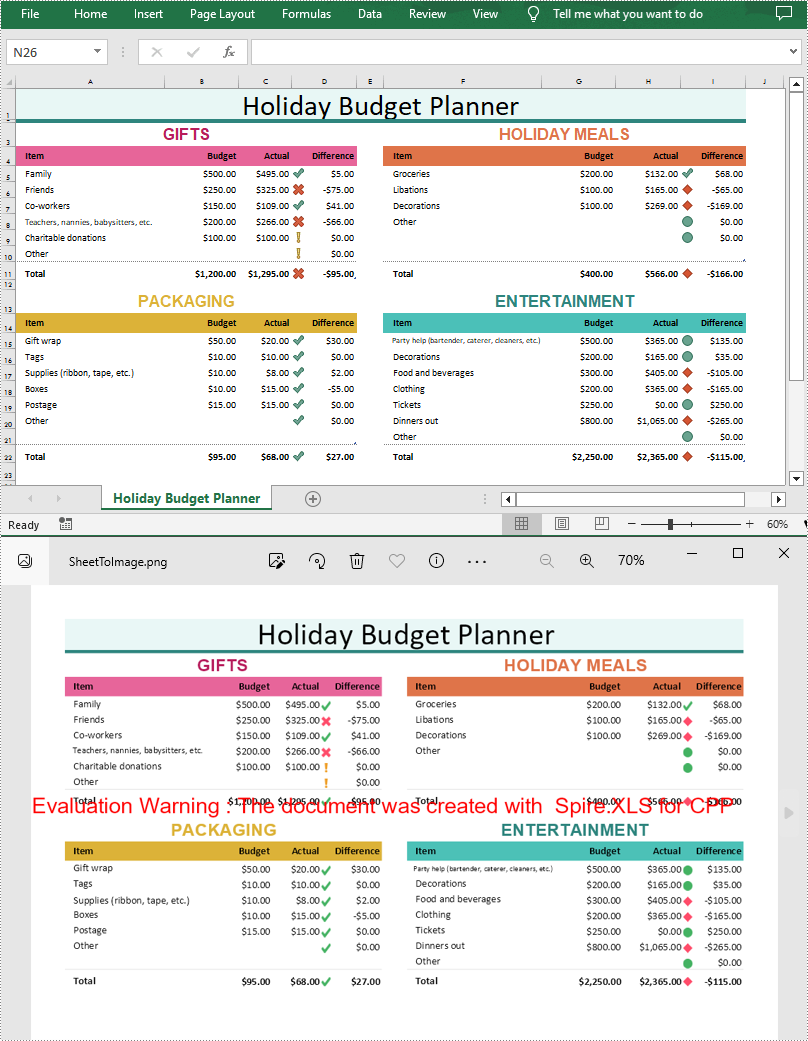
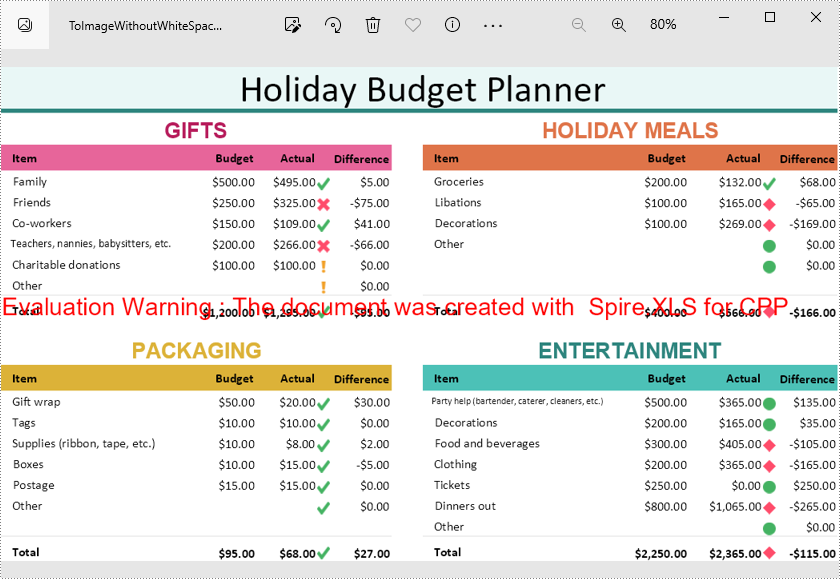
Excel is a popular spreadsheet software widely used for data analysis, financial management, budgeting, etc. However, when you need to embed Excel files into other files or share them with others, Excel format may have compatibility issues, and in such a case converting Excel to image is an alternative option. In this article, you will learn how to convert an Excel worksheet or a specific cell range to an image in C++ using Spire.XLS for C++.
- Convert an Entire Excel Worksheet to an Image in C++
- Convert a Specific Cell Range to an Image in C++
- Convert a Worksheet to an Image Without White Spaces in C++
Install Spire.XLS for C++
There are two ways to integrate Spire.XLS for C++ into your application. One way is to install it through NuGet, and the other way is to download the package from our website and copy the libraries into your program. Installation via NuGet is simpler and more recommended. You can find more details by visiting the following link.
Integrate Spire.XLS for C++ in a C++ Application
Convert an Entire Excel Worksheet to an Image in C++
Spire.XLS for C++ offers the Worksheet->ToImage() method to convert a specific worksheet to an image. The following are the detailed steps.
- Create a Workbook object.
- Load a sample Excel document using Workbook->LoadFromFile() method.
- Get a specified worksheet using Workbook->GetWorksheets()->Get() method.
- Convert the worksheet to an image using Worksheet->ToImage() method.
- C++
#include "Spire.Xls.o.h"

using namespace Spire::Xls;
using namespace std;

int main()
{
	//Specify the input and output file paths
	wstring inputFile = L"Data\\Planner.xlsx";
	wstring outputFile = L"Output\\SheetToImage";

	//Create a Workbook object
	intrusive_ptr<Workbook> workbook = new Workbook();

	//Load an Excel document from disk
	workbook->LoadFromFile(inputFile.c_str());

	//Get the first worksheet
	intrusive_ptr<Worksheet> sheet = dynamic_pointer_cast<Worksheet>(workbook->GetWorksheets()->Get(0));

	//Save the image as a PNG file
	wstring fileName = outputFile + L".png";

	//Convert the worksheet to an image
	sheet->ToImage(sheet->GetFirstRow(), sheet->GetFirstColumn(), sheet->GetLastRow(), sheet->GetLastColumn())->Save(fileName.c_str());

	workbook->Dispose();

}
Convert a Specific Cell Range to an Image in C++
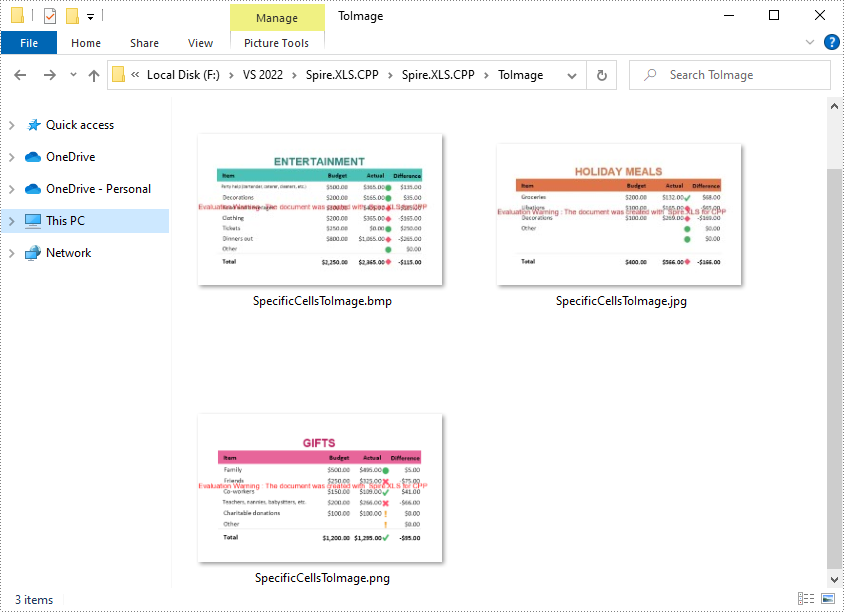
Spire.XLS for C++ also allows you to use the Worksheet->ToImage(int firstRow, int firstColumn, int lastRow, int lastColumn) method to convert a specified cell range to an image. The following are the steps convert several cell ranges to different image formats.
- Create a Workbook object.
- Load a sample Excel document using Workbook->LoadFromFile() method.
- Get a specified worksheet using Workbook->GetWorksheets()->Get() method.
- Specify a cell range and save it to a specified image format using Worksheet->ToImage()->Save(LPCWSTR_S filename) method.
- C++
#include "Spire.Xls.o.h"

using namespace Spire::Xls;
using namespace std;

int main()
{
	//Specify input file path and name
	wstring inputFile = L"Data\\Planner.xlsx";

	//Create a Workbook object
	intrusive_ptr<Workbook> workbook = new Workbook();

	//Load an Excel document from disk
	workbook->LoadFromFile(inputFile.c_str());

	//Get the first worksheet
	intrusive_ptr<Worksheet> sheet = dynamic_pointer_cast<Worksheet>(workbook->GetWorksheets()->Get(0));

	//Specify cell ranges and save them to certain image formats
	sheet->ToImage(3, 1, 11, 4)->Save(L"ToImage\\SpecificCellsToImage.png");
	sheet->ToImage(3, 6, 11, 9)->Save(L"ToImage\\SpecificCellsToImage.jpg");
	sheet->ToImage(13, 6, 22, 9)->Save(L"ToImage\\SpecificCellsToImage.bmp");
	workbook->Dispose();
}
Convert a Worksheet to an Image Without White Spaces in C++
When converting a worksheet directly to an image, there are white spaces around the converted image. If you want to remove these white spaces, you can set the left, right, top and bottom margins of the worksheet to zero while conversion. The following are the detailed steps.
- Create a Workbook object.
- Load a sample Excel document using Workbook->LoadFromFile() method.
- Get a specified worksheet using Workbook->GetWorksheets()->Get() method.
- Return a page setup object using Worksheet->GetPageSetup() method, and then set the left, right, top and bottom margins of the worksheet using the methods of PageSetup class.
- Save the worksheet as an image using Worksheet->ToImage()->Save() method.
- C++
#include "Spire.Xls.o.h"

using namespace Spire::Xls;
using namespace std;

int main()
{
	//Specify output file path and name
	wstring inputFile = L"Data\\Planner.xlsx";
	wstring outputFile = L"Output\\ToImageWithoutWhiteSpace.png";

	//Create a Workbook object
	intrusive_ptr<Workbook> workbook = new Workbook();

	//Load an Excel document from disk
	workbook->LoadFromFile(inputFile.c_str());

	//Get the first worksheet
	intrusive_ptr<Worksheet> sheet = dynamic_pointer_cast<Worksheet>(workbook->GetWorksheets()->Get(0));

	//Set the margin as 0 to remove the white space around the image
	sheet->GetPageSetup()->SetLeftMargin(0);
	sheet->GetPageSetup()->SetBottomMargin(0);
	sheet->GetPageSetup()->SetTopMargin(0);
	sheet->GetPageSetup()->SetRightMargin(0);

	//Save the worksheet as an image
	intrusive_ptr<Stream> image = sheet->ToImage(sheet->GetFirstRow(), sheet->GetFirstColumn(), sheet->GetLastRow(), sheet->GetLastColumn());
	image->Save(outputFile.c_str());
	workbook->Dispose();
}
Apply for a Temporary License
If you'd like to remove the evaluation message from the generated documents, or to get rid of the function limitations, please request a 30-day trial license for yourself.
C++: Find and Highlight Text in Word
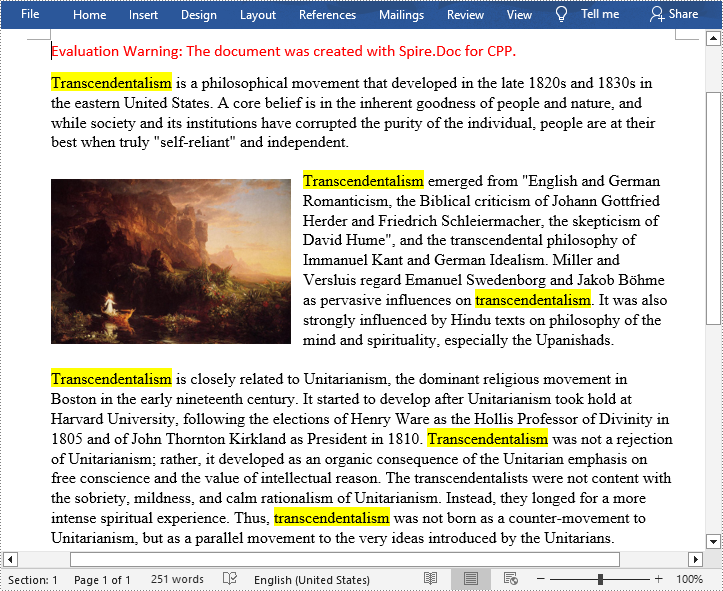
In a large document, it is inevitable to use the find function when you want to quickly locate specific key information. At the same time, highlighting them with a bright color is also an effective way to make them stand out to grab the reader's attention. In this article, you will learn how to programmatically find and highlight text in a Word document using Spire.Doc for C++.
- Find and Highlight All Instances of a Specified Text in Word
- Find and Highlight the First Instance of a Specified Text in Word
Install Spire.Doc for C++
There are two ways to integrate Spire.Doc for C++ into your application. One way is to install it through NuGet, and the other way is to download the package from our website and copy the libraries into your program. Installation via NuGet is simpler and more recommended. You can find more details by visiting the following link.
Integrate Spire.Doc for C++ in a C++ Application
Find and Highlight All Instances of a Specified Text in Word in C++
Spire.Doc for C++ offers the Document->FindAllString(LPCWSTR_S matchString, bool caseSensitive, bool wholeWord) method to find all instances of a specified text string, and then you can iterate through these instances to highlight them with a bright color. The following are the detailed steps.
- Create a Document instance.
- Load a Word document using Document->LoadFromFile() method.
- Find all matching text in the document using Document->FindAllString() method.
- Loop through all matching text in the document.
- Get the text range of a specific matching text using TextSelection->GetAsOneRange() method, and then set its highlight color using TextRange->GetCharacterFormat()->SetHighlightColor() method.
- Save the result document using Document->SaveToFile() method.
- C++
#include "Spire.Doc.o.h"

using namespace Spire::Doc;

int main() {
 //Specify the input and output file paths
 std::wstring inputFile = L"Data\\input1.docx";
 std::wstring outputFile = L"Output\\FindAndHighlightAll.docx";

 //Create a Document instance
 intrusive_ptr<Document> document = new Document();

 //Load a Word document from disk
 document->LoadFromFile(inputFile.c_str());

 //Find all matching text in the document
 std::vector<intrusive_ptr<TextSelection>> textSelections = document->FindAllString(L"Transcendentalism", false, true);

 //Loop through all matching text and set highlight color for them
 for (auto selection : textSelections)
 {
  selection->GetAsOneRange()->GetCharacterFormat()->SetHighlightColor(Color::GetYellow());
 }

 //Save the result document
 document->SaveToFile(outputFile.c_str(), FileFormat::Docx);
 document->Close();
}
Find and Highlight the First Instance of a Specified Text in Word in C++
You can also use the Document->FindString(LPCWSTR_S matchString, bool caseSensitive, bool wholeWord) method to find only the first instance of a specified text string and then set highlight color for it. The following are the detailed steps.
- Create a Document instance.
- Load a Word document using Document->LoadFromFile() method.
- Find the first matching text using Document->FindString() method.
- Get the text range of the first matching text using TextSelection->GetAsOneRange() method, and then set its highlight color using TextRange->GetCharacterFormat()->SetHighlightColor() method.
- Save the result document using Document->SaveToFile() method.
- C++
#include "Spire.Doc.o.h"

using namespace Spire::Doc;
int main() {
 //Specify the input and output file paths
 std::wstring inputFile = L"Data\\input1.docx";
 std::wstring outputFile = L"Output\\FindAndHighlight.docx";

 //Create a Document instance
 intrusive_ptr<Document> document = new Document();

 //Load a Word document from disk
 document->LoadFromFile(inputFile.c_str());

 //Find the first matching text
 intrusive_ptr<TextSelection> textSelection = document->FindString(L"Transcendentalism", false, true);

 //Set highlight color for the text
 textSelection->GetAsOneRange()->GetCharacterFormat()->SetHighlightColor(Color::GetYellow());

 //Save the result document
 document->SaveToFile(outputFile.c_str(), FileFormat::Docx);
 document->Close();
}

Apply for a Temporary License
If you'd like to remove the evaluation message from the generated documents, or to get rid of the function limitations, please request a 30-day trial license for yourself.
C++: Insert or Read Formulas and Functions in Excel
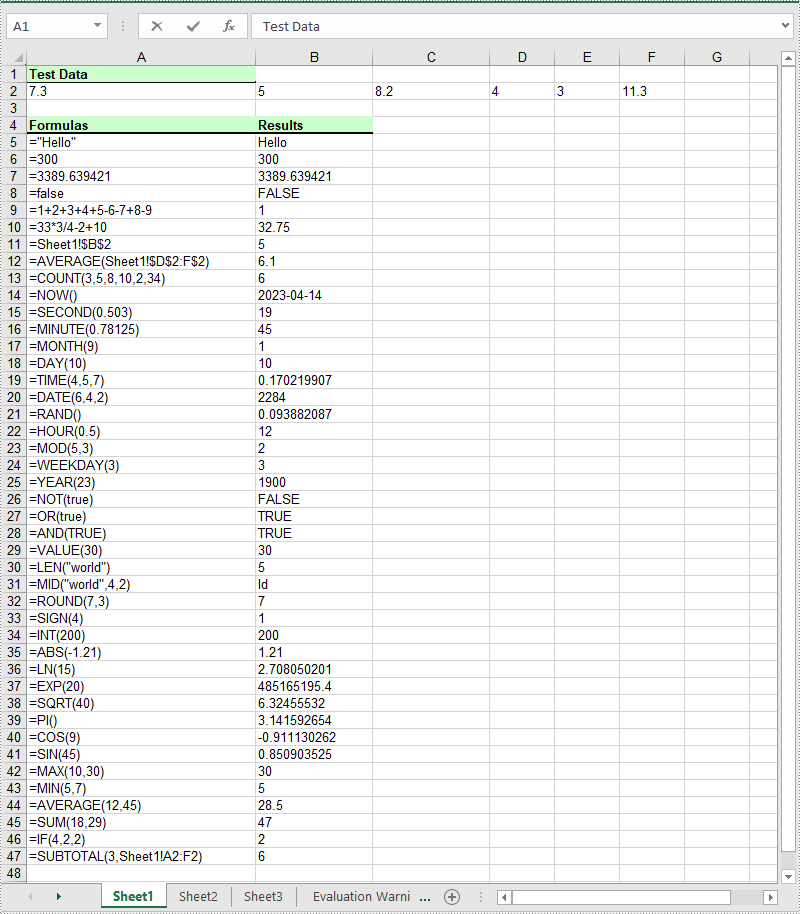
Formulas and functions are fundamental features of Microsoft Excel that allow users to perform a variety of mathematical, statistical, and logical operations on data. Formulas are expressions that can be entered into cells to automate calculations, usually consisting of cell references, constants, and operators that specify the calculation to be performed. Functions, on the other hand, are pre-built formulas that perform specific tasks, such as calculating the sum, average, maximum, or minimum value of a range of cells. Both formulas and functions are essential tools for anyone working with data in Excel. Whether you are analyzing financial data, experimental data, or any other dataset, using formulas and functions can help you quickly and accurately perform calculations on your data and gain insights from it. In this article, you will learn how to insert or Read formulas and functions in an Excel file in C++ using Spire.XLS for C++.
Install Spire.XLS for C++
There are two ways to integrate Spire.XLS for C++ into your application. One way is to install it through NuGet, and the other way is to download the package from our website and copy the libraries into your program. Installation via NuGet is simpler and more recommended. You can find more details by visiting the following link.
Integrate Spire.XLS for C++ in a C++ Application
Insert Formulas and Functions into Excel in C++
The Worksheet->GetRange(int row, int column)->SetFormula(LPCWSTR_S value) method in Spire.XLS for C++ is used to add formulas or functions to specific cells in an Excel worksheet. The main steps are as follows:
- Initialize an instance of the Workbook class.
- Get a specific worksheet by its index using the Workbook->GetWorksheets()->Get(int index) method.
- Add some text and numeric data to specific cells of the worksheet using the Worksheet->GetRange(int row, int column)->SetText(LPCWSTR_S value) and Worksheet->GetRange(int row, int column)->SetNumberValue(double value) methods.
- Add text and formulas to specific cells of the worksheet using the Worksheet->GetRange(int row, int column)->SetText(LPCWSTR_S value) and the Worksheet->GetRange(int row, int column)->SetFormula(LPCWSTR_S value) methods.
- Add text and functions to specific cells of the worksheet using the Worksheet->GetRange(int row, int column)->SetText(LPCWSTR_S value) and the Worksheet->GetRange(int row, int column)->SetFormula(LPCWSTR_S value) methods.
- Save the result file using Workbook->SaveToFile(LPCWSTR_S fileName, ExcelVersion version) method.
- C++
#include "Spire.Xls.o.h";

using namespace Spire::Xls;
using namespace std;

int main()
{
    //Initialize an instance of the Workbook class
    intrusive_ptr<Worksheet> workbook = new Workbook();

    //Get the first worksheet
    intrusive_ptr<Worksheet> sheet = dynamic_pointer_cast<Worksheet>(workbook->GetWorksheets()->Get(0));

    //Declare two variables: currentRow, currentFormula
    int currentRow = 1;
    wstring currentFormula = L"";

    //Add text to the worksheet and set cell style
    sheet->GetRange(currentRow, 1)->SetText(L"Test Data:");
    sheet->GetRange(currentRow, 1)->GetStyle()->GetFont()->SetIsBold(true);
    sheet->GetRange(currentRow, 1)->GetStyle()->SetFillPattern(ExcelPatternType::Solid);
    sheet->GetRange(currentRow, 1)->GetStyle()->SetKnownColor(ExcelColors::LightGreen1);
    sheet->GetRange(currentRow, 1)->GetStyle()->GetBorders()->Get(BordersLineType::EdgeBottom)->SetLineStyle(LineStyleType::Medium);

    //Add some numeric data to the worksheet
    sheet->GetRange(++currentRow, 1)->SetNumberValue(7.3);
    sheet->GetRange(currentRow, 2)->SetNumberValue(5);
    sheet->GetRange(currentRow, 3)->SetNumberValue(8.2);
    sheet->GetRange(currentRow, 4)->SetNumberValue(4);
    sheet->GetRange(currentRow, 5)->SetNumberValue(3);
    sheet->GetRange(currentRow, 6)->SetNumberValue(11.3);

    currentRow++;

    //Add text to the worksheet and set cell style
    sheet->GetRange(++currentRow, 1)->SetText(L"Formulas");
    sheet->GetRange(currentRow, 2)->SetText(L"Results");
    sheet->GetRange(currentRow, 1, currentRow, 2)->GetStyle()->GetFont()->SetIsBold(true);
    sheet->GetRange(currentRow, 1, currentRow, 2)->GetStyle()->SetKnownColor(ExcelColors::LightGreen1);
    sheet->GetRange(currentRow, 1, currentRow, 2)->GetStyle()->SetFillPattern(ExcelPatternType::Solid);
    sheet->GetRange(currentRow, 1, currentRow, 2)->GetStyle()->GetBorders()->Get(BordersLineType::EdgeBottom)->SetLineStyle(LineStyleType::Medium);

    //Add text and formulas to the worksheet
    currentFormula = (L"=\"Hello\"");
    sheet->GetRange(++currentRow, 1)->SetText((L"'" + currentFormula).c_str());
    sheet->GetRange(currentRow, 2)->SetFormula(currentFormula.c_str());

    currentFormula = (L"=300");
    sheet->GetRange(++currentRow, 1)->SetText((L"'" + currentFormula).c_str());
    sheet->GetRange(currentRow, 2)->SetFormula(currentFormula.c_str());

    currentFormula = (L"=3389.639421");
    sheet->GetRange(++currentRow, 1)->SetText((L"'" + currentFormula).c_str());
    sheet->GetRange(currentRow, 2)->SetFormula(currentFormula.c_str());

    currentFormula = (L"=false");
    sheet->GetRange(++currentRow, 1)->SetText((L"'" + currentFormula).c_str());
    sheet->GetRange(currentRow, 2)->SetFormula(currentFormula.c_str());

    currentFormula = (L"=1+2+3+4+5-6-7+8-9");
    sheet->GetRange(++currentRow, 1)->SetText((L"'" + currentFormula).c_str());
    sheet->GetRange(currentRow, 2)->SetFormula(currentFormula.c_str());

    currentFormula = (L"=33*3/4-2+10");
    sheet->GetRange(++currentRow, 1)->SetText((L"'" + currentFormula).c_str());
    sheet->GetRange(currentRow, 2)->SetFormula(currentFormula.c_str());

    currentFormula = (L"=Sheet1!$B$2");
    sheet->GetRange(++currentRow, 1)->SetText((L"'" + currentFormula).c_str());
    sheet->GetRange(currentRow, 2)->SetFormula(currentFormula.c_str());

    //Add text and Functions to the worksheet
    //AVERAGE
    currentFormula = (L"=AVERAGE(Sheet1!$D$2:F$2)");
    sheet->GetRange(++currentRow, 1)->SetText((L"'" + currentFormula).c_str());
    sheet->GetRange(currentRow, 2)->SetFormula(currentFormula.c_str());

    //COUNT
    currentFormula = (L"=COUNT(3,5,8,10,2,34)");
    sheet->GetRange(++currentRow, 1)->SetText((L"'" + currentFormula).c_str());
    sheet->GetRange(currentRow, 2)->SetFormula(currentFormula.c_str());

    //NOW
    currentFormula = (L"=NOW()");
    sheet->GetRange(++currentRow, 1)->SetText((L"'" + currentFormula).c_str());
    sheet->GetRange(currentRow, 2)->SetFormula(currentFormula.c_str());
    sheet->GetRange(currentRow, 2)->GetStyle()->SetNumberFormat(L"yyyy-MM-DD");

    //SECOND
    currentFormula = (L"=SECOND(0.503)");
    sheet->GetRange(++currentRow, 1)->SetText((L"'" + currentFormula).c_str());
    sheet->GetRange(currentRow++, 2)->SetFormula(currentFormula.c_str());

    //MINUTE
    currentFormula = (L"=MINUTE(0.78125)");
    sheet->GetRange(currentRow, 1)->SetText((L"'" + currentFormula).c_str());
    sheet->GetRange(currentRow++, 2)->SetFormula(currentFormula.c_str());

    //MONTH
    currentFormula = (L"=MONTH(9)");
    sheet->GetRange(currentRow, 1)->SetText((L"'" + currentFormula).c_str());
    sheet->GetRange(currentRow++, 2)->SetFormula(currentFormula.c_str());

    //DAY
    currentFormula = (L"=DAY(10)");
    sheet->GetRange(currentRow, 1)->SetText((L"'" + currentFormula).c_str());
    sheet->GetRange(currentRow++, 2)->SetFormula(currentFormula.c_str());

    //TIME
    currentFormula = (L"=TIME(4,5,7)");
    sheet->GetRange(currentRow, 1)->SetText((L"'" + currentFormula).c_str());
    sheet->GetRange(currentRow++, 2)->SetFormula(currentFormula.c_str());

    //DATE
    currentFormula = (L"=DATE(6,4,2)");
    sheet->GetRange(currentRow, 1)->SetText((L"'" + currentFormula).c_str());
    sheet->GetRange(currentRow++, 2)->SetFormula(currentFormula.c_str());

    //RAND
    currentFormula = (L"=RAND()");
    sheet->GetRange(currentRow, 1)->SetText((L"'" + currentFormula).c_str());
    sheet->GetRange(currentRow++, 2)->SetFormula(currentFormula.c_str());

    //HOUR
    currentFormula = (L"=HOUR(0.5)");
    sheet->GetRange(currentRow, 1)->SetText((L"'" + currentFormula).c_str());
    sheet->GetRange(currentRow++, 2)->SetFormula(currentFormula.c_str());

    //MOD
    currentFormula = (L"=MOD(5,3)");
    sheet->GetRange(currentRow, 1)->SetText((L"'" + currentFormula).c_str());
    sheet->GetRange(currentRow++, 2)->SetFormula(currentFormula.c_str());

    //WEEKDAY
    currentFormula = (L"=WEEKDAY(3)");
    sheet->GetRange(currentRow, 1)->SetText((L"'" + currentFormula).c_str());
    sheet->GetRange(currentRow++, 2)->SetFormula(currentFormula.c_str());

    //YEAR
    currentFormula = (L"=YEAR(23)");
    sheet->GetRange(currentRow, 1)->SetText((L"'" + currentFormula).c_str());
    sheet->GetRange(currentRow++, 2)->SetFormula(currentFormula.c_str());

    //NOT
    currentFormula = (L"=NOT(true)");
    sheet->GetRange(currentRow, 1)->SetText((L"'" + currentFormula).c_str());
    sheet->GetRange(currentRow++, 2)->SetFormula(currentFormula.c_str());

    //OR
    currentFormula = (L"=OR(true)");
    sheet->GetRange(currentRow, 1)->SetText((L"'" + currentFormula).c_str());
    sheet->GetRange(currentRow++, 2)->SetFormula(currentFormula.c_str());

    //AND
    currentFormula = (L"=AND(TRUE)");
    sheet->GetRange(currentRow, 1)->SetText((L"'" + currentFormula).c_str());
    sheet->GetRange(currentRow++, 2)->SetFormula(currentFormula.c_str());

    //VALUE
    currentFormula = (L"=VALUE(30)");
    sheet->GetRange(currentRow, 1)->SetText((L"'" + currentFormula).c_str());
    sheet->GetRange(currentRow++, 2)->SetFormula(currentFormula.c_str());

    //LEN
    currentFormula = (L"=LEN(\"world\")");
    sheet->GetRange(currentRow, 1)->SetText((L"'" + currentFormula).c_str());
    sheet->GetRange(currentRow++, 2)->SetFormula(currentFormula.c_str());

    //MID
    currentFormula = (L"=MID(\"world\",4,2)");
    sheet->GetRange(currentRow, 1)->SetText((L"'" + currentFormula).c_str());
    sheet->GetRange(currentRow++, 2)->SetFormula(currentFormula.c_str());

    //ROUND
    currentFormula = (L"=ROUND(7,3)");
    sheet->GetRange(currentRow, 1)->SetText((L"'" + currentFormula).c_str());
    sheet->GetRange(currentRow++, 2)->SetFormula(currentFormula.c_str());

    //SIGN
    currentFormula = (L"=SIGN(4)");
    sheet->GetRange(currentRow, 1)->SetText((L"'" + currentFormula).c_str());
    sheet->GetRange(currentRow++, 2)->SetFormula(currentFormula.c_str());

    //INT
    currentFormula = (L"=INT(200)");
    sheet->GetRange(currentRow, 1)->SetText((L"'" + currentFormula).c_str());
    sheet->GetRange(currentRow++, 2)->SetFormula(currentFormula.c_str());

    //ABS
    currentFormula = (L"=ABS(-1.21)");
    sheet->GetRange(currentRow, 1)->SetText((L"'" + currentFormula).c_str());
    sheet->GetRange(currentRow++, 2)->SetFormula(currentFormula.c_str());

    //LN
    currentFormula = (L"=LN(15)");
    sheet->GetRange(currentRow, 1)->SetText((L"'" + currentFormula).c_str());
    sheet->GetRange(currentRow++, 2)->SetFormula(currentFormula.c_str());

    //EXP
    currentFormula = (L"=EXP(20)");
    sheet->GetRange(currentRow, 1)->SetText((L"'" + currentFormula).c_str());
    sheet->GetRange(currentRow++, 2)->SetFormula(currentFormula.c_str());

    //SQRT
    currentFormula = (L"=SQRT(40)");
    sheet->GetRange(currentRow, 1)->SetText((L"'" + currentFormula).c_str());
    sheet->GetRange(currentRow++, 2)->SetFormula(currentFormula.c_str());

    //PI
    currentFormula = (L"=PI()");
    sheet->GetRange(currentRow, 1)->SetText((L"'" + currentFormula).c_str());
    sheet->GetRange(currentRow++, 2)->SetFormula(currentFormula.c_str());

    //COS
    currentFormula = (L"=COS(9)");
    sheet->GetRange(currentRow, 1)->SetText((L"'" + currentFormula).c_str());
    sheet->GetRange(currentRow++, 2)->SetFormula(currentFormula.c_str());

    //SIN
    currentFormula = (L"=SIN(45)");
    sheet->GetRange(currentRow, 1)->SetText((L"'" + currentFormula).c_str());
    sheet->GetRange(currentRow++, 2)->SetFormula(currentFormula.c_str());

    //MAX
    currentFormula = (L"=MAX(10,30)");
    sheet->GetRange(currentRow, 1)->SetText((L"'" + currentFormula).c_str());
    sheet->GetRange(currentRow++, 2)->SetFormula(currentFormula.c_str());

    //MIN
    currentFormula = (L"=MIN(5,7)");
    sheet->GetRange(currentRow, 1)->SetText((L"'" + currentFormula).c_str());
    sheet->GetRange(currentRow++, 2)->SetFormula(currentFormula.c_str());

    //AVERAGE
    currentFormula = (L"=AVERAGE(12,45)");
    sheet->GetRange(currentRow, 1)->SetText((L"'" + currentFormula).c_str());
    sheet->GetRange(currentRow++, 2)->SetFormula(currentFormula.c_str());

    //SUM
    currentFormula = (L"=SUM(18,29)");
    sheet->GetRange(currentRow, 1)->SetText((L"'" + currentFormula).c_str());
    sheet->GetRange(currentRow++, 2)->SetFormula(currentFormula.c_str());

    //IF
    currentFormula = (L"=IF(4,2,2)");
    sheet->GetRange(currentRow, 1)->SetText((L"'" + currentFormula).c_str());
    sheet->GetRange(currentRow++, 2)->SetFormula(currentFormula.c_str());

    //SUBTOTAL
    currentFormula = (L"=SUBTOTAL(3,Sheet1!A2:F2)");
    sheet->GetRange(currentRow, 1)->SetText((L"'" + currentFormula).c_str());
    sheet->GetRange(currentRow++, 2)->SetFormula(currentFormula.c_str());

    //Set width of the 1st, 2nd and 3rd columns
    sheet->SetColumnWidth(1, 32);
    sheet->SetColumnWidth(2, 16);
    sheet->SetColumnWidth(3, 16);

    //Create a cell style
    intrusive_ptr<CellStyle> style = workbook->GetStyles()->Add(L"Style");
    //Set the horizontal alignment as left
    style->SetHorizontalAlignment(HorizontalAlignType::Left);
    //Apply the style to the worksheet
    sheet->ApplyStyle(style);

    //Save the result file
    workbook->SaveToFile(L"InsertFormulasAndFunctions.xlsx", ExcelVersion::Version2016);
    workbook->Dispose();
}
Read Formulas and Functions in Excel in C++
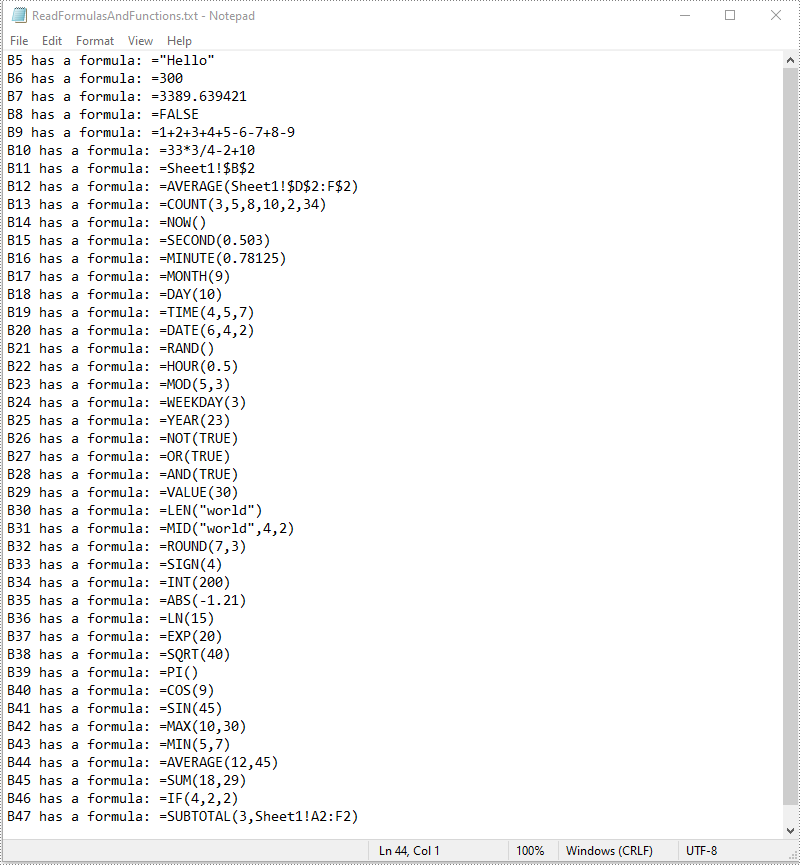
To read formulas and functions in an Excel worksheet, you need to iterate through all the cells in the worksheet, after that, find the cells containing formulas or functions using the Cell->GetHasFormula() method, then get the formulas or functions of the cells using the CellRange->GetFormula() method. The detailed steps are as follows:
- Initialize an instance of the Workbook class.
- Load an Excel file using the Workbook->LoadFromFile() method.
- Get a specific worksheet by its index using the Workbook->GetWorksheets()->Get(int index) method.
- Access the used range of the worksheet using the Worksheet->GetAllocatedRange() method.
- Declare a wstring variable.
- Iterate through all the cells in the used range.
- Find the cells containing formulas/functions using the Cell->GetHasFormula() method.
- Get the names and the formulas/functions of the cells using the CellRange->GetRangeAddressLocal() and CellRange->GetFormula() methods.
- Append the cell names and formulas/functions to the wstring variable.
- Write the content of the wstring variable into a .txt file.
- C++
#include "Spire.Xls.o.h";

using namespace Spire::Xls;
using namespace std;

int main()
{
    //Initialize an instance of the Workbook class
    intrusive_ptr<Worksheet> workbook = new Workbook();
    //Load an Excel file
    workbook->LoadFromFile(L"InsertFormulasAndFunctions.xlsx");

    //Get the first worksheet
    intrusive_ptr<Worksheet> sheet = dynamic_pointer_cast<Worksheet>(workbook->GetWorksheets()->Get(0));

    //Access the used range of the worksheet
    intrusive_ptr<CellRange> usedRange = dynamic_pointer_cast<CellRange>(sheet->GetAllocatedRange());

    //Declare a wstring variable
    wstring buffer = L"";
    //Loop through all the cells in the used range
    for (int i = 0; i < usedRange->GetCells()->GetCount(); i++)
    {
        intrusive_ptr<CellRange> cell = usedRange->GetCells()->GetItem(i);
        //Detect if the current cell has formula/function
        if (cell->GetHasFormula())
        {
            //Get the cell name
            wstring cellName = cell->GetRangeAddressLocal();
            //Get the formula/function
            wstring formula = cell->GetFormula();
            //Append the cell name and formula/function to the wstring variable
            buffer += ((cellName + L" has a formula: " + formula + L"\n").c_str());
        }
    }

    //Write the content of the wstring variable into a .txt file
    wofstream write(L"ReadFormulasAndFunctions.txt");
    auto LocUtf8 = locale(locale(""), new std::codecvt_utf8<wchar_t>);
    write.imbue(LocUtf8);
    write << buffer;
    write.close();
    workbook->Dispose();
}
Apply for a Temporary License
If you'd like to remove the evaluation message from the generated documents, or to get rid of the function limitations, please request a 30-day trial license for yourself.
C++: Group or Ungroup Rows and Columns in Excel
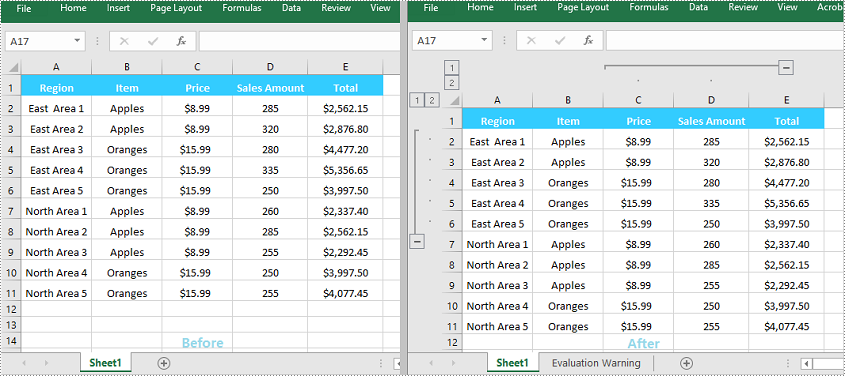
Grouping rows and columns in Excel is a valuable feature that can simplify working with large or complex datasets. This feature enables you to hide or show individual sections of data for better viewing and analysis. For instance, if you have a worksheet with data for various regions or departments, you can group the rows for each region or department together. Once grouped, you can collapse or expand each group as required, which makes it easier for you to focus on specific parts of the data while keeping the rest of the worksheet unaffected. In this article, you will learn how to group or ungroup rows and columns, along with how to expand or collapse groups in Excel in C++ using Spire.XLS for C++.
- Group Rows and Columns in Excel in C++
- Ungroup Rows and Columns in Excel in C++
- Expand or Collapse Groups in Excel in C++
Install Spire.XLS for C++
There are two ways to integrate Spire.XLS for C++ into your application. One way is to install it through NuGet, and the other way is to download the packageThere are two ways to integrate Spire.XLS for C++ into your application. One way is to install it through NuGet, and the other way is to download the package from our website and copy the libraries into your program. Installation via NuGet is simpler and more recommended. You can find more details by visiting the following link.from our website and copy the libraries into your program. Installation via NuGet is simpler and more recommended. You can find more details by visiting the following link.
Integrate Spire.XLS for C++ in a C++ Application
Group Rows and Columns in Excel in C++
The XlsWorksheet->GroupByRows(int firstRow, int lastRow, bool isCollapsed) and XlsWorksheet->GroupByColumns (int firstColumn, int lastColumn, bool isCollapsed) methods in Spire.XLS for C++ can be used to group specific rows and columns in an Excel worksheet. The detailed steps are as follows:
- Initialize an instance of the Workbook class.
- Load an Excel file using the Workbook->LoadFromFile(LPCWSTR_S fileName) method.
- Get a specific worksheet by its index using the Workbook->GetWorksheets()->Get(int index) method.
- Group specific rows in the worksheet using the XlsWorksheet->GroupByRows(int firstRow, int lastRow, bool isCollapsed) method.
- Group specific columns in the worksheet using the XlsWorksheet->GroupByColumns (int firstColumn, int lastColumn, bool isCollapsed) method.
- Save the result file using the Workbook->SaveToFile (LPCWSTR_S fileName, ExcelVersion version) method.
- C++
#include "Spire.Xls.o.h";

using namespace Spire::Xls;

int main()
{
	//Initialize an instance of the Workbook class
	intrusive_ptr<Workbook> workbook = new Workbook();

	//Load an Excel file
	workbook->LoadFromFile(L"Sample.xlsx");

	//Get the first worksheet
	intrusive_ptr<Worksheet> sheet = dynamic_pointer_cast<Worksheet>(workbook->GetWorksheets()->Get(0));

	//Group the 2nd, 3rd, 4th, 5th and 6th rows
	sheet->GroupByRows(2, 6, false);
	//Group the 3rd and 4th columns
	sheet->GroupByColumns(3, 4, false);

	//Save the result file
	workbook->SaveToFile(L"GroupRowsAndColumns.xlsx", ExcelVersion::Version2013);
	workbook->Dispose();
}
Ungroup Rows and Columns in Excel in C++
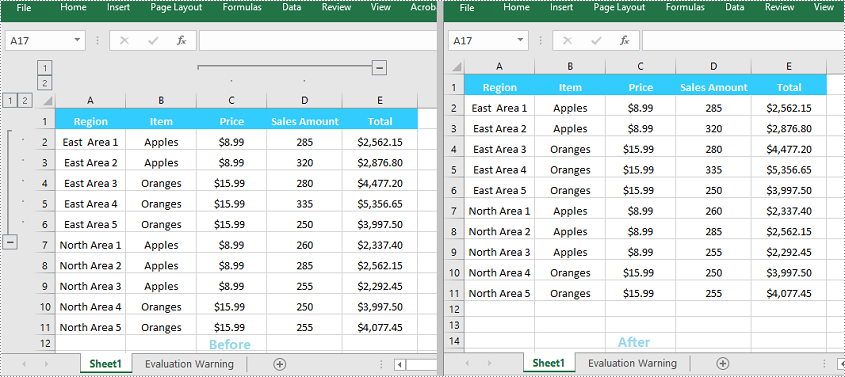
By ungrouping rows and columns, you can restore each cell to its initial, standalone state, helping you view the data as it was originally presented.
Spire.XLS for C++ offers the XlsWorksheet->UngroupByRows(int firstRow, int lastRow) and XlsWorksheet->UngroupByColumns (int firstColumn, int lastColumn) methods to help you ungroup rows and columns. The detailed steps are as follows:
- Initialize an instance of the Workbook class.
- Load an Excel file using the Workbook->LoadFromFile(LPCWSTR_S fileName) method.
- Get a specific worksheet by its index using the Workbook->GetWorksheets()->Get(int index) method.
- Ungroup specific rows in the worksheet using the XlsWorksheet->UngroupByRows(int firstRow, int lastRow) method.
- Ungroup specific columns in the worksheet using the XlsWorksheet->UngroupByColumns (int firstColumn, int lastColumn) method.
- Save the result file using the Workbook->SaveToFile (LPCWSTR_S fileName, ExcelVersion version) method.
- C++
#include "Spire.Xls.o.h";

using namespace Spire::Xls;

int main()
{
	//Initialize an instance of the Workbook class
	intrusive_ptr<Workbook> workbook = new Workbook();

	//Load an Excel file
	workbook->LoadFromFile(L" GroupRowsAndColumns.xlsx");

	//Get the first worksheet
	intrusive_ptr<Worksheet> sheet = dynamic_pointer_cast<Worksheet>(workbook->GetWorksheets()->Get(0));

	//Ungroup the 2nd, 3rd, 4th, 5th and 6th rows
	sheet->UngroupByRows(2, 6);

	//Ungroup the 3rd and 4th columns
	sheet->UngroupByColumns(3, 4);

	//Save the result file
	workbook->SaveToFile(L"UngroupRowsAndColumns.xlsx", ExcelVersion::Version2013);
	workbook->Dispose();
}
Expand or Collapse Groups in Excel in C++
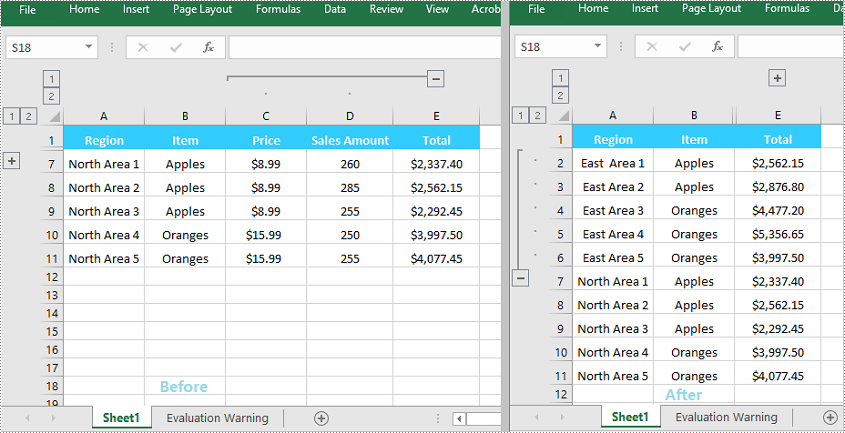
When grouping rows or columns in Excel, you can click the expand (+) or collapse (-) button to show or hide the grouped data. In Spire.XLS for C++, you can use the Worksheet->GetRange(LPCWSTR_S name)->ExpandGroup(GroupByType groupBy) method or the Worksheet->GetRange(LPCWSTR_S name)->CollapseGroup(GroupByType groupBy) method to achieve the same expanding or collapsing effect. The detailed steps are as follows:
- Initialize an instance of the Workbook class.
- Load an Excel file using the Workbook->LoadFromFile(LPCWSTR_S fileName) method.
- Get a specific worksheet by its index using the Workbook->GetWorksheets()->Get(int index) method.
- Expand a specific group using the Worksheet->GetRange(LPCWSTR_S name)->ExpandGroup(GroupByType groupBy) method.
- Collapse a specific group using the Worksheet->GetRange(LPCWSTR_S name)->CollapseGroup(GroupByType groupBy) method.
- Save the result file using the Workbook->SaveToFile (LPCWSTR_S fileName, ExcelVersion version) method.
- C++
#include "Spire.Xls.o.h";

using namespace Spire::Xls;

int main()
{
	//Initialize an instance of the Workbook class
	intrusive_ptr<Workbook> workbook = new Workbook();

	//Load an Excel file
	workbook->LoadFromFile(L"Input.xlsx");

	//Get the first worksheet
	intrusive_ptr<Worksheet> sheet = dynamic_pointer_cast<Worksheet>(workbook->GetWorksheets()->Get(0));

	//Expand a group
	sheet->GetRange(L"A2:E6")->ExpandGroup(GroupByType::ByRows);

	//Collapse a group
	sheet->GetRange(L"C1:D11")->CollapseGroup(GroupByType::ByColumns);

	//Save the result file
	workbook->SaveToFile(L"ExpandOrCollapseGroups.xlsx", ExcelVersion::Version2013);
	workbook->Dispose();
}
Apply for a Temporary License
If you'd like to remove the evaluation message from the generated documents, or to get rid of the function limitations, please request a 30-day trial license for yourself.
C++: Compare Two Word Documents for Differences
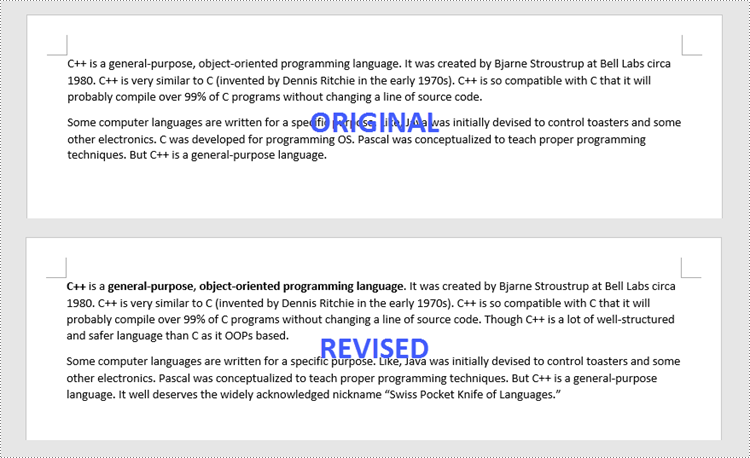
Comparison of two versions of a document is the process of checking the new version against the previous one to identify changes made by different contributors. By comparing documents, legal staffs can easily review contracts to determine what changes have been made or still need to be made, and teachers can quickly compare student papers to determine whether or not necessary changes have been applied. In this article, you will learn how to compare two Word documents in C++ using Spire.Doc for C++.
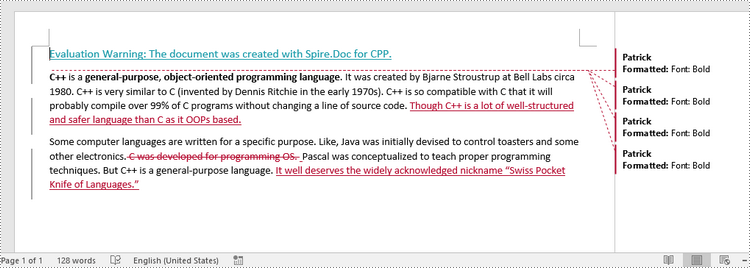
The following is a screenshot of the two Word documents we’re going to compare.
Install Spire.Doc for C++
There are two ways to integrate Spire.Doc for C++ into your application. One way is to install it through NuGet, and the other way is to download the package from our website and copy the libraries into your program. Installation via NuGet is simpler and more recommended. You can find more details by visiting the following link.
Integrate Spire.Doc for C++ in a C++ Application
Compare Two Word Documents in C++
Spire.Doc for C++ allows to compare two Word documents and save the result in a third document. When opening this document with MS Word, you can see all changes that have been made to the original document, including insertions, deletions as well as formatting modifications. The following are the detailed steps.
- Load two Word documents separately while initialing two different Document objects.
- Compare these two documents using Document->Compare() method.
- Save the result in a third Word document using Document->SaveToFile() method.
- C++
#include "Spire.Doc.o.h"

using namespace Spire::Doc;

int main() {

 //Load the first document
 intrusive_ptr<Document> doc1 = new Document(L"C:\\Users\\Administrator\\Desktop\\Original.docx");

 //Load the second document
 intrusive_ptr<Document> doc2 = new Document(L"C:\\Users\\Administrator\\Desktop\\Revised.docx");

 //Compare the second document on the basis of the first document
 doc1->Compare(doc2, L"Patrick");

 //Save to a docx file
 doc1->SaveToFile(L"output/Result.docx", Spire::Doc::FileFormat::Docx2013);

 doc1->Close();
 doc2->Close();
}
Apply for a Temporary License
If you'd like to remove the evaluation message from the generated documents, or to get rid of the function limitations, please request a 30-day trial license for yourself.
C++: Add, Read or Delete Speaker Notes in PowerPoint
Speaker notes are hidden notes that can be added to slides to help recall some important or key information. Speaker notes are only visible to the presenter, so adding speaker notes in PowerPoint will not affect the overall visual effectiveness of the document. In this article, you will learn how to programmatically add, read or delete speaker notes in a PowerPoint presentation using Spire.Presentation for C++.
- Add Speaker Notes in PowerPoint in C++
- Read Speaker Notes in PowerPoint in C++
- Delete Speaker Notes in PowerPoint in C++
Install Spire.Presentation for C++
There are two ways to integrate Spire.Presentation for C++ into your application. One way is to install it through NuGet, and the other way is to download the package from our website and copy the libraries into your program. Installation via NuGet is simpler and more recommended. You can find more details by visiting the following link.
Integrate Spire.Presentation for C++ in a C++ Application
Add Speaker Notes in PowerPoint in C++
There are a number of benefits to using speaker notes in a PowerPoint presentation, such as it can help you stay on point and also appear more confident during a presentation. The following are the steps to add speaker notes to a specified slide.
- Create a Presentation instance and load a PowerPoint document using Presentation->LoadFromFile() method.
- Get a specified slide using Presentation->GetSlides()->GetItem(slideIndex) method.
- Add a notes slide to the slide using ISlide->AddNotesSlide() method.
- Create a TextParagraph instance.
- Set text for the paragraph using TextParagraph->SetText() method, and then append the paragraph to the notes slide using NotesSlide->GetNotesTextFrame()->GetParagraphs()->Append() method.
- Save the result document using Presentation->SaveToFile() method.
- C++
#include "Spire.Presentation.o.h";
using namespace Spire::Presentation;
using namespace std;
int main()
{
//Specify the input and output file paths
std::wstring inputFile = L"Data\\Template.pptx";
std::wstring outputFile = L"SpeakerNotes.pptx";
//Create a Presentation instance
intrusive_ptr<Presentation> ppt = new Presentation();
//Load a sample PowerPoint document from disk
ppt->LoadFromFile(inputFile.c_str());
//Get the second slide
intrusive_ptr<ISlide> slide = ppt->GetSlides()->GetItem(1);
//Add a notes slide
intrusive_ptr<NotesSlide> notesSlide = slide->AddNotesSlide();
//Add paragraphs to the notes slide and set the content of the speaker notes
intrusive_ptrTextParagraph> paragraph = new TextParagraph();
paragraph->SetText(L"Tips for making effective presentations:");
notesSlide->GetNotesTextFrame()->GetParagraphs()->Append(paragraph);
paragraph = new TextParagraph();
paragraph->SetText(L"Use the slide master feature to create a consistent and simple design template.");
notesSlide->GetNotesTextFrame()->GetParagraphs()->Append(paragraph);
paragraph = new TextParagraph();
paragraph->SetText(L"Simplify and limit the number of words on each screen.");
notesSlide->GetNotesTextFrame()->GetParagraphs()->Append(paragraph);
paragraph = new TextParagraph();
paragraph->SetText(L"Use contrasting colors for text and background.");
notesSlide->GetNotesTextFrame()->GetParagraphs()->Append(paragraph);
//Set the bullet type and bullet style for specific paragraphs on the notes slide
for (int i = 1; i < notesSlide->GetNotesTextFrame()->GetParagraphs()->GetCount(); i++)
{
notesSlide->GetNotesTextFrame()->GetParagraphs()->GetItem(i)->SetBulletType(TextBulletType::Numbered);
notesSlide->GetNotesTextFrame()->GetParagraphs()->GetItem(i)->SetBulletStyle(NumberedBulletStyle::BulletArabicPeriod);
}
//Save the result file
ppt->SaveToFile(outputFile.c_str(), FileFormat::Pptx2013);
ppt->Dispose();
}

Read Speaker Notes in PowerPoint in C++
To get speaker notes from a notes slide, Spire.Presentation for C++ offers the NotesSlide->GetNotesTextFrame()->GetText() method. The following are the detailed steps.
- Create a Presentation instance and load a PowerPoint document using Presentation->LoadFromFile() method.
- Get a specified slide using Presentation->GetSlides()->GetItem(slideIndex) method.
- Get the notes slide from the slide using ISlide->GetNotesSlide() method.
- Get the speaker notes from the notes slide using NotesSlide->GetNotesTextFrame()->GetText() method, and then save them to a .txt file.
- C++
#include "Spire.Presentation.o.h";
using namespace Spire::Presentation;
using namespace std;
int main()
{
//Specify the input and output file paths
std::wstring inputFile = L"SpeakerNotes.pptx";
std::wstring outputFile = L"GetSpeakerNotes.txt";
//Create a Presentation instance
intrusive_ptrPresentation> presentation = new Presentation();
//Load a sample PowerPoint document
presentation->LoadFromFile(inputFile.c_str());
//Get the second slide
intrusive_ptr<ISlide> slide = presentation->GetSlides()->GetItem(1);
//Get the notes slide from the second slide
intrusive_ptr<NotesSlide> notesSlide = slide->GetNotesSlide();
//Get the speaker notes and save to txt file
wofstream desFile(outputFile, ios::out);
desFile << notesSlide->GetNotesTextFrame()->GetText() << endl;
desFile.close();
presentation->Dispose();
}
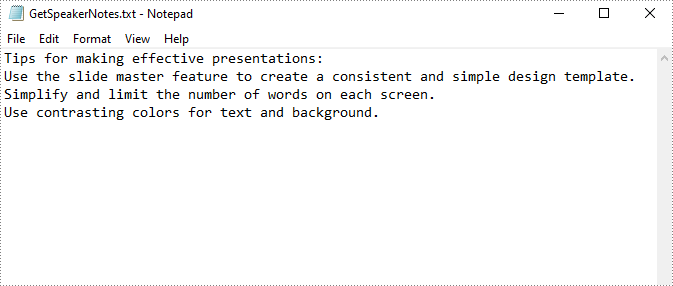
Delete Speaker Notes in PowerPoint in C++
With Spire.Presentation for C++, you are also allowed to remove all speaker notes at once or just remove a specified speaker note from the notes slide. The following are the detailed steps.
- Create a Presentation instance and load a PowerPoint document using Presentation->LoadFromFile() method.
- Get a specified slide using Presentation->GetSlides()->GetItem(slideIndex) method.
- Get the notes slide from the slide using ISlide->GetNotesSlide() method.
- Remove all speaker notes from the notes slide using NotesSlide->GetNotesTextFrame()->GetParagraphs()->Clear() method or remove a specific speaker note from the notes slide using NotesSlide->GetNotesTextFrame()->GetParagraphs()->RemoveAt(paragraphIndex) method.
- Save the result document using Presentation->SaveToFile() method.
- C++
#include "Spire.Presentation.o.h";

using namespace Spire::Presentation;
using namespace std;

int main()
{
	//Specify the input and output file paths
	std::wstring inputFile = L"SpeakerNotes.pptx";
	std::wstring outputFile = L"RemoveSpeakerNotes.pptx";

	//Create a Presentation instance
	intrusive_ptr<Presentation> presentation = new Presentation();


	//Load a sample PowerPoint document
	presentation->LoadFromFile(inputFile.c_str());

	//Get the second slide
	intrusive_ptr<ISlide> slide = presentation->GetSlides()->GetItem(1);

	//Get the notes slide from the second slide
	intrusive_ptr<NotesSlide> notesSlide = slide->GetNotesSlide();

	//Remove all the speaker notes from notes slide
	notesSlide->GetNotesTextFrame()->GetParagraphs()->Clear();

	//Remove a specific speak note from notes slide
	//notesSlide->GetNotesTextFrame()->GetParagraphs()->RemoveAt(1);

	//Save the result file
	presentation->SaveToFile(outputFile.c_str(), FileFormat::Pptx2013);
	presentation->Dispose();
}
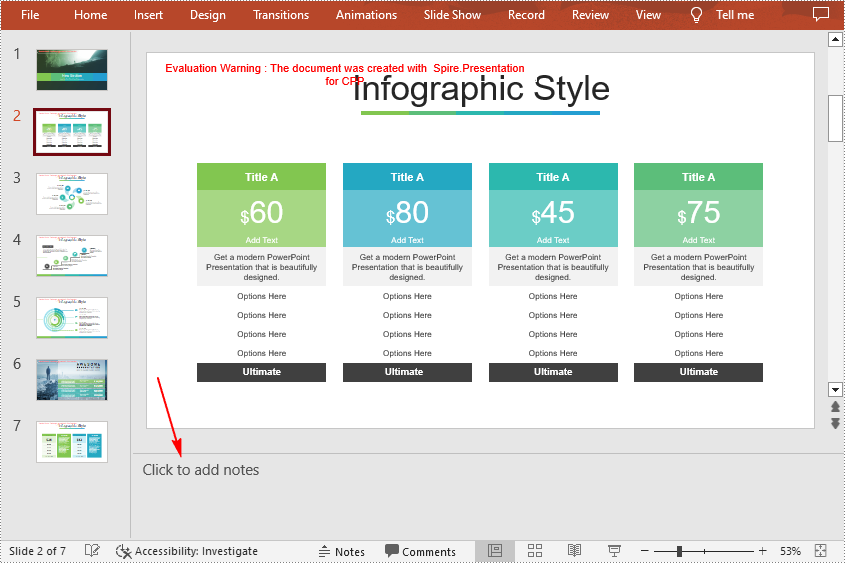
Apply for a Temporary License
If you'd like to remove the evaluation message from the generated documents, or to get rid of the function limitations, please request a 30-day trial license for yourself.
C++: Hide or Show Rows and Columns in Excel
Sometimes, certain rows and columns of an Excel file may contain sensitive or confidential information. Before presenting the file to others, it is critical to hide these specific rows and columns to prevent unauthorized people from viewing this information. After the representation, you can show the hidden rows and columns to redisplay the information as needed. In this article, we will demonstrate how to hide or show rows and columns in Excel in C++ using Spire.XLS for C++.
- Hide Specific Rows and Columns in Excel in C++
- Show Specific Hidden Rows and Columns in Excel in C++
- Hide Multiple Rows and Columns at Once in Excel in C++
- Show All Hidden Rows and Columns in Excel in C++
Install Spire.XLS for C++
There are two ways to integrate Spire.XLS for C++ into your application. One way is to install it through NuGet, and the other way is to download the package from our website and copy the libraries into your program. Installation via NuGet is simpler and more recommended. You can find more details by visiting the following link.
Integrate Spire.XLS for C++ in a C++ Application
Hide Specific Rows and Columns in Excel in C++
You can hide specific rows and columns in an Excel worksheet by using the XlsWorksheet->HideRow(int rowIndex) and XlsWorksheet->HideColumn(int columnIndex) methods. The detailed steps are as follows:
- Initialize an instance of the Workbook class.
- Load an Excel file using Workbook->LoadFromFile() method.
- Get a specific worksheet using Workbook->GetWorksheets()->Get(int index) method.
- Hide specific rows in the worksheet using XlsWorksheet->HideRow(int rowIndex) method.
- Hide Specific columns in the worksheet using XlsWorksheet->HideColumn(int columnIndex) method.
- Save the result file using Workbook->SaveToFile() method.
- C++
#include "Spire.Xls.o.h";

using namespace Spire::Xls;

int main()
{
	//Initialize an instance of the workbook class
	intrusive_ptr<Workbook> workbook = new Workbook();
	//Load an Excel file
	workbook->LoadFromFile(L"Input.xlsx");

	//Get the first worksheet
	intrusive_ptr<Worksheet> sheet = dynamic_pointer_cast<Worksheet>(workbook->GetWorksheets()->Get(0));

	//Hide the 3rd and the 7th rows
	sheet->HideRow(3);
	sheet->HideRow(7);

	//Hide the 3rd and the 6th columns
	sheet->HideColumn(3);
	sheet->HideColumn(6);

	//Save the result file
	workbook->SaveToFile(L"HideRowsAndColumns.xlsx", ExcelVersion::Version2013);
	workbook->Dispose();
}
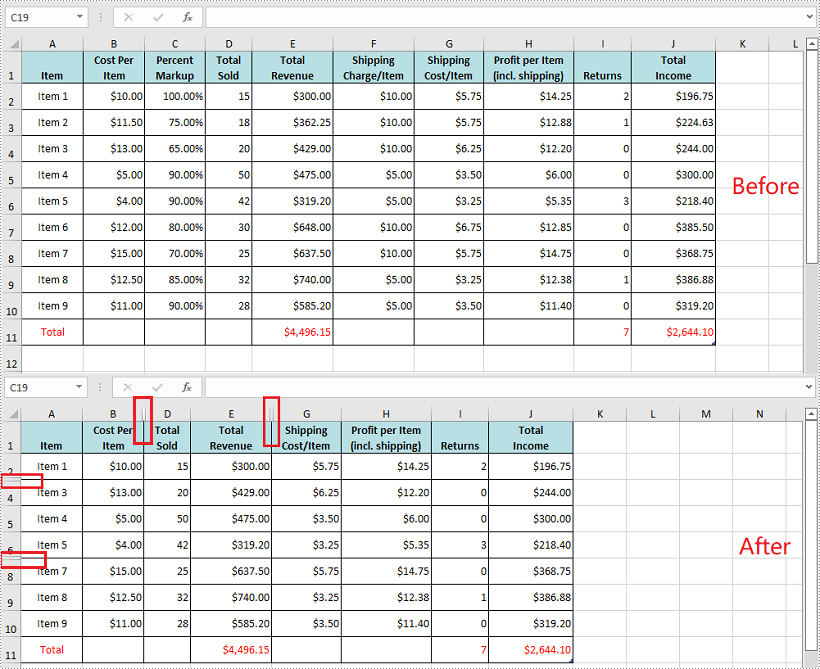
Show Specific Hidden Rows and Columns in Excel in C++
To show specific hidden rows and columns in an Excel worksheet, you can use the XlsWorksheet->ShowRow(int rowIndex) and XlsWorksheet->ShowColumn(int columnIndex) methods. The detailed steps are as follows:
- Initialize an instance of the Workbook class.
- Load an Excel file using Workbook->LoadFromFile() method.
- Get a specific worksheet using Workbook->GetWorksheets()->Get(int index) method.
- Show specific hidden rows in the worksheet using XlsWorksheet->ShowRow(int rowIndex) method.
- Show specific hidden columns in the worksheet using XlsWorksheet->ShowColumn(int columnIndex) method.
- Save the result file using Workbook->SaveToFile() method.
- C++
#include "Spire.Xls.o.h";

using namespace Spire::Xls;

int main()
{
	//Initialize an instance of the workbook class
	intrusive_ptr<Workbook> workbook = new Workbook();
	//Load an Excel file
	workbook->LoadFromFile(L"HideRowsAndColumns.xlsx");

	//Get the first worksheet
	intrusive_ptr<Worksheet> sheet = dynamic_pointer_cast<Worksheet>(workbook->GetWorksheets()->Get(0));

	//Show the 3rd and the 7th rows
	sheet->ShowRow(3);
	sheet->ShowRow(7);

	//Show the 3rd and the 6th columns
	sheet->ShowColumn(3);
	sheet->ShowColumn(6);

	//Save the result file
	workbook->SaveToFile(L"ShowRowsAndColumns.xlsx", ExcelVersion::Version2013);
	workbook->Dispose();
}
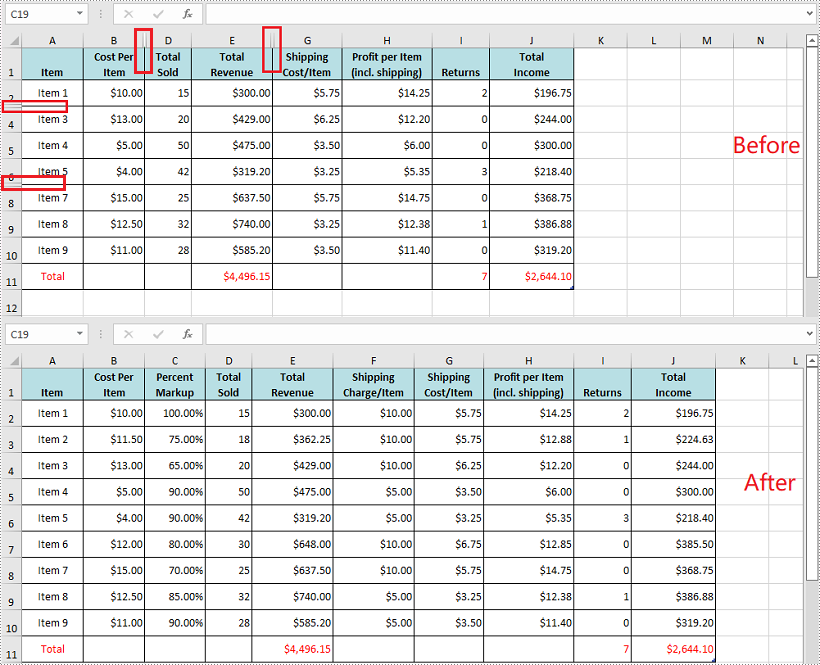
Hide Multiple Rows and Columns at Once in Excel in C++
You can hide multiple adjacent rows and columns at once by using the XlsWorksheet->HideRows(int rowIndex, int rowCount) and XlsWorksheet->HideColumns(int columnIndex, int columnCount) methods. The detailed steps are as follows:
- Initialize an instance of the Workbook class.
- Load an Excel file using Workbook->LoadFromFile() method.
- Get a specific worksheet using Workbook->GetWorksheets()->Get(int index) method.
- Hide multiple adjacent rows in the worksheet at once using XlsWorksheet->HideRows(int rowIndex, int rowCount) method.
- Hide multiple adjacent columns in the worksheet at once using XlsWorksheet->HideColumns(int columnIndex, int columnCount) method.
- Save the result file using Workbook->SaveToFile() method.
- C++
#include "Spire.Xls.o.h";

using namespace Spire::Xls;

int main()
{
	//Initialize an instance of the workbook class
	intrusive_ptr<Workbook> workbook = new Workbook();
	//Load an Excel file
	workbook->LoadFromFile(L"Input.xlsx");

	//Get the first worksheet
	intrusive_ptr<Worksheet> sheet = dynamic_pointer_cast<Worksheet>(workbook->GetWorksheets()->Get(0));

	//Hide the 3rd, 4th and 5th rows
	sheet->HideRows(3, 3);

	//Hide the 5th, 6th and 7th columns
	sheet->HideColumns(5, 3);

	//Save the result file
	workbook->SaveToFile(L"HideMultipleRowsAndColumns.xlsx", ExcelVersion::Version2013);
	workbook->Dispose();
}
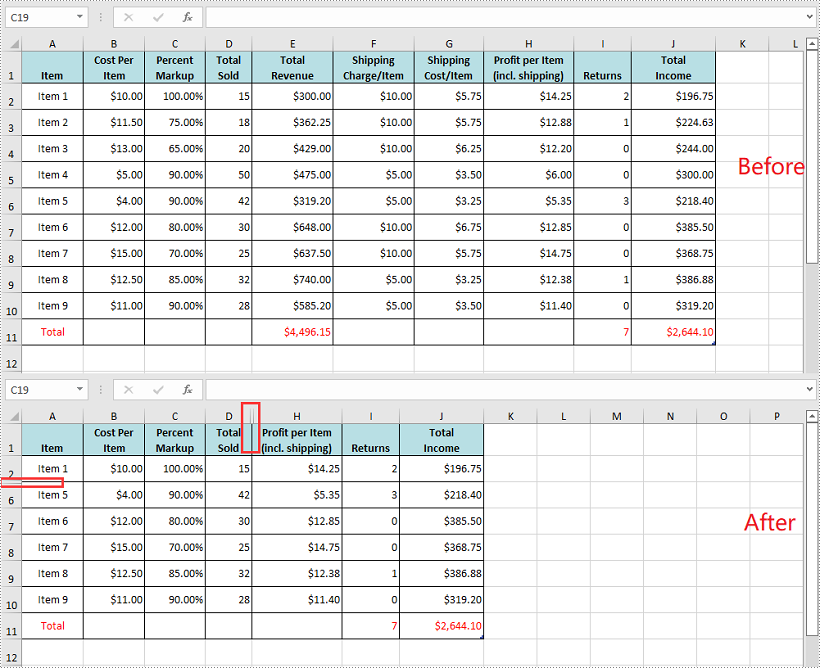
Show All Hidden Rows and Columns in Excel in C++
To show all the hidden rows and columns in an Excel worksheet, you need to iterate through all the rows and columns in the worksheet, then find the hidden rows and columns and call the XlsWorksheet->ShowRow(int rowIndex) and XlsWorksheet->ShowColumn(int columnIndex) methods to redisplay them. The detailed steps are as follows:
- Initialize an instance of the Workbook class.
- Load an Excel file using Workbook->LoadFromFile() method.
- Get a specific worksheet using Workbook->GetWorksheets()->Get(int index) method.
- Iterate through all the rows in the worksheet, then find the hidden rows using XlsWorksheet->GetRowIsHide(int rowIndex) method.
- Show the hidden rows using XlsWorksheet->ShowRow(int rowIndex) method.
- Iterate through all the columns in the worksheet, then find the hidden columns using XlsWorksheet->GetColumnIsHide(int columnIndex) method.
- Show the hidden columns using XlsWorksheet->ShowColumn(int columnIndex) method.
- Save the result file using Workbook->SaveToFile() method.
- C++
#include "Spire.Xls.o.h";

using namespace Spire::Xls;

int main()
{
	//Initialize an instance of the workbook class
	intrusive_ptr<Workbook> workbook = new Workbook();
	//Load an Excel file
	workbook->LoadFromFile(L"HideMultipleRowsAndColumns.xlsx");

	//Get the first worksheet
	intrusive_ptr<Worksheet> sheet = dynamic_pointer_cast<Worksheet>(workbook->GetWorksheets()->Get(0));

	//Iterate through all the rows in the worksheet
	for (int i = 1; i <= sheet->GetLastRow(); i++)
	{
		//Check if the current row is hidden
		if (sheet->GetRowIsHide(i))
		{
			sheet->ShowRow(i);
		}
	}

	//Iterate through all the columns in the worksheet
	for (int j = 1; j <= sheet->GetLastColumn(); j++)
	{
		//Check if the current column is hidden
		if (sheet->GetColumnIsHide(j))
		{
			//Show the hidden column
			sheet->ShowColumn(j);
		}
	}

	//Save the result file
	workbook->SaveToFile(L"ShowAllHiddenRowsAndColumns.xlsx", ExcelVersion::Version2013);
	workbook->Dispose();
}
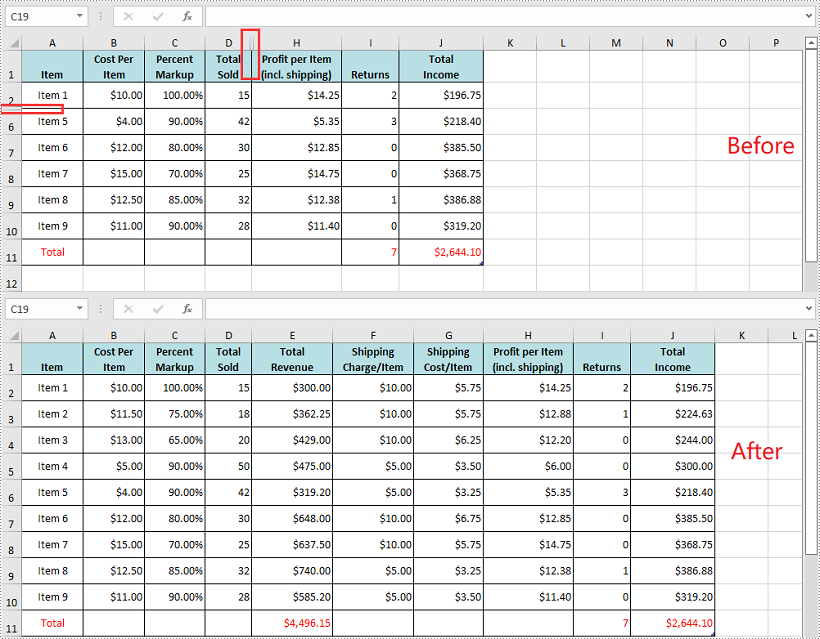
Apply for a Temporary License
If you'd like to remove the evaluation message from the generated documents, or to get rid of the function limitations, please request a 30-day trial license for yourself.