Java: Remove Annotations from PDF Documents
PDF annotations are notes or markers added to documents, which are great for making comments, giving explanations, giving feedback, etc. Co-creators of documents often communicate with annotations. However, when the issues associated with the annotations have been dealt with or the document has been finalized, it is necessary to remove the annotations to make the document more concise and professional. This article shows how to delete PDF annotations programmatically using Spire.PDF for Java.
- Remove the Specified Annotation
- Remove All Annotations from a Page
- Remove All Annotations from a PDF Document
Install Spire.PDF for Java
First of all, you're required to add the Spire.Pdf.jar file as a dependency in your Java program. The JAR file can be downloaded from this link. If you use Maven, you can easily import the JAR file in your application by adding the following code to your project's pom.xml file.
<repositories>
    <repository>
        <id>com.e-iceblue</id>
        <name>e-iceblue</name>
        <url>https://repo.e-iceblue.com/nexus/content/groups/public/</url>
    </repository>
</repositories>
<dependencies>
    <dependency>
        <groupId>e-iceblue</groupId>
        <artifactId>spire.pdf</artifactId>
        <version>12.9.0</version>
    </dependency>
</dependencies>
Remove the Specified Annotation
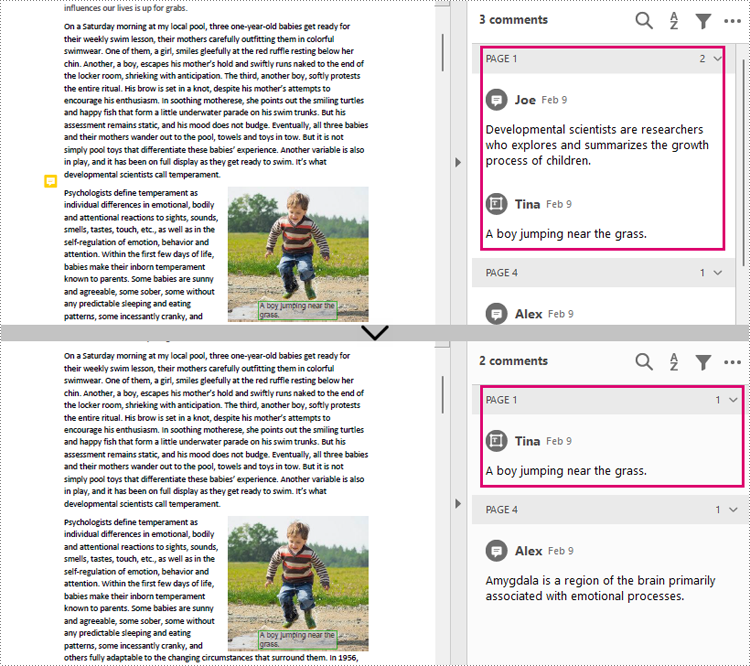
Annotations are page-level document elements. Therefore, deleting an annotation requires getting the page where the annotation is located first, and then you can use the PdfPageBase.getAnnotationsWidget().removeAt() method to delete the annotation. The detailed steps are as follows.
- Create a PdfDocument instance.
- Load a PDF document using PdfDocument.loadFromFile() method.
- Get the first page using PdfDocument.getPages().get() method.
- Remove the first annotation from this page using PdfPageBase.getAnnotationsWidget().removeAt() method.
- Save the document using PdfDocument.saveToFile() method.
- Java
import com.spire.pdf.PdfDocument;
import com.spire.pdf.PdfPageBase;

public class RemoveAnnotation {
    public static void main(String[] args) {

        //Create an object of PdfDocument
        PdfDocument pdf = new PdfDocument();

        //Load a PDF document
        pdf.loadFromFile("C:/Annotations.pdf");

        //Get the first page
        PdfPageBase page = pdf.getPages().get(0);

        //Remove the first annotation
        page.getAnnotationsWidget().removeAt(0);

        //Save the document
        pdf.saveToFile("RemoveOneAnnotation.pdf");
    }
}
Remove All Annotations from a Page
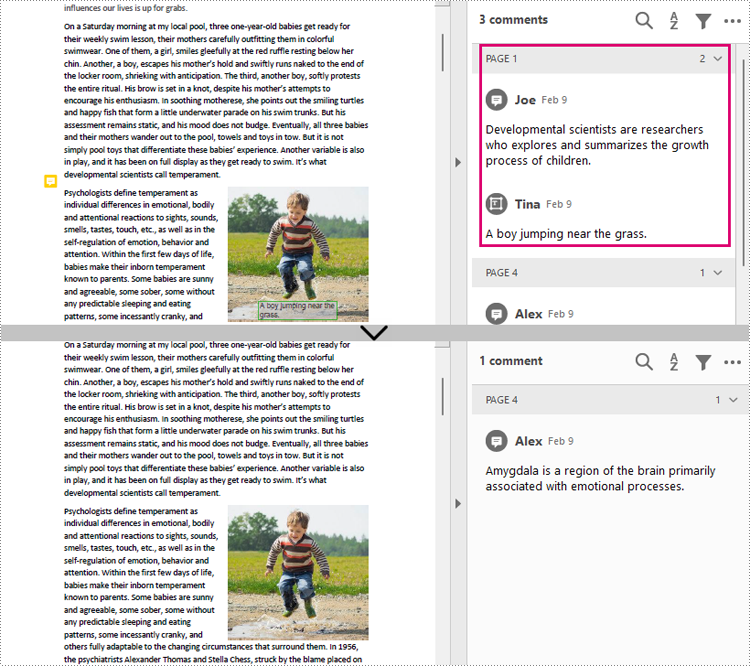
Spire.PDF for Java also provides PdfPageBase.getAnnotationsWidget().clear() method to remove all annotations in the specified page. The detailed steps are as follows.
- Create a PdfDocument instance.
- Load a PDF document using PdfDocument.loadFromFile() method.
- Get the first page using PdfDocument.getPages().get() method.
- Remove all annotations from the page using PdfPageBase.getAnnotationsWidget().clear() method.
- Save the document using PdfDocument.saveToFile() method.
- Java
import com.spire.pdf.PdfDocument;
import com.spire.pdf.PdfPageBase;

public class RemoveAllAnnotationPage {
    public static void main(String[] args) {

        //Create an object of PdfDocument
        PdfDocument pdf = new PdfDocument();

        //Load a PDF document
        pdf.loadFromFile("C:/Annotations.pdf");

        //Get the first page
        PdfPageBase page = pdf.getPages().get(0);

        //Remove all annotations in the page
        page.getAnnotationsWidget().clear();

        //Save the document
        pdf.saveToFile("RemoveAnnotationsPage.pdf");
    }
}
Remove All Annotations from a PDF Document
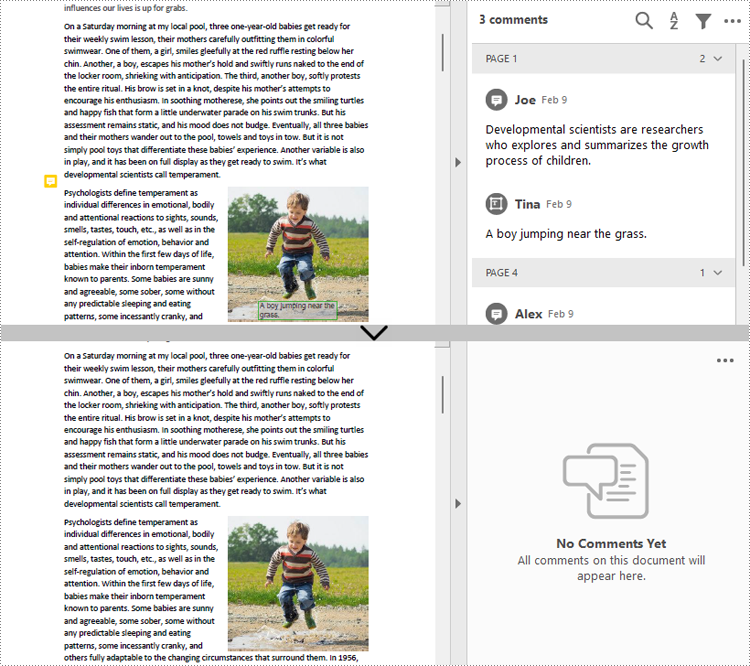
To remove all annotations from a PDF document, we need to loop through all pages in the document and delete all annotations from each page. The detailed steps are as follows.
- Create a PdfDocument instance.
- Load a PDF document using PdfDocument.loadFromFile() method.
- Loop through all pages to delete annotations.
- Delete annotations in each page using PdfPageBase.getAnnotationsWidget().clear() method.
- Save the document using PdfDocument.saveToFile() method.
- Java
import com.spire.pdf.PdfDocument;
import com.spire.pdf.PdfPageBase;

public class RemoveAllAnnotations {
    public static void main(String[] args) {

        //Create an object of PdfDocument
        PdfDocument pdf = new PdfDocument();

        //Load a PDF document
        pdf.loadFromFile("C:/Users/Sirion/Desktop/Annotations.pdf");

        //Loop through the pages in the document
        for (Object page : (Iterable) pdf.getPages()) {
            PdfPageBase pageBase = (PdfPageBase) page;
            //Remove annotations in each page
            pageBase.getAnnotationsWidget().clear();
        }


        //Save the document
        pdf.saveToFile("RemoveAllAnnotations.pdf");
    }
}
Apply for a Temporary License
If you'd like to remove the evaluation message from the generated documents, or to get rid of the function limitations, please request a 30-day trial license for yourself.
Add Line Numbers to a PDF in C#/VB.NET
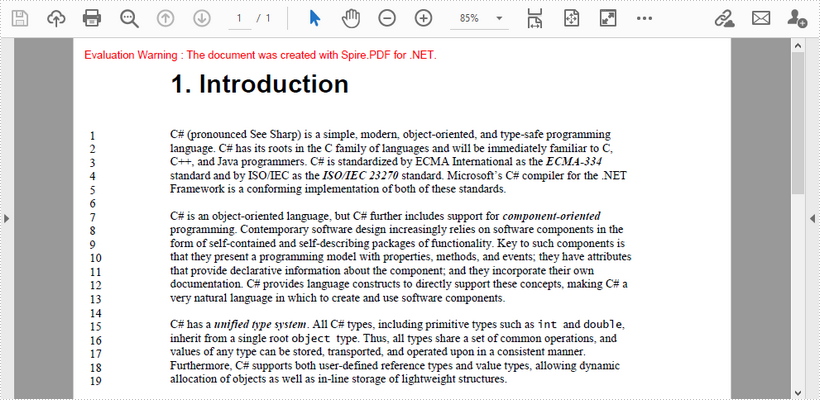
This article demonstrates how to add line numbers before chunks of text in a PDF page by using Spire.PDF for .NET.
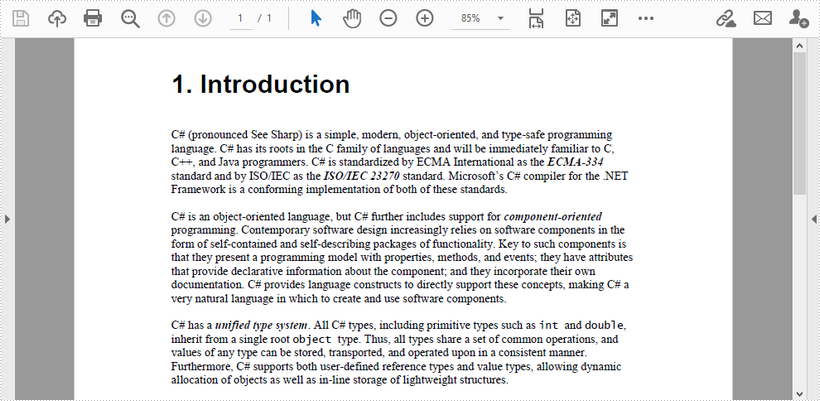
Below is a screenshot of the input document.
using Spire.Pdf;
using Spire.Pdf.General.Find;
using Spire.Pdf.Graphics;
using System.Drawing;

namespace AddLineNumber
{
    class Program
    {
        static void Main(string[] args)
        {
     //Create a PdfDocument object
     PdfDocument doc = new PdfDocument();

     //Load PDF document
     doc.LoadFromFile(@"C:\Users\Administrator\Desktop\input.pdf");

     //Get the first page
     PdfPageBase page = doc.Pages[0];

     //Find specified text in the first line
     PdfTextFinder finder = new PdfTextFinder(page);
     finder.Options.Parameter = Spire.Pdf.Texts.TextFindParameter.WholeWord;
     PdfTextFragment topLine = finder.Find("C# (pronounced See Sharp)")[0];

     //Get line height
     float lineHeight = topLine.Bounds[0].Height;

     //Get a Y coordinate for the starting position of line numbers
     float y = topLine.Bounds[0].Location.Y - 2;

     //Find specified text in the second line
     PdfTextFinder secondfinder = new PdfTextFinder(page);
     secondfinder.Options.Parameter = Spire.Pdf.Texts.TextFindParameter.WholeWord;
     PdfTextFragment secondLine = secondfinder.Find("language. C#")[0];

     //Calculate line spacing
     float lineSpacing = secondLine.Bounds[0].Top - topLine.Bounds[0].Bottom;

     //Find specified text in the last line
     PdfTextFinder bottomfinder = new PdfTextFinder(page);
     bottomfinder.Options.Parameter = Spire.Pdf.Texts.TextFindParameter.WholeWord;
     PdfTextFragment bottomLine = bottomfinder.Find("allocation of objects")[0];

     //Get the bottom Y coordinate of the last line, which is the height of the line number area
     float height = bottomLine.Bounds[0].Bottom;

     //Create a font with the same size as the text in the PDF
     PdfFont font = new PdfFont(PdfFontFamily.TimesRoman, 11f);

     int i = 1;
     while (y < height)
     {
         //Draw line numbers at the beginning of each line
         page.Canvas.DrawString(i.ToString(), font, PdfBrushes.Black, new PointF(15, y));
         y += lineHeight + lineSpacing;
         i++;
     }

     //Save the document
     doc.SaveToFile("result.pdf");
        }
    }
}
Imports Spire.Pdf
Imports Spire.Pdf.General.Find
Imports Spire.Pdf.Graphics
Imports System.Drawing

Namespace AddLineNumber
    Class Program
        Shared  Sub Main(ByVal args() As String)
        'Create a PdfDocument object
        Dim doc As New PdfDocument()

        'Load PDF document
        doc.LoadFromFile("C:\Users\Administrator\Desktop\input.pdf")

        'Get the first page
        Dim page As PdfPageBase = doc.Pages(0)

        'Find specified text in the first line
        Dim finder As New PdfTextFinder(page)
        finder.Options.Parameter = Spire.Pdf.Texts.TextFindParameter.WholeWord
        Dim topLine As PdfTextFragment = finder.Find("C# (pronounced See Sharp)")(0)

        'Get line height
        Dim lineHeight As Single = topLine.Bounds(0).Height

        'Get a Y coordinate for the starting position of line numbers
        Dim y As Single = topLine.Bounds(0).Location.Y - 2

        'Find specified text in the second line
        Dim secondfinder As New PdfTextFinder(page)
        secondfinder.Options.Parameter = Spire.Pdf.Texts.TextFindParameter.WholeWord
        Dim secondLine As PdfTextFragment = secondfinder.Find("language. C#")(0)

        'Calculate line spacing
        Dim lineSpacing As Single = secondLine.Bounds(0).Top - topLine.Bounds(0).Bottom

        'Find specified text in the last line
        Dim bottomfinder As New PdfTextFinder(page)
        bottomfinder.Options.Parameter = Spire.Pdf.Texts.TextFindParameter.WholeWord
        Dim bottomLine As PdfTextFragment = bottomfinder.Find("allocation of objects")(0)

        'Get the bottom Y coordinate of the last line, which is the height of the line number area
        Dim height As Single = bottomLine.Bounds(0).Bottom

        'Create a font with the same size as the text in the PDF
        Dim font As PdfFont = New PdfFont(PdfFontFamily.TimesRoman, 11.0F)

        Dim i As Integer = 1
        While y < height
            'Draw line numbers at the beginning of each line
            page.Canvas.DrawString(i.ToString(), font, PdfBrushes.Black, New PointF(15, y))
            y += lineHeight + lineSpacing
            i += 1
        End While

        'Save the document
        doc.SaveToFile("result.pdf")

        End Sub
    End Class
End Namespace
Output
Get the differences by comparing two Word documents in C#/VB.NET
We have introduced how to compare two Word documents in C# and VB.NET. From Spire.Doc V8.12.14, it supports to get the differences between two Word documents in a structure list. This article will show you how to use Spire.Doc to get the differences by comparing two Word documents.
using Spire.Doc;
using Spire.Doc.Documents;
using Spire.Doc.Fields;
using Spire.Doc.Formatting.Revisions;
using System;

namespace GetWordDifferences
    {
    class Program
    {
        static void Main(string[] args)

        {
            //Load the first Word document
            Document doc1 = new Document();
            doc1.LoadFromFile("Sample1.docx");

            //Load the second Word document
            Document doc2 = new Document();
            doc2.LoadFromFile("Sample2.docx");

            //Compare the two Word documents
            doc1.Compare(doc2, "Author");

            foreach (Section sec in doc1.Sections)
            {
                foreach (DocumentObject docItem in sec.Body.ChildObjects)
                {
                    if (docItem is Paragraph)
{
                        Paragraph para = docItem as Paragraph;
                        if (para.IsInsertRevision)
                        {
                            EditRevision insRevison = para.InsertRevision;
                            EditRevisionType insType = insRevison.Type;
                            string insAuthor = insRevison.Author;
                            DateTime insDateTime = insRevison.DateTime;
                        }

                        else if (para.IsDeleteRevision)
                        {
                            EditRevision delRevison = para.DeleteRevision;
                            EditRevisionType delType = delRevison.Type;
                            string delAuthor = delRevison.Author;
                            DateTime delDateTime = delRevison.DateTime;
                        }

                        foreach (ParagraphBase paraItem in para.ChildObjects)
                        {
                            if (paraItem.IsInsertRevision)
                            {
                                EditRevision insRevison = paraItem.InsertRevision;
                                EditRevisionType insType = insRevison.Type;
                                string insAuthor = insRevison.Author;
                                DateTime insDateTime = insRevison.DateTime;
                            }

                            else if (paraItem.IsDeleteRevision)
                            {
                                EditRevision delRevison = paraItem.DeleteRevision;
                                EditRevisionType delType = delRevison.Type;
                                string delAuthor = delRevison.Author;
                                DateTime delDateTime = delRevison.DateTime;
                            }

                        }
                    }
                }
            }

            //Get the difference about revisions
            DifferRevisions differRevisions = new DifferRevisions(doc1);
            var insetRevisionsList = differRevisions.InsertRevisions;
            var deletRevisionsList = differRevisions.DeleteRevisions;
        }
    }
 }
Imports Spire.Doc
Imports Spire.Doc.Documents
Imports Spire.Doc.Fields
Imports Spire.Doc.Formatting.Revisions
Imports System

Namespace GetWordDifferences

    Class Program

        Private Shared Sub Main(ByVal args() As String)
            'Load the first Word document
            Dim doc1 As Document = New Document
            doc1.LoadFromFile("Sample1.docx")
            'Load the second Word document
            Dim doc2 As Document = New Document
            doc2.LoadFromFile("Sample2.docx")
            'Compare the two Word documents
            doc1.Compare(doc2, "Author")
            For Each sec As Section In doc1.Sections
                For Each docItem As DocumentObject In sec.Body.ChildObjects
                    If (TypeOf docItem Is Paragraph) Then
                        Dim para As Paragraph = CType(docItem,Paragraph)
                        If para.IsInsertRevision Then
                            Dim insRevison As EditRevision = para.InsertRevision
                            Dim insType As EditRevisionType = insRevison.Type
                            Dim insAuthor As String = insRevison.Author
                            Dim insDateTime As DateTime = insRevison.DateTime
                        ElseIf para.IsDeleteRevision Then
                            Dim delRevison As EditRevision = para.DeleteRevision
                            Dim delType As EditRevisionType = delRevison.Type
                            Dim delAuthor As String = delRevison.Author
                            Dim delDateTime As DateTime = delRevison.DateTime
                        End If

                        For Each paraItem As ParagraphBase In para.ChildObjects
                            If paraItem.IsInsertRevision Then
                                Dim insRevison As EditRevision = paraItem.InsertRevision
                                Dim insType As EditRevisionType = insRevison.Type
                                Dim insAuthor As String = insRevison.Author
                                Dim insDateTime As DateTime = insRevison.DateTime
                            ElseIf paraItem.IsDeleteRevision Then
                                Dim delRevison As EditRevision = paraItem.DeleteRevision
                                Dim delType As EditRevisionType = delRevison.Type
                                Dim delAuthor As String = delRevison.Author
                                Dim delDateTime As DateTime = delRevison.DateTime
                            End If

                        Next
                    End If

                Next
            Next
            'Get the difference about revisions
            Dim differRevisions As DifferRevisions = New DifferRevisions(doc1)
            Dim insetRevisionsList = differRevisions.InsertRevisions
            Dim deletRevisionsList = differRevisions.DeleteRevisions
        End Sub
    End Class
End Namespace
Java set Excel print page margins
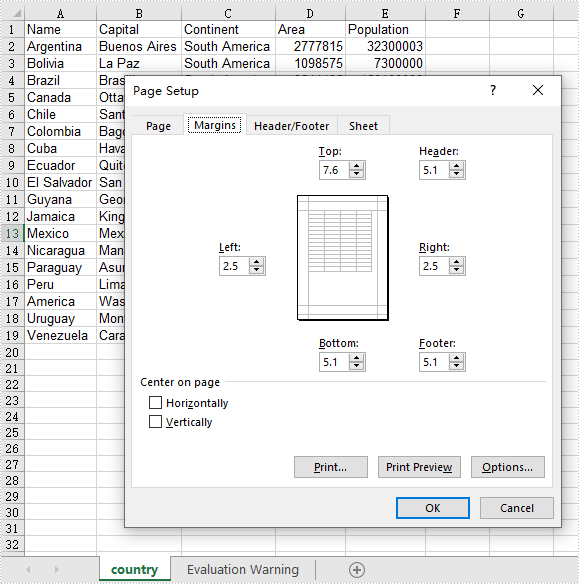
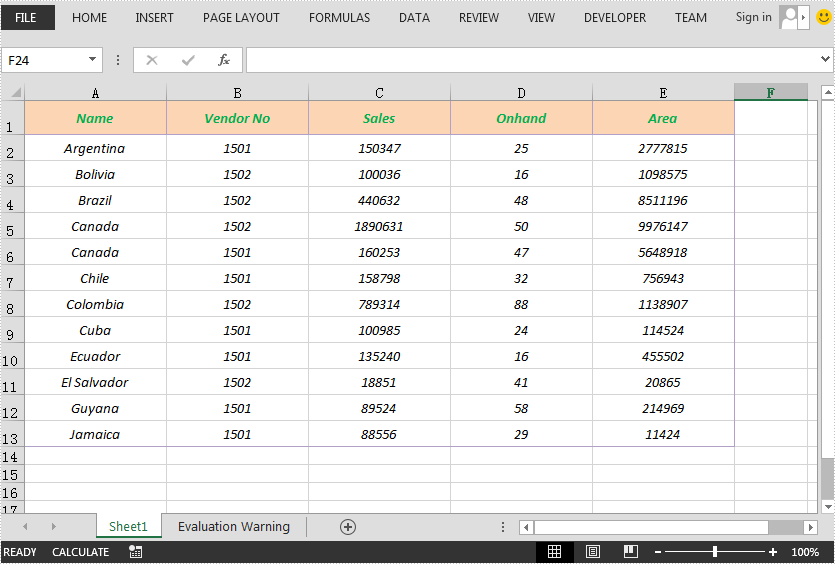
This article demonstrates how to set Excel page margins before printing the Excel worksheets in Java applications. By using Spire.XLS for Java, we could set top margin, bottom margin, left margin, right margin, header margin, and footer margin. Please note that the unit for margin is inch on Spire.XLS for Java while On Microsoft Excel, it is cm (1 inch=2.54 cm).
import com.spire.xls.*;

public class setMargins {
    public static void main(String[] args) {

        String outputFile="output/setMarginsOfExcel.xlsx";

        //Load the sample document from file
        Workbook workbook = new Workbook();
        workbook.loadFromFile("Sample.xlsx");

        //Get the first worksheet.
        Worksheet sheet = workbook.getWorksheets().get(0);

        //Get the PageSetup object of the first worksheet.
        PageSetup pageSetup = sheet.getPageSetup();

        //Set the page margins of bottom, left, right and top.
        pageSetup.setBottomMargin(2);
        pageSetup.setLeftMargin(1);
        pageSetup.setRightMargin(1);
        pageSetup.setTopMargin(3);

        //Set the margins of header and footer.
        pageSetup.setHeaderMarginInch(2);
        pageSetup.setFooterMarginInch(2);

        //Save to file.
        workbook.saveToFile(outputFile, ExcelVersion.Version2013);

    }
}
Output:
C#/VB.NET: Add or Delete Digital Signature in Excel
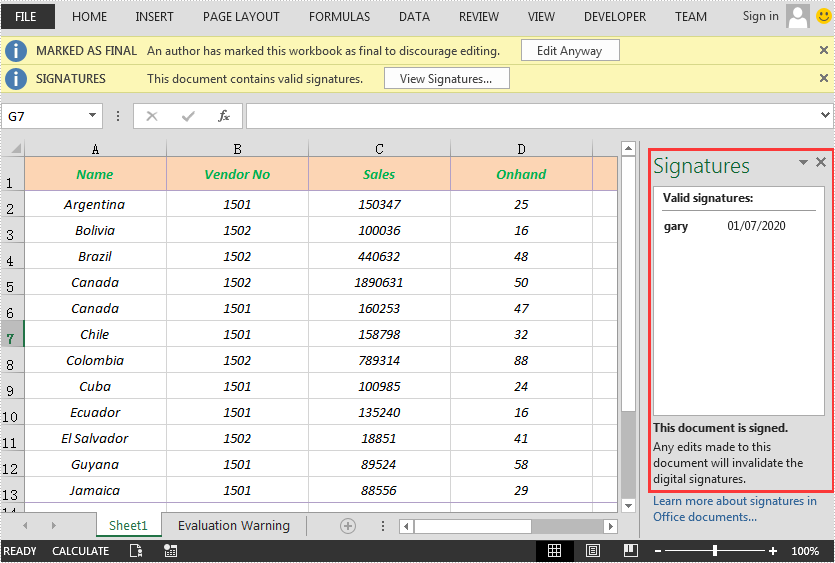
A digital signature is a type of electronic signature that can be used to verify the authenticity and integrity of digital documents. It can help recipients identify where the digital documents originate from and whether they have been changed by a third party after they were signed. In this article, we will demonstrate how to add or delete digital signatures in Excel in C# and VB.NET using Spire.XLS for .NET.
- Add a Digital Signature to Excel in C# and VB.NET
- Delete All Digital Signatures from Excel in C# and VB.NET
Install Spire.XLS for .NET
To begin with, you need to add the DLL files included in the Spire.XLS for .NET package as references in your .NET project. The DLL files can be either downloaded from this link or installed via NuGet.
PM> Install-Package Spire.XLS
Add a Digital Signature to Excel in C# and VB.NET
You can add a digital signature to protect the integrity of an Excel file. Once the digital signature is added, the file becomes read-only to discourage further editing. If someone makes changes to the file, the digital signature will become invalid immediately.
Spire.XLS for .NET provides the AddDigitalSignature method of Workbook class to add digital signatures to an Excel file. The detailed steps are as follows:
- Initialize an instance of the Workbook class.
- Load an Excel file using Workbook.LoadFromFile() method.
- Initialize an instance of the X509Certificate2 class with the specified certificate (.pfx) file path and the password of the .pfx file.
- Initialize an instance of the DateTime class.
- Add a digital signature to the file using Workbook.AddDigitalSignature(X509Certificate2, string, DateTime) method.
- Save the result file using Workbook.SaveToFile() method.
- C#
- VB.NET
using Spire.Xls;
using Spire.Xls.Core.MergeSpreadsheet.Interfaces;
using System;
using System.Security.Cryptography.X509Certificates;

namespace AddSignatureInExcel
{
    class Program
    {
        static void Main(string[] args)
        {
            //Create a Workbook instance
            Workbook workbook = new Workbook();

            //Load an Excel file
            workbook.LoadFromFile("Sample.xlsx");

            //Add digital signature to the file
            X509Certificate2 cert = new X509Certificate2("gary.pfx", "e-iceblue");

            // Define the path to the certificate file
            string certificatePath = "gary.pfx";

            DateTime certtime = new DateTime(2020, 7, 1, 7, 10, 36);

            // Add a digital signature to the workbook using the certificate
            IDigitalSignatures signature = workbook.AddDigitalSignature(certificatePath, "e-iceblue", "Signed by Gary Zhang", certtime);

            //Save the result file
            workbook.SaveToFile("AddDigitalSignature.xlsx", FileFormat.Version2013);
        }
    }
}
Delete All Digital Signatures from Excel in C# and VB.NET
Spire.XLS for .NET provides the RemoveAllDigitalSignatures method of Workbook class for developers to remove digital signatures from an Excel file. The detailed steps are as follows:
- Initialize an instance of the Workbook class.
- Load an Excel file using Workbook.LoadFromFile() method.
- Remove all digital signatures from the file using Workbook.RemoveAllDigitalSignatures() method.
- Save the result file using Workbook.SaveToFile() method.
- C#
- VB.NET
using Spire.Xls;

namespace DeleteSignatureInExcel
{
    class Program
    {
        static void Main(string[] args)
        {
            //Create a Workbook instance
            Workbook workbook = new Workbook();
            //Load an Excel file
            workbook.LoadFromFile("AddDigitalSignature.xlsx");

            //Remove all the digital signatures in the file
            workbook.RemoveAllDigitalSignatures();

            //Save the result file
            workbook.SaveToFile("RemoveDigitalSignature.xlsx", FileFormat.Version2013);
        }
    }
}
Apply for a Temporary License
If you'd like to remove the evaluation message from the generated documents, or to get rid of the function limitations, please request a 30-day trial license for yourself.
Find Text in PDF by Regular Expression in Java
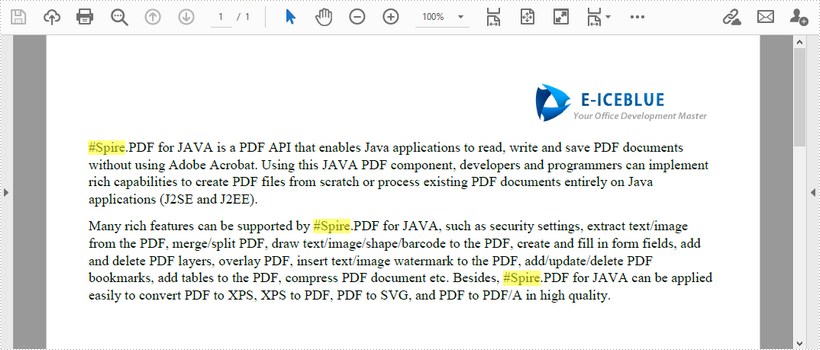
This article demonstrates how to find the text that matches a specific regular expression in a PDF document using Spire.PDF for Java.
import com.spire.pdf.*;
import com.spire.pdf.texts.*;
import java.awt.*;
import java.util.*;
import java.util.List;

public class FindText {
    public static void main(String[] args) {
        //Load a PDF document
        PdfDocument pdf = new PdfDocument();
        pdf.loadFromFile("C:\\Users\\Administrator\\Desktop\\test.pdf");

        //Create a object of PdfTextFind collection
        PdfTextFindOptions findOptions = new PdfTextFindOptions();

        //Loop through the pages
        for (Object page : (Iterable) pdf.getPages()) {
            PdfPageBase pageBase = (PdfPageBase) page;

            //Define a regular expression
            String pattern = "\\#\\w+\\b";
            // Set search parameter to use regular expression
            findOptions.setTextFindParameter(EnumSet.of(TextFindParameter.Regex));

            // Create a text finder object for the page
            PdfTextFinder textFinder = new PdfTextFinder(pageBase);

            // Find text fragments that match the pattern
            List<PdfTextFragment> finds = textFinder.find(pattern, findOptions);

            //Highlight the search results with yellow
            for (PdfTextFragment find : finds) {
                find.highLight(Color.yellow);
            }
        }

        //Save to file
        pdf.saveToFile("FindByPattern.pdf");
    }
}
Convert Word to PDF Using Java – Complete Guide with Sample Code
To better understand the process, watch this short video demonstrating how to convert Word documents to PDF in Java before following the step-by-step guide below.
Converting Word documents (doc or .docx) to PDF is a common requirement in many Java-based applications, especially those involving documentation, report generation, or digital archiving. In this tutorial, we'll show you how to convert Word to PDF in Java using reliable and easy-to-implement libraries like Spire.Doc for Java. This guide will walk you through all the code examples from code library integration to converting Word files to PDF format seamlessly.
After reading this guide, you will learn:
- Specific Steps of How to Convert Doc/Docx Files to PDF Format with Spire.Doc for Java
- Advanced Settings When Converting Word Files to PDF
- How to Adjust Word Files When Converting Word to PDF with Java Code
Let's dive into the Java code for Word to PDF conversion and help your application automate document processing with just a few lines of code.
Specific Steps of How to Convert Doc/Docx Files to PDF Format with Spire.Doc for Java
Before going through the sample code, you should know one of the best Word Java library known as Spire.Doc for Java. It supports not only Word file format conversion, but more advanced settings including page size adjustment, font embed, specific area conversion, etc. It is a one time download for long-term benefits.
Follow the steps below to learn how you can convert Word files to PDF format with Spire.Doc for Java.
Step 1. Install Spire.Doc for Java
Before converting, you should add the Spire.Doc.jar file as a dependency in your Java program. You can download the JAR file from the official download page.
If you are using Maven, you can easily import the JAR file in your application by adding the following code to your project's pom.xml file directly:
<repositories>
    <repository>
        <id>com.e-iceblue</id>
        <name>e-iceblue</name>
        <url>https://repo.e-iceblue.com/nexus/content/groups/public/</url>
    </repository>
</repositories>
<dependencies>
    <dependency>
        <groupId>e-iceblue</groupId>
        <artifactId>spire.doc</artifactId>
        <version>14.9.5</version>
    </dependency>
</dependencies>
Step 2. Convert Word to PDF with Java Code
After library integration, now, it's time to convert your Word files. Copy the code below to your Java program:
import com.spire.doc.Document;
import com.spire.doc.FileFormat;

public class ConvertWordToPdf {

    public static void main(String[] args) {

        // Create a Document object
        Document doc = new Document();

        // Load a Word document
        doc.loadFromFile("C:\\Users\\Administrator\\Desktop\\Input.docx");

        // Save the document to PDF
        doc.saveToFile("ToPDF.pdf", FileFormat.PDF);

        // Dispose resources
        doc.dispose();
    }
}
RESULT:

Advanced Settings When Converting Word Files to PDF
Except for simply converting Word to PDF files, Spire.Doc for Java provides more options beyond simply conversion. For example, you can set a password to protect your PDF data with simple code during the conversion. You have no need to look for other tutorials. The following list is a preview of these settings, and you can directly jump to the corresponding part.
- Convert Word files to PDF/A Format with Java Code
- Convert Word Files to Password-Protected PDF in Java
- Convert a Specific Area in Word to PDF in Java
Convert Word files to PDF/A Format with Java Code
Spire.Doc for Java allows you to set the conformance level as Pdf/A-1a. To apply these customized settings, pass the ToPdfParameterList object as a parameter to the Document.saveToFile() method.
Copy the code below to convert your doc/docx to PDF/A files with Java:
import com.spire.doc.Document;
import com.spire.doc.ToPdfParameterList;
import com.spire.doc.PdfConformanceLevel;

public class ConvertWordToPdfa {

    public static void main(String[] args) {

        // Create a Document object
        Document doc = new Document();

        // Load a Word document
        doc.loadFromFile("C:\\Users\\Administrator\\Desktop\\input.docx");

        // Create a ToPdfParameterList object
        ToPdfParameterList parameters  = new ToPdfParameterList();

        // Set the conformance level for PDF
        parameters.setPdfConformanceLevel(PdfConformanceLevel.Pdf_A_1_A);

        // Save the document to a PDF file
        doc.saveToFile("C:\\Users\\Administrator\\Desktop\\ToPdfA.pdf", parameters);

        // Dispose resources
        doc.dispose();
    }
}
Convert Word Files to Password-Protected PDF in Java
To protect your data, you may need to set a password for the converted PDF file. In this part, you can encrypt the converted PDF documents with password during the conversion process without any hassle. By passing the ToPdfParameterList object as a parameter to the Document.saveToFile() method, these encryption settings will be applied during the saving process.
Copy the code below to encrypt converted PDF files during conversion with Java:
import com.spire.doc.Document;
import com.spire.doc.PdfPermissionsFlags;
import com.spire.doc.ToPdfParameterList;

public class ConvertWordToPasswordProtectedPdf {

    public static void main(String[] args) {

        // Create a Document object
        Document doc = new Document();

        // Load a Word document
        doc.loadFromFile("C:\\Users\\Administrator\\Desktop\\Input.docx");

        // Create a ToPdfParameterList object
        ToPdfParameterList parameters = new ToPdfParameterList();

        // Set open password and permission password for PDF
        parameters.getPdfSecurity().encrypt("openPsd", PdfPermissionsFlags.valueOf("permissionPsd"));

        // Save the document to PDF
        doc.saveToFile("PasswordProtected.pdf", parameters);

        // Dispose resources
        doc.dispose();
    }
}
Convert a Specific Area in Word to PDF in Java
The third section is that you can create a copy of a certain section with Spire.Doc's Section.deepClone() method and use the SectionCollection.add() method to add the copied section to the section collection of another document.
You can easily create a document containing the desired section from the source document with the following Java code:
import com.spire.doc.Document;
import com.spire.doc.FileFormat;
import com.spire.doc.Section;

public class ConvertSectionToPdf {

    public static void main(String[] args) {

        // Create a Document object
        Document doc = new Document();

        // Load a Word document
        doc.loadFromFile("C:\\Users\\Administrator\\Desktop\\Input.docx");

        // Get a specific section of the document
        Section section = doc.getSections().get(1);

        // Create a new document object
        Document newDoc = new Document();

        // Clone the default style to the new document
        doc.cloneDefaultStyleTo(newDoc);

        // Clone the section to the new document
        newDoc.getSections().add(section.deepClone());

        // Save the new document to PDF
        newDoc.saveToFile("SectionToPDF.pdf", FileFormat.PDF);

        // Dispose resources
        doc.dispose();
        newDoc.dispose();
    }
}
How to Adjust Word Files When Converting Word to PDF with Java Code
To get the best conversion result, you can make more adjustment to your Word documents during the conversion process. For example, you can embed fonts, adjust page size, set image quality, create bookmarks, or modify hyperlink with Java code.
Here, I will take one adjustment as an example to show you how to manage it. If you need to apply other adjustments, you can directly click the link above and jump to the corresponding page.
Example: Set Image Quality During Word to PDF Conversion
Image quality is a vital element when converting DOC/DOCX files to PDF format. It may influence the conversion speed and play an important role in the conversion result. With Spire.Doc for Java, you can set the image quality according to your specific needs to ensure the highest efficiency.
Copy the following code in your Java program to adjust picture quality:
import com.spire.doc.Document;
import com.spire.doc.FileFormat;

public class SetImageQualityDuringConversion {

    public static void main(String[] args) {

        // Create a Document object
        Document doc = new Document();

        // Load a Word document
        doc.loadFromFile("C:\\Users\\Administrator\\Desktop\\Input.docx");

        // Set the image quality to 50% of the original quality
        doc.setJPEGQuality(50);

        // Preserve original image quality
        // doc.setJPEGQuality(100);

        // Save the document to PDF
        doc.saveToFile("SetImageQuality.pdf", FileFormat.PDF);

        // Dispose resources
        doc.dispose();
    }
}
Final Words
Converting Word to PDF in Java is simple and efficient with Spire.Doc for Java. From basic conversion to advanced options like password protection, section export, and image quality settings, you can handle it all with just a few lines of code.
If you'd like to access all features without limitations and remove the evaluation watermark, please request a 30-day trial license for yourself.
Edit Bookmarks in PDF in Java
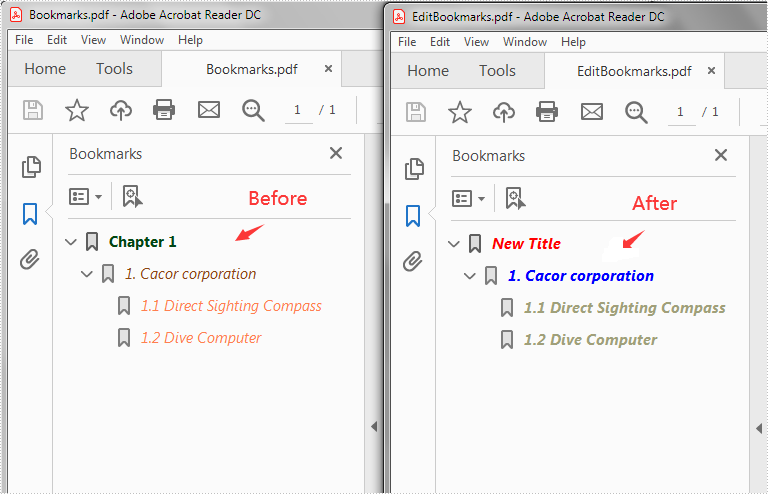
This article demonstrates how to edit the existing bookmarks in a PDF file, for example, change the bookmark title, font color and text style using Spire.PDF for Java.
import com.spire.pdf.PdfDocument;
import com.spire.pdf.bookmarks.PdfBookmark;
import com.spire.pdf.bookmarks.PdfTextStyle;
import com.spire.pdf.graphics.PdfRGBColor;
import java.awt.*;
public class EditBookmarks {
public static void main(String[] args) {
//Create a PdfDocument instance
PdfDocument doc = new PdfDocument();
//Load the PDF file
doc.loadFromFile("Bookmarks.pdf");
//Get the first bookmark
PdfBookmark bookmark = doc.getBookmarks().get(0);
//Change the title of the bookmark
bookmark.setTitle("New Title");
//Change the font color of the bookmark
bookmark.setColor(new PdfRGBColor(new Color(255,0,0)));
//Change the outline text style of the bookmark
bookmark.setDisplayStyle(PdfTextStyle.Italic);
//Edit child bookmarks of the first bookmark
for (Object Bookmark : (Iterable) bookmark) {
PdfBookmark childBookmark=(PdfBookmark)Bookmark;
childBookmark.setColor(new PdfRGBColor(new Color(0,0,255)));
childBookmark.setDisplayStyle(PdfTextStyle.Bold);
for (PdfBookmark Bookmark2 : (IterablePdfBookmark>) bookmark){
PdfBookmark childBookmark2=(PdfBookmark)Bookmark2;
childBookmark2.setColor(new PdfRGBColor(new Color(160,160,122)) );
childBookmark2.setDisplayStyle(PdfTextStyle.Bold);
}
}
//Save the result file
doc.saveToFile("EditBookmarks.pdf");
doc.close();
}
}
Output:
Java: Add, Edit, or Delete Bookmarks in PDF
A bookmark in a PDF document consists of formatted text linking to a specific section of the document. Readers can navigate through pages by simply clicking on the bookmarks displayed on the side of the page instead of scrolling up and down, which is very helpful for those huge documents. Moreover, well-organized bookmarks can also serve as contents. When you create a PDF document with a lot of pages, it’s better to add bookmarks to link to significant content. This article is going to show how to add, modify, and remove bookmarks in PDF documents using Spire.PDF for Java through programming.
- Add Bookmarks to a PDF Document
- Edit Bookmarks in a PDF Document
- Delete Bookmarks from a PDF Document
Install Spire.PDF for Java
First of all, you're required to add the Spire.Pdf.jar file as a dependency in your Java program. The JAR file can be downloaded from this link. If you use Maven, you can easily import the JAR file in your application by adding the following code to your project's pom.xml file.
<repositories>
    <repository>
        <id>com.e-iceblue</id>
        <name>e-iceblue</name>
        <url>https://repo.e-iceblue.com/nexus/content/groups/public/</url>
    </repository>
</repositories>
<dependencies>
    <dependency>
        <groupId>e-iceblue</groupId>
        <artifactId>spire.pdf</artifactId>
        <version>12.9.0</version>
    </dependency>
</dependencies>
Add Bookmarks to a PDF Document
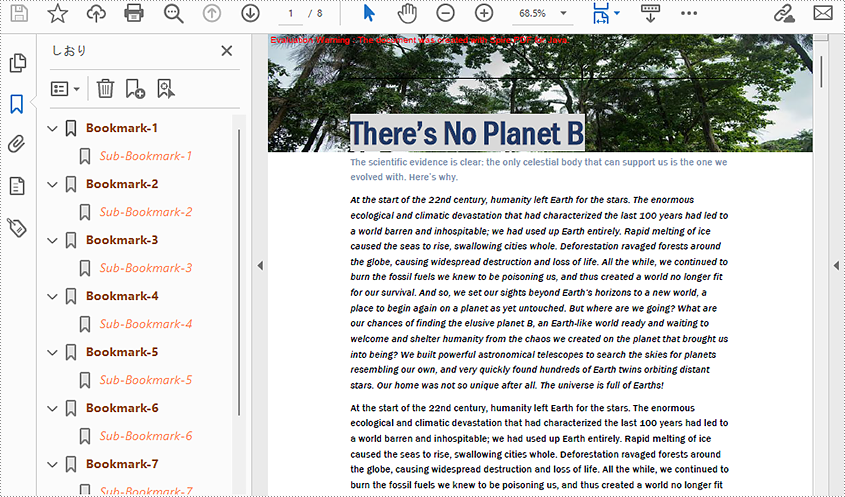
Spire.PDF for Java provides PdfDocument.getBookmarks().add() method to add bookmarks to a PDF document. In addition to adding primary bookmarks, we can use PdfBookmark.add() method to add a sub-bookmark to a primary bookmark. There are also many other methods under PdfBookmark class which are used to set the destination, text color, and text style of bookmarks. The detailed steps of adding bookmarks to a PDF document are as follows.
- Create a PdfDocument class instance.
- Load a PDF document using PdfDocument.loadFromFile() method.
- Loop through the pages in the PDF document to add bookmarks and set their styles.
- Add a primary bookmark to the document using PdfDocument.getBookmarks().add() method.
- Create a PdfDestination class object and set the destination of the primary bookmark using PdfBookmark.setAction() method.
- Set the text color of the primary bookmark using PdfBookmark.setColor() method.
- Set the text style of the Primary bookmark using PdfBookmark.setDisplayStyle() method.
- Add a sub-bookmark to the primary bookmark using PdfBookmark.add() method.
- Use the above methods to set the destination, text color, and text style of the sub-bookmark.
- Save the document using PdfDocument.saveToFile() method.
- Java
import com.spire.pdf.PdfDocument;
import com.spire.pdf.PdfPageBase;
import com.spire.pdf.actions.PdfGoToAction;
import com.spire.pdf.bookmarks.PdfBookmark;
import com.spire.pdf.bookmarks.PdfTextStyle;
import com.spire.pdf.general.PdfDestination;
import com.spire.pdf.graphics.PdfRGBColor;

import java.awt.*;
import java.awt.geom.Point2D;

public class addBookmark {
    public static void main(String[] args) {

        //Create a PdfDocument class instance
        PdfDocument pdf = new PdfDocument();

        //Load a PDF file
        pdf.loadFromFile("There's No Planet B.pdf");

        //Loop through the pages in the PDF file
        for(int i = 0; i< pdf.getPages().getCount();i++) {
            PdfPageBase page = pdf.getPages().get(i);
            //Add a bookmark
            PdfBookmark bookmark = pdf.getBookmarks().add(String.format("Bookmark-%s", i + 1));
            //Set the destination page and location
            PdfDestination destination = new PdfDestination(page, new Point2D.Float(0, 0));
            bookmark.setAction(new PdfGoToAction(destination));
            //Set the text color
            bookmark.setColor(new PdfRGBColor(new Color(139, 69, 19)));
            //Set the text style
            bookmark.setDisplayStyle(PdfTextStyle.Bold);
            //Add a child bookmark
            PdfBookmark childBookmark = bookmark.add(String.format("Sub-Bookmark-%s", i + 1));
            //Set the destination page and location
            PdfDestination childDestination = new PdfDestination(page, new Point2D.Float(0, 100));
            childBookmark.setAction(new PdfGoToAction(childDestination));
            //Set the text color
            childBookmark.setColor(new PdfRGBColor(new Color(255, 127, 80)));
            //Set the text style
            childBookmark.setDisplayStyle(PdfTextStyle.Italic);
        }

        //Save the result file
        pdf.saveToFile("AddBookmarks.pdf");
    }
}
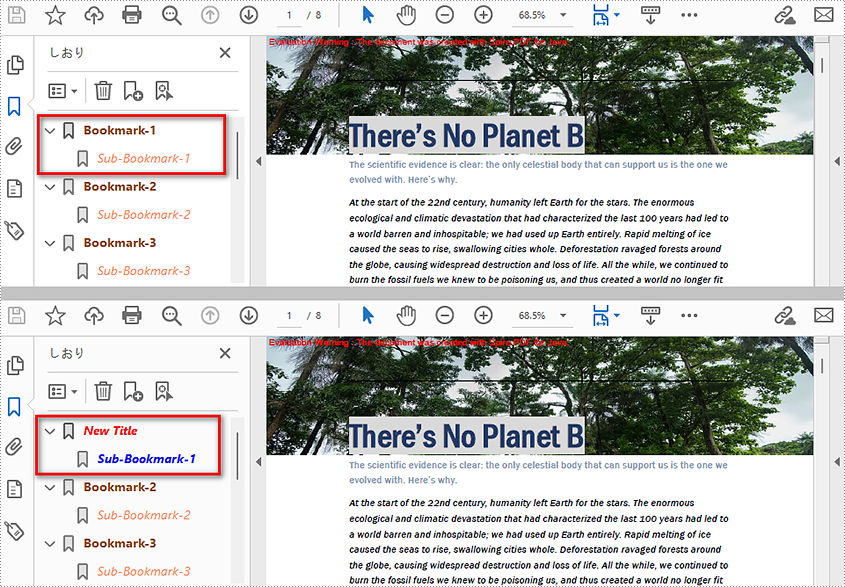
Edit Bookmarks in a PDF Document
We can also use methods of PdfBookmark class in Spire.PDF for Java to edit existing PDF bookmarks. The detailed steps are as follows.
- Create a PdfDocument class instance.
- Load a PDF document using PdfDocument.loadFromFile() method.
- Get the first bookmark using PdfDocument.getBookmarks().get() method.
- Change the title of the bookmark using PdfBookmark.setTitle() method.
- Change the font color of the bookmark using PdfBookmark.setColor() method.
- Change the outline text style of the bookmark using PdfBookmark.setDisplayStyle() method.
- Change the text color and style of the sub-bookmark using the above methods.
- Save the document using PdfDocument.saveToFile() method.
- Java
import com.spire.pdf.PdfDocument;
import com.spire.pdf.bookmarks.PdfBookmark;
import com.spire.pdf.bookmarks.PdfTextStyle;
import com.spire.pdf.graphics.PdfRGBColor;

import java.awt.*;

public class editBookmarks {
    public static void main(String[] args) {

        //Create a PdfDocument class instance
        PdfDocument doc = new PdfDocument();

        //Load a PDF file
        doc.loadFromFile("AddBookmarks.pdf");

        //Get the first bookmark
        PdfBookmark bookmark = doc.getBookmarks().get(0);
        //Change the title of the bookmark
        bookmark.setTitle("New Title");
        //Change the font color of the bookmark
        bookmark.setColor(new PdfRGBColor(new Color(255,0,0)));
        //Change the outline text style of the bookmark
        bookmark.setDisplayStyle(PdfTextStyle.Italic);

        //Edit sub-bookmarks of the first bookmark
        for (Object Bookmark : (Iterable) bookmark) {
            PdfBookmark childBookmark=(PdfBookmark)Bookmark;
            childBookmark.setColor(new PdfRGBColor(new Color(0,0,255)));
            childBookmark.setDisplayStyle(PdfTextStyle.Bold);
        }


        //Save the result file
        doc.saveToFile("EditBookmarks.pdf");
        doc.close();
    }
}
Delete Bookmarks from a PDF Document
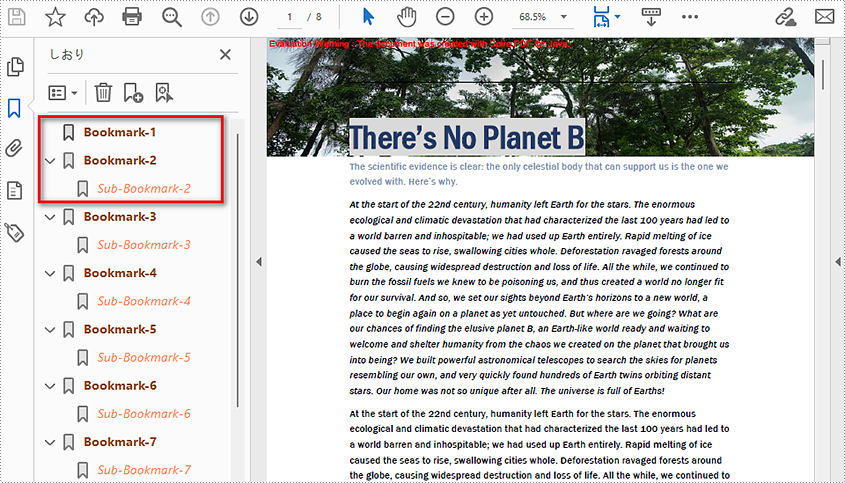
We can use Spire.PDF for Java to delete any bookmark in a PDF document. PdfDocument.getBookmarks().removeAt() is used to remove a specific primary bookmark, PdfDocument.getBookmarks().clear() method is used to remove all bookmarks, and PdfBookmark.removeAt() method is used to remove a specific sub-bookmark of a primary bookmark. The detailed steps of removing bookmarks form a PDF document are as follows.
- Create PdfDocument class instance.
- Load a PDF document using PdfDocument.loadFromFile() method.
- Get the first bookmark using PdfDocument.getBookmarks().get() method.
- Remove the sub-bookmark of the first bookmark using PdfBookmark.removeAt() method.
- Save the document using PdfDocument.saveToFile() method.
- Java
import com.spire.pdf.PdfDocument;
import com.spire.pdf.bookmarks.PdfBookmark;

public class deleteBookmarks {
    public static void main(String[] args) {

        //Create a PdfDocument instance
        PdfDocument pdf = new PdfDocument();

        //Load the PDF file
        pdf.loadFromFile("AddBookmarks.pdf");

        //Get the first bookmark
        PdfBookmark pdfBookmark = pdf.getBookmarks().get(0);

        //Delete the sub-bookmark of the first bookmark
        pdfBookmark.removeAt(0);

        //Delete the first bookmark along with its child bookmark
        //pdf.getBookmarks().removeAt(0);

        //Delete all the bookmarks
        //pdf.getBookmarks().clear();

        //Save the result file
        pdf.saveToFile("DeleteBookmarks.pdf");
    }
}
Apply for a Temporary License
If you'd like to remove the evaluation message from the generated documents, or to get rid of the function limitations, please request a 30-day trial license for yourself.
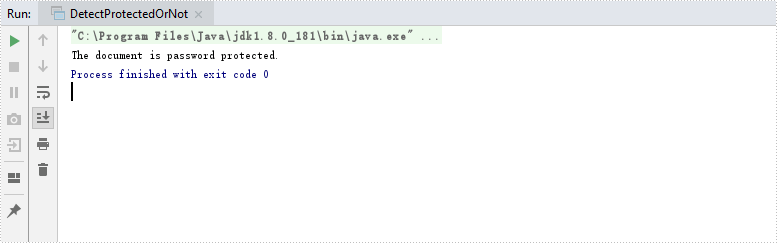
Detect if an Excel Document is Password Protected in Java
This article demonstrates how to detect whether an Excel document is password protected or not using Spire.XLS for Java.
import com.spire.xls.*;

public class DetectProtectedOrNot  {
    public static void main(String[] args) {
        //Get the file path
        String filePath= "C:\\Users\\Administrator\\Desktop\\sample.xlsx";

        //Detect whether the workbook is password protected or not
        Boolean isProtected = Workbook.isPasswordProtected(filePath);

        //Print results
        if (isProtected) {
            System.out.print("The document is password protected.");
        }
        else {
            System.out.print("The document is not protected.");
        }
    }
}