Java: Add Data Bars in Excel
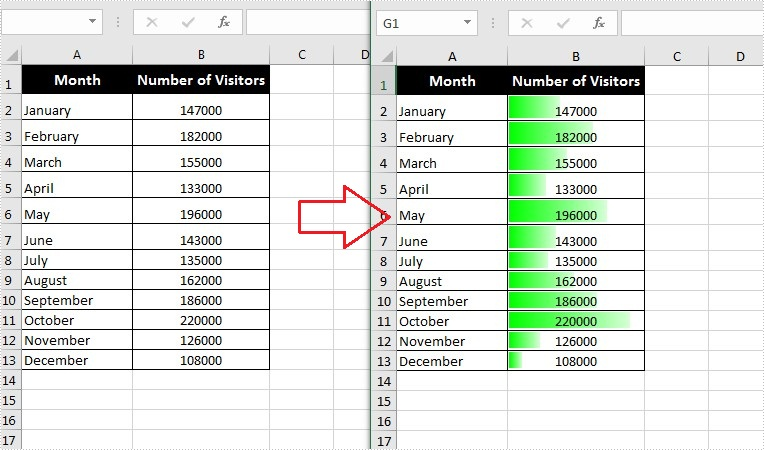
Data bars are a type of conditional formatting Microsoft Excel offers for visualizing the values in Excel cells. They can help you compare the values quickly because a cell with a longer bar represents a larger value, while a cell with a shorter bar represents a smaller value. This article will introduce how to add data bars in a range of cells using Spire.XLS for Java.
Install Spire.XLS for Java
First of all, you're required to add the Spire.Xls.jar file as a dependency in your Java program. The JAR file can be downloaded from this link. If you use Maven, you can easily import the JAR file in your application by adding the following code to your project's pom.xml file.
<repositories>
    <repository>
        <id>com.e-iceblue</id>
        <name>e-iceblue</name>
        <url>https://repo.e-iceblue.com/nexus/content/groups/public/</url>
    </repository>
</repositories>
<dependencies>
    <dependency>
        <groupId>e-iceblue</groupId>
        <artifactId>spire.xls</artifactId>
        <version>16.9.2</version>
    </dependency>
</dependencies>
Add Data Bars in Excel
The following are steps to add data bars in a range of Excel cells through conditional formatting:
- Create a Workbook instance.
- Load an Excel file using Workbook.loadFromFile() method.
- Get the worksheets collection using Workbook.getWorksheets() method, and then get the first worksheet using WorksheetsCollection.get() method.
- Get a specific cell range using Worksheet.getCellRange() method.
- Add a new conditional formatting to the cell range using ConditionalFormats. addCondition(), and then set the type of the new conditional formatting to DataBar using ConditionalFormatWrapper.setFormatType() method.
- Set the color of the data bar using DataBar.setBarColor() method.
- Save the document to another file using Workbook.saveToFile() method.
- Java
import com.spire.xls.*;
import com.spire.xls.core.IConditionalFormat;
import com.spire.xls.core.spreadsheet.collections.XlsConditionalFormats;

import java.awt.*;

public class applyDataBars {
    public static void main(String[] args) {
        //Create a Workbook instance
        Workbook workbook = new Workbook();

        //Load an Excel file
        workbook.loadFromFile("C:\\Users\\Administrator\\Desktop\\test.xlsx");

        //Get the first worksheet.
        Worksheet sheet = workbook.getWorksheets().get(0);

        //Add a conditional formatting and specify ranges
        XlsConditionalFormats conditional = sheet.getConditionalFormats().add();
        conditional.addRange(sheet.getCellRange("B2:B13"));

        //Add the conditional formatting of data bars
        IConditionalFormat format = conditional.addCondition();
        format.setFormatType( ConditionalFormatType.DataBar);

        //Set color for the data bars
        format.getDataBar().setBarColor( Color.GREEN);

        //Save to file
        workbook.saveToFile("ApplyDataBars.xlsx", ExcelVersion.Version2013);
    }
}
Apply for a Temporary License
If you'd like to remove the evaluation message from the generated documents, or to get rid of the function limitations, please request a 30-day trial license for yourself.
Add Multiline Watermarks to PowerPoint in Java
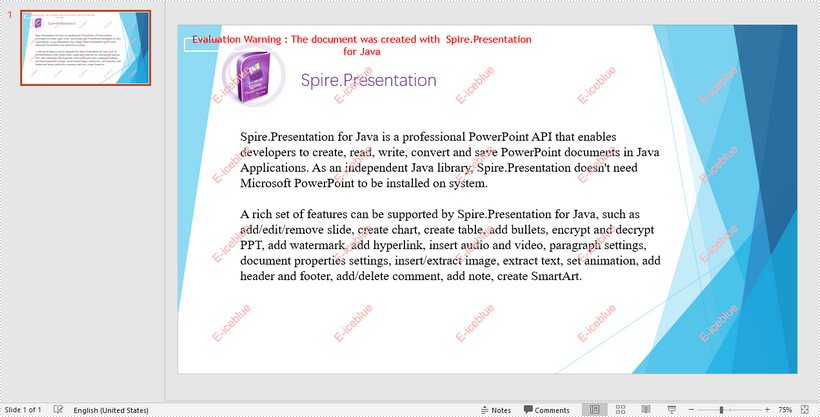
This article demonstrates how to add multiline watermarks to a PowerPoint slide using Spire.Presentation for Java. To add watermarks to all slides, use one more for loop outside the two for loops in the following code snippet.
import com.spire.presentation.*;
import com.spire.presentation.Presentation;
import com.spire.presentation.drawing.*;

import java.awt.*;
import java.awt.geom.Rectangle2D;
import java.awt.image.BufferedImage;


//Create a Presentation object
Presentation presentation = new Presentation();

//Load the sample PowerPoint file
presentation.loadFromFile("C:\\Users\\Administrator\\Desktop\\Spire.Presentation.pptx");

//Specify watermark text
String watermarkText = "E-iceblue";

//Get the size of the watermark text
Image image = new BufferedImage(1, 1, BufferedImage.TYPE_INT_ARGB);
Graphics2D g2d = (Graphics2D) image.getGraphics();
Font font = new Font("Arial", Font.BOLD, 20);
g2d.setFont(font);
FontMetrics fm = g2d.getFontMetrics();
Rectangle2D strSize = fm.getStringBounds(watermarkText, g2d);

//Initialize x and y coordinate
float x = 30;
float y = 80;

for (int rowNum = 0; rowNum < 4; rowNum++) {
    for (int colNum = 0; colNum < 5; colNum++) {

        //Add a rectangle shape
        Rectangle2D rect = new Rectangle2D.Float(x, y, (float) strSize.getWidth() + 10, (float) strSize.getHeight());
        IAutoShape shape = presentation.getSlides().get(0).getShapes().appendShape(ShapeType.RECTANGLE, rect);

        //Set the style of the shape
        shape.getFill().setFillType(FillFormatType.NONE);
        shape.getShapeStyle().getLineColor().setColor(new Color(1, 1, 1, 0));
        shape.setRotation(-45);
        shape.getLocking().setSelectionProtection(true);
        shape.getLine().setFillType(FillFormatType.NONE);

        //Add watermark text to the shape
        shape.getTextFrame().setText(watermarkText);
        PortionEx textRange = shape.getTextFrame().getTextRange();

        //Set the style of the text range
        textRange.getFill().setFillType(FillFormatType.SOLID);
        textRange.getFill().getSolidColor().setColor(Color.pink);
        textRange.setLatinFont(new TextFont(font.getName()));
        textRange.setFontMinSize(font.getSize());

        x += (100 + strSize.getWidth());

    }
    x = 30;
    y += (100 + strSize.getHeight());
}

//Save the document
presentation.saveToFile("output/Watermark.pptx", FileFormat.PPTX_2013);
Convert Shapes and SmartArt in Excel to Image in C#, VB.NET
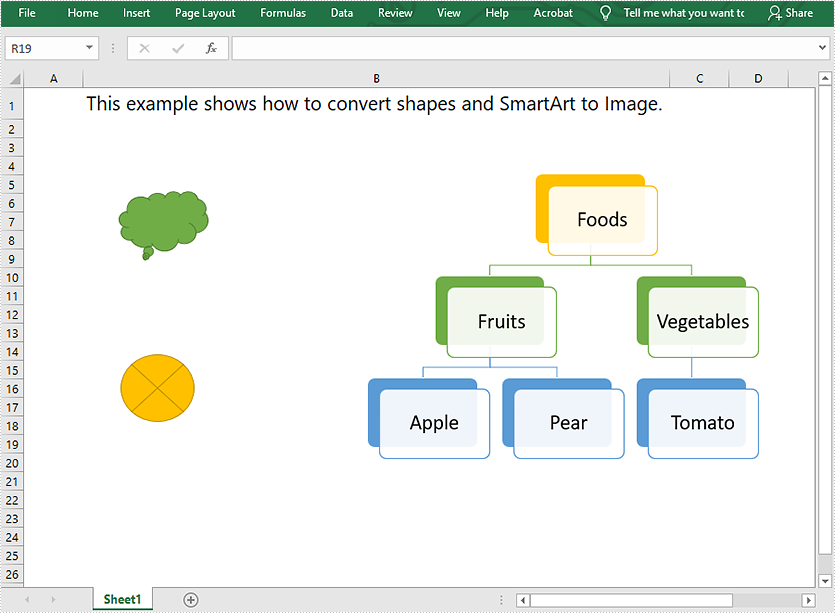
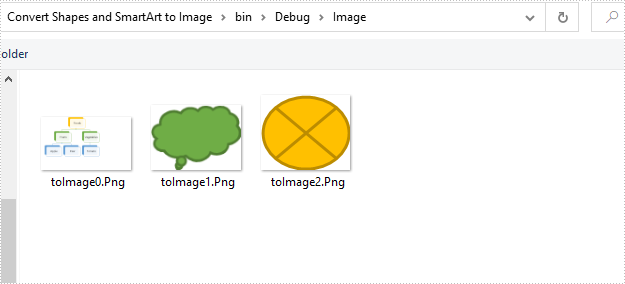
This article demonstrates how to convert shapes and SmartArt graphics in Excel to Image in C# using Spire.XLS for .NET.
The input Excel file:
using Spire.Xls;
using System.Collections.Generic;
using System.Drawing;
using System.Drawing.Imaging;

namespace Convert_Shapes_and_SmartArt_to_Image
{
    class Program
    {
        static void Main(string[] args)
        {
            //Create a Workbook object
            Workbook workbook = new Workbook();
            //Load the Excel file
            workbook.LoadFromFile("Sample.xlsx");

            //Get the first worksheet
            Worksheet sheet = workbook.Worksheets[0];

            //Create a SaveShapeTypeOption object
            SaveShapeTypeOption shapelist = new SaveShapeTypeOption();
            //Save shapes and SmartArt graphics in the worksheet to images
            List<Bitmap> images = sheet.SaveShapesToImage(shapelist);

            //Save images to file
            int index = 0;
            foreach (Image img in images)
            {
                img.Save("Image/" + "toImage" + index + ".Png", ImageFormat.Png);
                index++;
            }
        }
    }
}
Imports Spire.Xls
Imports System.Collections.Generic
Imports System.Drawing.Imaging

Namespace Convert_Shapes_and_SmartArt_to_Image
    Friend Class Program
        Private Shared Sub Main(ByVal args As String())
            'Create a Workbook object
            Dim workbook As Workbook = New Workbook()
            'Load the Excel file
            workbook.LoadFromFile("Sample.xlsx")

            'Get the first worksheet
            Dim sheet As Worksheet = workbook.Worksheets(0)

            'Create a SaveShapeTypeOption object
            Dim shapelist As SaveShapeTypeOption = New SaveShapeTypeOption()
            'Save shapes and SmartArt graphics in the worksheet to images
            Dim images As List(Of Bitmap) = sheet.SaveShapesToImage(shapelist)

            'Save images to file
            Dim index As Integer = 0

            For Each img As Image In images
                img.Save("Image/" & "toImage" & index & ".Png", ImageFormat.Png)
                index += 1
            Next
        End Sub
    End Class
End Namespace
Converted images:
Verify If a Word Document is Password Protected in Java
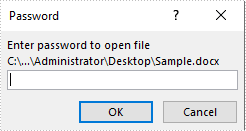
This article demonstrates how to verify if a Word document is password protected or not using Spire.Doc for Java.
The following image shows that the input Word document is protected with password:
import com.spire.doc.Document;

public class DetectIfWordIsPasswordProtected {
    public static void main(String []args){
        //Detect if the Word document is password protected
        boolean isPasswordProtected = Document.isEncrypted("C:\\Users\\Administrator\\Desktop\\Sample.docx");
        if(isPasswordProtected)
        {
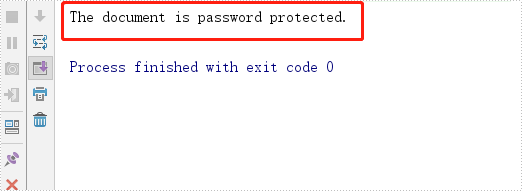
            System.out.println("The document is password protected.");
        }
        else
        {
            System.out.println("The document is not password protected.");
        }
    }
}
Output:
Compress High-resolution Images in PDF in Java
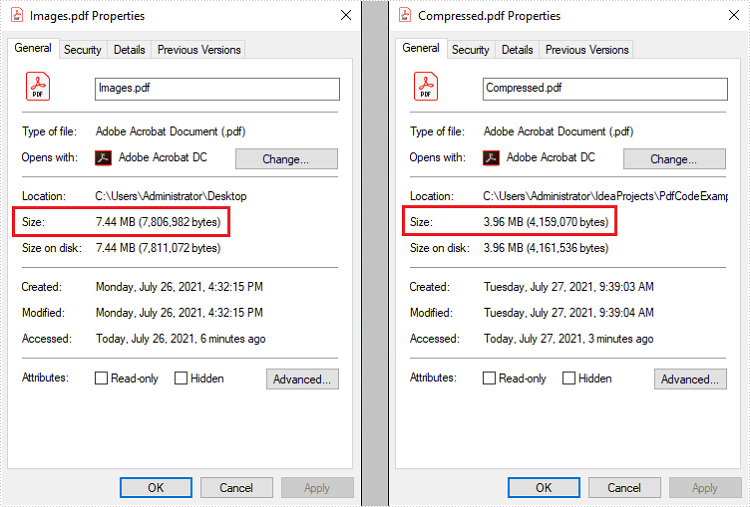
This article demonstrates how to compress high-resolution images of a PDF document using Spire.PDF for Java. Images in low-resolution will not be compressed anymore.
public static void main(String[] args) throws Exception {
        //Load the sample PDF document
        PdfDocument doc = new PdfDocument("C:\\Users\\Administrator\\Desktop\\Images.pdf");

        //Set IncrementalUpdate to false
        doc.getFileInfo().setIncrementalUpdate(false);

        //Declare a PdfPageBase variable
        PdfPageBase page;

        // Create the PdfImageHelper object
        PdfImageHelper imageHelper = new PdfImageHelper();

        //Loop through the pages
        for (int i = 0; i < doc.getPages().getCount(); i++) {

            //Get the specific page
            page = doc.getPages().get(i);
            if (page != null) {

                if(page.getImagesInfo() != null){

                    //Loop through the images in the page
                    for (PdfImageInfo info : imageHelper.getImagesInfo(page))

                        //Use tryCompressImage method the compress high-resolution images
                        info.tryCompressImage();
                    }
                }
            }
        //Save to file
        doc.saveToFile("output/Compressed.pdf");
        }
Extract Files from PDF Portfolio in Java
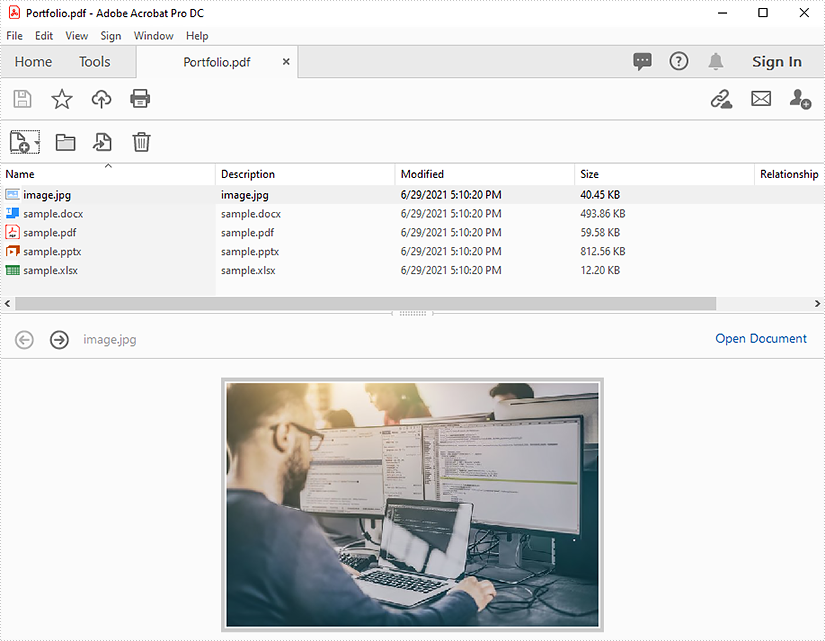
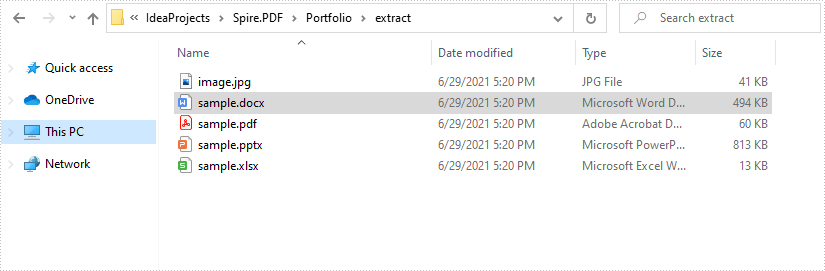
This article demonstrates how to extract files from a PDF portfolio in Java using Spire.PDF for Java.
The input PDF:
import com.spire.pdf.PdfDocument;
import com.spire.pdf.attachments.PdfAttachment;

import java.io.*;

public class ReadPortfolio {
    public static void main(String []args) throws IOException {
        //Create a PdfDocument instance
        PdfDocument pdf = new PdfDocument();
        //Load the PDF file
        pdf.loadFromFile("Portfolio.pdf");

        //Loop through the attachments in the file
       for(Object obj : pdf.getAttachments()) {
            PdfAttachment attachment = (PdfAttachment) obj;
            //Extract files
            String fileName = attachment.getFileName();
            OutputStream fos = new FileOutputStream("extract/" + fileName);
            fos.write(attachment.getData());
        }

        pdf.dispose();
    }
}
Output:
C#/VB.NET: Add or Remove Digital Signatures in PowerPoint
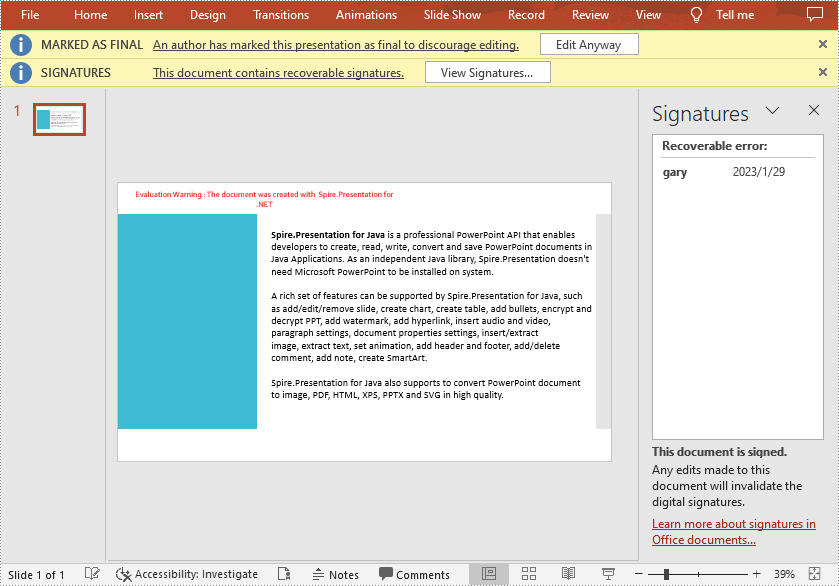
A digital signature is a modern alternative to signing documents manually on paper with pen. It uses an advanced mathematical technique to check the authenticity and integrity of digital documents, which guarantees that the contents in a digital document comes from the signer and has not been altered since then. Sometimes PowerPoint documents that contain confidential information may require a signature. In this article, you will learn how to programmatically add or remove digital signatures in PowerPoint using Spire.Presentation for .NET.
- Add a Digital Signature to PowerPoint in C# and VB.NET
- Remove All Digital Signatures from PowerPoint in C# and VB.NET
Install Spire.Presentation for .NET
To begin with, you need to add the DLL files included in the Spire.Presentation for.NET package as references in your .NET project. The DLL files can be either downloaded from this link or installed via NuGet.
PM> Install-Package Spire.Presentation
Add a Digital Signature to PowerPoint in C# and VB.NET
To add a digital signature, you'll need to have a valid signature certificate first. Then you can digitally sign a PowerPoint document with the certificate using Presentation.AddDigitalSignature (X509Certificate2 certificate, string comments, DateTime signTime) method. The detailed steps are as follows.
- Create a Presentation instance.
- Load a sample PowerPoint document using Presentation.LoadFromFile() method.
- Initializes an instance of X509Certificate2 class with the certificate file name and password.
- Add a digital signature to the PowerPoint document using Presentation.AddDigitalSignature (X509Certificate2 certificate, string comments, DateTime signTime) method.
- Save result document using Presentation.SaveToFile() method.
- C#
- VB.NET
using Spire.Presentation;
using System;

namespace AddDigitalSignature
{
    class Program
    {
        static void Main(string[] args)
        {
            //Create a Presentation instance
            Presentation ppt = new Presentation();

	    //Load a PowerPoint document
            ppt.LoadFromFile("Input.pptx");

            //Add a digital signature
            ppt.AddDigitalSignature("gary.pfx", "e-iceblue", "test", DateTime.Now);

            //Save the result document
            ppt.SaveToFile("AddDigitalSignature_result.pptx", FileFormat.Pptx2010);
            System.Diagnostics.Process.Start("AddDigitalSignature_result.pptx");

            //Dispose
            ppt.Dispose();
        }
    }
}
Remove All Digital Signatures from PowerPoint in C# and VB.NET
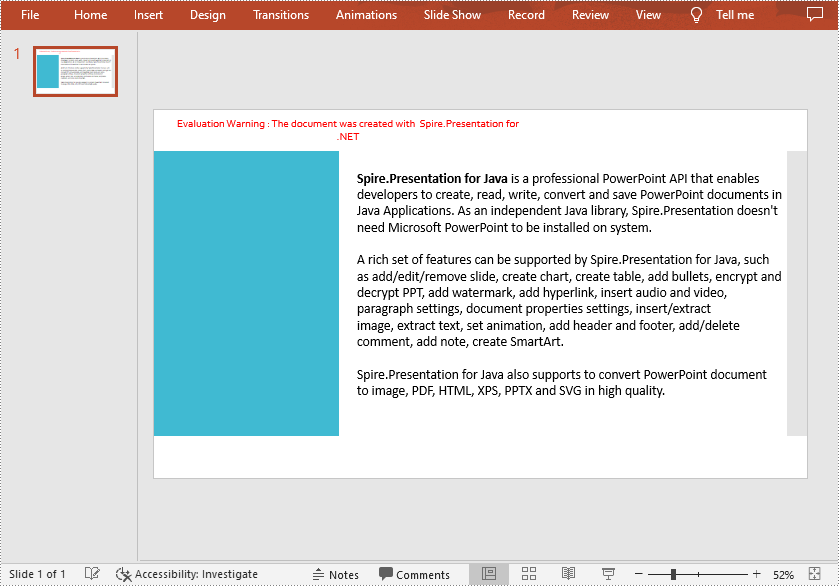
At some point you may need to remove the digital signatures from a PowerPoint document. Spire.Presentation for .NET provides the Presentation.RemoveAllDigitalSignatures() method to remove all digital signatures at once. The detailed steps are as follows:
- Create a Presentation instance.
- Load a sample PowerPoint document using Presentation.LoadFromFile() method.
- Determine if the document contains digital signatures using Presentation.IsDigitallySigned property.
- Remove all digital signatures from the document using Presentation.RemoveAllDigitalSignatures() method.
- Save the result document using Presentation.SaveToFile() method.
- C#
- VB.NET
using Spire.Presentation;

namespace RemoveDigitalSignature
{
    class Program
    {
        static void Main(string[] args)
        {
            //Create a Presentation instance
            Presentation ppt = new Presentation();

            //Load a PowerPoint document
            ppt.LoadFromFile("AddDigitalSignature.pptx");

            //Detect if the document is digitally signed
            if (ppt.IsDigitallySigned == true)
            {
                //Remove all digital signatures
                ppt.RemoveAllDigitalSignatures();
            }

            //Save the result document
            ppt.SaveToFile("RemoveDigitalSignature.pptx", FileFormat.Pptx2013);

        }
    }
}
Apply for a Temporary License
If you'd like to remove the evaluation message from the generated documents, or to get rid of the function limitations, please request a 30-day trial license for yourself.
Download PDF Document from URL in C#/VB.NET
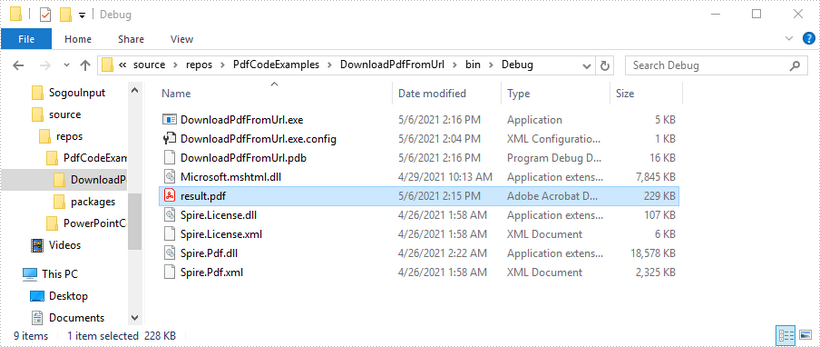
This article shows you how to download a PDF document from an URL using Spire.PDF with C# and VB.NET.
using System.IO;
using System.Net;
using Spire.Pdf;

namespace DownloadPdfFromUrl
{
    class Program
    {
        static void Main(string[] args)
        {
            //Create a PdfDocument object
            PdfDocument doc = new PdfDocument();

            //Create a WebClient object
            WebClient webClient = new WebClient();

            //Download data from URL and save as memory stream
            using (MemoryStream ms = new MemoryStream(webClient.DownloadData("https://www.e-iceblue.com/article/toDownload.pdf")))
            {
                //Load the stream
                doc.LoadFromStream(ms);
            }

            //Save to PDF file
            doc.SaveToFile("result.pdf", FileFormat.PDF);
        }
    }
}
Imports System.IO
Imports System.Net
Imports Spire.Pdf

Namespace DownloadPdfFromUrl
    Class Program
        Shared  Sub Main(ByVal args() As String)
            'Create a PdfDocument object
            Dim doc As PdfDocument = New PdfDocument()

            'Create a WebClient object
            Dim webClient As WebClient = New WebClient()

           'Download data from URL and save as memory stream
           Dim pdfData As Byte() = webClient.DownloadData(""https://www.e-iceblue.com/article/toDownload.pdf"")
           Using ms As New MemoryStream(pdfData)
           'Load the stream
           doc.LoadFromStream(ms)
 End Using

 'Save to PDF file
 doc.SaveToFile(""result.pdf"", FileFormat.PDF)
        End Sub
    End Class
End Namespace
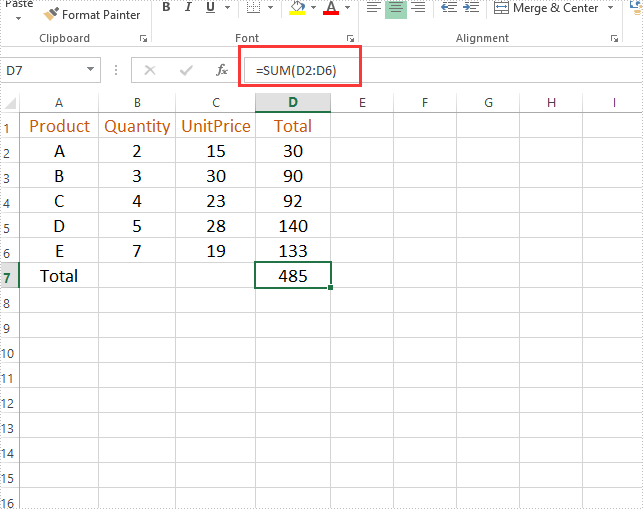
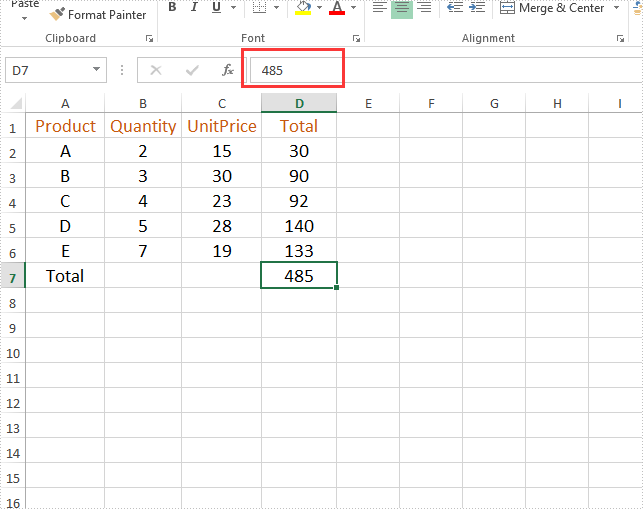
Java remove the formulas but keep the values on Excel worksheet
This article will demonstrate how to use Spire.XLS for Java to remove the formulas but keep the values on the Excel worksheet.
Firstly, view the original Excel:
String inputFile = "Sample.xlsx";
String outputFile="output/removeFormulasButKeepValues_result.xlsx";
//Create a workbook.
Workbook workbook = new Workbook();
//Load the file from disk.
workbook.loadFromFile(inputFile);
//Loop through worksheets.
for (Worksheet sheet : (Iterable<? extends Worksheet>) workbook.getWorksheets())
{
    //Loop through cells.
    for (CellRange cell : (Iterable<? extends CellRange>) sheet.getRange())
    {
        //If the cell contains formula, get the formula value, clear cell content, and then fill the formula value into the cell.
        if (cell.hasFormula())
        {
            Object value = cell.getFormulaValue();
            cell.clear(ExcelClearOptions.ClearContent);
            cell.setValue(value.toString());
        }
    }
}
//Save to file
workbook.saveToFile(outputFile, ExcelVersion.Version2013);
Output:
Java: Get Coordinates of Text or Images in PDF
Getting the coordinates of text or images in a PDF helps accurately identify elements, making it easier to extract content. This is especially important for data analysis, where specific information needs to be pulled from complicated layouts. Additionally, knowing these coordinates allows users to add notes, marks, or stamps in the right places, improving document interactivity and collaboration by letting them highlight important sections or add comments exactly where they're needed.
In this article, you will learn how to get coordinates of the specified text or image in a PDF document using Java and Spire.PDF for Java library.
Install Spire.PDF for Java
First of all, you're required to add the Spire.Pdf.jar file as a dependency in your Java program. The JAR file can be downloaded from this link. If you use Maven, you can easily import the JAR file in your application by adding the following code to your project's pom.xml file.
<repositories>
    <repository>
        <id>com.e-iceblue</id>
        <name>e-iceblue</name>
        <url>https://repo.e-iceblue.com/nexus/content/groups/public/</url>
    </repository>
</repositories>
<dependencies>
    <dependency>
        <groupId>e-iceblue</groupId>
        <artifactId>spire.pdf</artifactId>
        <version>12.9.0</version>
    </dependency>
</dependencies>
Coordinate System in Spire.PDF
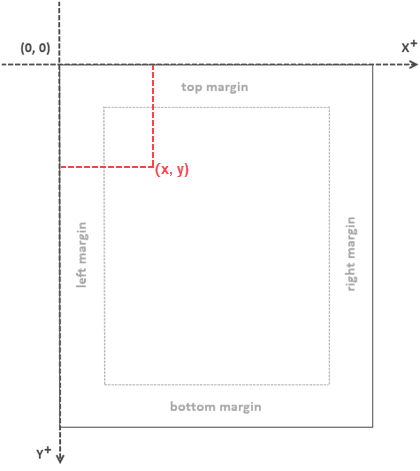
When utilizing Spire.PDF for Java to work with an existing PDF document, it's important to note that the coordinate system's origin is positioned at the top-left corner of the page. The x-axis extends to the right, and the y-axis extends downward, as illustrated below.
Get Coordinates of the Specified Text in PDF
To start, you can use the PdfTextFinder.find() method to search for all occurrences of the specified text on the page, which results in a list of PdfTextFragment. After that, you can retrieve the coordinates of the first occurrence of the text using the PdfTextFragment.getPositions() method.
The steps to get coordinates of the specified text in PDF are as follows:
- Create a PdfDocument object.
- Load a PDF file using PdfDocument.loadFromFile() method.
- Get a specific page using PdfDocument.getPages().get() method.
- Search for all occurrences of the specified text on the page using PdfTextFinder.find() method and return results in a list of PdfTextFragment.
- Access a specific PdfTextFragment in the list, and get the coordinates of the fragment using PdfTextFragment.getPositions() method.
- Java
import com.spire.pdf.PdfDocument;
import com.spire.pdf.PdfPageBase;
import com.spire.pdf.texts.PdfTextFindOptions;
import com.spire.pdf.texts.PdfTextFinder;
import com.spire.pdf.texts.PdfTextFragment;
import com.spire.pdf.texts.TextFindParameter;

import java.awt.geom.Point2D;
import java.util.EnumSet;
import java.util.List;

public class GetTextCoordinates {

    public static void main(String[] args) {

        // Create a PdfDocument object
        PdfDocument doc = new PdfDocument();

        // Load a PDF file
        doc.loadFromFile("C:\\Users\\Administrator\\Desktop\\Input.pdf");

        // Get a specific page
        PdfPageBase page = doc.getPages().get(0);

        // Create a PdfTextFinder object
        PdfTextFinder finder = new PdfTextFinder(page);

        // Set the find options
        PdfTextFindOptions options = new PdfTextFindOptions();
        options.setTextFindParameter(EnumSet.of(TextFindParameter.IgnoreCase));
        finder.setOptions(options);

        // Find all instances of the text
        List fragments = finder.find("Personal Data");

        // Get a specific text fragment
        PdfTextFragment fragment = (PdfTextFragment)fragments.get(0);


        // Get the positions of the text (If the text spans multiple lines, there will be more than one position)
        Point2D[] positions = fragment.getPositions();

        // Get its first position
        double x = positions[0].getX();
        double y = positions[0].getY();

        // Print result
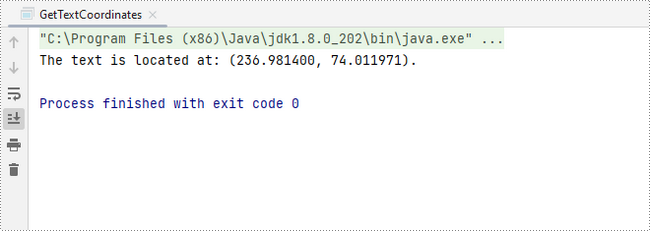
        System.out.println(String.format("The text is located at: (%f, %f).",x,y));
    }
}
Get Coordinates of the Specified Image in PDF
To begin, you can use the PdfImageHelper.getImagesInfo() method to retrieve information about all images on the specified page, storing the results in an array of PdfImageInfo. Next, you can obtain the X and Y coordinates of a specific image using the PdfImageInfo.getBounds().getX() and PdfImageInfo.getBounds().getY() methods.
The steps to get coordinates of the specified image in PDF are as follows:
- Create a PdfDocument object.
- Load a PDF file using PdfDocument.loadFromFile() method.
- Get a specific page using PdfDocument.getPages().get() method.
- Retrieve all the image information on the page using PdfImageHelper.getImagesInfo() method and return results in an array of PdfImageInfo.
- Get X and Y coordinates of a specific image using PdfImageInfo.getBounds().getX() and PdfImageInfo.getBounds().getY() methods
- Java
import com.spire.pdf.PdfDocument;
import com.spire.pdf.PdfPageBase;
import com.spire.pdf.utilities.PdfImageHelper;
import com.spire.pdf.utilities.PdfImageInfo;

public class GetImageCoordinates {

    public static void main(String[] args) {

        // Create a PdfDocument object
        PdfDocument doc = new PdfDocument();

        // Load a PDF file
        doc.loadFromFile("C:\\Users\\Administrator\\Desktop\\Input2.pdf");

        // Get a specific page
        PdfPageBase page = doc.getPages().get(0);

        // Create a PdfImageHelper object
        PdfImageHelper helper = new PdfImageHelper();

        // Get image information from the page
        PdfImageInfo[] imageInfo = helper.getImagesInfo(page);

        // Get X, Y coordinates of the first image
        double x = imageInfo[0].getBounds().getX();
        double y = imageInfo[0].getBounds().getY();

        // Print result
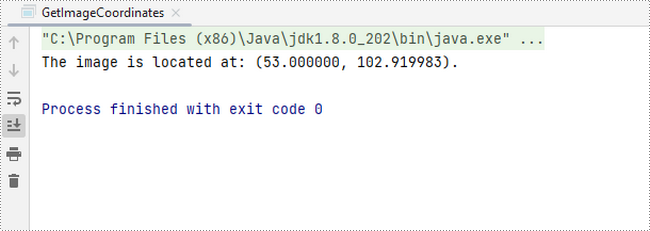
        System.out.println(String.format("The image is located at: (%f, %f).",x,y));
    }
}
Apply for a Temporary License
If you'd like to remove the evaluation message from the generated documents, or to get rid of the function limitations, please request a 30-day trial license for yourself.