HTML is the most universal carrier for presenting content on the web and for editing rich text, while Word remains the standard format for delivering and archiving documents. Converting between the two comes up frequently in scenarios such as report export, content archiving, and storing rich text in a database. Spire.Doc for JavaScript performs this conversion directly in the browser via WebAssembly, using a virtual file system (VFS) to manage input and output files — no backend server required.
This article covers two core features:
For installation and project setup, refer to Integrating Spire.Doc for JavaScript in a React Project. The examples below assume Spire.Doc is installed and the WebAssembly module is initialized.
HTML File to Word
Converting an HTML file to Word breaks down into three stages: first, load the font file and the target HTML file into the WASM virtual file system via FetchFileToVFS; then instantiate a Document and call LoadFromFile with FileFormat.Html, so that Spire.Doc parses the tags, lists, and table structures in the file; finally, call SaveToFile to save the result as a docx, read the generated file from VFS, wrap it in a Blob, and trigger a browser download.
function App() {
  const htmlFileToWord = async () => {
    const docModule = window.wasmModule?.spiredoc;
    if (!docModule) {
      alert('Spire.Doc is not ready yet');
      return;
    }

    const inputFileName = 'HtmlFileToWord.html';
    await window.spire.FetchFileToVFS(inputFileName, '', `${process.env.PUBLIC_URL}data/`);

    // Create a Document instance and load the file in HTML format
    const doc = new docModule.Document();
    doc.LoadFromFile({
      fileName: inputFileName,
      fileFormat: docModule.FileFormat.Html,
      validationType: docModule.XHTMLValidationType.None,
    });

    // Define the output file name and save it as Word
    const outputFileName = 'HtmlFileToWord-result.docx';
    doc.SaveToFile({ fileName: outputFileName, fileFormat: docModule.FileFormat.Docx });

    // Release resources
    doc.Dispose();

    const modifiedFileArray = window.dotnetRuntime.Module.FS.readFile(outputFileName);
    const blob = new Blob([modifiedFileArray], { type: 'application/vnd.openxmlformats-officedocument.wordprocessingml.document' });
    const url = URL.createObjectURL(blob);
    const a = document.createElement('a');
    a.href = url;
    a.download = outputFileName;
    a.click();
    URL.revokeObjectURL(url);
  };

 return (
    <div style={{ textAlign: 'center', height: '300px' }}>
      <h1>Convert an HTML File to a Word Document</h1>
      <button onClick={htmlFileToWord}>Generate</button>
    </div>
  );
}
export default App;
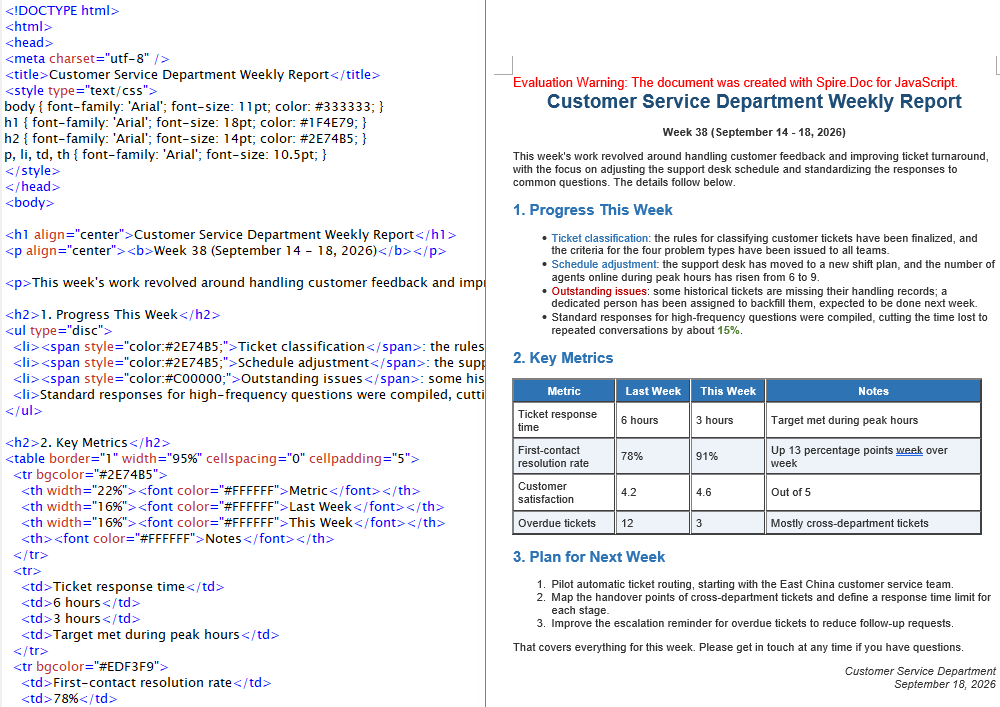
The Word document generated by converting an HTML file via LoadFromFile
HTML String to Word
In real projects the HTML waiting to be converted usually does not live on disk. It is the submitted result of a rich text editor, a fragment returned by a backend API, or a string assembled from a front-end template. Input like this does not need to be loaded from a file — appending the string to a paragraph is enough, and the rest of the flow matches HTML file to Word.
function App() {
  const htmlStringToWord = async () => {
    const docModule = window.wasmModule?.spiredoc;
    if (!docModule) {
      alert('Spire.Doc is not ready yet');
      return;
    }

    // Load the font into VFS
    await window.spire.FetchFileToVFS("ARIALUNI.TTF","/Library/Fonts/",`${process.env.PUBLIC_URL}static/font/`);

    // Define the HTML string to be converted
    let HTML = "<html><head><meta charset=\"utf-8\" /><style type=\"text/css\">body{font-family:'Arial Unicode MS';font-size:11pt;}h2{font-family:'Arial Unicode MS';font-size:16pt;color:#1F4E79;}p,li,td,th{font-family:'Arial Unicode MS';font-size:11pt;}</style></head><body>";
  HTML += "<h2 align=\"center\">Sichuan Province at a Glance</h2><p><b>Overview:</b></p> ";
  HTML += "<ul type=\"disc\"><li><span style='color:#548235;'>Capital Chengdu, abbreviated as \"Chuan\" or \"Shu\"</span></li><li>Located in southwestern China, on the upper reaches of the Yangtze River</li><li><span style='color:#C00000'>The Western Sichuan Plateau and the Sichuan Basin differ greatly in climate, so trips need to be prepared region by region</span></li></ul><p><b>Signature Attractions:</b></p>";
  HTML += "<ul type=\"square\"><li>Jiuzhaigou Valley</li><li>Mount Emei — Leshan Giant Buddha</li><li>Dujiangyan — Mount Qingcheng</li></ul>";
  HTML += "<table border=\"1\" width=\"90%\" cellspacing=\"0\" cellpadding=\"6\"><tr><th>Sichuan Province Fact Sheet</th></tr><tr><td>Covers about 486,000 square kilometers, the fifth largest area in the country</td></tr><tr><td>Has a resident population of about 83 million and is home to many ethnic groups</td></tr>";
  HTML += "<tr><td>Known since ancient times as the \"Land of Abundance\" and an important ecological barrier on the upper Yangtze</td></tr><tr><td>The main habitat of the giant panda, with the largest wild population in the country</td></tr></table></body></html>";
    // Create a document and add a section and a paragraph
    const doc = new docModule.Document();
    const section = doc.AddSection();
    const paragraph = section.AddParagraph();

    // Append the HTML string to the paragraph
    paragraph.AppendHTML(HTML);

    // Define the output file name and save it as Word
    const outputFileName = 'HtmlStringToWord-result.docx';
    doc.SaveToFile({ fileName: outputFileName, fileFormat: docModule.FileFormat.Docx2013 });

    // Release resources
    doc.Dispose();

    const modifiedFileArray = window.dotnetRuntime.Module.FS.readFile(outputFileName);
    const blob = new Blob([modifiedFileArray], { type: 'application/vnd.openxmlformats-officedocument.wordprocessingml.document' });
    const url = URL.createObjectURL(blob);
    const a = document.createElement('a');
    a.href = url;
    a.download = outputFileName;
    a.click();
    URL.revokeObjectURL(url);
  };

 return (
    <div style={{ textAlign: 'center', height: '300px' }}>
      <h1>Write an HTML String into a Word Document</h1>
      <button onClick={htmlStringToWord}>Generate</button>
    </div>
  );
}
export default App;
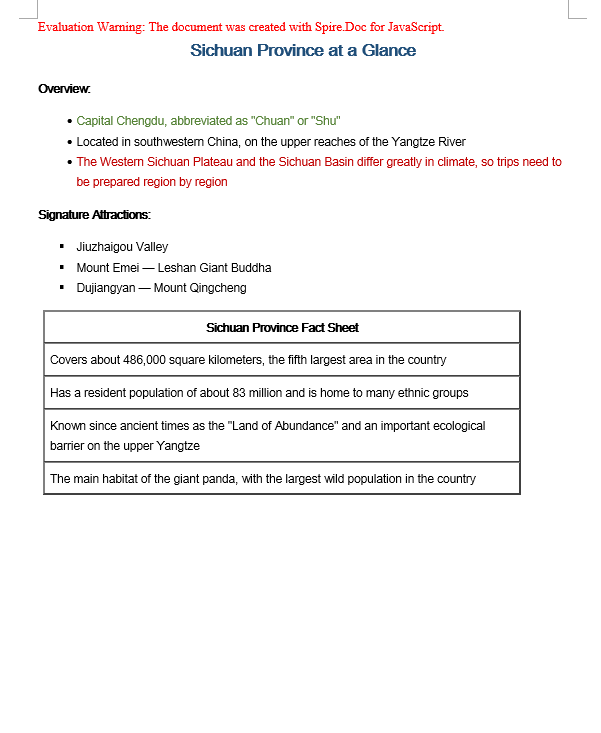
The Word document generated by converting an HTML string via AppendHTML
FAQ
Converted Word text displays as boxes or garbled characters
Cause: The font files required for rendering are missing from the WASM virtual file system. LoadFromFile matches fonts for the text while it parses the HTML, and content written by AppendHTML also needs glyphs looked up by font name — if the matching font is not present in VFS, non-ASCII characters such as Chinese will display as boxes or garbled text.
Solution: Load the font file into VFS via FetchFileToVFS before converting:
await window.spire.FetchFileToVFS(
  'ARIALUNI.TTF', '/Library/Fonts/', '/'
);
A validation-related exception is thrown when loading an HTML file
Cause: XHTMLValidationType is set too strictly. Real-world HTML files usually contain unclosed tags, inconsistently cased attributes, or non-standard markup, so they do not conform to the XHTML specification — strict validation throws during the parsing stage.
Solution: For HTML from uncontrolled sources, turn validation off with XHTMLValidationType.None:
wordDocument.LoadFromFile({
  fileName: inputFileName,
  fileFormat: docModule.FileFormat.Html,
  validationType: docModule.XHTMLValidationType.None,
});
Get a Free License
Spire.Doc for JavaScript offers a 30-day full-featured free trial license with no functional limitations. Apply here to evaluate before purchasing.
