RTF is a rich-text format that records its content as plain text: fonts, paragraphs, tables and page setup are written into the file as readable markup, and almost every word processor can open it. Data exchange between systems, import and export in legacy tools, and content transfer through mail gateways still rely on RTF as an interchange format.
Bringing RTF into a document pipeline raises two directions of work: exporting Word documents as RTF for a downstream system, and turning received RTF back into an editable Word document or a PDF that is easy to distribute. This article uses Spire.Doc for JavaScript to handle all three tasks in the browser. The sample uses two documents: WordToRtf.docx is the "Skylark" Customer Service Center 2026 Third-Quarter Operations Report, with a cover information table, a metrics table, a bar chart and a page header and footer; Legacy.rtf is an Equipment Inspection Record exported by a legacy system, with an inspection route map, three detail tables and handover notes. The whole process runs in the browser on WebAssembly, requires no Office installation and depends on no backend, so the documents stay on the user's device.
This article covers three features:
For installation and project setup, refer to Integrating Spire.Doc for JavaScript in a React Project. The examples below assume that Spire.Doc is installed and the WebAssembly module is initialized.
Convert a Word Document to RTF
Converting a Word document to RTF comes down to specifying FileFormat.Rtf when saving. Loading is no different from handling an ordinary docx: the Document object reads the Word file and writes it out unchanged, with no paragraph-by-paragraph rebuild.
The format enumerations used by all three directions are listed below; the next two sections take their values from the same table:
| Format enumeration | Value | Purpose |
|---|---|---|
FileFormat.Rtf |
120 | Save as RTF, or load as RTF |
FileFormat.Docx2013 |
12 | Save as docx |
FileFormat.PDF |
100 | Save as PDF |
The specific steps are as follows:
- Get the Spire.Doc WASM module and confirm that it is ready.
- Load the fonts and
WordToRtf.docxinto the VFS. - Create a
Documentinstance and load the Word document. - Save it to the VFS with
FileFormat.Rtf, using the.rtfextension. - Read the result file from the VFS and trigger a browser download.
The code for converting a Word document to RTF is as follows:
function App() {
  const wordToRtf = async () => {
    // Get the Spire.Doc WASM module
    const docModule = window.wasmModule?.spiredoc;

    if (!docModule) {
      alert('Spire.Doc is not ready yet');
      return;
    }

    // Load the fonts and the document to be converted
    await window.spire.FetchFileToVFS('arial.ttf', '/Library/Fonts/', `${process.env.PUBLIC_URL}/font/`);
    await window.spire.FetchFileToVFS('arialbd.ttf', '/Library/Fonts/', `${process.env.PUBLIC_URL}/font/`);
    await window.spire.FetchFileToVFS('WordToRtf.docx', '', `${process.env.PUBLIC_URL}/data/`);

    // Load the Word document
    const doc = new docModule.Document();
    doc.LoadFromFile('WordToRtf.docx');

    // Save as RTF
    const outputFileName = 'WordToRtf.rtf';
    doc.SaveToFile({ fileName: outputFileName, fileFormat: docModule.FileFormat.Rtf });
    doc.Dispose();

    // Read the result from the VFS and trigger the download
    const fileArray = window.dotnetRuntime.Module.FS.readFile(outputFileName);
    const blob = new Blob([fileArray], { type: 'application/rtf' });
    const url = URL.createObjectURL(blob);
    const a = document.createElement('a');
    a.href = url;
    a.download = outputFileName;
    a.click();
    URL.revokeObjectURL(url);
  };

  return (
    <div style={{ textAlign: 'center', height: '300px' }}>
      <h1>Word to RTF</h1>
      <button onClick={wordToRtf}>Generate</button>
    </div>
  );
}

export default App;
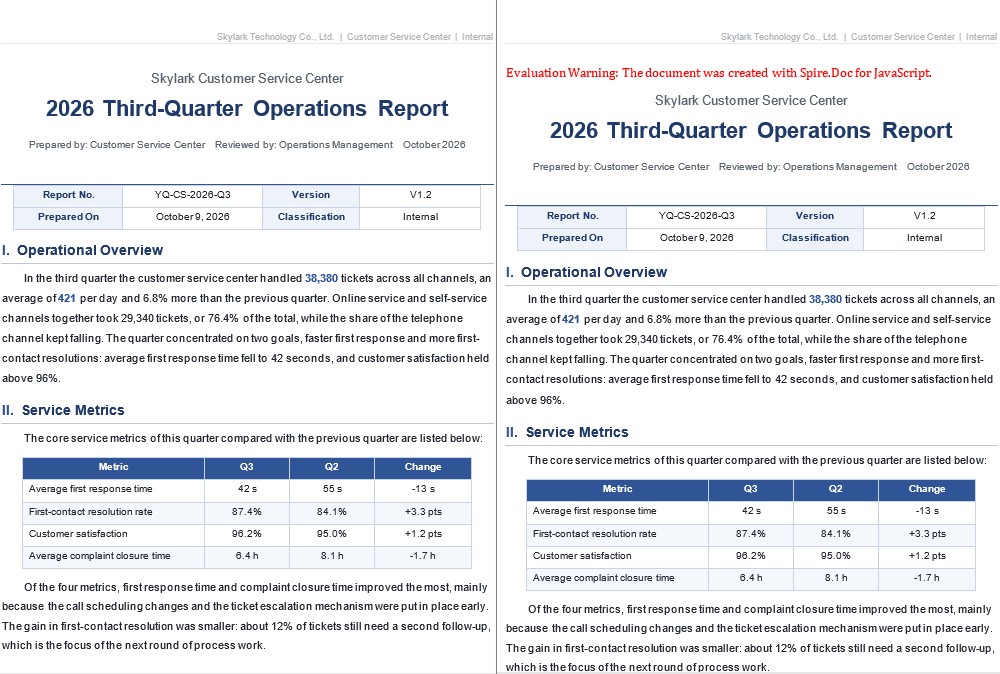
Opened in Word, the generated RTF runs to two pages, and the cover information table, the metrics table, the bar chart and the header and footer are all present, with a layout close to the original:
What the Converted RTF Keeps
After the report in the sample is saved from docx to RTF, the following content stays as it was when the file is opened in Word:
- Text, fonts, font sizes and paragraph formatting;
- Table row and column structure, borders and cell shading;
- Embedded images and charts;
- Headers, footers, page size and margins.
RTF's expressive range stops at classic word processing, so not every detail of the source necessarily makes it into the RTF. After conversion, open the result in Word and check that everything the downstream system relies on is there; when the original has to be reproduced in full, keep the docx and hand the RTF only to systems that need the text and the basic layout.
Why the Generated RTF Is Much Larger
RTF is a plain-text format: an image cannot be stored as binary and is written into the file as hexadecimal characters. The report in the sample is 65 KB, while the converted RTF is about 3.7 MB, most of the growth coming from the embedded bar chart. To control the size, compress the images before conversion, or scale them down to the size the layout actually uses.
The File Name and MIME Type Must Agree
The MIME type of RTF is application/rtf, and the extension should be .rtf. With a .doc extension, some systems parse the file as a binary Word document and report an error; if the download declares application/msword, the browser may hand the file to a local component, which behaves differently from what you expect.
Convert an RTF Document to Word
Converting an RTF document to Word loads the RTF with LoadRtf and saves it with FileFormat.Docx2013. RTF exported by a legacy system often still has to be edited, restyled with a template or annotated; once it is a docx it can use Word's styles, revisions and content controls, and it is easier to merge with other documents.
The specific steps are as follows:
- Get the Spire.Doc WASM module and confirm that it is ready.
- Load the fonts and
Legacy.rtfinto the VFS. - Create a
Documentinstance and load the RTF explicitly withLoadRtf. - Save it as docx with
FileFormat.Docx2013. - Read the result file from the VFS and trigger a browser download.
The code for converting an RTF document to Word is as follows:
function App() {
  const rtfToWord = async () => {
    // Get the Spire.Doc WASM module
    const docModule = window.wasmModule?.spiredoc;

    if (!docModule) {
      alert('Spire.Doc is not ready yet');
      return;
    }

    // Load the fonts and the RTF file
    await window.spire.FetchFileToVFS('arial.ttf', '/Library/Fonts/', `${process.env.PUBLIC_URL}/font/`);
    await window.spire.FetchFileToVFS('arialbd.ttf', '/Library/Fonts/', `${process.env.PUBLIC_URL}/font/`);
    await window.spire.FetchFileToVFS('Legacy.rtf', '', `${process.env.PUBLIC_URL}/data/`);

    // Load explicitly as RTF; the argument is a file name in the VFS
    const doc = new docModule.Document();
    doc.LoadRtf('Legacy.rtf');

    // Save as docx
    const outputFileName = 'Legacy.docx';
    doc.SaveToFile({ fileName: outputFileName, fileFormat: docModule.FileFormat.Docx2013 });
    doc.Dispose();

    // Read the result from the VFS and trigger the download
    const fileArray = window.dotnetRuntime.Module.FS.readFile(outputFileName);
    const blob = new Blob([fileArray], {
      type: 'application/vnd.openxmlformats-officedocument.wordprocessingml.document',
    });
    const url = URL.createObjectURL(blob);
    const a = document.createElement('a');
    a.href = url;
    a.download = outputFileName;
    a.click();
    URL.revokeObjectURL(url);
  };

  return (
    <div style={{ textAlign: 'center', height: '300px' }}>
      <h1>RTF to Word</h1>
      <button onClick={rtfToWord}>Generate</button>
    </div>
  );
}

export default App;
The converted document is two pages, and the inspection route map, the three detail tables, the header and footer and the handover signature are all kept:

LoadRtf and the Three Ways to Load an RTF
An RTF can be loaded explicitly, or left to LoadFromFile to recognize by format or by extension. In the sample all three forms produce the same output; the difference is how explicit the call is and what it reports when something goes wrong:
| Form | Call | When to use |
|---|---|---|
| Explicit load | doc.LoadRtf('Legacy.rtf') |
The extension is non-standard, or the encoding has to be specified |
| Load by format | doc.LoadFromFile({ fileName, fileFormat: FileFormat.Rtf }) |
The extension cannot be trusted, but the format is known |
| Auto-detect | doc.LoadFromFile('Legacy.rtf') |
A standard extension and consistent conventions |
The argument of LoadRtf is a file name in the VFS, not the RTF text itself. Passing a string of RTF content throws IO_FileNotFound_FileName, because the library treats the value as a path to look up.
Cell Shading Is Lost After Conversion
RTF marks cell backgrounds with \clcbpat; the RTF in the sample carries 86 of them. After Spire.Doc converts it, the shading is no longer kept in the docx and the tables fall back to white. Where a header row depended on dark fill plus white text for contrast, the text ends up white on white and looks like an empty row.
The remedy is not to make the header depend on the fill: use dark text with a light fill, or bold text with borders. The three detail tables in the sample are built that way, so their headers stay readable after conversion.
Fonts Have to Be Loaded into the VFS
An RTF's \fonttbl records only font names, not the font files. If the matching font is missing from the VFS, the layout falls back to a substitute, and line breaks and pagination may differ from the original. The sample loads arial.ttf and arialbd.ttf into /Library/Fonts/ before conversion; when the document uses other fonts, load those files as well.
Convert an RTF Document to PDF
Converting an RTF document to PDF follows exactly the same flow as the previous section, changing only the save format to FileFormat.PDF; there is no need to save a docx first and convert it again. PDF suits archiving and outbound delivery: once converted it no longer depends on fonts or editing software, and the pagination the recipient sees is final.
The specific steps are as follows:
- Get the Spire.Doc WASM module and confirm that it is ready.
- Load the fonts and
Legacy.rtfinto the VFS. - Create a
Documentinstance and load the RTF withLoadRtf. - Save it to the VFS with
FileFormat.PDF. - Read the PDF from the VFS and trigger a browser download.
The code for converting an RTF document to PDF is as follows:
function App() {
  const rtfToPdf = async () => {
    // Get the Spire.Doc WASM module
    const docModule = window.wasmModule?.spiredoc;

    if (!docModule) {
      alert('Spire.Doc is not ready yet');
      return;
    }

    // Load the fonts and the RTF file
    await window.spire.FetchFileToVFS('arial.ttf', '/Library/Fonts/', `${process.env.PUBLIC_URL}/font/`);
    await window.spire.FetchFileToVFS('arialbd.ttf', '/Library/Fonts/', `${process.env.PUBLIC_URL}/font/`);
    await window.spire.FetchFileToVFS('Legacy.rtf', '', `${process.env.PUBLIC_URL}/data/`);

    // Load the RTF
    const doc = new docModule.Document();
    doc.LoadRtf('Legacy.rtf');

    // Export the PDF directly
    const outputFileName = 'Legacy.pdf';
    doc.SaveToFile({ fileName: outputFileName, fileFormat: docModule.FileFormat.PDF });
    doc.Dispose();

    // Read the result from the VFS and trigger the download
    const fileArray = window.dotnetRuntime.Module.FS.readFile(outputFileName);
    const blob = new Blob([fileArray], { type: 'application/pdf' });
    const url = URL.createObjectURL(blob);
    const a = document.createElement('a');
    a.href = url;
    a.download = outputFileName;
    a.click();
    URL.revokeObjectURL(url);
  };

  return (
    <div style={{ textAlign: 'center', height: '300px' }}>
      <h1>RTF to PDF</h1>
      <button onClick={rtfToPdf}>Generate</button>
    </div>
  );
}

export default App;
The exported PDF is two pages, with the header, the inspection route map and the three detail tables all present, ready to be distributed:

The Three Conversions Side by Side
The three features share the same code structure: load, save, download. Only the loading entry point and the save format differ:
| Direction | Load | Save |
|---|---|---|
| Word document → RTF | LoadFromFile('WordToRtf.docx') |
SaveToFile({ fileName, fileFormat: FileFormat.Rtf }) |
| RTF document → Word | LoadRtf('Legacy.rtf') |
SaveToFile({ fileName, fileFormat: FileFormat.Docx2013 }) |
| RTF document → PDF | LoadRtf('Legacy.rtf') |
SaveToFile({ fileName, fileFormat: FileFormat.PDF }) |
For batch processing, create a separate Document for each file and call Dispose() as soon as it is done, so that several document instances do not hold WASM memory at the same time.
Are Pagination, Headers and Footers Kept
The page size, margins, header and footer recorded in the RTF carry over into the PDF; the PDF in the sample is two A4 pages with both header and footer. The page breaks may differ slightly from opening the same RTF in Word: the PDF is laid out by Spire.Doc's layout engine, whose font metrics are not identical to Word's, so a long table or a paragraph near the foot of a page may land on a different page. For pagination-sensitive files, compare the generated PDF, and if necessary fix the page setup in the RTF first or split tables that cross pages.
FAQ
Do the files have to be uploaded to a server when converting RTF
Not with the approach in this article. Spire.Doc for JavaScript runs in the browser on WebAssembly, and documents are read and written locally through the virtual file system (VFS): loading, converting and saving all happen on the device, and the library itself does not send files to a server. Whether a file eventually leaves the device depends on the other code you add to the page.
Why is the generated RTF much larger than the docx
Cause: RTF is a plain-text format, and images can only be embedded as hexadecimal characters, so the same image takes far more space in RTF than in the compressed docx. The operations report in the sample is 65 KB; converted to RTF it is about 3.7 MB, and most of that comes from the bar chart.
Fix: compress the images or scale them down before conversion; when only the text and tables are needed, delete the images before saving.
Why does LoadRtf report IO_FileNotFound_FileName
Cause: the argument of LoadRtf is a file name in the virtual file system (VFS), not the RTF text. If the file name has not first been written into the VFS with FetchFileToVFS, or the value passed in is a string that starts with {\rtf1, the library treats it as a path to look up and reports this error.
Fix: load the file into the VFS first, then hand the same file name to LoadRtf, keeping it identical to the name used when loading:
await window.spire.FetchFileToVFS('Legacy.rtf', '', `${process.env.PUBLIC_URL}/data/`);

const doc = new docModule.Document();
doc.LoadRtf('Legacy.rtf');
After converting RTF to Word, the header text of the tables is invisible
Cause: RTF marks table headers with the cell background, and Spire.Doc no longer keeps that shading after conversion. For a header that relied on dark fill plus white text for contrast, the fill disappears and the text ends up white on white, which looks like an empty row.
Fix: change the header to dark text with a light fill or borders; with a result document already at hand, select the header cells in Word and set the font color or shading again.
The pagination of the RTF-to-PDF result differs from what Word shows
Cause: the RTF keeps the page size, margins, header and footer, but the PDF is produced by Spire.Doc's layout engine, whose font metrics differ from Word's, so a long table or a paragraph close to the foot of a page may land on a different page.
Fix: check the pagination against the generated PDF; for documents that are strict about pagination, adjust the page setup before conversion, tighten the spacing before and after paragraphs, or split a table that crosses pages into two.
Get a Free License
Spire.Doc for JavaScript offers a 30-day full-featured free trial license with no functional limitations. Apply here to evaluate before purchasing.
