Contracts, reports and help pages stored as HTML often have to be reissued in a different format for archiving, distribution and retrieval: outbound delivery asks for PDF, a list preview needs only a thumbnail, and full-text search cares about the plain words alone. Queuing every conversion on a server adds deployment cost, and it means the content has to leave the user's device first.
This article uses Spire.Doc for JavaScript to produce all three outputs in the browser: convert HTML to PDF, convert HTML to images, and convert HTML to text. All three share the same loading pipeline and differ only in how the result is exported. The sample uses one HTML file, Sample.html, the "Xinglan Technology 2026 Third-Quarter Operations Report": the file is laid out with CSS, and it contains an information band with a background color, statistic cards, an ordered list and an unordered list, several data tables and an embedded bar chart, with forced page breaks before the business metrics and the risks and responses sections. The conversion produces a three-page A4 document.
This article covers three features:
For installation and project setup, refer to Integrating Spire.Doc for JavaScript in a React Project. The examples below assume that Spire.Doc is installed and the WebAssembly module is initialized.
Convert HTML to PDF
Converting HTML to PDF takes two calls: Document.LoadFromFile() parses the page structure following HTML rules, and SaveToFile() writes the parsed document as PDF. The layout is fixed once the conversion is done and does not change with the reading environment, which suits archiving and outbound delivery.
LoadFromFile() takes its arguments as an object:
| Argument | Value | Description |
|---|---|---|
fileName |
'Sample.html' |
Path of the file in the virtual file system (VFS) |
fileFormat |
FileFormat.Html |
Parse as HTML; the file extension does not matter |
validationType |
XHTMLValidationType.None |
Lenient validation that tolerates non-standard tags and attributes |
XHTMLValidationType also offers Strict and Transitional. Pages exported from line-of-business systems rarely meet the strict standard, so None keeps parsing from stopping early.
The specific steps are as follows:
- Get the Spire.Doc WASM module and confirm that it is ready.
- Load the font and
Sample.htmlinto the VFS. - Create a
Documentinstance and load the file as HTML. - Save it to the VFS with
FileFormat.PDF. - Read the PDF bytes from the VFS and trigger a download.
The code for converting HTML to PDF is as follows:
function App() {
  const htmlToPdf = async () => {
    // Get the Spire.Doc WASM module
    const docModule = window.wasmModule?.spiredoc;

    if (!docModule) {
      alert('Spire.Doc is not ready yet');
      return;
    }

    // Load the font and the HTML file to be converted
    await window.spire.FetchFileToVFS('segoeui.ttf', '/Library/Fonts/', `${process.env.PUBLIC_URL}/font/`);
    await window.spire.FetchFileToVFS('Sample.html', '', `${process.env.PUBLIC_URL}/data/`);

    const doc = new docModule.Document();
    // Load as HTML with lenient validation
    doc.LoadFromFile({
      fileName: 'Sample.html',
      fileFormat: docModule.FileFormat.Html,
      validationType: docModule.XHTMLValidationType.None,
    });
    // Relative resources are resolved from the VFS root
    doc.HtmlBaseUrl = '/';

    const outputFileName = 'HtmlToPdf.pdf';
    doc.SaveToFile({ fileName: outputFileName, fileFormat: docModule.FileFormat.PDF });

    // Read the generated file from the VFS and trigger the download
    const fileArray = window.dotnetRuntime.Module.FS.readFile(outputFileName);
    const blob = new Blob([fileArray], { type: 'application/pdf' });
    const url = URL.createObjectURL(blob);
    const a = document.createElement('a');
    a.href = url;
    a.download = outputFileName;
    a.click();
    URL.revokeObjectURL(url);

    doc.Dispose();
  };

  return (
    <div style={{ textAlign: 'center', height: '300px' }}>
      <h1>HTML to PDF</h1>
      <button onClick={htmlToPdf}>Generate</button>
    </div>
  );
}

export default App;
The sample HTML comes out as a three-page A4 document:
The first page holds the cover information and the quarterly overview, the second the business metrics and the revenue composition, and the third the risks and responses, the next-quarter plan and the appendix. Heading levels, paragraph spacing, the numbering of the ordered list, the dark blue table headers and the zebra striping of the tables are all kept as the CSS specifies; the embedded chart.png is placed at the width set in the HTML, and page-break-before: always takes effect as written, so the fourth and seventh sections each start at the top of pages 2 and 3.
How to Control Where the PDF Breaks Pages
By default, pages break wherever the content height runs out: the body fills one page and then continues at the next natural position. To start a new page at a section boundary, set page-break-before: always on the element in the style sheet; the property still applies after the HTML is converted:
<!-- This heading and what follows it start on a new page -->
<h2 style="page-break-before: always;">4. Business Metrics</h2>
The sample sets the property on the "4. Business Metrics" and "7. Risks and Responses" headings, and in the result both sections start at the top of a page, matching what a browser would print.
Convert HTML to Images
Converting HTML to an image uses Document.SaveImageToStreams(). Thumbnails, message cards and document previews need a single image, and this method renders the specified page into an image object, which then writes the file to the VFS through its Save() method. The arguments and related members are as follows:
| Argument or member | Value | Description |
|---|---|---|
pageIndex |
Page number starting from 0 |
0 is the first page |
type |
ImageType.Bitmap |
Bitmap; ImageType.Metafile produces a vector metafile instead |
Save(path) |
Path in the VFS | Writes the file by extension; the sample writes HtmlToImage.png |
The specific steps are as follows:
- Get the Spire.Doc WASM module and confirm that it is ready.
- Load the font and
Sample.htmlinto the VFS. - Create a
Documentinstance and load the file as HTML. - Call
SaveImageToStreams()to render the first page and write it to the VFS withSave(). - Read the PNG bytes from the VFS and trigger a download.
The code for converting HTML to an image is as follows:
function App() {
  const htmlToImage = async () => {
    // Get the Spire.Doc WASM module
    const docModule = window.wasmModule?.spiredoc;

    if (!docModule) {
      alert('Spire.Doc is not ready yet');
      return;
    }

    // Load the font and the HTML file to be converted
    await window.spire.FetchFileToVFS('segoeui.ttf', '/Library/Fonts/', `${process.env.PUBLIC_URL}/font/`);
    await window.spire.FetchFileToVFS('Sample.html', '', `${process.env.PUBLIC_URL}/data/`);

    const doc = new docModule.Document();
    doc.LoadFromFile({
      fileName: 'Sample.html',
      fileFormat: docModule.FileFormat.Html,
      validationType: docModule.XHTMLValidationType.None,
    });
    doc.HtmlBaseUrl = '/';

    const outputFileName = 'HtmlToImage.png';
    // pageIndex is zero-based; render the first page
    const image = doc.SaveImageToStreams({
      pageIndex: 0,
      type: docModule.ImageType.Bitmap,
    });
    image.Save(outputFileName);

    doc.Dispose();

    // Read the image from the VFS and trigger the download
    const fileArray = window.dotnetRuntime.Module.FS.readFile(outputFileName);
    const blob = new Blob([fileArray], { type: 'image/png' });
    const url = URL.createObjectURL(blob);
    const a = document.createElement('a');
    a.href = url;
    a.download = outputFileName;
    a.click();
    URL.revokeObjectURL(url);
  };

  return (
    <div style={{ textAlign: 'center', height: '300px' }}>
      <h1>HTML to Image</h1>
      <button onClick={htmlToImage}>Generate</button>
    </div>
  );
}

export default App;
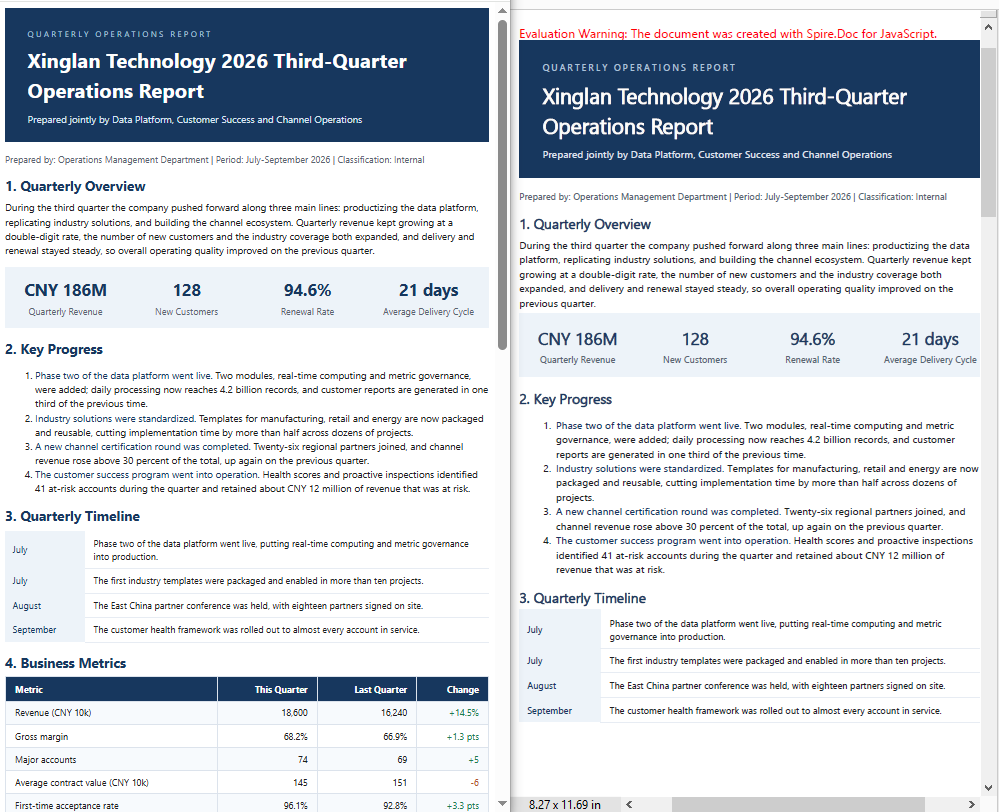
The first page of the sample HTML renders as follows:

The PNG is 794 x 1123 pixels, the size of an A4 page at 96 dpi; the content matches the first page of the PDF, and the information band, statistic cards, lists and timeline table keep their relative positions. The aspect ratio of the image follows the page setup rather than the width of the browser window.
How to Export Every Page in One Run
A long HTML document is split across pages, and Document.PageCount gives the total, so a loop over the page indexes exports all of them:
// Same as the PDF page count: three pages in the sample
const pageCount = doc.PageCount;

for (let i = 0; i < pageCount; i++) {
  const pageImage = doc.SaveImageToStreams({
    pageIndex: i,
    type: docModule.ImageType.Bitmap,
  });
  pageImage.Save(`HtmlPage-${i + 1}.png`);
}

// Release the document once after the loop
doc.Dispose();
The sample document has three pages, so the loop produces HtmlPage-1.png to HtmlPage-3.png, and PageCount agrees with the page count of the PDF. Rendering the document once and exporting several pages in a row is faster than reloading it page by page, and the document instance only has to be released once, after the loop.
Convert HTML to Text
Converting HTML to text is a matter of saving with FileFormat.Txt. Full-text search, content review and corpus loading care about the words alone, so the export extracts characters in document order and keeps no styles, table borders, images or hyperlink addresses; the result is a suitable source of plain-text material. The export rules are as follows:
| Content | Exported result |
|---|---|
| Headings and body text | Written line by line in paragraph order, text only, without font size or styling |
| Ordered list | Each line keeps a 1. prefix plus two spaces, with the number increasing in the actual order |
| Unordered list | Each line keeps * plus one space as the bullet |
| Tables | Each cell on its own line, expanded in row-major order, with no separator between cells |
| Images | Not exported; the position is left blank |
| Pagination | No page breaks; all content goes into a single file |
| Encoding | UTF-8, with a BOM at the start of the file |
The specific steps are as follows:
- Get the Spire.Doc WASM module and confirm that it is ready.
- Load the font and
Sample.htmlinto the VFS, keeping the same pipeline as the first two samples. - Create a
Documentinstance and load the file as HTML. - Save it to the VFS with
FileFormat.Txt. - Read the text file from the VFS and trigger a download.
The code for converting HTML to text is as follows:
function App() {
  const htmlToText = async () => {
    // Get the Spire.Doc WASM module
    const docModule = window.wasmModule?.spiredoc;

    if (!docModule) {
      alert('Spire.Doc is not ready yet');
      return;
    }

    // Load the font and the HTML file to be converted
    await window.spire.FetchFileToVFS('segoeui.ttf', '/Library/Fonts/', `${process.env.PUBLIC_URL}/font/`);
    await window.spire.FetchFileToVFS('Sample.html', '', `${process.env.PUBLIC_URL}/data/`);

    const doc = new docModule.Document();
    doc.LoadFromFile({
      fileName: 'Sample.html',
      fileFormat: docModule.FileFormat.Html,
      validationType: docModule.XHTMLValidationType.None,
    });

    const outputFileName = 'HtmlToText.txt';
    doc.SaveToFile({ fileName: outputFileName, fileFormat: docModule.FileFormat.Txt });

    doc.Dispose();

    // Read the text from the VFS and trigger the download
    const fileArray = window.dotnetRuntime.Module.FS.readFile(outputFileName);
    const blob = new Blob([fileArray], { type: 'text/plain;charset=utf-8' });
    const url = URL.createObjectURL(blob);
    const a = document.createElement('a');
    a.href = url;
    a.download = outputFileName;
    a.click();
    URL.revokeObjectURL(url);
  };

  return (
    <div style={{ textAlign: 'center', height: '300px' }}>
      <h1>HTML to Text</h1>
      <button onClick={htmlToText}>Generate</button>
    </div>
  );
}

export default App;
All three pages go into the same text file, and its opening section reads as follows:

The English headline in the information band, the company name and the subtitle each take one line; headings such as "1. Quarterly Overview" keep only their text, with no markers; every ordered-list line starts with a number such as 1. or 2. plus two spaces; the statistic card becomes the two lines CNY 186M and Quarterly Revenue; and each cell of the timeline table gets its own line. The chart.png image has no counterpart in the text, while the caption "Figure 1: Revenue by business line, Q3 2026 (CNY 10k)" is kept as body text.
Which Output to Choose
| Output | Typical use | Main cost |
|---|---|---|
| Archiving, outbound delivery, printing | Fonts have to be embedded, so files are larger | |
| Image | Thumbnails, previews, message cards | Not searchable; sharpness is limited by the render resolution |
| Text | Full-text search, corpora, content review | All layout information is lost |
All three conversions happen inside the browser, and the file does not leave the user's device. For batch processing, put the functions above into a single loop that loads, exports and releases each document in turn.
FAQ
Do the files have to be uploaded to a server during the conversion
No. Spire.Doc for JavaScript runs in the browser on WebAssembly, and the HTML file is read and written locally through the virtual file system (VFS): loading, converting and saving all happen on the device, and the library itself does not send files to a server. Whether a file eventually leaves the device depends on the other code you add to the page.
Why do some characters appear as boxes
Cause: PDF and image rendering read fonts from the VFS. When the VFS holds no font at all, saving throws Cannot find any fonts in specified font sources.; when only a Latin font is loaded, the conversion still completes, but characters that font does not cover (Chinese, for example) appear as boxes because their glyphs are missing, while Latin text and digits render normally.
Fix: load a font file that covers those characters together with the HTML, and place it in the /Library/Fonts/ directory:
// Write the font into the VFS font directory
await window.spire.FetchFileToVFS('segoeui.ttf', '/Library/Fonts/', `${process.env.PUBLIC_URL}/font/`);
FetchFileToVFS does not stop when the request fails (a 404, for instance); the error page is written into the VFS just the same, and the problem only surfaces later as a font error. Check that the file really exists under public/font before loading it.
Why do the images referenced by the HTML not appear in the result
Cause: LoadFromFile parses only the HTML file itself; referenced images and style sheets have to be loaded into the VFS separately. A missing image does not raise an error: the position renders as a placeholder icon and the content after it shifts. In the sample, dropping chart.png turns the three-page document into four pages.
Fix: load the resources referenced by the HTML into the VFS as well. Relative paths resolve against the VFS directory of the loaded file, so placing Sample.html and chart.png in the same directory is enough; when the resources live elsewhere, set the base directory with HtmlBaseUrl:
// Load the image and the HTML from the same folder into the VFS
await window.spire.FetchFileToVFS('Sample.html', '', `${process.env.PUBLIC_URL}/data/`);
await window.spire.FetchFileToVFS('chart.png', '', `${process.env.PUBLIC_URL}/data/`);
In the exported text, why does each table row come out as one line per cell
Cause: the text export writes characters in order and keeps no row or column structure. In the sample, the "4. Business Metrics" table comes out as four lines — Metric, This Quarter, Last Quarter, Change — followed by four lines for the first row — Revenue (CNY 10k), 18,600, 16,240, +14.5% — with neither tabs nor pipes between the cells, so it is not obvious which values belong to the same row.
Fix: when the row and column relationships have to be kept, group the cells by the table's fixed column count, or use PDF or images to keep the layout:
// The table has four fixed columns: slice out its line range, then regroup every four lines
const cells = text.split('\n').slice(tableStart, tableEnd);
const rows = [];
for (let i = 0; i + 4 <= cells.length; i += 4) {
  rows.push(cells.slice(i, i + 4));
}
When the column count changes from table to table, keep the PDF as the layout reference and use the text for search only.
Get a Free License
Spire.Doc for JavaScript offers a 30-day full-featured free trial license with no functional limitations. Apply here to evaluate before purchasing.
