HTML is the universal way to describe a web page, but its downstream consumers are often not browsers: when content is delivered to traditional office systems, RTF offers the best compatibility; when content enters a documentation site or a code repository, Markdown is the maintainable form. The two put different demands on the source file—RTF has to keep fonts, colors and table layout, while Markdown keeps only structural information such as heading levels, lists, tables, links and images.
This article uses Spire.Doc for JavaScript to cover two features:
For installation and project setup, refer to Integrating Spire.Doc for JavaScript in a React Project. The examples below assume that Spire.Doc is installed and the WebAssembly module is initialized.
Convert HTML to RTF
RTF describes fonts, paragraphs and tables with plain-text markup, and almost every word processor can open it. Once HTML has been converted to RTF, the content can still be edited on systems without Office components installed, and it can serve as a rich-text source for an email body.
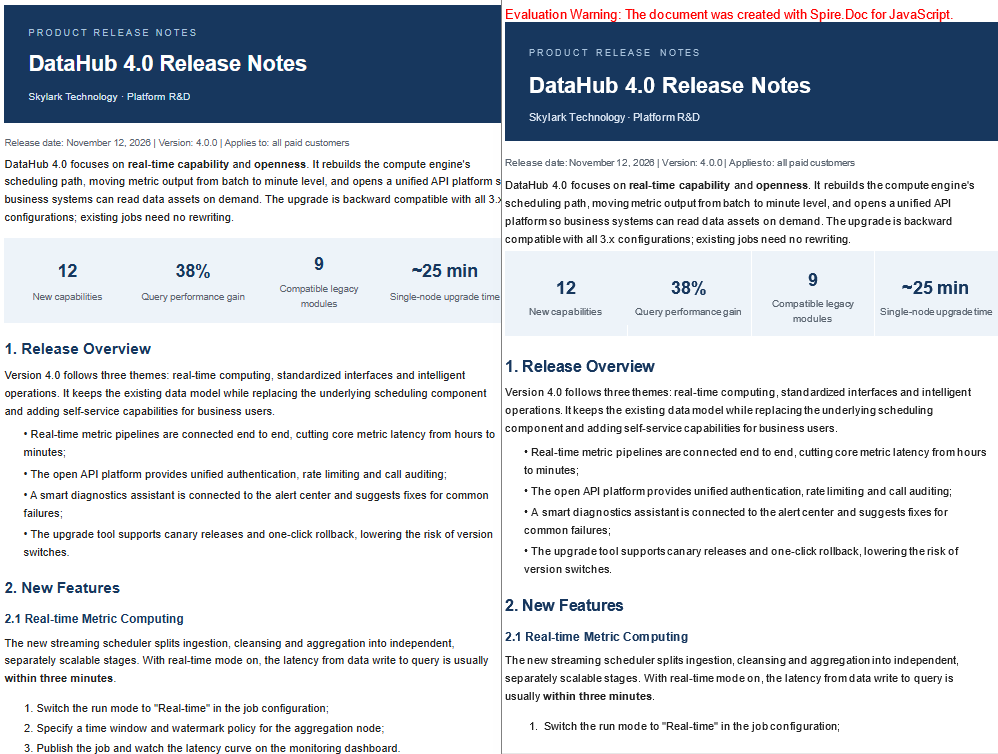
The source file in this section is a release notes page, Report.html, which contains a dark title bar, KPI cards, a version comparison table, a callout box and a chart, covering the common web layouts. After conversion, the title bar background, card shading, table borders and text colors are all written into the RTF.
The specific steps are as follows:
- Get the Spire.Doc WASM module and confirm that it is ready.
- Load the font files,
Report.htmland the chart file into the virtual file system (VFS). - Load the document as HTML with lenient validation.
- Save the document to the VFS with
FileFormat.Rtf. - Read the RTF bytes from the VFS and trigger a browser download.
The code for converting HTML to RTF is as follows:
import React from 'react';

function App() {
  const htmlToRtf = async () => {
    // Get the Spire.Doc WASM module
    const docModule = window.wasmModule?.spiredoc;

    // Check if the module is ready
    if (!docModule) {
      alert('Spire.Doc is not ready yet');
      return;
    }

    // Load the fonts and the source files
    await window.spire.FetchFileToVFS('arial.ttf', '/Library/Fonts/', `${process.env.PUBLIC_URL}/font/`);
    await window.spire.FetchFileToVFS('arialbd.ttf', '/Library/Fonts/', `${process.env.PUBLIC_URL}/font/`);
    await window.spire.FetchFileToVFS('Report.html', '', `${process.env.PUBLIC_URL}/data/`);
    await window.spire.FetchFileToVFS('report-chart.png', '', `${process.env.PUBLIC_URL}/data/`);

    // Load the document as HTML
    const doc = new docModule.Document();
    doc.LoadFromFile({
      fileName: 'Report.html',
      fileFormat: docModule.FileFormat.Html,
      validationType: docModule.XHTMLValidationType.None,
    });
    doc.HtmlBaseUrl = '/';

    // Save in RTF format
    const outputFileName = 'Report.rtf';
    doc.SaveToFile({ fileName: outputFileName, fileFormat: docModule.FileFormat.Rtf });

    // Read the generated file from the VFS and trigger the download
    const fileArray = window.dotnetRuntime.Module.FS.readFile(outputFileName);
    const blob = new Blob([fileArray], { type: 'application/rtf' });
    const url = URL.createObjectURL(blob);
    const a = document.createElement('a');
    a.href = url;
    a.download = outputFileName;
    a.click();
    URL.revokeObjectURL(url);

    doc.Dispose();
  };

  return (
    <div style={{ textAlign: 'center', height: '300px' }}>
      <h1>HTML to RTF</h1>
      <button onClick={htmlToRtf}>Generate</button>
    </div>
  );
}

export default App;
Opened in Word, the generated RTF keeps the title bar, the cards and the table backgrounds:
Which Styles Survive and Which Are Lost
Inline styles and stylesheets in the HTML map to character and paragraph attributes in RTF, but not every CSS rule has an equivalent:
| Style category | Conversion result |
|---|---|
| Font, font size, text color | Kept |
| Bold, italic, underline, strikethrough | Kept |
| Paragraph alignment, indentation, line spacing | Kept |
| Table borders, cell shading, column widths | Kept |
| Images and hyperlinks | Kept; images are embedded as data |
flex, grid, absolute positioning, floats |
Not kept; content is reflowed in document order |
Multi-column pages that depend on layout usually become a single column in RTF; decorative elements on the page (shadows, rounded corners, gradients) degrade to solid colors or are dropped.
Images and File Size
Images are written into the RTF as hexadecimal data, which increases the file size; the same image is also attached as a metafile copy for compatibility with older readers. In the sample, a PNG chart of about 48 KB pushes the RTF to about 2 MB. Relative paths in the source are resolved against the directory given by HtmlBaseUrl; images that are cross-origin and unreachable are skipped, leaving a gap in the output. When there are many images, compress or crop them in the HTML before converting.
Convert HTML to Markdown
Markdown suits long-term maintenance: plain text can be diffed, reviewed and hosted in a version repository. Converting HTML to Markdown restores the content from its rendered result to a structural description, and heading levels, lists, tables, links and images are the main things kept.
The source file in this section is an upgrade guide page, Guide.html, made up of headings, paragraphs, ordered and unordered lists, a validation table, a flow image and document links. Unlike the RTF sample, this source does not use layout tables, so the exported Markdown has a more regular structure.
The specific steps are as follows:
- Get the WASM module, then load the fonts,
Guide.htmland the image into the VFS. - Load the document as HTML.
- Set
MarkdownExportOptions.ImagesFolderto choose the directory the images are written to. - Save the document with
FileFormat.Markdown. - Read the Markdown text from the VFS and trigger a browser download.
The code for converting HTML to Markdown is as follows:
import React from 'react';

function App() {
  const htmlToMarkdown = async () => {
    // Get the Spire.Doc WASM module
    const docModule = window.wasmModule?.spiredoc;

    // Check if the module is ready
    if (!docModule) {
      alert('Spire.Doc is not ready yet');
      return;
    }

    // Load the fonts and the source files
    await window.spire.FetchFileToVFS('arial.ttf', '/Library/Fonts/', `${process.env.PUBLIC_URL}/font/`);
    await window.spire.FetchFileToVFS('arialbd.ttf', '/Library/Fonts/', `${process.env.PUBLIC_URL}/font/`);
    await window.spire.FetchFileToVFS('Guide.html', '', `${process.env.PUBLIC_URL}/data/`);
    await window.spire.FetchFileToVFS('guide-flow.png', '', `${process.env.PUBLIC_URL}/data/`);

    // Load the document as HTML
    const doc = new docModule.Document();
    doc.LoadFromFile({
      fileName: 'Guide.html',
      fileFormat: docModule.FileFormat.Html,
      validationType: docModule.XHTMLValidationType.None,
    });
    doc.HtmlBaseUrl = '/';

    // Write images into the images directory in the VFS; the Markdown references them by relative path
    doc.MarkdownExportOptions.ImagesFolder = 'images';

    // Save in Markdown format
    const outputFileName = 'Guide.md';
    doc.SaveToFile({ fileName: outputFileName, fileFormat: docModule.FileFormat.Markdown });

    // Read the generated file from the VFS and trigger the download
    const fileArray = window.dotnetRuntime.Module.FS.readFile(outputFileName);
    const blob = new Blob([fileArray], { type: 'text/markdown' });
    const url = URL.createObjectURL(blob);
    const a = document.createElement('a');
    a.href = url;
    a.download = outputFileName;
    a.click();
    URL.revokeObjectURL(url);

    doc.Dispose();
  };

  return (
    <div style={{ textAlign: 'center', height: '300px' }}>
      <h1>HTML to Markdown</h1>
      <button onClick={htmlToMarkdown}>Generate</button>
    </div>
  );
}

export default App;
The generated Markdown is shown below in a reader that supports tables:
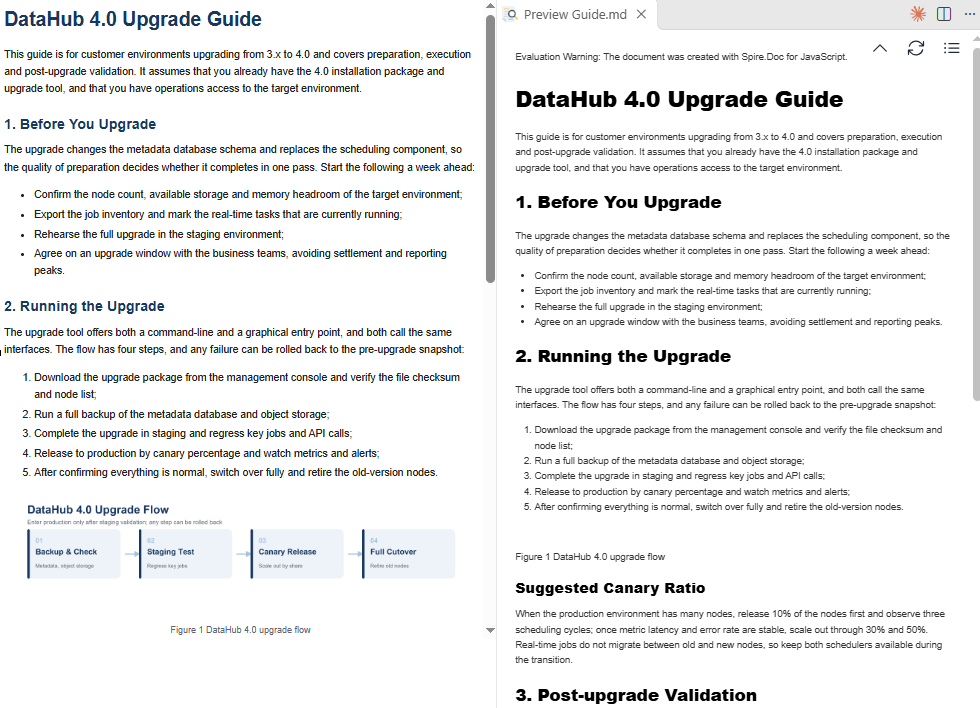
Image Paths and Encoding
MarkdownExportOptions offers two ways to handle images: write them as separate files, or encode them into the Markdown itself. The differences are as follows:
| Setting | Reference in the Markdown | When to use |
|---|---|---|
| Not set | , with the image written to the VFS root |
Package the result right after export |
ImagesFolder = 'images' |
, with the image written to the VFS images directory |
Commit to a code repository or a documentation site |
ImagesAsBase64 = true |
, with no separate image file |
Single-file distribution, copy and paste |
In directory mode, images are named after the output file plus a sequence number (outputname_001.png) and stay in the VFS alongside the Markdown; when downloading, take the Markdown and the images directory together:
// Read the image from the export directory and package it with the Markdown for download
const imageArray = window.dotnetRuntime.Module.FS.readFile('images/Guide_001.png');
ImagesAsBase64 costs about a third more file size, so it is best avoided when there are many images. If directory mode is used but only the Markdown file is downloaded, the reader shows a missing-image placeholder.
What Cannot Be Expressed in Markdown
Markdown's syntax coverage is limited, so some HTML semantics keep only the text after conversion, not the form:
| HTML element | Markdown output |
|---|---|
Headings h1–h6 |
#–######; bold on the original heading is kept as **text** |
| Ordered and unordered lists | List items starting with 1. and - |
| Tables | Pipe tables, with header cells bold |
blockquote |
A plain paragraph, without the > marker |
| Code blocks and inline code | Plain text, without fences or backticks |
| Colors, background colors, alignment | Not emitted |
iframe, scripts, complex merged cells |
Ignored or simplified during conversion |
Body-style content (articles, manuals, help pages) converts best; interactive pages (dashboards, forms) are poor candidates.
Choosing Between the Two Directions
| Goal | Format | Reason |
|---|---|---|
| Deliver to office software for further editing | RTF | Keeps character and paragraph styles and works with legacy systems |
| Publish to a documentation site or code repository | Markdown | Plain text, diffable, hostable |
Both conversions use the same Document as the intermediate model and share identical loading logic; only the save format and the export options differ. For batch processing, load once, export RTF first, then Markdown, and dispose of the instance at the end.
FAQ
The font files cannot be found when converting HTML
Cause: Font information in the HTML is parsed at load time; when the VFS holds no font file at all, LoadFromFile throws Cannot find any fonts in specified font sources.
Solution: Before loading, copy the project's font file into the VFS /Library/Fonts/ directory:
await window.spire.FetchFileToVFS('arial.ttf', '/Library/Fonts/', `${process.env.PUBLIC_URL}/font/`);
The font file has to be supplied by you and placed in the project's public/font/ directory; the page does not necessarily ship a file with that name.
Why do exported Markdown headings contain **
Cause: h1–h6 in HTML display in bold by default, so the converted heading paragraph carries bold character formatting, and Markdown export writes it as **text**, producing ## **Heading**.
Solution: This is normal format preservation. If headings should not be bold, strip ** from the heading lines after export, or set font-weight: normal on the headings in the source HTML before converting.
Where are the image files referenced by the Markdown
Images are written to the VFS root by default, named after the output file name and a sequence number, for example Guide_001.png. With ImagesFolder set, images go into the specified subdirectory and the references in the Markdown become relative paths. Either way, the images have to be read from the VFS and delivered together with the Markdown.
Why is the exported RTF much larger than the original HTML
RTF stores images as hexadecimal text, so the same image takes about twice the bytes of the original file; in addition, a metafile copy is attached for compatibility with older readers. In the sample, a chart of about 48 KB pushes the RTF to about 2 MB. The more images there are and the higher their resolution, the larger the growth.
Why are colors and backgrounds lost in the Markdown
Markdown is structural plain text and has no syntax for colors or shading. Conversion does not emit font colors, cell shading or alignment; it keeps only structure such as headings, lists, tables, links and images. When that layout has to be preserved, use RTF or PDF as the output format instead.
Get a Free License
Spire.Doc for JavaScript offers a 30-day full-featured free trial license with no functional limitations. Apply here to evaluate before purchasing.
