Plain text (TXT) is the lightest text carrier there is, commonly used for log export, data exchange and content archiving, while Word takes care of layout and formal delivery. Converting between the two in the browser is a common document-processing need: TXT to Word turns collected plain text into a well-formed document, and Word to TXT extracts body text that a program can keep processing. Spire.Doc for JavaScript performs the conversion in both directions in the browser via WebAssembly, using a virtual file system (VFS) to manage fonts and files — no backend server required.
It should be said up front that TXT is a plain-text format which carries no layout information of its own, so both directions only hold at the level of text: the styles, table structure and images on the Word side never reach the TXT file, and a Word document produced from TXT contains nothing but body paragraphs. Being clear about that boundary before you use the API keeps your expectations of the result realistic.
This article covers two core features:
For installation and project setup, refer to Integrating Spire.Doc for JavaScript in a React Project. The examples below assume Spire.Doc is installed and the WebAssembly module is initialized.
Convert TXT to Word
Converting TXT to Word involves three steps: first, load the font files and the target TXT file into the WASM virtual file system via FetchFileToVFS; then instantiate a Document and load the file with LoadFromFile — no fileFormat is passed here, so Spire.Doc identifies it as plain text from the file extension; finally, call SaveToFile to save the result as docx, read the generated file from VFS, wrap it as a Blob and trigger a browser download.
function App() {
  const TxtToWord = async () => {
    const docModule = window.wasmModule?.spiredoc;
    if (!docModule) {
      alert('Spire.Doc is not ready yet');
      return;
    }

    // Load the sample file into VFS
    let inputFileName = "TxtToWord.txt";
    await window.spire.FetchFileToVFS(inputFileName, "", `${process.env.PUBLIC_URL}/static/data/`);

    // Create a document instance
    const doc = new docModule.Document();

    // Load the document from the virtual file system
    doc.LoadFromFile(inputFileName);

    // Define the output file name
    const outputFileName = "TxtToWord-result.docx";

    // Save the document in the specified format
    doc.SaveToFile({fileName: outputFileName, fileFormat: docModule.FileFormat.Docx2013});

    // Release resources
    doc.Dispose();

    const modifiedFileArray = window.dotnetRuntime.Module.FS.readFile(outputFileName);
    const blob = new Blob([modifiedFileArray], { type: 'application/vnd.openxmlformats-officedocument.wordprocessingml.document' });
    const url = URL.createObjectURL(blob);
    const a = document.createElement('a');
    a.href = url;
    a.download = outputFileName;
    a.click();
    URL.revokeObjectURL(url);
  };

 return (
    <div style={{ textAlign: 'center', height: '300px' }}>
      <h1>Convert TXT To Word</h1>
      <button onClick={TxtToWord}>Generate</button>
    </div>
  );
}
export default App;
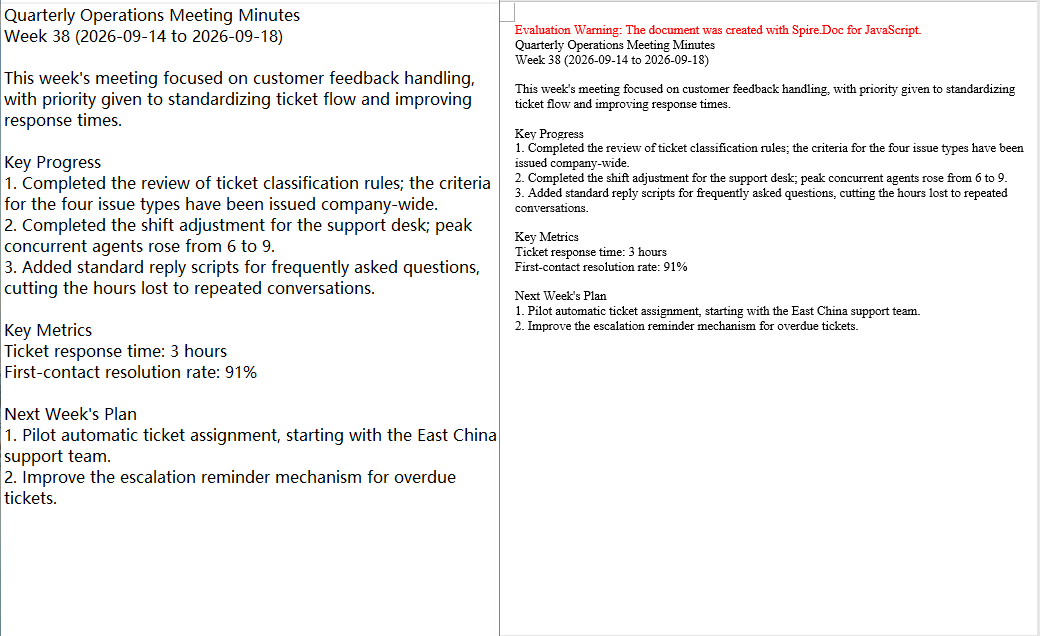
Because TXT carries no style information, the result is decided entirely by the default layout rules of Spire.Doc, and there are two things to keep in mind: every line break in the file is turned into a paragraph in Word, while blank lines are kept as empty paragraphs, so a file that ends with a line break gains an extra empty paragraph at the end; and every paragraph in the output uses the default Normal style, so headings, numbering and bullet levels are not created automatically — the 1., - and similar characters written in the TXT are kept as ordinary characters only.
After a TXT file is loaded with LoadFromFile and saved as a Word document, the text is restored to paragraphs line by line, all in the Normal style
Convert Word to TXT
Converting Word to TXT follows the same three steps as the other direction: load the font files and the target Word document into the virtual file system via FetchFileToVFS, then instantiate a Document and load the document with LoadFromFile. The difference is that FileFormat.Txt is specified when saving, so Spire.Doc extracts the document content by plain-text rules; finally, read the generated txt file from VFS, wrap it as a text/plain Blob and trigger a browser download.
function App() {
  const WordToTxt = async () => {
    const docModule = window.wasmModule?.spiredoc;
    if (!docModule) {
      alert('Spire.Doc is not ready yet');
      return;
    }

    // Load the sample file into VFS
    let inputFileName = "WordToTxt.docx";
    await window.spire.FetchFileToVFS(inputFileName, "", `${process.env.PUBLIC_URL}/static/data/`);

    // Create a document instance
    const doc = new docModule.Document();

    // Load the document from the virtual file system
    doc.LoadFromFile(inputFileName);

    // Define the output file name
    const outputFileName = "WordToTxt-result.txt";

    // Save the document as plain text
    doc.SaveToFile({fileName: outputFileName, fileFormat: docModule.FileFormat.Txt});

    // Release resources
    doc.Dispose();

    const modifiedFileArray = window.dotnetRuntime.Module.FS.readFile(outputFileName);
    const blob = new Blob([modifiedFileArray], { type: 'application/vnd.openxmlformats-officedocument.wordprocessingml.document' });
    const url = URL.createObjectURL(blob);
    const a = document.createElement('a');
    a.href = url;
    a.download = outputFileName;
    a.click();
    URL.revokeObjectURL(url);
  };

 return (
    <div style={{ textAlign: 'center', height: '300px' }}>
      <h1>Convert Word To TXT</h1>
      <button onClick={WordToTxt}>Generate</button>
    </div>
  );
}
export default App;
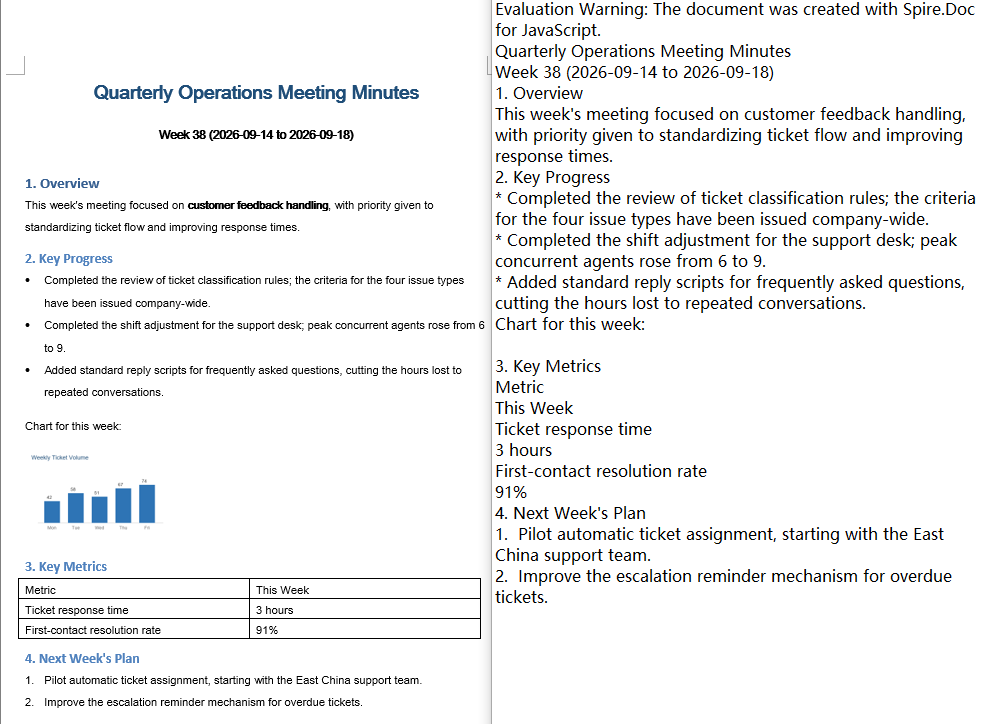
The FileFormat.Txt export follows a "text only" rule. Taking a Word document that contains a heading, a bullet list, a numbered list, a table and an image as the example, the exported result can be summed up as follows:
- The font, font size, colour and bold formatting of headings, body text and list items are all dropped, and everything is reduced to ordinary text lines;
- Bullet list items are written with a
*prefix and numbered items with a1.prefix, and the list level information is lost along with them; - The table is expanded cell by cell into separate lines, so the correspondence between rows and columns no longer holds;
- Images are not exported, and the paragraph that held one becomes an empty line.
In addition, the exported txt is UTF-8 encoded with a BOM and uses CRLF line breaks, so wrapping the Blob with the text/plain type is all that is needed.
With FileFormat.Txt passed to SaveToFile, the styles, tables and images of the Word document are not preserved and only the text content is written out in order
FAQ
Table columns shift and list markers turn into asterisks after converting Word to TXT
Cause: TXT has no concept of rows, columns or list structure, and FileFormat.Txt only extracts text: the table is written out line by line in cell order, bullets are replaced with * and numbering with the number text. This is a limitation of the format itself rather than a conversion failure.
Solution: If all the downstream consumer needs is readable text, restore the structure on the reading side using the rules above; if the table and list layout has to be preserved, use a format that can carry structure instead, such as HTML or OpenXML.
The converted Word document has no heading or list styles
Cause: TXT carries no style information, so when LoadFromFile loads plain text it can only write each line as a paragraph with the default Normal style — the 1., - and similar characters in the TXT are ordinary characters and are not parsed as headings or lists.
Solution: Set the styles of the paragraphs you care about again after the conversion; if setting them paragraph by paragraph is not acceptable, complete this step with an input format that already carries structure (such as HTML) instead.
Loading a TXT file reports that the file type cannot be detected
Cause: When LoadFromFile is called without fileFormat, the format is judged from the file extension. When the extension of the input file is not .txt (for example .log, .dat, or no extension at all), Spire.Doc cannot identify it and throws an exception such as Cannot detect current file type.
Solution: Specify the plain-text format explicitly:
doc.LoadFromFile({ fileName: inputFileName, fileFormat: wasmModule.FileFormat.Txt });
Get a Free License
Spire.Doc for JavaScript offers a 30-day full-featured free trial license with no functional limitations. Apply here to evaluate before purchasing.
