Word documents have long carried manuals, reports and contracts, while Markdown serves documentation sites, knowledge bases and code repositories as plain text. Moving existing Word content into Markdown is a routine step in documentation migration and content publishing.
If the conversion runs on a server, the file has to be uploaded first, and the original content leaves the user's device. This article performs the conversion in the browser with Spire.Doc for JavaScript: the Word document is read through a virtual file system (VFS), the export result is written back to the VFS, and the page then reads it and triggers the download. Everything runs in the browser as a WebAssembly module, so no Office installation and no backend service are required.
This article covers three features:
For installation and project setup, refer to Integrating Spire.Doc for JavaScript in a React Project. The examples below assume that Spire.Doc is installed and the WebAssembly module is initialized.
Convert a Word Document to Markdown
The conversion takes two steps: Document.LoadFromFile() reads the .docx into a document object, and Document.SaveToFile() writes a .md file with FileFormat.Markdown as the target format. The saved result first lands in the VFS and is then read and downloaded by the page.
The document structure is written out with the corresponding syntax; the main mappings are as follows:
| Word content | Markdown output |
|---|---|
| Paragraphs with the built-in Heading 1, Heading 2 and other heading styles applied | # and ## headings of the matching level |
| Bold, italic | **text**, *text* |
| Bulleted list | - item |
| Numbered list | 1. item |
| Table | Pipe table with a bold header |
| Image | , with the image written out separately |
| Hyperlink | [text](url) |
The specific steps are as follows:
- Get the Spire.Doc WASM module and confirm that it is ready.
- Load the sample document
Product Release Notes.docxinto the virtual file system (VFS). - Create a
Documentobject and load the document. - Set
MarkdownExportOptions.ImagesFoldertoimagesso that the images are written into that folder. - Save the document with
SaveToFile()asFileFormat.Markdown, producingProduct Release Notes.md. - Read the Markdown text and the image files from the VFS and trigger their browser downloads.
The code for converting a Word document to Markdown is as follows:
// Read the file from VFS and trigger the download
function downloadBlob(blob, fileName) {
  const url = URL.createObjectURL(blob);
  const a = document.createElement('a');
  a.href = url;
  a.download = fileName;
  a.click();
  URL.revokeObjectURL(url);
}

function App() {
  const convertToMarkdown = async () => {
    // Get the Spire.Doc WASM module
    const docModule = window.wasmModule?.spiredoc;

    // Make sure the WASM module has fully loaded
    if (!docModule) {
      alert('Spire.Doc is not ready yet');
      return;
    }

    // Load the sample document into VFS
    await window.spire.FetchFileToVFS('Product Release Notes.docx', '', `${process.env.PUBLIC_URL}/data/`);

    // Create a Document instance and load the Word document
    const doc = new docModule.Document();
    doc.LoadFromFile('Product Release Notes.docx', docModule.FileFormat.Docx2016);

    // Write the images into the images folder in VFS and reference them by relative path
    doc.MarkdownExportOptions.ImagesFolder = 'images';

    // Save as Markdown; the result is written into VFS
    const outputFileName = 'Product Release Notes.md';
    doc.SaveToFile({ fileName: outputFileName, fileFormat: docModule.FileFormat.Markdown });
    doc.Dispose();

    const FS = window.dotnetRuntime.Module.FS;

    // Read the Markdown text and download it (UTF-8 encoding)
    const text = new TextDecoder('utf-8').decode(FS.readFile(outputFileName));
    downloadBlob(new Blob([text], { type: 'text/markdown;charset=utf-8' }), outputFileName);

    // The images are stored separately, so download them as well
    FS.readdir('images')
      .filter((name) => name !== '.' && name !== '..')
      .forEach((name) => {
        const data = FS.readFile(`images/${name}`);
        downloadBlob(new Blob([data], { type: 'image/png' }), name);
      });
  };

  return (
    <div style={{ textAlign: 'center', height: '300px' }}>
      <h1>Convert Word to Markdown</h1>
      <button onClick={convertToMarkdown}>
        Convert and Download
      </button>
    </div>
  );
}

export default App;
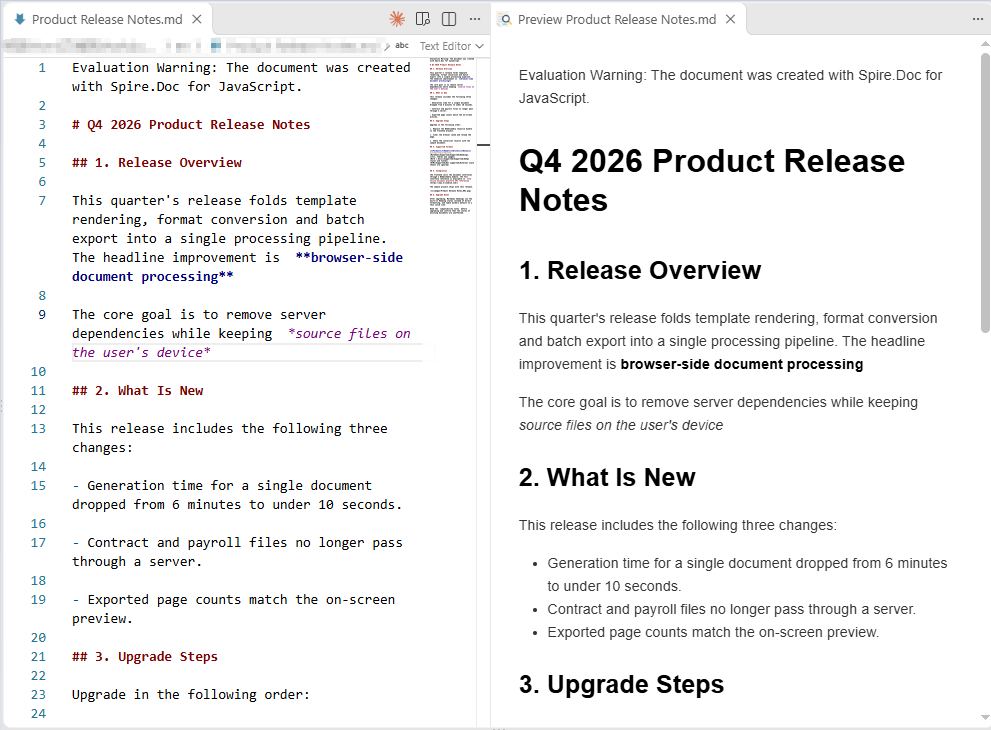
Once the converted Markdown is rendered in a browser, the headings, lists, table, hyperlink and image all appear in their corresponding syntax:
Markdown generated from the Word document, rendered in a browser
Save Images to a Specified Folder
When ImagesFolder is not set, images are written into the root of the VFS under a name prefixed with the output file name, for example Product Release Notes_001.png, and the Markdown references them as /Product Release Notes_001.png. That form makes the files easy to locate directly, but the reference carries a root prefix. Once ImagesFolder is set to a relative folder, the images are written into that folder in the VFS and the references become relative paths:
doc.MarkdownExportOptions.ImagesFolder = 'images';
The conversion result then contains references such as images/Product Release Notes_001.png. The images have to be downloaded together with the .md file; the page can list the folder content with FS.readdir() and read and download each file, as shown in the example above. If the result should be a single file, use the Base64 approach described in the next section instead.
Embed Images as Base64
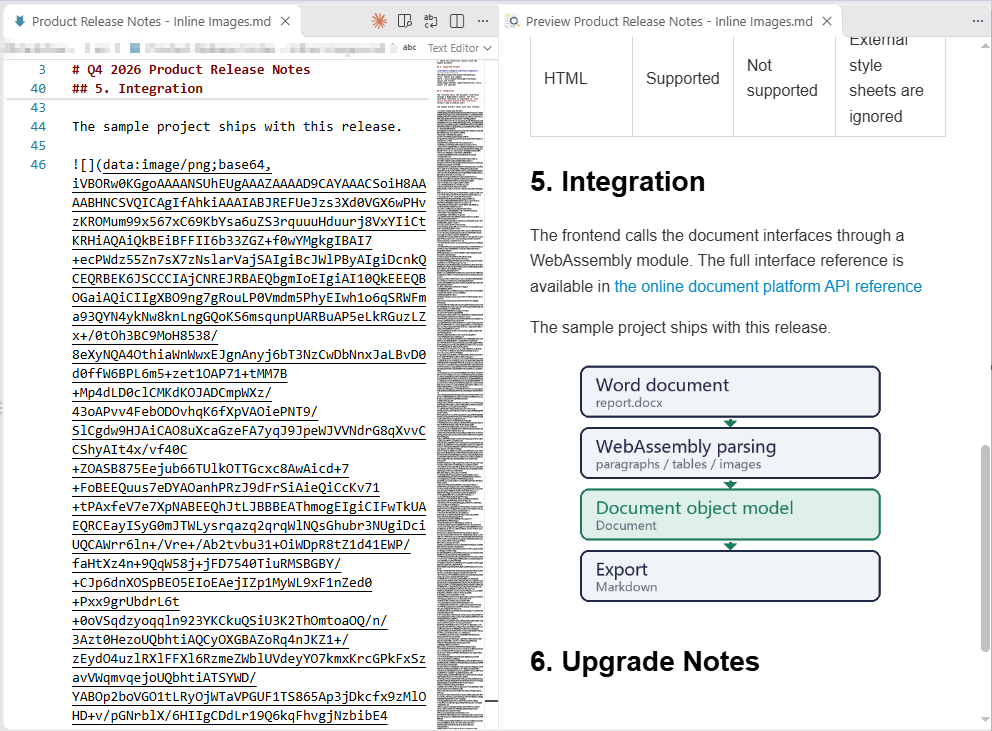
With MarkdownExportOptions.ImagesAsBase64 = true, the images in the document are no longer written out separately; they are encoded as data URIs and placed directly inside the brackets of ![](). The result is a single .md file, so image paths never break when the file is copied, uploaded or committed to a repository.
The trade-off is file size: Base64-encoded data is about 4/3 the size of the original image. With many images or high-resolution images, the size of a single Markdown file grows noticeably.
The specific steps are as follows:
- Get the Spire.Doc WASM module and confirm that it is ready.
- Load the sample document
Product Release Notes.docxinto the virtual file system (VFS). - Create a
Documentobject and load the document. - Set
MarkdownExportOptions.ImagesAsBase64totrue. - Save the document with
SaveToFile()asFileFormat.Markdown, read the text from the VFS and trigger the download.
The code for embedding images as Base64 is as follows:
function downloadBlob(blob, fileName) {
  const url = URL.createObjectURL(blob);
  const a = document.createElement('a');
  a.href = url;
  a.download = fileName;
  a.click();
  URL.revokeObjectURL(url);
}

function App() {
  const convertWithBase64 = async () => {
    // Get the Spire.Doc WASM module
    const docModule = window.wasmModule?.spiredoc;

    // Make sure the WASM module has fully loaded
    if (!docModule) {
      alert('Spire.Doc is not ready yet');
      return;
    }

    // Load the sample document into VFS
    await window.spire.FetchFileToVFS('Product Release Notes.docx', '', `${process.env.PUBLIC_URL}/data/`);

    // Create a Document instance and load the Word document
    const doc = new docModule.Document();
    doc.LoadFromFile('Product Release Notes.docx', docModule.FileFormat.Docx2016);

    // Write the images into the Markdown as inline Base64
    doc.MarkdownExportOptions.ImagesAsBase64 = true;

    // Save the result file
    const outputFileName = 'Product Release Notes - Inline Images.md';
    doc.SaveToFile({ fileName: outputFileName, fileFormat: docModule.FileFormat.Markdown });
    doc.Dispose();

    // Read the Markdown text and download it; no separate image download is needed
    const text = new TextDecoder('utf-8').decode(window.dotnetRuntime.Module.FS.readFile(outputFileName));
    downloadBlob(new Blob([text], { type: 'text/markdown;charset=utf-8' }), outputFileName);
  };

  return (
    <div style={{ textAlign: 'center', height: '300px' }}>
      <h1>Embed Images as Base64</h1>
      <button onClick={convertWithBase64}>
        Convert and Download
      </button>
    </div>
  );
}

export default App;
After embedding, the image appears in the Markdown as a long string starting with data:image/png;base64,, and no separate image file accompanies the document:
Image line in the Markdown after the image is embedded as Base64
Customize the Markdown Export Options
Document.MarkdownExportOptions controls how the Markdown is written. Beyond image handling, lists, links, tables, underlines and equations can each be adjusted separately:
| Option | Common values | Effect |
|---|---|---|
ImagesFolder |
A folder name | Images are written into the specified folder in the VFS and referenced from it |
ImagesAsBase64 |
true / false |
Images are embedded as data URIs |
ListOutputMode |
MarkdownSyntax / PlainText |
Emit list syntax, or escape the list markers as plain text |
LinkOutputMode |
Auto / Inline / Reference |
Inline links, or reference-style links |
SaveAsHtml |
None / Tables |
Keep tables in pipe syntax, or output them as HTML tables |
SaveUnderlineFormatting |
true / false |
Whether underlines are kept as ++text++ |
OfficeMathOutputMode |
Text / Image / MathML |
The output form of equations |
When SaveAsHtml is set to Tables, the export needs fonts to lay out the tables; if no fonts are loaded, saving throws Cannot find any fonts in specified font sources. The sample therefore loads the fonts into the VFS before converting. This step is not needed when only text, lists and images are exported.
The specific steps are as follows:
- Get the Spire.Doc WASM module and confirm that it is ready.
- Load the fonts
msyh.ttcandmsyhbd.ttcand the sample document into the virtual file system (VFS). - Create a
Documentobject and load the Word document. - Get
MarkdownExportOptionsand set the image folder, list, link, table and underline options in turn. - Save the result file with
SaveToFile()asFileFormat.Markdown. - Read the Markdown text and the image files from the VFS and trigger their browser downloads.
The code for customizing the Markdown export options is as follows:
function downloadBlob(blob, fileName) {
  const url = URL.createObjectURL(blob);
  const a = document.createElement('a');
  a.href = url;
  a.download = fileName;
  a.click();
  URL.revokeObjectURL(url);
}

function App() {
  const convertWithOptions = async () => {
    // Get the Spire.Doc WASM module
    const docModule = window.wasmModule?.spiredoc;

    // Make sure the WASM module has fully loaded
    if (!docModule) {
      alert('Spire.Doc is not ready yet');
      return;
    }

    // Exporting HTML tables needs fonts for layout, so load the fonts into VFS first
    await window.spire.FetchFileToVFS('msyh.ttc', '/Library/Fonts/', `${process.env.PUBLIC_URL}/font/`);
    await window.spire.FetchFileToVFS('msyhbd.ttc', '/Library/Fonts/', `${process.env.PUBLIC_URL}/font/`);

    // Load the sample document into VFS
    await window.spire.FetchFileToVFS('Product Release Notes.docx', '', `${process.env.PUBLIC_URL}/data/`);

    // Create a Document instance and load the Word document
    const doc = new docModule.Document();
    doc.LoadFromFile('Product Release Notes.docx', docModule.FileFormat.Docx2016);

    // Customize the Markdown export options
    const options = doc.MarkdownExportOptions;
    options.ImagesFolder = 'images';
    options.ListOutputMode = docModule.MarkdownListOutputMode.PlainText;
    options.LinkOutputMode = docModule.MarkdownLinkOutputMode.Reference;
    options.SaveAsHtml = docModule.MarkdownSaveAsHtml.Tables;
    options.SaveUnderlineFormatting = true;

    // Save the result file
    const outputFileName = 'Product Release Notes - Export Options.md';
    doc.SaveToFile({ fileName: outputFileName, fileFormat: docModule.FileFormat.Markdown });
    doc.Dispose();

    const FS = window.dotnetRuntime.Module.FS;

    // Download the Markdown text
    const text = new TextDecoder('utf-8').decode(FS.readFile(outputFileName));
    downloadBlob(new Blob([text], { type: 'text/markdown;charset=utf-8' }), outputFileName);

    // Download the written images
    FS.readdir('images')
      .filter((name) => name !== '.' && name !== '..')
      .forEach((name) => downloadBlob(new Blob([FS.readFile(`images/${name}`)], { type: 'image/png' }), name));
  };

  return (
    <div style={{ textAlign: 'center', height: '300px' }}>
      <h1>Customize the Markdown Export Options</h1>
      <button onClick={convertWithOptions}>
        Convert and Download
      </button>
    </div>
  );
}

export default App;
With these options in effect, lists, links, tables and underlines are each written in a different form. Part of the output is as follows:
\- Generation time for a single document dropped from 6 minutes to under 10 seconds.
\- Contract and payroll files no longer pass through a server.
\- Exported page counts match the on-screen preview.
\1. Replace the WebAssembly resource bundle in the frontend project.
\2. Clear the browser cache and reload the page.
\3. Check the conversion results with the sample document.

The frontend calls the document interfaces through a WebAssembly module. The full interface reference is available in [the online document platform API reference] , and the sample project ships with this release.

Read the ++compatibility notes++ before upgrading and confirm that the styles of existing documents are unaffected.

[the online document platform API reference]: https://www.e-iceblue.com/
[ref1]: images/Product Release Notes - Export Options_001.png
Set the Output Style of Lists and Links
ListOutputMode defaults to MarkdownSyntax, in which bullets and numbers are written as - and 1.; with PlainText, a backslash is placed before the marker, as in \- and \1., so the text renders as plain content and no longer forms a list.
LinkOutputMode defaults to Auto, in which hyperlinks are written in the inline form [text](url); with Reference, only [text] remains in the body text, and the actual addresses are collected in the link definitions at the end of the file — images likewise switch to ![ref1] plus a definition line. When a document has many links whose addresses need to be maintained in one place, the reference style is easier to read.
const options = doc.MarkdownExportOptions;
options.ListOutputMode = docModule.MarkdownListOutputMode.PlainText;
options.LinkOutputMode = docModule.MarkdownLinkOutputMode.Reference;
Save Tables as HTML
SaveAsHtml defaults to None, in which tables are written in pipe syntax with the header text in bold; with Tables, tables are output with <table> tags, the cell styles are written inline, and column widths, borders and text formatting are preserved. The output is a single line of HTML and is no longer bound by the limits of pipe syntax.
Two points are worth noting: first, the option requires fonts to be loaded into the VFS, otherwise saving reports an error; second, if a heading follows a table directly, some Markdown parsers merge the heading line into the table — leaving one empty paragraph after the table in Word avoids this.
options.SaveAsHtml = docModule.MarkdownSaveAsHtml.Tables;
Keep Underline Formatting
Markdown has no standard syntax for underlines, so the default export drops the underlines of the Word document. With SaveUnderlineFormatting = true, underlined text is written as ++text++. That notation is an extension syntax; whether the target platform renders it as an underline depends on the parser in use.
options.SaveUnderlineFormatting = true;
FAQ
Why are the image files missing from the converted Markdown
Cause: By default, images are written out separately from the .md file, in the root of the VFS under a name prefixed with the output file name. If the page only reads and downloads the .md file, the images naturally do not appear in the download.
Solution: Set ImagesFolder to name an image folder and download the files in that folder together with the .md file; alternatively set ImagesAsBase64 = true, so that the images are written into the Markdown itself and the result is a single file.
Why has the underline in Word disappeared from the Markdown
Cause: Markdown has no standard syntax for underlines, and SaveUnderlineFormatting defaults to false, so the underline formatting is dropped during export.
Solution: Set SaveUnderlineFormatting = true and underlined text is written as ++text++. Not every Markdown parser supports that syntax, so it is worth checking how the target platform renders it before relying on it.
Why were the headings not converted to # headings
Cause: Headings are recognized by style during export; only paragraphs with a built-in heading style such as Heading 1 or Heading 2 applied become # headings of the matching level. Paragraphs that are merely bold or set to a larger font size, or that use the Title style, are still output as ordinary paragraphs.
Solution: Apply a built-in heading style to the paragraphs that should become headings; a document title that uses the Title style can be changed to Heading 1, or the # can be added manually in the Markdown after conversion.
What should I do when a heading after a table is merged into the table
Cause: When there is no blank line between a table and the heading that follows it, some Markdown parsers treat the adjacent heading line as one more row of the table.
Solution: Leave one empty paragraph after the table in Word before writing the heading, so that the exported Markdown contains a blank line; alternatively add a blank line between the table and the heading after conversion.
Does the conversion upload the file to a server
Not in the usage described in this article. Spire.Doc for JavaScript runs in the browser on WebAssembly, the Word document and the conversion result are both read and written locally through the virtual file system (VFS), and the library itself does not send files to a server. Whether a file ultimately leaves the device depends on other code added to the page.
Get a Free License
Spire.Doc for JavaScript offers a 30-day full-featured free trial license with no functional limitations. Apply here to evaluate before purchasing.
