
Knowledgebase (2340)
Children categories
Python: Export and Import Data Between Excel Files and Databases
2024-06-28 01:05:53 Written by KoohjiThe ability to export data from Excel files to databases, and vice versa, has become a crucial functionality in data management. Exporting data from an Excel file to a database offers scalability and enhanced security, enabling efficient handling of large datasets and facilitating collaboration with concurrency control. Conversely, importing data from databases into Excel provides the familiar spreadsheet interface for data analysis, visualization, and presentation, making complex information accessible to users. With the powerful Python language, developers can easily automate the transfer of data between databases and spreadsheets.
This article demonstrates how to use Spire.XLS for Python to export data from a database to Excel files and import data from Excel files to a database with simple Python code, taking the SQLite database as the example.
- Export Data from a Database to an Excel File with Python
- Export Data from an Excel Worksheet to a Database with Python
Install Spire.XLS for Python
This scenario requires Spire.XLS for Python and plum-dispatch v1.7.4. They can be easily installed in your Windows through the following pip command.
pip install Spire.XLS
If you are unsure how to install, please refer to: How to Install Spire.XLS for Python on Windows
Export Data from a Database to an Excel File with Python
Spire.XLS for Python offers a range of classes, methods, and properties to create, read, and edit Excel workbooks. Developers can use the sqlite3 module from the Python standard library to read data from databases and utilize Spire.XLS for Python to create Excel files and write data into them, thereby enabling the export of database data to Excel worksheets.
The detailed steps are as follows:
- Connect to a database.
- Create an instance of Workbook class and clear the default worksheets.
- Iterate through the tables in the database to get all the column names and the data in the columns.
- Create a worksheet for each table using Workbook.Worksheets.Add() method, write the column names to the header row of the worksheet, and then write data to other rows through Worksheet.Range[].Value property.
- Format the worksheet.
- Save the workbook using Workbook.SaveToFile() method.
- Python
from spire.xls import *
from spire.xls.common import *
import sqlite3

# Connect to database
conn = sqlite3.connect("Sales Data.db")
cursor = conn.cursor()

# Get all the table names in the database
cursor.execute("SELECT name FROM sqlite_master WHERE type='table';")
tableNames = [name[0] for name in cursor.fetchall()]

# Create an Excel file
workbook = Workbook()
workbook.Worksheets.Clear()

# Iterate through each table in the database
for tableName in tableNames:
    # Get the column names of the table
    cursor.execute(f"PRAGMA table_info('{tableName}')")
    columnsInfo = cursor.fetchall()
    columnNames = [columnInfo[1] for columnInfo in columnsInfo]

    # Get the data of the table
    cursor.execute(f"SELECT * FROM {tableName}")
    rows = cursor.fetchall()

    # Create a worksheet
    sheet = workbook.Worksheets.Add(tableName)

    # Write the header to the worksheet
    for i in range(len(columnNames)):
        sheet.Range[1, i + 1].Value = columnNames[i]

    # Write the data to the worksheet
    for j in range(1, len(rows)):
        column = rows[j]
        for k in range(len(column)):
            sheet.Range[j + 1, k + 1].Value = column[k]

    # Format the worksheet
    sheet.AllocatedRange.Style.Font.FontName = "Times New Roman"
    sheet.AllocatedRange.Style.Font.Size = 12.0
    sheet.AllocatedRange.AutoFitRows()
    sheet.AllocatedRange.AutoFitColumns()

# Save the Excel file
workbook.SaveToFile("output/DataBaseToExcel.xlsx", FileFormat.Version2016)
workbook.Dispose()
conn.close()
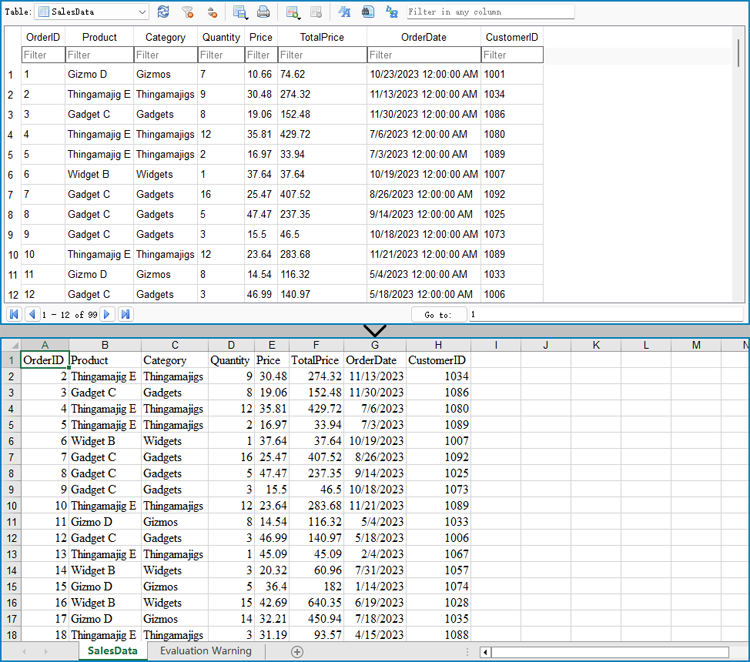
Export Data from an Excel Worksheet to a Database with Python
Spire.XLS for Python can also assist developers in reading various types of data from Excel files, and then developers can use sqlite3 to write the data to a database. Below are the detailed steps:
- Create an instance of Workbook class.
- Load an Excel workbook using Workbook.LoadFromFile() method.
- Connect to a database.
- Iterate through the worksheets in the workbook.
- Get a worksheet using Workbook.Worksheets.get_Item() method and get the name of the worksheet using Worksheet.Name property.
- Get the data in the header row through Worksheet.Range[].Value property.
- Create a table in the database with the worksheet name as the table name and create columns in the table with the header row data as the column names.
- Get the values from the worksheet cells through Worksheet.Range[].Value property and write them to the corresponding position in the database table.
- Commit the changes and close the connection.
- Python
from spire.xls import *
from spire.xls.common import *
import sqlite3

# Create an instance of Workbook
workbook = Workbook()

# Load an Excel file
workbook.LoadFromFile("Sample.xlsx")

# Connect to database
conn = sqlite3.connect("output/Report.db")
cursor = conn.cursor()

for s in range(workbook.Worksheets.Count):
    # Get a worksheet
    sheet = workbook.Worksheets.get_Item(s)

    # Get the sheet name
    sheetName = sheet.Name
    sheetName = sheetName.replace(" ", "")

    # Get the data in the header row
    header = []
    for i in range(sheet.AllocatedRange.ColumnCount):
        headerValue = sheet.Range[1, i + 1].Value
        headerValue = headerValue.replace(" ", "")
        header.append(headerValue)

    # Create a database table
    createTableSql = f"CREATE TABLE IF NOT EXISTS {sheetName} ({', '.join([f'{header[i]} TEXT' for i in range(len(header))])})"
    cursor.execute(createTableSql)

    # Insert data into the database table
    for row in range(1, sheet.AllocatedRange.RowCount):
        data = []
        for col in range(sheet.AllocatedRange.ColumnCount):
            # Get the cell value
            value = sheet.Range[row + 1, col + 1].Value
            data.append(value)
        # Insert the cell values into the database table
        insertSql = f"INSERT INTO {sheetName} ({', '.join(header)}) VALUES ({', '.join(['?' for _ in data])})"
        cursor.execute(insertSql, data)

# Commit the changes and close the connection
conn.commit()
conn.close()

workbook.Dispose()
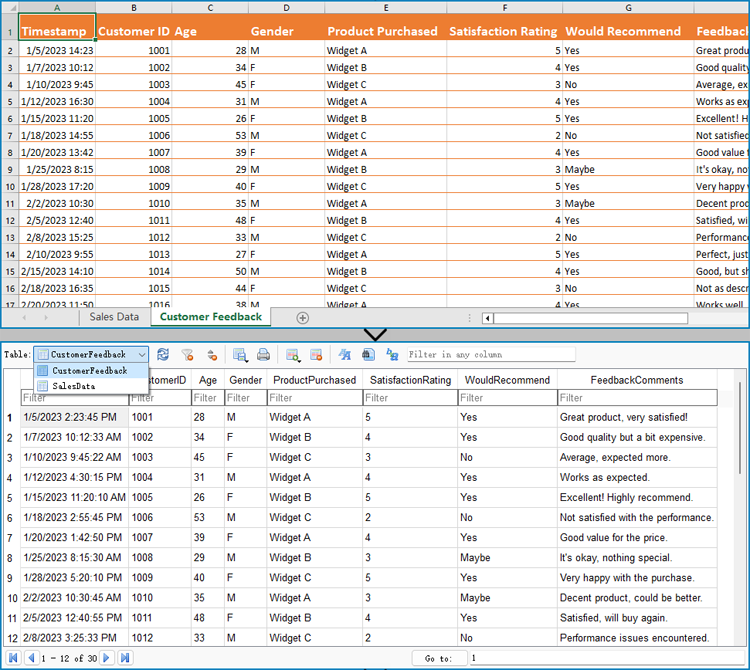
Apply for a Temporary License
If you'd like to remove the evaluation message from the generated documents, or to get rid of the function limitations, please request a 30-day trial license for yourself.
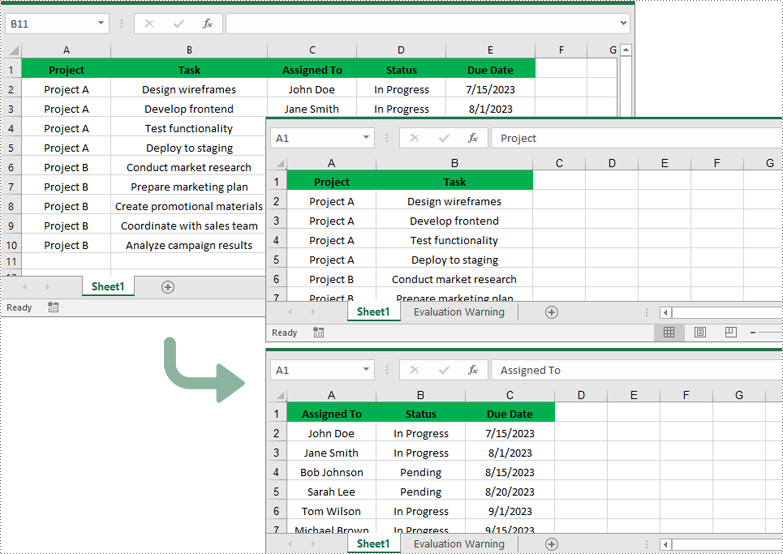
Working with large Excel workbooks can sometimes become unwieldy, especially when you need to share or distribute parts of the data independently. In these cases, it can be helpful to split your Excel file into multiple smaller files. This not only makes the individual files more manageable, but also allows you to better organize and share your data. In this article, we will demonstrate how to split an Excel file in Python using Spire.XLS for Python.
Install Spire.XLS for Python
This scenario requires Spire.XLS for Python and plum-dispatch v1.7.4. They can be easily installed in your Windows through the following pip command.
pip install Spire.XLS
If you are unsure how to install, please refer to this tutorial: How to Install Spire.XLS for Python on Windows
Split Excel by Worksheets in Python
If your Excel file contains multiple worksheets, you can easily split each sheet into an Excel file by using the Workbook.Worksheets.AddCopy() method provided by Spire.XLS for Python. The detailed steps are as follows.
- Create an object of the Workbook class.
- Load an Excel file using Workbook.LoadFromFile() method.
- Iterate through the worksheets in the Excel file.
- For each worksheet, create a new Workbook object for it.
- Remove the default worksheets in the new workbook using Workbook.Worksheets.Clear() method.
- Copy the worksheet to the new workbook using Workbook.Worksheets.AddCopy() method.
- Save the new workbook to an Excel file using Workbook.SaveToFile() method.
- Python
from spire.xls import *
from spire.xls.common import *

# Create an object of the Workbook class
workbook = Workbook()
# Load an Excel file
workbook.LoadFromFile("Sample.xlsx")

# Specify the folder path for the generated Excel files
folderPath = "C:\\Users\\Administrator\\Desktop\\Output\\"

# Iterate through all worksheets in the Excel file
for worksheet in workbook.Worksheets:
    # For each worksheet, create a new Workbook object
    newWorkbook = Workbook()
    # Remove the worksheets from the new workbook
    newWorkbook.Worksheets.Clear()

    # Copy the worksheet from the Excel file to the new workbook
    newWorkbook.Worksheets.AddCopy(worksheet)

    # Save the new workbook to the specified folder
    newWorkbook.SaveToFile(folderPath + worksheet.Name + ".xlsx", FileFormat.Version2016)

workbook.Dispose()
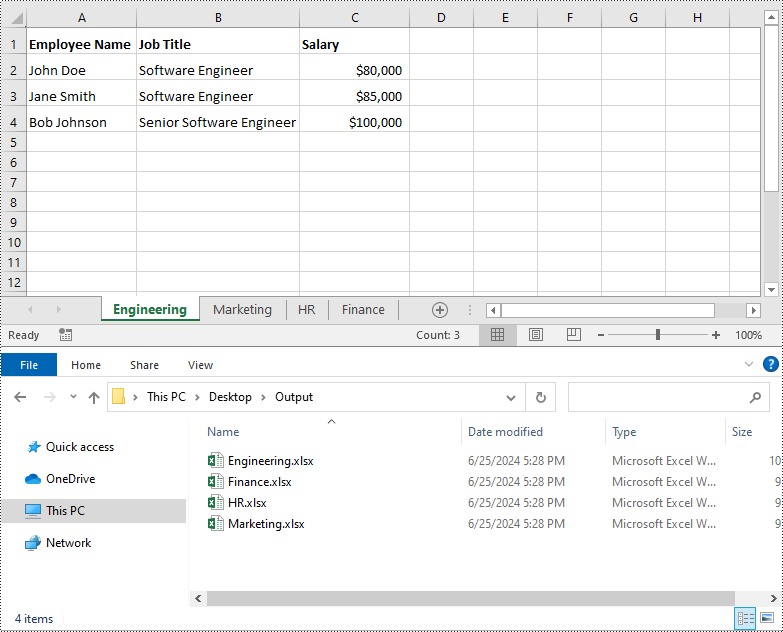
Split Excel by Rows in Python
If you have a large worksheet where a specific number of rows represent a unique record or entry, you can extract these individual rows or records into separate Excel files for focused data analysis using the Worksheet.CopyRow() method. The detailed steps are as follows.
- Create an object of the Workbook class.
- Load an Excel file using Workbook.LoadFromFile() method.
- Get the original worksheet where you want to copy rows from using Workbook.Worksheets[index] property.
- Create a new Workbook object and remove the default worksheets from the new workbook using Workbook.Worksheets.Clear() method.
- Add a new Worksheet to the new workbook using Workbook.Worksheets.Add() method.
- Copy specific rows from the original worksheet to the new worksheet using Worksheet.CopyRow() method.
- Copy Column widths from the original worksheet to the new worksheet.
- Save the new workbook to an Excel file using Workbook.SaveToFile() method.
- Python
from spire.xls import *
from spire.xls.common import *

# Create a Workbook object and load an Excel file
workbook = Workbook()
workbook.LoadFromFile("Sample.xlsx")
# Get the original (the 1st) worksheet
worksheet = workbook.Worksheets[0]
# Get the header row
header = worksheet.Rows[0]

# Specify the folder path for the generated Excel files
folderPath = "C:\\Users\\Administrator\\Desktop\\Output\\"

# Create a new Workbook object
newWorkbook1 = Workbook()
# Remove the default worksheets
newWorkbook1.Worksheets.Clear()
# Add a new worksheet
newWorksheet1 = newWorkbook1.Worksheets.Add("Sheet1")
# Copy rows 1-5 from the original worksheet to the new worksheet
for i in range(1, 6):
    worksheet.CopyRow(worksheet.Rows[i - 1], newWorksheet1, newWorksheet1.LastDataRow + 1, CopyRangeOptions.All)
# Copy column widths from the original worksheet to the new worksheet
for i in range(worksheet.Columns.Count):
    newWorksheet1.SetColumnWidth(i + 1, worksheet.GetColumnWidth(i + 1))
# Save the new workbook to the specified folder
newWorkbook1.SaveToFile(folderPath + "Rows1-5.xlsx", FileFormat.Version2016)
newWorkbook1.Dispose()

# Create a new Workbook object
newWorkbook2 = Workbook()
# Remove the default worksheets
newWorkbook2.Worksheets.Clear()
# Add a new worksheet
newWorksheet2 = newWorkbook2.Worksheets.Add("Sheet1")
# Copy header row from the original worksheet to the new worksheet
worksheet.CopyRow(worksheet.Rows[0], newWorksheet2, newWorksheet2.LastDataRow + 1, CopyRangeOptions.All)
# Copy rows 6-10 from the original worksheet to the new worksheet
for i in range(6, 11):
    worksheet.CopyRow(worksheet.Rows[i - 1], newWorksheet2, newWorksheet2.LastDataRow + 1, CopyRangeOptions.All)
# Copy column widths from the original worksheet to the new worksheet
for i in range(worksheet.Columns.Count):
    newWorksheet2.SetColumnWidth(i + 1, worksheet.GetColumnWidth(i + 1))
# Save the new workbook to the specified folder
newWorkbook2.SaveToFile(folderPath + "Rows6-10.xlsx", FileFormat.Version2016)
newWorkbook2.Dispose()
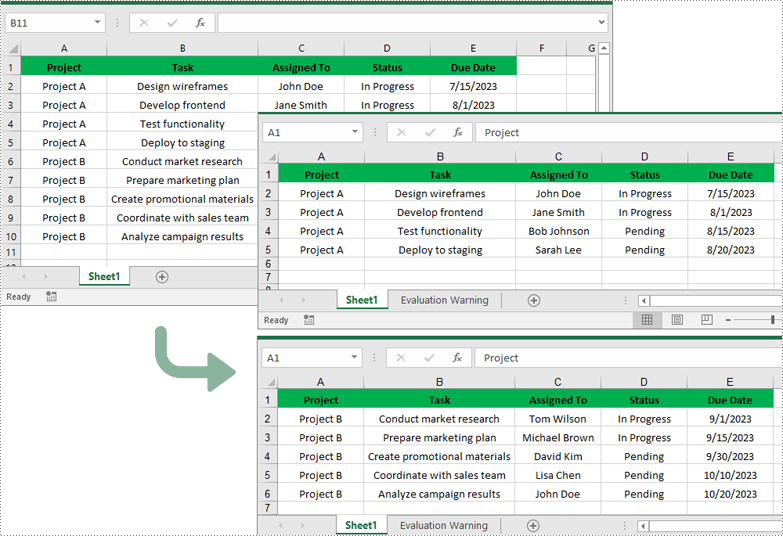
Split Excel by Columns in Python
In addition to splitting by rows, you can also split an Excel file by columns using the Worksheet.CopyColumn() method. The detailed steps are as follows.
- Create an object of the Workbook class.
- Load an Excel file using Workbook.LoadFromFile() method.
- Get the original worksheet where you want to copy columns from using Workbook.Worksheets[index] property.
- Create a new Workbook object and remove the default worksheets from the new workbook using Workbook.Worksheets.Clear() method.
- Add a new Worksheet to the new workbook using Workbook.Worksheets.Add() method.
- Copy specific columns from the original worksheet to the new worksheet using Worksheet.CopyColumn() method.
- Copy row heights from the original worksheet to the new worksheet.
- Save the new workbook to an Excel file using Workbook.SaveToFile() method.
- Python
from spire.xls import *
from spire.xls.common import *

# Create a Workbook object and load an Excel file
workbook = Workbook()
workbook.LoadFromFile("Sample.xlsx")
# Get the original (the 1st) worksheet
worksheet = workbook.Worksheets[0]

# Specify the folder path for the generated Excel files
folderPath = "C:\\Users\\Administrator\\Desktop\\Output\\"

# Create a new Workbook object
newWorkbook1 = Workbook()
# Remove the default worksheets
newWorkbook1.Worksheets.Clear()
# Add a new worksheet
newWorksheet1 = newWorkbook1.Worksheets.Add("Sheet1")
# Copy columns 1-2 from the original worksheet to the new worksheet
for i in range(1, 3):
    worksheet.CopyColumn(worksheet.Columns[i-1], newWorksheet1, newWorksheet1.LastDataColumn + 1, CopyRangeOptions.All)
# Copy row heights from the original worksheet to the new worksheet
for i in range(worksheet.Rows.Count):
    newWorksheet1.SetRowHeight(i + 1, worksheet.GetRowHeight(i + 1))
# Save the new workbook to the specified folder
newWorkbook1.SaveToFile(folderPath + "Columns1-2.xlsx", FileFormat.Version2016)
newWorkbook1.Dispose()

# Create a new Workbook object
newWorkbook2 = Workbook()
# Remove the default worksheets
newWorkbook2.Worksheets.Clear()
# Add a new worksheet
newWorksheet2 = newWorkbook2.Worksheets.Add("Sheet1")
# Copy columns 3-5 from the original worksheet to the new worksheet
for i in range(3, 6):
    worksheet.CopyColumn(worksheet.Columns[i-1], newWorksheet2, newWorksheet2.LastDataColumn + 1, CopyRangeOptions.All)

# Copy row heights from the original worksheet to the new worksheet
for i in range(worksheet.Rows.Count):
    newWorksheet2.SetRowHeight(i + 1, worksheet.GetRowHeight(i + 1))
# Save the new workbook to the specified folder
newWorkbook2.SaveToFile(folderPath + "Columns3-5.xlsx", FileFormat.Version2016)
newWorkbook2.Dispose()
Apply for a Temporary License
If you'd like to remove the evaluation message from the generated documents, or to get rid of the function limitations, please request a 30-day trial license for yourself.
Comparing PDF documents is a common task when collaborating on projects or tracking changes. This allows users to quickly review and understand what has been modified, added, or removed between revisions. Effective PDF comparison streamlines the review process and ensures all stakeholders are aligned on the latest document content.
In this article, you will learn how to compare two PDF documents using Python and the Spire.PDF for Python library.
Install Spire.PDF for Python
This scenario requires Spire.PDF for Python and plum-dispatch v1.7.4. They can be easily installed in your Windows through the following pip command.
pip install Spire.PDF
If you are unsure how to install, please refer to this tutorial: How to Install Spire.PDF for Python on Windows
Compare Two PDF Documents in Python
Spire.PDF for Python provides the PdfComparer.Compare() method allowing developers to compare two PDF documents and save the comparison result to another PDF document. Here are the detailed steps.
- Load the first PDF document while initializing the PdfDocument object.
- Load the second PDF document while initializing another PdfDocument object.
- Initialize an instance of PdfComparer class, passing the two PdfDocument objects are the parameter.
- Call Compare() method of the PdfComparer object to compare the two PDF documents and save the result to a different PDF document.
- Python
from spire.pdf.common import *
from spire.pdf import *

# Load the first document
doc_one = PdfDocument("C:\\Users\\Administrator\\Desktop\\PDF_ONE.pdf")

# Load the section document
doc_two = PdfDocument("C:\\Users\\Administrator\\Desktop\\PDF_TWO.pdf")

# Create a PdfComparer object
comparer = PdfComparer(doc_two, doc_one)

# Compare two documents and save the comparison result in a pdf document
comparer.Compare("output/CompareResult.pdf")

# Dispose resources
doc_one.Dispose()
doc_two.Dispose()

Compare Selected Pages in PDF Documents in Python
Instead of comparing two entire documents, you can specify the pages to compare using the PdfComparer.PdfCompareOptions.SetPageRanges() method. The following are the detailed steps.
- Load the first PDF document while initializing the PdfDocument object.
- Load the second PDF document while initializing another PdfDocument object.
- Initialize an instance of PdfComparer class, passing the two PdfDocument objects are the parameter.
- Specify the page range to compare using PdfComparer.PdfCompareOptions.SetPageRanges() method
- Call PdfComparer.Compare() method to compare the selected pages and save the result to a different PDF document.
- Python
from spire.pdf.common import *
from spire.pdf import *

# Load the first document
doc_one = PdfDocument("C:\\Users\\Administrator\\Desktop\\PDF_ONE.pdf")

# Load the section document
doc_two = PdfDocument("C:\\Users\\Administrator\\Desktop\\PDF_TWO.pdf")

# Create a PdfComparer object
comparer = PdfComparer(doc_two, doc_one)

# Set page range for comparison
comparer.PdfCompareOptions.SetPageRanges(1, 3, 1, 3)

# Compare the selected pages and save the comparison result in a pdf document
comparer.Compare("output/CompareResult.pdf")

# Dispose resources
doc_one.Dispose()
doc_two.Dispose()
Apply for a Temporary License
If you'd like to remove the evaluation message from the generated documents, or to get rid of the function limitations, please request a 30-day trial license for yourself.
