Reading and processing PDF files programmatically in C# is a common requirement for .NET developers building document automation, data extraction, and report generation systems. Traditional PDF parsing libraries demand complex code to extract text, preserve formatting, and parse tables. They frequently produce poor output for irregular layouts, misaligned content, and non‑standard table structures.
If you want a simple, AI-powered way to read PDFs in C# and export PDF content to other formats, Spire.Agent.Office is a strong choice. This .NET AI agent SDK drives PDF parsing and conversion workflows using natural language instructions. It works without Adobe Acrobat or external third‑party PDF softwares.
In this tutorial, we will introduce how to use AI to read PDF in C#, with full runnable code samples for:
- Extracting PDF content to TXT
- Converting PDF to editable Word
- Reading PDF tables to CSV/Excel
- Batch processing multiple PDFs
Why Choose Spire.Agent.Office Over Other AI PDF Readers?
The internet is full of generic AI PDF readers, but most lack developer flexibility, enterprise security, and structural parsing accuracy. Spire.Agent.Office is an AI document processing SDK built for the .NET ecosystem. It combines AI parsing with office document APIs. You can read, analyze, and convert PDF, Word, Excel, and PowerPoint files by passing simple natural language prompts.
Key advantages for AI PDF reading in C#:
- Developer-First SDK: Built for seamless API integration into custom apps, CRMs, automation pipelines, and backend systems
- Structured Data Accuracy: Superior table and layout preservation
- Enterprise Security: Local processing options prevent sensitive PDF data from leaking to third-party cloud tools
- Multi-Format Support: Reads PDFs plus Office documents in one unified agent
- Minimal code: Replace hundreds of lines of manual parsing logic with simple AI prompt calls to speed up development.
Setup: Project, Namespaces, and Token
- 1. Install the NuGet Package
Create your .NET project and install the library; all dependencies install automatically.
Install-Package Spire.Agent.Office
- 2. Add the Namespaces
Three using directives give you everything needed for AI PDF processing:
using Spire.Agent.Office.AI;
using Spire.Agent.Office.Extensions;
using Spire.Pdf;
- 3. Configuring SpireToken
Spire.Agent.Office requires a valid SpireToken key. You can request a temporary key for evaluation here.
AIOptions options = new AIOptions();
options.SpireToken = "YOUR_SPIRE_TOKEN_KEY";
Example 1: Extract PDF Text with .NET AI Agent
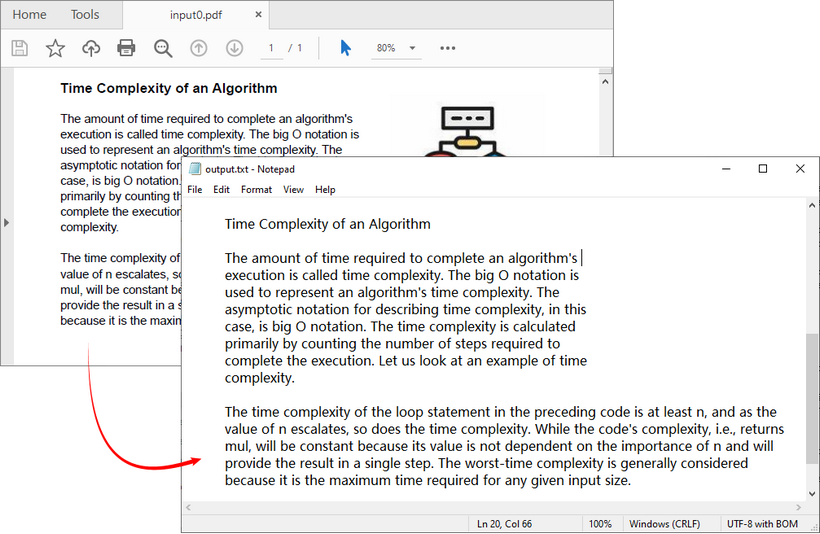
Extracting raw text content is typically the first stage of any document‑processing pipeline. Spire.Agent.Office lets you parse PDF content and write results directly to a TXT file using natural language instructions.
Common use cases: building search indexes, feeding documents into downstream NLP pipelines, audit logging, and content‑change detection.
C# Code: PDF to TXT
using Spire.Agent.Office.AI;
using Spire.Agent.Office.Extensions;
using Spire.Pdf;

string inputPath = @"input0.pdf";
string outputPath = @"output.txt";
string key = "YOUR_SPIRE_TOKEN_KEY";

if (!string.IsNullOrEmpty(inputPath) && File.Exists(inputPath))
{
    AIOptions options = new AIOptions();
    options.SpireToken = key;

    using (PdfDocument pdf = new PdfDocument())
    {
        pdf.LoadFromFile(inputPath);

        // Get the AI processor for PDF
        AIDocumentProcessor processor = pdf.AI(options);

        // Natural language instruction
        string instruction = "Read all text content from the PDF file, retain paragraph layout, and save as a TXT file";

        // Execute the AI instruction
        AIResult result = processor.ExecuteInstruction(pdf, instruction, outputPath);
    }
}
The generated TXT file retains the PDF’s paragraph structure. To extract plain text without paragraph formatting, change the AI instruction as needed.
Example 2: Convert PDF to Editable Word with .NET AI Agent
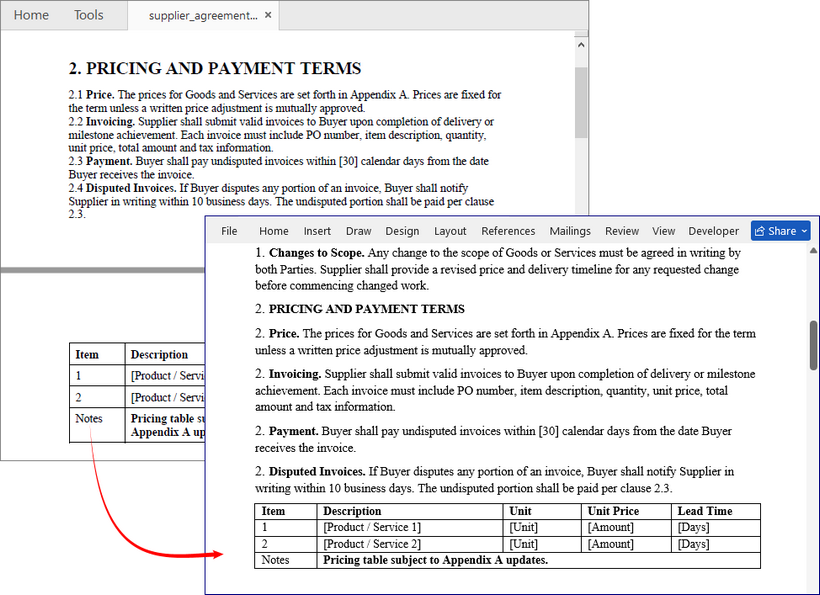
Standard PDFs are non-editable, which makes revision and content reuse difficult. Spire.Agent.Office AI reads PDF layout, font styles, and paragraph structure, then converts static PDFs into fully editable DOCX files while keeping formatting consistent.
Real-world use case: Procurement or legal teams receive supplier agreements in PDF format and require editable DOCX files for track changes review, comment insertion and version comparison.
C# Code: PDF to Word
using Spire.Agent.Office.AI;
using Spire.Agent.Office.Extensions;
using Spire.Pdf;

string inputPath = @"supplier_agreement.pdf";
string outputPath = @"supplier_agreement_editable.docx";
string key = "YOUR_SPIRE_TOKEN_KEY";

if (!string.IsNullOrEmpty(inputPath) && File.Exists(inputPath))
{
    AIOptions options = new AIOptions();
    options.SpireToken = key;

    using (PdfDocument pdf = new PdfDocument())
    {
        pdf.LoadFromFile(inputPath);

        // Get the AI processor for PDF
        AIDocumentProcessor processor = pdf.AI(options);

        // Natural language instruction
        string instruction = "Convert this supplier agreement PDF into an editable Word document. " +
                    "Retain hierarchical clause numbering (1, 1.1, 1.2…), use Word's multilevel list, no hardcoded numbers. " +
                    "keep section headings in bold, and convert tables to native Word tables at original positions. " +
                    "Do not flatten the layout into plain paragraphs. Keep signature block formatting intact.";

        // Execute the AI instruction
        AIResult result = processor.ExecuteInstruction(pdf, instruction, outputPath);
    }
}
Key Benefits
- Clause Structure Retention: Numbered legal clauses remain properly structured for redlining
- Table Preservation: Pricing tables and schedules stay as real Word tables
- Minimal Code: A single instruction replaces what would traditionally require extensive API calls to multiple components
Example 3: Read PDF Tables to CSV/Excel with .NET AI Agent
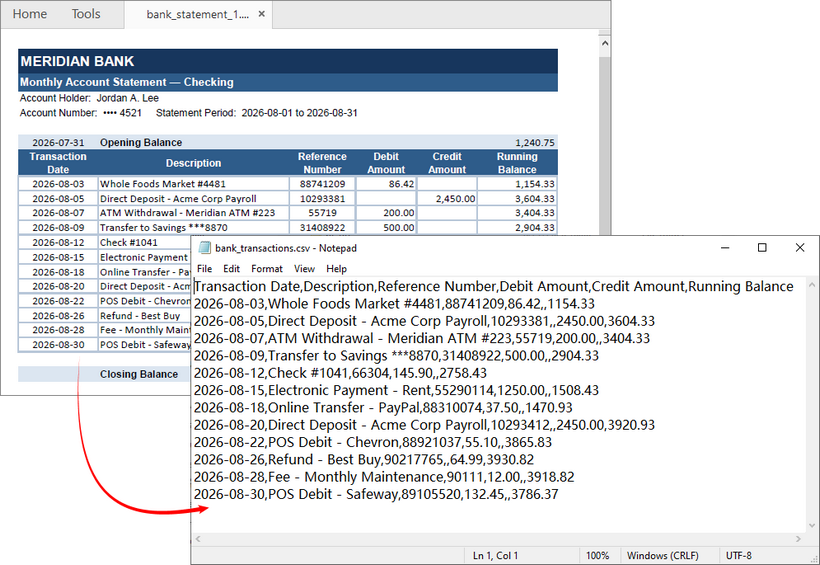
One of the most powerful features of Spire.Agent.Office is its ability to understand and extract structured data from PDF tables. Business scenarios include accounts‑payable automation, bank‑statement reconciliation, and financial‑report processing.
C# Code: Bank Statement PDF to CSV
If you download a PDF statement every month and need to import transactions into accounting software, this example is for you.
using Spire.Agent.Office.AI;
using Spire.Agent.Office.Extensions;
using Spire.Pdf;

string inputPath = @"bank_statement_1.pdf";
string outputPath = @"bank_transactions.csv";
string key = "YOUR_SPIRE_TOKEN_KEY";

if (!string.IsNullOrEmpty(inputPath) && File.Exists(inputPath))
{
    AIOptions options = new AIOptions();
    options.SpireToken = key;

    using (PdfDocument pdf = new PdfDocument())
    {
        pdf.LoadFromFile(inputPath);

        // Get the AI processor for PDF
        AIDocumentProcessor processor = pdf.AI(options);

        // Natural language instruction
        string instruction = "Extract all transactions from this bank statement into a CSV." +
                    " Include: Transaction Date, Description, Reference Number, Debit Amount, Credit Amount," +
                    " and Running Balance. Use empty cells (not zeros) when a debit or credit field doesn't apply to a row." +
                    " Exclude opening balance, closing balance, and any summary totals." +
                    " Preserve the original transaction order as they appear on the statement.";

        // Execute the AI instruction
        AIResult result = processor.ExecuteInstruction(pdf, instruction, outputPath);
    }
}
C# Code: Financial PDF Report to Excel
To export PDF tables to Excel, simply change the output format (.xlsx) and adjust the instructions. For example, if you have a quarterly PDF report with multiple tables across pages, you can extract everything into a single workbook with separate sheets:
string inputPath = @"Q3_2024_financial_report.pdf";
string outputPath = @"Q3_2024_financials.xlsx";

string instruction = "This PDF contains multiple financial tables across several pages:" +
            " Revenue by Region, Cost of Goods Sold, Operating Expenses, and Cash Flow Summary." +
            " Extract each table into its own named worksheet in the output Excel file." +
            " Use the table's section heading as the sheet name. Keep column headers on the" +
            " first row of each sheet, ensure all currency values are numeric (strip out '{BODY_CONTENT}#39; and ',')," +
            " and preserve the original row and column order.";
Example 4: Many PDFs, One Instruction (Batch Processing)
Most real‑world automation workloads handle batches of documents (e.g., dozens of invoice PDFs). Use the attachmentPaths parameter:
- Instantiate an empty
PdfDocument. - Pass your collection of PDF file paths via
attachmentPaths. - Write one instruction describing how to combine or aggregate outputs.
This pattern enables use cases such as consolidating many invoices into a single aggregated Excel workbook.
C# Code: Batch PDF Invoice Processing
using Spire.Agent.Office.AI;
using Spire.Agent.Office.Extensions;
using Spire.Pdf;

string[] invoicePaths = Directory.GetFiles(@"F:\Invoices", "*.pdf");
string outputPath = @"consolidated_invoices.xlsx";
string key = "YOUR_SPIRE_TOKEN_KEY";

AIOptions options = new AIOptions();
options.SpireToken = key;

using (PdfDocument pdf = new PdfDocument())
{
    // Get the AI processor for PDF
    AIDocumentProcessor processor = pdf.AI(options);

    // Natural language instruction for batch processing
    string instruction = "Read all attached invoice PDFs and consolidate them into one Excel workbook. " +
        "Create one row per invoice with columns: Invoice Number, Vendor Name, Invoice Date, " +
        "Due Date, Subtotal, Tax, Total Amount. Sort by Invoice Date ascending.";

    // Execute with attachment paths
    AIResult result = processor.ExecuteInstruction(pdf, instruction, outputPath, invoicePaths);
}
API Surface at a Glance
| API Component | Purpose | Key Method/Property |
|---|---|---|
AIOptions |
Configuration object |
SpireToken, WorkDir, TimeoutMs
|
AIDocumentProcessor |
Main AI processing entry point | ExecuteInstruction() |
pdf.AI(options) |
Extension method on PdfDocument | Returns AIDocumentProcessor
|
AIResult |
Execution result contract |
Success, TokenUsage
|
attachmentPaths |
Supporting documents parameter | Passed to ExecuteInstruction()
|
Best Practices for Reliable Extraction
1. Write specific output requirements in instructions
Avoid vague prompts like “extract the data”. Define target format, columns and structure (e.g. “export to Excel workbook, one row per line‑item”).
2. Put business logic in the instructions
Implement filtering, sorting, and normalization within prompts instead of hard‑coding positional offsets or coordinates. Logic stays human‑readable and maintainable.
3. Validate AIResult.Success
Check execution status on every call. Silent failures can break unattended automation pipelines.
if (result == null || !result.Success)
{
    throw new InvalidOperationException(
        {BODY_CONTENT}quot;AI instruction failed: {result?.ErrorMessage ?? "Unknown error"}");
}
4. Validate the output.
For financial or compliance data, run your own checks on the produced file — row counts, column totals, schema conformance. The agent produces the artifact; your pipeline remains responsible for correctness.
Final Thoughts
The above examples show you how the Spire.Agent.Office SDK can leverage AI to read PDF to TXT, rebuild PDFs as editable Word documents, extract bank statements and financial tables into CSV or Excel, and consolidate batches of invoices into a single workbook. In each case, the code stays small, the instructions stay readable, and the output remains structured enough for downstream automation.
If your team spends time writing fragile parsing logic or manually rekeying PDF data, Spire.Agent.Office offers a practical path forward. Install the NuGet package, add your token, and start with one workflow. From there, you can expand into batch processing and build document automation pipelines that are faster to develop, easier to maintain, and more resilient against real-world PDFs.
Frequently Asked Questions (FAQs)
Q: How accurate is the table extraction?
Spire.Agent.Office uses AI-powered parsing that understands table structure, including irregular tables and merged cells. For best results, provide clear instructions about the expected output format.
Q: Can I process password-protected PDFs?
Yes. You can load password-protected PDFs by providing the password when calling pdf.LoadFromFile(inputPath, password).
Q: How do I handle large batches of PDFs?
Use the attachmentPaths parameter to pass multiple files in a single instruction. The AI agent processes them collectively and produces consolidated output.
Q: How do I set a timeout for AI processing?
You can configure the timeout using the TimeoutMs property in AIOptions:
AIOptions options = new AIOptions();
options.SpireToken = key;
options.TimeoutMs = 120000; // 2 minutes
More Examples
- AI-Powered Excel Audit in C#: Detect Errors and Data Anomalies
- AI Document Generation: From Data to Ready-to-Use Documents
- AI-Powered Document Redaction in C#: Preserve Formatting
- AI Document Translator: Translate Word, Excel, and PowerPoint Files in C#
- Automate Calculations in Excel with a .NET AI Agent