Documents used in customer service, finance, human resources, and legal workflows often contain names, email addresses, phone numbers, home addresses, account numbers, and other sensitive information. Before these files can be shared, archived, or used for analysis, the identifying content may need to be removed or replaced.
Traditional redaction programs rely on predefined search rules and separate processing logic for each document format. An AI Agent SDK offers another approach: developers can describe the redaction requirement in natural language, allowing the agent to identify sensitive information and modify the corresponding Office document elements. This article demonstrates how to redact Word, Excel, and PowerPoint files in C# while preserving their original structure and formatting.
What Is Document Redaction?
Document redaction is the process of removing or replacing information that should not be disclosed. Common redaction targets include:
- Personal names
- Email addresses
- Phone and fax numbers
- Home or mailing addresses
- Dates of birth
- Customer and employee identifiers
- Bank and account numbers
- Other confidential or personally identifiable information
For editable Office files, redaction involves more than changing plain text. Sensitive content may appear in Word paragraphs and tables, Excel cells, PowerPoint shapes, headers, footers, or other document elements. A useful redaction workflow should remove the detected value without unnecessarily changing the surrounding layout, styles, images, charts, or document structure.
Three Ways to Redact Office Documents in C#
There are three general implementation approaches: traditional document APIs, a direct LLM integration, and an AI Agent SDK.
Traditional API-Based Redaction
A traditional implementation normally starts with exact text replacement or regular expressions. For example, Spire.Doc for .NET provides APIs for finding and replacing text in Word documents.
The following simplified pseudocode illustrates a rule-based redaction workflow. It is intentionally incomplete and only shows the main responsibilities that the application would need to handle.
Document document = new Document();
document.LoadFromFile("Input.docx");

// Patterns must be defined and maintained by the developer.
Regex emailPattern = new Regex("...");
Regex phonePattern = new Regex("...");
Regex accountPattern = new Regex("...");

document.Replace(emailPattern, "[REDACTED]");
document.Replace(phonePattern, "[REDACTED]");
document.Replace(accountPattern, "[REDACTED]");

// Additional logic may still be required for different content containers.
foreach (Section section in document.Sections)
{
    ProcessParagraphs(section);
    ProcessTables(section.Tables);
    ProcessHeadersAndFooters(section.HeadersFooters);
    ProcessTextBoxes(section);
}

document.SaveToFile("Redacted.docx", FileFormat.Docx);
This approach works well when the sensitive values follow predictable patterns. Email addresses, phone numbers, and standardized identification numbers can often be found with regular expressions.
The difficulty increases when the information depends on context. A program may need to determine whether a word is a person's name, whether a number is an account number or an invoice number, and whether a location is a private address or a public company address. Developers must also add different traversal and replacement logic for Word, Excel, and PowerPoint.
Direct LLM Integration
A large language model can understand context more effectively than a collection of regular expressions. For example, it may recognize a person's name in a sentence even when the name does not follow a predictable pattern.
However, an LLM does not automatically provide complete Office document processing. A direct integration usually requires the application to:
- Extract text from every relevant document element.
- Divide the content into suitable requests.
- Send the extracted text to the model.
- Map the model's results back to the original paragraphs, cells, or shapes.
- Replace the sensitive content without losing its formatting.
- Save the modified file in its original format.
If the document is converted to plain text before it is sent to the model, information about tables, text ranges, fonts, alignment, and other layout properties may be lost. The developer therefore remains responsible for connecting the model's semantic results to the Office document object model.
AI Agent SDK
An AI Agent SDK combines natural-language understanding with document-processing capabilities. Instead of defining every detection rule and manually coordinating every replacement step, the developer supplies the document and describes the intended result.
Spire.Agent.Office uses the underlying capabilities of Spire.Office for .NET to work with Word, Excel, and PowerPoint objects. In a Word document, for example, the processing layer can access sections, paragraphs, text ranges, tables, cells, headers, footers, images, hyperlinks, and their formatting. The model identifies the sensitive content, while the document APIs modify the corresponding elements.
This object-level processing is what makes it possible to replace text while retaining the document's surrounding structure and styles.
Traditional API vs. LLM vs. AI Agent SDK
| Approach | Contextual detection | Format preservation | Multi-format implementation | Development effort | Best suited for |
|---|---|---|---|---|---|
| Traditional API and regular expressions | Limited unless additional NLP logic is added | Strong and controllable | Separate logic is normally required | High | Fixed patterns and highly deterministic rules |
| Office API with direct LLM calls | Strong | Must be implemented by the developer | Extraction and write-back logic is required for each format | Very high | Fully customized AI pipelines |
| AI Agent SDK | Strong | Handled through document-aware processing | A common instruction can be applied to multiple Office formats | Lower | Context-aware redaction with less orchestration code |
The traditional approach remains useful when every redaction target follows a known pattern and the application requires strictly deterministic behavior. The Agent SDK approach becomes more attractive when documents contain varied, contextual information or when the same workflow must support several Office formats.
Set Up the C# Project
Create a C# console application and add Spire.Agent.Office and its required dependencies to the project. You will also need a valid SpireToken for AI processing.
The example below supports the following formats:
- Word: DOC and DOCX
- Excel: XLS and XLSX
- PowerPoint: PPT and PPTX
PDF is not included in this example.
Redact Word, Excel, and PowerPoint Documents with an AI Agent
The following code determines the source format from its extension, loads the appropriate Office document object, and passes the same redaction instruction to the AI processor.
using Spire.Agent.Office.AI;
using Spire.Agent.Office.Extensions;
using Spire.Presentation;
using Spire.Doc;
using Spire.Xls;

string inputPath = @"E:\Documents\Input.docx";
string outputPath = @"E:\Documents\Redacted.docx";
string spireToken = "your spireToken";

string instruction = """
Find personal information such as names, email addresses, phone numbers, addresses,
account numbers, and other sensitive information. Replace the detected content with
“[REDACTED]” while preserving the original document structure and formatting.
""";

// Configure the AI processing options
AIOptions options = new AIOptions();
options.SpireToken = spireToken;

// Select the appropriate document object according to the file extension
string extension = Path.GetExtension(inputPath).ToLower();

if (extension == ".doc" || extension == ".docx")
{
    using (Document document = new Document())
    {
        document.LoadFromFile(inputPath);
        AIDocumentProcessor processor = document.AI(options);
        processor.ExecuteInstruction(
            document,
            instruction,
            outputPath,
            Array.Empty<string>());
    }
}
else if (extension == ".xls" || extension == ".xlsx")
{
    using (Workbook workbook = new Workbook())
    {
        workbook.LoadFromFile(inputPath);
        AIDocumentProcessor processor = workbook.AI(options);
        processor.ExecuteInstruction(
            workbook,
            instruction,
            outputPath,
            Array.Empty<string>());
    }
}
else if (extension == ".ppt" || extension == ".pptx")
{
    using (Presentation presentation = new Presentation())
    {
        presentation.LoadFromFile(inputPath);
        AIDocumentProcessor processor = presentation.AI(options);
        processor.ExecuteInstruction(
            presentation,
            instruction,
            outputPath,
            Array.Empty<string>());
    }
}
If implicit global usings are disabled in your project, also add using System; and using System.IO; for Array and Path.
Define the Input, Output, and Instruction
inputPath specifies the source document, while outputPath specifies where the redacted file will be saved. The input and output extensions should match so the result remains in the original format.
The natural-language instruction defines both the detection scope and the required modification. In this example, the agent searches for common types of personal information and replaces them with [REDACTED].
You can adjust the instruction for a narrower workflow. For example:
Find email addresses, phone numbers, and customer account numbers. Replace each detected value with “[REDACTED]”. Do not redact company names, product names, invoice numbers, or dates. Preserve the original layout and formatting.
Adding explicit exclusions can reduce false positives when a document contains business identifiers that resemble personal account numbers.
Configure AI Processing
AIOptions stores the SpireToken used by the AI processing service:
AIOptions options = new AIOptions();
options.SpireToken = spireToken;
The same options object can be used with the Word, Excel, or PowerPoint document instance.
Select the Appropriate Document Type
The program reads the file extension and creates the corresponding object:
-
Documentfor Word files -
Workbookfor Excel files -
Presentationfor PowerPoint files
Each object exposes the AI() extension method. This returns an AIDocumentProcessor, which executes the natural-language instruction against the loaded document.
The empty attachment array indicates that the instruction does not require any supporting files:
processor.ExecuteInstruction(
    document,
    instruction,
    outputPath,
    Array.Empty<string>());
Redaction Result
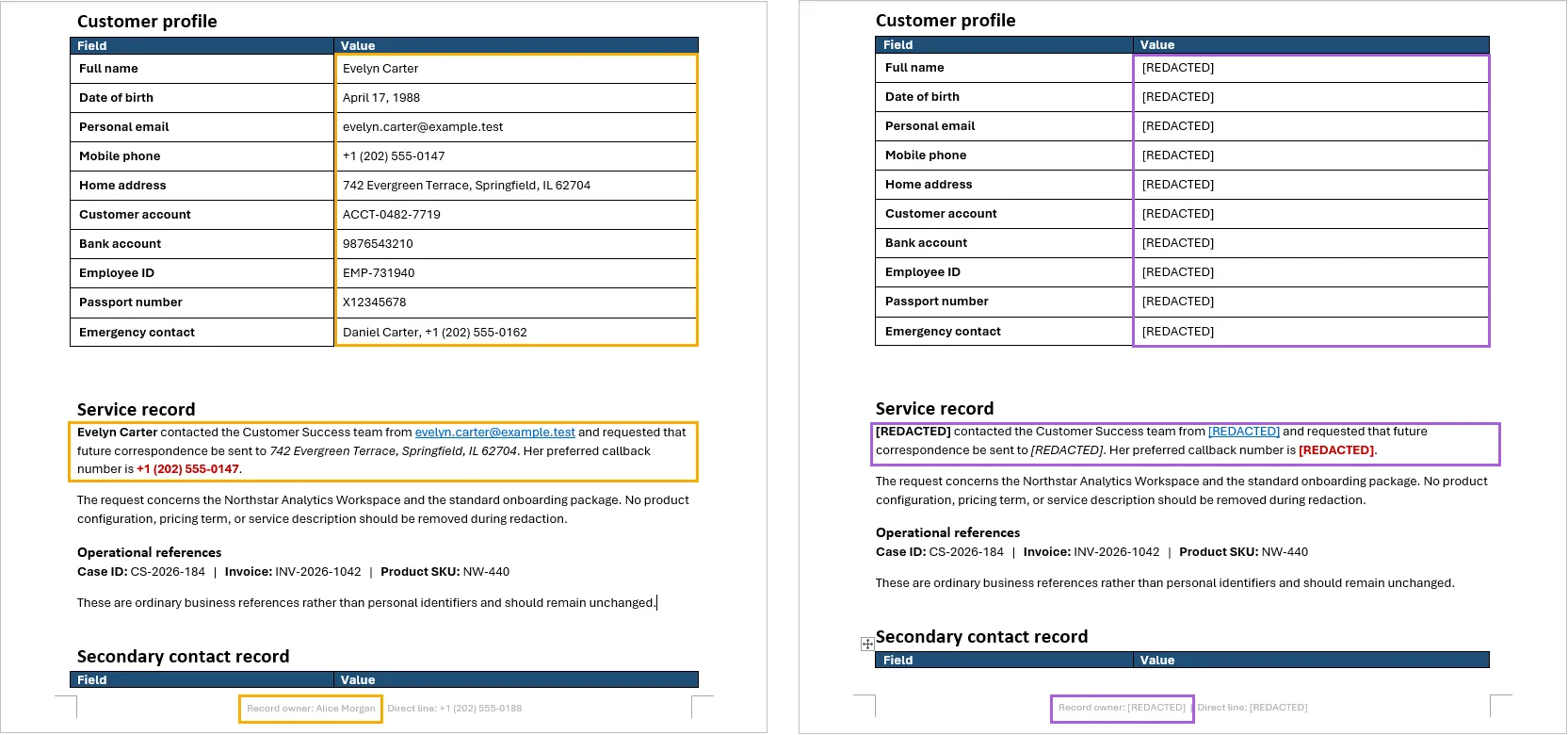
In the Word test document, sensitive information appeared in normal paragraphs, a customer-information table, and the page footer. After processing, the names, email addresses, phone numbers, addresses, and account information were replaced with [REDACTED].
The table structure, paragraph formatting, headings, colors, and footer layout remained in place. This result is important because it demonstrates that the workflow does not simply extract the document as plain text and rebuild it from scratch. It modifies the relevant document elements while retaining their surrounding structure.
Important Considerations for AI Redaction
Review the Result Before Sharing
AI redaction is not perfectly deterministic. A model may miss an uncommon identifier or incorrectly classify ordinary content as sensitive. Documents intended for external distribution should be reviewed after processing, especially in legal, financial, healthcare, or compliance-sensitive workflows.
Make the Instruction Specific
The instruction should describe both what must be removed and what must remain. If invoice numbers, company names, product codes, or public office addresses should not be redacted, state those exclusions explicitly.
Visible Replacement Is Not Always Complete Sanitization
Replacing visible text does not necessarily remove every copy of the information from the file. Sensitive data may also appear in:
- Comments and tracked changes
- Document properties and metadata
- Hidden worksheets or hidden slides
- PowerPoint speaker notes
- Embedded files and objects
- Images containing text
- Earlier versions or backup copies
For high-security workflows, these locations should be inspected separately. If a document contains scanned pages or screenshots, OCR may be required before the text inside the images can be evaluated.
Preserve the Original File
Save the redacted result to a new path instead of overwriting the source document. Keeping the files separate makes it easier to compare the output, investigate missed content, and repeat the process with an improved instruction.
Conclusion
Traditional API-based redaction provides precise control, but developers must define detection rules and maintain separate traversal logic for different document formats and content containers. Direct LLM integration improves contextual recognition, yet still requires a substantial extraction, mapping, and write-back layer to preserve Office formatting.
An AI Agent SDK brings these capabilities together. With one natural-language instruction and a small amount of C# code, the same workflow can process Word, Excel, and PowerPoint files, identify contextual sensitive information, and replace it within the original document structure. The result should still be reviewed, but the implementation is considerably simpler than building the entire detection and document-orchestration pipeline manually.
FAQs
Can the same code redact Word, Excel, and PowerPoint files?
Yes. The example selects Document, Workbook, or Presentation according to the input file extension and applies the same natural-language instruction to each format.
Does the AI Agent preserve the original formatting?
The agent works with the underlying Office document objects, allowing sensitive text to be replaced within paragraphs, cells, tables, and shapes while retaining the surrounding structure and formatting. The final output should still be checked because unusually complex layouts may require additional verification.
Can I use a different redaction label?
Yes. Change [REDACTED] in the instruction to another label, such as [PRIVATE], [REMOVED], or a category-specific value like [EMAIL REDACTED].
When is a traditional API better than AI redaction?
A traditional API may be preferable when every sensitive value follows a fixed pattern, the rules rarely change, and the result must be completely deterministic. Regular-expression replacement is often sufficient for standardized email addresses, phone numbers, or identification numbers.
Does replacing text guarantee that the document is safe to publish?
No. Visible text replacement does not automatically remove comments, tracked changes, metadata, hidden content, embedded objects, text inside images, or previous file versions. Security-sensitive documents require additional inspection and validation before publication.