Excel workbooks can contain missing values, duplicate records, unusual numbers, and inconsistent formulas that are difficult to detect manually, especially when working with large datasets.
With an AI agent, these issues can be identified through natural-language audit instructions instead of relying entirely on hard-coded validation rules. This article shows how to use Spire.Agent.Office in C# to audit an Excel workbook, identify potential data and formula issues, highlight suspicious cells, and generate a structured audit report.
1. What Is an AI-Powered Excel Audit?
A traditional Excel audit usually relies on predefined validation rules, formulas, or custom code. For example, a program may check whether a required cell is empty, whether a value exceeds a fixed threshold, or whether duplicate IDs exist in a column.
An AI-powered Excel audit adds contextual analysis to this process. Instead of defining every possible condition in code, you can describe the auditing requirements in natural language and let the AI agent examine the workbook for patterns and inconsistencies.
For example, an AI agent can be instructed to look for:
- Missing or incomplete data
- Duplicate or suspicious records
- Unusual numeric values or outliers
- Inconsistent data patterns
- Missing formulas
- Formulas that differ unexpectedly from nearby rows
- Suspicious calculation results or cell references
This is particularly useful for issues that are difficult to express as simple fixed rules. A value may fall within an acceptable numeric range but still appear unusual compared with surrounding records, while a formula may produce a valid result but use a pattern that differs from neighboring cells.
AI-generated audit findings should generally be treated as potential issues rather than definitive errors. The results can then be highlighted in the workbook and summarized in an audit report for further review.
2. Set Up the C# Project
Create a new C# console application and add the required Spire.Agent.Office package to the project.
The example uses the following namespaces:
using Spire.Agent.Office.AI;
using Spire.Agent.Office.Extensions;
using Spire.Xls;
Access to AI functionality requires a valid Spire token. You may apply for a temporary test token via the Spire temporary license page.
The basic configuration is:
AIOptions options = new AIOptions();
options.SpireToken = "YOUR_SPIRE_TOKEN";
The examples below use an Excel workbook named:
SalesData.xlsx
The workbook can contain one or multiple worksheets with sales records, formulas, dates, quantities, prices, discounts, or other business data.
3. Prepare the Excel Workbook for Auditing
The first step is to load the workbook with Workbook.
Workbook workbook = new Workbook();
workbook.LoadFromFile("SalesData.xlsx");
Because the workbook is passed directly to the AI-enabled document processor, there is no need to manually convert every worksheet, cell value, or formula into plain text.
The agent can work with the spreadsheet as a structured Office document and inspect information such as:
- Worksheet contents
- Cell values
- Formulas
- Rows and columns
- Data patterns
- Relationships between nearby cells
For example, a sales worksheet might contain data similar to the following:
| Order ID | Date | Product | Quantity | Unit Price | Discount | Total |
|---|---|---|---|---|---|---|
| ORD-1001 | 2026-08-01 | Laptop | 2 | 850 | 0.10 | 1530 |
| ORD-1002 | 2026-08-02 | Monitor | 5 | 260 | 0.05 | 1235 |
| ORD-1003 | 2026-08-03 | Keyboard | 10 | 45 | 0.10 | 405 |
| ORD-1004 | 2026-08-04 | Laptop | 3 | 850 | 0.80 | 510 |
The last row may deserve attention because an 80% discount is significantly different from the surrounding records.
Other potential problems could include duplicate order IDs, missing dates, unusual quantities, or a formula that differs from the formulas used in neighboring rows.
4. Build an AI Agent to Audit Excel Workbooks
The main part of the workflow is defining the audit task.
Instead of manually writing separate C# conditions for every possible error, the requirements can be described through a natural-language instruction.
Define Audit Rules and Instructions
For example:
string instruction = @"
Audit this Excel workbook for potential data quality and formula issues.

Check for:
- Missing or incomplete values
- Duplicate records
- Unusual or suspicious numeric values
- Inconsistent data patterns
- Missing formulas
- Formulas that differ unexpectedly from nearby rows
- Suspicious cell references or calculation results

Do not modify valid source data.

For every detected issue, record:
- Worksheet name
- Cell or range
- Issue type
- Explanation

Highlight problematic cells and create a new worksheet named
'Audit Report' containing the audit results.
";
The instruction defines both what the agent should inspect and how the results should be presented .
This is useful because spreadsheet auditing is often context-dependent. A value of 80 may be completely normal in one column but highly unusual in another. The agent can evaluate the value together with nearby records and the meaning of the data.
Analyze Data and Formula Patterns
After loading the workbook and configuring the AI options, create an AI document processor from the workbook:
AIDocumentProcessor processor = workbook.AI(options);
Then send the audit instruction to the agent:
processor.ExecuteInstruction(
    workbook,
    instruction,
    "AuditedSalesData.xlsx",
    Array.Empty<string>()
);
The complete core code is therefore very short:
using Spire.Agent.Office.AI;
using Spire.Agent.Office.Extensions;
using Spire.Xls;

string inputPath = "SalesData.xlsx";
string outputPath = "AuditedSalesData.xlsx";
string spireToken = "YOUR_SPIRE_TOKEN";

Workbook workbook = new Workbook();
workbook.LoadFromFile(inputPath);

AIOptions options = new AIOptions();
options.SpireToken = spireToken;

string instruction = @"
Audit this Excel workbook for potential data quality and formula issues.

Check for missing values, duplicate records, unusual numeric values,
inconsistent data patterns, missing formulas, formulas that differ
unexpectedly from nearby rows, and suspicious calculation results.

Do not modify valid source data.

Highlight cells containing potential issues and create a worksheet named
'Audit Report' with the following columns:

Worksheet | Cell | Issue | Explanation
";

AIDocumentProcessor processor = workbook.AI(options);

processor.ExecuteInstruction(
    workbook,
    instruction,
    outputPath,
    Array.Empty<string>()
);
Compared with a conventional Excel validation program, most of the auditing logic is expressed through the instruction rather than a long series of if statements.
Return Structured Audit Results
It is important to tell the agent how the audit results should be organized.
For example:
Worksheet | Cell | Issue | Explanation
A generated audit report may look like this:
| Worksheet | Cell | Issue | Explanation |
|---|---|---|---|
| Sales | F5 | Unusual Value | Discount of 80% is significantly higher than surrounding records. |
| Sales | A12 | Duplicate Record | The order ID also appears in another row. |
| Sales | B18 | Missing Value | The order date is empty. |
| Sales | G24 | Formula Inconsistency | The formula differs from the formula pattern used in adjacent rows. |
Structured results make the audit easier to review and can also be used for subsequent automated processing.
5. Highlight Detected Issues and Generate an Audit Report
Simply returning a text description of spreadsheet problems is useful, but an audit becomes much easier to review when the findings are written back to the workbook itself.
The instruction can ask the agent to perform two actions:
string outputInstruction = @"
Highlight every cell that contains a potential issue.

Create an 'Audit Report' worksheet and list every issue using these columns:

Worksheet | Cell | Issue | Explanation

Do not change cells that do not contain an identified issue.
";
This produces two levels of output: highlighted findings in the original worksheet and a centralized report containing detailed explanations.
Review Highlighted Issues in the Original Worksheet
In the original worksheet, the agent highlights cells containing potential issues. Findings of the same type use the same highlight color, making it easier to distinguish missing values, duplicate records, unusual numbers, inconsistent data, and formula-related problems.
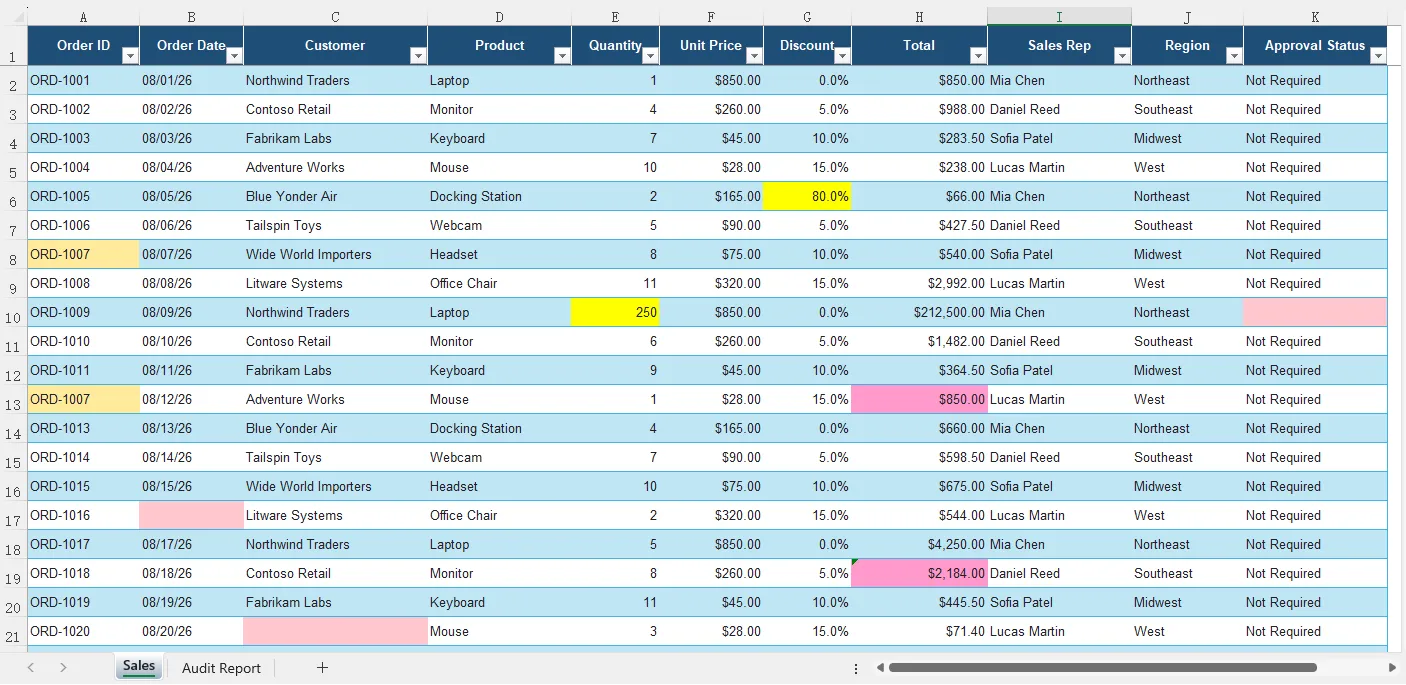
Figure 1. Potential issues highlighted in the original worksheet. The same color is used for findings of the same type.
In this example, the agent identified several types of issues, including the unusually high discount in G6, the quantity outlier in E10, the missing order date in B17, the negative unit price in F23, and formula-related problems in the Total column.
By writing the findings back to their original locations, the agent allows users to review suspicious values in context instead of searching for them manually.
Review the Detailed Audit Report
In addition to highlighting the source data, the agent creates an Audit Report worksheet that lists the affected cell, issue type, and explanation for every finding.
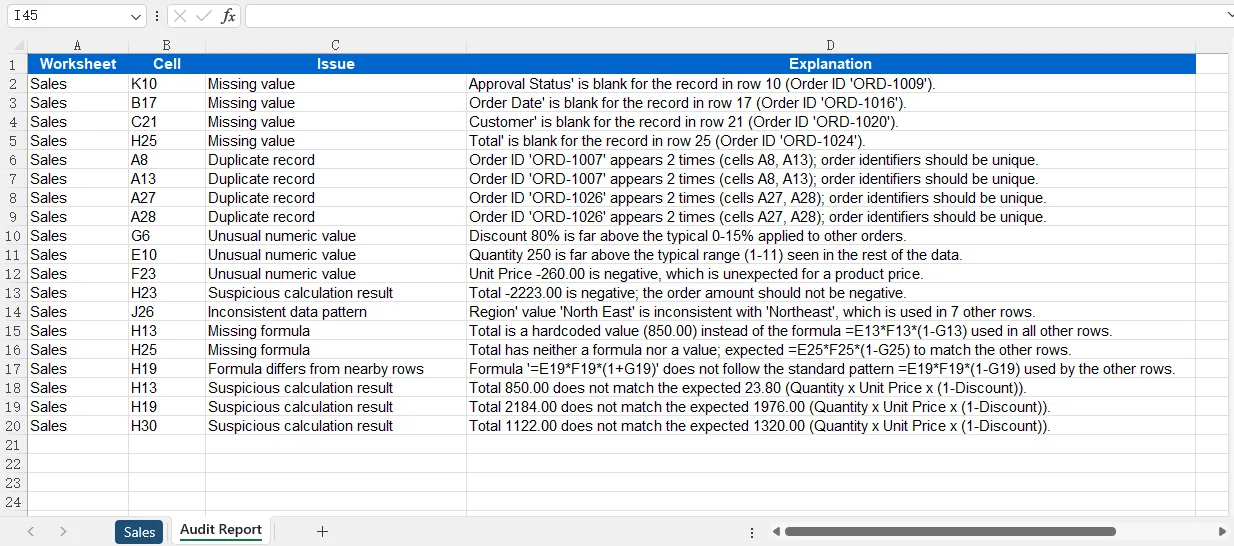
Figure 2. The generated Audit Report provides the location, type, and explanation of each detected issue.
The report includes findings such as missing values, duplicate order IDs, unusual numeric values, inconsistent data patterns, missing formulas, and suspicious calculation results.
For example, the agent detected that:
-
A8andA13contain the same order ID. -
G6contains an 80% discount, which is significantly higher than the other discounts. -
H13contains a hardcoded value instead of the formula pattern used in nearby rows. -
H19uses addition instead of subtraction when applying the discount. -
H30produces a total that does not match the expected calculation.
A single cell may appear more than once in the report when it involves multiple audit dimensions. For example, H25 can be reported both as a missing value and as a missing formula.
AI-generated findings should be treated as potential issues rather than definitive errors. Some unusual values may represent legitimate business exceptions. The highlighted worksheet and audit report therefore provide a structured starting point for human review rather than automatically changing the underlying data.
6. Best Practices for AI-Powered Excel Auditing
AI-based auditing works particularly well when it is used together with clear audit requirements.
First, provide enough context in the instruction. Instead of asking the agent to simply "find errors," specify the types of issues that matter, such as duplicate records, abnormal values, missing formulas, or inconsistent calculations.
Second, distinguish between deterministic rules and contextual analysis. Conditions such as "Quantity must never be negative" can be checked reliably with conventional rules. AI is more useful for situations such as identifying a value that appears inconsistent with surrounding records or recognizing an unexpected formula pattern.
Third, avoid asking the agent to automatically correct every detected issue. A suspicious value is not necessarily an incorrect value. Highlighting the cell and explaining the reason gives users an opportunity to verify the finding before making changes.
For large workbooks, the audit can also be narrowed to specific worksheets or categories of problems. This makes the task more focused and can reduce unnecessary processing.
Finally, make the output structured. Including the worksheet, cell location, issue type, and explanation makes AI-generated findings easier to verify and integrate into subsequent workflows.
7. Conclusion
Spreadsheet auditing often involves more than checking whether cells are empty or formulas return errors. Many problems only become visible when values, formulas, and surrounding data patterns are considered together.
With an AI Agent SDK, these auditing requirements can be described in natural language instead of being implemented entirely through hard-coded validation rules.
Using Spire.Agent.Office in C#, the workflow can remain relatively simple: load the Excel workbook, define the auditing requirements, execute the instruction, and generate a new workbook containing highlighted issues and a structured audit report.
This approach is particularly useful for detecting potential anomalies, inconsistent formulas, duplicated records, missing information, and other spreadsheet issues that may require contextual analysis.
8. FAQs
Can AI detect incorrect formulas in Excel?
AI can identify formulas that appear inconsistent with nearby formulas, contain suspicious references, or produce results that do not match expected data patterns. However, whether a formula is logically correct may depend on the business rules behind the workbook, so detected issues should still be reviewed.
Can the audit rules be customized?
Yes. The auditing requirements are primarily defined through the instruction sent to the agent. You can add rules for specific columns, worksheets, value ranges, formulas, or business conditions.
For example:
"Flag discounts above 50% and orders with a missing customer ID."
Can AI detect duplicate Excel records?
Yes. The agent can be instructed to identify duplicated IDs, repeated rows, or potentially duplicated records based on multiple fields.
For more deterministic duplicate detection, conventional Excel or C# logic can also be combined with the AI audit.
Can AI automatically fix the detected errors?
The agent can be instructed to modify workbook content, but automatically correcting every detected anomaly is usually not recommended. Some unusual values may be valid business exceptions.
A safer workflow is to highlight suspicious cells, explain why they were flagged, and let users review the findings before applying corrections.
Can the same approach be used for different types of Excel files?
Yes. The same workflow can be adapted to sales reports, financial spreadsheets, inventory records, operational reports, survey data, and other structured Excel workbooks. In most cases, only the audit instruction needs to be adjusted for the specific data and business rules.