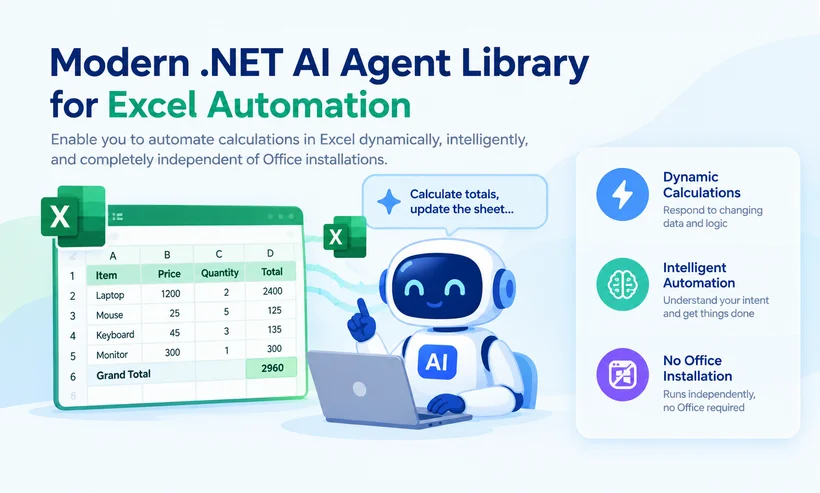
Manual Excel calculations are slow, error‑prone, and impossible to scale for enterprise data workflows. Whether you’re building financial reporting tools, business analytics dashboards, or batch data processing systems, automating calculations in Excel with .NET eliminates human error, speeds up workflows, and standardizes spreadsheet logic across your applications.
Traditional Excel automation methods like VBA, Interop, or legacy libraries come with significant limitations: dependency on installed Microsoft Office, limited cross‑platform support, rigid formula scripting, and poor performance for large datasets.
This guide introduces Spire.Agent.Office—the modern .NET AI agent library that enables you to automate calculations in Excel dynamically, intelligently, and completely independent of Office installations.
- Why Traditional Excel Automation Falls Short
- Introducing Spire.Agent.Office – The AI Solution
- Prerequisites & Installation
- Step by Step: Automate Calculations in Excel with Spire.Agent.Office
- Advanced Automation: Batch Processing Hundreds of Files
- Frequently Asked Questions (FAQs)
Why Traditional Excel Automation Falls Short
Traditional methods come with critical limitations for modern enterprise deployments.
| Method | Drawbacks |
|---|---|
| VBA | Windows-only, requires Office installation, slow with large datasets, no AI. |
| Interop | Prone to memory leaks, not server-safe, expensive licensing. |
| Open XML SDK | Low-level, complex, no formula generation, no AI. |
| Spire.XLS | Excellent for formula creation, but lacks AI inference. You must hardcode every IF or VLOOKUP string. |
The solution? A modern .NET AI agent SDK that understands your business rules in plain English and executes them at scale.
Introducing Spire.Agent.Office – The AI Solution
Spire.Agent.Office is an advanced AI‑driven document automation library for .NET, designed to streamline Excel, Word, PowerPoint, and PDF processing. Its dedicated Spire.Agent.XLS module specializes in intelligent Excel automation, including formula generation, automatic calculation, data analysis, and spreadsheet transformation.
Unlike static libraries, Spire.Agent.Office adds dynamic calculation capabilities – you describe what you want, and the AI translates it into precise Excel formulas and executes them.

How It Works?
The library operates on a modern LLM (Large Language Model) enhanced workflow. Here’s the technical pipeline:
Developer Input (Workbook + Plain-Text Prompt)
         ↓
Spire.Agent.Office (AI Translation Layer)
         ↓
Structured Computation Plan
         ↓
Spire.Office (Execution Engine)
         ↓
Updated Excel File or Data Output
- Input Layer: The developer supplies a .xls or .xlsx file, a plain-text prompt, and a SpireToken for AI authentication.
- Semantic Analysis: The Spire.Agent.Office AI scans the workbook metadata and sends it with the prompt to the LLM.
- Structured Planning: The AI generates a deterministic computation plan—an ordered set of engine operations—rather than raw formula text.
- Execution Engine: Spire.Office executes the plan, writes formulas directly to cells without launching Excel, and forces a full recalculation of the dependency chain.
- Output: The updated workbook is saved to disk or returned as a MemoryStream for direct API responses.
Core Excel Calculation Features
- Auto‑generate and add formulas in Excel (SUM, AVERAGE, VLOOKUP, IF functions) via code or natural language prompts
- Force full workbook/worksheet recalculation programmatically
- Automate batch calculation for multiple Excel files and large datasets
- AI‑powered data cleaning before calculation to ensure accurate results
- Dynamic formula adjustment based on dataset changes
- Export calculated Excel files to PDF, CSV, and other formats seamlessly
Prerequisites & Installation
To start spreadsheet automation with Spire.Agent.Office in your .NET project, prepare the following setup:
- A .NET project (Console, ASP.NET, WinForms, or .NET Core)
- Install required NuGet packages: Spire.Agent.Office
- Request a temporary Spire Token for activating AI agent features
NuGet Installation Commands:
Install‑Package Spire.Agent.Office
For complete setup instructions, see: Integrate Spire.Agent.Office in Your .NET Project
Step‑by‑Step: Automate Calculations in Excel with Spire.Agent.Office
Here is a developer-centric workflow to automate a sales commission calculation dynamically using this .NET AI Agent SDK.
Step 1: Initialize the AI Agent and Load the Document
In your code, you will instantiate the Spire.Agent and load your target Excel workbook. The agent uses the underlying Spire.Office engine to scan the workbook's metadata.
using Spire.Agent.Office.AI;
using Spire.Agent.Office.Extensions;
using Spire.Xls;


AIOptions options = new AIOptions();
options.SpireToken = "your_spire_token";

Workbook workbook = new Workbook();

workbook.LoadFromFile("SalesData.xlsx");
AIDocumentProcessor processor = workbook.AI(options);
Step 2: Define Calculation Logic via Natural Language
Here is where the AI magic happens. Instead of manually writing a complex IF statement for every row, you send a prompt to the Agent:
string instruction = @"
In this input sales dataset. Column A is 'Sales Rep', Column B is 'Revenue', Column C is 'Target'.
Add a Column D with the same style and set its header as 'Commission' in D1
Create a calculation rule for Column D (Commission):
If Revenue exceeds Target, calculate 15% of Revenue. Otherwise, calculate 5%.
Apply this formula to the entire data range dynamically.
";
Step 3: Execute the Plan
The agent produces a structured computation plan rather than static formula text. Spire.Office applies the computed fields directly onto worksheet cells.
AIResult result = processor.ExecuteInstruction(
    workbook,
    instruction,
    "Calculated_data.xlsx"
);
Complete C# Code Example:
using Spire.Agent.Office.AI;
using Spire.Agent.Office.Extensions;
using Spire.Xls;


AIOptions options = new AIOptions();
options.SpireToken = "spireToken";

using (Workbook workbook = new Workbook())
{
    workbook.LoadFromFile("SalesData.xlsx");
    AIDocumentProcessor processor = workbook.AI(options);

    string instruction = @"
    In this input sales dataset. Column A is 'Sales Rep', Column B is 'Revenue', Column C is 'Target'.
    Add a Column D with the same style and add a header 'Commission' in D1
    Create a calculation rule for Column D (Commission):
    If Revenue exceeds Target, calculate 15% of Revenue. Otherwise, calculate 5%.
    Apply this formula to the entire data range dynamically.
";

    AIResult result = processor.ExecuteInstruction(
        workbook,
        instruction,
        "Calculated_data.xlsx"
    );
}
Core APIs Overview
-
AIOptions: Configuration container for the AI agent. Use it to set the
SpireToken(required for authentication), adjust theTimeoutMs(optional), and specify aWorkDirfor temporary files. -
AIDocumentProcessor: The AI agent instance that handles document processing. Obtain it by calling the
.AI()extension method on any supported document object (Workbook,Document,Presentation, orPdfDocument). -
AIResult: The return object from
ExecuteInstruction. It contains the execution status and output path, allowing you to verify success or handle errors programmatically.
Result:
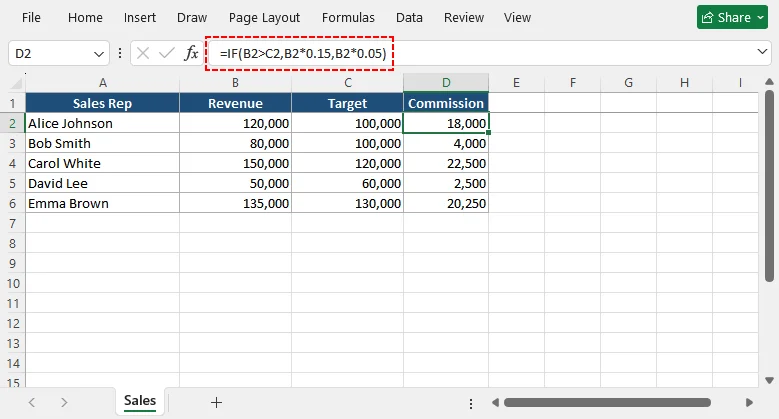
In the output file, column D will populate with the correct Excel formula: =IF(B2>C2, B2*0.15, B2*0.05)
Advanced Automation: Batch Processing Hundreds of Files
For recurring monthly reports, wrap the logic in a loop to process an entire folder:
using System.IO;
using Spire.Agent.Office.AI;
using Spire.Agent.Office.Extensions;
using Spire.Xls;

// 1. Configuration
string inputFolder = @"C:\reports\inbox";
string outputFolder = @"C:\reports\output";
string spireToken = "your_spire_token";

// Ensure the output directory exists
Directory.CreateDirectory(outputFolder);

// 2. Setup AI Options
AIOptions agentOptions = new AIOptions();
agentOptions.WorkDir = outputFolder; // Sets the working/temp directory
agentOptions.SpireToken = spireToken;

// 3. Define your calculation logic (Natural Language Prompt)
string calculationPrompt = @"Input your calculation logic";

// 4. Loop through all Excel files
foreach (string file in Directory.GetFiles(inputFolder, "*.xlsx"))
{
    // Define the output path (keeps the same filename)
    string outputPath = Path.Combine(outputFolder, Path.GetFileName(file));

    // Dispose the workbook after each file to free memory
    using (Workbook workbook = new Workbook())
    {
        // Load the source Excel file
        workbook.LoadFromFile(file);

        // Execute the AI instruction
        AIResult result = workbook.AI(agentOptions).ExecuteInstruction(
            workbook,              // Pass the document instance
            calculationPrompt,     // The prompt
            outputPath,            // Full path to save the processed file
            new string[] { }       // Additional options (empty array)
        );
    }
}
✅ Key Advantages for Enterprise Automation
- 100% Server-Side: Process thousands of .xlsx files in batch jobs overnight. No UI pop-ups, no rendering delays.
- No Office Installation: Eliminate Office licensing on CI/CD pipelines or web servers.
- AI-Powered Logic Translation: Describe complex rules in plain English to the Agent; it generates the underlying formula or C# logic for Spire.Office to apply.
- High Performance: Built on .NET Core/.NET 6+, it handles massive data processing with optimized memory management.
Final Thoughts
Automating calculations in Excel is no longer about recording keystrokes; it is about integrating intelligent logic into your software infrastructure. Spire.Agent.Office bridges the gap between human business requirements (natural language) and machine execution (Spire.Office's robust .NET API).
By adopting this architecture, you eliminate dependency on the desktop, reduce significantly reduce human errors, and turn your Excel reporting into a fully automated, server-side pipeline.
Ready to build the next generation of spreadsheet automation? Add the NuGet package, request your SpireToken, and write your first prompt in minutes to reshape your end‑to‑end data pipelines.
Frequently Asked Questions (FAQs)
Q: Can I automate complex Excel formulas like INDEX/MATCH or XLOOKUP?
A: Yes. Spire.Agent.Office supports most of the modern Excel functions. You can prompt: "Use XLOOKUP to find the price in Sheet2 based on Product ID", and the library will generate the precise nested syntax.
Q: Can I automate Excel calculations in .NET without installing Microsoft Excel?
A: Yes. Spire.Agent.Office is a fully standalone library that support Excel calculation automation without any Microsoft Office installation.
Q: How accurate is the AI prompt interpretation?
A: Spire.Agent.Office uses advanced language models optimized for spreadsheet automation workflows. It handles complex logic, cross-sheet references, and dynamic ranges with high accuracy. However, we recommend testing prompts with sample data before production deployment.
Q: Does Spire.Agent.Office support batch processing?
A: Yes. You can loop through an entire folder of Excel files and apply the same AI instruction to each one, making it ideal for recurring monthly reports and bulk data processing pipelines.