
Many applications that incorporate LLMs or AI agents need to process reports, PDF files, spreadsheets, and presentations as part of their workflow. These files store content in different format-specific structures, so applications may need to extract and normalize their contents before using them in text-oriented AI workflows. Converting them into Markdown offers a consistent, inspectable text representation that downstream components can read, store, and manipulate without dealing with format-specific parsing logic.
This tutorial demonstrates how to convert Word, PDF, Excel, and PowerPoint documents to Markdown in Python using Spire.Office for Python, and then shows how to pass the resulting Markdown content into a real LLM API call for summarization. The goal is to illustrate a practical preprocessing workflow—not to claim that every AI model requires Markdown or that converting a document automatically makes its contents suitable for every AI task.
1. Why Use Markdown for AI Document Processing?
Markdown occupies a useful position in an AI document-processing pipeline. It represents document structure through lightweight syntax: headings become # markers, paragraphs remain plain text, lists use - or 1. prefixes, and tables retain row-and-column relationships with pipe characters. This representation is human-readable, easy to store, and straightforward to transform programmatically.
When you convert documents to Markdown, the resulting text can serve as input to a range of AI tasks. An LLM can summarize the content, extract key entities, answer questions about it, or generate a revised version. A retrieval pipeline can index the text for semantic search. An agent can read the Markdown to understand what a document contains before deciding which tool to call next.
It is worth distinguishing Markdown preprocessing from direct file input. Some model APIs accept original files—images, PDFs, or Office documents—through multimodal endpoints or specialized document-processing features. In those cases, Markdown conversion is unnecessary. Markdown is an optional intermediate representation chosen when the application benefits from a text-based format that it can inspect and control before sending content to a model. The decision depends on the application's requirements, not on a universal rule that all AI workflows must use Markdown.
2. Convert Documents to Markdown in Python
Spire.Office for Python is a suite of standalone Python libraries that can create, read, edit, and convert Office documents without installing Microsoft Office. It includes four components, each targeting a specific document format:
| Input format | Component | pip package |
|---|---|---|
| Word (.doc, .docx) | Spire.Doc for Python | spire.doc |
| PDF (.pdf) | Spire.PDF for Python | spire.pdf |
| Excel (.xls, .xlsx) | Spire.XLS for Python | spire.xls |
| PowerPoint (.ppt, .pptx) | Spire.Presentation for Python | spire.presentation |
Install the packages you need:
pip install spire.doc spire.pdf spire.xls spire.presentation
Markdown conversion support was introduced in different versions across components. The table below lists the minimum versions that provide the APIs used in this article:
| Component | Minimum version | Feature |
|---|---|---|
| Spire.Doc for Python | 12.6.0 |
FileFormat.Markdown save option |
| Spire.PDF for Python | 11.6.1 |
PdfToMarkdownConverter with MarkdownOptions.IgnoreImage
|
| Spire.XLS for Python | 16.4.0 |
Workbook.SaveToMarkdown() with MarkdownOptions
|
| Spire.Presentation for Python | 10.11.1 |
FileFormat.Markdown save option |
Spire.Doc 12.6.0, Spire.PDF 11.6.1, Spire.XLS 16.4.0, and Spire.Presentation 10.11.1 are the minimum versions with Markdown conversion support. It is recommended to use the latest version of each component.
Each component exposes a different API for Markdown conversion. The following table summarizes the verified conversion methods:
| Component | Initialization / load | Markdown export method |
|---|---|---|
| Spire.Doc | Document.LoadFromFile() |
Document.SaveToFile(path, FileFormat.Markdown) |
| Spire.PDF | PdfToMarkdownConverter(path) |
converter.ConvertToMarkdown(outputPath) |
| Spire.XLS | Workbook.LoadFromFile() |
Workbook.SaveToMarkdown(path, MarkdownOptions) |
| Spire.Presentation | Presentation.LoadFromFile() |
Presentation.SaveToFile(path, FileFormat.Markdown) |
The example below implements a single dispatch function that detects the file extension and routes the document to the appropriate conversion logic. It validates the input file, generates the output path, performs the conversion, and handles errors with descriptive messages.
import os
from spire.doc import Document, FileFormat as DocFileFormat
from spire.pdf import PdfToMarkdownConverter
from spire.xls import Workbook, MarkdownOptions as XlsMarkdownOptions
from spire.presentation import Presentation, FileFormat as PresentationFileFormat


def convert_to_markdown(input_path: str, output_path: str = None) -> str:
    """Convert a Word, PDF, Excel, or PowerPoint file to Markdown.

    Args:
        input_path: Path to the source document.
        output_path: Path for the output .md file. If None, uses the
            input filename with a .md extension in the same directory.

    Returns:
        The path to the generated Markdown file.
    """
    if not os.path.isfile(input_path):
        raise FileNotFoundError(f"Input file not found: {input_path}")

    ext = os.path.splitext(input_path)[1].lower()

    if output_path is None:
        output_path = os.path.splitext(input_path)[0] + ".md"

    if ext in (".doc", ".docx"):
        # Spire.Doc for Python: load and save as Markdown
        doc = Document()
        try:
            doc.LoadFromFile(input_path)
            doc.SaveToFile(output_path, DocFileFormat.Markdown)
        finally:
            doc.Close()

    elif ext == ".pdf":
        # Spire.PDF for Python: use PdfToMarkdownConverter
        # IgnoreImage=True skips images in the PDF; set to False if
        # charts or screenshots contain important information.
        converter = PdfToMarkdownConverter(input_path)
        try:
            converter.MarkdownOptions.IgnoreImage = True
            converter.ConvertToMarkdown(output_path)
        finally:
            converter.Dispose()

    elif ext in (".xls", ".xlsx"):
        # Spire.XLS for Python: use SaveToMarkdown with MarkdownOptions
        workbook = Workbook()
        try:
            workbook.LoadFromFile(input_path)
            options = XlsMarkdownOptions()
            options.SavePicInRelativePath = True
            options.SaveHyperlinkAsRef = False
            workbook.SaveToMarkdown(output_path, options)
        finally:
            workbook.Dispose()

    elif ext in (".ppt", ".pptx"):
        # Spire.Presentation for Python: load and save as Markdown
        presentation = Presentation()
        try:
            presentation.LoadFromFile(input_path)
            presentation.SaveToFile(output_path, PresentationFileFormat.Markdown)
        finally:
            presentation.Dispose()

    else:
        raise ValueError(
            f"Unsupported file extension: {ext}. "
            f"Supported formats: .doc, .docx, .pdf, .xls, .xlsx, .ppt, .pptx"
        )

    return output_path


# Example usage
if __name__ == "__main__":
    result = convert_to_markdown("quarterly_report.docx")
    print(f"Markdown saved to: {result}")

    with open(result, "r", encoding="utf-8") as f:
        content = f.read()
    print(content[:500])  # Preview the first 500 characters
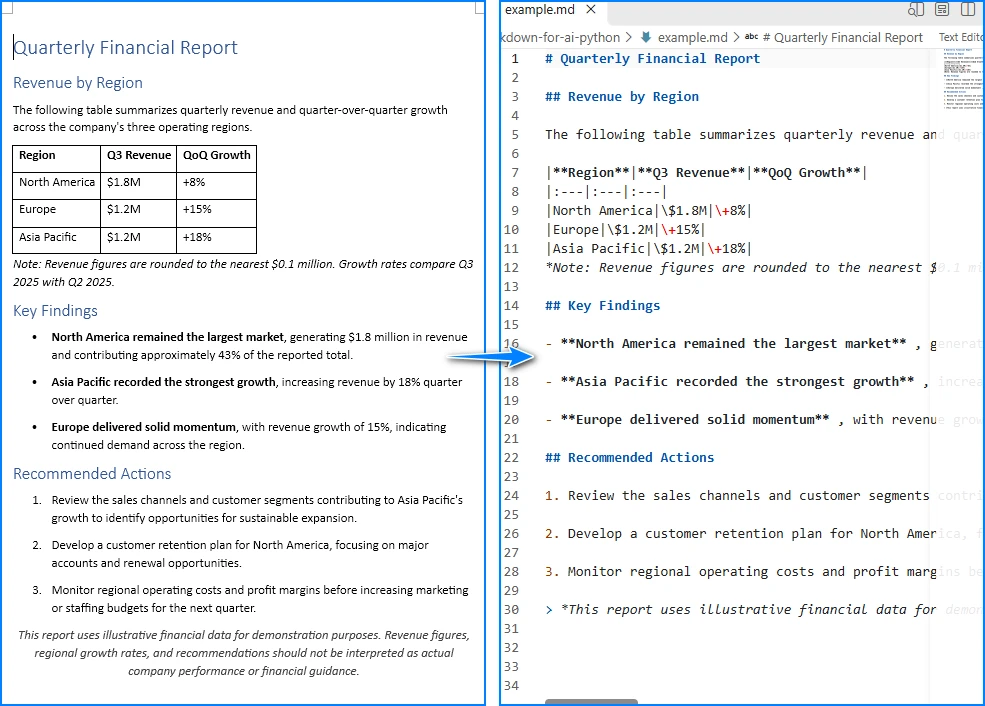
Markdown output from converting a Word document:
For format-specific details, refer to the individual component tutorials:
- Convert Word to Markdown with Spire.Doc for Python
- Convert PDF to Markdown with Spire.PDF for Python
- Convert Excel to Markdown with Spire.XLS for Python
3. Send Markdown Content to an LLM
Once a document has been converted to Markdown, the text can serve as input to an LLM for tasks such as summarization, information extraction, or question answering. The following example converts a business report to Markdown, reads the resulting file, and submits the content to the OpenAI API with a task-specific instruction.
To run this example, install the OpenAI Python SDK and set your API key as an environment variable:
pip install openai
export OPENAI_API_KEY="your-api-key"
The code below assumes the convert_to_markdown function from the previous section is saved in a file named convert_to_markdown.py in the same directory, or that both code blocks are combined into a single script.
import os
from openai import OpenAI

# Step 1: Convert the document to Markdown
from convert_to_markdown import convert_to_markdown
md_path = convert_to_markdown("business_report.pdf")

# Step 2: Read the Markdown content
with open(md_path, "r", encoding="utf-8") as f:
    markdown_content = f.read()

# Step 3: Construct a task-specific instruction and call the LLM
client = OpenAI(api_key=os.environ.get("OPENAI_API_KEY"))

response = client.chat.completions.create(
    model="gpt-6-luna",
    messages=[
        {
            "role": "system",
            "content": "You are a financial analyst. Read the document "
                       "and extract the three most important findings."
        },
        {
            "role": "user",
            "content": f"Here is the document content in Markdown:\n\n"
                       f"{markdown_content}\n\n"
                       f"Provide a concise summary of the key findings."
        }
    ],
    max_completion_tokens=1000
)

# Step 4: Read and display the response
summary = response.choices[0].message.content
print("=== LLM Summary ===")
print(summary)
In this workflow, Spire.Office for Python handles the document conversion, and the OpenAI API handles the AI analysis. Spire.Office is a document-processing library, not an AI agent framework—it produces the Markdown text that an LLM or agent pipeline consumes. For a complete document-processing agent, consider Spire.Agent.Office.
One important consideration is input size. LLMs have context-window limits, and a long document may produce Markdown that exceeds the model's maximum input length. When this happens, the application must split the Markdown into smaller chunks or selectively retrieve relevant sections before sending them to the model. Libraries such as langchain-text-splitters or custom splitting logic can handle this step.
4. Use Markdown for AI Agents and RAG Workflows
The Markdown produced by the conversion step can become an input to larger AI workflows. Two common patterns are AI agents and retrieval-augmented generation (RAG).
For AI agents, an application can expose the converted Markdown as context that an agent reads before deciding which actions to take. For example, a support agent might receive the Markdown of a customer contract and answer questions about renewal terms, payment schedules, or termination clauses. The agent treats the Markdown as readable context, not as a structured database query.
For RAG, the Markdown content is split into chunks, each chunk is embedded into a vector representation, and the vectors are stored in an index. When a user asks a question, the system retrieves the most relevant chunks and passes them to an LLM along with the query. Markdown's section-based structure—headings, paragraphs, and tables—can provide meaningful boundaries for document chunking. Heading-aware chunking may help preserve context, although retrieval quality depends on the document and the overall retrieval setup.
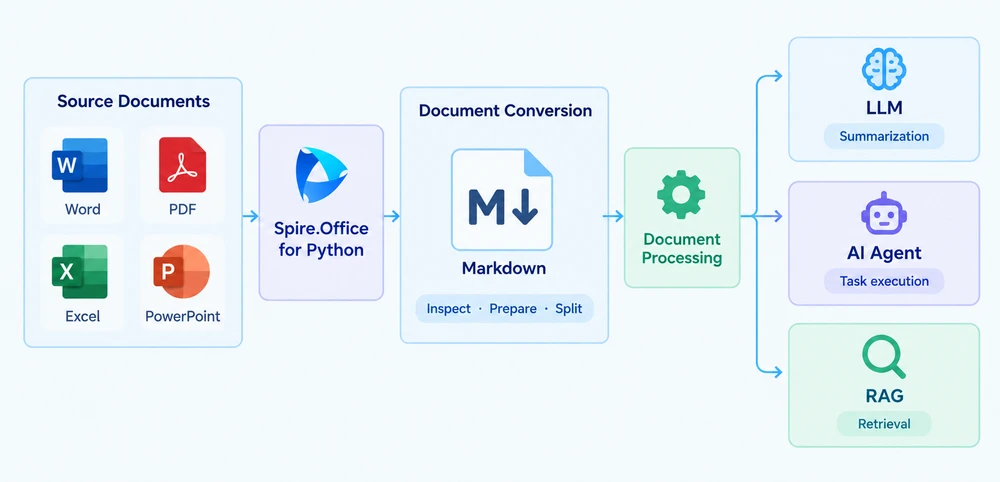
Converting documents to Markdown does not itself implement a complete agent or RAG system. Vector databases, embedding models, orchestration frameworks, tool-calling protocols, and retrieval ranking are separate components that operate downstream. The conversion step produces the text input; the rest of the pipeline determines how that text is used.
5. Validate Markdown Before AI Processing
The quality of the converted Markdown directly affects the quality of downstream AI results. If the conversion loses structure, misrepresents data, or omits content, the LLM or agent will work with incorrect or incomplete context. Before relying on converted Markdown for important tasks, check the output against the most common problem areas:
-
Heading hierarchy and paragraph ordering. Ensure that section levels (
#,##,###) reflect the original document's structure and that paragraphs appear in the correct sequence. - Table rows, columns, and numeric values. Verify that row-to-column relationships are preserved and that numbers, dates, and currency values match the source. If a financial table loses its alignment, an LLM may produce a summary based on incorrect associations—for example, attributing a revenue figure to the wrong region.
- Images, links, and complex layouts. Markdown cannot represent every visual element. Images may be omitted or replaced with file-path references. Multi-column layouts, text boxes, and embedded objects may not survive conversion in their original form.
- Scanned PDFs. If the source PDF contains scanned images rather than embedded text, the conversion may produce empty or near-empty output. In such cases, an OCR step is necessary before or instead of Markdown conversion.
- Long documents. Verify that the full document was converted, not just the first section. For documents that exceed a model's context window, confirm that the Markdown can be split into meaningful chunks without breaking tables or separating headings from their content.
Conversion does not guarantee perfect preservation of every visual or semantic feature. The Markdown output is an intermediate representation, not a faithful clone of the original document. Reviewing the converted text before passing it to an AI model is a practical step that prevents errors from propagating into summaries, extractions, or agent decisions.
6. Conclusion
This article walked through a document-to-Markdown preprocessing workflow for AI applications in Python. The process has three stages: convert supported document formats (Word, PDF, Excel, PowerPoint) to Markdown using Spire.Office for Python, verify the converted output for structural accuracy, and pass the Markdown content to the appropriate AI-processing component—whether an LLM API call, an agent context, or a RAG chunking pipeline.
Markdown is one useful way to prepare document content for AI applications, not a mandatory input format for every model. The choice to convert documents to Markdown depends on whether the application benefits from a text-based intermediate representation that it can inspect, store, and control. For more details, visit the Spire.Office for Python product page or the conversion documentation.