The most direct way to get data into Excel is to assign one cell at a time, which means ten rows take ten loop iterations. But data usually arrives in JavaScript already in blocks -- a list from an API, a table rendered on the page, a computed result set -- and there is no reason to break an array apart just to feed it back cell by cell. The InsertArray method of Spire.XLS for JavaScript takes a whole array at once; combined with a starting row and column and a write direction, a single call drops an entire column or row of data into the worksheet. Spire.XLS for JavaScript performs these operations directly in the browser through WebAssembly, managing input and output files with a virtual file system (VFS) and requiring no backend service.
This article covers two core feature points:
- Import a one-dimensional array into a worksheet
- Import a two-dimensional data table into a worksheet
For installation and project setup, see Integrating Spire.XLS for JavaScript in a React Project. The examples below assume Spire.XLS is installed and the WebAssembly module has been initialized.
Import a one-dimensional array into a worksheet
InsertArray is split into several overloads by data type: stringArray for text, intArray for integers and doubleArray for decimals. That split is not needless fussiness -- Excel treats cells according to their data type. Numbers sit right-aligned and can take part in sums and charts directly, while a number written as text sits left-aligned and a formula referencing it only yields 0. Scores, amounts and quantities -- anything that will be used in a calculation -- belong in a numeric overload.
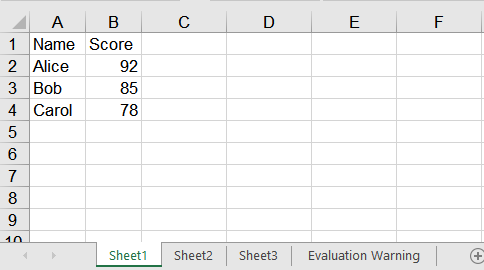
The remaining parameters decide where the data lands: firstRow and firstColumn give the starting position, with rows and columns both counted from 1, and isVertical picks the direction the array spreads -- false lays it along a row, true down a column. The same ['Jan', 'Feb', 'Mar'] becomes either a header row spanning A1 to C1 or a column of data running down A1 to A3. The steps are:
- Load the font into the VFS.
- Create a
Workbookand get the first worksheet withWorksheets.get(0). - Write a header row horizontally with the
stringArrayoverload ofInsertArray. - Write the name column vertically with
stringArrayand the score column withintArray. - Auto-fit the columns with
AllocatedRange.AutoFitColumns, then save the workbook withSaveToFile.
The complete code example below shows how to import a one-dimensional array into a worksheet in React:
function App() {
  const importArray = async () => {
    // Get the Spire.XLS WASM module
    const xlsModule = window.wasmModule?.spirexls;

    // Check if the module is ready
    if (!xlsModule) {
      alert('Spire.Xls is not ready yet');
      return;
    }

    // Load the font into the VFS
    await window.spire.FetchFileToVFS('ARIAL.TTF', '/Library/Fonts/', `${process.env.PUBLIC_URL}/font/`);

    // Create a new workbook and get the first worksheet
    const workbook = new xlsModule.Workbook();
    const sheet = workbook.Worksheets.get(0);

    // Write a header row horizontally: isVertical false spreads the array across A1:B1
    sheet.InsertArray({
      stringArray: ['Name', 'Score'],
      firstRow: 1,
      firstColumn: 1,
      isVertical: false,
    });

    // Write the name column vertically: isVertical true spreads the array down A2:A4
    sheet.InsertArray({
      stringArray: ['Alice', 'Bob', 'Carol'],
      firstRow: 2,
      firstColumn: 1,
      isVertical: true,
    });

    // Write the score column: numbers go through the intArray overload, so the cells hold
    // numbers rather than text
    sheet.InsertArray({
      intArray: [92, 85, 78],
      firstRow: 2,
      firstColumn: 2,
      isVertical: true,
    });

    // Auto-fit the columns to their content
    sheet.AllocatedRange.AutoFitColumns();

    // Save the workbook
    const outputFileName = 'ImportArray.xlsx';
    workbook.SaveToFile({ fileName: outputFileName });

    // Dispose of the workbook object to release resources
    workbook.Dispose();

    // Read the result file from the VFS and trigger the download
    const fileArray = window.dotnetRuntime.Module.FS.readFile(outputFileName);
    const blob = new Blob([fileArray], { type: 'application/vnd.openxmlformats-officedocument.spreadsheetml.sheet' });
    const url = URL.createObjectURL(blob);
    const a = document.createElement('a');
    a.href = url;
    a.download = outputFileName;
    a.click();
    URL.revokeObjectURL(url);
  };

  return (
    <div style={{ textAlign: 'center', height: '300px' }}>
      <h1>Import 1-D Array</h1>
      <button onClick={importArray}>Start</button>
    </div>
  );
}

export default App;
After running, the effect of importing a one-dimensional array into a worksheet:
Import a two-dimensional data table into a worksheet
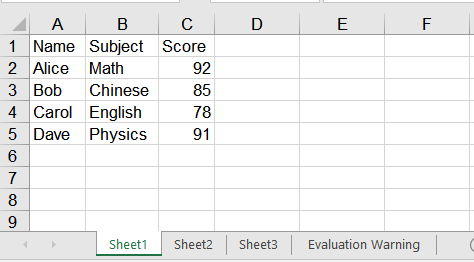
A data table is naturally a two-dimensional array -- a header row first, then one record per row, as in [['Name', 'Subject', 'Score'], ['Alice', 'Math', 92]]. Importing a two-dimensional data table into Excel means splitting it by column and writing each column as a one-dimensional array on its own: write the header across one row, then write the body column by column, text columns with stringArray and numeric ones with intArray. A column holds a single data type throughout, so each call only has to pick one form. When the data arrives in batches, read LastRow to find the last row currently in use and write the next batch from the row after it. The steps are:
- Load the font into the VFS.
- Create a
Workbookand get the first worksheet withWorksheets.get(0). - Write the header across the first row with the
stringArrayoverload ofInsertArray. - Split the body by column and write each one vertically with
stringArrayorintArray. - When a second batch arrives, locate its starting row with
LastRowand write the columns the same way. - Auto-fit the columns with
AllocatedRange.AutoFitColumns, then save the workbook withSaveToFile.
The complete code example below shows how to import a two-dimensional data table into a worksheet in React:
function App() {
  const importDataTable = async () => {
    // Get the Spire.XLS WASM module
    const xlsModule = window.wasmModule?.spirexls;

    // Check if the module is ready
    if (!xlsModule) {
      alert('Spire.Xls is not ready yet');
      return;
    }

    // Load the font into the VFS
    await window.spire.FetchFileToVFS('ARIAL.TTF', '/Library/Fonts/', `${process.env.PUBLIC_URL}/font/`);

    // The two-dimensional data to import, with the header as its first row
    const rows = [
      ['Name', 'Subject', 'Score'],
      ['Alice', 'Math', 92],
      ['Bob', 'Chinese', 85],
    ];

    // Create a new workbook and get the first worksheet
    const workbook = new xlsModule.Workbook();
    const sheet = workbook.Worksheets.get(0);

    // Write one column: text columns go through stringArray, numeric ones through intArray
    const writeColumn = (values, firstRow, firstColumn) => {
      const isNumeric = values.every((value) => typeof value === 'number');
      if (isNumeric) {
        sheet.InsertArray({ intArray: values, firstRow, firstColumn, isVertical: true });
      } else {
        sheet.InsertArray({ stringArray: values, firstRow, firstColumn, isVertical: true });
      }
    };

    // Write the header across the first row
    sheet.InsertArray({
      stringArray: rows[0],
      firstRow: 1,
      firstColumn: 1,
      isVertical: false,
    });

    // Split the body by column and write each one vertically, starting at row 2
    const body = rows.slice(1);
    for (let column = 0; column < rows[0].length; column++) {
      writeColumn(body.map((row) => row[column]), 2, column + 1);
    }

    // A second batch arrives: use LastRow to find where the existing data ends
    const nextBatch = [
      ['Carol', 'English', 78],
      ['Dave', 'Physics', 91],
    ];
    const startRow = sheet.LastRow + 1;
    for (let column = 0; column < rows[0].length; column++) {
      writeColumn(nextBatch.map((row) => row[column]), startRow, column + 1);
    }

    // Auto-fit the columns to their content
    sheet.AllocatedRange.AutoFitColumns();

    // Save the workbook
    const outputFileName = 'ImportDataTable.xlsx';
    workbook.SaveToFile({ fileName: outputFileName });

    // Dispose of the workbook object to release resources
    workbook.Dispose();

    // Read the result file from the VFS and trigger the download
    const fileArray = window.dotnetRuntime.Module.FS.readFile(outputFileName);
    const blob = new Blob([fileArray], { type: 'application/vnd.openxmlformats-officedocument.spreadsheetml.sheet' });
    const url = URL.createObjectURL(blob);
    const a = document.createElement('a');
    a.href = url;
    a.download = outputFileName;
    a.click();
    URL.revokeObjectURL(url);
  };

  return (
    <div style={{ textAlign: 'center', height: '300px' }}>
      <h1>Import 2-D Data Table</h1>
      <button onClick={importDataTable}>Start</button>
    </div>
  );
}

export default App;
After running, the effect of importing a two-dimensional data table into a worksheet:
FAQ
How do I put a date into a cell?
Cause: dateTimeArray cannot be used to write a JavaScript Date -- it lands as 0001/1/1. Assigning cell by cell through Range.DateTimeValue does work, but it only accepts a Date object; hand it a string and it reports Value is not a Date.
Solution: For a whole column, the least fuss is to write the date as a yyyy-mm-dd string and pass it to stringArray. The saved cell holds a real date value -- reading NumberValue back gives the date serial number, such as 46037 -- and no number format has to be set:
sheet.InsertArray({
  stringArray: ['2026-01-15', '2026-02-20'],
  firstRow: 1,
  firstColumn: 1,
  isVertical: true,
});
When only one cell needs setting, assign it directly instead, taking care to pass a Date object rather than a string:
sheet.Range.get('A1').DateTimeValue = new Date(Date.UTC(2026, 0, 15));
Do empty values in the array break the write?
Cause: No. null, undefined and the empty string all write an empty cell. InsertArray places each value by its index, so what the value happens to be makes no difference: later elements do not shift, and nothing throws.
Solution: Nothing extra is needed; pass the array as it is. The line below fills A1:D1, with D still landing in the fourth column:
sheet.InsertArray({
  stringArray: ['A', null, '', 'D'],
  firstRow: 1,
  firstColumn: 1,
  isVertical: false,
});
Get a Free License
Spire.XLS for JavaScript offers a 30-day full-featured free trial license with no functional limitations. Apply here to evaluate before purchasing.
