A single column often packs several pieces of information into one cell: a contact's name, phone number and city written on one line, an order code joining the country code, the date and a serial number into one string. Such data can neither be sorted nor filtered by any one of those parts. Splitting text into columns takes a column of text apart by a given rule and drops the pieces into the columns to its right, leaving the original data where it is. Spire.XLS for JavaScript performs these operations in the browser through WebAssembly; the input and output files are managed by a virtual file system (VFS), with no backend service required.
This article covers two feature points:
For installation and project setup, see Integrating Spire.XLS for JavaScript in a React Project. The examples below assume Spire.XLS is installed and the WebAssembly module has been initialized.
Split on a separator
When every entry on a line is separated from the next by the same character, splitting on that character moves them into the columns to the right. Each kind of information then has a column of its own, ready for sorting, checking or grouping, while the original data stays where it is.
The split reads the text out of the first column, cuts it apart, and writes the pieces back into the columns on the right:
| Syntax | Result |
|---|---|
sheet.Range.get({ row, column: 1 }).Text |
Reads the raw text of the first column on that row |
.split(' ') |
Cuts the text apart on the space |
sheet.Range.get({ row, column: index + 2 }).Text = piece |
Writes the piece at index into the index + 1 column to its right |
sheet.AllocatedRange.AutoFitColumns() |
Sizes every column to its content |
The steps are:
- Load the font file and the test data file into the VFS with
window.spire.FetchFileToVFS. - Create a workbook with
new Workbook(), load the input file withworkbook.LoadFromFile, and take the target worksheet withworkbook.Worksheets.get(0). - Take the last data row with
sheet.LastRowand work row by row from row 2, skipping the header. - Read the raw text of the first column with
sheet.Range.get({ row, column: 1 }).Textand split it on the separator withsplit(' '). - Walk the pieces and write them back from the second column on with
sheet.Range.get({ row, column: index + 2 }).Text. - Size every column to its content with
sheet.AllocatedRange.AutoFitColumns(). - Save the workbook with
workbook.SaveToFileand dispose of it withworkbook.Disposeto free resources.
The full code example below shows how to split an Excel column on a separator in React:
function App() {
  const splitByDelimiter = async () => {
    // get the Spire.XLS WASM module
    const xlsModule = window.wasmModule?.spirexls;

    // check that the module is ready
    if (!xlsModule) {
      alert('Spire.Xls is not ready yet');
      return;
    }

    // load the font and the test data file into the VFS
    await window.spire.FetchFileToVFS('ARIAL.TTF', '/Library/Fonts/', `${process.env.PUBLIC_URL}/font/`);
    const inputFileName = 'SplitTextIntoColumns.xlsx';
    await window.spire.FetchFileToVFS(inputFileName, '', `${process.env.PUBLIC_URL}data/`);

    // load the workbook and take the first worksheet
    const workbook = new xlsModule.Workbook();
    workbook.LoadFromFile({ fileName: inputFileName });
    const sheet = workbook.Worksheets.get(0);

    // row by row, take the text in column A, split it on the space and write the pieces into the columns on the right
    const lastRow = sheet.LastRow;
    for (let row = 2; row <= lastRow; row++) {
      const pieces = sheet.Range.get({ row, column: 1 }).Text.split(' ');
      pieces.forEach((piece, index) => {
        sheet.Range.get({ row, column: index + 2 }).Text = piece;
      });
    }

    // size every column to its content
    sheet.AllocatedRange.AutoFitColumns();

    // save the workbook
    const outputFileName = 'SplitByDelimiter.xlsx';
    workbook.SaveToFile({ fileName: outputFileName, version: xlsModule.ExcelVersion.Version2016 });

    // dispose of the workbook to free resources
    workbook.Dispose();

    // read the result file from the VFS and start the download
    const fileArray = window.dotnetRuntime.Module.FS.readFile(outputFileName);
    const blob = new Blob([fileArray], { type: 'application/vnd.openxmlformats-officedocument.spreadsheetml.sheet' });
    const url = URL.createObjectURL(blob);
    const a = document.createElement('a');
    a.href = url;
    a.download = outputFileName;
    a.click();
    URL.revokeObjectURL(url);
  };

  return (
    <div style={{ textAlign: 'center', height: '300px' }}>
      <h1>Split Excel Data into Columns</h1>
      <button id="split-by-delimiter" onClick={splitByDelimiter}>Split by a Separator</button>
    </div>
  );
}

export default App;
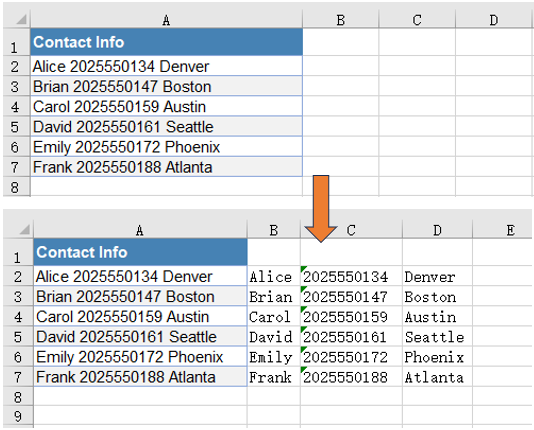
The worksheet after splitting on a separator:
Split by fixed width
Other text is not divided by any character at all: every entry has a fixed length and they run end to end, as a code assembled from fields of known width. Such text is cut by the number of characters in each entry, carrying on from where the previous one ended.
The cut advances through the source text by the length of each entry and writes the pieces back into the columns on the right:
| Syntax | Result |
|---|---|
sheet.Range.get({ row, column: 1 }).Text |
Reads the raw code of the first column on that row |
code.substring(start, start + width) |
Cuts out width characters starting at start |
start += width |
Moves the cutting position past that entry, ready for the next |
sheet.Range.get({ row, column: index + 2 }).Text = piece |
Writes the piece at index into the index + 1 column to its right |
sheet.AllocatedRange.AutoFitColumns() |
Sizes every column to its content |
The steps are:
- Load the font file and the test data file into the VFS with
window.spire.FetchFileToVFS. - Create a workbook with
new Workbook(), load the input file withworkbook.LoadFromFile, and take the worksheet holding the text withworkbook.Worksheets.get(2). - Note down the number of characters in each entry in an array; the lengths should add up to that of the source text.
- Take the last data row with
sheet.LastRowand work row by row from row 2, skipping the header. - Cut one entry out with
code.substring(start, start + width), move the starting position on by that length, and write it back from the second column on withsheet.Range.get({ row, column: index + 2 }).Text. - Size every column to its content with
sheet.AllocatedRange.AutoFitColumns(). - Save the workbook with
workbook.SaveToFileand dispose of it withworkbook.Disposeto free resources.
The full code example below shows how to split an Excel column by fixed width in React:
function App() {
  const splitByFixedWidth = async () => {
    // get the Spire.XLS WASM module
    const xlsModule = window.wasmModule?.spirexls;

    // check that the module is ready
    if (!xlsModule) {
      alert('Spire.Xls is not ready yet');
      return;
    }

    // load the font and the test data file into the VFS
    await window.spire.FetchFileToVFS('ARIAL.TTF', '/Library/Fonts/', `${process.env.PUBLIC_URL}/font/`);
    const inputFileName = 'SplitTextIntoColumns.xlsx';
    await window.spire.FetchFileToVFS(inputFileName, '', `${process.env.PUBLIC_URL}data/`);

    // load the workbook and take the third worksheet
    const workbook = new xlsModule.Workbook();
    workbook.LoadFromFile({ fileName: inputFileName });
    const sheet = workbook.Worksheets.get(2);

    // row by row, take the code in column A and cut it at the fixed lengths into the columns on the right
    const widths = [2, 4, 2, 2, 3];
    const lastRow = sheet.LastRow;
    for (let row = 2; row <= lastRow; row++) {
      const code = sheet.Range.get({ row, column: 1 }).Text;
      let start = 0;
      widths.forEach((width, index) => {
        sheet.Range.get({ row, column: index + 2 }).Text = code.substring(start, start + width);
        start += width;
      });
    }

    // size every column to its content
    sheet.AllocatedRange.AutoFitColumns();

    // save the workbook
    const outputFileName = 'SplitByFixedWidth.xlsx';
    workbook.SaveToFile({ fileName: outputFileName, version: xlsModule.ExcelVersion.Version2016 });

    // dispose of the workbook to free resources
    workbook.Dispose();

    // read the result file from the VFS and start the download
    const fileArray = window.dotnetRuntime.Module.FS.readFile(outputFileName);
    const blob = new Blob([fileArray], { type: 'application/vnd.openxmlformats-officedocument.spreadsheetml.sheet' });
    const url = URL.createObjectURL(blob);
    const a = document.createElement('a');
    a.href = url;
    a.download = outputFileName;
    a.click();
    URL.revokeObjectURL(url);
  };

  return (
    <div style={{ textAlign: 'center', height: '300px' }}>
      <h1>Split Excel Data into Columns</h1>
      <button id="split-by-fixed-width" onClick={splitByFixedWidth}>Split by Fixed Width</button>
    </div>
  );
}

export default App;
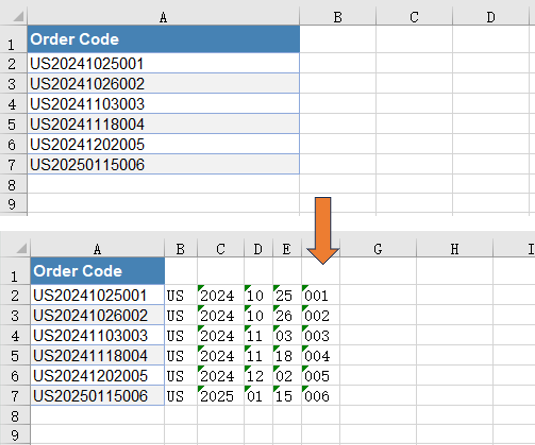
The worksheet after splitting by fixed width:
FAQ
The column uses more than one kind of separator, how can it be split in one pass
Reason: split(' ') cuts on a single character at a time; when a text mixes commas, slashes and the like, each separator has to be handled on its own, so the code keeps piling up and one of them is easily left out.
Solution: Put the separators you expect into a character class, and a single split covers them all -- the characters inside the brackets are alternatives, so any one of them counts as a split point. The sample workbook's address sheet separates the levels of an address with a comma or a slash, and this form splits it into three columns at once:
// a comma and a slash both count as split points, taken apart in one pass
const pieces = sheet.Range.get({ row, column: 1 }).Text.split(/[,/]/);
An empty column turns up in the middle of the split result
Reason: split(' ') cuts strictly on a single space, so two adjacent spaces in the raw text cut out an empty string between them, and that empty string lands on the sheet as a blank column.
Solution: Strip the leading and trailing spaces with trim() first, then split on /\s+/ -- a run of consecutive spaces counts as one split point, and no empty string is cut out in between:
// strip the surrounding spaces, then split on a run of whitespace so no empty piece is cut out
const pieces = sheet.Range.get({ row, column: 1 }).Text.trim().split(/\s+/);
Does splitting into columns overwrite what the columns on the right already hold
Cause: The pieces are written cell by cell with sheet.Range.get({ row, column: index + 2 }).Text = piece, so whatever the target column held on that row is replaced by the entry written into it. The text in the first column is untouched; on the right, the columns the pieces land in are overwritten, and any column beyond them keeps its old data.
Solution: To keep what is already on the right, write the result further out into empty columns, or into a separate worksheet instead; sheet.LastColumn tells you whether the right-hand side already holds anything before you write.
What happens when the entry lengths do not add up to the length of the source text
Cause: substring(start, start + width) only takes what the source text actually holds. When the lengths add up to less than the source text, the characters left at the end of it go into no column at all; when they add up to more, the overrun is cut to an empty string and leaves a blank column.
Solution: Check that the lengths add up to the length of the source text before cutting, and every entry lands in a column of its own.
Get a Free License
Spire.XLS for JavaScript offers a 30-day full-featured free trial license with no functional limitations. Apply here to evaluate before purchasing.
