The number of atoms in a chemical formula, the exponent in a mathematical expression, the square or cube on a unit symbol, the charge at the end of an ion — these characters are set one size smaller and shifted off the baseline, and that is how readers expect to find them. Typed at the same size as the surrounding text, they have to be inferred from context. Excel rich text lets individual characters inside a single cell carry their own formatting, and superscript and subscript are the two forms used most often. Spire.XLS for JavaScript performs this directly in the browser through WebAssembly, managing input and output files with a virtual file system (VFS) and requiring no backend service.
This article covers two key features:
For installation and project setup, see Integrating Spire.XLS for JavaScript in a React Project. The examples below assume Spire.XLS is already installed and the WebAssembly module has been initialized.
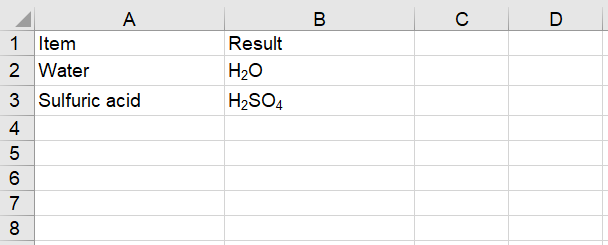
Set the Subscript of Text
Superscript and subscript are not whole-cell font properties: RichText.SetFont applies a font to a slice of the text inside a cell rather than to the cell as a whole. Three things have to line up — write the text as a rich-text run, prepare a font that carries the shift, then apply that font to the character range that should move. The steps are as follows:
- Load the font into the VFS.
- Create a workbook and get the first worksheet.
- Write the sample labels, then the chemical formulas with
RichText.Text. - Create a font object with
workbook.CreateFont()and setIsSubscripttotrue. - Apply the font to the digits with
RichText.SetFont(startIndex, endIndex, font), then save the workbook.
Here is a complete code example that sets the subscript of cell text in React:
function App() {
  const setSubscript = async () => {
    // Get the Spire.XLS WASM module
    const xlsModule = window.wasmModule?.spirexls;

    // Check if the module is ready
    if (!xlsModule) {
      alert('Spire.Xls is not ready yet');
      return;
    }

    // Load the font into the VFS
    await window.spire.FetchFileToVFS('ARIAL.TTF', '/Library/Fonts/', `${process.env.PUBLIC_URL}/font/`);

    // Create a new workbook and get the first worksheet
    const workbook = new xlsModule.Workbook();
    const sheet = workbook.Worksheets.get(0);

    // Write the header row and the sample labels
    sheet.Range.get("A1").Text = "Item";
    sheet.Range.get("B1").Text = "Result";
    sheet.Range.get("A2").Text = "Water";
    sheet.Range.get("A3").Text = "Sulfuric acid";

    // Write the chemical formulas
    const waterRange = sheet.Range.get("B2");
    waterRange.RichText.Text = "H2O";
    const acidRange = sheet.Range.get("B3");
    acidRange.RichText.Text = "H2SO4";

    // Create a font and set IsSubscript to true
    const font = workbook.CreateFont();
    font.IsSubscript = true;

    // Apply the subscript font to the digits only: indices start at 0 and the range is inclusive
    waterRange.RichText.SetFont(1, 1, font);
    acidRange.RichText.SetFont(1, 1, font);
    acidRange.RichText.SetFont(4, 4, font);

    // Widen columns A and B so the rich text is fully visible
    sheet.Range.get("A1:A3").ColumnWidth = 18;
    sheet.Range.get("B1:B3").ColumnWidth = 18;

    // Save the workbook
    const outputFileName = "SetSubscript.xlsx";
    workbook.SaveToFile({ fileName: outputFileName });

    // Dispose of the workbook object to free resources
    workbook.Dispose();

    // Read the result file from the VFS and trigger the download
    const fileArray = window.dotnetRuntime.Module.FS.readFile(outputFileName);
    const blob = new Blob([fileArray], { type: 'application/vnd.openxmlformats-officedocument.spreadsheetml.sheet' });
    const url = URL.createObjectURL(blob);
    const a = document.createElement('a');
    a.href = url;
    a.download = outputFileName;
    a.click();
    URL.revokeObjectURL(url);
  };

  return (
    <div style={{ textAlign: 'center', height: '300px' }}>
      <h1>Set Subscript</h1>
      <button onClick={setSubscript}>Start</button>
    </div>
  );
}

export default App;
After running, the effect of setting the subscript of text:
Set the Superscript of Text
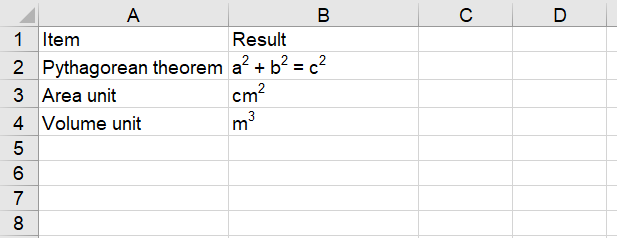
Superscript is the mirror image of subscript; the only difference is the direction the font shifts — up rather than down. Superscript suits powers and exponents — the squares in the Pythagorean theorem, the squared cm2 of an area unit, the cubed m3 of a volume unit. A single RichText.SetFont call covers one contiguous range, so text such as a2 + b2 = c2, with three characters to raise, takes three calls. The steps are as follows:
- Load the font into the VFS.
- Create a workbook and get the first worksheet.
- Write the sample labels, then the text that receives the formatting with
RichText.Text. - Create a font object with
workbook.CreateFont()and setIsSuperscripttotrue. - Apply the font to the characters that should be raised with
RichText.SetFont(startIndex, endIndex, font), then save the workbook.
Here is a complete code example that sets the superscript of cell text in React:
function App() {
  const setSuperscript = async () => {
    // Get the Spire.XLS WASM module
    const xlsModule = window.wasmModule?.spirexls;

    // Check if the module is ready
    if (!xlsModule) {
      alert('Spire.Xls is not ready yet');
      return;
    }

    // Load the font into the VFS
    await window.spire.FetchFileToVFS('ARIAL.TTF', '/Library/Fonts/', `${process.env.PUBLIC_URL}/font/`);

    // Create a new workbook and get the first worksheet
    const workbook = new xlsModule.Workbook();
    const sheet = workbook.Worksheets.get(0);

    // Write the header row and the sample labels
    sheet.Range.get("A1").Text = "Item";
    sheet.Range.get("B1").Text = "Result";
    sheet.Range.get("A2").Text = "Pythagorean theorem";
    sheet.Range.get("A3").Text = "Area unit";
    sheet.Range.get("A4").Text = "Volume unit";

    // Write the text that receives the formatting
    const theoremRange = sheet.Range.get("B2");
    theoremRange.RichText.Text = "a2 + b2 = c2";
    const areaRange = sheet.Range.get("B3");
    areaRange.RichText.Text = "cm2";
    const volumeRange = sheet.Range.get("B4");
    volumeRange.RichText.Text = "m3";

    // Create a font and set IsSuperscript to true
    const font = workbook.CreateFont();
    font.IsSuperscript = true;

    // Apply the superscript font to the characters that should be raised
    theoremRange.RichText.SetFont(1, 1, font);
    theoremRange.RichText.SetFont(6, 6, font);
    theoremRange.RichText.SetFont(11, 11, font);
    areaRange.RichText.SetFont(2, 2, font);
    volumeRange.RichText.SetFont(1, 1, font);

    // Widen columns A and B so the rich text is fully visible
    sheet.Range.get("A1:A4").ColumnWidth = 18;
    sheet.Range.get("B1:B4").ColumnWidth = 18;

    // Save the workbook
    const outputFileName = "SetSuperscript.xlsx";
    workbook.SaveToFile({ fileName: outputFileName });

    // Dispose of the workbook object to free resources
    workbook.Dispose();

    // Read the result file from the VFS and trigger the download
    const fileArray = window.dotnetRuntime.Module.FS.readFile(outputFileName);
    const blob = new Blob([fileArray], { type: 'application/vnd.openxmlformats-officedocument.spreadsheetml.sheet' });
    const url = URL.createObjectURL(blob);
    const a = document.createElement('a');
    a.href = url;
    a.download = outputFileName;
    a.click();
    URL.revokeObjectURL(url);
  };

  return (
    <div style={{ textAlign: 'center', height: '300px' }}>
      <h1>Set Superscript</h1>
      <button onClick={setSuperscript}>Start</button>
    </div>
  );
}

export default App;
After running, the effect of setting the superscript of text:
FAQ
How do I remove a superscript or subscript that has already been set?
Cause: Superscript and subscript are formats on individual characters. Calling SetFont again over the same range overwrites those characters with the new font's properties, so applying a font without the shift clears the effect.
Solution: Create a font with IsSubscript or IsSuperscript set to false, and call SetFont over the original range:
// Overwrite the subscript with a plain font
const normal = workbook.CreateFont();
normal.IsSubscript = false;
range.RichText.SetFont(1, 1, normal);
How can I tell whether a character is superscript when reading the file back?
Cause: The shift is a format on the character, not part of the cell's text. Range.Text, Range.Value and RichText.Text all return plain text, so they cannot show which characters carry it.
Solution: Read the font at the character's position and check its superscript and subscript properties. Positions count from 0, the same as with SetFont:
// Read the font at index 1 — the middle "2" in H2O
const font = range.RichText.GetFont(1);
console.log(font.IsSubscript);   // true
console.log(font.IsSuperscript); // false
Get a Free License
Spire.XLS for JavaScript offers a 30-day full-featured free trial license with no functional limitations. Apply here to evaluate before purchasing.
