Working with images in Word documents is one of the most common requirements in day-to-day office development. Whether you are adding a company logo to a contract template, cleaning up leftover placeholder pictures in a document, or batch-replacing the stamps and icons in a report, manipulating images dynamically keeps document content in sync with your business data. Spire.Doc for JavaScript handles Word image processing entirely in the browser via WebAssembly, using a virtual file system (VFS) to manage fonts, documents, and image resources — no backend server required.
This article covers three core features:
- Add an image to a Word document
- Delete images from a Word document
- Replace images in a Word document
For installation and project setup, refer to Integrating Spire.Doc for JavaScript in a React Project. The examples below assume Spire.Doc is installed and the WebAssembly module is initialized.
Add an Image to a Word Document
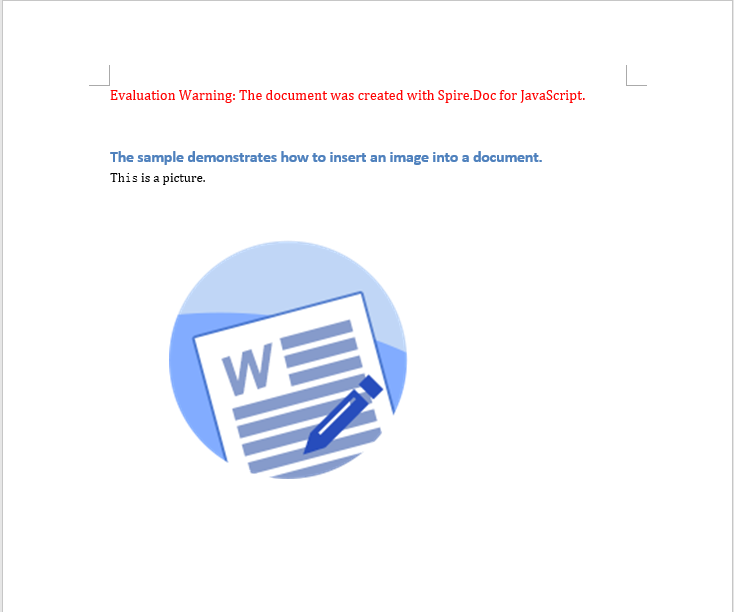
Adding an image involves three phases: first, load the font files, the target Word document, and the image to be inserted into the WASM virtual file system via FetchFileToVFS; then instantiate a Document and load the file, get the target section and create a DocPicture object, call LoadImage to load the image and set its position, size, and text wrapping style, then use ChildObjects.Insert to insert the picture at the specified position in the specified paragraph; finally, save the document, read the generated file from VFS, wrap it as a Blob, and trigger a browser download.
function App() {
  const insertImage = async () => {
    const docModule = window.wasmModule?.spiredoc;
    if (!docModule) {
      alert('Spire.Doc is not ready yet');
      return;
    }
    // Load the input document into VFS
    const inputFileName = "BlankTemplate.docx";
    await window.spire.FetchFileToVFS(inputFileName, "", `${process.env.PUBLIC_URL}static/data/`);

    // Load the image file to be inserted into VFS
    const inputImgFileName = "Word.png";
    await window.spire.FetchFileToVFS(inputImgFileName, "", `${process.env.PUBLIC_URL}static/data/`);

    // Load the document
    let doc = new docModule.Document();
    doc.LoadFromFile(inputFileName);

    // Get the first section
    let section = doc.Sections.get_Item(0);

    // Add a heading paragraph
    let paragraph = section.AddParagraph();
    paragraph.AppendText("The sample demonstrates how to insert an image into a document.");
    paragraph.ApplyStyle({ builtinStyle: docModule.BuiltinStyle.Heading2 });

    // Add a new paragraph to hold the picture
    paragraph = section.AddParagraph();
    paragraph.AppendText("This is a picture.");

    // Create a picture object and load the image file
    let picture = new docModule.DocPicture(doc);
    picture.LoadImage({ imgFile: inputImgFileName });

    // Set the position of the picture
    picture.HorizontalPosition = 50.0;
    picture.VerticalPosition = 60.0;

    // Set the size of the picture
    picture.Width = 200;
    picture.Height = 200;

    // Set the text wrapping style of the picture
    picture.TextWrappingStyle = docModule.TextWrappingStyle.Through;

    // Insert the picture at the beginning of the paragraph (index 0)
    paragraph.ChildObjects.Insert(0, picture);

    // Save the document
    const outputFileName = "Insert Image.docx";
    doc.SaveToFile({ fileName: outputFileName, fileFormat: docModule.FileFormat.Docx });
    // Release resources
    doc.Dispose();

    const modifiedFileArray = window.dotnetRuntime.Module.FS.readFile(outputFileName);
    const blob = new Blob([modifiedFileArray], { type: 'application/vnd.openxmlformats-officedocument.wordprocessingml.document' });
    const url = URL.createObjectURL(blob);
    const a = document.createElement('a');
    a.href = url;
    a.download = outputFileName;
    a.click();
    URL.revokeObjectURL(url);
  };

 return (
    <div style={{ textAlign: 'center', height: '300px' }}>
      <h1>Insert an Image into a Word Document</h1>
      <button onClick={insertImage}>
        Generate
      </button>
    </div>
  );
}
export default App;
The code above loads the picture through DocPicture, sets its absolute position to (50, 60) and its size to 200×200, applies the Through text wrapping style, and finally inserts it at the beginning of the second paragraph
Delete Images from a Word Document
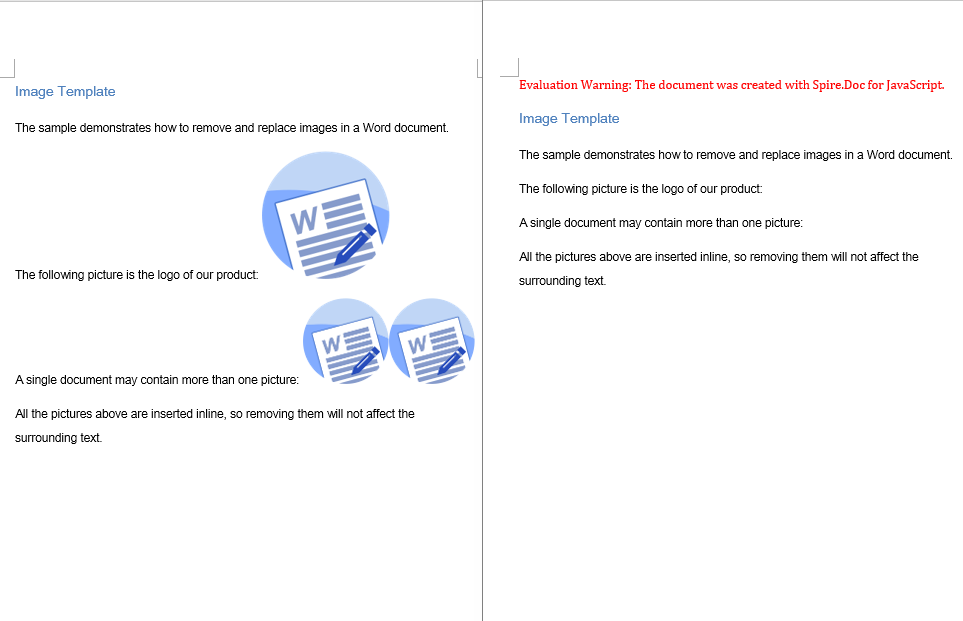
Deleting images also involves three phases: first, load the font files and the Word document to be processed into the WASM virtual file system via FetchFileToVFS; then instantiate a Document and load the file, walk the sections, the paragraphs, and the child objects inside each paragraph level by level, and use DocumentObjectType.Picture to determine whether an object is a picture — if it is, call ChildObjects.Remove to remove it from the paragraph; finally, save the document, read the generated file from VFS, wrap it as a Blob, and trigger a browser download.
function App() {
  const RemoveImage = async () => {
    const docModule = window.wasmModule?.spiredoc;
    if (!docModule) {
      alert('Spire.Doc is not ready yet');
      return;
    }
   // Load the input document into VFS
      const inputFileName = "ImageTemplate.docx";
      await window.spire.FetchFileToVFS(inputFileName, "", `${process.env.PUBLIC_URL}/static/data/`);

      // Load the document
      let doc = new docModule.Document();
      doc.LoadFromFile(inputFileName);

      let removedCount = 0;

      // Iterate over every section and paragraph and delete the pictures in each paragraph
      for (let i = 0; i < doc.Sections.Count; i++) {
        let sec = doc.Sections.get_Item(i);
        for (let j = 0; j < sec.Paragraphs.Count; j++) {
          let para = sec.Paragraphs.get_Item(j);

          // Collect all the picture objects in the paragraph
          let pictures = [];
          for (let k = 0; k < para.ChildObjects.Count; k++) {
            let docObj = para.ChildObjects.get_Item(k);
            if (docObj.DocumentObjectType == docModule.DocumentObjectType.Picture) {
              pictures.push(docObj);
            }
          }

          // Remove the pictures from the paragraph one by one
          for (let m = 0; m < pictures.length; m++) {
            para.ChildObjects.Remove(pictures[m]);
            removedCount++;
          }
        }
      }

      // Save the document
      const outputFileName = "Delete Image.docx";
      doc.SaveToFile({ fileName: outputFileName, fileFormat: docModule.FileFormat.Docx });
    // Release resources
    doc.Dispose();

    const modifiedFileArray = window.dotnetRuntime.Module.FS.readFile(outputFileName);
    const blob = new Blob([modifiedFileArray], { type: 'application/vnd.openxmlformats-officedocument.wordprocessingml.document' });
    const url = URL.createObjectURL(blob);
    const a = document.createElement('a');
    a.href = url;
    a.download = outputFileName;
    a.click();
    URL.revokeObjectURL(url);
  };

 return (
    <div style={{ textAlign: 'center', height: '300px' }}>
      <h1>Delete Images from a Word Document</h1>
      <button onClick={RemoveImage}>
        Generate
      </button>
    </div>
  );
}
export default App;
The code above walks the document structure and removes every picture object, while the text content and formatting in the paragraphs stay unchanged. The picture on the left is the document before deletion, and the one on the right is the same document after all the images have been removed
Replace Images in a Word Document
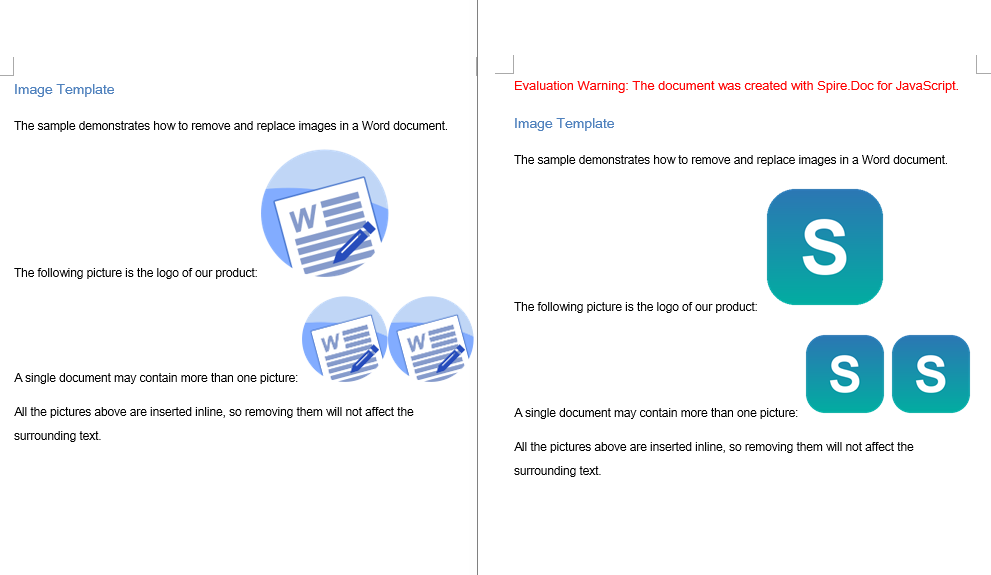
Replacing an image can be seen as a combination of deleting and adding. It involves three phases: first, load the font files, the target Word document, and the new image file into the WASM virtual file system via FetchFileToVFS; then walk the sections and paragraphs, locate the picture objects and record their index within the paragraph, their original size, and their text wrapping style, call ChildObjects.Remove to remove the old picture, and then create a new DocPicture and insert it at the original index with the same parameters; finally, save the document, read the generated file from VFS, wrap it as a Blob, and trigger a browser download.
function App() {
  const ReplaceImage = async () => {
    const docModule = window.wasmModule?.spiredoc;
    if (!docModule) {
      alert('Spire.Doc is not ready yet');
      return;
    }

      // Load the input document into VFS
      const inputFileName = "ImageTemplate.docx";
      await window.spire.FetchFileToVFS(inputFileName, "", `${process.env.PUBLIC_URL}/static/data/`);

      // Load the new picture that will take the place of the old ones into VFS
      const inputImgFileName = "NewLogo.png";
      await window.spire.FetchFileToVFS(inputImgFileName, "", `${process.env.PUBLIC_URL}/static/data/`);

      // Load the document
      let doc = new docModule.Document();
      doc.LoadFromFile(inputFileName);

      // Iterate over every section and paragraph and replace the pictures in each paragraph
      for (let i = 0; i < doc.Sections.Count; i++) {
        let sec = doc.Sections.get_Item(i);
        for (let j = 0; j < sec.Paragraphs.Count; j++) {
          let para = sec.Paragraphs.get_Item(j);

          // Collect the picture objects in the paragraph along with their index in ChildObjects
          let pictures = [];
          for (let k = 0; k < para.ChildObjects.Count; k++) {
            let docObj = para.ChildObjects.get_Item(k);
            if (docObj.DocumentObjectType == docModule.DocumentObjectType.Picture) {
              pictures.push({ index: k, picture: docObj });
            }
          }

          // Iterate backwards so that removing an object does not shift the remaining indexes
          for (let m = pictures.length - 1; m >= 0; m--) {
            let index = pictures[m].index;
            let picture = pictures[m].picture;

            // Record the size and the text wrapping style of the original picture
            let width = picture.Width;
            let height = picture.Height;
            let wrappingStyle = picture.TextWrappingStyle;

            // Remove the original picture
            para.ChildObjects.Remove(picture);

            // Create a new picture that keeps the size and wrapping style of the original one
            let newPicture = new docModule.DocPicture(doc);
            newPicture.LoadImage({ imgFile: inputImgFileName });
            newPicture.Width = width;
            newPicture.Height = height;
            newPicture.TextWrappingStyle = wrappingStyle;

            // Insert the new picture at the original index
            para.ChildObjects.Insert(index, newPicture);
          }
        }
      }

      // Save the document
      const outputFileName = "Replace Image.docx";
      doc.SaveToFile({ fileName: outputFileName, fileFormat: docModule.FileFormat.Docx });
    // Release resources
    doc.Dispose();

    const modifiedFileArray = window.dotnetRuntime.Module.FS.readFile(outputFileName);
    const blob = new Blob([modifiedFileArray], { type: 'application/vnd.openxmlformats-officedocument.wordprocessingml.document' });
    const url = URL.createObjectURL(blob);
    const a = document.createElement('a');
    a.href = url;
    a.download = outputFileName;
    a.click();
    URL.revokeObjectURL(url);
  };

 return (
    <div style={{ textAlign: 'center', height: '300px' }}>
      <h1>Replace Images in a Word Document</h1>
      <button onClick={ReplaceImage}>
        Generate
      </button>
    </div>
  );
}
export default App;
The code above removes each original picture while inserting the new picture at the index the original one occupied, reusing its size and its wrapping style, so the layout of the document is exactly the same as before the replacement
FAQ
The inserted image does not show up, or the image file cannot be found
Cause: The image file has not been loaded into the WASM virtual file system, or the path passed to FetchFileToVFS does not match the actual location of the file, so LoadImage cannot read the image data from VFS.
Solution: Load the image into VFS with FetchFileToVFS before inserting it, and make sure the target file name matches the file name passed to LoadImage:
await window.spire.FetchFileToVFS(
  'Word.png', '', `${process.env.PUBLIC_URL}static/data/`
);
let picture = new wasmModule.DocPicture(doc);
picture.LoadImage({ imgFile: 'Word.png' });
Images are left behind, or end up misplaced, after deletion or replacement
Cause: ChildObjects.Remove shifts the indexes of all subsequent child objects forward. If you read ChildObjects.Count while removing objects in the same loop, some of the pictures are skipped; and when replacing, inserting at the new index taken after the removal puts the picture at the wrong position.
Solution: Collect the picture objects and their original indexes in one pass first, then iterate backwards over that collection, and insert the new picture at the original index that was recorded:
// Collect the pictures and their indexes first
pictures.push({ index: k, picture: docObj });

// Then iterate backwards, removing each picture and inserting the new one back at its original index
for (let m = pictures.length - 1; m >= 0; m--) {
  para.ChildObjects.Remove(pictures[m].picture);
  para.ChildObjects.Insert(pictures[m].index, newPicture);
}
Get a Free License
Spire.Doc for JavaScript offers a 30-day full-featured free trial license with no functional limitations. Apply here to evaluate before purchasing.
