Working with shapes in Word documents is one of the most common requirements in day-to-day office development. Whether you are stamping a rounded-rectangle signature box onto a contract template, annotating approval steps with a group of flowchart shapes, cleaning up leftover decorative shapes in a document, or restyling the shapes in an old template to match a new brand palette, manipulating shapes dynamically keeps document content in sync with your business data. Spire.Doc for JavaScript handles Word shapes entirely in the browser via WebAssembly, using a virtual file system (VFS) to manage fonts, documents, and image resources — no backend server required.
This article covers three core features:
For installation and project setup, refer to Integrating Spire.Doc for JavaScript in a React Project. The examples below assume Spire.Doc is installed and the WebAssembly module is initialized.
Add Shapes to a Word Document
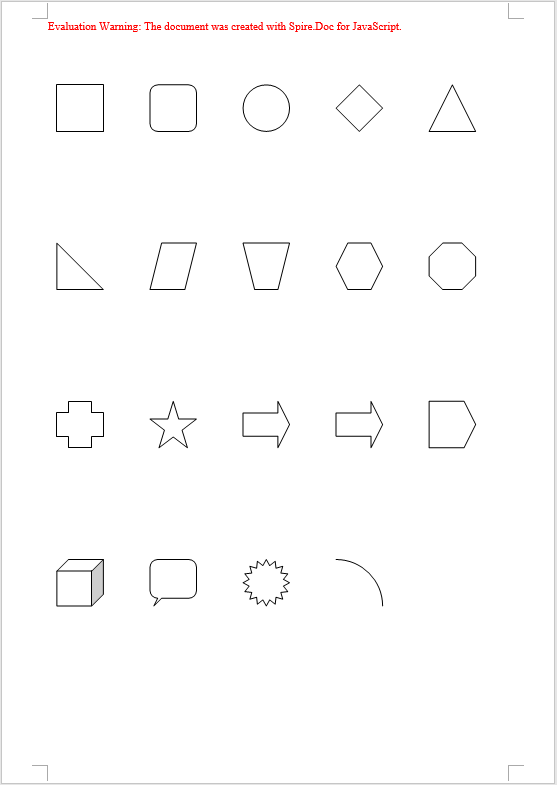
Adding shapes involves three phases: first, load the font files into the WASM virtual file system via FetchFileToVFS; then instantiate a Document, add a section and a paragraph in turn, and call Paragraph.AppendShape to insert a shape of the specified type and size into the paragraph, anchoring it to the page with HorizontalOrigin/VerticalOrigin while setting its absolute coordinates through HorizontalPosition/VerticalPosition; finally, save the document, read the generated file from VFS, wrap it as a Blob, and trigger a browser download.
function App() {
  const appendShape = async () => {

    const docModule = window.wasmModule?.spiredoc;

    if (!docModule) {
      alert('Spire.Doc is not ready yet');
      return;
    }

      // Create a new document
    const doc = new docModule.Document();

      // Add a section
    let sec = doc.AddSection();

      // Add a paragraph to hold the shapes
    let paragraph = sec.AddParagraph();

    let x = 60, y = 40, lineCount = 0;
    for (let i = 1; i < 20; i++) {
      if (lineCount > 0 && lineCount % 8 == 0) {
        // Start a new page once 8 rows are filled, and reset the starting coordinates
        paragraph.AppendBreak(docModule.BreakType.PageBreak);
        x = 60;
        y = 40;
        lineCount = 0;
      }

        // Add a shape and set its size
      let shape = paragraph.AppendShape(50, 50, docModule.ShapeType.fromValue(i));

      // Position the shape in absolute coordinates relative to the page
      shape.HorizontalOrigin = docModule.HorizontalOrigin.Page;
      shape.HorizontalPosition = x;
      shape.VerticalOrigin = docModule.VerticalOrigin.Page;
      shape.VerticalPosition = y + 50;

      // Calculate the coordinates of the next shape
      x = x + shape.Width + 50;
      if (i > 0 && i % 5 == 0) {
        y = y + shape.Height + 120;
        lineCount++;
        x = 60;
        }
    }

    // Save the document
    const outputFileName = "Add Shapes.docx";
    doc.SaveToFile({ fileName: outputFileName, fileFormat: docModule.FileFormat.Docx });
    // Release resources
    doc.Dispose();

    const modifiedFileArray = window.dotnetRuntime.Module.FS.readFile(outputFileName);
    const blob = new Blob([modifiedFileArray], { type: 'application/vnd.openxmlformats-officedocument.wordprocessingml.document' });
    const url = URL.createObjectURL(blob);
    const a = document.createElement('a');
    a.href = url;
    a.download = outputFileName;
    a.click();
    URL.revokeObjectURL(url);
  };

 return (
    <div style={{ textAlign: 'center', height: '300px' }}>
      <h1>Add Shapes to a Word Document</h1>
      <button onClick={appendShape}>
        Generate
      </button>
    </div>
  );
}
export default App;
The code above inserts 19 different preset shapes in a loop, each 50×50, retrieving the shape type one by one with ShapeType.fromValue(i) and laying them out in rows and columns from the page origin — 5 shapes per row, and an automatic page break via AppendBreak once 8 rows are filled
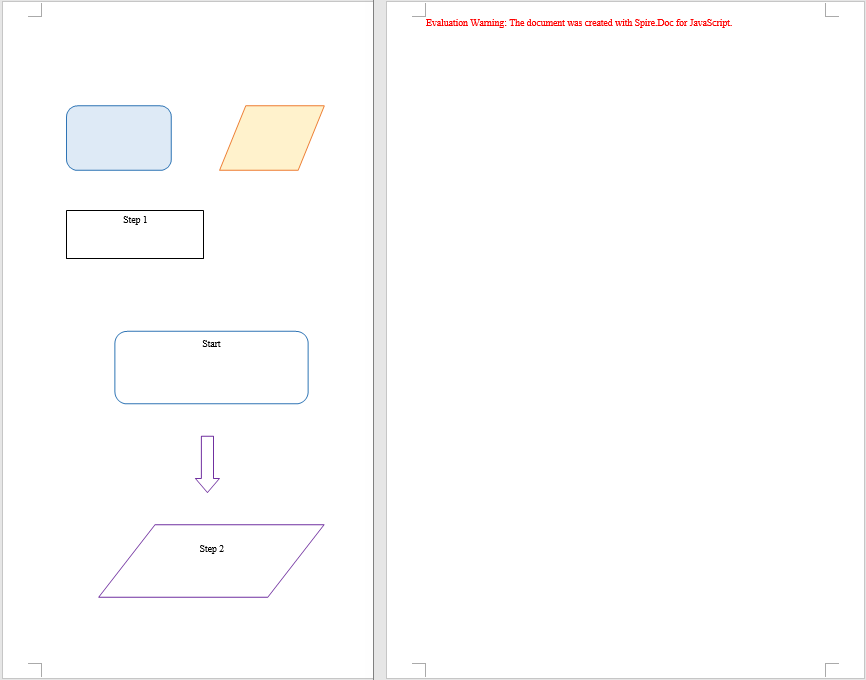
When you need to insert several related shapes at once — building a flowchart out of rectangles, parallelograms, and arrows, for example — you can instead call Paragraph.AppendShapeGroup to create a shape group first, then add text boxes, arrows, and other child shapes to it with ChildObjects.Add so they are laid out together. Coordinates inside a shape group are relative to the group itself, so you need to work out the scale factor with Width / 1000.0 and Height / 1000.0, then divide the target coordinates of each child shape by that factor before assigning them to HorizontalPosition/VerticalPosition. A text box is created with new wasmModule.TextBox(doc) and its outline specified through SetShapeType; its Format.LineColor sets the stroke color in exactly the same way as StrokeColor does for a regular shape.
Delete Shapes from a Word Document
Deleting shapes involves three phases: first, load the font files and the Word document to be processed into the WASM virtual file system via FetchFileToVFS; then instantiate a Document and load the file, walk the sections and paragraphs of the document level by level, and use DocumentObjectType to determine whether a child object in a paragraph is a shape — regular shapes and text boxes in a document both exist as type Shape, shape groups are ShapeGroup, while a text box created in memory with new wasmModule.TextBox(doc) and not yet saved is reported separately as TextBox, so all three types must be checked; once identified, collect the objects and remove them from the paragraph one by one with ChildObjects.Remove; finally, save the document, read the generated file from VFS, wrap it as a Blob, and trigger a browser download.
function App() {
  const removeShape = async () => {
    const docModule = window.wasmModule?.spiredoc;
    if (!docModule) {
      alert('Spire.Doc is not ready yet');
      return;
    }
    const inputFileName = 'ShapeTemplate.docx';
    await window.spire.FetchFileToVFS(inputFileName, '', `${process.env.PUBLIC_URL}static/data/`);

   // Load the document
    let doc = new docModule.Document();
    doc.LoadFromFile(inputFileName);

    let removedCount = 0;

    // Iterate over every section and paragraph and delete the shapes in each paragraph
    for (let i = 0; i < doc.Sections.Count; i++) {
      let sec = doc.Sections.get_Item(i);
      for (let j = 0; j < sec.Paragraphs.Count; j++) {
        let para = sec.Paragraphs.get_Item(j);

        // Collect the shapes in the paragraph in one pass: regular shapes and text boxes are Shape, shape groups are ShapeGroup
        let shapes = [];
        for (let k = 0; k < para.ChildObjects.Count; k++) {
          let docObj = para.ChildObjects.get_Item(k);
          let objType = docObj.DocumentObjectType;
          if (objType == docModule.DocumentObjectType.Shape
            || objType == docModule.DocumentObjectType.ShapeGroup
            || objType == docModule.DocumentObjectType.TextBox) {
              shapes.push(docObj);
    }
        }

        // Remove the shapes from the paragraph one by one
        for (let m = 0; m < shapes.length; m++) {
         para.ChildObjects.Remove(shapes[m]);
         removedCount++;
        }
      }
    }

    // Save the document
    const outputFileName = "Delete Shapes.docx";
    doc.SaveToFile({ fileName: outputFileName, fileFormat: docModule.FileFormat.Docx });

    // Release resources
    doc.Dispose();

    const modifiedFileArray = window.dotnetRuntime.Module.FS.readFile(outputFileName);
    const blob = new Blob([modifiedFileArray], { type: 'application/vnd.openxmlformats-officedocument.wordprocessingml.document' });
    const url = URL.createObjectURL(blob);
    const a = document.createElement('a');
    a.href = url;
    a.download = outputFileName;
    a.click();
    URL.revokeObjectURL(url);
  };

 return (
    <div style={{ textAlign: 'center', height: '300px' }}>
      <h1>Delete Shapes from a Word Document</h1>
      <button onClick={removeShape}>
        Generate
      </button>
    </div>
  );
}
export default App;
The code above walks the document structure and removes every shape on the page, while the text content and formatting in the paragraphs stay unchanged
Modify Shapes in a Word Document
Modifying shapes involves three phases: first, load the font files and the Word document to be processed into the WASM virtual file system via FetchFileToVFS; then instantiate a Document and load the file, walk the sections and paragraphs to locate the shape objects within them, and for regular shapes and text boxes set FillColor and StrokeColor directly to change the colors and set Rotation, Width, and Height to adjust the rotation angle and size, while for a shape group you drill down into its ChildObjects and modify each child shape in turn; finally, save the document, read the generated file from VFS, wrap it as a Blob, and trigger a browser download.
function App() {
  const modifyShape = async () => {
    const docModule = window.wasmModule?.spiredoc;
    if (!docModule) {
      alert('Spire.Doc is not ready yet');
      return;
    }
    const inputFileName = 'ShapeTemplate.docx';
    await window.spire.FetchFileToVFS(inputFileName, '', `${process.env.PUBLIC_URL}static/data/`);

    // Load the document
    let doc = new docModule.Document();
    doc.LoadFromFile(inputFileName);

    // Iterate over every section and paragraph and modify the shapes in each paragraph
    for (let i = 0; i < doc.Sections.Count; i++) {
      let sec = doc.Sections.get_Item(i);
      for (let j = 0; j < sec.Paragraphs.Count; j++) {
        let para = sec.Paragraphs.get_Item(j);
        for (let k = 0; k < para.ChildObjects.Count; k++) {
          let docObj = para.ChildObjects.get_Item(k);
          let objType = docObj.DocumentObjectType;

          // Modify the fill color, outline color, rotation, and size of regular shapes and text boxes
          if (objType == docModule.DocumentObjectType.Shape) {
            docObj.FillColor = docModule.Color.get_Orange();
            docObj.StrokeColor = docModule.Color.get_Red();
            docObj.Rotation = 15;
            docObj.Width = docObj.Width * 1.2;
            docObj.Height = docObj.Height * 1.2;
          }

          // Modify a shape group: drill into the group and change the outline color of each child shape
          if (objType == docModule.DocumentObjectType.ShapeGroup) {
            for (let n = 0; n < docObj.ChildObjects.Count; n++) {
              let child = docObj.ChildObjects.get_Item(n);
              child.StrokeColor = docModule.Color.get_Purple();
            }
          }
        }
      }
    }

    // Save the document
    const outputFileName = "Modify Shapes.docx";
    doc.SaveToFile({ fileName: outputFileName, fileFormat: docModule.FileFormat.Docx });

    // Release resources
    doc.Dispose();

    const modifiedFileArray = window.dotnetRuntime.Module.FS.readFile(outputFileName);
    const blob = new Blob([modifiedFileArray], { type: 'application/vnd.openxmlformats-officedocument.wordprocessingml.document' });
    const url = URL.createObjectURL(blob);
    const a = document.createElement('a');
    a.href = url;
    a.download = outputFileName;
    a.click();
    URL.revokeObjectURL(url);
  };

 return (
    <div style={{ textAlign: 'center', height: '300px' }}>
      <h1>Modify Existing Shapes in a Word Document</h1>
      <button onClick={modifyShape}>
        Generate
      </button>
    </div>
  );
}
export default App;
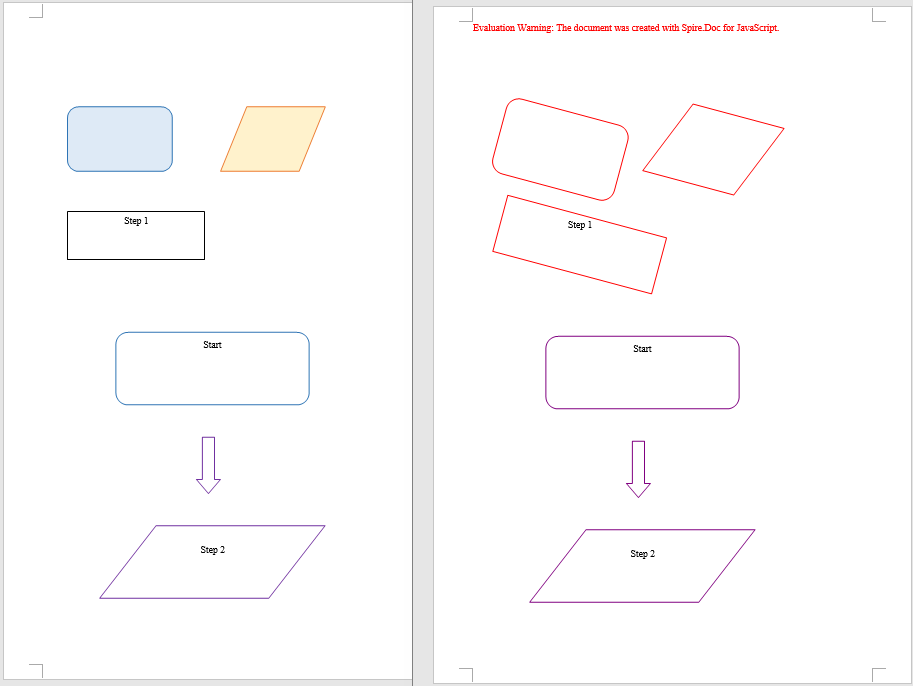
The code above keeps each shape's original position and text while restyling every shape in the document with an orange fill and a red outline, scaling it up to 120% and rotating it 15 degrees, and the child shapes inside shape groups get the new outline color as well
FAQ
Shapes end up misplaced or pushed off the page after being added
Cause: The meaning of the coordinates in HorizontalPosition/VerticalPosition depends on the frame of reference (the origin). If HorizontalOrigin/VerticalOrigin are not set explicitly, the coordinates default to the paragraph or the column, so they shift along with paragraph indentation and page margins, and the shape drifts away from the intended position.
Solution: Specify the frame of reference with HorizontalOrigin/VerticalOrigin first, and then set the coordinate values:
// Position the shape relative to the page
shape.HorizontalOrigin = wasmModule.HorizontalOrigin.Page;
shape.HorizontalPosition = x;
shape.VerticalOrigin = wasmModule.VerticalOrigin.Page;
shape.VerticalPosition = y + 50;
Some objects are missed when deleting shapes
Cause: In Spire.Doc a shape does not have just one DocumentObjectType: regular shapes and text boxes are uniformly Shape, shape groups are ShapeGroup, and a text box created in memory and not yet saved is TextBox. Checking only for Shape will miss shape groups and unsaved text boxes. On top of that, ChildObjects.Remove shifts the indexes of all subsequent child objects forward, so reading ChildObjects.Count while removing during the same loop will also skip some objects.
Solution: Collect all three types into an array in one pass first, then process the array one item at a time; when modifying the child shapes inside a shape group, drill down into its ChildObjects and iterate separately:
// Collect the shape objects of all three types first
if (objType == wasmModule.DocumentObjectType.Shape
  || objType == wasmModule.DocumentObjectType.ShapeGroup
  || objType == wasmModule.DocumentObjectType.TextBox) {
  shapes.push(docObj);
}

// Then remove them together
for (let m = 0; m < shapes.length; m++) {
  para.ChildObjects.Remove(shapes[m]);
}
Get a Free License
Spire.Doc for JavaScript offers a 30-day full-featured free trial license with no functional limitations. Apply here to evaluate before purchasing.
