Contract revisions, proposal reviews and policy updates all end with the same question: what exactly changed between this version and the last one. Comparing page by page is slow and easy to miss; recording the comparison as tracked changes lets each item be confirmed in Word, and the differences can then be organized into a list for the reviewer.
This article uses Spire.Doc for JavaScript to do this work in the browser. The sample uses two versions of the same "Starlan Membership Data Platform Construction Project Cooperation Proposal": Original.docx is the October 15 draft and Revised.docx is the October 28 review draft. The two versions contain more than ten changes, including the preparation date, the contract amount, section headings and the header. The whole process runs on the client side with WebAssembly, requires no Office installation and depends on no backend, so the documents stay on the user's device.
This article covers three features:
- Compare Two Word Documents and Generate a Tracked Version
- Control the Scope of the Comparison with Options
- Extract and Export a List of Differences
The examples read Original.docx and Revised.docx from public/data; put both files into the public/data directory of the project before running them.
For installation and project setup, refer to Integrating Spire.Doc for JavaScript in a React Project. The examples below assume that Spire.Doc is installed and the WebAssembly module is initialized.
Compare Two Word Documents and Generate a Tracked Version
Comparing two Word documents and generating a tracked version is done with a single call to Document.Compare(). The method works with an "original + revised" model: the document that calls the method is the original, the document passed as the argument is the revised version, and the comparison result is written back into the calling document as tracked changes.
| Role | How it is provided | Description |
|---|---|---|
| Original | The document that calls Compare() |
Rewritten as the version with tracked changes after the comparison |
| Revised | The document passed as an argument | Only its content is read; it is not modified |
| Author | The string passed as the second argument | Written into every revision as the author name |
The comparison modifies the original object itself. When the original version has to be preserved, reload the file or save a copy instead of saving the original object after the comparison.
The specific steps are as follows:
- Get the Spire.Doc WASM module and confirm that it is ready.
- Load the font and
Original.docx,Revised.docxinto the VFS. - Create two
Documentinstances and load the two documents. - Call
Compare()on the original and pass in the revised document and the author name. - Save the result document, read it from the VFS and trigger a browser download.
The code for comparing two Word documents is as follows:
function App() {
  const compareDocuments = async () => {
    // Get the Spire.Doc WASM module
    const docModule = window.wasmModule?.spiredoc;

    if (!docModule) {
      alert('Spire.Doc is not ready yet');
      return;
    }

    // Load the two sample documents
    await window.spire.FetchFileToVFS('Original.docx', '', `${process.env.PUBLIC_URL}/data/`);
    await window.spire.FetchFileToVFS('Revised.docx', '', `${process.env.PUBLIC_URL}/data/`);

    // Load the original and the revised document separately
    const original = new docModule.Document();
    original.LoadFromFile('Original.docx');

    const revised = new docModule.Document();
    revised.LoadFromFile('Revised.docx');

    // Call Compare on the original; the tracked changes are written into it
    original.Compare(revised, 'Contract Review');

    // Save the result document with tracked changes
    const outputFileName = 'CompareResult.docx';
    original.SaveToFile({ fileName: outputFileName, fileFormat: docModule.FileFormat.Docx2013 });

    // Release the two document instances
    revised.Dispose();
    original.Dispose();

    // Read the result from the VFS and trigger the download
    const fileArray = window.dotnetRuntime.Module.FS.readFile(outputFileName);
    const blob = new Blob([fileArray], {
      type: 'application/vnd.openxmlformats-officedocument.wordprocessingml.document',
    });
    const url = URL.createObjectURL(blob);
    const a = document.createElement('a');
    a.href = url;
    a.download = outputFileName;
    a.click();
    URL.revokeObjectURL(url);
  };

  return (
    <div style={{ textAlign: 'center', height: '300px' }}>
      <h1>Compare Two Word Documents</h1>
      <button onClick={compareDocuments}>Start Comparison</button>
    </div>
  );
}

export default App;
When the result document is opened in Word, it appears in the revision view: inserted content is underlined, deleted content is struck through, and the body structure and page margins are preserved:
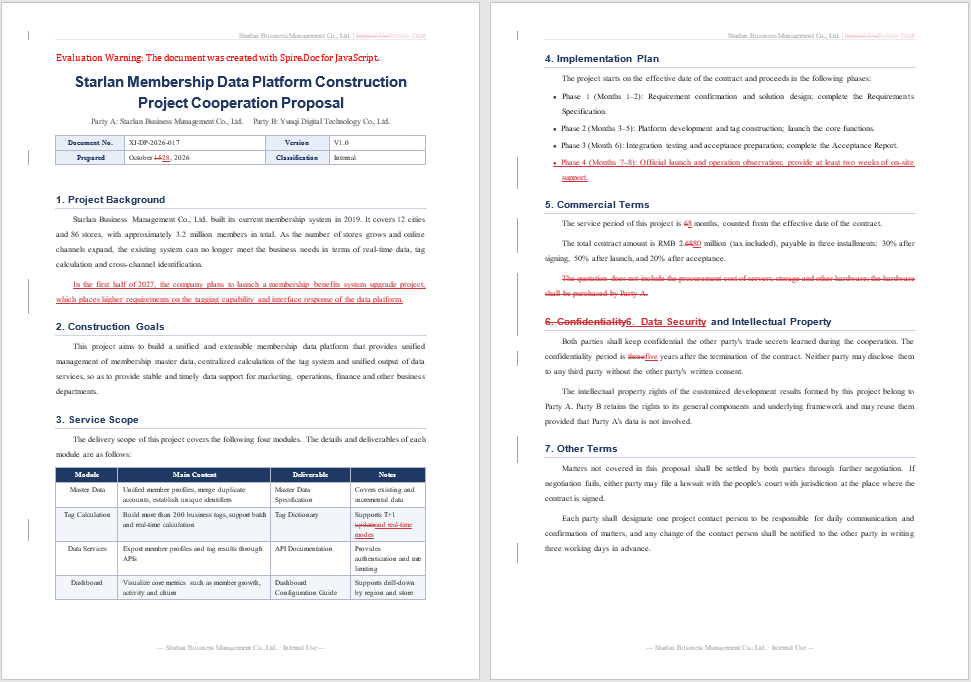
In the Preparation row, the old day number and the new day number appear side by side with a strikethrough and an underline, corresponding to a revision that replaces the old preparation date with the new one. The whole Phase 4 bullet is new content and is therefore underlined throughout. The paragraph "The quotation does not include the procurement cost of servers, storage and other hardware; the hardware shall be purchased by Party A." has been deleted and is shown with a strikethrough. The header label is likewise recorded as a revision.
Use HasChanges to Check Whether the Two Documents Differ
After the comparison, Document.HasChanges reports whether the document contains any revisions, so the check can be made before the result is saved. When the two documents are identical in content and formatting, the property is false and all four revision collections are empty:
original.Compare(revised, 'Contract Review');

// No need to save the result document when there is no difference
if (!original.HasChanges) {
  alert('The two documents are identical');
  return;
}
Control the Scope of the Comparison with Options
The scope of the comparison is determined by the four members of CompareOptions. By default, differences in formatting, tables and headers and footers are all recorded, while real-world scenarios often care about only part of them: a policy revision cares only about the wording of the clauses, a table version check looks only at the cell contents, and a formatting adjustment can be ignored altogether.
| Member | Default value | Effect |
|---|---|---|
IgnoreFormatting |
false |
Ignore differences in character and paragraph formatting |
IgnoreTable |
false |
Ignore tables; changes inside tables do not take part in the comparison |
IgnoreHeadersAndFooters |
false |
Ignore headers and footers |
TextCompareLevel |
TextDiffMode.Word |
Text comparison granularity; can be changed to TextDiffMode.Char |
The options have to be passed in object form, that is, Compare({ document, author, options }). Calling the method with positional arguments in the order "document, author, options" reports an ambiguous call; passing an object instead resolves it.
The specific steps are as follows:
- Load the font and the two documents, create the original and revised instances and load them separately.
- Create a
CompareOptionsinstance and enable the ignore switches as required. - Pass
document,authorandoptionsas an object and callCompare(). - Save the result document, read it from the VFS and trigger a browser download.
The code for comparing with options is as follows:
function App() {
  const compareWithOptions = async () => {
    // Get the Spire.Doc WASM module
    const docModule = window.wasmModule?.spiredoc;

    if (!docModule) {
      alert('Spire.Doc is not ready yet');
      return;
    }

    await window.spire.FetchFileToVFS('Original.docx', '', `${process.env.PUBLIC_URL}/data/`);
    await window.spire.FetchFileToVFS('Revised.docx', '', `${process.env.PUBLIC_URL}/data/`);

    const original = new docModule.Document();
    original.LoadFromFile('Original.docx');

    const revised = new docModule.Document();
    revised.LoadFromFile('Revised.docx');

    // Set the comparison scope item by item
    const options = new docModule.CompareOptions();
    // Only text changes matter; font and paragraph adjustments are not recorded
    options.IgnoreFormatting = true;
    // Table contents are checked separately and are excluded from this comparison
    options.IgnoreTable = true;
    // Headers and footers are maintained by the template
    options.IgnoreHeadersAndFooters = true;

    // Pass the options as an object
    original.Compare({ document: revised, author: 'Contract Review', options });

    const outputFileName = 'CompareResultOptions.docx';
    original.SaveToFile({ fileName: outputFileName, fileFormat: docModule.FileFormat.Docx2013 });

    revised.Dispose();
    original.Dispose();

    const fileArray = window.dotnetRuntime.Module.FS.readFile(outputFileName);
    const blob = new Blob([fileArray], {
      type: 'application/vnd.openxmlformats-officedocument.wordprocessingml.document',
    });
    const url = URL.createObjectURL(blob);
    const a = document.createElement('a');
    a.href = url;
    a.download = outputFileName;
    a.click();
    URL.revokeObjectURL(url);
  };

  return (
    <div style={{ textAlign: 'center', height: '300px' }}>
      <h1>Compare Two Word Documents with Options</h1>
      <button onClick={compareWithOptions}>Start Comparison</button>
    </div>
  );
}

export default App;
For the same documents, the default comparison and the comparison with the ignore options enabled look as follows:
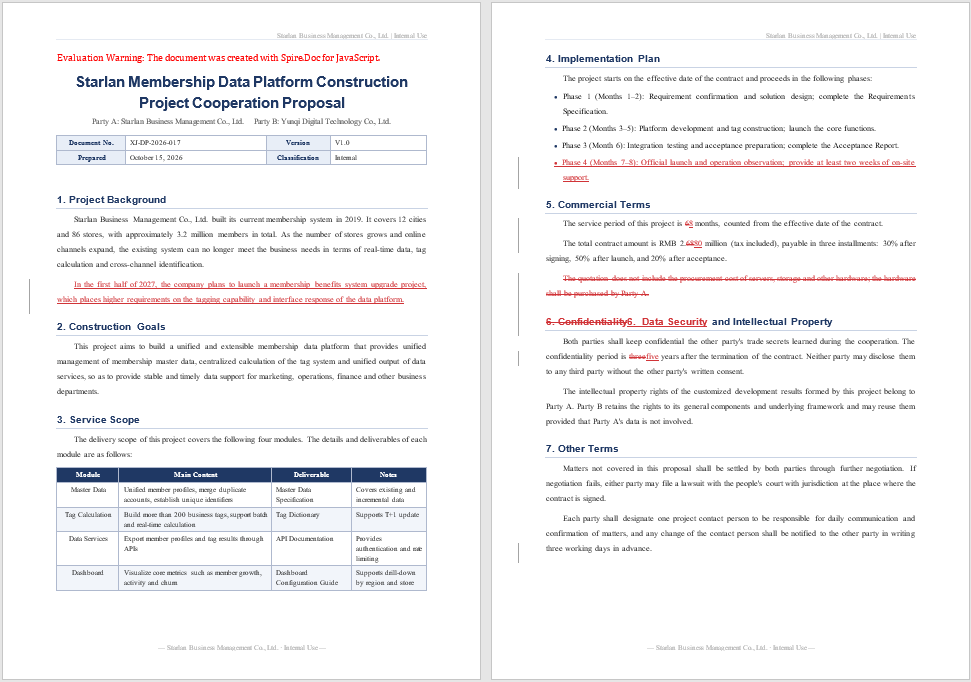
On the left is the default comparison: the header shows the change between "Internal Use" and "Review Draft", and the preparation date and the notes of the "Tag Calculation" row in the document info table are marked as revisions. On the right, with the three ignore options enabled, the header returns to the original text and the changes in the table no longer generate revision marks; the table keeps the original wording.
Compare Text Differences by Character
By default the comparison works word by word, so a replacement is recorded as whole words. In the sample, the confidentiality period is changed from "three" to "five", which is recorded as "Delete three" and "Insert five". With character-level comparison, only the characters that are the same before and after are kept as common content; the same change becomes "Delete thre" and "Insert fiv", and when several passages are rewritten at once, the number of scattered entries increases noticeably.
const options = new docModule.CompareOptions();

// Compare text by character, so that differences are located down to a single character
options.TextCompareLevel = docModule.TextDiffMode.Char;

original.Compare({ document: revised, author: 'Contract Review', options });
After Formatting Is Ignored, the Result Uses the Original Formatting
With IgnoreFormatting enabled, the result document no longer contains formatting revisions, and the affected paragraphs keep the font of the original; font changes made in the revised document are not written into the result. In the sample, the "7. Other Terms" heading is changed from Arial to Georgia in the revised version; with this option enabled, the result document still shows the original Arial.
const options = new docModule.CompareOptions();

// Compare text only; formatting changes do not generate revision marks
options.IgnoreFormatting = true;

original.Compare({ document: revised, author: 'Contract Review', options });
When the layout of the revised version has to be reflected in the result, do not enable this option; let the formatting differences be kept as revisions instead.
Extract and Export a List of Differences
Extracting and exporting a list of differences is based on DifferRevisions. Tracked changes are suitable for confirming items one by one in Word, while batch scenarios need a searchable list: DifferRevisions groups the revisions produced by the comparison by type, so the inserted, deleted, moved-to and moved-from content can be taken out separately and assembled into text for export.
| Member | Effect |
|---|---|
new DifferRevisions(doc) |
Creates a revision collection based on the compared document |
InsertRevisions |
The collection of inserted content |
DeleteRevisions |
The collection of deleted content |
MoveToRevisions |
The collection of content moved to another position |
MoveFromRevisions |
The collection of content moved from another position |
All four collections provide a Count property and a get(i) method, which take the elements out one by one by index.
The specific steps are as follows:
- Load the font and the two documents and complete the comparison.
- Create
DifferRevisionsbased on the compared document. - Iterate through the four revision collections in turn, take out the text objects and read their text.
- Assemble the result into tab-separated text, write it into the VFS, and save the comparison result document as well.
- Download the result document and the list file separately.
The code for extracting the list of differences is as follows:
function App() {
  const extractDifferences = async () => {
    // Get the Spire.Doc WASM module
    const docModule = window.wasmModule?.spiredoc;

    if (!docModule) {
      alert('Spire.Doc is not ready yet');
      return;
    }

    await window.spire.FetchFileToVFS('Original.docx', '', `${process.env.PUBLIC_URL}/data/`);
    await window.spire.FetchFileToVFS('Revised.docx', '', `${process.env.PUBLIC_URL}/data/`);

    const original = new docModule.Document();
    original.LoadFromFile('Original.docx');

    const revised = new docModule.Document();
    revised.LoadFromFile('Revised.docx');

    original.Compare(revised, 'Contract Review');

    // Create the revision collections based on the compared document
    const revisions = new docModule.DifferRevisions(original);
    const rows = [];

    const collect = (collection, label) => {
      for (let i = 0; i < collection.Count; i++) {
        const item = collection.get(i);
        // The revision collections contain both paragraphs and text objects; take only text objects here
        if (item.DocumentObjectType !== docModule.DocumentObjectType.TextRange) continue;
        const text = docModule.TextRange.Convert(item).Text.trim();
        if (text) rows.push(`${label}\t${text}`);
      }
    };

    collect(revisions.InsertRevisions, 'Insert');
    collect(revisions.DeleteRevisions, 'Delete');
    collect(revisions.MoveToRevisions, 'Move To');
    collect(revisions.MoveFromRevisions, 'Move From');

    // The first column is the revision type and the second column is the revision content
    const report = `Type\tContent\r\n${rows.join('\r\n')}\r\n`;
    window.dotnetRuntime.Module.FS.writeFile('CompareReport.txt', report);

    // The comparison result and the list are generated from the same comparison
    original.SaveToFile({ fileName: 'CompareResult.docx', fileFormat: docModule.FileFormat.Docx2013 });

    revisions.Dispose();
    revised.Dispose();
    original.Dispose();

    // Download the result document and the list file in turn
    const outputs = [
      ['CompareResult.docx', 'application/vnd.openxmlformats-officedocument.wordprocessingml.document'],
      ['CompareReport.txt', 'text/plain;charset=utf-8'],
    ];
    for (const [fileName, mime] of outputs) {
      const fileArray = window.dotnetRuntime.Module.FS.readFile(fileName);
      const blob = new Blob([fileArray], { type: mime });
      const url = URL.createObjectURL(blob);
      const a = document.createElement('a');
      a.href = url;
      a.download = fileName;
      a.click();
      URL.revokeObjectURL(url);
    }
  };

  return (
    <div style={{ textAlign: 'center', height: '300px' }}>
      <h1>Extract a List of Word Document Differences</h1>
      <button onClick={extractDifferences}>Extract Differences</button>
    </div>
  );
}

export default App;
The exported list of differences is shown below, with 12 insertions and 8 deletions:
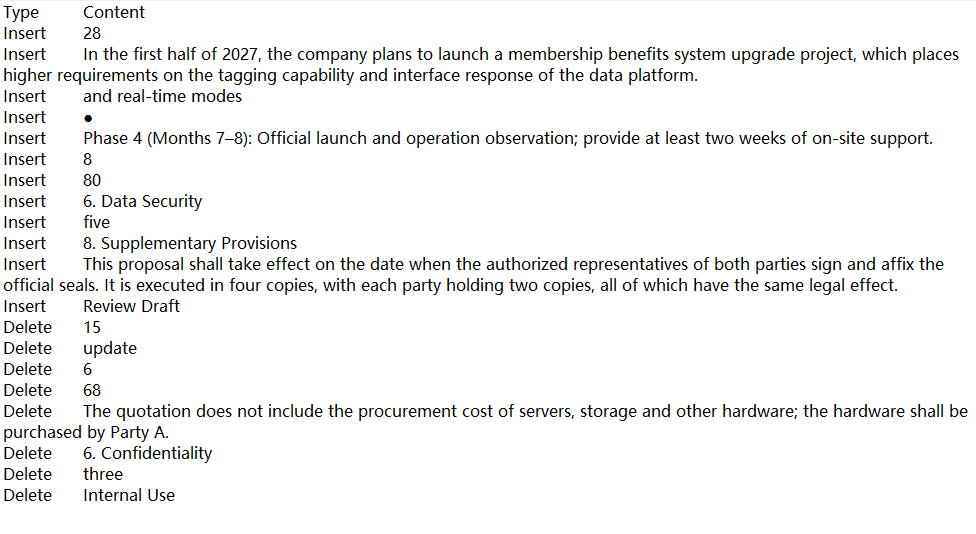
The entries are arranged in the order of the revision collections, with insertions first and deletions after. The preparation date is listed as "Insert 28" and "Delete 15"; the rewrite of the section heading is likewise split into "Delete 6. Confidentiality" and "Insert 6. Data Security"; the bullet marker "●" before the new paragraph and the body of Phase 4 each occupy a row as well.
Object Types and Text Extraction in the Revision Collections
The elements of the revision collections are document objects, which may be TextRange or Paragraph. TextRange.Convert() accepts only text objects and throws a cast error for paragraph objects; paragraphs should be read with Paragraph.Convert() instead. The example takes only text objects according to DocumentObjectType, so that one change occupies only one row:
for (let i = 0; i < collection.Count; i++) {
  const item = collection.get(i);

  // Text object: read the text with TextRange.Convert
  if (item.DocumentObjectType === docModule.DocumentObjectType.TextRange) {
    const text = docModule.TextRange.Convert(item).Text.trim();
  }

  // Paragraph object: read the text with Paragraph.Convert
  if (item.DocumentObjectType === docModule.DocumentObjectType.Paragraph) {
    const paragraphText = docModule.Paragraph.Convert(item).Text.trim();
  }
}
Moving a Paragraph Is Recorded as an Insertion and a Deletion
When a passage is moved forward or backward as a whole, the comparison usually records it as one deletion plus one insertion; in the tests, MoveToRevisions and MoveFromRevisions stay empty. The list is therefore dominated by the insertion and deletion types, and iterating the move collections is mainly a completeness check, so that nothing is missed when move revisions are produced:
// The move collections may be empty; no special check is needed before iterating, since the loop does not run when Count is 0
collect(revisions.MoveToRevisions, 'Move To');
collect(revisions.MoveFromRevisions, 'Move From');
FAQ
Do the files have to be uploaded to a server when comparing Word documents
Not in the usage described in this article. Spire.Doc for JavaScript runs in the browser with WebAssembly, the two documents are read and written locally through the virtual file system (VFS), and loading, comparison and saving all happen locally; the library itself does not send the files to a server. Whether the files eventually leave the device depends on the code you add to the page.
Why do numbers appear run together in the result document, for example "2.6880"
Cause: The tracked change places the deleted "68" and the inserted "80" next to each other at the same position. The deleted part is struck through and the inserted part is underlined, so at a small font size the two are easily read as one number; the "68 months" in the service period is the same case.
Solution: Check the changes one by one with the list of differences. The list splits the same change into two rows, so the old and the new values are clear at a glance:
// The same change is split into two rows in the list
// Delete    68
// Insert    80
Does the comparison require the two documents to have exactly the same formatting
No. The default comparison checks content and formatting together, and differences in fonts, paragraph spacing and so on are recorded as formatting revisions without affecting the identification of text differences. When those differences are not the focus of the review, enable IgnoreFormatting so that the list keeps only the text changes.
const options = new docModule.CompareOptions();
options.IgnoreFormatting = true;
original.Compare({ document: revised, author: 'Contract Review', options });
Why does the result still use the original font after formatting is ignored
Cause: IgnoreFormatting only stops formatting revisions from being recorded; the comparison result is still based on the original, and font adjustments made in the revised document are not written into the result. In the sample, the "7. Other Terms" heading is changed from Arial to Georgia, and with this option enabled the result document still shows Arial.
Solution: When the layout of the revised version has to be reflected in the result, keep the option at its default value and let the formatting differences be kept as revisions:
const options = new docModule.CompareOptions();
// Keep the formatting differences and let the reviewer confirm them one by one
options.IgnoreFormatting = false;
original.Compare({ document: revised, author: 'Contract Review', options });
Why do fragments such as "Delete thre" and "Insert fiv" appear after comparing by character
Cause: Word-by-word comparison records a replacement as whole words, so the change from "three" to "five" is recorded as "Delete three" and "Insert five". Character-level comparison compares character by character; the trailing "e" that is the same before and after is kept as common content, and the remaining "thre" and "fiv" become separate entries. When several lines in the same paragraph are rewritten at the same time, there are more such scattered fragments.
Solution: When the readability of the list matters most, keep the default TextDiffMode.Word; when the difference really has to be located down to a single character, switch to TextDiffMode.Char:
const options = new docModule.CompareOptions();

// Finer granularity: differences are located down to a single character
options.TextCompareLevel = docModule.TextDiffMode.Char;
original.Compare({ document: revised, author: 'Contract Review', options });
Get a Free License
Spire.Doc for JavaScript offers a 30-day full-featured free trial license with no functional limitations. Apply here to evaluate before purchasing.
