A more common situation in real-world work is a document that is already written and has a complete chapter structure, but no table of contents was generated at the time. There is no need to rearrange the content — adding a TOC field on top of the existing heading styles is enough to produce a complete table of contents with page numbers and hyperlinks. Spire.Doc for JavaScript opens and edits Word documents directly in the browser via WebAssembly, managing input and output files through a virtual file system (VFS) — no backend server required.
Compared with creating a new document, adding a table of contents to an existing document involves two extra key steps: loading the original document from VFS with LoadFromFile, and moving the table of contents paragraph to the very beginning of the document with Paragraphs.Insert, instead of appending it to the end by default.
This article covers two core features:
For installation and project setup, refer to Integrating Spire.Doc for JavaScript in a React Project. The examples below assume Spire.Doc is installed and the WebAssembly module is initialized.
Add a Default Table of Contents
Adding a default table of contents to an existing document has three phases: first, load the font file and the Word document to be processed into the WASM virtual file system via FetchFileToVFS; then instantiate a Document and load the document with LoadFromFile, create a new paragraph and insert the TOC field with AppendTOC, and move it to the very beginning of the document with Paragraphs.Insert(0, tocPara); finally, call UpdateTableOfContents to fill in the entries and page numbers, save the document, read the generated file from VFS, wrap it as a Blob, and trigger a browser download.
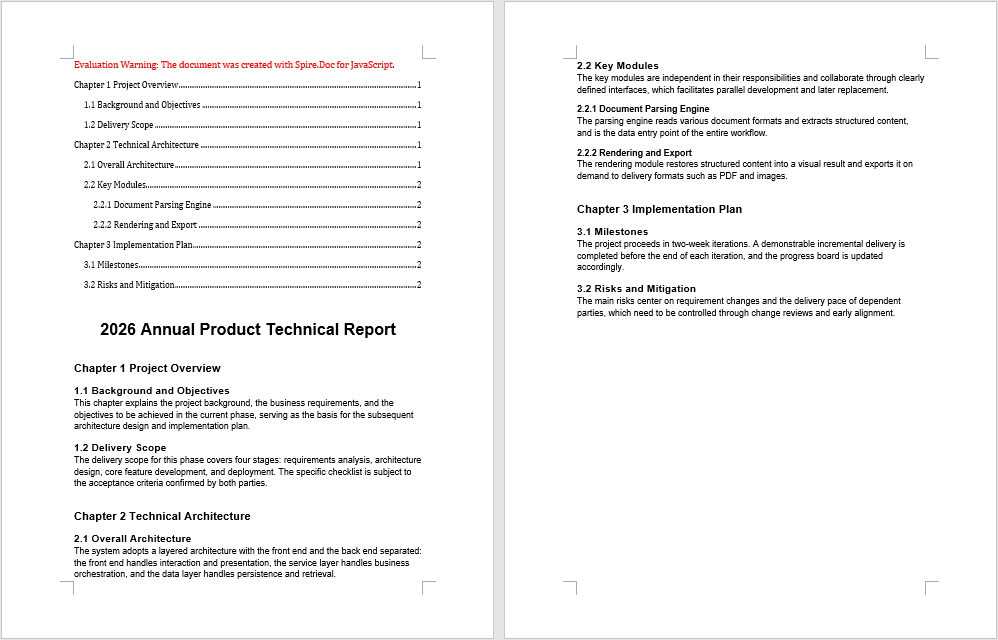
The input document used in the example, AddTocToExisting.docx, is a technical report with three chapters and eleven multi-level headings but no table of contents yet.
function App() {
  const AddTableOfContentsToExistingDocument = async () => {
    // Get the Spire.Doc WASM module
    const docModule = window.wasmModule?.spiredoc;

    // Make sure the WASM module has fully loaded
    if (!docModule) {
      alert('Spire.Doc is not ready yet');
      return;
    }

    // Load the font and the existing Word document into VFS
    await window.spire.FetchFileToVFS('ARIAL.TTF', '/Library/Fonts/', `${process.env.PUBLIC_URL}/font/`);
    const inputFileName = 'AddTocToExisting.docx';
    await window.spire.FetchFileToVFS(inputFileName, '', `${process.env.PUBLIC_URL}data/`);

    // Create a document instance and load the existing document
    const doc = new docModule.Document();
    doc.LoadFromFile({ fileName: inputFileName });

    // Get the first section of the document
    let section = doc.Sections.get_Item(0);

    // Create a new paragraph and insert the TOC field, collecting Heading 1 through Heading 3 entries
    let tocPara = section.AddParagraph();
    tocPara.AppendTOC(1, 3);

    // Move the table of contents paragraph to the very beginning of the document
    section.Paragraphs.Insert(0, tocPara);

    // Update the table of contents to fill in entries and page numbers
    doc.UpdateTableOfContents();

    // Define the output file name and save
    const outputFileName = "Add a Default TOC to an Existing Document.docx";
    doc.SaveToFile({ fileName: outputFileName, fileFormat: docModule.FileFormat.Docx2013 });

    // Release resources
    doc.Dispose();

    // Read the generated file from VFS and trigger the download
    const modifiedFileArray = window.dotnetRuntime.Module.FS.readFile(outputFileName);
    const blob = new Blob([modifiedFileArray], { type: 'application/vnd.openxmlformats-officedocument.wordprocessingml.document' });
    const url = URL.createObjectURL(blob);
    const a = document.createElement('a');
    a.href = url;
    a.download = outputFileName;
    a.click();
    URL.revokeObjectURL(url);
  };

  return (
    <div style={{ textAlign: 'center', height: '300px' }}>
      <h1>Click the button below to add a default table of contents to an existing document</h1>
      <button onClick={AddTableOfContentsToExistingDocument}>
        Generate
      </button>
    </div>
  );
}

export default App;
After the existing document is loaded with LoadFromFile and a TOC field is inserted, the table of contents is placed at the very beginning, while the original chapter content and layout remain unchanged
Add a Custom Table of Contents
The table of contents generated by AppendTOC uses Word's default field switches. When you need to control its exact behavior, you can construct a TableOfContent object directly and specify the switch string instead. The difference from the previous feature lies in how it is inserted: you must manually add the table of contents object to a paragraph, supply the field separator and field end marks, and assign the object to document.TOC. The commonly used field switches and their meanings are as follows:
| Switch | Description |
|---|---|
\o "1-3" |
Collects entries by built-in heading styles; here it means including Heading 1 through Heading 3 |
\h |
Turns table of contents entries into hyperlinks that jump to the corresponding chapter when clicked |
\z |
Hides page numbers and tab leaders in Web Layout view |
\u |
Collects entries by the outline level of the paragraphs |
If you want the table of contents to occupy its own page and be separated from the body, add a page break to the same section after inserting the table of contents paragraph:
tocPara.AppendBreak(docModule.BreakType.PageBreak);
function App() {
  const CustomizeTableOfContent = async () => {
    // Get the Spire.Doc WASM module
    const docModule = window.wasmModule?.spiredoc;

    // Make sure the WASM module has fully loaded
    if (!docModule) {
      alert('Spire.Doc is not ready yet');
      return;
    }

    // Load the font and the existing Word document into VFS
    await window.spire.FetchFileToVFS('ARIAL.TTF', '/Library/Fonts/', `${process.env.PUBLIC_URL}/font/`);
    const inputFileName = 'AddTocToExisting.docx';
    await window.spire.FetchFileToVFS(inputFileName, '', `${process.env.PUBLIC_URL}data/`);

    // Create a document instance and load the existing document
    const doc = new docModule.Document();
    doc.LoadFromFile({ fileName: inputFileName });

    // Get the first section of the document
    let section = doc.Sections.get_Item(0);

    // Construct a table of contents object with custom field switches
    let toc = new docModule.TableOfContent(doc, "{\\o \"1-3\" \\h \\z \\u}");

    // Add the table of contents object to a paragraph
    let tocPara = section.AddParagraph();
    tocPara.Items.Add(toc);

    // Supply the field separator and field end marks
    tocPara.AppendFieldMark(docModule.FieldMarkType.FieldSeparator);
    tocPara.AppendText("TOC");
    tocPara.AppendFieldMark(docModule.FieldMarkType.FieldEnd);

    // Bind this table of contents to the document
    doc.TOC = toc;

    // Move the table of contents paragraph to the very beginning of the document
    section.Paragraphs.Insert(0, tocPara);

    // Update the table of contents to fill in entries and page numbers
    doc.UpdateTableOfContents();

    // Define the output file name and save
    const outputFileName = "Add a Custom TOC to an Existing Document.docx";
    doc.SaveToFile({ fileName: outputFileName, fileFormat: docModule.FileFormat.Docx2013 });

    // Release resources
    doc.Dispose();

    // Read the generated file from VFS and trigger the download
    const modifiedFileArray = window.dotnetRuntime.Module.FS.readFile(outputFileName);
    const blob = new Blob([modifiedFileArray], { type: 'application/vnd.openxmlformats-officedocument.wordprocessingml.document' });
    const url = URL.createObjectURL(blob);
    const a = document.createElement('a');
    a.href = url;
    a.download = outputFileName;
    a.click();
    URL.revokeObjectURL(url);
  };

  return (
    <div style={{ textAlign: 'center', height: '300px' }}>
      <h1>Click the button below to add a custom table of contents to an existing document</h1>
      <button onClick={CustomizeTableOfContent}>
        Generate
      </button>
    </div>
  );
}

export default App;
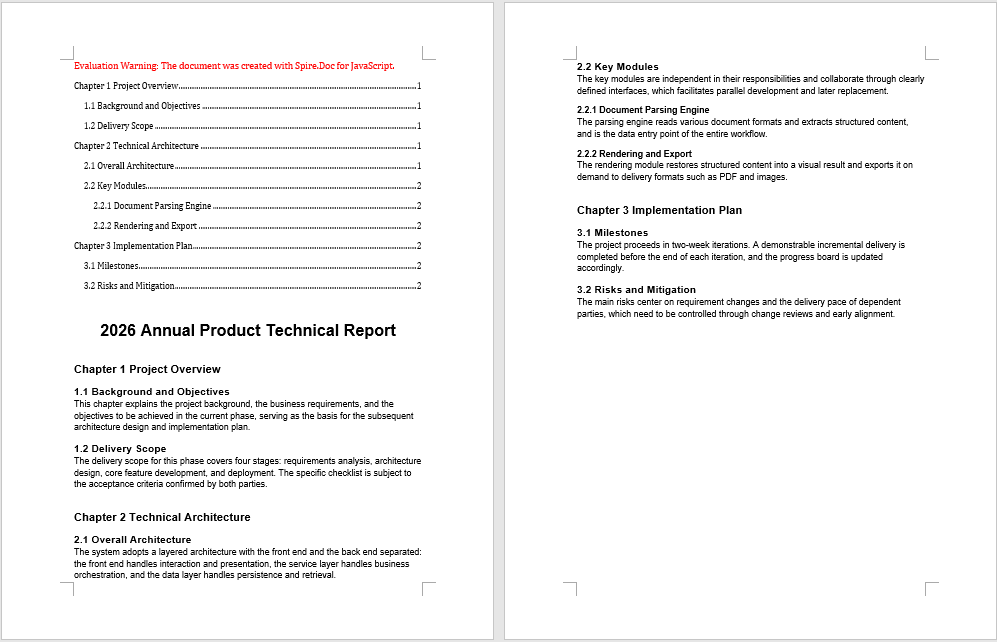
The table of contents generated with a TableOfContent object and custom field switches has its entry levels, hyperlinks, and page numbers all determined by the switch string
FAQ
The table of contents appears at the end of the document instead of the beginning
Cause: AddParagraph appends a new paragraph to the end of its section by default, so inserting the TOC field directly on it naturally places the table of contents at the end as well. The content of an existing document has already been laid out, so the insertion position must be specified explicitly.
Solution: Create the table of contents paragraph first, then move it to the very beginning of the document with Paragraphs.Insert:
let tocPara = section.AddParagraph();
tocPara.AppendTOC(1, 3);
section.Paragraphs.Insert(0, tocPara);
The table of contents is empty
Cause: A TOC field collects entries by heading style. If the chapter headings in the original document were only manually bolded and enlarged without built-in heading styles such as Heading1 to Heading3 applied, no entries will appear in the table of contents after updating.
Solution: First check whether the headings in the original document use built-in heading styles. If not, re-apply the style to those paragraphs after loading the document:
let heading = section.Paragraphs.get_Item(2);
heading.ApplyStyle({ builtinStyle: docModule.BuiltinStyle.Heading1 });
Page numbers in the table of contents are missing or incorrect
Cause: AppendTOC only inserts the TOC field itself; the field content must be updated explicitly. If UpdateTableOfContents is not called before saving, the generated table of contents contains only the field code, with no entries or page numbers.
Solution: Call the update method before SaveToFile:
doc.UpdateTableOfContents();
doc.SaveToFile({ fileName: outputFileName, fileFormat: docModule.FileFormat.Docx2013 });
Get a Free License
Spire.Doc for JavaScript offers a 30-day full-featured free trial license with no functional limitations. Apply here to evaluate before purchasing.
