Document properties record information that lives outside the content itself: title, author, subject, keywords, company, revision count, and the custom fields written by line-of-business systems. During batch archiving, properties free a document from its file name; during content review, they explain where the document came from and which version it is. Moving property handling into the browser lets a user select a file and finish checking or completing the properties right there, without uploading anything to a server.
This article uses Spire.Doc for JavaScript to read and write Word document properties in the browser. The sample uses three documents: Archive.docx is an archived "2026 Third-Quarter Business Analysis Report" with a complete set of properties; Draft.docx is a "2027 Digital Transformation Project Proposal" whose properties still have to be completed; and Contract.docx is an "Intelligent Warehousing Equipment Purchase Contract" that carries custom properties such as the contract number. The whole process runs on the client side with WebAssembly, requires no Office installation and depends on no backend, so the documents are read and written locally and are not uploaded to a server by the library.
This article covers three features:
- Read the Built-in Summary Properties of a Word Document
- Set the Built-in Summary Properties of a Word Document
- Manage the Custom Properties of a Word Document
Word document properties fall into two categories, which differ in where they are stored and what they are used for:
| Category | Access point | Typical fields |
|---|---|---|
| Built-in properties | Document.BuiltinDocumentProperties |
Title, author, subject, keywords, company, revision count |
| Custom properties | Document.CustomDocumentProperties |
Business fields such as contract number, project number and review status |
Word defines the names and meanings of the built-in properties, and most of them can be seen in the File > Info panel. Custom properties are defined by the business side, with no restriction on name or purpose, and the type of the value is described by DocumentProperty.ValueType.
For installation and project setup, refer to Integrating Spire.Doc for JavaScript in a React Project. The examples below assume that Spire.Doc is installed and the WebAssembly module is initialized.
Read the Built-in Summary Properties of a Word Document
The built-in summary properties of a Word document are read through Document.BuiltinDocumentProperties. The property returns a collection in which fields such as title, author and subject are exposed with initial capitals, in the same form as C#, so they can be read by name directly. The result is usually used for checking: whether the title matches the file name, whether the author is empty, and whether the creation date falls within the archiving window.
The built-in properties fall into three groups by purpose:
| Group | Typical fields | Read behavior |
|---|---|---|
| Summary information | Title, Subject, Author, Keywords, Comments, LastAuthor, RevisionNumber, CreateDate, LastSaveDate |
Strings or dates, read directly |
| Extended information | Category, Company, Manager, ContentStatus, HyperLinkBase |
Strings, possibly empty when not set |
| Statistics | PageCount, WordCount, CharCount, ParagraphCount, LinesCount, BytesCount |
Read-only, taken from the statistics recorded when the file was saved |
The specific steps are as follows:
- Get the Spire.Doc WASM module and confirm that it is ready.
- Load the font and
Archive.docx, create aDocumentobject and load the file. - Read the title, author, subject and other properties in turn through
BuiltinDocumentProperties. - Join the values into tab-separated text and write it to the VFS.
- Read the text file from the VFS and trigger a browser download.
The code for reading the built-in summary properties of a Word document is as follows:
function App() {
  const readBuiltinProperties = async () => {
    // Get the Spire.Doc WASM module
    const docModule = window.wasmModule?.spiredoc;

    if (!docModule) {
      alert('Spire.Doc is not ready yet');
      return;
    }

    // Load the document to be checked
    await window.spire.FetchFileToVFS('Archive.docx', '', `${process.env.PUBLIC_URL}/data/`);

    const doc = new docModule.Document();
    doc.LoadFromFile('Archive.docx');

    // Date properties return Date objects; format them before joining the text
    const formatDate = (value) =>
      value instanceof Date ? value.toLocaleString('en-US', { hour12: false }) : '';

    const props = doc.BuiltinDocumentProperties;
    const report = [
      `Title\t${props.Title ?? ''}`,
      `Subject\t${props.Subject ?? ''}`,
      `Author\t${props.Author ?? ''}`,
      `Last Author\t${props.LastAuthor ?? ''}`,
      `Keywords\t${props.Keywords ?? ''}`,
      `Comments\t${props.Comments ?? ''}`,
      `Category\t${props.Category ?? ''}`,
      `Company\t${props.Company ?? ''}`,
      `Revision Number\t${props.RevisionNumber ?? ''}`,
      `Created\t${formatDate(props.CreateDate)}`,
      `Last Saved\t${formatDate(props.LastSaveDate)}`,
    ].join('\r\n');

    // Write to the VFS, then read it back as a Blob to trigger the download
    window.dotnetRuntime.Module.FS.writeFile('BuiltinProperties.txt', report);
    doc.Dispose();

    const fileArray = window.dotnetRuntime.Module.FS.readFile('BuiltinProperties.txt');
    const blob = new Blob([fileArray], { type: 'text/plain;charset=utf-8' });
    const url = URL.createObjectURL(blob);
    const a = document.createElement('a');
    a.href = url;
    a.download = 'BuiltinProperties.txt';
    a.click();
    URL.revokeObjectURL(url);
  };

  return (
    <div style={{ textAlign: 'center', height: '300px' }}>
      <h1>Read Document Properties</h1>
      <button onClick={readBuiltinProperties}>Export Property List</button>
    </div>
  );
}

export default App;
The exported property list is shown below, with the archived document being checked on the left:
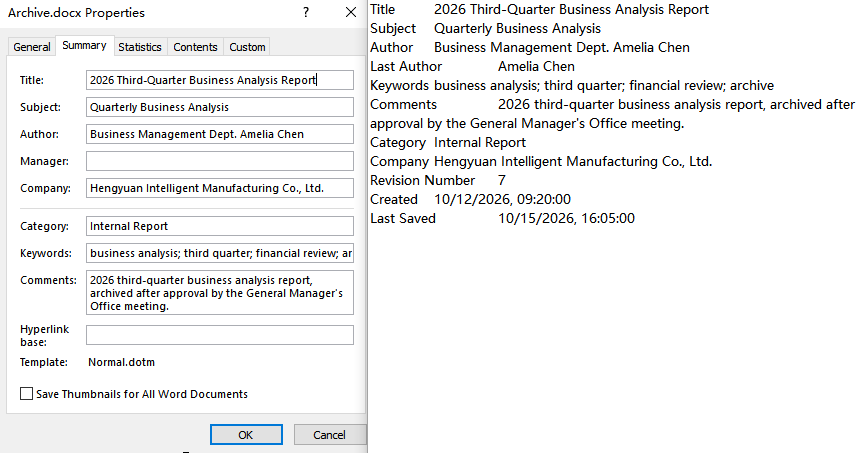
The list has 11 items. The title, subject, author, keywords, comments, category and company all match the archiving requirements; the revision number is 7; and the creation and last-saved times have been formatted as local time by toLocaleString, reading 10/12/2026, 09:20:00 and 10/15/2026, 16:05:00 respectively.
What Unset Properties Return
Most built-in properties that have not been set return an empty string; fields such as Keywords and ContentStatus return null when the document has no corresponding entry, as is the case for Draft.docx in the sample. Date properties return a JavaScript Date object, and when unset they hold the default value of year 1 rather than an empty string. Both null and an empty string therefore mean only that there is no readable value; neither can tell whether the property was never set or was set to an empty value. The ?? '' in the code only prevents null from being joined as undefined; it does not mean that the property actually exists.
Statistics and the Body Content
Statistics such as PageCount, WordCount, CharCount and ParagraphCount are read from the values recorded in docProps/app.xml when the file was saved, not recalculated from the current content. The sample document records no statistics, so WordCount, CharCount and ParagraphCount all read 0, and PageCount defaults to 1. After calling doc.UpdateWordCount(), the word, character and paragraph counts are recalculated from the current content (598, 3047 and 88 in the sample), while PageCount, LinesCount and BytesCount are not affected. When accurate statistics are needed, call that method first instead of reading the properties directly.
Set the Built-in Summary Properties of a Word Document
The built-in summary properties of a Word document are set by assigning values to the corresponding fields of BuiltinDocumentProperties. Archiving, delivery and review all require complete properties, and writing them once at generation time is more reliable than filling them in one by one in Word: take the document name as the title, the current department as the author and the business tags as the keywords, so that a batch of documents follows the same convention.
The sample completes the following fields for the discussion draft:
| Property | Value written | Description |
|---|---|---|
Title |
2027 Digital Transformation Project Proposal | Document title |
Subject |
Project Proposal | Subject |
Author |
Digital Transformation Office | Author |
Keywords |
digital transformation; project proposal; fiscal 2027 | Separate multiple keywords with semicolons |
Comments |
Summary properties added according to the archiving rules. | Comments |
Category |
Project Proposal Materials | Category |
Company |
Hengyuan Intelligent Manufacturing Co., Ltd. | Company |
RevisionNumber |
'5' |
Written as a string |
LastAuthor |
Digital Transformation Office | Last author |
CreateDate |
new Date('2026-10-08T10:00:00+08:00') |
Needs a Date object |
The specific steps are as follows:
- Get the WASM module, load the font and
Draft.docx, and load the document. - Assign the title, subject, author, keywords, comments, category and company.
- Write the revision number and last author as strings, and the creation date as a
Dateobject. - Save the document as
DraftWithProperties.docx. - Read the result from the VFS and trigger a browser download.
The code for setting the built-in summary properties of a Word document is as follows:
function App() {
  const setBuiltinProperties = async () => {
    // Get the Spire.Doc WASM module
    const docModule = window.wasmModule?.spiredoc;

    if (!docModule) {
      alert('Spire.Doc is not ready yet');
      return;
    }

    // Load the document whose properties are to be completed
    await window.spire.FetchFileToVFS('Draft.docx', '', `${process.env.PUBLIC_URL}/data/`);

    const doc = new docModule.Document();
    doc.LoadFromFile('Draft.docx');

    const props = doc.BuiltinDocumentProperties;
    props.Title = '2027 Digital Transformation Project Proposal';
    props.Subject = 'Project Proposal';
    props.Author = 'Digital Transformation Office';
    props.Keywords = 'digital transformation; project proposal; fiscal 2027';
    props.Comments = 'Summary properties added according to the archiving rules.';
    props.Category = 'Project Proposal Materials';
    props.Company = 'Hengyuan Intelligent Manufacturing Co., Ltd.';
    // Revision number is written as a string; date properties need a Date object
    props.RevisionNumber = '5';
    props.LastAuthor = 'Digital Transformation Office';
    props.CreateDate = new Date('2026-10-08T10:00:00+08:00');

    const outputFileName = 'DraftWithProperties.docx';
    doc.SaveToFile({ fileName: outputFileName, fileFormat: docModule.FileFormat.Docx2013 });
    doc.Dispose();

    // Read the result from the VFS and trigger the download
    const fileArray = window.dotnetRuntime.Module.FS.readFile(outputFileName);
    const blob = new Blob([fileArray], {
      type: 'application/vnd.openxmlformats-officedocument.wordprocessingml.document',
    });
    const url = URL.createObjectURL(blob);
    const a = document.createElement('a');
    a.href = url;
    a.download = outputFileName;
    a.click();
    URL.revokeObjectURL(url);
  };

  return (
    <div style={{ textAlign: 'center', height: '300px' }}>
      <h1>Set Document Properties</h1>
      <button onClick={setBuiltinProperties}>Write Properties</button>
    </div>
  );
}

export default App;
After the result document is saved and loaded again, the properties read back are as follows:
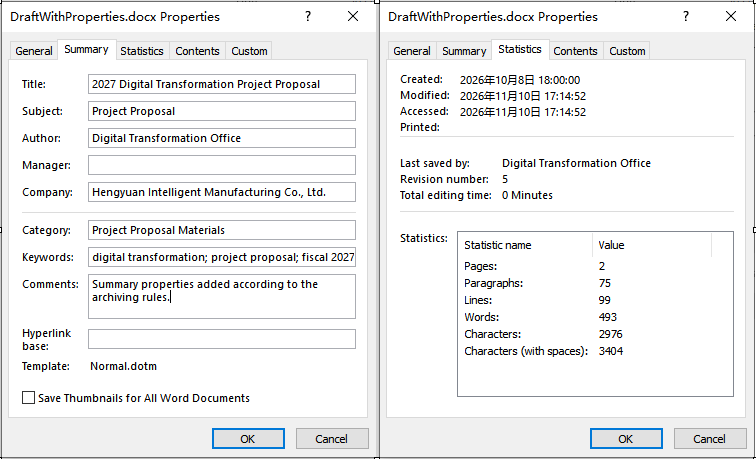
The 10 properties read back after reloading match the values that were written, which shows that the properties were saved with the document. The creation time was written as a Date object and is also displayed as local time after reading back, as 10/8/2026, 10:00:00.
Read-only Properties Cannot Be Written
Statistics such as PageCount, WordCount, CharCount, BytesCount and LinesCount expose only read accessors, and assigning to them does not write the result; in an ES module a direct assignment even throws a TypeError saying that the property has only a getter. Such values should be recalculated from the current content with doc.UpdateWordCount() before saving, instead of being assigned by hand.
Writing Types for the Revision Number and Date Properties
RevisionNumber is written as a string; passing a number reports Assert failed: Value is not a String. CreateDate, LastSaveDate and LastPrinted need a JavaScript Date object; passing a string reports Assert failed: Value is not a Date. The new Date('2026-10-08T10:00:00+08:00') in the sample still reads back as 10/8/2026, 10:00:00 after being written. Date properties round-trip as wall-clock time, so when a document moves across time zones, check first that the browser time zone matches the time zone the document belongs to.
How to Confirm That the Properties Have Been Saved
Whether the write succeeded is decided by the values read back after reloading. Create a new Document, load the result file and read the corresponding fields:
// Reload the result document after saving and read back the written values
const check = new docModule.Document();
check.LoadFromFile('DraftWithProperties.docx');

const checkProps = check.BuiltinDocumentProperties;
console.log(checkProps.Title);
console.log(checkProps.Author);
check.Dispose();
Why the Properties Are Not Visible in File Explorer
The details pane of Windows File Explorer shows only some summary fields and depends on property handlers. Fields such as Category and Company have to be viewed in Word under File > Info > Properties > Advanced Properties. Whether the write succeeded should be judged by the values read back after reloading the document, not by what the file list displays.
Manage the Custom Properties of a Word Document
The custom properties of a Word document are managed through the Document.CustomDocumentProperties collection. Business fields do not fit well into the built-in properties: information such as contract number, project number and review status is clearer in custom properties, where names are user-defined, do not collide, and can be searched by name. The collection supports adding, reading by name or index, updating and deleting.
The main members involved are as follows:
| Member | Effect |
|---|---|
CustomDocumentProperties.Add(name, value) |
Adds a property; the type is inferred from the JavaScript value |
CustomDocumentProperties.get_Item(name) |
Returns a DocumentProperty by name |
CustomDocumentProperties.get_Item(index) |
Returns a property by index, used for enumeration |
DocumentProperty.Name |
Property name |
DocumentProperty.Value |
Property value; reading returns a wrapper object that has to be turned into text with ToString() |
DocumentProperty.ValueType |
Property type enumeration |
CustomDocumentProperties.Remove(name) |
Removes a property by name |
CustomDocumentProperties.Count |
Total number of properties |
The sample contract already carries two custom properties, ContractNo (contract number) and Department (responsible department). The demo adds a review status and an archive box number, rewrites the contract number, deletes the archive box number, and finally enumerates all properties to build a list.
The specific steps are as follows:
- Get the WASM module, load the font and
Contract.docx, and load the document. - Add the two custom properties
ReviewStatusandArchiveBox. - Get the contract number property by name and rewrite its value with a wrapped string.
- Remove the archive box number property by name.
- Enumerate all custom properties to build a list, save the document and download both the document and the list.
The code for managing the custom properties of a Word document is as follows:
function App() {
  const manageCustomProperties = async () => {
    // Get the Spire.Doc WASM module
    const docModule = window.wasmModule?.spiredoc;

    if (!docModule) {
      alert('Spire.Doc is not ready yet');
      return;
    }

    // Load the contract document
    await window.spire.FetchFileToVFS('Contract.docx', '', `${process.env.PUBLIC_URL}/data/`);

    const doc = new docModule.Document();
    doc.LoadFromFile('Contract.docx');

    const custom = doc.CustomDocumentProperties;

    // Add custom properties
    custom.Add('ReviewStatus', 'Pending review');
    custom.Add('ArchiveBox', 'A-03');

    // Get by name and update the value with a wrapped string
    custom.get_Item('ContractNo').Value = new docModule.String('HY-CG-2026-0418-REV2');

    // Remove by name
    custom.Remove('ArchiveBox');

    // Walk all properties to build the list
    let report = 'Name\tValue\tType\r\n';
    for (let i = 0; i < custom.Count; i++) {
      const prop = custom.get_Item(i);
      report += `${prop.Name}\t${prop.ToString()}\t${prop.ValueType}\r\n`;
    }
    window.dotnetRuntime.Module.FS.writeFile('CustomProperties.txt', report);

    const outputFileName = 'ContractWithProperties.docx';
    doc.SaveToFile({ fileName: outputFileName, fileFormat: docModule.FileFormat.Docx2013 });
    doc.Dispose();

    // Download the result document and the property list in turn
    const outputs = [
      [outputFileName, 'application/vnd.openxmlformats-officedocument.wordprocessingml.document'],
      ['CustomProperties.txt', 'text/plain;charset=utf-8'],
    ];
    for (const [fileName, mime] of outputs) {
      const fileArray = window.dotnetRuntime.Module.FS.readFile(fileName);
      const blob = new Blob([fileArray], { type: mime });
      const url = URL.createObjectURL(blob);
      const a = document.createElement('a');
      a.href = url;
      a.download = fileName;
      a.click();
      URL.revokeObjectURL(url);
    }
  };

  return (
    <div style={{ textAlign: 'center', height: '300px' }}>
      <h1>Manage Custom Properties</h1>
      <button onClick={manageCustomProperties}>Process Properties</button>
    </div>
  );
}

export default App;
The processed document and the property list are as follows:
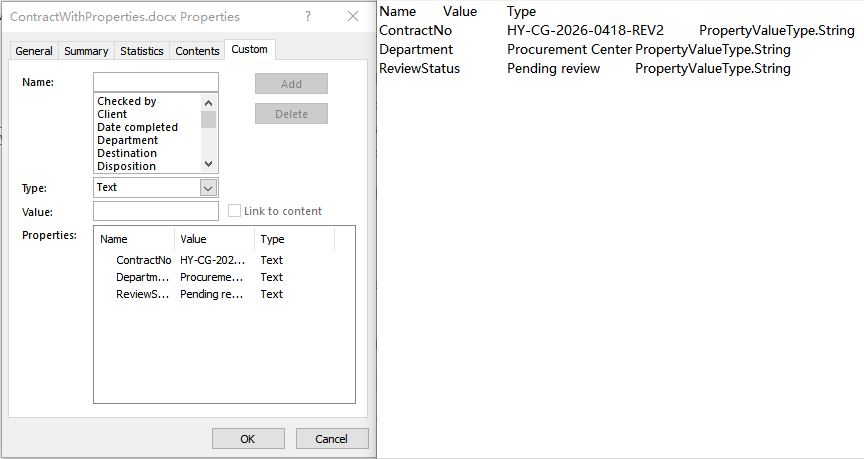
The contract number has been changed to HY-CG-2026-0418-REV2, the newly added ReviewStatus remains in the collection, ArchiveBox has been removed, and the existing Department is unchanged. The type column comes from DocumentProperty.ValueType, and all three items are PropertyValueType.String.
The Correct Way to Update an Existing Property
Calling Add() again for a property that already exists does not overwrite the original value; both the item count and the values in the collection stay the same, so Add() cannot be used to update. A string property has to be taken out with get_Item(), and the new value wrapped with new docModule.String() before it is assigned to Value; passing a bare string reports a null argument (ArgumentNull_Generic). Numeric and boolean properties need a wrapped value of the matching type, and the more straightforward route is to remove the property and add it again, so that Add() infers the type from the new value:
const custom = doc.CustomDocumentProperties;

// String values: wrap them with new docModule.String
custom.get_Item('ContractNo').Value = new docModule.String('HY-CG-2026-0418-REV2');

// Numeric or boolean values: remove first, then add so the type follows the new value
custom.Remove('Amount');
custom.Add('Amount', 367.2);
Name Case and Duplicate Additions
Custom property names are case-insensitive: when ContractNo already exists, calling Add('contractno', ...) does not add another item to the collection. Calling Add() again for an existing name is likewise ignored; it neither adds an entry nor rewrites the original value. To update an existing property, assign to Value as shown above, or remove it first and add it again.
How the Value Type Is Determined
Add(name, value) infers the type from the JavaScript value passed in: a string is stored as PropertyValueType.String, an integer as PropertyValueType.Int, a decimal as PropertyValueType.Double, and a boolean as PropertyValueType.Boolean. ValueType returns an enumeration object, and joining it into a string directly produces a name such as PropertyValueType.String, with no extra mapping required.
Date values are not supported yet: after a Date object is passed in, the collection does gain an item, but reading that item by name reports Property value is of unsupported type. Date information is better stored as an ISO string such as 2026-09-28 and converted when it is read.
Properties versus Document Variables
Document variables (doc.Variables) are key-value pairs that Word field codes can reference, and they appear in the body when the fields are updated; custom properties are document metadata and do not take part in body layout. When the contract number has to be displayed automatically in the body, write a document variable and insert the corresponding field in the body; when the information only has to be recorded, custom properties are enough.
FAQ
Do the files have to be uploaded to a server when reading and writing document properties
Not with the approach in this article. Spire.Doc for JavaScript runs in the browser on WebAssembly, and documents are read and written locally through the virtual file system (VFS): loading, reading, updating and saving all happen on the device, and the library itself does not send files to a server. Whether a file eventually leaves the device depends on the other code you add to the page.
Can custom properties store a date
In Spire.Doc for JavaScript, passing a Date object is not reliable in practice: after Add() is called the item count increases, but reading that item by name reports Property value is of unsupported type. Store date information as an ISO string such as 2026-09-28 and convert it as required after reading.
const custom = doc.CustomDocumentProperties;

// Store the date as a string and convert it when reading
custom.Add('SignDate', '2026-09-28');
Are the last author and last-saved time updated automatically after saving
Saving does not rewrite either field in practice: after LastAuthor and LastSaveDate are written, saved and the document is reloaded, the values read back are still the ones that were written; when they are not written, the original values of the file are kept. To make them reflect the current processing, assign them explicitly before saving.
Does a null property mean that the property does not exist
Not necessarily. Most built-in properties that have not been set return an empty string, while fields such as Keywords and ContentStatus may return null; both results mean only that there is no readable value and cannot distinguish "never set" from "set to empty". For checking purposes, judge by the document source and the business rules together rather than by the returned value alone.
Get a Free License
Spire.Doc for JavaScript offers a 30-day full-featured free trial license with no functional limitations. Apply here to evaluate before purchasing.
